



How to Check Your PC Power Supply Wattage and PSU Model Safely
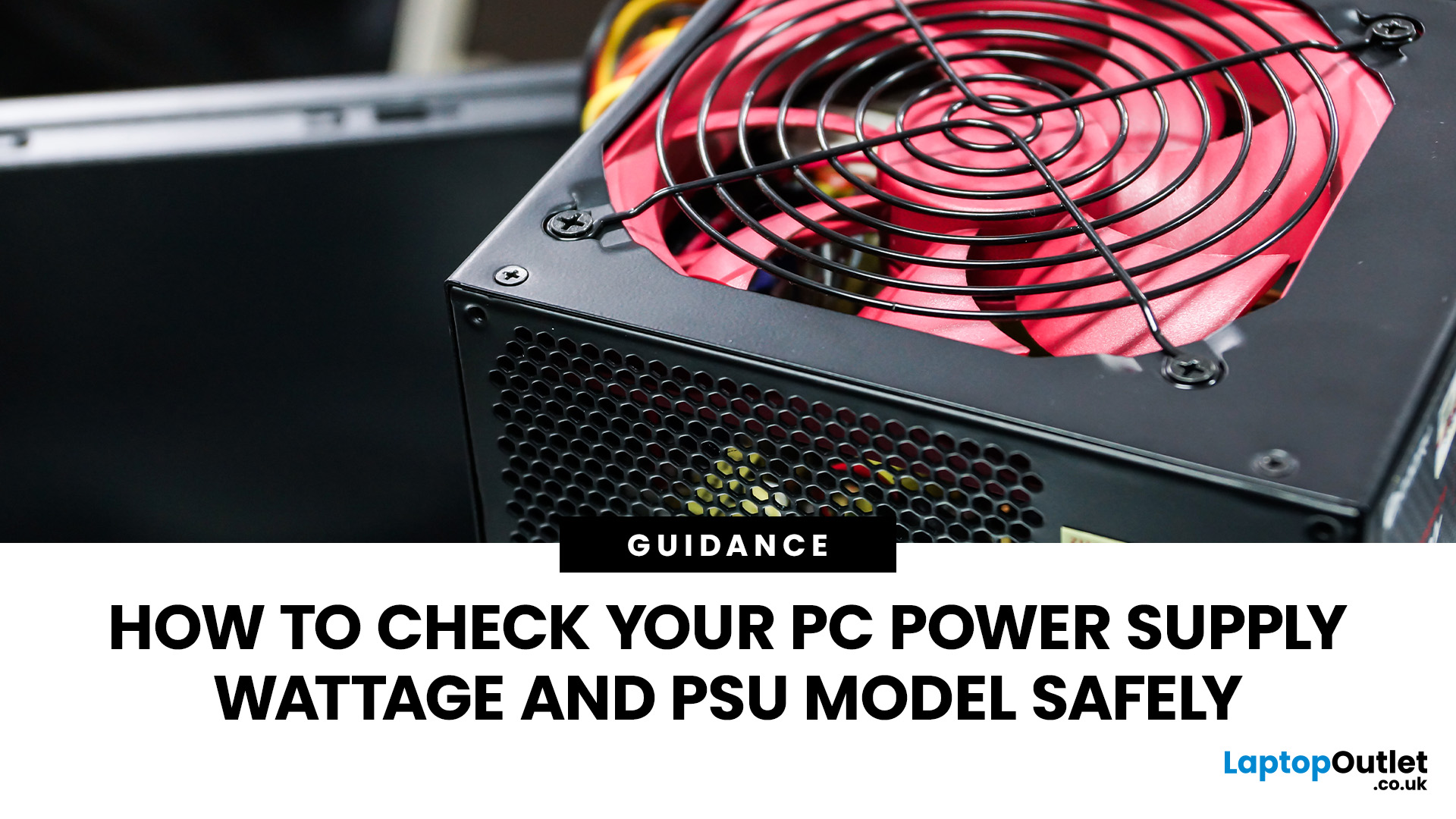
Not sure whether your PC has a 450W, 650W or 850W power supply? The most reliable way to find out is to check the label on your power supply unit (PSU). You can also use your computer's specifications or purchase records to identify its wattage without opening the case.
However, Windows 11 and Windows 10 cannot normally display your PSU's wattage or model.
This guide explains how to check PC power supply wattage safely, locate the PSU label and understand what software can actually tell you.
How to Find PSU Wattage: Quick AnswerThere are several ways to find your PSU's rated wattage and model, depending on your computer's design and available documentation.
The PSU's external label is generally the most reliable source for identifying the unit actually installed in your computer. |
How to Check Your PSU Wattage Without Opening the PC
If you want to find your power supply wattage without opening the computer, start with its documentation. These methods are particularly useful for prebuilt systems.
1. Check Your PC Manufacturer's Specifications
Manufacturers often include power supply information in their desktop specifications or technical documentation.
First, identify your computer's model:
- Press Windows + R to open the Run dialogue box.
- Type msinfo32 and press Enter.
- Find System Manufacturer and System Model under System Summary.
- Visit the manufacturer's official support website.
- Search for your exact model and check its technical specifications or service manual.
For branded desktop PCs, the documentation may specify a 300W, 500W or another PSU rating.
However, some computer models ship with different power supply configurations. Check the exact product or part number where possible, rather than relying on a general specification.
2. Review Your Purchase Records or PC Build Details
Your original invoice, order confirmation or component list may identify the installed power supply.
Look for details such as:
- PSU manufacturer and model number
- Rated output wattage, such as 650W or 750W
- Original PC configuration
- Records of any PSU replacements or upgrades
This method can be particularly helpful for gaming desktop PCs, where different hardware configurations may require different power supplies.
If you've upgraded or replaced the PSU since purchasing your computer, the original records might no longer be accurate.
3. Look for a Visible PSU Label
Some PC cases have transparent side panels or openings that allow you to see part of the PSU without removing anything.
Look towards the rear of the computer, usually near the bottom or top of the case.
You may be able to identify the manufacturer's logo, model number or wattage marking.
However, many PSU labels face an internal panel or sit behind a protective shroud. If you cannot see the information clearly, don't attempt to reach through ventilation openings or move internal components while the computer is powered.
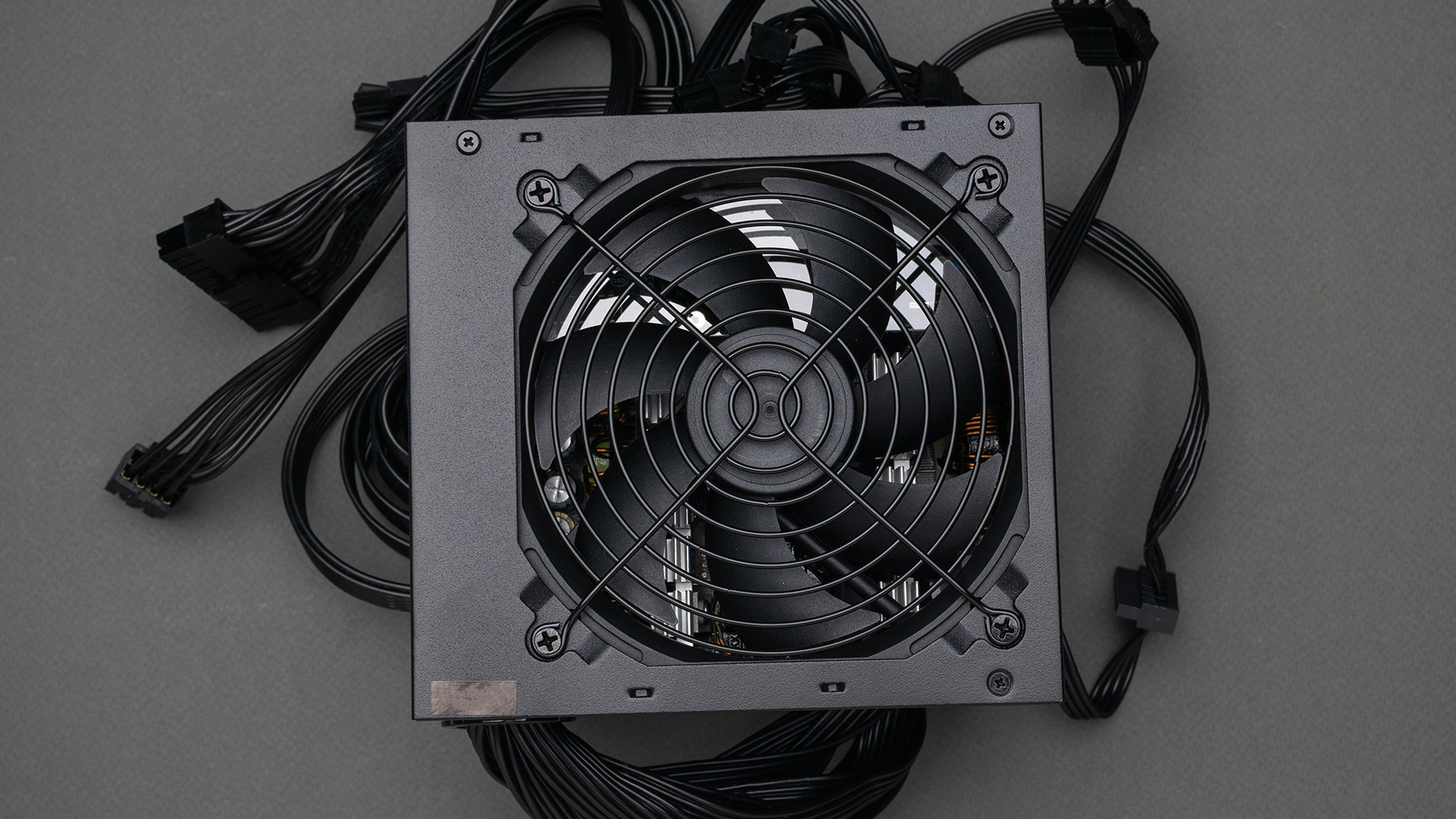
How to Find Your PSU Wattage and Model Inside the PC Safely
If the previous methods don't work, inspecting the PSU's external identification label is usually the most dependable option.
In most tower desktop PCs, the power supply is installed towards the rear of the computer, either at the top or bottom.
Step-by-Step Instructions
- Shut down your PC: Turn the computer off completely and allow its fans to stop.
- Disconnect the power: Switch off the PSU using its rear switch, if present, and unplug the mains cable from the computer.
- Remove the appropriate side panel: Follow your PC case manufacturer's instructions. Some panels use thumbscrews, while others have release mechanisms.
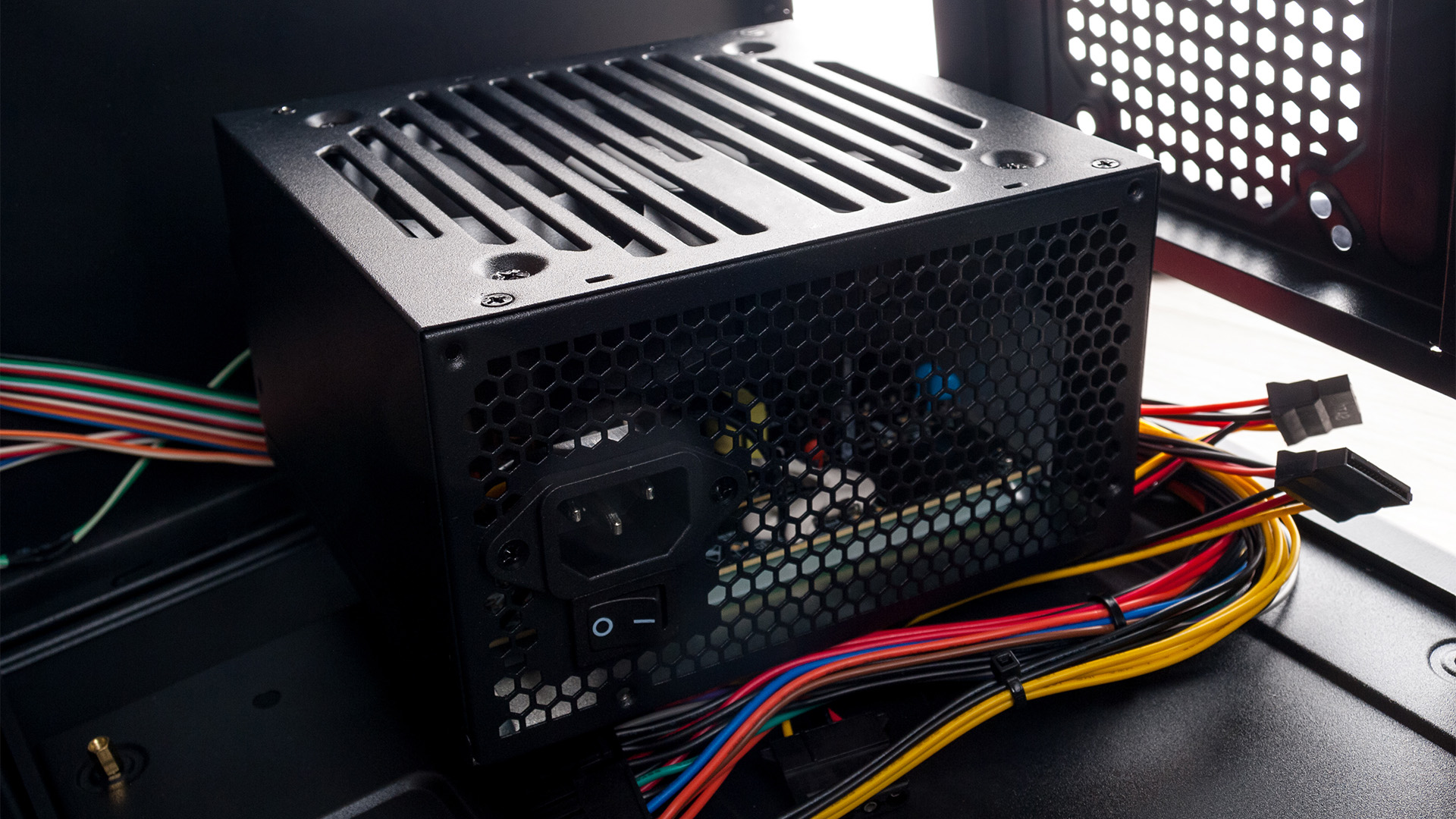
- Locate the PSU: Look for the rectangular metal unit where the mains cable connects at the rear of the PC.
- Find the identification label: Check the visible external surfaces for the manufacturer, model number and rated output.
- Record the details: Take a photograph of the label if it is clearly accessible, or write down the information.
You don't need to disconnect internal power cables or remove the PSU to identify its wattage.
Important safety warning: Never open the metal housing of the power supply itself. PSU capacitors can retain dangerous electrical charges even after the unit has been disconnected. Never insert tools or other objects into its ventilation openings.
If the label is inaccessible or removing panels is difficult, consult a qualified technician rather than attempting further disassembly.
How to Read the Wattage and Model Information on a PSU Label
Once you've located the label, you'll usually see a combination of model information, electrical ratings and certification markings.
Here's what the main details mean:
|
PSU label information |
What it means |
|
Manufacturer |
The company that produces or markets the PSU |
|
Model number |
Identifies the specific power supply |
|
Total Power / Rated Output |
The PSU's rated maximum combined output wattage |
|
AC Input |
Supported mains voltage, frequency and input current |
|
+12V Output |
Maximum power or current available from the 12V rail |
|
80 PLUS rating |
Indicates an efficiency certification, not wattage capacity |
For example, a PSU might display:
- Model: Example-650
- Total Power: 650W
- AC Input: 100–240V AC, 50–60Hz
- Efficiency: 80 PLUS Gold
In this hypothetical example, 650W is the PSU's rated output capacity.
Don't mistake input voltage or individual rail ratings for total PSU wattage. Similarly, an 80 PLUS Gold label describes efficiency certification rather than how much power the unit can supply.
Can You Check Power Supply Wattage in Windows 11 or Windows 10?
Unfortunately, Windows cannot normally identify the wattage or model of a standard desktop power supply.
Although Windows provides detailed information about processors, memory, storage and graphics hardware, most conventional PSUs don't communicate their identification information directly to the operating system.
How to Check Power Supply Wattage in Windows 11
Windows 11 includes several system information tools, but none can ordinarily display the installed PSU's rated capacity.
- Settings > System > About: Shows basic PC specifications, but not PSU wattage.
- Task Manager: Displays hardware performance and some application power-usage information, not the PSU's rated output.
- System Information (msinfo32): Identifies various system components but doesn't normally report the PSU model.
- Device Manager: Doesn't ordinarily list a standard desktop PSU as an identifiable device.
These tools can help identify your computer, but you will generally need documentation or a physical PSU label to confirm its wattage.
How to Check Power Supply Wattage in Windows 10
The same limitation applies to Windows 10.
Neither System Information nor ordinary Command Prompt or PowerShell commands can reliably retrieve the wattage of a conventional PSU.
You can use msinfo32 to identify your computer model and then consult its original specifications, but this won't verify whether the power supply has subsequently been replaced.
Is There Software to Check Power Supply Wattage on a PC?
Hardware monitoring applications such as HWiNFO and HWMonitor can display useful readings from supported system sensors.
These may include:
- CPU power consumption
- GPU power consumption
- Hardware temperatures
- Voltage readings
- Fan speeds
However, these readings don't normally reveal the installed PSU's rated wattage or exact model .
There are exceptions. Certain digitally monitored power supplies, including compatible Corsair HXi models, can communicate with manufacturer software such as Corsair iCUE.
Depending on the model and its connection to the motherboard, this software can show PSU monitoring information, including power input and output readings.
This functionality requires supported hardware. Installing monitoring software alone won't make an ordinary PSU identifiable.
How to Check Your PC's Actual Power Consumption
Checking PSU wattage isn't the same as measuring how much electricity your computer uses.
For example, a desktop with a 750W power supply doesn't continuously consume 750 watts. Actual consumption changes depending on the workload, hardware and operating conditions.
If you want to check your PC's power consumption, a plug-in electricity usage meter is one practical option.
Measuring PC Power Usage with a Power Meter
- Choose a suitable plug-in power meter rated for your mains supply.
- Connect it to the wall socket according to its instructions.
- Plug your desktop computer into the meter.
- Switch on the computer and observe the reading while idle.
- Run your normal applications or games to see how consumption changes.
The reading represents electricity drawn from the socket, including losses caused by PSU inefficiency.
Software monitoring can provide useful estimates of individual component consumption, but these figures don't necessarily equal the computer's total wall power draw.
It's useful to understand three separate measurements:
|
Measurement |
What it tells you |
|
PSU rated wattage |
The power supply's maximum specified combined output |
|
Actual PC power consumption |
How much electricity the computer uses during operation |
|
Estimated power requirement |
How much power a particular hardware configuration is expected to need |
A PSU wattage calculator estimates requirements for a hardware configuration. It cannot determine the rated wattage of the power supply already installed.
Why Knowing Your PSU Wattage Matters
Knowing your existing PSU's capacity is particularly important when upgrading hardware.
For example, installing a more powerful graphics card may increase power requirements. Before upgrading, you'll need to determine whether your power supply can support the new configuration.
The PSU's wattage is only part of that assessment. You should also check:
- Available PCIe or other required power connectors
- The PSU's +12V output capacity
- Recommended PSU requirements for the hardware
- PSU condition, quality and compatibility
Identifying the exact model also helps when considering replacement PC power supplies, as physical dimensions, form factors and connector compatibility can vary.
Avoid assuming that a higher wattage rating automatically guarantees suitability for every PC.
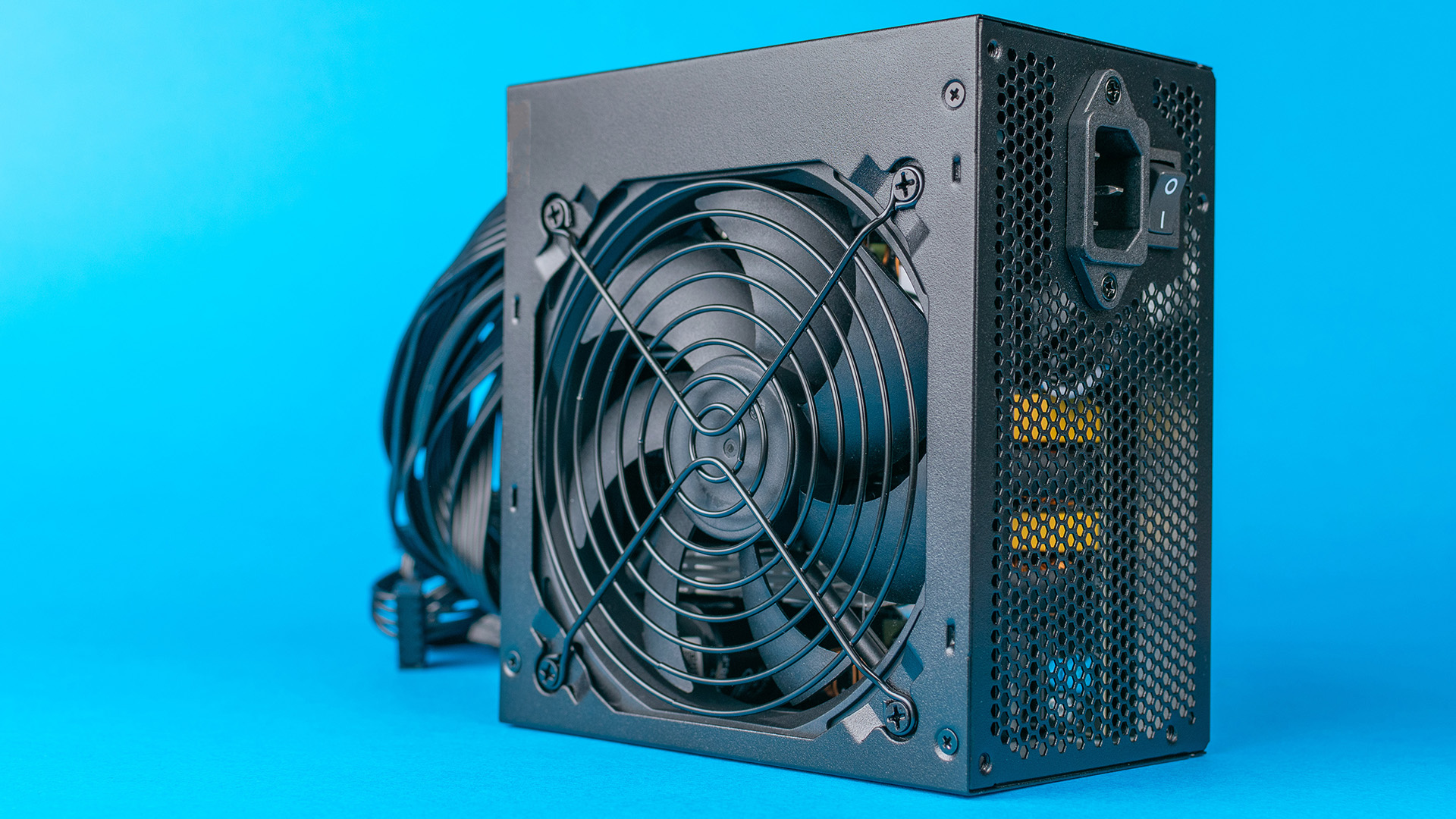
What If You Cannot Find Your Power Supply's Model or Wattage?
Sometimes the label is hidden, missing or difficult to read.
Certain PC cases include PSU shrouds that conceal most of the power supply. In other designs, the identification label faces a panel or an inaccessible side.
If you cannot identify the PSU:
- Check the computer manufacturer's service manual or original build sheet.
- Look for a PSU part number in previous maintenance records.
- Contact the original PC builder using your computer's model or serial number.
- Ask a qualified technician to identify the installed unit.
Don't remove the PSU or disconnect internal wiring simply to read a label if you're unfamiliar with PC hardware.

Find Your PSU Wattage the Safe Way
If you're unsure how to check PC power supply wattage without opening your computer, manufacturer specifications and purchase records can also help identify its original rating and model.
Windows and general hardware monitoring software cannot normally identify a standard PSU's wattage, although certain digitally monitored models are exceptions.
Before upgrading hardware, confirm the PSU's actual model, rated output and compatibility rather than relying on estimated power consumption alone.

Still Unsure About Your Power Supply?
Can I Check My PSU Wattage Using Command Prompt?
No. Command Prompt cannot normally identify a standard desktop PSU's rated wattage. Although Windows commands can retrieve various system specifications, most conventional power supplies don't communicate their model or rated output to the operating system.
Does Task Manager Show Power Supply Wattage?
No. Task Manager displays hardware performance information and may show relative application power usage, depending on your Windows version. However, it doesn't report the installed PSU's maximum wattage capacity or normally identify its model.
Can I Find My PSU Wattage Without Opening the PC Case?
Yes, sometimes. Check your manufacturer's technical specifications, original invoice or PC build records. If the PSU label is visible through a transparent panel, you may also be able to read its wattage directly. These methods may not identify a replacement PSU.
Can BIOS Show My Power Supply Wattage?
Most consumer desktop BIOS or UEFI interfaces cannot display PSU wattage. They may provide voltage and fan readings, but these don't identify the power supply's rated capacity. Some specialist systems support additional power monitoring, depending on their hardware.
Does a 750W PSU Always Use 750 Watts of Electricity?
No. A 750W rating describes the PSU's rated output capacity, not its constant electricity consumption. Actual power draw depends on the computer's workload and components. Power drawn from the wall also includes conversion losses within the PSU.
What Should I Do If My PSU Label Is Hidden or Unreadable?
Start by checking your PC's documentation and previous purchase records. If those aren't available, contact the manufacturer or original builder. A qualified technician can inspect the installed PSU when its label cannot be accessed safely.
| Read More: |
| PSU Fan Not Spinning: Normal Zero-RPM Mode or a Fault? |
| Energy-Efficient PCs: How Much Can You Save Per Year? |
| Graphics Card Buying Guide 2026: What to Check |
Related Articles

Last Updated: June 15, 2026
The world of gaming desktops has never been more exciting. In 2026, gamers can enjoy next-level performance powered by Intel Core 14th Gen and AMD Ryzen 9000-series processors, paired with NVIDIA RTX 40 and 50-series GPUs. Whether you’re after an entry-level setup or a high-end machine for 4K gaming and VR, today’s best gaming desktop 2026 options offer something for every type of player. This guide breaks down the top categories, performance, features, and ideal users, to help you buy the best gaming desktop PC for your needs.
Best Budget Gaming Desktops in 2026
If you’re new to PC gaming or shopping on a budget, 2026 offers plenty of affordable options that deliver reliable 1080p performance.
Budget Highlights
- Processor: Intel Core i5-14400F / AMD Ryzen 5 8600G
- Graphics: NVIDIA RTX 50 series / AMD Radeon RX 7000 series XT
- RAM & Storage: 16GB DDR5, 512GB – 1TB SSD
Top Choices
| Model Image | Model | Processor | Graphics Capability | Memory (RAM) | Storage | Operating System | Special Features |
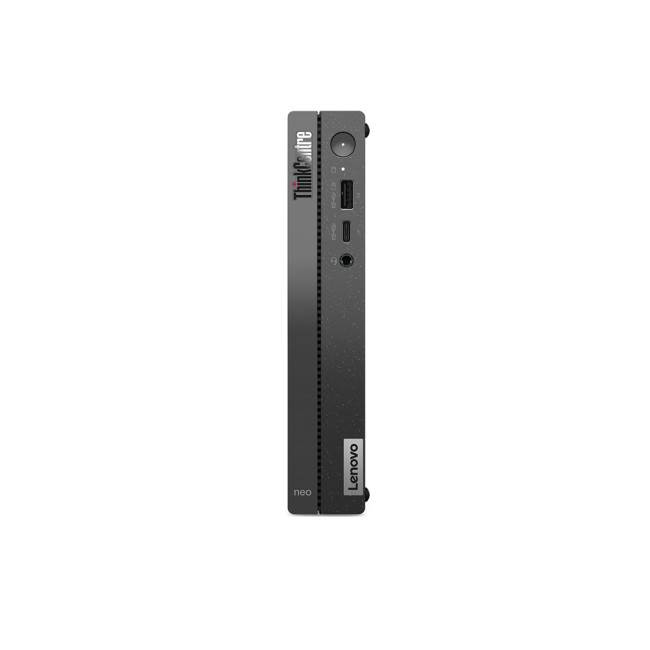 | Lenovo |

Last Updated: January 27, 2026
Intel has remained a titan in the world of PC gaming for decades. Their processors power some of the most capable high-performance gaming desktops on the market today.
Recently, we have seen a massive shift in how these chips operate. The evolution from the classic Core i-series to the brand-new Ultra Core processors marks a new era. These advancements are not just about speed; they are redefining the entire gaming experience.
If you want a top-tier machine, understanding how Intel CPUs work in gaming desktops is essential.
The Role of a CPU in Gaming
The CPU acts as the brain of your computer. It handles every logic calculation and physics instruction required for your game.
CPU vs GPU: Understanding the Balance
The GPU handles the visuals and graphics rendering. Meanwhile, the CPU manages physics, logic, and artificial intelligence.
You need a strong balance between both components to avoid lag. If one is too slow, the other cannot perform at its full potential during intense sessions.

Last Updated: January 27, 2026
Building or buying a high-end gaming PC is an exciting journey for any enthusiast. The market moves fast, and staying updated on the latest hardware is essential for the best experience.
In this gaming desktop PC breakdown, we will explore the core parts that make a machine powerful. We will look at the latest processors from AMD and Intel, the incredible graphics power of NVIDIA RTX and Radeon RX, alongside other core components.
Whether you want to play the newest AAA titles or compete in esports, understanding these parts is vital. Let us dive into the modern world of gaming PC technologies.
Understanding Gaming Desktop PCs
A gaming desktop PC is a high-performance computer designed specifically to handle demanding video games. Unlike standard PCs, these machines focus on graphical power and fast processing speeds. They use specialised parts that can handle high heat and heavy workloads.
While gaming laptops and consoles are popular, the desktop remains the "gold standard" for several
Last Updated: July 20, 2026
Choosing between an RTX 5070 and RTX 5080 gaming PC is one of the biggest decisions you may face when buying or upgrading a gaming desktop. Although both GPUs support NVIDIA’s latest gaming technologies, they are designed for different resolutions, performance targets, system budgets, and types of players.
In this RTX 5070 vs RTX 5080 comparison, we examine gaming performance, ray tracing, power requirements, system specifications, overall value and the right graphics card for you. We will also briefly explain where the RTX 5070 Ti fits for buyers who want more performance than the RTX 5070 without moving to a premium RTX 5080 gaming PC.
Whether you are considering an RTX 5070 prebuilt PC or planning a high-end custom desktop, this guide will help you understand the difference between RTX 5070 and 5080 gaming systems.
Understanding the RTX 50 Series Line-Up
NVIDIA’s RTX 50 series GPUs are designed to push performance further while improving efficiency and AI-powered features. Across the
Published: June 11, 2026
Choosing the right gaming desktop can be the difference between smooth, immersive gameplay and a system that struggles within a year. This gaming PC buying guide explains the key components that affect gaming performance, future-proofing, and value for money, so you can buy with confidence rather than guessing from confusing spec sheets.
A good gaming PC is not just about the most expensive graphics card. It is about balance. The CPU, GPU, RAM, storage, cooling, power supply, motherboard, and case all work together. Whether you play competitive esports, cinematic single-player titles, open-world RPGs, racing games or VR, understanding the right configuration helps you avoid overspending and choose a desktop that lasts.
This article is designed as a practical gaming PC specs guide for beginners, but it also includes up-to-date 2026 advice for buyers comparing modern RTX, Radeon, Intel, and AMD-powered systems.
Why Buy a Gaming Desktop PC?
A gaming desktop PC remains one of the best choices
Last Updated: June 15, 2026
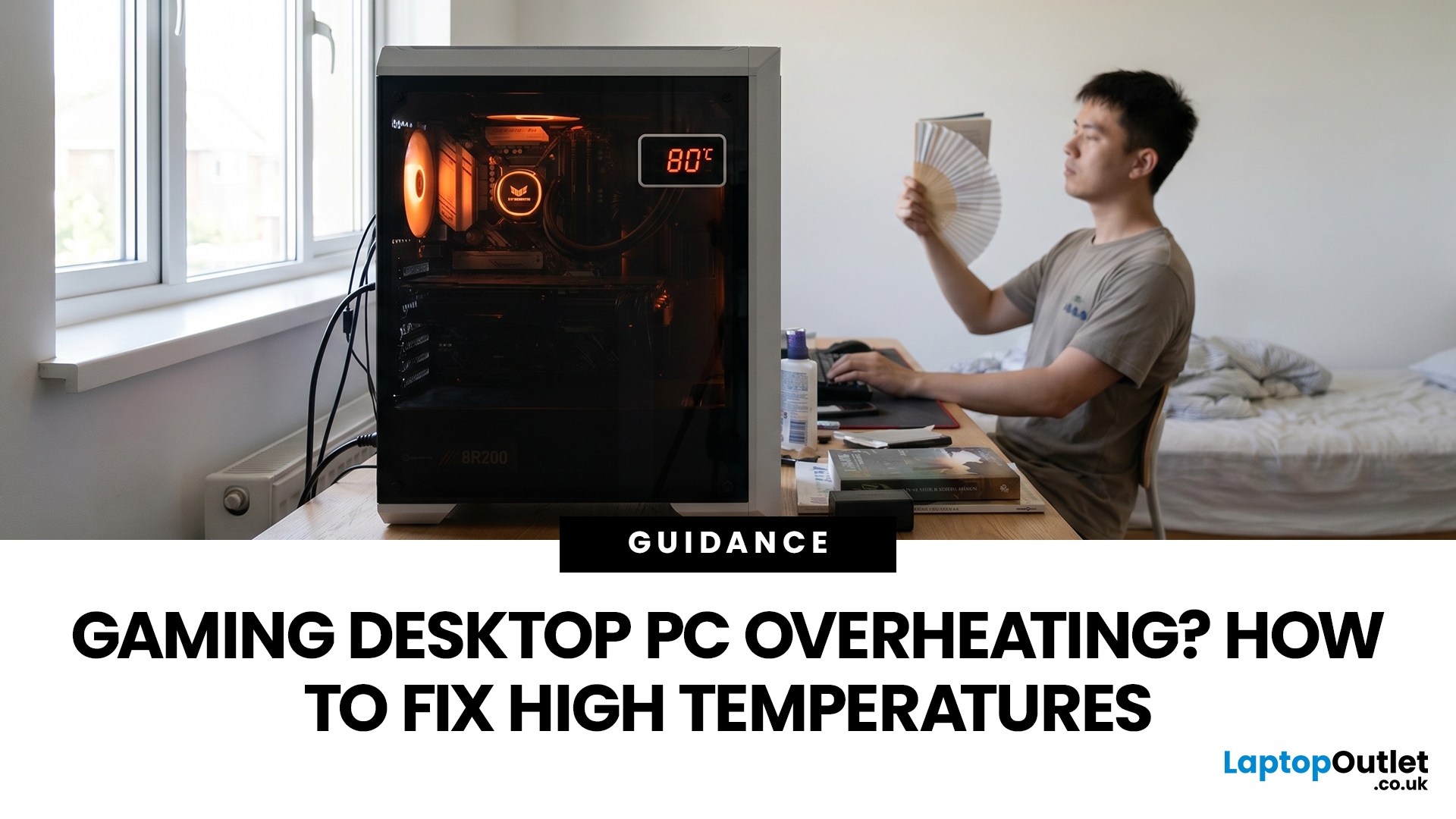
A gaming PC overheating usually comes down to one of five things: blocked airflow, dust build-up, weak cooling, aggressive game settings, or poor contact between the CPU/GPU and its cooler.
| Here is the fast version:
|
Gaming PC Overheating: What It Means and Why It Matters
You’re mid-match. Your FPS is smooth. Then suddenly, the game stutters, the fans sound like a jet engine, and your PC feels like it could toast bread.
That is not “just gaming PC life”.
A hot gaming desktop is normal. An overheating
Published: July 21, 2026
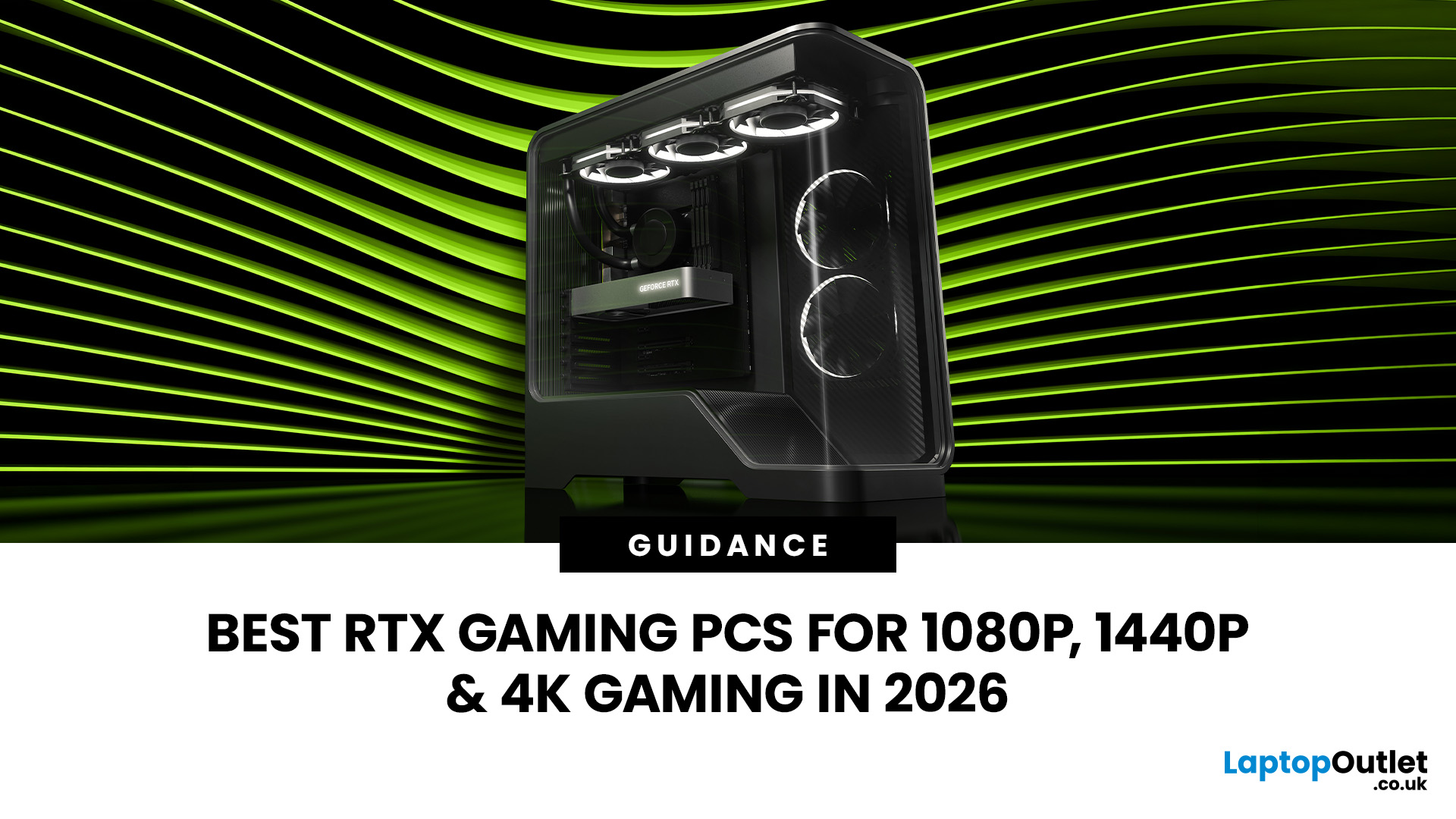
For 1080p, an RTX 5060 is the sensible mainstream pick. For 1440p, step up to an RTX 5060 Ti 16GB or RTX 5070. For 4K, the RTX 5080 is the best-balanced choice for most people, with the RTX 5090 reserved for buyers who genuinely need its 32GB of memory or maximum settings at every resolution.
Picking one of the best RTX gaming PCs isn't about flexing the priciest GPU - it's about matching your rig to your setup and the games you actually play. A competitive player on a 1080p 240Hz display needs strong CPU performance and low latency. Someone playing cinematic single-player games on a 4K screen needs more GPU power, VRAM, and cooling. A 1440p buyer usually wants the strongest balance of image quality, speed, and price.
Getting this right prevents two expensive mistakes: overspending on performance your display can't show, or buying a PC that leans too heavily on generated frames to hit numbers it can't sustain natively. The most common upgrade enquiry we see at Laptop Outlet is from 1080p
Last Updated: July 21, 2026
Last Updated: July 27, 2026
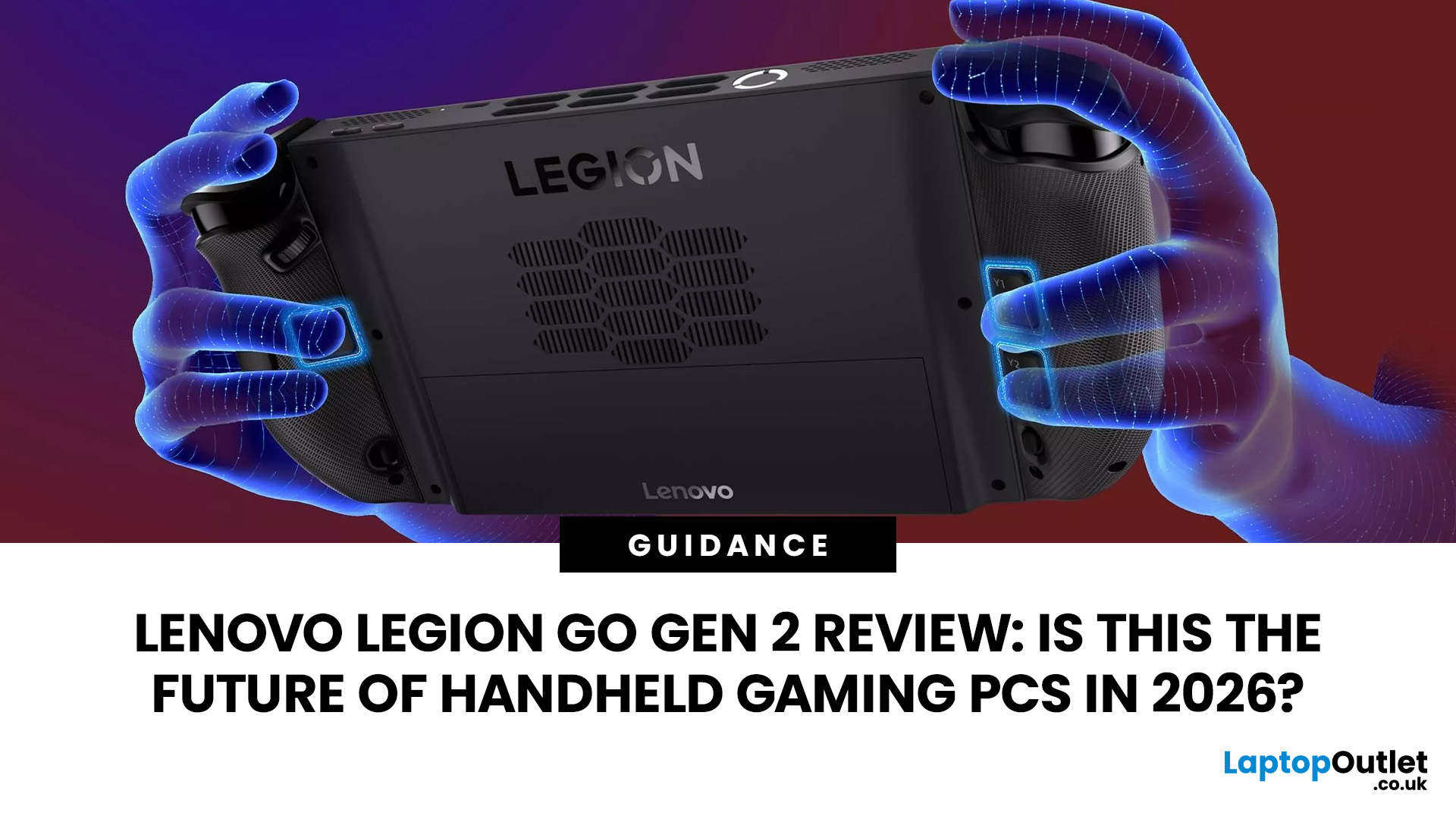
The Lenovo Legion Go Gen 2 takes almost everything that made the original handheld exciting and pushes it further. You get a huge 8.8-inch OLED display, smoother variable refresh rate gaming, upgraded AMD processing power and redesigned detachable controllers. It is powerful, flexible and packed with features, but it is also one of the biggest and most expensive handheld PCs available.
So, does this premium portable gaming PC represent the future of handheld gaming, or has Lenovo built more machine than most gamers need? This review examines its performance, battery, display, software, and competition.
Lenovo Legion Go Gen 2 Overview: What Makes This Handheld Gaming PC Different?
Lenovo officially markets the device as the Legion Go (8.8", 2), although Legion Go Gen 2 and Legion Go 2 are the names most gamers use. You may also see it shortened to Lenovo Go Gen 2, but it belongs firmly to Lenovo’s Legion gaming range. Its standout features include:
| Specification | Lenovo Legion Go Gen 2 |
| Processor |

Last Updated: August 17, 2026
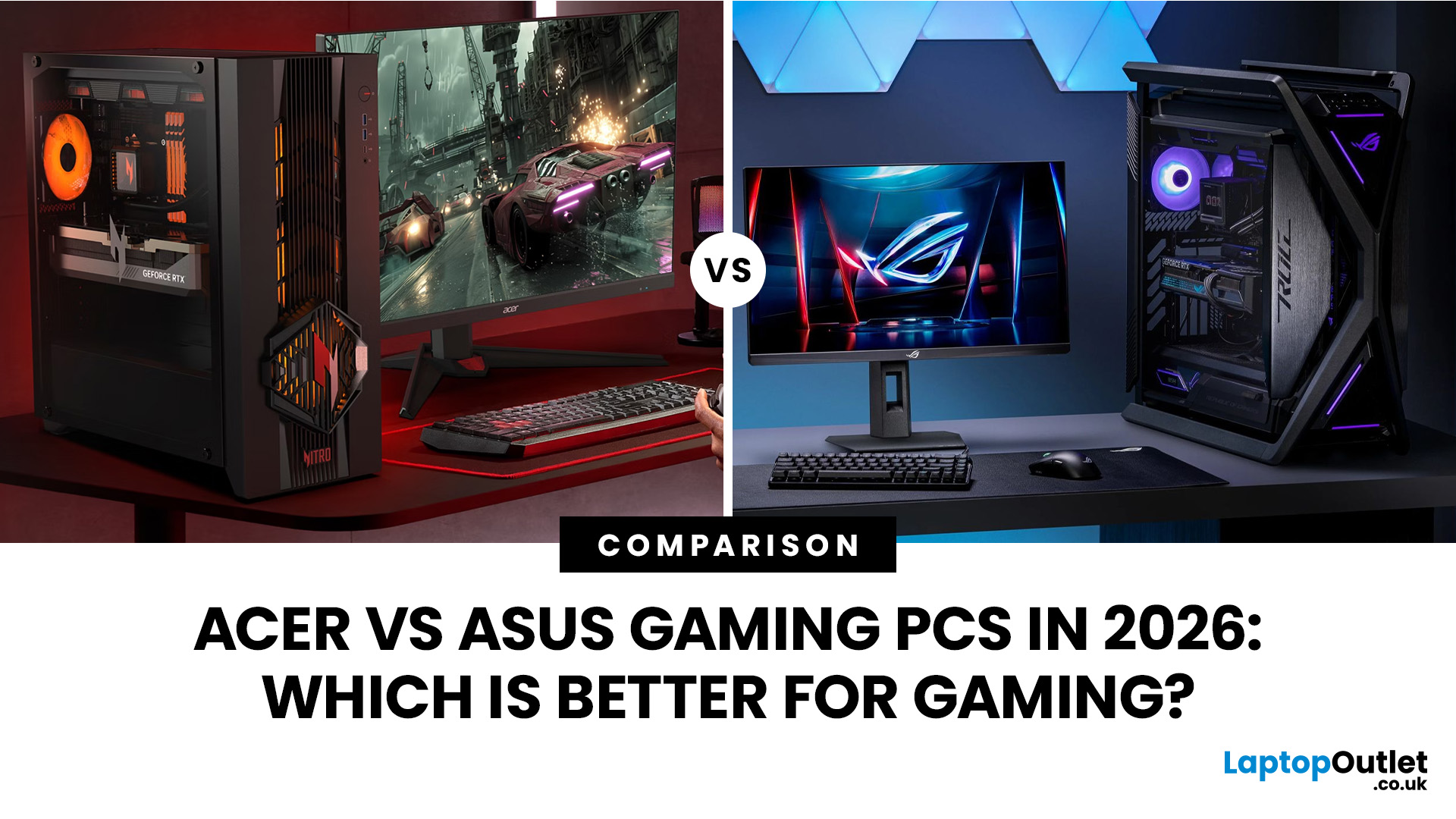
An Acer gaming PC can run Fortnite, Call of Duty: Warzone and Valorant, but the frame rate you get depends heavily on the graphics card, processor, resolution and in-game settings.
If you are comparing Acer gaming PC FPS, the biggest difference comes from whether you choose an entry-level RTX 3050 system, a newer RTX 5060 setup or a more powerful RTX 5070 desktop. Fortnite and Valorant are relatively accessible, while Warzone places much greater demands on your GPU, memory, and storage.
The Acer Nitro N20 and Predator PO3-665 desktops currently available from Laptop Outlet cover all three of these performance levels, so let’s look at what their specifications actually mean when you start playing.
Fortnite, Warzone, and Valorant PC Requirements in 2026
Before choosing a PC, compare its components against what the developers currently recommend.
| Game | Current PC Hardware Guidance | What You Should Aim For |
| Fortnite | Recommended: GTX 960-class GPU, Core i5-7300U/Ryzen 3 3300U and 16GB RAM. Epic |

