



8-Pin vs 12V-2x6 GPU Power Connectors: What Buyers Need to Know
Quick answer
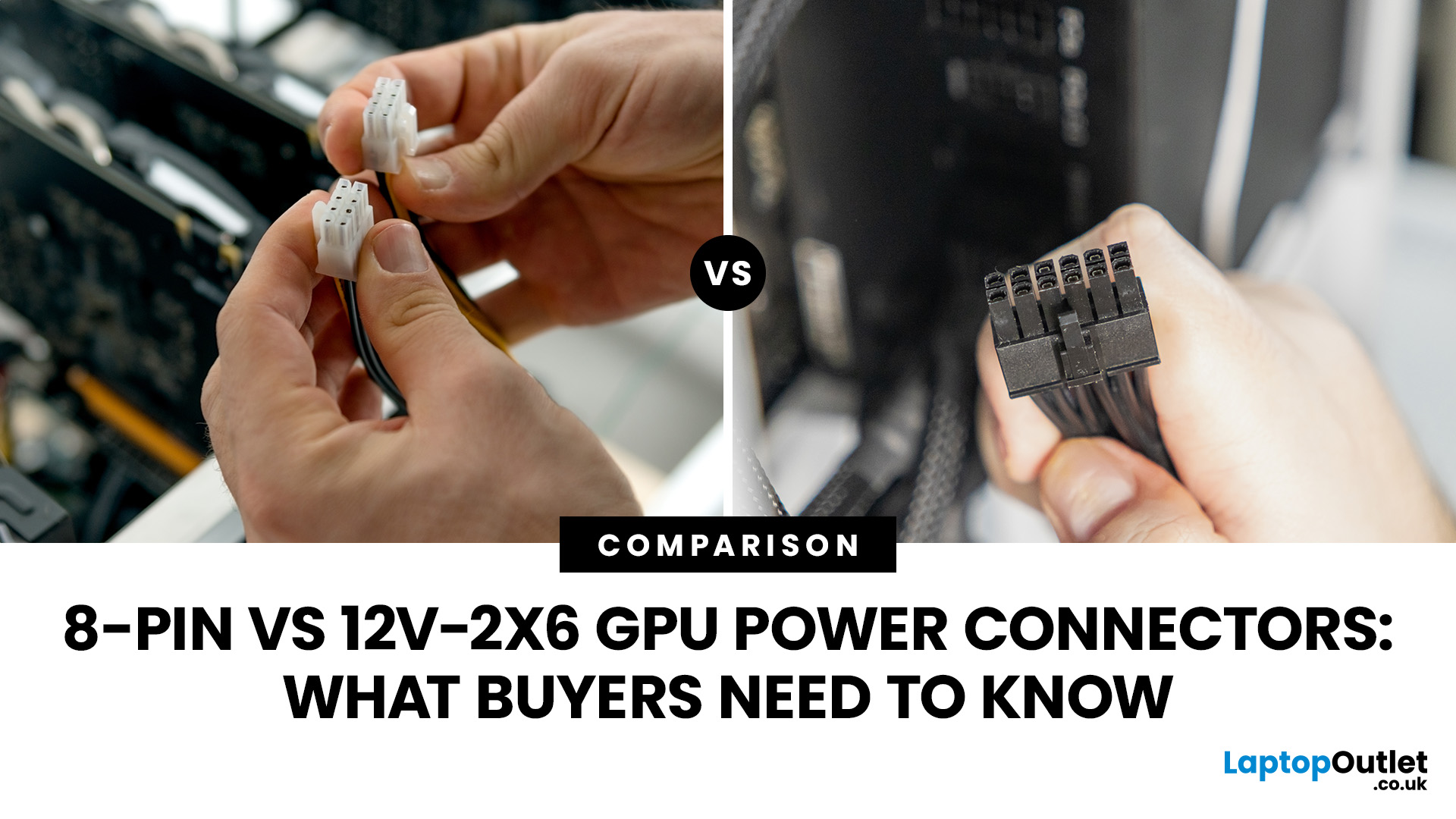
The main difference between an 8-pin and a 12V-2x6 graphics card power connector is how much power each connection can deliver. A standard PCIe 8-pin connector is rated for up to 150W, while a 12V-2x6 connector supports up to 600W using a compatible cable and power supply. Neither is automatically better for every PC. The correct choice depends on your graphics card's requirements, PSU compatibility and safe cable installation.
Upgrading your graphics card should be straightforward, but power connectors can make things confusing. Some GPUs need one 8-pin cable, others require two or three, and newer high-performance models may use a single 16-pin connection.
Choosing the wrong cable or overlooking your PSU's capabilities can lead to installation problems and potentially damage your hardware.
Before buying, it's worth understanding which connector your GPU needs, how much power it supports and whether your existing power supply is suitable. Here's what you should check.
What are the different graphics card power connector types?
A graphics card receives power through the motherboard's PCI Express slot. More demanding GPUs also need additional electricity supplied directly from the power supply unit (PSU).
Different graphics card power connector types exist to support these additional requirements.
|
Connector type |
Standard power rating |
Common application |
|
PCIe motherboard slot |
Up to 75W |
Provides power through the motherboard |
|
6-pin PCIe |
Up to 75W |
Selected older and lower-powered graphics cards |
|
8-pin PCIe |
Up to 150W |
Many mainstream and performance GPUs |
|
6+2-pin PCIe |
Up to 150W as an 8-pin connection |
Flexible PSU cable supporting 6-pin or 8-pin GPU sockets |
|
12VHPWR (16-pin) |
Up to 600W |
Earlier high-power connector design |
|
12V-2x6 (16-pin) |
Up to 600W |
Revised high-power connection used by newer GPUs |
These figures describe connector power limits, not how much electricity a GPU continuously consumes.
For example, a graphics card with two 8-pin connections has access to power through both connectors and the PCIe slot. However, its actual consumption depends on the manufacturer's board-power specifications.
Important: A higher connector rating doesn't automatically mean a graphics card is faster or consumes more electricity.
8-Pin vs 12V-2x6 GPU Connectors: Key Differences
Both connectors perform the same basic job: supplying additional power to a dedicated graphics card.
The important differences are their physical design, power capacity and cable requirements.
What is an 8-pin graphics card power connector?
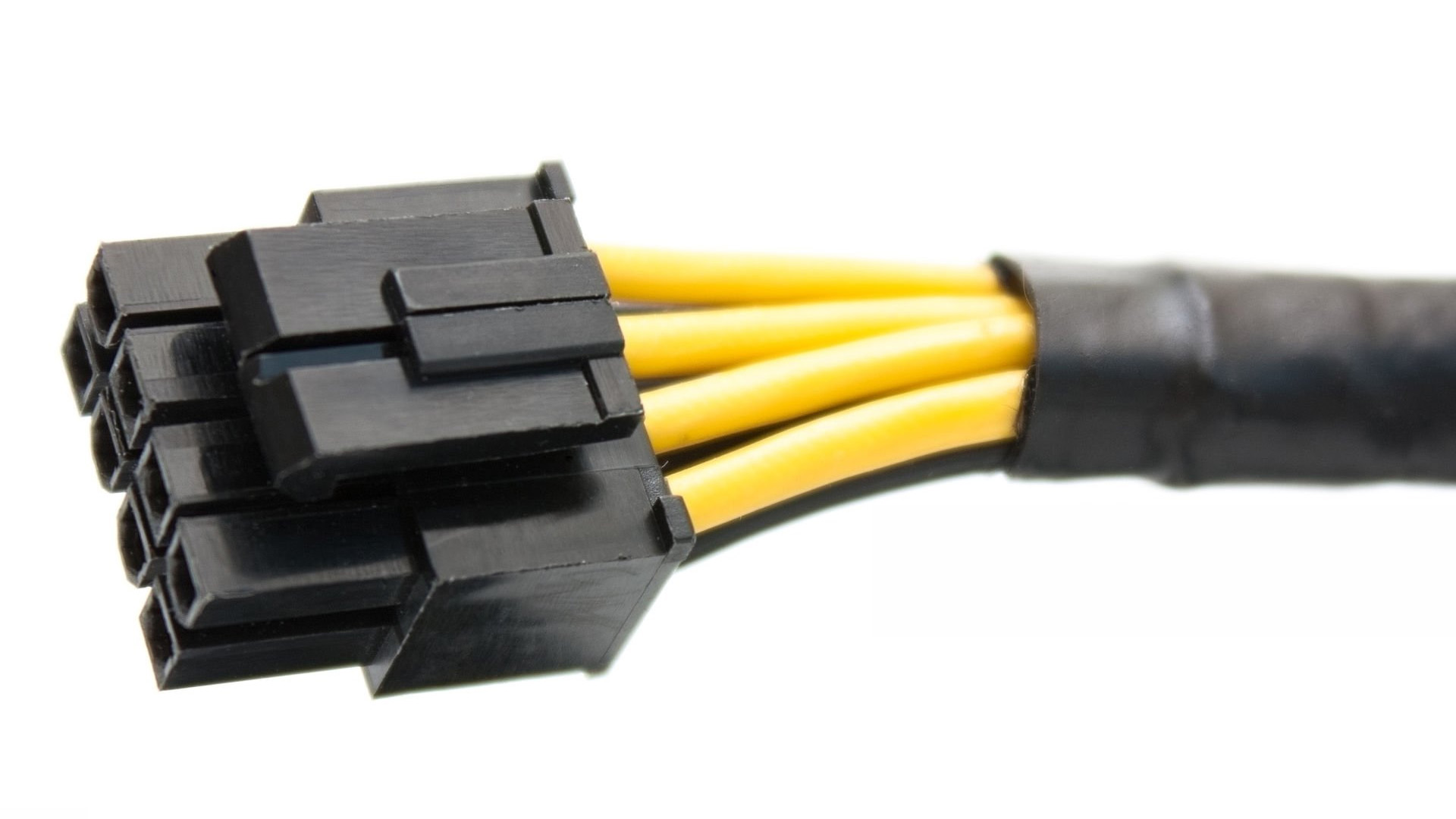
An 8-pin graphics card power connector is a traditional PCIe power connection used by many desktop GPUs.
It delivers up to 150W through one connector, allowing the graphics card to receive more power than the motherboard slot alone can provide.
Many power supplies include 6+2-pin PCIe cables. These have a six-pin section and a detachable two-pin section, allowing the same cable to connect to compatible six-pin or eight-pin GPU sockets.
The 8-pin connector remains a practical choice for many mainstream and high-performance graphics cards.
Its main limitation is that GPUs requiring more power may need multiple connections.
What is a 12V-2x6 graphics card power connector?
The 12V-2x6 connector is a newer 16-pin design introduced through the PCIe CEM 5.1 specification to replace the earlier 12VHPWR connector.
It has 16 contacts arranged into two groups:
- 12 larger contacts: Six supply 12V power, while six provide the return connections.
- Four smaller contacts: Carry signals used for power-related communication and connection detection.
The connector supports power levels of 150W, 300W, 450W and 600W, depending on the cable and power supply configuration.
This allows a compatible high-performance GPU to receive substantial power through one compact connection instead of requiring several traditional PCIe plugs.
However, a 12V-2x6 connector doesn't automatically provide 600W. The actual available limit depends on the power supply and cable's supported rating.
How is 12V-2x6 different from 12VHPWR?
The older 12VHPWR connector also used a 16-pin arrangement and supported up to 600W.
However, the revised 12V-2x6 design changes the internal contact lengths and connection-detection behaviour.
Its power contacts are longer, while the smaller signal contacts are shorter. This helps ensure that the main power contacts engage sufficiently before the power-related signals are established.
The revised design is intended to reduce risks associated with incomplete insertion.
The two connector designs are mechanically compatible, so approved existing 12VHPWR cables can work with 12V-2x6 connections.
However, the revision doesn't eliminate installation risks. Correct cable seating, suitable power ratings and careful cable routing remain essential.
Understanding the 8-Pin Graphics Card Connector Pinout
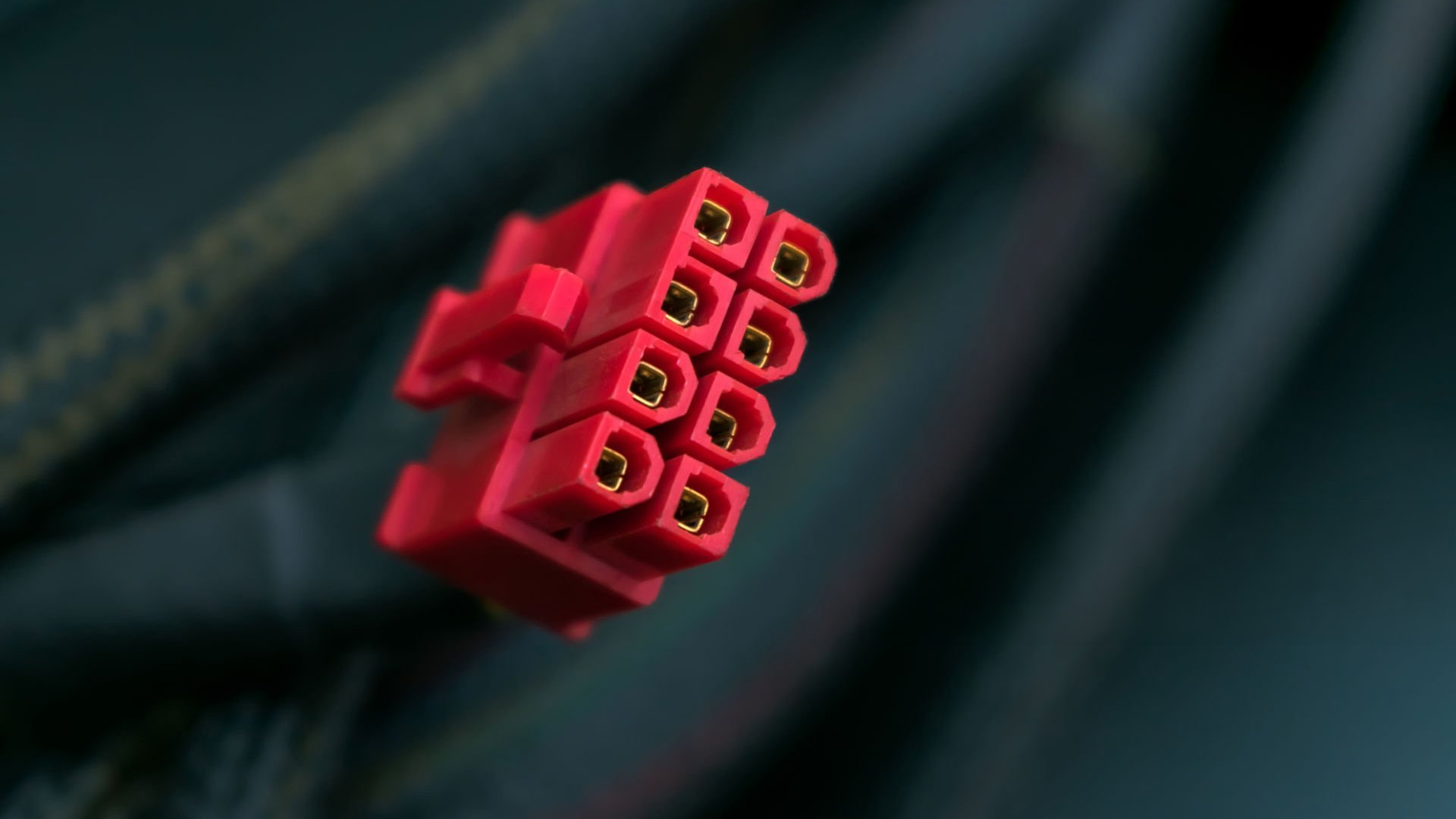
The 8-pin graphics card power connector pinout describes how its contacts are assigned to electrical functions.
In a standard PCIe 8-pin GPU connection, three contacts supply +12V power. The remaining five are associated with ground or return connections, including the sense function used to identify the connector configuration.
For most PC builders, there's no need to work with individual pins. The important point is understanding which cable belongs to which component.
PCIe 8-pin vs CPU 8-pin: Are they interchangeable?
No. A PCIe 8-pin GPU cable and an 8-pin CPU/EPS cable are not interchangeable at the component end.
They may look similar, but their pin arrangements and intended uses differ.
- PCIe 6+2-pin: Connects to the graphics card.
- CPU/EPS 4+4-pin: Connects to the motherboard's CPU power socket.
Using the wrong cable can damage your components.
Never force a connector into a socket or assume that matching pin counts mean compatibility.
Also, don't attempt to modify the wiring of an existing cable to create a different connector. Use only properly specified cables approved for your PSU.
Do All Graphics Cards Need Additional Power Connectors?
No. Some graphics cards operate entirely through the PCIe motherboard slot, while more demanding models require one or more additional power connections.
The correct arrangement depends on the exact GPU and board design.
Graphics card with no power connector
A graphics card with no power connector draws its required electricity through the motherboard's PCIe slot.
These cards are generally designed around lower power requirements and are often used in office desktops, home PCs and systems with limited PSU capacity.
However, the absence of an external connector doesn't guarantee compatibility.
You still need to check the graphics card's board-power requirements, motherboard support, available case space and cooling.
Graphics card with one 8-pin connector
Many mainstream gaming GPUs use one 8-pin PCIe connection.
For example, selected NVIDIA GeForce RTX 5060 and RTX 5060 Ti board designs use a single 8-pin connector.
This arrangement is suitable when the GPU's power requirements can be met through the motherboard slot and the additional PCIe connection.
Check the specific graphics card manufacturer's requirements before purchasing, as partner designs can differ.
Graphics card with two power connectors
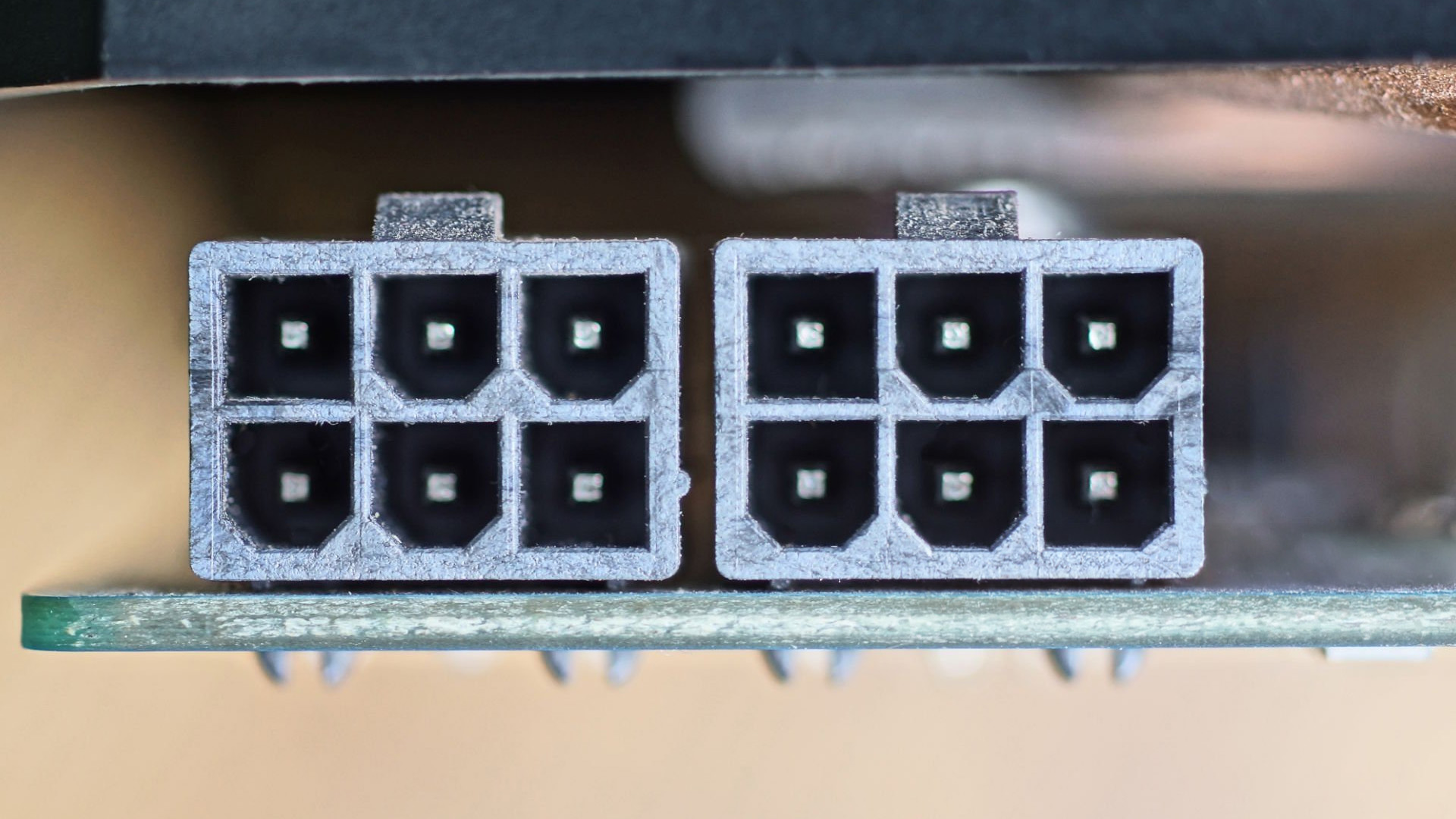
A graphics card with 2 power connectors commonly uses two 8-pin PCIe connections.
For example, AMD's reference Radeon RX 9070 XT specifications list two 8-pin power connectors.
However, some partner versions use different arrangements, including three 8-pin connections.
If your GPU requires two 8-pin plugs, both must be connected using suitable PSU cables.
For a conventional setup, using separate PCIe cables is generally the recommended approach. Don't assume that two plugs on the same split cable are suitable without checking the PSU and graphics card manufacturer's instructions.
You can compare connector configurations across our AMD Radeon graphics range, where different models and board-partner designs have varying power requirements.
NVIDIA GPU Power Connectors: What Has Changed?
NVIDIA graphics cards use different power connections depending on their GPU generation, performance tier and board design.
Some models retain traditional PCIe 8-pin connections, while others use the newer high-power 16-pin arrangement.
For example, NVIDIA specifies the following options for its GeForce RTX 5080 Founders Edition:
- Three independent PCIe 8-pin cables connected through the supplied adapter.
- One compatible PCIe Gen 5 power cable rated for at least 450W.
NVIDIA also specifies an 850W minimum system PSU recommendation for its reference configuration, although requirements can differ across complete systems.
The important distinction is between the GPU's power connector requirements and the PSU's overall rated wattage .
A 450W-rated connector doesn't mean a 450W power supply is sufficient for the entire computer.
When comparing NVIDIA RTX graphics, check the exact model's connector arrangement and recommended PSU capacity. Don't assume every RTX card uses 12V-2x6 simply because it belongs to a newer generation.
Can You Use an 8-Pin PSU with a 12V-2x6 Graphics Card?
Yes, sometimes. A compatible older PSU can power a 12V-2x6 graphics card through a properly specified adapter or an approved replacement cable.
However, you must confirm that the PSU has enough capacity, the necessary connections and manufacturer-approved cable support.
Option 1: Use a native 12V-2x6 cable
A suitable PSU with a dedicated 12V-2x6 connection offers a straightforward way to power a compatible GPU.
This avoids the need for a multi-connector adapter at the graphics card.
Modern ATX 3.1 power supplies commonly support newer graphics-power requirements, but you should still check the exact model's specifications.
Not every ATX 3.1 PSU provides the same cable rating or connector arrangement.
For example, one PSU might include a cable rated for 450W, while another supports 600W.
Option 2: Use a manufacturer-approved adapter
Some graphics cards include an adapter that combines multiple PCIe 8-pin connections into one 16-pin GPU connection.
These adapters can be used when supported by the GPU manufacturer and the existing power supply.
Before installation, confirm:
- The number of PCIe 8-pin cables required.
- Whether separate, dedicated PCIe cables are specified.
- The PSU's total wattage and available power capacity.
- Whether the adapter is approved for your exact graphics card.
- Whether the case provides sufficient room for the adapter and its cables.
Avoid using unverified adapters that convert SATA, peripheral or unsuitable power connections into GPU power plugs.
If the PSU lacks the required connections, replacing it is usually safer than trying to work around its limitations.
Option 3: Upgrade your power supply
An older PSU might have sufficient advertised wattage but lack suitable connections for a modern graphics card.
Other factors matter too, including the PSU's quality, electrical protections and ability to handle changes in power demand.
When comparing power supplies for PCs, check the exact connector types, cable ratings and GPU manufacturer recommendations.
A good-quality PSU with the appropriate power capacity and compatible cables is more important than simply choosing the unit with the highest wattage.
Can you reuse modular PSU cables?
Only when the power supply manufacturer explicitly confirms compatibility with the exact PSU model.
Modular cables are not universally interchangeable. Even cables from the same brand can have different PSU-side wiring arrangements.
Never reuse an old modular PSU cable based only on its appearance or connector shape.
Use the supplied cables or manufacturer-approved alternatives listed for your specific power supply.
How to Install GPU Power Connectors Safely
Correct installation is especially important with high-power graphics cards.
A loose connector, unsuitable cable or excessive pressure near the socket can create electrical and thermal problems.
Follow these checks when connecting GPU power.
Step 1: Shut down and disconnect your PC
Turn off the computer completely, switch off the PSU if it has a rear switch and disconnect the mains cable.
Follow the graphics card and PSU manufacturers' installation instructions before working inside the case.
Never open the PSU's metal housing.
Step 2: Identify the correct GPU power cable
Check whether your card needs PCIe 8-pin connections or a 12V-2x6 cable.
For 8-pin GPUs, use the designated PCIe 6+2-pin connectors rather than CPU/EPS cables.
For 12V-2x6 GPUs, confirm that the cable or supplied adapter supports the graphics card's requirements.
Step 3: Connect every required plug
Insert each connector fully into the matching socket.
If your graphics card requires multiple 8-pin connections, use the required number of suitable cables.
Follow the manufacturer's instructions for dedicated cables and adapters rather than relying on a generic splitter.
Step 4: Check the 12V-2x6 connection carefully
For a 12V-2x6 connector, make sure the plug is fully seated and its locking mechanism is properly engaged.
There should be no visible gap indicating incomplete insertion.
Avoid sharply bending the cable immediately after the plug or placing sideways pressure on the connection.
Seasonic and other PSU manufacturers specifically recommend ensuring connectors are properly seated and avoiding cable movement or bending close to the connector after installation.
Step 5: Check case clearance before closing
High-performance graphics cards and their power cables can take up considerable space.
Make sure the side panel doesn't press against the connector or force the cable into a tight bend.
If you're building a system around a larger GPU, compare computer case options based on graphics card clearance, PSU support and cable-routing space.
A case that comfortably accommodates the connector can make installation easier and reduce unnecessary strain on the cable.
Step 6: Inspect the connection before powering on
Check that every required cable is connected correctly and that nothing is pulling against the GPU power socket.
If a connector appears damaged, discoloured or deformed, don't use it.
If you later notice unusual smells, visible damage or repeated power-related shutdowns, stop using the system and seek qualified assistance.
Common GPU Power Connector Mistakes to Avoid
Many compatibility problems can be prevented before the graphics card is installed.
The most important mistakes include:
- Confusing CPU and PCIe 8-pin cables: These have different pin arrangements and intended connections.
- Reusing incompatible modular cables: PSU-side wiring can differ between models and manufacturers.
- Leaving a 12V-2x6 connector partially inserted: Incomplete contact can increase the risk of overheating.
- Ignoring the GPU's recommended PSU capacity: Having the correct plug doesn't guarantee sufficient power.
- Using unsuitable splitters or adapters: Unapproved conversions can place excessive demand on cables and connectors.
- Forcing cables against the case panel: Excessive bending or pressure close to a connector should be avoided.
Also, remember that a graphics card's recommended PSU rating accounts for more than the GPU alone.
Your CPU, motherboard, memory, storage and other connected components all contribute to the system's total power requirements.
Which GPU Power Connector Should You Choose?
You don't usually choose a GPU power connector independently. Instead, you select a graphics card that meets your performance needs and then make sure your PSU supports its required connection.
Use the following guide when planning an upgrade.
|
Your situation |
Recommended approach |
|
GPU requires one 8-pin connection |
Use a compatible PCIe 6+2-pin cable |
|
GPU requires two or three 8-pin connections |
Use the required number of suitable PCIe cables, following manufacturer instructions |
|
GPU has a 12V-2x6 connection |
Use a correctly rated native cable or an approved adapter |
|
Existing PSU lacks suitable cables |
Check approved replacement cables or consider a PSU upgrade |
|
Building a high-performance PC |
Consider a suitable modern PSU with native high-power GPU connectivity |
|
Upgrading a compact desktop |
Check GPU power requirements, PSU compatibility and case clearance first |
For most buyers, the key question isn't whether 12V-2x6 is better than 8-pin. It's whether the chosen graphics card and power supply are compatible.
A conventional 8-pin connection remains suitable when the GPU is designed for it.
A 12V-2x6 connection makes sense for graphics cards that use the newer high-power standard, but it must be installed with a correctly rated cable.
If you're considering a new GPU, our graphics card range includes different NVIDIA, AMD and other graphics options. Compare their power requirements alongside performance, VRAM, cooling and dimensions to find a card that suits your PC.

Final Thoughts!
Both 8-pin and 12V-2x6 graphics card power connectors are designed to deliver additional power safely when used with compatible hardware.
An 8-pin connection supports up to 150W, while 12V-2x6 can deliver up to 600W through a suitably rated PSU and cable. Neither guarantees better graphics performance on its own.
Before buying, check your GPU's exact connector requirements, recommended PSU capacity and available case clearance.
Planning a PC upgrade? At Laptop Outlet, you can compare graphics cards, compatible power supplies and PC components to build a system that meets your gaming or work requirements without unnecessary spending.

Frequently Asked Questions
Can I use an 8-pin connector with a 12V-2x6 graphics card?
Yes, but only through a properly specified, compatible adapter or manufacturer-approved PSU cable. The PSU must provide enough power and the required connections. Never force an 8-pin plug directly into a 12V-2x6 socket or use an unverified adapter.
Is 12V-2x6 safer than 12VHPWR?
The 12V-2x6 design improves connection detection through revised contact lengths and signalling. This is intended to reduce risks associated with incomplete insertion. However, both connectors still require properly rated cables, full insertion and careful cable routing.
Can one 8-pin PCIe connector power a 300W graphics card?
A standard PCIe 8-pin GPU connector is rated for up to 150W, while the motherboard slot can provide additional power. A graphics card requiring more than these combined limits needs the supplementary connections specified by its manufacturer. Don't bypass them.
Do I need an ATX 3.1 PSU for a 12V-2x6 graphics card?
Not always. Some older compatible PSUs can support these GPUs through approved adapters or dedicated replacement cables. However, a suitable ATX 3.1 PSU with native connectivity can simplify installation. Check the exact PSU model, cable rating and graphics card requirements.
Can I use an 8-pin CPU power cable for my graphics card?
No. CPU/EPS and PCIe 8-pin connectors have different electrical pin arrangements and are not interchangeable at the component end. Always use the appropriate PCIe GPU power cable supplied with or approved for your power supply.
| Read More: |
| Graphics Card Buying Guide 2026: What to Check |
| How to Check Your PC Power Supply Wattage and PSU Model Safely |
| Graphics Card Not Working: A Complete GPU Troubleshooting Guide |
Related Articles

Published: March 12, 2026
Apple’s new MacBook Air M5 is officially here, and after spending time testing it myself, I can confidently say one thing: it’s fast. Like, open-all-my-tabs, edit-4K, switch-between-apps-without-thinking fast. But benchmarks and real use aren’t always the same thing. So, I ran several tests, used it for everyday work, and compared it with previous Air models to answer the real question: Are the MacBook Air M5 benchmarks strong enough to justify the upgrade?
For UK buyers in particular, this is shaping up to be one of the easiest MacBooks to recommend in 2026. Apple kept the thin, fanless design that people already love, but added the new M5 chip, improved base storage, faster wireless connectivity, and stronger performance across both benchmarks and daily workflows. Let’s break down the numbers and the real-world experience.
MacBook Air M5 Overview
Like iPhone 17e, iPad Air M4, and MacBook M5 Pro and M5 Max, Apple announced the MacBook Air M5 on 3 March 2026, with availability beginning

Last Updated: March 30, 2026
NVIDIA DLSS 5 marks a much bigger shift than a routine version update. Rather than focusing mainly on upscaling and frame generation, NVIDIA is positioning DLSS 5 as a real-time neural rendering system that can add photoreal lighting and material detail to game scenes while they are being played. According to NVIDIA’s March 2026 announcement, it is the company’s biggest graphics breakthrough since real-time ray tracing arrived in 2018, with a launch scheduled for fall 2026.
For PC gamers, that matters because the long-running trade-off between image quality and performance may be changing again. Earlier DLSS versions were mainly about making games run faster at high resolutions. DLSS 5 expands that idea into visual interpretation, where AI is used not just to reconstruct pixels, but to enhance lighting response, material realism and scene fidelity in ways NVIDIA says were previously closer to Hollywood VFX than a 16-millisecond game frame.
For UK buyers looking at a gaming laptop or desktop

Published: June 04, 2026
Big-screen laptops are becoming essential for UK buyers who want more workspace, stronger performance and immersive entertainment in one device. This 2026 guide compares 16-inch, 17-inch and larger laptops for work, gaming, study and creativity, helping you choose the right model for productivity, portability, battery life and long-term value today.
A larger display gives you more room for spreadsheets, timelines, browser tabs, creative apps, coding windows, and immersive games. Whether you are comparing laptops and notebooks, upgrading your work-from-home setup or searching for a capable gaming machine, large screen laptops now offer a much better balance of performance, display quality and portability than older bulky models.
Why Big Screen Laptops are More Popular Than Ever in 2026
Big-screen laptops are having a strong moment because people expect more from one device. A laptop is no longer used only for emails and web browsing. It may now need to handle video calls, AI meeting notes,
Last Updated: June 11, 2026
A laptop power bank is not the same as a phone power bank. A charger may look powerful because it has 20,000mAh or 30,000mAh capacity, but that does not automatically mean it can charge your laptop properly.
| The best laptop power banks in 2026 are USB-C PD models that match your laptop’s wattage. For most users, 65W is enough, while MacBook Pro and creator laptops may need 100W to 140W. Choose at least 20,000mAh for backup power and check the Wh rating before flying. |
For laptops, the most important detail is output wattage. A small phone power bank may only deliver 18W or 22.5W, while many laptops need 45W, 65W, 100W, or more to charge efficiently. That is why choosing the best power bank for laptops is less about picking the biggest number on the box and more about matching the power bank to your laptop’s real charging needs.
In this guide, we explain how to choose a laptop power bank for work, study, commuting, business travel, and everyday use. We will cover wattage, battery capacity,
Last Updated: June 30, 2026
Lenovo technology is helping FIFA deliver a smarter and more connected FIFA World Cup 2026. Through advanced AI technology, intelligent infrastructure, and innovative broadcasting tools, Lenovo is transforming how matches are produced, analysed, and experienced by fans, broadcasters, teams, and tournament organisers worldwide.
The FIFA World Cup 2026 is in full swing across Canada, Mexico, and the United States, bringing unprecedented broadcasting demands. As the first 48-team FIFA World Cup with 104 matches, the tournament generates huge volumes of live video, data, and analysis that must be delivered instantly to global audiences.
This is where Lenovo technology plays a crucial role. Through the Lenovo FIFA partnership, Lenovo is supporting FIFA World Cup 2026 broadcasting with Lenovo AI-powered infrastructure, edge computing, connected devices, and near real-time IPTV delivery. Behind every match, Lenovo helps broadcasters manage complex workflows, ensuring fans enjoy a faster, smarter
Published: July 08, 2026
AI RTX gaming PCs can deliver real value, but only when their features align with how you actually play.
| AI-powered RTX gaming PCs use NVIDIA RTX AI features like DLSS upscaling, Frame Generation, ray tracing, and Reflex to boost FPS, improve visual quality, and reduce input lag. They are worth buying when matched to your games, monitor, and budget, especially for 1080p high-refresh, 1440p, streaming, and creator workloads. For UK gamers, prioritise RTX 5050/5060 or higher, 16GB RAM, a strong CPU, and 1TB SSD to get smoother gameplay, better ray tracing, and future-ready performance. |
Modern RTX gaming PCs use AI features like DLSS, Frame Generation, ray tracing, and NVIDIA Reflex to boost FPS, improve visuals, and reduce input lag. But the real value depends on your games, monitor, budget, and specs.
This guide explains what AI-powered RTX gaming actually means, which features matter, and how UK gamers can choose the right RTX PC without falling for marketing hype.
What Does “AI RTX Gaming
Last Updated: August 03, 2026
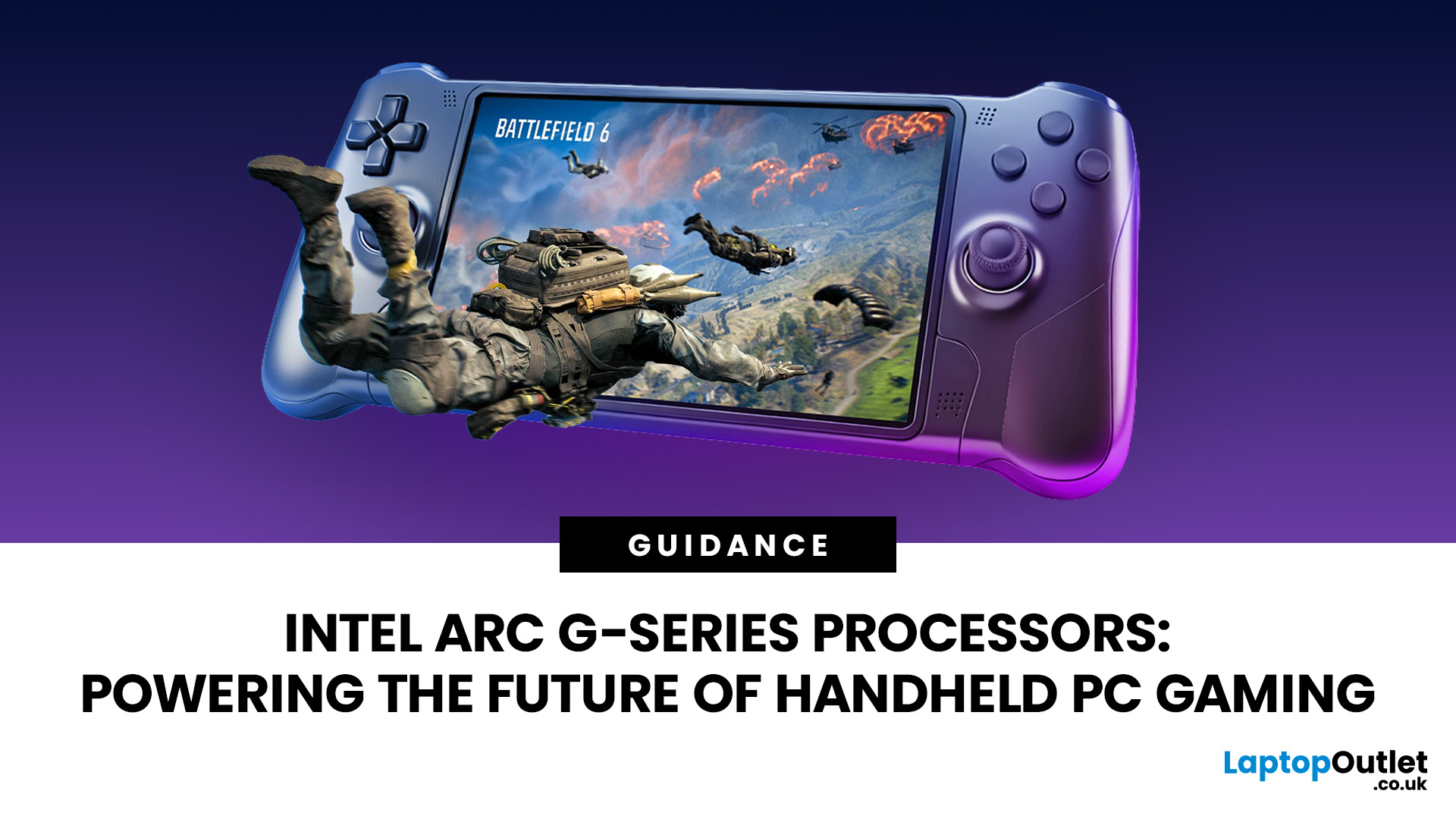
Handheld PC gaming has reached the point where portability alone is no longer enough. Players now expect current PC games, sharper displays, stable frame rates and usable battery life from a device small enough to carry in a bag.
Intel Arc G-Series processors have been developed specifically for that challenge. Instead of placing a conventional laptop processor inside a handheld and adjusting its power limits, Intel has rebalanced the design around integrated graphics, efficient CPU cores and lower-wattage gaming.
The first two processors are the Intel Arc G3 and Intel Arc G3 Extreme. Both combine a 14-core CPU, Xe3-based Intel Arc graphics, XeSS
Last Updated: August 05, 2026
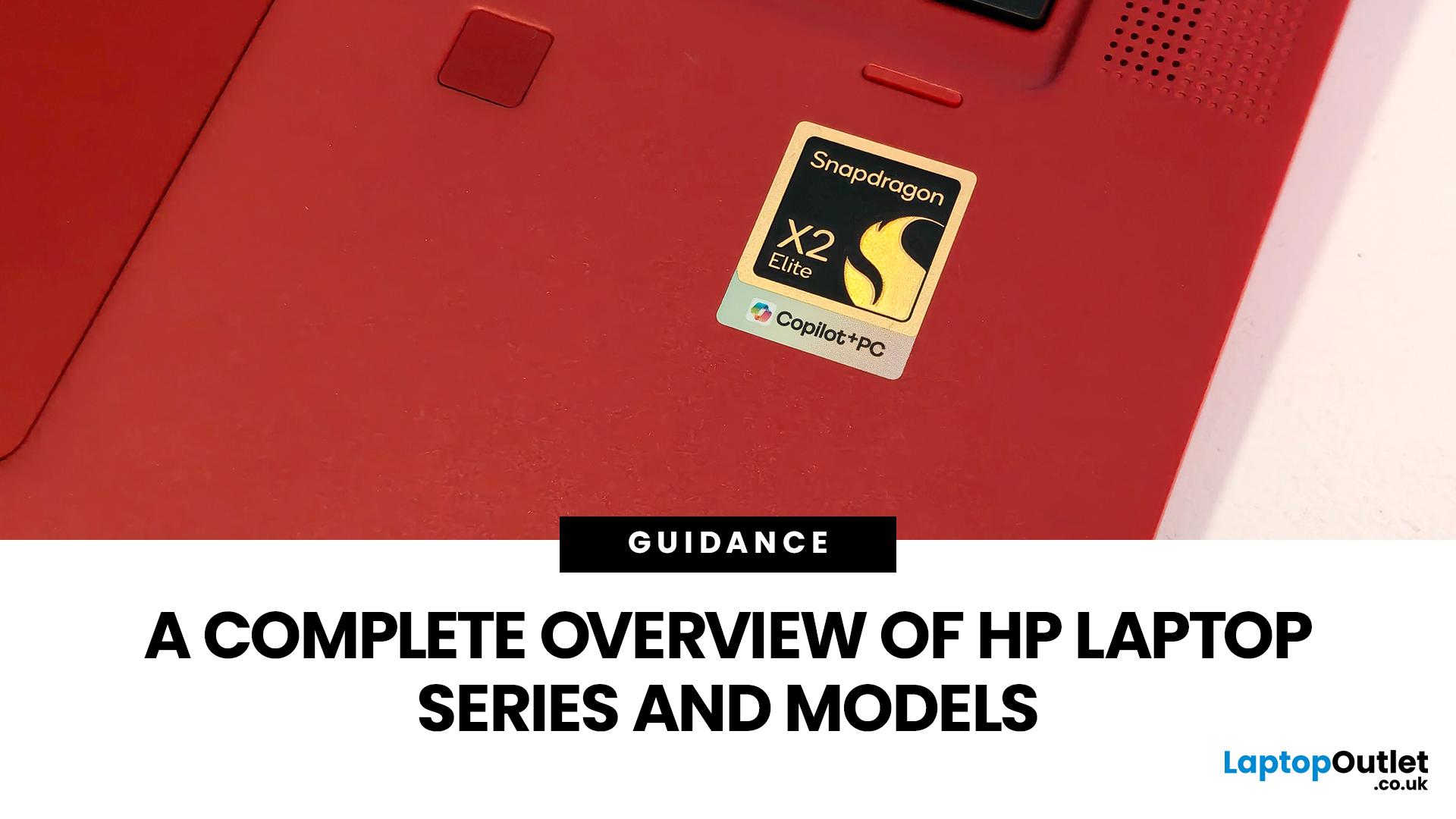
The Snapdragon X2 Elite is Qualcomm’s second-generation premium Windows processor, announced in September 2025 before appearing in laptops during 2026. It brings a redesigned CPU, stronger integrated graphics and an NPU rated at up to 85 TOPS. This review examines its specifications, verified benchmark results, software support, battery efficiency, gaming limitations and suitability for everyday work.
| Quick Verdict on Snapdragon X2 Elite |
| Best For
|
Published: September 25, 2026
Last Updated: October 12, 2026

