



Best Portable Laptop Power Banks in 2026
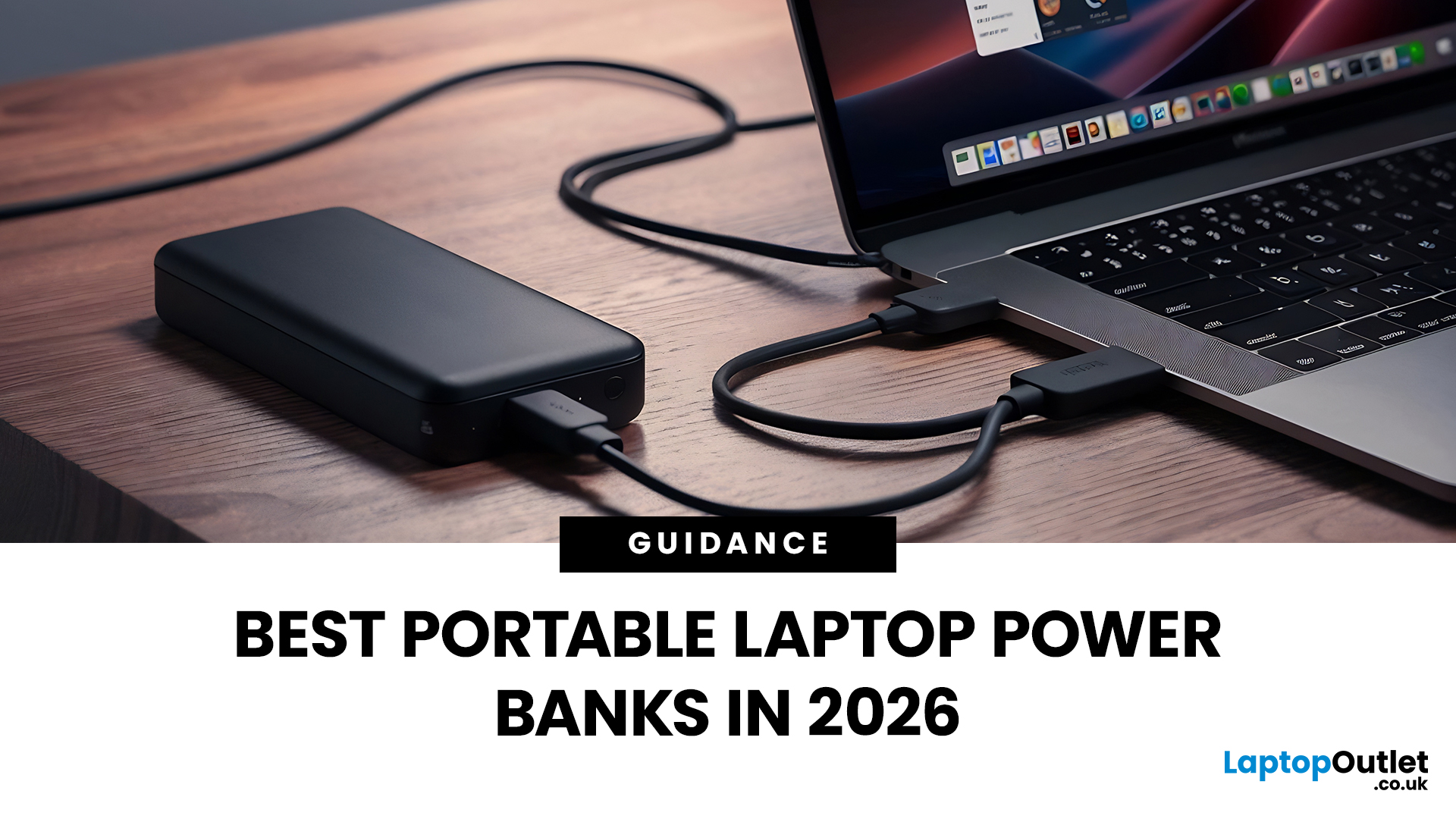
A laptop power bank is not the same as a phone power bank. A charger may look powerful because it has 20,000mAh or 30,000mAh capacity, but that does not automatically mean it can charge your laptop properly.
| The best laptop power banks in 2026 are USB-C PD models that match your laptop’s wattage. For most users, 65W is enough, while MacBook Pro and creator laptops may need 100W to 140W. Choose at least 20,000mAh for backup power and check the Wh rating before flying. |
For laptops, the most important detail is output wattage. A small phone power bank may only deliver 18W or 22.5W, while many laptops need 45W, 65W, 100W, or more to charge efficiently. That is why choosing the best power bank for laptops is less about picking the biggest number on the box and more about matching the power bank to your laptop’s real charging needs.
In this guide, we explain how to choose a laptop power bank for work, study, commuting, business travel, and everyday use. We will cover wattage, battery capacity, USB-C Power Delivery, UK flight rules, and the key features that separate a useful laptop power bank from a basic portable charger.
What Power Bank Do You Need for a Laptop in a Glance?
For most UK buyers, the safest choice is a USB-C PD laptop power bank with at least 65W output. This is usually enough for many everyday laptops, Chromebooks, business notebooks, and student laptops.
However, not every laptop needs the same power. Use this quick guide:
|
USER TYPE |
RECOMMENDED POWER BANK SPEC |
BEST FOR |
|
Student with Chromebook or lightweight laptop |
45W–65W USB-C PD |
Lectures, library work, emergency charging |
|
Office or hybrid worker |
65W–100W USB-C PD |
Work meetings, commuting, daily laptop use |
|
MacBook Pro or creator laptop user |
100W–140W USB-C PD |
Faster charging and heavier workloads |
|
Frequent traveller |
Under 100Wh, compact design |
Carry-on travel and airport use |
|
Budget buyer |
45W–65W USB-C PD |
Basic backup power without overspending |
|
Gaming laptop user |
Check laptop power requirement first |
Many gaming laptops need more than a standard power bank can provide |
A good laptop power bank should clearly list its USB-C PD output wattage, not just its mAh capacity.
Why Laptop Power Banks Need More Than High Capacity
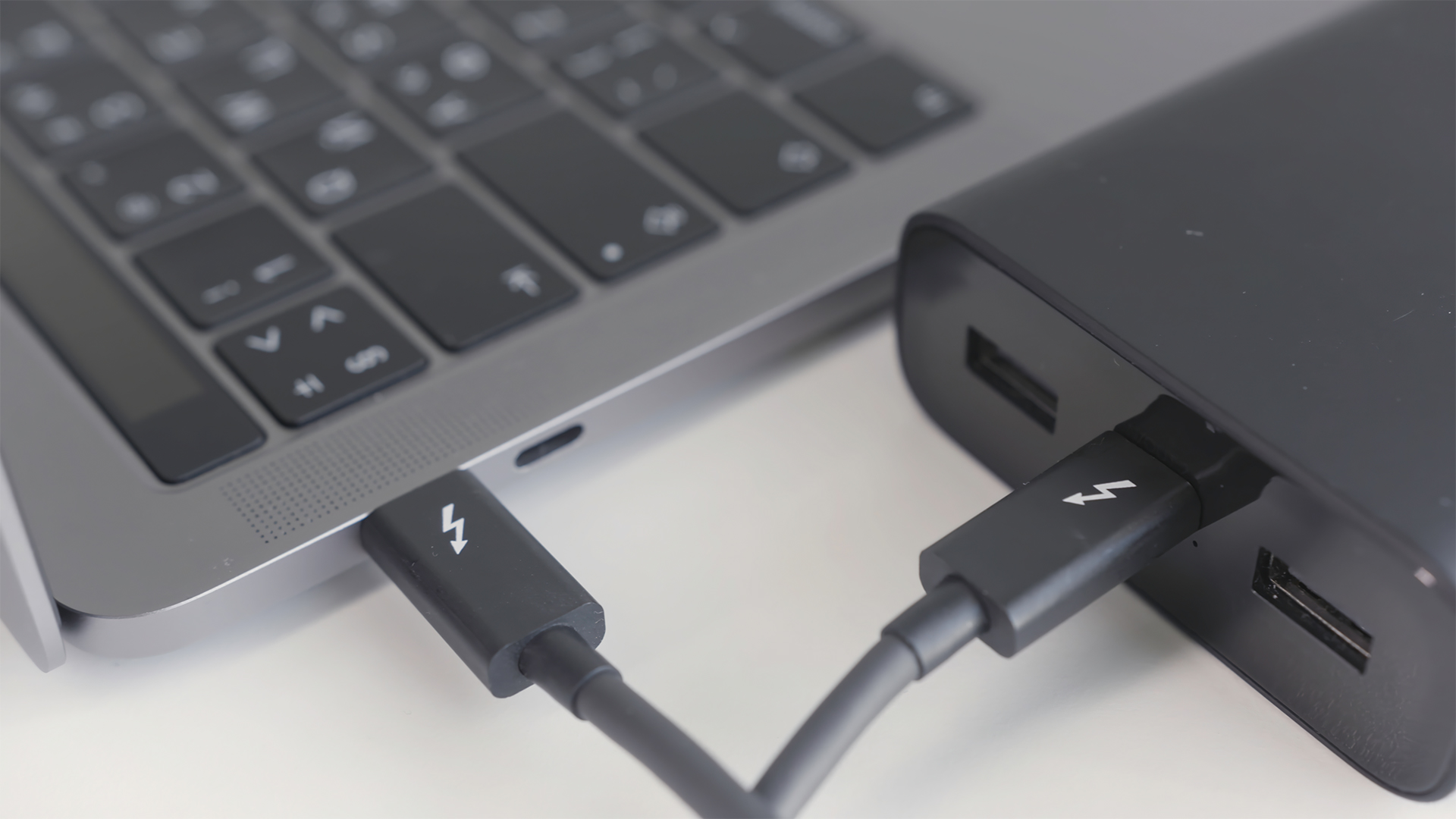
Many shoppers search for a “long lasting power bank” or a “portable power solutions” and focus only on battery capacity. Capacity matters, but it is only half of the story.
A power bank with high capacity, but low output may charge a phone several times yet fail to charge a laptop properly. Some laptops may show a “slow charger” warning, charge only while sleeping, or continue losing battery while in use.
For laptops, check these three details first:
- Output wattage - how much power the bank can deliver at once.
- USB-C Power Delivery support - whether it can negotiate the correct power level with your laptop.
- Watt-hour rating - especially important if you plan to fly with it.
USB Power Delivery has expanded over time. USB-IF says USB PD Revision 3.1 supports power delivery up to 240W over compatible USB-C cables and connectors, with 140W, 180W, and 240W power levels enabled through newer fixed-voltage options.
That does not mean every laptop powerbank supports 240W. It simply means USB-C charging is now capable of powering far more than phones and tablets when the charger, cable, and device all support the correct standard.
Best Laptop Power Bank Specs by Use Case
Instead of choosing one generic “best” power bank, it is better to choose the way you use your laptop.
1. Best Laptop Power Bank for Students
Student laptops must have qualities like portability, affordability, and are reliable enough for lectures, libraries, and long study days.
Recommended spec:
- 45W to 65W USB-C PD output
- 20,000mAh capacity or higher
- Lightweight design
- At least one USB-C port
- Clear battery indicator
A 45W or 65W laptop power bank is usually more practical than a very large unit if you carry your laptop around campus every day. It should be powerful enough for many Chromebooks, compact Windows laptops, and lightweight notebooks.
| Best for: students, note-taking, coursework, library sessions, and emergency backup charging. |
| Avoid if: you use a high-performance creator laptop or gaming laptop that needs 100W or more. |
2. Best Laptop Power Bank for Hybrid Workers
Hybrid workers need portable power for trains, shared offices, client visits, cafés, and meetings where plug sockets are not always available.
Recommended spec:
- 65W to 100W USB-C PD output
- 20,000mAh to 27,000mAh capacity
- Two or more charging ports
- Fast recharge support
- Compact enough for a laptop bag
This is the sweet spot for most business users. A 65W power bank can support many standard work laptops, while a 100W model gives you more flexibility if you use a larger notebook or want to charge multiple devices.
| Best for: remote workers, office users, business travel, video calls, and commuting. |
| Avoid if: you need to charge a laptop, tablet, phone, and accessories all at full speed at the same time. In that case, check the total shared output, not just the maximum single-port output. |
3. Best Laptop Power Bank for MacBook and Creator Laptops
Creative laptops often need more power. If you edit videos, design graphics, manage large files, or use a high-performance laptop, a basic powerbank laptop may not keep up.
Recommended spec:
- 100W to 140W USB-C PD output
- 25,000mAh to 27,000mAh capacity
- High-quality USB-C cable support
- Strong thermal protection
- Clear display showing wattage or battery level
A 100W or 140W power bank is better suited to demanding laptops. It can also be useful if you want faster top-ups during short breaks.
| Best for: MacBook Pro users, designers, editors, photographers, developers, and power users. |
| Avoid if: you only need emergency backup charging. A smaller 65W unit may be lighter and cheaper. |
4. Best Lightweight Power Bank for Laptop Bags
A lightweight power bank is ideal if you care more about portability than maximum charging speed.
Recommended spec:
- 45W to 65W USB-C PD output
- 20,000mAh capacity
- Slim design
- Low weight
- One USB-C and one USB-A port
This type of power bank is useful for people who want portable power for a laptop without carrying a bulky charging brick in their laptop bags. It may not fully recharge a large laptop, but it can add useful extra working time when you are away from a socket.
| Best for: commuters, students, light laptop users, and people who want a backup option. |
| Avoid if: your laptop charger is rated at 100W or higher. |
5. Best Budget Power Bank for Laptop Charging
A good budget power bank should still include USB-C PD. Do not choose a cheap model only because it has a high mAh number.
Recommended spec:
- Minimum 45W USB-C PD output
- 20,000mAh capacity or higher
- Recognisable safety certifications
- Clear output information
- Reliable brand warranty
A budget laptop power bank is best for occasional use. It can help during travel, power cuts, long workdays, or emergencies, but it may not be the fastest option.
| Best for: occasional charging, students, home backup, and light office use. |
| Avoid if: the product page does not clearly show USB-C PD wattage. |
How to Check If a Power Bank Can Charge Your Laptop
Before buying a power bank for laptop charging, check your existing laptop charger.
Look at the charger label and find the output rating. You may see something like:
- 45W
- 65W
- 90W
- 100W
- 140W
If your laptop charger says 65W, choose a power bank with at least 65W USB-C PD output. If your laptop charger says 100W, choose a 100W or higher model.
You should also check whether your laptop supports USB-C charging. Many modern AI laptops do, but some older laptops and gaming laptops still rely on barrel-pin chargers or proprietary charging adapters.
A laptop power bank works best when:
- Your laptop supports USB-C charging.
- The power bank supports USB-C Power Delivery.
- The cable supports the required wattage.
- The power bank output matches or exceeds your laptop’s charging requirement.
How to Charge a Laptop from a Power Bank
Charging a laptop from a power bank is simple, but only if your setup is compatible.
Follow these steps:
- Check your laptop charger wattage.
Match the power bank’s USB-C output to your laptop’s required wattage. - Confirm your laptop supports USB-C charging.
Look for a USB-C charging symbol, check the manual, or review the laptop specifications. - Use a USB-C PD power bank.
A normal phone power bank may not provide enough output. - Use the right cable.
A low-quality USB-C cable may limit charging speed, even with a powerful power bank. - Connect directly to the laptop.
Avoid using a low-power hub or adapter between the power bank and laptop. - Watch for slow-charging warnings.
If your laptop says the charger is slow, the power bank may not provide enough wattage
This is why “power bank for laptop charger” searches can be confusing. The power bank is not just replacing the plug; it also needs the correct wattage, cable, and charging standard.
How Much Capacity Do You Need?
Battery capacity is usually shown in mAh, but for laptops, watt-hours are often more useful.
Here is a simple way to think about it:
|
CAPACITY |
BEST USE |
|---|---|
|
10,000mAh |
Better for phones and small devices, not ideal for laptops |
|
20,000mAh |
Good portable backup for lightweight laptops |
|
25,000–27,000mAh |
Stronger option for laptop users and travellers |
|
Over 27,000mAh |
Check size, weight, and airline rules carefully |
A 20,000mAh power bank may be enough for emergency laptop charging. A 25,000mAh to 27,000mAh model is usually better if you want longer-lasting portable power for laptop use.
However, bigger is not always better. Larger power banks are heavier, take longer to recharge, and may create travel restrictions if the Wh rating is too high.
Are Laptop Power Banks Allowed on Flights in the UK?
Yes, but you need to follow the rules.
The UK Civil Aviation Authority says that from 27th March 2026, power banks must be carried in carry-on baggage, must be individually protected when not in use, must not be recharged on board the aircraft, and should not be used to charge other portable devices on board. The CAA also states that passengers may carry a maximum of two power banks per person.
For lithium-ion power banks, the CAA says power banks up to 100Wh are allowed without operator approval. Power banks greater than 100Wh but not exceeding 160Wh require approval from the airline/operator.
For travellers, this makes a power bank under 100Wh the simplest option. Many laptop-friendly power banks around 20,000mAh to 27,000mAh are designed to stay close to this travel-friendly range, but you should always check the Wh rating before flying.
Laptop Power Bank vs Laptop Charger vs Docking Station
A laptop power bank is useful when you need portable power away from a wall socket. But it is not the only accessory that can improve your setup.
A laptop charger is still the best option for everyday desk charging. It provides stable power for long sessions.
A laptop power bank is best for backup power, commuting, travel, meetings, and emergency use.
USB-C docking stations are better for desk productivity. It can connect your laptop to monitors, keyboards, mice, Ethernet, storage, and other accessories.
For a complete work setup, many users benefit from combining:
- A reliable laptop power bank
- A spare USB-C charger
- A USB-C docking station
- A protective laptop bag
- Useful laptop accessories
You can explore Laptop Outlet’s categories for laptop accessories, batteries, docking stations, and laptops and notebooks to build a setup that suits your work or study routine.
If you use your laptop as a full desk setup, pairing a power bank with one of the best USB-C hubs and docking stations can make it easier to connect monitors, keyboards, storage, and other daily devices.
What to Look for Before Buying a Laptop Power Bank
Before choosing a laptop power bank, compare these features:
- USB-C PD Output
This is the most important feature. Look for 45W, 65W, 100W, or 140W USB-C PD output depending on your laptop. - Capacity
For laptop use, 20,000mAh is a practical starting point. For heavier use, look at 25,000mAh to 27,000mAh options. - Watt-Hour Rating
If you travel by air, check the Wh rating. Under 100Wh is usually the most convenient option for flights. - Port Selection
A good laptop power bank should include at least one USB-C output. Extra USB-C or USB-A ports are useful if you also charge your phone, tablet, earbuds, or other computer or laptop accessories. - Recharge Speed
Some power banks take several hours to recharge. If you travel often, choose one that supports fast input charging. - Weight and Size
A powerful power bank may be heavier than expected. If you carry it daily, check the weight before buying. - Cable Quality
A power bank can only perform properly if the cable supports the required wattage. For 100W or higher charging, make sure your cable is rated correctly. - Safety Features
Look for overcharge protection, short-circuit protection, temperature control, and recognised battery safety standards.
A laptop power bank is only one part of a reliable setup, so it is worth exploring the best laptop accessories for productivity, comfort, and better connectivity.
Common Mistakes to Avoid
Many buyers choose the wrong laptop power bank because they focus on one number only.
Avoid these mistakes:
- Buying only by mAh capacity.
- Ignoring USB-C PD wattage.
- Choosing a phone power bank for a laptop.
- Using a low-power USB-C cable.
- Assuming every USB-C port can charge a laptop.
- Buying a large power bank without checking flight rules.
- Choosing the cheapest option without checking safety details.
- Expecting a standard power bank to run a gaming laptop at full performance.
A good power bank for laptops should be chosen like a charger, not like a phone accessory.
Which Laptop Power Bank Is Best for You?
Choose based on your laptop and lifestyle:
- For students: choose a lightweight 45W–65W power bank.
- For office workers: choose a 65W–100W USB-C PD model.
- For MacBook Pro users: consider 100W–140W output.
- For travellers: choose a compact model under 100Wh.
- For budget buyers: choose the best 45W–65W USB-C PD option from a reliable brand.
- For gaming laptops: check your laptop’s original charger wattage before buying.
The best power bank UK buyers can choose is not always the largest or most expensive model. It is the one that matches the laptop’s wattage, supports USB-C PD, fits your bag, and is safe for how you plan to use it.

Final Thoughts
A laptop power bank can be one of the most useful accessories for laptops, especially if you work, study, travel, or commute regularly. But the right choice depends on more than battery size.
For most users, a USB-C PD power bank with 65W to 100W output offers the best balance of charging speed, portability, and value. For heavier laptops, creator devices, or faster charging, a 100W to 140W model may be a better investment.
Before buying, check your laptop charger wattage, confirm USB-C charging support, review the power bank’s Wh rating, and make sure the cable can handle the required output. That way, you get a portable power solution that actually works for your laptop, not just your phone.

Some Common Questions Everyone Ask
Can a power bank charge a laptop?
Yes, a power bank can charge a laptop if it supports the correct output wattage and charging standard. For many modern laptops, you need a USB-C PD power bank with 45W, 65W, 100W, or higher output.
What size power bank do I need for a laptop?
For light use, a 20,000mAh power bank can work well. For longer laptop charging, a 25,000mAh to 27,000mAh model is usually more suitable. Always check wattage as well as capacity.
Is a 20,000mAh power bank enough for a laptop?
A 20,000mAh power bank can provide useful backup power for many lightweight laptops, but it may not fully recharge larger laptops. It also needs enough USB-C PD output to charge the laptop properly.
Can I use any USB-C power bank for my laptop?
No. Some USB-C power banks are designed mainly for phones and tablets. For laptop charging, check that the power bank supports USB-C Power Delivery and has enough wattage for your laptop.
Is a laptop power bank allowed on a plane?
Power banks are generally allowed in carry-on baggage, but not checked luggage. UK CAA guidance says power banks must be carried in carry-on baggage, individually protected, and limited to a maximum of two per person. Power banks up to 100Wh are allowed without operator approval, while 100Wh to 160Wh requires operator approval.
Related Articles

Published: November 14, 2025
For years, we’ve juggled a drawer full of tangled cables — micro-USB, Lightning, HDMI, and others. But now, USB-C adoption is changing that.
This small, reversible connector has become the go-to choice for phones, laptops, and even monitors. It promises a single, universal solution for charging, data transfer, and video output.
But are we finally there yet? Let’s explore how close we are to a world of USB-C everything.
What Is USB-C and Why It Matters
USB-C, also known as USB Type-C, is a reversible connector that can handle multiple functions. Introduced in 2014, it was designed to be faster and more versatile than previous USB types.
Key features include:
- Reversible Design: No more flipping the cable to find the right orientation.
- Fast Data Transfer: Up to 40Gbps with USB4 and Thunderbolt 4 support.
- High Power Delivery: Up to 240W, enough to charge large laptops and monitors.
- Multiple Functionality: The same port handles charging, data, and video.
This all-in-one capability is what

Last Updated: December 05, 2025
Portable monitors have completely changed the way we work, game, and watch media on the move. They offer a much larger display than your smartphone, transforming your pocket-sized device into a mini-desktop or a fully immersive entertainment system.
If you want to connect smartphone to a portable monitor for work or play, you've come to the right place. This complete guide will walk you through every possible connection method, covering both Android and iPhone devices, as well as essential tips for a seamless setup.
What You Need to Connect Smartphone to a Portable Monitor
Before we dive into 'how to use phone with portable monitor, you need to check a few things. Having the right kit is essential for a successful smartphone to portable monitor setup.

1. The Right Portable Monitor
Your monitor needs to have the correct input ports. The best portable monitors for phones feature a dual-connection design, offering both USB-C (for single-cable power and video) and Mini-HDMI ports (for universal
Last Updated: January 26, 2026
In today’s UK homes and offices, networking isn’t optional - it’s the backbone of how we work, study, stream, and stay connected. From remote meetings and online gaming to smart homes and cloud storage, everything relies on reliable networking accessories and networking devices working together behind the scenes.
Yet many people still struggle with slow Wi-Fi, unstable connections, or poor coverage, not because their internet provider is bad, but because their networking equipment isn’t set up correctly.
What Is Networking? (A Simple Explanation)
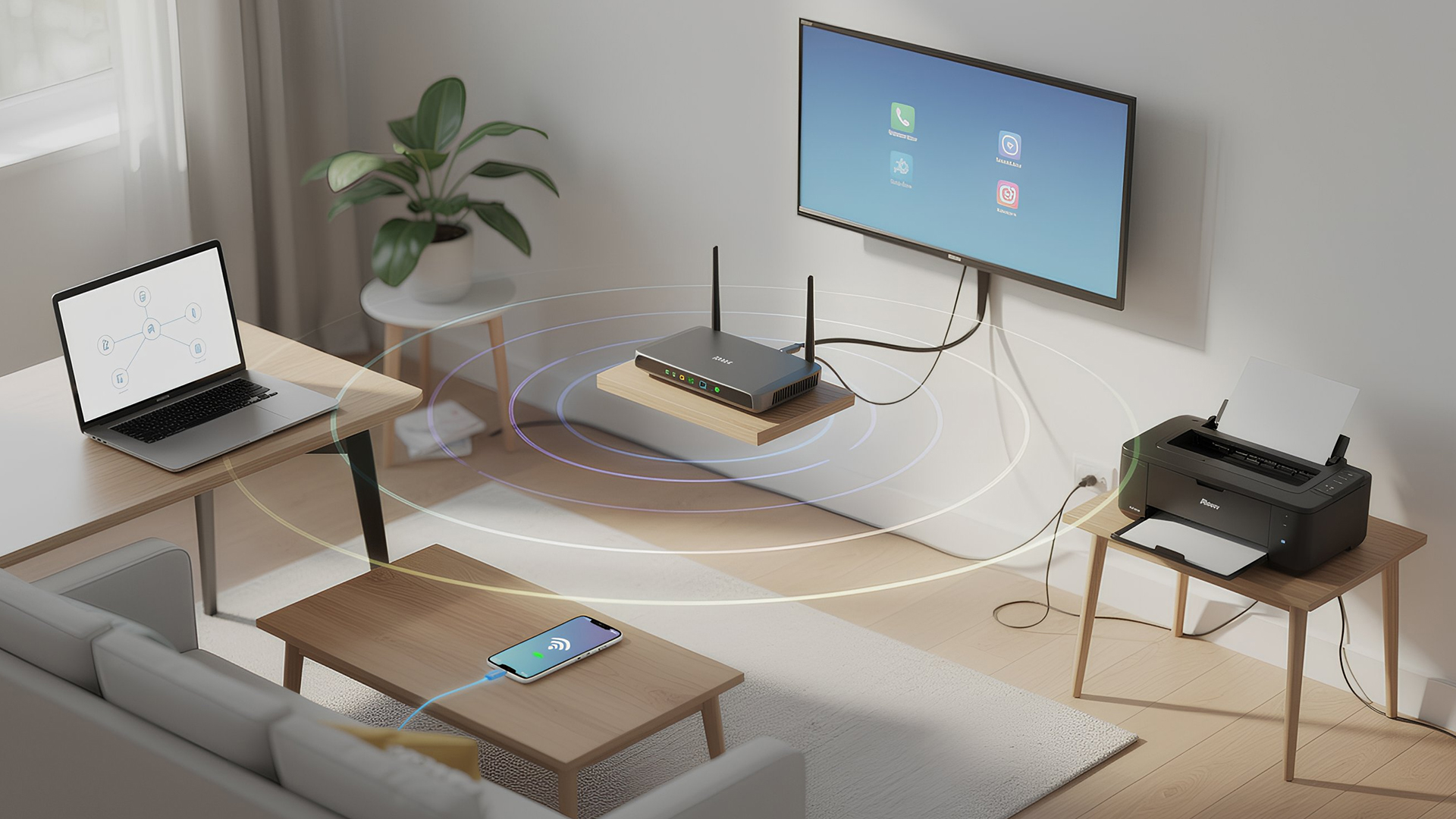
Networking is the process of connecting devices so they can communicate, share data, and access the internet. These devices might include:
- Laptops and desktops
- Smartphones and tablets
- Printers and scanners
- Smart TVs and streaming devices
- Smart home systems (lights, cameras, thermostats)
To make this possible, you need a combination of networking devices (like routers and access points) and networking accessories (such as network cards, adapters,
Last Updated: January 26, 2026
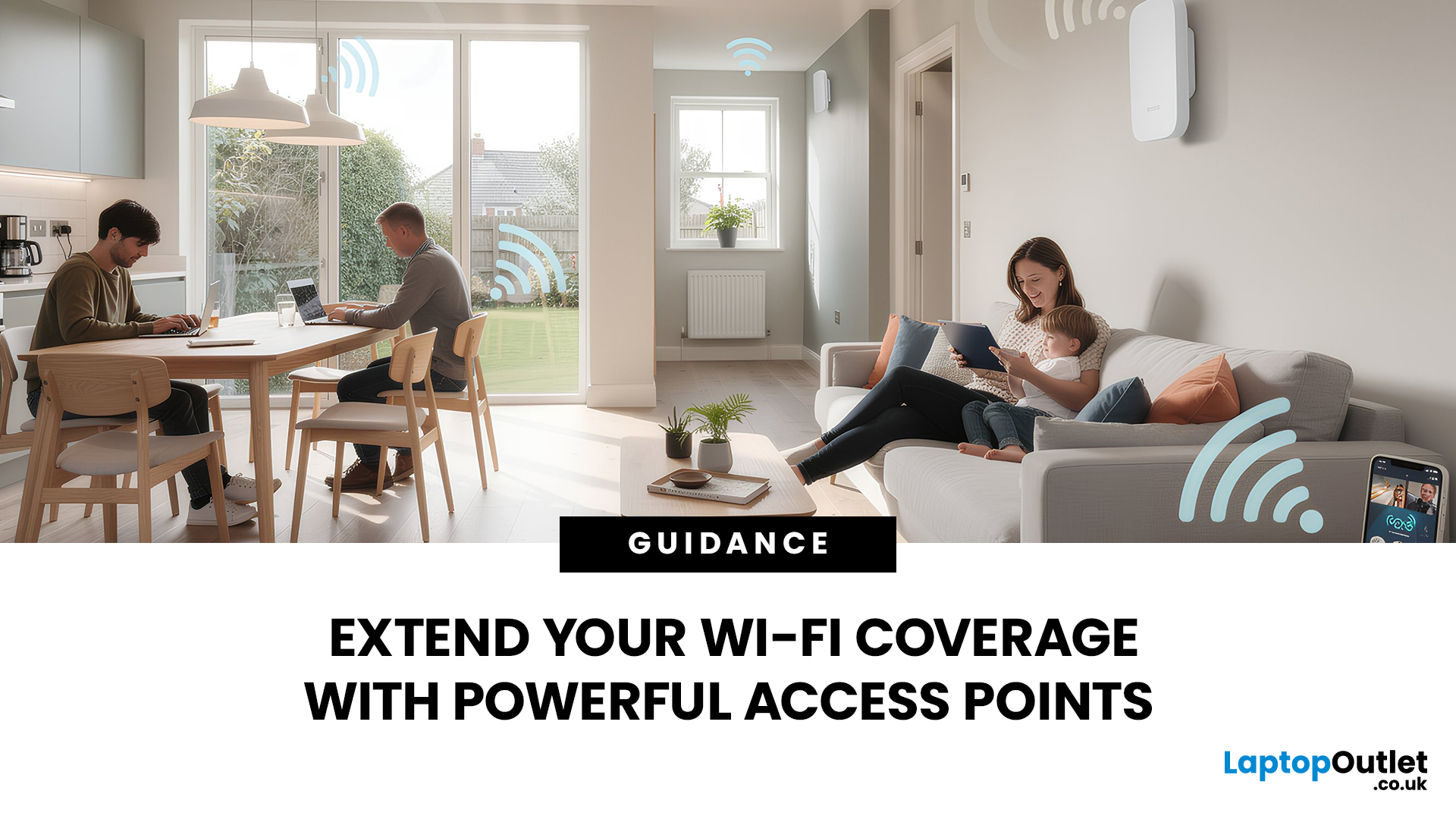
Is your Wi-Fi struggling to reach the far corners of your home or office? You are not alone. Many UK homes and businesses face "dead zones" where the internet signal simply vanishes. While a standard router is a great starting point, it often lacks the reach for larger properties or thick brick walls.
This is where wireless access points come into play. By adding the right hardware, you can enjoy a seamless, high-speed connection in every room. In this guide, we will explore how Wi-Fi access points work and 15 of the best Wi-Fi access points UK buyers can choose today to eliminate connectivity frustrations once and for all.
What are Wireless Access Points?
A wireless access point (WAP) is a device that creates a wireless local area network, or WLAN. It usually connects to your main router via an Ethernet cable. Once connected, it projects a Wi-Fi signal to a designated area.
Think of a router like a lightbulb in the hallway. It might light up the immediate area, but the bedrooms remain
Last Updated: August 28, 2026
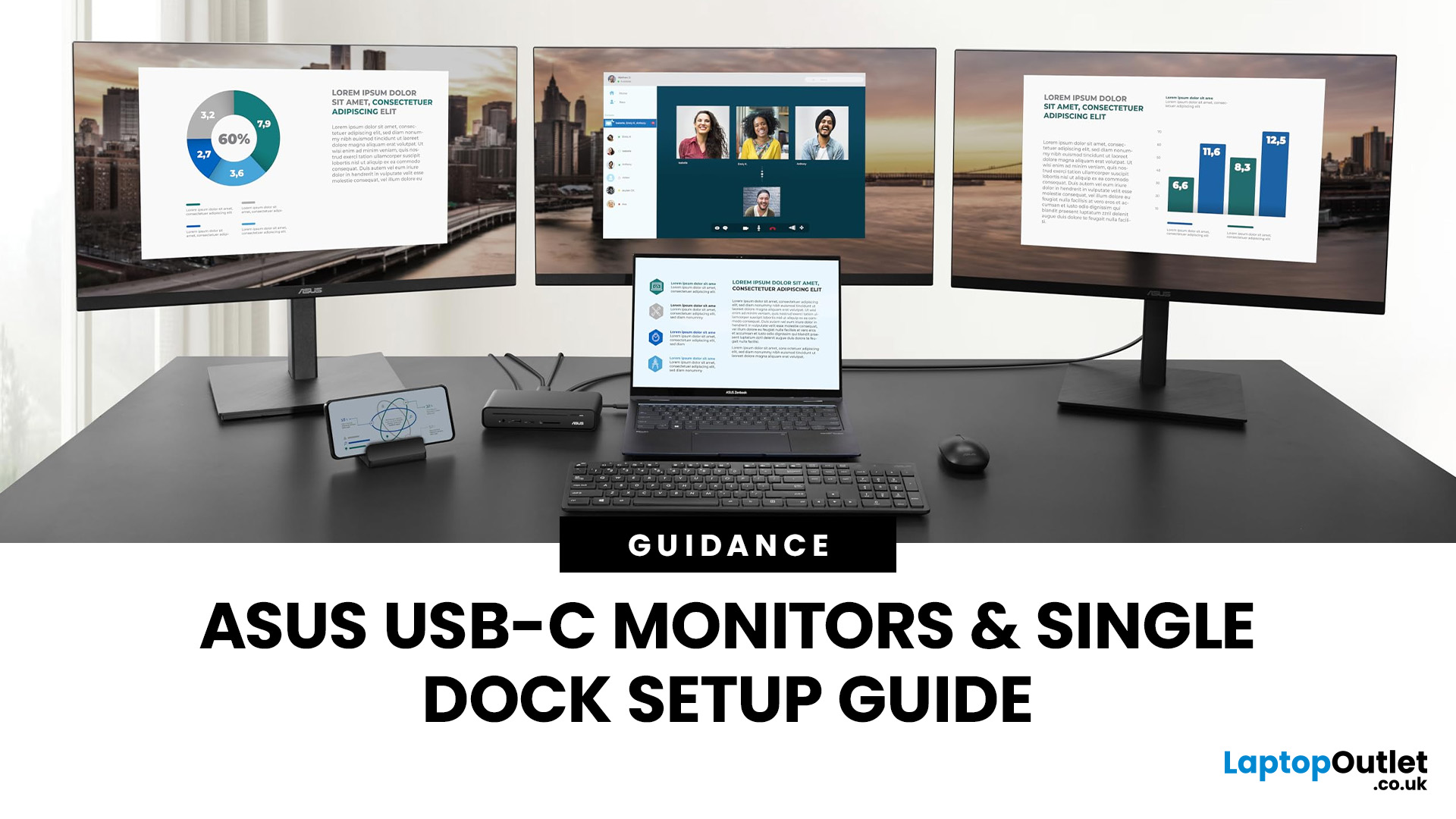
If you’re planning a desk refresh, rolling out new workstations, or managing a hot-desking environment, one question always comes up: how many ASUS USB-C monitors can you realistically run from a single dock? The short answer? It depends.
The long answer? It depends on your laptop’s GPU, the dock’s bandwidth, the monitor resolutions, and whether you’re daisy-chaining or using multiple video outputs.
In this practical IT deployment guide, we’ll break down exactly how ASUS USB-C monitors behave in real-world setups, what limits your configuration, and how to plan a reliable multi-monitor rollout without unpleasant surprises.
How USB-C Video and Power Actually Work
USB-C looks simple. One cable. Power. Video. Data. Done.
But behind that clean setup, there’s a lot happening.
USB-C monitors rely on a feature called DisplayPort Alt Mode. This allows the USB-C cable to carry video signals from your laptop’s GPU directly to the monitor. Many modern docks also use DisplayLink technology, which

Last Updated: June 10, 2026
The best free AI apps that work offline include Ollama, LM Studio, GPT4All, Jan, Msty Studio, AnythingLLM, PocketPal AI, llamafile, Upscayl, and DiffusionBee. These tools help users run offline chatbots, local AI assistants, AI writing apps, document Q&A tools, and AI image tools without relying on the internet after setup.
Looking for the best free AI apps offline? You are not alone. More users now want AI tools that can work without constant internet access, protect private data, and run directly on a phone or laptop.
Offline AI apps are especially useful for writing, coding, document chat, transcription, image generation, image upscaling, and personal productivity. Instead of sending every prompt to the cloud, these local AI tools use models stored on your own device.
What Are Offline AI Apps?
Offline AI apps are tools that run AI models directly on your device instead of depending fully on cloud servers. Once installed and configured, they can perform tasks like chatting, summarizing,
Last Updated: July 15, 2026
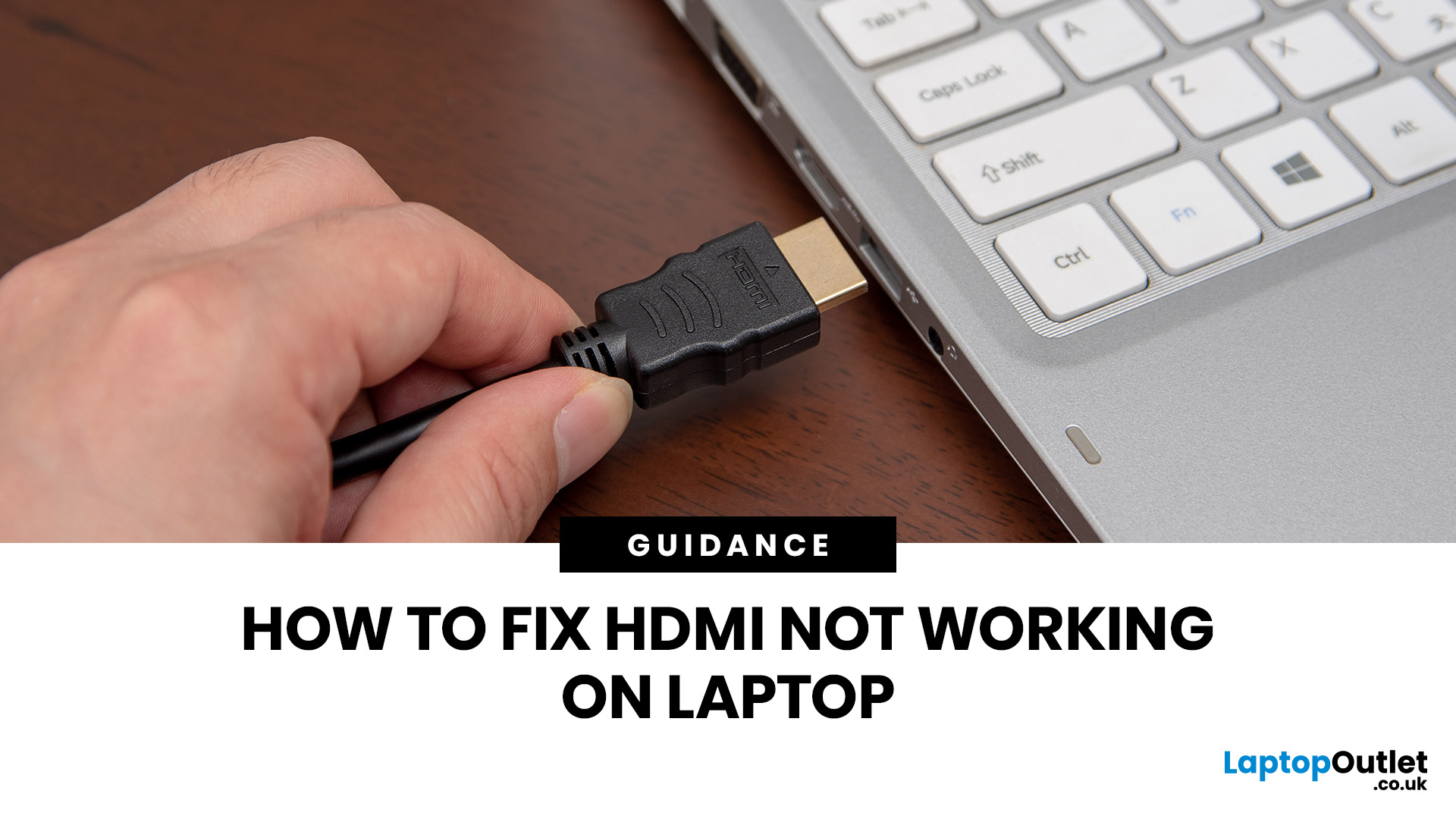
If HDMI is not working on your laptop, start by checking the cable and port for damage, then select the correct input on your monitor or TV. Press Windows + P to choose your display mode. If the screen stays blank, update or reinstall your graphics driver in Device Manager. Most HDMI not working laptop issues are resolved by these steps alone, without needing any specialist help.
There are few things more frustrating than plugging in your HDMI cable and being greeted by a black screen or a "No Signal" message. Whether you are connecting your laptop to a smart TV, an external monitor, or a projector, the issue can almost always be sorted without a trip to a repair shop.
This guide covers most common HDMI not working laptop fixes, from the simplest physical checks right through to driver reinstalls and BIOS settings. Work through the steps in order and you will find your fix quickly.
Why Is Laptop Not Connecting to HDMI?
Before diving into fixes, it helps to understand what causes
Last Updated: June 10, 2026
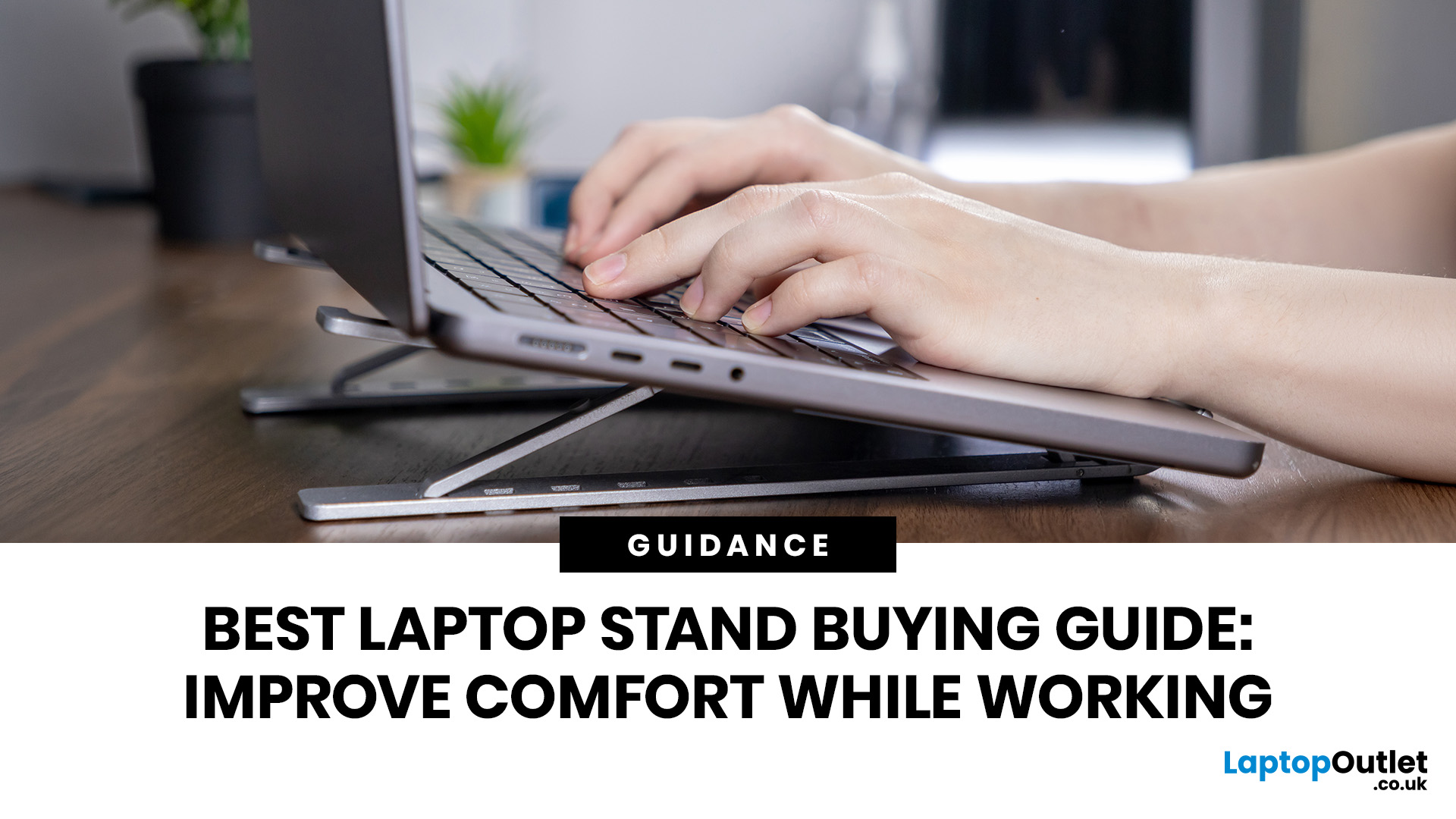
Looking for the best laptop stands UK buyers can choose for better comfort and posture? A good laptop stand raises your screen to a more natural viewing height, helping reduce neck strain, improve desk setup and make long working hours more comfortable. This guide explains how to choose the right laptop stand for desk use, adjustable setups, bed or couch working, travel, standing desks and dual-screen workstations.
A laptop is convenient, portable and easy to use anywhere, but it is not always the most comfortable device for long working hours. When your laptop sits flat on a desk, bed or couch, the screen is usually too low, which can make you bend your neck, hunch your shoulders and sit in an awkward position.
That is where a good laptop stand can make a big difference. Whether you need a laptop stand for desk use, an adjustable laptop stand for flexible working, a portable laptop stand for travel or a laptop table for bed, the right setup can help you work more comfortably every day.
Last Updated: July 15, 2026
To fix Bluetooth connection issues on your laptop, start by turning Bluetooth off and on, restarting your laptop, removing the problem device, and pairing it again. If that fails, update or reinstall your Bluetooth driver on Windows, or forget and reconnect the device on macOS.
A “Bluetooth not connecting laptop fix” is one of the most searched tech support queries, and it is easy to see why. One minute your wireless mouse, keyboard, or headphones are working fine, and the next they simply will not pair. It is frustrating, especially when you have work to get done.
The good news? Most Bluetooth issues can be resolved at home without spending a penny. This guide will walk you through every step to get you back online.
Why Is Bluetooth Not Connecting on Your Laptop?
The question “why is my Bluetooth not working” has more than one answer. Bluetooth connection problems can stem from a wide range of causes, both software and hardware related.
The Most Common Causes
- Bluetooth is switched
Last Updated: May 22, 2026
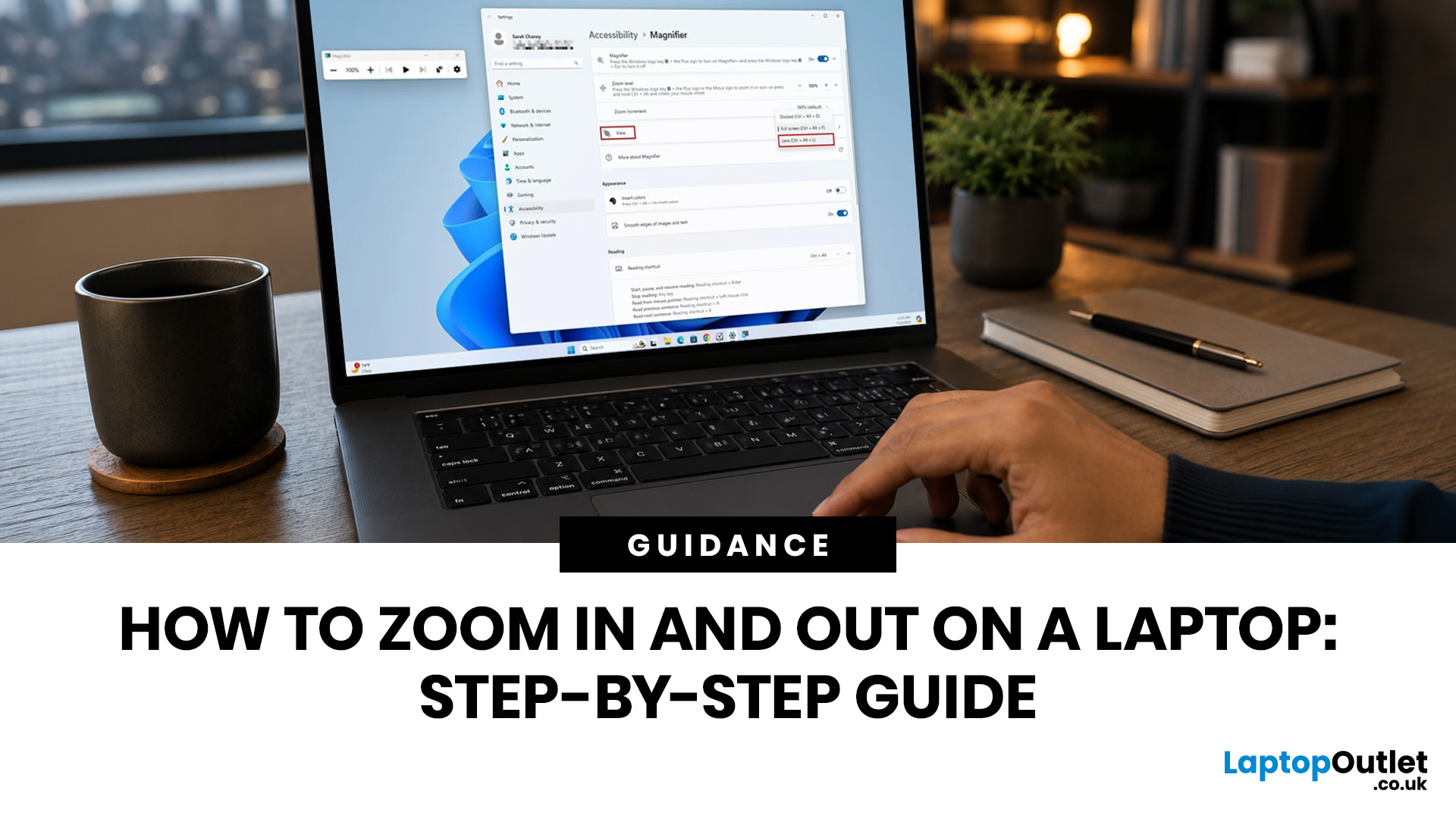
To zoom in and out on a laptop, press Ctrl + + to zoom in and Ctrl + - to zoom out in most browsers, documents, PDFs, pictures, and apps. To reset a webpage to normal size, press Ctrl + 0. If you need to quickly zoom out on a laptop screen, this shortcut is usually the fastest fix.
If the whole Windows screen is zoomed in, press Windows key + Esc to turn off Magnifier. If everything on your laptop still looks too big or too small, open Settings > System > Display and check Scale and Display resolution.
Most laptop Zoom problems happen in one of 5 places: the browser, an app, Windows Magnifier, display scale, or display resolution. The quickest fix depends on what exactly looks too large or too small.
Quick Answer: Laptop Zoom Shortcuts
| WHAT YOU WANT TO DO | SHORTCUT OR SETTING | USE THIS WHEN |
|---|---|---|
| Zoom in on a webpage, document, PDF, or picture | Ctrl + + | Text, images, or details are too small |
| Zoom out on a webpage, document, PDF, or picture | Ctrl + - | A page, file, or app looks too large |
| Reset browser |

