



How to Switch Out of Windows 11 S Mode: Easy Steps to Follow
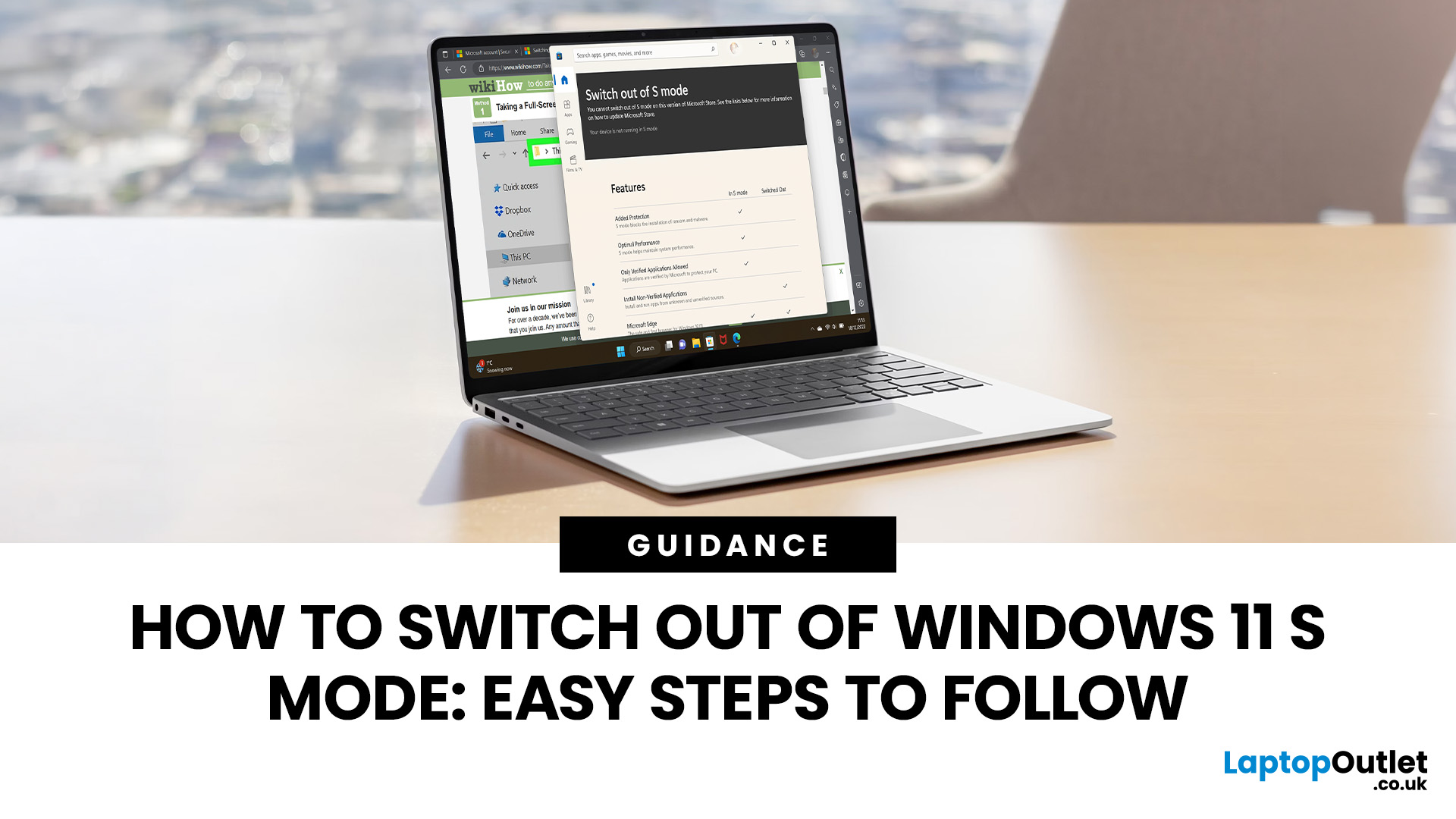
Quick Answer: To switch out of Windows 11 S Mode, open Settings > System > Activation , select Go to the Store , then choose Get on the Switch out of S Mode page. The change is free and permanent, so check that you genuinely need software from outside the Microsoft Store first.
Windows 11 S Mode can make a laptop simpler and more controlled, but its restrictions may become inconvenient when you need software that is not available through the Microsoft Store.
If you are wondering how to switch out of S Mode, the process itself is straightforward. Before doing it, however, you should understand what changes because Microsoft does not provide a normal option to turn S Mode back on afterwards.
This guide explains what Windows S Mode does, how to disable it safely, and what you should check before making the permanent switch.
What is Windows S Mode?
Windows S Mode is a restricted operating mode designed around security and consistent performance. On Windows 11, it is available only with the Home edition and limits software installation primarily to applications available through the Microsoft Store.
Microsoft Edge is also the default browser while S Mode is active. These restrictions reduce the number of unverified applications that can be installed on the laptop, which can make the setup suitable for straightforward everyday use.
You may therefore find Windows 11 Home in S Mode on entry-level, education-focused, and portable PCs where simplicity and controlled software installation are useful.
If you are shopping for a newer device, our Windows 11 laptops include systems suited to different workloads and budgets.
Should You Switch Out of Windows 11 S Mode?
That depends on the software and peripherals you need. S Mode works well if the applications you regularly use are available through the Microsoft Store. Switching becomes more useful when your preferred software, utilities or specialist programs need to be installed from elsewhere. You may want to switch out of S Mode if you need to:
- Install desktop applications unavailable in the Microsoft Store
- Use software supplied directly by its developer
- Install certain specialist utilities or development tools
- Use a preferred web browser or application that is unavailable in the Store
- Run compatible Windows programs required for work, study or hobbies
- Use hardware whose supporting software cannot operate properly within S Mode
For coursework and general education, S Mode may be perfectly adequate. If your course needs specialist programs, however, one of our student laptops with standard Windows 11 may give you more flexibility.
How to Switch Out of S Mode on Windows 11
You do not need specialist software or a Windows reinstall to turn off S Mode in Windows 11. Microsoft currently handles the change through Windows Settings and the Microsoft Store.
Step 1: Open Windows Settings
Open the Start menu and select Settings .
You can also press Windows key + I to open Settings directly.
Step 2: Go to Activation
From Settings:
- Select System .
- Scroll down and choose Activation .
- Look for the section relating to switching your edition or leaving S Mode.
The wording shown on your laptop can vary slightly depending on the Windows build.
Step 3: Open the Microsoft Store Page
Under the relevant switching option, select Go to the Store .
Be careful not to choose an option that upgrades Windows Home to Windows Pro unless upgrading the Windows edition is actually what you intend to do. Microsoft treats an edition upgrade and leaving S Mode as separate processes.
Step 4: Select Get
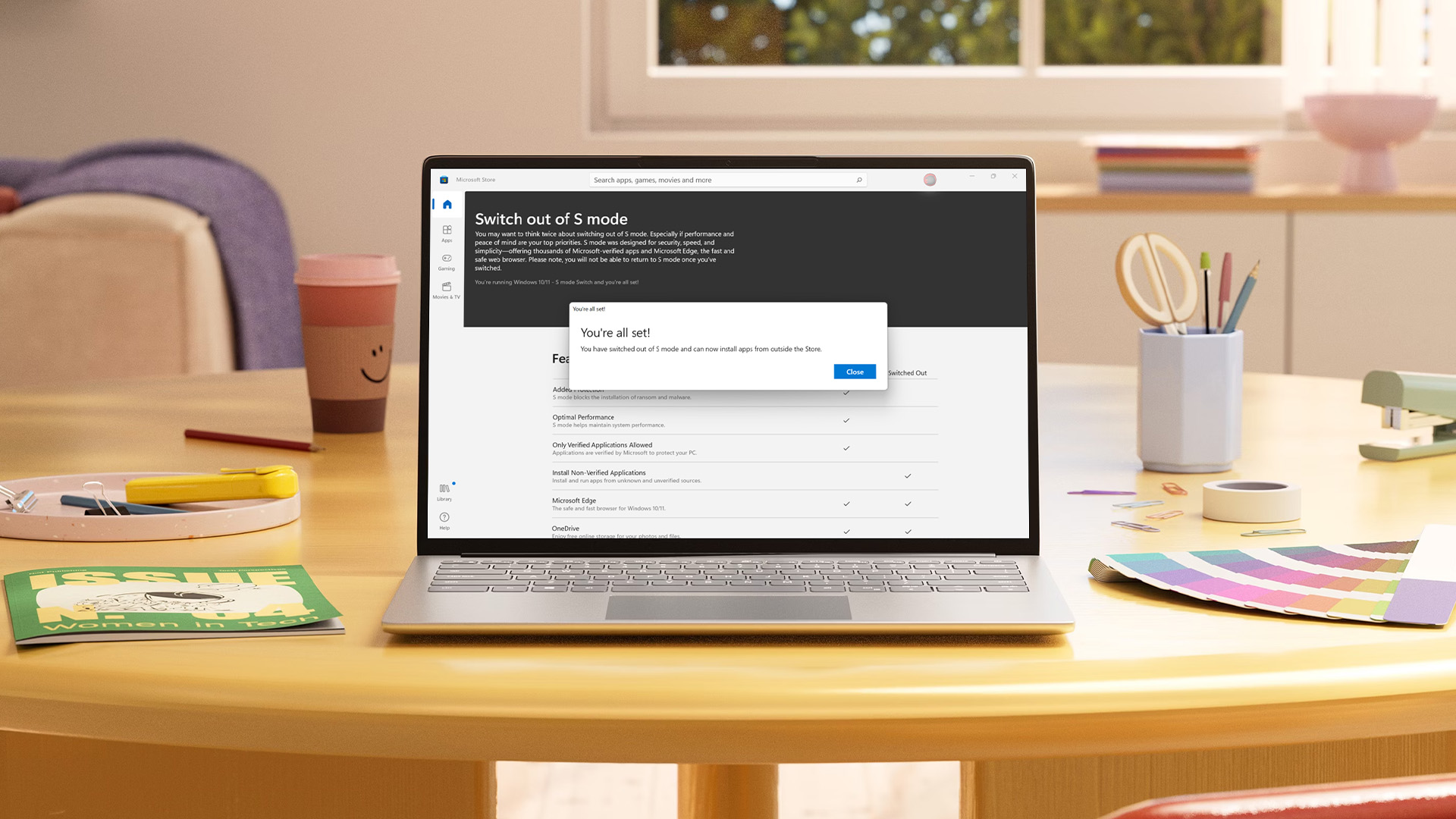
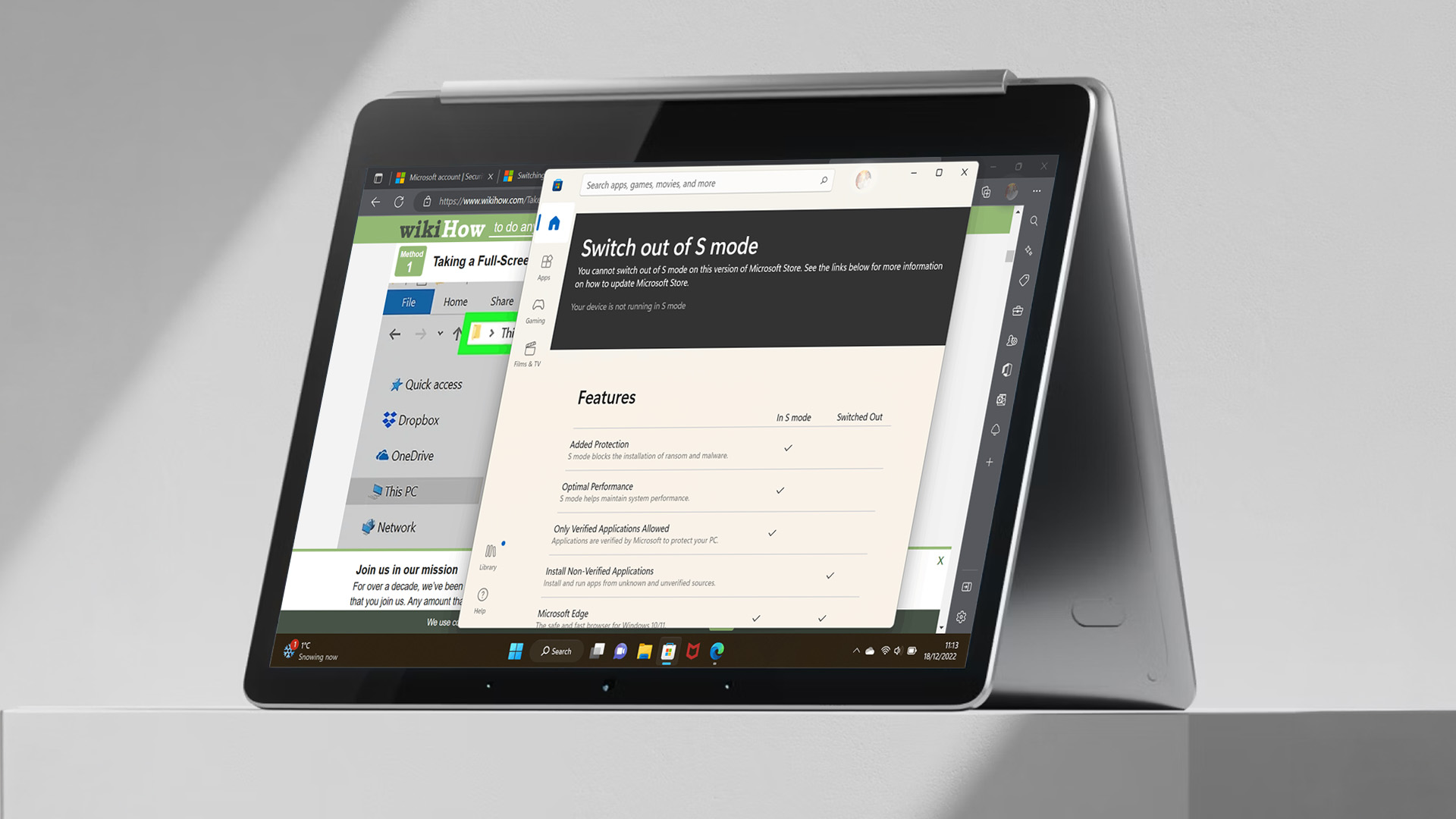
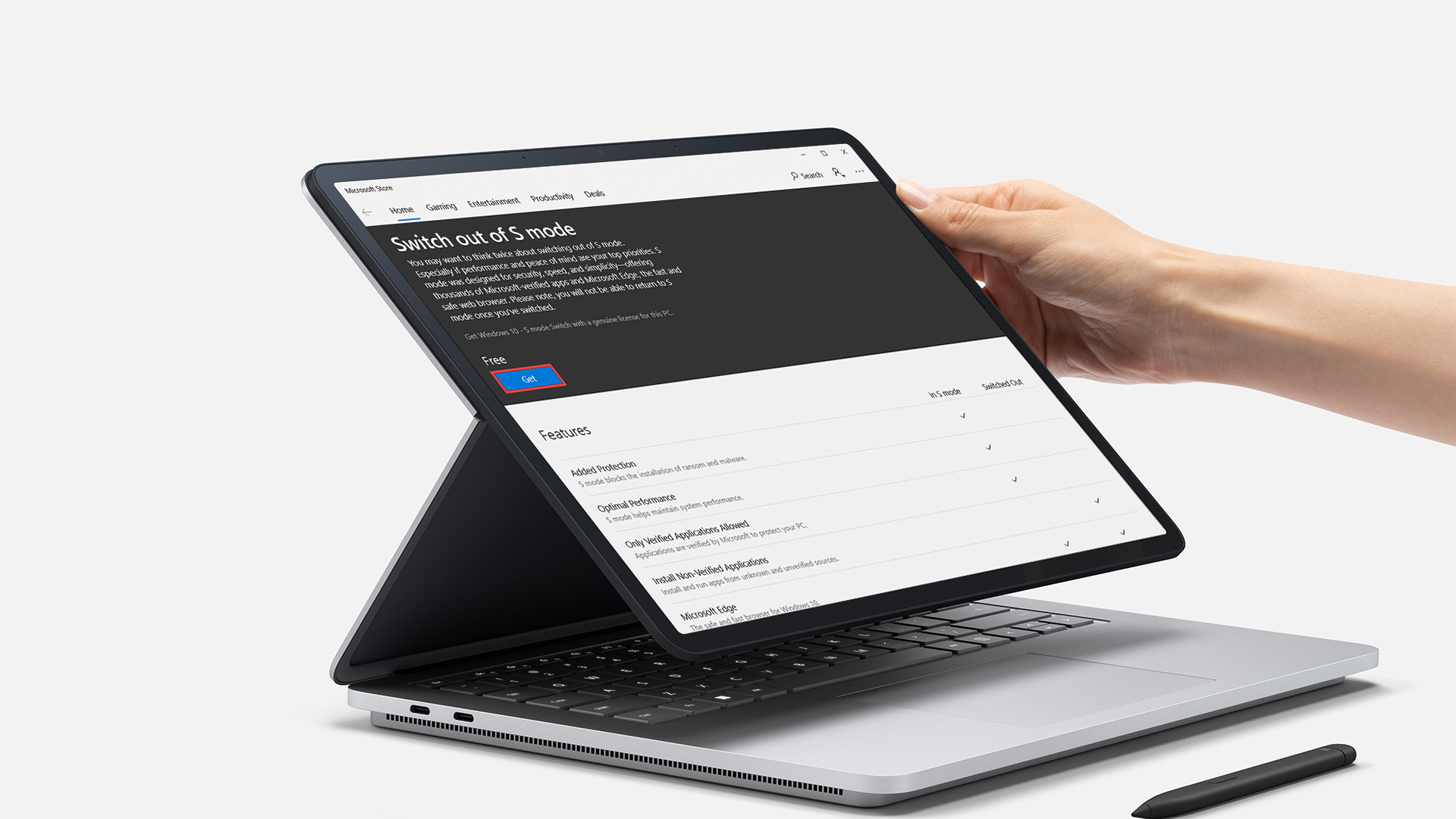
The Microsoft Store should open on a page labelled Switch out of S mode or something similar.
Select Get .
Once Microsoft confirms the change, S Mode is disabled and you can install compatible applications from outside the Microsoft Store.
Step 5: Install the Application You Need
You can now return to the software you were trying to install.
Download it from the developer's official website or another trusted source and follow its normal installation process.
Expert Tip: Leaving S Mode increases your software choices, but it also means you need to be more selective about downloads. Avoid unofficial mirrors and unknown installation packages when the developer provides a verified source.
Is Switching Out of S Mode Permanent?
Yes. This is the most important point to understand before you proceed.
Microsoft states that switching out of S Mode is a one-way process. Once you leave it, there is no standard setting that allows you to reactivate S Mode on the same Windows installation. There is also no charge for switching.
So, before completing the process, check whether the program you need is actually unavailable through the Microsoft Store. If there is a suitable Store version, staying in S Mode may still meet your needs.
What Changes After You Turn Off S Mode?
Your laptop does not suddenly become a different machine. Windows 11 remains installed, and your existing personal files and Microsoft Store applications remain available. The main change is that Windows no longer applies the S Mode software restrictions.
You Can Install More Windows Applications
You gain the ability to install compatible software from outside the Microsoft Store. That can include productivity applications, specialist business software, hardware utilities and programs downloaded directly from software developers.
You Have More Browser Choice
S Mode places tighter restrictions around browser use and defaults. Once you leave it, you have greater flexibility to install and configure supported browsers.
You Take More Responsibility for Software Security
One benefit of Windows S Mode is that restricting installation sources reduces exposure to potentially unsafe desktop applications. Once the restriction is removed, you should pay closer attention to download sources, Windows security warnings, digital signatures, and application permissions.
For normal browsing, emails, streaming and productivity tasks, you do not necessarily need an expensive specification either. Our everyday laptops cover systems designed for these routine workloads without requiring specialist hardware.
Does Leaving S Mode Make a Laptop Slower?
Not automatically.
Switching itself does not substantially alter the laptop's processor, RAM, storage or other physical hardware. Performance will depend more on what you install and run afterwards. A lightweight system can begin to feel slower if you add:
- Numerous startup applications
- Resource-heavy antivirus packages
- Background synchronisation tools
- Demanding creative or professional software
- Multiple browser extensions and background processes
The sensible approach is to install only the software you actually need and periodically review which applications launch automatically with Windows.
If you are replacing an older or low-spec system rather than changing its configuration, there are also laptops under £500 suited to browsing, office applications, study, and general home use.
Can You Turn Windows S Mode Back On?
Not through the normal Windows settings.
Microsoft describes Windows S Mode turn off as a permanent change. Once the device has been switched out, you cannot simply open Activation settings later and enable S Mode again. That is why we recommend deciding based on an actual software requirement rather than disabling S Mode simply because the option is available.
If everything you use already works correctly, there may be little reason to change it.
What if the Switch Out of S Mode Option is Not Working?
Occasionally, the Microsoft Store page may fail to load or the Get button may not work. Try the following checks before making larger changes to Windows.
Check Your Internet Connection
The switching process uses the Microsoft Store, so your laptop needs an active internet connection.
Reconnect to Wi-Fi or Ethernet and reopen the Store if necessary.
Sign In to Your Microsoft Account
Make sure Windows and the Microsoft Store are properly signed in. Open the Store, select your profile icon and confirm that your account details appear correctly.
Install Windows Updates
Go to:
Settings > Windows Update > Check for updates
Install any available updates and restart your laptop if Windows asks you to do so. If an update will not download or install correctly, see our guide to common Windows 11 update problems and fixes before trying the S Mode process again.
Restart the Microsoft Store
Close the Store completely and reopen it. A simple restart can resolve temporary Store connection or authentication problems.
Check Whether the Device Is Managed
If the laptop belongs to a school, university or company, an administrator may control whether users are permitted to leave S Mode.
Microsoft advises contacting the organisation's administrator when switching is blocked on a managed device. Do not try to bypass management policies on equipment that does not belong to you. However, if Windows or the Microsoft Store is causing other problems, our complete Windows setup and troubleshooting guide covers updates, broken apps, recovery options and common system issues.
Can You Switch Out of S Mode Without a Microsoft Account?
The official switching process relies on the Microsoft Store, so account and Store access can be relevant during activation.
Rather than attempting unofficial workarounds, use the Microsoft-supported procedure. This reduces the risk of activation problems, damaged Windows installations or unreliable system modifications.
If the Store is not working correctly, resolve that issue first instead of downloading scripts or tools claiming to disable S Mode.
Is S Mode Good for Students?
It can be.
S Mode's controlled environment may suit students who mainly use browser-based learning platforms, Microsoft 365 applications and software available through the Store.
The limitation becomes more noticeable when a course requires specialist programs. Coding tools, engineering applications, creative packages or institution-specific software may require a conventional Windows environment.
Check the software requirements provided by your college or university before changing the operating mode.
Is S Mode Good for Everyday Use?
For basic computing, Windows 11 S Mode can be sufficient.
Browsing, streaming, email, document editing, and other lightweight activities do not necessarily require unrestricted desktop software. The Store-first setup can also help keep a simple laptop relatively uncluttered.
Devices such as Microsoft Surface laptops demonstrate how Windows hardware can cover anything from straightforward portable computing to more demanding productivity, depending on the particular specification and operating configuration.
At Laptop Outlet, we recommend choosing the Windows setup around the programs you actually use rather than assuming that one configuration suits everybody.
Windows 10 S Mode vs Windows 11 S Mode
You may still see older guides discussing Windows 10 S Mode , particularly when troubleshooting an ageing laptop.
The important distinction in 2026 is that Microsoft ended standard Windows 10 support on 14 October 2025 . Microsoft recommends moving eligible systems to Windows 11 rather than continuing with an unsupported Windows 10 installation.
Windows 11 also differs because S Mode is available only with the Home edition. If an older machine still runs Windows 10, consider its Windows 11 eligibility and overall hardware condition before spending too much time adjusting its software configuration.
Should You Stay in S Mode or Switch Out?
Stay in S Mode if all the software you need is available through the Microsoft Store and you prefer its more controlled environment. Switching makes more sense when the restriction prevents you from using legitimate software or compatible equipment needed for study, work or personal tasks. A simple decision process is:
- Stay in S Mode if your existing applications already cover everything you do.
- Switch out if you genuinely need compatible software from outside the Microsoft Store.
- Check first if you are unsure whether a particular application has a Store version.
- Contact your administrator if the laptop belongs to an organisation.
Remember that the decision is permanent under Microsoft's normal supported process. If your current device no longer suits the applications you use, our guide to the best Windows 11 laptops for students, creators and professionals can help you identify the specification that better matches your workload.

Final Thoughts
Learning how to switch out of S Mode takes only a few steps, but the important decision comes before you press Get .
Windows 11 S Mode restricts software installation to create a more controlled operating environment. Switching removes that limitation and gives you greater freedom to install compatible Windows applications, but Microsoft does not provide an ordinary way to reverse the change.
Check the applications you need, make sure they come from trustworthy sources and only disable S Mode when the additional flexibility will actually benefit you.

Can switching out of S Mode affect my Windows licence?
No. Leaving S Mode does not remove or deactivate your existing Windows licence. Your Windows edition remains activated as long as the device already had a valid digital licence before you switched.
Do I need to back up my files before leaving S Mode?
A backup is not normally required because switching out of S Mode does not erase your files or reinstall Windows. However, keeping an up-to-date backup is always sensible before making system-level changes.
Will Windows Defender still work after I switch out of S Mode?
Yes. Microsoft Defender Antivirus and other built-in Windows Security features continue to work after S Mode is disabled. You do not need to install third-party antivirus software unless you specifically want additional security features.
Can I install Google Chrome after switching out of S Mode?
Yes. Once S Mode has been disabled, you can download and install compatible desktop browsers such as Google Chrome or Mozilla Firefox from their official websites.
Does switching out of S Mode improve gaming performance?
No. Leaving S Mode does not directly increase frame rates or improve your laptop's hardware performance. It simply gives you access to a wider range of compatible applications, launchers and games that may not be available through the Microsoft Store.
| Read More: |
| Laptop Buying Guide 2026: How to Choose the Right One |
| Why Your Laptop is Running Slow: Top Causes & Quick Fixes |
| Which Laptops Come with Microsoft Word and Excel Preinstalled? |
Related Articles

Last Updated: April 08, 2026
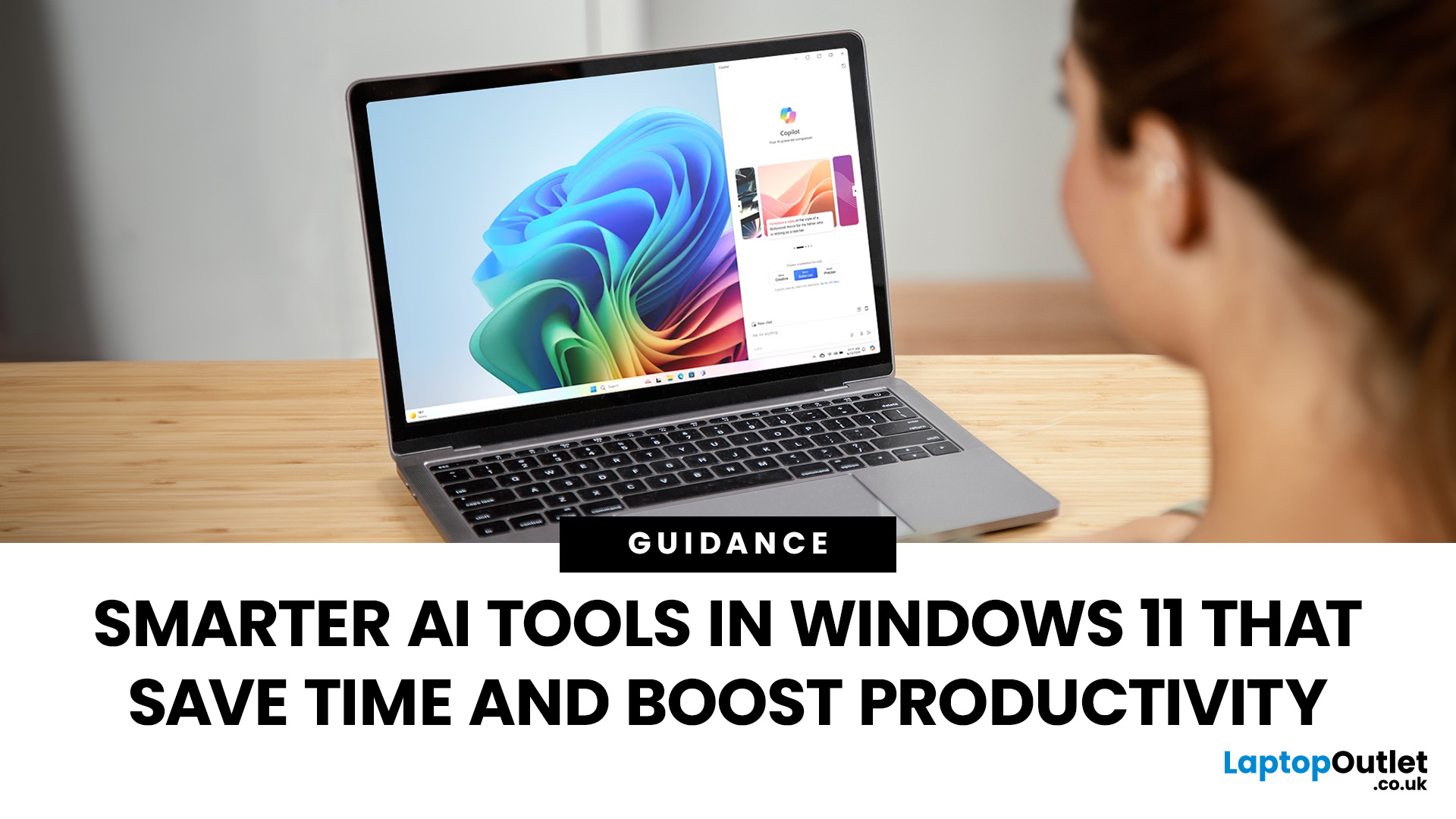
Remember when using a laptop was all about speed and specs i.e. faster processors, bigger storage, sharper screens? Those things still matter, but in 2025, the real game-changer is AI built directly into your PC. Microsoft’s new Windows 11 Copilot+ PCs are designed for exactly that.
Instead of just running apps faster, these laptops think alongside you. They can find files you barely remember creating, relight a photo as if you’re in a studio, or even recall what you were working on hours ago with a simple search. In short, they’re not just computers anymore - they’re collaborators.
In this post, we’ll dive into what makes Copilot+ special, unpack the latest AI tools in Windows 11, and show how customers can best benefit from these features.
What Makes a Copilot+ PC Different?
A Copilot+ PC is more than just a Windows 11 device. At its core is a Neural Processing Unit (NPU), a chip designed specifically to handle AI tasks. With this hardware in place, features like Recall and Windows

Last Updated: October 09, 2025
Think back a few years... when you bought a laptop, what did you care about most? Probably the processor, maybe RAM, and the graphics card if you were into gaming. The display? It was usually just “good enough.”
Fast forward to 2025, and the screen has become just as important as the hardware inside. Whether you’re streaming, gaming, editing photos, or juggling multiple apps, the display is what you interact with most — and it shapes your entire experience.
This is especially true with Windows 11 laptops, as the operating system is designed to take full advantage of modern display technologies. Its sharper interface, multitasking layouts, HDR support, and gaming optimisation features really shine when paired with quality screens.
That’s why today’s Windows 11 laptop display comparison often comes down to three main types: OLED, IPS, and Microsoft’s PixelSense. Each has unique strengths, trade-offs, and ideal use cases. Understanding them will help you pick the best display type for Windows
Last Updated: June 15, 2026
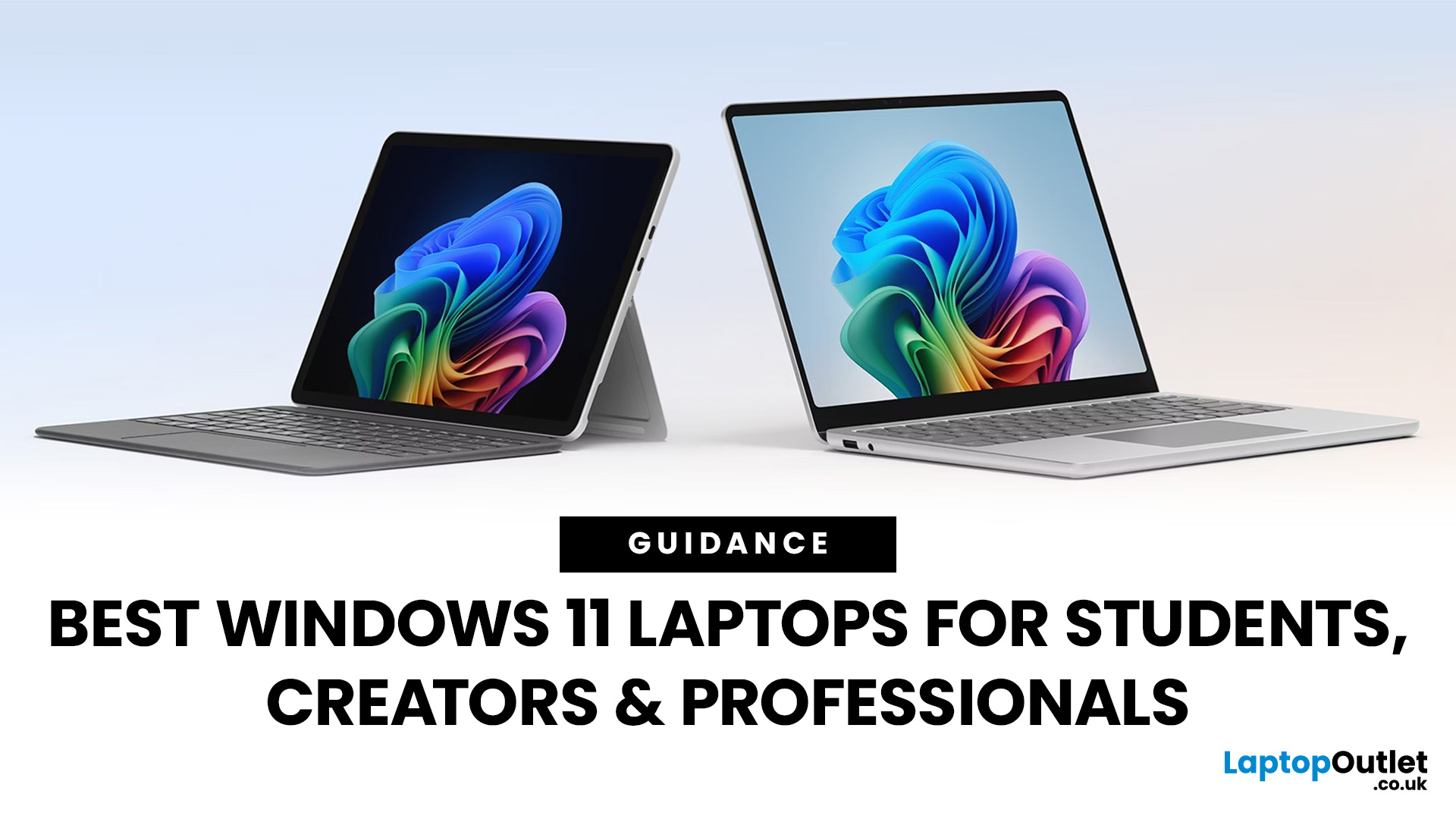
Choosing the right laptop has never been more important. Whether you are studying for exams, editing videos, or managing a full workload from home, the laptop you use makes a real difference. And right now, Windows 11 laptops are setting the standard for what a modern, capable machine should look and feel like.
Windows 11 brings a cleaner interface, better multitasking tools, improved security features, and built-in support for the latest AI-powered workflows. Add to that the wide range of hardware options available — from budget-friendly everyday machines to high-performance creative workstations — and it is clear why Windows 11 remains the go-to platform for most users in 2026.
But with so many options out there, knowing where to start can feel overwhelming. That is exactly why we put together this guide. We have split the best Windows 11 laptops into three clear categories — students, professionals, and creators — so you can find the right fit quickly.
The Best Windows 11 Laptops for
Last Updated: October 15, 2025
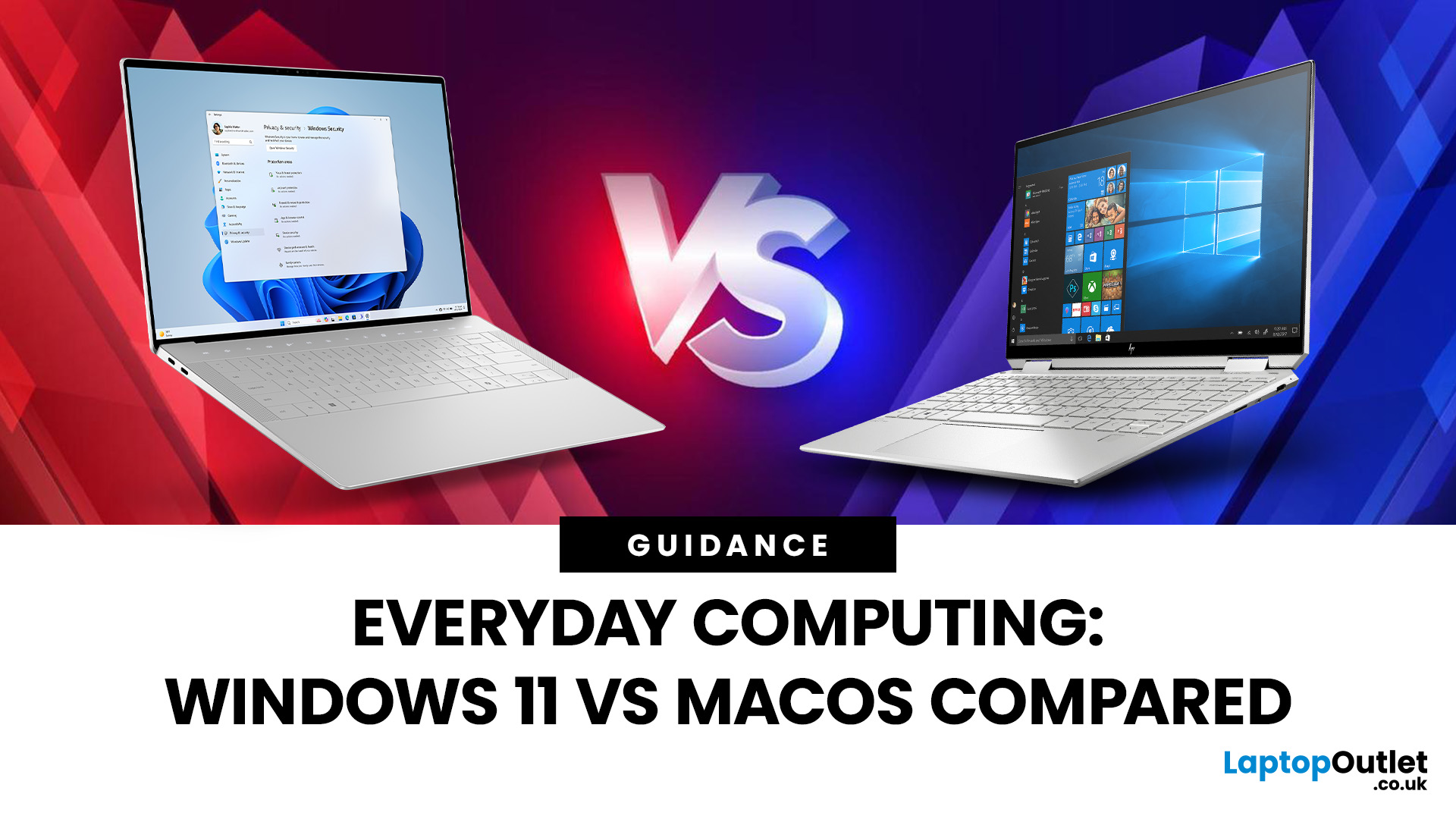
If you still rely on a Windows 10 laptop, you're standing right on a deadline. Support for Windows 10 ends on 14 October 2025, which means no more free security updates or bug fixes via Windows Update. Your machine will continue to run, but it will steadily become more exposed online. Microsoft's own guidance is straightforward: "move to Windows 11 on supported hardware or consider a managed path to extend security while you transition".
Below,we have compiled a practical guide on Windows 11 vs. Windows 10 laptops, comparing their performance, gaming, security, features, and hardware requirements.
A Quick Verdict If You're a Busy Reader!

- If your laptop meets Windows 11 requirements, upgrade and carry on. You'll gain modern security defaults (TPM 2.0, virtualisation-based protections), ongoing feature updates (25H2/24H2), and gaming tech like Auto HDR and DirectStorage without changing your hardware.
- If your laptop is too old for Windows 11, you can subscribe to the Extended Security

Last Updated: November 04, 2025
In today’s connected world, security is a top priority, especially for businesses handling sensitive data and remote workflows. Microsoft’s latest operating system brings advanced protection designed for the modern workforce. Windows 11 security features deliver multiple layers of defence, offering a robust shield against cyber threats, ransomware, and data breaches.
Compared to its predecessor, Windows 11 vs Windows 10 security shows clear improvements in encryption, authentication, and hardware-based protection. Whether you’re an enterprise leader or a small business owner, investing in Windows 11 laptops with advanced security ensures your data, devices, and users remain protected, wherever work happens.
What Makes Windows 11 the Most Secure OS Yet
Enhanced Hardware-Based Protection
Windows 11 is built for zero-trust security, meaning protection starts from the chip level. All certified Windows 11 business laptops include:
- Trusted Platform Module (TPM) 2.0 – A secure crypto-processor

Published: October 15, 2025
So, you’ve just cracked open a shiny new Windows 11 laptop, maybe something sleek from ASUS or one of the new-gen ultrabooks from the Windows 11 laptop range and you’re ready to dive in.
But before you start downloading Spotify, Chrome, or every game-on-game pass, let’s get one thing straight: Windows 11 runs beautifully… when it’s set up properly.
Out of the box, most laptops are loaded with trialware, telemetry, and services you’ll never use, all quietly eating battery and slowing things down. The good news? You can sort it all out in under an hour with the right steps.
This isn’t one of those “just click next” guides. This is your no-fluff, Gen Z-approved, tech-expert walkthrough, from the first boot to a fully optimised, smooth, private, and battery-efficient setup.
Let’s go.
First Boot: Don’t Just Click Next — Be Smarter Than Setup
The Windows 11 first boot is full of small traps. Microsoft really wants you to sign into a Microsoft Account, connect to Wi-Fi, and enable every cloud

Published: October 15, 2025
When it comes to choosing your next laptop, the debate between Windows 11 and macOS remains one of the most important decisions. Both operating systems offer sleek design, advanced performance, and productivity features, but they cater to very different kinds of users. Whether you’re a student, professional, or gamer, knowing how Windows 11 vs macOS comparison stacks up can help you find the right fit for your workflow.
In this guide, we’ll compare Windows 11 and macOS across key areas, including productivity, performance, gaming, user interface, and security, so you can decide which OS works best for your everyday needs.
Windows 11 vs macOS: Overview
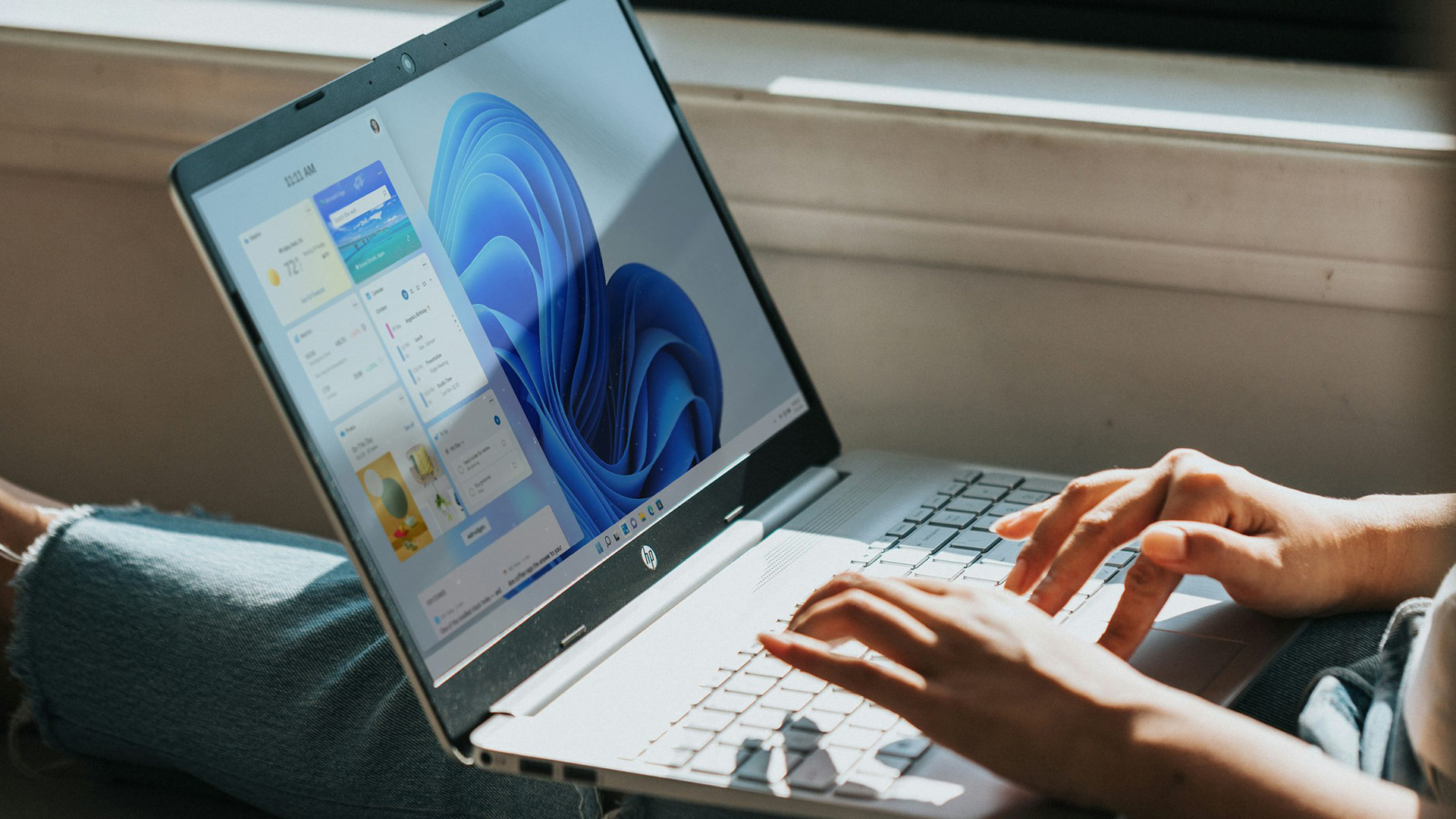
Windows 11, released in 2021 and continuously updated through 2025, represents Microsoft’s vision of a modern, intelligent, and AI-integrated operating system. macOS, on the other hand, continues Apple’s tradition of seamless integration with its ecosystem, known for its stability and clean design.
Both systems focus on user experience,
Published: October 21, 2025
Simple ways to boost speed, improve battery life, and keep your Windows 11 laptop running smoothly.
Windows 11 has brought a modern, elegant design and a range of improvements that make computing smoother, smarter, and more secure. However, even the best laptops can slow down over time if not maintained properly. Whether the laptop is brand new or has been used for a while, a few clever Windows 11 laptop performance tweaks can make a big difference to speed, responsiveness, and battery life.
Thinking about upgrading but not sure if Windows 11 is really worth it? Find out how it compares to Windows 10 in terms of speed, features and everyday performance in our full breakdown on Windows 11 vs Windows 11 laptop.
This guide covers easy, practical Windows 11 laptop tips to help you speed up your laptop and keep it performing at its best.
Why Laptop Performance Slows Down
Over time, laptops may take longer to boot, apps can lag, and multitasking can feel sluggish. This is usually caused by
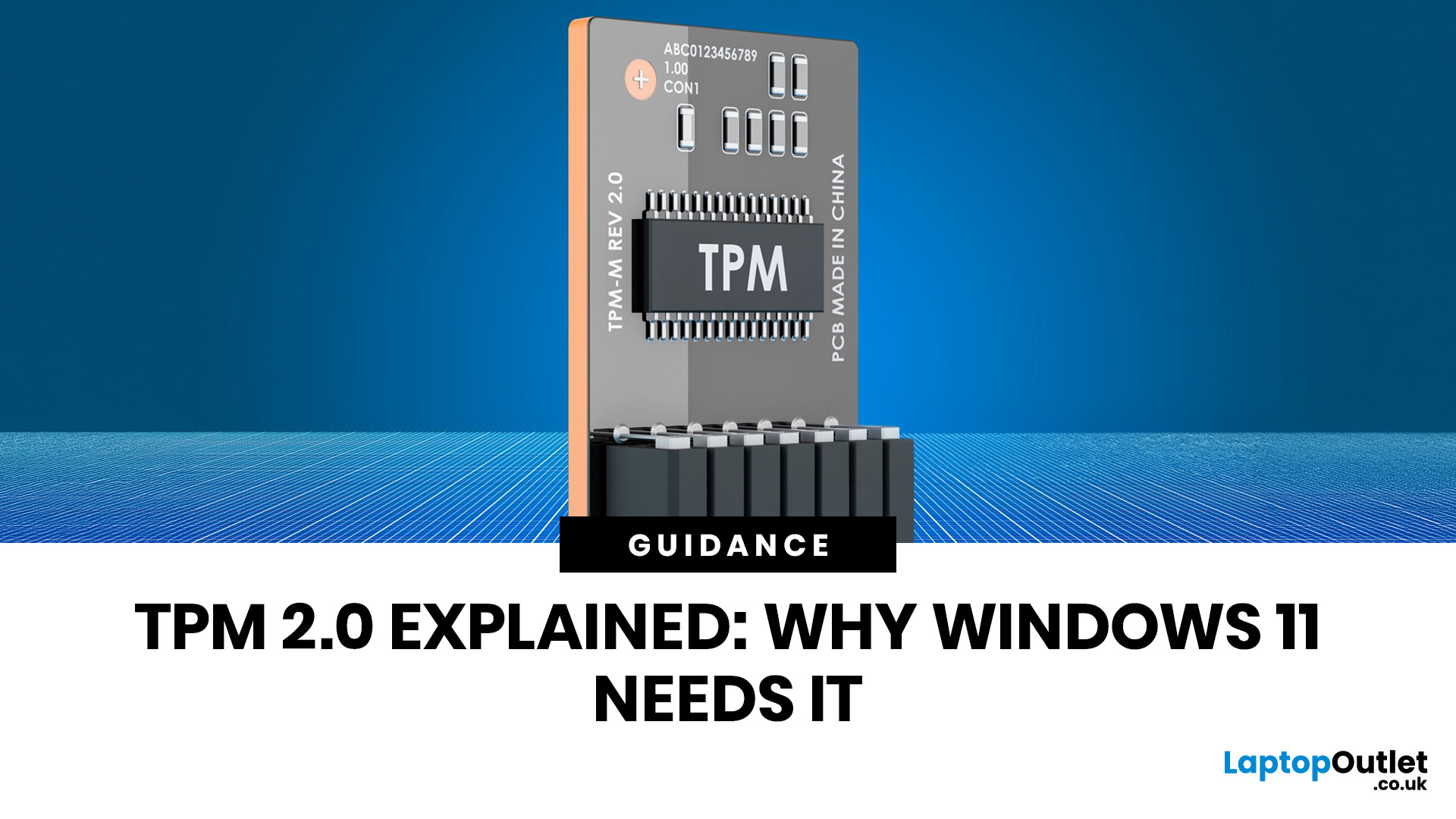
Last Updated: July 06, 2026
You go to upgrade your PC, everything seems fine, and then Windows 11 drops the digital equivalent of “not you, mate” with a message about TPM 2.0. Suddenly you are searching TPM 2.0 Windows 11, opening BIOS menus you have not touched since the Stone Age, and wondering if your laptop has secretly become ancient overnight. Microsoft’s official Windows 11 minimum requirements still include TPM 2.0, plus UEFI firmware and Secure Boot capability, so this is not some random pop-up glitch. It is part of the platform’s baseline security setup.
If you have been asking what is TPM in computer, do I need TPM for Windows 11, or why this tiny bit of hardware suddenly matters so much, this guide breaks it down in plain English. No jargon soup, no lecture mode, just what TPM is, what it does, why Windows 11 wants it, and what to do if your PC says TPM is missing or disabled.
| Quick answer: TPM 2.0 is a security component built into many modern PCs. It stores cryptographic keys, helps verify system integrity |
Last Updated: July 06, 2026
If your PC has decided that today is the day it will freeze at 61%, throw out a random error code, or restart at the worst possible time, you are very much not alone. Windows 11 update issues are one of those annoyingly common problems that can feel dramatic in the moment, but a lot of them are fixable with the right steps.
The good news is that most Windows 11 update problems usually come down to a handful of familiar causes: not enough storage, damaged update files, a disabled service, app conflicts, or a known issue that Microsoft is already tracking. Microsoft’s own support guidance still points users first to the built-in Windows Update troubleshooter and its broader update troubleshooting flow, which is usually the fastest place to start.
Why Windows 11 update fails in the first place
Let’s keep it real: when a Windows 11 update failed message pops up, it does not tell you much. The actual cause is usually one of these:
A Windows 11 update stuck during download or install can be linked

