



ChromeOS Flex: What It Is and How to Install It on Any PC or Mac
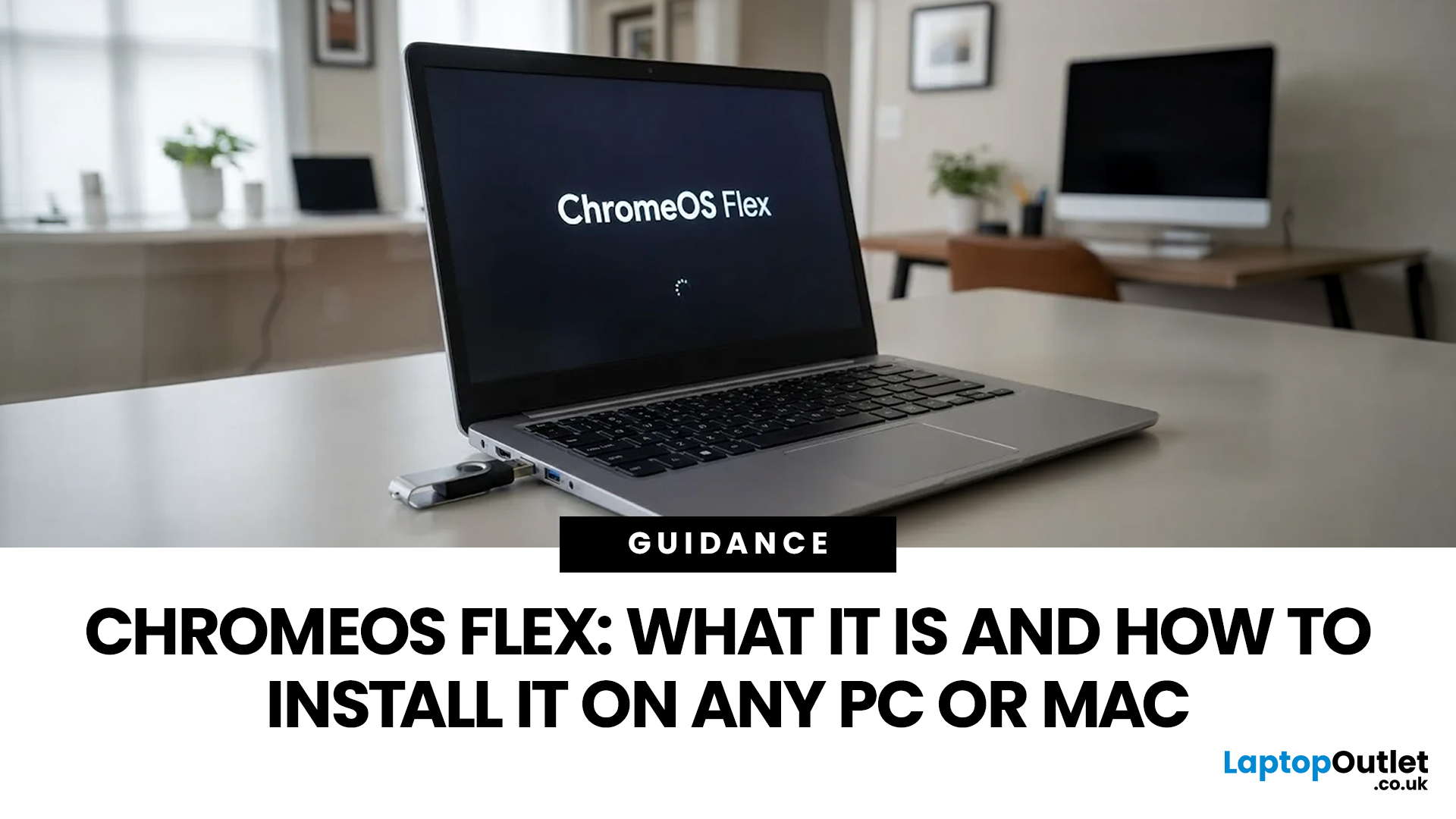
Most of us have an old laptop somewhere collecting dust. It’s slow, takes ages to boot, and probably sounds like it’s about to take off every time you open Chrome. But what if you could turn that relic into something fast, secure, and actually enjoyable to use again?
Enter ChromeOS Flex.
Whether you’re a student, a gamer needing a lightweight secondary machine, or a professional looking for a distraction-free setup, ChromeOS Flex is one of the easiest ways to revive old hardware without spending a penny.
In this guide, we’ll break down exactly what ChromeOS Flex is, why it’s worth your time, and most importantly, how to install ChromeOS Flex on both PC and Mac step by step.
What Is ChromeOS Flex?
ChromeOS Flex is a lightweight, cloud-first operating system developed by Google. It’s essentially a version of ChromeOS (the one used on Chromebooks) designed to run on older Windows PCs and Macs.
Think of it as giving your ageing laptop a fresh brain, one that’s faster, safer, and built for the modern web.
Key Features of ChromeOS Flex
- Fast boot times – Start your device in seconds, not minutes
- Built-in security – Automatic updates and sandboxing
- ️ Cloud-first experience – Seamless Google Drive integration
- Better battery life – Less background bloat draining power
- Simple interface – Clean, minimal, and distraction-free
Unlike traditional operating systems, ChromeOS Flex doesn’t rely heavily on local apps; it’s designed around the browser and web apps.
Why Use ChromeOS Flex?
1. Revive an Old PC with ChromeOS
If your laptop struggles with Windows 10 or 11, ChromeOS Flex can make it feel brand new again. It removes unnecessary background processes and focuses only on what you actually need.
2. Perfect for Students and Everyday Use
From Google Docs to YouTube and Zoom, everything runs smoothly. It’s ideal for schoolwork, browsing, and streaming.
3. Great Secondary Device for Gamers
No, you won’t be running AAA games, but ChromeOS Flex is perfect for:
- Cloud gaming (GeForce NOW, Xbox Cloud Gaming)
- Discord and browsing
- Managing downloads or streaming setups
4. Secure by Design
With built-in virus protection and automatic updates, it’s far more secure than an outdated Windows machine.
ChromeOS Flex vs ChromeOS: What’s the Difference?
|
Feature |
ChromeOS Flex |
ChromeOS (Chromebooks) |
|
Runs on old PCs/Macs |
YES |
No |
|
Android apps support |
No |
YES |
|
Google Play Store |
No |
YES |
|
Cloud-based apps |
YES |
YES |
The biggest limitation: no Android apps (at least for now). But for most users, web apps cover everything.
System Requirements for ChromeOS Flex
Before jumping into installation, make sure your device meets these requirements:
- Intel or AMD processor (64-bit)
- 4GB RAM (8GB recommended)
- 16GB storage minimum
- Ability to boot from USB
Pro tip: Avoid very old GPUs or unsupported Wi-Fi chips; these can cause compatibility issues.
ChromeOS Flex Download: What You Need First
To get started, you’ll need:
- A USB drive (8GB or larger)
- A working computer (to create the installer)
- Google Chrome browser
You’ll be using Google’s official ChromeOS Flex USB install method via the Chromebook Recovery Utility.
How to Install ChromeOS Flex on PC or Mac
Here’s the step-by-step guide; no tech degree required.
Step 1: Install Chromebook Recovery Utility
- Open Google Chrome
- Go to the Chrome Web Store
- Search for Chromebook Recovery Utility
- Click Add to Chrome
Step 2: Create a ChromeOS Flex USB Installer
- Open the Recovery Utility
- Click Get Started
- Select:
- Manufacturer: Google ChromeOS Flex
- Product: ChromeOS Flex (Developer-Unstable or Stable)
- Insert your USB drive
- Select it and click Create Now
This will take a few minutes.
Step 3: Boot from the USB Drive
- Insert the USB into your old PC or Mac
- Restart the device
- Press the boot key:
- PC: F12, ESC, or DEL
- Mac: Hold Option (⌥)
- Select the USB drive
Step 4: Try or Install ChromeOS Flex
You’ll now see two options:
- Try it first (recommended)
- Install ChromeOS Flex
Trying it lets you test everything before wiping your system.
Step 5: Complete Installation
If everything works:
- Click Install ChromeOS Flex
- Confirm the installation
- Wait for the process to finish
This will erase all data on your device.
How to Install ChromeOS Flex on Mac
The process is nearly identical, but keep these in mind:
- Use the Option (⌥) key to access boot menu
- Some older Macs may have limited driver support
- Wi-Fi compatibility can vary
Pros and Cons of ChromeOS Flex
|
Pros |
Cons |
|
|
Who Should Use ChromeOS Flex?
ChromeOS Flex is perfect for:
- Students
- Remote workers
- Businesses repurposing old devices
- Casual users
It’s less ideal for:
- Hardcore gamers
- Developers needing full Linux environments (though Linux support exists, it’s limited)
Tips for Best Performance
- Use SSD instead of HDD if possible
- Ensure at least 8GB RAM
- Keep system updated
- Use Progressive Web Apps (PWAs)

Final Thoughts: Should You Try ChromeOS Flex?
If you’ve got an old laptop gathering dust, ChromeOS Flex is honestly one of the smartest upgrades you can make.
It’s fast, secure, and ridiculously easy to use, whether you’re 12 or 50. And while it won’t replace a high-end gaming rig or development machine, it absolutely nails what most people actually need: speed, simplicity, and reliability.
So instead of binning your old device… give it a glow-up. Because sometimes, all your laptop needs aren’t replaced, it’s reinventing.

FAQs About ChromeOS Flex
1. Is ChromeOS Flex really free?
Yes, ChromeOS Flex is completely free to download, install, and use. There are no hidden costs, subscriptions, or licensing fees. It’s developed by Google and designed especially for individuals, schools, and businesses looking to extend the life of older devices without investing in new hardware.
2. Can I install ChromeOS Flex without a USB drive?
No, a USB drive is required for the official installation process. The Chromebook Recovery Utility creates a bootable installer that your PC or Mac needs to launch ChromeOS Flex. While there are unofficial methods floating around online, they’re not recommended as they can lead to installation errors or system instability.
3. Does ChromeOS Flex support Android apps or the Google Play Store?
Currently, ChromeOS Flex does not support Android apps or the Google Play Store. This is one of the main differences between ChromeOS Flex and traditional Chromebooks. However, most popular apps (like Spotify, Zoom, Canva, and even some games) are available as web apps or Progressive Web Apps (PWAs), which work surprisingly well.
4. Can I dual boot ChromeOS Flex with Windows or macOS?
Officially, no ChromeOS Flex installation will completely replace your existing operating system. There’s no built-in dual-boot option at the moment. If you’re unsure, you can use the “Try it first” mode via USB to test performance and compatibility before committing to a full install.
5. Is ChromeOS Flex good for gaming?
ChromeOS Flex isn’t designed for traditional PC gaming (like running AAA titles locally), but it still has some solid options. You can use cloud gaming platforms such as NVIDIA GeForce NOW or Xbox Cloud Gaming, which let you stream high-end games directly through your browser. It’s also perfectly fine for lighter browser-based games.
6. Will ChromeOS Flex work onvery oldlaptops?
It can, but results vary depending on your hardware. Devices with at least 4GB RAM and a modern 64-bit processor tend to perform well. However, very old machines (especially those with outdated Wi-Fi cards or graphics drivers) may face compatibility issues. It’s always best to try ChromeOS Flex via USB first before installing it permanently.
Related Articles

Last Updated: September 11, 2025
Ready to Install Windows 11?
If you're planning to install Windows 11 using a USB stick, one of the first things to sort out is the size. Too small, and it won’t fit the installer. Too large, and it’s unnecessary. Let’s clear up exactly what size USB you need to install Windows 11 and how to get it ready.
Minimum USB Size for Windows 11 Installation
- At least 8GB of storage is required
- Recommended: 16GB or more for extra space and reliability
Microsoft officially recommends a USB drive with 8GB minimum, but using a 16GB or 32GB USB stick ensures you won’t run into space issues.
USB Format Requirements
Before using the USB stick:
- Format it as FAT32 (for UEFI systems) or NTFS (for BIOS/Legacy systems)
- Use tools like Rufus (Windows) or Disk Utility (Mac) to format and prepare the drive
Create a Bootable USB for Windows 11
Using Microsoft’s Media Creation Tool:
- Download the Media Creation Tool from Microsoft’s website
- Run the tool and choose Create installation media

Published: September 05, 2025
Buying a laptop doesn’t have to mean a hefty upfront payment especially when shopping at Laptop Outlet. They offer a smart array of laptop financing options, from interest-free instalments to longer-term plans, ensuring you can pay in a way that suits your budget.
Klarna Options at Laptop Outlet
Laptop Outlet teams up with Klarna to offer four flexible ways to pay:
Pay in 3
- Split your purchase (between (£30–£2,000) into three equal, interest-free payments.
- First payment is at checkout, followed by two automatic monthly deductions.
Pay in 30 Days
Take your time—no interest or fees if paid on time. You don’t pay anything upfront and have 30 days from shipping to settle the amount.
Financing (6–36 Months)
Spread the cost over longer terms, between 6 months and 36 months, at a 21.9% APR (representative). Available on purchases of £250–£5,000. Subject to status and regulated by the FCA.
Pay Now / Pay in Full
Prefer to avoid instalments? Simply pay the full amount at checkout using your chosen

Last Updated: March 06, 2026
If you’re trying to plan your backlog (or your annual leave), this is your 2026 upcoming games list in one place, with confirmed release dates and clearly labelled release windows where a specific day isn’t locked yet.
This guide is built for people who want a clean answer to: “What’s coming out in 2026, and when?” — including release dates on Switch/Switch 2, PS5, Xbox Series X|S, and PC.
Last Updated: Friday, 6 March 2026
How We Verify Release Dates (so you can trust the calendar)
We only list a game under a month when it has a confirmed date (day + month) from a reliable source (publisher/dev announcement, platform store listing, or established release calendar). For wider coverage, we cross-check against frequently updated release schedules.
Labels You’ll See:
- Confirmed date = the day is publicly announced/listed
- Release window = “Spring 2026 / Q3 2026 / 2026” (no day yet)
- Early Access = date refers to EA launch, not 1.0
Quick timezone note (important): some PC store pages show a
Published: March 06, 2026
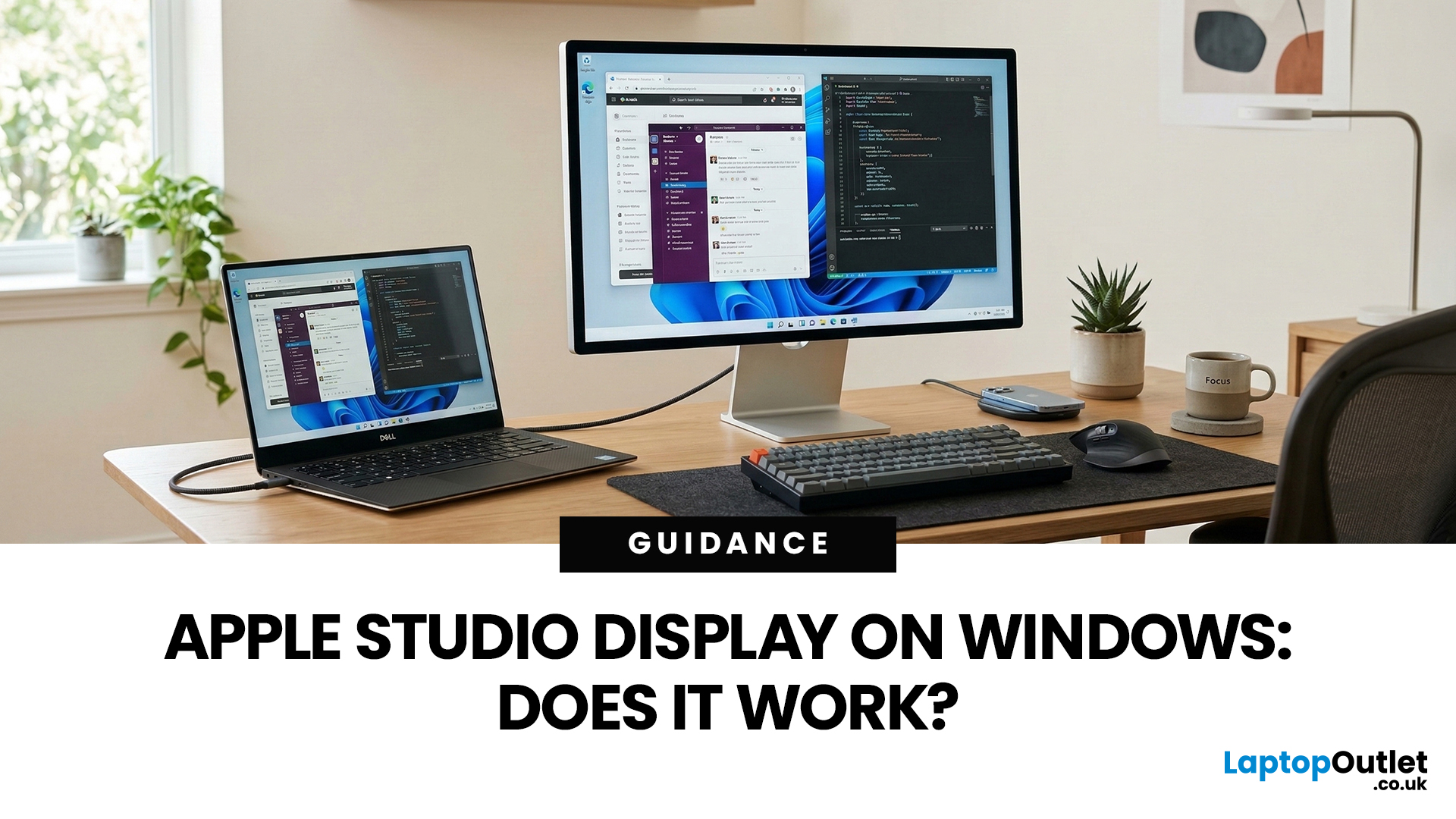
You’ve seen the Apple Studio Display. It’s sleek, stupidly sharp, and it makes your desk look like you’ve got your life together. But you’re on Windows. So, the big question is: Does Apple Studio Display work with Windows PCs? Yes, it can. But you won’t always get the full “Apple magic” experience on Windows.
Apple Studio Display + Windows: What Works vs What Doesn’t
Core Monitor Functions (generally work)
The good news: the basics are solid.
- You’ll get a picture (yep, it’s a monitor)
- Resolution and scaling can be adjusted in Windows settings
- It can act as an audio device (the built-in speakers often show up as an output option)
In other words: for day-to-day “I need a stunning screen”, you’re fine.
Features that May be Limited or Not Supported on Windows
Here’s where the “Apple ecosystem” bit starts showing:
- Center Stage (auto-follow webcam feature): usually not available as intended on Windows
- True Tone (auto colour temperature shifts): Generally not supported
- Firmware updates: typically
Last Updated: April 28, 2026
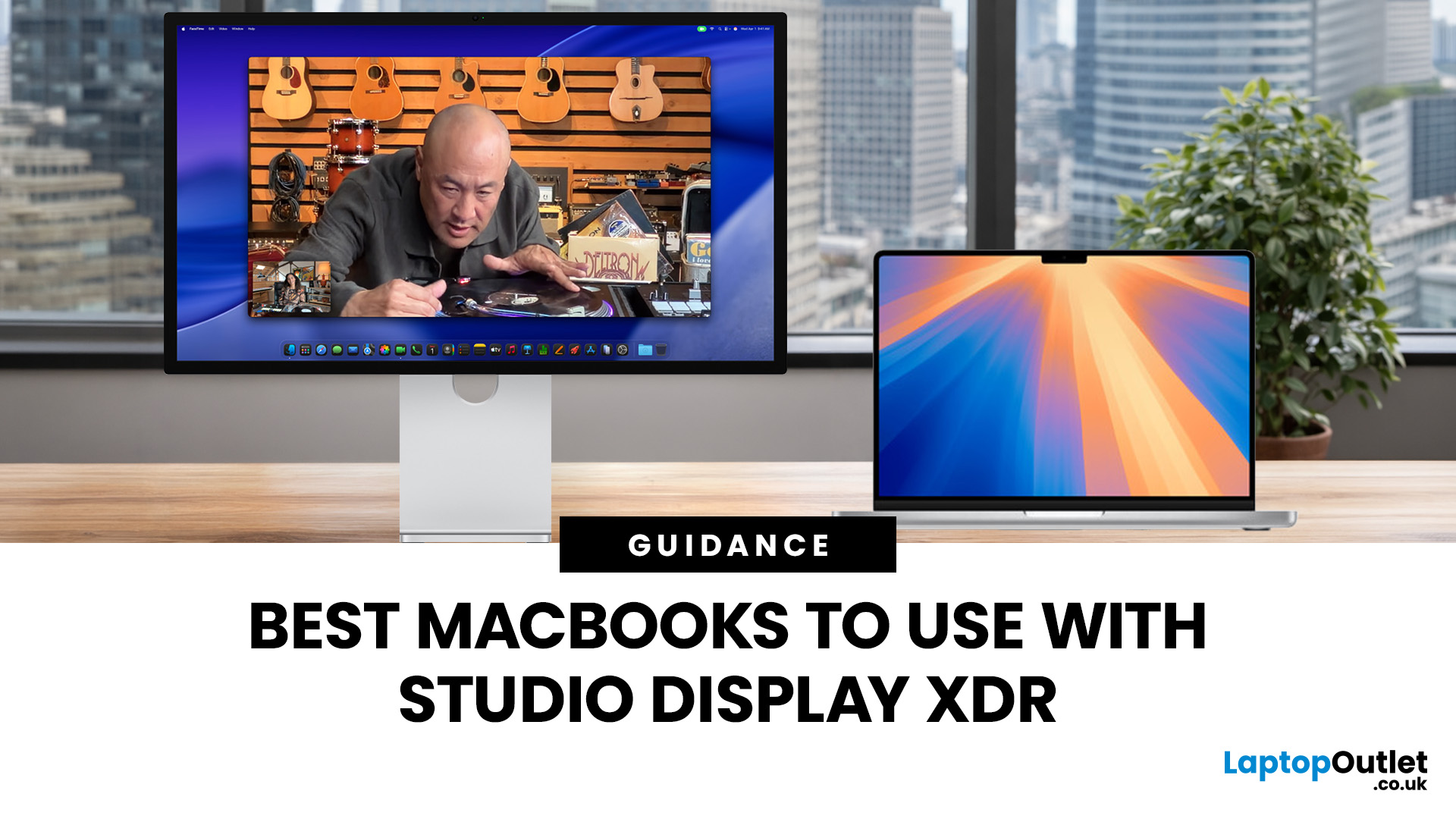
Apple’s Studio Display and Pro Display XDR are among the most advanced monitors available for professionals. With ultra-sharp 5K and 6K resolutions, these displays are designed for creatives who need exceptional colour accuracy, brightness, and detail.
However, to get the best experience, you need a powerful MacBook with strong graphics performance and Thunderbolt connectivity. Apple’s latest MacBooks powered by M3, M4, M5, M5 Pro, and M5 Max chips bring major improvements in performance, AI capabilities, and external display support.
Can MacBooks Support the Studio Display or Pro Display XDR?
Yes. Most modern Apple Silicon MacBooks can connect to these displays.
Studio Display
- Resolution: 5K (5120 × 2880)
- Thunderbolt / USB-C connection
- Works with most Apple Silicon Macs
Pro Display XDR
- Resolution: 6K (6016 × 3384)
- Requires high bandwidth Thunderbolt connection
- Best paired with MacBook Pro models
Modern MacBooks with Thunderbolt ports and Apple Silicon chips can drive high-resolution
Published: March 12, 2026
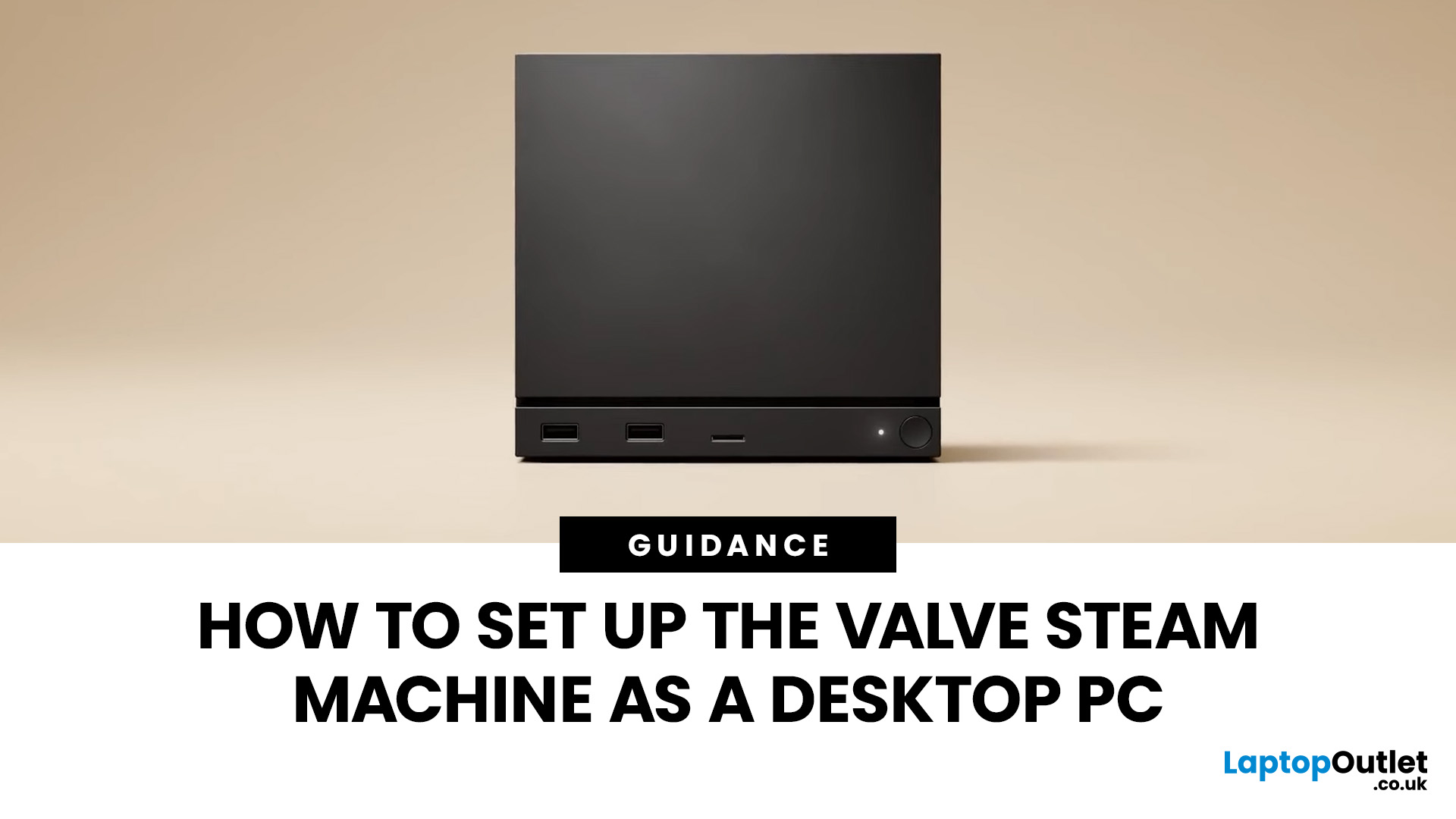
If you have an old Valve Steam Machine tucked away under the telly or on a shelf, you might be wondering whether it can still do more than launch games. The good news is that, with the right setup, it can absolutely pull double duty as a compact desktop computer for everyday use.
This guide walks you through a practical Valve Steam Machine setup for desktop use, from connecting a monitor and peripherals to accessing SteamOS desktop mode and making the system feels more like a standard PC. Whether you want a lightweight machine for web browsing, media streaming, or casual home computing, repurposing a Steam Machine can be a clever and cost-effective option.
What is a Valve Steam Machine?
A Valve Steam Machine was originally designed as a living-room gaming PC. It brought PC gaming closer to the console experience, usually running SteamOS and focusing on controller-friendly play from the sofa.
That said, the hardware inside many Steam Machines is still capable of handling basic desktop
Published: March 13, 2026
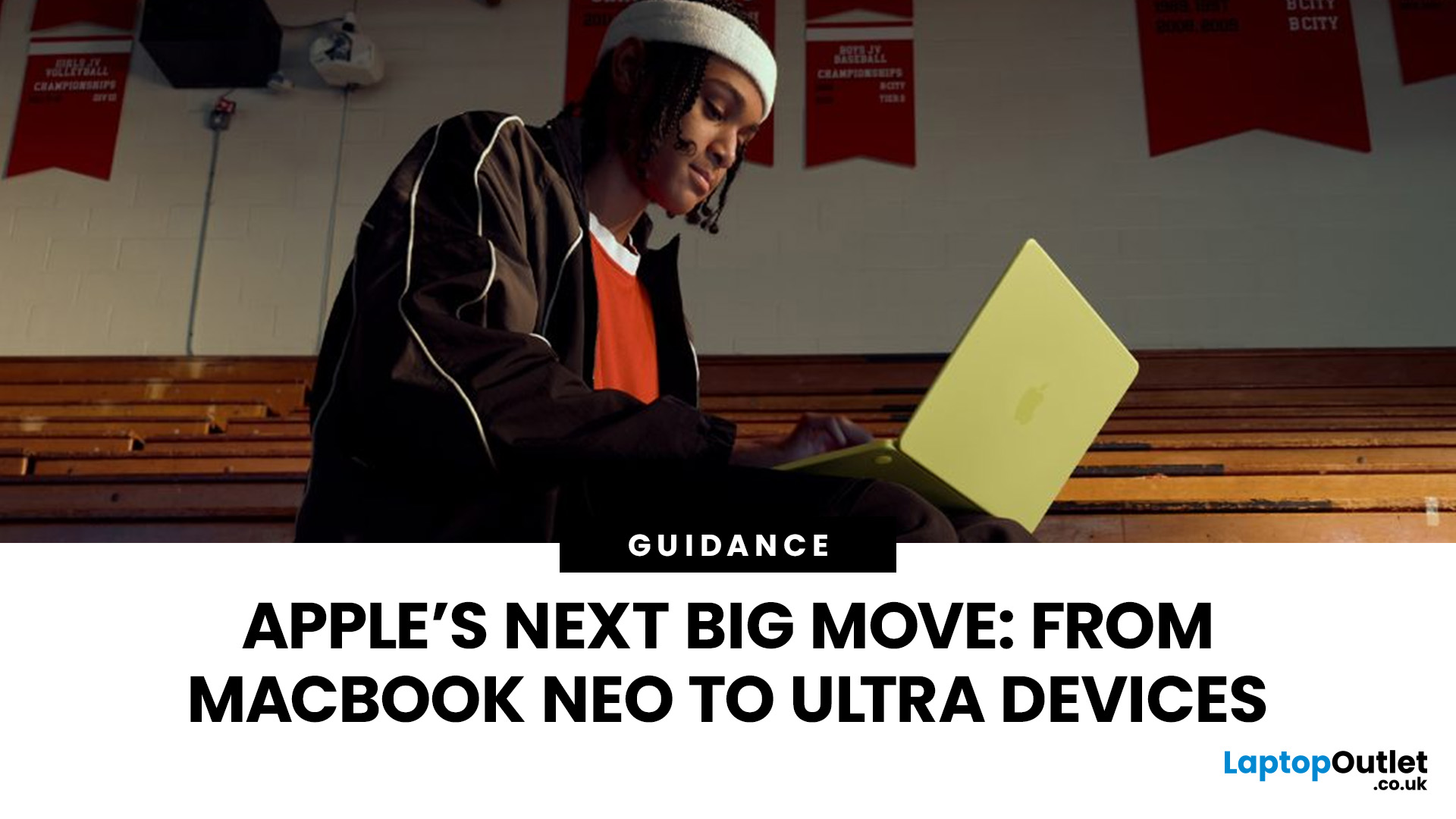
Apple is entering a new era of product strategy. For years, the company has dominated the premium tech market with devices like the iPhone Pro and MacBook Pro. But now Apple appears to be expanding its ecosystem in two directions at once: more affordable devices and ultra-premium hardware.
The recent MacBook Neo release indicates that Apple has a budget-friendly laptop to attract students and first-time Mac users. At the same time, industry reports indicate Apple is building a lineup of Ultra devices that will sit above its current Pro models.
This shift highlights what many analysts now call the Apple Ultra strategy, a long-term plan to stretch Apple’s ecosystem from entry-level devices all the way to cutting-edge luxury hardware. From the MacBook Neo at the affordable end to devices like iPhone Ultra, MacBook Ultra, and AirPods Ultra, Apple’s premium device roadmap is becoming more ambitious than ever.
MacBook Neo: Apple’s New Entry-Level Laptop
The MacBook Neo is expected to become

Last Updated: June 03, 2026
Apple’s iOS updates often follow a predictable pattern: major annual releases introduce headline features, while mid-cycle updates refine the experience. The iOS 26.4 update fits firmly into the latter category, but that does not make it insignificant. In fact, it introduces a range of improvements that directly impact everyday usage, from battery efficiency to system stability and feature enhancements.
For users in the UK, where iPhone usage remains consistently high across both premium and older models, updates like iOS 26.4 can make a noticeable difference in performance and usability. This guide provides a complete breakdown of what’s new in iOS 26.4, including features, changes, improvements, and whether it is worth installing.
What Is the iOS 26.4 Update?
The iOS 26.4 update is a mid-cycle software release designed to improve the overall performance and reliability of devices running iOS 26. Unlike major updates, it does not introduce a redesigned interface or radical new systems.
Published: March 23, 2026
2026 is looking stacked for Xbox. We’ve already got big names locked in like Fable, Forza Horizon 6, Beast of Reincarnation and Kiln, plus newer drops like Planet of Lana II and Crimson Desert, adding even more hype. For UK players, it’s a solid mix of huge adventures, racing, RPGs, co-op chaos, and Game Pass day-one wins. Best part? This isn’t just rumour season anymore. A bunch of these games already have confirmed dates or release windows, so the Xbox 2026 lineup is starting to look very real.
Why 2026 Looks Like a Major Year for Xbox
The headline reason 2026 feels big is simple: Xbox is balancing first-party prestige with broad genre coverage. Fable gives the platform its big fantasy action-RPG return, Forza Horizon 6 handles the open-world racing crowd, Beast of Reincarnation adds a fresh action-RPG from Game Freak, and Kiln brings a more playful multiplayer angle from Double Fine. Xbox Wire confirmed all four at Developer_Direct, and all four are planned for release in 2026.
There
Published: March 31, 2026
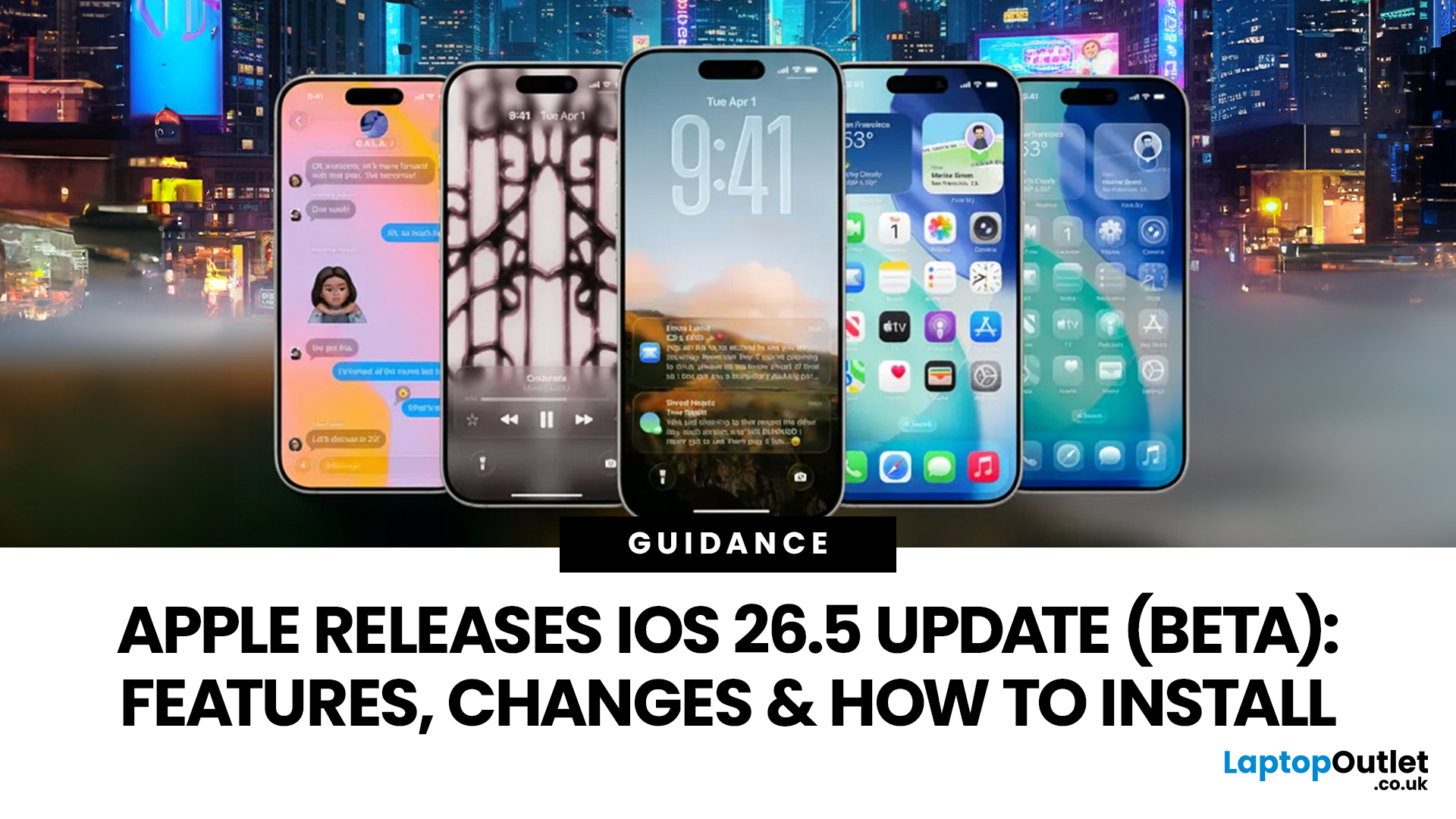
Apple has rolled out iOS 26.5 beta, giving developers and early testers a first look at the next iPhone software update. While this is not Apple's biggest beta release this year, it still brings a number of important changes worth paying attention to. From improvements in Messages to new additions in Apple Maps, the latest iOS beta shows that Apple is continuing to refine the iPhone experience ahead of a wider rollout.
For anyone searching for what’s new in the iOS 26.5 update, the early answer is simple. This update is more focused on practical improvements than headline-grabbing changes. The biggest talking points so far include the return of RCS end-to-end encryption, new Apple Maps features, smaller system updates, and the continued absence of the major Siri improvements many users have been waiting for.
If you want a full breakdown of the iOS 26.5 beta features, the key changes, and how to install the update on your iPhone, here is everything you need to know.

