



Fix Blue Screen of Death (BSOD) on Windows: A Complete Guide
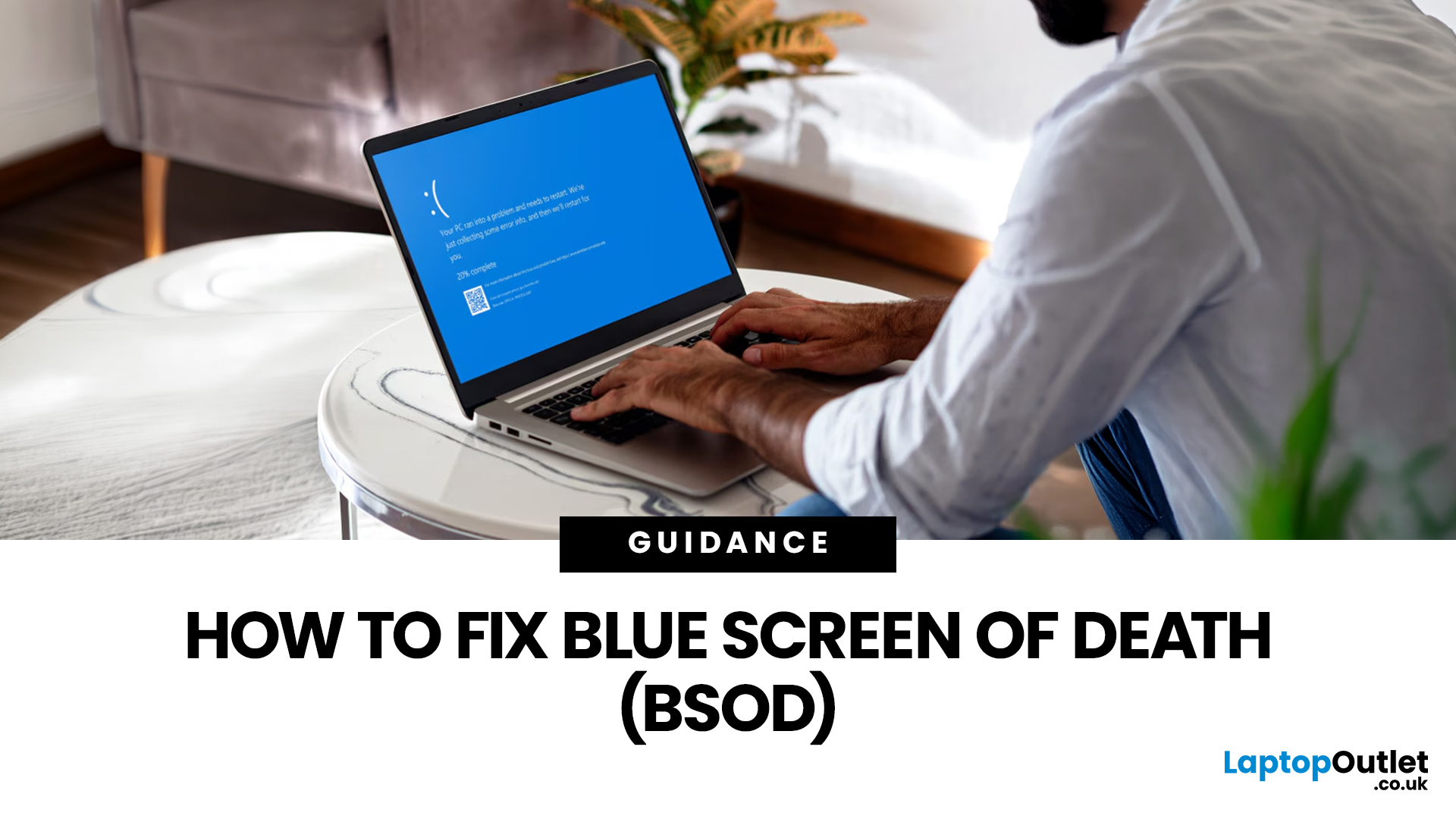
A blue screen of death fix isn't as daunting as it looks. That sudden blue screen and cryptic stop code are Windows' way of flagging a critical system error - and in most cases, it's something you can sort yourself without professional help.
This guide covers every cause, diagnostic method, and practical solution to get your machine running smoothly again.
What Is a Blue Screen of Death?
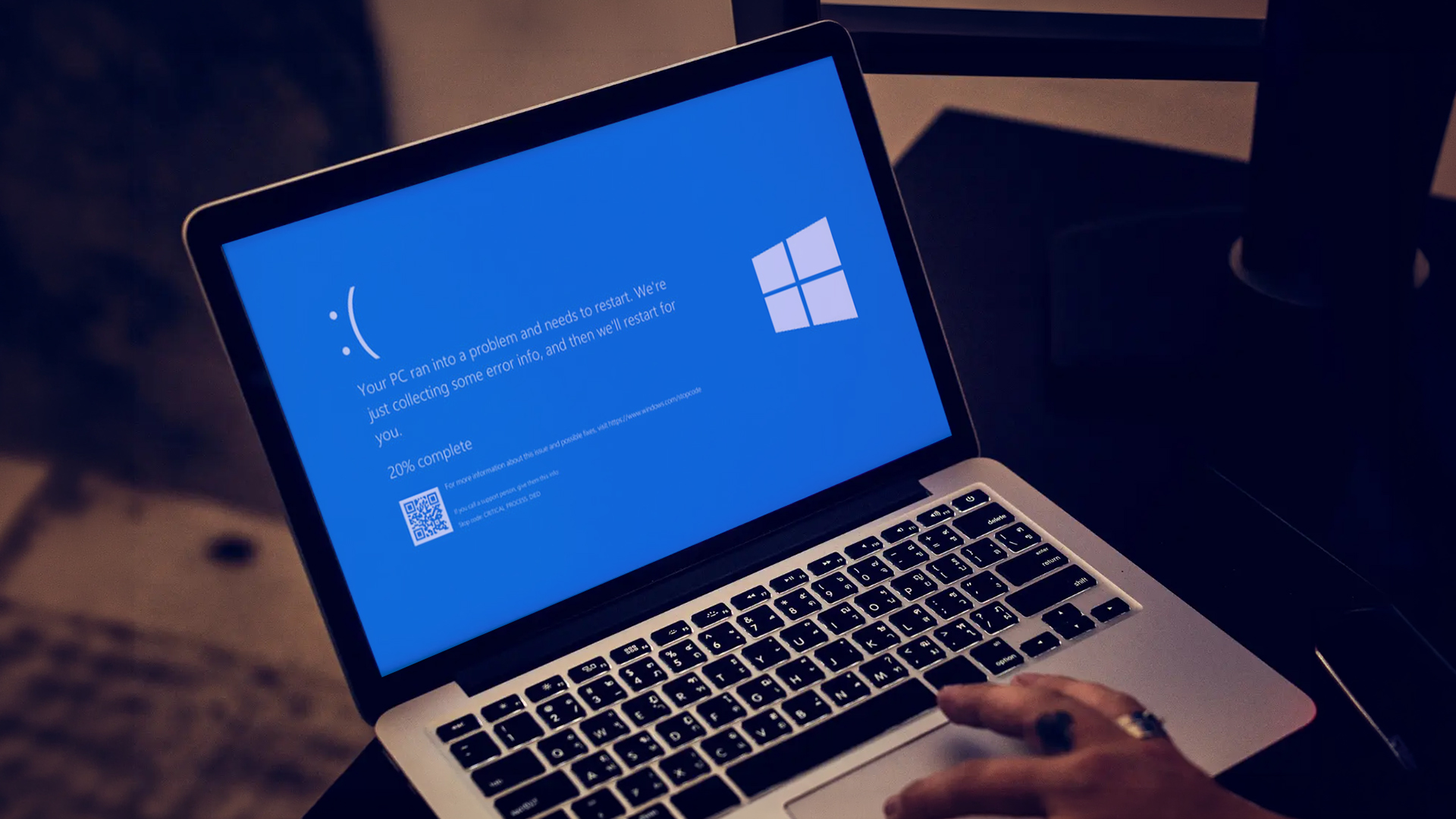
The blue screen of death (BSOD) is a critical stop error built into Windows. When the operating system encounters a fault it cannot safely recover from, it halts everything, logs the crash, and forces a restart - rather than risking data corruption or further damage. Think of it as a failsafe, not just a fault.
What Does It Look Like?
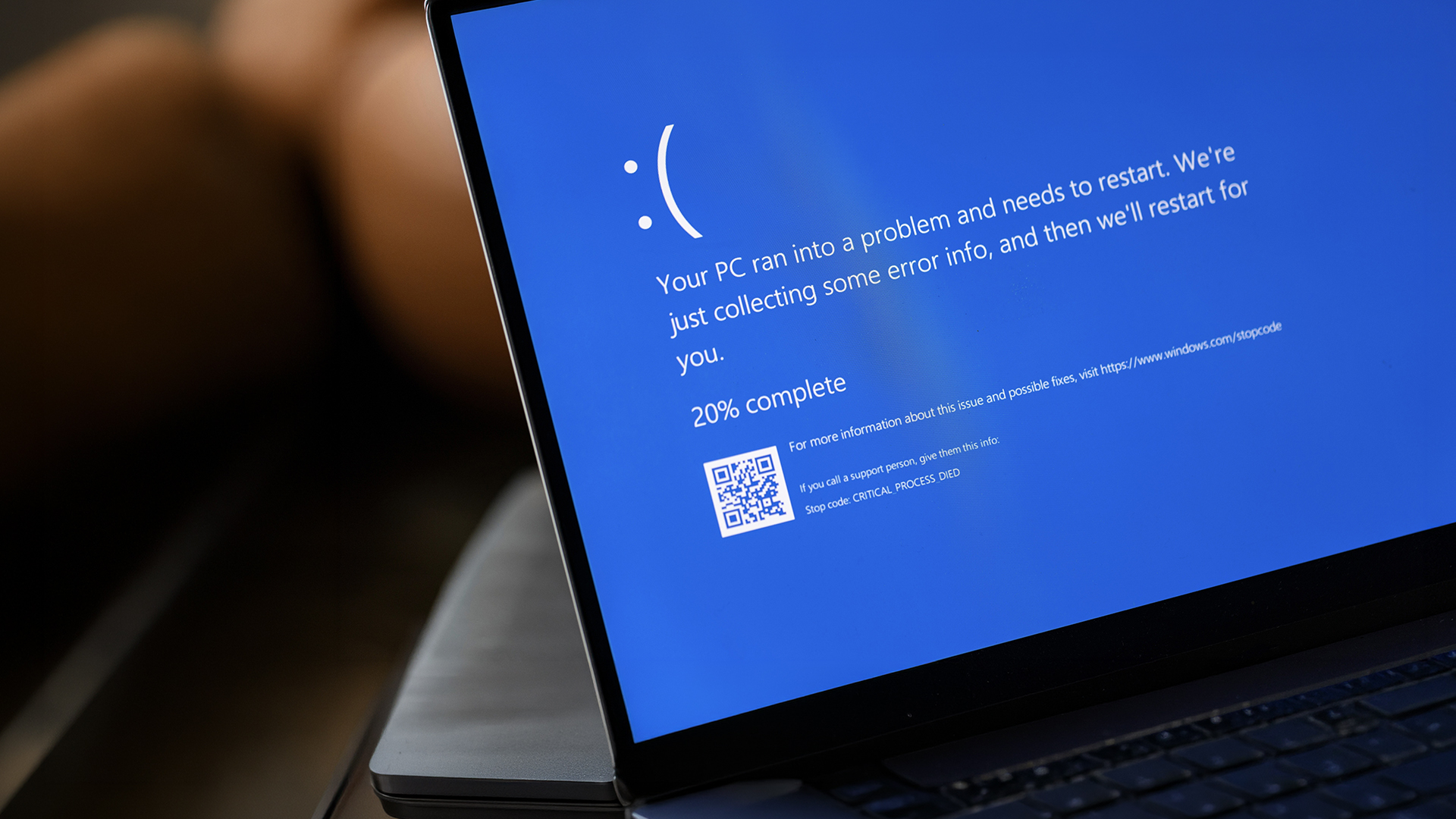
Depending on your version of Windows and the type of crash, a BSOD may show:
- A stop code identifying the error
- A message explaining that Windows ran into a problem
- A progress indicator while diagnostic information is collected
- Sometimes a QR code or additional troubleshooting information
The exact appearance can vary between Windows 10, Windows 11, and different system states, so the stop code is the most important detail to note.
Is One BSOD a Cause for Concern?
If your machine has blue screened just once, it's usually nothing to panic about. A one-off crash can stem from a temporary driver glitch or a minor system hiccup.
Repeated incidents, however, are a clear signal that something needs addressing properly.
What Causes a Windows Blue Screen?
Most blue screen errors have a traceable cause - and finding it is the most important step before attempting any repair. Triggers range from outdated software to deteriorating hardware.
Driver Failures
Outdated, corrupt, or incompatible drivers are one of the most common culprits. When a hardware driver fails to communicate correctly with Windows, it can bring your entire session to an abrupt halt.
Hardware Faults
Faulty RAM, an overheating processor, or a failing hard drive are all known triggers. If your desktop PC or laptop blue screening tends to happen during demanding tasks such as gaming or video editing, thermal issues or memory failure are likely to blame.
Malware and Corrupt System Files
Malicious software can corrupt the very files Windows relies on to run. In these cases, a full malware scan combined with Windows' built-in repair tools is usually the most effective route forward.
Problematic Windows Updates
A failed or poorly deployed update can introduce fresh compatibility conflicts. If your PC blue screen of death first appeared shortly after an update installed, rolling that specific update back is the logical starting point.
Check out this guide to know how to fix Windows 11 update problems and restore your system’s stability.
New Hardware or Peripherals
Recently added hardware such as USB devices, docking stations, printers, external drives, or internal upgrades can also trigger BSOD errors if Windows is missing the correct drivers or the hardware is faulty. If the crashes started after connecting something new, disconnect it and test again.
Low Disk Space or Storage Problems
Windows needs enough free storage to install updates, manage temporary files, and run normally. If your system drive is nearly full, instability can follow, especially alongside update or file system issues.
Common BSOD Stop Codes Explained
Every stop code is a precise signpost pointing to the underlying problem. Knowing your common BSOD error codes means you can target the correct fix immediately rather than working through solutions at random. Use the table below as your quick-reference guide.
|
Stop Code |
Likely Cause |
Recommended Fix |
|
CRITICAL_PROCESS_DIED |
Corrupt system file or driver |
Run SFC scan, update drivers |
|
MEMORY_MANAGEMENT |
Faulty or degraded RAM |
Run Windows Memory Diagnostic |
|
IRQL_NOT_LESS_OR_EQUAL |
Driver conflict or bad RAM |
Update or roll back drivers |
|
PAGE_FAULT_IN_NONPAGED_AREA |
RAM or storage fault |
Check RAM, run CHKDSK |
|
SYSTEM_THREAD_EXCEPTION_NOT_HANDLED |
Incompatible driver |
Boot Safe Mode, update drivers |
|
KERNEL_SECURITY_CHECK_FAILURE |
Corrupt files or overclocking |
Run SFC/DISM, revert overclocking |
|
NTFS_FILE_SYSTEM |
Hard drive corruption |
Run CHKDSK |
|
DPC_WATCHDOG_VIOLATION |
SSD or driver incompatibility |
Update SSD firmware and drivers |
How to Diagnose BSOD Issues on Windows
Jumping straight into repairs without diagnosis is like guessing what's wrong with your car without lifting the bonnet. A few minutes spent reading the right clues will steer you towards the correct blue screen of death fix on the first attempt, saving hours of unnecessary guesswork.
Read the Stop Code on Screen
The stop code displayed during the crash is your quickest starting point. Note it down or photograph the screen, then search it directly on Microsoft's support site for specific, authoritative guidance.
Use Windows Event Viewer
Event Viewer logs every crash with timestamps and technical detail:
- Press Windows Key + X and select Event Viewer
- Navigate to Windows Logs > System
- Filter for "Critical" entries near the time of the crash
- Note the event ID and description
Analyse Minidump Files
Windows automatically saves crash data as minidump (.dmp) files:
- Press Windows Key + R, type %SystemRoot%\Minidump, and press Enter
- Each file corresponds to a specific crash event
- Use the free tool WhoCrashed to read these files in plain English
Step-by-Step Blue Screen of Death Fix
A methodical blue screen of death fix is always more effective than randomly trying solutions and hoping one sticks. Work through the steps below in order - starting simple before escalating to more involved repairs.

Step 1: Restart and Monitor
Sometimes a BSOD is a genuine one-off. Restart your machine and use it normally for a while - if the issue doesn't recur, you may not need to do anything further.
Step 2: Check for New Hardware and Disconnect Peripherals
If the crashes began after adding a USB device, monitor, docking station, RAM module, SSD, or other hardware, disconnect or remove it temporarily and test again. This is one of the quickest ways to rule out a hardware conflict.
Step 3: Check Windows Update and Free Disk Space
Go to Settings > Windows Update and make sure your system is fully up to date. Then confirm your system drive has enough free space available. Pending updates and a nearly full drive can both contribute to instability.
Step 4: Boot Into Safe Mode
Safe Mode starts Windows with only essential drivers loaded. If your machine runs without crashing in Safe Mode, a third-party driver or application is almost certainly the cause.
To access Safe Mode:
- Go to Settings > System > Recovery
- Under "Advanced startup," click Restart now
- Select Troubleshoot > Advanced Options > Startup Settings > Restart
- Press F4 to boot into Safe Mode
Step 5: Update or Roll Back Drivers
Open Device Manager and check for any devices flagged with a yellow warning icon. Right-click the device and choose Update driver - or, if crashes started after a recent update, select Roll back driver instead.
Step 6: Run DISM First
Open Command Prompt as Administrator and enter:
DISM /Online /Cleanup-Image /RestoreHealth
This repairs the Windows system image that other repair tools rely on. Running it first gives System File Checker the best chance of fixing corrupted files properly.
Step 7: Run System File Checker (SFC)
After DISM completes, run:
sfc /scannow
Windows will scan for and automatically repair corrupted system files it finds.
Step 8: Test Your RAM
- Press Windows Key + R, type mdsched.exe, and press Enter
- Select Restart now and check for problems
- Windows will run a memory test and report any faults after restarting
Step 9: Scan Your Hard Drive
Run CHKDSK to detect and repair disk-level errors:
chkdsk /f /r C:
This is particularly useful when the stop code points to storage-related issues such as PAGE_FAULT_IN_NONPAGED_AREA or NTFS_FILE_SYSTEM.
Because CHKDSK can require a restart and may take time on large drives, make sure important data is backed up first.
Step 10: Uninstall Recent Changes
Go to Settings > Apps and remove any programs installed around the time the crashes began. For updates, visit Settings > Windows Update > Update history and uninstall any patches that match the timeframe.
Advanced Fixes for Persistent Crashes
If the standard steps haven't done the job, it's time to go further. Crashes that persist despite basic repairs often point to BIOS issues, deep-rooted software conflicts, or corruption serious enough to warrant a full reset.
Update Your BIOS/UEFI
An outdated BIOS can cause instability, particularly after major Windows feature updates. Visit your laptop or motherboard manufacturer's support page, download the latest BIOS version, and follow their instructions carefully.
Only update the BIOS if the manufacturer specifically recommends it for stability, compatibility, or crash-related fixes. Interrupting a BIOS update can leave a system unusable, so this is not a step to rush.
Perform a Clean Boot
A clean boot starts Windows with only core Microsoft services:
- Press Windows Key + R and type msconfig
- Under Services, tick Hide all Microsoft services, then click Disable all
- Open the Startup tab, click Open Task Manager, and disable every startup item
- Restart and test for stability
This is one of the most reliable ways to isolate crashes caused by conflicting third-party software running quietly in the background.
Reinstall Windows to Fix BSOD
When everything else has been exhausted, a clean Windows reinstall is the definitive software-level solution. Back up your data first, then:
- Go to Settings > System > Recovery
- Under Reset this PC, click Reset PC
- Choose either Keep my files or Remove everything depending on how severe the problem is
- Use Remove everything only if you want the cleanest possible reinstall and have already backed up anything important
This approach works particularly well when you need to fix blue screen on Windows 10 machines that have built up years of software conflicts. Just remember - it won't fix a hardware fault, so rule that out before committing to a full reinstall.
Could It Be Time to Upgrade?
If you've worked through every option in this guide and your machine is still crashing, the hardware itself may simply be past its best. At a certain point, continued repairs cost more in time and money than they're worth.
Signs it may be time for a new laptop:
- Crashes persist even after a clean Windows reinstall
- Your machine is more than five to seven years old
- Hardware diagnostics are flagging failing components
- Overheating continues despite cleaning and fresh thermal paste
Upgrading to a modern machine eliminates hardware instability at a stroke. Our range of Windows 11 laptops starts from under £200, offering reliable performance straight from the box.

Taming the Blue Screen
A blue screen of death fix is rarely as frightening as that initial blue flash suggests. Whether it's a driver conflict, a corrupt file, or ageing hardware, there's a logical path to resolution for every scenario in this guide.
Work through the steps methodically and you'll resolve the vast majority of crashes without needing a professional. And if your machine has simply reached the end of its road, a fresh start with a modern, reliable laptop is always well within reach.
For more expert advice, check out our comprehensive guide on Windows setup, updates, and troubleshooting.

Before You Close This Tab...
How do I fix the blue screen of death on Windows?
Start by noting the stop code, disconnecting any new hardware, checking Windows Update, and then running DISM followed by SFC to repair corrupted Windows components.
What is the most common cause of a BSOD?
Driver failures are the most frequent trigger. Outdated or incompatible drivers prevent hardware from communicating correctly with Windows, causing a system-halting stop error.
Will resetting Windows fix a blue screen?
In most cases, yes. Resetting removes software-related causes entirely. It cannot fix hardware faults, however, so test your RAM and storage drive first.
Can a virus cause a blue screen?
Yes. Malware can corrupt the system files Windows depends on, leading to repeated crashes. A thorough antivirus scan is always worth running as part of your diagnosis.
Is a BSOD dangerous for my data?
A single crash rarely causes data loss. Repeated incidents increase the risk, particularly if a failing hard drive or unstable storage is the underlying cause.
Can overheating trigger a blue screen?
Yes. Excessive heat forces Windows to crash as a protective measure. Cleaning laptop vents and ensuring adequate airflow often resolves temperature-related crashes effectively.
| Read More: |
| Windows and Microsoft Office Activation Guide: Everything You Need to Know |
| How to Fix Computer Freezing and Crashing? |
| Windows 11 Upgrade Guide |
Related Articles


Last Updated: September 22, 2026
Choosing between an Intel Core i3 and Core i5 laptop can be confusing, especially when two laptops with the same processor tier can perform very differently. Your everyday workload, processor generation, power class and overall laptop specification all play a part in deciding which option makes more sense.
Core i3 is generally enough for browsing, Office apps, streaming and lighter study, while Core i5 is better suited to heavier multitasking, creative work, coding and more demanding software. In 2026, however, you should compare the exact processor generation and suffix, such as U, H or HX, rather than choosing a laptop based on the i3 or i5 badge alone.
Intel's laptop range has also evolved beyond the familiar Core i3 and Core i5 names, with newer machines using Intel Core 3, Core 5 and Core Ultra branding. This guide breaks down the differences so you can understand which processor type better matches the way you use your laptop.
Core i3 vs Core i5: What Is the Difference?
Traditionally,
Last Updated: June 18, 2026
If you are searching for Core i5 Lenovo laptops, you are likely looking for a balance of performance, price, and reliability. And that is exactly where Lenovo stands out in 2026. From affordable everyday machines to durable business devices, Lenovo’s Core i5 lineup covers a wide range of use cases. Whether you need a laptop for work, study, or general productivity, there is a model that fits without pushing into premium pricing.
This guide breaks down the best options available right now, with a focus on real-world usability, value, and what each model is good for.
Why Choose a Lenovo Core i5 Laptop in 2026?
Lenovo continues to be one of the most consistent brands when it comes to mid-range laptops. Its Core i5 models are particularly popular because they offer:
- Reliable everyday performance
- Strong build quality across price ranges
- Good keyboard and typing experience
- Wide choice across business and budget segments
For most users, a Core i5 processor is more than enough for:
- Office work

Last Updated: May 01, 2026
Streaming accounted for over 38% of total TV and video consumption globally last year, overtaking traditional viewing for the first time. That means more people are now watching films on laptops, tablets, and personal screens than ever before, not TVs.
But here’s the problem: most laptops aren’t actually built for a good viewing experience.
You can open the same film on two different laptops and get completely different results. On one, colours look rich, scenes feel immersive, and everything flows smoothly. On another, the image feels dull, brightness struggles in daylight, and the whole experience falls flat - even if the specs look similar on paper.
That’s where most buyers get caught out. Terms like “Full HD,” “OLED,” or “high brightness” sound impressive, but they don’t always translate into a better streaming experience. Many people end up choosing based on performance or price, while overlooking what actually matters for watching films.
This guide breaks that down clearly - focusing

Last Updated: May 01, 2026
By the end of 2025, buying a laptop had become a bigger decision than ever. Global PC shipments climbed to more than 270 million units in 2025, with the final quarter alone reaching 71.5 million units.
On the surface, that sounds like good news: more innovation, more models, more choice. But for buyers, it also means more noise. Bigger spec sheets, bolder marketing claims, AI-ready labels everywhere, and a growing chance of paying for power you do not need or missing the features you actually do.
That is what makes choosing a laptop in 2026 tricky. The best option is not always the most expensive, the most powerful, or the newest on the page. It is the one that fits the way you work, study, stream, create, or game without compromise.
This guide cuts through the clutter and helps you choose with confidence. So, get yourself ready to buy the laptop you are looking for.
How to Choose the Right Laptop in 2026
If you want the quick answer, here’s how to choose the right laptop without overthinking

Last Updated: June 11, 2026
Choosing the best laptops for teachers in the UK is not about chasing the highest specs or the most expensive model. It is about finding a device that aligns with the realities of teaching. That means smooth multitasking for lesson planning, marking, presentations, browser-based platforms, video calls, and the everyday admin that comes with school life. A good teacher's laptop should feel reliable from the first lesson of the day to the last task in the evening.
In 2026, teachers need more from their laptops than ever. Hybrid working, online meetings, digital classroom tools, and resource-heavy workflows have made performance, portability, and practicality far more important than they used to be. For most buyers, the right choice comes down to a balance of speed, battery life, screen size, webcam quality, and the ports that still matter in real classrooms.
This guide focuses on laptops that make sense for teachers in the UK today. Whether you need a lightweight everyday device for commuting,

Last Updated: May 19, 2026
Staying connected wherever you go is no longer a luxury, it’s a necessity. Whether you’re working remotely, travelling frequently, or simply want a more reliable connection than public Wi-Fi, laptops with sim card slot capabilities are becoming an increasingly popular choice in 2026. If you’re considering making the switch to a laptop with built-in mobile internet, this guide will walk you through everything you need to know, from how they work to the key differences between 4G and 5G models, and who should be using them.
What are Laptops with SIM Card Slots?
A laptop with sim card functionality allows you to insert a SIM card directly into your device, giving you access to mobile data networks, just like your smartphone. These are often referred to as laptops with built-in mobile internet or cellular laptops.
Instead of relying solely on Wi-Fi, these devices connect to 4G LTE or 5G networks, ensuring you stay online wherever there’s mobile coverage. You’ll commonly find this feature

Last Updated: October 16, 2026
The best laptops for AutoCAD in 2026 need the right balance of processing power, RAM, graphics performance and storage. However, the ideal specifications depend on whether you're creating simple 2D drawings, developing detailed 3D models or working with complex engineering projects.
You don't necessarily need an expensive workstation for basic drafting. Equally, a standard everyday laptop may struggle with demanding architectural designs and larger CAD files.
We've selected 10 laptops for CAD and AutoCAD, covering different performance levels, working requirements and budgets to help you make an informed decision.
What Laptop Specs Do You Need for AutoCAD in 2026?
Autodesk recommends 32GB RAM and an 8GB graphics card for AutoCAD 2026 on Windows, although lighter tasks can run on less powerful hardware. For larger datasets, point clouds and advanced 3D modelling, requirements can increase further.
Here are the main specifications to consider:
- Processor (CPU): Strong single-core performance

Published: April 14, 2026
Remote work is no longer a temporary perk. In 2026, it has become a steady work pattern for many UK employees, and the laptop has effectively turned into the main workplace tool, meeting room, and travel companion rolled into one.
That shift is changing what people prioritise when they buy. Price still matters, but buyers are more likely to pay for reliability, better video-call hardware, stronger security, and a setup that works just as well at home as on the train.
Hybrid Work is Pushing Standards Up, Not Down
UK hybrid working is best understood as a long-term rebalancing rather than a short-lived trend. In Great Britain, the Office for National Statistics has shown how hybrid working varies across demographic groups, reinforcing that it is embedded unevenly but persistently across the workforce rather than disappearing.
Employer practice points in the same direction. The CIPD’s research on flexible and hybrid working practices reports that a large share of organisations have hybrid

Last Updated: July 03, 2026
For most developers, the best machine is not necessarily the most expensive one. It is the one that keeps up with your workflow, feels comfortable to use for hours at a time, and still makes sense a few years down the line.
That matters even more in 2026. Modern development work is heavier than it used to be. A typical day might include an IDE, a browser with far too many tabs open, Docker, a local database, Slack, video calls, design files, and maybe a virtual machine or AI-assisted tools running in the background. A laptop that feels fine on paper can start to struggle surprisingly quickly once real work begins.
This guide is designed for a UK audience looking for a dependable laptop for software development, whether you are a student, a junior developer, a freelancer, or a full-time engineer replacing an ageing machine. Given below are top 10 laptops for programming and coding 2026:
1. ASUS Zenbook 14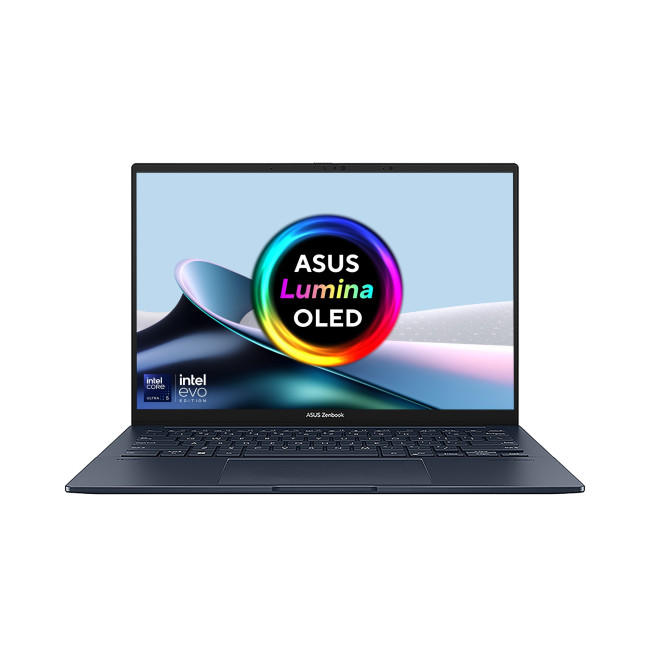
Technical Specs:
- Intel Core Ultra 5 225H 14-Core Processor
- AI Ready Laptop
Last Updated: September 24, 2026
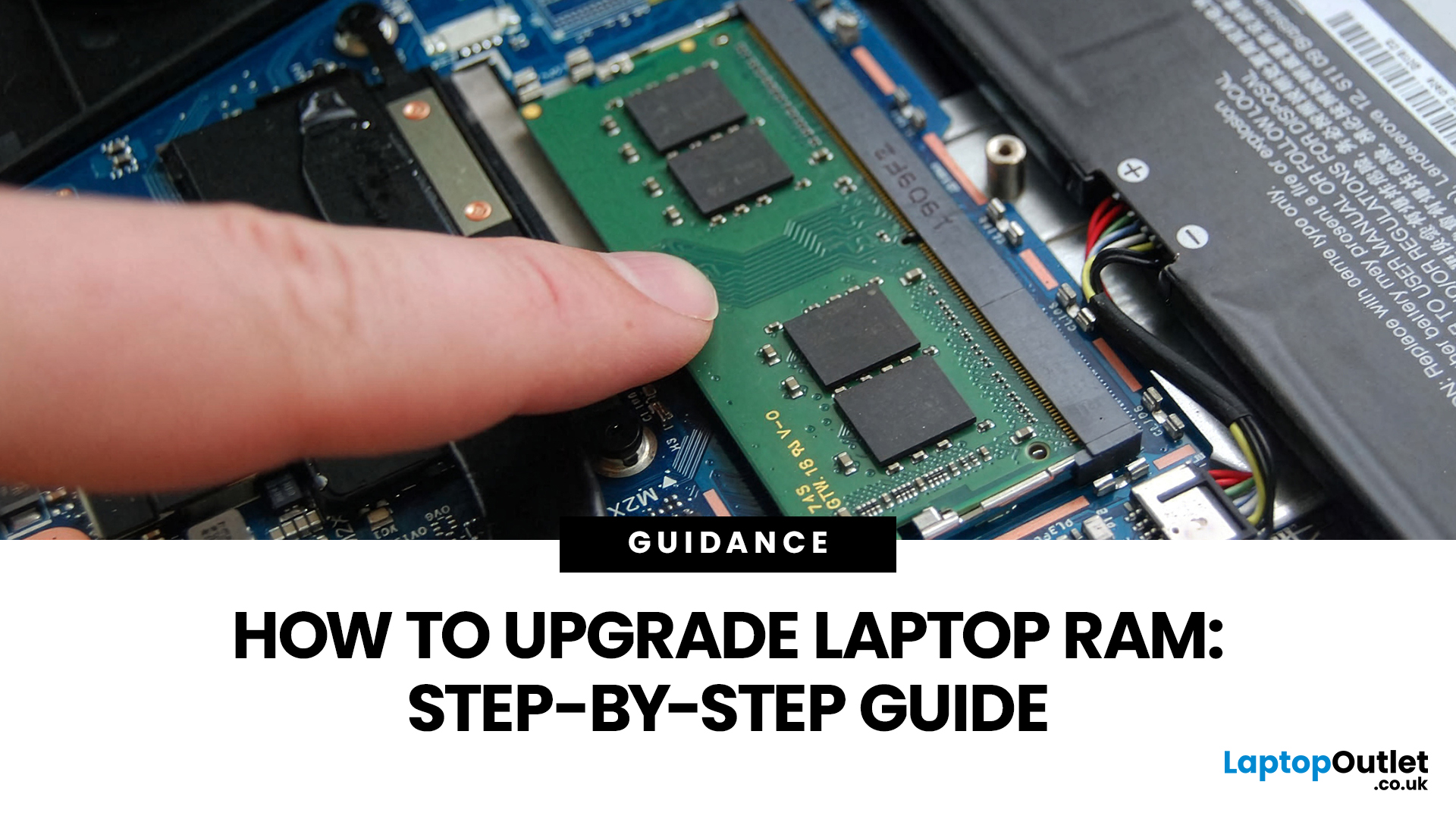
Upgrading laptop RAM is one of the simplest ways to make an older machine feel faster and more capable again, but only if the compatibility side is right from the start. That is the part many quick guides skip. Before buying anything, we always recommend checking whether the laptop has upgradeable memory, what RAM standard it uses, how much it supports, and whether upgrading means adding another module or replacing the existing setup.
To upgrade laptop RAM, first check whether your model has upgradeable SO-DIMM slots, the supported DDR generation, maximum capacity and current memory configuration. Buy compatible RAM, shut the laptop down, disconnect power, open the service panel, remove or add the module, then reassemble and boot up. Finally, confirm the new memory is recognised and test system performance for improved multitasking.
For UK shoppers, that matters because a RAM upgrade can be a much smarter option than replacing a laptop too early. If a system slows down with lots of browser

