



NVIDIA GPU Not Detected, No Display or Black Screen: Step‑by‑Step Diagnostics
Quick Answer
An NVIDIA black screen does not automatically mean that the graphics card has failed. The same symptom can come from the display path, Windows, the NVIDIA driver, a laptop graphics mode, motherboard firmware or the card itself.
The most useful first question is not simply “does the GPU work?” It is “at which detection layer does the GPU disappear?” Follow the steps in order until the evidence directs you to a specific driver, software, laptop-mode, firmware or hardware branch.
If the fault is not limited to NVIDIA hardware, use our complete graphics card not working guide for the broader diagnostic path.
Key Takeaways
|
How to Use This NVIDIA GPU Diagnostic Order
Start with Step 1, even if you already suspect a driver or hardware fault. Each result tells you whether to continue to the next step or move directly to a more relevant branch.
- If the GPU is absent before Windows starts, concentrate on system detection, firmware and hardware rather than the NVIDIA App.
- If Device Manager shows the correct NVIDIA model, concentrate on Windows, the driver, NVIDIA App or the affected application.
- If only one game or creative app ignores the GPU, change that app's graphics preference before reinstalling drivers.
- Stop testing immediately if you notice smoke, a burning smell, melted plastic, liquid damage or repeated electrical shutdowns.
Step 1: Identify Where the NVIDIA GPU Disappears
The phrase can describe several different failures. Check the lowest system layer you can access, then avoid changing unrelated settings until you know where detection stops.
|
Checkpoint |
What You See |
What It Suggests |
Best Next Step |
|
BIOS or UEFI |
The card or PCIe slot is not recognised, and there is no output before Windows |
Power, PCIe connection, motherboard compatibility, firmware or hardware |
Use integrated graphics if available, check the exact motherboard manual, then follow the pillar hardware checks |
|
Device Manager |
No NVIDIA entry appears under Display adapters |
Windows cannot enumerate the card, the device is disabled, or a laptop GPU mode has hidden it |
Show hidden devices, scan for hardware changes and inspect OEM GPU settings |
|
Device Manager |
Microsoft Basic Display Adapter appears |
Windows sees graphics hardware but the NVIDIA driver is missing or failed |
Install the correct official NVIDIA or laptop-manufacturer driver |
|
Device Manager |
The NVIDIA model appears with a warning |
Windows sees the card but has recorded a device or driver fault |
Read the Device status and error code before changing the driver |
|
NVIDIA App |
Device Manager shows the card, but the app does not |
NVIDIA App or driver installation fault is more likely than a missing PCIe device |
Restart Windows, confirm services and repair the official installation |
|
A game or creative app |
Windows and NVIDIA App see the card, but the application uses integrated graphics |
Per-app selection, power mode or hybrid-graphics behaviour |
Set the app’s graphics preference and check the laptop’s GPU mode |
Step 2: Match the Black Screen Timing to the Likely Cause
“Black screen” describes the result, not the cause. Note exactly when the last normal image appears and whether the monitor reports No signal.
|
When the Screen Goes Black |
More Likely Branch |
What to Check First |
|
Before the manufacturer logo or BIOS screen |
Display connection, GPU initialisation, PCIe power, motherboard or firmware |
Correct monitor input, cable connected to the card, motherboard diagnostic indicators and the general hardware path |
|
As Windows begins to load |
NVIDIA driver, display mode or startup software |
Safe Mode, driver rollback and Windows display recovery |
|
Immediately after an NVIDIA driver update |
Incomplete, incompatible or corrupted driver installation |
Roll back first if the previous driver was stable, then use NVIDIA’s official clean-install route |
|
When a game or GPU workload starts |
Power, temperature, unstable tuning, application settings or driver |
Return clocks to stock and reproduce the fault in a second known application |
|
After sleep or wake |
Windows power state, hybrid graphics, dock or display handshake |
Disconnect extra displays, restart fully and check laptop or dock firmware from the manufacturer |
|
Only after restarting an RTX 5060 or RTX 5060 Ti desktop |
Documented compatibility issue with certain motherboard SBIOS versions |
Check NVIDIA’s model-specific UEFI firmware guidance before applying anything |
A failure before Windows loads cannot normally be fixed by a Windows keyboard shortcut. Conversely, a display that works in BIOS and Safe Mode gives useful evidence that the card can initialise and that the normal driver path deserves attention.
Step 3: Rule Out the Monitor, Cable and Display Path
Keep the first pass brief. These checks separate an NVIDIA no-display fault from a monitor or Windows display-state problem.
- Confirm that the monitor is powered on and set to the correct HDMI or DisplayPort input.
- On a desktop, connect the display cable to the outputs on the NVIDIA card, not the motherboard, unless you are deliberately testing integrated graphics.
- Disconnect extra monitors, docks and adapters. Test one known-working screen, cable and GPU output.
- If Windows is already running, press Windows + Ctrl + Shift + B once. A beep or flicker means Windows attempted to reset the graphics driver.
- Press Windows + P only when Windows has loaded and an incorrect display mode may be selected.
Microsoft includes the driver-reset shortcut, display-mode check, Safe Mode and driver rollback in its current Windows blank-screen guidance.
Common mistake: Fan movement or RGB lighting only shows that part of the card receives power. It does not confirm that the GPU completed its startup checks or is visible to Windows.
Step 4: Check Whether Windows Detects the NVIDIA GPU
Open Device Manager, expand Display adapters, then record the exact name and status before uninstalling anything. Select View > Show hidden devices, followed by Action > Scan for hardware changes.
Use the result to choose the next step:
|
Device Manager Result |
Interpretation |
Appropriate Action |
|
NVIDIA model with no warning |
Windows communicates with the device |
Investigate NVIDIA App, the application, display path or load-related fault |
|
NVIDIA model is disabled |
The device has been disabled in Windows |
Enable it, restart and confirm whether it remains enabled |
|
NVIDIA model appears only as hidden |
Windows retains an inactive or previous instance |
Do not assume the physical card is connected. Scan again and check laptop GPU modes or desktop hardware detection |
|
Microsoft Basic Display Adapter |
The generic Windows display path is active |
Install the correct driver for the exact GPU and system |
|
NVIDIA model with Code 43 |
The driver told Windows that the device is not working properly |
Try the appropriate update, rollback or reinstall, then seek hardware support if the code persists |
|
No display adapter matching the discrete GPU |
The GPU may be disabled, hidden by an OEM mode, unpowered or not initialising |
Check laptop controls or follow the pillar’s power, PCIe and BIOS route |
Microsoft states that graphics Code 43 can indicate either a hardware problem or failing driver software. Its referenced page is labelled for Windows 10, so Windows 11 users should use the code as a diagnostic clue and follow their current device-manufacturer guidance.
Do not repeatedly uninstall a device that never reappears after Scan for hardware changes. That result moves the diagnosis below the NVIDIA App and driver layer.
Step 5: Roll Back or Clean-Install the NVIDIA Driver
If the screen worked before an update and fails as Windows loads, try the previous working driver before making BIOS or hardware changes. Boot into Safe Mode or Windows Recovery if the normal desktop is unusable.
- Open the NVIDIA device’s Properties in Device Manager and check whether Roll Back Driver is available.
- Restart and retest the same display and application.
- If rollback is unavailable or the installation is incomplete, download the correct package from NVIDIA or the laptop manufacturer.
- Close browsers, video players, monitoring tools and 3D applications before installing.
- If a standard installation fails, use NVIDIA’s documented Custom (Advanced) and Perform a clean installation options, then restart.
NVIDIA’s current manual clean-install instructions warn that background applications and an active Windows Update can interfere with installation.
Best practice: Do not use a third-party driver removal utility as the automatic first step. A normal rollback, official reinstall or NVIDIA clean installation is easier to reverse and is sufficient in many cases.
Step 6: Repair NVIDIA App Detection
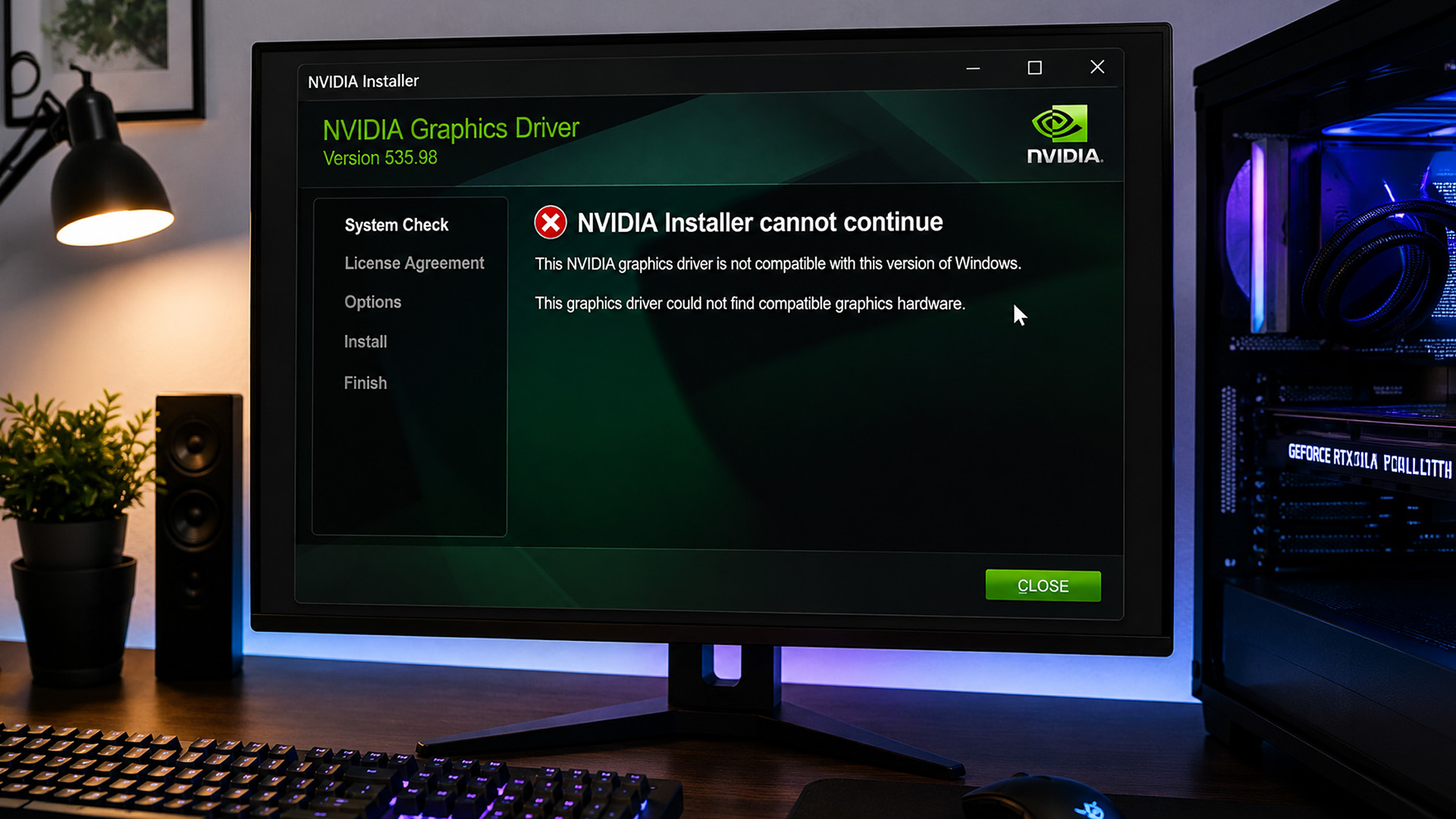
First confirm whether Device Manager displays the correct NVIDIA model. If it does, Windows can see the PCIe device, which makes an NVIDIA App or driver-component problem more likely.
Restart Windows rather than only closing the app. Then open the NVIDIA App, check whether a driver is listed, and confirm that the installed package matches the GPU and Windows edition.
If the driver installation reports a failure, close applications that use GPU acceleration and make sure Windows Update is not actively installing changes. Use NVIDIA’s official manual installation route rather than downloading a package from a third-party driver website.
The NVIDIA App is NVIDIA’s current unified control centre for driver updates, game and application settings, monitoring and other GeForce features. Current official terminology is NVIDIA App, not the older GeForce Experience workflow.
If Device Manager also lacks the card, reinstalling the NVIDIA App alone is unlikely to solve the problem. Return to laptop GPU modes, BIOS detection or the desktop hardware branch instead.
Step 7: Use the RTX 5060 Firmware Fix Only When It Matches
NVIDIA documents a specific blank-screen-on-reboot issue affecting GeForce RTX 5060 and RTX 5060 Ti cards with certain legacy motherboard SBIOS configurations. This is a narrow exception, not a general fix for every RTX black screen.
NVIDIA provides an RTX 5060 Series UEFI firmware update tool that checks whether an update is needed. NVIDIA says the update should be applied only when the affected cards show blank screens on reboot.
Before running it, confirm all of the following:
- The desktop card is a GeForce RTX 5060 or RTX 5060 Ti.
- The symptom is a blank screen during restart, not an unrelated crash or no-display condition.
- The motherboard is using its latest official SBIOS where practical.
- The system can run the tool with stable power and no pending operating-system update.
NVIDIA suggests a full power-down, UEFI mode rather than Legacy or CSM, or an alternate graphics source as temporary ways to reach Windows. If a legacy-only motherboard cannot use UEFI, contact the graphics-card manufacturer for model-specific support.
Step 8: Check Laptop Optimus, MUX and OEM GPU Modes
Many laptops contain both integrated graphics and a dedicated GeForce GPU. The integrated processor may drive the desktop to reduce power use, while the NVIDIA GPU activates for selected applications.
NVIDIA Advanced Optimus can automatically switch which GPU drives the internal display on supported laptops. NVIDIA advises checking the laptop manufacturer because support and behaviour vary by model.
Before treating an inactive GPU as a fault:
- Connect the manufacturer-supplied charger and restart the laptop.
- Check the laptop maker’s control software for Eco, Optimised, Hybrid, Standard or discrete-GPU modes.
- Review Settings > System > Display > Graphics and assign the affected application to the high-performance GPU where appropriate.
- Test the application, not only the idle desktop, while watching GPU use in Task Manager.
- Use the laptop manufacturer’s BIOS, chipset and graphics packages when its support page requires model-specific versions.
External display ports can also be wired to different GPUs. Check the exact laptop manual before assuming that one inactive port proves the NVIDIA GPU has failed.
Step 9: Decide Whether the Fault Is Hardware
A hardware cause becomes more credible when the card is absent before Windows, remains missing from BIOS or Device Manager, and still fails after the display path and relevant OEM settings have been checked. One error code or driver crash is not enough evidence by itself.
For a desktop card, stop and use the broader troubleshooting guide if you need to verify PCIe seating, dedicated power connections, PSU suitability or the card in another compatible system. Those tests belong in the graphics card not working pillar rather than being repeated here.
Evidence supporting professional diagnosis includes:
- The card produces no output before Windows and is not recognised by the system firmware.
- A known-working compatible GPU functions in the same PC, while the NVIDIA card fails in another compatible test system.
- Visible artefacts appear before Windows loads across more than one known-working display path.
- The same Code 43 returns after an appropriate official driver installation and the manufacturer’s recommended checks.
- The card has visible connector damage or the system cuts power when the card is connected.
These results narrow the fault, but they do not identify a repairable component without board-level testing.
Step 10: When Should You Contact NVIDIA, the Card Maker or Laptop Manufacturer?
The correct support route depends on who built the complete product. NVIDIA provides drivers, software and guidance, but many GeForce cards are manufactured and warranted by board partners such as ASUS, MSI, Gigabyte, Palit or Zotac.
- Contact the graphics-card brand for a partner desktop card, its VBIOS and its warranty.
- Contact NVIDIA for an NVIDIA-branded Founders Edition product or NVIDIA software guidance, subject to regional support arrangements.
- Contact the laptop manufacturer for a notebook GPU, MUX behaviour, BIOS, internal display routing and warranty service.
- Contact the PC system builder if the card arrived inside a prebuilt computer and the system remains under its warranty.
Prepare the exact GPU and computer model, Windows version, driver version, Device Manager status, motherboard BIOS version, display connection and a short timeline of when the fault began. This prevents support from repeating tests you have already completed.
Final NVIDIA GPU Detection Recovery Checklist
Use this short checklist to confirm that each action follows from evidence:
- I recorded whether the failure begins before Windows, during startup, after login or under GPU load.
- I tested one known-working display, cable and NVIDIA output without an adapter.
- I checked Device Manager and recorded the exact device name, warning and status code.
- I distinguished “missing from Device Manager” from “missing only from NVIDIA App or one application”.
- I rolled back a recent driver or used NVIDIA’s official installation route before trying third-party clean-up tools.
- On a laptop, I checked the manufacturer’s GPU, MUX and power modes while connected to mains power.
- I considered the RTX 5060 firmware tool only for NVIDIA’s documented models and reboot symptom.
- I stopped testing if there was heat, smell, connector damage or repeated power loss.

What to Do If Your NVIDIA GPU Is Still Not Detected
An NVIDIA GPU not detected after these checks needs evidence-led escalation, not more random changes. Use the earliest failing layer to decide who can help: the laptop maker for hybrid graphics and BIOS behaviour, the card manufacturer for desktop hardware or VBIOS, and NVIDIA for its drivers and documented firmware tools. Keep the full fault timeline and Device Manager status. If the card is absent before Windows or shows physical damage, stop software troubleshooting and follow the broader hardware path. If Windows sees it, concentrate on the official driver, NVIDIA App or per-application graphics selection.

Common Questions About NVIDIA GPU Detection
Why Is My NVIDIA GPU Not Showing in Device Manager?
The GPU may be disabled, hidden by a laptop power mode, missing its PCIe power, poorly seated or unable to initialise. Show hidden devices and scan for hardware changes, then check OEM settings or hardware detection if it remains absent.
Why Does the NVIDIA App Not Detect My Graphics Card?
If Device Manager recognises the correct NVIDIA model, the app or driver installation is the likely branch. Restart Windows, verify the correct package, close GPU-accelerated applications and use NVIDIA’s official clean-install process if installation continues to fail.
Can an NVIDIA Driver Update Cause a Black Screen?
Yes. An incomplete or incompatible driver installation can produce a black screen as Windows loads. Try Safe Mode and roll back the recent driver first. If necessary, reinstall the correct package using NVIDIA’s documented clean-install option.
Why Does an RTX 5060 Show a Blank Screen After Restarting?
NVIDIA documents a reboot blank-screen issue for RTX 5060 and RTX 5060 Ti cards with certain legacy motherboard SBIOS configurations. Its official UEFI firmware tool checks whether an affected card actually requires the available update.
Can Optimus Make an NVIDIA Laptop GPU Appear Inactive?
Yes. Optimus or Advanced Optimus may let integrated graphics drive the desktop and activate the NVIDIA GPU only for suitable applications. Confirm the laptop’s GPU mode, connect mains power and test a high-performance application before diagnosing failure.
Why Are My GPU Fans Spinning but There Is No Display?
Spinning fans only confirm that the card receives some power. They do not prove the GPU has initialised. Check the monitor input, cable and GPU output, then investigate power or PCIe detection if BIOS cannot see the card.
Why Does Device Manager Show Microsoft Basic Display Adapter Instead of NVIDIA?
Microsoft Basic Display Adapter usually means Windows can see graphics hardware but the correct NVIDIA driver is missing, incompatible or not loading. Download the driver from NVIDIA or the laptop manufacturer, install it, restart Windows and check Device Manager again.
Why Is My NVIDIA GPU Detected but the Monitor Shows No Signal?
When Windows or BIOS detects the GPU but the monitor shows no signal, check the display path rather than reinstalling drivers immediately. Verify the monitor input, cable, adapter and GPU port, then test one known-working display and cable.
What Does NVIDIA GPU Error Code 43 Mean?
Code 43 means the NVIDIA driver has reported that the device is not working correctly. It can result from driver software or hardware. Reinstall or roll back the official driver, then seek hardware support if the same code returns.
How Can I Tell Whether My NVIDIA GPU Has Failed?
Hardware failure becomes more likely when the card is missing from BIOS, produces no output with known-working cables and fails in another compatible computer. A persistent Code 43 alone is not proof because driver problems can produce the same error.
| Read More: |
| How to Find Out What Graphics Card You Have |
| How to Check CPU and GPU Temperature |
| How to Install a New Graphics Card |
Related Articles

Last Updated: August 12, 2026
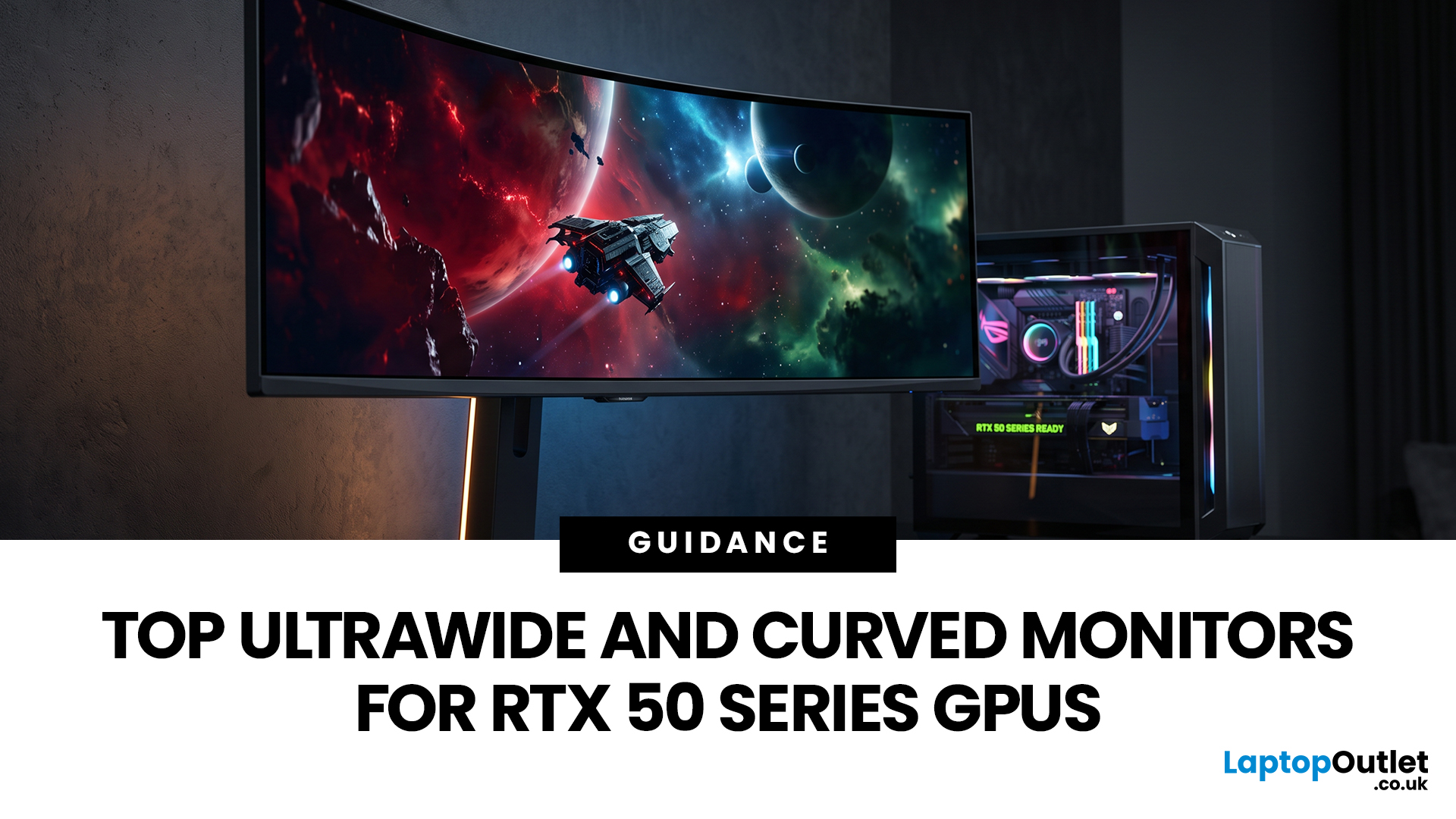
Picking a monitor for an RTX 50 Series GPU isn’t just about chasing the highest refresh rate, it’s about getting the right vibe for your setup. Think resolution, panel type and aspect ratio that actually match how you game, how powerful your RTX 5080 or RTX 5070 Ti is, and how much space you’ve got on your desk.
If you’re on an RTX 5080, a massive 49-inch 5120 × 1440 ultrawide hits different for immersive racing, sim and open-world gameplay. The RTX 5070 Ti feels right at home on a 34-inch 3440 × 1440 ultrawide, while a compact QHD curved monitor is perfect if you want smooth, high-refresh gaming on a budget.
Quick Comparison
| Best For | Monitor | Screen and Resolution | Refresh Rate | Panel | Main Strength | Consider Before Buying |
| RTX 5080 | Philips Evnia 49M2C8900 | 48.9-inch, 5120 × 1440, 32:9 | 240Hz | QD-OLED | Maximum immersion with OLED picture quality | Requires substantial desk space and strong GPU performance |
| RTX 5070 Ti | AOC G4 CU34G4Z | 34-inch, 3440 × 1440, 21:9 | 240Hz | Fast VA | Strong balance of speed, |

Last Updated: February 27, 2026
GPU price trends, which historically followed steady consumer demand cycles, were hijacked by a series of unprecedented global crises. These events first pushed the cost of graphics cards to astronomical highs, then plunged them into a sharp decline, before finally settling on a new, structurally higher price baseline.
This analysis examines the economic forces that drove this extraordinary five-year shift. We trace the market from the initial chaos of the supply chain fracture, through the speculative peak driven by cryptocurrency mining, and into the current era dominated by the massive enterprise investment in Artificial Intelligence (AI).
The Initial Storm (2020–Mid 2021): Scarcity and Supply Chain Shock
The sharp inflation in GPU prices did not begin with a single factor but with the convergence of two major, simultaneous economic disruptions: a severe global logistics crisis and a dramatic shift in consumer habits.

The Pandemic’s Logistical Fracture
The start of the COVID-19 pandemic

Last Updated: December 30, 2025
If your current rig is starting to stutter or you are simply ready to jump into the next generation of visual fidelity, there is no better time to act. The New Year graphics card deals are finally here.
Whether you are a competitive esports player, a 4K gaming enthusiast, or a professional video editor, the right GPU is the heart of your system. This year, we are seeing incredible NVIDIA GPU discounts and an extensive AMD Radeon sale New Year event.
In this guide, we will explore the best graphics cards for gaming and work, ensuring you find the perfect match for your monitor and your budget.
Top New Year Graphics Card Deals for 2026
We have hand-picked eight of the most impressive NVIDIA RTX GPUs and AMD Radeon GPUs currently available. Let’s explore the right card for your setup.
1. MSI GeForce RTX 5060 GAMING 8GB OC Graphics Card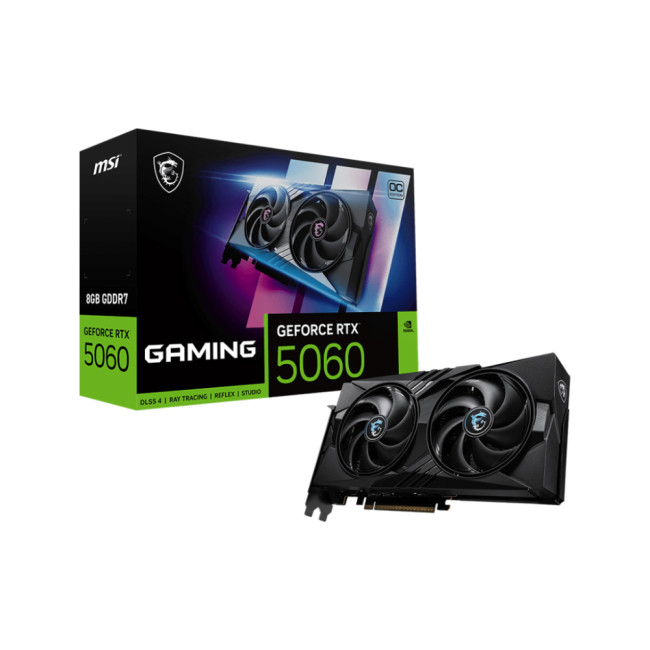
Key Specifications
- GPU: NVIDIA GeForce RTX 5060 (Blackwell Architecture)
- Memory: 8GB GDDR7
- Memory Speed: 28 Gbps
- Memory Interface: 128 bit
- Core

Last Updated: April 28, 2026
When it comes to high-performance computing, gaming realism, and creative workloads, NVIDIA graphics cards continue to set the benchmark. From immersive gaming experiences to professional-grade rendering and AI acceleration, NVIDIA’s GPUs power some of the most advanced systems on the market today. This guide explores everything you need to know about Nvidia graphics cards.
Understanding NVIDIA Graphics Cards and their Advantages
When performance matters, NVIDIA continues to lead the graphics card market with technology designed for today’s most demanding applications. From immersive gaming worlds to high-speed creative workflows, NVIDIA GeForce graphics cards deliver the power, efficiency, and visual realism modern users expect. Trusted by gamers and professionals alike, NVIDIA GPUs have become the benchmark for smooth gameplay, intelligent upscaling, and advanced rendering. What truly sets NVIDIA graphics cards apart is how each generation evolves. With smarter architecture, improved
Last Updated: July 10, 2026
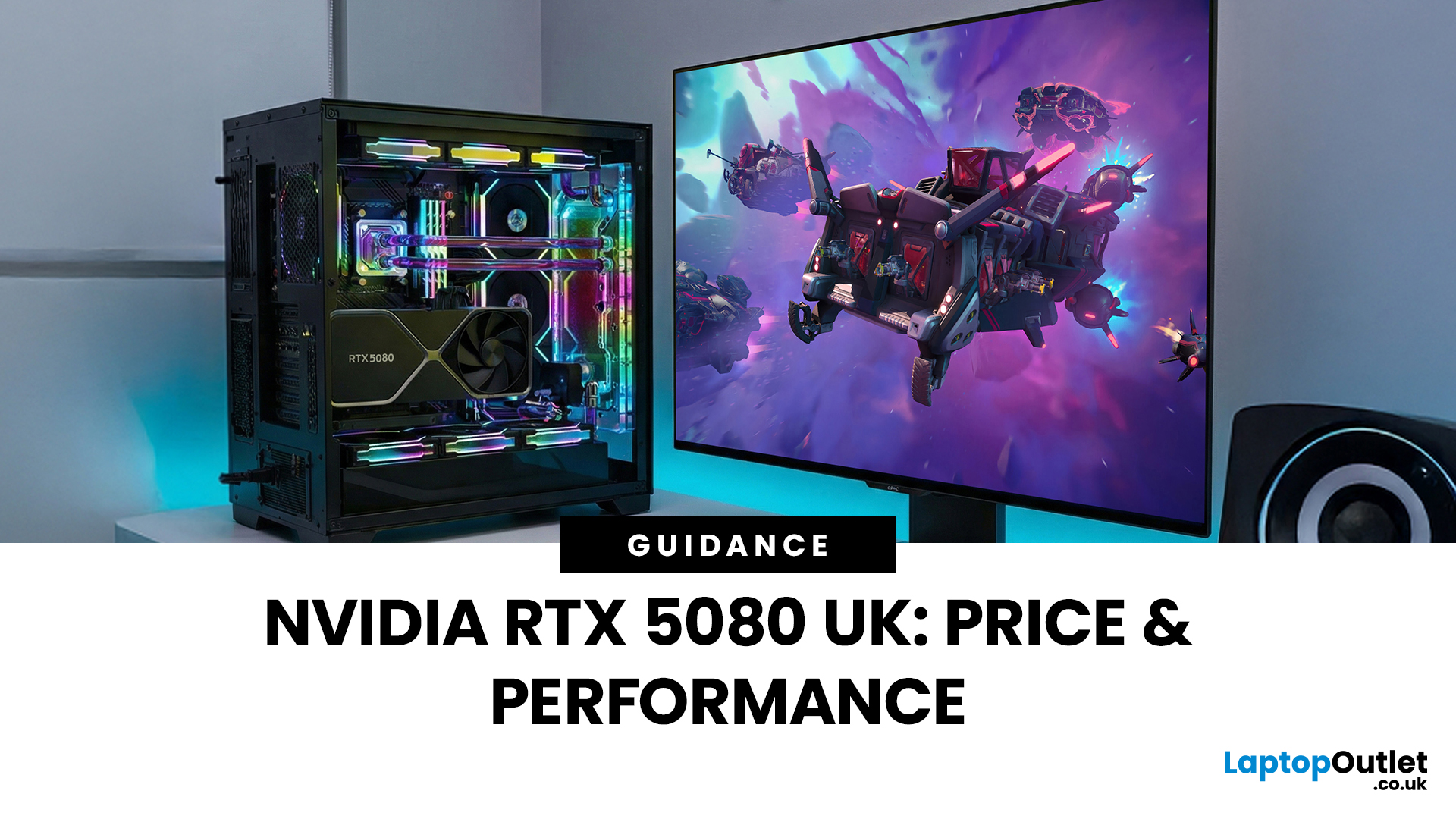
The arrival of a new flagship-tier graphics card always creates excitement, and the NVIDIA RTX 5080 UK is no exception. If you are a gamer or creator who wants to upgrade, understanding the price, performance, and real-world benefits of this card is essential. In this guide, we break down everything you need to know about the RTX 5080, from expected pricing in the UK to gaming performance, comparisons with other high-performance graphics cards, and whether it’s worth waiting for future variants.
How Does the GeForce RTX 5080 Compare to Previous NVIDIA GPUs?
Compared to previous-generation GPUs, the GeForce RTX 5080 delivers notable improvements in both raw performance and efficiency. NVIDIA has focused heavily on performance per watt, meaning users can expect more power without excessive heat or energy consumption. Key improvements include:
- Faster core architecture
- Improved ray tracing performance
- Enhanced AI and DLSS capabilities
- Better memory handling for high-resolution gaming
These
Last Updated: April 28, 2026
Finding the right graphics card at the right price has become one of the biggest challenges for PC gamers in the UK. With new GPU generations launching and stock levels fluctuating, buyers are looking for hardware that delivers strong performance without stretching their budget. In this guide, we explore everything you need to know about the NVIDIA RTX 5050 GPU, including expected gaming performance, anticipated UK pricing, and where it fits within today’s competitive graphics card market. We’ll also highlight the best alternatives available at Laptop Outlet, ensuring you have plenty of options if stock is limited.
What is the NVIDIA RTX 5050 GPU?
The NVIDIA RTX 5050 GPU is expected to sit at the entry-to-mid-level end of NVIDIA’s next-generation RTX lineup. Designed for gamers who want modern features without the premium price tag, the RTX 5050 PC graphics card is aimed at smooth 1080p gaming and entry-level 1440p performance. As part of NVIDIA’s latest architecture, the RTX 5050 graphics
Last Updated: January 13, 2026
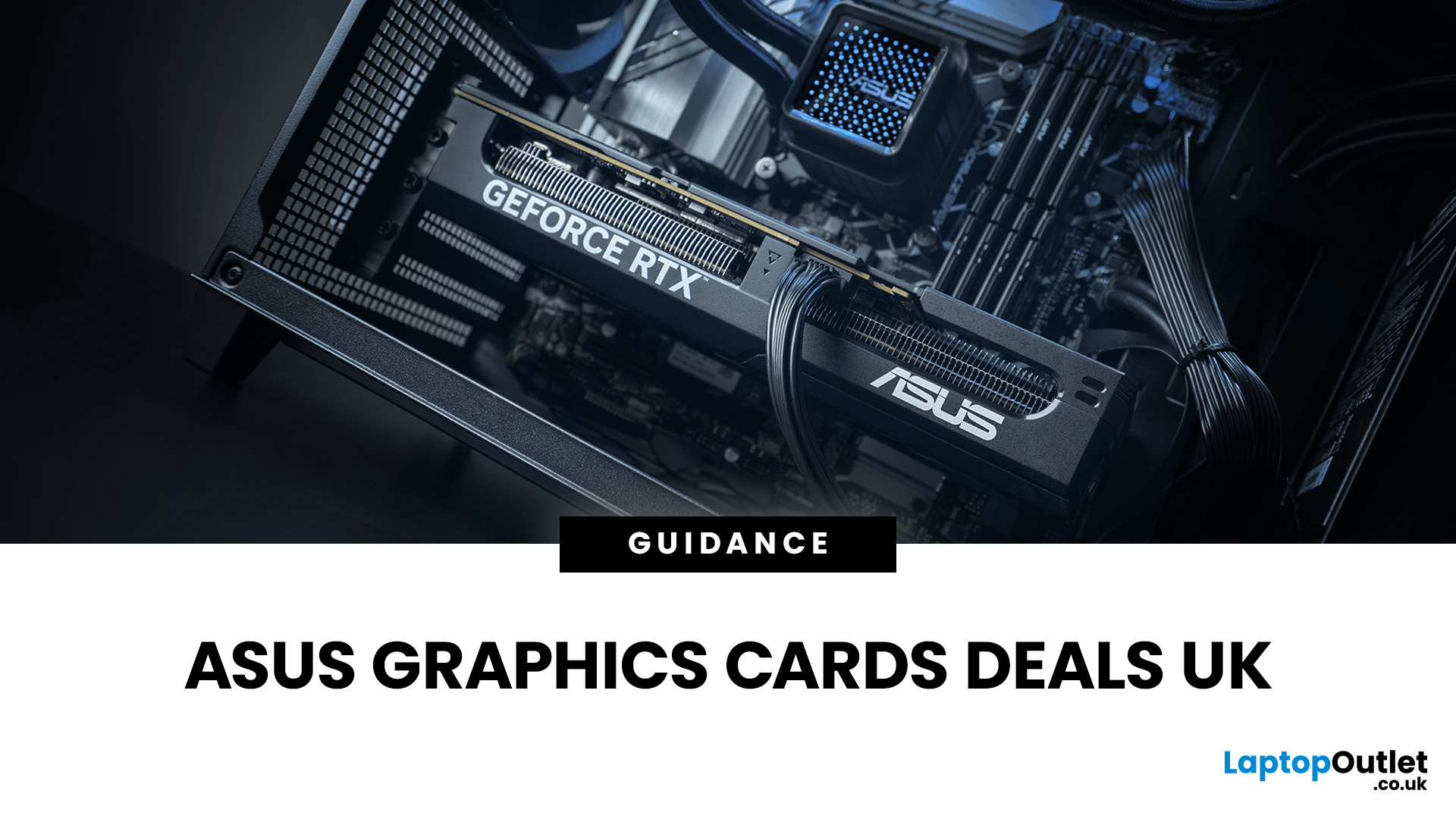
Are you looking to upgrade your PC with cutting-edge performance, reliability, and exceptional gaming visuals? ASUS graphics cards remain one of the most trusted choices in the UK market. We bring you competitive prices, frequent deals, and a wide selection of ASUS GPUs designed for gamers, creators, and professionals alike. From advanced NVIDIA RTX models to efficient AMD Radeon options, ASUS continues to lead the way in innovation, cooling, and long-term durability.
Why Choose ASUS Graphics Cards?
ASUS has built a global reputation for producing premium PC components, and its graphics cards are no exception. Designed with performance, stability, and longevity in mind, ASUS PC graphics cards are trusted by enthusiasts and professionals worldwide.
Proven Engineering and Build Quality
ASUS graphics cards are engineered using high-quality components, reinforced PCBs, and advanced power delivery systems. This ensures consistent performance even under heavy workloads such as 4K gaming, 3D

Last Updated: January 13, 2026
NVIDIA used CES (Consumer Technology Association)2026 to outline what it believes is the next major shift in computing — a move away from general-purpose processors towards systems designed primarily for artificial intelligence.
Speaking in Las Vegas, CEO Jensen Huang positioned NVIDIA not just as a graphics company, but as a platform provider for what it calls the “AI era”, spanning data centres, gaming PCs, gaming laptops, robotics, autonomous vehicles and cloud services.
Rather than focusing on a single blockbuster product, NVIDIA announcements CES 2026 centred on a broad ecosystem update. Key themes included the next-generation Rubin compute platform, and advances in AI-driven graphics through DLSS 4.5, new RTX AI PCs.
The Rubin Platform: NVIDIA’s Next-Generation AI Architecture

The biggest news for businesses was the Rubin platform. It is the successor to the successful Blackwell architecture. This system is a team of six different chips working together.
NVIDIA designed this platform
Published: January 13, 2026
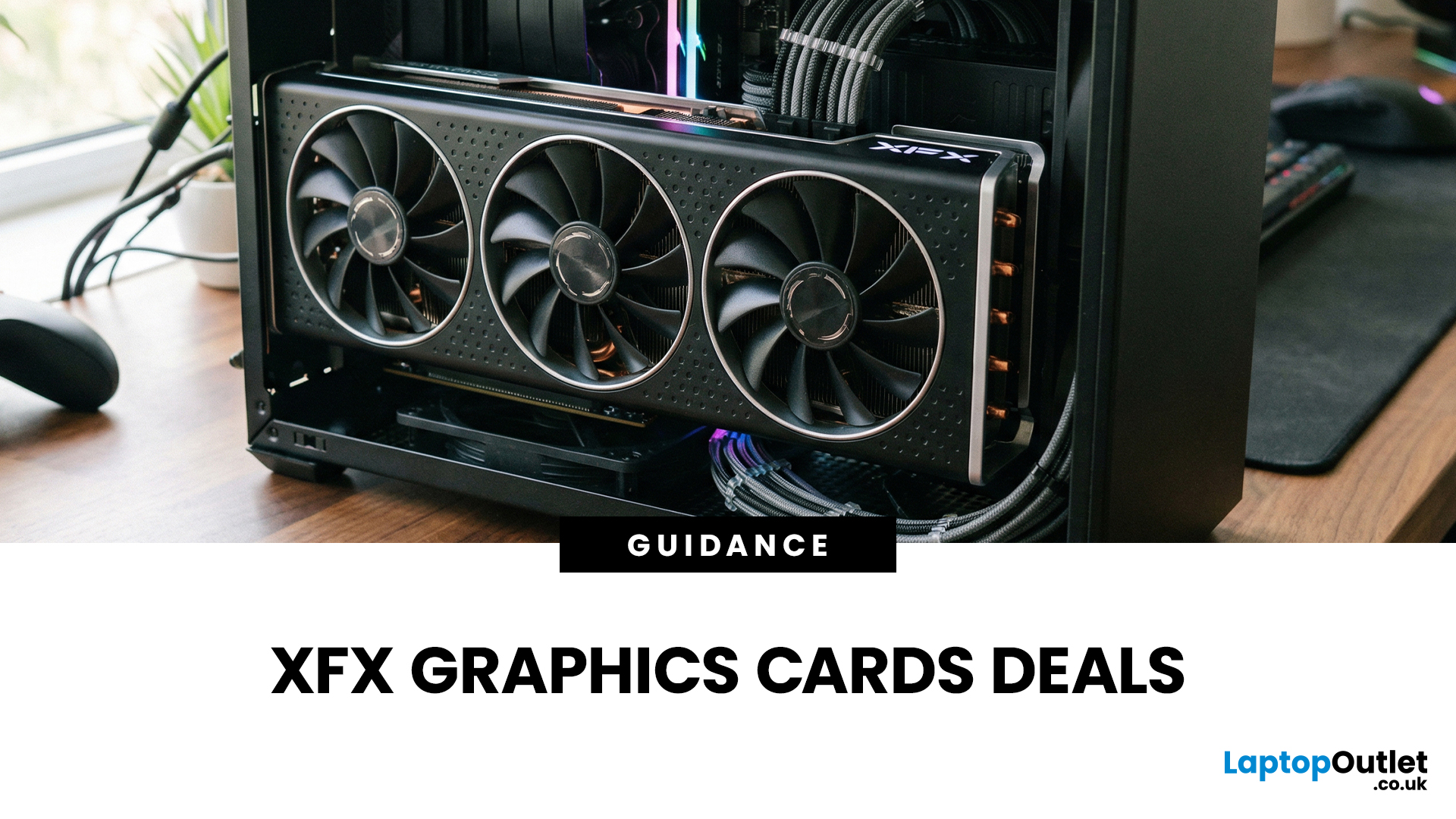
Choosing the right graphics card is one of the most important decisions when building or upgrading a gaming PC, and XFX graphics cards UK gamers trust continue to stand out for performance, reliability and value. As one of AMD’s most established board partners, XFX focuses exclusively on Radeon GPUs, delivering powerful gaming performance at highly competitive prices. We offer a wide range of XFX graphics cards deals, making it easier for you to access cutting-edge AMD technology without overspending. Whether you’re upgrading an older system, building a new gaming rig or searching for better value than current NVIDIA options, XFX delivers a compelling alternative. This guide explores everything you need to know about XFX GPUs, including performance, pricing, comparisons, and how to find the best XFX GPU deals UK buyers can rely on.
Why XFX Graphics Cards Are a Trusted Choice for AMD Gamers
XFX has built a strong reputation by focusing entirely on AMD hardware. Unlike brands that split
Last Updated: April 28, 2026
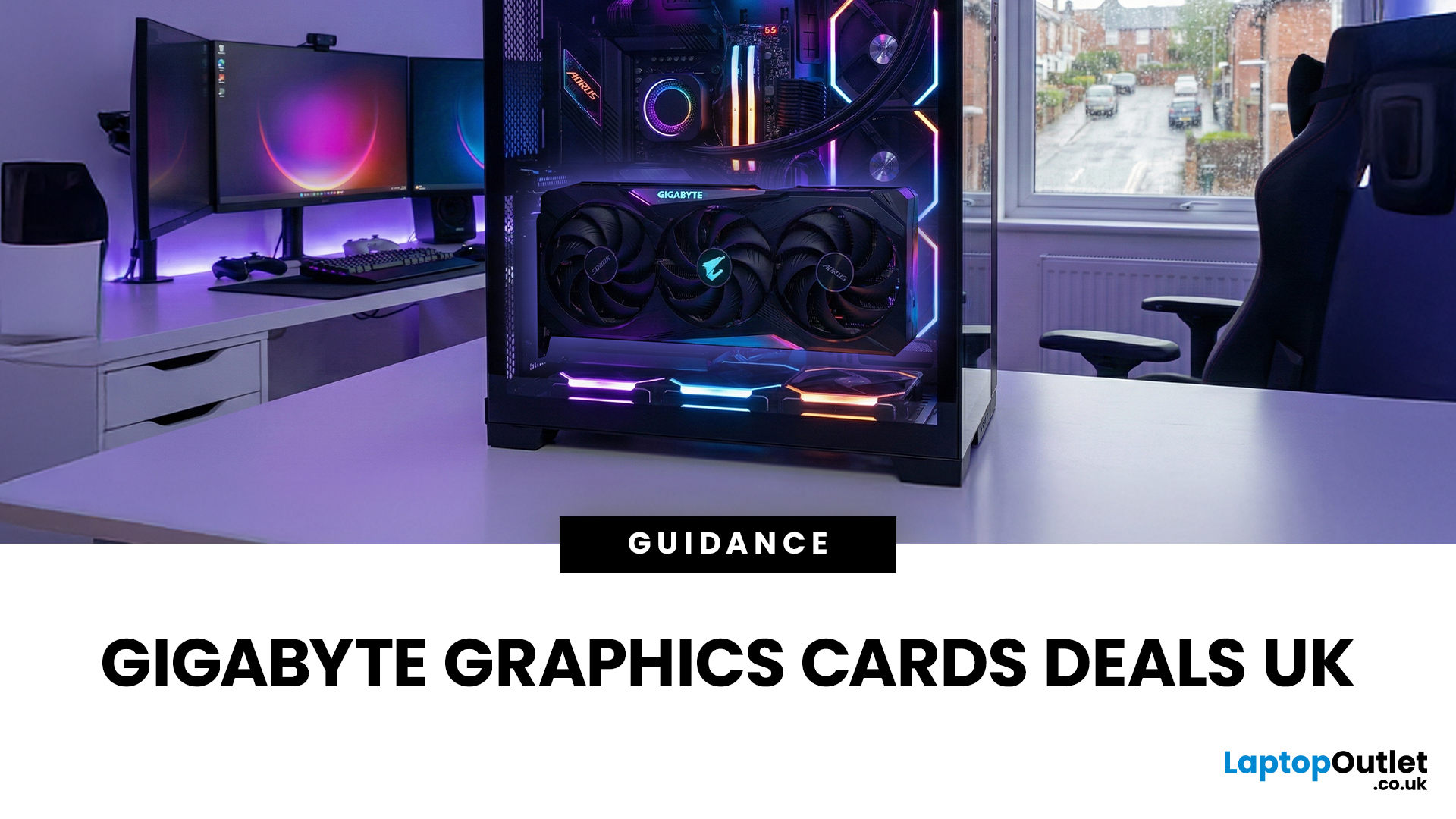
When it comes to upgrading your gaming PC or building a reliable high-performance setup, Gigabyte graphics cards are one of the suitable choices for gamers and creators. Known for strong performance, efficient cooling and excellent value, Gigabyte GPUs are designed to handle everything from everyday gaming to demanding creative tasks. Whether you’re aiming for smooth gameplay, detailed visuals or future-ready performance, there’s a Gigabyte graphics card to suit your needs and budget.
What Makes Gigabyte Gaming Graphics Cards Ideal for Modern Gaming?
Modern games demand more from hardware than ever before. Gigabyte has responded with GPUs that deliver high frame rates, detailed visuals and smooth gameplay across popular titles.
Performance that Keeps Up with New Games
From competitive esports titles to AAA blockbusters, Gigabyte gaming graphics cards are built to handle demanding workloads. Features such as ray tracing, DLSS (on NVIDIA models) and high memory bandwidth ensure consistent

