



LGA vs PGA CPU Sockets: Pins, Compatibility and Installation Explained
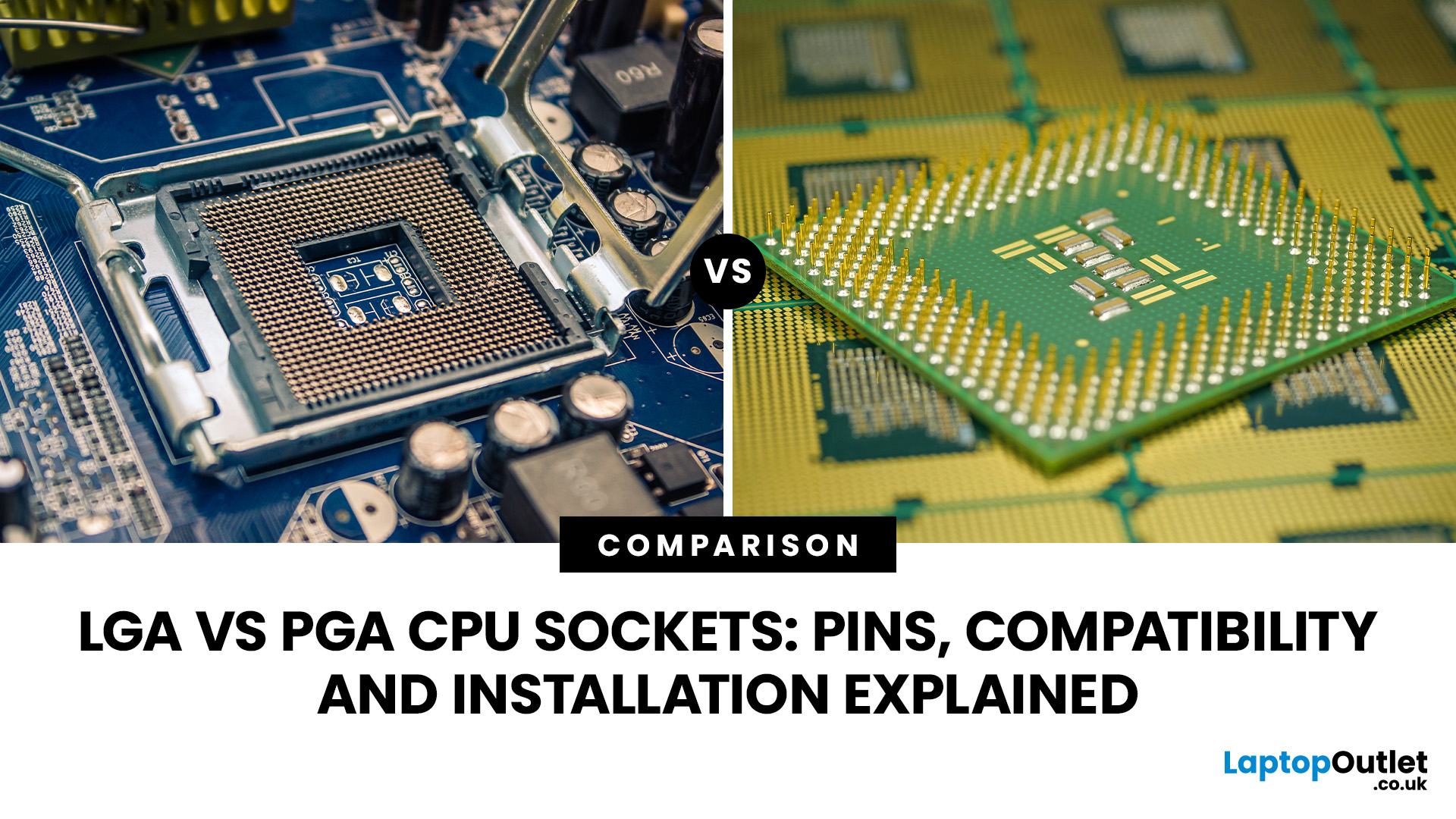
The main difference between LGA vs PGA CPU sockets is where the electrical pins are located. LGA (Land Grid Array) places the delicate contact pins inside the motherboard socket, while the CPU has flat contact pads. PGA (Pin Grid Array) places the pins on the processor itself, which fits into matching holes in the motherboard socket.
Both designs connect the processor to the motherboard, but they differ in installation, handling and potential damage risks.
If you're building a desktop PC, upgrading your processor or replacing a motherboard, understanding these differences can help you avoid costly compatibility mistakes. This guide explains how LGA and PGA sockets work, where Intel and AMD use them, and what to check before installing a CPU.
The main difference between LGA vs PGA CPU sockets is where the pins are located. LGA sockets have pins on the motherboard, while PGA processors carry the pins themselves. Both designs offer similar functionality but differ in handling, installation and damage risks. Understanding these differences helps you check CPU compatibility, avoid installation mistakes and choose suitable components for your PC build.
What Is an LGA Socket?
An LGA socket, short for Land Grid Array, is a processor connection system in which the contact pins sit inside the motherboard socket rather than on the CPU.
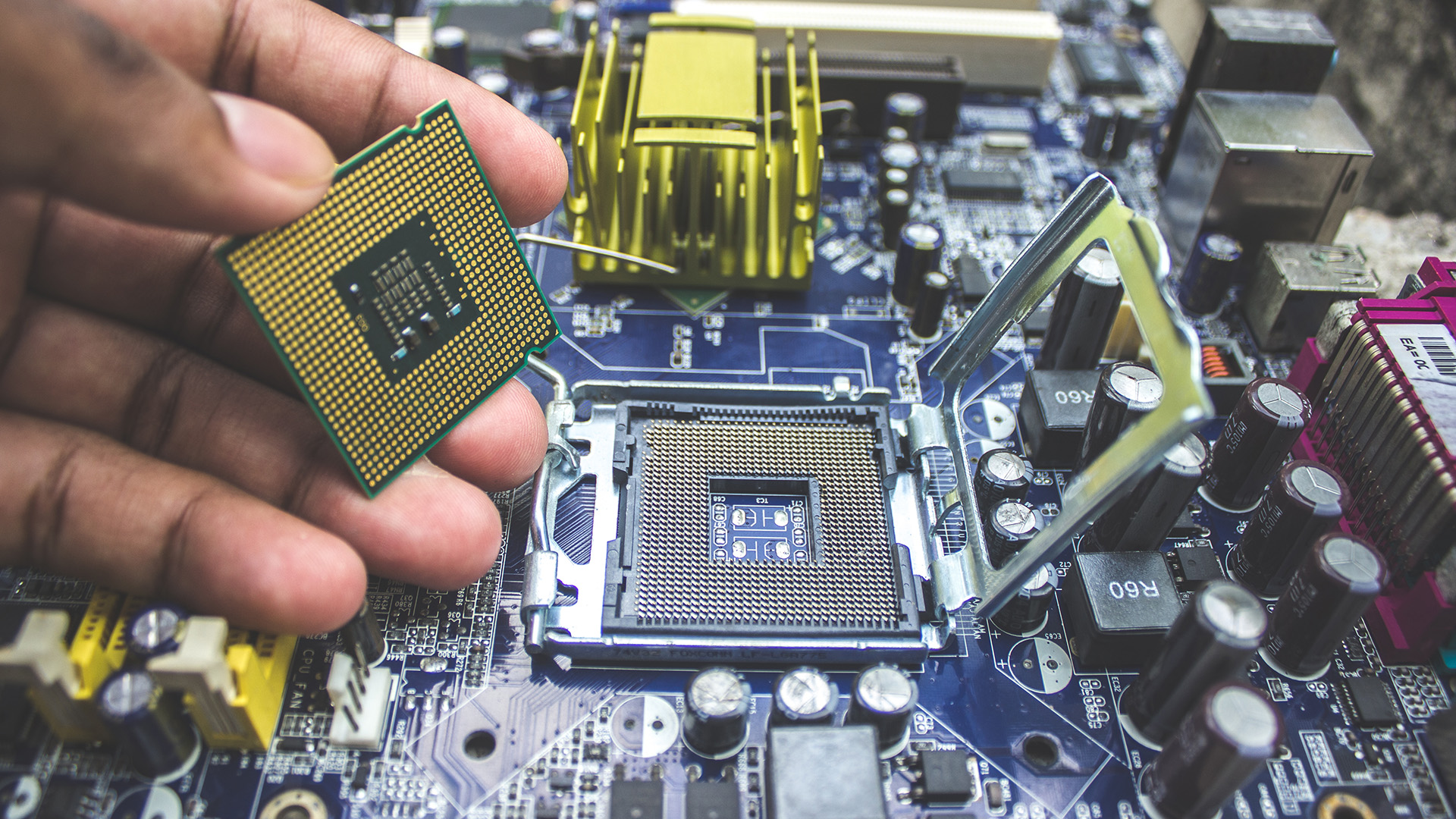
The underside of an LGA processor contains small, flat metal contact pads. When installed, these pads make contact with the spring-loaded pins inside the motherboard socket.
A retention mechanism holds the processor securely in position, maintaining the electrical connections required for communication between the CPU and motherboard.
LGA sockets are widely used across modern Intel desktop platforms and AMD's AM5 platform.
How Does an LGA Socket Work?
An LGA socket creates electrical connections when the processor's contact pads align with the socket pins.
The installation process involves:
- Opening the motherboard's CPU socket retention mechanism.
- Aligning the processor's notches and orientation marker with the socket.
- Lowering the processor gently into position.
- Closing the retention frame and securing the lever.
Unlike a PGA processor, an LGA CPU does not have exposed contact pins underneath it. This makes the processor easier to handle in some respects, but the delicate contacts inside the motherboard socket still require careful protection.
Important: Never touch the LGA socket contacts or drag the processor across them. Even a small amount of sideways pressure can bend the contacts and cause installation or boot problems.
What Is a PGA Socket?
A PGA socket, or Pin Grid Array socket, uses a different connection arrangement. The processor has numerous small metal pins on its underside, which fit into corresponding holes in the motherboard socket. These pins carry the electrical signals and power connections required for the processor to operate.
PGA sockets commonly use a Zero Insertion Force (ZIF) mechanism. When the socket lever is open, a correctly aligned processor can drop into position without force. Closing the lever secures the processor and establishes its electrical connections.
One well-known example is AMD's AM4 platform, which uses a PGA design with 1,331 socket positions.
How Does a PGA Socket Work?
Installing a PGA processor involves aligning the CPU pins with the socket holes before securing the processor.
The general process includes:
- Opening the motherboard socket's locking lever.
- Checking that the processor pins are straight and undamaged.
- Matching the CPU's triangle marker with the socket's orientation indicator.
- Gently lowering the processor into the socket.
- Closing the locking lever once the CPU is fully seated.
The processor should sit naturally in the socket without pressure. If it does not fit, stop and check the alignment. Forcing a PGA processor into place can bend or break its pins, potentially making it unusable.
LGA vs PGA: Key Differences at a Glance
The main LGA vs PGA difference concerns pin placement, but the designs also affect CPU handling, motherboard maintenance and installation.
|
Feature |
LGA (Land Grid Array) |
PGA (Pin Grid Array) |
|
Pin location |
Motherboard socket |
Processor underside |
|
CPU contacts |
Flat metal pads |
Protruding metal pins |
|
Motherboard contacts |
Spring-loaded pins |
Matching socket holes |
|
Installation |
Retention frame and lever |
Usually a ZIF socket lever |
|
Main physical damage risk |
Bent motherboard socket contacts |
Bent or broken CPU pins |
|
Common examples |
Intel LGA1700, LGA1851 and AMD AM5 |
AMD AM4 |
|
CPU handling |
No exposed processor pins |
Exposed pins require protection |
|
Performance |
Depends on processor and platform |
Depends on processor and platform |
|
Compatibility |
Requires matching socket and platform support |
Requires matching socket and platform support |
Neither socket type is automatically faster or more reliable in everyday computing. The practical difference is how the processor connects to the motherboard and which component is more vulnerable during installation.
CPU Pins vs Motherboard Pins: Why Does Their Location Matter?
The location of the pins influences which component is most likely to suffer physical damage during handling.
With an LGA processor, the CPU's underside contains contact pads rather than protruding pins. These pads are relatively easy to inspect, but the motherboard socket contains delicate spring-loaded contacts. With a PGA processor, the motherboard socket contains matching holes, while the CPU carries the exposed pins.
This changes where you need to be most careful.
Bent Pins on an LGA Motherboard
Bent LGA socket pins can prevent the processor from establishing the necessary electrical connections.
Depending on which contacts are affected, the system may fail to boot, encounter memory detection problems or experience instability. Because the pins form part of the motherboard socket, severe damage may require professional repair or motherboard replacement.
Attempting to straighten delicate LGA contacts without suitable tools and experience can make the damage worse.
Bent Pins on a PGA Processor
With a PGA CPU, damage usually affects the exposed pins underneath the processor. A bent pin may prevent the CPU from seating correctly or disrupt an electrical connection.
Some slightly bent pins can be repaired by experienced technicians, but there is a risk of breaking them during adjustment. A broken pin can be considerably harder to repair and may make processor replacement necessary.
Practical advice: Hold processors by their edges, protect their contact surfaces and never force a CPU into its socket. Check for visible damage before installation rather than trying to correct alignment through pressure.
AMD AM4 PGA vs AM5 LGA: What's Changed?
AMD provides a useful real-world example of the transition from PGA to LGA desktop socket designs. The AM4 platform uses PGA, while AM5 uses LGA. However, the differences extend beyond the position of the pins.
AMD AM4: Pin Grid Array
AMD AM4 uses a PGA socket with 1,331 pin positions. It supports a range of Ryzen desktop processors, including many Ryzen 1000, 2000, 3000 and 5000 Series models, although compatibility varies by motherboard and BIOS version.
AM4 motherboards use DDR4 memory and include chipset options such as A320, B450, B550 and X570. The processor's pins fit into the motherboard socket, where a locking lever secures the connection. For users upgrading an existing AM4 desktop, retaining a compatible motherboard may reduce the need to replace other components.
However, not every AM4 motherboard supports every AM4 processor. Always check the manufacturer's CPU support list.
AMD AM5: Land Grid Array
AMD introduced an LGA design for its AM5 desktop platform. AM5 uses 1,718 contacts, moving the delicate pins from the processor to the motherboard socket. The platform supports DDR5 memory and includes PCIe 5.0 capabilities, depending on the motherboard and processor.
AM5 supports Ryzen 7000, 8000 and 9000 Series desktop processors, with BIOS updates required for some motherboard and processor combinations. Although AM4 and AM5 both support Ryzen processors, they are physically and electrically incompatible.
An AM4 processor cannot be installed in an AM5 motherboard, and an AM5 processor cannot be used with an AM4 motherboard.
AM4 vs AM5 Compatibility Comparison
|
Feature |
AMD AM4 |
AMD AM5 |
|
Socket design |
PGA |
LGA |
|
Contact count |
1,331 |
1,718 |
|
Processor contacts |
Exposed pins |
Flat contact pads |
|
Memory support |
DDR4 |
DDR5 |
|
PCIe support |
Up to PCIe 4.0 on supported combinations |
PCIe 5.0 on supported combinations |
|
Example processors |
Ryzen 5 5600, Ryzen 7 5700X |
Ryzen 5 7600, Ryzen 7 9700X |
|
CPU compatibility |
AM4 processors only |
AM5 processors only |
Does moving from PGA to LGA make AM5 faster?
No. The socket's pin arrangement does not directly determine processing speed. AM5 processors can provide performance improvements through newer CPU architectures, memory support and platform capabilities. These improvements should not be attributed simply to the LGA design.
Which Intel Processors Use LGA Sockets?
Intel has used LGA sockets across its mainstream desktop processor platforms for many generations. However, Intel LGA socket types are not interchangeable. Even processors with similar names or physical dimensions may require different motherboards.
Common Intel desktop socket types include:
- LGA1151: Used by several 6th to 9th Generation Intel Core processors, with chipset compatibility restrictions.
- LGA1200: Used by 10th and 11th Generation Intel Core desktop processors.
- LGA1700: Used by 12th, 13th and 14th Generation Intel Core desktop processors.
- LGA1851: Used by Intel Core Ultra 200S Series desktop processors.
Each socket has its own electrical connections, mechanical design and platform requirements. For example, an Intel Core i5-12400 uses LGA1700, while an Intel Core Ultra 5 245K uses LGA1851.
These processors cannot use the same motherboard simply because both feature an LGA design. The same applies to LGA1151 and LGA1200 processors, which have different keying and electrical specifications.
Before upgrading, check the exact socket requirement in the processor's technical specifications rather than relying only on the Intel Core family name.
How to Check CPU and Motherboard Socket Compatibility
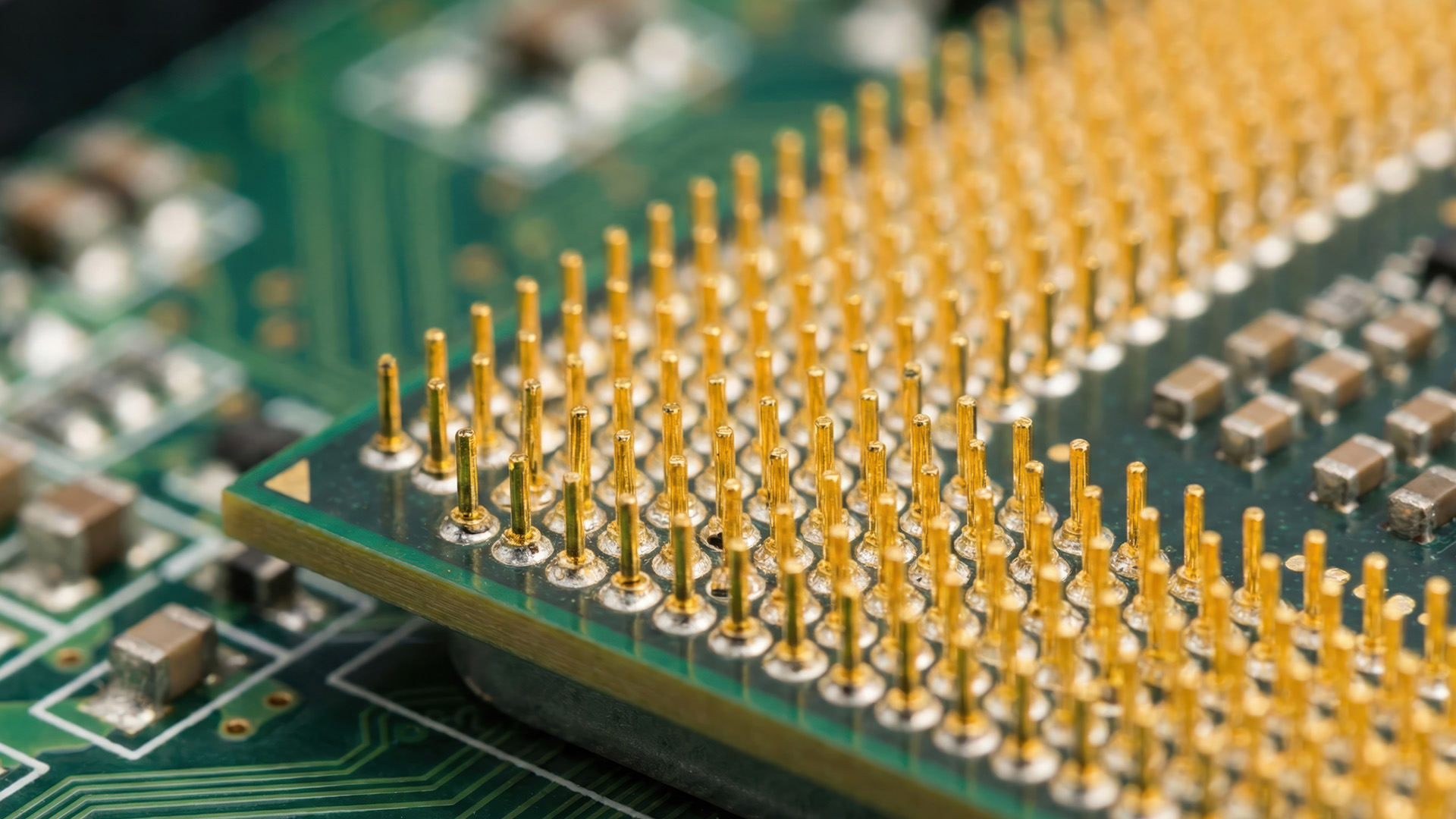
A CPU is compatible with a motherboard only when the socket, chipset and BIOS provide the required support. Matching the socket name is the first step, not the complete compatibility check.
Before purchasing a new processor or motherboard, work through the following checks.
1. Check the Exact CPU Socket
Find the socket type listed in the processor's technical specifications. For example, AMD Ryzen 5 5600 uses AM4, while Ryzen 5 7600 uses AM5.
You can review desktop processor specifications to identify the appropriate processor family and narrow down compatible options.
2. Verify Motherboard Chipset Support
A matching socket does not guarantee that a motherboard supports every processor designed for it. Different motherboard chipsets may support different processor generations, features and power requirements.
Intel's LGA1151 platform provides a useful example. Although 6th through 9th Generation Intel Core processors used LGA1151, compatibility was divided between chipset generations.
Check the motherboard manufacturer's CPU support list before purchasing.
3. Check the Required BIOS Version
The BIOS is motherboard firmware that initialises hardware when the computer starts.
Some motherboards require a BIOS update before they can recognise a newer processor. For example, an older AM4 motherboard may physically accept a Ryzen 5000 Series processor but need an updated BIOS before the system can boot.
AMD recommends confirming BIOS support through the motherboard manufacturer's documentation.
If you are replacing both components, compare motherboards by CPU socket and check the exact processor compatibility list for your preferred model.
4. Confirm Memory Compatibility
The motherboard and processor must support the memory generation you plan to install.
AMD AM4 systems use DDR4, while AM5 systems use DDR5. Intel memory compatibility varies by processor generation and motherboard model. For example, LGA1700 motherboards may support DDR4 or DDR5, but an individual motherboard is designed for a specific memory type.
DDR4 modules cannot be installed in DDR5 slots, or vice versa.
5. Check CPU Cooler Compatibility
Processor socket compatibility also affects the cooling hardware you can install. Different sockets may use different mounting hole patterns, brackets or retention mechanisms.
Before reusing a cooler, confirm that its mounting kit supports the motherboard socket and that it can adequately handle the processor's heat output. You can explore CPU cooling options based on your processor's requirements and available case clearance.
Some AM4-compatible coolers also work with AM5, although mounting compatibility depends on the specific cooler and bracket design.
How to Install an LGA CPU Safely
Installing an LGA CPU requires careful alignment and protection of the motherboard's socket contacts. Before starting, switch off the PC, disconnect its power cable and take appropriate anti-static precautions.
Follow the specific installation instructions supplied with your motherboard.
Step 1: Open the Retention Mechanism
Locate the CPU socket and release its locking lever. Open the retention frame as instructed by the motherboard manufacturer. Handle any protective socket cover according to the manufacturer's directions.
Avoid touching the socket pins.
Step 2: Align the Processor
Hold the CPU by its edges. Find the orientation triangle and alignment notches, then match them with the corresponding socket indicators.
The processor should sit correctly without requiring sideways movement.
Step 3: Lower the Processor into Place
Carefully lower the CPU straight into the socket.
Do not slide it across the contacts or apply pressure to make it fit.
Check that the processor sits evenly before securing it.
Step 4: Secure the Retention Mechanism
Close the retention frame and engage the locking lever.
Some resistance is normal when securing the load mechanism, but excessive or unexpected resistance should prompt you to check the installation.
Intel advises confirming correct seating and alignment before engaging the retention mechanism to avoid processor or socket damage.
Step 5: Install the CPU Cooler
Apply thermal paste if required by the cooler's instructions, then install the heatsink or liquid cooler mounting assembly. Connect the cooler's fan or pump cables to the appropriate motherboard headers.
Once the system is assembled, verify that the cooling hardware operates correctly.
How to Install a PGA CPU Safely
PGA installation is similar in principle, but the exposed processor pins require additional care.
Step 1: Inspect the CPU Pins
Before installation, check the underside of the processor. Look for bent, missing or damaged pins. Never place the CPU pins-down on a hard surface.
Step 2: Open the Socket Lever
Locate the PGA socket's locking lever and raise it fully. This releases the socket mechanism so the processor can be inserted without force.
Step 3: Align the CPU
Match the triangle marker on the processor with the corresponding marker on the socket. Check that the CPU is correctly oriented before lowering it.
Step 4: Gently Insert the Processor
Lower the processor vertically into the socket. A properly aligned PGA CPU should drop into place without downward pressure. If it does not seat naturally, remove it carefully and inspect the pin alignment.
Step 5: Lock the Processor and Install Cooling
Once the CPU is seated, lower the socket lever to secure it. Apply thermal paste if necessary and mount the cooler according to its installation instructions.
When removing a cooler from an AM4 system, avoid pulling it vertically with excessive force, as the processor may remain attached to the heatsink through dried thermal paste. Follow AMD's recommended removal procedure to reduce the risk of bent processor pins.
Common CPU Socket Installation Mistakes to Avoid
Socket damage often happens during installation, removal or hardware upgrades. Understanding the most common mistakes can help protect both the processor and motherboard.
Forcing an incompatible CPU into the socket: Processors with different socket requirements cannot be made compatible through physical pressure. Check the exact socket before installation.
Touching the CPU contacts: Oils, dirt and physical pressure can affect delicate processor contacts. Hold the processor by its edges.
Ignoring BIOS compatibility: A processor may fit correctly but still fail to boot if the motherboard firmware does not support it.
Installing a cooler with excessive pressure: Incorrect mounting hardware or overtightening can damage components or create poor contact with the processor.
Removing a PGA cooler without care: Thermal paste can cause the heatsink and processor to stick together, increasing the risk of pin damage during removal.
Leaving an LGA socket unprotected: When a motherboard is stored or transported without a processor installed, use the appropriate socket protection cover to avoid accidental contact damage.
Taking a few minutes to inspect component specifications and follow the manufacturer's installation guide is considerably easier than dealing with bent pins or a failed system build.
Is LGA Better Than PGA for Gaming and Everyday Performance?
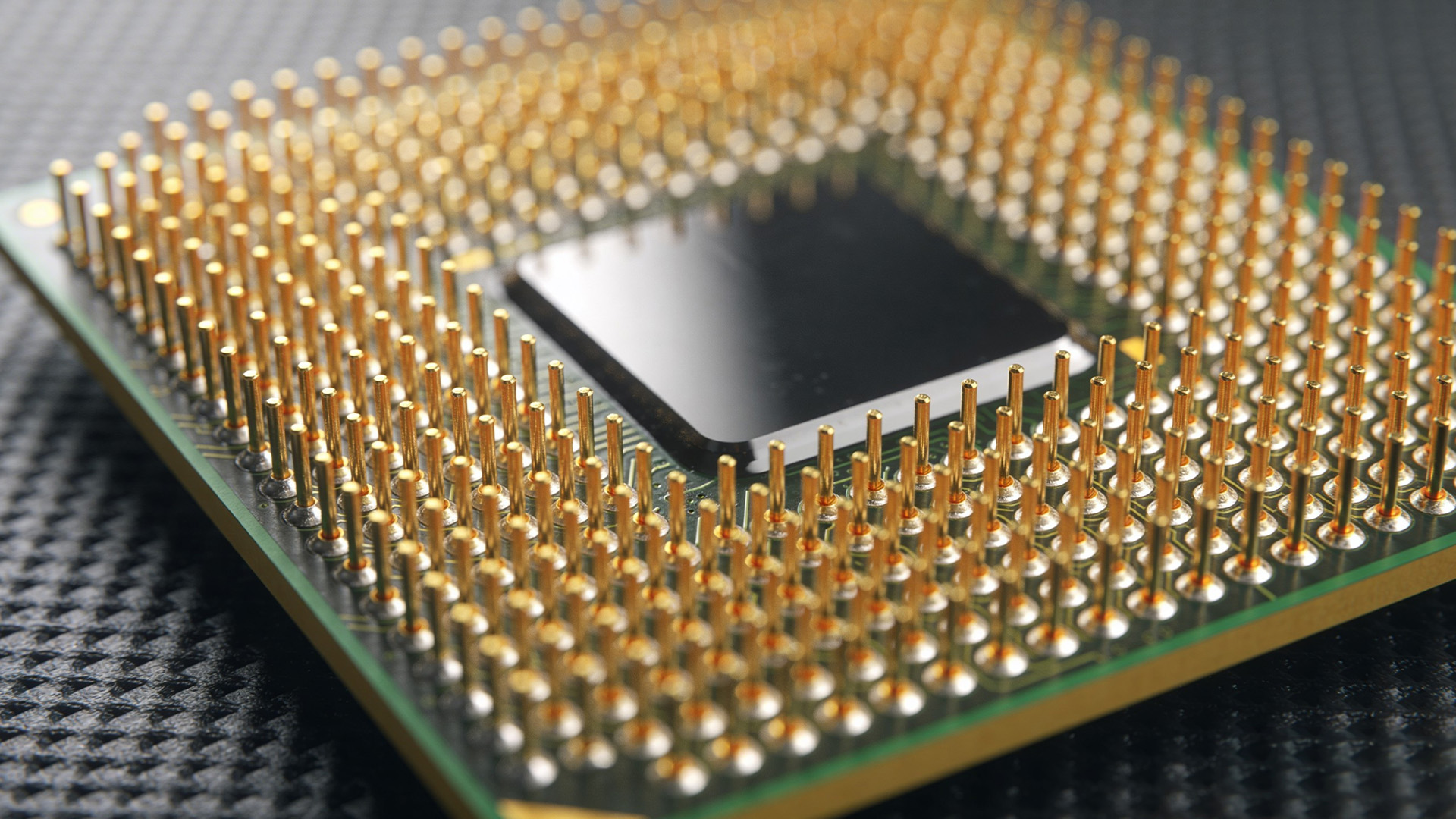
Neither LGA nor PGA offers an inherent gaming or processing performance advantage. Both designs provide the electrical connections needed for a processor to communicate with the motherboard.
Gaming performance depends primarily on the CPU's architecture, clock speeds, core configuration, cache, memory performance and the wider system. For example, an AM5 Ryzen processor may outperform an older AM4 Ryzen processor in a particular game, but that improvement comes from the processor and platform rather than the socket's physical contact arrangement.
LGA can offer practical advantages in processor handling because it removes exposed pins from the CPU. PGA, meanwhile, keeps its delicate pins on the processor, making careful handling especially important during installation and removal.
Neither design eliminates the possibility of damage. When choosing a platform, focus on processor performance, motherboard features, memory compatibility and future upgrade requirements rather than using socket pin placement as the main deciding factor.
Can You Upgrade from PGA to LGA Without Replacing the Motherboard?
No. Changing from a PGA processor to an LGA processor generally requires a different motherboard because the sockets have different mechanical and electrical designs. For example, moving from an AMD Ryzen 5 5600 on AM4 to a Ryzen 5 7600 on AM5 requires an AM5 motherboard.
You'll also need compatible DDR5 memory because AM5 does not support DDR4. Some existing cooling equipment may be reusable if it supports the new socket and the manufacturer provides compatible mounting hardware.
The graphics card, storage drives, case and power supply may also be reusable, provided they meet the new system's requirements. Before upgrading, compare the total cost of the processor, motherboard, memory and cooling equipment rather than considering the CPU alone.

Conclusion: LGA vs PGA CPU Sockets
The key difference between LGA vs PGA is the location of the electrical contacts. LGA places delicate pins in the motherboard socket, while PGA uses pins on the processor itself. Both designs are capable of supporting high-performance desktop processors, and neither provides an automatic speed advantage.
For anyone building or upgrading a PC, compatibility matters more than socket design. Check the exact CPU socket, motherboard chipset, BIOS requirements, memory support and cooler mounting before purchasing components.
Careful handling is equally important. Whether installing an Intel LGA processor, an AMD AM4 PGA CPU or an AMD AM5 LGA model, correct alignment and installation help prevent avoidable hardware damage.

Frequently Asked Questions
1. What is the main difference between LGA and PGA CPU sockets?
LGA sockets have spring-loaded pins on the motherboard, while the processor uses flat contact pads. PGA sockets place protruding pins on the processor, which fit into matching motherboard holes. Both provide electrical connections between the CPU and motherboard.
2. Is LGA better than PGA for gaming?
No. Socket design does not directly determine gaming performance. Frame rates depend on the processor's specifications, memory, graphics card and system configuration. An LGA processor may be faster than a PGA model because of architectural improvements, not pin placement.
3. Can you put a PGA processor into an LGA motherboard?
No. PGA and LGA processors use different physical connections and socket mechanisms. They are not interchangeable. Always check the processor's exact socket requirements and the motherboard manufacturer's compatibility list before attempting installation.
4. Why did AMD switch from PGA to LGA with AM5?
AMD adopted LGA for AM5 as part of a new desktop platform featuring 1,718 contacts, DDR5 memory and newer connectivity capabilities. The design moves delicate pins to the motherboard socket and supports the platform's electrical requirements.
5. Can bent CPU socket pins be repaired?
Some bent pins can be repaired by experienced technicians, but success depends on the type and severity of damage. Attempting repairs without suitable tools can break contacts or worsen the problem. Professional inspection is generally safer.
| Read More: |
| ARGB vs RGB: PC Lighting Connectors and Compatibility Explained |
| Which RAM Slots Should You Use? A Guide for 1, 2 or 4 Sticks |
| GPU Coil Whine: What Causes It and How Can You Reduce It? |
Related Articles


Last Updated: May 06, 2026
year is more than just a fresh calendar; it’s one of the best times of the year to upgrade your PC hardware for less. As retailers clear stock, introduce refreshed product lines, and compete for attention during seasonal sales, motherboard New Year deals 2026 unlock savings that simply aren’t available during regular months. Whether you’re planning a brand-new desktop build, upgrading an ageing system, or finally pairing a powerful CPU with a compatible board, New Year sales make high-end components far more affordable.
New Year Sale on AMD Motherboards
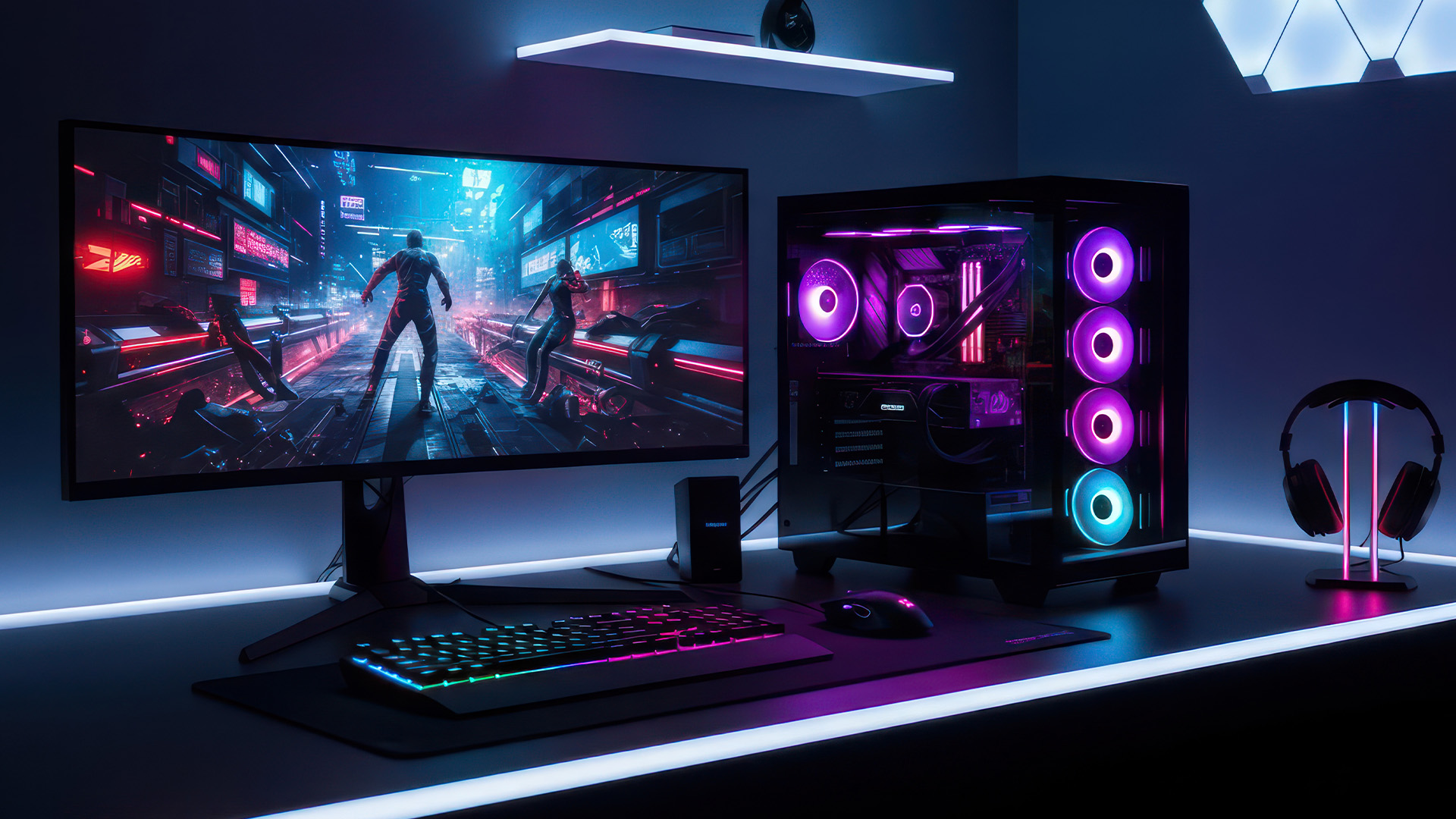
This New Year, AMD motherboard discounts make it easier than ever to build or upgrade your PC with powerful AM5 boards at lowered prices.
1. ASUS TUF GAMING X870E-PLUS WIFI7 ATX AMD Socket AM5 Motherboard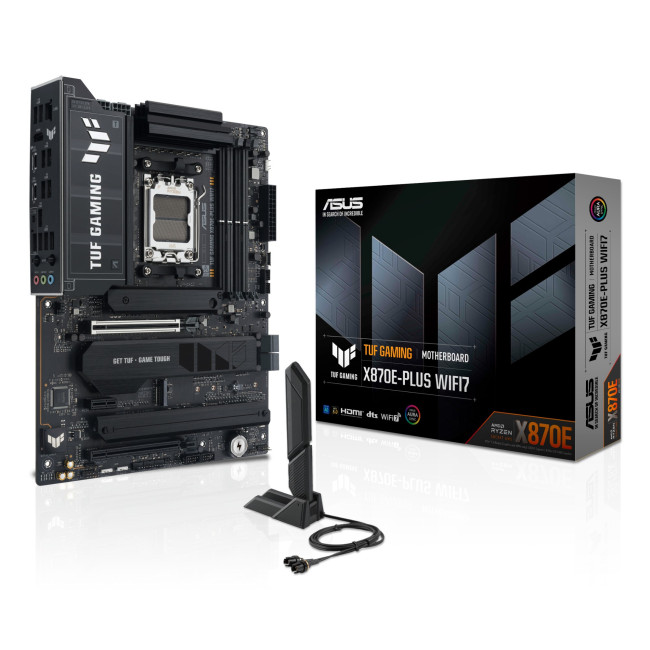
This flagship TUF board typically sits in the upper mid-range price bracket, but New Year Sale pricing often brings it into compelling territory compared to standard retail tags, shaving a noticeable percentage off regular prices.

Last Updated: January 27, 2026
Intel has remained a titan in the world of PC gaming for decades. Their processors power some of the most capable high-performance gaming desktops on the market today.
Recently, we have seen a massive shift in how these chips operate. The evolution from the classic Core i-series to the brand-new Ultra Core processors marks a new era. These advancements are not just about speed; they are redefining the entire gaming experience.
If you want a top-tier machine, understanding how Intel CPUs work in gaming desktops is essential.
The Role of a CPU in Gaming
The CPU acts as the brain of your computer. It handles every logic calculation and physics instruction required for your game.
CPU vs GPU: Understanding the Balance
The GPU handles the visuals and graphics rendering. Meanwhile, the CPU manages physics, logic, and artificial intelligence.
You need a strong balance between both components to avoid lag. If one is too slow, the other cannot perform at its full potential during intense sessions.

Last Updated: February 20, 2026
If you have been considering a high-performance processor upgrade this year, you may have noticed pricing staying firmer than expected. High-End CPU prices 2026 are under upward pressure, and in the UK, this often shows up as fewer meaningful discounts, shorter sale windows, and popular models holding close to launch pricing for longer.
A key driver is the scale of AI hardware demand 2026 and the wider push to expand AI data centres. While GPUs get most of the attention, large AI deployments also consume huge volumes of CPUs for orchestration, data handling, virtualisation, networking, and general system control. Recent industry reporting has pointed to rising pressure in high-end server CPU prices and tighter availability in some regions as AI-related demand ramps up.
This article explains what is changing, why it matters for premium desktop and laptop processors, how these pressures can filter into UK retail pricing, and what practical steps you can take to get better value when shopping
Last Updated: May 06, 2026
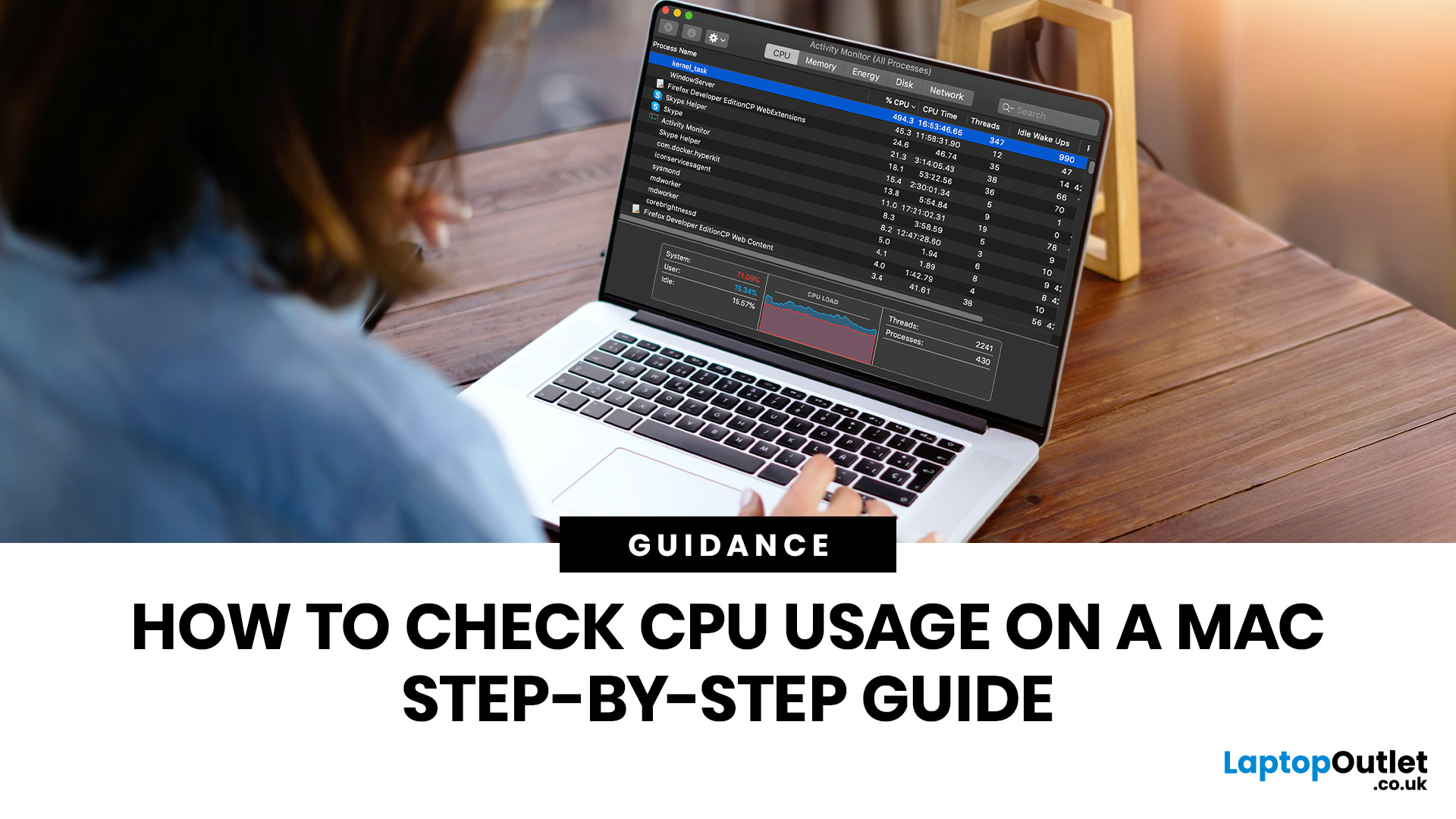
If you want to check CPU usage on a Mac, the fastest built-in method is Activity Monitor. Open it, click the CPU tab, and you can immediately see which APPs and processes are using the most processor power, along with overall User, System, and Idle percentages at the bottom of the window.
That makes CPU usage one of the most useful checks when your Mac feels slow, runs hot, drains battery quickly, or sounds busier than usual. In this guide, we will show you exactly how to see CPU usage on a Mac, how to interpret what you are looking at, and what to do next if one APP is using more processing power than it should.
How to See CPU Usage on a Mac
The easiest way to check processor usage on a Mac is to open Activity Monitor and click CPU. That view shows your Mac’s processor activity over time and lists active APPs and processes so you can spot what is using the most CPU. Apple also lets you open CPU Usage and CPU History from the Window menu for a more visual view.
If you want a quicker
Last Updated: June 18, 2026
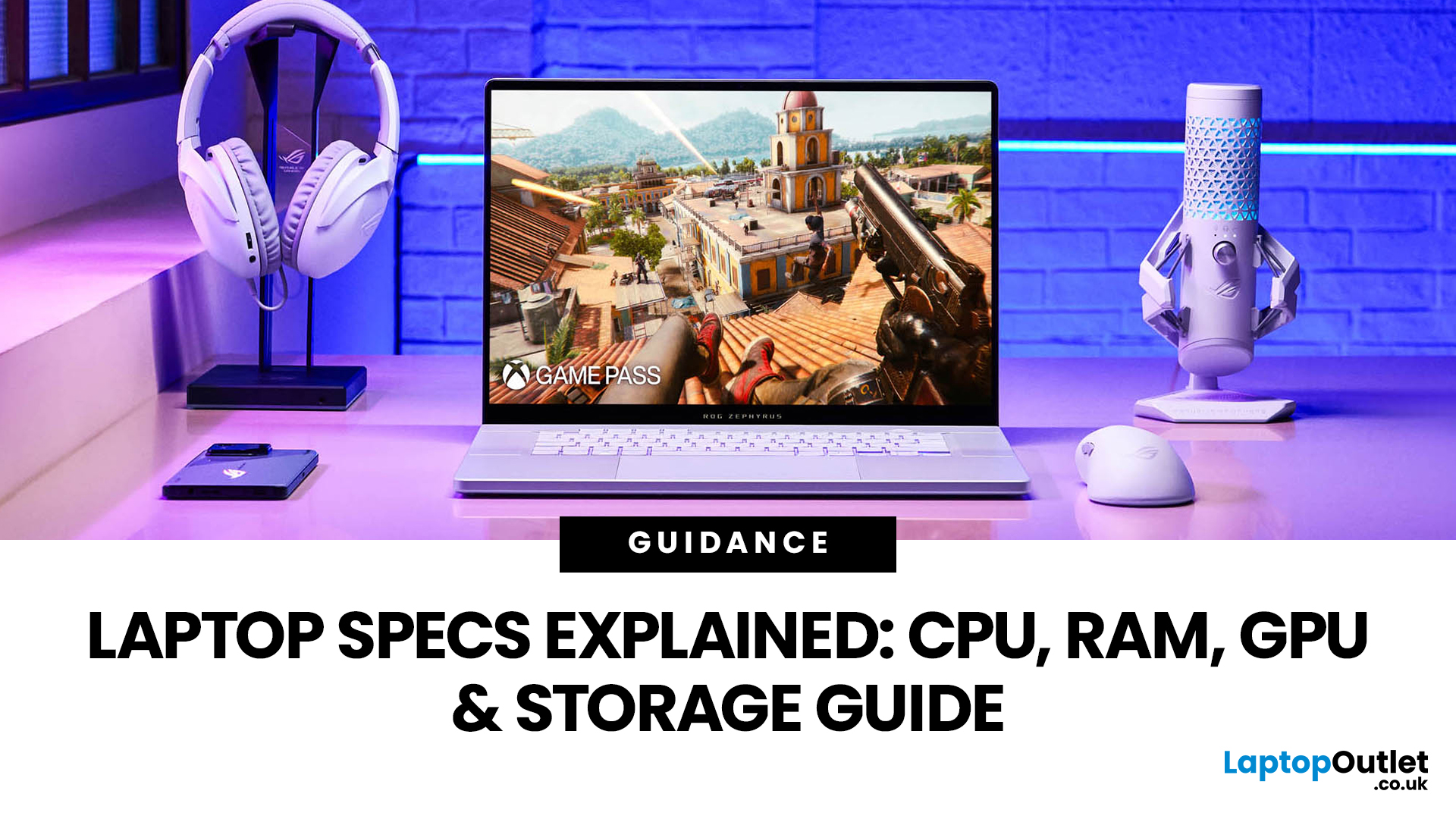
For most buyers in 2026, the best laptop specs are a modern Intel Core Ultra 5/7 or AMD Ryzen AI 5/7 processor, 16GB RAM, 512GB SSD storage, and integrated graphics. Choose 32GB RAM, 1TB storage, and a dedicated GPU if you edit videos, create content, play demanding games, or use professional software.
Buying a new laptop in 2026 can feel confusing, especially when every product page is packed with technical words, numbers, and abbreviations. This processors & specs explained guide breaks everything down in plain English so you can understand what matters before you spend your money.
For most buyers, the four most important laptop components are the CPU, RAM, GPU, and storage. Once you understand these, it becomes much easier to compare models, avoid overspending, and choose a laptop that actually suits your daily needs.
What are Laptop Specs and Why Do They Matter?
Understanding laptop specifications becomes important. Specs affect:
- How fast your laptop feels when opening apps.
- How many
Published: June 11, 2026
Choosing the right gaming desktop can be the difference between smooth, immersive gameplay and a system that struggles within a year. This gaming PC buying guide explains the key components that affect gaming performance, future-proofing, and value for money, so you can buy with confidence rather than guessing from confusing spec sheets.
A good gaming PC is not just about the most expensive graphics card. It is about balance. The CPU, GPU, RAM, storage, cooling, power supply, motherboard, and case all work together. Whether you play competitive esports, cinematic single-player titles, open-world RPGs, racing games or VR, understanding the right configuration helps you avoid overspending and choose a desktop that lasts.
This article is designed as a practical gaming PC specs guide for beginners, but it also includes up-to-date 2026 advice for buyers comparing modern RTX, Radeon, Intel, and AMD-powered systems.
Why Buy a Gaming Desktop PC?
A gaming desktop PC remains one of the best choices
Last Updated: June 15, 2026
Overheating can slow down your PC, crash games, and damage key components. Checking CPU and GPU temperature helps spot heat issues early, compare readings with safe ranges, and choose the right fix, from cleaning vents to upgrading cooling fans, coolers, processors, or graphics cards for smoother everyday performance and overall stability.
Is your laptop sounding like it’s about to take off? Or does your PC randomly slow down, crash, or shut itself off? Yeah, that’s usually not a vibe. It could mean your system is overheating.
Doing a quick check CPU GPU temperature laptop test can help you spot heat issues before they turn into expensive damage. Whether you game, edit videos, stream, or just multitask like a boss, keeping an eye on your processor’s and graphics cards temperature is a smart move.
Here’s how to check both easily.
Signs Your PC or Laptop is Overheating
Your device usually gives you clues before things get serious. Watch out for:
- Loud fans running non-stop
- Sudden lag or freezing
Last Updated: June 22, 2026
Your PC can look perfectly fine on the outside and still fail the moment it is pushed hard.
A game crashes after 20 minutes. A video export freezes at 92%. Your laptop randomly restarts during a heavy workload. Or maybe you have just upgraded your memory, changed your processor, built a new desktop, or enabled XMP/EXPO in the BIOS and want to know one thing:
Is my system actually stable?
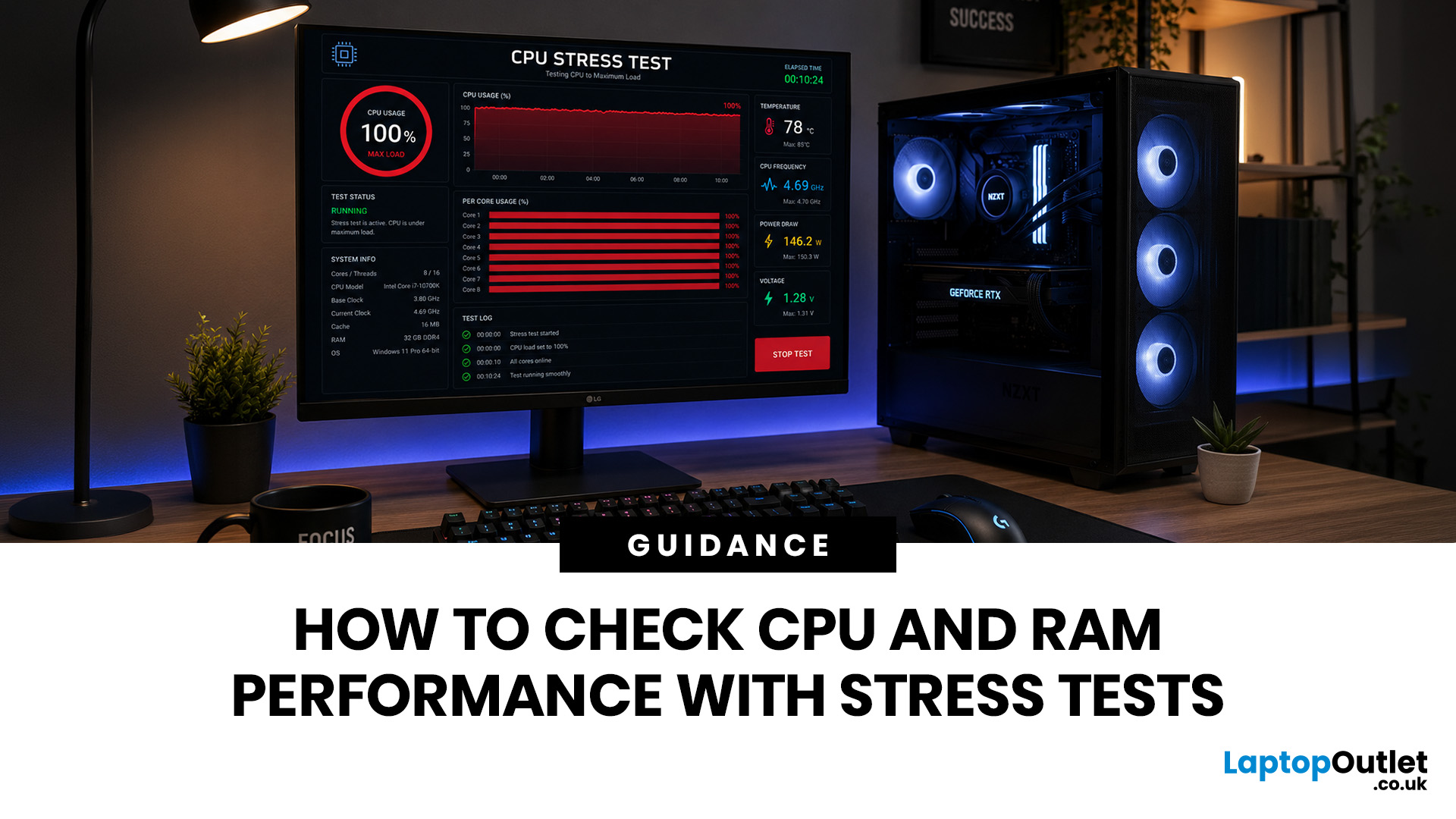
That is where a stress test CPU RAM process helps. By running a controlled CPU, RAM, or combined system stress testing session, you can find problems before they interrupt your work, gaming, editing, coding, or daily use.
In this guide, you will learn:
- What CPU and RAM stress testing
Last Updated: July 07, 2026
If you mainly browse, stream, study or use office apps, choose a modern balanced processor rather than paying extra for lots of cores. If you game, prioritise strong single-core performance, cache and a good dedicated GPU. If you edit video, render, compile large projects or run virtual machines, more cores and threads become much more important.
Have you ever stared at two laptop spec sheets wondering whether a higher GHz number or an extra two cores will serve you better? You are not alone. This is one of the most common questions and this guide will answer it by breaking down CPU clock speed vs cores. It will help you work out which matters more for your specific use case, whether that is gaming, video editing, office work, or coding.
What Is CPU Clock Speed?
CPU clock speed is the rate at which a processor's cores work through instructions, measured in cycles per second. In simple terms, CPU clock speed tells you how many of these cycles a core can complete every second.
How Clock
Last Updated: September 29, 2026
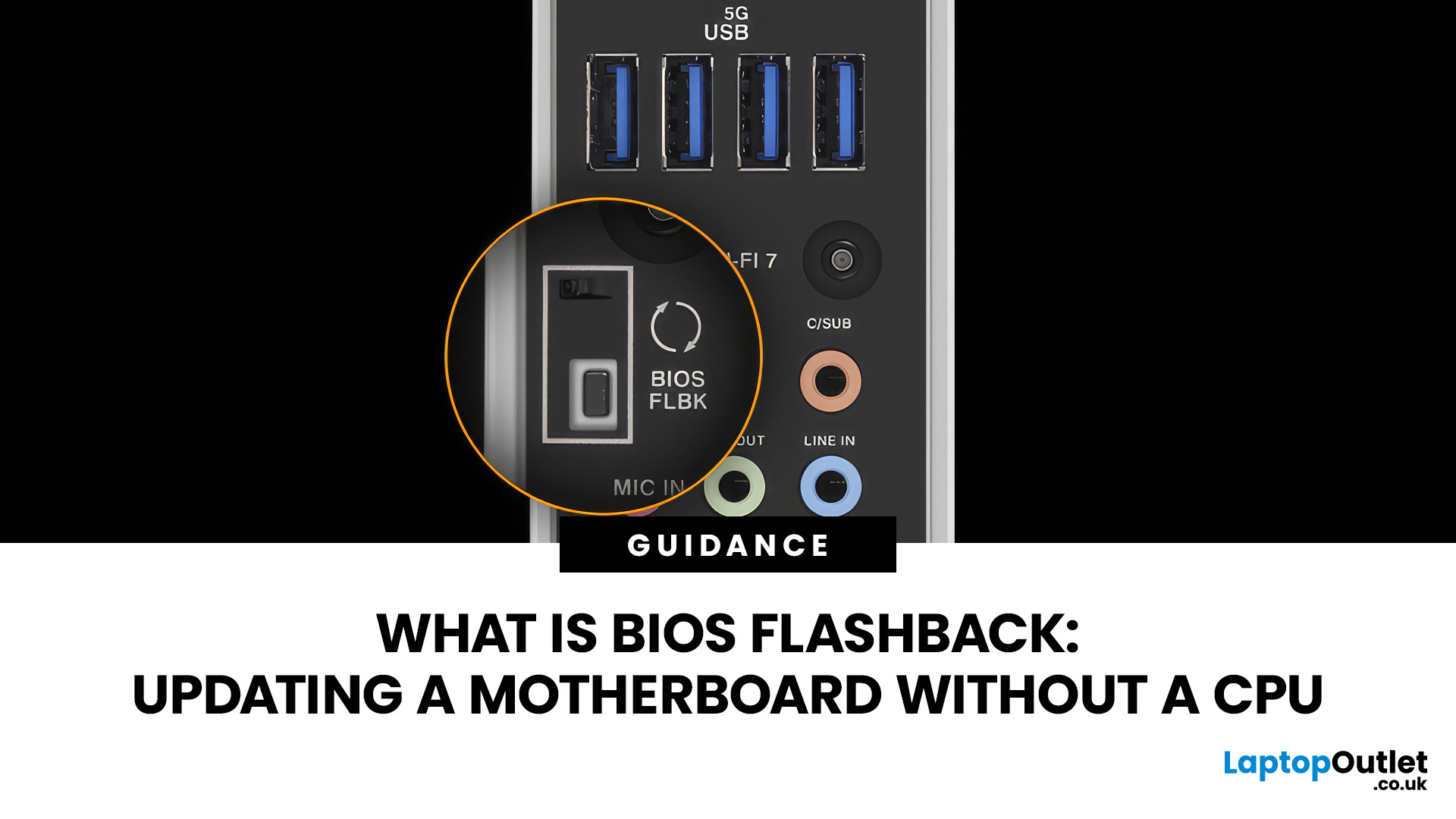
A conventional BIOS update normally requires a working processor so the computer can start, complete POST and enter its UEFI firmware interface. BIOS Flashback changes that on supported motherboards by allowing the firmware to be programmed from a USB drive without completing a normal CPU-driven boot.
That makes BIOS Flashback particularly useful when a motherboard needs newer firmware before it can recognise an otherwise compatible processor. However, it is a motherboard-specific feature rather than a standard function available on every board, and the exact USB, filename, button and power requirements can differ between manufacturers and models.
What Is BIOS Flashback?
BIOS Flashback is a hardware-assisted motherboard feature that can update or restore supported motherboard firmware without relying on a conventional system boot. On compatible boards, the process typically uses a prepared USB drive, motherboard power and a dedicated BIOS Flashback button or equivalent control.
This differs

