



What Is BIOS Flashback? Updating a Motherboard Without a CPU
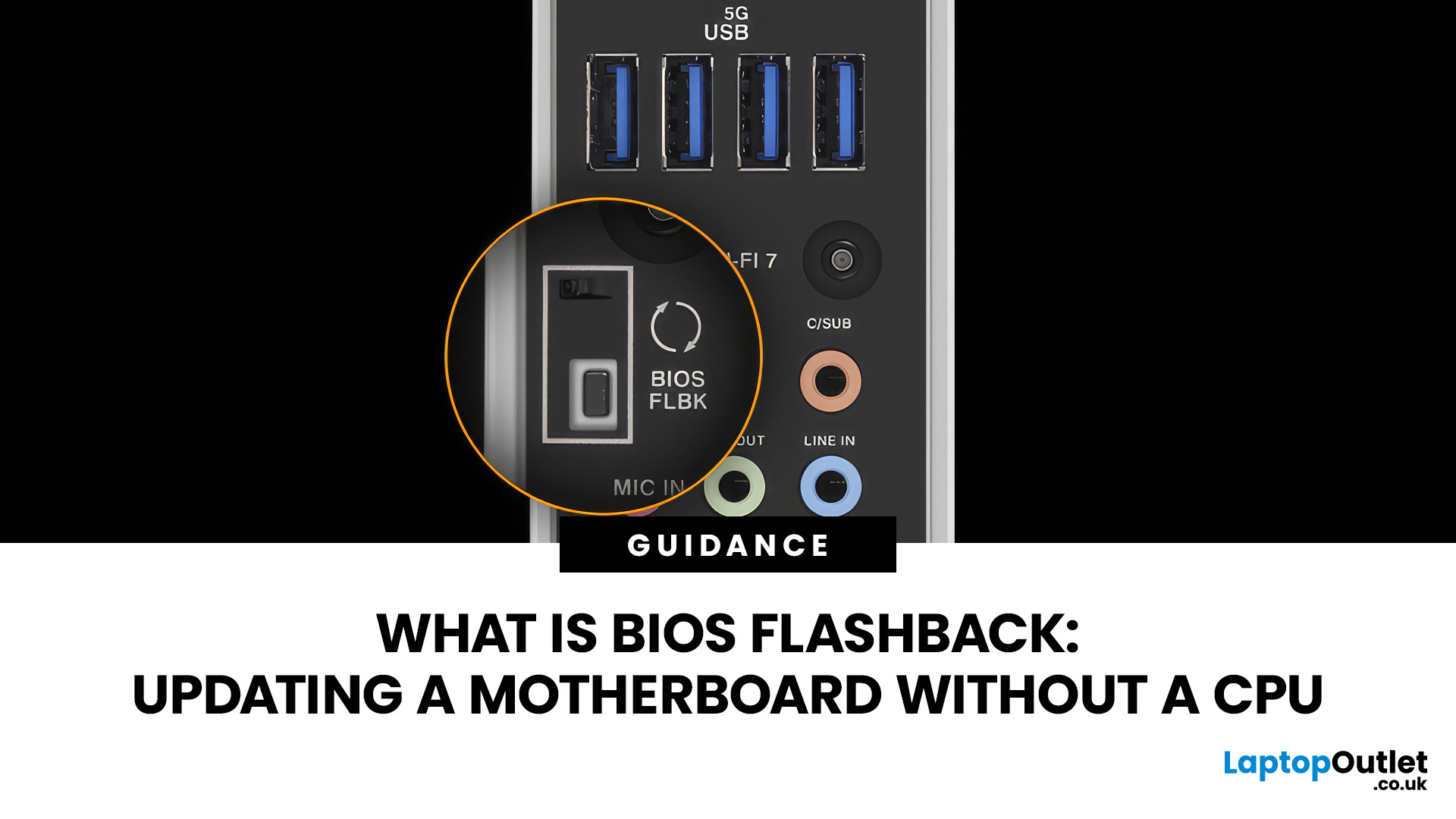
A conventional BIOS update normally requires a working processor so the computer can start, complete POST and enter its UEFI firmware interface. BIOS Flashback changes that on supported motherboards by allowing the firmware to be programmed from a USB drive without completing a normal CPU-driven boot.
That makes BIOS Flashback particularly useful when a motherboard needs newer firmware before it can recognise an otherwise compatible processor. However, it is a motherboard-specific feature rather than a standard function available on every board, and the exact USB, filename, button and power requirements can differ between manufacturers and models.
What Is BIOS Flashback?
BIOS Flashback is a hardware-assisted motherboard feature that can update or restore supported motherboard firmware without relying on a conventional system boot. On compatible boards, the process typically uses a prepared USB drive, motherboard power and a dedicated BIOS Flashback button or equivalent control.
This differs from a standard BIOS update performed from inside UEFI. A normal update utility usually depends on the system already being able to initialise its processor and reach the firmware interface. A dedicated Flashback implementation is designed to programme the firmware without following that normal boot path.
The feature is not universal. Before attempting motherboard BIOS Flashback, verify that the exact board model and, where applicable, hardware revision actually supports it.
How Can BIOS Flashback Work Without a CPU?
A supported motherboard can update BIOS without a CPU because the Flashback process does not depend on the processor completing the normal Power-On Self-Test, or POST.
Instead, dedicated motherboard circuitry and firmware handle the update process using the BIOS file stored on the USB drive. This is why some implementations can operate with no CPU, RAM or graphics card installed.
For example, GIGABYTE states that supported Q-Flash Plus motherboards can update firmware without the CPU, memory or graphics card installed.
This capability should not be confused with every BIOS update utility. A board having a standard firmware update option does not automatically mean it supports a CPU-less BIOS update.
When Is BIOS Flashback Useful?
One of the main uses for BIOS Flashback is resolving a processor compatibility problem before the computer can boot.
Imagine buying a brand-new processor that is electrically and physically compatible with your motherboard, but support for that CPU was added in a later BIOS release. If the existing firmware cannot recognise the processor, the system may not initialise far enough to use a normal BIOS update utility.
BIOS Flashback can provide another route on a supported board.
It may also be useful when:
- the motherboard was manufactured before support for a newer CPU was added
- the installed CPU cannot initialise with the board's current firmware
- supported firmware needs to be restored or refreshed without completing POST
- the system cannot reach its normal UEFI update utility
Flashback is not a universal repair mechanism. It cannot guarantee recovery from every corrupted BIOS, electrical fault, damaged component or unrelated boot problem.
If you are choosing or identifying a computer motherboard, check the manufacturer's specifications for terms such as USB BIOS FlashBack, Q-Flash Plus, Flash BIOS Button or BIOS Flashback rather than assuming the feature is present.
What Do You Need for BIOS Flashback?
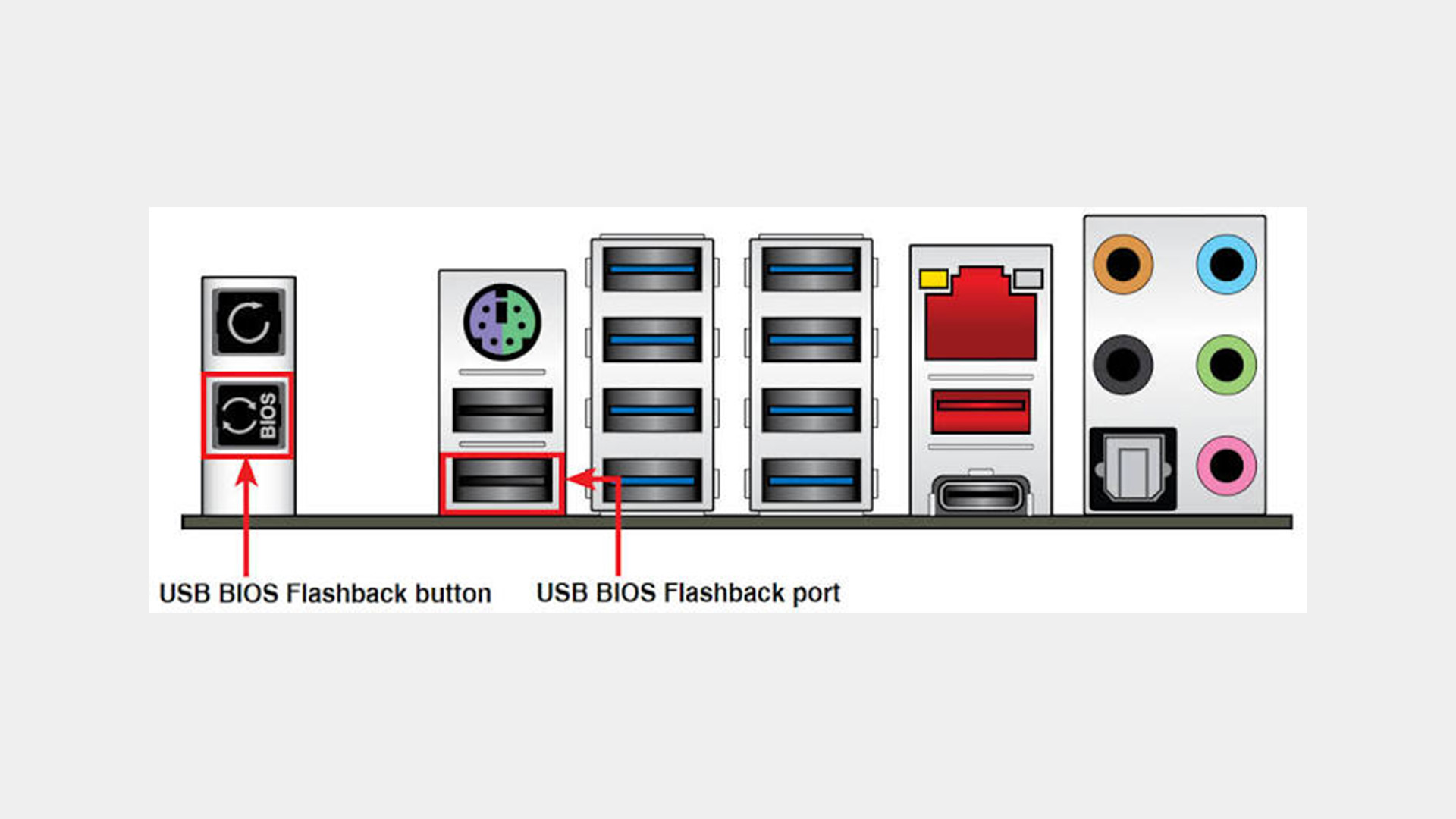
The exact requirements depend on the motherboard. In general, you need the correct BIOS file, a compatible USB drive, PSU power connected as specified by the manufacturer and access to the designated Flashback USB port and control.
You should confirm:
- the exact motherboard model
- the board revision, if the manufacturer distinguishes BIOS files by revision
- whether dedicated BIOS Flashback is supported
- which BIOS version you need
- the required USB filesystem
- the required BIOS filename
- the correct Flashback USB port
- which motherboard power connectors must be attached
- the documented LED behaviour for that model
Avoid using instructions from a similar-looking motherboard as a substitute for the manual and support page for your exact board.
How to Prepare a BIOS Flashback USB Drive
Start by downloading firmware for the exact motherboard model, then prepare the USB drive according to that board's instructions. Do not rename files or choose a filesystem based solely on instructions written for another manufacturer.
FAT32 is widely used for Flashback procedures, but it should not be treated as an automatic requirement for every motherboard.
For example, MSI's current Flash BIOS Button instructions specify a FAT32 USB drive, extraction of the downloaded archive and renaming the BIOS file to MSI.ROM.
ASUS has different instructions. Its current USB BIOS FlashBack guidance specifies FAT16/32 MBR formatting in its generic guidance and provides a BIOSRenamer utility with supported downloads to rename the .CAP firmware file correctly. The renamed file is then placed in the root directory of the USB drive.
Before formatting a USB drive, copy off any files you need because formatting erases its contents.
How to Use BIOS Flashback Without a CPU
The following is a typical workflow, not a replacement for your motherboard's own instructions.
- Confirm Flashback support
Check the motherboard specifications and manual for a dedicated BIOS Flashback-style feature. - Identify the exact motherboard
Verify the full model name and revision where relevant. A BIOS intended for another revision or similarly named board may not be suitable. - Download the correct BIOS
Use the manufacturer's official support page for the exact motherboard. - Extract the download if required
BIOS files commonly arrive inside compressed archives. Do not assume the file can be used while still inside the archive. - Prepare the USB drive
Format it using the filesystem required by the board's documentation. - Rename the BIOS file if instructed
Some manufacturers require an exact filename before Flashback circuitry will recognise the firmware. - Connect the required motherboard power
Do not assume every board uses the same connections. Follow its documentation. Other desktop components may not be needed for a CPU-less update, depending on the motherboard. - Insert the USB drive into the designated port
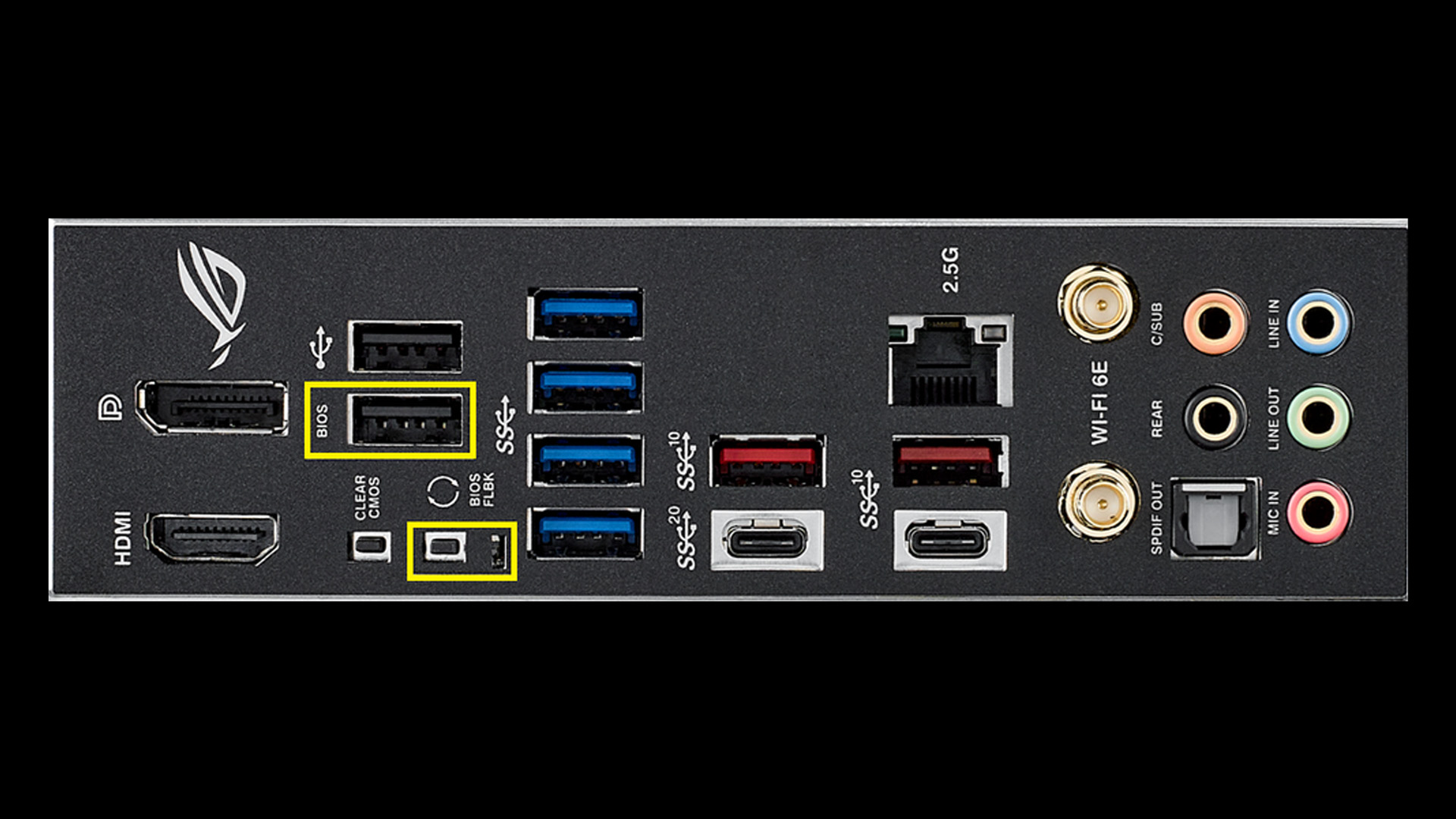
Use the specific BIOS Flashback or equivalent USB port. A normal USB port may not trigger the dedicated update process. - Activate the Flashback control
Press or hold the BIOS Flashback button exactly as documented for the board. - Watch the status indicator
The motherboard should provide an LED or another documented indication that firmware programming has started. - Allow the process to finish completely
Do not remove the USB drive, disconnect the PSU or interrupt power while the firmware is being programmed. - Confirm the result after completion
Once the manufacturer-defined completion state has been reached, assemble or start the system as appropriate and verify the installed BIOS version when the board can enter UEFI.
Do not interrupt a Flashback process simply because it seems to be taking longer than expected. Completion behaviour and update duration can vary with the motherboard and BIOS file.
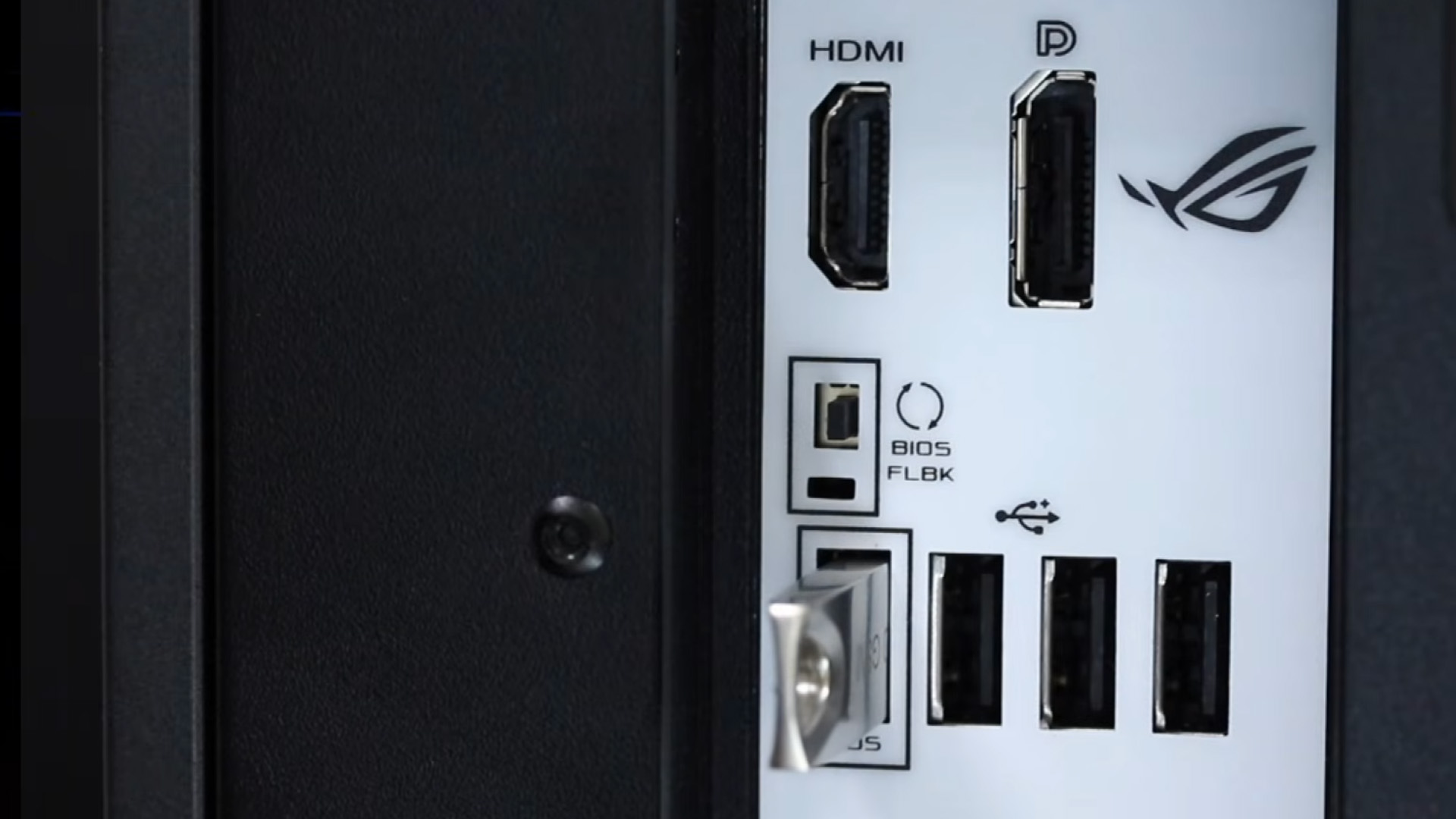
ASUS, GIGABYTE, MSI and ASRock Differences
Manufacturers use different names and procedures for similar CPU-independent firmware update features.
|
Manufacturer |
Feature |
Examples of documented requirements |
|
ASUS |
USB BIOS FlashBack |
Supported USB FlashBack port, correctly renamed .CAP file using BIOSRenamer where provided, manufacturer-specified USB formatting |
|
GIGABYTE |
Q-Flash Plus |
FAT32 USB drive, firmware renamed gigabyte.bin, Q-Flash Plus USB port, required motherboard power |
|
MSI |
Flash BIOS Button |
FAT32 USB drive, extracted firmware renamed MSI.ROM, USB port labelled BIOS, required motherboard power |
|
ASRock |
BIOS Flashback |
FAT32 USB drive in current guidance, firmware renamed creative.rom, BIOS Flashback USB port and switch |
GIGABYTE's current Q-Flash Plus instructions, for example, specify connecting the 24-pin and 8-pin motherboard power cables, placing gigabyte.bin on a FAT32-formatted USB drive and using the dedicated Q-Flash Plus port before pressing the button.
ASRock's current BIOS Flashback instructions document another implementation. They specify FAT32, an extracted BIOS file renamed creative.rom, the dedicated Flashback USB port and the board's Flashback switch. ASRock also states that its supported implementation can operate without the CPU, RAM or graphics card installed.
These examples show why instructions should not be mixed between brands or boards.
Does BIOS Flashback Need a CPU, RAM or Monitor?
Dedicated BIOS Flashback implementations can work without a CPU on supported motherboards because they do not require the machine to complete a normal POST. Some manufacturer implementations also explicitly support flashing without RAM or a graphics card.
Can You Flash BIOS Without RAM?
Yes, on supported implementations that specifically allow it. MSI states that its Flash BIOS Button process can refresh supported motherboard firmware without a CPU and RAM, while GIGABYTE and ASRock document supported procedures without CPU, memory or graphics hardware installed.
This does not mean every BIOS update feature can flash BIOS without RAM. Standard UEFI-based update tools still rely on the computer starting normally enough to enter the firmware interface.
Do You Need a Graphics Card or Monitor?
A dedicated BIOS update without display is possible on boards whose Flashback implementation operates independently of the normal boot process.
The Flashback status LED becomes important because there may be no screen output. Follow the exact LED behaviour described for the motherboard rather than assuming that a particular blinking pattern always means the same thing.
How Do You Know BIOS Flashback Has Finished?
Use the motherboard manufacturer's documented status indicator to determine when Flashback is complete.
On ASUS's documented USB BIOS FlashBack procedure, the Flashback LED eventually goes out when updating has completed. ASUS also documents a different light behaviour when the process has not started correctly.
MSI similarly states that the indicator flashes during its Flash BIOS Button refresh and turns off when the process has completed successfully.
ASRock's current guidance says its LED blinks during programming and stops blinking after completion. A solid green LED is documented there as an indication that Flashback is not operating correctly.
Those behaviours apply to the documented implementations above. Always use the indications specified for your exact motherboard rather than treating them as universal Flashback codes.
What If BIOS Flashback Does Not Start?
If the BIOS Flashback button appears to do nothing, or the process stops unusually quickly, first recheck the Flashback-specific requirements rather than moving immediately into general PC troubleshooting.
Check for:
- a BIOS downloaded for the wrong motherboard
- the wrong hardware revision
- an incorrect BIOS filename
- a BIOS file still inside its compressed archive
- an unsupported USB filesystem
- the file being stored in the wrong location on the USB drive
- use of a standard USB port instead of the dedicated Flashback port
- missing motherboard power connections
- a motherboard that does not actually support the feature
- USB-drive requirements specific to that motherboard
ASUS, for example, advises checking the USB format and confirming that the BIOS file and filename match the motherboard when USB BIOS FlashBack does not operate normally.
If an LED continues flashing, do not guess that the update has failed and cut power. Check the exact motherboard documentation for its documented indicator behaviour before taking further action.

BIOS Flashback Works Best When You Follow the Manual
BIOS Flashback allows supported motherboards to programme their firmware without completing a conventional CPU-driven boot. It is particularly useful when a motherboard needs newer BIOS support before it can initialise a compatible processor.
The important word is supported. USB formatting, BIOS filenames, power connections, ports, buttons and LED behaviour can differ between motherboard manufacturers and even between individual models. Confirm the Flashback instructions for your exact motherboard before starting, then allow the firmware process to finish without interruption.

Still Have Questions?
Can BIOS Flashback work without a CPU?
Yes, supported motherboards can perform BIOS Flashback without relying on a functioning CPU. This is one of the feature's main purposes, although the exact hardware configuration still depends on the board.
Does every motherboard have BIOS Flashback?
No. BIOS Flashback requires dedicated motherboard support and is not guaranteed by brand, chipset or socket. Check the exact model's official specification and manual before assuming the function is available.
Does BIOS Flashback require FAT32?
FAT32 is widely used, but follow the motherboard's documentation rather than assuming it universally. Current MSI and GIGABYTE Flashback instructions specify FAT32, while ASUS documents FAT16 or FAT32 for applicable models.
Can BIOS Flashback add support for a newer CPU?
Yes, if the motherboard already supports that processor through a newer BIOS release. Flashback cannot add support where the socket, chipset or motherboard platform is fundamentally incompatible with the CPU.
What happens if BIOS Flashback is interrupted?
Interrupting the firmware write can leave the motherboard unable to boot correctly. Keep power connected until the documented completion indicator appears, then follow the manufacturer's recovery guidance if the process was interrupted.
Related Articles

Last Updated: October 08, 2025
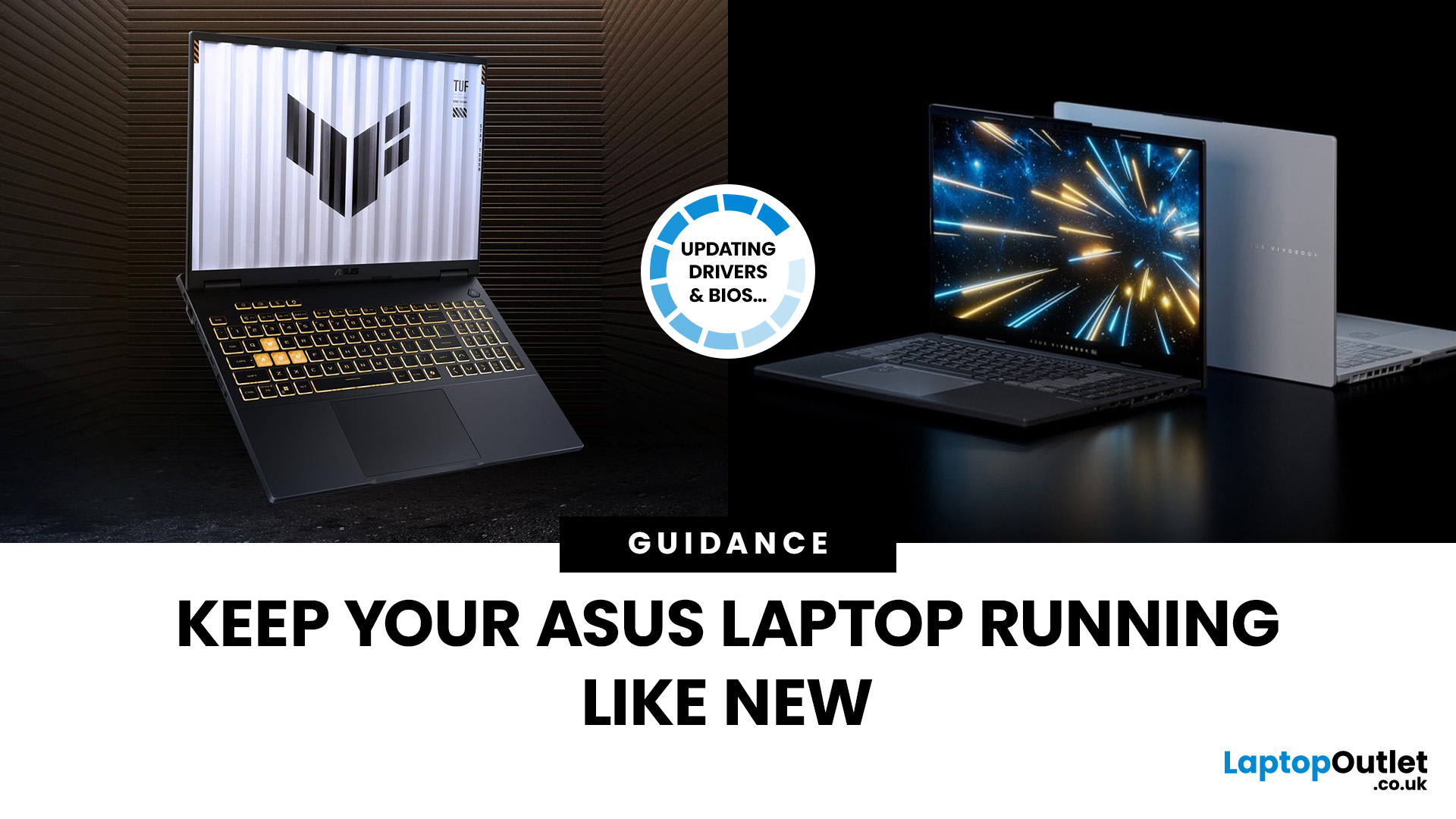
If you’ve ever owned an ASUS laptop - whether it’s a VivoBook for uni work, a TUF machine for gaming, or a Zephyrus for serious creative projects - you’ll know that things don’t always run perfectly forever. Over time, you might notice your battery draining faster, your fans spinning louder, or a game stuttering that used to run smoothly. Nine times out of ten, that’s down to drivers or firmware needing an update.
Updating drivers and the BIOS isn’t glamorous, but it’s one of the most effective ways to keep your ASUS laptop running at its best. The latest drivers squash bugs, improve compatibility with Windows 11, and even unlock new features. A BIOS update can go further still, ironing out stability issues, boosting performance, and extending hardware lifespan.
The good news? ASUS gives you proper tools like MyASUS, Armoury Crate, EZ Flash, and WinFlash, which make updates far less intimidating than they sound. Whether you’re rocking an ASUS VivoBook, TU F, or Zephyrus, this walkthrough
Last Updated: April 28, 2026
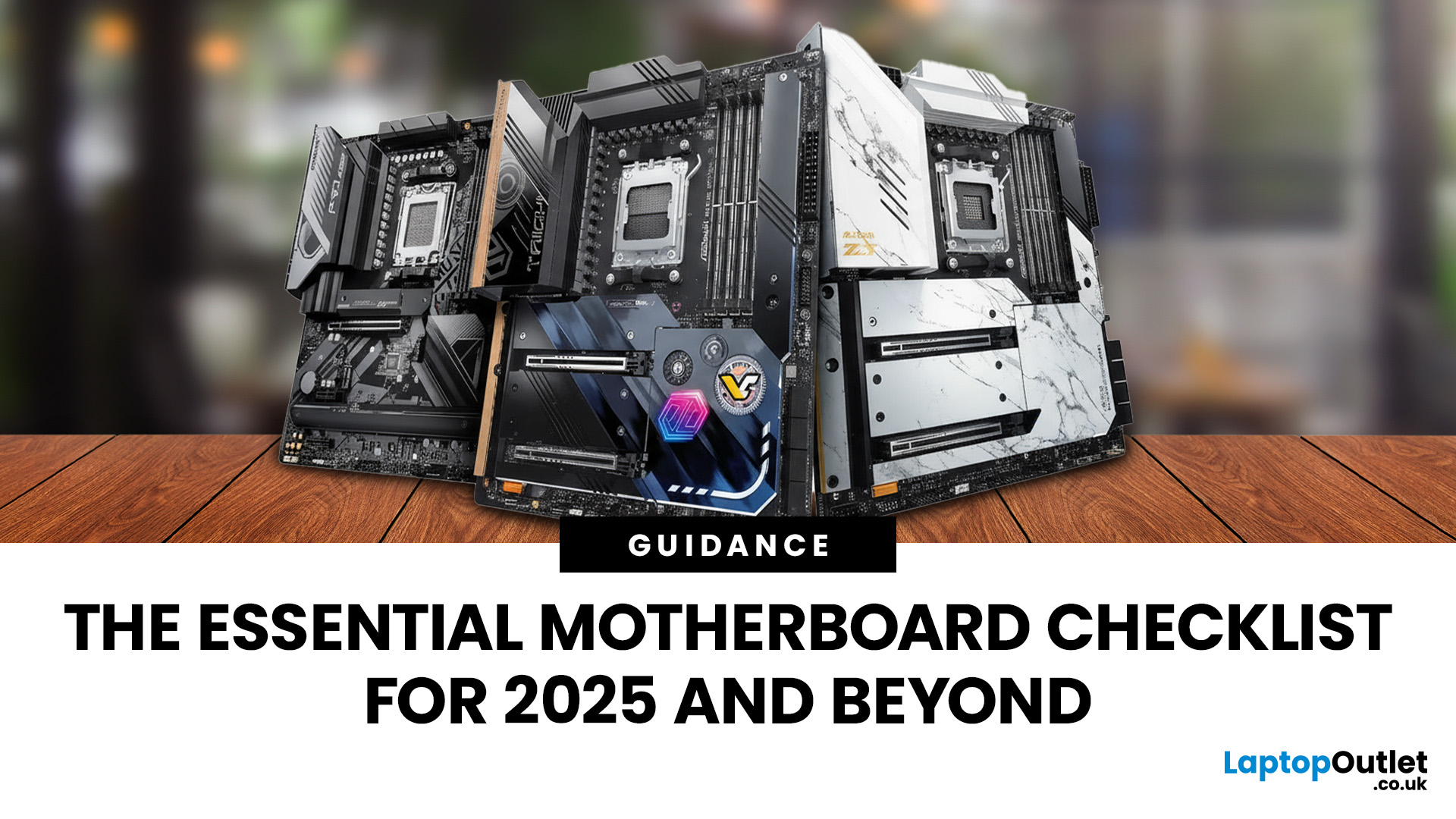
When building a new PC in 2025, choosing the right motherboard is the best long-term decision you can make. It’s the backbone of your system, and opting for an upgrade-ready motherboard means focusing on key technologies like DDR5 memory, fast PCIe standards, and next-gen connectivity.
This guide explores the essential features that define future-proof motherboards and highlights some top models for both AMD and Intel platforms.
If you are just starting your PC build, you should read our guide on how to choose the right motherboard.
Key Future-Proofing Features for 2025
What exactly makes a motherboard “future-proof”? It comes down to technologies that won't become bottlenecks for your most powerful components over the next five years.
- DDR5 Memory Support: This is non-negotiable. DDR5 compatible motherboards offer significantly higher bandwidth and speed than their predecessors.
- PCIe 5.0 Connectivity: This is crucial for both the primary graphics slot (for next-gen GPUs) and at least
Last Updated: November 19, 2025
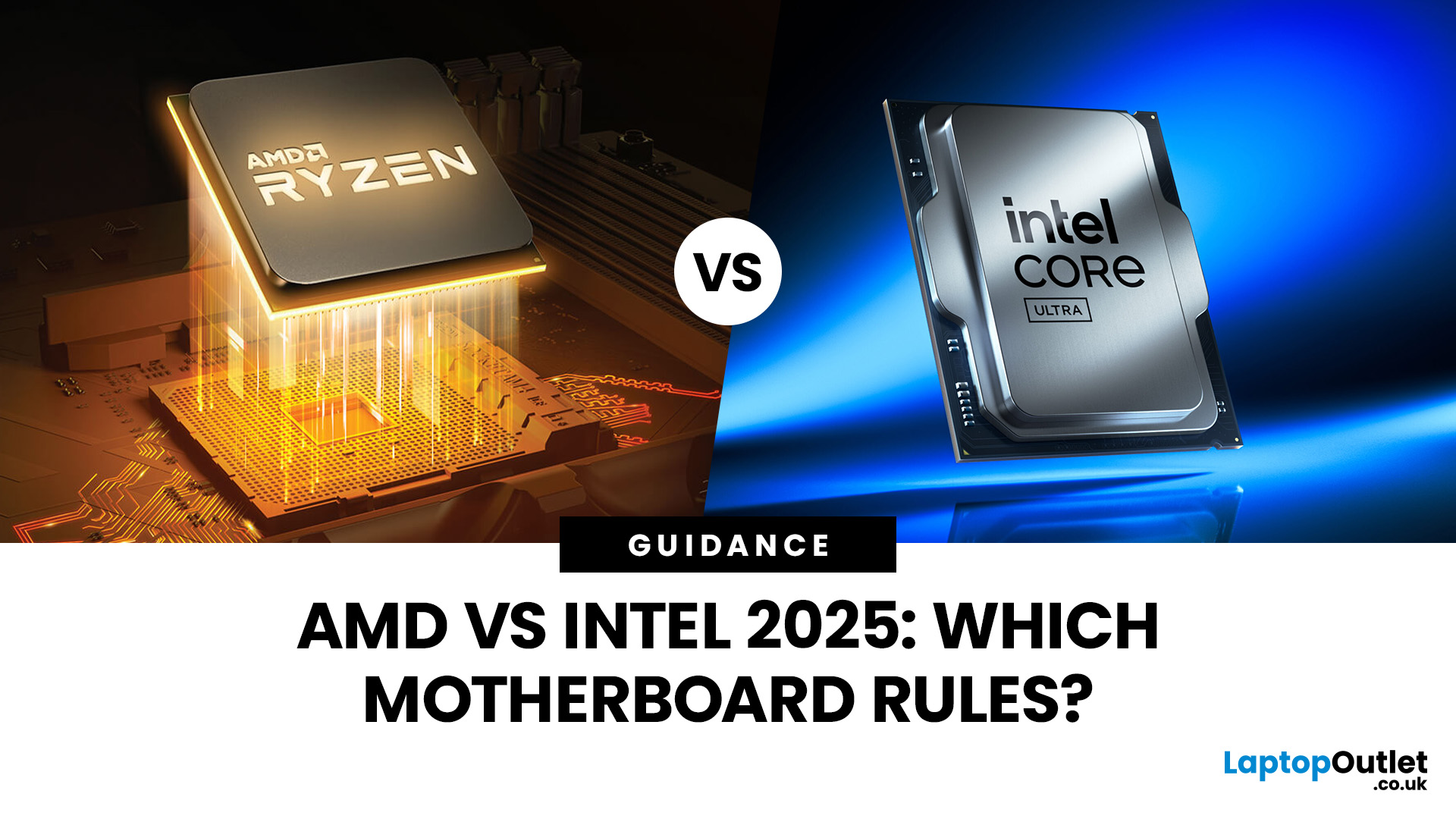
When you’re building or upgrading a PC, choosing the right motherboard can feel a little intimidating — especially when it comes down to the age-old rivalry of AMD vs Intel motherboards.
Both brands make fantastic hardware, but each has its strengths. Whether you’re planning a high-end gaming rig, a creative workstation, or an everyday PC, the motherboard you choose will shape your system’s performance, features, and future-proofing.
In this guide, we’ll compare Intel vs AMD motherboards across performance, chipsets, memory, overclocking, and more. By the end, you’ll know exactly which option suits your needs in 2025.
What Exactly is a Motherboard?
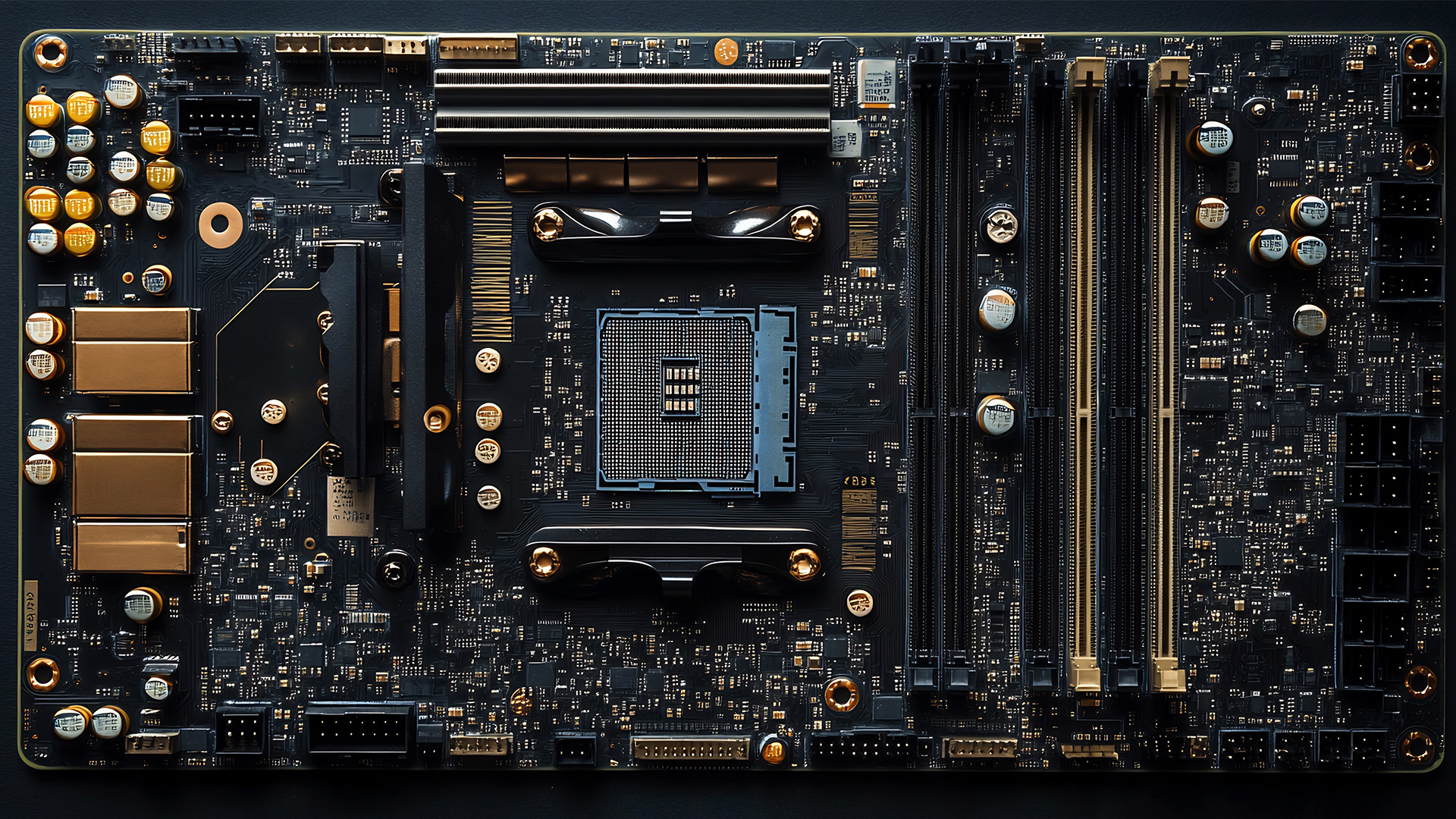
Before diving into the AMD vs Intel motherboards comparison, let's briefly clarify what a motherboard is and why it's so important.
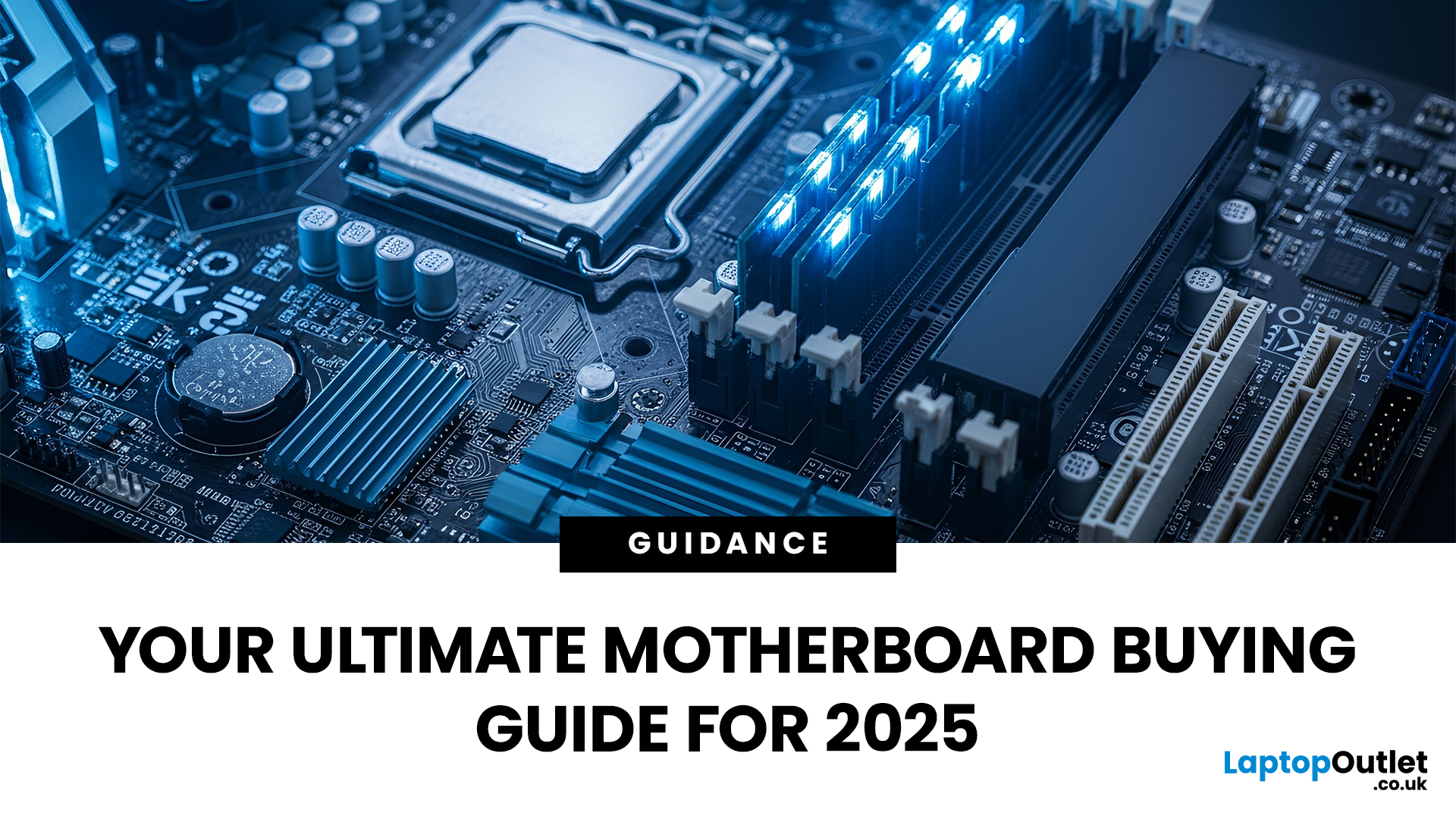
Often called the 'mainboard' or 'system board,' the motherboard is the central printed circuit board (PCB) in a computer. It is, quite simply, the foundation and communication hub for all other components.
It houses
Last Updated: December 03, 2025
The motherboard is the central nervous system of your computer. Every component, from the CPU and RAM to the GPU and storage drives, connects to it.
Making the right choice here is crucial. A well-chosen board ensures smooth performance, effortless upgrades, and long-term stability for your entire desktop PC build.
If you’re wondering how to choose the right motherboard to suit your needs, you’ve come to the right place. This comprehensive motherboard buying guide will take you through every essential step to help you lay the best foundation for your next project.
Step 1: CPU Choice Defines the Socket (AMD vs Intel)
The first and most crucial step when selecting a motherboard is choosing your CPU (Central Processing Unit). The processor dictates which socket type and chipset your motherboard must have.
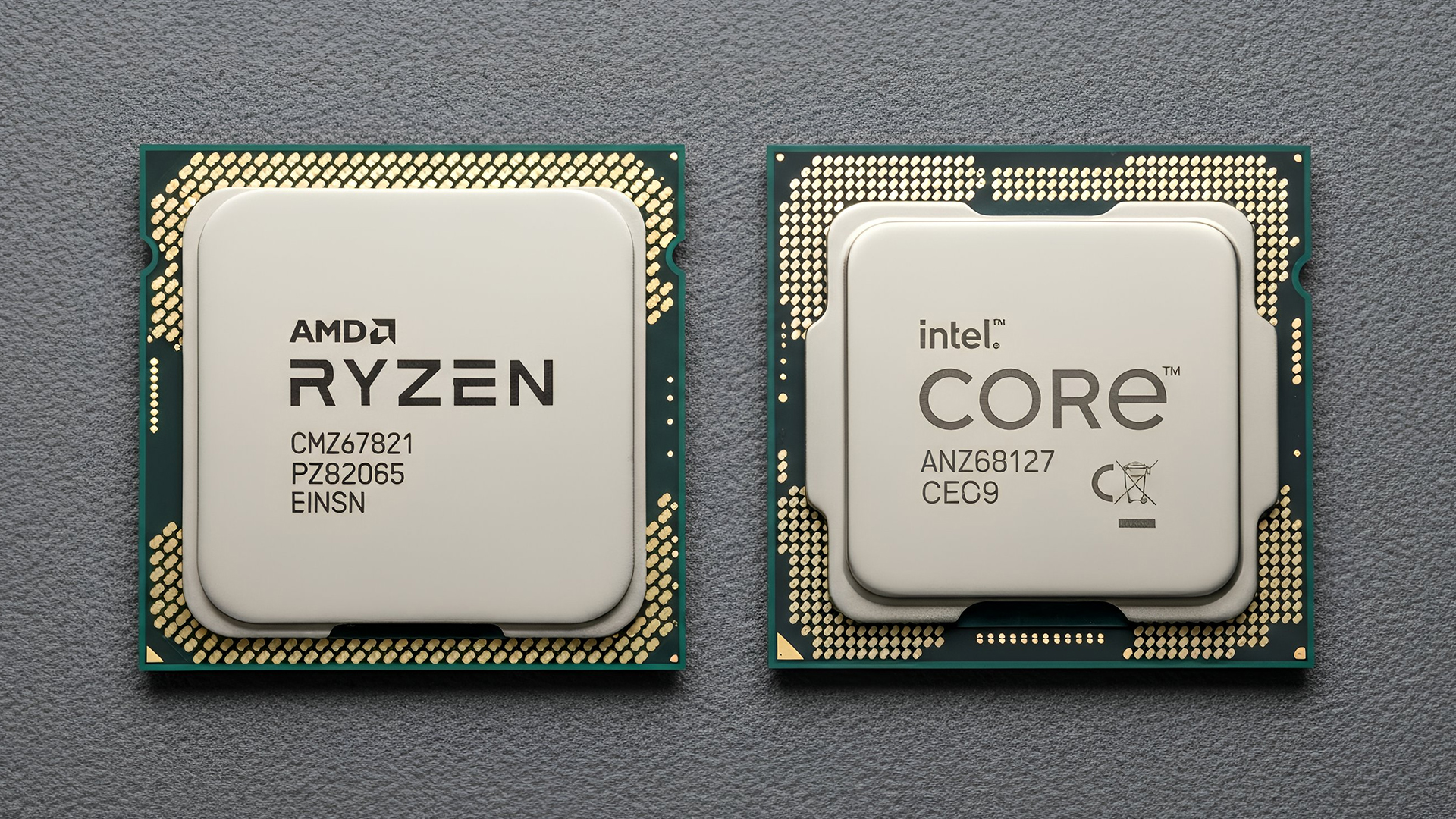
AMD vs Intel Motherboards
- AMD motherboards are known for value and longevity. Platforms like AM5 often maintain compatibility across several CPU generations, allowing for future upgrades

Last Updated: June 05, 2026
If you’re upgrading your gaming rig or building one from scratch in 2025, the motherboard you choose is going to set the tone for your entire PC. Whether you’re aiming for an affordable setup or an ultra-high-end powerhouse, the motherboard is the foundation - determining not just what components you can use today, but how future-ready your system will be.
This guide takes you through the best motherboards for gaming PCs in 2025, handpicked for performance, features, and value. You’ll find AMD and Intel options, from budget boards with modern DDR5 support to premium PCIe 5.0 powerhouses. Every recommendation is researched using up-to-date 2025 benchmarks, market data, and UK availability, ensuring you can make an informed purchase that fits your budget and build goals.
Why the Motherboard Matters in 2025

With the launch of AMD’s Ryzen 9000 and Intel’s 15th-gen “Arrow Lake” CPUs, the motherboard landscape has changed considerably. New chipsets like AMD B650E and Intel Z890 bring cutting-edge

Last Updated: May 06, 2026
year is more than just a fresh calendar; it’s one of the best times of the year to upgrade your PC hardware for less. As retailers clear stock, introduce refreshed product lines, and compete for attention during seasonal sales, motherboard New Year deals 2026 unlock savings that simply aren’t available during regular months. Whether you’re planning a brand-new desktop build, upgrading an ageing system, or finally pairing a powerful CPU with a compatible board, New Year sales make high-end components far more affordable.
New Year Sale on AMD Motherboards
This New Year, AMD motherboard discounts make it easier than ever to build or upgrade your PC with powerful AM5 boards at lowered prices.
1. ASUS TUF GAMING X870E-PLUS WIFI7 ATX AMD Socket AM5 Motherboard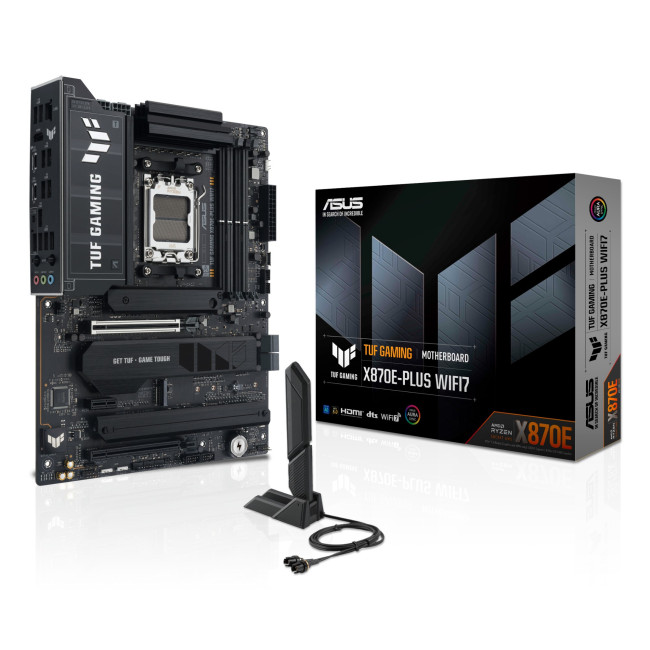
This flagship TUF board typically sits in the upper mid-range price bracket, but New Year Sale pricing often brings it into compelling territory compared to standard retail tags, shaving a noticeable percentage off regular prices.

Last Updated: January 02, 2026
When you start plugging in devices and suddenly run out of USB slots, the first question that comes to mind is a simple one: how many USB ports does my motherboard actually have?
This is something most users never think about until they hit a limitation. Whether you are building a PC, upgrading an old system, or just trying to understand why you need a USB hub, the answer always comes back to your motherboard USB ports.
The tricky part is that the total number of USB ports is not always obvious at first glance. Some are visible on the back of the PC, others are internal, and some are supported but not even active unless you connect the right headers.
This guide breaks everything down in a practical way and helps you discover how to check the total USB ports supported by your motherboard.
Why Motherboard USB Ports Matter More Than You Think
Motherboard USB ports define how many devices your system can handle directly. That includes keyboards, mice, external drives, webcams, printers

Last Updated: January 06, 2026
Updating your motherboard BIOS is often recommended to improve system stability, fix bugs, or add support for new hardware. However, what if your PC won’t show anything on the screen? A failed GPU, incompatible CPU, or corrupted BIOS can leave you with a blank display, making a standard update impossible. The good news is that it is still possible to update BIOS without display on many modern motherboards. In this guide, we’ll explain how to update motherboard BIOS without display, the tools you’ll need, and the safest methods to follow, using clear, practical steps. Learn safe ways to update BIOS without a working screen.
Important Precautions Before You Begin
Updating BIOS always carries some risk, so preparation is essential, especially without a display. If your motherboard does not support display-free updates, attempting one could permanently damage it. Before starting, make sure you:
- confirm your exact motherboard model
- download the correct BIOS version from the manufacturer’s
Last Updated: January 06, 2026
Need to find motherboard model details for an upgrade? Knowing your motherboard (often called the baseboard or system board) helps you pick compatible RAM and storage to download the right drivers. You can usually confirm it easily in minutes using built-in Windows tools, or via BIOS/UEFI if Windows won’t load. It’s especially handy before ordering parts or booking a repair. Learn easy ways to check your motherboard model in Windows or BIOS.
Method 1: Windows System Information (msinfo32)
System Information often shows the clearest result.
- Press Windows + R
- Type msinfo32 and press Enter
- In System Summary, look for:
BaseBoard Manufacturer
- BaseBoard Product (often the motherboard model)
- BaseBoard Version (board revision)
If you’re sharing details with support, use File > Export to save a report.
Method 2: Command Prompt (WMIC)
A fast command-line check:
- Open Start, type Command Prompt, and run it
You’ll typically see the motherboard manufacturer and product/model code. On some OEM laptops
Last Updated: January 06, 2026
Have you ever needed to upgrade your PC, install new RAM or a CPU, or simply troubleshoot hardware - only to realise you don’t actually know what motherboard is inside your computer? It’s a more common situation than you’d think. Whether you’re working on a desktop you assembled years ago, a shop-bought laptop, or helping a mate sort out theirs, knowing how to check your motherboard type quickly and accurately is a vital tech skill.
Ever wondered what motherboard is powering your PC? Good news - finding out is way easier than you might think. No opening your case, no tech wizard required. Using built-in tools on Windows, macOS, and Linux (plus a few handy apps), you can uncover all the details in just minutes.
Why You Might Need to Know Your Motherboard
Before we explore the methods, you might be wondering why this even matters. Here are common reasons:
- Upgrading components: If you want to fit a new CPU or faster RAM, you must know the motherboard’s socket type and supported standards.

