



GPU Coil Whine: What Causes It and How Can You Reduce It?
Quick Answer
GPU coil whine is a high-pitched electrical noise caused by tiny vibrations in inductors within a graphics card’s power-delivery circuitry. It often becomes more noticeable at very high frame rates or under changing GPU load. It is usually harmless, but limiting frame rates, checking power connections and carefully reducing GPU power demand can often make the noise less noticeable overall.
A GPU buzzing noise can be unsettling, particularly when it appears immediately after installing a new graphics card. The important thing is to identify whether you are actually hearing coil whine before changing settings or replacing hardware.
In most cases, GPU coil whine is an acoustic characteristic rather than evidence that the graphics card is failing. ASUS, MSI and Intel all describe this type of high-frequency electrical noise as a physical effect associated with electronic components and inductors.
Key Takeaways
- Coil whine usually comes from vibrating inductors in a GPU's power-delivery circuitry.
- It may sound like buzzing, squealing, chirping or a high-pitched electrical tone.
- Very high or uncapped frame rates can make it considerably more noticeable.
- Coil whine by itself normally does not affect GPU performance or reliability.
- An FPS limit is one of the safest and most useful first troubleshooting steps.
- A PSU, motherboard or another power-delivery component can sometimes produce a similar sound.
- Undervolting or lowering a power limit may help, but neither is guaranteed.
- Do not open a graphics card or PSU to attempt physical coil modifications.
What Is GPU Coil Whine?
GPU coil whine is audible vibration produced by electrical components within or around a graphics card's power-delivery system.
Graphics cards receive power from the power supply and convert it into the voltages required by the GPU, memory and other circuitry. This process uses voltage-regulation components, including inductors, often referred to as chokes.
An inductor contains conductive material and a magnetic core. As electrical conditions change, electromagnetic forces can produce tiny physical movements within the component.
If those vibrations or related resonances fall within an audible frequency range, you can hear them as coil whine. Electronics specialists also identify magnetostriction and physical movement within magnetic components as potential sources of audible vibration.
That is why graphics card electrical noise can change pitch almost instantly as a game's frame rate or GPU workload changes.
What Does GPU Coil Whine Sound Like?
There is no single coil-whine sound.
You may hear:
- a high-pitched squeal
- an electrical buzz
- a faint whistle
- a rapid chirping sound
- a tone that rises and falls as FPS changes
A GPU high pitched noise that changes immediately when you move between a game menu and gameplay is a particularly useful clue.
Coil whine should not be confused with crackling from damaged cables, grinding fan bearings or electrical arcing. Those symptoms require separate investigation.
Why Does GPU Coil Whine Happen?
Coil whine occurs when the electrical behaviour of a circuit excites a physical resonance within an inductor or surrounding assembly.
The exact level varies between individual components. Two graphics cards based on the same GPU and even the same board design can therefore have noticeably different acoustic characteristics.
Several conditions can make the noise easier to hear.
Very High Frame Rates
GPU coil whine at high FPS is one of the most common scenarios.
Intel specifically notes that graphics-card coil whine commonly occurs when a card is running a workload at a high frame rate and recommends capping FPS as one way to reduce its intensity.
Game menus can be particularly revealing. A menu that requires little rendering work may run at hundreds of frames per second when no frame limit is active.
The graphics card's power-delivery circuit is then operating under electrical conditions that may excite an audible resonance.
This also explains an apparently strange situation where coil whine is louder in a menu than during graphically demanding gameplay.
Changing GPU Loads
You can also hear GPU coil whine under load when gaming, rendering or running another GPU-intensive application.
It is not simply a case of "more GPU usage equals more noise". Switching behaviour, current demand, frame rate and the resonant characteristics of the individual components can all influence what you hear.
As a result, one game may produce obvious whine while another equally demanding game remains relatively quiet.
Individual Component Variation
Coil whine is partly dependent on the physical properties of the installed electrical components.
Coilcraft explains that audible inductor noise can result from a mechanical resonance being excited by the electrical conditions of a circuit. It also notes that the effect is highly application-dependent and cannot always be eliminated by changing the inductor alone.
This is why reviews or reports about another person's identical graphics-card model cannot guarantee how quiet your own unit will be.
Is GPU Coil Whine Harmful?
Usually, no.
Intel states that graphics-card coil whine should not damage the card or affect its functionality. MSI similarly says normal coil vibration does not damage a graphics card or affect its performance.
That distinction matters. Coil whine is primarily an acoustic issue, rather than a performance problem.
However, do not assume that every electrical-sounding noise is harmless.
Stop troubleshooting and investigate further if the sound appears alongside:
- a burning smell
- visible connector damage
- unexpected shutdowns
- graphical corruption
- persistent crashes
- abnormal temperatures
- obvious sparking or arcing
Those symptoms are not normal characteristics of coil whine.
Why Does a New GPU Have Coil Whine?
Hearing new GPU coil whine does not necessarily mean that the graphics card was damaged before delivery.
A new system may simply make the sound more apparent. You might have moved to a higher-performance GPU, increased your frame rate significantly or built a quieter PC in which electrical noise is easier to hear.
You should also be cautious about claims that a graphics card simply needs to be "burned in". Some users report changes in coil-whine intensity over time, but there is no dependable rule that running a GPU heavily for several days or weeks will remove it.
Do not run unnecessary stress tests solely to try to cure coil whine.
GPU Coil Whine vs Fan Noise
Correctly identifying the sound prevents unnecessary hardware changes.
|
Characteristic |
GPU Coil Whine |
GPU Fan Noise |
|
Sound |
High-pitched buzz, squeal or chirp |
Airflow, hum, rattling or grinding |
|
Main trigger |
Electrical load, switching behaviour or FPS |
Fan speed and GPU temperature |
|
Change in game menus |
Can change instantly with FPS |
Usually changes more gradually |
|
Present with fans stopped |
Can be |
No fan airflow noise |
|
FPS cap may affect it |
Often |
Only indirectly through lower heat |
|
Fault indicator |
Usually not |
Grinding or rattling may indicate a fan issue |
Fans respond primarily to temperature and fan curves. Coil whine can react almost immediately to workload changes.
If excessive fan noise is masking the diagnosis, improving airflow with correctly positioned case fans may help a system operate with lower fan speeds. It will not directly eliminate electrical coil whine.
How Can You Confirm the GPU Is Making the Noise?
Do not start replacing hardware until you know where the sound originates.
1. Compare Idle and Gaming Behaviour
Listen to the PC while it is sitting at the desktop, then launch a game.
Note whether the pitch appears or changes as soon as the graphics workload begins.
2. Compare Gameplay and Menus
Open a game with a live FPS counter.
If the noise becomes much louder in an uncapped menu and quieter when normal gameplay begins, high frame rates are a strong clue.
3. Apply a Temporary Frame Limit
Temporarily cap the frame rate.
If the electrical noise falls significantly as soon as FPS decreases, coil whine from the GPU or related power-delivery circuitry becomes more likely.
This test is particularly useful because frame limiting changes GPU behaviour without physically modifying the system.
4. Check Where the Sound Is Coming From
A PSU can also produce coil whine. Corsair explains that changing current through an inductor can cause physical vibration and audible sound inside a power supply.
Listen from outside the case and compare the GPU and PSU areas. Do not place fingers, tools or other objects inside a powered PC while trying to locate the noise.
How to Reduce GPU Coil Whine
There is no universal GPU coil whine fix because the physical resonance differs between systems.
Start with reversible software changes before replacing components.
1. Limit Your Frame Rate
An FPS cap should normally be the first test.
For NVIDIA GPUs, the NVIDIA Control Panel includes a Max Frame Rate setting for individual applications or globally. NVIDIA says frame limiting can reduce power use and can also be configured to keep frame rates within a display's variable refresh-rate range.
AMD provides Frame Rate Target Control on supported Radeon hardware. AMD states that limiting frame rate can reduce GPU power consumption, heat and noise. Radeon Chill can also regulate frame rates dynamically in supported games.
As a starting point, try a limit around your monitor's refresh rate. Users with variable refresh rate displays may prefer a limit slightly below the display's maximum supported refresh rate where appropriate.
Practical point: competitive players sometimes deliberately run frame rates far above monitor refresh rate to minimise latency. Reducing FPS can therefore involve a responsiveness trade-off. Test rather than assuming one setting suits every game.
2. Try V-Sync Where Appropriate
V-Sync synchronises rendered frames with the display's refresh behaviour and can stop a GPU producing unnecessarily high frame rates in some situations.
Intel specifically lists enabling V-Sync among its recommendations for reducing Arc graphics-card coil whine.
The disadvantage is that traditional V-Sync can affect input latency or frame pacing in some games. An FPS cap may therefore be preferable for competitive titles.
3. Check GPU Power Connections
Shut the PC down completely before touching internal cables.
Confirm that GPU power connectors are fully seated and that the PSU meets the graphics-card manufacturer's power requirements. Also inspect connectors for obvious heat damage or deformation.
If you are diagnosing the PSU itself, the wider range of Computer power supplies can help you understand current connector and wattage options. A different PSU should not, however, be treated as a guaranteed cure for GPU coil whine.
Important: never assume modular PSU cables are interchangeable. Seasonic warns that cables can use different pinouts between brands and even between some product series, creating a risk of hardware damage or fire if incompatible cables are used.
4. Return an Overclock to Stock
If the noise appeared after overclocking, restore the graphics card to its factory settings and test again.
Changing clocks, voltage or power limits alters the electrical operating conditions of the GPU. That can alter coil-whine frequency or volume.
Intel also recommends reducing overclocking when troubleshooting coil whine.
5. Consider a Lower Power Limit
Some graphics-card tuning software allows the maximum GPU power target to be reduced.
Lowering the power limit may change the electrical conditions enough to reduce coil whine. It can also lower heat output.
The trade-off is potential performance loss, particularly during demanding GPU-limited workloads. Make changes gradually and retain the original settings so you can return to stock behaviour.
6. Consider Undervolting Carefully
Undervolting means configuring the GPU to operate at a lower voltage for a given performance target.
It can reduce power consumption and heat when correctly configured, and in some systems it may also make coil whine less noticeable. It is not guaranteed because electrical resonance can respond differently from one card to another.
An overly aggressive undervolt can also cause application crashes or instability.
Use manufacturer-supported controls where available, make small adjustments and test demanding applications thoroughly. If stability matters more than acoustic optimisation, leaving the card at stock settings is the safer option.
7. Improve the Acoustic Environment
Sometimes the practical solution is reducing how clearly you can hear the vibration rather than eliminating it electrically.
A closed, well-built case can attenuate high-frequency noise better than an open test bench. Positioning the PC farther from ear level can also make a noticeable difference.
When comparing computer cases, consider both airflow and acoustic behaviour. Do not obstruct ventilation simply to dampen noise because higher internal temperatures may force fans to run faster.
Can the Power Supply Cause GPU Coil Whine?
A PSU can be involved, but the relationship is easy to oversimplify.
Power supplies contain their own magnetic components and can produce coil whine independently. Different GPU and PSU combinations may also behave differently electrically.
That does not mean purchasing a more powerful or more expensive PSU will automatically eliminate graphics-card coil whine.
Before replacing anything:
- Confirm that the PSU has sufficient capacity for the system.
- Verify all GPU power cables are correctly connected.
- Identify whether the sound comes from the GPU or PSU.
- Test a known-compatible PSU only if you have a sensible reason to suspect the existing unit.
If you are already checking related hardware, Laptop Outlet's other PC parts section provides useful context for the components involved in a desktop build.
NVIDIA GPU Coil Whine vs AMD GPU Coil Whine
Coil whine is not exclusive to NVIDIA or AMD graphics cards.
It results from electrical and mechanical behaviour in power-delivery components, rather than a feature of one GPU architecture or graphics brand. Intel documents the same phenomenon on Arc cards, while ASUS and MSI describe it more broadly across graphics hardware.
You should therefore avoid assuming that NVIDIA GPU coil whine or AMD GPU coil whine is inherently worse based on a handful of user reports.
Board design, individual component tolerances, PSU pairing, workload and the acoustics of the case can all matter.
If replacement eventually becomes necessary for another reason, comparing the latest graphics cards by cooling design, power requirements and intended workload is more useful than choosing solely on anecdotal coil-whine reports.

What Should You Avoid Doing?
Some commonly suggested fixes carry more risk than benefit.
Do not open your PSU. Power supplies can retain dangerous electrical energy after being disconnected. Seasonic explicitly warns users never to open a PSU because high voltage is present inside.
Do not glue, varnish or physically modify GPU inductors. Component manufacturers may use specialised damping materials during production, but attempting this yourself can damage the card and complicate warranty support.
Do not deliberately overheat or continuously stress-test a new GPU to "break in" the coils. There is no reliable guarantee that this will remove the sound.
Do not immediately buy a new PSU. First establish whether the PSU is actually the noise source.
Do not restrict case airflow. Acoustic foam or blocked ventilation can exchange one noise problem for higher temperatures and faster fans.
When Should You Contact Support?
Normal coil whine does not usually require repair.
It becomes reasonable to contact the retailer or graphics-card manufacturer when the noise is unusually intrusive during normal workloads, remains severe after sensible frame limiting or appears alongside another fault.
If the card is new, document:
- when the sound occurs
- the approximate frame rate
- whether an FPS cap changes it
- whether the system is at stock settings
- the PSU model and power connections
- whether crashes, artefacts or other symptoms occur
Return and warranty treatment varies between manufacturers, retailers and individual circumstances. Do not assume that coil whine alone will automatically qualify as a hardware defect.
Common GPU Coil Whine Misconceptions
“Coil whine means my GPU is dying”
Usually false. Manufacturers including Intel and MSI state that normal graphics-card coil whine does not damage the card or affect its operation.
“A better PSU will definitely fix it”
No. A PSU can be the source or influence system behaviour, but replacing a correctly functioning PSU is not a guaranteed solution.
“Only powerful graphics cards get coil whine”
No. Any suitable electrical circuit containing magnetic components can potentially produce audible resonance.
“Higher FPS is always better”
Not in every context. Rendering hundreds of unnecessary frames in a menu can increase power use and make electrical noise more noticeable without improving what a conventional display can visibly present.
“Coil whine always disappears over time”
No reliable evidence supports treating this as a certainty. The sound may change, remain stable or continue throughout the useful life of the component.

Conclusion
GPU coil whine is normally an acoustic side effect of electrical components vibrating under particular operating conditions, rather than evidence of a damaged graphics card. Very high FPS, changing GPU loads and individual component characteristics can all influence how noticeable it becomes.
Start by confirming the source and limiting unnecessary frame rates. Check GPU power connections and return overclocks to stock before considering advanced changes such as power limiting or undervolting. Replacing hardware should come later because PSU changes and replacement GPUs cannot guarantee silence. If the noise is extreme or accompanied by instability, overheating or electrical symptoms, contact the relevant retailer or manufacturer for further diagnosis.

FAQs
Is GPU coil whine normal?
Yes. Some level of GPU coil whine can occur when inductors vibrate under changing electrical conditions. Manufacturers generally describe ordinary coil whine as an acoustic characteristic that does not reduce graphics-card performance or functionality.
Does GPU coil whine damage the graphics card?
Normal coil whine should not damage a graphics card. Intel states that the sound should not harm the card or affect functionality. Investigate separately if the noise accompanies crashes, overheating, burning smells or damaged connectors.
Why does GPU coil whine get louder at high FPS?
High frame rates alter how rapidly the GPU works and how its power-delivery circuitry behaves. These electrical conditions can excite audible resonances in inductors, which is why uncapped game menus sometimes produce particularly noticeable coil whine.
Can undervolting reduce GPU coil whine?
It can in some systems because undervolting changes GPU voltage, power consumption and the operating behaviour of its power circuitry. Results vary between cards, however, and an excessive undervolt can introduce instability, so careful testing is essential.
Should I return a graphics card because of coil whine?
Not necessarily. Moderate coil whine is generally considered normal electrical behaviour. If a new card is exceptionally loud during ordinary use, document the conditions and contact the retailer or manufacturer because individual warranty and return policies can differ.
Related Articles

Published: January 13, 2026
Choosing the right graphics card is one of the most important decisions when building or upgrading a gaming PC, and XFX graphics cards UK gamers trust continue to stand out for performance, reliability and value. As one of AMD’s most established board partners, XFX focuses exclusively on Radeon GPUs, delivering powerful gaming performance at highly competitive prices. We offer a wide range of XFX graphics cards deals, making it easier for you to access cutting-edge AMD technology without overspending. Whether you’re upgrading an older system, building a new gaming rig or searching for better value than current NVIDIA options, XFX delivers a compelling alternative. This guide explores everything you need to know about XFX GPUs, including performance, pricing, comparisons, and how to find the best XFX GPU deals UK buyers can rely on.
Why XFX Graphics Cards Are a Trusted Choice for AMD Gamers
XFX has built a strong reputation by focusing entirely on AMD hardware. Unlike brands that split

Last Updated: April 28, 2026
When it comes to upgrading your gaming PC or building a reliable high-performance setup, Gigabyte graphics cards are one of the suitable choices for gamers and creators. Known for strong performance, efficient cooling and excellent value, Gigabyte GPUs are designed to handle everything from everyday gaming to demanding creative tasks. Whether you’re aiming for smooth gameplay, detailed visuals or future-ready performance, there’s a Gigabyte graphics card to suit your needs and budget.
What Makes Gigabyte Gaming Graphics Cards Ideal for Modern Gaming?
Modern games demand more from hardware than ever before. Gigabyte has responded with GPUs that deliver high frame rates, detailed visuals and smooth gameplay across popular titles.
Performance that Keeps Up with New Games
From competitive esports titles to AAA blockbusters, Gigabyte gaming graphics cards are built to handle demanding workloads. Features such as ray tracing, DLSS (on NVIDIA models) and high memory bandwidth ensure consistent

Last Updated: March 30, 2026
NVIDIA DLSS 5 marks a much bigger shift than a routine version update. Rather than focusing mainly on upscaling and frame generation, NVIDIA is positioning DLSS 5 as a real-time neural rendering system that can add photoreal lighting and material detail to game scenes while they are being played. According to NVIDIA’s March 2026 announcement, it is the company’s biggest graphics breakthrough since real-time ray tracing arrived in 2018, with a launch scheduled for fall 2026.
For PC gamers, that matters because the long-running trade-off between image quality and performance may be changing again. Earlier DLSS versions were mainly about making games run faster at high resolutions. DLSS 5 expands that idea into visual interpretation, where AI is used not just to reconstruct pixels, but to enhance lighting response, material realism and scene fidelity in ways NVIDIA says were previously closer to Hollywood VFX than a 16-millisecond game frame.
For UK buyers looking at a gaming laptop or desktop
Last Updated: June 30, 2026
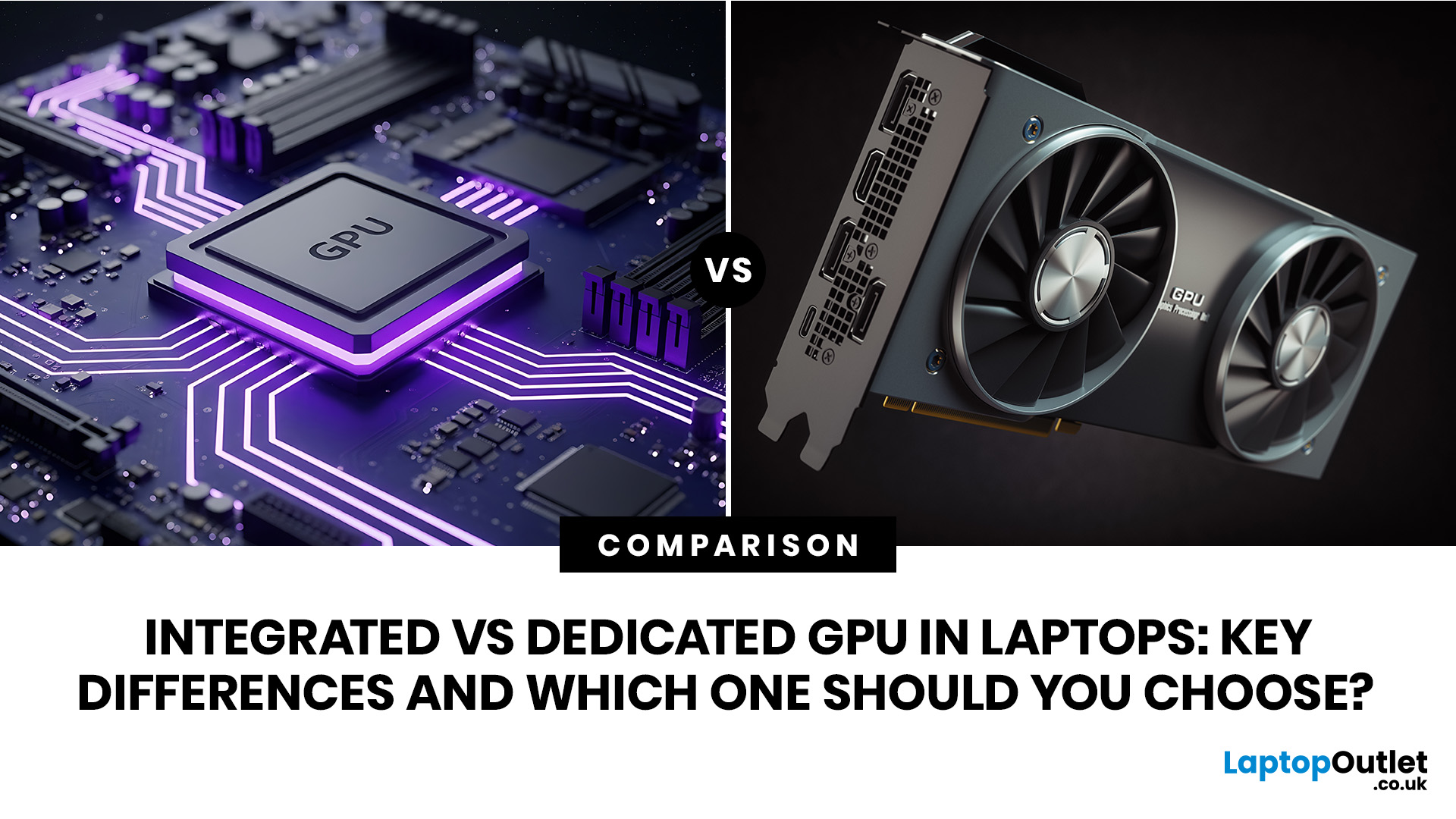
An integrated vs dedicated GPU laptop decision comes down to one simple question: do you need strong graphics performance every day, or do you mostly need a cooler, lighter, longer-lasting laptop for normal work?
For everyday browsing, office work, video calls, streaming, study and light photo editing, integrated graphics are usually enough. For serious gaming, 3D work, video editing, CAD, AI workloads or high-refresh creative work, a laptop with dedicated graphics card hardware is usually the better option.
Quick answer: Integrated vs dedicated GPU explained
Integrated graphics are built into the processor sharing, system memory. They are efficient, affordable and good for everyday laptop use.
A dedicated GPU is a separate graphics processor with its
Last Updated: August 24, 2026
Last Updated: September 03, 2026
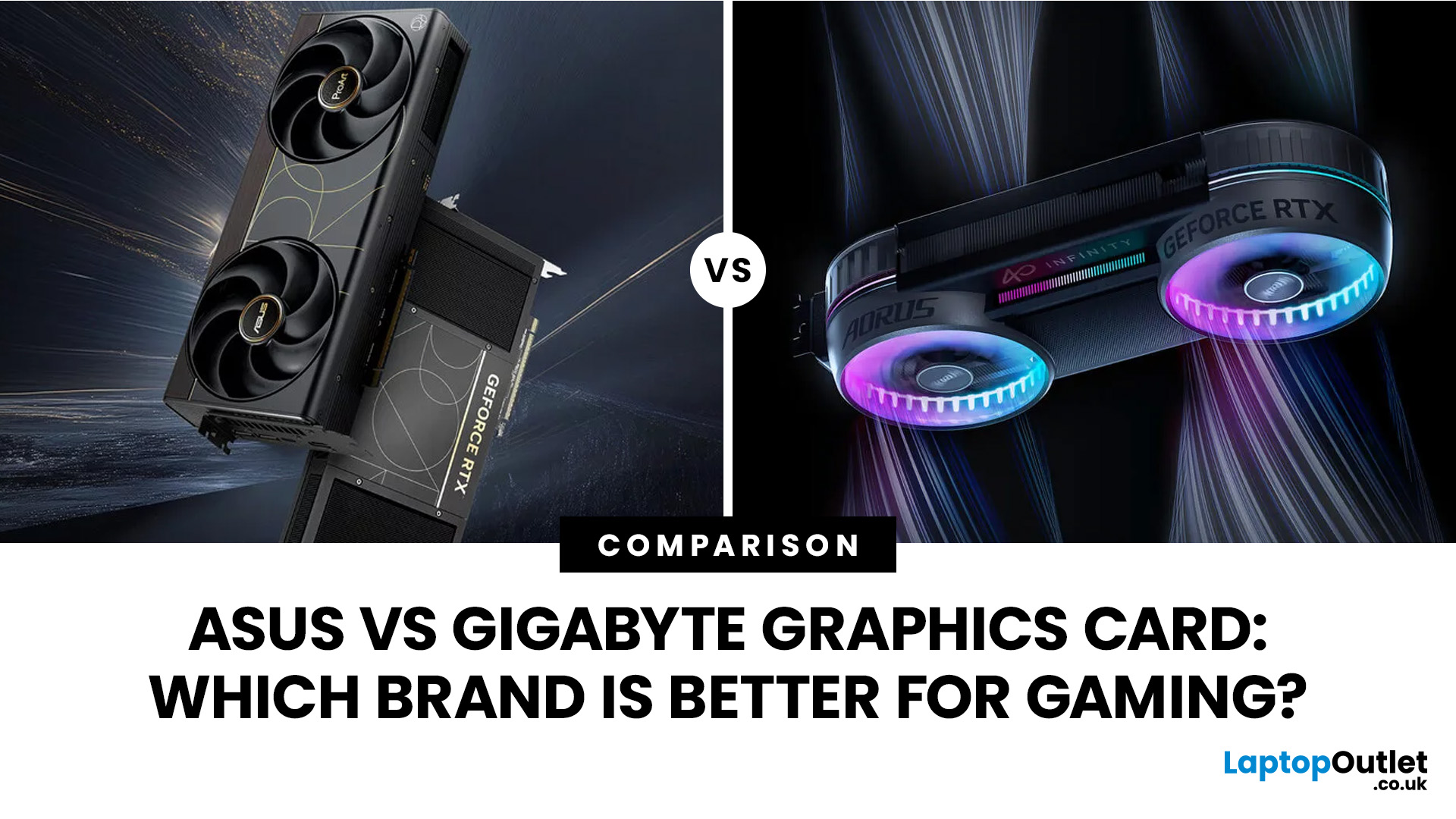
Both ASUS and Gigabyte are among the most trusted graphics card manufacturers available to UK gamers in 2026. In the ASUS vs Gigabyte graphics card comparison, ASUS typically leads on premium cooling, build quality, and software, while Gigabyte offers strong value across its mid-range and budget tiers. The right choice comes down to your budget, performance needs, and preferred feature set.
Choosing between ASUS and Gigabyte for your next graphics card is a decision many UK gamers face when building or upgrading a system. This guide breaks down every relevant factor so you can make an informed decision, whether you're gaming at 1080p, pushing 1440p on a competitive title, or targeting 4K. We also include best graphics card recommendations for different types of gamers.
A Quick Look at Both Brands
Before diving into the ASUS vs Gigabyte graphics card debate, here is a brief introduction to each brand and how they structure their GPU ranges. Knowing this makes it much easier to understand
Last Updated: July 21, 2026
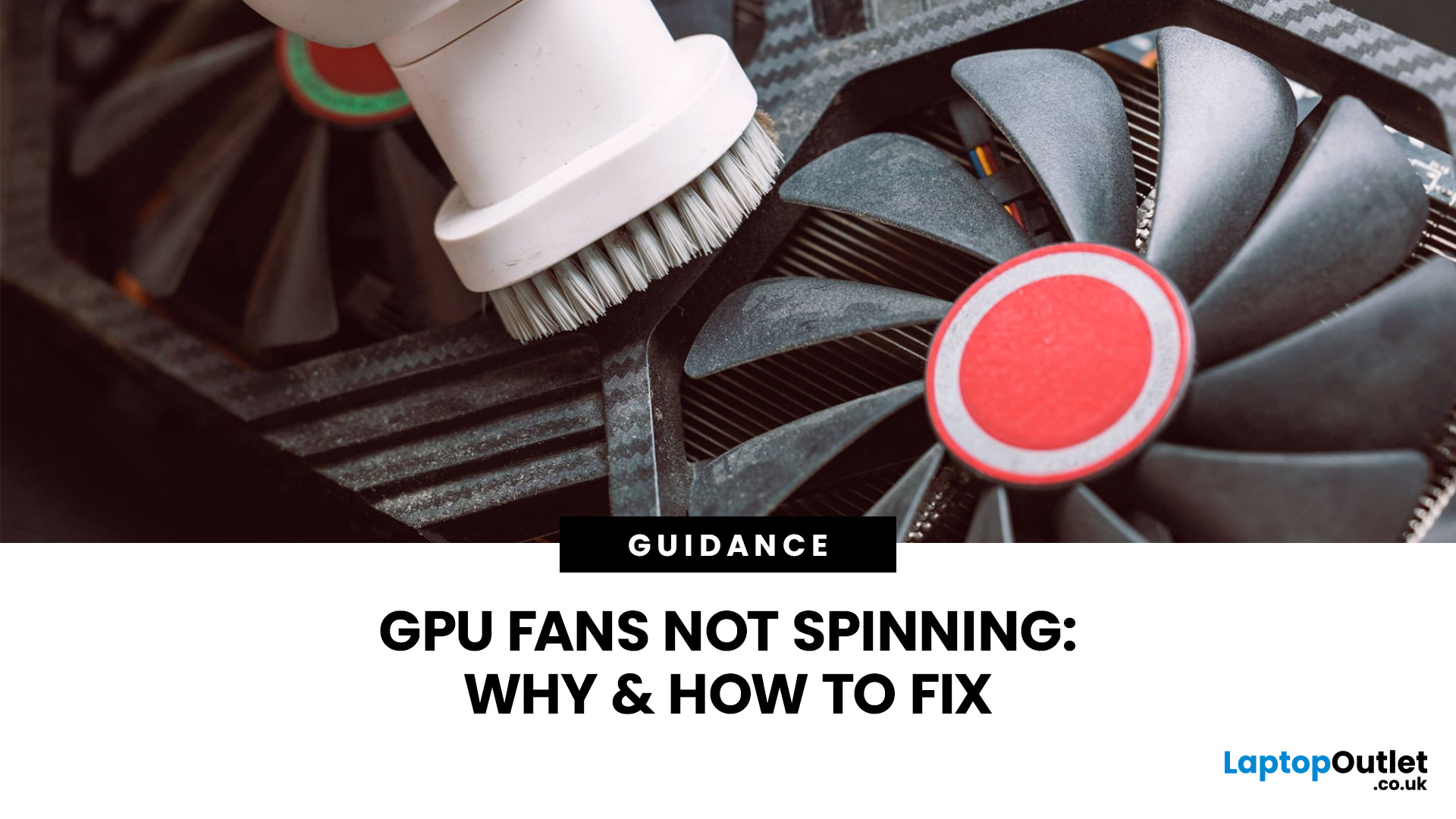
Your PC is on. Your game is loading. Everything seems fine… until you peek inside your case and notice your GPU fans not spinning. Instant panic? Understandable.
Your graphics card is one of the hottest components in a gaming PC, so when the fans stop moving, it feels like your graphics card is about to enter meltdown mode. But here’s the plot twist: graphics card fans not spinning is not always a bad sign. In many modern graphics cards, the fans stay off on purpose when the card is cool.
Still, if your GPU fan not working situation comes with overheating, crashes, noise, or poor performance, then yeah, it is time for some proper GPU fan troubleshooting. Let’s break down what is normal, what is not, and how to fix a processor fan not spinning issue without going full tech panic mode.
First, is it Normal for GPU Fans Not to Spin?
Sometimes, yes.
Many modern NVIDIA GeForce and AMD graphics cards for gaming come with a zero RPM or fan-stop mode. This means the fans do not spin when the GPU
Last Updated: August 06, 2026
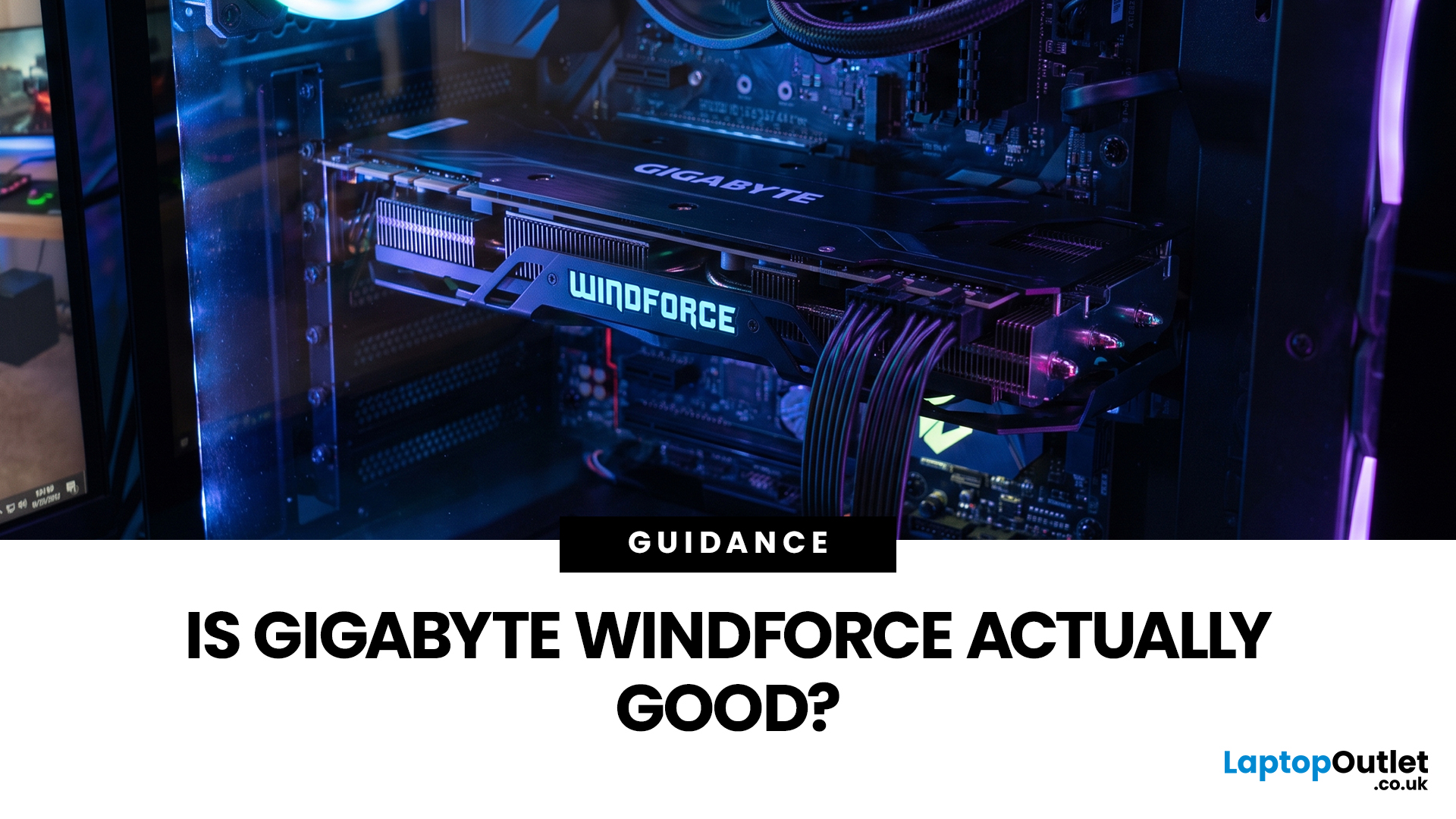
Gigabyte WINDFORCE graphics cards are generally good choices for gamers who want dependable cooling, sensible dimensions, and competitive pricing without paying extra for every premium feature. However, WINDFORCE does not identify the performance level of the GPU itself. An RTX 5080 WINDFORCE will still be substantially faster than an RTX 5060 WINDFORCE because the graphics processor matters more than the cooler’s name.
This guide explains how the WINDFORCE cooling system works, what to expect from temperatures and noise, and how Gigabyte WINDFORCE compares with Gaming OC and AORUS models.
What Does Gigabyte WINDFORCE Mean?
WINDFORCE is Gigabyte’s name for a collection of graphics card cooling technologies rather than a specific GPU architecture. Gigabyte uses the name both on dedicated WINDFORCE models and as the underlying cooling platform for certain Gaming OC and AORUS cards.
This distinction is important. A Gigabyte RTX graphics cards may use two or three fans, different numbers of

Last Updated: September 03, 2026
Creative work depends on display quality, from colour accuracy to detail clarity.
The best Philips 4K monitors for creative work include the 27E1N1800AE for affordable 4K clarity, the 27E1N1900AE for convenient USB-C laptop connectivity and the curved 328E1CA for a larger editing workspace. A 27-inch IPS model suits most designers and photographers, while a 31.5-inch VA display offers stronger contrast and more room for video timelines. Choose according to colour requirements, connectivity, available desk space and your everyday creative workflow needs.
These 4K monitors deliver four times Full HD resolution for sharper visuals and more workspace, but panel type, colour performance and connectivity are just as important.
This guide highlights the best Philips 4K options for design, video editing and photography. It also highlights key considerations so you can compare different computer monitors for designers more effectively.
Best Philips 4K Monitors at a Glance
| Philips Monitor | Best For |
Published: August 20, 2026

