



Ready to Level Up? Cheap Monitors with Speakers That Don't Suck
Quick Answer
Cheap monitors with speakers can be a practical choice for home offices, study, casual gaming and streaming when desk space and budget matter. The best options combine usable stereo speakers with a sharp IPS panel, suitable refresh rate and the right ports. Built-in audio is convenient, but dedicated speakers or a headset still deliver better bass, volume and positional detail.
A monitor with built-in speakers can remove 2 boxes, extra cables and another power plug from your desk. That convenience is useful in bedrooms, student accommodation, shared workspaces and compact home offices, but the phrase 'built-in speakers' does not automatically mean strong audio.
Speaker quality varies widely between monitors. Driver power, cabinet space, speaker placement and tuning all affect clarity and volume, so it is better to judge a monitor as a complete package rather than assuming a higher-resolution screen will also sound better.
Are Cheap Monitors with Speakers Actually Worth It?
Yes, if your priority is convenience rather than hi-fi sound. Integrated speakers are usually good enough for video calls, online lessons, YouTube, news, background music and casual single-player gaming at a desk.
They are less suitable when audio quality is central to the experience. Competitive gamers often benefit from a headset for directional cues, while music listeners and film fans may prefer dedicated speakers for deeper bass, a wider soundstage and cleaner output at higher volume.
The Practical Trade-Off
Thin monitor chassis leave little room for large speaker drivers or acoustic chambers. That is why many affordable displays use compact 2W or 3W stereo speakers: they save space and work well for speech, but they usually cannot reproduce low frequencies with the weight of a separate desktop speaker system.
A common mistake is to buy solely on speaker wattage. Two 3W speakers can offer more headroom than two 2W speakers, but wattage alone does not tell you about distortion, tuning, placement or bass response.
What to Look for in a Budget Monitor with Speakers
1. Speaker Configuration and Audio Output
Look for stereo speakers and check the stated output per channel where available. A pair of 2W speakers is a common baseline for calls and casual media, while higher-output systems may provide more usable volume. Treat specifications as a guide, not a guarantee of sound quality.
2. Screen Size and Resolution
For most desks, 23.8 to 27 inches is the practical sweet spot. Full HD remains suitable at around 24 inches for everyday work and gaming. At 27 inches, QHD usually gives noticeably sharper text and more workspace, while 4K is useful when fine detail, scaling flexibility or high-resolution creative work matters.
3. Refresh Rate
A 100Hz or higher refresh rate makes scrolling, window movement and games look smoother than a basic 60Hz panel. Gaming-focused models often go to 144Hz, 165Hz, 180Hz or above, but only choose a very high refresh rate if your computer or console can supply the required frame rate.
4. Panel Type
IPS panels are a strong all-round choice because they generally offer consistent colours and wide viewing angles. VA panels usually provide stronger native contrast, which can help films and dark scenes, although motion characteristics vary by model.
5. Connectivity
HDMI is the simplest choice for most laptops, desktops and consoles because it can carry both video and audio. DisplayPort also carries audio when supported. USB-C can be especially useful on a laptop monitor because one cable may handle video, data and charging, but capabilities vary, so check Power Delivery and DisplayPort Alt Mode support.
6. Ergonomics and VESA Mounting
A height-adjustable stand can make a bigger day-to-day difference than a minor specification upgrade. If the included stand is tilt-only, VESA mounting support gives you the option to add a monitor arm later.
7. Headphone and Audio-Out Options
An audio-out or headphone jack gives you an easy upgrade path. You can use the monitor speakers for routine tasks, then connect external speakers or headphones without changing the display setup.

Best Cheap Monitors with Speakers to Consider in 2026
To help you find the right budget monitor with built-in speakers, we have selected models from Laptop Outlet’s current monitor range that offer a good balance of display quality, features and everyday usability.
ASUS TUF VG249QE5A: Best Affordable Compact Gaming Monitor with Speakers
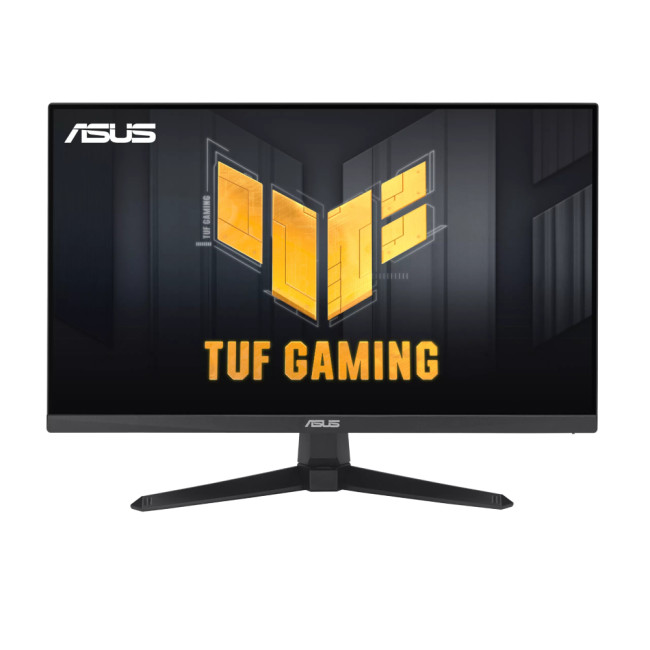
The ASUS TUF VG249QE5A suits gamers who want a smaller Full HD screen with smoother motion than a standard office monitor. ASUS lists a 146Hz overclocked refresh rate, IPS panel and stereo speakers, while gaming features such as ELMB Sync and Adaptive-Sync focus on motion clarity and tear reduction.
The built-in speakers are useful for quick gaming sessions, videos and system audio. For competitive multiplayer titles, a headset remains the better option because positional audio and microphone quality matter more than the convenience of integrated speakers.
Key specifications:
- 23.8-inch Full HD IPS display
- Up to 146Hz overclocked refresh rate
- 1ms MPRT
- 2 x 2W stereo speakers
- HDMI and DisplayPort
- Adaptive-Sync, ELMB Sync and low blue light features
ASUS TUF VG279QE5A: Best Affordable 27-Inch Gaming Monitor with Speakers
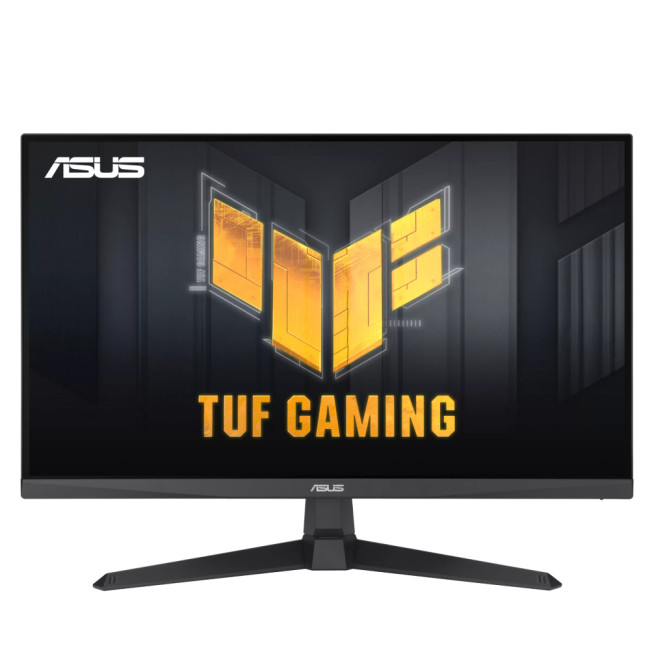
The 27-inch VG279QE5A gives you a larger gaming display without moving into a higher-resolution QHD price tier. Its 146Hz refresh rate and IPS panel are the main attractions, with the built-in speakers providing a practical backup for games, streaming and everyday PC use.
Be aware of pixel density. Full HD looks less sharp at 27 inches than it does at 23.8 or 24 inches, especially for fine text viewed at close range. If desktop productivity is as important as gaming, a 27-inch QHD model may be the stronger long-term choice.
Key specifications:
- 27-inch Full HD IPS display
- 146Hz refresh rate
- 1ms response time
- 2 x 2W built-in speakers
- HDMI 2.0, DisplayPort 1.2 and 3.5mm earphone jack
- VESA mounting, low blue light and flicker-free features
Philips 27E1N1600AE/00: Best USB-C Monitor with Speakers for Work and Study
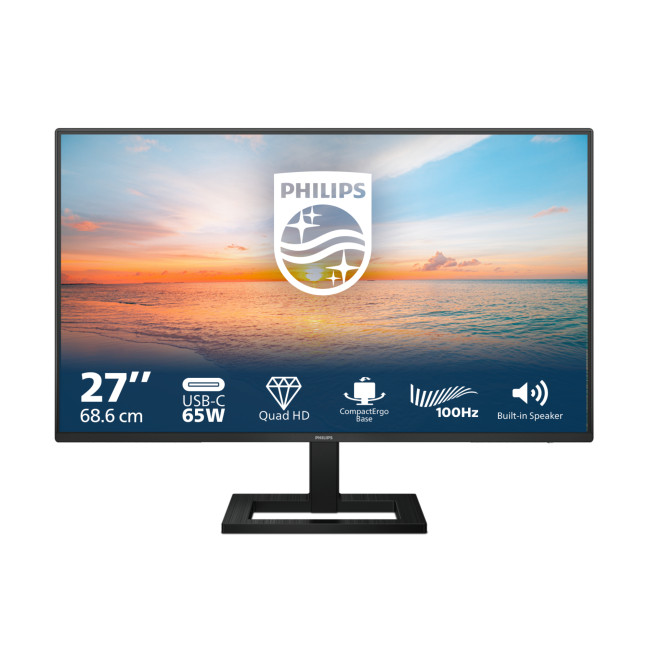
The Philips 27E1N1600AE/00 is a particularly practical choice for laptop users. QHD gives more workspace than Full HD at 27 inches, while USB-C can carry the display signal and provide up to 65W of charging to a compatible laptop, reducing cable clutter.
Its speaker system is still aimed at everyday listening, but the overall package is stronger for home working because the monitor also adds a USB hub and height adjustment. Check that your laptop supports USB-C DisplayPort Alt Mode and that 65W is enough for its charging needs.
Key specifications:
- 27-inch QHD IPS display
- 100Hz refresh rate
- 2 x 2W built-in speakers
- USB-C with DisplayPort Alt Mode and up to 65W Power Delivery
- Two USB-A 3.2 Gen 1 ports and audio out
- Height-adjustable stand
MSI PRO MP273U: Best Affordable 4K Monitor with Speakers for Productivity
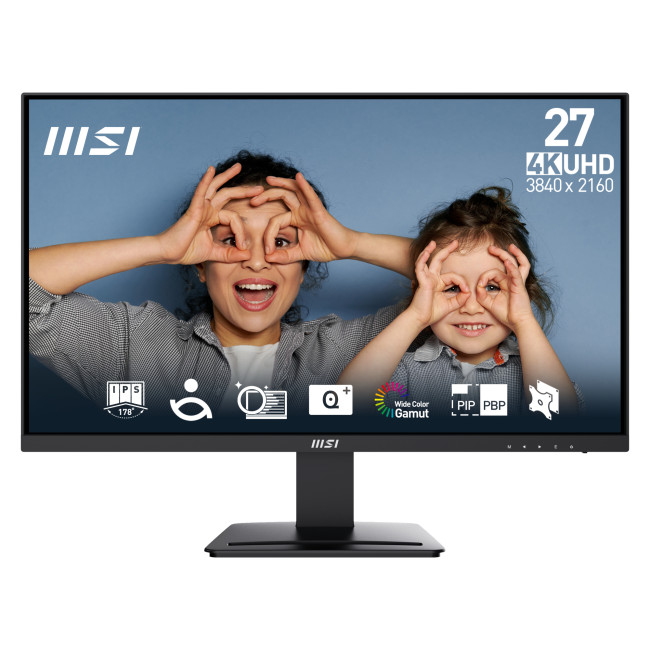
The MSI PRO MP273U is aimed at users who value resolution more than very high refresh rates. Its 4K IPS panel gives substantially more pixel detail than Full HD or QHD, which can help with text clarity, spreadsheets, coding, image work and high-resolution video.
The 2 x 3W speakers provide more stated output than several entry-level alternatives, but they should still be treated as general-purpose audio. The 60Hz refresh rate also makes this a productivity-first choice rather than a high-refresh gaming display.
Key specifications:
- 27-inch 4K UHD IPS display
- 3840 x 2160 resolution at 60Hz
- 2 x 3W built-in speakers
- Adaptive-Sync and HDR Ready support
- Two HDMI 2.0b ports, DisplayPort 1.4a and headphone out
- VESA mounting and MSI EyesErgo features
Which Monitor Should You Choose?
- For the lowest-cost everyday setup: Choose a compact Full HD model such as the AOC 24B3HA2. It gives you built-in audio, an IPS panel and a sensible screen size for typical desk use.
- For affordable gaming: Choose the ASUS TUF VG249QE5A if you prefer a smaller 23.8-inch screen, or the VG279QE5A if you want a larger 27-inch display.
- For laptop productivity: The Philips 27E1N1600AE/00 is the most versatile option because QHD, USB-C charging, a USB hub and height adjustment all improve day-to-day desk use.
- For maximum desktop sharpness: The MSI PRO MP273U is the better fit when 4K detail matters more than a high refresh rate.
- For faster QHD gaming: The ASUS TUF VG27AQ5A combines QHD resolution with a much higher refresh ceiling and adaptive-sync support.
Built-In Monitor Speakers vs External Speakers
|
Factor |
Built-in monitor speakers |
External speakers or headset |
|
Desk space |
Excellent for compact setups |
Needs extra desk space or a headset stand |
|
Cable management |
Usually simpler |
Often adds power and audio cables |
|
Speech and calls |
Usually adequate |
Can be clearer and louder |
|
Music and films |
Convenient but limited bass |
Usually fuller sound and wider stereo image |
|
Competitive gaming |
Basic game audio |
Headsets generally provide better positional cues |
|
Upgrade flexibility |
Fixed to the monitor |
Easy to replace or improve separately |
How to Get Better Sound from Monitor Speakers
- Use HDMI, DisplayPort or a compatible USB-C connection so the display can receive digital audio with the video signal.
- In Windows, macOS or your console settings, select the monitor as the active audio output device.
- Open the monitor's on-screen display menu and check that its speakers are not muted and the volume is high enough.
- Keep software volume below the point where you hear harshness or distortion. Small monitor speakers can sound worse when driven near maximum output.
- If the monitor offers sound modes or an equaliser, start with the neutral or standard preset before making adjustments.
- For richer sound, connect external speakers through the computer or the monitor's audio-out port where available.
Why Is There No Sound from My Monitor?
The most common cause is the wrong playback device rather than a faulty speaker. A monitor can display a picture correctly while Windows, macOS or the console continues sending audio to another output.
- Confirm the monitor actually has built-in speakers. Some models have a headphone jack or audio pass-through without internal speakers.
- Select the monitor in your operating system's sound output menu.
- Check the monitor's own volume and mute controls in the on-screen display.
- Use HDMI, DisplayPort or USB-C rather than VGA when you want audio carried through the same connection. VGA does not carry digital audio.
- Reconnect the cable and restart the source device if the monitor does not appear as an audio device.
- Update graphics and audio drivers if the problem started after an operating-system or hardware change.
Common Mistakes to Avoid When Buying a Monitor with Speakers
- Assuming every audio jack means the monitor has speakers. Check the specification explicitly for built-in or stereo speakers.
- Choosing a monitor for its speakers while ignoring resolution, panel type and refresh rate. You will look at the screen for far more hours than you will judge its audio system.
- Expecting monitor speakers to replace a dedicated gaming headset or quality desktop speakers. Integrated audio is primarily about convenience.
- Buying a 27-inch Full HD model for close-up text work without considering pixel density. QHD is usually sharper at that size.
- Buying USB-C without checking what the port supports. Some USB-C ports are service-only, while others can carry video, data and laptop charging.

Final Remarks
Cheap monitors with speakers make the most sense when you want a tidy, affordable setup for work, study, streaming or casual gaming. Prioritise the display first, then check speaker output, ports, stand adjustment and audio-out options so the monitor fits your real use case.
For a compact desk, a Full HD 23.8-inch model can be enough. At 27 inches, QHD offers a sharper everyday experience, while 4K suits detail-heavy productivity. Whatever you choose, built-in speakers are best treated as convenient everyday audio rather than a replacement for dedicated speakers or a good gaming headset. If you want to compare the wider category, browse our vast range of monitors with speakers at Laptop Outlet.

Your Common Questions Answered
Are monitors with built-in speakers worth buying?
Yes, if you want a simpler desk setup for calls, study, streaming or casual gaming. Built-in speakers reduce clutter and extra cables, but dedicated speakers or a headset usually provide stronger bass, higher volume and better audio detail.
Do monitor speakers work through HDMI?
Yes. HDMI can carry digital video and audio through the same cable. After connecting the monitor, select it as the playback device in Windows, macOS or your console settings and check that the monitor's volume is not muted.
Is a 24-inch or 27-inch monitor better for Full HD?
Full HD generally looks sharper on a 23.8 or 24-inch screen because the pixels are packed more densely. A 27-inch Full HD monitor gives a larger image, but QHD is usually the better choice for sharper text at that size.
Can I connect external speakers to a monitor with built-in speakers?
Usually, yes. You can connect external speakers to your PC, laptop or console, or use the monitor's audio-out or headphone port if it has one. You can then switch between integrated and external audio in your device settings.
What is a good refresh rate for a cheap monitor with speakers?
For office work and everyday use, 100Hz or 120Hz gives noticeably smoother motion than 60Hz. Gamers may prefer 144Hz or higher, but the benefit depends on whether the graphics hardware can produce matching frame rates.
| Read More: |
| Monitor Buying Guide: How to Choose the Right Resolution & Refresh Rate |
| Which Are the Best 4K Gaming Monitors? Selection Criteria |
| Best Gaming Monitor Brands for Gaming in the UK (2026) |
Related Articles

Last Updated: August 11, 2026
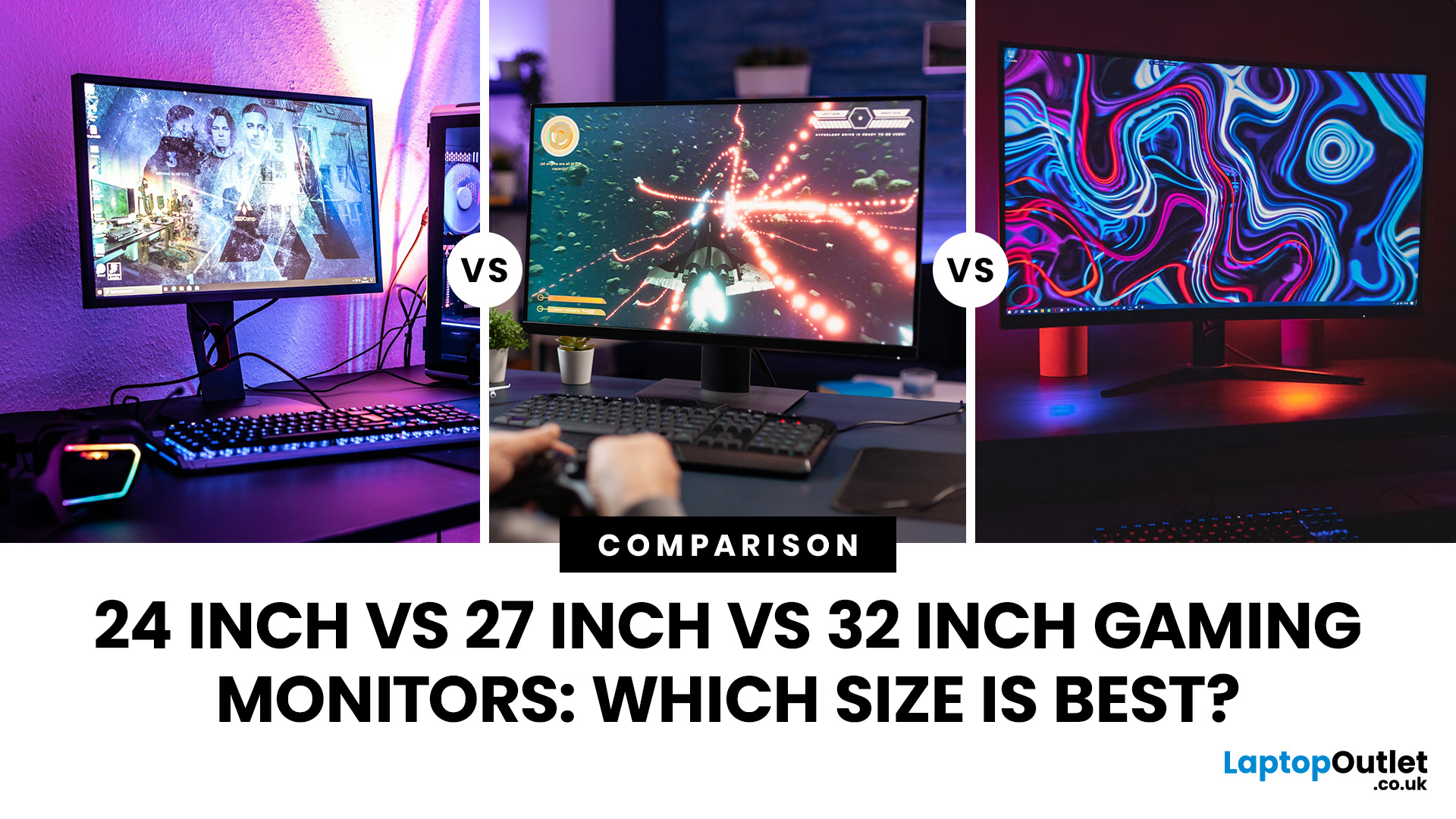
Picking the best gaming monitor size isn’t just about going big or going home. Your screen size actually changes how your games look, feel, and perform. A 24-inch setup is clutch for competitive play, a 27-inch hits that sweet spot between clarity and immersion, and a 32-inch screen? That’s where things get seriously cinematic.
Size alone isn’t the whole story. Resolution, desk space, refresh rate, and what you actually play all matter. This gaming monitor size comparison breaks down 24, 27, and 32-inch displays so you can find your perfect match.
24 Inch vs 27 Inch vs 32 Inch Gaming Monitors: Quick Comparison
The following table provides a quick overview of how the three most popular gaming monitor sizes compare.
| Feature | 24-Inch Monitor | 27-Inch Monitor | 32-Inch Monitor |
| Recommended resolution | 1920 × 1080 | 2560 × 1440 | 2560 × 1440 or 3840 × 2160 |
| Best suited to | Competitive gaming | Mixed gaming and everyday use | Immersive and cinematic gaming |
| Typical desk requirement | Small | Medium | Large |
| Graphics |
Last Updated: August 11, 2026
Last Updated: September 03, 2026
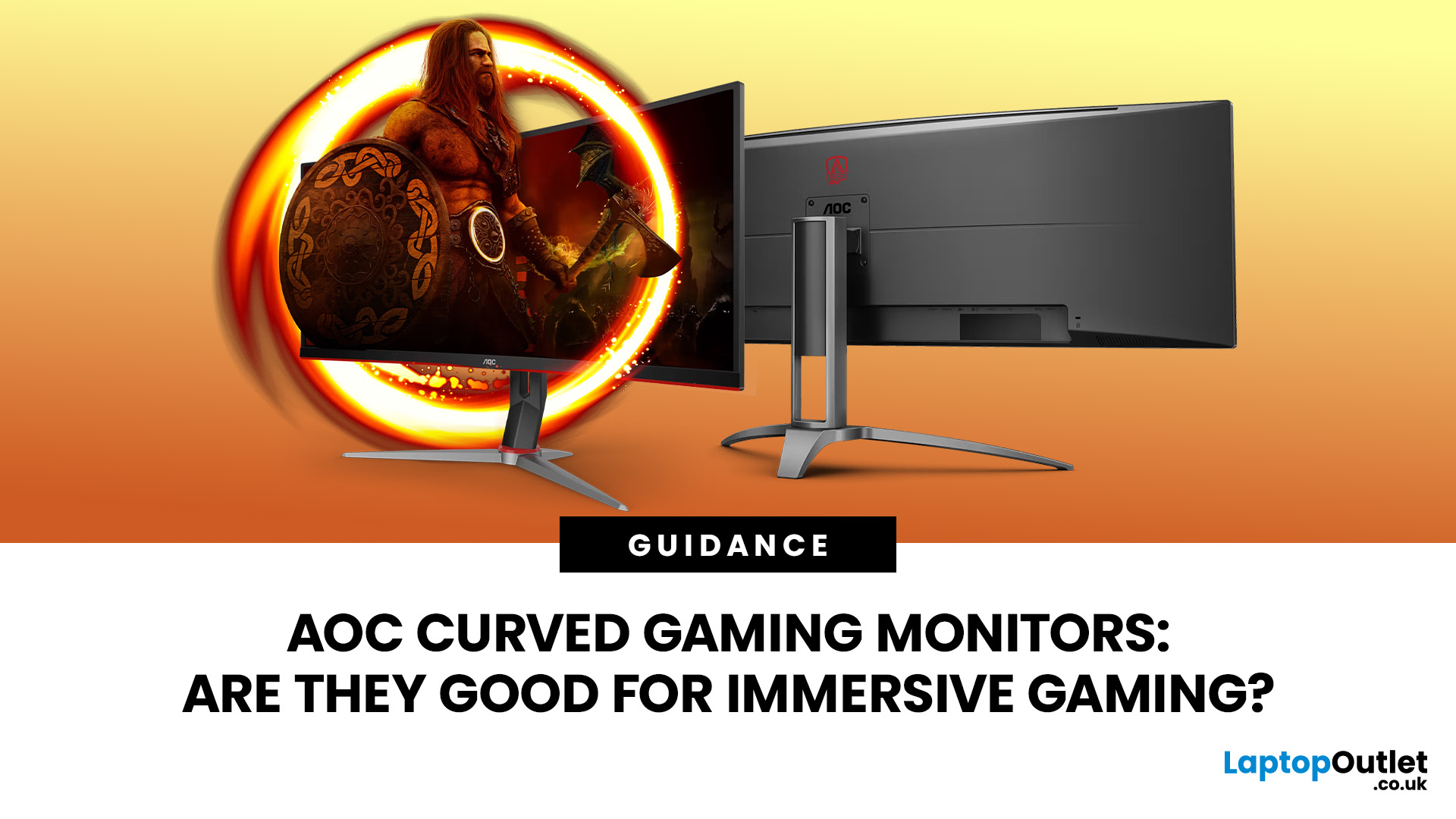
An AOC curved gaming monitor can be a strong choice for immersive gaming, especially if you play racing, simulation, RPG, open-world or cinematic single-player games. The curved screen helps draw more of the display into your natural field of view, which can make gameplay feel more engaging on larger panels. For many PC gamers, the sweet spot is a 27-inch or 32-inch high-resolution QHD monitors. For maximum immersion, an AOC 34 curved gaming monitor or another ultrawide curved gaming monitor can offer a wider, more cinematic view.
Are AOC Curved Gaming Monitors Good for Immersive Gaming?
Yes, AOC curved gaming monitors can be good for immersive gaming, but the experience depends on three things:
- Screen size
- Resolution
- Refresh rate
A curved display is most effective when the screen is large enough for the curve to matter. On a 24-inch screen, the curve may feel subtle. On a 32-inch or 34-inch screen, it becomes much more noticeable because the edges of the panel sit further into your peripheral
Published: July 27, 2026
Last Updated: September 03, 2026
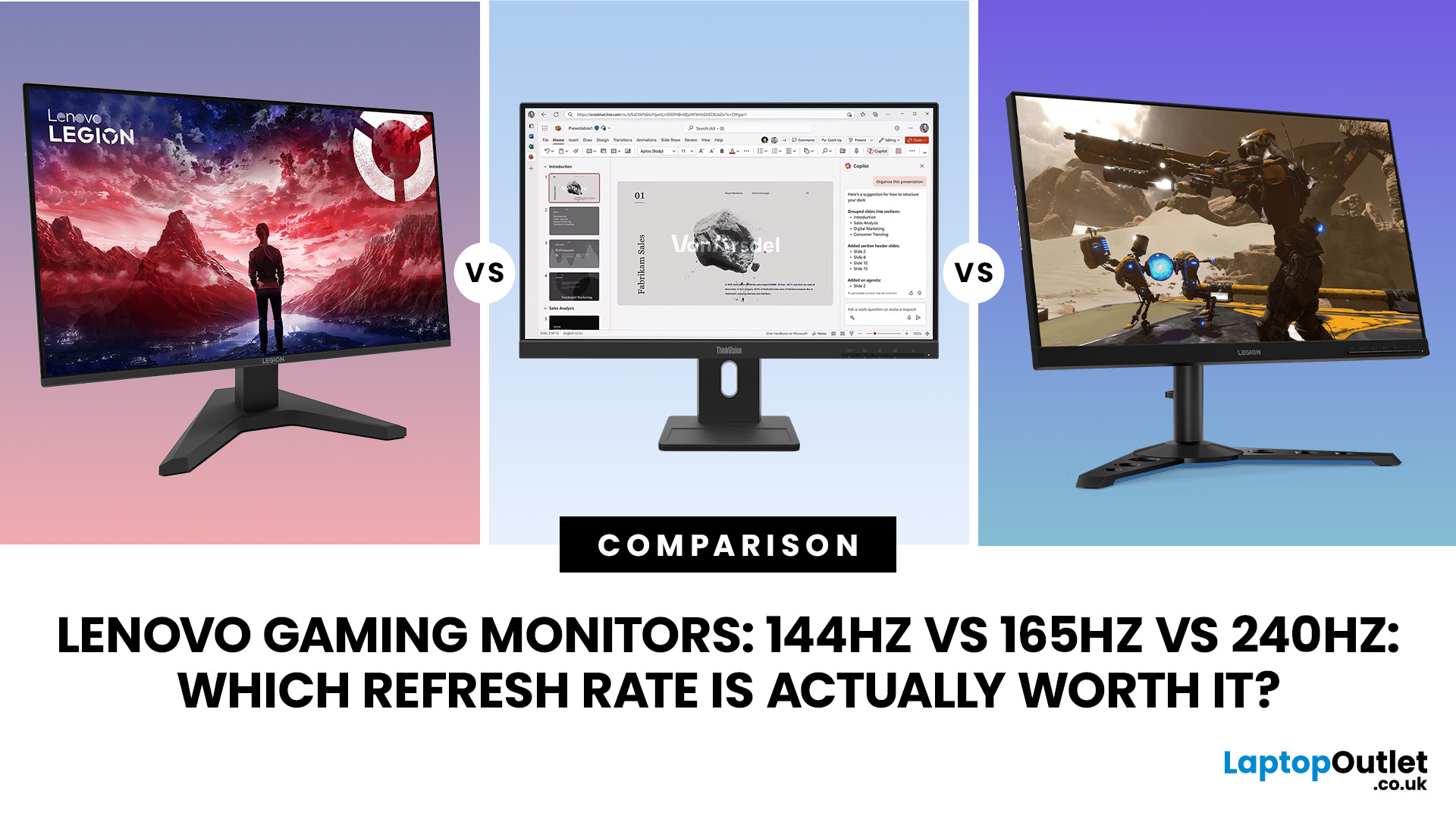
Refresh rate is one of the first specifications you will notice when shopping for a gaming monitor. A higher number promises smoother movement and faster feedback, but that does not automatically mean a 240Hz display is the right choice for your setup.
The best Lenovo monitor refresh rate depends on the games you play, the frame rates your computer can produce and whether you prioritise competitive responsiveness or sharper graphics. A casual player running cinematic games at 70 frames per second will gain little from 240Hz, while a competitive FPS player maintaining more than 200fps may notice a meaningful improvement.
This guide compares 144Hz, 165Hz, and 240Hz Lenovo gaming monitors so you can pay for performance you will actually use.
Quick Answer: Is 144Hz, 165Hz or 240Hz Best?
For most PC gamers, 144Hz or 165Hz offers the best balance of smoothness, hardware requirements, and value. Choose 240Hz when you mainly play competitive shooters and your PC can regularly produce close to 240fps
Last Updated: August 11, 2026
Last Updated: August 17, 2026
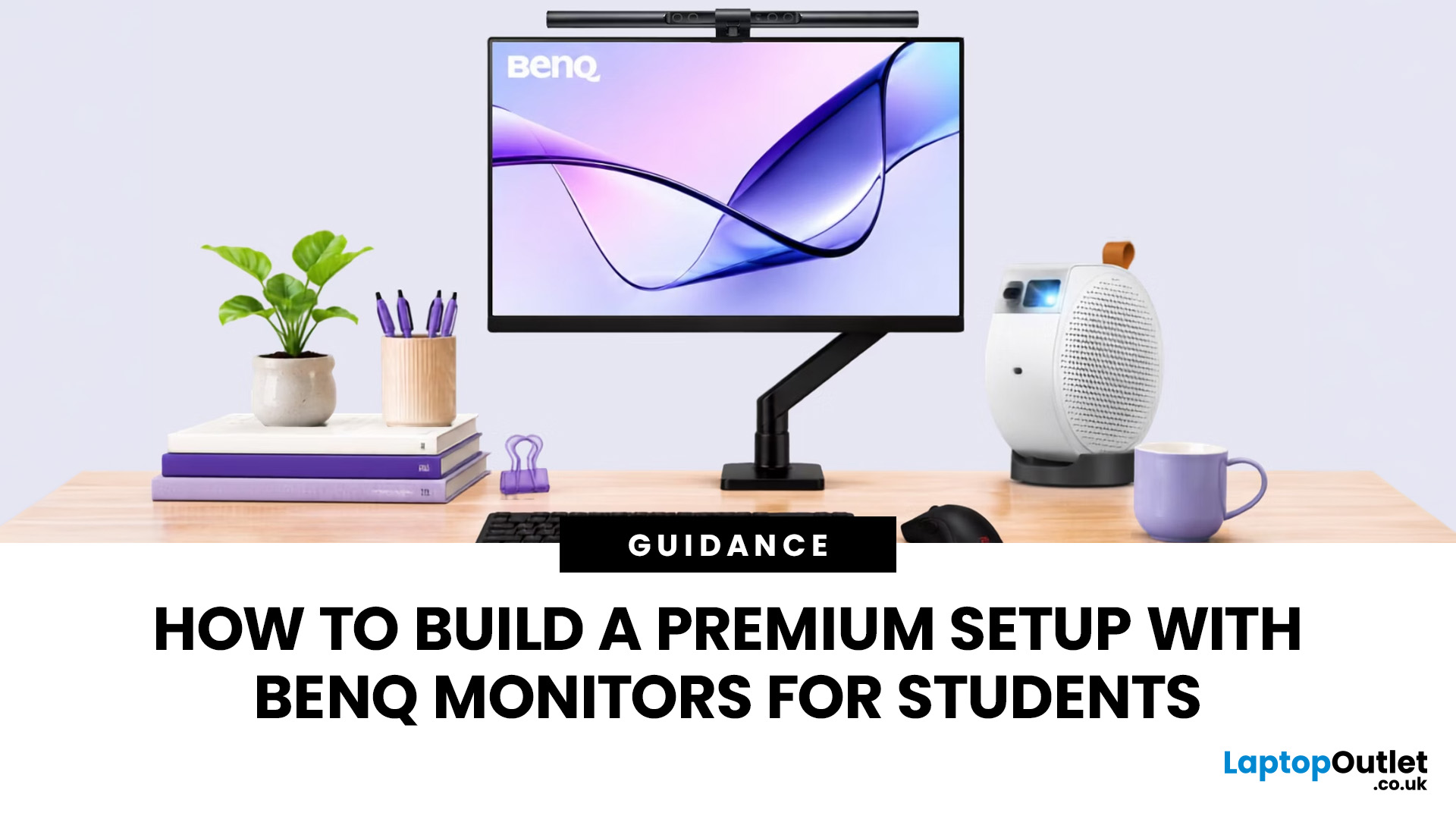
BenQ monitors for students can create a more comfortable and capable workspace for coursework, research, creative projects and downtime. The right display should suit your course, desk space, laptop and daily routine rather than simply offer the highest resolution. For many students, the strongest setup combines clear text, useful screen space, simple connectivity and enough versatility for life beyond studying.
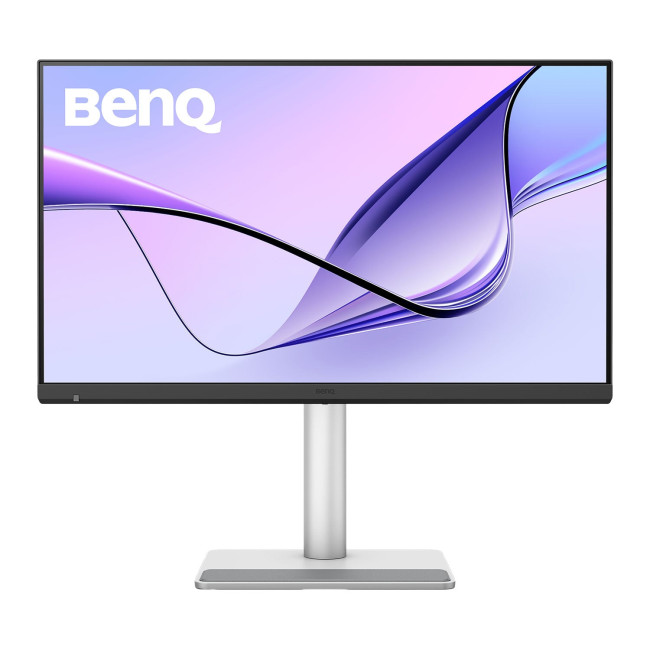
A premium student monitor setup is not defined by one specification. A compact high-resolution screen may work better in university accommodation, while a larger display can make research, timelines and spreadsheets easier to manage. Room lighting, USB-C charging, ergonomics and gaming needs also influence the decision. This guide compares BenQ's Mac-focused MA Series with a faster mixed-use alternative and explains where each approach makes practical sense.
Compare the Best BenQ Monitors for Students in 2026
| Model | Display | Colour and HDR | Laptop Connection | Best Student Use |
|
|
Last Updated: September 03, 2026
Creative work depends on display quality, from colour accuracy to detail clarity.
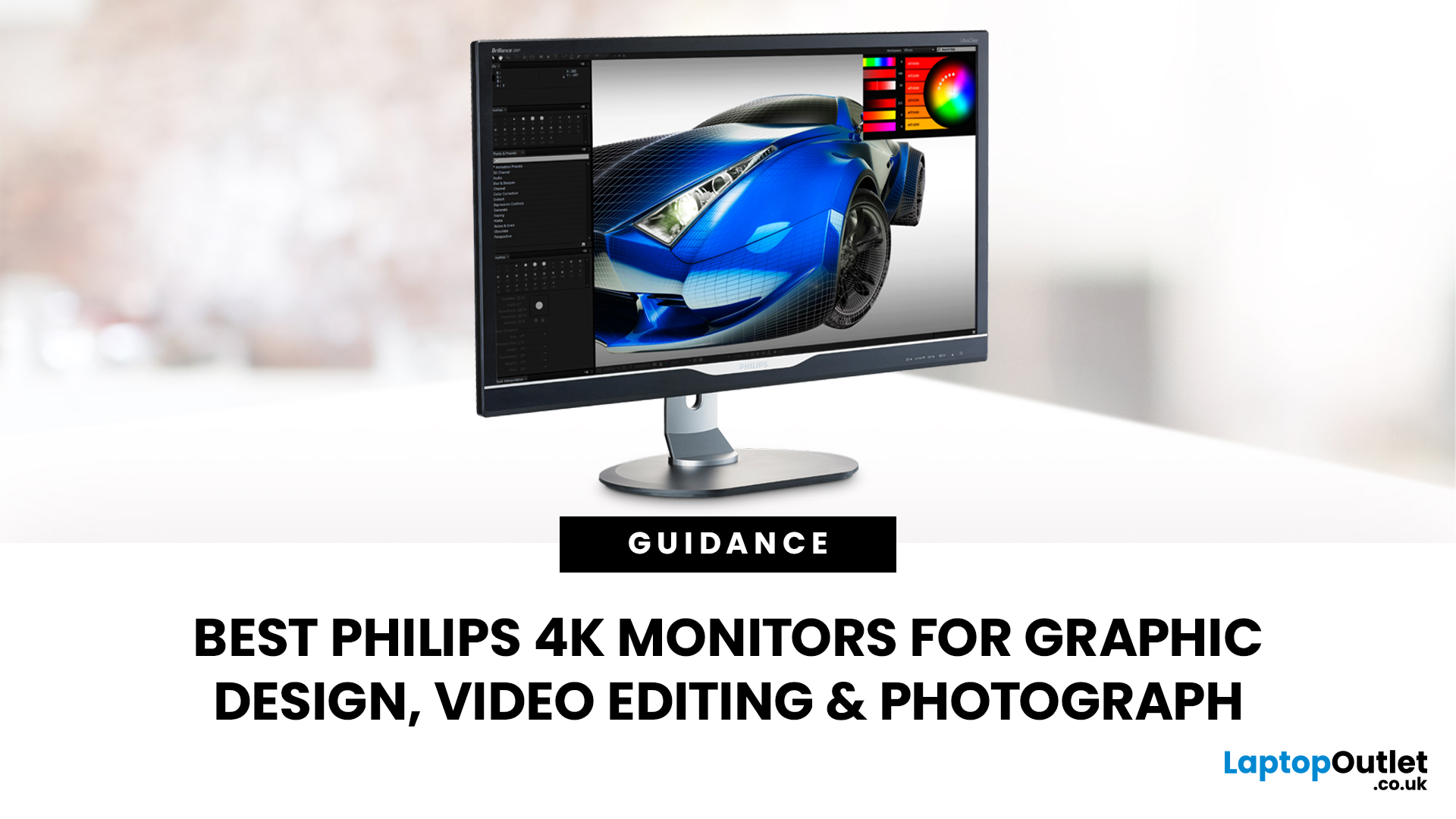
The best Philips 4K monitors for creative work include the 27E1N1800AE for affordable 4K clarity, the 27E1N1900AE for convenient USB-C laptop connectivity and the curved 328E1CA for a larger editing workspace. A 27-inch IPS model suits most designers and photographers, while a 31.5-inch VA display offers stronger contrast and more room for video timelines. Choose according to colour requirements, connectivity, available desk space and your everyday creative workflow needs.
These 4K monitors deliver four times Full HD resolution for sharper visuals and more workspace, but panel type, colour performance and connectivity are just as important.
This guide highlights the best Philips 4K options for design, video editing and photography. It also highlights key considerations so you can compare different computer monitors for designers more effectively.
Best Philips 4K Monitors at a Glance
| Philips Monitor | Best For |
Published: August 17, 2026
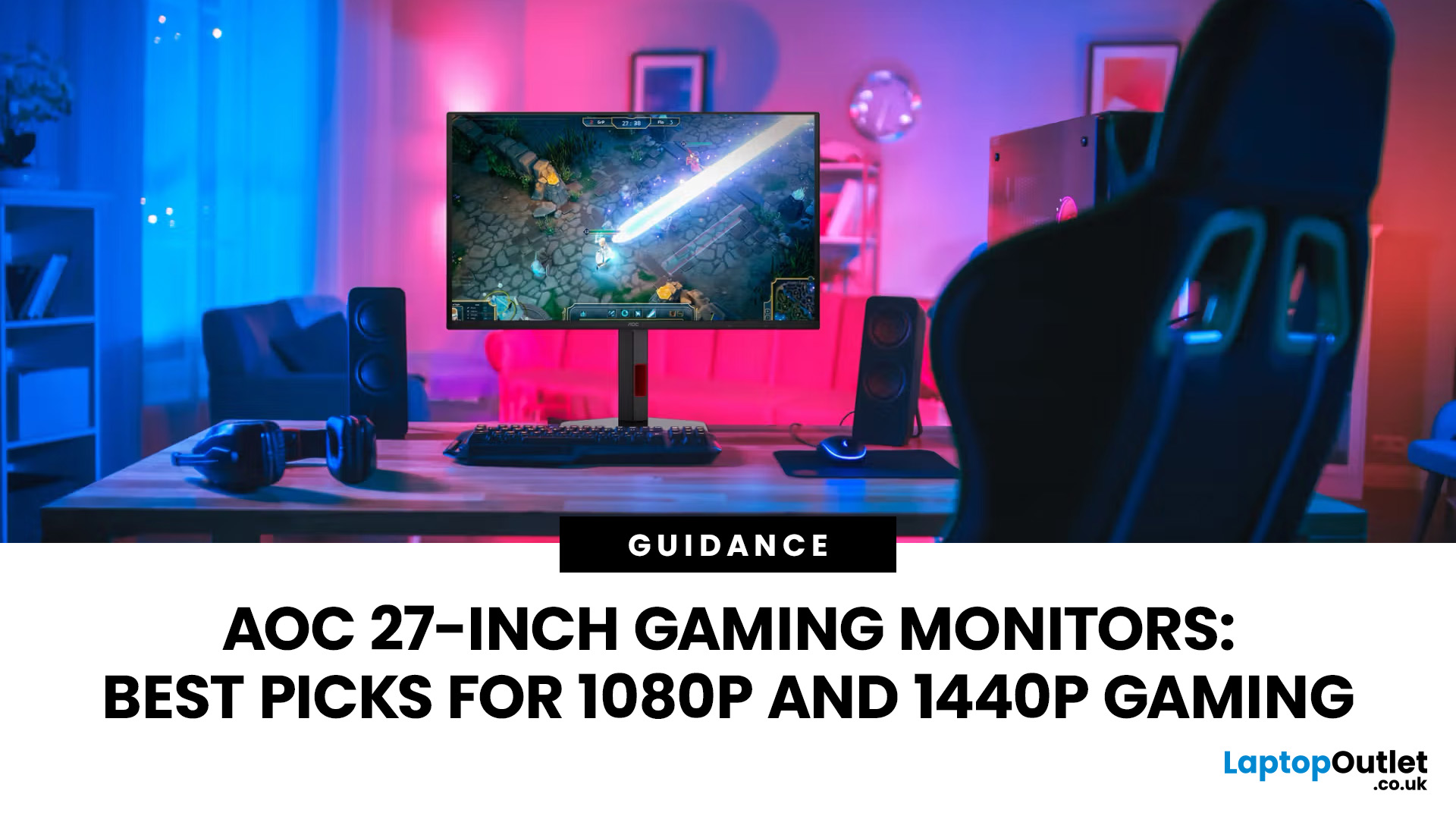
An AOC gaming monitor 27 inch screen gives you plenty of room to play without taking over your whole desk. The key decision is resolution.
The best AOC gaming monitor 27 inch choice for most players is the Q27G42ZE, thanks to its sharp QHD resolution, Fast IPS panel and 240Hz native refresh rate. Choose the C27G4ZXE for competitive 1080p gaming, the Q27G3XMN/BK for stronger HDR, or the AG276UZD for premium 4K QD-OLED visuals. Your ideal model ultimately depends on your GPU, preferred games, target frame rate and available budget, plus your PC or console setup.
Full HD makes high frame rates easier to achieve, while QHD produces a noticeably sharper picture. If your budget and graphics card can go further, 4K QD-OLED delivers another level of detail, colour and contrast.
AOC 27 Inch Gaming Monitors at a Glance
| Model | Resolution | Panel | Refresh Rate | Best For |
| AOC AGON AG276UZD | 3840 × 2160 | QD-OLED | 240Hz | Premium 4K gaming |
| AOC Q27G42ZE | 2560 × 1440 | Fast IPS | 240Hz, 260Hz overclocked | High-refresh QHD |
Published: August 19, 2026
Comparing LCD vs LED monitors? An LED monitor is an LCD that uses energy-efficient LED backlighting, while older LCDs typically use fluorescent CCFL lights.
LED-backlit models are generally slimmer, more efficient and more widely available. However, the LED label alone does not guarantee better colours, smoother gaming or greater eye comfort. Panel type, refresh rate, response time, resolution and brightness all matter too.
LCD vs LED Monitors at a Glance
The main difference between a traditional LCD monitor and an LED monitor is the backlight. A traditional LCD commonly uses CCFL tubes, while an LED monitor uses smaller light-emitting

