



How to Fix Wi-Fi Connection Issues on My Laptop?
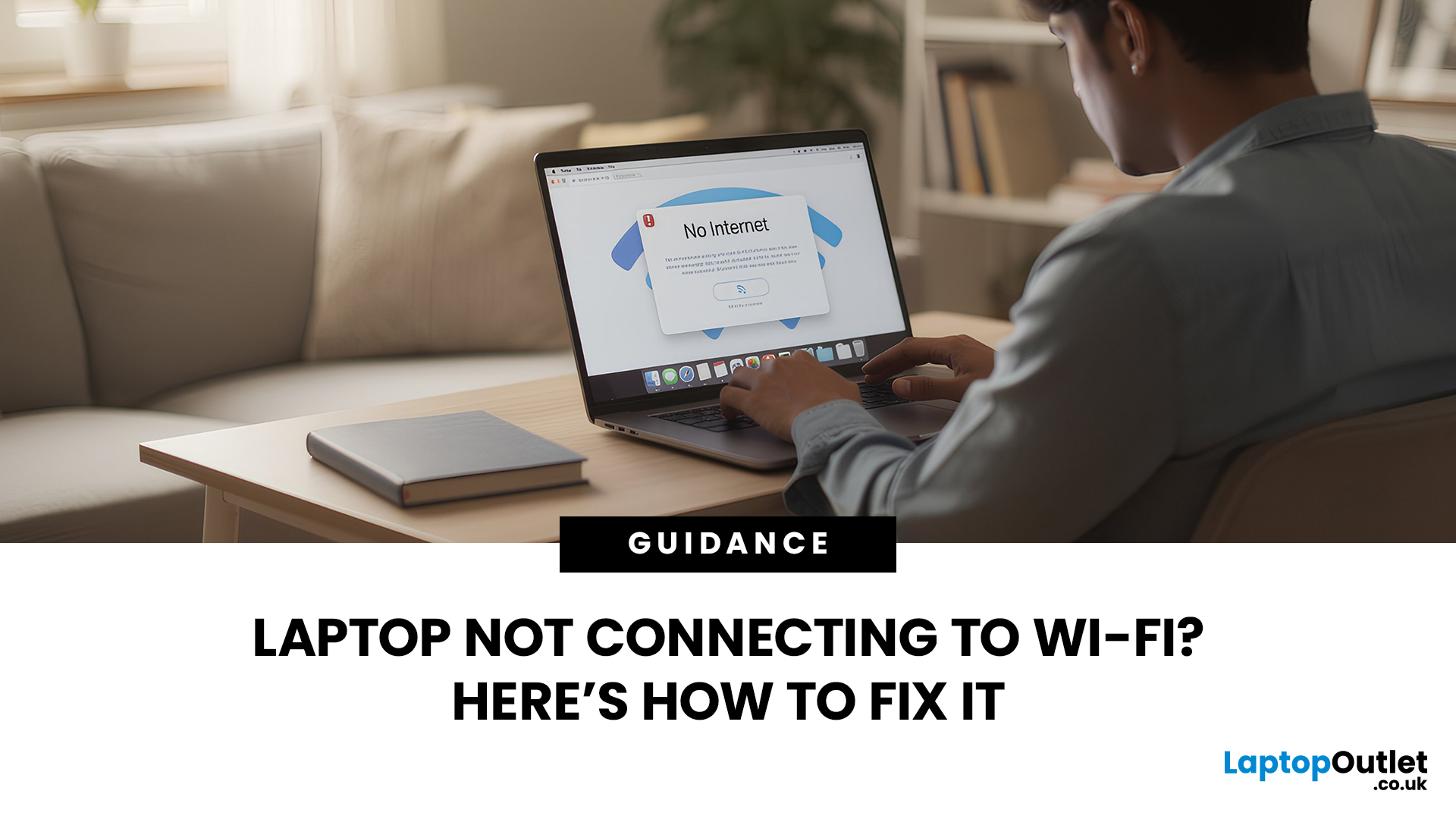
Few things are more irritating than a laptop that insists it cannot connect to Wi-Fi, especially when your phone and tablet are happily online. The good news is that most Wi-Fi faults fall into a handful of predictable categories, and you can usually narrow it down in 10 to 15 minutes with a calm, methodical check.
This guide covers the most common laptop Wi-Fi connection issues and how to fix them. Let’s start with the quickest checks, then move into deeper fixes, and finish with the point where it makes sense to involve your broadband provider or consider hardware.
Start by Identifying the Best Possible “Laptop Wi-Fi Connection Issues”

A laptop can have “Wi-Fi Connection Issues” in several different ways. If you choose the wrong fix for the wrong symptom, you can waste time.
Here’s a quick symptom map so you can match what you’re seeing:
|
What you’re seeing |
What it usually means |
Best first move |
|
No networks appear at all |
Wi-Fi is switched off, Aeroplane mode is on, adapter is disabled, or driver issue |
Check Wi-Fi/Aeroplane mode, restart, then adapter/driver |
|
Your network appears but won’t connect |
Password/profile problem, router security mismatch, or DHCP hiccup |
Forget the network and reconnect |
|
Connected, but “No internet” |
DNS, VPN/proxy, router internet issue |
Check VPN/proxy, reboot router, then DNS/network reset |
|
It connects but drops out or is slow |
Weak signal, interference, power saving, unstable driver |
Improve signal, try other band, power settings, then driver |
- If you only do one diagnostic test, do this: connect your laptop to a phone hotspot.
- If hotspot works, your laptop hardware is probably fine and the issue is more likely your router, broadband kit, or Wi-Fi coverage at home. If hotspot also fails, focus on the laptop settings/driver.
Step 1: The Quick Checks that Solve a Lot of Cases
If your laptop is not connecting to WiFi, confirm that Wi-Fi is actually enabled. On Windows, open Quick Settings from the taskbar and make sure Aeroplane mode is off and Wi-Fi is on. Many laptops also have a function key shortcut that toggles wireless, so if Wi-Fi looks “missing” rather than simply disconnected, that key combination is worth checking.
Next, restart your laptop properly. A full restart clears network services that can get stuck after sleep, updates, or long uptime. If the issue only started after waking from sleep, a restart is often the fastest reset.
If you are at home, reboot your router as well. Powering it off for 30–60 seconds and turning it back on forces it to re-establish connections and clear temporary glitches. This is especially helpful when the laptop used to connect fine but suddenly cannot.
Step 2: Reboot the Router the Right Way
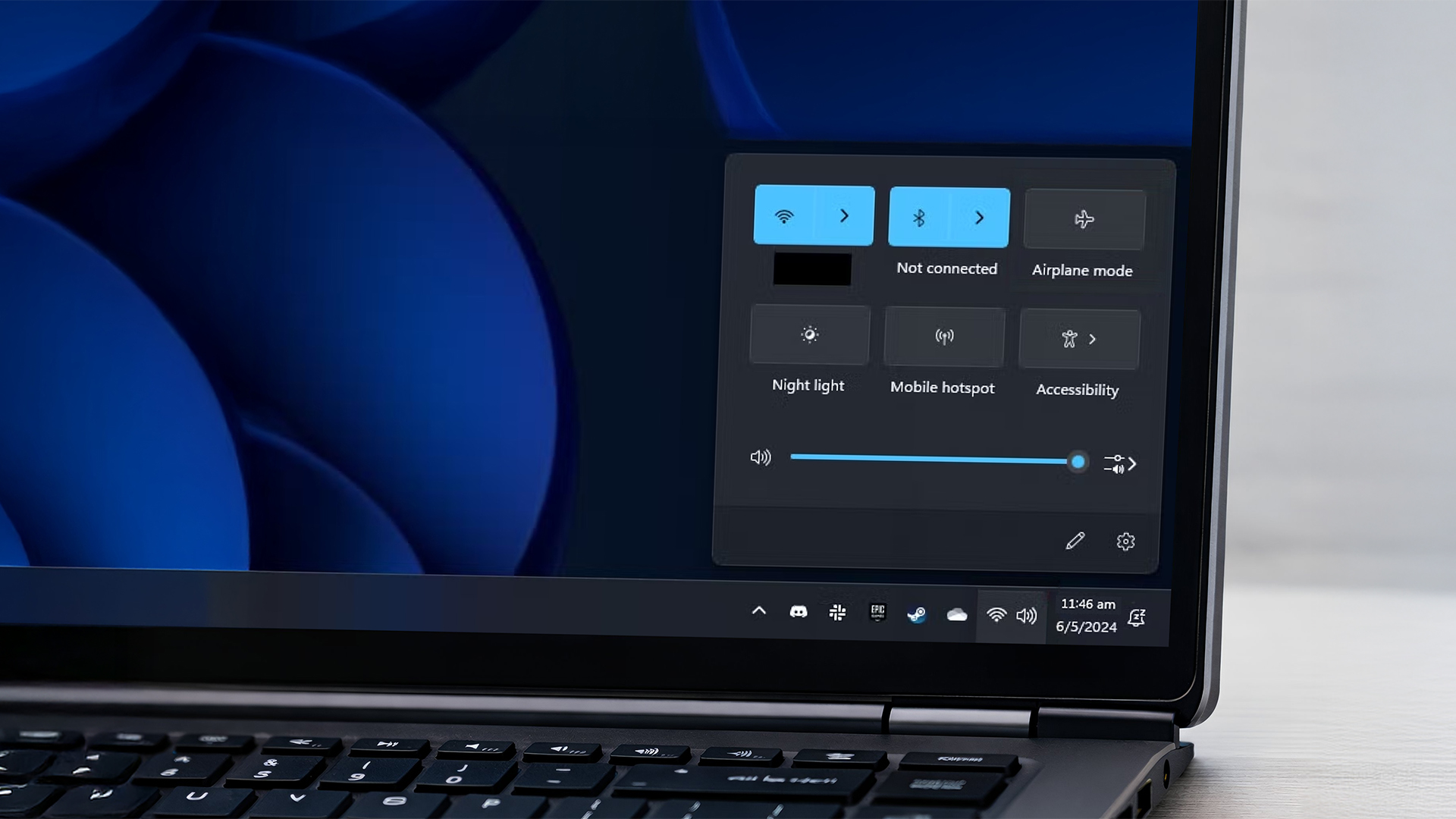
If you’re at home and the Wi-Fi has suddenly started misbehaving, a router reboot is still one of the cleanest resets you can do. It can clear temporary glitches, refresh device assignments, and re-establish the link between your router and broadband service. This is one of the simplest ways to fix wireless problems caused by temporary router glitches.
Do it like this:
- Power off the router (and modem if you have a separate one)
- Wait 30–60 seconds
- Power it back on and let it fully settle
- Reconnect your laptop to Wi-Fi
If other devices are also struggling (phones, tablets, smart TV), that’s a strong hint, the issue is the router/broadband side rather than your laptop. If your phone works perfectly on Wi-Fi but your laptop doesn’t, the focus should stay on the laptop fixes below.
Step 3: Forget the Wi-Fi Network and Reconnect Properly
When a laptop has connected to a Wi-Fi network before, it stores a “profile” for it. That profile includes saved credentials and settings. Over time, it can become outdated, especially if you’ve changed the Wi-Fi password, adjusted router security, or renamed the network.
On Windows 11:
- Settings
- Network & internet
- Wi-Fi
- Manage known networks
- Select your network
- Forget
- Reconnect and re-enter the password
A lot of “can’t connect to this network” errors disappear after this step because the laptop stops trying to use an old saved configuration. If your router shows two Wi-Fi names (one for 2.4GHz and one for 5GHz), try the other band after reconnecting.
A short, practical rule:
- 2.4GHz is usually better for range and walls
- 5GHz is usually better for speed at closer distances
- If your laptop connects but drops out frequently in a back room, switching to 2.4GHz often makes it steadier.
Step 4: Check Time and Password Issues
This one catches people out more than you’d expect. If your laptop’s date/time is wrong (especially after a flat battery or a reset), Wi-Fi authentication can behave strangely, and websites may refuse to load properly even if you’re “connected”.
Also, double-check the password. It sounds obvious, but it’s easy to mix up:
- O (letter) and 0 (zero)
- l (lowercase L) and I (uppercase i)
- Hidden spaces when copying/pasting
If you have another device that’s already connected, you can confirm the password there (without guessing). If the router sticker password differs from what you’ve been using, the router may have been changed at some point, so rely on the one that actually works on a connected device.
Step 5: When You’re Connected but There’s No Internet

This is one of the most common scenarios: the laptop says “Connected, secured” but nothing loads. In many cases, the Wi-Fi link is fine; the internet access is being blocked by something else.
Here are the most common culprits and what to do:
-
VPN
If you use a VPN, disconnect it and try again. VPN apps can get confused after sleep, after updates, or when switching between networks. Some work VPN configurations also block all traffic until the VPN is fully connected, which can look like “Wi-Fi is broken”.
-
Proxy settings
A proxy setting tells your laptop to route web traffic through a specific server. If that server isn’t reachable, you’ll appear connected but browsing will fail.
On Windows 11:
Settings > Network & internet > Proxy
If anything is enabled that you didn’t set up on purpose, turn it off and test.
-
Captive portals (public Wi-Fi sign-in pages)
On hotel, café, campus, and guest networks, you may need to accept terms or sign in. Sometimes the sign-in page doesn’t pop up automatically. A quick trick is to open a browser and try navigating to any website; if a sign-in screen is required, it often appears then.
If those checks don’t fix it, move to DNS and network resets later in this guide.
Step 6: Use the Built-in Windows Network Help
For broader laptop network issues, the built-in Windows network help can automatically correct common settings quickly. If you have tried the basics and still cannot connect reliably, run the built-in network help/troubleshooting from Settings under Network & internet. It can reset the adapter, renew connection settings, and correct some misconfigurations without you digging through menus manually. This is also a good step for less technical users because it is low risk and easy to reverse by restarting again if needed.
Step 7: Update or Reinstall Your Wi-Fi Driver (Windows)
If Wi-Fi became unstable after a Windows update, driver compatibility is a strong candidate. A driver is the software that allows Windows to communicate properly with your Wi-Fi hardware. When it is outdated or buggy, you can get symptoms such as frequent dropouts, slow speeds, or Wi-Fi networks disappearing entirely.
A sensible order is:
- Run Windows Update first
Driver updates often come through Windows Update, and this is the easiest route.
- Check Device Manager
Open Device Manager, expand Network adapters, find your wireless adapter (common brands include Intel, Realtek, Qualcomm, MediaTek), then right-click and choose Update driver.
If Wi-Fi started failing right after a driver update, you may see an option to roll back the driver in the adapter’s Properties. Rolling back can restore stability until the latest driver is fixed. After any driver change, restart your laptop and test again. Laptop drivers don’t always behave properly until the laptop has rebooted after you perform any kind of Windows Wi-Fi fix.
Audio issues are often driver-related, just like Wi-Fi and performance problems. If multiple features stopped working after an update, our: How to Fix Audio & Sound Problems on Laptops? can help you fix them in the right order.
Step 8: Reset Your Network Settings When the Problem Won’t Budge
If you’ve tried reconnecting, restarting, troubleshooting, and driver checks and it’s still not working, a network reset can be a clean slate. This is particularly helpful if you’ve used multiple VPNs, changed DNS settings, installed network tools, or your laptop has been through many Windows updates.
- On Windows 11: Go to Settings, Network & internet, Advanced network settings, Network reset. This removes and reinstalls network adapters and returns settings to default. It will also remove saved Wi-Fi networks, so you will need your Wi-Fi password afterwards.
Step 9: Fix DNS Issues (when some sites won’t load)
DNS is what translates a web address (like a retailer or bank website) into a numerical IP address. When DNS gets stuck or confused, you might see symptoms like:
- You’re connected but everything loads slowly
- Some sites work and others fail
- Apps work, but browsers don’t (or the other way round)
On Windows, flushing DNS can help. You can do this by opening Command Prompt and running the DNS flush command (then restarting the browser). If you’re not comfortable using commands, a full restart plus router reboot often clears DNS-related hiccups as well. If DNS problems are frequent, it can also be worth checking whether a VPN, security suite, or “safe browsing” tool is forcing a custom DNS service that’s not behaving.
Step 10: Wi-Fi Slow or Dropping Out? (signal and interference)

If your laptop works well close to the router but struggles in a bedroom or kitchen, the laptop may be completely fine. Wi-Fi performance depends heavily on signal strength and interference. Walls, distance, metal objects, and neighbouring networks all affect it.
A practical way to confirm a signal problem is to test in two positions:
- Close to the router: does it become stable and faster?
- Farther away: does it become unstable?
If yes, focus on coverage rather than laptop settings.
Simple improvements that often help:
You don’t need to turn your home into a networking lab. These changes are usually enough:
- Put the router in a more central spot if you can
- Keep it out in the open (not inside a cabinet or behind a TV)
- Raise it up (a shelf is better than the floor)
- Keep it away from thick walls, large metal objects, and microwaves
- If your router offers both bands, use 5GHz for speed near the router and 2.4GHz for stability further away
If your home is larger or has dead zones, a mesh Wi-Fi system or an extra access point can be the difference between constant dropouts and steady coverage.
A quick “is it Wi-Fi or broadband?” check
If you can test with an Ethernet cable (even briefly), it’s a very useful clue:
- Ethernet fast and stable, Wi-Fi poor: Wi-Fi coverage/interference issue
- Ethernet also slow/unreliable: broadband line or router issue
This helps you avoid endlessly changing laptop settings when the real fix is improving Wi-Fi coverage.
Step 11: Stop Power Saving from Disabling Your Wi-Fi
Laptop power saving is great for battery life, but it can be rough on Wi-Fi stability, especially if WiFi keeps disconnecting on your laptop when you’re on battery or after sleep. If your connection drops mainly when on battery power, the Wi-Fi adapter may be going into a low-power state and failing to wake cleanly.
- On Windows:
Device Manager > Network adapters > your Wi-Fi adapter > Properties
Look for a Power Management option and disable the setting that allows the computer to turn off the device to save power (if it’s present).
Step 12: When it Might be Hardware

Most Wi-Fi issues are software or signal-related, but hardware faults do happen. Consider hardware if:
- Your laptop cannot see any Wi-Fi networks anywhere (including a phone hotspot)
- The Wi-Fi adapter disappears from Device Manager
- Wi-Fi only works when the laptop is in a certain position
- The issue started after a drop or liquid spill
A straightforward diagnostic tool is a USB Wi-Fi adapter. If a USB adapter works perfectly while the internal Wi-Fi continues to fail, it strongly suggests the internal Wi-Fi hardware (or its antenna connection) is the issue.
If your laptop is under warranty, it’s best to avoid opening the laptop yourself. Internal Wi-Fi cards and antennas are repairable, but opening the chassis can complicate warranty coverage if it isn’t done correctly.
A Quick Wi-Fi Troubleshooting Wrap Up(so you don’t go in circles)
If you want a simple order that works for most readers, follow this sequence:
- Check Aeroplane mode and Wi-Fi toggles, then restart the laptop
- Reboot the router
- Forget the Wi-Fi network and reconnect
- Check VPN/proxy settings if you’re “connected but no internet”
- Run Windows network help/troubleshooting
- Update or roll back the Wi-Fi driver
- Use Network reset if the problem is stubborn
- If it’s slow or dropping out, focus on signal, band choice, and router placement
- Adjust power saving settings for the Wi-Fi adapter
- Consider hardware only after the above

Final Thoughts
Wi-Fi faults feel chaotic because the symptoms overlap, but in most cases you can fix laptop WiFi issues by working through the steps in order: the laptop has a stuck setting, the router needs a refresh, the signal is weak where you’re using the laptop, or the driver needs attention. If you tackle it in a calm order, you can usually get back online quickly without doing anything drastic.
By following the steps in this guide, most Wi-Fi problems can be fixed in a few minutes, without any complicated changes. If you’re still having trouble, or you’re ready for a laptop upgrade with faster, more reliable Wi-Fi, explore the latest deals on the best value laptops at Laptop Outlet and find a model that suits your everyday use.

Frequently Asked Questions
Why is my laptop not connecting to Wi-Fi but other devices are?
This usually means the issue is specific to your laptop rather than the router. Common causes include a disabled Wi-Fi adapter, outdated drivers, saved network conflicts, or VPN and proxy settings interfering with the connection. Forgetting the network and reconnecting or updating the Wi-Fi driver often fixes the problem.
Why does my laptop keep disconnecting from Wi-Fi?
Frequent disconnections are often caused by weak signal strength, interference, or power-saving settings turning off the Wi-Fi adapter. This is especially common when using a laptop on battery power or in rooms far from the router. Switching Wi-Fi bands or adjusting power management settings can improve stability.
What does “connected, but no internet” mean on a laptop?
This means your laptop is successfully connected to the Wi-Fi network, but it cannot reach the internet. The cause is often DNS issues, VPN or proxy settings, or a temporary router problem. Restarting the router, disabling VPNs, or resetting network settings usually resolves it.
Should I reset network settings on my laptop?
A network reset is useful when Wi-Fi problems persist after basic fixes. It restores network components to their default state and can clear hidden misconfigurations. Keep in mind that it removes saved Wi-Fi networks, so you’ll need your Wi-Fi password afterwards.
Can power saving settings affect laptop Wi-Fi?
Yes. Some laptops reduce Wi-Fi performance or disable the adapter to save battery power, which can cause dropouts or slow connections. Adjusting power management settings in Device Manager can help maintain a more stable Wi-Fi connection.
When should I suspect a hardware problem with laptop Wi-Fi?
Hardware issues are more likely if your laptop cannot detect any Wi-Fi networks anywhere, including phone hotspots, or if the Wi-Fi adapter disappears from system settings. In these cases, testing with a USB Wi-Fi adapter can help confirm whether the internal hardware is at fault.
Related Articles

Last Updated: January 28, 2026
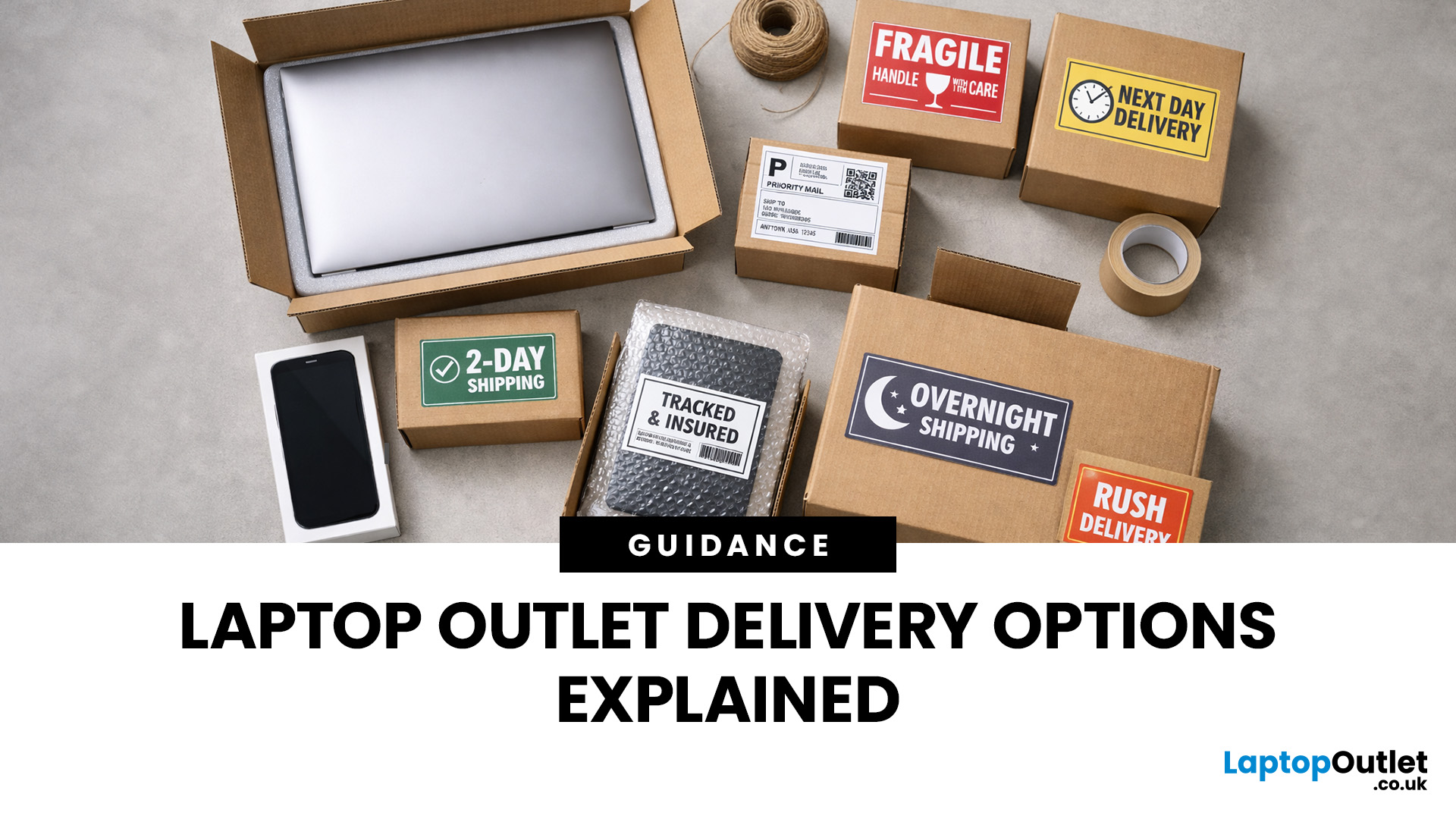
Buying tech online isn’t just about specs and price; delivery speed, flexibility, and reliability matter just as much. Whether you’re replacing a broken work laptop, upgrading your home setup, or ordering a last-minute gift, knowing your delivery options can make all the difference. In this guide, we explain Laptop Outlet delivery services options, how they work, and which service is best for your needs, from free standard delivery to next-day and book-a-slot delivery.
What Delivery Options Does Laptop Outlet Offer?
Laptop Outlet provides multiple delivery services designed to suit different customer needs, budgets, and timeframes. Each option is clearly shown at checkout, so you can choose the delivery speed and convenience level that works best for you. These include:
- Free Standard Delivery
- Next-Day/Priority Delivery
- Book-a-Slot Scheduled Delivery
How Does Laptop Outlet Delivery Work?
For full details, customers can always refer to the dedicated delivery info page. Laptop Outlet’s
Last Updated: January 28, 2026
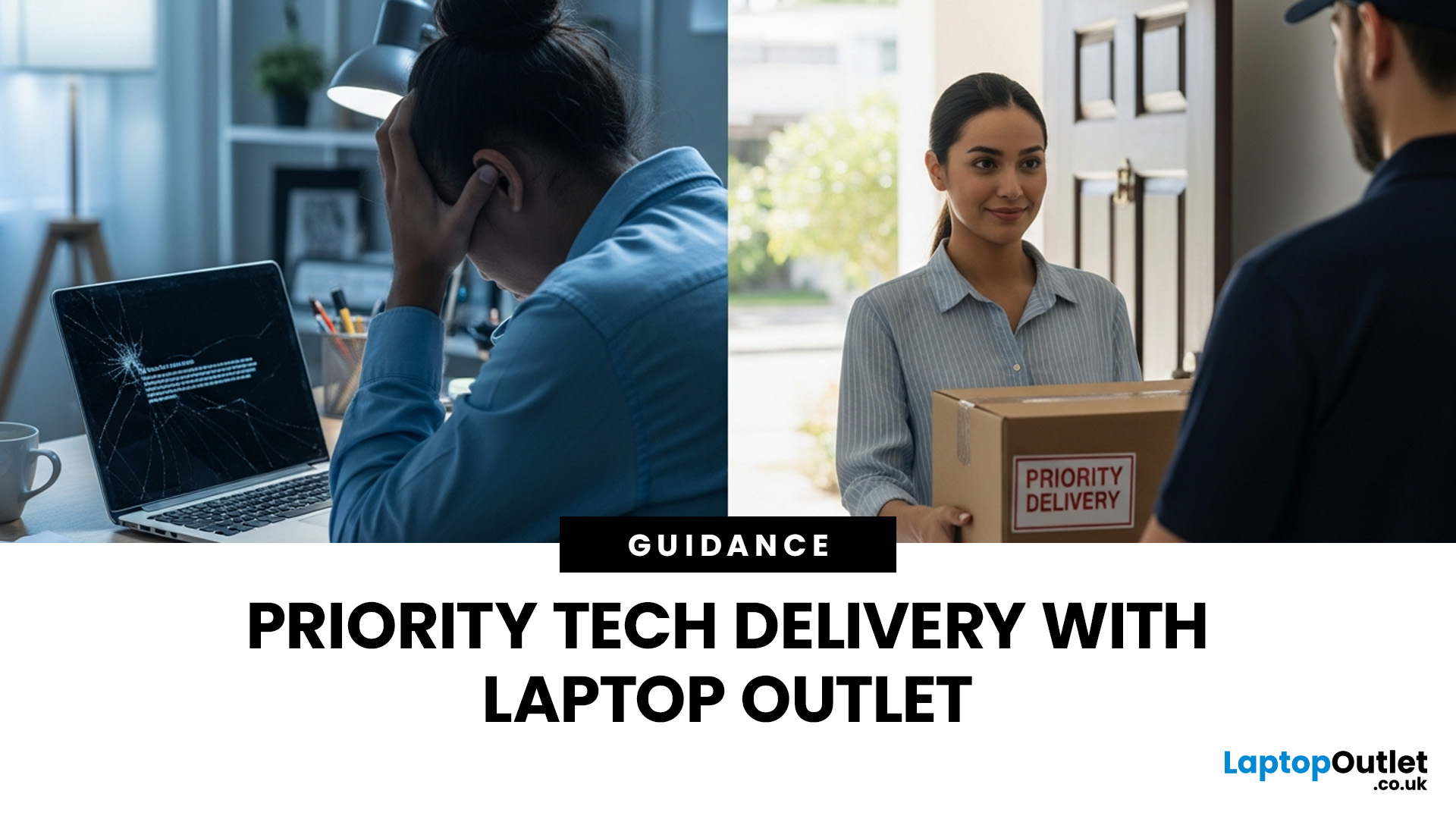
Let’s be honest — when your tech lets you down, waiting is the last option you want. Maybe your laptop stopped working the night before a deadline, your PC failed mid-project, or you’ve just realised you need a new device now, not next week. That’s exactly where Laptop Outlet next-day / priority delivery comes in. If you need fast, reliable tech delivery in the UK, this guide explains how Laptop Outlet’s next-day service works, what you can order, and why it’s the smart choice for urgent tech needs.
Why Speed Matters When Ordering Tech Online
When your laptop or PC breaks, everything slows down — work, study, gaming, even staying connected. Waiting days for a replacement just isn’t practical. With next-day laptop delivery, you don’t have to put life on pause. Laptop Outlet’s express service is built for:
- Last-minute replacements
- Urgent work-from-home setups
- Business and study deadlines
- Time-sensitive gifts or upgrades
If speed matters to you, Laptop Outlet Express shipping delivers when

Last Updated: January 28, 2026
Let’s be real — waiting around all day for a delivery is no one’s idea of fun. You’ve got meetings, errands, school runs, and about a million other things going on. The last thing you want is to be stuck at home wondering “Will it arrive now… or later?” That’s exactly why customers love Laptop Outlet book-a-slot delivery.
This delivery option puts you in control, letting you choose when your tech arrives, not the other way around. Here’s how it works, why it’s so popular, and whether it’s the right choice for your next order.
What is Laptop Outlet Book-a-Slot Delivery?
Laptop Outlet’s book-a-slot delivery service is a scheduled tech delivery service that allows you to pick a specific delivery day and time slot at checkout. Instead of waiting around all day, you get a clearly defined delivery window, so you know exactly when your order is arriving. In short:
- You choose the day, time, and location
- The courier delivers within that slot
- Your tech arrives when it suits you
It’s one of Laptop

Last Updated: June 17, 2026
Valentine’s Day is basically a high-pressure speedrun of “prove you know me.” Flowers are fine. Chocolate is predictable. But if you want a gift that lands (and lasts), tech is the move.
This year, we’re making it easy to shop Valentine’s Day laptop gifts and other Valentine’s Day tech gifts that feel personal, useful, and genuinely exciting, without paying full-price panic-tax. At Laptop Outlet, we stock both new and refurbished tech in the UK, so you can pick something premium, practical, and still stay in your budget.
Why a Laptop is a Top-Tier Valentine’s Gift in 2026
A laptop gift for Valentine’s Day isn’t just “a laptop.” It’s a whole lifestyle upgrade. It’s better WFH days, smoother university deadlines, cleaner creative projects, cosier film nights, and finally not fighting with a slow machine that sounds like it’s trying to take off.
And because 2026 is not the year to overpay, laptop deals for Valentine’s Day (especially on refurbished models) can get you more performance for

Last Updated: September 04, 2026
If you’re shopping for a new laptop this year, HP continues to be one of the most reliable and exciting brands to watch. From premium Ultrabooks and powerful gaming machines to flexible 2-in-1 devices built for modern work and study, the latest releases bring something for everyone.
In this guide, we’ll explore the latest HP laptops you shouldn’t miss in 2026, highlighting what makes them stand out, which users they suit best, and why HP remains a top choice for shoppers across the UK. Whether you’re upgrading your home setup, buying for university, or looking for a performance machine that keeps up with your workload, these HP laptop models are worth considering.
Top HP Laptop Models You Can Choose in 2026
The latest HP laptops in 2026 are redefining versatility, performance and AI-enabled productivity across the board. Let’s explore few of them:
HP OmniBook X FlipNGAI 14-fm0005na – Compact AI-Ready Performance
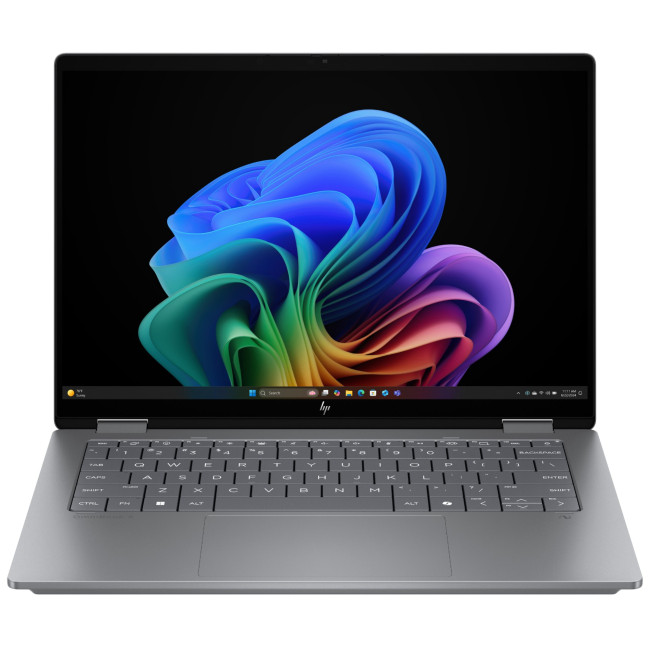
The HP OmniBook X FlipNGAI 14-fm0005na Intel® Core™ Ultra 5 226V

Last Updated: February 13, 2026
Because nothing kills the vibe faster than a laptop, that suddenly decides your fingers are irrelevant.
You sit down. You open your laptop. You’re mentally prepared to be productive (or at least pretend). And then .....boom... your laptop touchpad is not working. Or your laptop keyboard is not working. Or worse… both.
At this point, your laptop isn’t broken; it’s personally offended by you.
Before you rage-buy a new device or spiral into tech despair, here’s the good news: most laptop keyboard problems and touchpad issues are completely fixable. And no, you don’t need a computer science degree or a sacrifice to the tech gods.
This guide is not one of those vague “restart your device” articles and call it a day. This is a deep-dive, all-reasons, all-solutions, no-BS troubleshooting guide, written in human language, with enough detail to actually solve the problem.
We’ll cover:
- Software vs hardware problems (and how to tell the difference)
- Every common and uncommon reason your laptop input

Last Updated: February 13, 2026
Few things are more frustrating than a laptop running slow when you’re trying to work, study, stream, or simply browse the web. Whether it’s taking ages to boot up, freezing mid-task, or lagging when you open everyday apps, slow performance can quickly drain your productivity and patience.
The good news? A sluggish laptop doesn’t always mean it’s time to replace it. In many cases, there are clear reasons why a laptop is slow, and there are practical steps you can take to fix it. In this guide, we’ll walk you through the most common causes of laptop lagging, how to identify what’s slowing your device down, and how to improve laptop performance without unnecessary upgrades.
Why is My Laptop Running Slow?
Slow laptop performance usually comes from a combination of factors working against your system over time. Laptops naturally collect digital clutter, outdated software, background processes, and even hardware wear. Add demanding modern apps and websites into the mix, and performance can

Last Updated: February 17, 2026
Storage problems aren’t just annoying; they’re productivity killers. Studies show that nearly 60% of laptop slowdowns are linked to storage-related issues, whether it’s low disk space, corrupted files, or failing SSDs. When your drive is over 85% full, performance can drop significantly because your system has less room to manage temporary files and virtual memory. Add disk errors or early SSD/HDD failure into the mix, and suddenly your “quick task” turns into a 30-minute meltdown.
Laptop storage issues don’t just slow things down, they risk your data, crash your apps, and test your patience.
The good news? Most storage problems are fixable in real time. In this guide, we’ll break down exactly what’s happening, why it’s happening, and how to fix it step-by-step, no tech degree required.
SSD vs HDD: What’s Actually Inside Your Laptop (And Why It Matters)

Before you panic about laptop storage issues, you need to know what you’re working with. Not all drives fail the same way and the fix

Last Updated: February 17, 2026
Few things trigger instant panic like pressing the power button… and nothing happens. Or worse, your laptop turns on, shows the logo, and then just sits there. Stuck. Frozen. Judging you.
Laptop boot problems are one of the most common technical issues users face. From a laptop not booting at all to BIOS boot problems, startup errors, and endless boot loops, these issues can feel dramatic, but they’re often fixable. In many cases, Windows boot issues are caused by corrupted updates, drive errors, or simple configuration mistakes.
The key is knowing where the problem starts: power, BIOS, or operating system.
In this guide, we’ll walk you through real, step-by-step solutions to fix laptop boot loop errors, startup failures, and laptops that won’t turn on, no tech wizardry required.
What Are Laptop Boot Problems? (And Why They Feel So Stressful)
Laptop boot problems basically mean one thing: your laptop isn’t starting the way it’s supposed to. You press the power button expecting your system

Last Updated: February 13, 2026
It is a common frustration. You settle down to work at a café or prepare for a long flight, only to see your power percentage plummet. If you find your laptop battery draining fast, you aren't alone.
Modern laptops are powerful, but that power requires energy. From hidden background apps to ageing hardware, several factors can cut your cordless time short. This guide explores why laptop battery drains so quickly and provides actionable steps to improve laptop battery performance today.
Understanding the Basics: Why is My Laptop Battery Draining Fast?
Before we jump into the fixes, we need to understand the root causes. Why does a battery that used to last eight hours now struggle to last two?
Generally, laptop battery life problems stem from three main categories:
- Software & System Settings: Screen brightness, background processes, and unoptimised power plans.
- Hardware & Usage: Connected peripherals, overheating, and heavy workloads (like gaming or video editing).
- Battery Health: Physical

