



How to Choose the Right MacBook RAM & Storage
Buying a MacBook isn’t just about picking between an Air or a Pro - it’s also about making smart choices with RAM and storage. These two specs are often overlooked, yet they’re the backbone of your laptop’s performance and longevity. Choose too little, and you’ll quickly hit frustrating slowdowns or run out of space. Choose wisely, and your MacBook will stay fast, reliable, and future-proof for years.
Unlike many Windows laptops, MacBook RAM and storage can’t be upgraded later - what you buy upfront is what you’ll live with. That makes it essential to understand how much you really need. Do students get by with 8GB of RAM? Should professionals always go for 16GB or more? Is 256GB storage enough in the cloud era, or do video editors really need 1TB and beyond?
Why RAM & Storage Matter in a MacBook
When you’re choosing a MacBook, the processor often gets the spotlight - but RAM and storage are just as important. They determine how smooth your experience is today and how well your laptop holds up in the future. For students especially, see which models are ideal in our Best Laptop for Students.
RAM – Your Laptop’s Short-Term Memory
RAM (Random Access Memory) is where your Apple MacBook keeps the data it’s actively using. More RAM means your laptop can run multiple apps and browser tabs at once without lag. With Apple Silicon, RAM is part of the unified memory architecture (UMA), meaning the CPU, GPU, and Neural Engine all share the same memory pool. This makes RAM in MacBooks even more efficient than in most Windows laptops.
Storage – Your Laptop’s Long-Term Memory
Storage is where your files, apps, and macOS live. Apple uses SSD (Solid State Drive) storage in all current MacBooks, which is faster, quieter, and more reliable than older HDDs. Faster storage means quicker boot times, faster app launches, and smoother handling of large files. To learn more about how cloud storage works and its benefits, check out What Is Cloud Storage.
Why You Must Choose Carefully
Unlike many PCs, MacBook RAM and storage are soldered onto the logic board. That means no upgrades later. The configuration you buy on day one is the one you’ll have for the life of the device. Get it wrong, and you might outgrow your MacBook sooner than you’d like. Get it right, and your machine will feel snappy for years.
MacBook RAM Explained
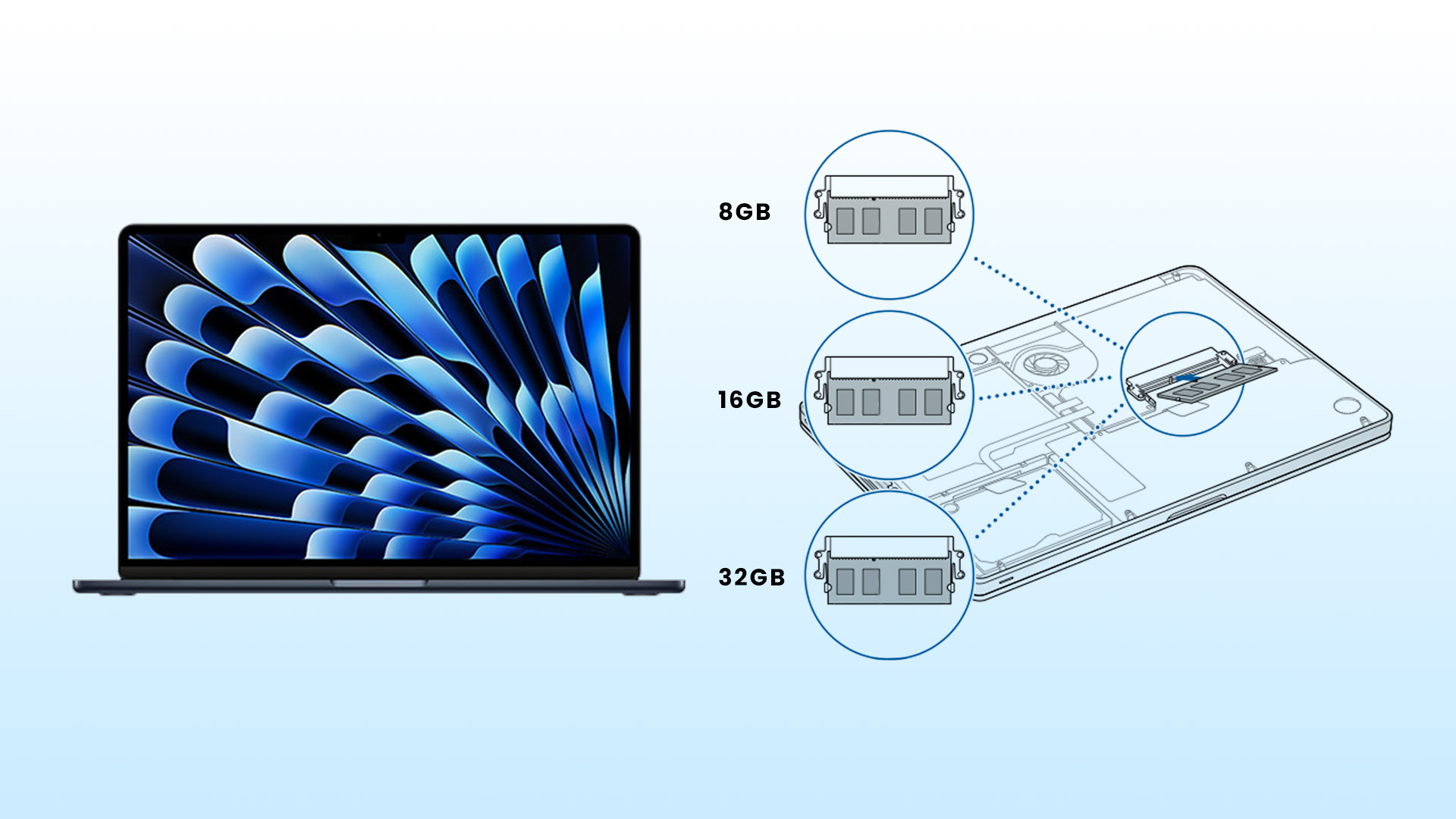
Apple has simplified RAM in its MacBooks with its unified memory approach, but it’s still vital to understand what you’re getting.
What RAM Does in Practice
- Keeps multiple apps open without slowing down.
- Handles large spreadsheets, creative software, or coding environments.
- Reduces reliance on virtual memory (which uses storage as backup when RAM runs low).
Common MacBook RAM Configurations
- 8GB → Entry-level, standard in most MacBook Air models.
- 16GB → Mid-tier, standard for many MacBooks Pros.
- 24GB–32GB → Higher-end, available on Pro models.
- 64GB+ → Top-tier options for extreme professional workloads.
Unified Memory Advantage
Unlike traditional laptops, Apple’s UMA (Unified Memory Architecture) allows RAM to be dynamically shared between CPU, GPU, and machine learning cores. This means 8GB of RAM on a MacBook often feels more powerful than the same amount on a Windows laptop. Explore the full range of Best MacBooks at the best price.
macOS Memory Management
macOS is designed to optimise RAM intelligently. It compresses memory and reallocates resources, so you get smoother performance even when running multiple tasks. That said, more RAM always means more breathing space.
To learn more about the different MacBook models and their capabilities, check out our full guide on everything you need to know about Apple laptops.
How Much RAM Do You Really Need?
Choosing the right RAM depends entirely on how you use your MacBook. Here’s a breakdown:
Students & Everyday Users → 8GB
- Perfect for browsing, note-taking, streaming, and light productivity.
- Can handle multiple tabs and apps but will struggle with heavy creative work.
- Best suited for the MacBook Air.
Professionals & Power Users → 16GB
- Ideal for multitasking, running business apps, coding, and managing large spreadsheets.
- Handles light creative tasks (photo editing, light video editing).
- Recommended for MacBook Pro 14-inch users.
Creative Professionals → 32GB+
- Essential for video editing, music production, 3D rendering, and software development.
- Heavy creative apps like Final Cut Pro, Logic Pro, and Adobe Suite thrive with more RAM.
- Suited for MacBook Pro 16-inch with Pro or Max chips.
Real-World Scenarios
- Video editing (4K+) → At least 32GB for smooth playback and rendering.
- Developers → 16GB minimum, 32GB for advanced builds.
- Business multitaskers → 16GB is the sweet spot.
Rule of thumb: Buy as much RAM as you can afford. It extends your MacBook’s useful life and reduces frustration down the line. Explore Refurbished Apple MacBooks to find the perfect balance of performance, storage, and budget.
MacBook Storage Options Explained
Apple keeps storage simple, but the choice you make can have a huge impact on how smoothly your MacBook runs.
SSD vs HDD
All modern MacBooks now use SSD (Solid State Drives) rather than older HDDs. Why SSDs matter:
- Speed: Instant boot-ups and fast file transfers.
- Reliability: No moving parts, less prone to damage.
- Quiet operation: Perfect for professional environments.
Available Storage Capacities
Current MacBooks offer a range from 256GB at the entry-level to a massive 8TB on the highest-end MacBook Pros. Common options include:
- 256GB
- 512GB
- 1TB
- 2TB
- 4TB
- 8TB (Pro only)
iCloud & External Storage
macOS integrates deeply with iCloud, making it easy to store files online and free up local space. In addition, external SSDs provide fast, portable storage for large files. This flexibility means you don’t always need to max out internal storage - but more onboard space is always convenient.
How Much Storage Should You Get?
Choosing storage is all about balancing your usage with your budget.
Light Users & Students → 256GB–512GB
- Enough for assignments, apps, and documents.
- Works fine if you rely heavily on iCloud or Google Drive.
- Affordable option, especially for students.
Business & Professionals → 512GB–1TB
- Handles larger files, apps, and daily workloads.
- Leaves room for future growth without worrying about constant clean-ups.
- Best balance of price and practicality.
Creatives & Power Users → 1TB–4TB
- Video editing, music production, and 3D design projects consume massive space.
- Large internal storage = faster workflows with less reliance on external drives.
- A must for photographers managing raw image libraries or editors working in 4K/8K.
Pair that with cloud space via services explained in What Is Cloud Storage for an optimal storage strategy.
Why Bigger Storage Is a Smart Long-Term Move
Even with iCloud and external drives, having more local storage extends your MacBook’s lifespan. Apps, macOS updates, and project files will only grow larger over time.
Whether you’re buying accessories for productivity or performance, understanding your MacBook’s specs (like RAM and storage) is essential. Learn more in our article on how to choose the right MacBook RAM & storage.
Best Configurations for Different Users

Let’s put it all together: the right RAM + storage combos for different types of MacBook users.
For deeper advice on student laptops and how those specs perform in real-day use, see Best Laptop for Students.
Students
- 8GB RAM, 256GB–512GB storage.
- Perfect for essays, browsing, note-taking, and streaming.
- Best choice: MacBook Air (M2 or M3).
Business Professionals
- 16GB RAM, 512GB–1TB storage.
- Handles multitasking, spreadsheets, presentations, and business apps.
- Best choice: MacBook Pro 14-inch.
Creative Professionals
- 32GB RAM+, 1TB–4TB storage.
- For video editing, 3D modelling, or large-scale creative projects.
- Best choice: MacBook Pro 16-inch (M2/M3 Pro or Max).
Developers & Codersrs
- 16GB–32GB RAM, 1TB storage.
- Enough memory for multiple development environments and large codebases.
- Best choice: Pro models with higher RAM for efficiency.
To browse the best options, explore Best MacBooks with configurations to suit every need.
Futureproofing Your MacBook
One of the most important things to remember when buying a MacBook is that you can’t upgrade RAM or storage later. Both are soldered to the logic board, meaning your initial choice locks in your device’s long-term potential.
Why Future-Proofing Matters
- Software Demands Grow: Apps like Adobe Creative Cloud, Final Cut Pro, and even browsers like Chrome consume more memory over time.
- File Sizes Increase: Photos, 4K/8K video, and app installations take up far more space than they did a few years ago.
- Longevity: MacBooks are built to last 5–7 years on average. Buying extra RAM and storage upfront ensures your laptop remains usable for the full lifespan.
Smart Future-Proofing Tips
- Always buy one tier higher than your current needs. If you think 8GB RAM will do, go for 16GB. If you’re torn between 256GB and 512GB storage, pick 512GB.
- Consider your future career or study path. Students moving into creative fields or professionals anticipating larger workloads will thank themselves later.
- Think resale value: higher-spec MacBooks hold their value better on the second-hand market.
In short, buying “just enough” might work now, but investing in slightly more RAM and storage will keep your MacBook running like new for much longer.
If you’re interested in getting the most out of your MacBook, dive deeper into our article on how to choose the right MacBook RAM & storage.
Refurbished MacBooks – Affordable High-Spec Options
High RAM and storage upgrades can significantly increase the price of a new MacBook. For budget-conscious buyers, refurbished MacBooks are a smart way to get more power for less money.
What Does Refurbished Mean?
Refurbished MacBooks are pre-owned devices that have been inspected, tested, repaired (if needed), and certified for resale. They often include a warranty, making them a safe alternative to buying new.
Benefits of Buying Refurbished
- Lower Price: Access models with 16GB+ RAM or 1TB+ storage at a fraction of the original cost.
- Same macOS Features: Refurbished Macs run the same software and updates as new ones.
- Eco-Friendly: Extends the lifecycle of devices, reducing e-waste.
- Great for Students: A refurbished MacBook Pro with higher specs can be cheaper than a new base-level Air.
Where to Buy
Always buy from trusted retailers. Laptop Outlet’s Refurbished Apple MacBooks range includes high-performance options at excellent prices.
Refurbished doesn’t mean second best - it means smarter spending, especially when you want higher RAM & storage without the premium price tag. Curious how to find reliable refurbished options? Read Where to Buy Refurbished Laptops? Are they Good for Students? for a full breakdown.

MacBook RAM & Storage
Can you upgrade MacBook RAM or storage later?
No. Both are soldered onto the motherboard. Choose the right specs upfront to avoid limitations later.
Is 8GB RAM enough for a MacBook Pro?
It can handle light tasks, but for multitasking, professional use, or creative work, 16GB is strongly recommended.
How much storage do I need for video editing?
At least 1TB of internal storage is recommended for 4K or 8K video editing. External SSDs can supplement storage if needed.
What’s the difference between SSD and HDD in MacBooks?
MacBooks only use SSDs, which are faster, more reliable, and quieter than HDDs. HDDs are no longer supported in modern models.
Are refurbished MacBooks with higher RAM & storage worth it?
Yes. They’re a cost-effective way to get premium configurations (e.g., 32GB RAM, 1TB+ storage) without paying full price.
Do students need 512GB storage or more?
For most students, 256GB–512GB is enough. However, if you work with media files (photography, video, design), 512GB+ is a safer choice.

Conclusion
Your MacBook’s RAM and storage are two of the most important specs to get right. RAM determines how smoothly your laptop handles multitasking and demanding apps, while storage decides how much space you have for files, apps, and creative projects.
For students, 8GB RAM with 256–512GB storage may be enough. Business users and professionals will benefit from 16GB RAM with 512GB–1TB storage. Creatives and developers should invest in 32GB+ RAM and at least 1TB storage. And remember because MacBooks can’t be upgraded later, futureproofing is essential.
If price is a concern, refurbished options let you access higher-spec MacBooks at a lower cost, offering incredible long-term value.
| Read More: |
| The Evolution of Apple MacBooks: From Intel to Apple Silicon |
| Microsoft Surface vs MacBook: The Ultimate Comparison for Professionals |
| Why Buy a MacBook? |
Related Articles

Last Updated: October 03, 2025
5 Reasons You Should Choose a MacBook
Apple’s MacBook lineup has long been the gold standard for laptops. But what makes them so popular—and are they worth the investment? Here are five reasons why a MacBook could be your perfect next laptop.
1. Sleek Design and Premium Build Quality
MacBooks are known for their ultra-thin, lightweight aluminium bodies. They’re stylish, durable, and designed to slip easily into your backpack or briefcase. Perfect for students and professionals who need a laptop that looks as good as it performs.
2. macOS – Smooth, Secure, and User-Friendly
Apple’s macOS is designed for seamless performance:
- Intuitive interface
- Fewer bugs and crashes compared to some operating systems
- Built-in security features to protect your data
- Regular updates to keep your system fresh and fast
It’s great for both first-time users and seasoned pros.
3. Outstanding Battery Life
With up to 18+ hours of battery life on some models, MacBooks are perfect for all-day
Last Updated: July 06, 2026
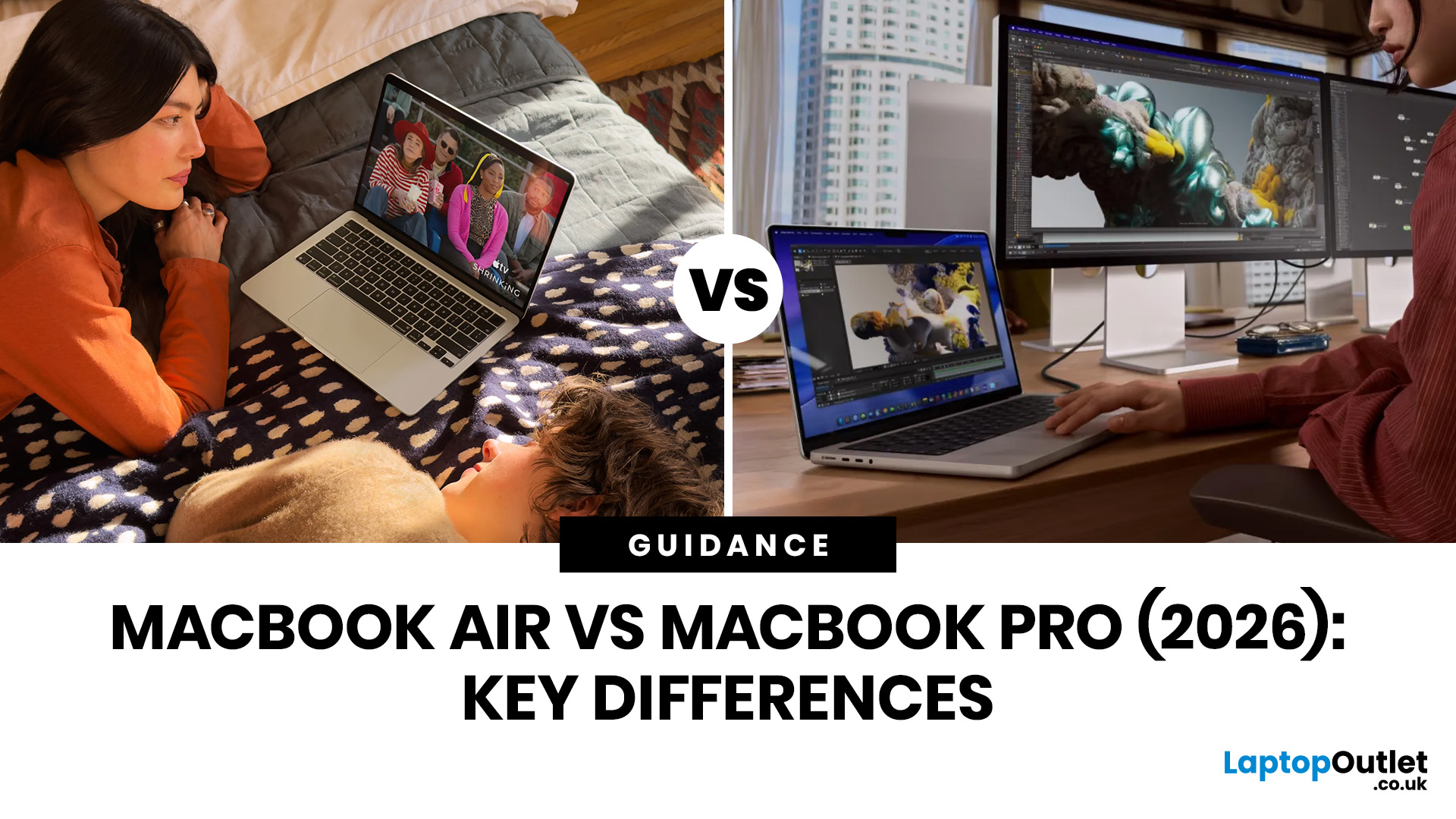
Choosing between the MacBook Air vs MacBook Pro in 2026 isn’t as straightforward as it used to be. With Apple’s latest M-series chips delivering impressive performance across both models, the gap has narrowed, yet key differences still matter depending on how you use your laptop.
Whether you’re a student, creative professional, or everyday user, this guide breaks down the difference between MacBook Air and Pro, including performance, battery life, price in the UK, and which one is right for you.
MacBook Air vs MacBook Pro: Quick Comparison (2026)
| Feature | MacBook Air | MacBook Pro |
|---|---|---|
| Performance | Great for everyday tasks | Excellent for heavy workloads |
| Battery Life | Outstanding (light use) | Excellent (even under load) |
| Portability | Ultra-light & thin | Heavier but still portable |
| Display | Liquid Retina | Liquid Retina XDR (better brightness & refresh rate) |
| Cooling | Fanless | Active cooling (fans) |
| Price (UK) | From ~£999+ | From ~£1,599+ |
| Best For | Students, casual users | Creatives, professionals |
This MacBook Air
Last Updated: May 07, 2026
Main Difference Between MacBook Pro 14 and 16
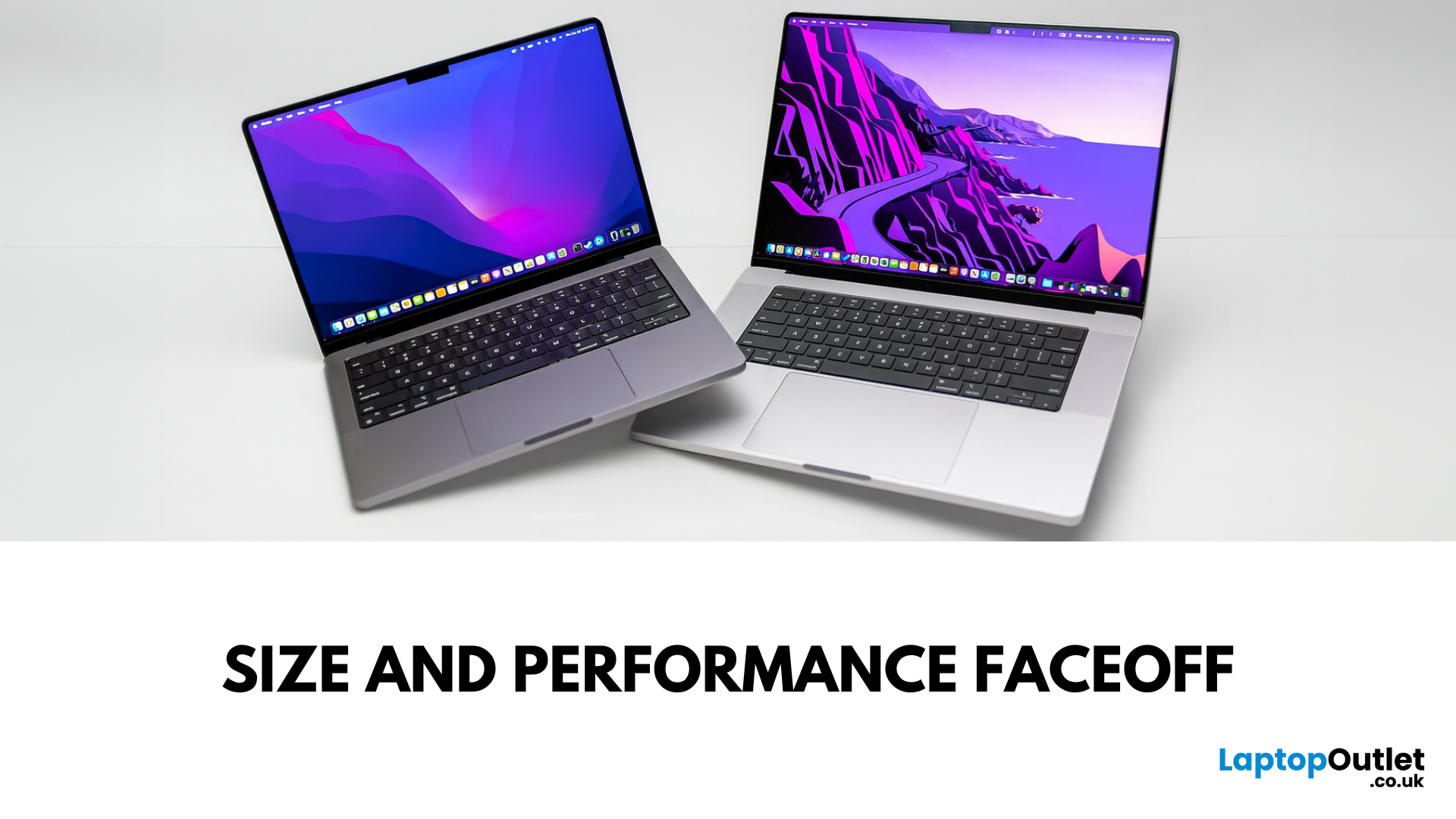
Both laptops share the same Liquid Retina XDR display tech, Apple Silicon (M4/M4 Pro/M4 Max), and near-identical I/O. The real split is portability versus scale: the 14-inch weighs as little as 1.55 kg and fits in almost any bag, while the 16-inch stretches to 2.14–2.15 kg and pairs that larger chassis with a 100-watt-hour battery and better sustained cooling. In short: 14-inch = go-anywhere pro power; 16-inch = bigger canvas and longer runtime.
Feature Comparison Table
| Feature | MacBook Pro 14-inch | MacBook Pro 16-inch |
| Display | 14.2″ Liquid Retina XDR, 3024×1964, ProMotion 120 Hz | 16.2″ Liquid Retina XDR, 3456×2234, ProMotion 120 Hz |
| Size & Weight | 31.26 × 22.12 × 1.55 cm; 1.55–1.62 kg (by chip) | 35.57 × 24.81 × 1.68 cm; 2.14–2.15 kg |
| Chips | M4, M4 Pro, M4 Max (up to 16-core CPU/40-core GPU on Max) | M4 Pro or M4 Max (same top options) |
| Battery & Capacity | Up to 24 hrs (M4), 22 hrs (M4 Pro), 18 hrs (M4 Max); 72.4 Wh | Up to 24 hrs (M4 Pro), 21 hrs (M4 Max); |

Last Updated: May 07, 2026
Main Difference Between MacBook Air M3 and MacBook Pro M3
The core distinction is in what each prioritises: Air M3 delivers silent, lightweight everyday power for general use and portability. In contrast, Pro M3 enhances sustainability under load with active cooling, a premium mini‑LED XDR display, and expanded ports—tailoring it to creators and professionals who do heavy multitasking or editing.
Feature Comparison Table
| Feature | MacBook Air M3 | MacBook Pro M3 (14-inch) |
| Chip & Base Spec | M3 (8‑core CPU, 8‑core GPU), fanless | M3 (same), fans for active cooling |
| Display | 13.6″ Liquid Retina (LED, ~500 nits) | 14.2″ Liquid Retina XDR, mini‑LED, ~1,000 nits sustained, 1,600 nits peak, ProMotion 120 Hz |
| Weight | ~1.24 kg | ~1.55 kg |
| Battery Life | Around 18 hrs real-world usage | Up to 22 hrs (for light tasks) |
| Ports & Connectivity | 2× Thunderbolt/USB-4, MagSafe, 3.5 mm jack | Adds HDMI, SDXC slot, extra TB port |
| Pricing (GBP) | 13″ M3 (8 GB/256 GB): from £1,099 | 14″ M3 (8 GB/512 GB): from £1,599 |
| Best For | Students, |

Last Updated: September 10, 2025
When it comes to professional laptops in 2025, the debate between Microsoft Surface vs MacBook is more relevant than ever. Both brands have carved out distinct reputations—Apple’s MacBook for its premium build quality, seamless ecosystem, and unmatched performance with Apple silicon, while Microsoft’s Surface range is celebrated for its flexibility, touchscreen capabilities, and business-focused Windows integration.
This article breaks down the comparison into design, display, performance, battery life, ports, and ecosystem, helping you decide whether the Surface or MacBook offers the greater value for your professional needs in 2025.
What’s the Main Difference?
Microsoft Surface offers versatile 2-in-1 designs, touchscreens, stylus support, and strong Windows integration with AI-powered Copilot features. On the other hand, Apple MacBook supports premium aluminium builds, macOS ecosystem strength, and Apple silicon (M4) delivering market-leading performance and battery life.
1. Design &
Last Updated: September 04, 2026
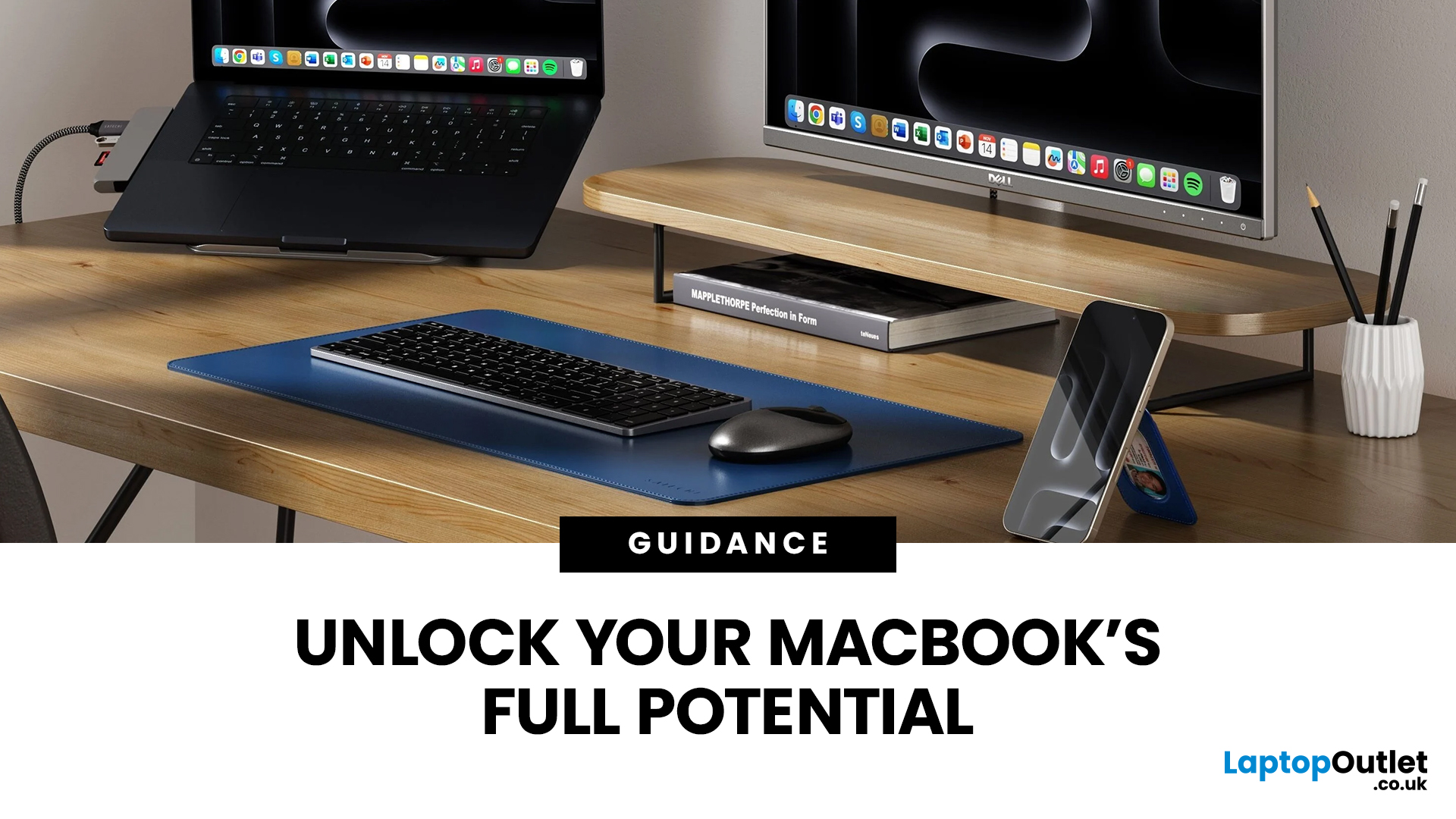
Owning a MacBook already feels like having a premium tool at your fingertips - sleek, powerful, and built for work, study, or creativity. But here’s the truth: on its own, even a MacBook has limits. That’s where accessories step in. The right kit doesn’t just complement Apple’s design; it transforms your MacBook into a full‑on productivity powerhouse.
For students, the right gear means smoother notetaking, better portability, and fewer headaches when deadlines loom. For professionals, accessories bring comfort, efficiency, and a proper setup that makes remote work or long office hours far less draining. Whether it’s a docking station / USB‑C hub to handle multiple screens, a protective sleeve for daily commuting, or noise‑cancelling headphones that save your focus, the right accessories change how you work and study.
Why MacBook Accessories Matter
A MacBook, whether it’s the Air or the Pro, is built to be minimal and stylish - but that also means Apple leaves out a lot of extras. You
Last Updated: October 08, 2025
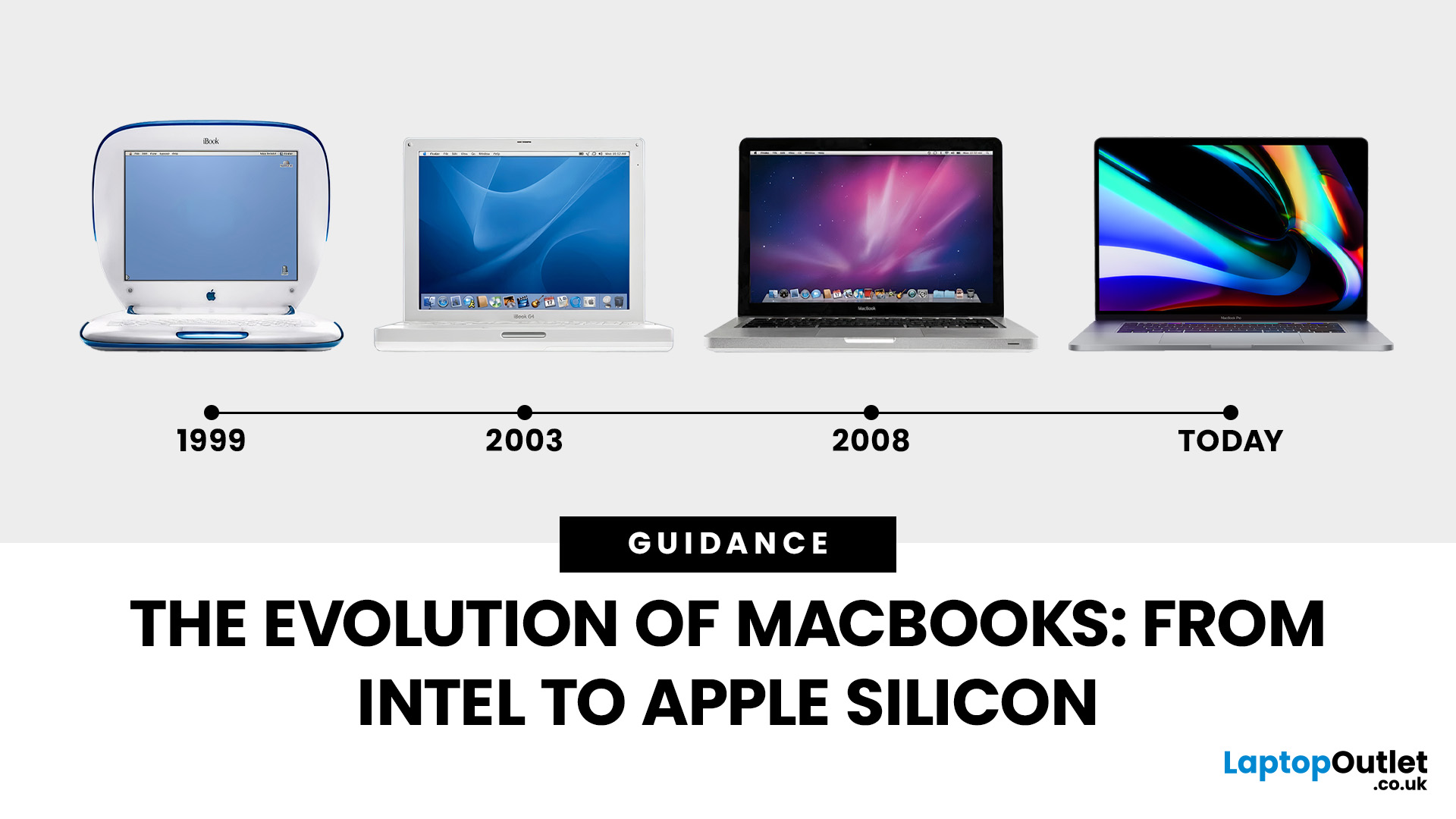
Few products have shaped modern computing quite like the Apple MacBook. From its early Intel-powered beginnings to today’s lightning-fast Apple Silicon machines, the MacBook has consistently pushed the boundaries of laptop design, performance, and portability. Along the way, it’s become a symbol of premium computing - beloved by students, professionals, and creative powerhouses worldwide.
But the evolution of Apple MacBooks hasn’t always been smooth sailing. There have been bold design shifts, controversial choices (remember the butterfly keyboard?), and groundbreaking innovations like Retina displays and MagSafe. The biggest leap of all came in 2020, when Apple ditched Intel processors in favour of its own Apple Silicon chips - a move that completely redefined, what users could expect from a laptop.
In this guide, we’ll take you through the full MacBook journey: from its early days, through key design changes and the Intel era, right up to the Apple Silicon transition and the future of

