



How to Connect Earbuds to a Laptop: Windows, Mac & Chromebook
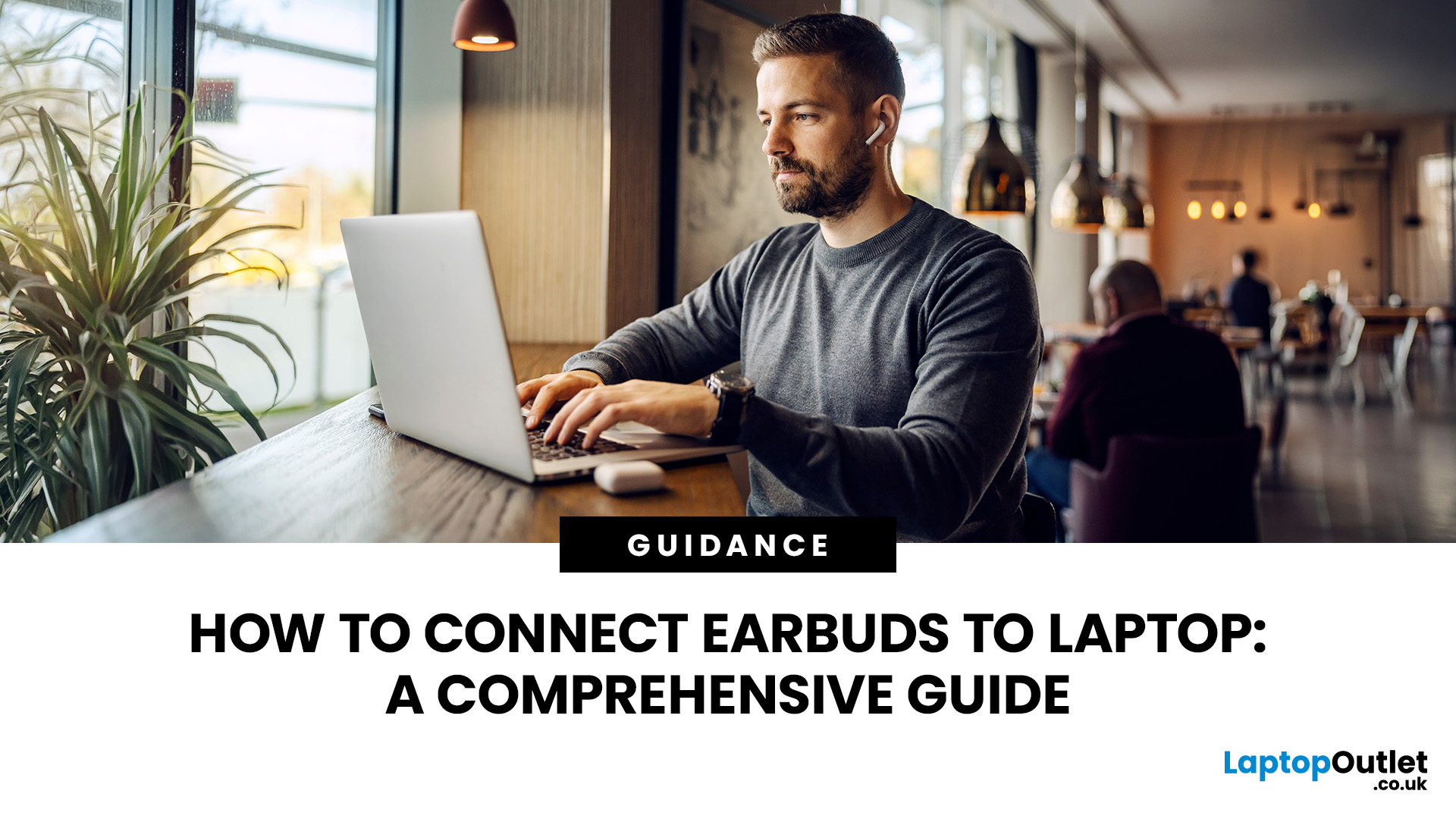
Connecting earbuds to a laptop is usually straightforward. For wireless earbuds, put them into pairing mode, switch on Bluetooth on your laptop and select the earbuds from the available devices. Wired earbuds can connect through a compatible 3.5mm audio jack, USB-C port or USB audio connection.
To connect earbuds to a laptop, put your wireless earbuds into pairing mode, turn on Bluetooth, and select them from your laptop’s available devices. On Windows 11, use Settings > Bluetooth & devices; on a Mac, use System Settings > Bluetooth. Wired earbuds can connect through a compatible 3.5mm, USB-C or USB audio port.
The exact menus differ between Windows 11, macOS and ChromeOS, and pairing can occasionally fail because the earbuds reconnect to another device, have a low battery or are not properly in pairing mode. This guide covers the current connection methods and the fixes worth trying when things do not work as expected.
How to Connect Bluetooth Earbuds to a Laptop
For most Bluetooth earbuds, the basic process is:
- Charge your earbuds and, where applicable, their charging case.
- Put the earbuds into Bluetooth pairing mode.
- Turn Bluetooth on from your laptop.
- Open the laptop's Bluetooth device list.
- Select your earbuds.
- Wait for the connection to complete.
- Play some audio and confirm the earbuds are selected as the sound output.
The important step is pairing mode. Simply taking earbuds out of their case does not always make them discoverable. The method varies by model: you may need to hold a button on the case, press both earbuds, use touch controls or follow another manufacturer-specific process.
Keep the earbuds reasonably close to the laptop while pairing. There is no universal "30-foot Bluetooth range": reliable distance varies with the devices, transmit power, antenna design and physical obstacles.
How to Connect Earbuds to a Windows 11 Laptop
For a Windows 11 laptop, Bluetooth earbuds can be paired from Settings or directly through Quick Settings.
Method 1: Connect through Windows Settings
- Put the earbuds into pairing mode.
- Select Start > Settings.
- Open Bluetooth & devices.
- Make sure Bluetooth is switched on.
- Select Devices > Add device.
- Choose Bluetooth if prompted.
- Select your earbuds when their name appears.
- Complete any additional instructions shown by Windows.
Microsoft recommends keeping the Bluetooth device close to the PC during setup. Once the earbuds have been paired successfully, Windows can normally reconnect to them automatically when Bluetooth is on and the earbuds are available.
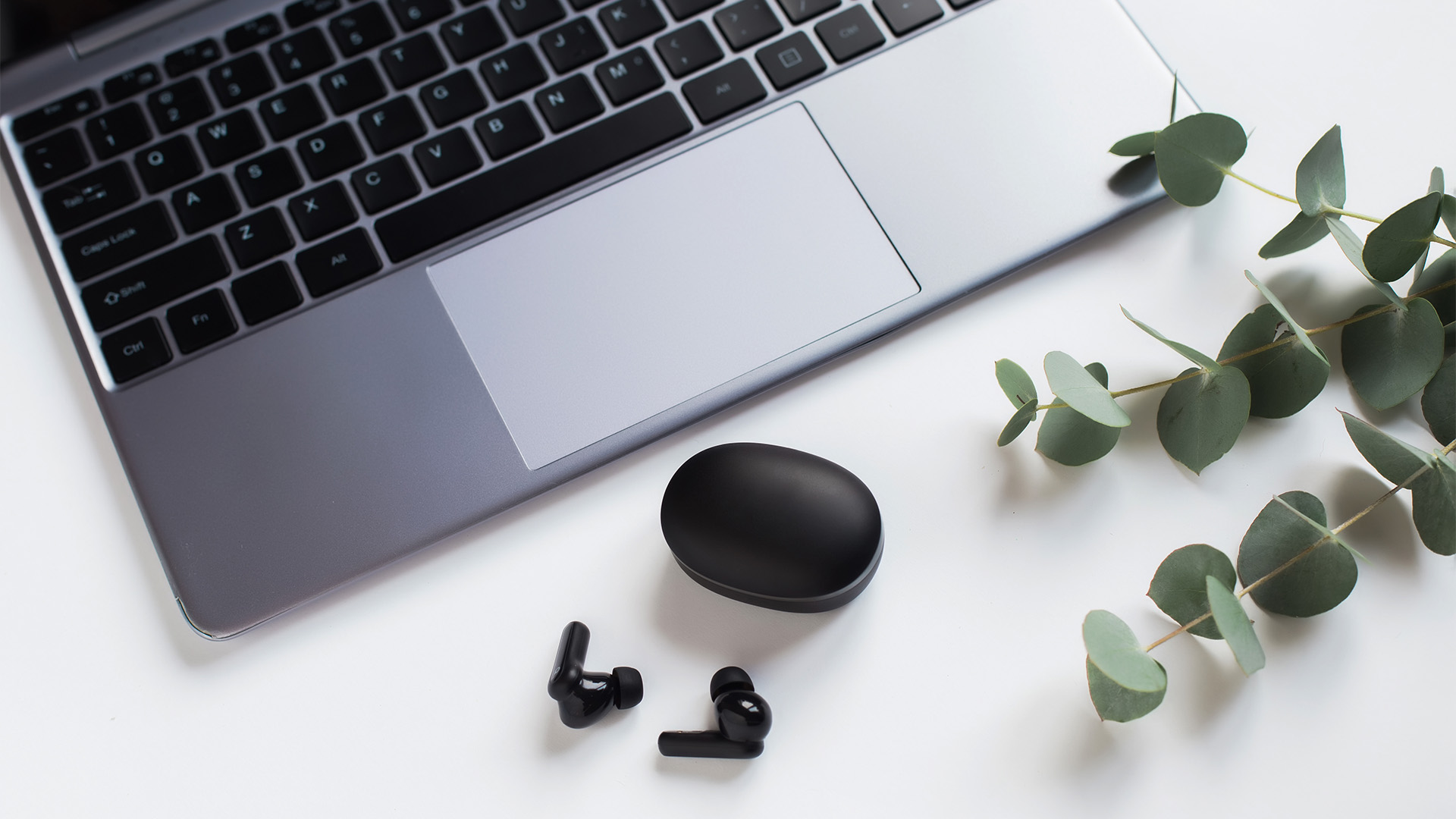
Method 2: Use Windows Quick Settings
You can also select the network, sound or battery area beside the clock, open the Bluetooth controls and choose your earbuds from the available devices.
This can be quicker when you are reconnecting earbuds that have already been paired.
Look out for Swift Pair
Some Bluetooth earbuds support Swift Pair. When a compatible device is nearby and in pairing mode, Windows can display a notification allowing you to select Connect without manually searching through Bluetooth settings.
This is worth using when it appears, but not every pair of earbuds supports it.
Windows 10 note: Microsoft ended standard Windows 10 laptops support on 14th October 2025, so this guide prioritises current Windows 11 controls.
How to Connect Earbuds to a MacBook or Mac
Wireless earbuds can be connected to a Mac from System Settings, rather than the older "System Preferences" menu found in previous versions of macOS.
To pair Bluetooth earbuds:
- Put your earbuds into pairing mode.
- Open the Apple menu > System Settings.
- Select Bluetooth.
- Make sure Bluetooth is switched on.
- Find the earbuds under Nearby Devices.
- Select Connect.
Apple's current Bluetooth controls separate devices you have previously connected from discoverable devices nearby.
If the earbuds connect but sound continues through the MacBook speakers, open Control Centre > Sound and select the earbuds as the output device.
Connecting AirPods to a Mac
AirPods can work slightly differently.
If you have already set up the AirPods with an iPhone and your Mac uses the same Apple Account, they may become available on the Mac automatically. You can select them through Control Centre > Sound instead of pairing them again.
If they do not appear, open System Settings > Bluetooth, put the AirPods into their pairing mode and select Connect.
Certain AirPods can also switch automatically between compatible Apple devices. If you would rather control when this happens, macOS provides connection options within the Bluetooth settings for the AirPods.
How to Connect Earbuds to a Chromebook
Chromebooks also support Bluetooth headphones and earbuds.
To connect them:
- Put your earbuds into pairing mode.
- Select the time at the bottom-right of the Chromebook screen.
- Turn Bluetooth on.
- Select Pair new device.
- Choose your earbuds.
- Follow any instructions shown on screen.
Once connected, the device should appear under the Chromebook's currently connected Bluetooth devices.
Compatible accessories can also use Fast Pair. When a Fast Pair-enabled device enters pairing mode near the Chromebook, ChromeOS can detect it and provide a quicker connection prompt.
How to Connect Wired Earbuds to a Laptop
Not every pair of earbuds uses Bluetooth. Wired models may connect through one of several interfaces.
3.5mm earbuds
If your laptop has a 3.5mm headphone or headset jack, insert the earbud plug fully into the socket.
The laptop will normally switch audio automatically. If it does not, open the system's sound settings and manually choose the connected headphones as the output.
If your earbuds also have a microphone, the laptop's socket needs to support the appropriate headset connection for both audio output and microphone input.
USB-C earbuds
Modern wired earbuds may use USB-C instead of a traditional headphone plug.
Connect them to a compatible USB-C port and allow the operating system to detect the audio device. You can then select the earbuds from your laptop's sound output settings if the switch does not happen automatically.
A USB-C connector alone does not guarantee that every combination of laptop, adapter and earphones will work, so check device compatibility if your earbuds are not detected.
What if your laptop has no headphone jack?
You may still be able to use:
- Bluetooth earbuds
- Compatible USB-C earbuds
- USB audio earbuds
- A suitable USB audio or headphone adapter
That means the absence of a 3.5mm port does not necessarily rule out using wired audio.
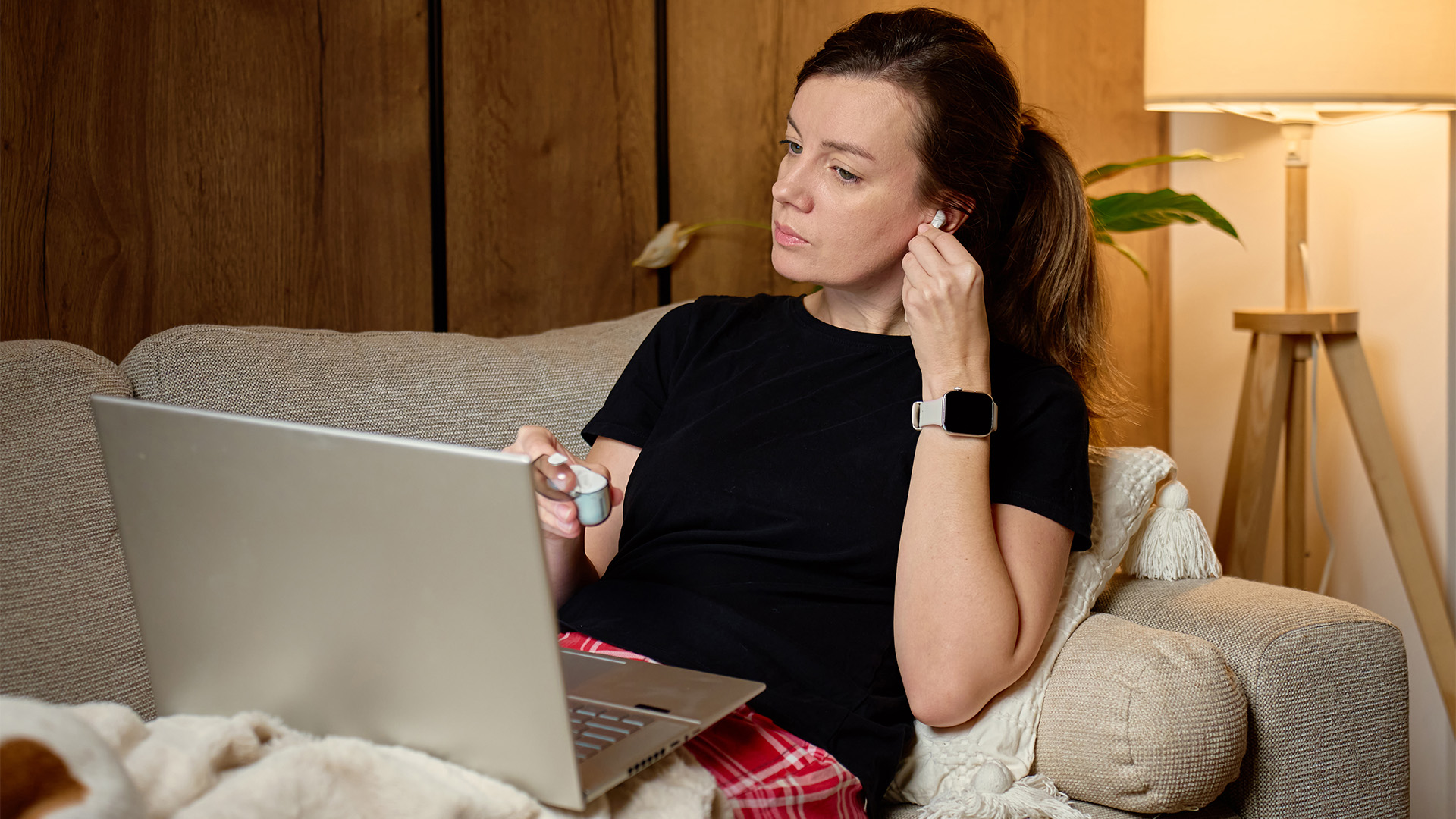
Why Won't My Bluetooth Earbuds Connect?
If your Bluetooth earbuds are not connecting to your laptop, start with the simple causes before reinstalling anything.
1. Check that the earbuds are actually in pairing mode
This is different from simply turning them on.
Look for the manufacturer's pairing indicator, which is commonly a flashing status light or an audible pairing message.
2. Charge the earbuds
Low battery levels can prevent some Bluetooth devices from entering or maintaining pairing mode. Microsoft recommends charging the device when troubleshooting Windows pairing problems.
3. Move them closer to the laptop
Keep the earbuds beside the laptop while establishing the first connection.
Walls, people, metal objects and competing wireless signals can affect the usable Bluetooth connection, so avoid relying on an assumed fixed maximum distance.
4. Check whether they have reconnected elsewhere
Earbuds frequently reconnect to the last phone, tablet or computer they were used with.
Temporarily switching Bluetooth off on that device can help when the earbuds refuse to enter pairing mode or do not appear on your laptop.
However, this is not a universal requirement. Some modern earbuds support multipoint, allowing them to maintain connections with two source devices at the same time.
5. Remove the earbuds and pair them again
On Windows 11, go to Settings > Bluetooth & devices, find the earbuds, select the menu beside them and choose Remove device. Then return them to pairing mode and add them again.
Microsoft specifically recommends removing and re-adding a Bluetooth device when it appears in Windows but refuses to connect correctly.
Earbuds Connected but No Sound? Try This
A Bluetooth connection does not automatically mean that your operating system is sending audio to the earbuds.
On Windows 11, open:
Settings > System > Sound > Output
and select your Bluetooth earbuds.
If they still produce no audio, try turning Bluetooth off and back on, removing and re-pairing the earbuds, and installing current Bluetooth drivers from your laptop manufacturer. These are among Microsoft's recommended steps for connected Bluetooth devices with no sound.
On a Mac, open Control Centre > Sound and select your earbuds rather than the internal MacBook speakers.
Also check individual apps. Microsoft Teams, Zoom, Discord, browsers and games can sometimes have their own speaker and microphone selections independent of the main operating-system output.
Why Do Bluetooth Earbuds Sound Worse During Calls?
A noticeable drop in quality during a video meeting does not necessarily mean your earbuds are faulty.
Traditional Bluetooth audio may switch modes when the earbud microphone becomes active. Apple explains that Bluetooth headphones can move from their higher-quality listening mode to a mode that handles both microphone input and playback, reducing audio quality while the microphone is being used.
Closing an application that is unnecessarily using the earbud microphone can therefore restore higher-quality playback on a Mac.
Windows 11 has also been improving this area through Bluetooth LE Audio.
What Is Bluetooth LE Audio on Windows 11?
Bluetooth Low Energy Audio, or LE Audio, is a newer Bluetooth audio system supported by some Windows 11 laptops and earbuds.
Microsoft says LE Audio can improve efficiency, call quality and device flexibility compared with traditional Bluetooth audio. It is not enough for a laptop to simply advertise Bluetooth LE: compatible hardware, audio components and drivers are also required.
To check for Windows LE Audio support, open:
Settings > Bluetooth & devices > Devices
and look for Use LE Audio when available.
If that option does not appear, your current hardware or driver configuration may not support it.
Some supported Windows 11 systems can now maintain stereo playback while the earbud microphone is active, provided the PC, earbuds, Windows version and drivers support the necessary LE Audio functionality.
It is useful technology, but you should not assume every Bluetooth 5.x laptop or pair of wireless earbuds supports it.
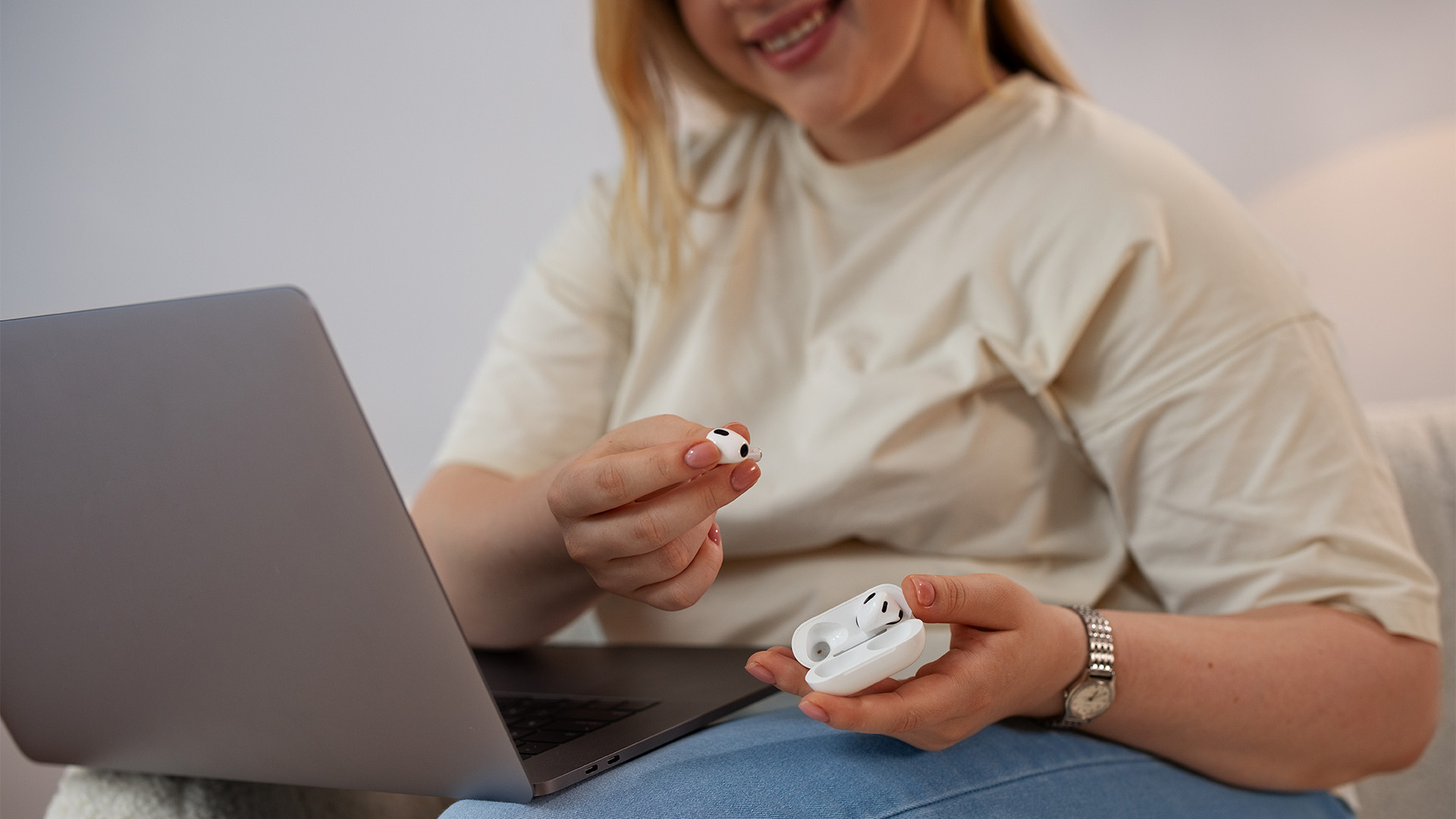
Can Earbuds Connect to a Phone and Laptop Together?
Sometimes.
The feature is commonly called Bluetooth multipoint, although availability and behaviour vary between manufacturers and earbud models.
With supported earbuds, you may be able to maintain connections to a phone and laptop simultaneously. For example, Google's supported Pixel Buds models can stay connected to two Bluetooth source devices and switch audio when activity changes between them.
This is particularly useful if you listen to laptop audio during the day but still want incoming phone calls to reach your earbuds.
If your earbuds do not support multipoint, you will usually need to disconnect from one source before connecting to another.
How to Get a More Reliable Earbud Connection
Once your earbuds are paired, a few habits can prevent recurring connection problems:
- Keep the earbud firmware updated through the manufacturer's app where one is available.
- Install current Bluetooth and audio drivers supplied for your laptop.
- Keep Windows, macOS or ChromeOS updated.
- Avoid repeatedly deleting and pairing the device unless troubleshooting requires it.
- Check which device the earbuds automatically reconnect to when you own several Bluetooth devices.
- Keep the charging contacts and case clean so both earbuds charge properly.
- Check app-specific microphone and speaker settings before blaming the Bluetooth connection.
Most pairing issues are caused by device state, settings or previous connections rather than a fundamental incompatibility between earbuds and laptops.

Final Thoughts
Learning how to connect earbuds to a laptop should usually take only a few moments: place wireless earbuds in pairing mode, switch Bluetooth on and select them from your laptop's available devices. Windows 11, macOS and ChromeOS each provide slightly different controls, while wired models may connect through 3.5mm, USB-C or USB audio.
If the earbuds refuse to connect, check pairing mode, battery level and previous device connections before moving on to driver or operating-system troubleshooting. And if your current machine is missing the connectivity or ports you need, compare the wider range of laptops and notebooks at Laptop Outlet to find a setup that suits how you work, study and listen.

Frequently Asked Questions
Can any Bluetooth earbuds connect to a laptop?
Most standard Bluetooth earbuds can connect to a Bluetooth-enabled laptop, but advanced features may require specific hardware, drivers, Bluetooth profiles or manufacturer support.
How do I put my wireless earbuds into pairing mode?
The method depends on the model. It may involve holding a case button, touching both earbuds or using a specific control sequence. Check the manufacturer's instructions.
Why can't my laptop find my earbuds?
Make sure Bluetooth is enabled and the earbuds are in discoverable pairing mode. Charge them, move them closer and temporarily disconnect them from another device if necessary.
Can I connect AirPods to a Windows laptop?
Yes. AirPods can function as Bluetooth audio devices on a compatible Windows laptop. Put them into pairing mode and add them through Windows 11's Bluetooth device settings.
Why are my earbuds connected but still playing through laptop speakers?
Your earbuds may be connected without being selected as the active audio output. Open the laptop's sound settings and manually choose the earbuds under Output.
Do I need Bluetooth to use earbuds with a laptop?
Only for Bluetooth earbuds. Wired earbuds can instead connect through a compatible 3.5mm audio socket, USB-C connection, USB audio interface or suitable adapter.
| Read More: |
| How to Connect Asus Chromebook to External Monitor |
| How to Use Your Android or iOS Device as a Webcam |
| How to Transfer Photos from Phone to Laptop |
Related Articles

Last Updated: September 08, 2026
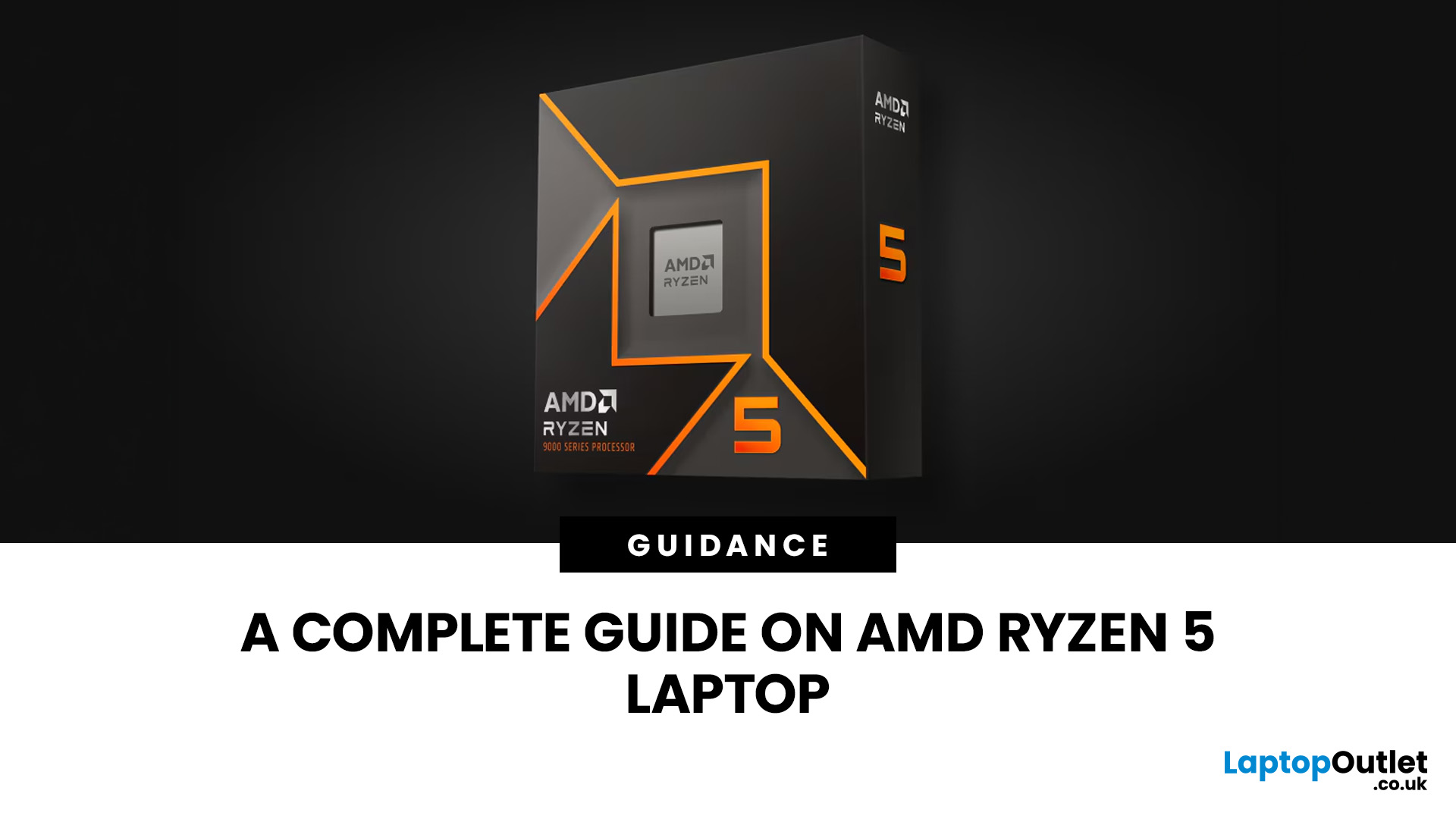
Two laptops can both say AMD Ryzen 5 on the specification sheet and still be built for very different jobs. One may prioritise battery efficiency and portability, while another is designed to sustain more performance for gaming, coding or creative work.
That is why choosing an AMD Ryzen 5 laptop in 2026 means looking beyond the tier name. AMD currently spans several mobile naming families, from Ryzen 7000 and 8000 to newer Ryzen 100, Ryzen 200 and Ryzen AI ranges. The exact processor, power class, memory, graphics, storage and laptop design all influence the experience.
This guide explains how to read those specifications, avoid misleading shortcuts and match the complete configuration to the way you actually use your laptop.
Quick Answer: How to Choose a Ryzen 5 Laptop
For most buyers, the right Ryzen 5 laptop is the one with a balanced specification rather than simply the largest processor number. Start with your main workload, then check the full CPU name, RAM, storage, graphics, display
Last Updated: July 21, 2026
Using your laptop in public is normal now. Cafés, trains, airports, libraries, lecture halls, shared offices, the laptop comes everywhere. But if the person sitting next to you can casually read your emails, bank details, work chats or assignments, that is not exactly ideal.
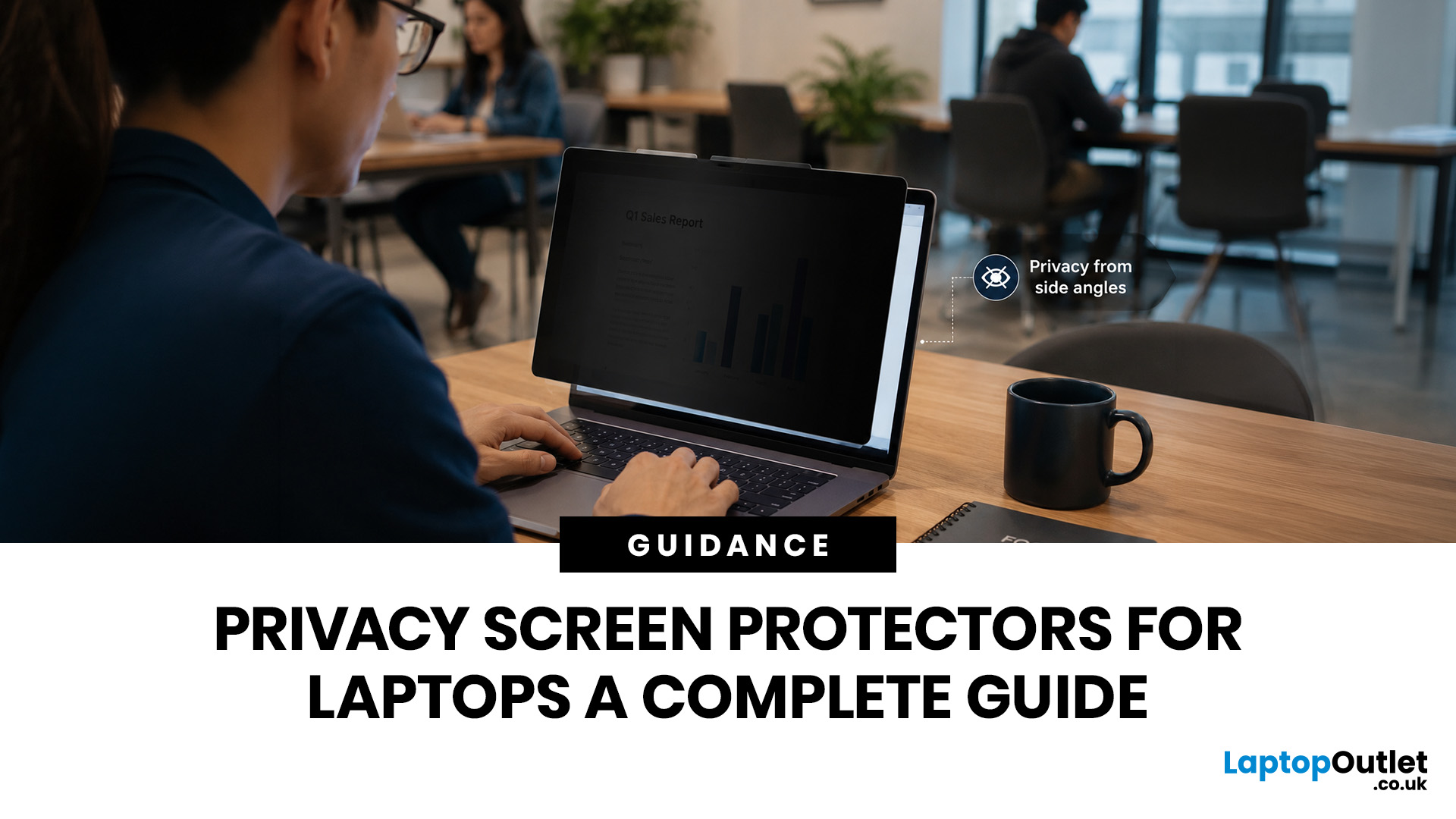
That is where privacy screen protectors laptops come in. Whether you are a student, business user, commuter or hybrid worker, this guide explains how privacy screens work, their benefits, disadvantages, types and whether they are actually worth buying.
How Does a Privacy Screen Protector Work?
Most laptop privacy screens use tiny vertical filter layers, often called micro-louvres. These work a bit like blinds. When you look at the laptop straight on, you can see the display clearly. When someone looks from the side, the filter blocks the view.
This is also how laptops and notebooks privacy screens work in everyday spaces. If you are working on a train, someone sitting beside you should find it much harder to read your
Last Updated: July 29, 2026
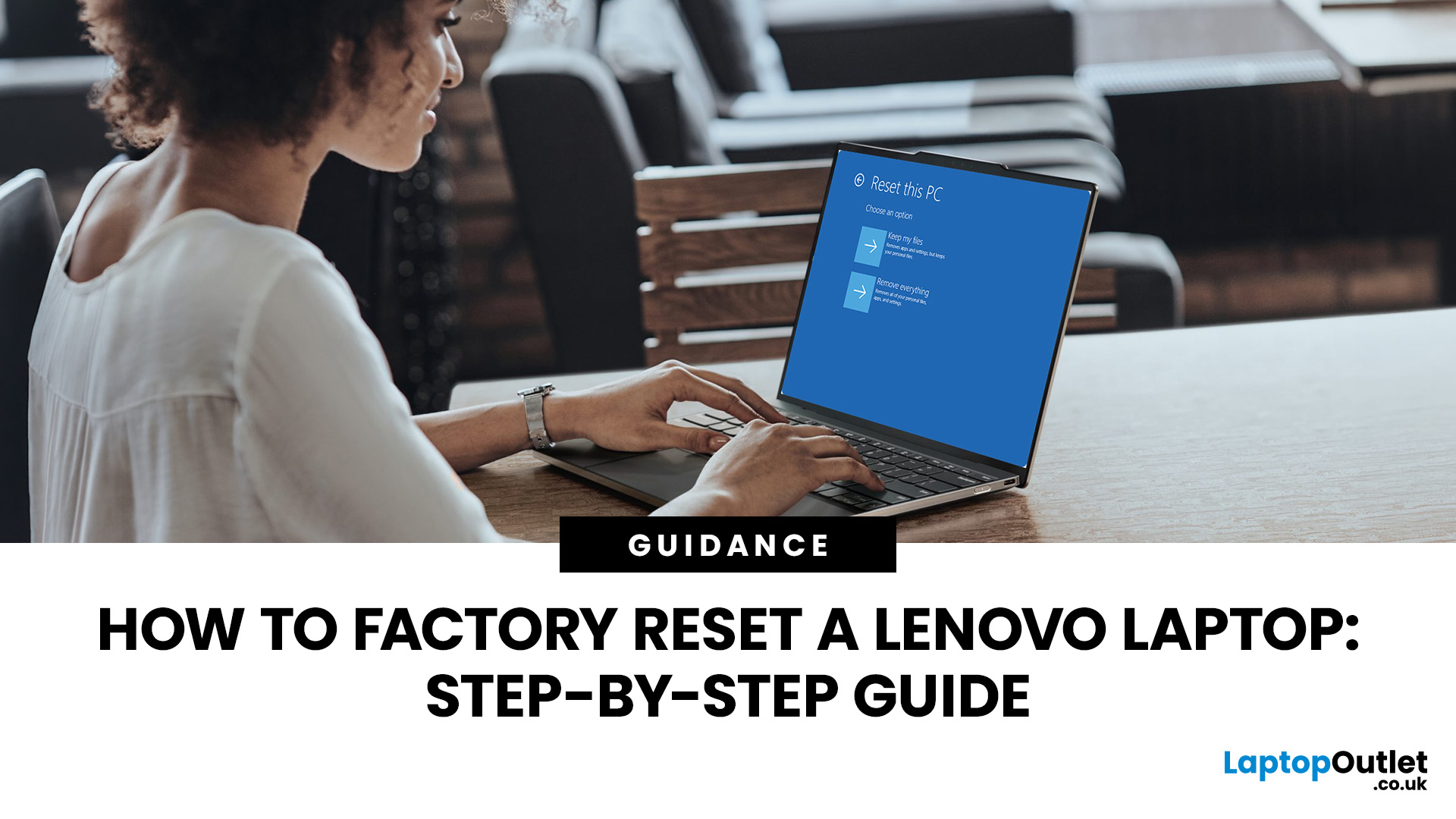
Your Lenovo laptop is slow, crashing, affected by persistent software problems or being prepared for a new owner; don't panic, it’s simply time for a factory reset.
A proper Lenovo factory reset reinstalls Windows and may remove applications, settings and personal data. This guide explains how to reset Lenovo laptop systems through Settings, the sign-in screen, Lenovo recovery mode, the Novo button or recovery media.
Before You Factory Reset Your Lenovo Laptop
- Back up documents, photos and other important files to cloud storage or an external drive.
- Keep the charger connected, remove unnecessary laptop accessories
Last Updated: August 06, 2026
Last Updated: August 07, 2026
Travel exposes a laptop to crowded trains, small café tables, airport queues, limited sockets and long periods inside a backpack. A lightweight touchscreen laptop addresses these problems by combining easier portability with direct, phone-like control.
It can be quicker to tap, scroll, zoom, sign or annotate when there is little room for a mouse. The right model can also replace a separate tablet, when it has a 360-degree hinge and pen support.
However, weight alone is not enough. Battery endurance, screen visibility, keyboard comfort, charging options, durability and software compatibility all determine whether a device is genuinely suitable for journeys.
Why Does a Lightweight Touchscreen Laptop Suit Travel?
1. It Reduces the Weight You Carry All Day
A lighter computer makes a noticeable difference when it shares a backpack with a charger, phone, headphones, water bottle and travel documents. For regular commuting or cabin-only trips, the complete kit matters more than the laptop weight
Last Updated: August 11, 2026
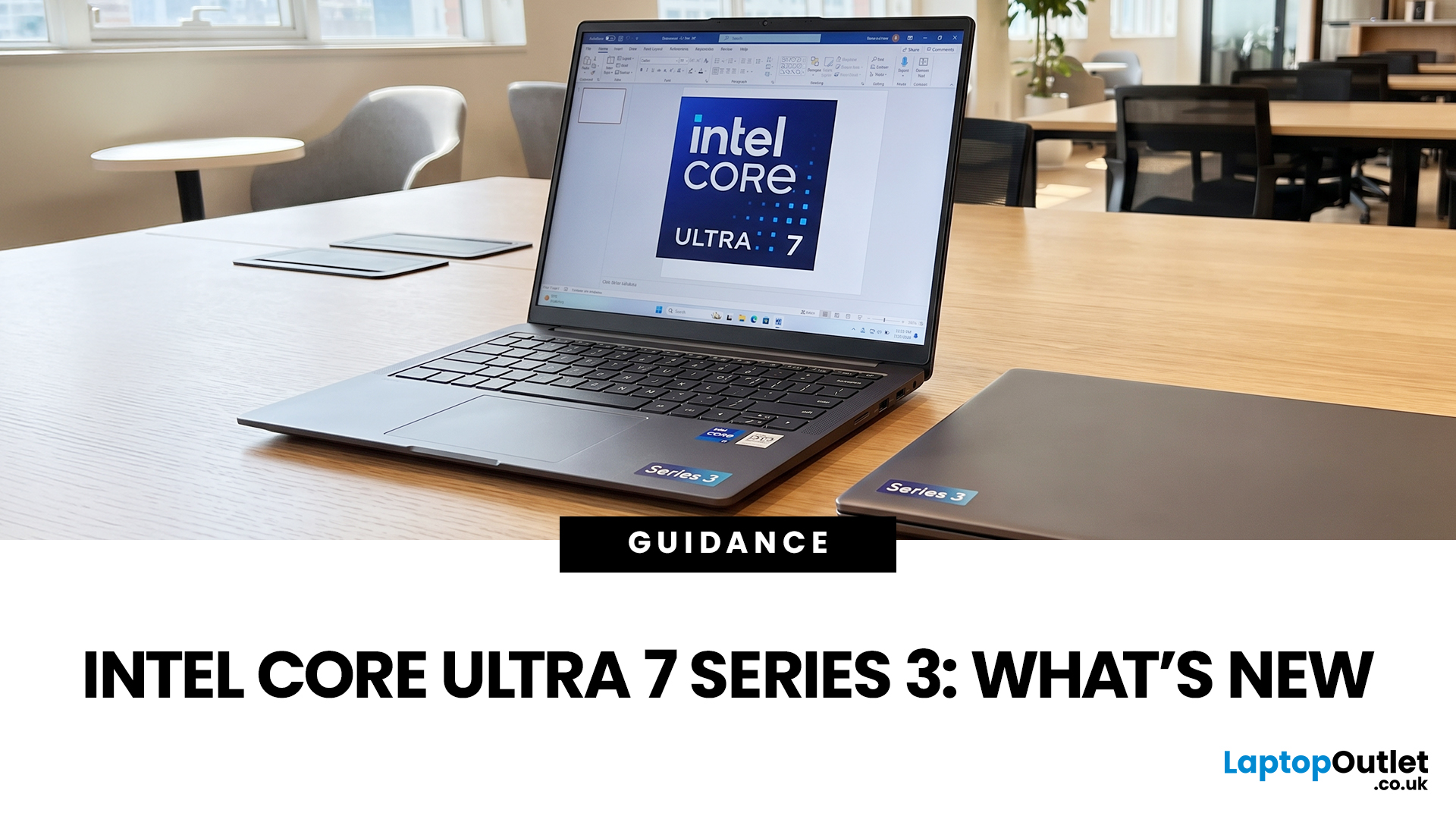
If you’re considering an Intel Core Ultra 7 Series 3 laptop in 2026, the processor name is only part of the story. Intel’s latest Core Ultra Series 3 generation brings a new architecture, Intel 18A process technology, built-in AI acceleration and updated graphics capabilities.
However, different Series 3 processors can have significantly different core and graphics configurations, so it is important to look beyond the “Core Ultra 7” label when choosing a laptop.
Series 3 is aimed at modern laptops that need to balance
Last Updated: August 17, 2026
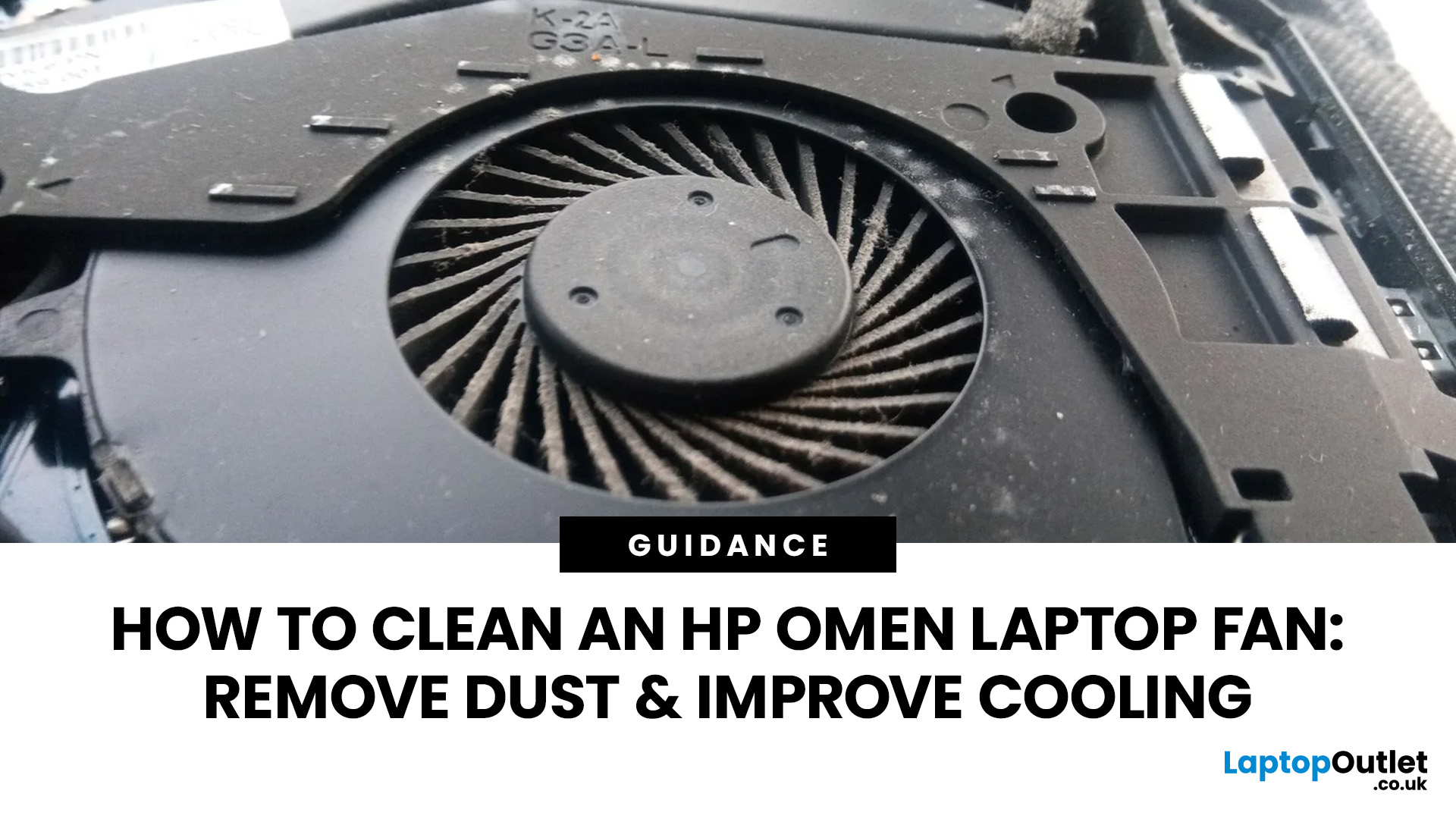
An HP OMEN laptop moves plenty of air during gaming and other demanding work. That airflow can draw dust, lint and pet hair towards its intake vents. As debris builds up, cooling may become louder, airflow can weaken and sustained performance can suffer.
The safest approach is to start with external cleaning. Only remove the bottom cover when deeper cleaning is necessary and you have checked the service instructions for your exact OMEN model. This guide covers both methods, essential safety precautions and post-cleaning checks.
Why HP OMEN Fan Cleaning Matters
Gaming laptops generate considerable heat because the processor and dedicated graphics chip can remain under heavy load for long periods. Their fans draw cooler air through the chassis and push warm air across the heatsink fins towards the exhausts.
Effective laptop fan dust removal prevents debris from reducing the space available for air to pass through. A thin layer of dust may only increase noise, while a compacted blockage can
Published: August 17, 2026
Dell laptops are built for everything from everyday study to demanding business workloads, but any device can develop faults over time. Common Dell laptop problems can involve slow performance, charging, overheating, displays, connectivity, or startup. The useful first step is not replacing parts at random, but identifying exactly what the laptop is doing. In this guide, you’ll learn how to recognise common symptoms, try safe, practical Dell laptop troubleshooting steps and decide when a repair or replacement makes practical sense.
What are the Most Common Dell Laptop Problems?
Slow Performance and System Lag
A Dell laptop may slow down because of too many startup apps, limited free storage, demanding background processes or outdated software. These Dell laptop issues often appear as slow boot times, freezing, or delayed app launches.
Battery Draining Too Quickly
Fast battery drain can result from high brightness, heavy workloads, background activity or an ageing battery. If runtime has

Published: August 18, 2026
Carrying a heavy laptop between home, work, university and client meetings can quickly become inconvenient. A slim laptop offers a more portable alternative, combining a thinner design with the performance needed for everyday computing, study, business and entertainment.
However, buyers should compare processor performance, RAM, screen quality, ports, cooling and upgradeability before choosing. The best lightweight laptop balances low weight with the features and power required for its intended daily use.
The right thin and light laptop reduces bag weight without losing key features, but performance, battery life and connectivity vary, so understanding the trade-offs is important before choosing.
Why Heavy Laptops Are Becoming a Dealbreaker
A larger,
Last Updated: August 24, 2026

