



How To Transfer Photos From Phone To Laptop
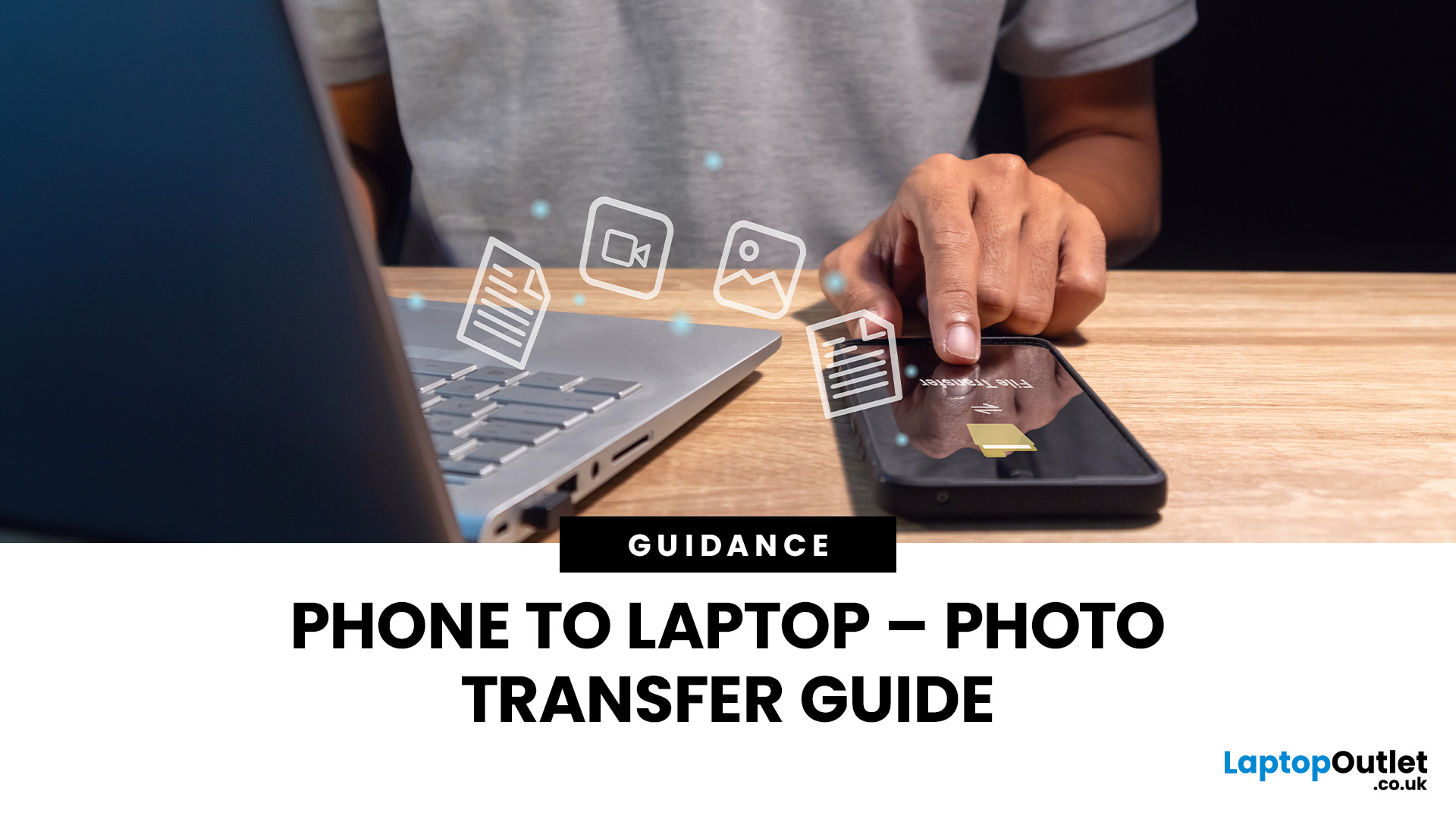
In an era dominated by digital photography, smartphones have become our go-to devices for capturing and storing precious moments. But mobile phones do not have enough space to keep these pictures for a longer run. Transferring these photos to a more secure and convenient platform, such as a laptop, is a common requirement. Whether you're looking to free up space on your phone, organise your photos on a larger screen, or create backups, transferring pictures from your phone to a laptop is essential. This comprehensive guide will explore various methods to accomplish this task seamlessly.
Using a USB Cable
A USB cable is one of the most straightforward methods to transfer photos from your mobile phone to a laptop. This method is widely applicable and works for both Android and iOS devices.
For Android Devices
- Connect your Android phone to your laptop using a USB cable.
- On your phone, enable the "File Transfer" or "Media Transfer Protocol (MTP)" mode.
- Open the file explorer on your laptop and locate your connected device.
- Navigate to your phone's DCIM folder (or the folder where your photos are stored).
- Select the photos you want to transfer and copy them to the desired folder on your laptop.
For iOS Devices:
- Connect your iPhone to your laptop using a USB cable.
- Trust the computer on your iPhone when prompted.
- Open the Photos app on your laptop (Windows) or Image Capture (Mac).
- Select the photos you want to transfer and import them to your laptop.
- Using Cloud Services:
Cloud services provide a convenient way to transfer photos wirelessly, offering seamless synchronisation between your phone and laptop.
Google Photos (For Android):
- Install the Google Photos app on your Android phone and sign in.
- Upload your photos to Google Photos.
- Open Google Photos on your laptop, and your photos will be available.
- iCloud (For iOS):
- Ensure iCloud Photos is enabled on your iPhone.
- Open iCloud on your laptop and sign in with the same Apple ID.
- Your photos will automatically sync, and you can access them on your laptop.
Wireless Transfer Apps:
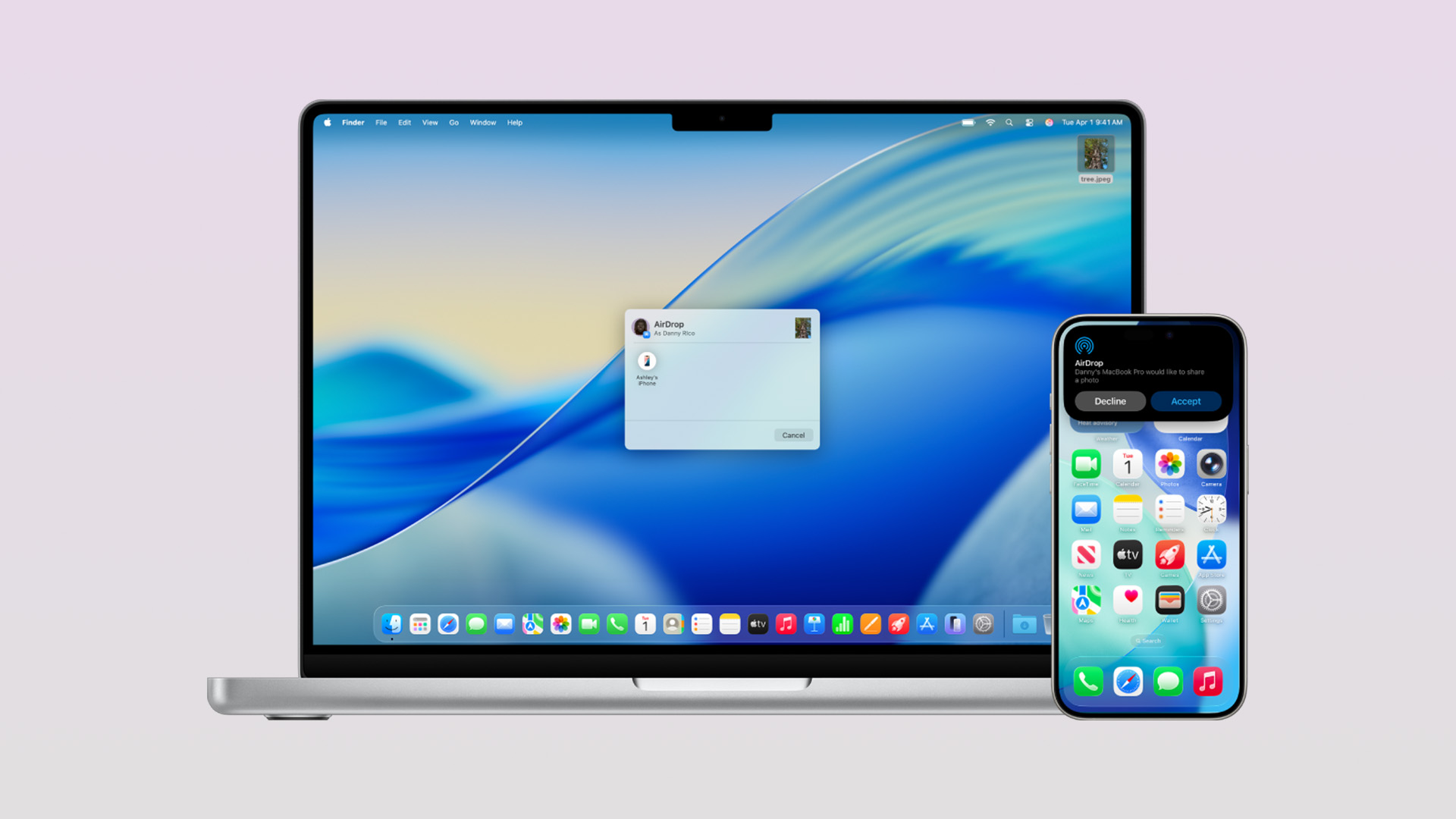
Several third-party apps facilitate wireless photo transfers between your phone and laptop.
AirDroid:
- Install AirDroid on your Android device and create an account.
- Connect your phone and laptop to the same Wi-Fi network.
- Use the AirDroid app to select and transfer photos wirelessly.
- PhotoSync (For iOS and Android):
- Install PhotoSync on both your phone and laptop.
- Follow the on-screen instructions to establish a connection.
- Transfer photos effortlessly between devices.
Email and Messaging Apps
For a quick transfer of a few photos, email and messaging apps can be surprisingly effective.
- Compose an email on your phone.
- Attach the photos you want to transfer.
- Send the email to yourself and open it on your laptop.
- Messaging Apps:
- Use messaging apps like WhatsApp or Telegram.
- Send the photos as attachments to yourself.
- Access the messages on your laptop to download the photos.
Using File Explorer or Finder:
A. For Android Devices:
Connect your Android phone to your laptop using a USB cable.
Open File Explorer on Windows or Finder on Mac.
Locate your connected Android device and navigate to the DCIM folder.
Drag and drop or copy-paste the selected photos to your laptop.
B. For iOS Devices:
Connect your iPhone to your laptop using a USB cable.
Open File Explorer on Windows or Finder on Mac.
Locate your connected iPhone and navigate to the Internal Storage > DCIM folder.
Drag and drop or copy-paste the selected photos to your laptop.
Using Bluetooth
A. For Android Devices:
Enable Bluetooth on both your Android phone and laptop.
Pair the devices and ensure they are connected.
Use your phone's Bluetooth File Transfer option to send photos.
Accept the incoming Bluetooth transfer on your laptop.
B. For iOS Devices:
Enable Bluetooth on both your iPhone and Mac.
Pair the devices and ensure they are connected.
Use the Bluetooth File Exchange option on your Mac to receive photos.
Accept the incoming Bluetooth transfer on your iPhone.
You Might Want to Know: How to transfer photos from Iphones to Laptop without USB
Using Third-Party Apps:
A. For Android Devices:
Explore third-party apps like "Send Anywhere" or "Zapya" on the Google Play Store.
Install the chosen app on both your Android phone and laptop.
Follow the app instructions to transfer photos wirelessly.
B. For iOS Devices:
Explore third-party apps like "PhotoSync" or "Instashare" on the App Store.
Install the chosen app on both your iPhone and laptop.
Follow the app instructions to transfer photos wirelessly.
Transferring Live Photos and Videos
A. For Android Devices:
Connect your Android phone to your laptop using a USB cable.
Manually navigate to the folder containing Live Photos or videos.
Copy and paste the Live Photos or videos to your laptop.
B. For iOS Devices:
Connect your iPhone to your laptop using a USB cable.
Open the Photos app on your Windows laptop or Image Capture on your Mac.
Select the Live Photos or videos and import them to your laptop.
Troubleshooting Common Transfer Issues
A. USB Connection Problems:
Ensure the USB cable is functional.
Try a different USB port on your laptop.
Restart both your phone and laptop.
B. Wireless Transfer Interruptions:
Check the Wi-Fi connection on both devices.
Ensure both devices are on the same network.
Restart the wireless transfer app or service.
C. File Compatibility Issues:
Verify that the file formats are supported on both devices.
Convert incompatible files using third-party apps if necessary.
Ensure there's enough storage space on both devices.
Data Security and Privacy Concerns

A. Cloud Service Encryption:
Check if the cloud service encrypts your photos during transfer.
Enable two-factor authentication for added security. 3. Review the privacy settings of your chosen cloud service.
B. Third-Party App Permissions:
Check and understand the permissions required by third-party transfer apps.
Only use reputable apps with positive user reviews.
Revoke unnecessary permissions after the transfer is complete.
Use Microsoft's Phone Link
A. For Android Devices:
Download and install the "Your Phone" app on your Android device from the Google Play Store.
Open the app and follow the setup process to link your Android phone to your windows laptop.
Once connected, navigate to the "Photos" section in the Your Phone app. 4. Select the photos you want to transfer and choose the "Copy to PC" option.
B. For iOS Devices:
Download and install the "Your Phone" app from the App Store on your iPhone.
Open the app and follow the setup process to link your iPhone to your windows laptop.
Due to restrictions on iOS, Microsoft's Phone Link primarily allows you to browse photos on your laptop rather than transfer them. Consider other methods for direct photo transfer.
This method is particularly effective for Android and Windows laptop users, providing a seamless integration between the two platforms. For iOS users, while the functionality is limited compared to Android, the "Your Phone" app still allows for convenient photo browsing directly from your laptop.
With the addition of the "Use Microsoft's Phone Link" method, the guide now covers various approaches, ensuring users can choose the most suitable method for their specific device combination and preferences.

Wrapping Up
In conclusion, transferring photos from your phone to a laptop is a task that can be accomplished through various methods, each offering its own set of advantages. Whether you prefer the simplicity of a USB cable, the convenience of cloud services, the flexibility of wireless transfer apps, or the quickness of email and messaging apps, the choice is yours. By understanding these methods, you can select the one that best fits your preferences and workflow, ensuring a seamless and efficient transfer of your cherished memories.

Frequently Asked Questions
Can I transfer photos wirelessly between my iPhone and a Windows laptop?
Yes, you can use wireless transfer apps like AirDroid or third-party cloud services like Google Drive to seamlessly transfer photos between an iPhone and a Windows laptop.
How do I transfer photos from my Samsung phone to a Mac?
You can use a USB cable to connect your Samsung phone to the Mac and transfer photos manually or utilise Samsung Cloud to sync and access your photos on your Mac.
Can I transfer photos from my Huawei phone to a Linux laptop?
Yes, you can transfer photos from your Huawei phone to a Linux laptop using a USB cable, wireless transfer apps, or by utilising cloud services like Huawei Cloud.
Can I transfer photos between different Android phones using wireless methods?
Yes, wireless transfer apps like Shareit, Xender, or Google Files allow you to transfer photos between different Android phones seamlessly without a cable.
How can I efficiently transfer large batches of photos from my iPhone to a Windows laptop?
Using a USB cable and iTunes on your windows laptop or utilising cloud services like iCloud or Google Photos are efficient methods to transfer large batches of photos from an iPhone to a Windows laptop.
What should I do if my phone or laptop does not recognise the connected device during a USB transfer?
Ensure that the USB cable is functional, both devices have USB debugging or file transfer modes enabled, and drivers are up to date. Try using a different USB port or cable if issues persist.
| Read More: |
| The Essential Role of Lenovo PCs in Photography and Design |
| How to transfer photos from iphone to laptop without usb |
| Best Monitor for Video and Photo Editing |
Related Articles

Last Updated: September 11, 2025

Last Updated: September 03, 2026
Whether you are a creative pro, a fresher in the multimedia industry, or a seasonal photographer, the right monitor can help you perfect your craft by displaying accurate colours and true-to-life visuals. When buying the best editing monitor, there are several factors and technical terms to remember. Besides colour accuracy, a high-resolution display lets you see images with more precise details, plus good ergonomics and plenty of USB ports also streamline your workflow.
Our Best Picks for Video and Photo Editing
1. MSI MAG 274QF – 27" Rapid IPS, Quad HD, 180Hz, 0.5ms
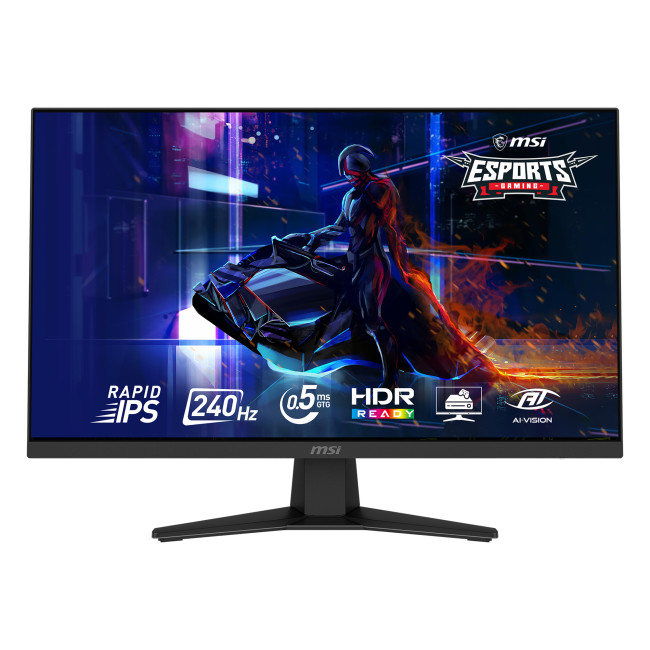
Technical Specifications
- Panel: Rapid IPS
- Resolution: 2560 × 1440 (QHD)
- Refresh rate: 180Hz
- Response time: 0.5ms (GtG)
- Brightness: 250–300 nits
- Ports: 2× HDMI 2.0, 1× DP 1.4, Headphone Out
- Adaptive Sync: Yes
- VESA mount: 100 × 100mm
The MSI MAG 274QF’s QHD IPS panel gives creatives excellent clarity and wide viewing angles, which is particularly useful for colour-sensitive editing work. While primarily aimed at
Last Updated: September 02, 2026
You might be looking to level up your design and photo editing skills. Well, worry not; we have got you covered!
The best laptops for photo editing provide the power to run editing software without struggling and provide high-resolution, colour-accurate displays to ensure you see your work as it looks.
Plenty of laptops meet this criterion, but you must consider your priorities, from portability to connectivity.
PC Lenovo play an essential role in shaping the world of photography and design, from capturing breathtaking moments to bringing artistic visions to life. Lenovo's innovative technology empowers photographers and designers to push the boundaries of creativity.
This blog will explore the role of Lenovo PCs in photography and design, exploring how these powerful tools enhance workflow, elevate visual experiences, and unlock new possibilities for creative expression.
Choosing a PC for Photo Editing
Choosing a PC for photo editing is essential for photographers,

Last Updated: October 02, 2025
Got iPhone Photos? Let’s Move Them
Snapped the perfect selfie? Captured your holiday vibes? Now you want to transfer those shots to your laptop—whether it’s for storage, editing, or sharing. We’ve got you covered with simple ways to transfer photos from iPhone to laptop—whether you’re using Windows or Mac.
How to Transfer Photos from iPhone to Windows Laptop
1. Using USB Cable & Photos App
- Connect your iPhone to your laptop using a Lightning to USB cable
- Unlock your iPhone and tap Trust when prompted
- Open the Photos app on your Windows laptop
- Click Import > From a USB device
- Select the photos you want and import
2. Using File Explorer (Manual Method)
- Plug in your iPhone and unlock it
- Open File Explorer > This PC > Apple iPhone
- Go to Internal Storage > DCIM
- Copy and paste photos to your laptop folder
3. Using iCloud Photos
- Enable iCloud Photos on your iPhone: Settings > Photos > iCloud Photos
- Visit iCloud.com and sign in
- Go to Photos, select images, and
Last Updated: September 11, 2025
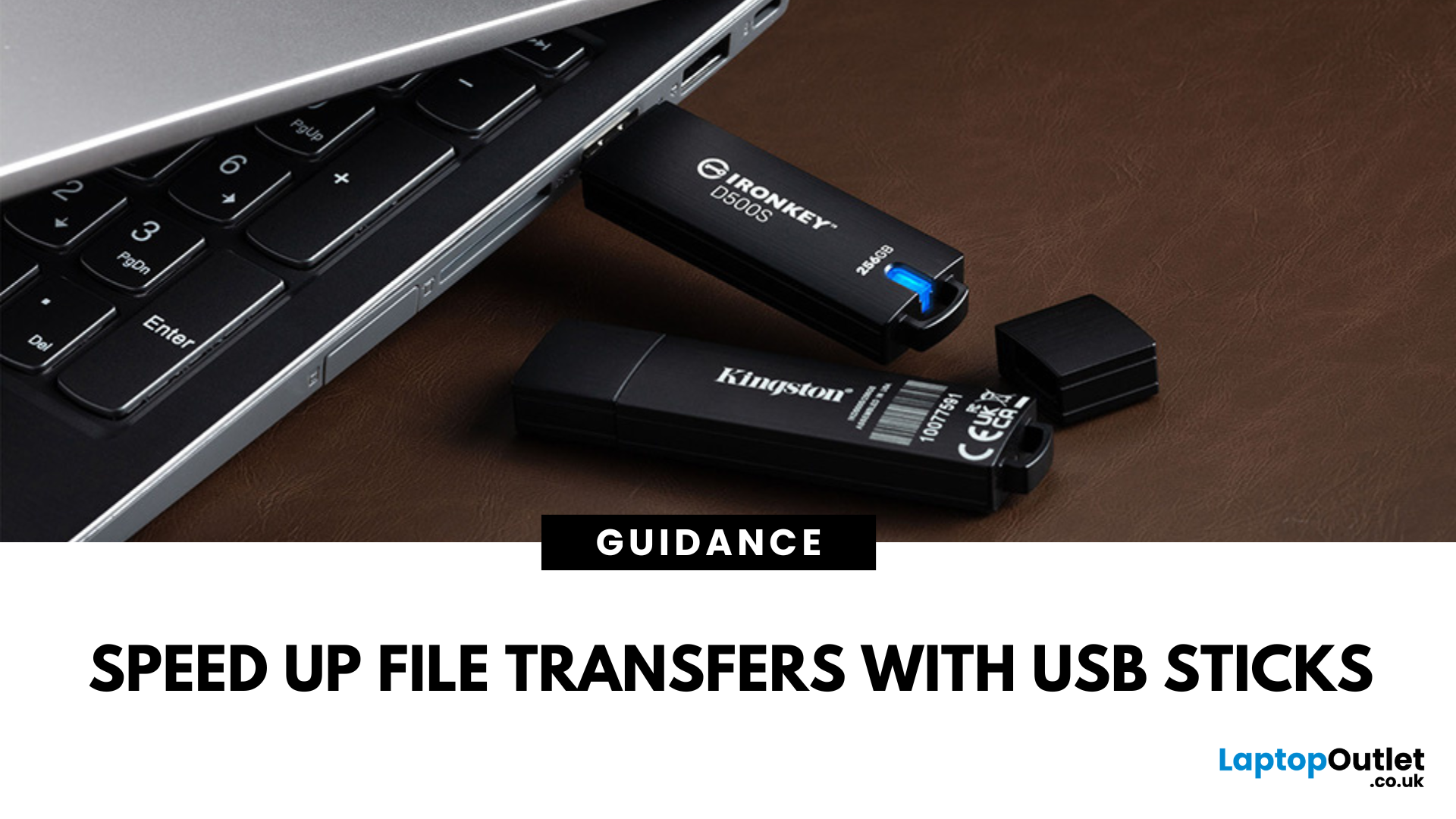
Speed Up File Transfers with USB Sticks
When transferring large files, you might have to wait a long time if you are not using the right tools. While cloud storage and network drives have their perks, USB sticks still remain the most popular, fastest, portable, and cost-effective tools to move data around. Using a reliable USB flash drive can help you conveniently transfer data between devices, saving you time, stress, and headaches. So, here’s how you can transfer large files quickly with USB drives.
-
Understanding USB Sticks:
USB sticks, also known as flash drives, are portable devices used to store and transfer data between devices. While these portable storage devices may be fast and efficient for data transfer, not all USB drives are created equal. Understanding the different types, formats, and speed ratings can help you choose the right stick for your specific requirements, especially when transferring large files.
USB Types – 2.0 vs. 3.0 vs. 3.2:
- USB 2.0 offers slower transfer speeds

