



Why Is My AMD Ryzen 5 Laptop Overheating? Quick 7 Fixes
AMD Ryzen 5 laptops can become warm during gaming, video editing, compiling code and other demanding tasks. That does not automatically mean the processor is overheating. The important question is whether the heat matches the workload and whether it causes instability or lost performance.
If you are dealing with an AMD Ryzen 5 heating issue, work through the problem methodically. The seven fixes below start with simple airflow and software checks before moving towards cooling-hardware inspection, so you can avoid unnecessary or risky changes.
What Causes an AMD Ryzen 5 Heating Problem?
AMD-powered laptops, including those with Ryzen 5 processors, can become too hot when they produce more heat than their cooling system can remove effectively.
Common causes include:
- Blocked air vents: Using a laptop on a bed, sofa, blanket or other soft surface can obstruct the vents it relies on for airflow.
- Dust build-up: Dust around vents, fans and heatsink fins can restrict the movement of cooling air.
- Demanding workloads: Gaming, video editing, rendering, compiling and other intensive tasks can keep the CPU or GPU working hard for extended periods.
- Background applications: An application running unexpectedly in the background can maintain high CPU utilisation even when you are not actively using it. AMD specifically recommends checking non-essential background applications when temperatures appear high at idle.
- Performance-focused settings: Higher-performance modes can increase processor activity and power consumption, which can also increase heat.
- High room temperatures: Warmer surrounding air gives the cooling system less thermal headroom.
- Outdated system software: BIOS, firmware or driver problems can sometimes affect power management or system behaviour.
- Cooling-system faults: A damaged fan, obstructed heatsink, poor heatsink contact or thermal-interface problem can reduce cooling effectiveness.
The processor itself should not automatically be blamed. Two laptops using similar Ryzen 5 processors can behave differently because chassis thickness, fan capacity, cooling design, configured processor power and GPU load all affect the thermal conditions inside the laptop.
How Hot Is Too Hot for an AMD Ryzen 5 Laptop?
There is no single maximum safe temperature that applies to all laptops with Ryzen 5 processors. The correct reference point is the maximum operating temperature, or Tjmax, published by AMD for the exact processor installed in your laptop.
For example, AMD lists a Tjmax of 95°C for the Ryzen 5 7530U, 100°C for the Ryzen 5 8645HS and 105°C for the Ryzen 5 5600H. This is why advice claiming that every Ryzen 5 processor becomes unsafe at one fixed temperature can be misleading.
|
Situation |
What It Means |
Recommended Response |
|
Brief temperature spike during demanding work |
Processor load can change quickly and produce short increases in temperature |
Monitor it rather than diagnosing a fault from a single reading |
|
Sustained high temperature during gaming or rendering |
The cooling system is dealing with a continuous heavy workload |
Compare the reading with the exact processor’s AMD specification |
|
Unusually high temperature during light use |
Background activity, restricted airflow or a cooling problem may be involved |
Check CPU usage, vents and fan behaviour |
|
Temperature repeatedly close to Tjmax |
The processor is operating near its specified thermal limit |
Investigate cooling and workload, particularly if performance also drops |
|
Throttling, instability or thermal shutdowns |
The system may be struggling to manage sustained heat |
Stop intensive workloads and work through the fixes below |
Check These Things Before Trying the 7 Fixes
Before changing settings or opening the laptop, confirm that you are dealing with genuine overheating rather than normal warmth under load.
- Identify the exact Ryzen 5 processor model. In Windows, you can check the processor under Settings > System > About, or use System Information or Task Manager. Microsoft confirms that Windows displays the installed processor under Device specifications.
- Find that exact processor on AMD’s official specifications page and note its Tjmax.
- Check CPU temperature while performing light everyday tasks.
- Compare it with temperatures during the workload that causes the laptop to become hot.
- Open Task Manager and look at CPU utilisation.
- Check whether the problem involves actual performance loss, freezes, shutdowns or simply a warm chassis.
- Listen for fans that sound unusually loud, grind, rattle or fail to increase speed when the laptop becomes hotter.
- Think about when the issue began. A sudden change after an update, new application or change in workload can provide an important clue.
For temperature readings, use your laptop’s supported monitoring or diagnostic software where available, or another reputable hardware-monitoring utility. Do not rely only on how hot the outer case feels.
7 Ways to Fix an AMD Ryzen 5 Laptop Overheating Issue
If you have confirmed an AMD Ryzen 5 heating issue, start with the simplest and lowest-risk fixes. Changing several things at once makes it harder to identify the cause, so apply one change, test the laptop under the same workload and then move on if necessary.
1. Improve Airflow Around the Laptop
Start with the surface underneath your laptop. A cooling system cannot work effectively if its intake vents cannot draw in enough air.
Use the laptop on a hard, flat surface such as a desk or table. Avoid beds, blankets, cushions, sofas and thick carpet, particularly if the machine has intake vents underneath.
Check the following:
- Keep air vents clear while the laptop is running.
- Leave space around rear and side exhaust vents.
- Do not place objects directly against an exhaust.
- If your laptop draws air through its base, slightly raising the rear may improve access to the intake, provided the laptop remains stable.
- Avoid using the laptop in enclosed spaces where hot exhaust air can immediately circulate back towards the intake.
Better airflow does not reduce how much work the CPU performs, but it helps the laptop’s cooling system remove the heat that workload creates.
2. Clean Dust from the Vents and Cooling System
If airflow used to be better and temperatures have gradually increased, check for dust build-up.
Shut the laptop down completely and disconnect it from power before cleaning. Inspect the external intake and exhaust vents for visible dust or debris and follow the cleaning instructions provided for your particular laptop.
Dust can also accumulate deeper inside the system around the laptop cooling fans and the heatsink. Removing this may require access to the laptop’s internal components.
Important: Do not dismantle the laptop unless you are confident doing so and the manufacturer’s service guidance allows it. Opening the chassis incorrectly can damage clips, cables, screws or components and may affect warranty or service arrangements.
If the vents appear heavily obstructed but the cooling assembly is difficult to reach, professional cleaning is safer than experimenting with unfamiliar internal components.
3. Find and Close CPU-Heavy Background Processes
A laptop that becomes hot while you are barely using it may not actually be idle. An application or service could still be keeping the processor busy.
Microsoft describes Task Manager as a tool for viewing running applications and monitoring resource consumption, including CPU load.
To check:
- Press Ctrl + Shift + Esc to open Task Manager.
- Select Processes.
- Click the CPU column to sort applications by processor usage.
- Look for applications consistently using significant CPU resources when you are not actively using them.
- Close unnecessary applications normally where possible.
- Review the Startup apps section if unnecessary programmes repeatedly launch when Windows starts.
Microsoft also recommends reviewing resource-heavy processes and disabling unnecessary startup or background applications when troubleshooting Windows performance.
Common examples can include large numbers of browser tabs, game launchers, cloud-sync tools, software updates, video encoding and background utilities. However, high CPU use does not automatically mean a process is faulty. Make sure you know what an application does before disabling or removing it.
4. Use a Less Aggressive Power or Performance Mode
Higher performance usually requires more electrical power, and more processor power can produce more heat that the cooling system must dissipate.
In Windows 11, go to:
Settings > System > Power & battery > Power mode
Depending on your system, available options can include Best power efficiency, Balanced and Best performance. Microsoft states that Best power efficiency reduces power consumption by limiting background activity, while Best performance maximises performance and may cause a laptop to run warmer.
For normal browsing, office work or streaming, try Balanced or a power-efficient mode rather than running at maximum performance unnecessarily.
Some laptops also provide manufacturer-defined quiet, balanced and performance profiles. These can change processor behaviour and fan response, so check that the machine is not permanently set to its most aggressive performance profile.
For gaming laptops with Ryzen 5, it is also helpful to:
- Cap unnecessarily high frame rates.
- Reduce particularly demanding graphics settings when maximum visual quality is not required.
- Close unrelated CPU-heavy applications while playing.
The aim is not to cripple performance. It is to avoid generating extra heat for performance you are not actually using.
5. Update Windows, BIOS, Firmware and the Correct Drivers
If the heating problem appeared after software changes, or the laptop has not been updated for some time, check its system software.
Work through:
- Windows Update
- BIOS or UEFI updates
- Chipset or platform drivers
- Graphics drivers
- Manufacturer-provided firmware and system-management updates
For a laptop, start with the support page for the exact laptop model. AMD specifically recommends OEM-provided drivers for laptops because manufacturers customise and validate them for system-specific features and optimisations.
Microsoft also advises using Windows Update for many hardware drivers and downloading manual drivers from the device manufacturer’s official website when necessary.
An update is not guaranteed to lower temperatures, so do not treat this as a magic cooling fix. It is useful because firmware, drivers and operating-system updates can affect power management, hardware compatibility and overall system behaviour.
Take extra care with a BIOS update. Use the file intended for your exact laptop model, follow the manufacturer’s instructions precisely and keep the laptop connected to reliable power during the process.
6. Improve External Cooling
If your laptop stays within specification but runs hot during long gaming, rendering or content-creation sessions, improving external airflow can give the cooling system a better environment to work in.
Cooling accessories for laptops, such as a cooling pad or cooling stand, can raise the machine away from the desk and may improve airflow around bottom-mounted intakes. Results vary because vent positions and internal cooling layouts differ between laptops.
A cooling pad makes the most sense when:
- You regularly play games for long periods.
- You perform sustained rendering or creative workloads.
- Your laptop has a significant air intake on its underside.
Choose a stand or pad that does not obstruct existing vents.
Most importantly, external cooling should not be treated as a cure for a failed fan, blocked heatsink or damaged cooling assembly. If the laptop has an underlying hardware problem, address that problem rather than trying to compensate for it with more external airflow.
7. Have the Internal Cooling System Inspected
If the previous fixes make little difference, the problem may be inside the laptop.
Potential causes include:
- A failing or damaged cooling fan
- Dust packed into internal heatsink fins
- A damaged heatpipe or cooling assembly
- Poor contact between the processor and heatsink
- Deteriorated or incorrectly applied thermal paste or other thermal-interface material
AMD identifies the heatsink and thermal paste as parts of the cooling solution that need to be correctly fitted and working when investigating CPU temperature problems.
Replacing thermal paste should not be the first response to every hot laptop. Accessing the cooling assembly can involve removing the base cover, battery connections, fan cables, heatsink screws and thermal materials used on other components.
Consider a professional inspection if the laptop still throttles after basic troubleshooting, its fan grinds or rattles, a fan appears not to operate, temperatures rise unusually quickly, or the system repeatedly becomes unstable under normal workloads.
An experienced technician can determine whether cleaning, fan replacement, heatsink servicing or new thermal-interface material is actually required.
Which Fix Should You Try First?
There is no need to perform all seven fixes automatically. Start with the symptom that most closely matches what your laptop is doing.
|
Symptom |
Start With |
|
Laptop becomes very hot when used on a bed or sofa |
Fix 1: Improve airflow |
|
Fans are constantly loud and vents appear dusty |
Fix 2: Clean vents and cooling areas |
|
Laptop is hot when apparently doing very little |
Fix 3: Check CPU usage |
|
Heat is noticeably worse in a performance profile |
Fix 4: Adjust power settings |
|
Heating started around software or firmware changes |
Fix 5: Check updates and drivers |
|
Temperatures mainly rise during long demanding workloads |
Fix 6: Improve external cooling |
|
Fan grinds, the laptop shuts down or throttling continues |
Fix 7: Have the cooling system inspected |
Retest the laptop after each meaningful change. Where possible, use the same game, application or workload for comparison so you can tell whether the change actually helped.
When Should You Stop Troubleshooting and Get the Laptop Repaired?
Stop pushing the laptop with demanding workloads when there are signs that the problem goes beyond ordinary operating heat.
Arrange professional diagnosis if you notice:
- Repeated unexpected shutdowns during normal or demanding use.
- Persistent thermal throttling that noticeably reduces performance.
- A fan failure, or a fan that does not appear to run when the system becomes hot.
- Grinding, rattling or scraping noises from the cooling system.
- A burning smell or signs of heat-related physical damage.
- Very high temperatures during light workloads even after checking background processes and airflow.
- Heating problems following liquid or physical damage.
- A visibly swollen battery or a chassis that is being pushed apart.
Battery swelling deserves separate attention and should not be treated simply as a processor-temperature problem. Microsoft advises stopping use immediately if a battery expands beyond the device’s mechanical enclosure.
Avoid repeatedly stress-testing a machine that is shutting down, smells burnt or shows physical battery deformation. At that stage, diagnosis and repair are more appropriate than further performance testing.

How to Reduce the Risk of Ryzen 5 Laptop Overheating
Once your AMD Ryzen 5 temperature is under control, a few simple habits can help prevent the problem from returning:
- Keep intake and exhaust vents unobstructed.
- Avoid routinely using the laptop on beds, blankets and other soft surfaces.
- Check for unnecessary background applications when the laptop seems unusually busy.
- Use maximum-performance modes when you actually need the extra performance.
- Keep Windows, firmware and appropriate device drivers up to date.
- Avoid trapping the laptop in poorly ventilated spaces during demanding workloads.
- Inspect accessible vents periodically for visible dust.
- Pay attention to significant changes in fan noise, performance and temperature behaviour.
A gradual change is often easier to troubleshoot than a major failure. If a laptop that was previously quiet during everyday work suddenly runs its fans continuously, check what has changed rather than assuming that new behaviour is normal.

A Cooler Ryzen 5 Laptop Starts With the Right Fix
An AMD Ryzen 5 heating issue does not automatically mean the processor is faulty. Airflow, dust, sustained workloads, background activity, power settings and the laptop’s cooling hardware can all influence how much heat you see and how effectively the system removes it.
Start with the low-risk checks: improve airflow, review CPU usage and use an appropriate power mode. If the problem continues, move on to updates and cooling-system inspection. Most importantly, compare temperatures with your exact Ryzen 5 model’s Tjmax rather than relying on one generic limit.

A Few More Things to Know...
Why is my AMD Ryzen 5 laptop overheating?
An AMD Ryzen 5 heating issue can result from blocked airflow, dust, heavy CPU or GPU workloads, background processes, aggressive power settings, outdated software, or a fault in the cooling system.
Is overheating normal in AMD Ryzen 5 laptops?
Some heat is normal, especially during gaming, rendering or other demanding workloads. It becomes concerning when temperatures remain unusually high, performance throttles, fans behave abnormally, or the laptop becomes unstable or shuts down.
What temperature is too hot for a Ryzen 5 laptop?
There is no universal cut-off. Check AMD’s Tjmax specification for your exact processor. Ryzen 5 models differ, so sustained temperatures near that limit, especially with throttling or instability, deserve investigation.
Can overheating damage my AMD Ryzen 5 laptop?
Persistent excessive heat can increase thermal stress and may lead to throttling, instability or shutdowns. Modern processors manage temperature automatically, but repeated overheating still warrants investigation to protect performance and surrounding components.
How do I stop my Ryzen 5 laptop from overheating?
Use the laptop on a hard surface, clear blocked vents, check CPU-heavy background tasks and choose a suitable power mode. If temperatures remain high, update software and have the cooling system inspected.
| Read More: |
| Best AMD Ryzen 5 Laptops in 2026: Top 10 Picks for Every Budget |
| Why Your Laptop Is Overheating (How to Fix it Fast) |
| Lenovo Gaming Laptop Overheating? Fixes & Cooling Tips to Reduce Heat |
Related Articles

Published: October 08, 2025
The battle between Intel and AMD has shaped the laptop world for decades. With the release of Intel Core Ultra processors and the new AMD Ryzen Z2 series, that rivalry has entered a new phase - one defined not just by raw speed, but also by AI integration, efficiency, and Windows 11 optimisation.
Intel’s Core Ultra chips (available in Core Ultra 5, 7, and 9 tiers) mark a major shift in design, blending performance and efficiency cores with a dedicated AI NPU (Neural Processing Unit). Meanwhile, AMD’s Ryzen Z2 processors are raising eyebrows with their RDNA 3.5 graphics and strong balance between performance and battery efficiency.
So, which one is better for you? In this guide, we’ll break down the Intel vs AMD Windows 11 laptops debate, comparing performance, AI features, battery life, and creative workloads. Whether you’re a student, gamer, or professional, by the end you’ll know which processor suits your needs.
Intel Core Ultra – What’s New?
Intel’s Core Ultra range is its most significant

Last Updated: December 30, 2025
If your current rig is starting to stutter or you are simply ready to jump into the next generation of visual fidelity, there is no better time to act. The New Year graphics card deals are finally here.
Whether you are a competitive esports player, a 4K gaming enthusiast, or a professional video editor, the right GPU is the heart of your system. This year, we are seeing incredible NVIDIA GPU discounts and an extensive AMD Radeon sale New Year event.
In this guide, we will explore the best graphics cards for gaming and work, ensuring you find the perfect match for your monitor and your budget.
Top New Year Graphics Card Deals for 2026
We have hand-picked eight of the most impressive NVIDIA RTX GPUs and AMD Radeon GPUs currently available. Let’s explore the right card for your setup.
1. MSI GeForce RTX 5060 GAMING 8GB OC Graphics Card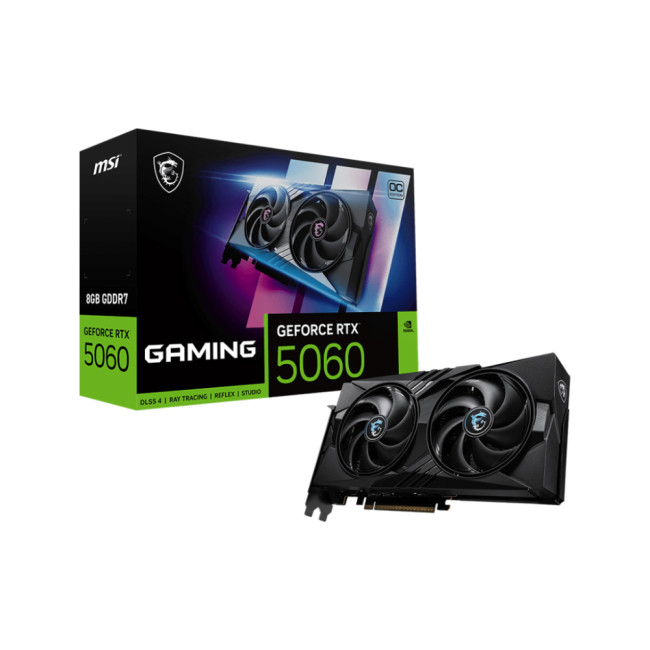
Key Specifications
- GPU: NVIDIA GeForce RTX 5060 (Blackwell Architecture)
- Memory: 8GB GDDR7
- Memory Speed: 28 Gbps
- Memory Interface: 128 bit
- Core

Last Updated: January 14, 2026
From smooth 1080p gameplay to breathtaking 4K visuals, AMD graphics cards put serious gaming power right at your fingertips. You want smooth gameplay, great visuals, and good value for money, without paying more than you need to. That’s exactly where AMD graphics cards come into the picture.
AMD has become one of the most popular choices for gamers in the UK thanks to its strong performance, competitive pricing, and wide range of options for every type of player. Whether you’re after the best AMD graphics cards for high-end gaming, searching for cheap AMD graphics cards to get started, or are curious about the new AMD graphics cards hitting the market, this guide is here to help.
Why AMD Graphics Cards are a Smart Choice for Gamers
AMD has earned a strong reputation among PC gamers by offering powerful GPUs at competitive prices. If you want excellent gaming performance without overspending, AMD often delivers some of the best value on the market.
Great Performance for the Price
One
Published: January 13, 2026
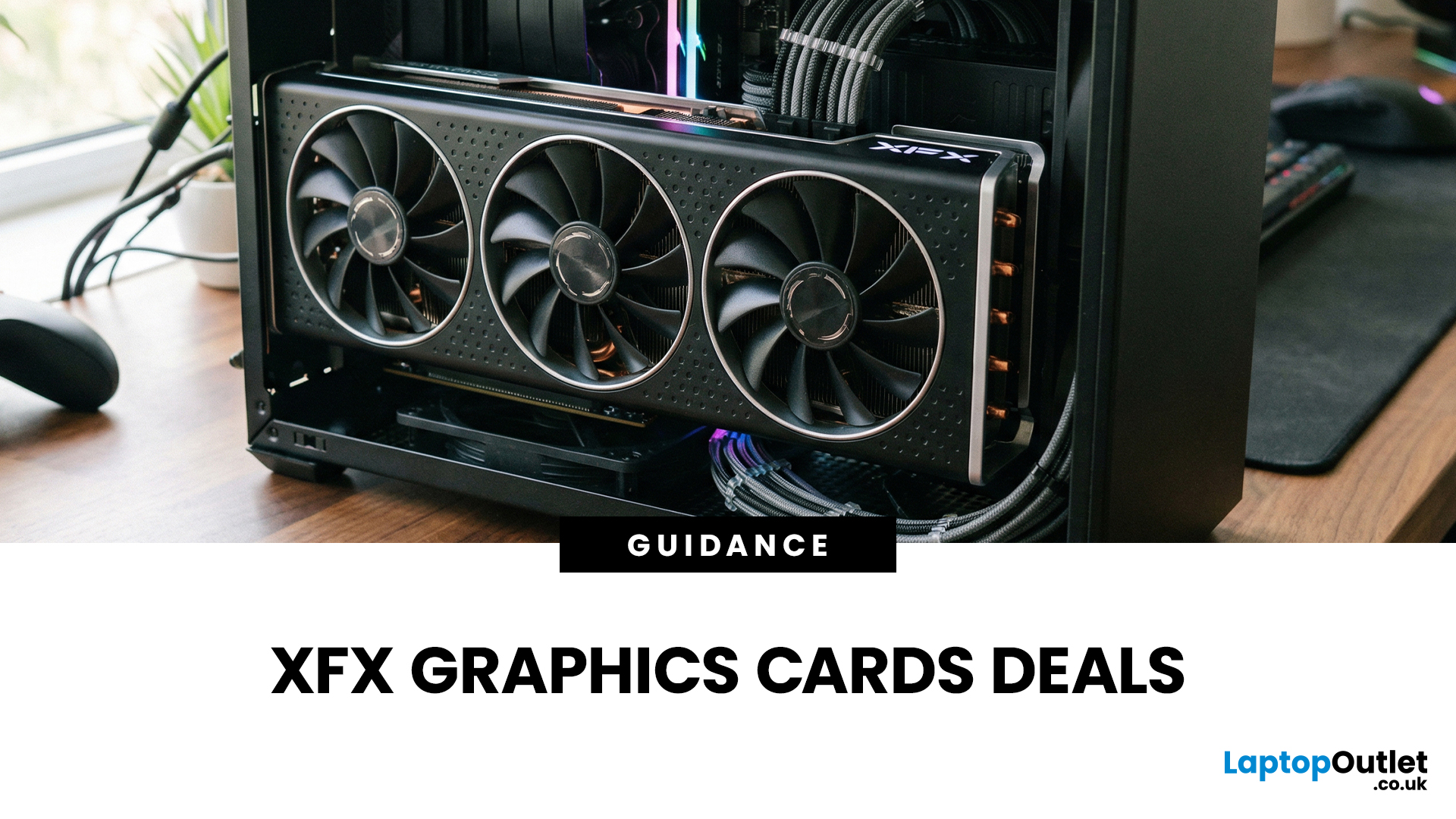
Choosing the right graphics card is one of the most important decisions when building or upgrading a gaming PC, and XFX graphics cards UK gamers trust continue to stand out for performance, reliability and value. As one of AMD’s most established board partners, XFX focuses exclusively on Radeon GPUs, delivering powerful gaming performance at highly competitive prices. We offer a wide range of XFX graphics cards deals, making it easier for you to access cutting-edge AMD technology without overspending. Whether you’re upgrading an older system, building a new gaming rig or searching for better value than current NVIDIA options, XFX delivers a compelling alternative. This guide explores everything you need to know about XFX GPUs, including performance, pricing, comparisons, and how to find the best XFX GPU deals UK buyers can rely on.
Why XFX Graphics Cards Are a Trusted Choice for AMD Gamers
XFX has built a strong reputation by focusing entirely on AMD hardware. Unlike brands that split
Last Updated: January 27, 2026
Over the past decade, AMD has transformed from an underdog in the CPU market to a dominant force in gaming PCs.
With its Ryzen series, AMD has consistently delivered processors that combine high performance, competitive pricing, and innovative features. For UK gamers, this has meant more choice, better value, and the ability to build powerful rigs without overspending.
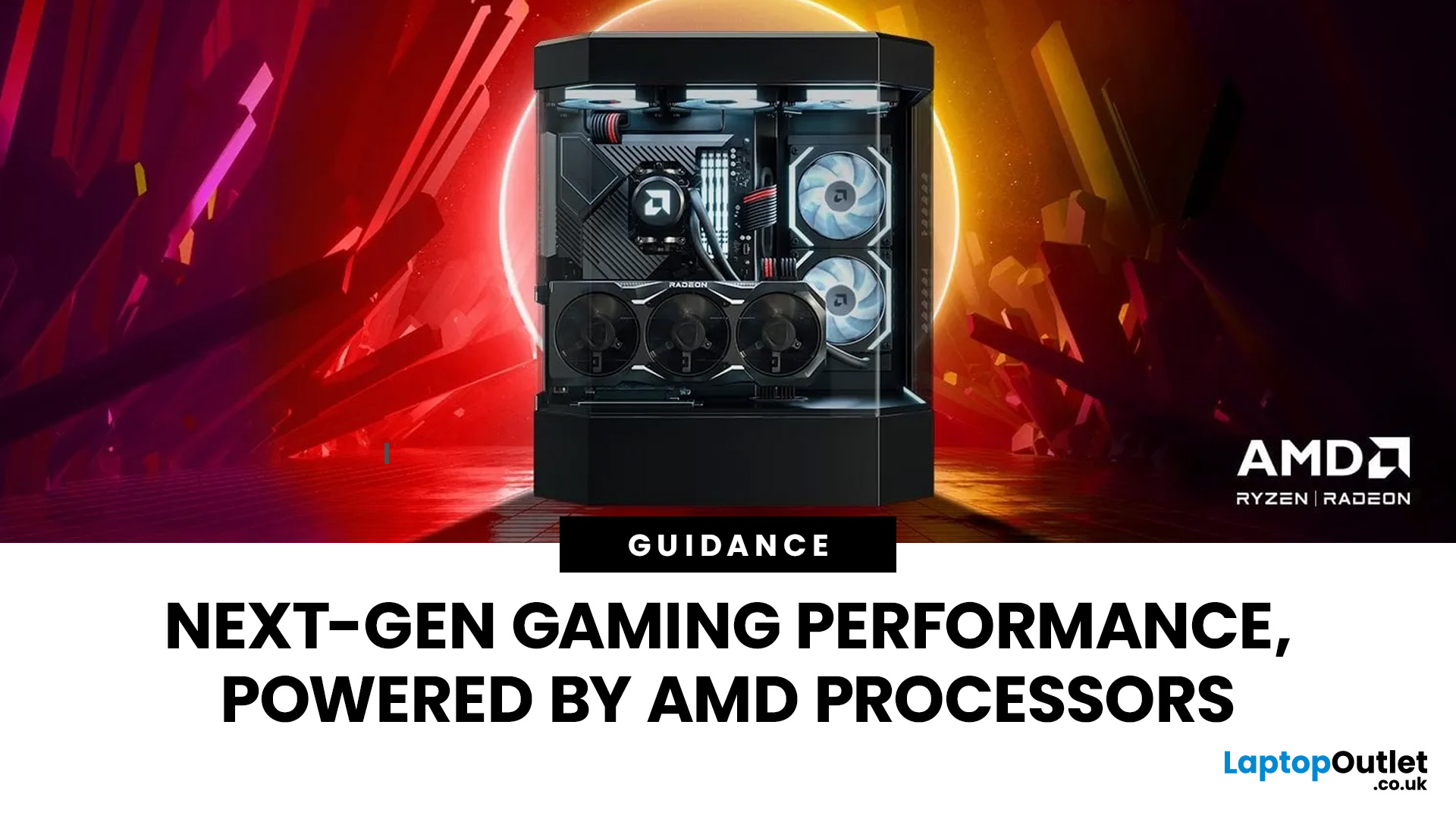
In this guide, we’ll explore exactly how AMD processors work in gaming PCs, the key features that make them stand out, and the benefits they bring to gamers.
Understanding AMD Processors in Gaming PCs
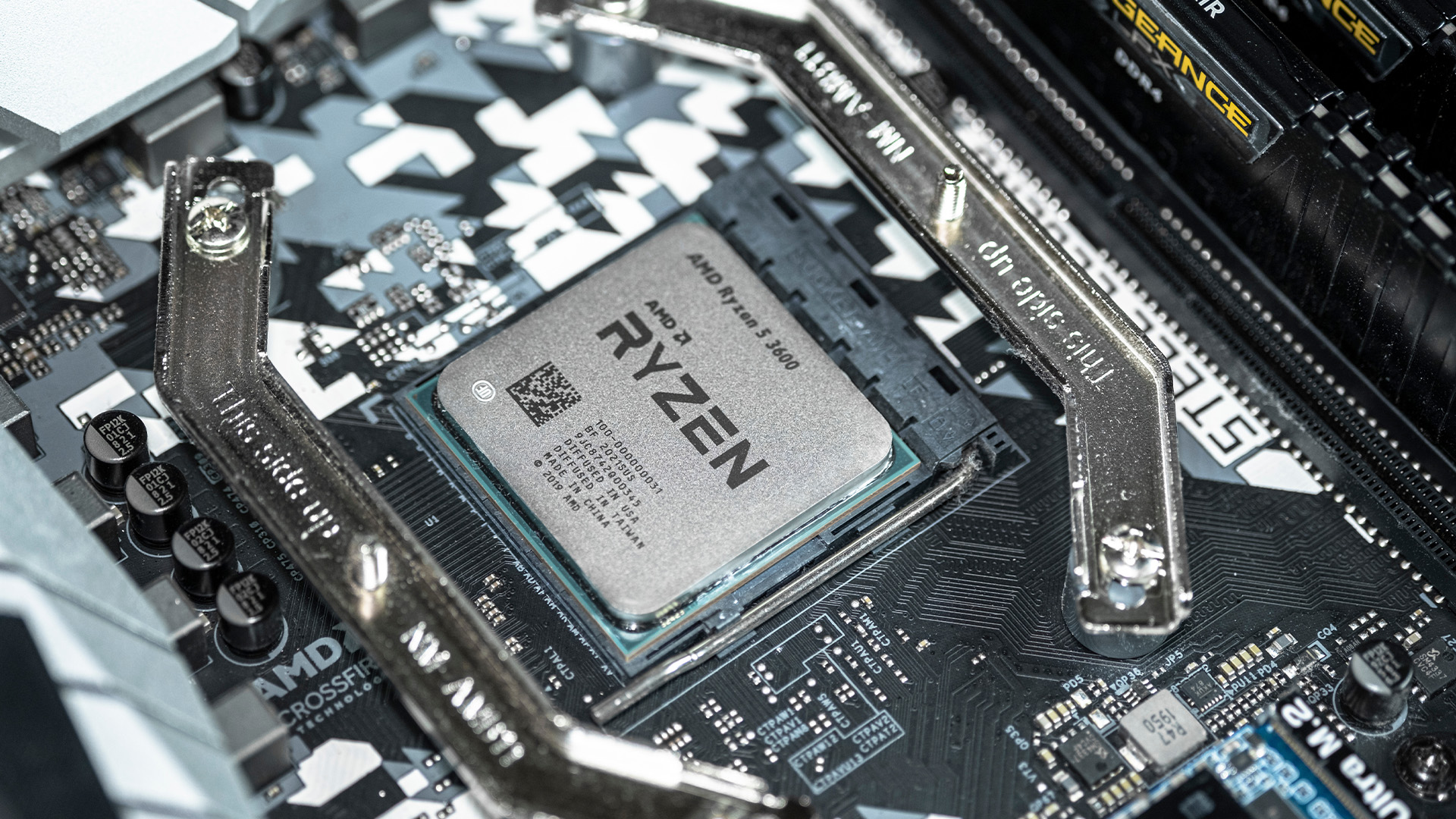
In any gaming setup, the Central Processing Unit (CPU) acts as the primary coordinator. It handles complex AI logic, processes game physics, and manages all background system tasks while your graphics card renders the visuals.
AMD has revolutionised this space by moving away from traditional "monolithic" chip designs where everything is on one piece of silicon. Instead, the modern AMD CPU architecture uses a modular

Last Updated: January 27, 2026
Building or buying a high-end gaming PC is an exciting journey for any enthusiast. The market moves fast, and staying updated on the latest hardware is essential for the best experience.
In this gaming desktop PC breakdown, we will explore the core parts that make a machine powerful. We will look at the latest processors from AMD and Intel, the incredible graphics power of NVIDIA RTX and Radeon RX, alongside other core components.
Whether you want to play the newest AAA titles or compete in esports, understanding these parts is vital. Let us dive into the modern world of gaming PC technologies.
Understanding Gaming Desktop PCs
A gaming desktop PC is a high-performance computer designed specifically to handle demanding video games. Unlike standard PCs, these machines focus on graphical power and fast processing speeds. They use specialised parts that can handle high heat and heavy workloads.
While gaming laptops and consoles are popular, the desktop remains the "gold standard" for several

Last Updated: February 03, 2026
Choosing a new processor used to be a simple choice between raw power and budget value. However, as we move through 2026, the landscape has shifted.
The rivalry of Intel vs AMD desktop processors has reached a fever pitch, with both "Team Blue" and "Team Red" offering incredible technology that caters to very specific types of users.
This guide breaks down everything you need to know about the current market to help you decide which brand deserves a spot in your desktop PC.
The State of the Market in 2026
As we move through 2026, both manufacturers have moved beyond simple core-count wars.
Intel has doubled down on its "Arrow Lake" and "Nova Lake" architectures, focusing heavily on integrated AI NPUs (Neural Processing Units) and a refined tiled architecture.
Meanwhile, AMD continues to dominate the enthusiast market with its Zen 5 architecture, led by the legendary 3D V-Cache technology.
Intel’s Current Strategy: The AI PC Era
Intel has successfully transitioned to its LGA 1851 socket.

Last Updated: April 07, 2026
Buying an AI laptop in 2026 should be a quick decision. You pick a size, set a budget, and choose the “best” chip, right? In reality, the AI label is doing far too much work. Two laptops can sit side by side, both advertised as “AI-powered”, yet behave completely differently once you start writing documents, editing photos, joining video calls, or trying the latest Windows features.
That confusion usually comes down to one thing: people treat “AI laptop” as a single spec, when it’s really a mix of three engines working together.
- CPU: the general performance engine for everything you already do
- GPU: the visual and creative engine, also used for some AI workloads
- NPU: the efficiency engine for AI tasks that are built to run locally
This guide compares the 3 platforms shoppers are most likely to cross-shop when searching for an AI laptop today: Intel Core Ultra 200V (Lunar Lake), AMD Ryzen AI 300 (XDNA 2), and Qualcomm Snapdragon X Elite. We’ll keep it practical, explain the specs, and help
Last Updated: July 09, 2026
Choosing a laptop CPU should not feel like decoding a boss fight.
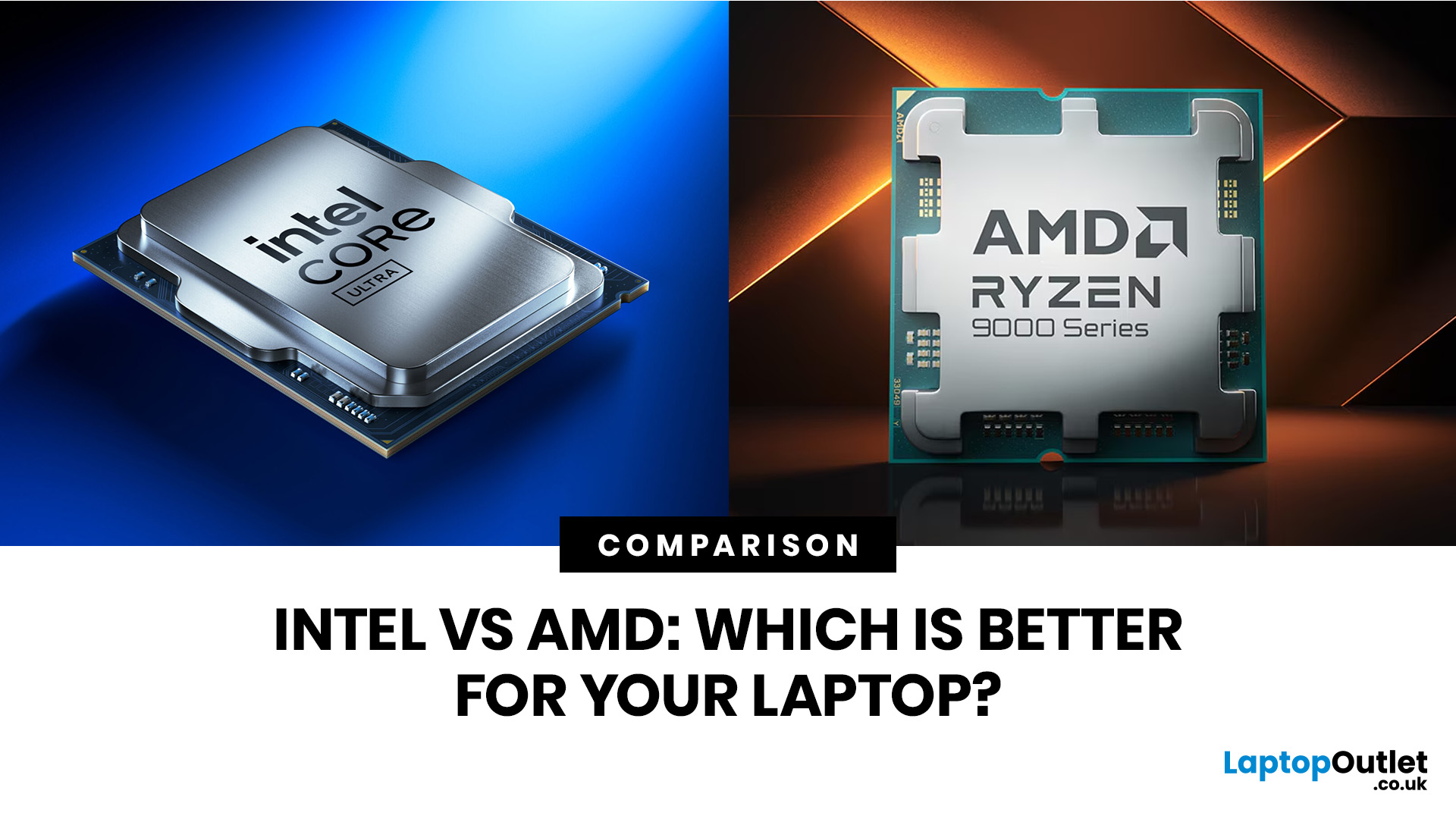
You open five tabs, see terms like Core Ultra, Ryzen AI, Core i7, Ryzen 7, NPU TOPS, HX, U-series, integrated graphics, and suddenly the simple question - AMD or Intel for laptop? - becomes way more stressful than it should be.
This guide breaks down the Intel vs AMD laptop 2026 debate in plain English. You will learn how AMD Ryzen vs Intel laptop performance compares, which processor types in laptops actually matter, when Intel is the smarter buy, when Ryzen gives better value, and which in-stock Laptop Outlet models are
Last Updated: July 14, 2026
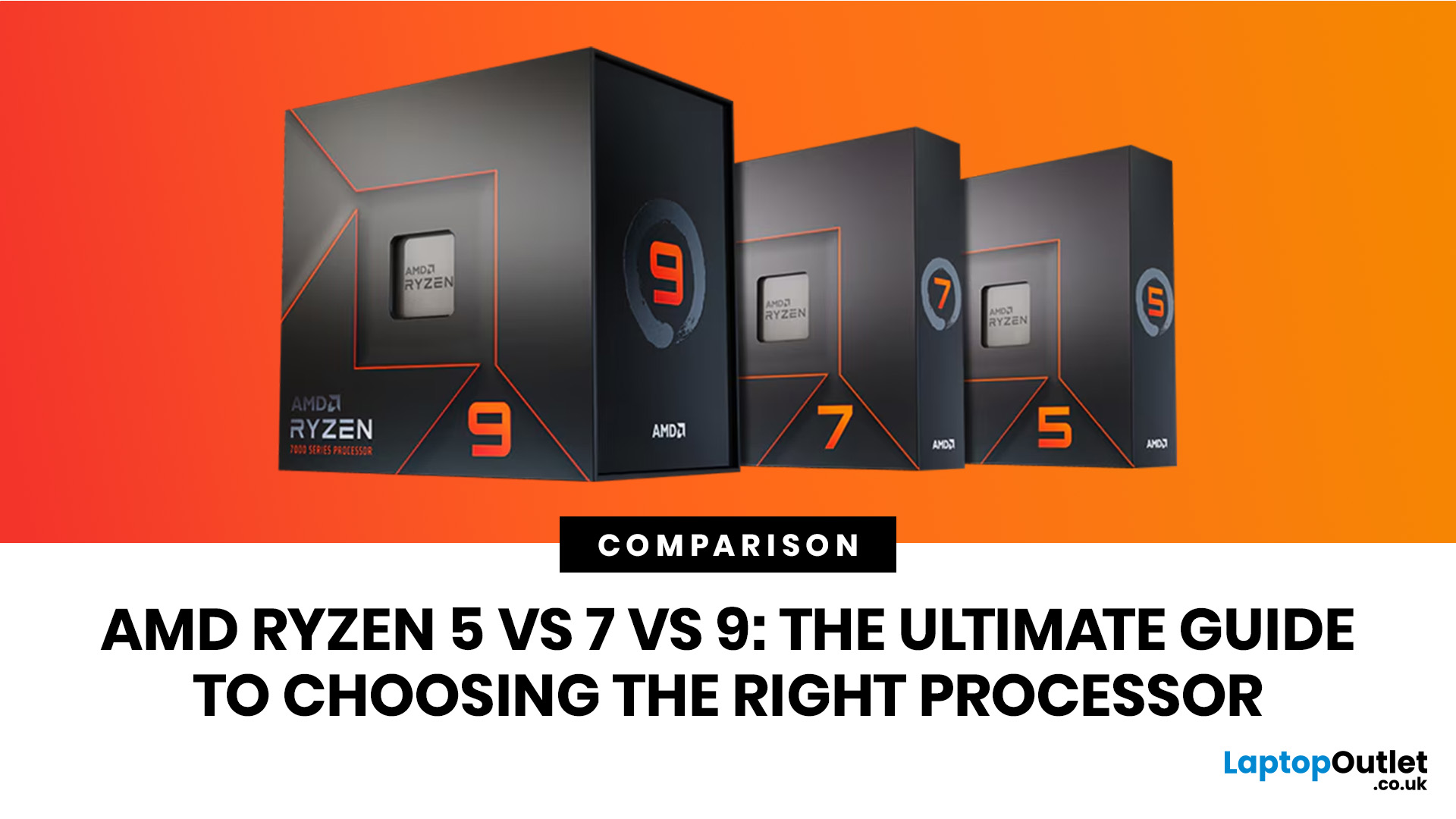
Ryzen 5 processors suit everyday use, budget gaming, and light multitasking. Ryzen 7 processors are better for 1080p and 1440p gaming, streaming, and moderate content creation. Ryzen 9 processors are good for heavy workloads like 4K video editing and 3D rendering. For most laptop buyers in 2026, a Ryzen 7 hits the sweet spot between performance and value.
This guide cuts through the noise and gives you a clear AMD Ryzen 5 vs 7 vs 9 comparison, so you can make a confident decision before you spend a penny.
What Is AMD Ryzen? Explained
AMD Ryzen is AMD’s mainstream family of computer processors. Ryzen CPUs power everything from affordable student laptops to high-end gaming PCs and professional workstation systems.
The number after “Ryzen” tells you the performance tier:
- Ryzen 5: Mainstream performance for everyday use, productivity and value gaming.
- Ryzen 7: Higher performance for gaming, creative work and heavier multi-tasking.
- Ryzen 9: Premium performance for professional workloads,

