



Why Your Home Printer Isn’t Working: Common Issues & Fixes
Your document is ready, your deadline is real, and your printer has chosen chaos.
When your home printer is not working, even a simple print job can turn into a frustrating delay. From offline errors and paper jams to driver issues and connection problems, most home printer problems have quick fixes once you know where to look.
This guide explains the common causes and practical steps to get your printer working again.
Why Is My Home Printer Not Working? The Direct Answer
A home printer is not working usually because of one of these issues:
|
PROBLEM |
MOST LIKELY CAUSE |
QUICK FIX |
|---|---|---|
|
Printer says offline |
Wi-Fi, USB, or default printer issue |
Restart printer, check connection, set as default |
|
Printer not printing |
Stuck print queue or driver issue |
Clear queue and restart spooler |
|
Blank pages |
Empty ink, clogged printhead, wrong settings |
Check cartridges and run cleaning cycle |
|
Paper jam |
Misaligned paper or debris inside printer |
Remove paper carefully and reload correctly |
|
Smudged printing |
Wet ink, wrong paper type, dirty rollers |
Use correct paper and clean printhead |
|
Slow printing |
High-quality mode, Wi-Fi weakness, large files |
Use standard mode or connect via USB/Ethernet |
|
Printer not found |
Network or driver discovery issue |
Reconnect to Wi-Fi and update drivers |
Microsoft’s Windows support recommends using the built-in printer troubleshooter for offline and connection problems, especially on Windows 11, because it can automatically detect and attempt fixes for common printing issues.
If your printer keeps causing the same issues, it may be worth checking a complete guide to home printers in 2026 before choosing your next model.
Start Here: The 5-Minute Home Printer Troubleshooting Checklist
Before you go into full detective mode, run through this quick checklist. It fixes a surprising number of common home printer issues.
1. Restart Everything
Yes, it sounds basic. Yes, it works.
Turn off:
- Your printer
- Your laptop or desktop
- Your Wi-Fi router, if it’s a wireless printer
Wait around 30 seconds, then turn them back on in this order:
- Router
- Printer
- Computer
This clears temporary connection bugs, stuck printer states, and minor network glitches.
2. Check the Printer Display
Look for messages like:
- Paper jam
- Low ink or toner
- Cover open
- Cartridge not recognised
- Offline
- Replace drum
- Wi-Fi disconnected
- Error code
Don’t ignore the tiny display. It is basically your printer’s dramatic little confession box.
3. Check Paper, Ink, and Toner
Make sure:
- Paper is loaded straight
- The paper tray is not overfilled
- Ink or toner is not empty
- Cartridges are seated correctly
- Protective tape has been removed from new cartridges
- You’re using compatible paper
A printer can appear “broken” simply because one cartridge is not clicked in properly.
4. Check the Print Queue
A stuck print job can block every new document.
On Windows:
- Go to Settings
- Select Bluetooth & devices
- Choose Printers & scanners
- Select your printer
- Open the print queue
- Cancel stuck jobs
Microsoft lists stuck print queues, printer spooler problems, and connection failures among common Windows printing problems.
5. ConfirmYou’rePrinting to the Right Printer
This sounds silly until you realise your laptop is still trying to print to an old office printer from 2022.
Check the selected printer before pressing print. If you have multiple devices, set your actual home printer as the default.
Modern printers are getting smarter, faster, and easier to connect, which is why it helps to keep an eye on the latest home printing trends in 2026.
Home Printer Offline Fix: How to Get It Back Online

“Printer offline” is one of the most searched home printer error solutions, and for good reason. The printer is switched on. It has paper. It is sitting right there. Yet your laptop insists it does not exist.
Classic printer behaviour.
Why Your Printer Says Offline
Your printer may show offline because:
- It lost Wi-Fi connection
- Your router restarted
- Your computer is on a different network
- The printer entered deep sleep mode
- A USB cable is loose
- The printer is not set as default
- The driver is outdated
- The print queue is stuck
How to Fix a Home Printer Offline Error
Try these steps in order:
1. Check Wi-Fi connection
Print a network status page from your printer menu if available.
2. Move the printer closer to the router
Weak Wi-Fi causes random offline errors. Ofcom advises that Wi-Fi performance depends heavily on home setup, including router placement and interference from walls, devices, and distance.
3. Set printer as default
On Windows, go to Printers & scanners, choose your printer, then set it as default.
4. Disable “Use printer offline”
Open the print queue, go to printer settings, and make sure offline mode is not selected.
5. Reconnect the printer to Wi-Fi
Use the printer’s wireless setup wizard or companion app.
6. Restart the router and printer
This refreshes the connection between devices.
7. Update or reinstall the printer driver
This is especially important if your printer stopped working after a Windows update.
Brother UK also identifies connection issues, incorrect settings, and device communication problems as common reasons for offline printer errors.
Home Printer Not Printing? Fix These Common Printing Issues
If your printer is online but still refuses to print, the issue is usually with the print queue, driver, file type, or printer settings.
Check for a Stuck Print Job
A single failed document can block everything behind it.
Fix it by cancelling all jobs in the queue, restarting the printer, and sending a simple test page first. Don’t test with a 40-page PDF. Start small.
Try Printing from Another App
If Word won’t print, try printing from:
- A browser
- PDF viewer
- Notes app
- Email app
If another app prints successfully, the printer is fine. The issue is likely with the original file or software.
Try a Different File
Some PDFs are huge, locked, corrupted, or packed with images. If one file fails but others print, save it again as a new PDF or choose “Print as image” in your PDF settings.
Check Print Settings
Make sure you haven’t accidentally selected:
- Manual feed
- Wrong paper size
- Photo paper mode
- Duplex printing when unsupported
- Black and white only
- Draft mode
- Borderless printing
These tiny settings can cause big printer drama. If your main issue is with shipping labels, barcode labels, or return labels, label printers have their own common problems and fixes.
Home Printer Paper Jams: Causes and Safe Fixes
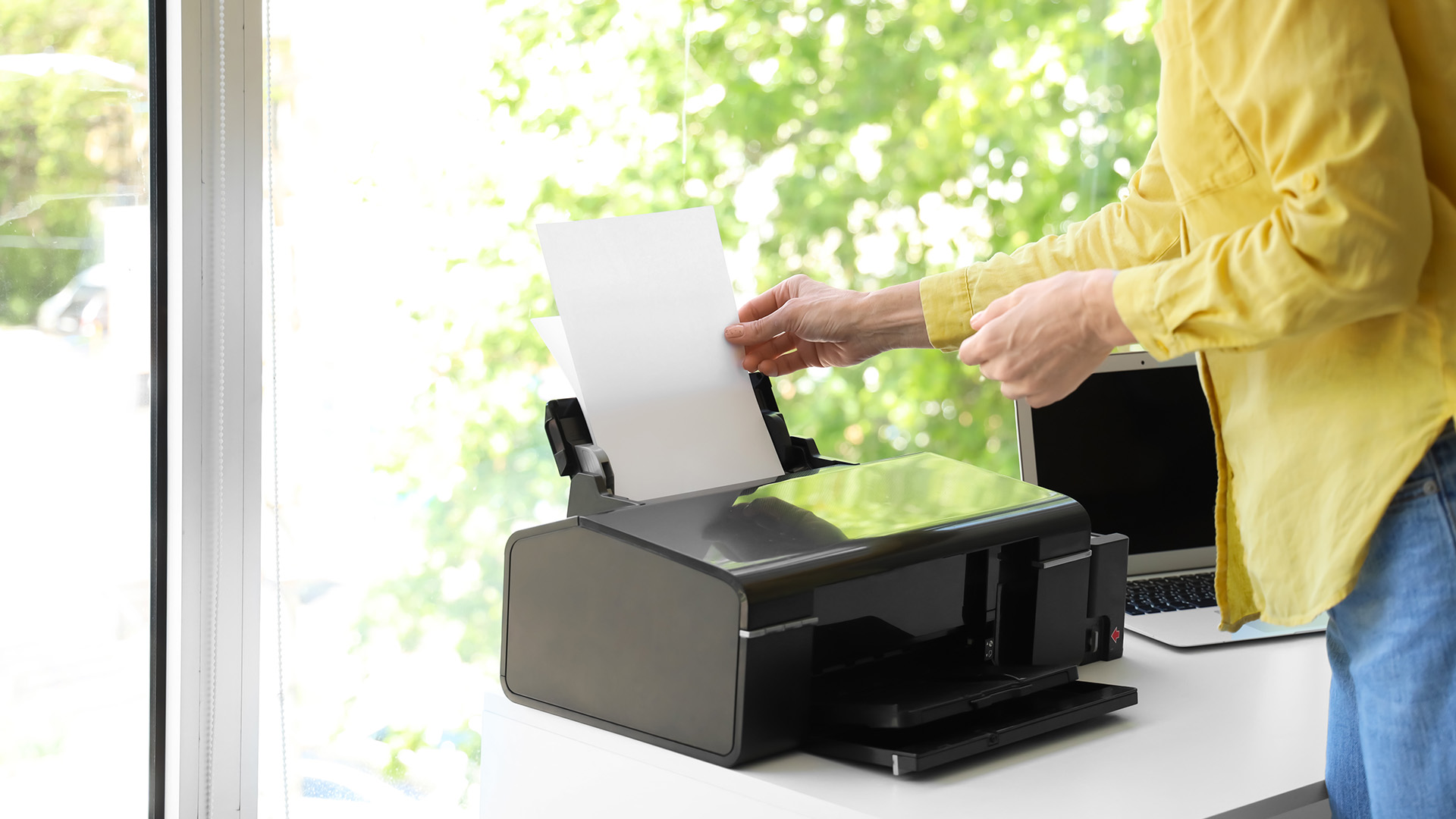
Paper jams are one of the most annoying home printer printing issues, but they’re usually caused by paper loading problems rather than a broken printer.
Common Causes of Paper Jams
- Paper tray is overloaded
- Paper guides are too tight or too loose
- Paper is damp or curled
- Mixed paper types are loaded together
- Small paper scraps are stuck inside
- Rollers are dusty
- Low-quality paper is shedding fibres
HP’s support guidance for paper jam errors recommends using model-specific jam-clearing steps and checking all relevant printer areas, because scraps of paper can remain hidden inside the paper path.
How to Clear a Paper Jam Properly
- Turn the printer off.
- Open the access panels.
- Pull jammed paper slowly in the direction of the paper path.
- Check for torn scraps.
- Remove and reload the paper stack.
- Adjust the paper guides.
- Turn the printer back on.
- Print a test page.
What Not to Do
Avoid:
- Yanking paper out aggressively
- Using sharp objects inside the printer
- Forcing trays open
- Leaving tiny paper scraps behind
- Overfilling the paper tray
Canon’s printer manuals also advise clearing jams according to the displayed jam location and checking all paper jam areas before continuing.
Home Printer Driver Issues: Why Updates Matter
Printer drivers are the software bridge between your computer and printer. When that bridge breaks, your printer may stop printing, disappear, go offline, or lose features like scanning and duplex printing.
Signs of Home Printer Driver Issues
You may have a driver problem if:
- The printer stopped working after a system update
- Your computer cannot detect the printer
- Print jobs disappear but nothing prints
- Advanced settings are missing
- The scanner function no longer works
- You see “driver unavailable”
How to Fix Printer Driver Problems
- Remove the printer from your device list.
- Restart your computer.
- Download the latest driver from the manufacturer’s website.
- Reinstall the printer.
- Print a test page.
For Windows users, Microsoft has been moving towards IPP class drivers for compatible printers, reducing reliance on manufacturer-specific installers for many modern devices.
That means newer printers are often easier to install and maintain than older models, especially in homes where multiple laptops, tablets, and phones share one printer.
When Driver Issues Mean It’s Time to Upgrade
Consider upgrading if:
- Your printer no longer receives driver updates
- It does not support modern wireless printing
- It only works with one old laptop
- It regularly disconnects after updates
- Ink or toner costs are too high
- Repairs cost close to a replacement
If that sounds familiar, exploring newer home printers for everyday use can save time, stress, and ongoing maintenance hassle.
Home Printer Connection Problems: Wi-Fi, USB, or Ethernet?
Not all connections are equal. The best setup depends on how you use your printer.
|
CONNECTION TYPE |
BEST FOR |
PROS |
CONS |
|
Wi-Fi |
Family homes, shared printing |
Flexible, no cables |
Can drop connection |
|
USB |
One computer, simple setup |
Stable and fast |
Not ideal for multiple users |
|
Ethernet |
Home office or small office |
Reliable network printing |
Needs router cable access |
|
Mobile app printing |
Phones and tablets |
Convenient |
App setup can be fiddly |
Best Connection for Daily Home Users
Wi-Fi is usually fine for everyday printing: homework, returns labels, recipes, forms, and occasional photos.
Best Connection for Office Use
If you print invoices, reports, shipping labels, or client documents daily, Ethernet or a strong Wi-Fi connection is better. For heavier workloads, laser printer models are often more reliable and cost-effective over time than basic inkjets.
Quick Wi-Fi Fixes
Try this:
- Keep the printer near the router
- Avoid placing it behind metal objects
- Connect to the same network as your laptop
- Restart the router monthly
- Avoid guest networks for printing
- Use 2.4GHz Wi-Fi if the printer does not support 5GHz
Home Printer Smudged Errors, Faded Prints, and Blank Pages
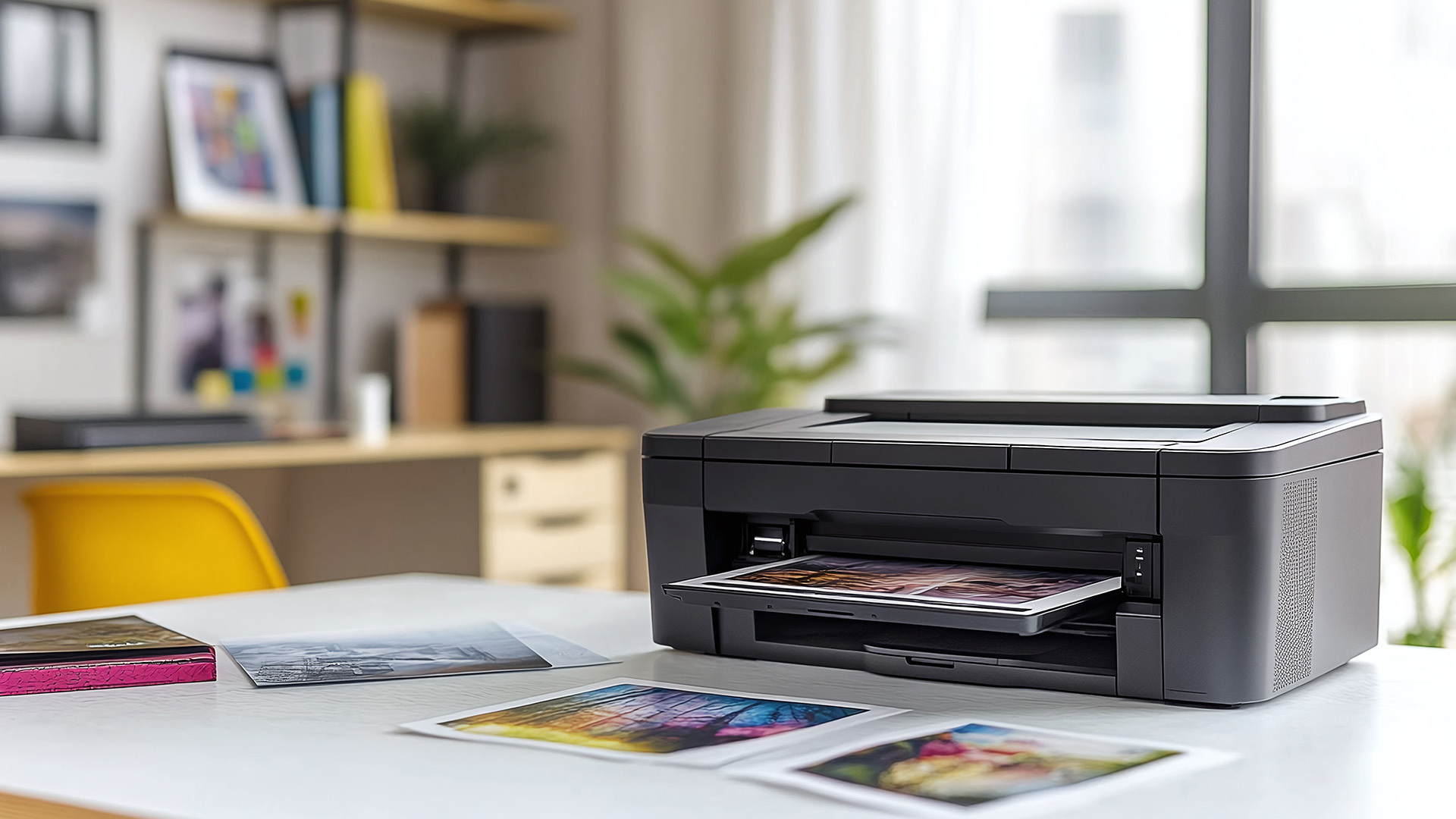
Print quality problems are different from connection problems. If the printer works but the result looks awful, check ink, toner, paper, and maintenance settings.
Smudged Printing
Common causes:
- Wrong paper type
- Ink not drying properly
- Dirty rollers
- Overfilled ink
- Low-quality compatible cartridges
- Printing too quickly after handling photo paper
Fixes:
- Select the correct paper type
- Let prints dry before touching
- Run printer cleaning mode
- Clean rollers if your model supports it
- Use suitable paper for inkjet or laser printing
Faded Printing
Common causes:
- Low ink or toner
- Economy mode enabled
- Clogged nozzles
- Old cartridges
- Drum unit wear on laser printers
Fixes:
- Replace low supplies
- Turn off draft mode
- Run nozzle check
- Run printhead cleaning
- Replace drum or toner if needed
Blank Pages
Common causes:
- Empty cartridges
- Protective tape left on cartridge
- Clogged printhead
- Wrong paper size
- Driver issue
- File formatting problem
Fixes:
- Check cartridge installation
- Print a test page
- Clean printhead
- Reinstall driver
- Try another document
If you print photos, colour projects, or creative work, inkjet printers are usually better for image detail. If you mainly print documents, a laser printing solution may give sharper text and lower running costs.
Inkjet vs Laser Printer: Which Is Better When Replacing a Problem Printer?
Sometimes the best way to fix home printer problems is to stop fighting an ageing device.
Here’s the simple breakdown.
|
PRINTER TYPE |
BEST FOR |
STRENGTHS |
WATCH-OUTS |
|---|---|---|---|
|
Inkjet printer |
Photos, colour documents, occasional home use |
Great colour quality, lower upfront price |
Ink can dry if unused |
|
Laser printer |
Text documents, office use, frequent printing |
Fast, sharp text, efficient for volume |
Higher upfront cost |
|
All-in-one printer |
Home office, scanning, copying |
One device for multiple tasks |
Larger footprint |
|
Mono laser printer |
Black-and-white documents |
Low running cost for text |
No colour printing |
Choose Inkjet If You Print:
- Photos
- Colour homework
- Craft projects
- Occasional forms
- Mixed home documents
Browse inkjet printers if colour quality matters more than speed.
Choose Laser If You Print:
- Work documents
- Reports
- Invoices
- Shipping labels
- High-volume black-and-white pages
Explore laser printers if you want speed, crisp text, and fewer ink-drying headaches.
Choose All-in-One If You Need:
- Printing
- Scanning
- Copying
- Home office flexibility
- Family use
Compare multifunction printers for home use if you want one device that handles almost everything.
When Should You Repair vs Replace a Home Printer?
Repair makes sense when:
- The printer is fairly new
- The issue is minor
- Ink or toner is affordable
- Drivers are still supported
- Print quality is still good
- You only need a cheap part, such as rollers or a tray
Replacement makes sense when:
- The same issue keeps returning
- Cartridges cost nearly as much as a new printer
- The printer is slow or noisy
- Wireless printing is unreliable
- It lacks modern driver support
- It does not suit your current workload
ENERGY STAR recommends features such as sleep mode, automatic shutoff, duplex printing, and efficient power settings for imaging equipment, which can help reduce energy use and paper waste over time.
So, if you’re replacing an older model, don’t just buy the cheapest printer. Look for:
- Duplex printing
- Wi-Fi and mobile printing
- Affordable ink or toner
- Good paper capacity
- Scanner if needed
- Compact size
- Reliable brand support
- Energy-saving modes
Best Practices to Prevent Future Home Printer Problems
Want fewer printer meltdowns? Build these habits.
- Use Your Printer Regularly
Inkjet printers especially dislike being ignored. Print a test page every couple of weeks to reduce clogged nozzles.
- Keep Drivers Updated
Check for updates after major Windows or macOS updates.
- Use the Right Paper
Cheap, damp, or curled paper causes jams, smudges, and feed errors.
- Don’t Overfill the Tray
More paper does not mean more productivity. It usually means more jams.
- Keep the Printer Clean
Dust affects rollers, sensors, and print quality.
- Use Sleep Mode Instead of Constant Power-Off
Modern printers are designed to use low-power modes efficiently, and ENERGY STAR notes that certified printers and copiers are designed to wake from and return to sleep mode quickly.
Place It Somewhere Sensible
Avoid:
- Window ledges
- Radiators
- Damp rooms
- Dusty corners
- Areas far from the router
Printers are low-key fussy. Give them a stable spot and they behave better.
Quick Decision Guide: What Should You Do Next?
|
YOUR SITUATION |
BEST NEXT STEP |
|---|---|
|
Printer offline once |
Restart and reconnect |
|
Printer offline every week |
Improve Wi-Fi or reinstall driver |
|
Paper jams often |
Check paper quality and rollers |
|
Smudged pages |
Clean printhead and use correct paper |
|
Blank pages |
Check cartridges and run cleaning |
|
Driver unavailable |
Reinstall latest driver |
|
Slow printing |
Use standard mode or upgrade |
|
High ink costs |
Consider laser or tank inkjet |
|
Need print, scan, copy |
Choose all-in-one printer |
|
Daily office printing |
Choose laser or business-ready printer |

Final Thought: Don’t Let Printer Problems Win
When your home printer is not working, the fix is usually simpler than it first looks. Start with the basics: restart devices, check supplies, clear the print queue, reconnect Wi-Fi, and update the driver. These steps solve most home printer troubleshooting issues without needing a technician.
But if your printer keeps going offline, jams constantly, smudges pages, rejects drivers, or costs too much in ink, it may be time to upgrade to a model that actually fits your daily routine.
A good printer should make life easier - not become the main character of your stress story.

Common Questions for Home Printer Troubleshooting
Why is my home printer connected but not printing?
Your printer may be connected but blocked by a stuck print queue, incorrect default printer setting, outdated driver, paused printer status, or file-specific issue. Clear the print queue, restart the printer, and print a test page.
How do I fix a home printer that says offline?
Restart the printer, check Wi-Fi or USB connection, make sure your computer and printer are on the same network, set the printer as default, clear the queue, and update the driver. Microsoft recommends using the Windows printer troubleshooter for offline printer problems.
Why does my printer keep jamming paper?
Frequent paper jams usually happen because the paper is damp, curled, misaligned, mixed with different paper types, or loaded too tightly. Dusty rollers and small paper scraps inside the printer can also cause repeated jams.
Why is my printer printing blank pages?
Blank pages are often caused by empty cartridges, clogged printheads, protective tape left on new cartridges, wrong settings, or driver issues. Run a nozzle check or cleaning cycle and confirm the cartridge is installed correctly.
Is it worth fixing an old home printer?
It depends on the cost. If the fix is simple, repair it. If the printer has outdated drivers, expensive cartridges, poor Wi-Fi, slow speeds, or repeated faults, replacing it with a modern model may be better value.
What type of printer is best for home office use?
For frequent text documents, a laser printer is usually the better choice. For colour documents and photos, choose an inkjet. For scanning and copying, choose an all-in-one printer.
| Read More |
| The Complete Guide to Home Printers in 2026: Types, Features & Buying Advice |
| Latest Home Printing Trends in 2026: What to Expect Next |
| Top 7 Label Printer Common Problems and Solutions |
Related Articles

Last Updated: May 12, 2026
Quick Answer: To set up a wireless printer, connect it to your Wi-Fi network using the WPS button, your printer’s touchscreen menu, Wi-Fi Direct, or a temporary USB cable. Then add it on Windows via Settings > Printers & Scanners, or on macOS via System Settings. On mobile, AirPrint handles iPhones automatically, while Android uses the Default Print Service, Mopria, or manufacturer apps. Most setups take under 10 minutes.
Knowing how to set up a wireless printer properly saves you from the frustration of cables, failed connections, and endless troubleshooting. Whether you have just unboxed a brand-new model or are reconnecting an existing one to a new router, this guide walks you through it all.
What Do You Need Before Setting Up a Wireless Printer?
A quick checklist before you begin will save a lot of frustration. Getting these sorted upfront means the setup should go smoothly first time round.
- Your WiFi network name (SSID) and password
- Your printer powered on and within range of
Published: May 11, 2026
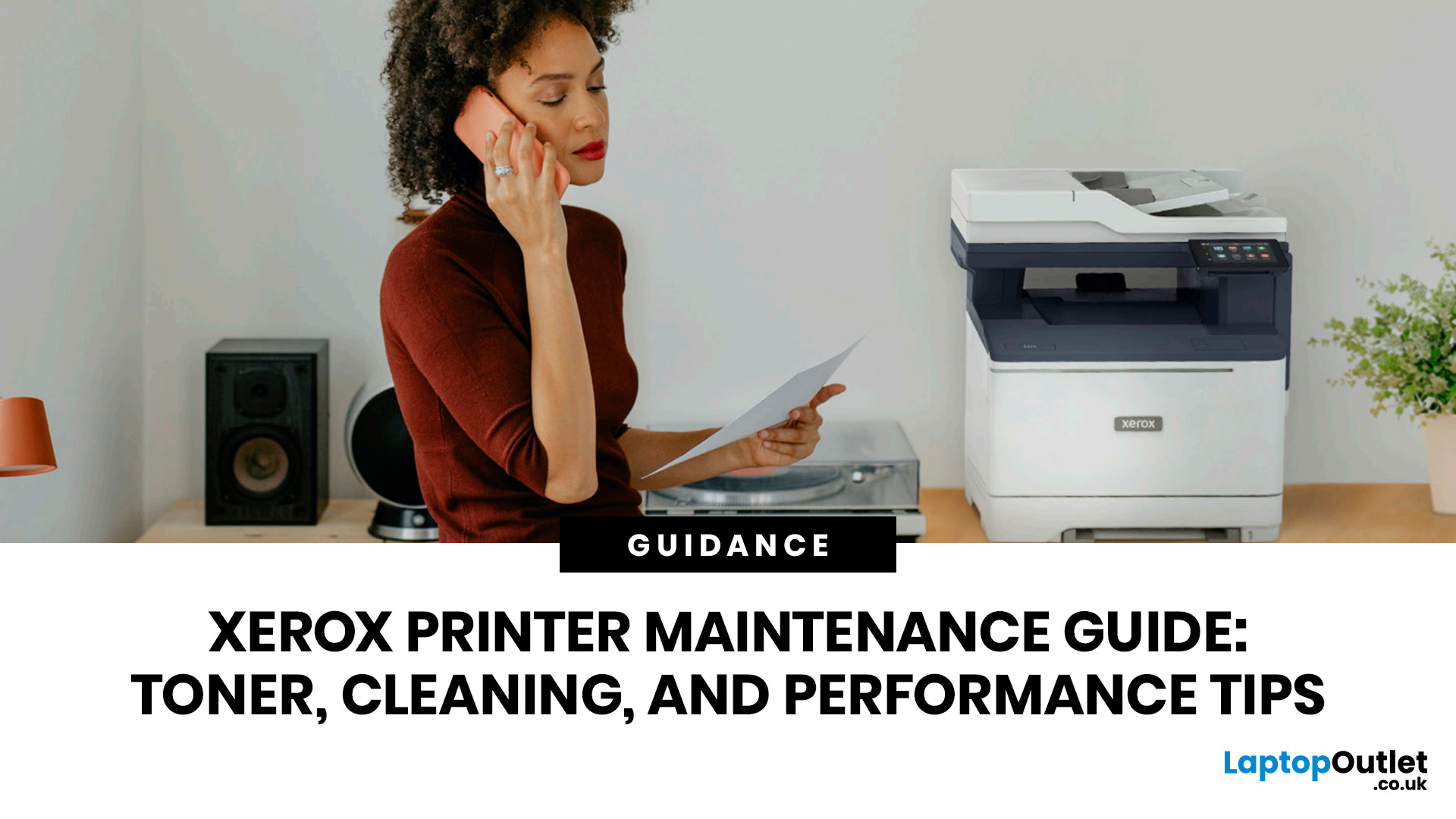
When your Xerox printer starts leaving streaks, fading text, jamming paper, or showing toner warnings, the problem is often easier to fix than it looks. In many cases, you can improve print quality with the right toner check, a quick scanner clean, better paper loading, or a simple printhead lens clean.
This Xerox printer maintenance guide provides a clear, step-by-step routine you can follow without guesswork. You will learn how to replace Xerox toner, how to clean a Xerox printer safely, what causes common toner issues, and which quick checks improve everyday performance.
The aim is simple: help you keep your Xerox printer producing sharp, clean pages for longer. Xerox support notes that printhead lenses require cleaning when print quality starts to degrade, especially when prints show light streaks or voids, while its safety guidance also warns against using pressurised sprays, strong solvents, or direct liquid cleaning inside the printer.
Want to compare Xerox models before you maintain,
Last Updated: May 13, 2026
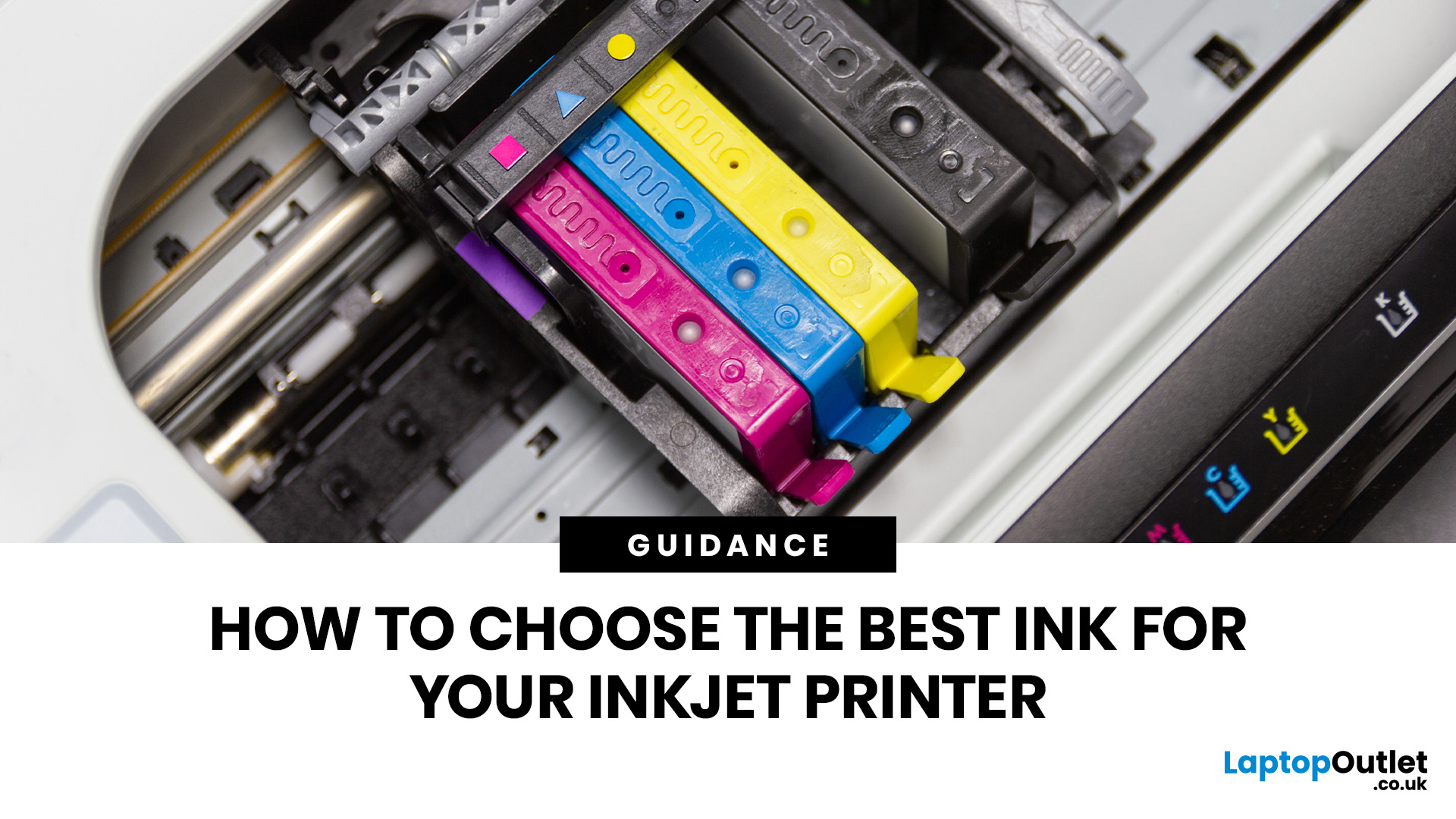
Quick Answer: Choose ink that matches your exact printer model first. Then decide whether you need original cartridges, compatible cartridges, remanufactured cartridges, refill ink, or bottled ink for an ink tank printer.
For sharp documents, pigment ink is usually the stronger choice. For bright photos and colourful images, dye-based ink often gives richer colour. You should not buy ink only because it is cheap. Check the cartridge number, page yield, ink type, printer warranty position, return policy, and whether you print often enough to justify XL, refillable, or subscription ink.
Introduction
Buying ink sounds simple until you see original cartridges, compatible cartridges, remanufactured cartridges, refill kits, XL cartridges, ink bottles, dye ink, pigment ink, and subscription plans. The wrong choice can leave you with poor print quality, blocked cartridges, warning messages, or higher running costs than expected.
You do not need to understand every technical detail to make a
Last Updated: July 06, 2026
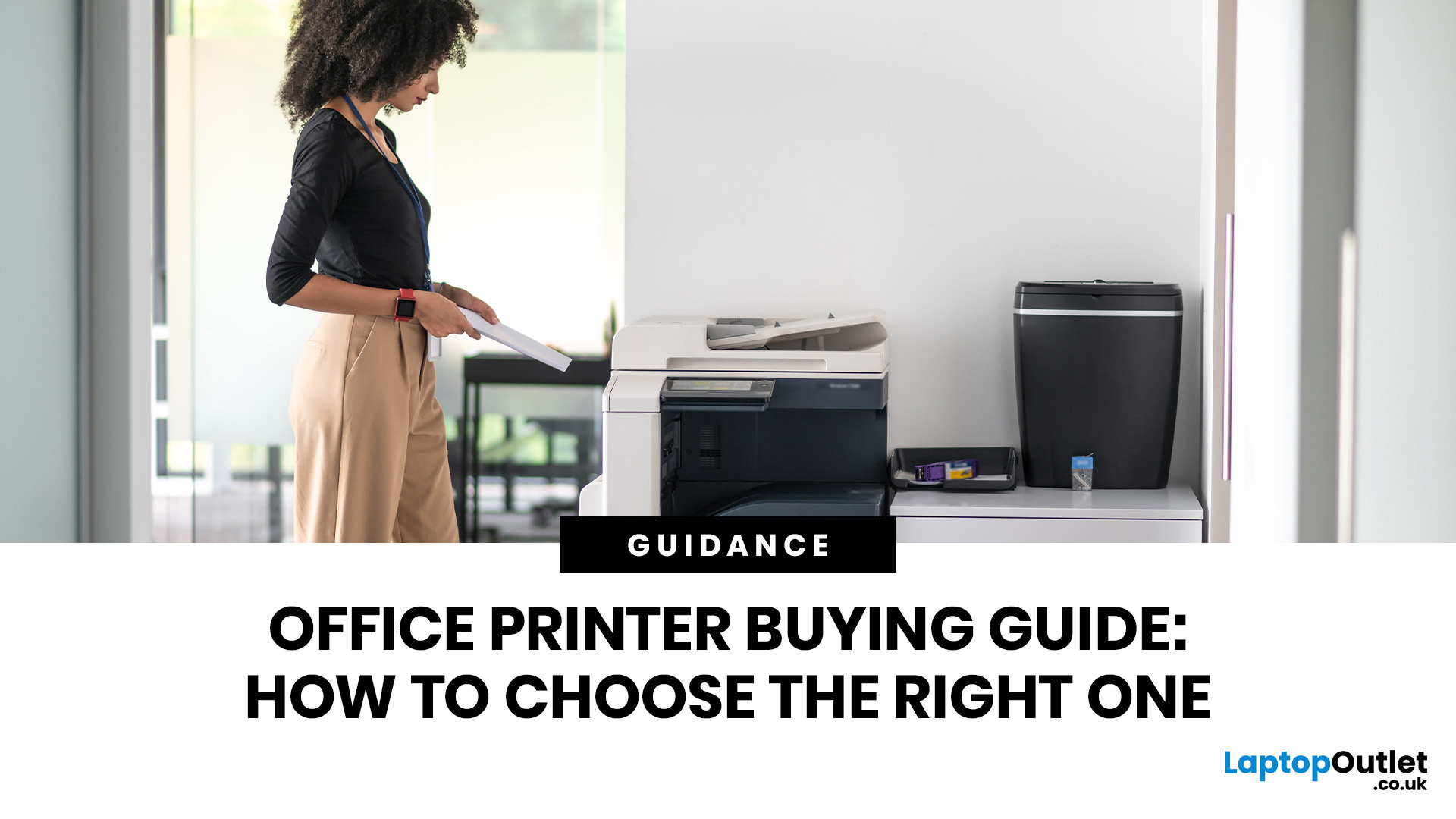
Quick Answer: To choose the right office printer, identify your monthly print volume, preferred print type (colour or mono), and whether you need scanning or copying. Laser printers suit high-volume offices, inkjet printers work well for colour-heavy or lower-volume tasks, and all-in-one models offer the best flexibility. Always factor in running costs, connectivity, and paper handling alongside the upfront price.
Picking the wrong printer for your office is an easy mistake to make, and a surprisingly costly one. Between the upfront price, ink or toner costs, paper handling, and connectivity options, there is a lot more to consider than most people realise.
This office printers buying guide covers everything you need to make a confident, well-informed decision in 2026. Whether you are kitting out a home office, a small business, or a large corporate workspace, we have got you covered.
What Types of Office Printer Are There?
Understanding the different categories of printers for
Last Updated: May 25, 2026
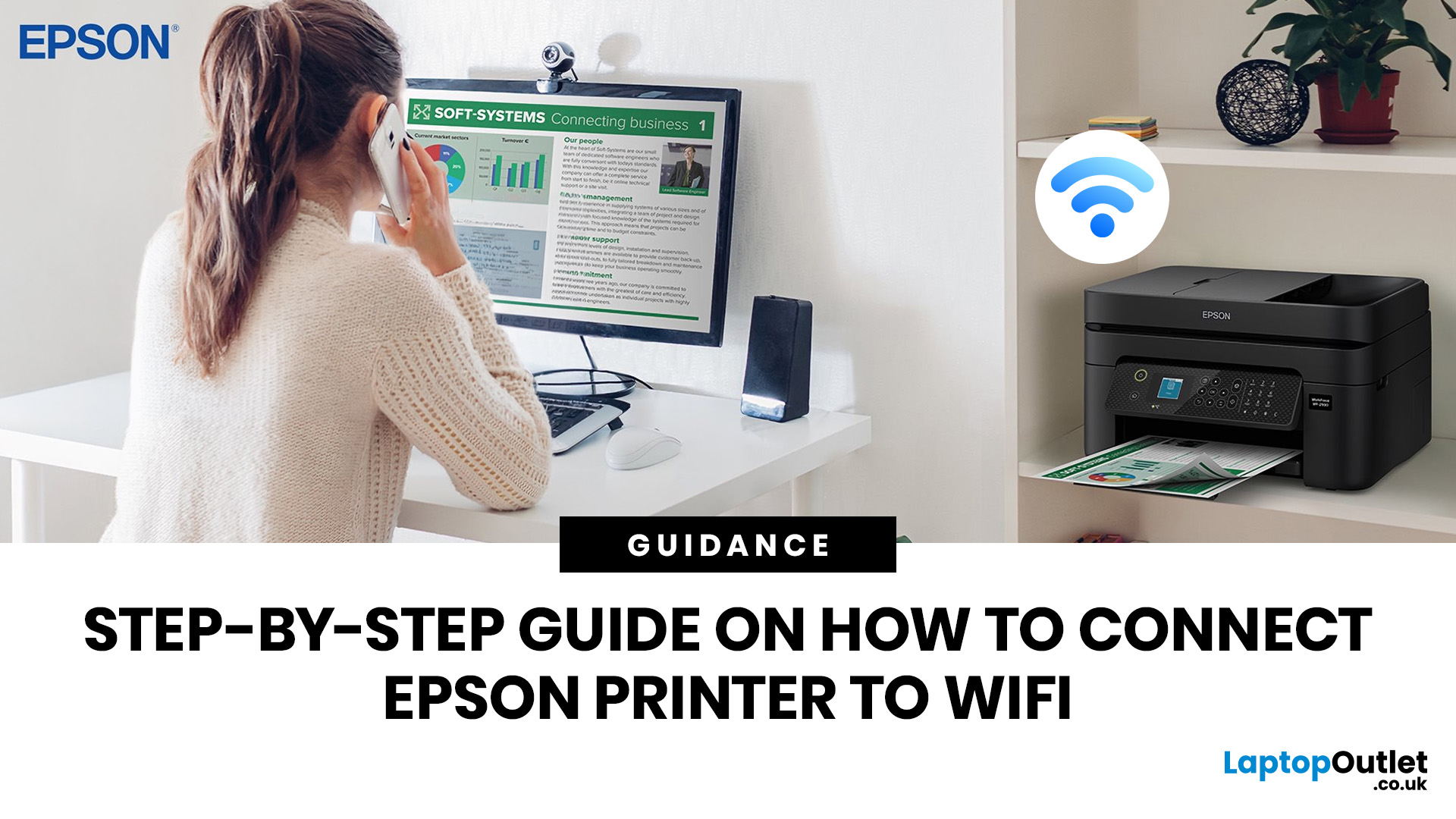
To connect an Epson printer to WiFi, turn on the printer, open its WiFi or Network Settings, select WiFi Setup Wizard, choose your network name, enter the WiFi password and confirm the connection. If your Epson printer has no screen, use Epson Smart Panel, WPS, Epson setup software or a temporary USB setup method, depending on your model. Always keep your WiFi name and password ready before starting.
Trying to set up a printer and watching it refuse to connect is a very specific kind of pain. You just want to print one document, and suddenly your Epson printer is acting like it has trust issues with your router.
This guide explains how to connect Epson printer to WiFi in simple steps, whether your model has a screen, works through WPS, needs the Epson Smart Panel app, or requires setup software on Windows or Mac. We will also cover what to do if your Epson printer is not connecting to WiFi, because let’s be honest, that is usually where the drama starts.
Before You Start: What You Need
Last Updated: June 08, 2026
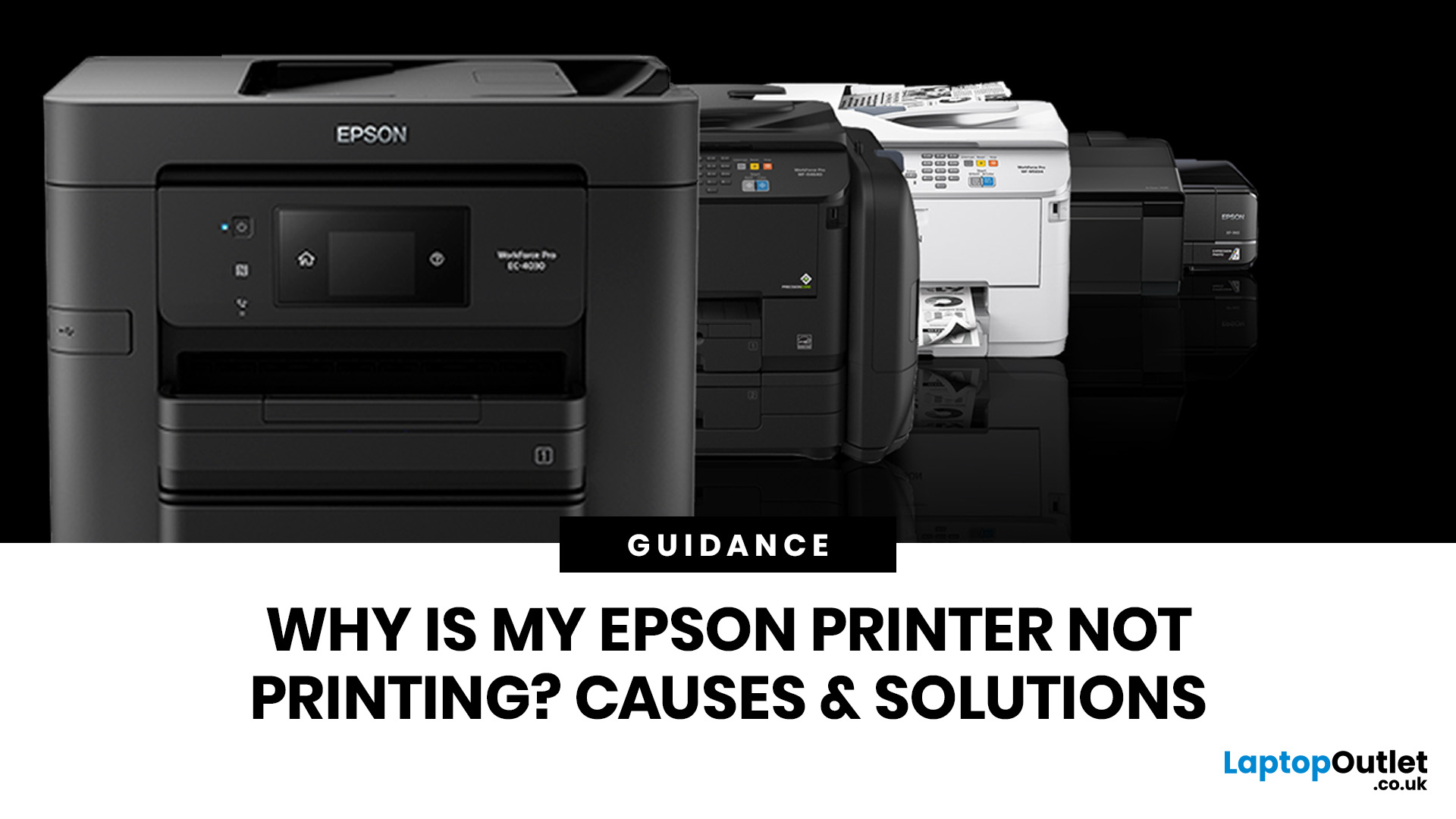
If your Epson printer is not printing, the problem is usually caused by low ink, clogged print heads, offline settings, connection issues, stuck print jobs, or outdated drivers. Most Epson printer problems can be fixed with simple troubleshooting steps such as checking cartridges, cleaning the print head, clearing the print queue, updating drivers, or resetting the printer.
An Epson printer not printing can be frustrating, especially when you need an important document, return label, invoice, or school assignment right away. The good news is that most Epson printer problems are not as serious as they first seem. In many cases, the issue comes down to low ink, clogged nozzles, offline settings, a weak connection, or a stuck print queue.
So, if you are wondering, “Why is my Epson printer not printing?”, this guide will walk you through the most common causes and simple ways to fix Epson printer issues at home. Before you think about replacing your printer, try these easy Epson printer troubleshooting
Last Updated: June 10, 2026
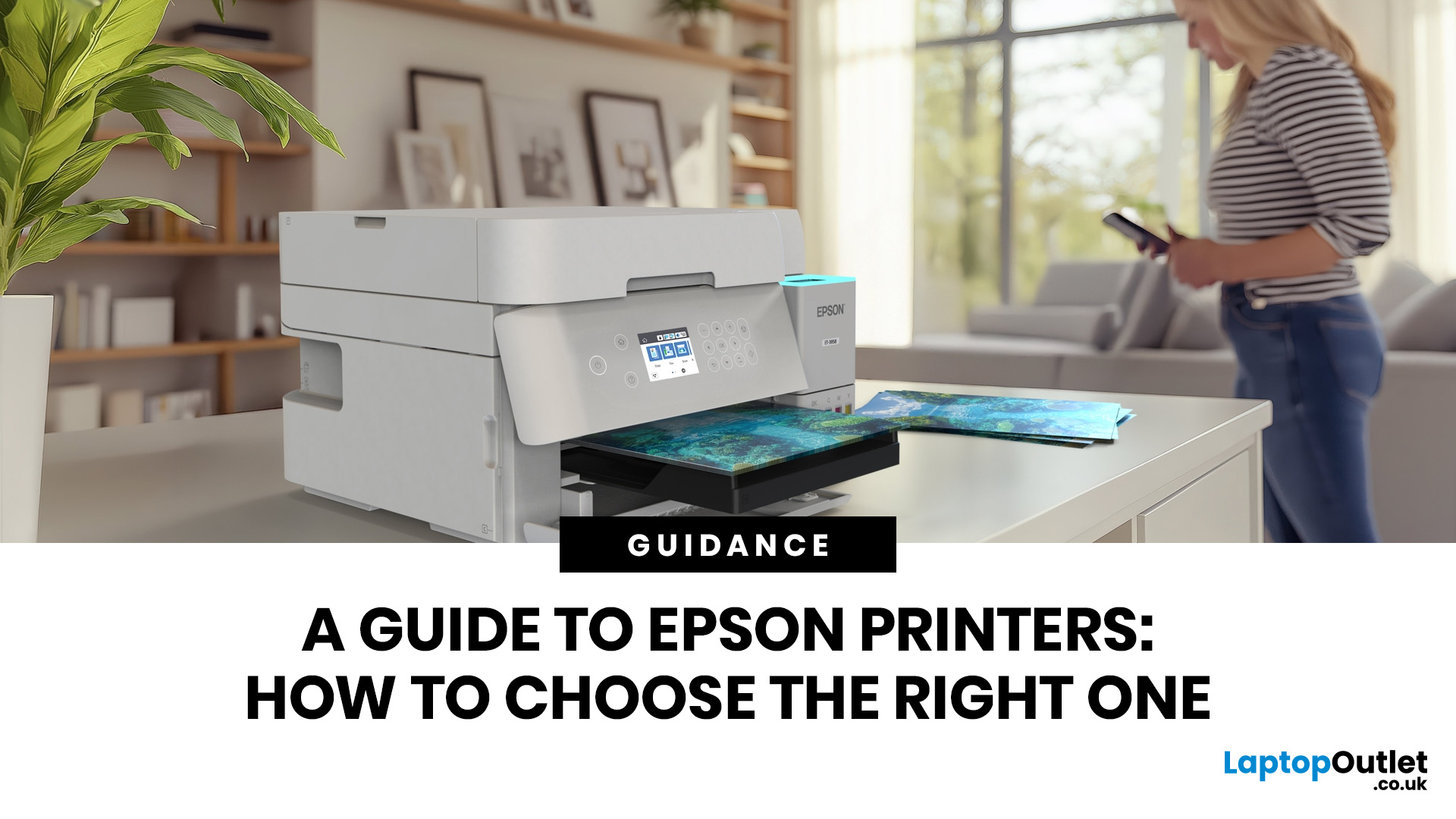
Epson is one of the most popular printer brands for UK homes, students, hybrid workers, small offices and creative users. Choosing the right Epson printer depends on how often you print, what you print, and how much you want to spend long term. For occasional home use, an affordable Epson inkjet printer is a solid pick. For regular printing, Epson EcoTank offers better running value with refillable ink tanks. If you need scanning, copying and mobile printing, choose a wireless all-in-one Epson printer for the easiest everyday setup.
Buying a printer should be simple. You want to print, scan, copy, maybe send something from your phone, and not spend half your life decoding ink cartridges like it is a secret side quest. That is where Epson printers come in. The brand covers compact inkjet printers, refillable EcoTank printers, wireless all-in-one models, photo printers and business-friendly options.
This Epson printer guide breaks down how Epson printers work, how to choose an Epson printer,
Last Updated: June 10, 2026
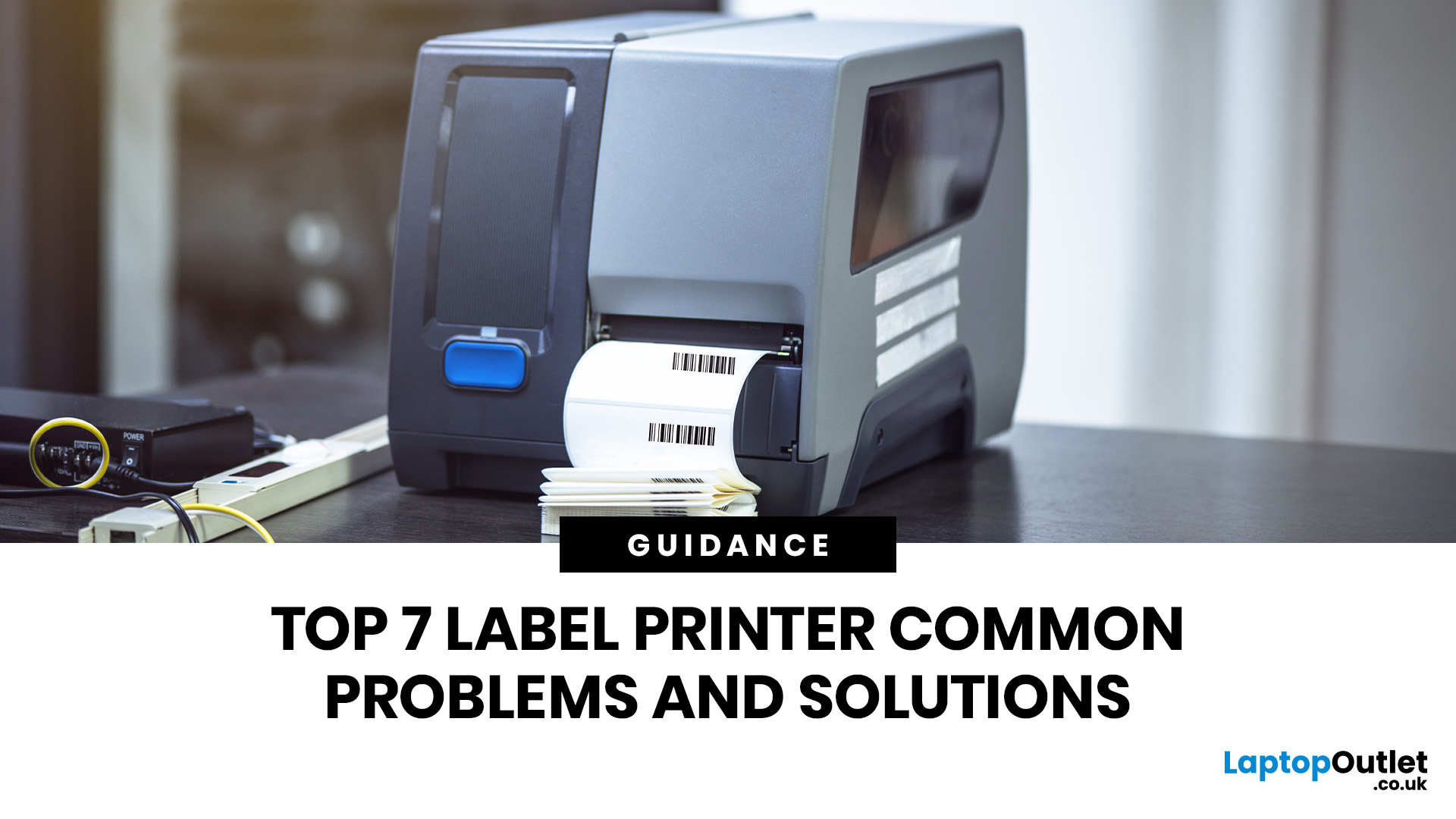
Label printers are practical, reliable, and incredibly useful when they work as expected. Whether you use one for shipping labels, barcodes, product tags, warehouse labels, office organisation, or home storage, a good label printer can save time and keep everything running smoothly.
Like any printer, label printers can occasionally run into problems. You may find your label printer not printing, producing faded labels, jamming midway through a job, or printing blurry labels that are difficult to scan. These label printer issues can be frustrating, especially when you need quick and accurate prints for business operations.
The good news is that many label printer common problems are easy to fix once you know what is causing them. In this guide, we’ll walk you through the top seven label printer errors users often face and show you how to solve them with simple, practical steps. This guide covers seven common label printer issues, explains what causes them, and shows you how to solve them
Last Updated: June 09, 2026
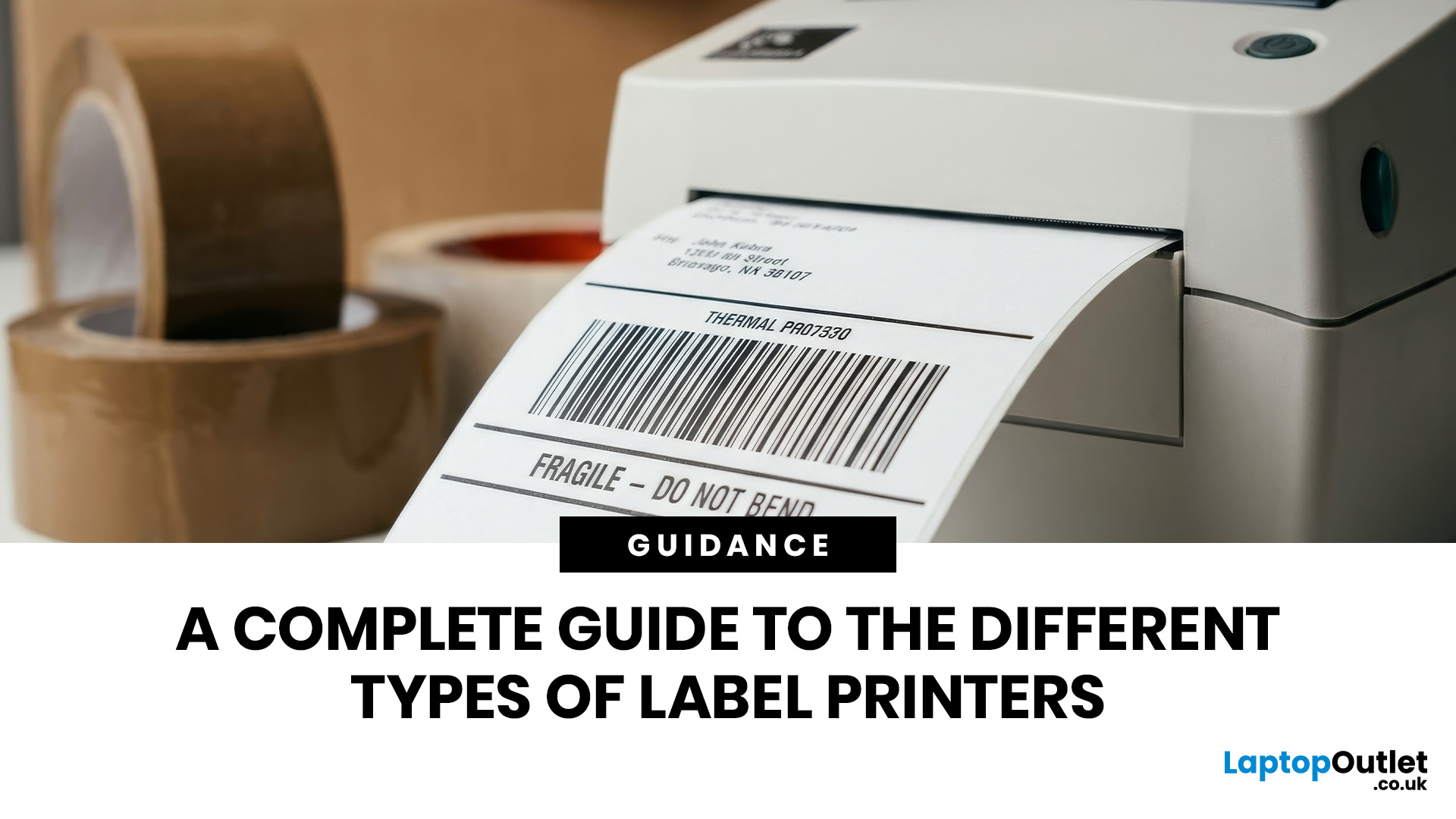
The main types of label printers are direct thermal, thermal transfer, inkjet, and laser. Direct thermal printers use heat-sensitive paper with no ink or ribbon, making them ideal for short-term labels like shipping and receipts. Thermal transfer printers use a wax or resin ribbon for durable, long-lasting labels. Inkjet and laser printers can print onto standard label sheets and work well for colour-rich or low-volume tasks. The right choice depends on your print volume, label durability requirements, and budget.
Whether you are running a small e-commerce shop, managing a busy warehouse, or simply trying to get your home office organised, choosing the right label printer can make a real difference. There are several label printer types on the market, each suited to different tasks, environments, and budgets.
This guide breaks down all the major types of label printers, explains how each technology works, and helps you figure out which one is the right fit for your needs.
Label Printer
Published: June 11, 2026
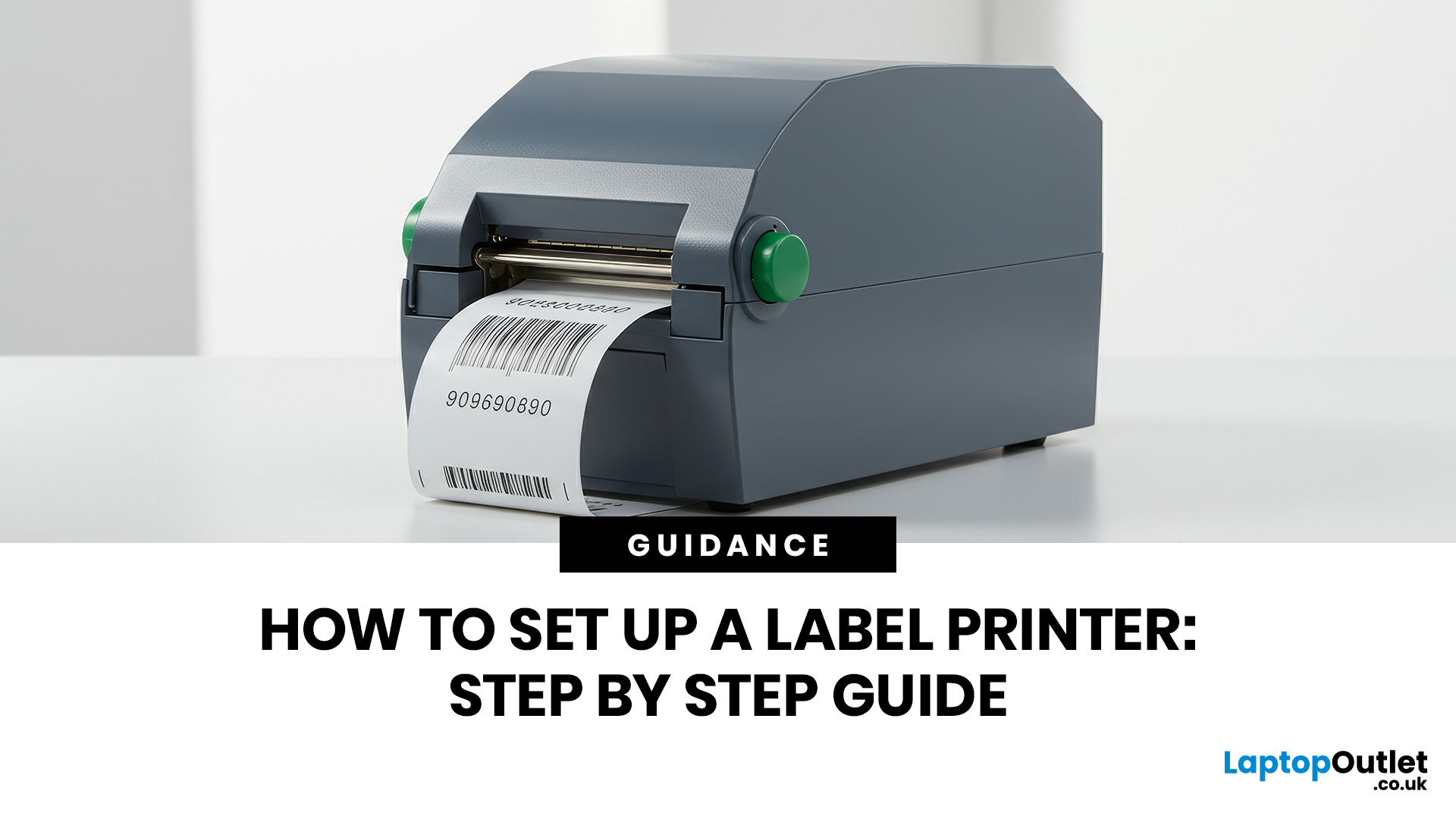
You are printing shipping labels, barcode labels, address stickers, product tags, file labels, or office labels. Setting up a label printer properly from the start saves time and avoids annoying print errors later.
This label printer setup guide walks you through every step in a clear, beginner-friendly way, so you can install, configure, and start printing labels without guessing your way through the manual.
Why Label Printer Setup Guide Matters
A label printer may look like a plug-and-play device, but the setup still matters. If the printer driver is wrong, the labels may print sideways. If the label size

