



Xerox Printer Maintenance Guide: Toner, Cleaning, and Performance Tips
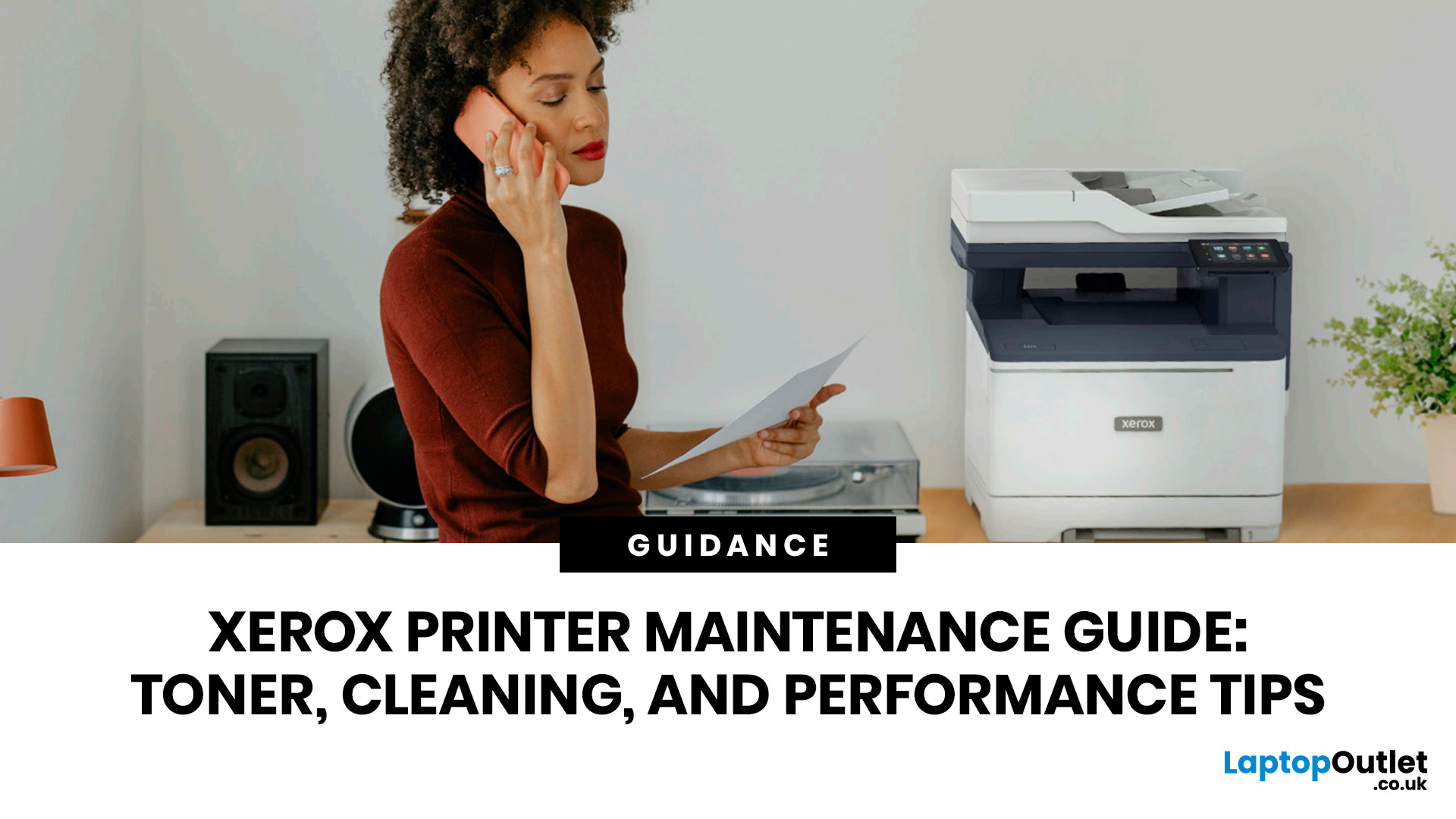
When your Xerox printer starts leaving streaks, fading text, jamming paper, or showing toner warnings, the problem is often easier to fix than it looks. In many cases, you can improve print quality with the right toner check, a quick scanner clean, better paper loading, or a simple printhead lens clean.
This Xerox printer maintenance guide provides a clear, step-by-step routine you can follow without guesswork. You will learn how to replace Xerox toner, how to clean a Xerox printer safely, what causes common toner issues, and which quick checks improve everyday performance.
The aim is simple: help you keep your Xerox printer producing sharp, clean pages for longer. Xerox support notes that printhead lenses require cleaning when print quality starts to degrade, especially when prints show light streaks or voids, while its safety guidance also warns against using pressurised sprays, strong solvents, or direct liquid cleaning inside the printer.
Want to compare Xerox models before you maintain, upgrade, or replace your printer? Learn more in our Xerox printers guide to understand the main printer types, features, and buying factors before you choose.
Quick Xerox Printer Maintenance ChecklistTo maintain a Xerox printer properly:
|
What Should You Check First When Your Xerox Printer Has a Problem?
Start with toner status, paper condition, tray settings, and the type of fault you can see. A print fault and a copy fault do not always come from the same place.
|
What you notice |
Most likely cause |
What you should try first |
|
Faded pages |
Low toner, toner save mode, wrong paper setting |
Check toner level and print quality settings |
|
Vertical light streaks |
Dirty printhead or LED lens |
Use your model’s printhead lens cleaning process |
|
Black lines on copies only |
Dirty scanner glass or ADF strip |
Clean the flatbed glass and narrow scanner strip |
|
Toner rubs off paper |
Wrong media setting or unsuitable paper |
Match paper type in tray and driver |
|
Paper keeps jamming |
Damp paper, overfilled tray, worn roller |
Reload dry paper and check tray guides |
|
Specks or random marks |
Loose toner, dirty paper path, faulty cartridge |
Reseat toner and clean safe accessible areas |
|
Printer says replace toner |
Empty or low cartridge |
Replace the correct toner cartridge |
How Do You Replace Xerox Toner Correctly?
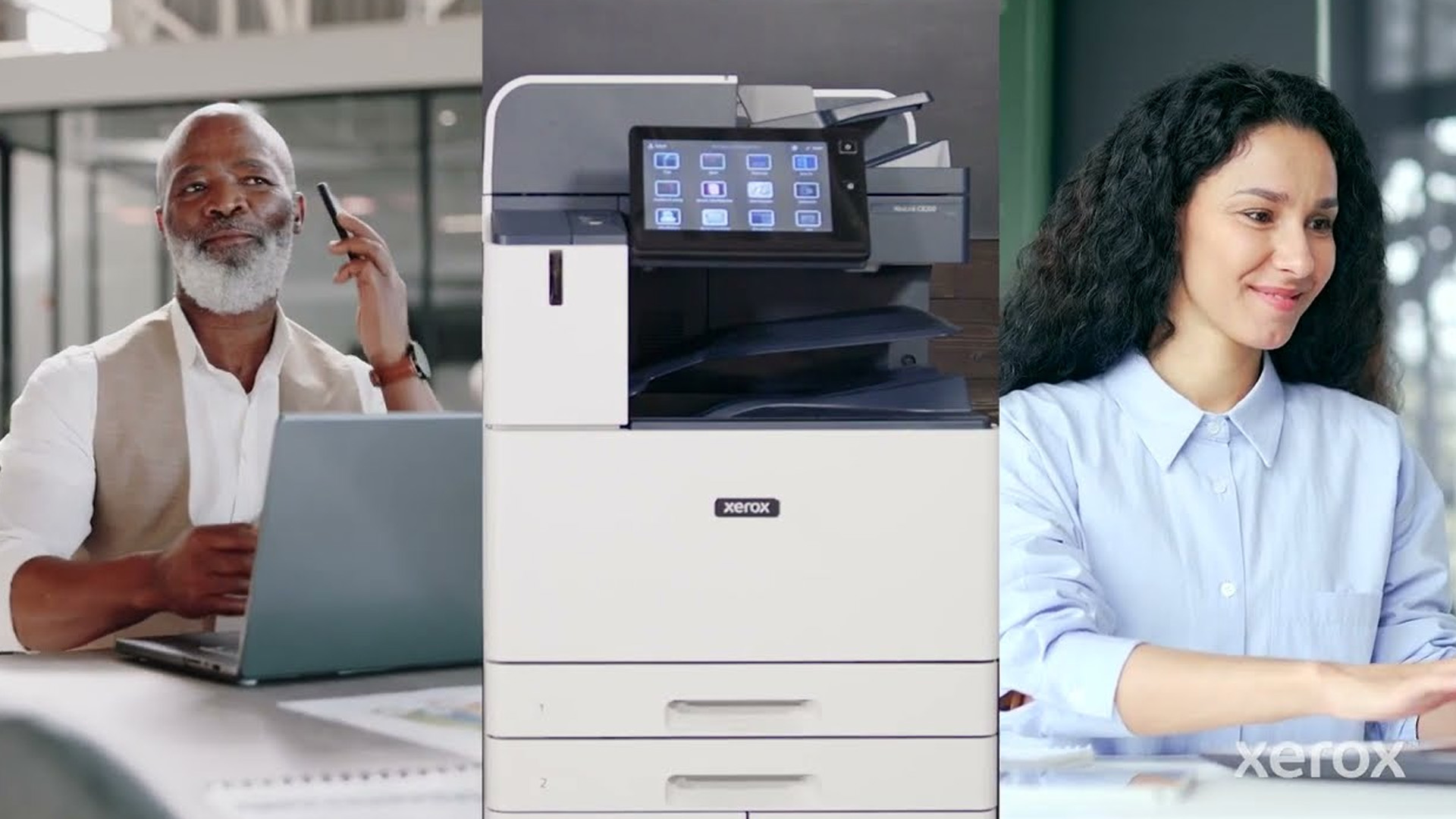
To replace Xerox toner, open the toner access cover, remove the empty cartridge, prepare the new cartridge, insert it firmly, and close the cover. Do this only when the printer is idle.
Here is the safe process:
- Let the printer finish any active job.
- Check the screen to see which toner colour needs replacing.
- Open the toner access door.
- Pull the old cartridge out carefully using the handle.
- Place it on scrap paper in case loose toner falls out.
- Remove the new cartridge from its packaging.
- Gently tilt or shake it as instructed.
- Slide it into the matching slot until it sits firmly.
- Close the cover.
- Print a test page.
This answers the common question: how to replace Xerox toner without creating toner spills or damaging the cartridge.
Should You Shake Xerox Toner Before Installing It?
Yes, but only gently. Many Xerox toner replacement instructions tell you to tilt or shake the cartridge to loosen and distribute the toner before installation. Do not shake it aggressively. Toner is a fine dry powder, and rough handling can create leaks or a mess. A few gentle movements are enough.
How Do You Know Which Xerox Toner to Replace?
Your printer's screen usually tells you which colour or cartridge needs replacing. Colour Xerox printers normally use black, cyan, magenta, and yellow toner. Mono Xerox printers use only black toner. Do not replace every cartridge just because one is low. Replace the cartridge named in the message.
What are the Most Common Xerox Toner Issue Fixes?
Most Xerox toner issues are caused by low toner, uneven toner distribution, a poorly seated cartridge, unsuitable paper, or a dirty print path.
|
Toner issue |
Simple fix |
|
Toner low message |
Replace the cartridge shown on screen |
|
Faded printing |
Gently reseat or replace toner |
|
One colour missing |
Check the matching colour cartridge |
|
Toner spots |
Remove loose paper debris and check cartridge seating |
|
Toner rubs off |
Choose the right paper type in print settings |
|
Uneven print density |
Gently redistribute toner if the cartridge is not empty |
|
Repeated toner marks |
Check drum, fuser, or maintenance kit guidance |
How to Clean a Xerox Printer Safely
To clean a Xerox printer, use a soft lint-free cloth and clean only the accessible areas recommended for your model. Do not spray liquid directly into the printer, and do not use harsh cleaners inside the machine.
You can usually clean these areas yourself:
|
Area |
How to clean it |
When to clean it |
|
Exterior panels |
Soft lint-free cloth |
Weekly or when dusty |
|
Control panel |
Lightly damp cloth, then dry |
When marked or dusty |
|
Paper trays |
Dry cloth and remove scraps |
Monthly |
|
Scanner glass |
Lint-free cloth lightly dampened with water |
When copies show marks |
|
ADF rollers |
Cloth lightly dampened with water |
When pages skew or jam |
|
Narrow scanner strip |
Clean carefully with lint-free cloth |
When copies have vertical lines |
|
Printhead lens |
Use the printer’s cleaning tool or model guide |
When prints show light streaks |
What Should You Avoid When Cleaning a Xerox Printer?
Avoid these mistakes:
- Do not spray liquid directly onto the printer.
- Do not use hot water on toner.
- Do not use strong solvents inside the printer.
- Do not touch the drum surface with your fingers.
- Do not force open parts that are not meant to be opened.
- Do not clean inside the printer while it is printing.
- Do not use a standard household vacuum for loose toner.
Toner is not liquid ink. It is a fine powder that can spread easily. Cool water is safer for toner on skin or clothing, as hot water can set it into the fabric.
How Do You Clean Xerox Scanner Glass and ADF Rollers?
Clean the scanner glass when copies or scans show lines, shadows, dots, or smudges. This is especially important on multifunctional printers because scan and copy marks often look like print faults.
Follow this simple routine:
- Turn the printer off if your model recommends it.
- Lift the scanner lid.
- Wipe the large glass panel with a soft, lint-free cloth.
- Clean the narrow glass strip beside it.
- Wipe the white underside of the scanner lid.
- Open the ADF area.
- Clean the feed rollers gently.
- Let surfaces dry before use.
A tiny mark on the narrow scanner strip can create a long black line down every copy. When printed documents look fine, but copies look dirty, the scanner area is usually the first place to check. You can browse multifunctional printers if you want a device that combines scanning, copying, and printing.
How Do You Clean Xerox Printhead or LED Lenses?
Clean the printhead or LED lenses when you see light streaks, faded bands, or missing areas on printed pages. Many Xerox printers include a built-in cleaning rod or lens cleaning tool.
A typical process looks like this:
- Stop printing.
- Open the front cover.
- Find the printhead lens cleaner.
- Pull the cleaner out slowly.
- Push it back in fully.
- Repeat two or three times.
- Do the same for each colour lens if your model has four.
- Close the cover.
- Print a test page.
Do not guess if you cannot find the cleaning tool. Search for your exact Xerox model number and follow the matching support instructions.
How Do You Stop Xerox Paper Jams?
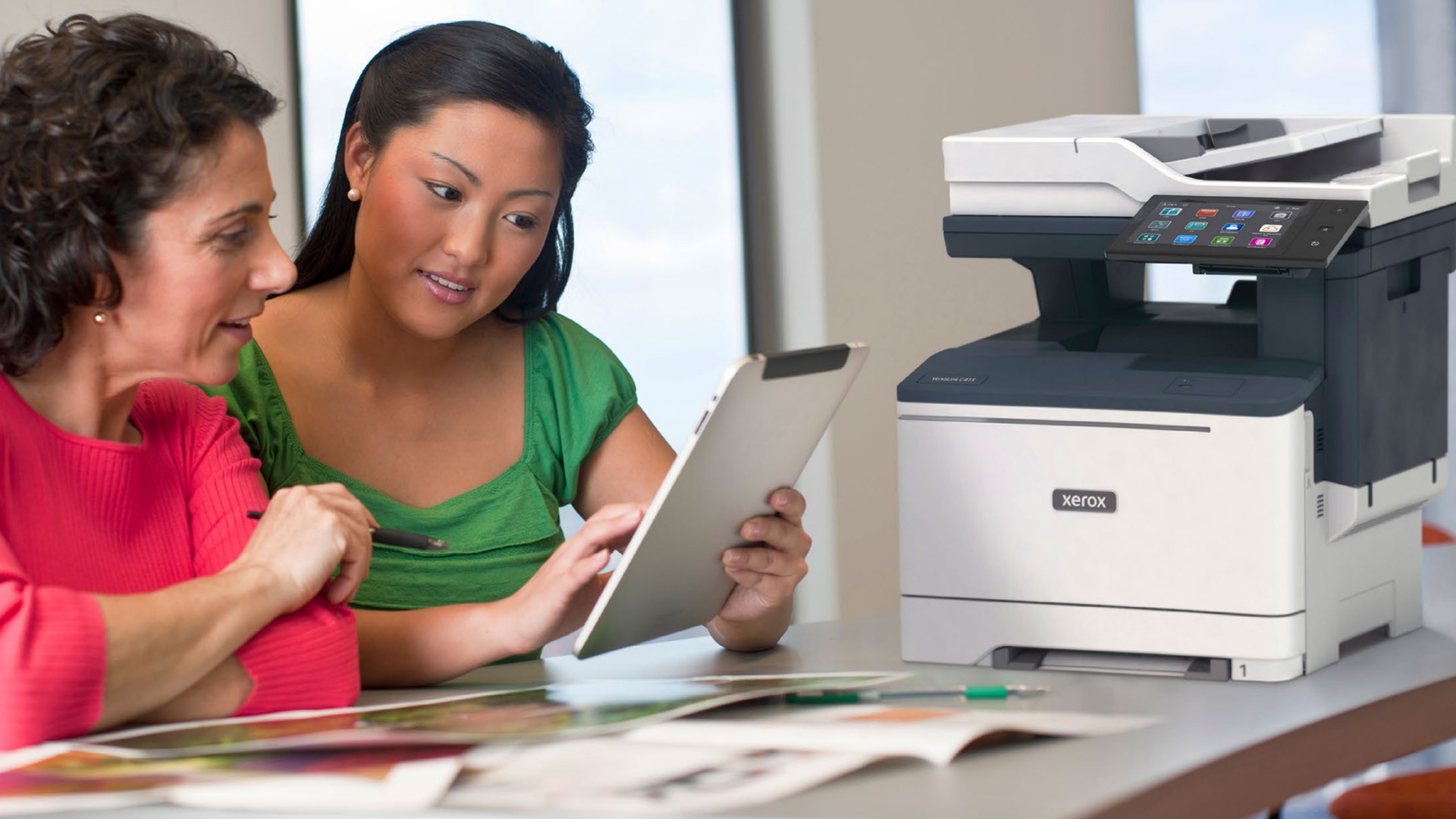
To stop Xerox paper jams, use clean, dry, undamaged paper and load the tray correctly. Most jams come from paper handling, not the printer itself.
Do this before blaming the hardware:
- Store paper in a dry place.
- Do not use curled, damp, torn, or folded paper.
- Fan the paper before loading it.
- Keep one size and one type of paper in each tray.
- Do not overfill the tray.
- Adjust the guides so they touch the paper without bending it.
- Choose the right paper type in the printer driver.
Paper settings matter because laser printers use heat to fuse toner to the page. Thick paper, labels, envelopes, and standard plain paper may need different settings.
For homes and small teams, affordable home printers can be a better fit than large office models when your print volume is light.
Xerox Maintenance by Printer Type
Different Xerox printers need slightly different care. Use this quick guide to match the maintenance routine to your device.
|
Xerox printer type |
What you should maintain most |
Best habit |
|
Mono Xerox laser printer |
Black toner, paper tray, feed rollers |
Keep paper dry and replace toner only when prompted |
|
Colour Xerox laser printer |
CMYK toner, printhead lenses, colour quality |
Clean lenses when colour streaks appear |
|
Xerox multifunction printer |
Scanner glass, ADF rollers, toner, paper path |
Clean scanner strip when copies show lines |
|
Xerox office printer |
Toner, drums, waste toner, trays, firmware |
Follow the control panel maintenance prompts |
|
Xerox label printing setup |
Label stock, bypass tray, feed path |
Use the correct media setting for labels |
For heavier workloads, professional office printers are usually easier to manage because they are built for higher print volumes, larger trays, and business maintenance cycles.
How Often Should You Maintain a Xerox Printer?
You should check paper and toner weekly, clean scanner glass when marks appear, clean trays monthly, and follow the printer’s on-screen prompts for toner, drum, waste toner, and firmware updates.
|
Task |
Suggested frequency |
|
Check toner status |
Weekly |
|
Check paper condition |
Every reload |
|
Clean exterior |
Weekly |
|
Clean scanner glass |
When copies show marks |
|
Clean ADF rollers |
Monthly on busy devices |
|
Clean paper tray |
Monthly |
|
Clean printhead lens |
When streaks or faded bands appear |
|
Check firmware or driver updates |
Every few months or when issues appear |
|
Replace toner |
When the printer prompts you |
A busy office printer may need attention more often than a home printer. Let print volume guide the schedule.
Why is Your Xerox Printer Printing Faded Pages?
Your Xerox printer may print faded pages because the toner is low, the toner is uneven inside the cartridge, toner save mode is enabled, the paper settings are wrong, or the printhead lens needs cleaning.
Try this order:
- Check toner level.
- Turn off toner save or draft mode.
- Confirm paper type in the print driver.
- Reseat the toner cartridge.
- Gently redistribute toner if the cartridge is not empty.
- Clean the printhead lens.
- Print a test page.
Why Does Your Xerox Printer Leave Lines or Streaks?
Lines or streaks usually come from dirty scanner glass, dirty printhead lenses, a toner issue, drum wear, or debris in the paper path.
The fastest test is this:
Print a page from your computer. Then make a copy from the scanner. If the print is clean but the copy has a line, clean the scanner glass and ADF strip. If both the print and copy show the same streak, check toner, printhead lenses, drum, and paper path.
When Should You Replace the Toner, Drum, or Printer?
Replace the toner when the printer indicates it is empty, or when print quality remains poor after reseating and cleaning checks.
Replace the drum when repeating marks, streaks, or image defects remain after toner checks and lens cleaning.
Consider replacing the printer when:
- Repairs are becoming frequent.
- Toner and parts are hard to find.
- Print speed is slowing down your work.
- The printer no longer supports your devices.
- Running costs are too high.
- You need better scan, duplex, wireless, or security features.
For text-heavy workloads, compare the best laser printers to find a model with the right print speed, toner yield, and paper capacity.
Best Xerox Printer Maintenance Tips

The best Xerox printer maintenance tips are simple and repeatable:
- Use the correct Xerox printer toners for your model.
- Keep paper dry and flat.
- Match paper settings to the loaded media.
- Clean the scanner glass before blaming the toner.
- Clean printhead lenses when light streaks appear.
- Do not open covers while printing.
- Do not leave covers open longer than needed.
- Replace supplies when the printer asks you to.
- Update drivers or firmware when required.
- Keep the printer on a stable, clean surface.
The goal is not to over-maintain the printer. The goal is to keep the common problem areas clean, dry, and correctly set.

Final Takeaway
Xerox printer maintenance does not need to be complicated. You need clean paper, properly installed toner, safe cleaning practices, a clean scanner glass, healthy rollers, and up-to-date software. Start with the visible symptoms, clean only the areas your model allows, and replace parts only after the simple checks are done.
A steady routine keeps your Xerox printer sharper, cleaner, and more reliable, whether you print a few home documents or run a busy office device every day.

What People Also Ask
How often should you clean a Xerox printer?
Clean the exterior weekly or when dusty; clean the scanner glass when copies show marks; and clean the ADF rollers about once a month on frequently used multifunction printers. Clean printhead or LED lenses when streaks, faded bands, or colour voids appear.
How do you replace Xerox toner?
Open the toner access door, remove the old cartridge by its handle, unpack the new toner, gently shake or tilt it as instructed, insert it until it stops, and close the door. Wait for the printer to recognise the cartridge before printing.
Why is my Xerox printer printing faded pages?
Faded pages usually come from low toner, uneven toner distribution, toner save mode, incorrect paper settings, damp paper, or dirty printhead lenses. Check toner status and print settings first, then reseat toner and clean the relevant lens if needed.
Why does my Xerox printer leave streaks?
Streaks can come from dirty printhead lenses, toner residue, a worn drum, damp paper, a dirty scanner strip, or debris in the paper path. Print from a computer and make a copy. When only copies show streaks, clean the scanner glass and CVT strip.
Can you vacuum toner from an Xerox printer?
Do not use a normal household vacuum for toner spills. Xerox warns that standard vacuums lack the proper filtration to capture toner particles, which can contaminate the air. Use Xerox’s model guidance or contact service support for internal toner spills.
Can you use non-Xerox toner in a Xerox printer?
Some third-party cartridges may physically fit, yet Xerox says genuine toner is designed under Xerox quality controls for specific Xerox products and that other toner may affect print quality and reliability. Xerox also provides authentication guidance to help users verify genuine supplies.
Why does toner rub off the page?
Toner that rubs off can point to the wrong paper type, incorrect driver media setting, unsuitable paper weight, room temperature or humidity problems, or a fuser issue. Xerox support guidance for poor fusing advises checking paper specifications, room conditions, and driver paper type.
What is the fastest way to maintain a Xerox printer properly?
Use dry paper, keep trays clean, replace toner only when needed, clean the scanner glass and ADF rollers, clean the printhead lenses when print quality drops, and keep firmware and drivers updated. This routine solves many common Xerox maintenance problems before they interrupt your work.
Related Articles


Last Updated: April 03, 2026
A printer upgrade may not sound exciting, but it makes a real difference—clean prints, quick scans, and no paper jams. That’s why New Year printer deals matter, as January is when people reset workspaces and prepare for school or home offices.
Printer New Year deals 2026 aren’t just about lower prices—they’re about choosing the right printer for your needs. From HP and Canon for home use to Brother and Xerox for high-volume printing, the best deal is the one that fits your habits and keeps costs low.
If you’re browsing Laptop Outlet, it’s easiest to begin broad and then narrow. Many shoppers start by clicking Start 2026 with New Year Tech Deals and then head into the printers section once they’ve set a budget and a goal—because the sale covers a wide range of tech categories and often includes meaningful discounts. From there, you can compare models across inkjet, laser, and multifunction types in one place via best document pc printers (don’t worry, we’ll keep it simple and practical below).
Last Updated: June 10, 2026
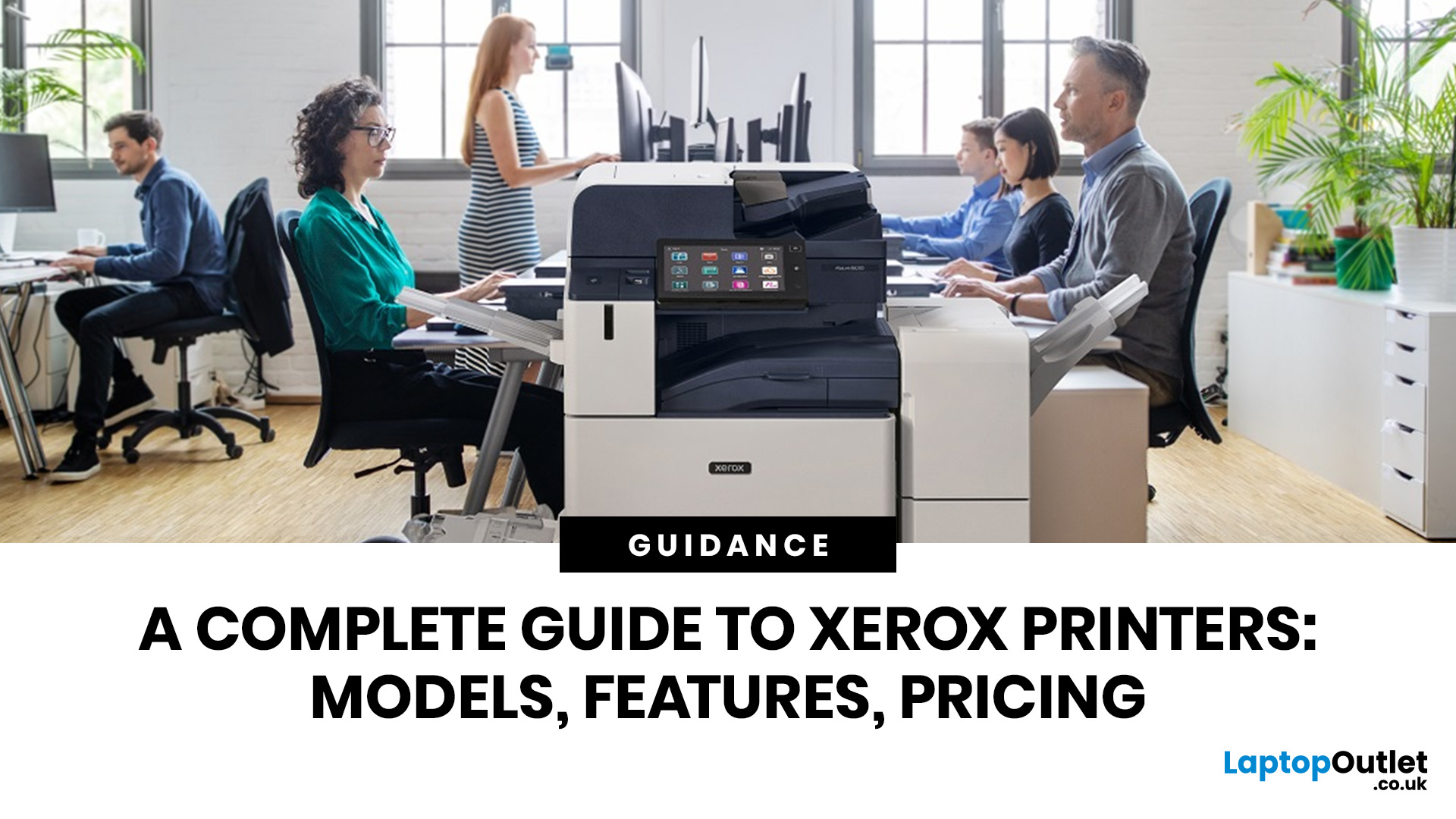
A Xerox printer is a document printer or multifunction device designed for reliable office, business, and home printing. Most modern Xerox printers focus on laser or LED printing, fast document output, strong security, mobile printing and multifunction features such as scanning, copying, faxing and cloud connectivity.
Xerox is a trusted name in business printing, best known for office printers, copiers and multifunction devices. While the brand is still strongly linked with photocopying, modern Xerox printers do much more than copy documents.
Today’s Xerox devices can print, scan, copy, fax, support mobile and cloud printing, manage user access and help businesses control print costs. Many models also include Wi-Fi, reliable paper handling, security features and easy touchscreen controls.
If you are comparing printers, looking for a Xerox printer, or trying to understand whether Xerox is right for your home or office, this guide breaks everything down in simple words.
What is a Xerox
Last Updated: May 05, 2026
HP printers are reliable, but even the best machines throw a wobble from time to time. The good news is that the vast majority of issues are easy to resolve on your own. This guide will show you how to fix common HP printer problems without calling a professional. Whether you've got an HP OfficeJet, DeskJet, LaserJet, or ENVY, many of the checks below apply across the range.
What Are the Most Common HP Printer Problems?
Before diving into individual fixes, it helps to know what you are actually dealing with. HP printers, from compact home models to full office workhorses, tend to run into the same handful of issues time and again.
Here is a quick overview of the most frequently reported HP printer problems and what typically causes them:
| Problem | Most Likely Cause |
| Printer not printing | Stuck print queue, offline status, driver fault |
| Paper jam | Overfilled tray, worn rollers, torn paper fragments |
| Printer showing offline | Wi-Fi dropout, incorrect default printer setting |
| Blank or faded pages |

Last Updated: May 05, 2026
Quick Answer: Inkjet printers offer high colour quality, a compact design, and a lower upfront price, making them ideal for homes, students, creative projects, and light office use. The main disadvantages are higher ink costs on cartridge models, slower print speeds, possible ink smudging, and printhead maintenance when the printer sits unused.
Choosing a printer sounds simple until you start comparing ink costs, print speed, colour quality, maintenance, and the difference between inkjet and laser models. For many UK homes, students, hybrid workers, and small offices, an inkjet printer still makes a lot of sense. It is usually compact, affordable to buy, and strong at printing colour documents, photos, homework, labels, and everyday paperwork.
The part that needs more thought is the long-term cost. Some inkjet printers are cheap upfront, but can become expensive when you replace cartridges often. Others, such as refillable ink tank models, cost more upfront but may suit regular printing
Last Updated: May 06, 2026
Xerox has been making printers for over 50 years, and their modern range is some of the most capable kit available for home and office use. However, even the best printer is useless if it's not set up correctly. This complete Xerox printer installation guide walks you through every method, every platform, and the most common problems you're likely to run into (with fixes), so you can get set up quickly and get on with your day.
1. What Do You Need Before Starting a Xerox Printer Installation?
A smooth installation begins well before any cable is plugged in or software is run. Taking five minutes to gather the right items and verify your system compatibility saves considerably more time than troubleshooting avoidable errors later.
What Hardware and Consumables Do You Need?
- Your Xerox printer with all packaging materials and shipping tape removed
- Power cable (supplied in the box)
- USB cable (Type-A to Type-B) for direct USB setups -- note that Xerox does not always include this in
Last Updated: July 07, 2026
Quick Answer: The main types of printers are inkjet, laser, multifunction (all-in-one), and label printers. Inkjet printers are great for photos and colour printing at home. Laser printers suit high-volume office use. Multifunction printers combine printing, scanning, and copying. Label printers handle specialist tasks like shipping labels. The right choice depends on your print volume, budget, and intended use.
Choosing the right printer feels overwhelming when you are faced with so many options. Inkjet or laser? All-in-one or dedicated? It is easy to spend money on a printer that simply does not match your needs. This guide cuts through the noise. We'll cover the various types of printers in detail. By the end, you will know exactly which printer fits your home, business, or creative needs.
What Are the Main Types of Printers Available Today?
There are several categories of printers commonly available to UK buyers, each designed with a different use case in mind. Understanding what
Last Updated: July 09, 2026
If you are comparing Xerox printer types, the easiest way to narrow it down is to start with how you print. For home use and light admin, compact mono, or colour laser models usually make the most sense. For small teams and busier desks, multifunction and office-focused Xerox models are often the better fit. Our current Xerox range reflects that clearly, with mono laser, colour laser, multifunction and VersaLink options aimed at home working, small businesses and larger office environments.
This guide breaks down the different Xerox printers that matter most, what each type is best at, and how to choose the right one without overbuying.
Which Xerox Printer Type Should You Choose?
If you mainly print forms, invoices, and text-heavy documents, mono laser is the strongest place to start. Xerox mono laser models are for straightforward document printing and regular office use, while other Xerox models are a fit for small to medium businesses and home working.
If you need colour for reports,
Last Updated: May 12, 2026
Buying a printer in 2026 should be straightforward, but with dozens of models, technologies, and pricing traps to navigate, it can feel overwhelming. This complete printers buying guide cuts through the noise and helps you find exactly what you need, at the right price, for your home, home office, or business.
What Is a Printer and What Does It Do?
A printer is a hardware device that takes digital data from a computer, phone, or tablet and reproduces it as a physical document or image on paper. It bridges the gap between the digital and physical worlds and remains one of the most widely used pieces of office and home technology in the UK.
Modern printers do a great deal more than simply print text. Today's models can scan documents, copy pages, send faxes, print directly from USB drives, and even connect to cloud services. Whether you need to print a single boarding pass or thousands of invoices each month, there is a printer designed precisely for that purpose.
Whether you are looking
Published: May 07, 2026
Most Xerox printer problems come from paper jams, low toner, incorrect paper settings, outdated drivers, network issues or print-quality settings. Start by restarting the printer, checking the paper tray, confirming toner levels, matching the paper type in the driver, and looking up any Xerox printer error codes in the official Xerox support portal.
Xerox printers are built for reliable document printing, but even a good printer can have a bad day. One minute everything is fine, the next your Xerox printer is offline, paper is stuck halfway through, prints look faded, or a random fault code appears on the display. Annoying? Absolutely. Usually fixable? Also, yes.
This guide covers the most common Xerox printer issues, what causes them, and how to fix them without panicking. It is written for everyday users, home offices and small businesses that need their printer working again quickly.
Quick Xerox printer troubleshooting checklist
Before going deep, try these basics first:
| Problem | Quick |
Last Updated: May 19, 2026
Quick Answer
For a quick HP printer installation, follow this order:
- Place the printer close to your router during setup.
- Connect the power cable and turn the printer on.
- Load plain A4 paper.
- Install the supplied ink cartridges or toner.
- Open the HP app or HP Smart app.
- Choose Set Up a New Printer or Add Printer.
- Connect the printer to your Wi-Fi network.
- Print a test page.
Once that is done, you can print wirelessly from your laptop, phone, tablet, or desktop.
Setting up an HP printer should not feel technical, even when you are doing it for the first time. Most new printers require only a few basic steps: power, paper, ink or toner, Wi-Fi connection, and device setup.
The confusion usually starts when different devices ask for different setup routes. A Windows laptop may ask you to add the printer through Printers & Scanners. A Mac may detect it through AirPrint. A phone may need the HP app. A Chromebook may require you to add it in Chrome OS printer settings. Your printer may also

