



Top 7 Label Printer Common Problems and Solutions
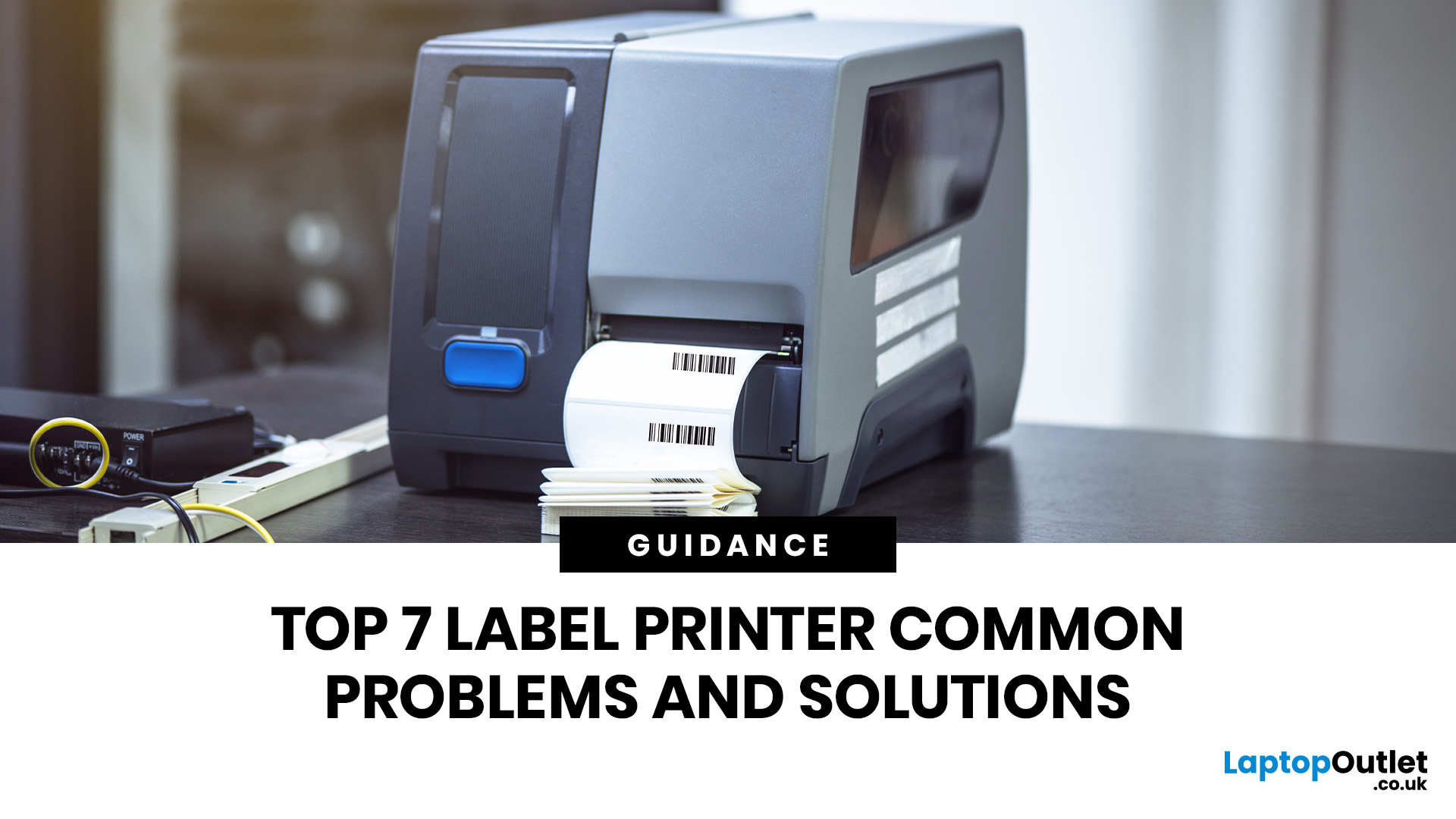
Label printers are practical, reliable, and incredibly useful when they work as expected. Whether you use one for shipping labels, barcodes, product tags, warehouse labels, office organisation, or home storage, a good label printer can save time and keep everything running smoothly.
Like any printer, label printers can occasionally run into problems. You may find your label printer not printing, producing faded labels, jamming midway through a job, or printing blurry labels that are difficult to scan. These label printer issues can be frustrating, especially when you need quick and accurate prints for business operations.
The good news is that many label printer common problems are easy to fix once you know what is causing them. In this guide, we’ll walk you through the top seven label printer errors users often face and show you how to solve them with simple, practical steps. This guide covers seven common label printer issues, explains what causes them, and shows you how to solve them with simple, practical steps.
1. Label Printer Not Printing
The Problem
A label printer not printing is one of the most common label printer errors. You may send a job to the printer, but nothing happens. The job may stay in the queue, the printer may show as offline, or the device may not respond at all.
This can happen because of a loose cable, weak wireless connection, empty label roll, incorrect printer selection, wrong label size, or outdated driver. Sometimes the printer is working fine, but the computer is sending the job to the wrong device.
The Solution
Start by checking that the printer is switched on and connected properly. If it is a USB model, reconnect the cable or try another port. If it is wireless, make sure the printer and computer are on the same network.
Next, check the label roll. Make sure it is loaded correctly and aligned with the guides. Then confirm that your software is using the correct label size. Clear the print queue, restart the printer, and update or reinstall the driver if needed.
If you are using a new device or have recently changed your setup, our step-by-step label printer setup guide can help you connect, configure, and test your printer correctly.
2. Label Printer Paper Jams
The Problem
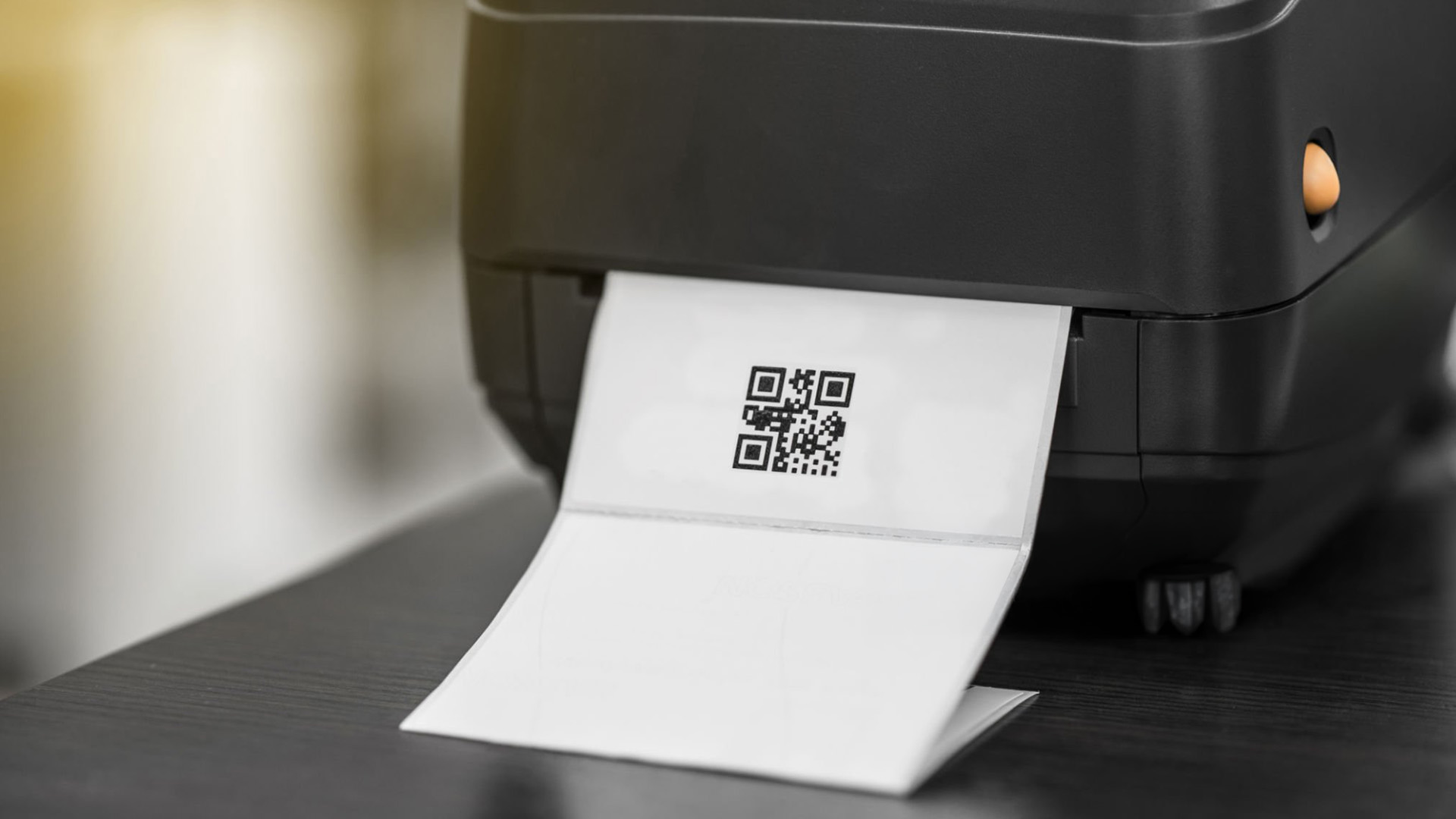
Label printer paper jams often happen when the label roll is misaligned, the guides are too tight, or the labels are not compatible with the printer. Dust, torn label pieces, and adhesive residue inside the printer can also stop labels from feeding smoothly.
Paper jams are especially frustrating in busy offices, warehouses, and retail environments because they waste labels and interrupt the workflow.
The Solution
Turn the printer off before removing the jammed label. Open the cover and gently pull the stuck label out in the direction of the paper path. Do not tug too hard, as this can damage the rollers or sensors.
Once the label is removed, check inside the printer for torn pieces, dust, or sticky residue. Clean the rollers and print path using the recommended cleaning method for your model. If jams keep happening, switch to compatible label rolls or consider a model better suited to your print volume. You can explore our printer collection to compare suitable options.
3. Label Printer Smudged Prints
The Problem
Label printer smudged prints can make barcodes, addresses, and product labels difficult to read. This can affect shipping, stock control, and presentation, especially for businesses that rely on clear labelling.
Smudging is usually caused by a dirty printhead, unsuitable labels, incorrect darkness settings, or the wrong ribbon in a thermal transfer printer. These thermal label printer problems are often linked to supplies or settings rather than a faulty machine.
The Solution
Check that you are using the correct label type for your printer. Direct thermal printers need heat-sensitive labels, while thermal transfer printers need the right ribbon and label combination.
Clean the printhead carefully to remove dust, adhesive, and residue. Then adjust the darkness and speed settings. If the print is too dark or heavy, reduce the darkness slightly. Slowing the print speed can also help produce cleaner, sharper labels.
4. Label Printer Printing Blurry Labels
The Problem
A label printer printing blurry labels can cause problems with barcode scanning and make text harder to read. This issue is common when the label design is low quality, the print settings are incorrect, or the printhead is dirty.
Blurry labels may also appear when the printer is running too fast or when the label template does not match the actual label size.
The Solution
Start with the design file. Use sharp artwork, clear text, and the correct label template. Avoid stretching logos, barcodes, or product details, as this can reduce print quality.
Next, check the printer’s DPI and speed settings. Higher resolution can help with small text and detailed labels. If the printer is printing too quickly, reduce the speed. Clean the printhead and rollers regularly to keep the print path clear and consistent.
You can also learn more about label printers if you are comparing models or planning an upgrade.
5. Faded Labels Issue
The Problem
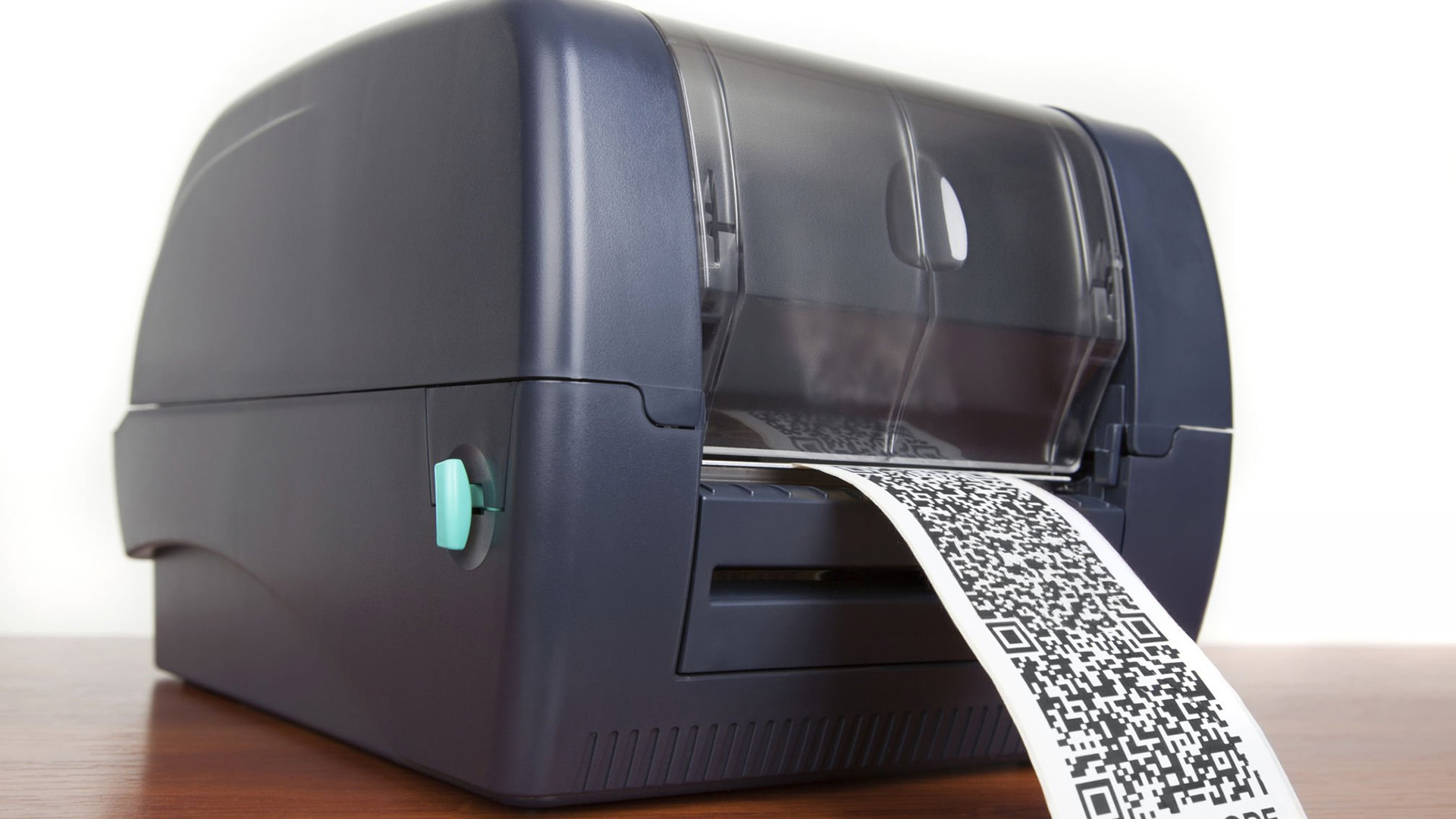
A faded labels issue can appear straight after printing or develop over time. This is especially common with direct thermal labels because they use heat-sensitive material rather than ink or toner.
Labels may fade because the print darkness is too low, the label stock is poor quality, the labels are old, or they have been exposed to heat, sunlight, or moisture.
The Solution
Increase the print darkness setting gradually until the label becomes clearer. Avoid setting it too high straight away, as too much heat can cause smudging or other print quality issues.
Use good-quality compatible labels and store them in a cool, dry place away from direct sunlight. Clean the printhead if the print looks patchy or uneven. For labels that need to last longer, a thermal transfer printer may be more suitable than a direct thermal model.
6. Label Printer Driver Issues
The Problem
Label printer driver issues can cause failed print jobs, incorrect label sizes, alignment problems, or a printer that your computer does not recognise. These problems often appear after an operating system update, new software installation, or device change.
The driver is what allows your computer and printer to communicate. If it is outdated, corrupted, or incorrect, label printer troubleshooting becomes difficult.
The Solution
Download the latest driver from the manufacturer’s website for your exact printer model and operating system. Before reinstalling it, remove old or duplicate printer profiles from your computer.
After installation, restart the computer and check your label size, orientation, margins, and scaling settings. For workplaces that depend on regular printing, reliable business printers can help support smoother daily operations.
7. Label Printer Connection Problems
The Problem
Label printer connection problems can happen with USB, Wi-Fi, Bluetooth, or Ethernet models. The printer may show as offline, disconnect during use, or fail to receive print jobs.
These issues are often caused by loose cables, weak Wi-Fi signals, incorrect network settings, Bluetooth pairing faults, or a printer being connected to the wrong device.
The Solution
For USB printers, check the cable and try another port. For Wi-Fi printers, make sure the printer and computer are connected to the same network. Restarting the printer and router can often fix temporary connection faults. For Bluetooth printers, remove the printer from your device settings and pair it again.
If your current model no longer supports your workload, our guide on choosing the right label printer can help you find a better option for your home, office, or business needs.
Quick Label Printer Troubleshooting Checklist
- Before assuming your printer is faulty, run through a few quick checks.
- Make sure the printer is powered on, connected, and loaded with the correct labels.
- Confirm the label size in your software, clear the print queue, and restart the printer.
- If print quality is poor, clean the printhead and rollers.
- If jobs keep failing, update or reinstall the driver.
- If you recently changed labels, cables, software, or devices, start there first. The most recent change is often the cause.
Different label printer types handle durability, print quality, and label materials in different ways, so it is worth reading our guide to the different types of label printers before choosing your next model.
When Should You Replace Your Label Printer?
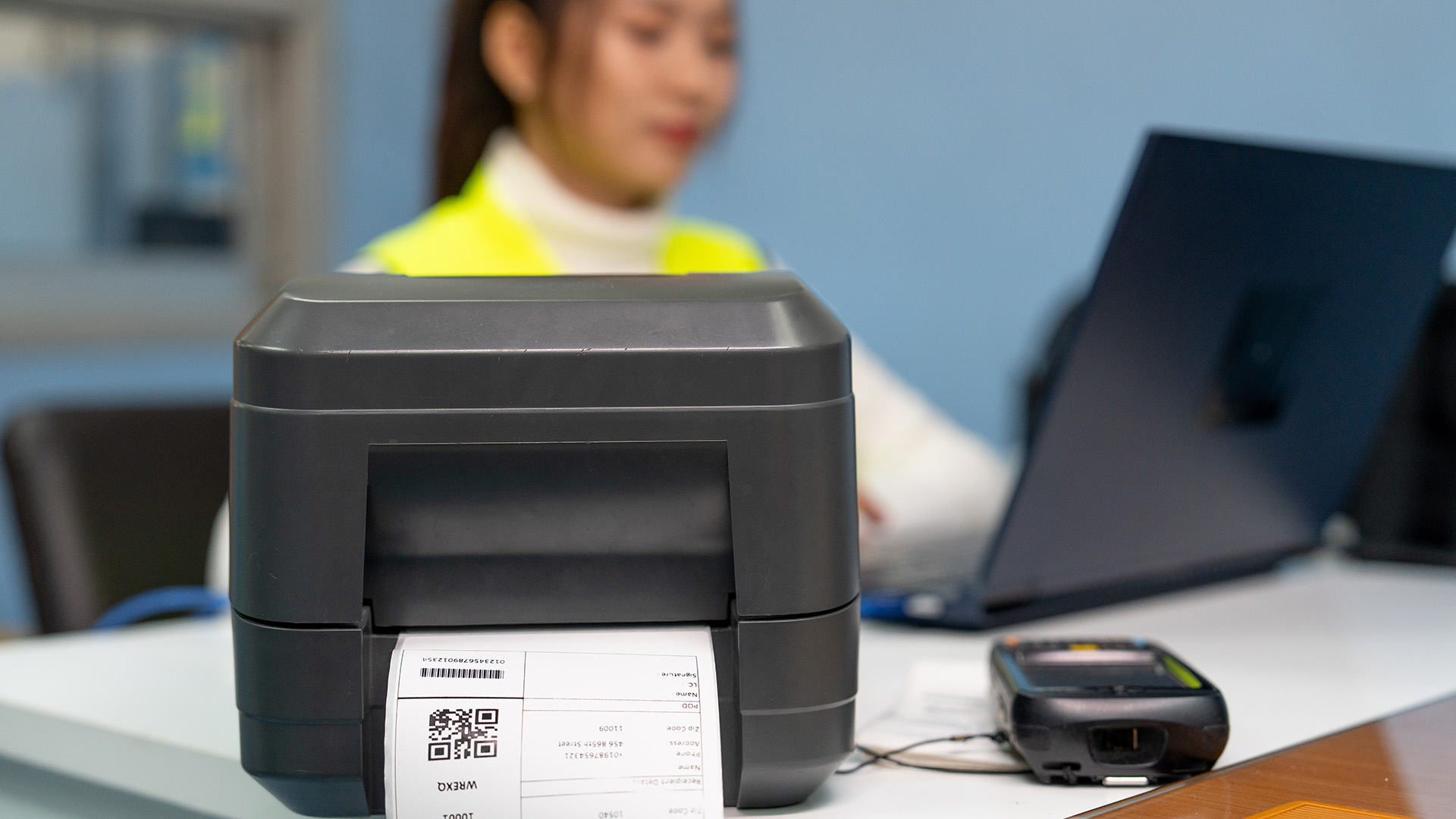
Many label printer issues can be solved with cleaning, better labels, updated drivers, or corrected settings. However, replacement may be the better option if the printer keeps jamming, disconnecting, or producing poor-quality labels after repeated fixes.
A worn printhead, unavailable replacement parts, poor software support, or limited print capacity can all make an upgrade worthwhile. Home users may want to compare affordable home printers, while businesses with wider printing needs may also benefit from inkjet printers or laser printing solutions.

Final Thoughts
Label printers are reliable tools, but occasional problems can affect performance. Most label printer common problems, including paper jams, smudged prints, blurry labels, faded labels, driver errors, and connection faults, can be fixed with simple checks and regular maintenance.
Keeping your printer clean, using compatible labels, updating drivers, and checking settings can help prevent recurring problems. If your printer continues to slow you down, upgrading to a more suitable model may be the best long-term solution.

Top Questions Related to Label Printer Common Problems
Why is my label printer not printing?
Your label printer may not be printing because of a loose connection, empty label roll, incorrect label size, stuck print queue, or outdated driver. Check the connection, reload the labels, clear the queue, and update the driver if needed.
Why are my labels coming out faded?
Faded labels are usually caused by low print darkness, poor thermal labels, old label stock, a dirty printhead, or exposure to heat and sunlight. Increase the darkness setting gradually and use compatible labels.
Why does my label printer keep jamming?
Your printer may keep jamming because the roll is misaligned, labels are loaded incorrectly, the rollers are dirty, or adhesive has built up inside the printer. Clean the print path and reload the labels properly.
How do I fix blurry label prints?
To fix blurry label prints, check that your label design is high resolution and that the template size matches your label roll. Clean the printhead and rollers, reduce the print speed, and check the printer’s DPI settings. If you are printing barcodes or small text, sharp artwork and accurate sizing are especially important.
Why does my label printer keep jamming?
Your label printer may keep jamming because the roll is misaligned, the labels are loaded incorrectly, the rollers are dirty, or adhesive residue has built up inside the printer. Turn off the printer, remove the stuck label carefully, clean the print path, and reload the labels according to the manufacturer’s instructions.
| Read More: |
| Top 10 Ways to Save Money on Printer Ink in 2026 |
| Why is My Printer Not Working? Easy Fixes for Common Issues |
| How to Choose the Right Printer for Your Needs |
Related Articles

Published: June 04, 2026
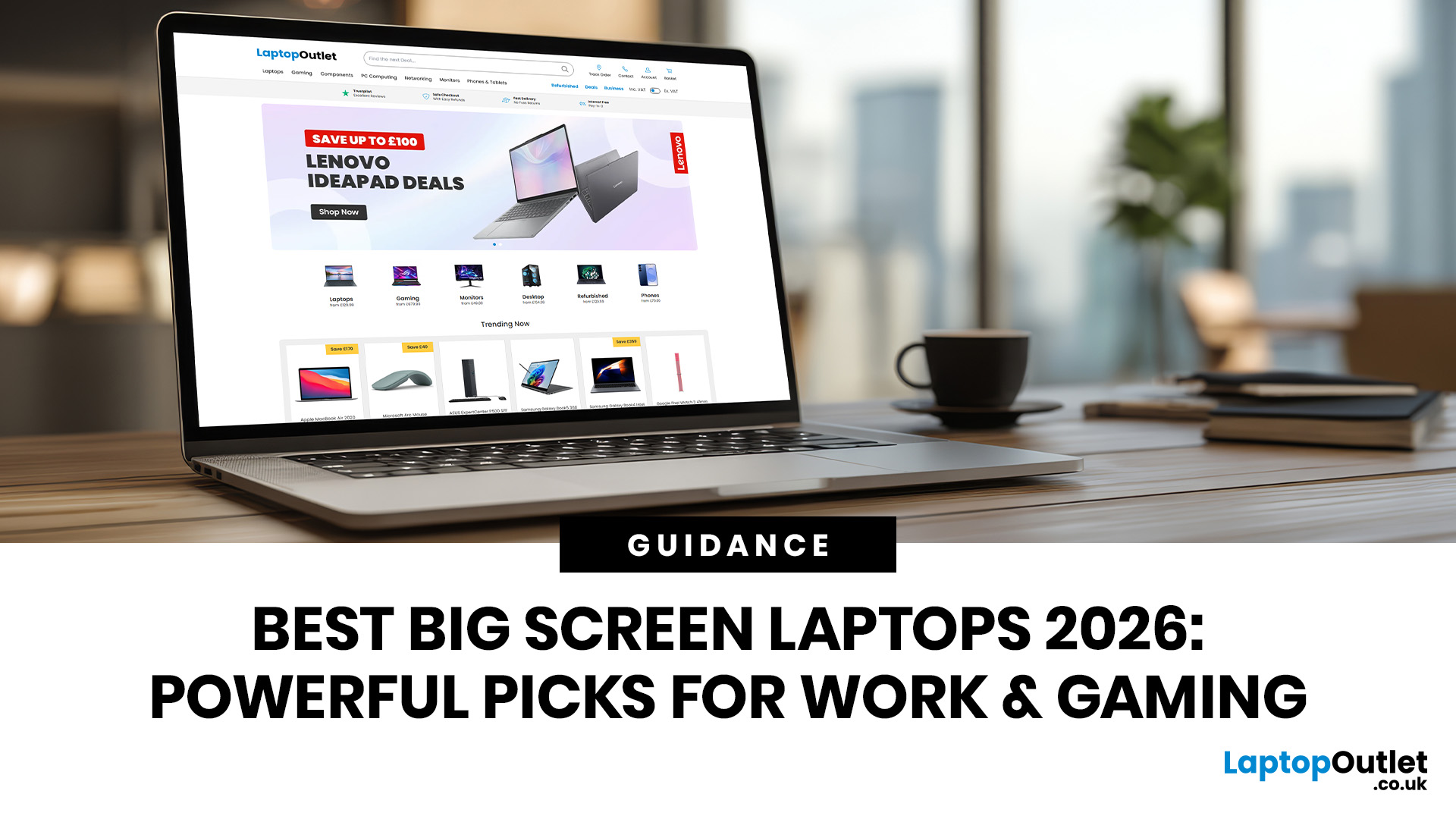
Big-screen laptops are becoming essential for UK buyers who want more workspace, stronger performance and immersive entertainment in one device. This 2026 guide compares 16-inch, 17-inch and larger laptops for work, gaming, study and creativity, helping you choose the right model for productivity, portability, battery life and long-term value today.
A larger display gives you more room for spreadsheets, timelines, browser tabs, creative apps, coding windows, and immersive games. Whether you are comparing laptops and notebooks, upgrading your work-from-home setup or searching for a capable gaming machine, large screen laptops now offer a much better balance of performance, display quality and portability than older bulky models.
Why Big Screen Laptops are More Popular Than Ever in 2026
Big-screen laptops are having a strong moment because people expect more from one device. A laptop is no longer used only for emails and web browsing. It may now need to handle video calls, AI meeting notes,
Published: June 04, 2026
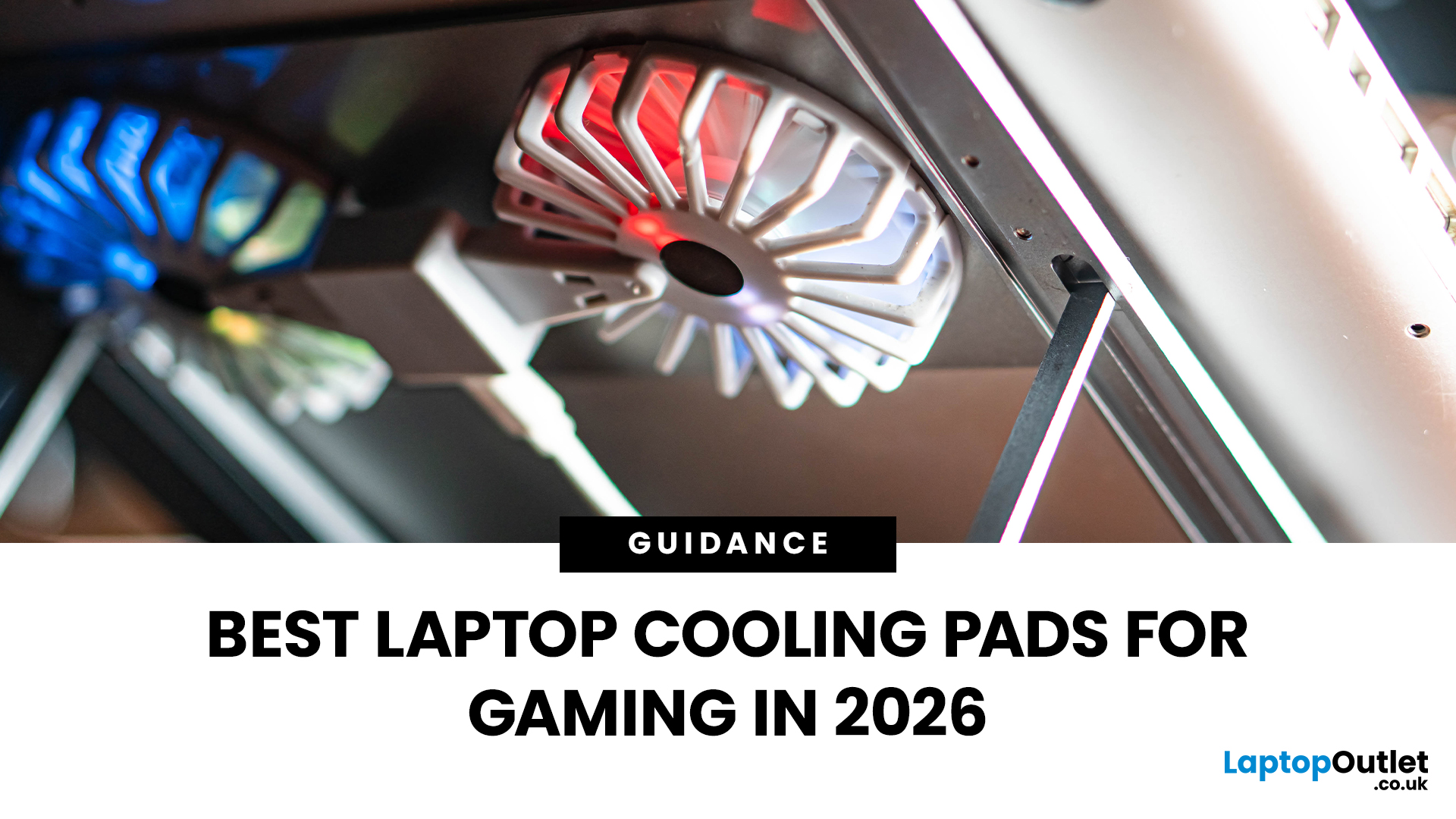
Gaming laptops are built to push frames, load heavy worlds, and keep up with long sessions. But when temperatures climb, performance can take a hit. That is where the right cooling setup matters.
A gaming laptop cooling pad can help improve airflow around your laptop, raise it into a better position, and reduce heat build-up during long gaming sessions. For more advanced setups, PC builders may also look at liquid coolers, CPU coolers, and performance cooling fans to keep gaming rigs running cooler and more consistently.
In this guide, we break down the Best laptop cooling pads UK shoppers should look for in 2026, what features actually matter, and the top cooling picks to upgrade your gaming space.
Why Laptop Cooling Matters for Gaming
Gaming pushes your laptop harder than everyday browsing or streaming. The CPU and GPU work together to deliver smooth frame rates, detailed graphics, and fast response times. More power means more heat.
When your laptop gets too hot, it may reduce performance

Last Updated: September 10, 2026
Quick Answer:
- Buy the iPhone 17 now if you want a standard iPhone, your current handset needs replacing, or you find a worthwhile retailer deal.
- Wait a few days if you want the iPhone 18 Pro or iPhone 18 Pro Max. UK pre-orders open at 1pm on 12 September, with availability from 18 September.
- Do not wait for the standard iPhone 18 based on a fixed date. Apple did not announce it on 9 September and has not published an official release schedule.
- If you want Apple's first foldable iPhone, the confirmed model is iPhone Duo. Pre-orders open 16 October and availability begins 23 October.
This guide will help you decide whether to buy iPhone 17 or wait for iPhone 18 by breaking down the best choice for each type of buyer using Apple's confirmed September 2026 information.
Where Things Stand After Apple's September Event
Apple officially announced the iPhone 18 Pro and iPhone 18 Pro Max on 9 September 2026. Both models are available to pre-order in the UK from 1pm on 12 September, with general
Last Updated: September 10, 2026
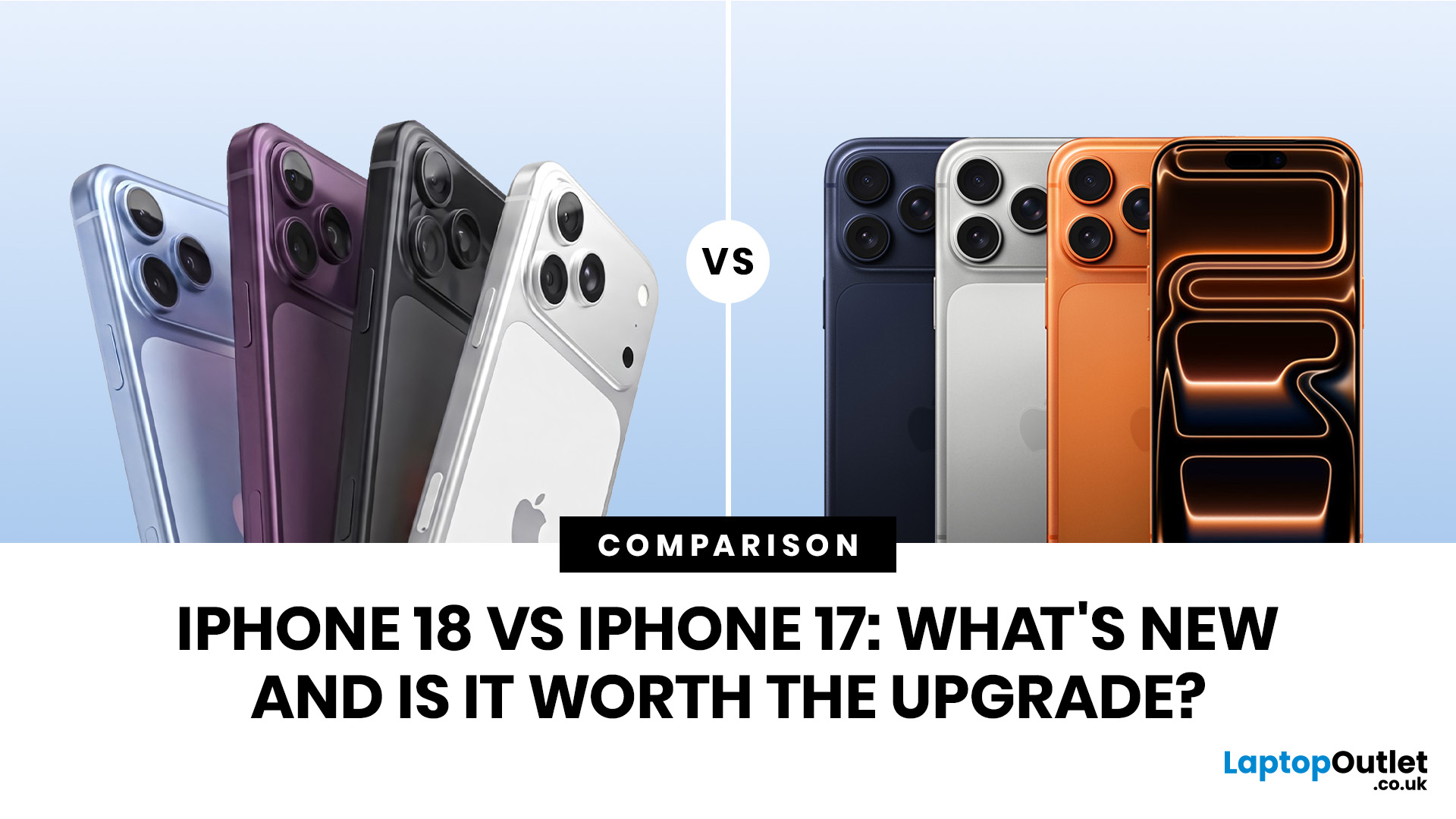
Apple’s September event has finally given us something concrete to work with in the iPhone 18 vs iPhone 17 conversation – but there is an important catch.
Apple announced the iPhone 18 Pro and iPhone 18 Pro Max on 9th September 2026, but there was no standard iPhone 18. Apple’s current UK iPhone range still positions the iPhone 17 as its standard model, with no confirmed standard iPhone 18 release date yet.
So rather than comparing the iPhone 17 against rumours, this guide looks at what Apple has actually confirmed for the iPhone 18 generation, particularly the iPhone 18 Pro, and whether those improvements give iPhone 17 owners a good reason to upgrade.
iPhone 18 vs iPhone 17: Quick Comparison
| Feature | iPhone 17 | iPhone 18 Pro |
| Availability | Available now | Pre-order from 12 September; available 18 September |
| Chip | A19 | A20 Pro |
| Display | 6.3-inch Super Retina XDR OLED | 6.3-inch Super Retina XDR OLED |
| Refresh Rate | ProMotion up to 120Hz | ProMotion up to 120Hz |
| Rear Cameras | 48MP Dual Fusion system | 48MP |
Last Updated: June 10, 2026
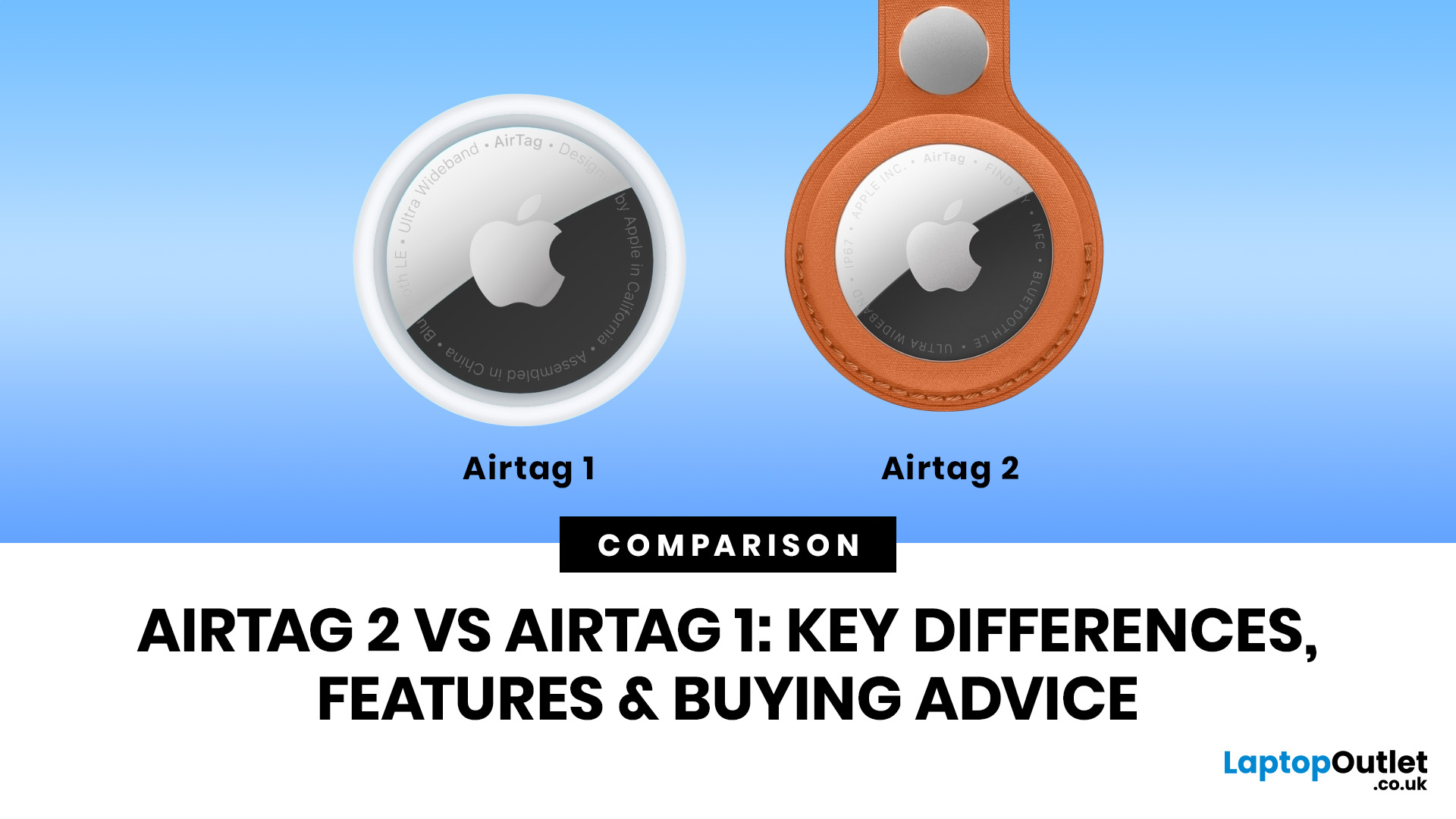
AirTag 2 is the better buy for most Apple users in 2026, especially if you want improved range, a louder speaker, better Precision Finding and stronger support for newer iPhone and Apple Watch models. AirTag 1 is still worth considering if you only need basic tracking for keys, bags or luggage and can find it at a much lower price.
Lost keys? Missing wallet? Suitcase doing its own world tour? We have all been there. Apple AirTag has been one of the easiest ways for iPhone users to keep tabs on everyday essentials, and now the newer AirTag 2 has arrived with better range, a louder speaker, and improved finding features.
So, when it comes to AirTag 2 vs AirTag 1, which one should you actually buy? Is AirTag 2 worth it, or is the original AirTag 1 still a smart budget-friendly move? Let’s break down the real AirTag 1 vs AirTag 2 differences without the tech jargon overload.
AirTag 2 vs AirTag 1: Quick Comparison
| FEATURE | AIRTAG 1 | AIRTAG 2 |
|---|---|---|
| Generation | First-generation Apple tracker | Second-generation |
Last Updated: September 02, 2026
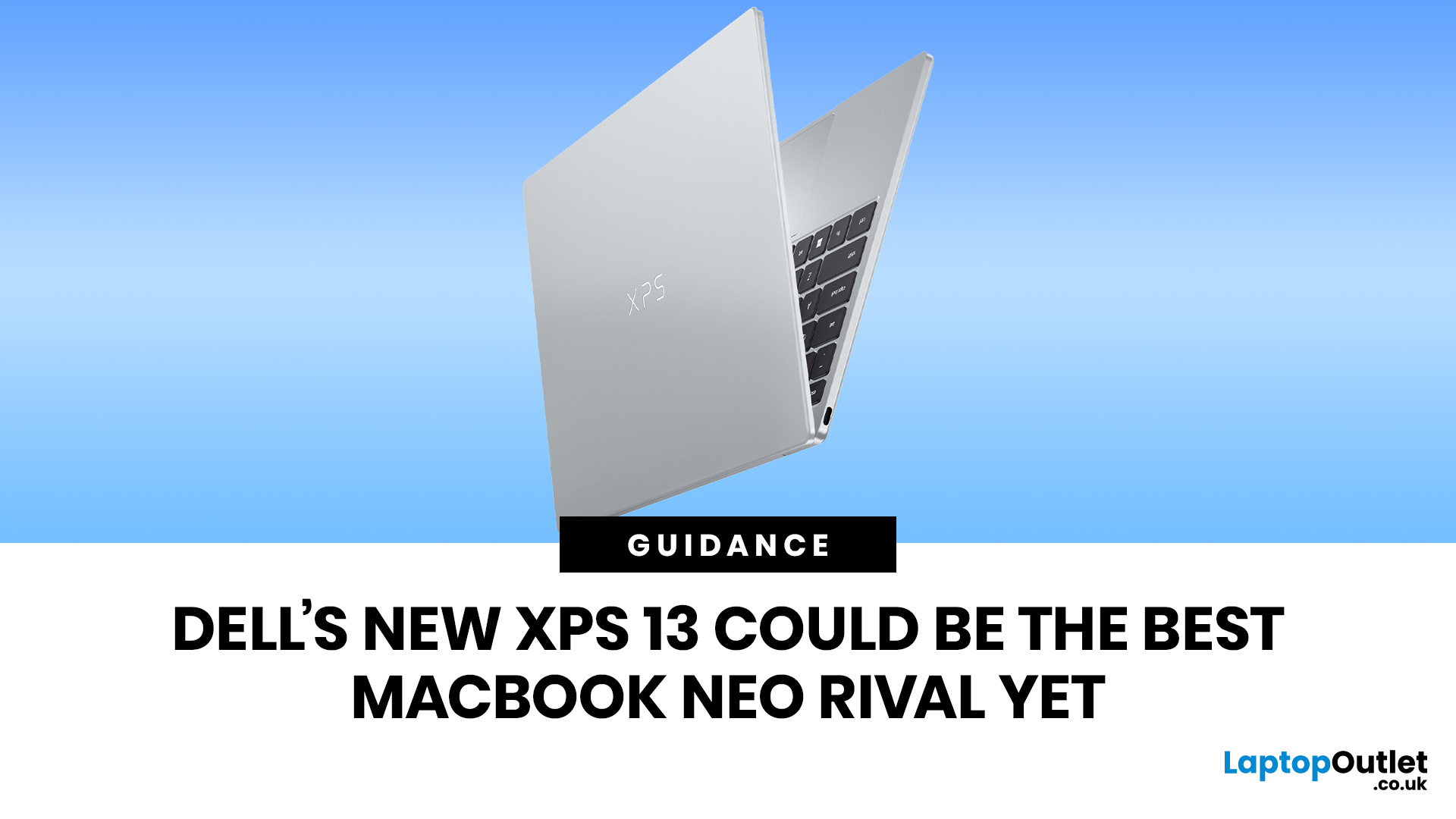
The Dell XPS 13 (2026) could become one of the best MacBook Neo alternatives so far. Starting at ~£599–£699, it undercuts the MacBook Neo's feature set with a touchscreen, backlit keyboard, and higher RAM ceiling. The MacBook Neo starts at £599 in the UK with Apple's A18 Pro chip, strong battery life, and seamless macOS.
If you live in the Windows world and want more flexibility, the XPS 13 is the stronger all-rounder. If you want a polished, simple laptop that just works within the Apple ecosystem, the Neo holds its ground. If you want a detailed comparison between Dell XPS 13 vs MacBook Neo, this guide is for you.
Why This Dell XPS 13 vs MacBook Neo Comparison Matters
The sub-£700 laptop market got interesting in 2026. Apple launched the MacBook Neo in March as its most affordable Mac ever, bringing a proper aluminium laptop to the price point normally dominated by Chromebooks and budget Windows machines. Three months later, Dell fired back with a redesigned XPS 13 that targets the Neo
Last Updated: July 15, 2026
Quick answer: Choosing the right video cable depends on your devices and intended use.
- Use HDMI for TVs, games consoles, soundbars, streaming sticks and home cinema setups.
- Use DisplayPort for gaming PCs, high-refresh monitors and multi-monitor desktop setups.
- Use USB-C with DisplayPort Alt Mode, USB4 or Thunderbolt for modern laptops and docking stations.
- Use VGA only when older hardware or a legacy projector gives you no digital option.
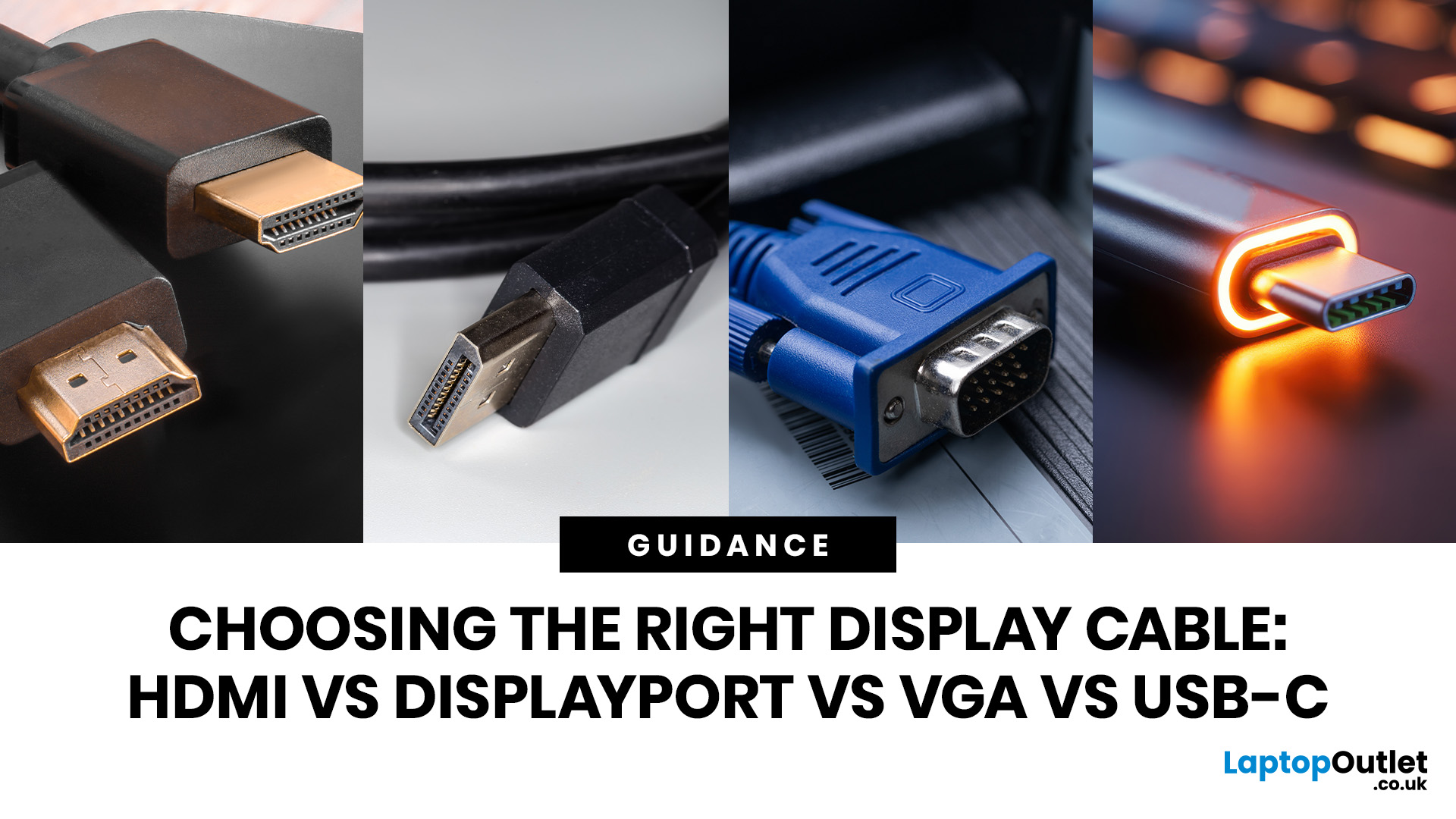
In this guide, we will walk through a clear HDMI vs DisplayPort vs USB-C vs VGA comparison, so you know which one is right for your specific setup, whether that is a gaming rig, a home office, a laptop workstation, or a living room TV.
What Is HDMI? Versions, Features and Best Uses
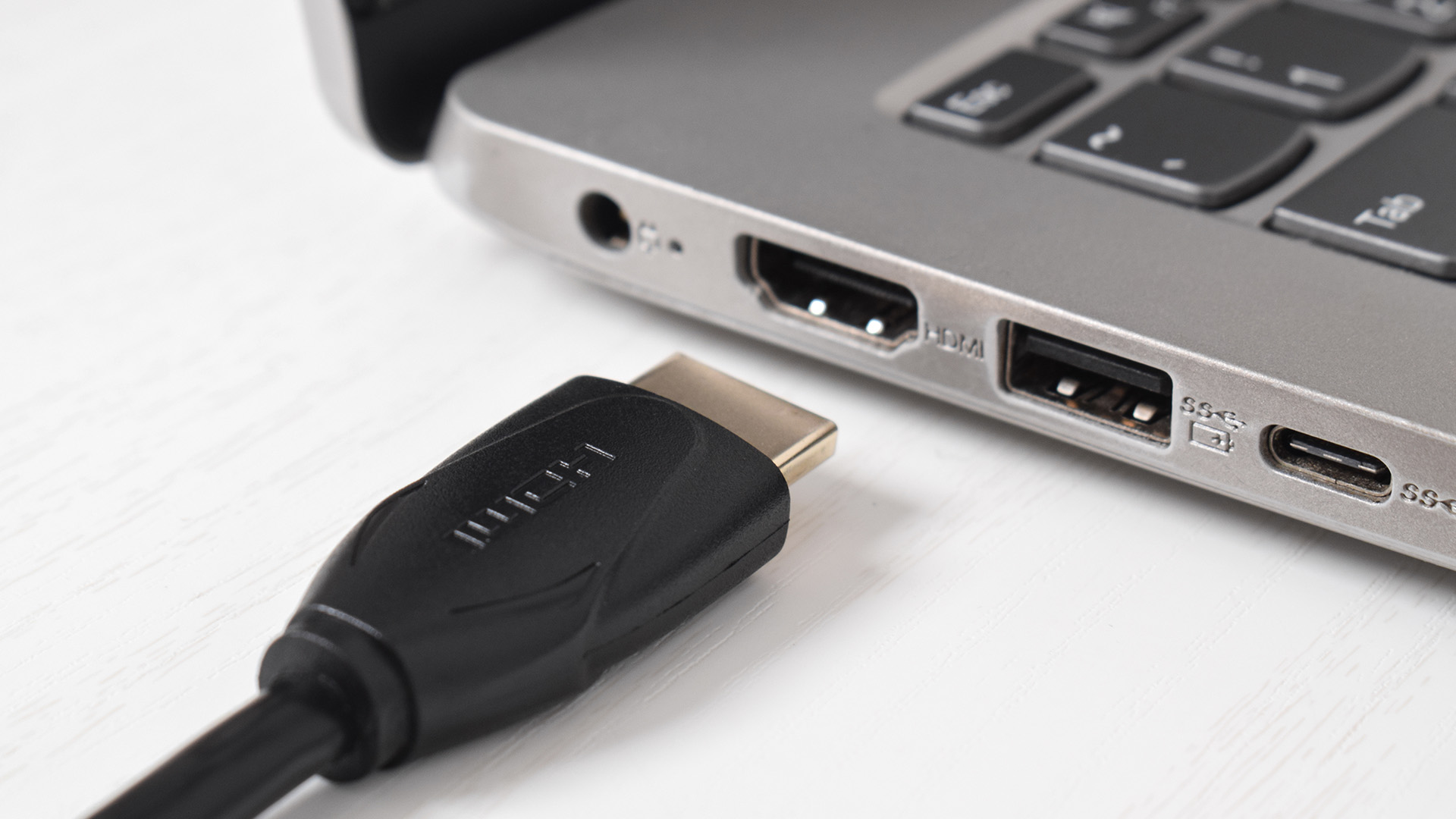
HDMI (High-Definition Multimedia Interface) is the most widely used display connection in the world. You will find it on smart TVs, projectors, games consoles, streaming sticks, soundbars, Blu-ray players, and the majority of laptop docking stations and AV accessories sold

Last Updated: June 05, 2026
Apple’s highly anticipated smart glasses are rumoured to be currently in development as a lightweight AI accessory to complement the iPhone. Positioned to compete with Meta’s Ray-Ban smart glasses, they are expected to feature built-in cameras, speakers, microphones, and an upgraded Siri, but current reports suggest they may not arrive until 2027, with a possible delay into 2028.
| Important note: Apple has not announced or confirmed Apple smart glasses. Everything below is based on reports, leaks, analyst expectations and industry rumours. Details may change before launch, and some features may never appear in a final product. |
What Are Apple Smart Glasses?
Apple smart glasses are a rumoured wearable product that Apple is reportedly developing as its next major category after Apple Watch and AirPods. Unlike the Apple Vision Pro, which is a full spatial computing headset, these glasses are expected to look like a normal pair of everyday spectacles with hidden smart technology built inside
Last Updated: July 15, 2026
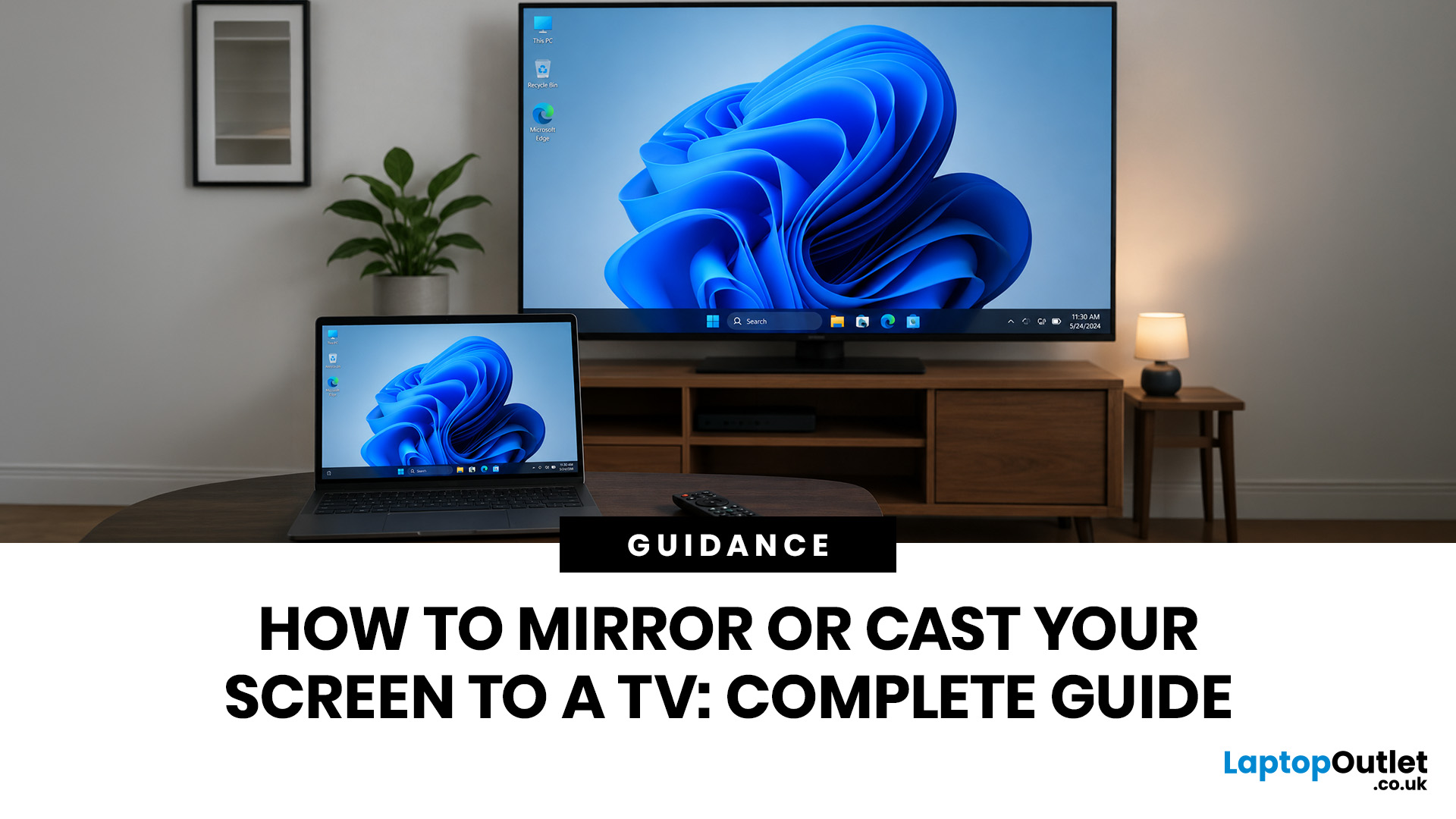
To mirror or cast your screen to a TV, ensure both your device and TV are connected to the same Wi-Fi network. Then, simply use your device's built-in Screen Mirroring or Cast feature (such as AirPlay, Smart View, or Google Cast) and select your TV from the list. For a more stable setup, connect with HDMI, USB-C to HDMI or Lightning to HDMI, depending on your device.
Screen mirroring to TV helps you show a phone, laptop or tablet on a bigger display without handing your device around the room. It is useful for films, photos, work calls, lessons, browsing, gaming and quick family sharing. This guide explains wireless and wired methods for iPhone, iPad, Android, Windows, MacBook and older TVs.
The Best Method by Device: A Quick Glance
The right method depends on your device, TV software and whether you want to show one app or your entire screen. Use this table first.
| Device or setup | Best wireless method | Best wired method | Good for |
|---|---|---|---|
| iPhone or iPad | AirPlay to TV | Lightning or USB-C to HDMI | Photos, |
Last Updated: June 08, 2026
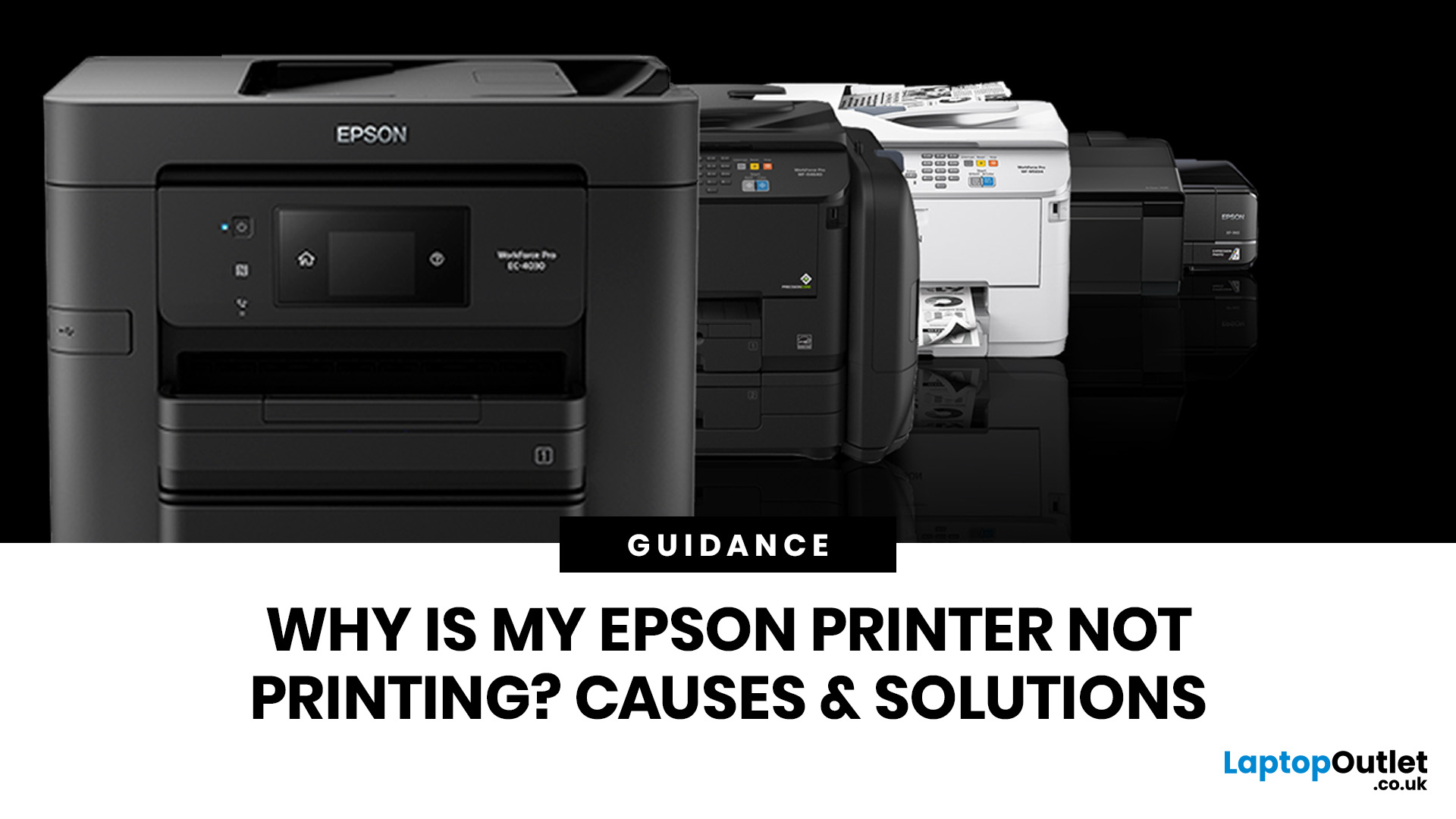
If your Epson printer is not printing, the problem is usually caused by low ink, clogged print heads, offline settings, connection issues, stuck print jobs, or outdated drivers. Most Epson printer problems can be fixed with simple troubleshooting steps such as checking cartridges, cleaning the print head, clearing the print queue, updating drivers, or resetting the printer.
An Epson printer not printing can be frustrating, especially when you need an important document, return label, invoice, or school assignment right away. The good news is that most Epson printer problems are not as serious as they first seem. In many cases, the issue comes down to low ink, clogged nozzles, offline settings, a weak connection, or a stuck print queue.
So, if you are wondering, “Why is my Epson printer not printing?”, this guide will walk you through the most common causes and simple ways to fix Epson printer issues at home. Before you think about replacing your printer, try these easy Epson printer troubleshooting

