



Step-by-Step Guide on How to Connect Epson Printer to WiFi
To connect an Epson printer to WiFi, turn on the printer, open its WiFi or Network Settings, select WiFi Setup Wizard, choose your network name, enter the WiFi password and confirm the connection. If your Epson printer has no screen, use Epson Smart Panel, WPS, Epson setup software or a temporary USB setup method, depending on your model. Always keep your WiFi name and password ready before starting.
Trying to set up a printer and watching it refuse to connect is a very specific kind of pain. You just want to print one document, and suddenly your Epson printer is acting like it has trust issues with your router.
This guide explains how to connect Epson printer to WiFi in simple steps, whether your model has a screen, works through WPS, needs the Epson Smart Panel app, or requires setup software on Windows or Mac. We will also cover what to do if your Epson printer is not connecting to WiFi, because let’s be honest, that is usually where the drama starts.
Before You Start: What You Need for Epson Printer WiFi Setup
Before connecting your Epson printer to WiFi, make sure you have the basics ready. Epson’s wireless setup guidance says you need your wireless network name, also called the SSID, and your WiFi password or security key before adding the printer to a wireless network.
You should also place the printer near your router during setup. A weak signal can stop the connection before it even gets going. Once setup is complete, you can move the printer to its usual spot.
If you are setting up a newer Epson model, check whether it supports Epson Smart Panel. Epson says the Smart Panel app lets users print, copy, scan, set up, monitor and troubleshoot compatible printers from a smartphone or tablet. For drivers, software, manuals and model-specific help, Epson UK’s support page lets users search by model or serial number.
Method 1: How to Connect Epson Printer to WiFi Using the Printer Screen
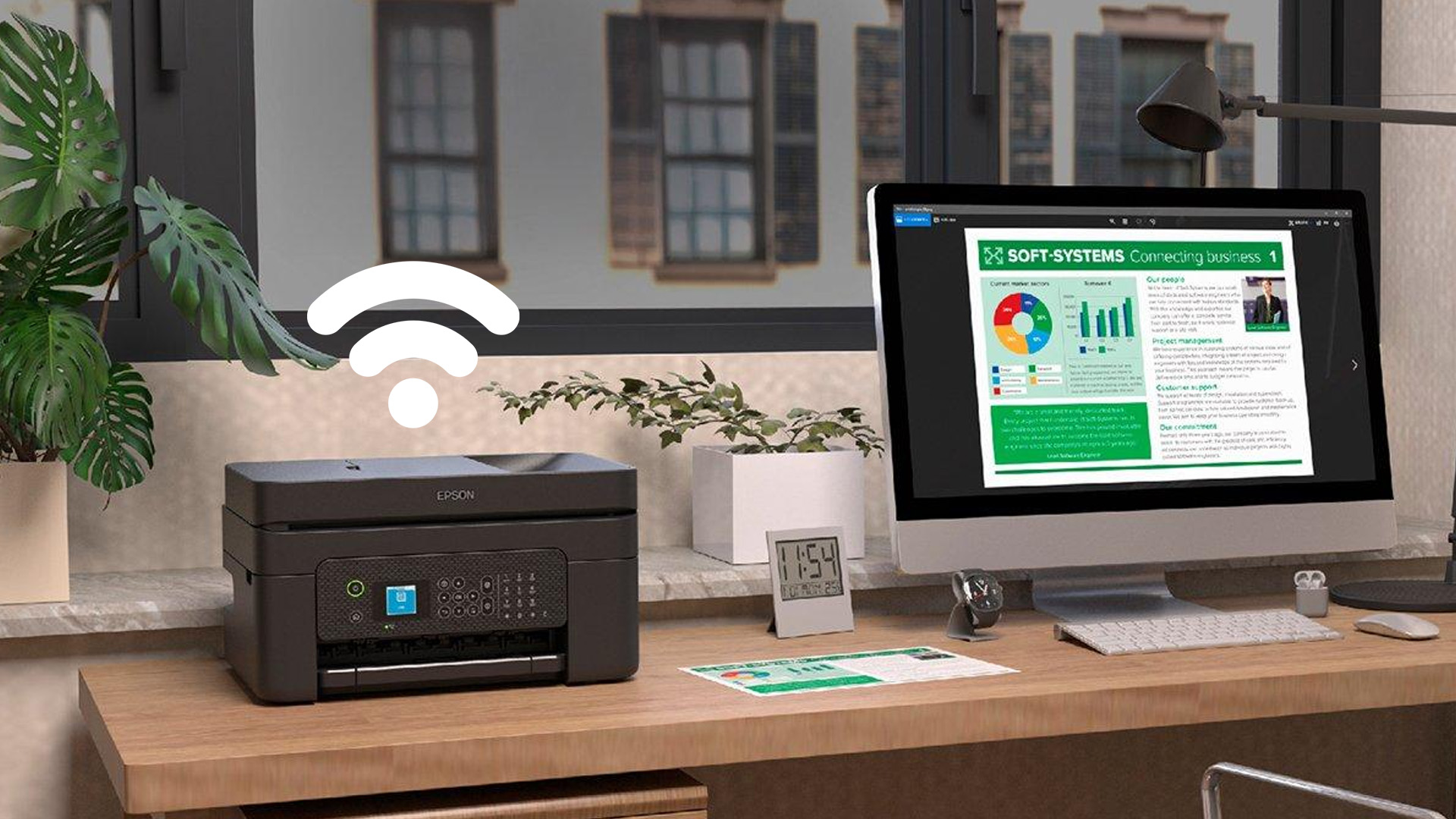
This is the easiest method if your Epson printer has a display or control panel.
Step 1: Turn on Your Epson Printer
Plug in your printer and switch it on. Wait until it finishes loading before opening the settings menu.
Step 2: Open WiFi or Network Settings
On the printer screen, look for one of these options:
- WiFi Setup
- Network Settings
- Wireless LAN Setup
- WiFi Recommended
- WiFi Setup Wizard
The exact wording depends on your Epson model, but the idea is the same.
Step 3: Select WiFi Setup Wizard
Choose WiFi Setup Wizard. This tells the printer to search for nearby wireless networks.
Step 4: Choose Your WiFi Network
Select your home or office WiFi name from the list. If you cannot see it, move the printer closer to the router and try again.
Step 5: Enter Your WiFi Password
Type your WiFi password carefully. Passwords are case-sensitive, so check capital letters, symbols and numbers before confirming.
Step 6: Confirm the Connection
Once connected, your Epson printer should show a successful connection message. Print a test page to make sure everything is working. That is the standard Epson printer WiFi setup method for many models with a screen.
Method 2: How to Connect Epson Printer to WiFi Without a Screen
Some compact Epson printers do not have a display. If that is your model, do not panic. You can still connect Epson printer to WiFi using the app, WPS or setup software. The easiest option is usually Epson Smart Panel. Epson says the app can walk users through product setup and lets them add a printer from a smartphone or tablet. To use it:
- Download Epson Smart Panel from the App Store or Google Play.
- Open the app and tap to add a new printer.
- Follow the on-screen setup instructions.
- Choose your WiFi network.
- Enter your WiFi password.
- Wait for the app to confirm setup.
This method is especially useful for small inkjet printers, home printers and newer wireless models designed for mobile-first setup.
Method 3: Connect Epson Printer to WiFi Using WPS
WPS is a quick setup method that connects your printer to your router without typing the WiFi password. It only works if both your router and Epson printer support WPS. To connect using WPS:
- Turn on your Epson printer.
- Press the WiFi or WPS button on the printer.
- Press the WPS button on your router.
- Wait for the WiFi light on the printer to stop flashing.
- Print a network status sheet if your model supports it.
WPS is useful when you want a fast setup, but it is not always available. Some routers have WPS disabled, and some business networks do not allow it. If you are setting up printers in a shared workspace, it may be better to compare dedicated business printers with stronger office connectivity features.
Method 4: Epson Wireless Printer Setup on Windows or Mac
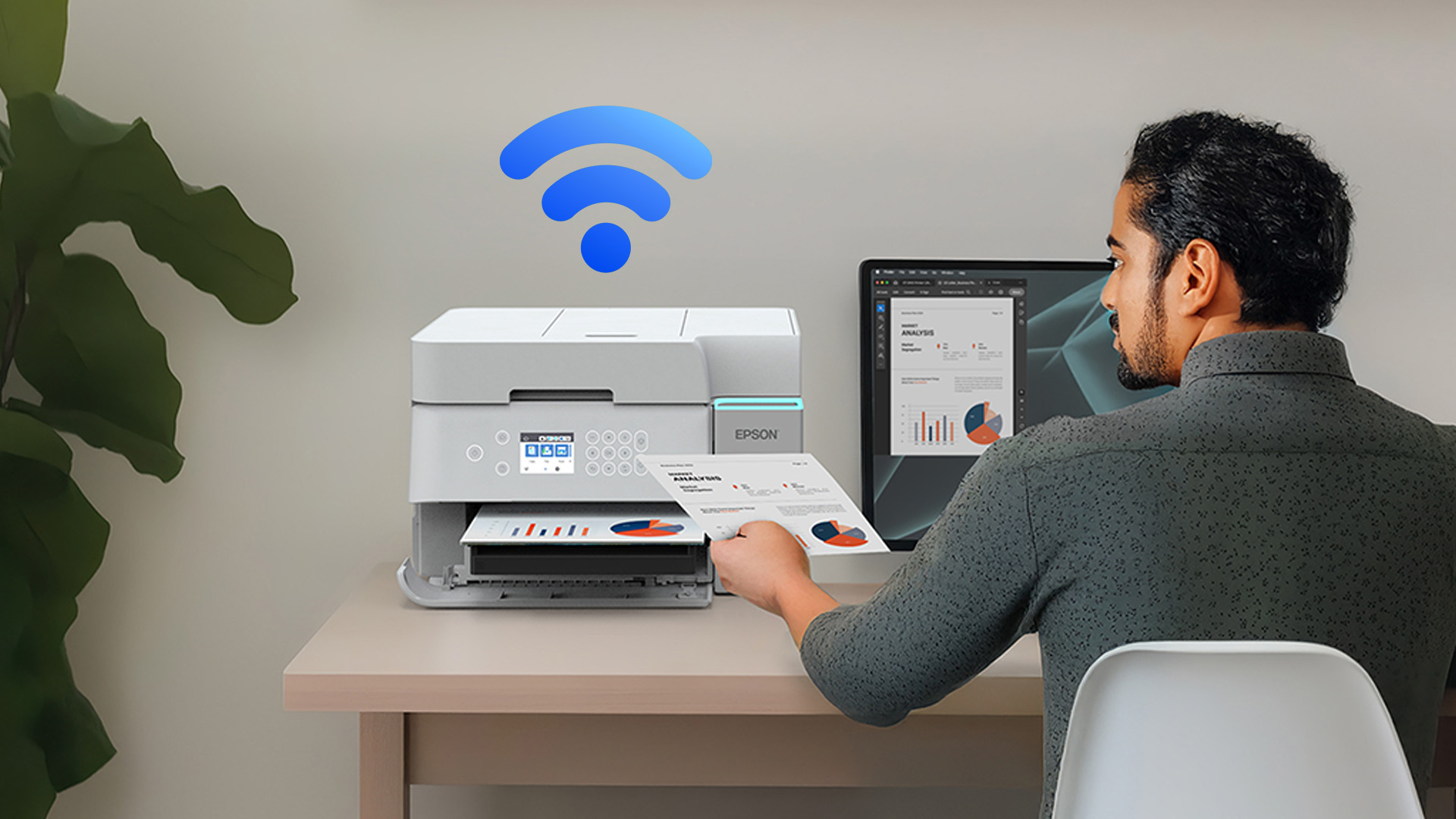
Once your printer is connected to WiFi, you may still need to add it to your laptop or desktop.
- For Windows, go to Settings > Bluetooth & devices > Printers & scanners > Add device. Wait for your Epson printer to appear, then select it.
- For Mac, open System Settings > Printers & Scanners, then click to add a printer. Choose your Epson printer from the list.
If your device cannot find the printer, install the correct Epson setup software or driver. Epson Connect setup guidance says the printer should first be set up on a wireless or Ethernet connection before using the Epson Connect Printer Setup Utility.
This is also a good time to check whether your laptop, phone and printer are all using the same WiFi network. If your laptop is on a guest network and the printer is on the main network, they may not see each other.
Method 5: Connect Epson Printer to WiFi Using USB Setup
Some older Epson models may use setup software with a temporary USB cable. In this method, you connect the printer to your computer with a USB cable, run the Epson setup tool, enter your WiFi details, then remove the cable once wireless setup is complete.
This is not needed for every printer, but it can help when the printer has no screen, WPS is not working, or the printer will not appear during wireless setup.
If setup feels too clunky because your current model is outdated, upgrading to a modern all in one printer can make printing, scanning, copying and wireless access much easier from one device.
However, in case your printer is not printing you can’t find the reason behind, read our Why is My Epson Printer Not Printing? Causes & Solutions.
Epson Printer Not Connecting to WiFi? Try These Fixes
If your Epson printer is not connecting to WiFi, work through these checks before assuming the printer is faulty.
Check the WiFi password
The most common issue is a wrong password. Re-enter it carefully and check upper-case letters, numbers and symbols.
Use the same network
Your printer and device must be on the same WiFi network. Avoid guest networks where possible.
Restart everything
Turn off the printer, router and laptop or phone. Wait 30 seconds, then turn them back on.
Move the printer closer to the router
Weak signal can cause setup failure. Try connecting near the router first.
Check 2.4GHz and 5GHz settings
Some printers connect more reliably to 2.4GHz networks, depending on the model. If your router separates 2.4GHz and 5GHz, try the 2.4GHz network.
Reset Epson printer WiFi settings
If your printer was connected to an old router, reset its network settings and run setup again from scratch.
Reinstall drivers or setup software
Use Epson’s official support page to download the latest drivers and manuals for your model. Epson UK provides product-specific drivers, downloads and troubleshooting resources.
How to Print from Your Phone After WiFi Setup
Once your Epson printer connect to WiFi process is complete, mobile printing becomes much easier.
With Epson Smart Panel, supported printers can print, scan, copy, monitor status and troubleshoot from a smartphone or tablet. Make sure your phone and printer are connected to the same WiFi network, then open the app and select the file, photo or document you want to print.
This is especially useful for students, families, hybrid workers and small businesses that print from multiple devices.
If your main printing need is postage, product stickers or shipping labels, a standard printer may not be the best fit. For ecommerce sellers, stock rooms and small retailers, dedicated label printers may be more practical.
Which Epson Printers Are Easier to Connect to WiFi?
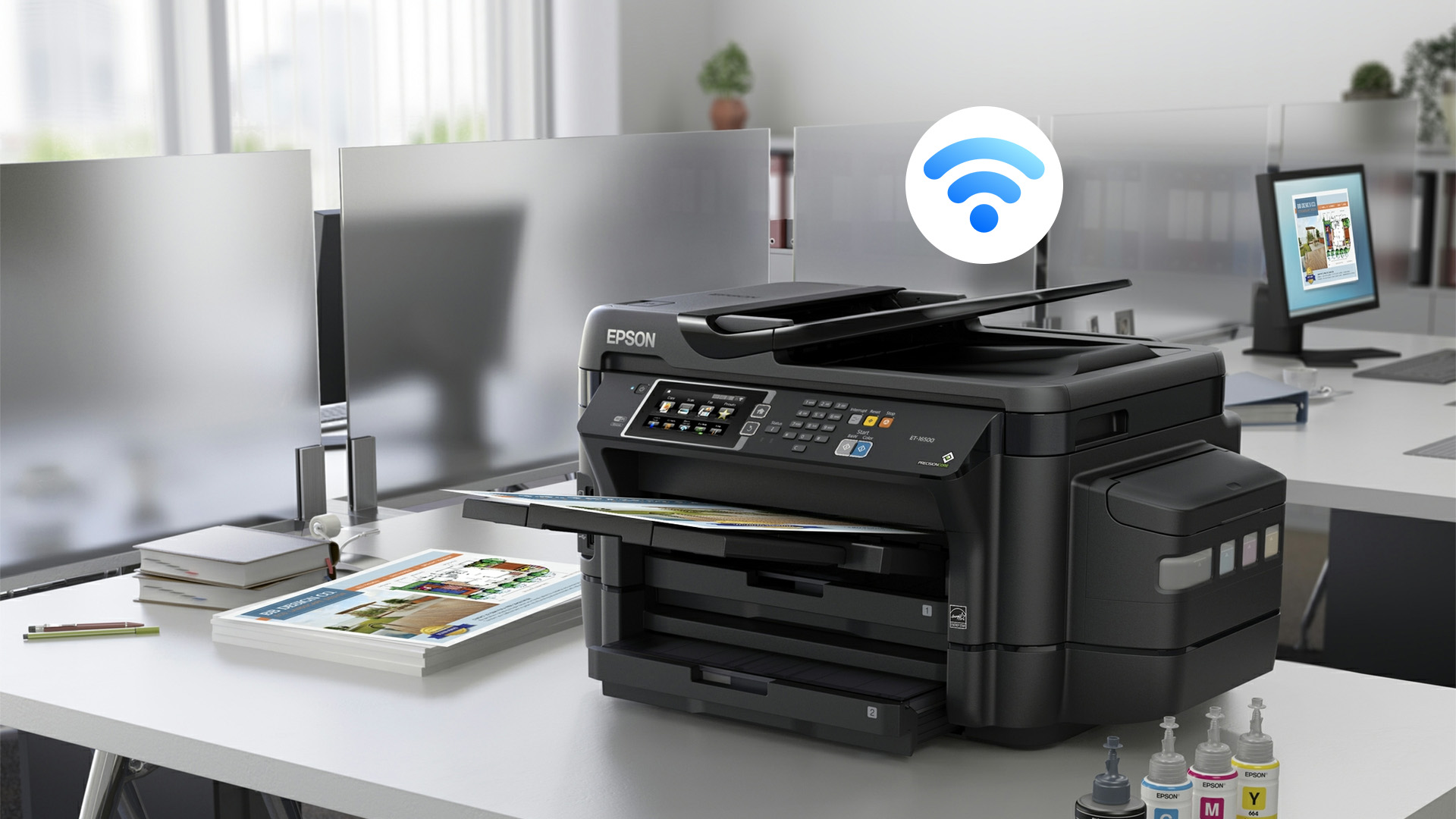
Newer wireless Epson printers are usually easier to set up because many support app-based installation, mobile printing and simplified network setup.
For everyday home use, wireless inkjet or EcoTank models are a strong choice. If you want one machine for printing, scanning and copying, an all-in-one model is more practical. For office users, business-focused printers may offer better paper handling and stronger shared-use features.
Still deciding which model is right? Read our Epson printer buying guide before buying. It explains Epson printer types, running costs and which models suit different users.

Final Thoughts
Connecting an Epson printer to WiFi is usually simple once you know which method fits your model. Printers with a screen can connect through WiFi Setup Wizard, compact models often use Epson Smart Panel, and some setups may use WPS, computer software or a temporary USB cable.
If your Epson printer is not connecting to WiFi, check the password, signal strength, network selection and drivers first. Most issues come down to setup details, not a broken printer.

In Case You’re Wondering...
How do I connect Epson printer to WiFi?
Open the printer’s WiFi settings, select WiFi Setup Wizard, choose your network, enter the WiFi password and confirm the connection. If your model has no screen, use Epson Smart Panel, WPS or Epson setup software.
Why is my Epson printer not connecting to WiFi?
Common reasons include an incorrect WiFi password, weak signal, wrong network, outdated drivers, router changes or saved old WiFi settings.
Where are Epson printer WiFi settings?
On printers with a screen, they are usually under Network Settings, WiFi Setup or Wireless LAN Setup. On screen-free models, settings are usually managed through Epson Smart Panel or Epson setup software.
Can I connect an Epson printer to WiFi using WPS?
Yes, if both your printer and router support WPS. Press the WPS button on your router and follow your printer’s WiFi button instructions.
How do I connect to an Epson printer from my laptop?
Once the printer is connected to WiFi, add it through your laptop’s printer settings. If it does not appear, install the correct Epson driver or setup software.
Related Articles

Last Updated: July 06, 2026
If your printer is acting up, the short answer is this: most all in one printer problems are fixable without replacing the whole machine. The fastest wins usually come from checking the connection, clearing the print queue, confirming the right printer is selected, inspecting paper loading, and running the built-in cleaning or alignment tools before assuming the hardware has failed. Microsoft, Brother, Epson, Canon, and HP all point users toward those same basics first, which is a strong sign that the smartest troubleshooting is usually methodical, not dramatic.
That is exactly what this guide is here to do. Instead of giving you random fixes with no logic behind them, this article breaks down the most common all-in-one printer issues, shows what each symptom usually means, and explains the best way to fix it. So, whether your machine is offline, feeding paper badly, refusing to scan, printing faded documents, or suddenly producing blank pages like it has given up on communication,
Published: April 24, 2026
If you want an all-in-one printer to last, the best approach is simple: keep it clean, use the built-in maintenance tools properly, and deal with small print-quality issues before they turn into bigger faults. Good all in one printer maintenance is less about deep cleaning every week and more about doing the right checks at the right time.
For most homes and small offices, that means cleaning the scanner glass and document feeder areas regularly, using printhead cleaning only when print quality drops, keeping paper and supplies in good condition, and not treating laser and inkjet models the same way. That last point matters. A multifunction printer cleaning routine for an inkjet is not the same as multifunction printer care for a laser model with a separate drum unit.
The Best Way to Keep an All-in-One Printer Working Well
The simplest all-in-one printer maintenance guide starts with routine care, not emergency fixes. Keep dust off the exterior, keep the scanner glass and ADF strip clean,
Published: April 24, 2026
An all-in-one printer is a machine that lets you print, scan, copy, and sometimes fax from one device. It is designed to save space, reduce setup hassle, and handle everyday home or office tasks without needing separate equipment.
An all-in-one printer, sometimes called a multifunction printer or MFP, combines multiple jobs into one device. Retailer and manufacturer guidance broadly agrees on the core value proposition: one device, less clutter, fewer cables, and a more streamlined workflow for home and office users.
Nobody wakes up thinking, “You know what would absolutely change my life today? A printer.” And yet, the second you need to print a return label, scan a signed document, copy schoolwork, or send a form to the office, your printer suddenly becomes the main character.
That is exactly why these all-in-one printers guide exists. We explain how all-in-one printers work, their key features, the main types, their benefits, costs, setup, maintenance, and how to choose the best one
Last Updated: June 10, 2026
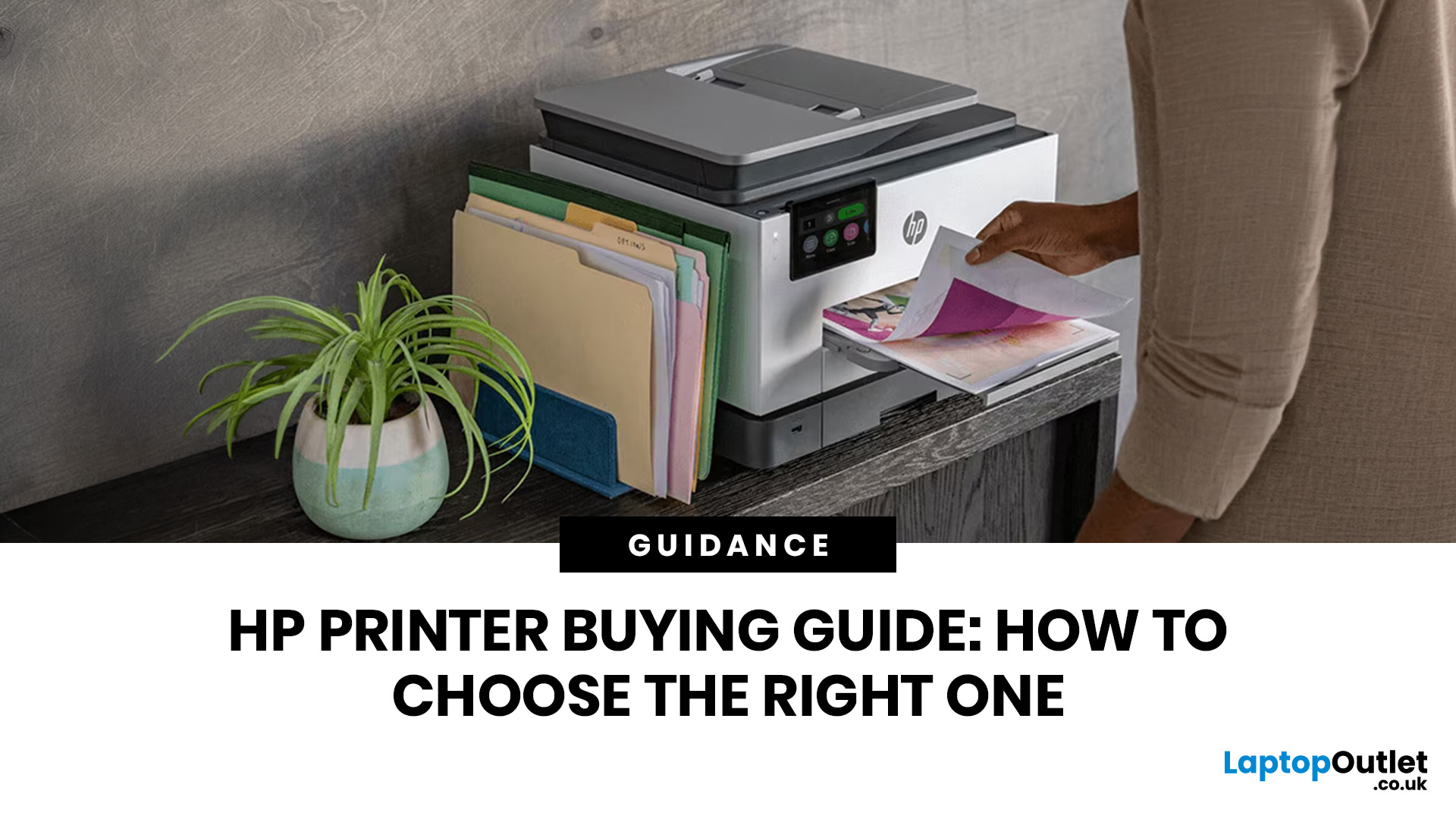
The best HP printer depends on what you print, how often you print, whether you need scanning or copying, and how much you want to spend on ink or toner. For home users, an HP inkjet or all-in-one printer is usually the best choice. For offices and small businesses, HP OfficeJet, LaserJet or multifunctional printers are better for speed, reliability and heavier workloads.
Buying a printer can feel confusing because HP offers many different models for different users. Some are made for simple home printing. Some are designed for students and families. Others are built for small businesses, offices, shipping labels, high-volume printing or professional document handling. That is why choosing the right printer is not just about finding the cheapest model. It is about understanding your print habits, running costs, space, connectivity and long-term needs.
This HP printer guide 2026 will take you from basic printer knowledge to more advanced buying terms, so whether you are buying your first

Last Updated: July 06, 2026
Buying one of the many HP printers for small business setups out there sounds easy until you start comparing them properly. Some are better for fast document printing, some are built for scanning and colour work, and some save you more money over time. The trick is not buying the fanciest one. It is buying the one that suits your workload. This guide walks through the HP printer types that make the most sense for home offices, small teams, and day-to-day business use.
Which HP Printer Type Should a Small Business Choose?
- If your business prints mixed colour documents, scans paperwork regularly and needs one compact machine, go for an HP all-in-one in the OfficeJet Pro range. OfficeJet Pro printers are best for higher-volume printing and all-around productivity in a home or home office, which is exactly the kind of workload many sole traders, hybrid workers and small teams deal with.
- If your business prints lots of text-heavy documents and speed matters more than photo-quality colour, choose
Last Updated: June 10, 2026
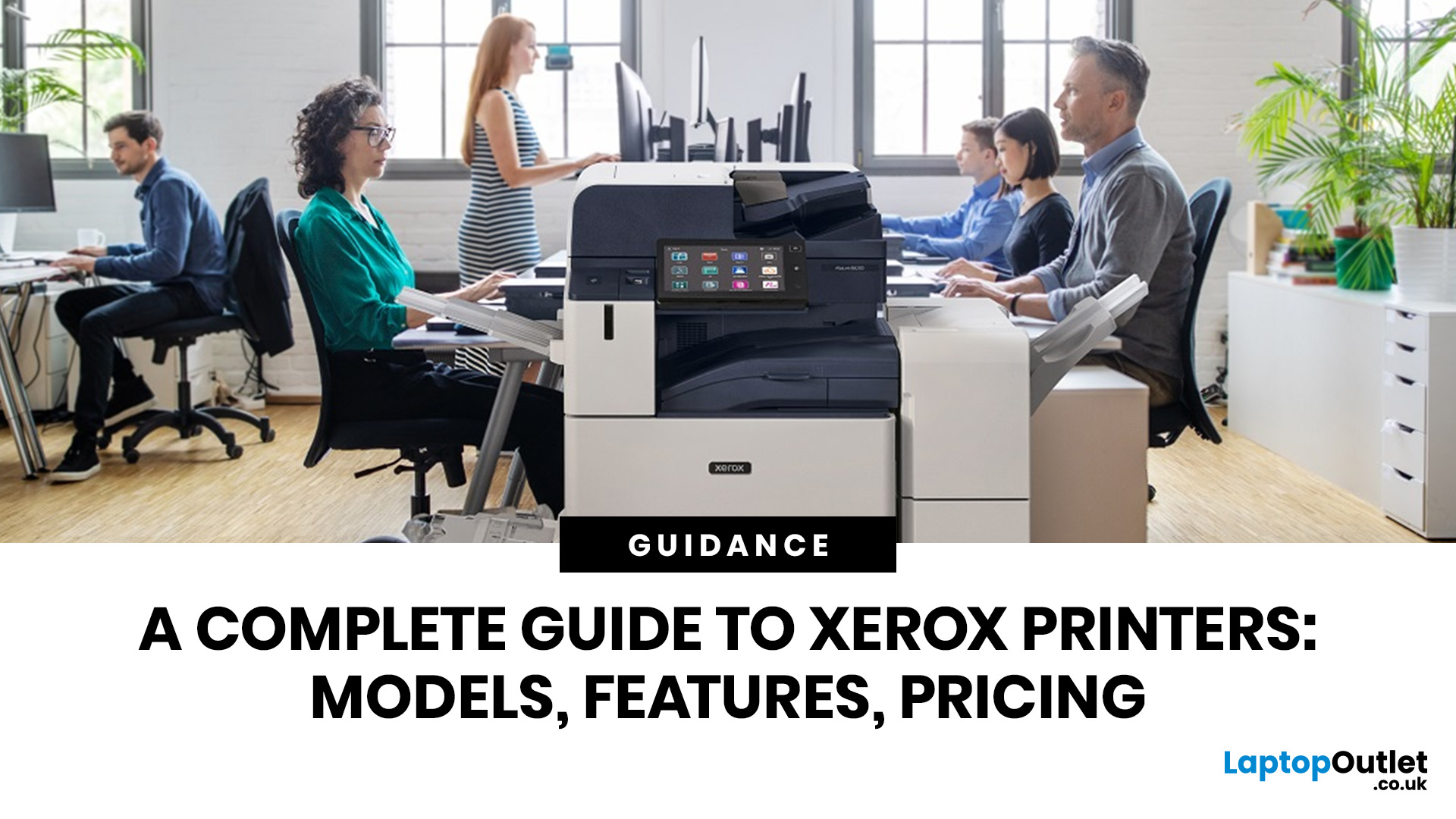
A Xerox printer is a document printer or multifunction device designed for reliable office, business, and home printing. Most modern Xerox printers focus on laser or LED printing, fast document output, strong security, mobile printing and multifunction features such as scanning, copying, faxing and cloud connectivity.
Xerox is a trusted name in business printing, best known for office printers, copiers and multifunction devices. While the brand is still strongly linked with photocopying, modern Xerox printers do much more than copy documents.
Today’s Xerox devices can print, scan, copy, fax, support mobile and cloud printing, manage user access and help businesses control print costs. Many models also include Wi-Fi, reliable paper handling, security features and easy touchscreen controls.
If you are comparing printers, looking for a Xerox printer, or trying to understand whether Xerox is right for your home or office, this guide breaks everything down in simple words.
What is a Xerox
Last Updated: May 05, 2026
HP printers are reliable, but even the best machines throw a wobble from time to time. The good news is that the vast majority of issues are easy to resolve on your own. This guide will show you how to fix common HP printer problems without calling a professional. Whether you've got an HP OfficeJet, DeskJet, LaserJet, or ENVY, many of the checks below apply across the range.
What Are the Most Common HP Printer Problems?
Before diving into individual fixes, it helps to know what you are actually dealing with. HP printers, from compact home models to full office workhorses, tend to run into the same handful of issues time and again.
Here is a quick overview of the most frequently reported HP printer problems and what typically causes them:
| Problem | Most Likely Cause |
| Printer not printing | Stuck print queue, offline status, driver fault |
| Paper jam | Overfilled tray, worn rollers, torn paper fragments |
| Printer showing offline | Wi-Fi dropout, incorrect default printer setting |
| Blank or faded pages |

Last Updated: May 05, 2026
Quick Answer: Inkjet printers offer high colour quality, a compact design, and a lower upfront price, making them ideal for homes, students, creative projects, and light office use. The main disadvantages are higher ink costs on cartridge models, slower print speeds, possible ink smudging, and printhead maintenance when the printer sits unused.
Choosing a printer sounds simple until you start comparing ink costs, print speed, colour quality, maintenance, and the difference between inkjet and laser models. For many UK homes, students, hybrid workers, and small offices, an inkjet printer still makes a lot of sense. It is usually compact, affordable to buy, and strong at printing colour documents, photos, homework, labels, and everyday paperwork.
The part that needs more thought is the long-term cost. Some inkjet printers are cheap upfront, but can become expensive when you replace cartridges often. Others, such as refillable ink tank models, cost more upfront but may suit regular printing
Last Updated: May 06, 2026
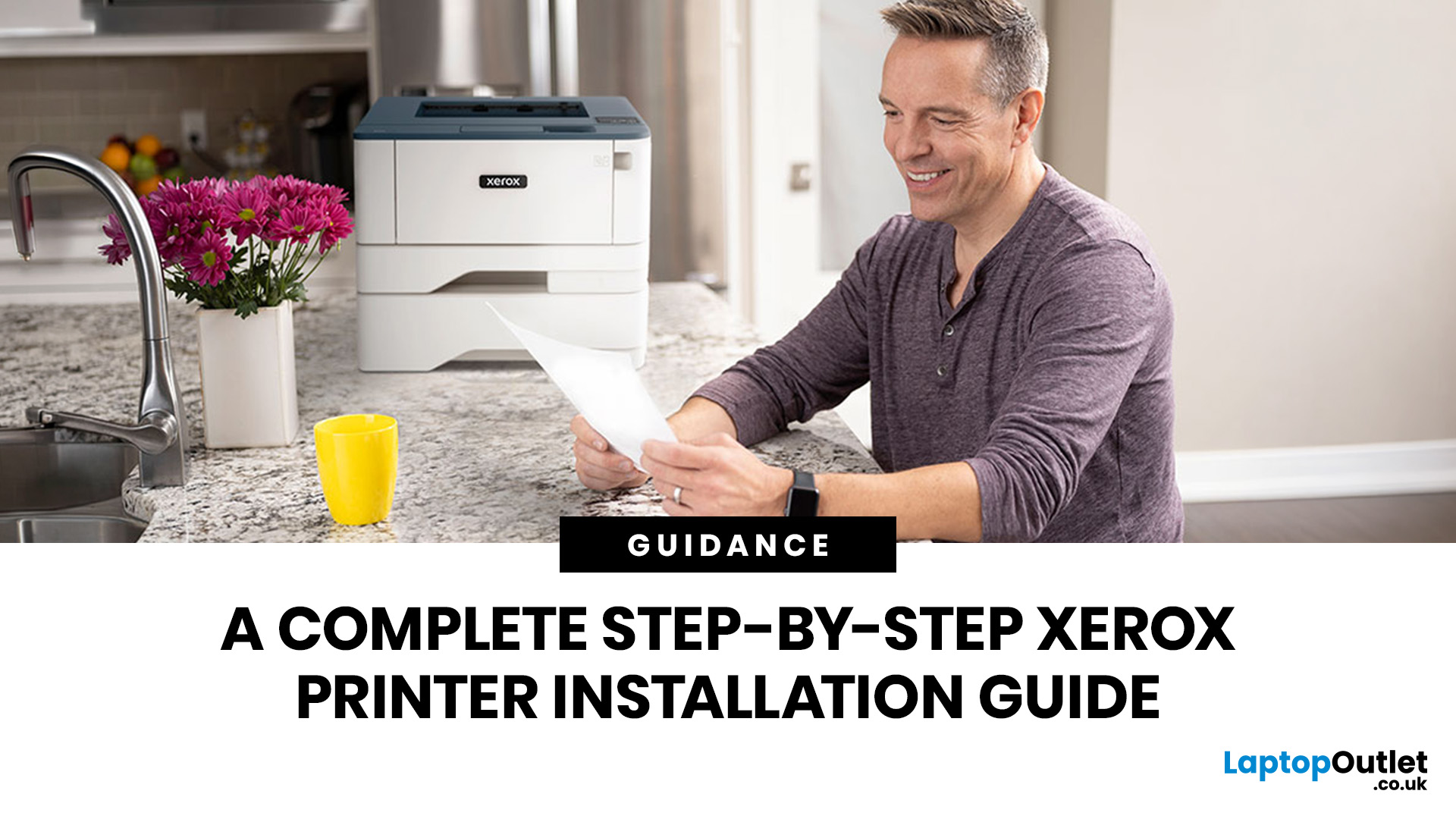
Xerox has been making printers for over 50 years, and their modern range is some of the most capable kit available for home and office use. However, even the best printer is useless if it's not set up correctly. This complete Xerox printer installation guide walks you through every method, every platform, and the most common problems you're likely to run into (with fixes), so you can get set up quickly and get on with your day.
1. What Do You Need Before Starting a Xerox Printer Installation?
A smooth installation begins well before any cable is plugged in or software is run. Taking five minutes to gather the right items and verify your system compatibility saves considerably more time than troubleshooting avoidable errors later.
What Hardware and Consumables Do You Need?
- Your Xerox printer with all packaging materials and shipping tape removed
- Power cable (supplied in the box)
- USB cable (Type-A to Type-B) for direct USB setups -- note that Xerox does not always include this in
Last Updated: July 07, 2026
Quick Answer: The main types of printers are inkjet, laser, multifunction (all-in-one), and label printers. Inkjet printers are great for photos and colour printing at home. Laser printers suit high-volume office use. Multifunction printers combine printing, scanning, and copying. Label printers handle specialist tasks like shipping labels. The right choice depends on your print volume, budget, and intended use.
Choosing the right printer feels overwhelming when you are faced with so many options. Inkjet or laser? All-in-one or dedicated? It is easy to spend money on a printer that simply does not match your needs. This guide cuts through the noise. We'll cover the various types of printers in detail. By the end, you will know exactly which printer fits your home, business, or creative needs.
What Are the Main Types of Printers Available Today?
There are several categories of printers commonly available to UK buyers, each designed with a different use case in mind. Understanding what

