



How Do You Install a New Graphics Card
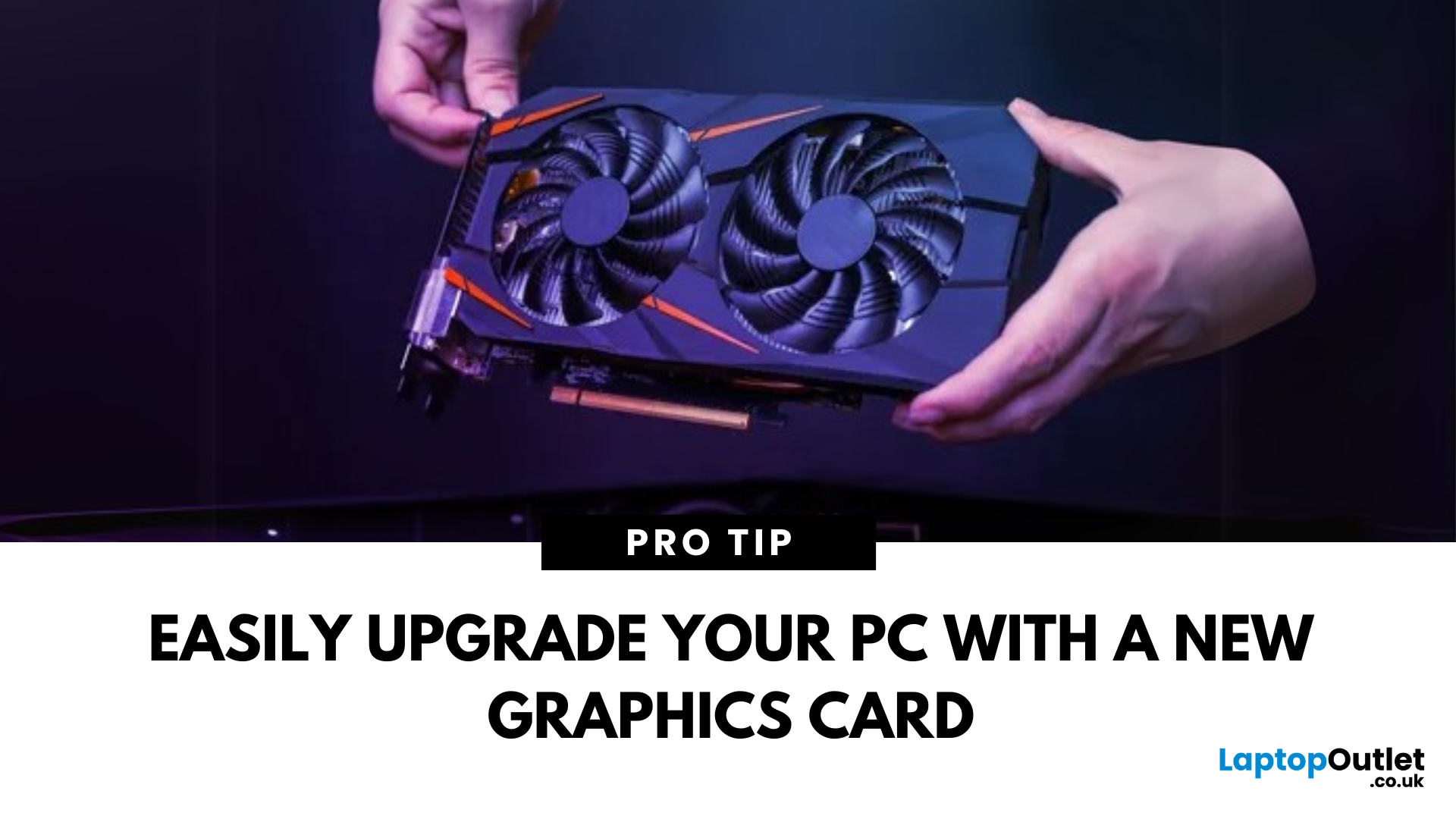
Time for a GPU Upgrade?
Whether you're chasing better gaming performance, smoother rendering, or next-gen AI capability, installing a new graphics card (GPU) is one of the best PC upgrades you can make. Here's how to safely and properly install your new GPU.
1. What You’ll Need
- Your new graphics card
- A Philips screwdriver
- An anti-static wrist strap (recommended)
- A clean, flat workspace
Optional: compressed air to clean out dust before installing the new GPU
2. Prepare Your PC
- Shut down your computer
- Unplug the power cable and all peripherals
- Hold the power button for 5 seconds to discharge remaining power
3. Open the Case and Remove the Old GPU (If Needed)
- Unscrew and remove the side panel of your PC case
- Disconnect power cables from your existing GPU
- Unscrew the GPU bracket
- Release the PCIe latch and gently pull out the old card
- If you’re installing a GPU for the first time, skip to the next step
4. Insert the New Graphics Card
- Locate the PCIe x16 slot on your motherboard
- Line up the metal bracket and PCIe connector
- Firmly but gently push the GPU into the slot until it clicks
- Secure it with screws to the case bracket
5. Connect Power Cables (If Needed)
- High-performance GPUs need additional power via 6-pin, 8-pin, or 12-pin connectors
- Plug these from your power supply into the GPU
- Check your PSU’s wattage—ensure it meets the GPU’s power requirements
6. Close the Case and Power On
- Reattach the side panel
- Plug your monitor into the new GPU’s video port (HDMI, DisplayPort, etc.)
- Power on your PC
7. Install or Update Drivers
- Go to the GPU manufacturer’s website:
- NVIDIA Drivers
- AMD Drivers
- Download and install the latest drivers
- Restart your PC if prompted
- Use software like GeForce Experience or AMD Adrenalin for easy updates
8. Configure Display Settings
- Right-click desktop > Display Settings
- Set resolution, refresh rate, and multiple monitor layout as needed
Final Thoughts: Upgrade Complete
Installing a new graphics card can breathe life into an old system or push your performance to the next level. With the right tools and steps, it’s an easy upgrade that makes a big difference.
Looking for the latest GPUs? Browse Laptop Outlet’s range of high-performance graphics cards, gaming desktops, and upgrade bundles.
FAQs: GPU Installation Made Simple
1. Do I need to uninstall old drivers before installing a new GPU?
It’s a good idea if switching brands (e.g. NVIDIA to AMD) to avoid conflicts.
2. Can I install a new GPU without extra power cables?
Low-end cards don’t need extra power, but mid/high-end GPUs do.
3. What happens if my PSU isn’t powerful enough?
Your PC may crash, fail to boot, or damage the components.
4. Do I need to update BIOS after GPU installation?
Usually not—just install the latest GPU drivers.
5. Can I install a GPU in any PCIe slot?
Use the top PCIe x16 slot—it offers full bandwidth for best performance.
Read More:
| Best Deals on Graphics Cards in 2025 |
| How to Remove a Graphics Card |
| What Does a Graphics Card Do |
Related Articles

Last Updated: September 01, 2026
Looking for portable graphics cards? Graphics cards are an essential component for gamers, creative professionals, and tech enthusiasts. As the market evolves, new models are released with cutting-edge technology, while older ones become more affordable. Whether you are looking for the latest high-performance GPUs or seeking budget-friendly options, 2026 presents some fantastic deals on graphics cards.
In this blog, we will explore the best deals on gaming graphics cards, including RTX and AMD GPUs, and help you find the most value-packed choices from top brands. Whether you are searching for discounts on AMD graphics cards or affordable Nvidia graphics cards, we have you covered.
Why 2026 is a Great Year for Buying a Graphics Card
The GPU market in 2026 has stabilised significantly compared to previous years, making it an ideal time to grab some of the best deals. Key factors influencing the affordability of graphics cards this year include:
- Increased Supply: Manufacturers have ramped
Last Updated: March 05, 2026
In 2026, gaming and content creation are more accessible than ever, thanks to Nvidia’s lineup of budget-friendly graphics cards. Whether you're a casual gamer, a competitive esports player, or a creative professional, finding the right GPU doesn’t have to drain your wallet. The market is filled with options that deliver exceptional performance without the premium price tag, ensuring you get the best value for your investment.
From the power-efficient GTX 1650 to the feature-rich RTX 3060, Nvidia continues to redefine budget gaming. These GPUs offer remarkable frame rates, smooth gameplay, and cutting-edge features like DLSS and ray tracing, bringing next-gen technology within reach for everyone. With the right choice, you can enjoy immersive visuals, faster rendering, and seamless multitasking without compromise.
With so many options available, it can be challenging to determine which budget Nvidia GPU is the best fit for your needs. Whether you’re looking for smooth 1080p gaming, entry-level

Last Updated: September 09, 2025
Exploring the Latest and Greatest in GPU Tech!
If you're wondering what makes a graphics card "good," you're not alone. Whether you're a gamer, a creator, or just love a snappy desktop experience, the right GPU (graphics processing unit) can completely redefine the way your system performs. With the release of Nvidia's 50 Series and AMD's latest GPUs, there's much to get excited about. But what actually makes a graphics card good? And which are the best graphics cards out there at the moment?
Let's break it down, human-style—no jargon overload, no fluffy nonsense, just real talk about real performance.
What Makes a Graphics Card 'Good'?
At its core, a good graphics card delivers consistent performance, reliable cooling, and future-ready features. Whether gaming at 4K, editing high-resolution video, or running AI software, a good GPU doesn't slow down when pushed.
The best graphics card should offer:
- Solid FPS (frames per second) across modern titles
- Support for ray tracing

Last Updated: September 09, 2025
The Engine Behind Visual Power
Whether you're gaming, editing videos, or just watching YouTube, your device’s visuals are powered by a graphics card. But what exactly does it do—and do you need a powerful one? Let’s break down what a graphics card (GPU) is and why it matters.
What Is a Graphics Card?
A graphics card, or GPU (Graphics Processing Unit), is a specialised piece of hardware responsible for rendering images, videos, and animations on your screen.
It turns data into visuals—everything you see on your monitor runs through the GPU
What Does a Graphics Card Actually Do?
- Renders 2D and 3D graphics
- Processes high-resolution video and games
- Powers graphical user interfaces (GUIs)
- Enables faster photo and video editing, 3D rendering, and simulations
- Handles hardware acceleration for apps like browsers, games, and design tools
Types of Graphics Cards
1. Integrated GPU: Built into the CPU (e.g., Intel Iris, AMD Radeon Vega)
- Lower performance, uses shared memory

Last Updated: September 09, 2025
Time to Switch or Upgrade Your GPU?
Whether you're upgrading to a new GPU, troubleshooting hardware issues, or cleaning your PC, knowing how to safely remove your graphics card is essential. Follow this simple, step-by-step guide to do it without damaging your system.
1. What You’ll Need
- A Philips screwdriver
- Anti-static wristband (recommended)
- A clean, flat workspace
Optional: compressed air for cleaning dust around the GPU
2. Turn Off Your PC and Unplug Everything
- Shut down your PC completely
- Unplug the power cable and all connected peripherals (monitor, mouse, etc.)
Hold the power button for 3–5 seconds to discharge remaining power
3. Open the PC Case
- Use a screwdriver to remove the side panel (usually the left side)
- Place the screws somewhere safe—you’ll need them later
4. Ground Yourself
- Wear an anti-static wristband or touch a grounded metal object to prevent static discharge
5. Locate the Graphics Card
- It’s the large card connected to the motherboard’s

