



What Does USB Stand For? USB-C vs Micro USB Explained
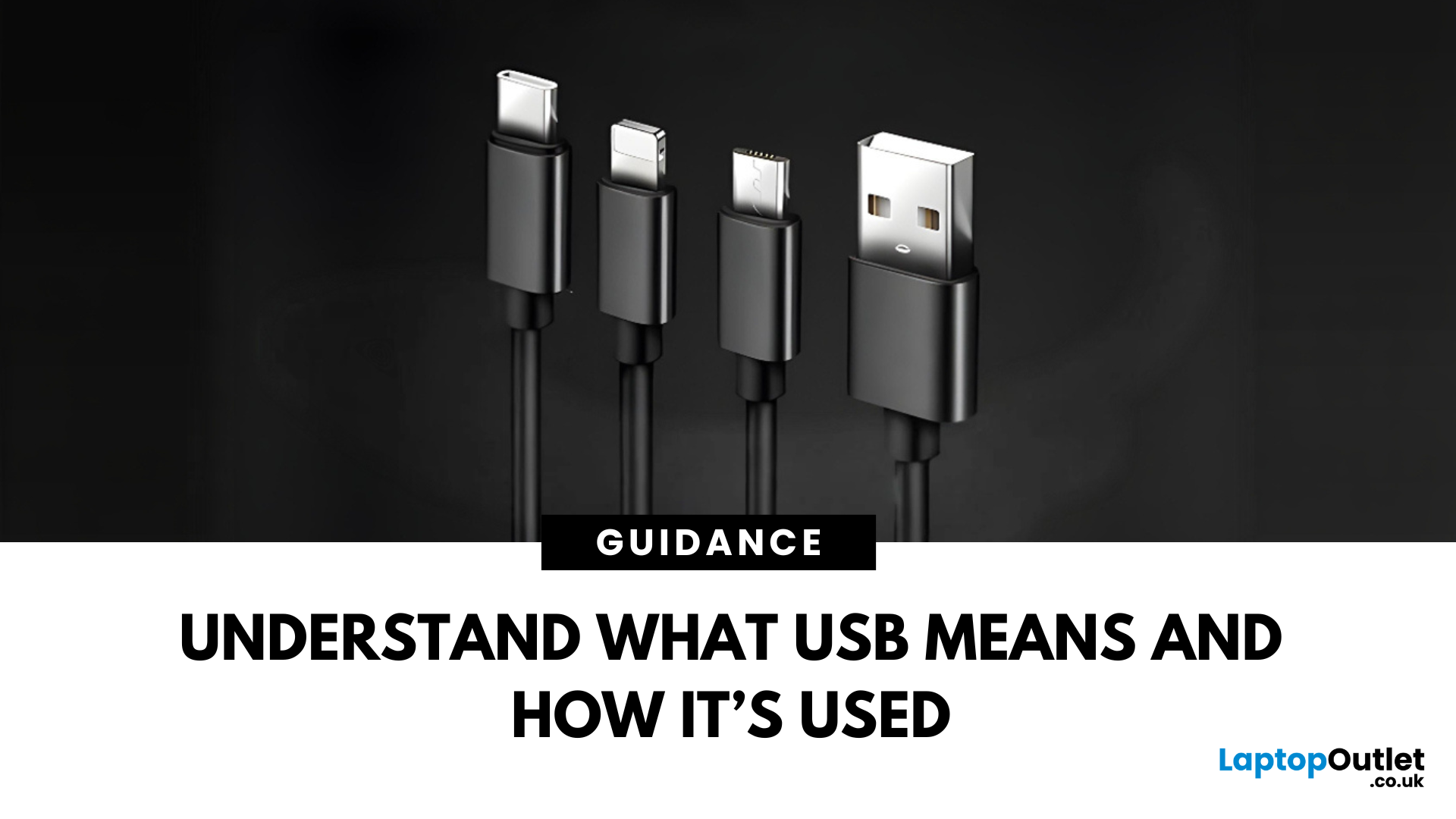
Decoding USB Types in Everyday Tech
We all use USB cables, but few know the real differences between USB, USB-C, and Micro USB. Whether you're charging your phone, connecting a device, or transferring data, understanding these terms helps you pick the right tech. Let’s break it down simply.
What Does USB Stand For?
USB stands for Universal Serial Bus. It’s a standard for cables, ports, and communication between electronic devices.
Developed to simplify connections between computers and peripherals (like keyboards, printers, and flash drives)
Main Uses:
- File transfers
- Charging smartphones, tablets, accessories
- Powering small devices
What Is USB-C?
USB-C is the latest version of USB and is now standard on most new smartphones, laptops, tablets, and accessories.
Key Features:
- Reversible connector—no wrong way to plug it in
- Fast data transfer (up to 40Gbps with USB4)
- Supports fast charging and video output (great for docking stations and monitors)
- Universal use—one cable for phones, laptops, and even some TVs
- USB-C is replacing older USB types, including USB-A and Micro USB
3. What Is a Type-C Micro USB?
Trick question—it’s actually a mix-up of terms. People often confuse Micro USB with USB-C, but they are different connectors:
Micro USB:
- Older standard found in Android phones and accessories before 2017
- Has a flat, tapered shape (one-sided)
- Slower data transfer and charging
USB-C:
- Newer, symmetrical, and reversible
- More powerful and future-proof
There’s no official “Type-C Micro USB” – it’s either Micro USB or USB-C
Comparison Table: Micro USB vs USB-C
|
Feature |
Micro USB |
USB-C |
|
Plug Orientation |
One-sided |
Reversible |
|
Charging Speed |
Slower |
Faster |
|
Data Transfer Speed |
Up to 480 Mbps |
Up to 40 Gbps |
|
Availability |
Older devices |
New/modern devices |
Did You Know? USB On-The-Go Compatibility
Many modern smartphones and tablets now support USB flash drives thanks to a feature called USB On-The-Go (OTG). This clever technology allows your mobile device to act as a host, meaning you can plug in a flash drive and access its contents directly—no laptop or PC required. With OTG, you can easily transfer photos, videos, and documents, or even back up important files while you’re out and about. It’s especially useful for expanding storage on devices with limited internal memory. From streaming media stored on a flash drive to sharing large files in seconds, OTG has turned USB drives into a powerful mobile accessory.
Final Thoughts: Know Your Cable
Understanding the difference between USB, USB-C, and Micro USB ensures you’re using the right cable for your devices. USB-C is the future—faster, reversible, and more versatile—but knowing the basics of each helps you stay connected with ease.
Explore USB sticks, USB-C adapters, and storage accessories at Laptop Outlet—where connection meets convenience.
FAQs: USB, USB-C, and Micro USB
1. Can USB-C cables work with older USB ports?
Only with an adapter—USB-C is not physically compatible with USB-A or Micro USB ports.
2. Is USB-C better than Micro USB?
Yes—faster, reversible, and more versatile.
3. What does USB mean on a charger?
It means the charger uses the Universal Serial Bus standard to deliver power.
4. Why does my device still use Micro USB?
Some budget devices and accessories still use Micro USB due to lower costs.
5. Are all USB-C cables the same?
No—some only support charging, while others offer full data and video capabilities. Always check the specs.
Read More:
| What Is a USB Flash Drive or Thumb Drive |
| How to Transfer Large Files Quickly with USB Sticks |
| How to clone Mac system to USB |
Related Articles

Last Updated: September 11, 2025
Last Updated: September 11, 2025
Introduction
Are you frustrated with wires scattered across your desktop and need a simple fix to keep your gadgets charged and organised?
In the world of desktop technology, the USB-C port has emerged as a versatile force with streamlined connectivity and enhanced functionality. As desktop setups become sophisticated, the demand for efficient cable management and expanded connectivity has grown.
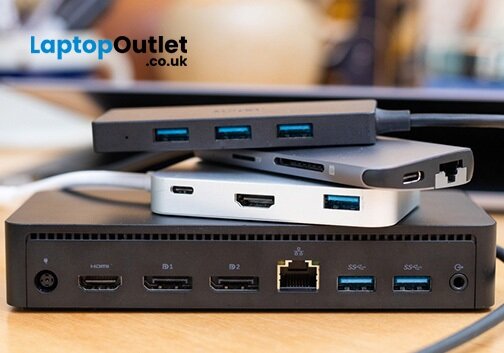
Desktop docking stations can enhance productivity, improve ergonomics and ensure convenience for content creation, 3D designers, and CAD engineers. They allow connections between the monitor, keyboard, mouse, storage drive, network port, headphone jack, SD card, and charging ports.
This comprehensive guide explores USB-C docks and their compatibility with various desktop systems. You will learn everything from understanding the fundamentals of USB-C technology to choosing the right dock for your specific desktop needs.
So, let's get into it!
Standard Ports Available in USB-C Docks
USB-C docks are
Last Updated: September 11, 2025
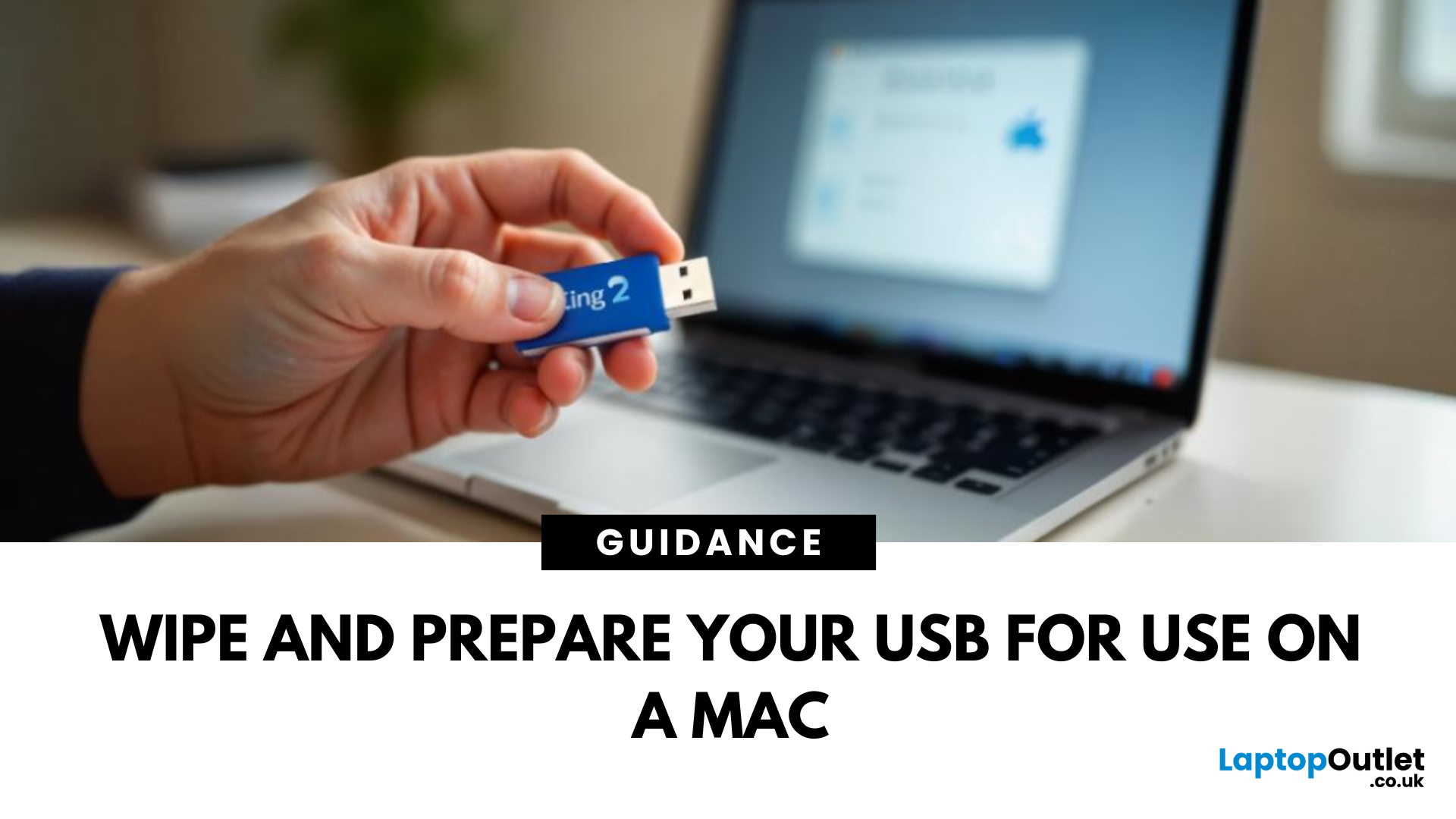
A Fresh Start for Your USB Drive
Whether you're clearing space, fixing errors, or preparing your USB stick for Windows or macOS, formatting is the way to go. Luckily, it’s super simple on a Mac. Here’s a clear step-by-step on how to format a USB stick on macOS.
1. Plug In the USB Stick
- Insert your USB drive into an available port
- If prompted, choose to ignore or open Finder
Make sure to back up any important files—formatting erases everything
2. Open Disk Utility
- Go to Applications > Utilities > Disk Utility
- Or search for Disk Utility via Spotlight (Cmd + Spacebar)
3. Select Your USB Drive
- In the sidebar, click your USB stick (look under 'External')
- Double-check the name and capacity to avoid formatting the wrong drive
4. Click 'Erase'
- At the top of the window, click the Erase button
Format Options:
- Mac OS Extended (Journaled): For Mac-only use
- ExFAT: For both Mac and Windows compatibility
- MS-DOS (FAT): Best for small drives under 32GB
Use ExFAT if you
Last Updated: September 11, 2025
Pocket-Sized Power
A USB stick, also known as a USB flash drive, is one of the most convenient and widely used storage tools available. Small, portable, and incredibly useful—it’s your go-to device for storing, transferring, and backing up files in seconds. But what exactly is a USB stick, and how does it work?
1. What Is a USB Stick?
A USB stick is a small, portable storage device that plugs into a computer or compatible device via a USB (Universal Serial Bus) port. It uses flash memory to store data and requires no external power source.
Also known as thumb drive, flash drive, or pen drive
2. How Does a USB Stick Work?
- Plug it into a USB port on your laptop, PC, or compatible device
- It appears as an external drive
- You can drag and drop files, create folders, and even run portable software
3. Common Uses for USB Flash Drives
- Storing documents, photos, videos, and music
- Transferring files between computers or devices
- Creating system backups or recovery tools
- Installing

Last Updated: September 11, 2025
Start Fresh with a Clean USB Drive
Before selling, giving away, or repurposing a USB stick, it’s important to completely wipe it. This removes all files and helps protect your privacy. Here’s how to safely and securely wipe a USB stick on both Windows and Mac.
1. What Does 'Wipe' Mean?
Wiping a USB stick means:
- Erasing all data stored on the drive
- Optionally overwriting it to prevent file recovery
- Preparing the stick for reuse or disposal
Different from simply deleting files—it removes all traces
2. How to Wipe a USB Stick on Windows
Option 1: Quick Format
- Insert the USB stick
- Open File Explorer > This PC
- Right-click the USB drive > Format
- Choose File System (e.g. FAT32 or exFAT)
- Leave Quick Format checked for speed or uncheck for deep format
- Click Start
Option 2: Command Prompt (Full Wipe)
- Type cmd in Start Menu, right-click Command Prompt > Run as admin
- Enter: diskpart
- Then: list disk
- Identify your USB stick by size, then enter: select disk X (replace
Last Updated: September 11, 2025
Portable Mac Backup, Sorted
Cloning your Mac to a USB stick is a great way to create a full system backup, test new software, or carry a bootable version of macOS. Whether you're preparing for emergencies or upgrading your Mac, here’s how to clone your Mac system to a USB drive safely.
1. What Does Cloning a Mac Mean?
- Copies your entire system, including macOS, files, apps, and settings
- Lets you boot from the USB if your Mac fails or if you want to use another machine
- Ideal for creating a full backup before macOS upgrades
2. What You’ll Need
- A USB stick or external SSD (at least 64GB recommended; more for full system clone)
- A Mac running macOS Ventura or newer
- Cloning software (recommended: SuperDuper! or Carbon Copy Cloner)
Use a fast USB 3.0 or USB-C drive for better performance
3. Format the USB Drive (macOS Journaled)
- Open Disk Utility (Applications > Utilities)
- Select your USB drive in the sidebar
- Click Erase > Format as Mac OS Extended (Journaled)
- Name

