




Blog Categories




 Amazon Fire Tablets Explained: Pros, Cons, and Who Should Buy Them
Amazon Fire tablets are popular with buyers who want an affordable device for reading, streaming, browsing, games, and everyday family use. They are not designed to compete directly with premium iPads or high-end Android tablets, but they can be excellent value if your needs are simple. This Amazon Fire tablet buying guide explains the main features, benefits, drawbacks, and best use cases, so you can decide whether an Amazon tablet is right for you.
Amazon Fire Tablet Features
The main Amazon Fire tablet features are affordability, simplicity, and strong access to Amazon content. A typical fire amazon tablet gives you a portable screen for watching videos, reading eBooks, checking emails, browsing the web, and using supported apps.
Fire tablets are usually lightweight and easy to carry, making them useful for commuting, travel, children, and casual home use. They are also popular with families because selected models offer child-friendly features, parental controls, and easy access to
 Is the iPad a Good Laptop Replacement? What You Need to Know
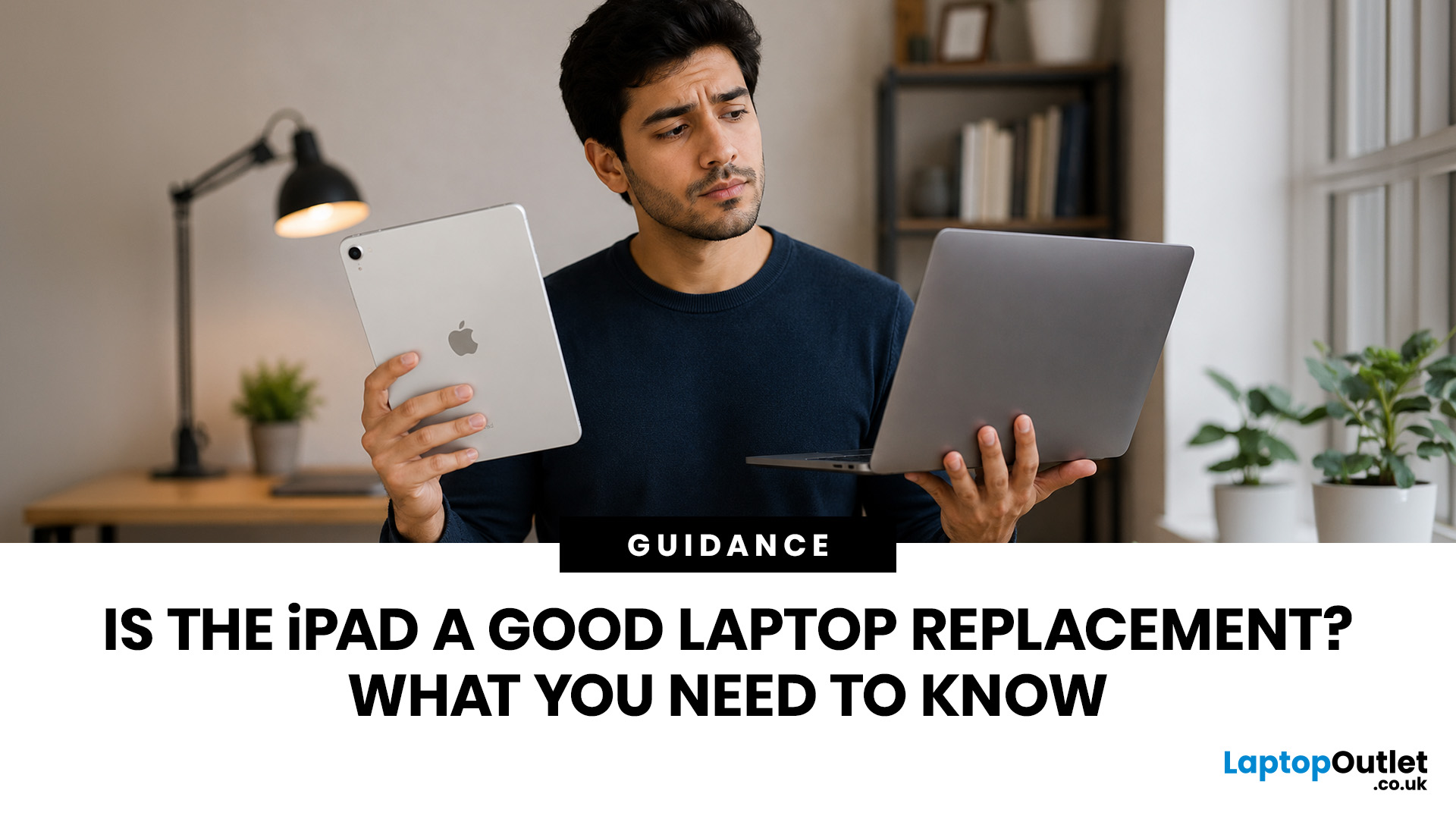
Yes, an iPad can replace a laptop for browsing, emails, documents, video calls, note-taking, and other everyday tasks, especially with a keyboard and accessories. However, laptops remain better for desktop software, coding, advanced spreadsheets and demanding professional workflows. For many users, an iPad is a laptop alternative.
The iPad has evolved from a simple entertainment device into a powerful tool for work, study, and creativity. With support for keyboards, Apple Pencil, multitasking features, and productivity apps, many people now consider it a genuine alternative to a traditional laptop. Whether you are a student, remote worker, creative professional, or frequent traveller, an iPad may be able to handle most of your daily tasks. However, it is not the right choice for everyone. This guide explores the benefits, limitations, and key considerations to help you decide if an iPad can truly replace your laptop.
iPad Laptop Replacement Short Comparison
| TASK | CAN AN IPAD REPLACE A LAPTOP? |
|---|
 Tablet Buying Guide UK 2026: Best iPad, Android and Windows Tablets
The best tablet to buy in the UK in 2026 depends on how you plan to use it. Choose an iPad if you want a simple, reliable all-round tablet with excellent apps and accessory support. Choose an Android tablet if you want more choice, better value and flexible features for entertainment, kids or everyday use.
Buying a tablet in 2026 is not as simple as choosing the biggest screen or the lowest price. Today’s tablets can be entertainment devices, study tools, business companions, drawing tablets, gaming screens, travel essentials, and even laptop replacements. That is why this Tablet Buying Guide UK 2026 is designed to help you compare iPads, Android tablets and Windows tablets in a simple, practical way.
Whether you are a student looking
 How to Choose the Best Beginner Drawing Tablet: Complete Buyer’s Guid
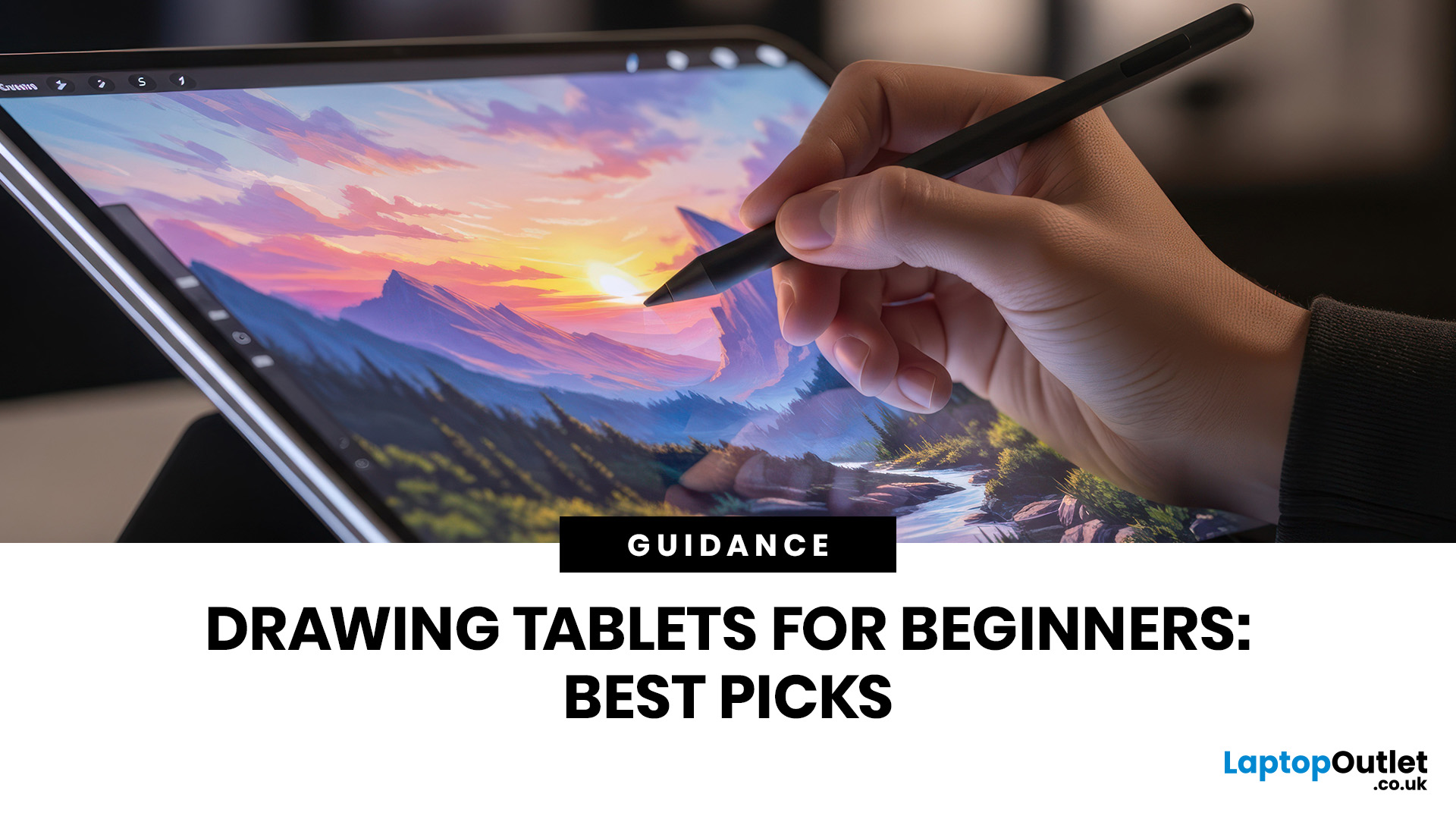
Buying your first drawing tablet can feel confusing, especially with so many screenless, display, and standalone options available. The best beginner drawing tablet is not always the most expensive one; it depends on how you draw, where you use it, your current device, and your budget.
| Choosing the best drawing tablets beginners depends on your budget, drawing style, and whether you want a screen. A screenless graphics tablet is affordable, a display tablet feels more natural, and a portable tablet with stylus support is ideal for drawing, notes, and everyday use. This guide explains the key features to compare before buying, including pen pressure, size, compatibility, portability, and price. |
This guide explains the main tablet types, key features to compare, and how to choose a beginner-friendly model that suits your learning style.
What Is the Best Drawing Tablet Beginners?
For most beginners, the best choice is either:
- A screenless graphics tablet if you want an affordable drawing pad
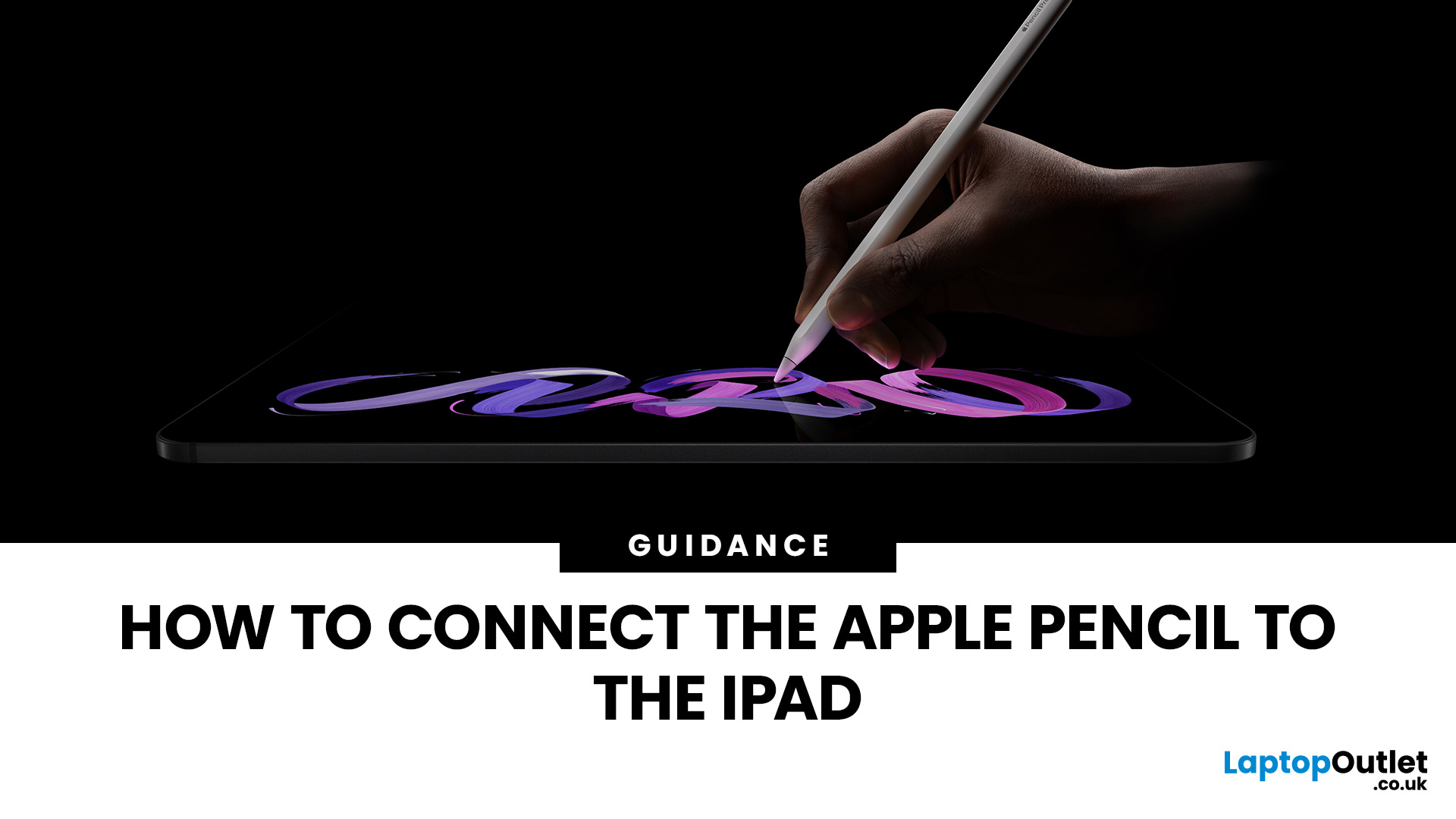 How to Connect the Apple Pencil to the iPad
If you have just bought an Apple Pencil or changed to a different iPad, you may be wondering how to connect Apple Pencil to iPad correctly. The process is usually simple, but it depends on which Apple Pencil model you own and which iPad you are using.
| To connect Apple Pencil to iPad, make sure your Apple Pencil model is compatible with your iPad, turn on Bluetooth, then pair it using the correct method. Apple Pencil Pro and Apple Pencil 2nd generation connect magnetically to the side of compatible iPads. Apple Pencil USB-C pairs using a USB-C cable, while Apple Pencil 1st generation connects through the Lightning connector or a USB-C to Apple Pencil adapter on newer iPads. |
Whether you use your iPad for note-taking, sketching, editing documents, studying or creative work, getting the Apple Pencil connected properly is the first step to making the most of your device. If you are comparing tablets before upgrading, you can also explore our tablet collection to find options for work, study
 Best 8-Inch Tablets for Kids, Commuting and Light Entertainment
Quick answer: The best 8-inch tablets for kids and travel are compact, lightweight models with strong storage, smooth everyday performance and a screen that feels comfortable for reading, streaming and browsing. From our current 8-inch tablet range, the Apple iPad Mini A17 Pro Chip 8.3" is the standout option, with Wi-Fi and Wi-Fi + Cellular versions available across 128GB, 256GB and 512GB storage choices.
Not every tablet needs to replace a laptop. Sometimes, the best tablet is the one you can actually carry, hold and use without thinking twice. That is exactly where 8-inch tablets fit. They are small enough for children to handle, light enough for commuting and still powerful enough for reading, browsing, streaming, video calls, casual gaming and everyday entertainment.
If you are shopping for compact tablets for kids, looking for the best small tablets for commuting, or comparing 8-inch tablets for entertainment, this guide will help you choose the right option from our current 8-inch
 Are 8-Inch Tablets Still Worth Buying, or Should You Go Bigger?
 Quick answer: Yes, 8 inch tablets are still worth buying if you want a lightweight, portable tablet for reading, travel, commuting, browsing, streaming or kids’ use. They are easier to carry than 11-inch tablets and more comfortable than phones for longer sessions. However, if you need split-screen multitasking, keyboard work, digital drawing or laptop-style productivity, a larger tablet will usually make more sense.
Tablet screens keep getting bigger, but that does not mean everyone needs a bigger tablet. For some buyers, an 11-inch or 13-inch display is perfect. For others, it is just extra weight in the bag. That is why the question are 8-inch tablets still worth buying is still relevant. Compact tablets sit in a useful middle ground: bigger than your phone, lighter than a full-size tablet and easier to carry every day.
If you mainly want a tablet for reading eBooks, browsing online, watching videos, checking emails, travelling, commuting or keeping the kids entertained, an 8-inch tablet
 Best 8-Inch Tablets for Reading, Travel and Everyday Carry
Not every tablet needs to be huge. Sometimes, the best tablet is the one you can actually carry every day without it taking over your bag.
That is where the best 8-inch tablets for reading and travel come in. These compact tablets are built for people who want something bigger than a phone but lighter and easier to handle than a full-size 11-inch or 13-inch tablet. They are ideal for reading eBooks, checking emails, streaming on the train, browsing in bed, taking notes, keeping kids entertained, and travelling light. In this guide, we will help you choose the right compact tablet based on display quality, performance, battery, storage, connectivity, and real-world use.
Best 8-inch Tablets Currently Worth Considering at Laptop Outlet
| Model | Best for | Screen | Processor | Memory / storage | Battery |
| Premium reading, travel, notes and everyday use | 8.3-inch Liquid Retina, 2266×1488 | Apple A17 Pro | 128GB or 256GB options available in category | Up to 10 hours |
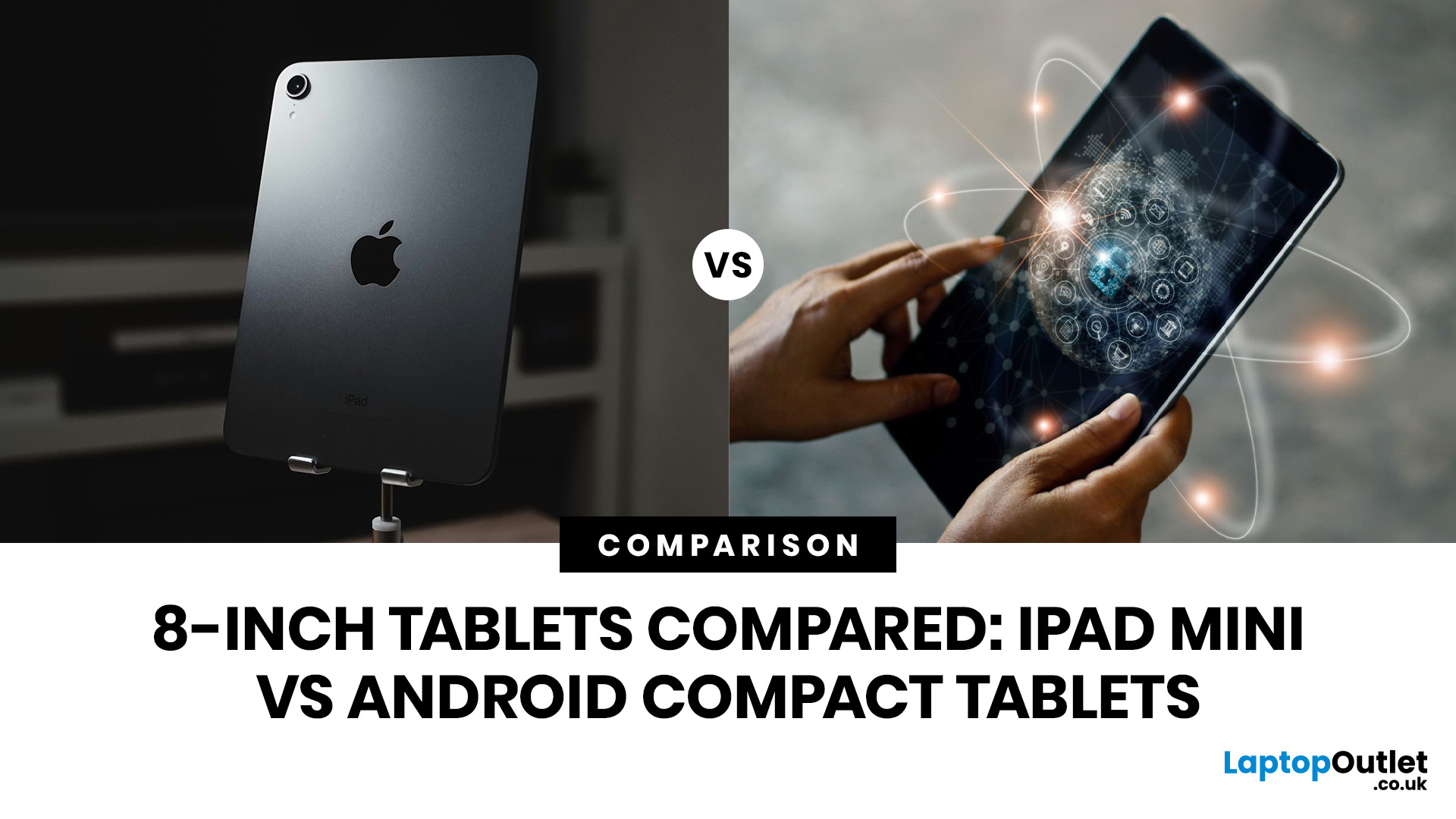 8-Inch Tablets Compared: iPad mini vs Android Compact Tablets
Quick Answer: The iPad mini is the better choice if you want premium performance, a sharper display, Apple Pencil support and long-term everyday speed. Android compact tablets are better if you want a more affordable small tablet for reading, browsing, streaming, video calls and casual use. For most buyers, the iPad mini wins on power and quality, while Android wins on value and budget-friendly practicality.
Small tablets are perfect when you want more screen than a phone but do not want to carry a 11-inch or 13-inch full size tablet everywhere. For reading, commuting, streaming, travelling and light everyday use, the real buying decision often comes down to iPad mini vs Android compact tablets.
In this guide, we compare both options across display quality, performance, software, battery, storage, connectivity, value and use cases so you can decide which compact tablet makes more sense for you.
Quick Comparison: iPad mini or Android Compact Tablet?
If you want the most powerful small tablet
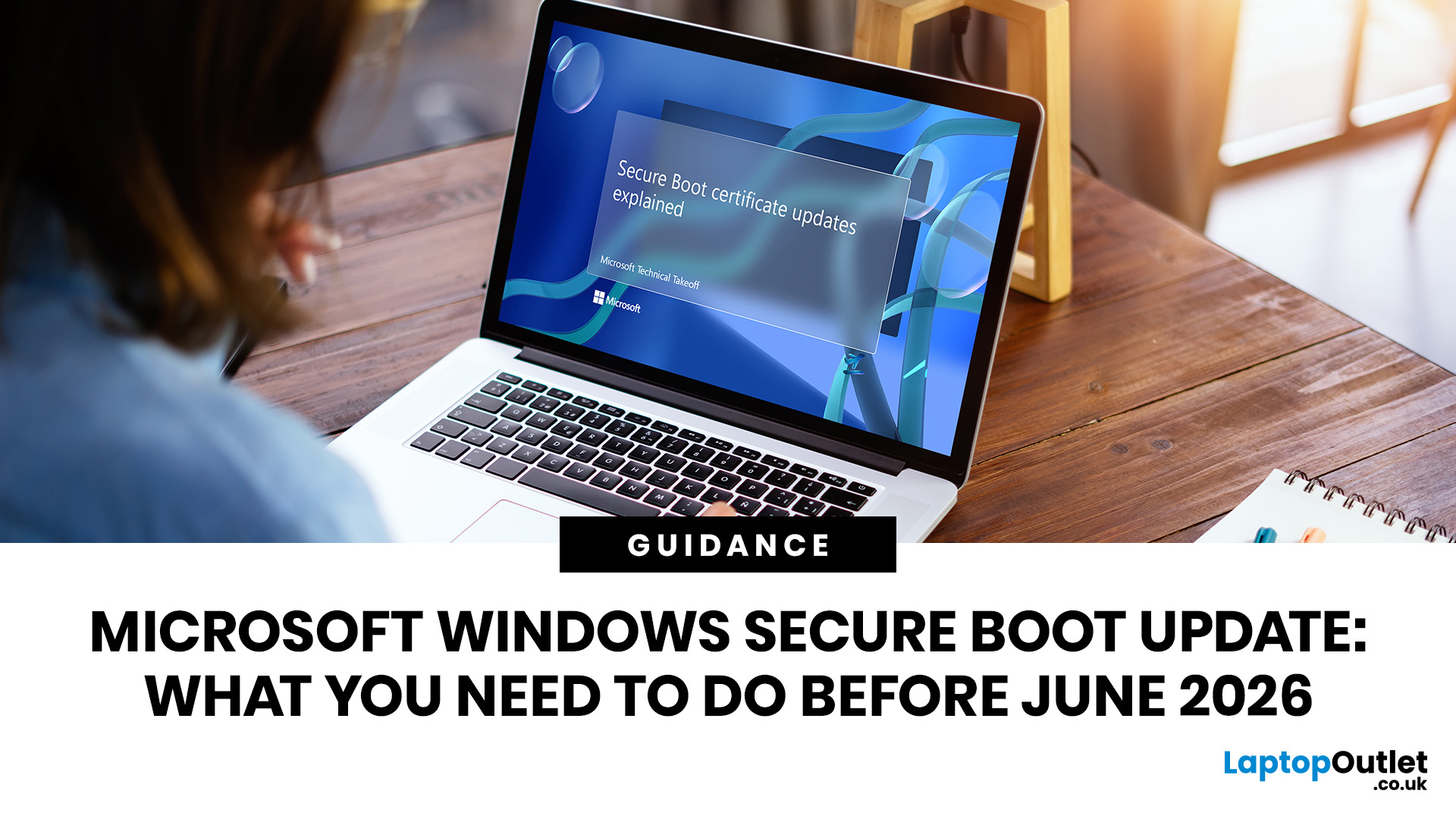

June 10, 2026
Microsoft is updating Windows Secure Boot certificates before they begin expiring in June 2026. Most supported Windows PCs will receive the update automatically, but users should check Windows Update, Secure Boot status, BIOS/UEFI firmware, and BitLocker recovery key access to avoid future security issues.
Microsoft is rolling out an important Windows Secure Boot update before older Secure Boot certificates begin expiring in 2026. For most home users on supported Windows devices, the update should arrive automatically through Windows Update. But if your PC is older, managed by an organisation, running Windows 10 without Extended Security Updates, or has outdated BIOS/UEFI firmware, you may need to check your device before June 2026.
Secure Boot is the Windows security feature that helps ensure your PC starts using trusted software only. Microsoft says Secure Boot certificates originally issued in 2011 begin expiring in June 2026, and devices need newer 2023 certificates to keep receiving
June 10, 2026
To protect a Windows 10 PC after end of support, install all available Windows updates, enrol in Extended Security Updates if eligible, use updated antivirus, back up your files, remove old apps, use a modern browser, enable multi-factor authentication, and upgrade to Windows 11 if your PC supports it.
If your PC is still running Windows 10, now is the time to protect it. Windows 10 support ended on 14th October 2025, which means regular security updates and fixes are no longer available unless you take extra steps. Your PC will still work, but it may become more exposed to malware, ransomware, browser attacks, and new security flaws.
The good news is that you still have options. This Windows security guide covers the key Windows 10 protection tips to help you secure your PC, back up your files, and decide whether to upgrade to Windows 11.
Why Windows 10 End of Support Matters
When an operating system reaches end of support, it does not become useless overnight. Your files, apps, browser,
 How to Factory Reset iPad Without Apple ID or Passcode
Quick Summary
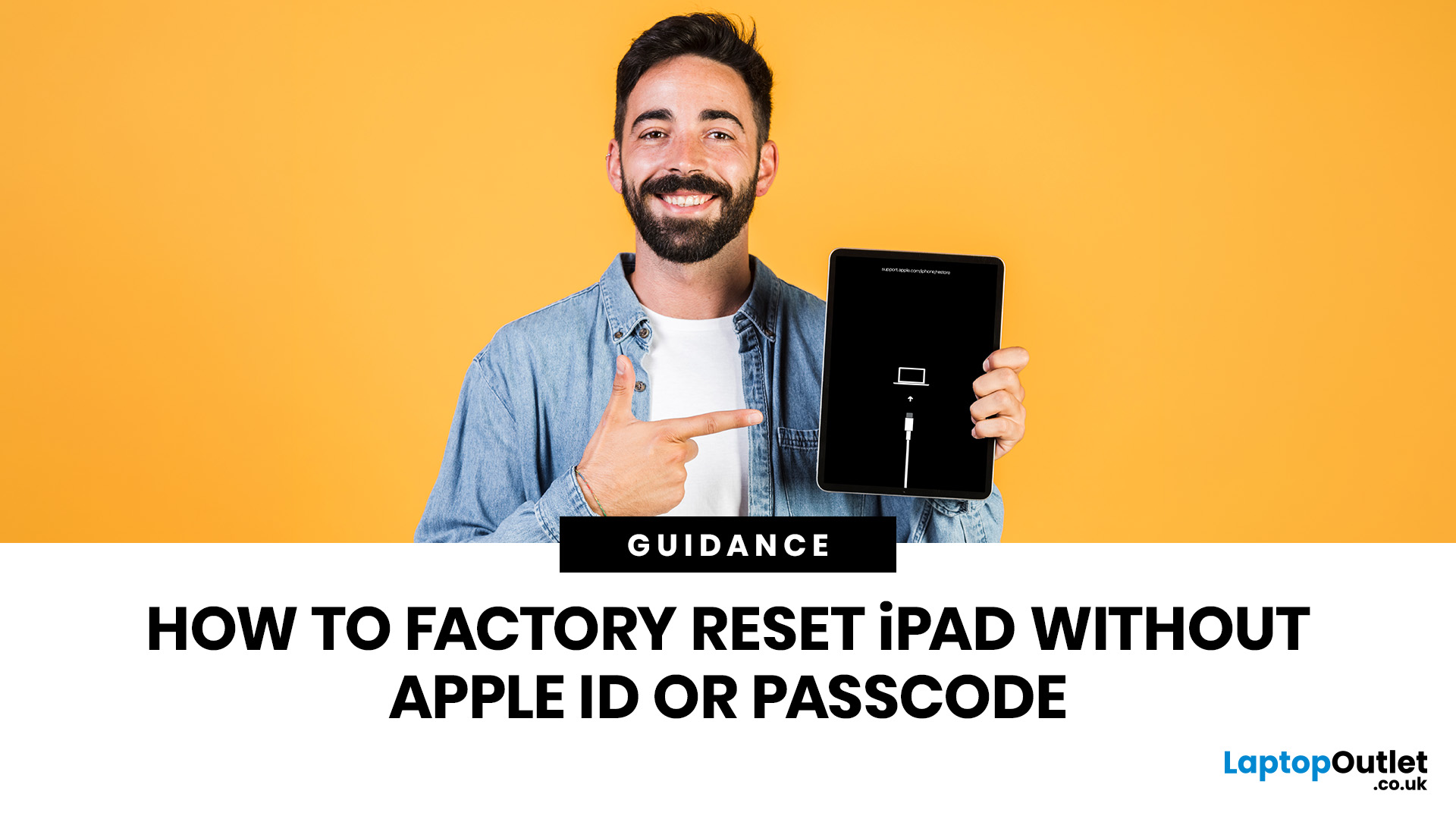
You can factory reset an iPad without a passcode using Recovery Mode on a Mac or Windows PC. This removes the screen lock, erases the iPad, and restores it to factory settings. However, a reset does not remove Activation Lock. If the iPad is linked to an Apple ID, you will still need the correct Apple ID password, the previous owner’s help, or proof of purchase for Apple Support.
Forgot your iPad passcode or seeing “iPad Unavailable”? You can factory reset it using Recovery Mode, a computer, or the lock-screen erase option.
However, a reset does not bypass Activation Lock. If the iPad is linked to an Apple ID, you’ll need the account details, the previous owner’s help, or proof of purchase for Apple Support.
Quick Answer: Can You Factory Reset an iPad Without Apple ID or Passcode?
Yes, you can erase a locked or disabled iPad without the screen passcode by using iPad Recovery Mode on a Mac or Windows PC. This removes the screen lock and restores the iPad to factory settings.