



Everything You Need to Build a Desktop PC: Laptop Outlet’s Expanded Components Range
Quick Answer
The main desktop PC build components are a processor, compatible motherboard, RAM, storage, power supply, CPU cooling and a case. Many builds also require a dedicated graphics card, while case fans, thermal paste, an operating system and basic tools complete the setup. Compatibility between the CPU, motherboard, memory, cooler, case and power supply should always be checked before buying.
Building a desktop PC gives you control over performance, storage, cooling, upgradeability and budget. However, choosing individual parts is only useful when they work correctly together.
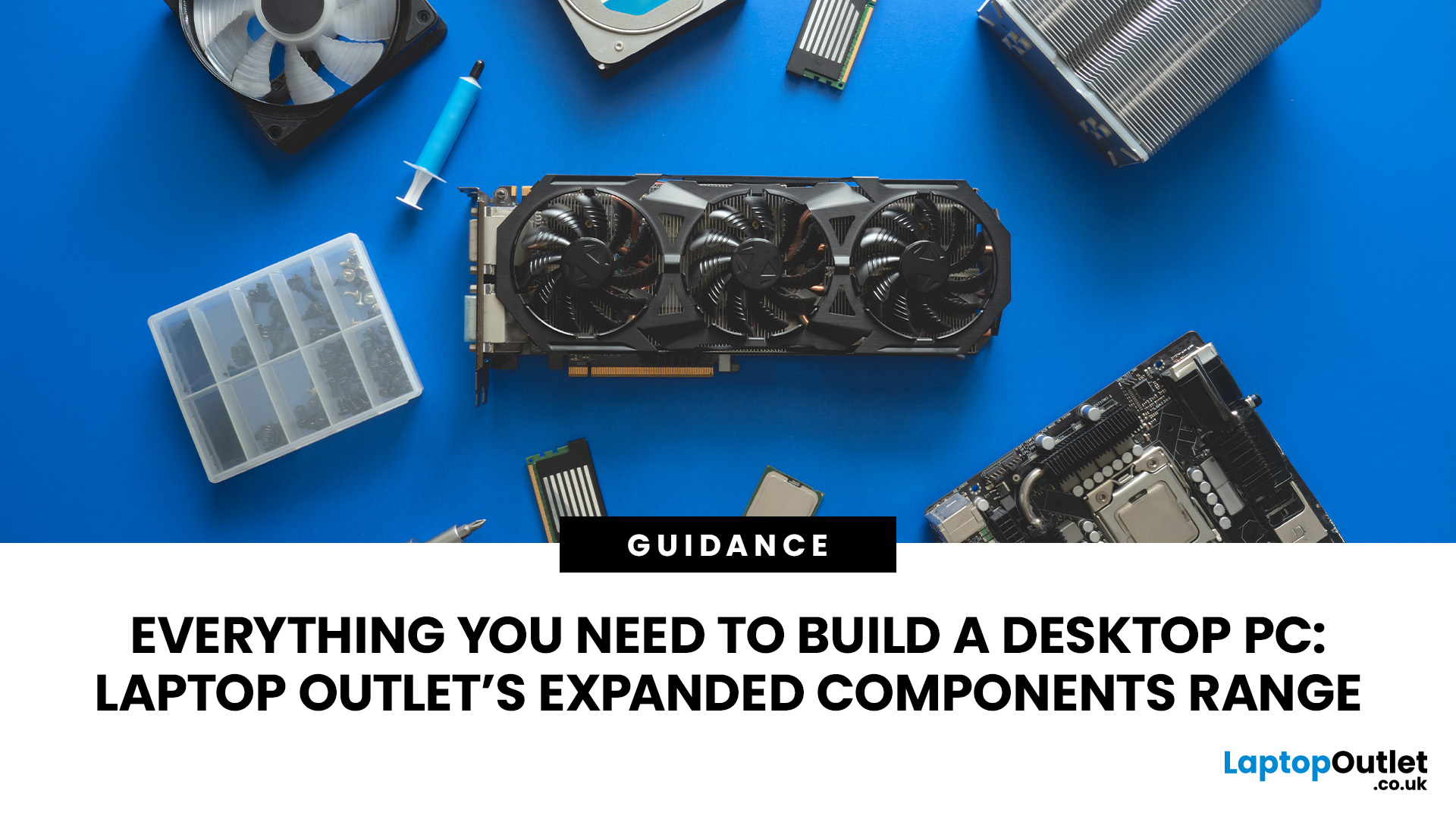
Laptop Outlet has expanded its PC component range to cover more of the hardware needed for complete builds, upgrades and repairs. You can now explore our PC components range while planning everything from the processor and motherboard to storage, power and cooling.
This guide explains the parts for a desktop PC build, what each component does and the compatibility checks you should make before assembling your system.
What Components Do You Need to Build a Desktop PC?
A complete desktop computer normally needs these components:
|
Component |
What It Does |
Essential? |
|
Processor (CPU) |
Runs instructions and calculations |
Yes |
|
Motherboard |
Connects and controls the main components |
Yes |
|
RAM |
Holds data currently being used |
Yes |
|
Graphics card |
Processes graphics and display workloads |
Depends on CPU and workload |
|
SSD or hard drive |
Stores Windows, applications and files |
Yes |
|
Power supply |
Supplies power to the system |
Yes |
|
PC case |
Houses and protects components |
Yes |
|
CPU cooler |
Removes heat from the processor |
Yes |
|
Case fans |
Move air through the chassis |
Usually |
|
Thermal paste |
Transfers heat between CPU and cooler |
Usually |
|
Operating system |
Provides the software environment |
Yes for normal use |
|
Cables and connectors |
Link power, storage and peripherals |
Yes |
|
Tools |
Used during assembly |
Yes |
The exact specification depends on what you want the PC to do. A basic office computer has very different performance requirements from a 4K gaming machine, video-editing workstation or compact home server.
The most important rule is to plan the system as a whole. Buying the fastest individual parts does not guarantee a balanced or compatible PC.
1. Processor: The Starting Point for Your PC Build
The processor, or CPU, performs the general calculations behind applications, games and operating-system tasks.
Your CPU choice affects motherboard compatibility, cooling requirements, memory options and, in some cases, whether you need a separate graphics card.
When comparing compatible processors, consider:
- CPU socket
- Core and thread count
- Clock speeds
- Power and cooling requirements
- Integrated graphics availability
- Intended workload
- Motherboard chipset support
CPU Socket Compatibility Matters
A processor physically and electrically fits only supported motherboard platforms.
For example, current AMD Socket AM5 motherboards support compatible Ryzen processors and use DDR5 memory. AMD states that AM5 platforms cover Ryzen 7000, 8000 and 9000 Series processors, although older boards may require a BIOS update for newer CPUs.
Intel platforms also vary by processor generation. Intel Core Ultra Desktop Processors Series 2 use the LGA1851 socket and Intel 800 Series chipsets, while 12th, 13th and 14th Generation Intel Core desktop processors use LGA1700-based platforms. The two sockets are not interchangeable.
Practical tip: Never assume that matching brand names means compatibility. Check the exact CPU model against the motherboard manufacturer's CPU-support list before ordering.
2. Motherboard: The Foundation That Connects Everything
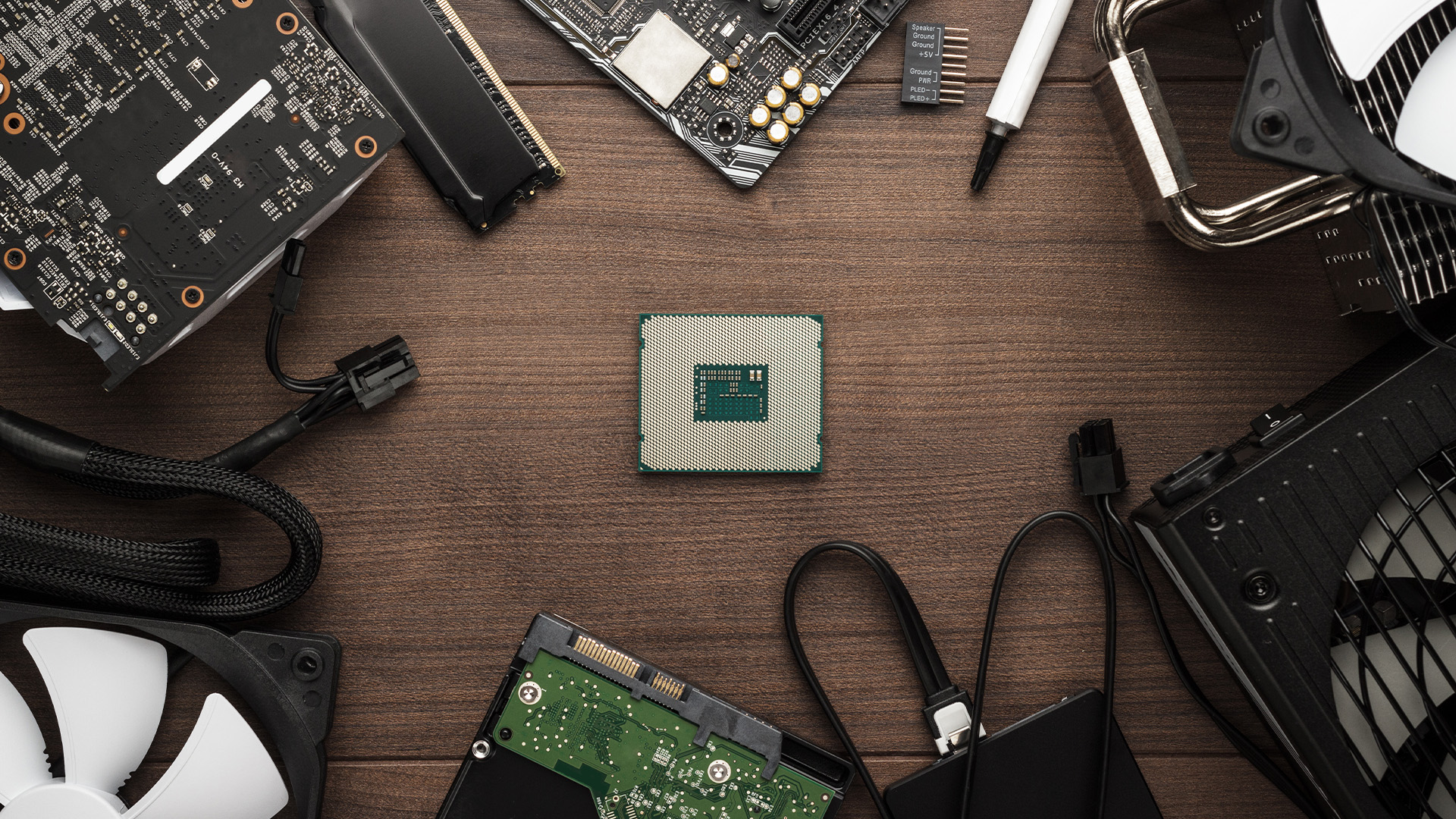
The motherboard provides the physical and electrical connections between your CPU, RAM, graphics card, storage, cooling and other hardware.
Your choice of PC motherboards determines several important parts of the build, including:
-
Processor compatibility
- DDR4 or DDR5 memory support
- Number of RAM slots
- PCIe expansion slots
- M.2 SSD support
- SATA connections
- USB connectivity
- Ethernet and Wi-Fi options
- Fan and pump headers
- Case compatibility
ATX, Micro-ATX or Mini-ITX?
Motherboards are available in several form factors.
ATX boards generally provide more expansion slots and connectivity and suit standard or larger cases.
Micro-ATX reduces the physical size while retaining enough expansion for many mainstream PCs.
Mini-ITX is intended for compact systems but normally provides fewer RAM, PCIe and storage expansion options.
A larger board is not automatically faster. Choose the form factor according to the expansion, connectivity and case size you actually need.
Do Not Check the CPU Socket Alone
A matching socket does not always guarantee processor support.
The chipset and motherboard BIOS also matter. Intel, for example, notes that some LGA1700 motherboards need BIOS updates when moving between supported processor generations. AMD similarly advises that certain AM5 boards may require BIOS updates for newer Ryzen processors.
Check the manufacturer's support page before finalising the motherboard.
3. Graphics Card: Essential for Gaming and GPU-Heavy Workloads
A dedicated graphics card, or GPU, handles graphics rendering and accelerated computing tasks.
You will generally want a dedicated GPU for:
- PC gaming
- 3D rendering
- CAD
- GPU-accelerated video editing
- Certain AI workloads
- High-performance multi-display setups
A separate graphics card may not be necessary for basic office work, browsing or media playback if your processor includes suitable integrated graphics.
Laptop Outlet's PC graphics cards currently include NVIDIA GeForce and AMD Radeon options across different performance levels.
What Should You Check Before Buying a GPU?
Look beyond the graphics processor name itself.
Check:
- Performance at your target resolution
- Video memory, or VRAM
- Card length
- Card height
- Slot thickness
- PSU requirements
- Power connectors
- Monitor outputs
- Case airflow
- CPU pairing
For example, installing a physically large GPU into a compact case can cause clearance problems even when the motherboard and graphics card are electrically compatible.
Similarly, a high-end graphics card can place much greater demand on the power supply and cooling system.
Common mistake: Do not buy a GPU based entirely on VRAM capacity. GPU architecture and processing performance also matter, and a card with more memory is not necessarily faster.
Common mistake: Do not buy a GPU based entirely on VRAM capacity. GPU architecture and processing performance also matter, and a card with more memory is not necessarily faster.
4. RAM: Short-Term Memory for Active Workloads
RAM stores data that the processor needs to access quickly while programs are running.
More memory can help when you are:
- Running many applications simultaneously
- Gaming while using background applications
- Editing large photos
- Working with video
- Running virtual machines
- Handling large creative projects
When choosing RAM and memory modules , the first compatibility check is the memory generation.
DDR4 and DDR5 Are Not Interchangeable
A DDR4 module cannot simply be installed in a DDR5 motherboard.
AMD AM5 platforms use DDR5, while AM4 systems use DDR4. Intel support varies by platform and motherboard. For example, some LGA1700 systems were produced in separate DDR4 and DDR5 configurations.
You should also check:
- Maximum motherboard memory capacity
- Number of DIMM slots
- Supported memory speeds
- Recommended module configurations
- CPU memory support
- Module height if using a large air cooler
Buying memory as a matched kit can also simplify configuration compared with mixing different modules later.
5. SSDs and Hard Drives: Where Your Data Lives
Your storage contains the operating system, applications, games and personal files.
Most modern builds benefit from using an SSD as their primary system drive because solid-state storage offers substantially faster access than a mechanical hard drive.
NVMe SSDs
An NVMe SSD installed in an M.2 slot is a common choice for the operating system and frequently used applications.
Before selecting one of Laptop Outlet's internal SSDs , check:
- M.2 slot availability
- Supported drive length
- PCIe generation
- NVMe support
- Capacity
- Whether motherboard slots share bandwidth with other connections
Not every M.2 slot operates identically, so refer to the motherboard manual when installing several drives.
Hard Drives
Traditional hard drives still have a role where large storage capacity matters more than maximum speed.
You might use internal hard drives for:
- Large media libraries
- Local backups
- Archived projects
- Bulk file storage
A common configuration combines a faster SSD for Windows and applications with a larger HDD for less frequently accessed data.
6. Power Supply: Choose for the Whole System
The power supply unit, or PSU, converts mains electricity into the power required by the PC's internal components.
Choosing the right PSU is not simply a case of selecting the highest wattage available.
Consider:
- CPU power requirements
- GPU power requirements
- Manufacturer recommendations
- PSU efficiency
- Required connectors
- PSU physical size
- Future upgrades
- Modular or fixed cabling
When comparing PC power supplies , calculate requirements using the complete build rather than looking at the CPU or graphics card independently.
Corsair's current PSU guidance, for example, considers GPU and CPU demand alongside components such as storage, memory, fans and cooling. It also advises allowing for transient power spikes and future upgrades.
Do You Need Extra PSU Headroom?
Some headroom is sensible.
Running extremely close to the PSU's maximum rated output can leave less flexibility for high transient loads or future upgrades. However, buying a vastly oversized power supply does not automatically improve performance.
The correct capacity depends on the actual system.
Also check graphics-card connectors carefully. Current GPUs may use conventional PCIe connectors or newer connections such as 12V-2x6 depending on the model.
7. CPU Cooler: Keeping Processor Temperatures Under Control
Processors generate heat and require a suitable cooling system.
Some CPUs may include a stock cooler, while others require you to purchase one separately. Higher-power processors may also benefit from more capable cooling.
You can compare CPU coolers including air and liquid-cooling solutions.
Air Cooling
Air coolers use a heatsink and fan.
They are often straightforward to install and can provide effective cooling without pumps or liquid components.
Liquid Cooling
All-in-one liquid coolers use a pump, radiator and one or more fans.
They can provide strong cooling for demanding processors, but you need enough case space for the radiator and fans.
Whichever option you choose, confirm:
- CPU socket compatibility
- Cooler mounting support
- Maximum cooler height
- Radiator compatibility
- RAM clearance
- Case clearance
- Expected CPU thermal load
Do not choose a cooler solely because it physically fits the CPU socket. It also needs sufficient cooling capacity for the processor.
8. PC Case: More Than Just Appearance
The case determines how your components physically fit together and how effectively air can move through the system.
When comparing PC cases , check:
- Supported motherboard sizes
- GPU maximum length
- GPU thickness clearance
- CPU cooler height
- Radiator support
- Fan mounting positions
- PSU form factor
- Storage bays
- Front USB ports
- Cable-management space
Good airflow is particularly important for gaming and workstation PCs containing higher-power CPUs and GPUs.
A compact case can save desk space, but reduced internal volume may restrict component choice and make cable management or cooling more difficult.
9. Case Fans: Creating Effective Airflow
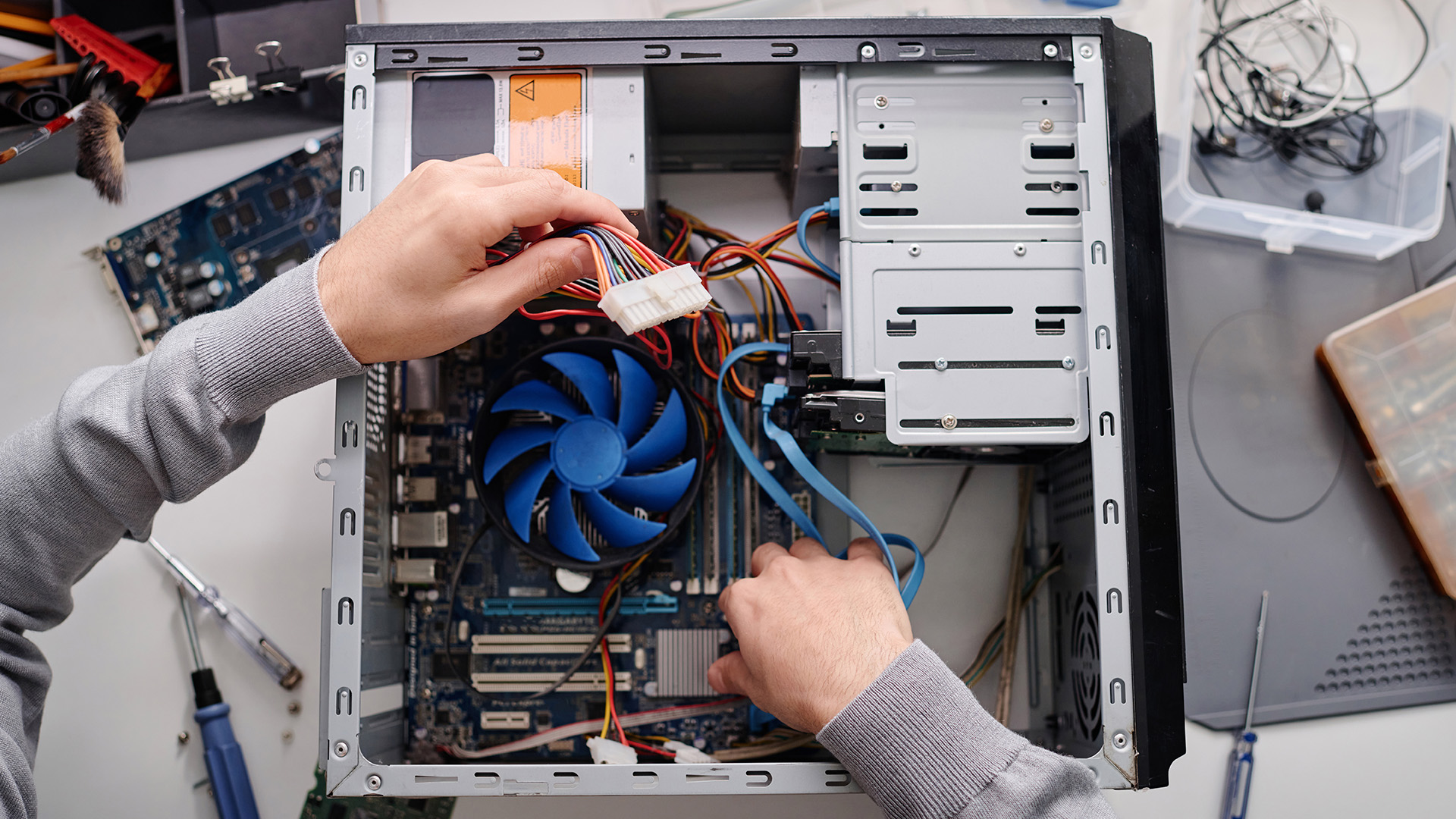
Case fans move cool air into the system and expel warm air.
A common arrangement uses front or lower fans as intake and rear or upper fans as exhaust, although the ideal layout varies by case.
When selecting Case Fans, check:
- Supported fan sizes
- Available motherboard fan headers
- Fan thickness
- Airflow direction
- Noise levels
- PWM speed control
- Radiator placement
More fans are not automatically better. Poorly positioned fans can create unnecessary noise without substantially improving temperatures.
Aim for a clear path that brings cool air towards heat-producing components and moves warm air out efficiently.
10. Thermal Paste: A Small but Important Detail
Thermal paste fills microscopic gaps between the processor's heat spreader and the cooler's contact plate.
Without an effective thermal interface, heat transfer can be reduced.
Many modern CPU coolers already include thermal compound or have it pre-applied. If yours does, adding another layer is normally unnecessary.
If thermal paste needs to be applied manually, use an appropriate amount rather than covering the processor with excessive compound.
Common mistake: More paste does not mean better cooling. Too much can make installation unnecessarily messy, while too little may prevent even coverage.
11. Connectors and Cables
A PC contains several different connectors, and checking them before assembly can prevent frustrating compatibility problems.
Depending on the build, you may encounter:
- 24-pin motherboard power
- CPU EPS power
- PCIe GPU power
- 12V-2x6 GPU power
- SATA power
- SATA data
- Front-panel connectors
- USB headers
- HD Audio headers
- Fan headers
- RGB or ARGB headers
Most required PSU and case cables are supplied with the relevant hardware, but this varies by product.
Modular PSU cables also deserve particular care. Do not assume that power-supply cables from different PSU models are interchangeable just because the connector appears to fit. Use cables approved for the specific PSU.
12. Operating System
Hardware alone does not provide a normal desktop environment. You will also need an Operating System.
Windows 11 is a common choice for gaming and general-purpose desktop PCs, while Linux distributions provide an alternative for compatible software and workloads.
Before installing an operating system, check its current system requirements and hardware support.
For Windows 11, Microsoft requires features including UEFI Secure Boot capability and TPM 2.0 alongside other minimum hardware requirements. Exact feature and edition requirements can change, so check Microsoft's current documentation before installation.
You should also download relevant motherboard, graphics and peripheral drivers after the operating system has been installed.
13. What Tools Do You Need to Build a PC?
PC assembly does not normally require a large toolkit.
Useful Tools include:
- Phillips-head screwdriver
- Small container for screws
- Cable ties or hook-and-loop straps
- Side cutters for cable ties
- Clean workspace
- Good lighting
An anti-static wrist strap can also be used, although careful handling in a suitable environment can reduce static risk.
Avoid working on thick carpet where practical and handle components by their edges rather than touching exposed contacts.
Keep motherboard manuals and component documentation nearby. Connector positions and installation procedures vary between models.
Desktop PC Build Compatibility Checklist
Before buying your desktop PC build components, run through the complete system once.
CPU and Motherboard
- Does the socket match?
- Does the chipset support the processor?
- Is the required BIOS version installed?
Motherboard and RAM
- DDR4 or DDR5?
- Is the capacity supported?
- Are the speed and configuration appropriate?
Motherboard and Case
- Does the case support ATX, Micro-ATX or Mini-ITX as required?
- Is there room around the board for cables and cooling?
GPU and Case
- Is there enough card length?
- Is there enough slot thickness and vertical clearance?
GPU and PSU
- Is the wattage sufficient?
- Are the correct connectors available?
- Does the GPU manufacturer specify a minimum or recommended PSU?
CPU Cooler and Case
- Is the socket mounting kit compatible?
- Does the cooler fit within the case?
- Does a radiator have an appropriate mounting position?
Storage and Motherboard
- Are suitable M.2 or SATA connections available?
- Are any ports disabled when particular M.2 slots are occupied?
Taking ten minutes to complete these checks can save considerably more time during assembly.
In What Order Should You Choose PC Components?
There is no single mandatory order, but this sequence reduces the chance of incompatibility:
- Define your workload and budget.
- Choose the processor and graphics performance level.
- Select a compatible motherboard.
- Choose DDR4 or DDR5 RAM according to the platform.
- Select SSD and optional HDD storage.
- Choose a suitable CPU cooler.
- Pick a case that physically supports the hardware.
- Calculate PSU requirements and connectors.
- Plan case fans and airflow.
- Confirm operating-system requirements and accessories.
This approach works because the processor and motherboard establish many of the compatibility rules that affect the rest of the system.
How Should You Balance Your PC Build Budget?
Avoid spending heavily on one component while restricting another part that directly affects the same workload.
For gaming, the graphics card often deserves a substantial portion of the performance budget, but it still needs to be paired with a suitable CPU, PSU and cooling system.
For productivity workloads, the balance may shift towards CPU performance, RAM capacity or storage speed.
An office system with integrated graphics may require no dedicated GPU at all.
Think about the applications you actually use rather than building around the most expensive specifications available.
New Build or Upgrade: Do You Need Every Component?
Not necessarily.
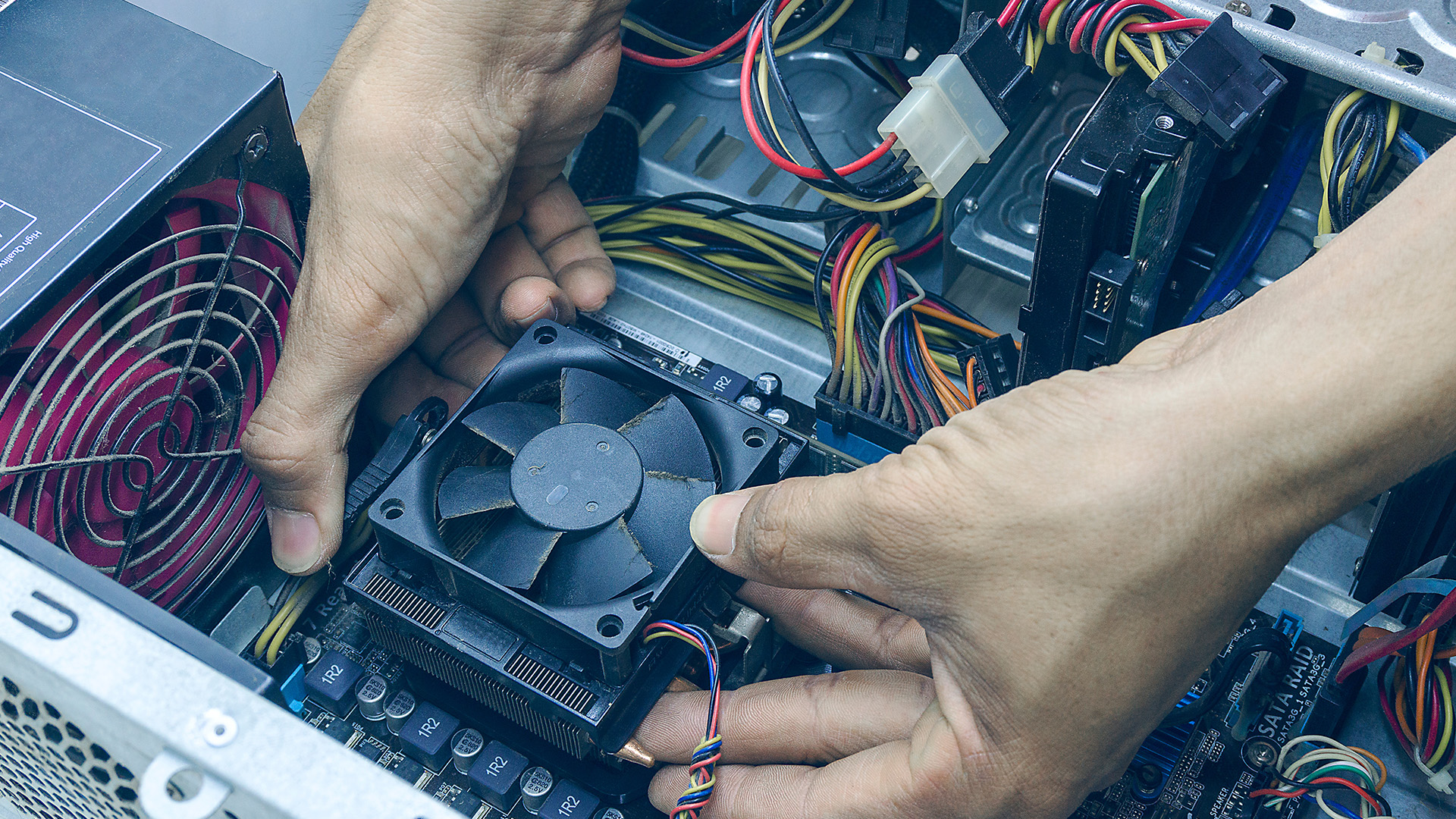
If you are upgrading an existing PC, some components may be reusable.
Potentially reusable hardware includes:
- PC case
- Storage drives
- Power supply
- Graphics card
- Case fans
- CPU cooler
- RAM
However, reuse should always depend on compatibility and condition.
For example, moving to a new CPU platform may require a different motherboard and RAM generation. A higher-performance graphics card may also expose limitations in an older PSU or compact case.
This is why upgrading should start with an inventory of your existing components rather than ordering replacement parts immediately.
Common PC Building Mistakes to Avoid
Buying a CPU and motherboard based only on socket
Chipset and BIOS compatibility also matter.
Ordering the wrong RAM generation
DDR4 and DDR5 modules are physically and electrically different.
Forgetting GPU clearance
Modern graphics cards can be long, thick and heavy.
Underestimating power requirements
Check total system demand and GPU connector requirements before choosing a PSU.
Ignoring cooler dimensions
Large air coolers can interfere with case panels or tall RAM modules.
Forgetting motherboard headers
Your case's USB ports, fans and lighting require compatible motherboard connections.
Overspending on specifications you will not use
Extra PCIe slots, premium motherboard features or very high PSU wattage have limited value if your workload never requires them.
Laptop Outlet's Expanded Desktop PC Components Range
Laptop Outlet's current component catalogue covers complete builds as well as individual upgrades, with processors, motherboards, memory, graphics cards, storage, power supplies, cooling and PC cases available across different platforms and budgets.
That wider selection can make it easier to plan related components together rather than treating each part as an isolated purchase.
The important step remains compatibility. Whether you are putting together your first desktop, replacing ageing hardware or planning a higher-performance system, confirm the specification of every component against the parts around it before ordering.

Final Thoughts: Plan the Build Before Buying the Parts
Choosing the right desktop PC build components is less about finding the most powerful individual hardware and more about creating a balanced, compatible system.
Start with your workload and budget, then match the processor to the motherboard, memory and cooling. Check GPU dimensions, storage interfaces, case clearance and power requirements before committing to the build.
Laptop Outlet's expanded desktop PC components range now covers the main hardware needed for complete systems and upgrades. Careful compatibility checks remain the most important step, because a well-planned build is easier to assemble, easier to upgrade and less likely to require replacement parts later.

Questions People Also Ask
What are the essential components needed to build a desktop PC?
The essential PC components normally include a processor, motherboard, RAM, storage, power supply, CPU cooler and case. A graphics card is also required when integrated graphics are unavailable or insufficient for your workload.
Can I use any processor with any motherboard?
No. The processor must match the motherboard's socket, chipset and supported CPU list. Some combinations also require a specific BIOS version, so always check the motherboard manufacturer's compatibility documentation before buying.
Do I need a graphics card to build a PC?
Not always. A dedicated graphics card is unnecessary when your processor includes suitable integrated graphics and your workload is relatively light. Gaming, 3D rendering and many professional graphics tasks normally benefit from dedicated graphics.
How much power should my PC power supply have?
The required PSU capacity depends mainly on your CPU and graphic`s card, plus storage, cooling and other components. Use manufacturer recommendations or a reputable PSU calculator and leave reasonable headroom for load spikes and future upgrades.
Should I use an SSD or hard drive in a new PC?
An SSD is generally the better primary drive because it provides faster system and application access. Hard drives remain useful when you need large amounts of lower-cost storage for archives, backups or media libraries.
| Read More: |
| Intel XMP vs AMD EXPO: RAM Profiles and Compatibility Explained |
| DRAM vs DRAM-Less SSDs: Which Should You Choose? |
| ECC vs Non-ECC RAM: Compatibility and Who Needs It |
Related Articles


Published: February 04, 2026
Your desktop PC is a key part of daily life. It handles work, gaming, and more. But how long can it last? Many users worry about desktop PC lifespan.
The good news is you can extend it to five years or beyond. With smart choices and simple habits, your setup stays reliable. This guide shares practical steps. It covers everything from processor picks to daily care.
Understanding Desktop PC Lifespan
Desktop PCs don't have a fixed expiry date. Their lifespan depends on build quality, usage, and maintenance. On average, a well-kept desktop lasts 5-8 years. But push it right, and you can hit 10 years or more. Why care? A longer desktop computer lifespan saves money and reduces waste.
Key Factors Affecting Longevity
Several elements play a role in how long your desktop endures. First, hardware quality matters most. Cheap parts wear out fast. Second, heat buildup shortens life—poor cooling is a killer. Third, software updates keep things secure and efficient. Finally, your habits, like overworking

Last Updated: February 10, 2026
Buying a desktop PC is a big decision, especially when prices can range from a few hundred pounds to several thousand. The right choice depends not just on your budget, but on how you plan to use your PC now and in the future.
Let us help you understand exactly what you get at different price points, what specifications really matter, and how to avoid common mistakes. Whether you’re buying your first desktop or upgrading an older system, this guide will walk you through everything you need to know.
Why Choose a Desktop PC Instead of a Laptop?

Before diving into budgets, it’s worth understanding why many UK buyers still choose desktops:
- Better performance for the price
- Easier and cheaper upgrades
- Longer lifespan
- Improved cooling and sustained performance
- More connectivity options
For home offices, gaming setups, and creative work, desktops almost always offer better long-term value.
Understanding Desktop PC Specifications (Quick Primer)
If you’re not technical, these are the core components
Last Updated: May 05, 2026
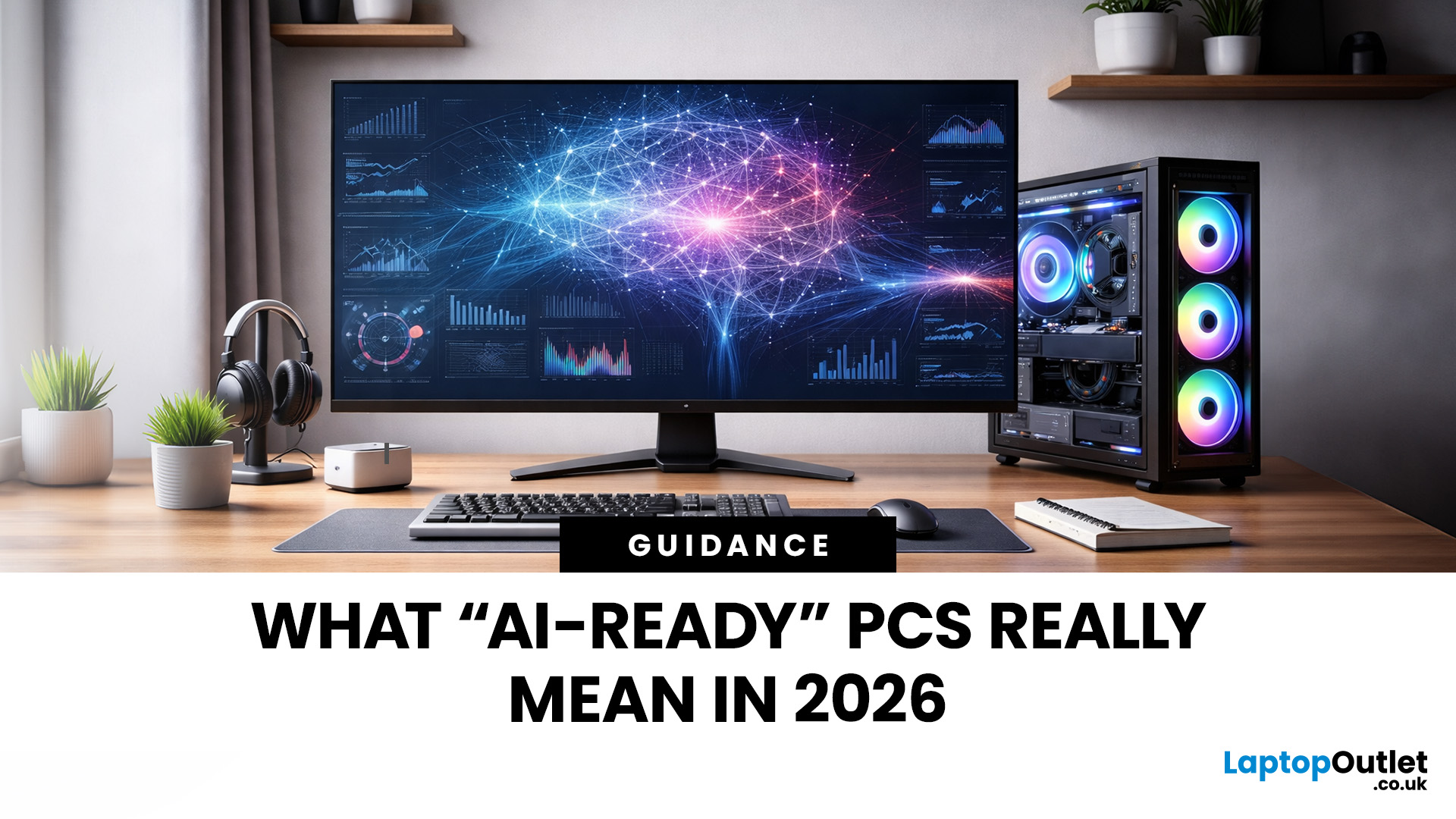
Let’s call this out early: “AI-Ready” is one of those phrases that sounds important but tells you almost nothing by itself.
Every PC brand is using it. Every listing claims it. And most buyers still walk away thinking, “Cool… but what does that actually do for me?”
So instead of selling you a future fantasy, let’s talk about what AI-Ready desktops actually change in 2026, where they matter, and where they really don’t.
First: Why Everyone Is Suddenly Calling Their PCs “AI-Ready”
AI didn’t just become a software thing - it became a hardware conversation.
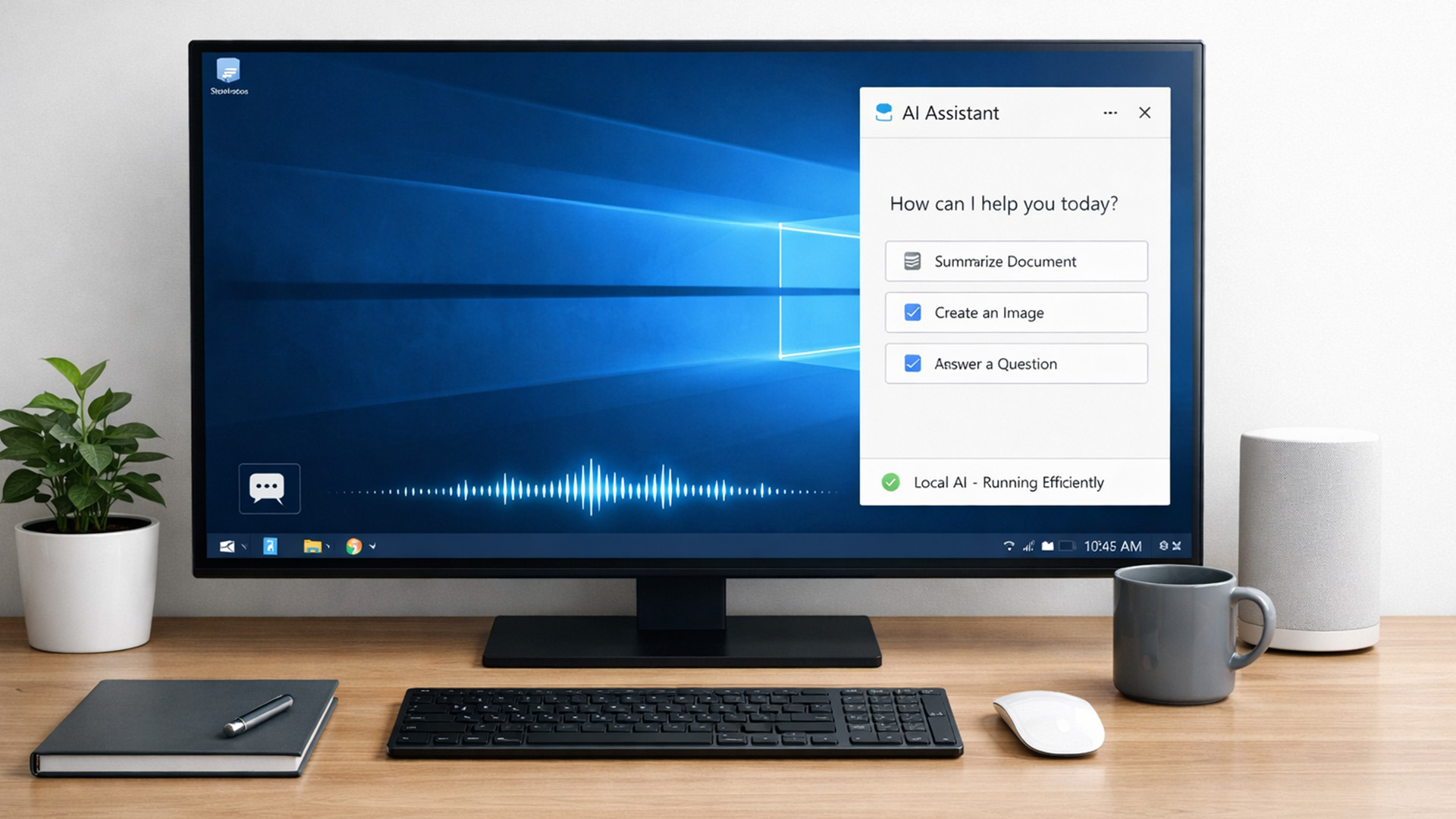
For years, AI lived in the cloud. You typed something, it went to a server, magic happened, and the result came back. Now, operating systems (especially Windows) are pushing AI features onto the device itself. That shift is what triggered the “AI-Ready” wave.
An AI-Ready desktop is basically a PC that can:
- Run certain AI tasks locally
- Do it efficiently
- Without destroying performance or power usage
That’s it. No sentience. No robot takeover.
Published: February 09, 2026
If you have been browsing for a new PC lately, you might have noticed a bit of a price shock. Whether you are looking for a sleek all-in-one for your home office or a powerful gaming rig, the numbers on the price tags in 2026 are noticeably higher than they were just a couple of years ago.
Many UK buyers are left scratching their heads, asking the same question: why are desktop PCs expensive all of a sudden? It is a fair question. In this guide, we will break down exactly what is driving these costs and, more importantly, how you can still find incredible value.
Key Reasons Desktop PC Prices Are Rising
Understanding the "why" behind the price hike helps you time your purchase better. Here are the primary factors driving the market today.
The "AI Squeeze" on Components
The biggest culprit isn't a lack of chips, but a shift in what those chips are used for. Huge data centres are currently buying up almost 70% of the world’s advanced memory (DRAM) and storage (NAND) to power AI models.

Last Updated: September 15, 2026
If you’re asking “are refurbished desktop PCs worth it” in 2026, you’re not alone. Refurb is having a moment in the UK, partly because budgets are tight, and partly because more people want a cheaper, lower-waste way to get solid tech. At the same time, buyers are more hesitant than ever… and that hesitation is not random. A few very 2026-specific changes have raised the stakes.
This guide breaks down the real reasons people hesitate in 2026, and how Laptop Outlet reduces those risks so you can buy refurbished with genuine peace of mind - without losing out on choice or price.
What changed in 2026 that made buyers more cautious?
1) The Windows 10 “cliff edge” is now behind us
Windows 10 support ended on 14th October 2025, which means many older desktops are now in a riskier zone if they can’t upgrade cleanly.
Yes, Microsoft offers Extended Security Updates (ESU), but for consumers it’s a limited runway (through 2026) and comes with requirements that can add friction.
Why this makes refurbished
Published: June 11, 2026
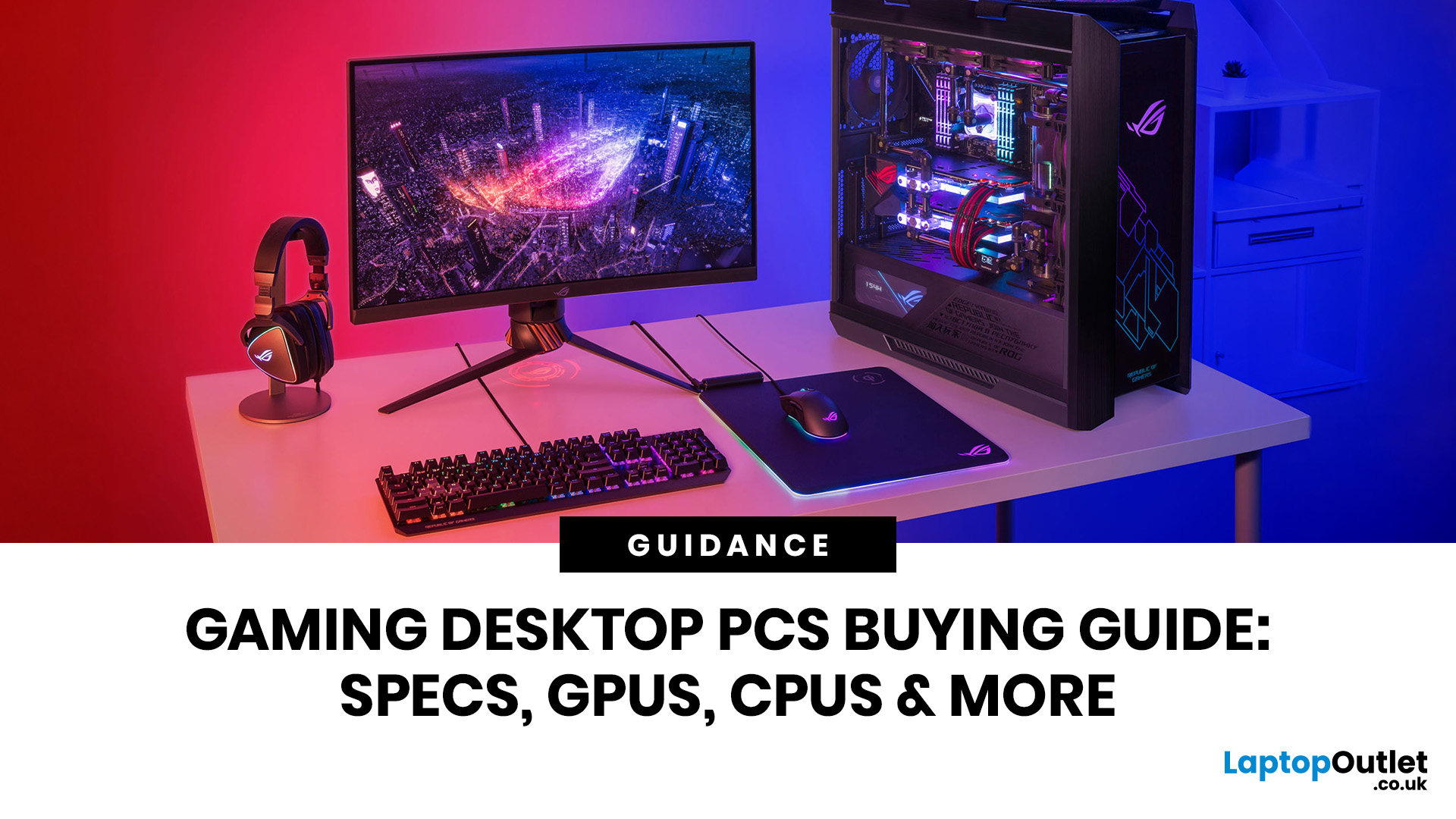
Choosing the right gaming desktop can be the difference between smooth, immersive gameplay and a system that struggles within a year. This gaming PC buying guide explains the key components that affect gaming performance, future-proofing, and value for money, so you can buy with confidence rather than guessing from confusing spec sheets.
A good gaming PC is not just about the most expensive graphics card. It is about balance. The CPU, GPU, RAM, storage, cooling, power supply, motherboard, and case all work together. Whether you play competitive esports, cinematic single-player titles, open-world RPGs, racing games or VR, understanding the right configuration helps you avoid overspending and choose a desktop that lasts.
This article is designed as a practical gaming PC specs guide for beginners, but it also includes up-to-date 2026 advice for buyers comparing modern RTX, Radeon, Intel, and AMD-powered systems.
Why Buy a Gaming Desktop PC?
A gaming desktop PC remains one of the best choices
Last Updated: June 15, 2026
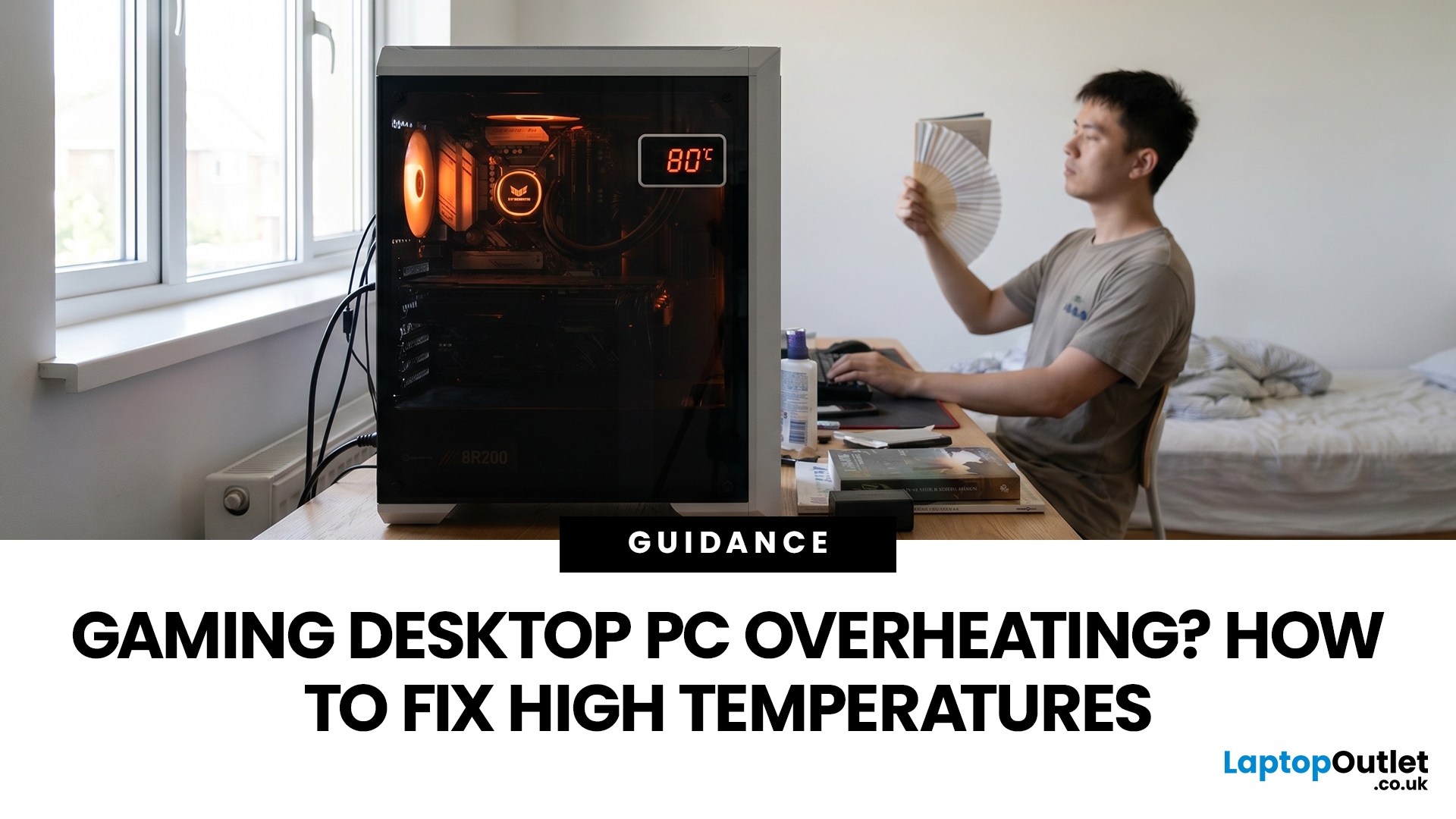
A gaming PC overheating usually comes down to one of five things: blocked airflow, dust build-up, weak cooling, aggressive game settings, or poor contact between the CPU/GPU and its cooler.
| Here is the fast version:
|
Gaming PC Overheating: What It Means and Why It Matters
You’re mid-match. Your FPS is smooth. Then suddenly, the game stutters, the fans sound like a jet engine, and your PC feels like it could toast bread.
That is not “just gaming PC life”.
A hot gaming desktop is normal. An overheating
Last Updated: September 17, 2026
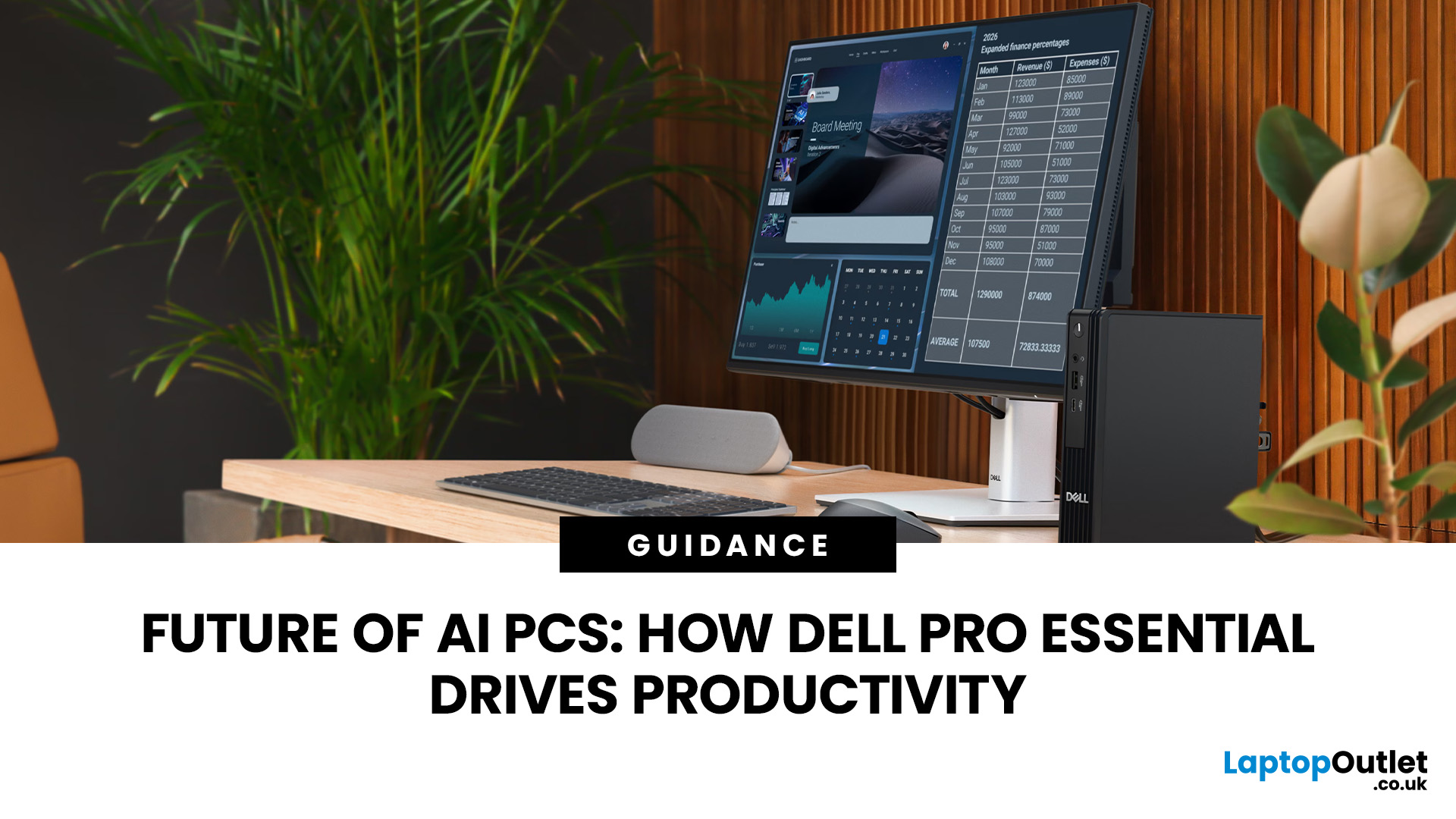
An AI PC differs from a standard business PC by using dedicated hardware, such as an NPU, to accelerate supported AI workloads locally. Standard desktops can still run cloud-based AI services and Microsoft Copilot without an NPU.
Dell Pro Essential desktops are business PCs designed primarily for everyday productivity, not a dedicated AI PC range. Some configurations may include processors with an NPU for on-device AI acceleration, while others do not. Businesses should check the exact processor, NPU capability and workload requirements before deciding between Dell Pro Essential and an AI-ready Dell Pro PC.
For Dell Pro Essential, AI capability depends on the exact processor and configuration. UK businesses should therefore weigh on-device AI needs against everyday performance, security, upgradeability and cost.
What Is an AI PC?
An AI PC is a computer with hardware designed to accelerate artificial intelligence workloads. In addition to the familiar CPU and GPU, many modern AI PCs include
Published: September 22, 2026
Published: September 22, 2026
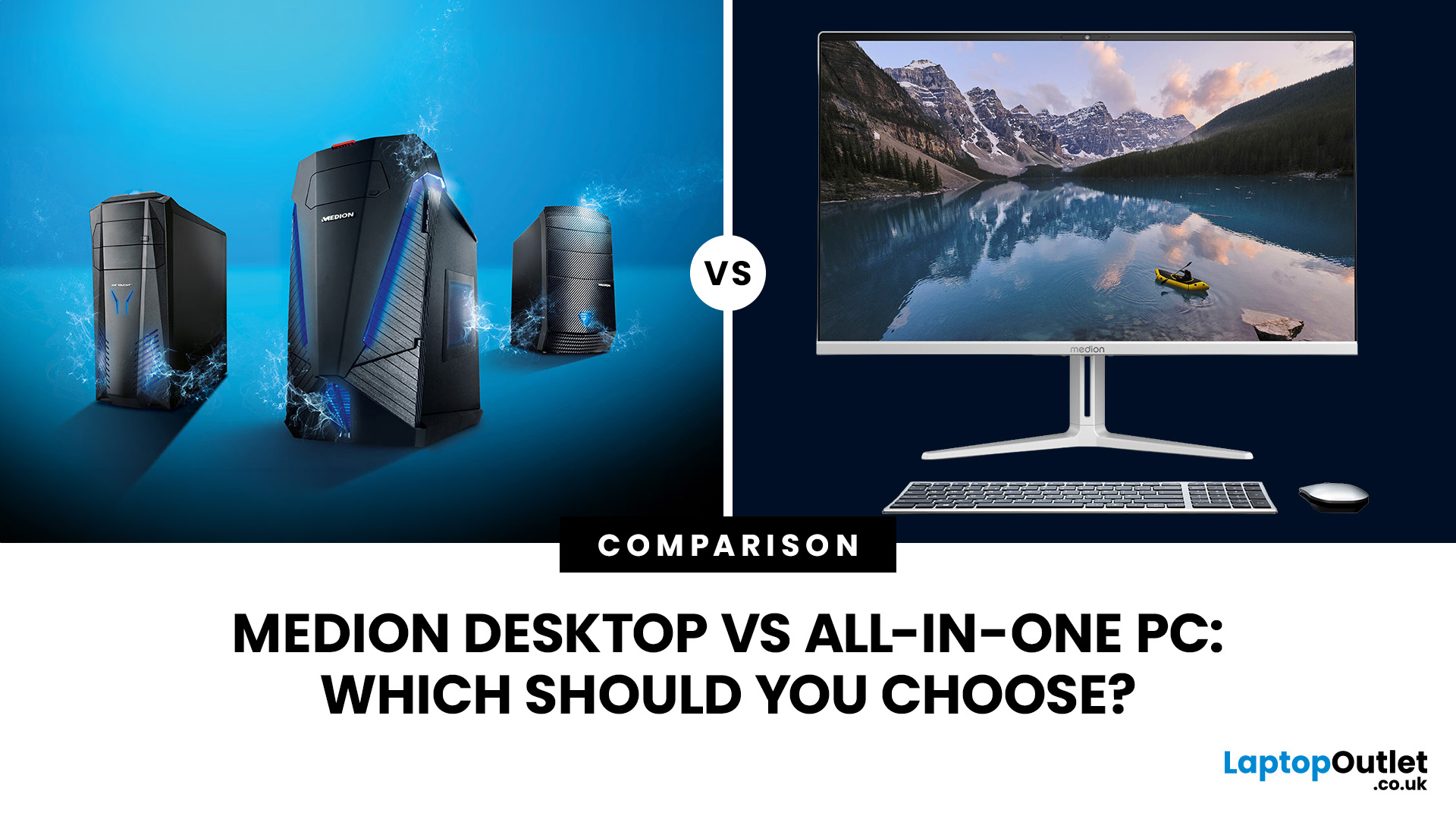
Choosing a Medion computer is not only about processor speed, RAM or storage. Form factor affects desk space, display choice, upgrades, repairs and how easily the system can adapt later.
A Medion desktop PC is usually the better choice if you want greater upgrade flexibility, more display freedom and stronger options for demanding workloads. A Medion all-in-one PC suits users who prioritise a cleaner, space-saving setup with the screen built in. The right choice depends on your performance needs, desk space, upgrade plans and the exact model specifications.
The Medion desktop vs all-in-one PC decision therefore needs more than a simple winner. Both can work well for home, office and family use, but they solve different problems. This guide compares them around real needs so you can choose the setup that fits your space and workload.
Medion Desktop vs All-in-One: The 1-Minute Take
Choose a Medion desktop PC if you want more freedom over the monitor, broader upgrade potential and greater

