



Medion Desktop vs All-in-One PC: Which Should You Choose?
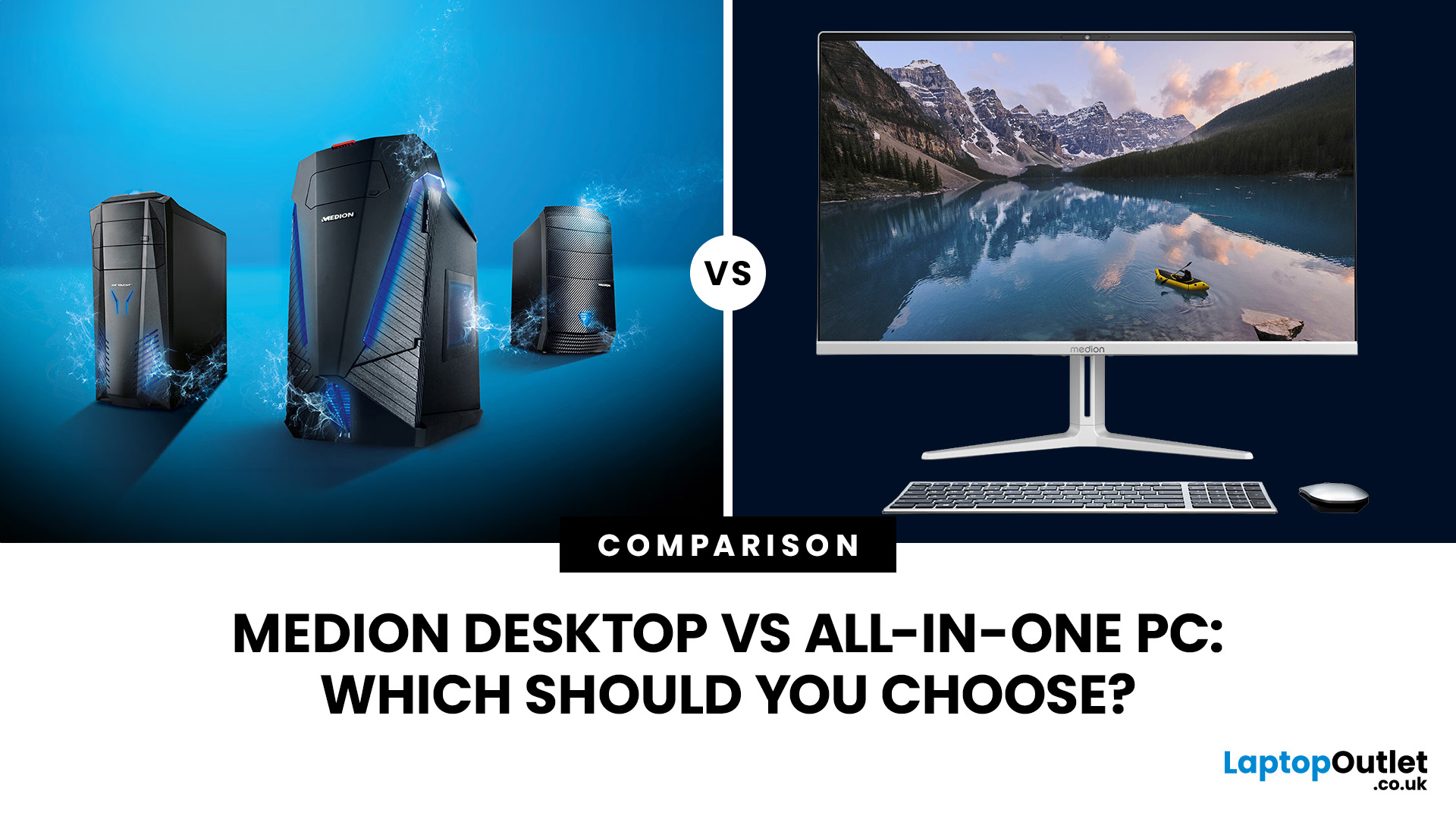
Choosing a Medion computer is not only about processor speed, RAM or storage. Form factor affects desk space, display choice, upgrades, repairs and how easily the system can adapt later.
A Medion desktop PC is usually the better choice if you want greater upgrade flexibility, more display freedom and stronger options for demanding workloads. A Medion all-in-one PC suits users who prioritise a cleaner, space-saving setup with the screen built in. The right choice depends on your performance needs, desk space, upgrade plans and the exact model specifications.
The Medion desktop vs all-in-one PC decision therefore needs more than a simple winner. Both can work well for home, office and family use, but they solve different problems. This guide compares them around real needs so you can choose the setup that fits your space and workload.
Medion Desktop vs All-in-One: The 1-Minute Take
Choose a Medion desktop PC if you want more freedom over the monitor, broader upgrade potential and greater scope for demanding hardware. Choose a Medion all-in-one PC if saving desk space, reducing separate components and simplifying setup matter more. Neither format is universally better, so compare the exact model against your workload.
|
Comparison |
Medion desktop PC |
Medion all-in-one PC |
|
Footprint |
Separate tower and monitor need more room |
PC is built into the display, reducing clutter |
|
Included display |
Usually separate |
Built in |
|
Performance |
Wider range, including high-performance configurations |
Commonly focused on productivity and space efficiency |
|
Upgrades |
Generally more scope for component changes |
More limited and model-dependent |
|
Repairability |
Parts are usually easier to access individually |
Service can be more involved because the screen and PC share one chassis |
|
Ports |
Often more room for connectivity and expansion |
Varies by model, so check the specification |
|
Ideal user |
Power users, gamers, upgraders and monitor-focused setups |
Home, office and family users prioritising simplicity and space |
The important word here is generally. A powerful tower does not represent every Medion desktop, just as one Medion AIO does not represent every all-in-one PC.
What Is a Medion Desktop PC?
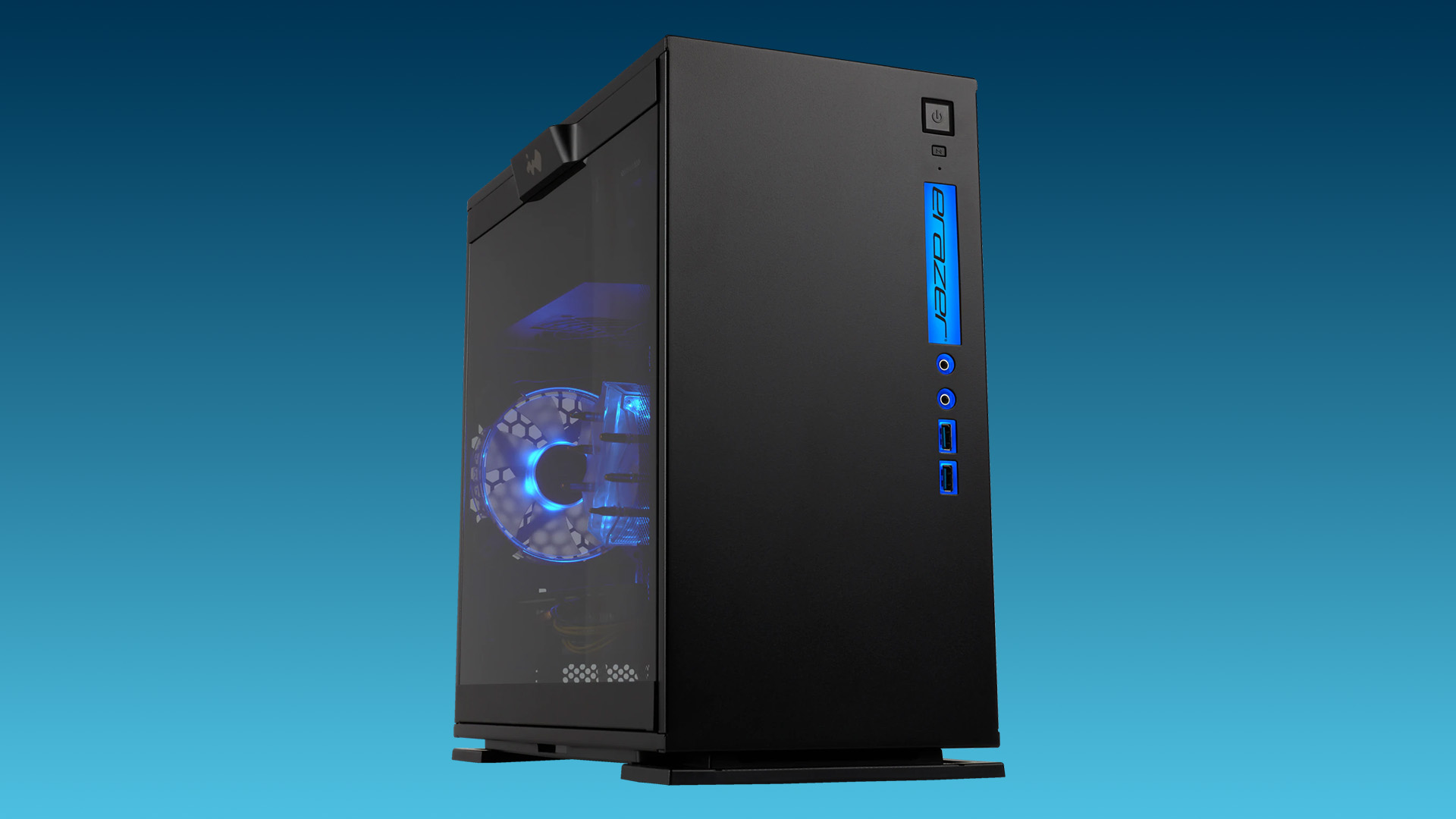
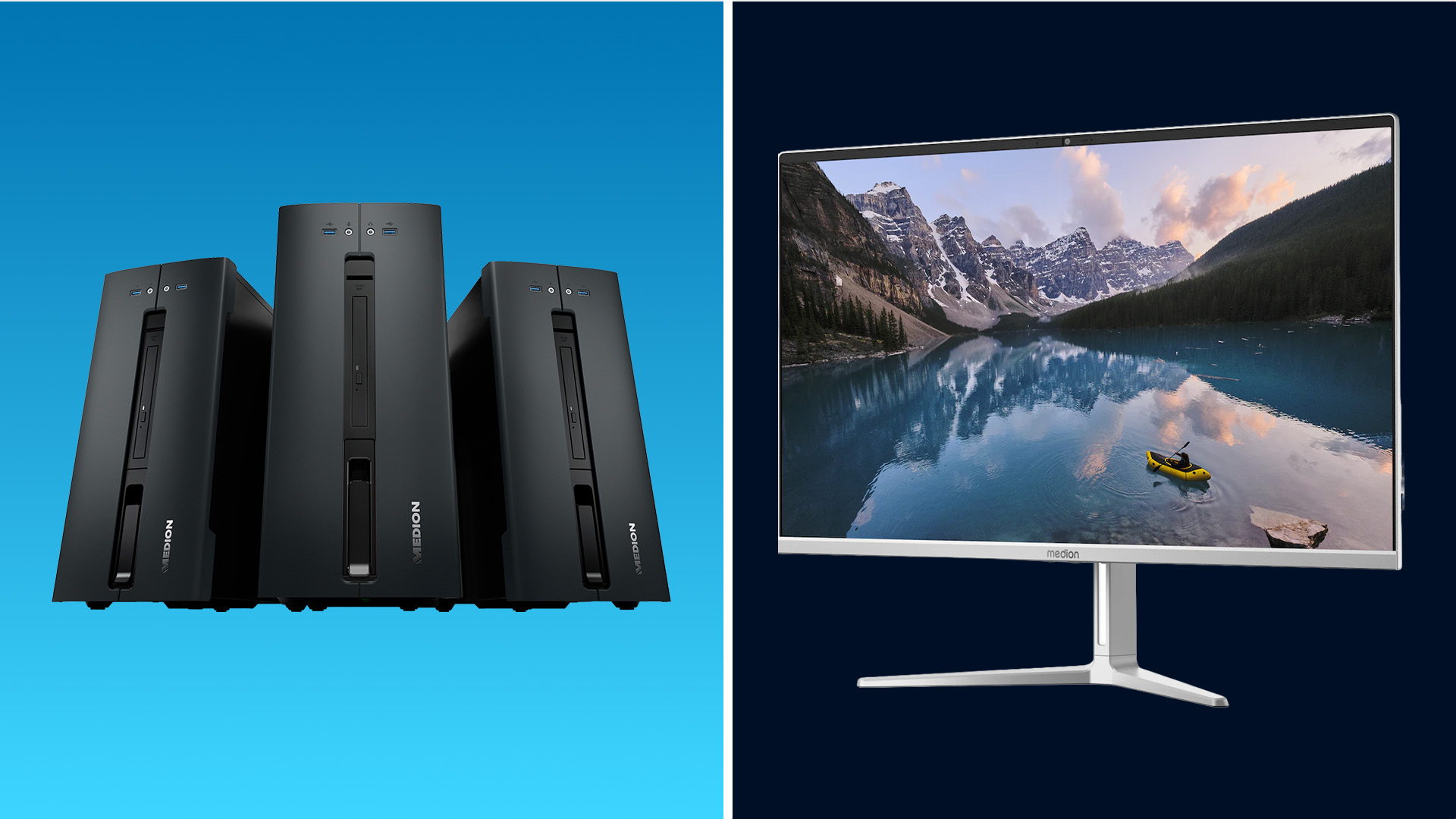
A conventional Medion desktop PC keeps the computer hardware inside a separate case or tower. You connect your own monitor, keyboard, mouse and other accessories, giving you more control over the complete setup.
Medion desktops span different performance levels, so compare the processor, graphics, memory, storage and case design rather than relying on a series name. The Medion desktop PCs range shows how current configurations can differ.
Main advantages
The main advantage is flexibility. Because the display is separate, you can choose a larger screen for spreadsheets, higher resolution for creative work or a high-refresh monitor for gaming.
A tower also gives manufacturers more room for cooling, power delivery, dedicated graphics and expansion. Not every desktop is faster than every AIO, but the form factor offers more performance headroom.
Upgrades can be easier too. Depending on the exact model, increasing RAM, adding storage or replacing compatible components is usually more straightforward when the hardware sits inside an accessible tower.
Potential limitations
A desktop needs space for both the tower and monitor. Once power, display and peripheral cables are added, the setup can feel busier than an all-in-one, particularly on a small desk.
You also need to choose the monitor separately. That is useful when display quality or ergonomics matter to you, but less convenient when you simply want a complete workstation with fewer buying decisions.
What Is a Medion All-in-One PC?
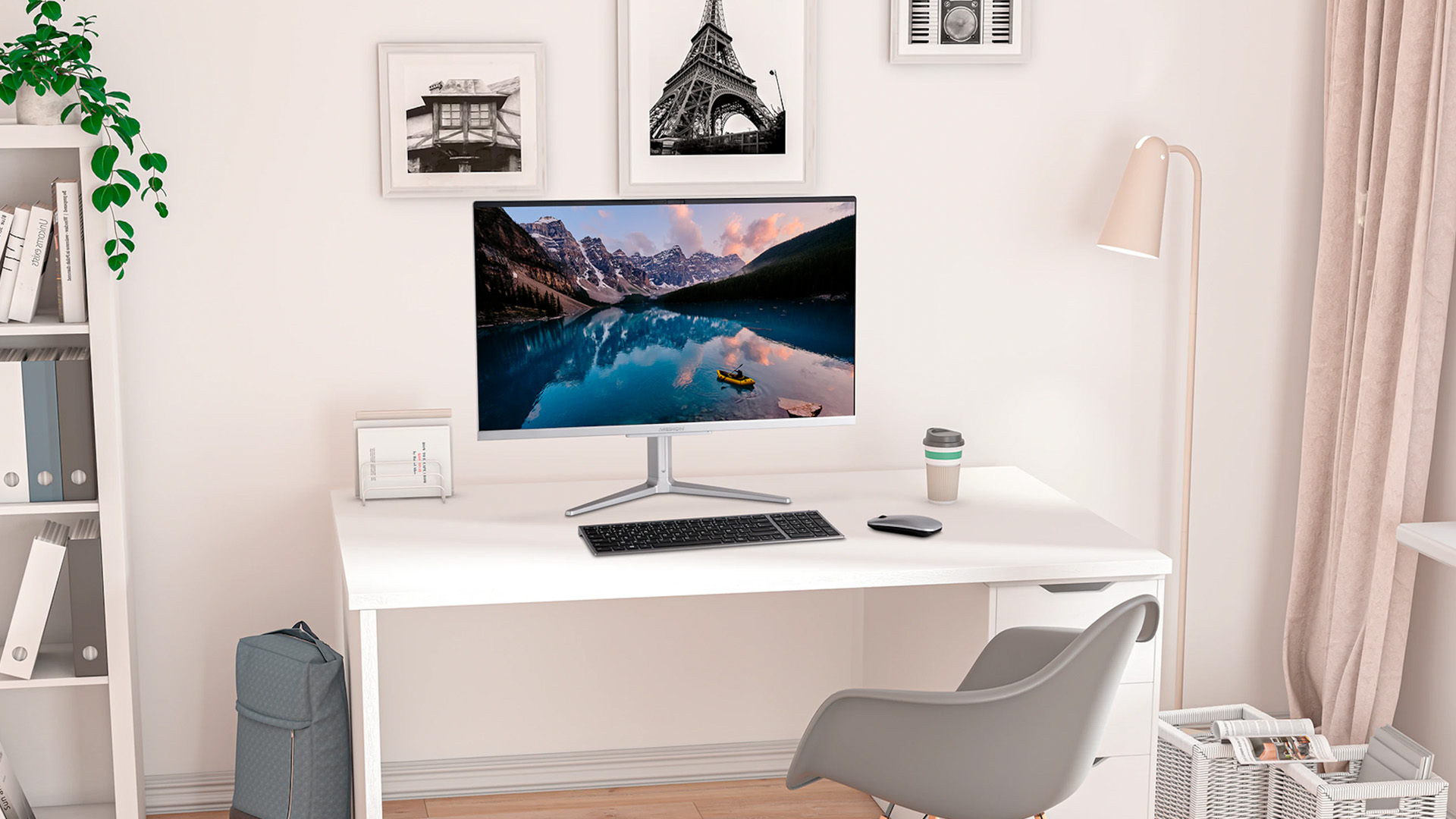
An all-in-one PC, or AIO, combines the main computer components and display within one unit. There is no separate tower, although you still use the computer at a desk with a keyboard and mouse.
That makes a Medion all-in-one PC appealing when you want a complete workstation with less clutter. Compare it with other space-saving all-in-one computers before deciding whether the integrated design suits you.
Main advantages
The clearest benefit is the smaller footprint. Removing the tower frees space under or beside the desk and reduces the number of separate components you need to position.
Setup is simpler too because the display is already part of the computer. Integrated features such as speakers or a webcam can make a Medion AIO particularly practical for home offices, shared family spaces and reception desks.
A current example is the Medion Akoya Signium 27 S1 all-in-one. The linked configuration combines a 27-inch Full HD IPS display, Intel Core 7 240H processor, 32GB DDR4 RAM and a 1TB SSD, showing how an AIO can provide substantial everyday multitasking performance without a separate tower.
Potential limitations
Integration also creates the main compromise. The computer and main display are physically tied together, so you cannot replace one as freely as you could with a tower and separate monitor.
Upgrades and repairs are also more model-specific. Some AIOs provide access to memory or storage, while others have tighter limits. Check the exact product rather than assuming every Medion AIO is sealed or, at the other extreme, as expandable as a tower.
Medion Desktop vs All-in-One: Key Differences
Performance
Form factor alone does not determine speed. Compare the exact processor, RAM, storage and graphics first.
A tower often has more performance headroom because its extra internal space can support larger cooling systems, dedicated graphics and higher-power components. That suits gaming and sustained demanding workloads particularly well.
A suitably specified Medion AIO can still handle browsing, Microsoft 365, video calls, streaming, schoolwork and everyday multitasking comfortably. The question is not whether an AIO is “powerful”, but whether its specific hardware is powerful enough for your applications.
Display and visual experience
A tower lets you choose the monitor independently. You can select the size, resolution, panel type, refresh rate and ergonomics you need, then replace that display later without replacing the computer.
With an AIO, screen quality becomes part of the computer purchase. The current Signium 27 S1 configuration, for example, uses a 27-inch 1920 × 1080 IPS display, so consider whether that combination suits your viewing distance, workspace and daily tasks.
This difference matters more than it may initially seem. If you want a particular resolution, ultrawide screen, specialist colour performance or high refresh rate, a conventional desktop gives you considerably more freedom to build the display setup around your needs.
Desk space and cable management
This is where the tower PC vs all-in-one comparison becomes practical. A conventional desktop needs room for the system unit, display and associated cables.
An AIO removes the separate tower, producing a cleaner workstation on bedroom desks, shared tables, reception counters and compact home offices. You still need power and peripheral connections, but there are fewer large components competing for space.
Do not compare screen dimensions alone. Look at the complete footprint, including the AIO stand or the position where a tower would sit.
Upgrades and repairs
Traditional desktops generally offer easier access to individual components. If a replaceable part fails or your requirements change, working on RAM, storage or another compatible component may be simpler than opening an integrated display chassis.
AIO serviceability depends much more heavily on the individual model. Check supported memory capacity, storage access and warranty conditions before buying if future upgrades are important to you.
This also affects repairs. With a conventional desktop, the monitor and PC remain separate devices. With an AIO, the screen and computing hardware share the same enclosure, which can make diagnosis or internal repairs more involved.
Ports and connectivity
Never assume the form factor tells you which connections are included. Instead, count what you actually need for your keyboard, mouse, printer, external storage, Ethernet, audio equipment and additional displays.
The current Core 7 Signium 27 S1 listing, for example, specifies six USB Type-A ports, HDMI, Ethernet, Wi-Fi 6E, Bluetooth 5.1 and an audio jack. It is a useful reminder that an AIO can still provide substantial everyday connectivity, although the exact selection varies between models.
For a desktop, also consider future connections. Extra display outputs or expansion possibilities may matter if your workstation is likely to grow over time.
Flexibility and long-term value
Long-term value is about how long the setup stays useful.
A tower has an advantage if you expect to change the monitor, add storage, upgrade graphics or replace individual parts. You may be able to improve one area without replacing everything else.
An AIO can make more sense when your workload is predictable and a tidy workstation matters more than expansion you may never use. Buying unused upgrade potential is not automatically better than choosing a system that already suits your needs.
Which Medion PC Is Better for Your Needs?
Home and family use
For browsing, homework, streaming and household admin, both formats can work well. A Medion AIO keeps a shared workstation simple and tidy, while a desktop suits households expecting to change the display, storage or performance later.
Think about who will use the PC too. If several people share it for straightforward tasks, simplicity may matter more than internal expansion.
Working from home
If your work centres on email, web apps, documents, spreadsheets and video calls, an AIO can reduce clutter without sacrificing the everyday performance you need.
A desktop makes more sense if you rely on multiple displays, specialist peripherals, larger amounts of local storage or hardware that may evolve with your job. The wider desktop PC range is useful for comparing different form factors before narrowing your choice.
Students and study
An AIO works well as a fixed study station where desk space is limited, especially when the same surface must hold books, notes and other equipment.
For courses involving 3D work, engineering applications, heavier media creation or PC gaming after study, a tower may provide more suitable graphics and upgrade options.
Check the recommended hardware for the software used on your course. That tells you far more than a generic “student computer” label.
Creative and demanding workloads
Creative work depends on RAM, SSD capacity, graphics and display quality as well as the processor.
For sustained video editing, 3D work or GPU-heavy applications, a tower usually offers more choice in dedicated graphics and cooling. An AIO can still suit lighter photography, design and media tasks when its specification meets your software requirements.
The same principle applies to gaming. Rather than assuming ever y desktop is suitable, look specifically at the graphics card, processor, RAM and cooling provided by the exact configuration.
Small desks and shared spaces
This is the clearest case for a space-saving Medion PC. An AIO removes the separate tower and keeps the workstation centred around one display.
Still measure the stand depth, not just the screen width. A large AIO can dominate a shallow desk if its stand positions the display too close to you.
Also consider what else lives on the desk. A keyboard, mouse, notebooks, speakers or work equipment all need usable space, so the neatest-looking PC on a specification sheet is not automatically the one that fits your room.
What Specifications Should You Compare?
Processor
Compare the full processor model, not only a family name such as Core 5 or Core 7. Chips within the same family can differ in generation, core configuration and performance.
Choose around the applications you run rather than automatically selecting the highest tier. Everyday web and office work does not require the same processor performance as video production or complex creative software.
RAM
For many Windows 11 home, study and office users, 16GB is a sensible target for comfortable multitasking. Consider 32GB for heavier creative software, large projects, virtual machines or more demanding workloads.
Also check whether the memory can be expanded. Towers generally provide more flexibility, whereas the maximum supported RAM in an AIO depends on the model.
SSD storage
An SSD helps Windows, applications and files feel responsive during everyday use. Capacity, however, should reflect what you actually keep on the computer.
Cloud-first users may need less, while games, video and project files can fill storage quickly. Consider the installed capacity alongside your options for adding internal or external storage later.
Graphics
Integrated graphics suit productivity, streaming, video calls and lighter visual work. Dedicated graphics become more important for modern gaming, 3D applications and many GPU-accelerated creative workloads.
This is an area where tower desktops typically provide much more choice. Compare the exact GPU rather than assuming a faster processor can compensate for graphics hardware that does not meet your software requirements.
Screen size and resolution
With a desktop tower, the monitor is a separate decision. With a Medion AIO, it forms part of the PC itself.
A larger screen is not automatically a sharper one. Consider size and resolution together, alongside viewing distance, panel type and how much desktop workspace you want on screen.
Also check practical features that matter to your setup, such as webcam availability and support for connecting another display.

Medion Desktop or All-in-One: Final Verdict
The Medion desktop vs all-in-one PC decision ultimately comes down to flexibility versus integration.
Choose a conventional Medion desktop when you want greater freedom over your monitor, stronger upgrade potential or room for more demanding hardware. Choose a Medion all-in-one when you value a cleaner desk, built-in display and straightforward home or office setup.
Neither form factor is automatically the right purchase. Match the processor, RAM, SSD, graphics, ports and display to what you actually do, then consider how much physical space and future flexibility you genuinely need.
You can compare the wider Medion computer range, then narrow your shortlist between Medion PCs and all-in-one computers at Laptop Outlet based on the setup that fits your home, work and desk.

Frequently Asked Questions
Is a Medion all-in-one as powerful as a desktop PC?
It can be powerful enough for demanding everyday productivity, but an AIO is not automatically equivalent to a tower. Desktops have more room for cooling, dedicated graphics and higher-power components, so compare the exact processor, RAM and graphics.
Can you upgrade a Medion all-in-one PC?
It depends on the model. Some Medion all-in-one PCs may allow memory or storage changes, while others have tighter limits. Check the product specification and supported capacities rather than assuming every AIO has the same upgrade path.
Does a Medion all-in-one need a separate monitor?
No. An all-in-one PC already has its display built into the same unit as the computer hardware. Some models may support an additional external display, but the main screen does not need to be purchased separately.
Is a desktop PC easier to repair than an all-in-one?
Generally, yes. A conventional tower usually gives easier access to separate internal components, while an AIO combines the display and computer in one enclosure. Actual repairability still depends on model design, parts availability and warranty conditions.
How much RAM should a Medion PC have?
For many Windows 11 home, study and office users, 16GB is a practical target for comfortable multitasking. Consider 32GB for heavier creative applications, virtual machines, large projects or other demanding workloads.
Which Medion computer is best for a small desk?
A Medion all-in-one is usually the more space-efficient format because it removes the separate tower. Measure the stand depth and screen width too, and make sure the built-in display suits your preferred viewing distance.
| Read More: |
| Can a Medion PC Support Multiple Monitors? |
| Prebuilt vs Custom Desktop PCs: Pros and Cons Explained |
| How to Build your Own Sim Racing-Gaming PC: A Complete Guide |
Related Articles


Last Updated: February 11, 2026
Choosing the right desktop PC can feel a bit like picking a side in a long-running tech rivalry. HP, Dell, and Lenovo are three of the biggest names and for good reason. They all offer reliable, powerful desktops that suit everything from casual home use to hardcore business workloads and creative setups.
But when it comes to HP vs Dell vs Lenovo desktop PCs, which brand actually wins for you?
Why Compare HP, Dell, and Lenovo Desktop PCs?
HP, Dell, and Lenovo are all global heavyweights in the PC world. They each offer a wide range of desktops — from budget-friendly towers to powerful workstations and compact all-in-one PCs.
But here’s the thing:
Not all desktop PCs are built for the same kind of user.
Some are better for productivity, some for gaming, and others for long-term reliability. Understanding the differences is key before you hit “Add to Basket”.
HP Desktop PCs: Style Meets Performance
HP desktops are known for blending solid performance with modern design. If you like your
Published: February 09, 2026
If you have been browsing for a new PC lately, you might have noticed a bit of a price shock. Whether you are looking for a sleek all-in-one for your home office or a powerful gaming rig, the numbers on the price tags in 2026 are noticeably higher than they were just a couple of years ago.
Many UK buyers are left scratching their heads, asking the same question: why are desktop PCs expensive all of a sudden? It is a fair question. In this guide, we will break down exactly what is driving these costs and, more importantly, how you can still find incredible value.
Key Reasons Desktop PC Prices Are Rising
Understanding the "why" behind the price hike helps you time your purchase better. Here are the primary factors driving the market today.
The "AI Squeeze" on Components
The biggest culprit isn't a lack of chips, but a shift in what those chips are used for. Huge data centres are currently buying up almost 70% of the world’s advanced memory (DRAM) and storage (NAND) to power AI models.

Last Updated: October 30, 2026
Yes, a refurbished desktop can be worth it when it handles your everyday work, runs a supported operating system and offers a meaningful saving over a comparable new PC. It is less appealing if the hardware is outdated or needs costly repairs. Check those trade-offs before looking through refurbished desktop PCs range.
A sensible decision is about more than the price on the label. Think about how long you need the computer to last, which software you rely on and what might need replacing during that time.
What Does Refurbished Mean?
A refurbished desktop is a previously owned or returned computer that has been inspected, cleaned and tested, with repairs or replacement parts where needed; the exact process varies between sellers. Our guides to what refurbished means and refurbished versus second-hand devices explain those distinctions in more detail.
Benefits of Buying a Refurbished Desktop
The biggest advantage is simple: you may get a capable computer for less than the cost of a comparable
Published: March 12, 2026
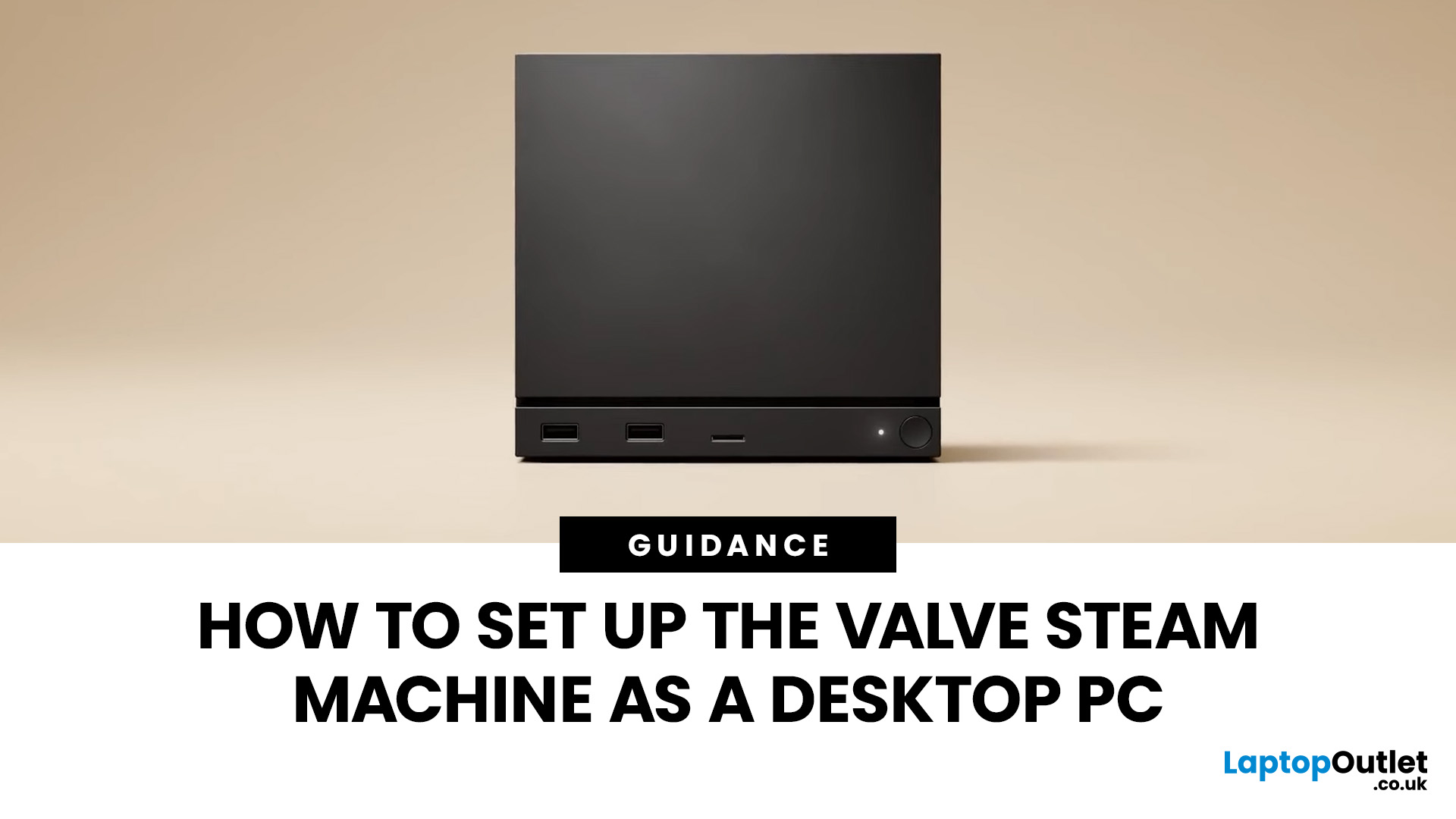
If you have an old Valve Steam Machine tucked away under the telly or on a shelf, you might be wondering whether it can still do more than launch games. The good news is that, with the right setup, it can absolutely pull double duty as a compact desktop computer for everyday use.
This guide walks you through a practical Valve Steam Machine setup for desktop use, from connecting a monitor and peripherals to accessing SteamOS desktop mode and making the system feels more like a standard PC. Whether you want a lightweight machine for web browsing, media streaming, or casual home computing, repurposing a Steam Machine can be a clever and cost-effective option.
What is a Valve Steam Machine?
A Valve Steam Machine was originally designed as a living-room gaming PC. It brought PC gaming closer to the console experience, usually running SteamOS and focusing on controller-friendly play from the sofa.
That said, the hardware inside many Steam Machines is still capable of handling basic desktop
Last Updated: April 22, 2026
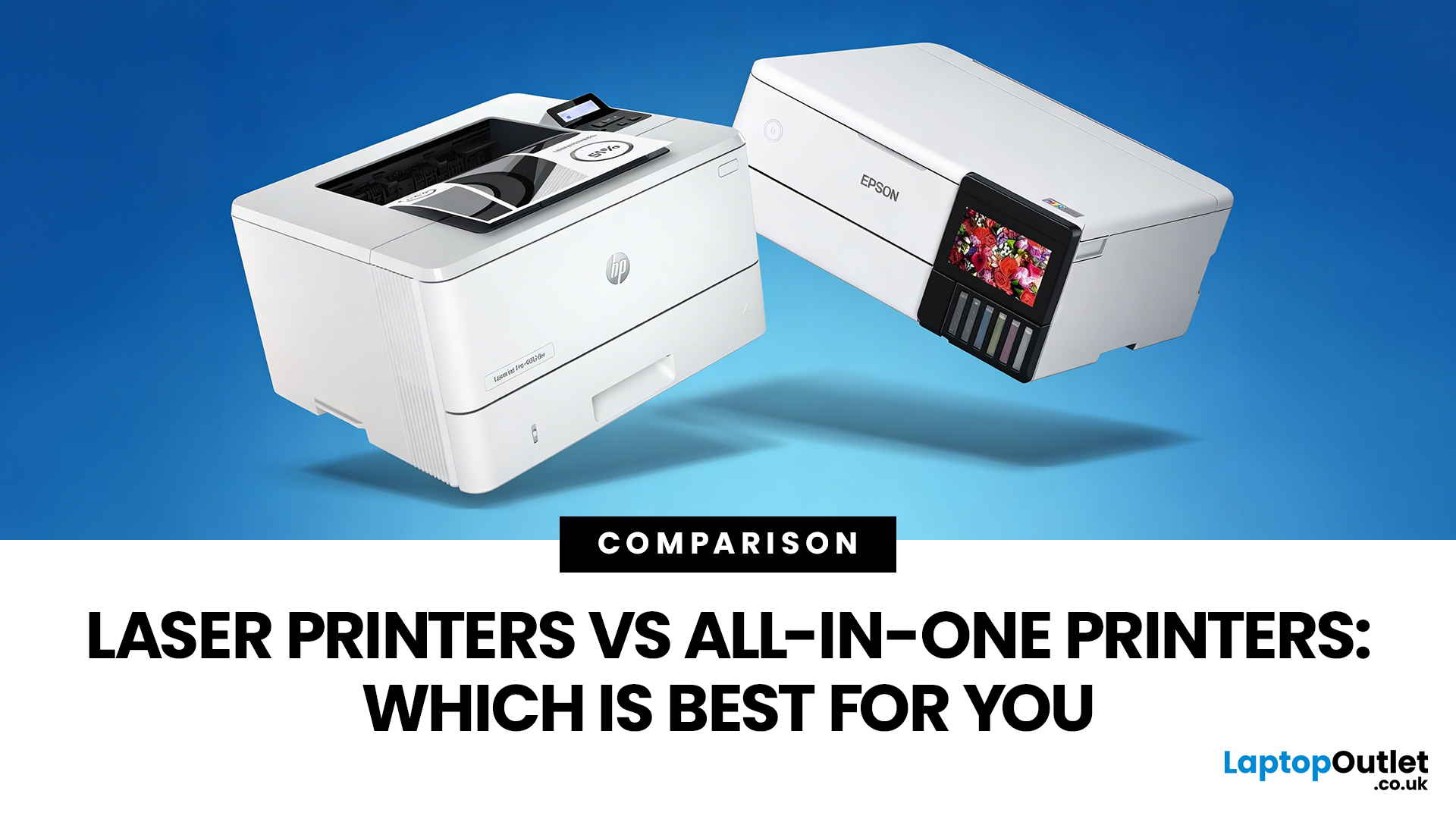
Choosing between Laser printers vs all-in-one printers sounds simple until you realise the two terms do not describe the same thing.
A Laser printer refers to the way the printer works. An all-in-one printer refers to the machine's capabilities, usually printing, scanning, and copying in one unit. That means some all-in-one printers are Laser models, while others are inkjet. So, when people compare all-in-one vs Laser printers, what they are really trying to work out is whether they need stronger print performance or broader day-to-day flexibility.
For some buyers, the Laser is the clear winner. For others, an all-in-one makes far more sense. The right choice depends on how often you print, what you print most, and whether scanning and copying matter as much as printing itself.
If your priority is fast document printing, crisp text and lower running costs over time, a Laser model is usually the smarter fit. If you want one machine that can handle household paperwork, scanning, copying and
Last Updated: April 21, 2026
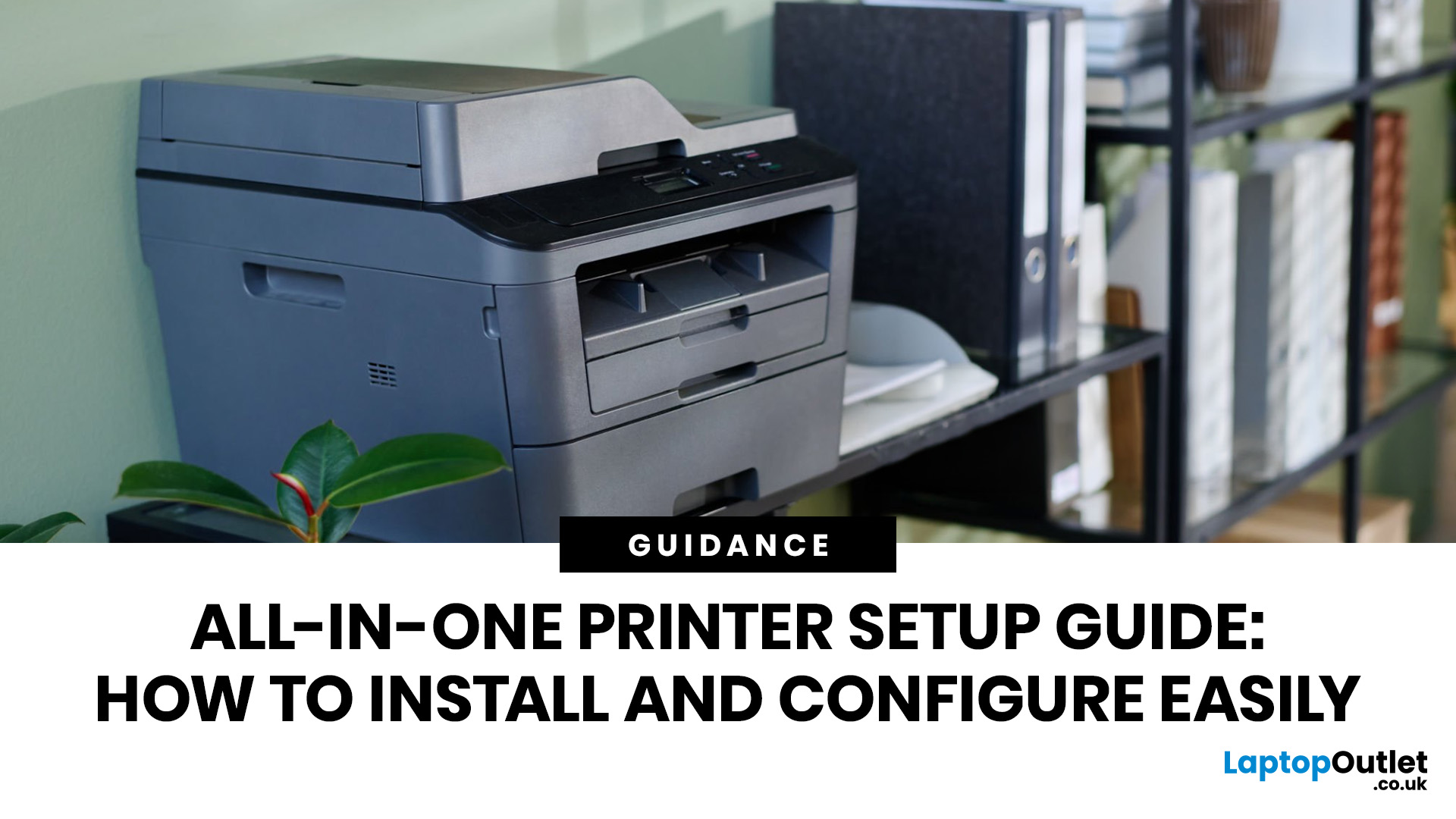
Setting up an all-in-one printer is usually much easier than people expect. The part that trips most users up is not the printer itself, but the order. If you prepare the hardware first, connect it the right way, and install the correct software in the right place, most all-in-one printer setup jobs are straightforward.
This guide walks through how to set up an all-in-one printer step by step, including USB, Wi-Fi, and network setup, driver installation, scanning setup, and the small configuration choices that make the printer easier to live with long term. If you are installing a multifunction printer at home, in a home office, or for a small team, this is the practical setup flow that saves the most time.
What is an All-in-One Printer Setup?
An all-in-one printer setup is the process of getting a multifunction printer ready to print, scan, copy, and in some cases fax. That means more than plugging it in and printing one test sheet. A proper setup also includes network access, driver

Last Updated: July 06, 2026
If your printer is acting up, the short answer is this: most all in one printer problems are fixable without replacing the whole machine. The fastest wins usually come from checking the connection, clearing the print queue, confirming the right printer is selected, inspecting paper loading, and running the built-in cleaning or alignment tools before assuming the hardware has failed. Microsoft, Brother, Epson, Canon, and HP all point users toward those same basics first, which is a strong sign that the smartest troubleshooting is usually methodical, not dramatic.
That is exactly what this guide is here to do. Instead of giving you random fixes with no logic behind them, this article breaks down the most common all-in-one printer issues, shows what each symptom usually means, and explains the best way to fix it. So, whether your machine is offline, feeding paper badly, refusing to scan, printing faded documents, or suddenly producing blank pages like it has given up on communication,

Published: April 24, 2026
If you want an all-in-one printer to last, the best approach is simple: keep it clean, use the built-in maintenance tools properly, and deal with small print-quality issues before they turn into bigger faults. Good all in one printer maintenance is less about deep cleaning every week and more about doing the right checks at the right time.
For most homes and small offices, that means cleaning the scanner glass and document feeder areas regularly, using printhead cleaning only when print quality drops, keeping paper and supplies in good condition, and not treating laser and inkjet models the same way. That last point matters. A multifunction printer cleaning routine for an inkjet is not the same as multifunction printer care for a laser model with a separate drum unit.
The Best Way to Keep an All-in-One Printer Working Well
The simplest all-in-one printer maintenance guide starts with routine care, not emergency fixes. Keep dust off the exterior, keep the scanner glass and ADF strip clean,

Published: April 24, 2026
An all-in-one printer is a machine that lets you print, scan, copy, and sometimes fax from one device. It is designed to save space, reduce setup hassle, and handle everyday home or office tasks without needing separate equipment.
An all-in-one printer, sometimes called a multifunction printer or MFP, combines multiple jobs into one device. Retailer and manufacturer guidance broadly agrees on the core value proposition: one device, less clutter, fewer cables, and a more streamlined workflow for home and office users.
Nobody wakes up thinking, “You know what would absolutely change my life today? A printer.” And yet, the second you need to print a return label, scan a signed document, copy schoolwork, or send a form to the office, your printer suddenly becomes the main character.
That is exactly why these all-in-one printers guide exists. We explain how all-in-one printers work, their key features, the main types, their benefits, costs, setup, maintenance, and how to choose the best one
Published: June 11, 2026
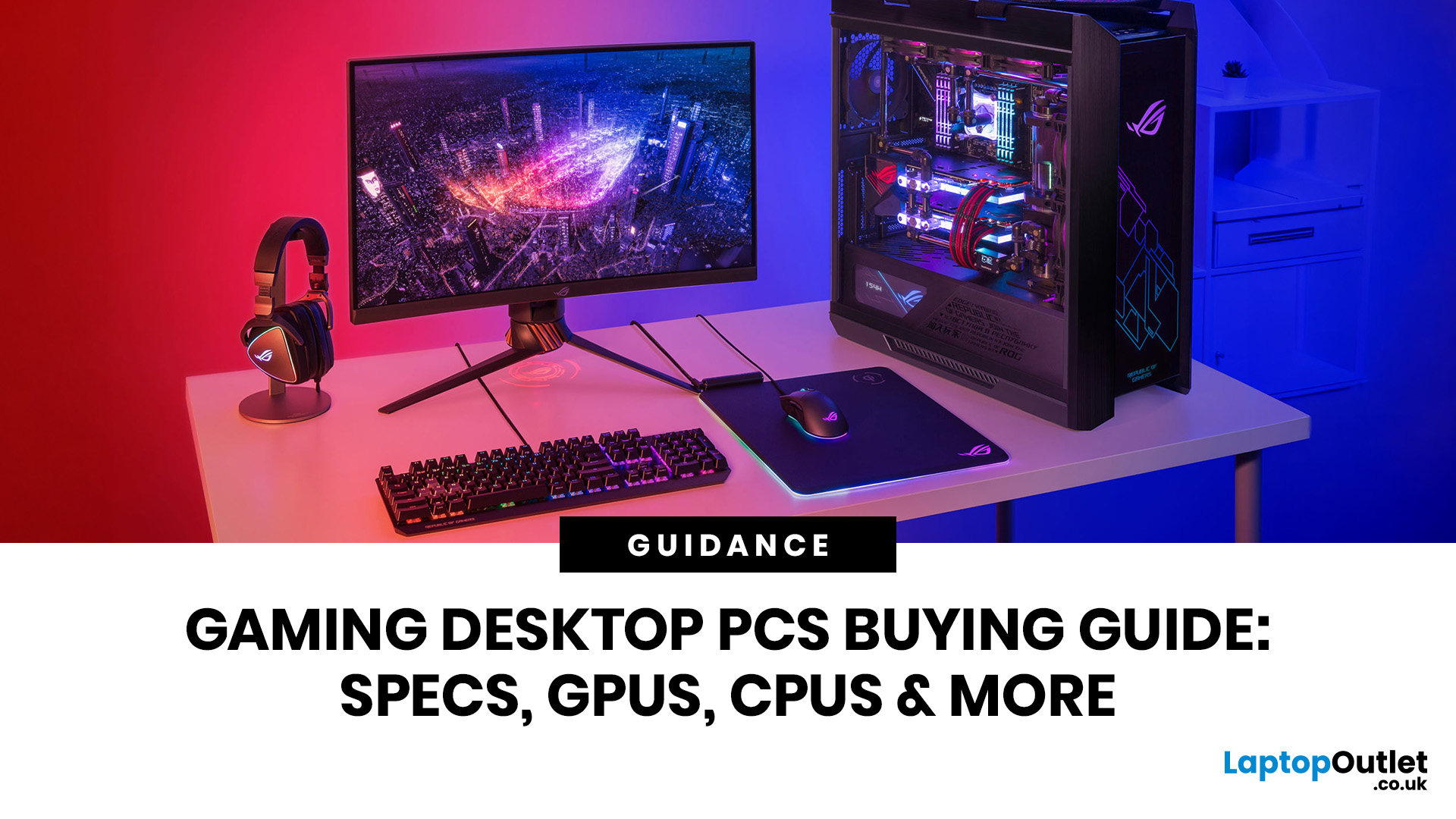
Choosing the right gaming desktop can be the difference between smooth, immersive gameplay and a system that struggles within a year. This gaming PC buying guide explains the key components that affect gaming performance, future-proofing, and value for money, so you can buy with confidence rather than guessing from confusing spec sheets.
A good gaming PC is not just about the most expensive graphics card. It is about balance. The CPU, GPU, RAM, storage, cooling, power supply, motherboard, and case all work together. Whether you play competitive esports, cinematic single-player titles, open-world RPGs, racing games or VR, understanding the right configuration helps you avoid overspending and choose a desktop that lasts.
This article is designed as a practical gaming PC specs guide for beginners, but it also includes up-to-date 2026 advice for buyers comparing modern RTX, Radeon, Intel, and AMD-powered systems.
Why Buy a Gaming Desktop PC?
A gaming desktop PC remains one of the best choices

