



All-in-One PCs vs Traditional Desktops: Which Should You Buy in 2026?
Quick Answer
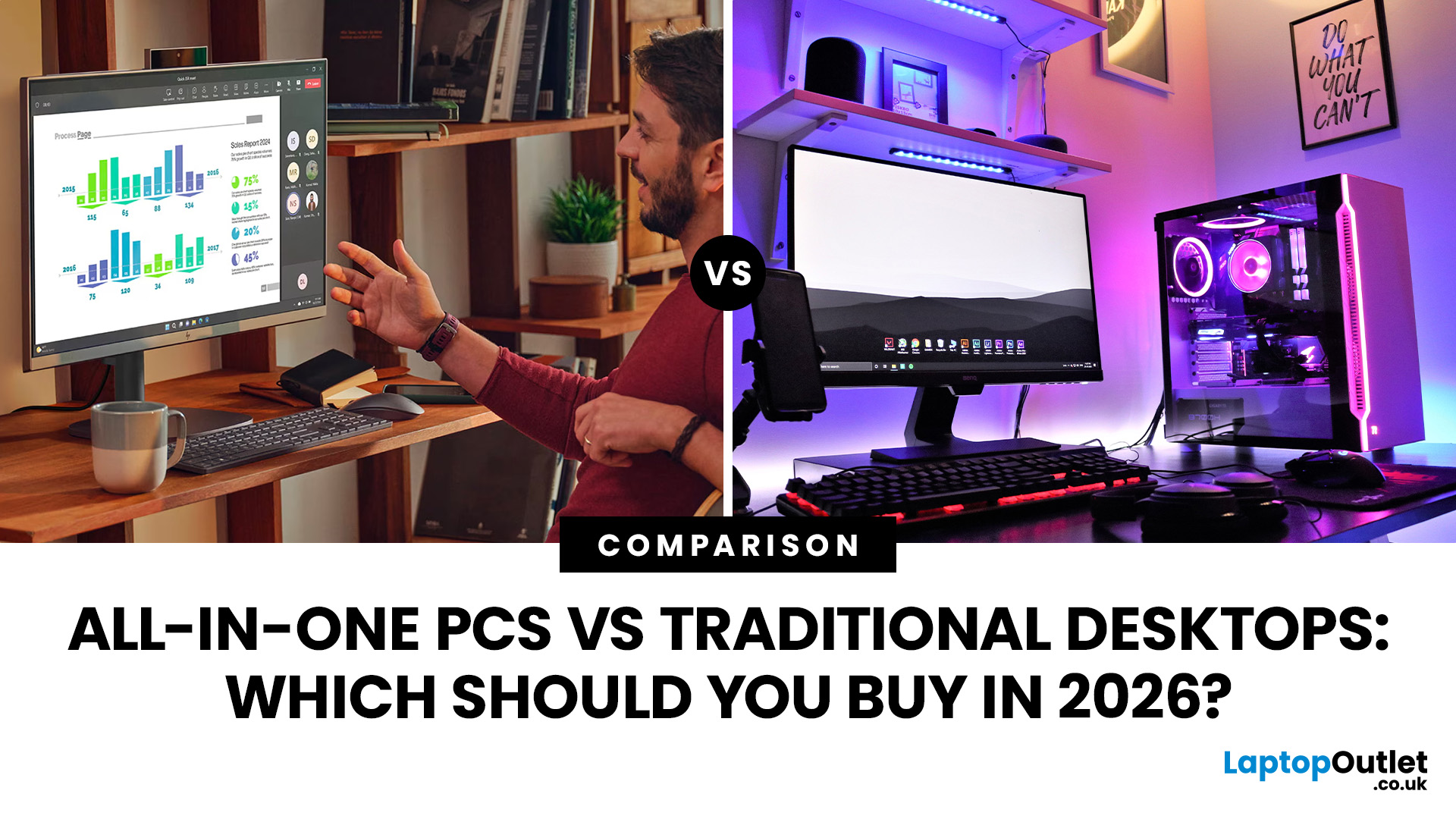
An all-in-one PC combines the computer and display in one unit, saving desk space and reducing cable clutter. A traditional desktop keeps the computer separate, usually offering more upgrade options, stronger cooling and greater graphics flexibility. In 2026, choose an all-in-one for simplicity and space efficiency, or a desktop when performance, repairs and future upgrades matter more over several years.
Choosing between an all-in-one PC vs desktop is less about finding an outright winner and more about deciding which compromises suit the way you use a computer.
Both can handle everyday work, browsing, streaming and communication. The differences become more important when you consider demanding workloads, gaming, monitor choice, repairs, upgrades and how long you expect to keep the system.
All-in-One PC vs Traditional Desktop: What's the Difference?
The fundamental difference is where the computer hardware sits.
An all-in-one, often shortened to AIO PC, integrates most of the main computer components into the same enclosure as the screen. A traditional desktop keeps the computer in a separate case and connects it to an external monitor.
What Is an All-in-One PC?
An all-in-one desktop places components such as the processor, memory, storage and cooling hardware behind the display or within its stand. Many models also integrate speakers, a webcam and microphones.
That leaves fewer separate pieces on your desk and usually means less cabling. Current systems are available in different screen sizes and specifications, so an AIO should not automatically be thought of as a low-powered office computer.
The trade-off is accessibility. Packing everything into a slim enclosure can make upgrades and repairs more model-dependent than they are with a conventional tower.
What Is a Traditional Desktop PC?
A traditional desktop separates the computer from its display. The tower or small-form-factor case houses the processor, RAM, storage, motherboard and graphics hardware.
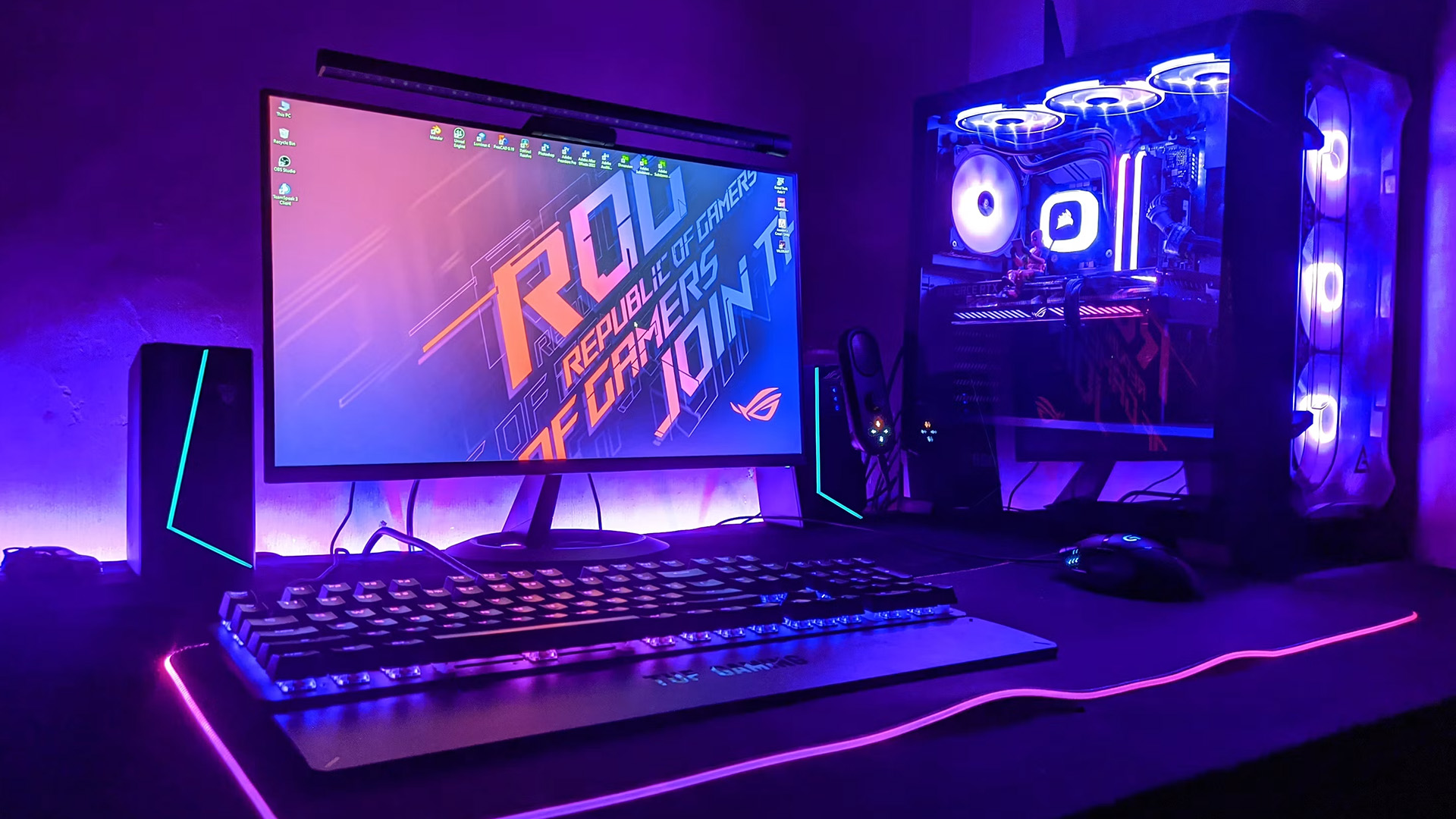
The monitor, keyboard, mouse and other equipment connect separately. This modular arrangement gives manufacturers more physical room for components, cooling and expansion.
Many current desktop ranges offer replaceable or expandable memory and storage, while larger towers may also provide substantially more graphics and internal expansion options.
How Do They Differ at a Glance?
|
Area |
All-in-One PC |
Traditional Desktop |
|
Main design |
Computer and display integrated |
Computer and monitor separate |
|
Desk space |
Usually more compact |
Requires room for a separate PC |
|
Setup |
Fewer separate components |
More parts and cables |
|
Performance range |
Everyday to capable professional systems |
Everyday to very high-performance systems |
|
Graphics |
Often integrated, model-dependent |
Wider dedicated GPU choice |
|
RAM and storage upgrades |
Varies significantly |
Usually easier, depending on model |
|
Monitor choice |
Built-in display |
Choose and replace independently |
|
Repairs |
Can involve integrated components |
Individual parts often easier to access |
|
Gaming |
Suitable in some configurations |
Greater choice for demanding gaming |
|
Long-term flexibility |
More limited on many models |
Usually stronger |
The table describes typical differences, not guarantees. Always check the specification and service information for the exact model you are considering.
All-in-One PCs vs Desktops: Key Differences That Matter
Looking only at processor names or RAM capacity can hide some of the most important differences between the two formats.
The better question is how the design will affect performance, comfort and ownership over several years.
Performance and Processing Power
An AIO and a tower with similarly named processors will not necessarily perform identically.
Cooling, processor power limits, graphics hardware and the manufacturer's system design all affect sustained performance. Slim integrated computers have less internal space, while larger desktops can accommodate more substantial cooling and higher-powered hardware.
That does not mean every desktop is faster. A well-specified AIO may easily outperform an entry-level tower.
For everyday browsing, Microsoft 365, video calls, streaming and general productivity, either format can provide more than enough performance. Differences become more important with long video exports, 3D work, software development, large datasets and gaming.
Practical tip: compare the actual processor, RAM, storage and graphics specification rather than assuming the word "desktop" automatically means more power.
Upgradeability and Future-Proofing
This is one of the clearest differences.
Some all-in-one computers allow memory or SSD upgrades. Others use soldered memory, compact internal layouts or parts that are difficult for users to access, so checking the service documentation matters.
Traditional desktops generally offer more flexibility. Depending on the case and motherboard, you may be able to replace RAM, storage, graphics cards, cooling equipment and other components independently.
If you expect your requirements to grow, upgradeability can matter more than buying the highest specification today.
Common mistake: never assume an AIO's RAM or SSD can be upgraded later. Check the exact model before purchase.
Desk Space and Cable Management
This is where the integrated design earns its place.
An AIO normally requires the computer itself, power, keyboard and mouse. A traditional setup adds a separate system unit plus connections between the desktop and monitor.
For smaller home offices, reception desks, study areas and shared family spaces, reducing equipment around the screen can make a noticeable difference.
You can see how this integrated format works across all-in-one desktop PCs , where screen size and computer specification form part of the same purchasing decision.
A small tower or mini PC can narrow the space difference, however, so an AIO is not the only option for a compact desk.

Display Quality and Screen Flexibility
An AIO's screen is both an advantage and a long-term commitment.
You receive the display as part of the computer, which simplifies buying and setup. Depending on the model, features can include larger panels, higher resolutions or touch support.
With a traditional desktop, the display is independent. You can choose its size, resolution, panel technology and refresh rate separately, then replace it without changing the computer.
That can matter for photographers, designers, gamers and anyone likely to upgrade their screen before replacing the PC.
Before buying an AIO, check:
- Screen resolution
- Brightness where stated
- Colour requirements for your work
- Refresh rate
- Stand adjustment
- External display connections
Do not assume an AIO's built-in panel can later be used as a normal external monitor. That capability depends on the model and its video inputs.
Connectivity and Expansion
Both formats can provide USB, USB-C, Ethernet, audio and display connections, but the number and type of ports vary.
A tower usually has more physical room for connectivity and internal expansion. An AIO may have enough ports for normal peripherals while offering fewer options for expansion cards or additional internal hardware.
Think about the equipment you already use. Multiple monitors, external drives, wired networking, specialist audio equipment and numerous USB accessories can quickly turn a minor port difference into a daily inconvenience.
Maintenance, Repairs and Replacement
An integrated design can make repairs more complicated because the computer and display share the same enclosure.
If a tower's monitor fails, you can normally replace the monitor while keeping the computer. If its storage drive or memory fails, the affected component may also be serviceable independently.
With an AIO, the repair path depends much more heavily on its construction. This does not mean an AIO will fail sooner. It means the consequences of a repair can be different.
For a business-critical or long-term system, check warranty coverage and service options rather than judging reliability from form factor alone.
Which Is Better for Different Types of Users?
The all-in-one vs desktop decision becomes easier when you start with your workload rather than the appearance of the computer.
For Home and Everyday Computing
An AIO can be particularly convenient for web browsing, streaming, email, household administration and video calls.
You receive a large fixed screen without needing to plan a separate tower-and-monitor arrangement. A conventional desktop remains equally suitable if you already own a monitor or prefer the ability to replace individual parts later.
For light use, neither format needs an unnecessarily powerful specification.
For Home Office and Productivity
An AIO works well when you want a permanent workstation with fewer cables and commonly used communication features close at hand.
Check the webcam, microphone, speakers and screen ergonomics rather than simply looking at processor performance. If you spend several hours at the desk each day, display positioning can matter as much as raw specification.
Traditional desktops become more attractive when you want two or three monitors, specialist peripherals or an upgrade path for heavier future workloads.
For Students
An AIO can suit a bedroom or study desk where available space is limited. It works particularly well when the computer will remain in one place.
Students who move frequently between accommodation, university and home may be better served by a laptop instead of either desktop format.
For demanding engineering, architecture, media or computing courses, check the requirements of the actual software before choosing an integrated system.
For Content Creators and Creative Professionals
Creative users need to look beyond the basic AIO format.
Photo editing, video production, animation and 3D applications can require substantial memory, fast storage and capable graphics. A suitable AIO can handle creative work, but specifications differ considerably between systems.
A desktop offers more freedom to select a colour-appropriate monitor and stronger graphics hardware. It also gives users whose workloads change over time a clearer upgrade route.
For Gaming
An AIO can run games if its hardware meets the requirements. Casual titles and less demanding games may work well on systems using capable modern integrated graphics or dedicated graphics.
For more demanding gaming, a traditional desktop normally gives you a much wider selection of GPUs, cooling systems, power supplies and upgrade options.
If gaming is one of the main reasons you are buying the computer, specifications matter far more than the tidy appearance of the system. Laptop Outlet’s range of gaming desktop computers illustrate the different hardware approach used for systems designed around dedicated gaming components.
For Business and Shared Workspaces
AIOs can make sense at reception desks, shared workstations and offices where a consistent, tidy installation matters.
They also reduce the number of separate devices that need positioning on each desk.
Traditional systems can be easier for IT teams when component replacement, multiple displays or future hardware changes are important. Neither approach is automatically better for business. Deployment and support requirements should drive the decision.
All-in-One PC vs Desktop: What About Cost?
Headline price is only one part of the cost.
The fairest comparison includes the display, peripherals, likely upgrades and how long each part of the setup can remain useful.
Upfront Purchase Cost
An all-in-one already includes its display. Many systems also include other built-in equipment such as speakers and a webcam.
A traditional desktop may require a monitor, keyboard, mouse, webcam or speakers in addition to the computer itself.
If you already own good peripherals and a suitable display, the calculation changes immediately.
Performance per Pound
Do not compare two prices without checking what each price includes.
An AIO's cost covers both computing hardware and its built-in display. With a tower, more of the purchase price may be going directly towards the computer itself.
That can make towers attractive when your priority is processor or graphics performance rather than an integrated design.
The same applies within individual brands. An HP all-in-one desktop and HP desktop computers in tower form may target very different users even when they sit in a similar price range.
The best all in one computer for a particular buyer is therefore not necessarily the model with the highest specification. Screen quality, included features and the amount of performance actually required all affect whether the total package makes sense.
Long-Term Upgrade Costs
A modular computer can sometimes stay useful through incremental upgrades.
More memory, additional storage or a replacement graphics card can address a specific limitation without replacing the whole setup, provided the motherboard, power supply and chassis support the change.
An AIO may have fewer realistic upgrade routes. If both its computing hardware and screen no longer suit you several years later, replacing the complete system may make more sense.
That does not automatically make a tower less expensive over its lifetime. It simply gives you more choices about what gets replaced.
When Should You Choose an All-in-One PC?
An all-in-one makes the most sense when:
- desk space is limited
- you want fewer visible cables
- you prefer a straightforward setup
- everyday productivity is the main workload
- the built-in display already meets your needs
- gaming or graphics upgrades are not priorities
- you are happy choosing enough RAM and storage from the start
An AIO can also be useful in shared rooms where the computer needs to feel more like a single appliance than a collection of components.
The crucial step is buying for the workload you expect to have several years from now, not only what you do today.
When Should You Choose a Traditional Desktop?
A conventional desktop is worth prioritising when:
- you need stronger dedicated graphics
- you expect to upgrade components
- sustained heavy workloads are common
- you want to choose your monitor independently
- you use several displays
- easy access for maintenance matters
- you already own good desktop peripherals
- long-term hardware flexibility is important
The broader range of traditional desktop PCs includes several form factors, so choosing a separate computer does not necessarily mean using an enormous case.
Users who specifically want internal expansion space can instead focus on tower desktop computers.

How to Choose Between an All-in-One PC and a Desktop in 2026
Do not begin with brand or appearance. Start with what the computer must actually do.
1. Start With Your Workload
Write down the most demanding applications you expect to use.
Basic office work has very different hardware requirements from 4K video editing, CAD, 3D rendering or modern games.
Check software requirements before buying. This is particularly important if a programme depends on a particular graphics capability or memory capacity.
2. Consider Your Available Desk Space
Measure the working area, not just the width of the screen.
Allow room for the stand, keyboard, mouse, speakers and any other equipment. For a tower, decide whether the computer will sit on the desk, beneath it or elsewhere.
A compact AIO is useful only if its fixed screen and stand also work comfortably in that space.
3. Think About Future Upgrades
Ask what you might realistically change during ownership.
If you expect to add storage or RAM, verify that the exact model supports it. If graphics upgrades are likely, a tower is normally a more practical starting point.
Do not buy an under-specified AIO on the assumption that you can improve it later.
4. Set a Realistic Total Budget
Include everything needed for a complete workstation.
For an AIO, that may mainly mean the computer and any preferred keyboard or mouse. For a desktop, include the monitor and other peripherals you do not already own.
This gives you a more useful figure than comparing computer prices alone.
5. Check Ports, Display and Peripherals
Make a short list of equipment you need to connect.
Check USB-A, USB-C, Ethernet, audio, display outputs and wireless connectivity where relevant. Users with multiple external displays should confirm the maximum display support of the exact system.
For an AIO, inspect the built-in screen specification as carefully as you would inspect a separate monitor.
6. Check Windows Support
This deserves more attention in 2026 than it did in older desktop buying guides.
Microsoft ended standard Windows 10 support on 14 October 2025. Anyone buying or reusing a Windows PC in 2026 should therefore confirm its Windows 11 position rather than assuming an older machine will remain fully supported.
Microsoft lists Windows 11 requirements including a supported processor, UEFI firmware with Secure Boot capability and TPM 2.0. See the official Windows 11 system requirements.
This matters particularly when considering older second-hand hardware. A low purchase price is less useful if the system does not fit your operating-system requirements.

All-in-One PC vs Desktop: Which One Should You Buy?
Choose according to your priorities rather than the form factor alone.
Choose an all-in-one PC if: you mainly want a tidy, straightforward workstation for everyday home, study or office use and the built-in screen already suits you.
Choose a traditional desktop if: you care more about dedicated graphics, component upgrades, independent monitor choice, repair flexibility or demanding long-term workloads.
If both appear suitable, compare the actual processor, memory, storage, graphics, display and connections next. Those specifications determine what the computer can do. The physical format determines how conveniently it fits into your setup and how easily that setup can change later.

Common Questions About All-in-One PCs and Desktops
Is an all-in-one PC better than a traditional desktop?
Neither is universally better. An all-in-one suits users who prioritise desk space, simple setup and fewer cables. A traditional desktop usually makes more sense when upgradeability, dedicated graphics, monitor flexibility or easier hardware servicing is important.
Are all-in-one PCs good for gaming?
Some all-in-one PCs can handle casual or less demanding games if their graphics hardware meets the game's requirements. For demanding titles, high frame rates and future GPU upgrades, a properly specified gaming desktop is generally more flexible.
Can you upgrade an all-in-one PC?
Sometimes. RAM and storage may be replaceable or expandable on certain all-in-one PCs, while other models use soldered or difficult-to-access components. Check the manufacturer's specification and service manual for the exact model before planning upgrades.
Do all-in-one PCs take up less space than desktops?
Generally, yes. An all-in-one integrates the computer into the display, removing the need for a separate tower. However, monitor size, stand design and peripherals still affect the total desk space required for the complete setup.
Which lasts longer, an all-in-one PC or a desktop?
There is no fixed lifespan for either format. Hardware quality, workload, cooling and maintenance all matter. Traditional desktops can remain useful longer in some situations because ageing components are often easier to replace or upgrade individually.
| Read More: |
| How to Choose the Right Desktop PC for Your Budget |
| Gaming Desktop PCs Buying Guide: Specs, GPUs, CPUs & More |
| Windows 11 Upgrade Guide: Everything You Need to Know Before Updating |
Related Articles

Last Updated: May 05, 2026
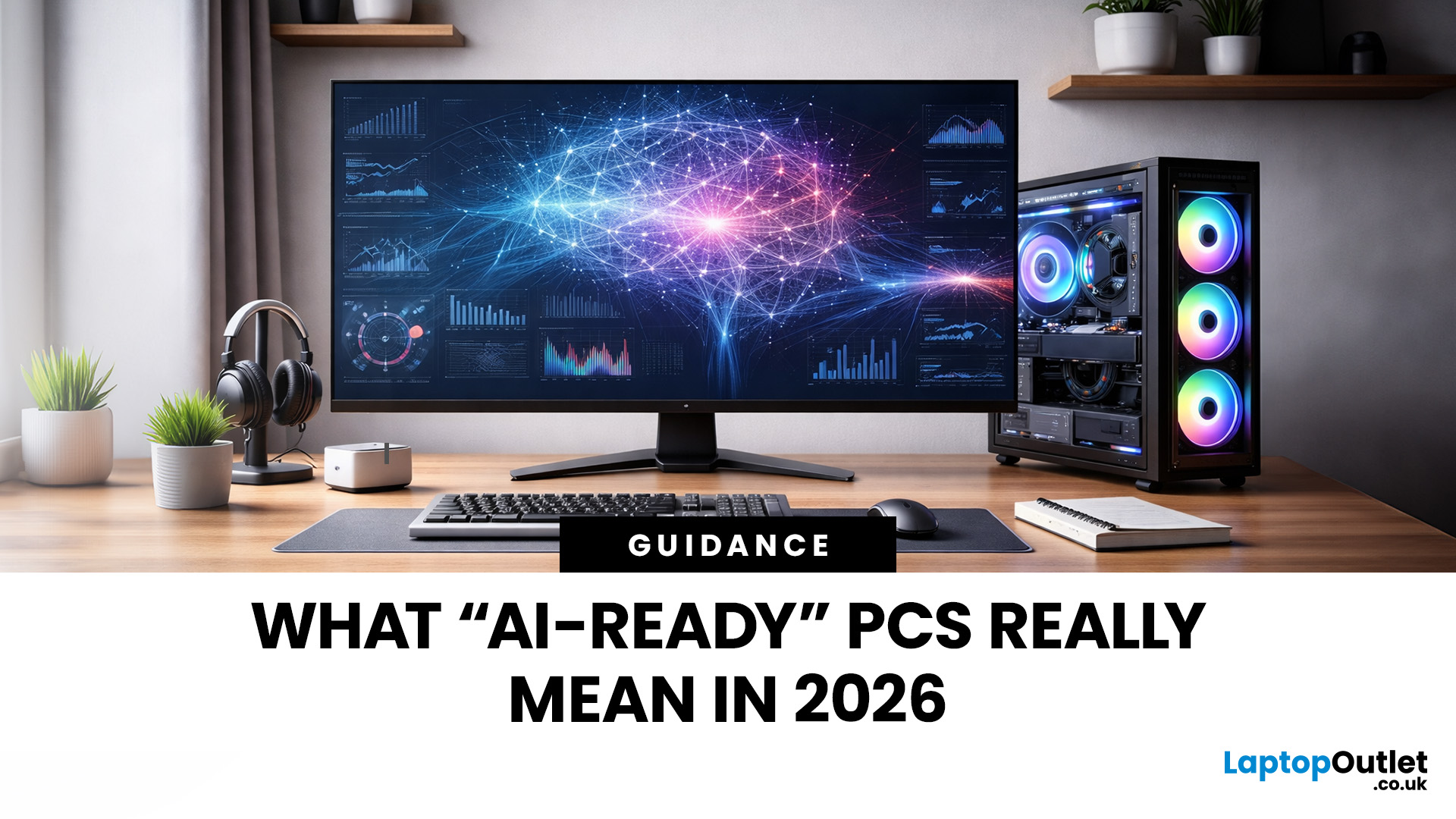
Let’s call this out early: “AI-Ready” is one of those phrases that sounds important but tells you almost nothing by itself.
Every PC brand is using it. Every listing claims it. And most buyers still walk away thinking, “Cool… but what does that actually do for me?”
So instead of selling you a future fantasy, let’s talk about what AI-Ready desktops actually change in 2026, where they matter, and where they really don’t.
First: Why Everyone Is Suddenly Calling Their PCs “AI-Ready”
AI didn’t just become a software thing - it became a hardware conversation.
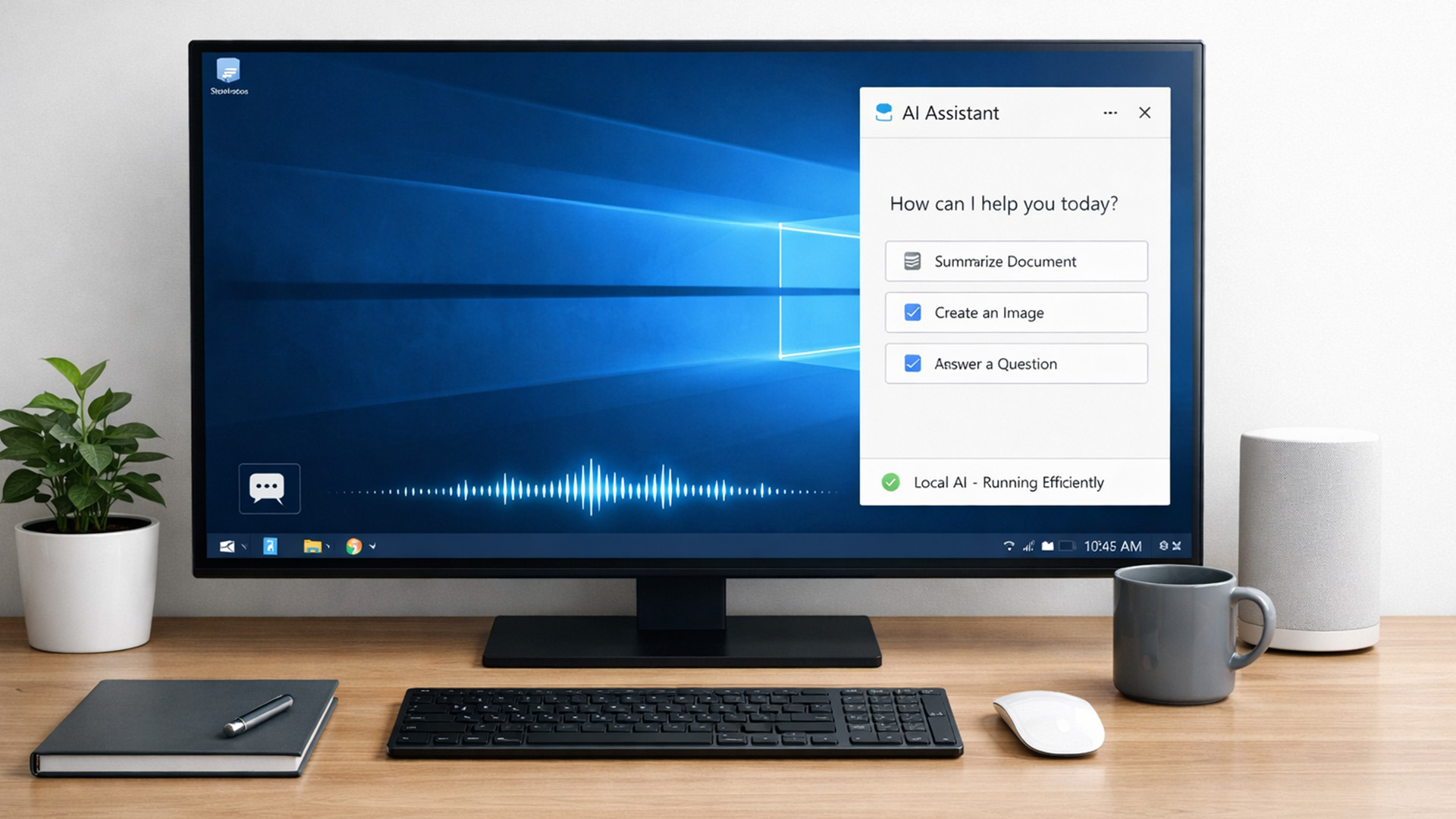
For years, AI lived in the cloud. You typed something, it went to a server, magic happened, and the result came back. Now, operating systems (especially Windows) are pushing AI features onto the device itself. That shift is what triggered the “AI-Ready” wave.
An AI-Ready desktop is basically a PC that can:
- Run certain AI tasks locally
- Do it efficiently
- Without destroying performance or power usage
That’s it. No sentience. No robot takeover.

Last Updated: February 11, 2026
Choosing the right desktop PC can feel a bit like picking a side in a long-running tech rivalry. HP, Dell, and Lenovo are three of the biggest names and for good reason. They all offer reliable, powerful desktops that suit everything from casual home use to hardcore business workloads and creative setups.
But when it comes to HP vs Dell vs Lenovo desktop PCs, which brand actually wins for you?
Why Compare HP, Dell, and Lenovo Desktop PCs?
HP, Dell, and Lenovo are all global heavyweights in the PC world. They each offer a wide range of desktops — from budget-friendly towers to powerful workstations and compact all-in-one PCs.
But here’s the thing:
Not all desktop PCs are built for the same kind of user.
Some are better for productivity, some for gaming, and others for long-term reliability. Understanding the differences is key before you hit “Add to Basket”.
HP Desktop PCs: Style Meets Performance
HP desktops are known for blending solid performance with modern design. If you like your

Published: February 09, 2026
If you have been browsing for a new PC lately, you might have noticed a bit of a price shock. Whether you are looking for a sleek all-in-one for your home office or a powerful gaming rig, the numbers on the price tags in 2026 are noticeably higher than they were just a couple of years ago.
Many UK buyers are left scratching their heads, asking the same question: why are desktop PCs expensive all of a sudden? It is a fair question. In this guide, we will break down exactly what is driving these costs and, more importantly, how you can still find incredible value.
Key Reasons Desktop PC Prices Are Rising
Understanding the "why" behind the price hike helps you time your purchase better. Here are the primary factors driving the market today.
The "AI Squeeze" on Components
The biggest culprit isn't a lack of chips, but a shift in what those chips are used for. Huge data centres are currently buying up almost 70% of the world’s advanced memory (DRAM) and storage (NAND) to power AI models.

Last Updated: September 15, 2026
If you’re asking “are refurbished desktop PCs worth it” in 2026, you’re not alone. Refurb is having a moment in the UK, partly because budgets are tight, and partly because more people want a cheaper, lower-waste way to get solid tech. At the same time, buyers are more hesitant than ever… and that hesitation is not random. A few very 2026-specific changes have raised the stakes.
This guide breaks down the real reasons people hesitate in 2026, and how Laptop Outlet reduces those risks so you can buy refurbished with genuine peace of mind - without losing out on choice or price.
What changed in 2026 that made buyers more cautious?
1) The Windows 10 “cliff edge” is now behind us
Windows 10 support ended on 14th October 2025, which means many older desktops are now in a riskier zone if they can’t upgrade cleanly.
Yes, Microsoft offers Extended Security Updates (ESU), but for consumers it’s a limited runway (through 2026) and comes with requirements that can add friction.
Why this makes refurbished
Published: March 12, 2026
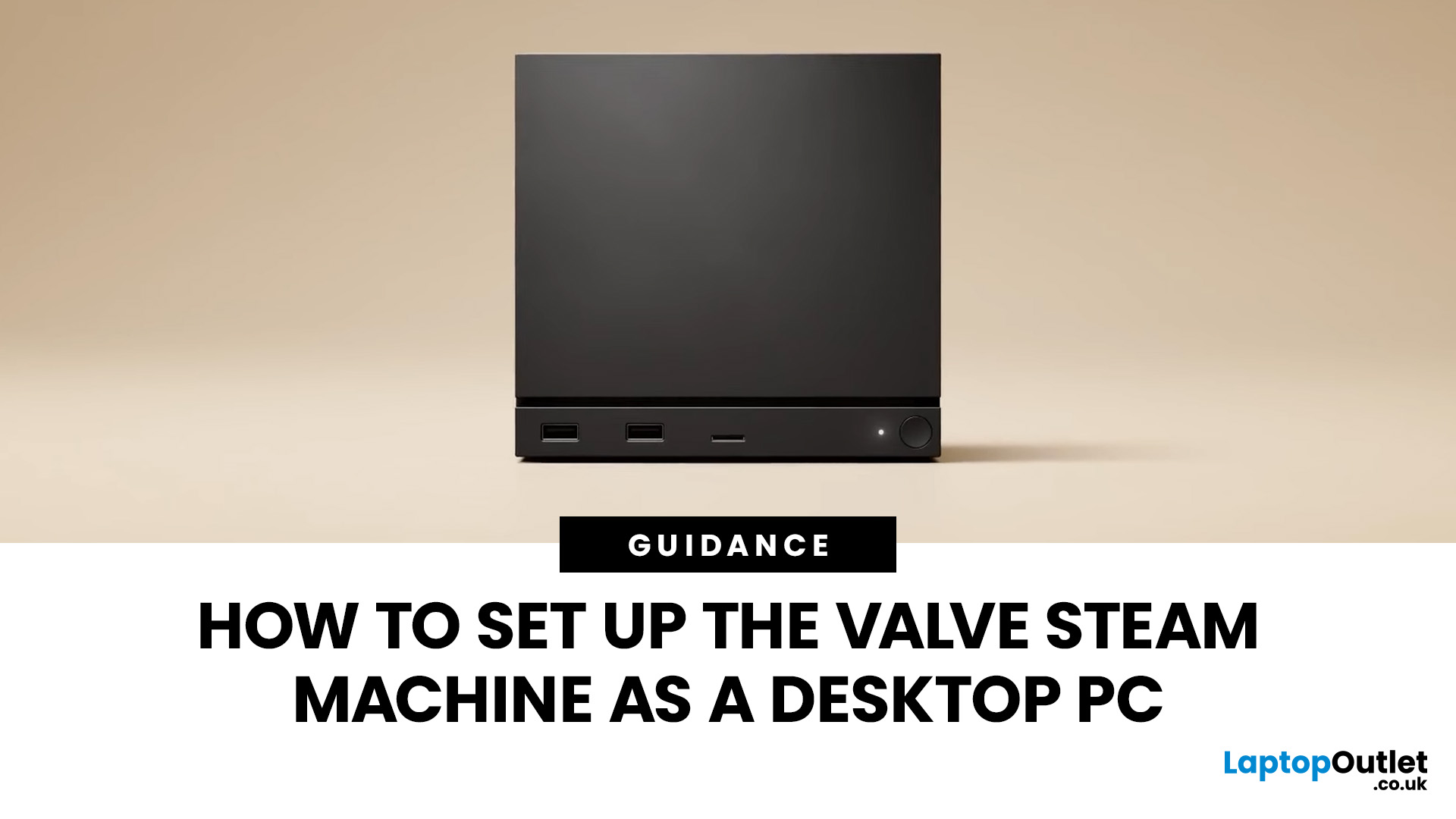
If you have an old Valve Steam Machine tucked away under the telly or on a shelf, you might be wondering whether it can still do more than launch games. The good news is that, with the right setup, it can absolutely pull double duty as a compact desktop computer for everyday use.
This guide walks you through a practical Valve Steam Machine setup for desktop use, from connecting a monitor and peripherals to accessing SteamOS desktop mode and making the system feels more like a standard PC. Whether you want a lightweight machine for web browsing, media streaming, or casual home computing, repurposing a Steam Machine can be a clever and cost-effective option.
What is a Valve Steam Machine?
A Valve Steam Machine was originally designed as a living-room gaming PC. It brought PC gaming closer to the console experience, usually running SteamOS and focusing on controller-friendly play from the sofa.
That said, the hardware inside many Steam Machines is still capable of handling basic desktop
Last Updated: April 22, 2026
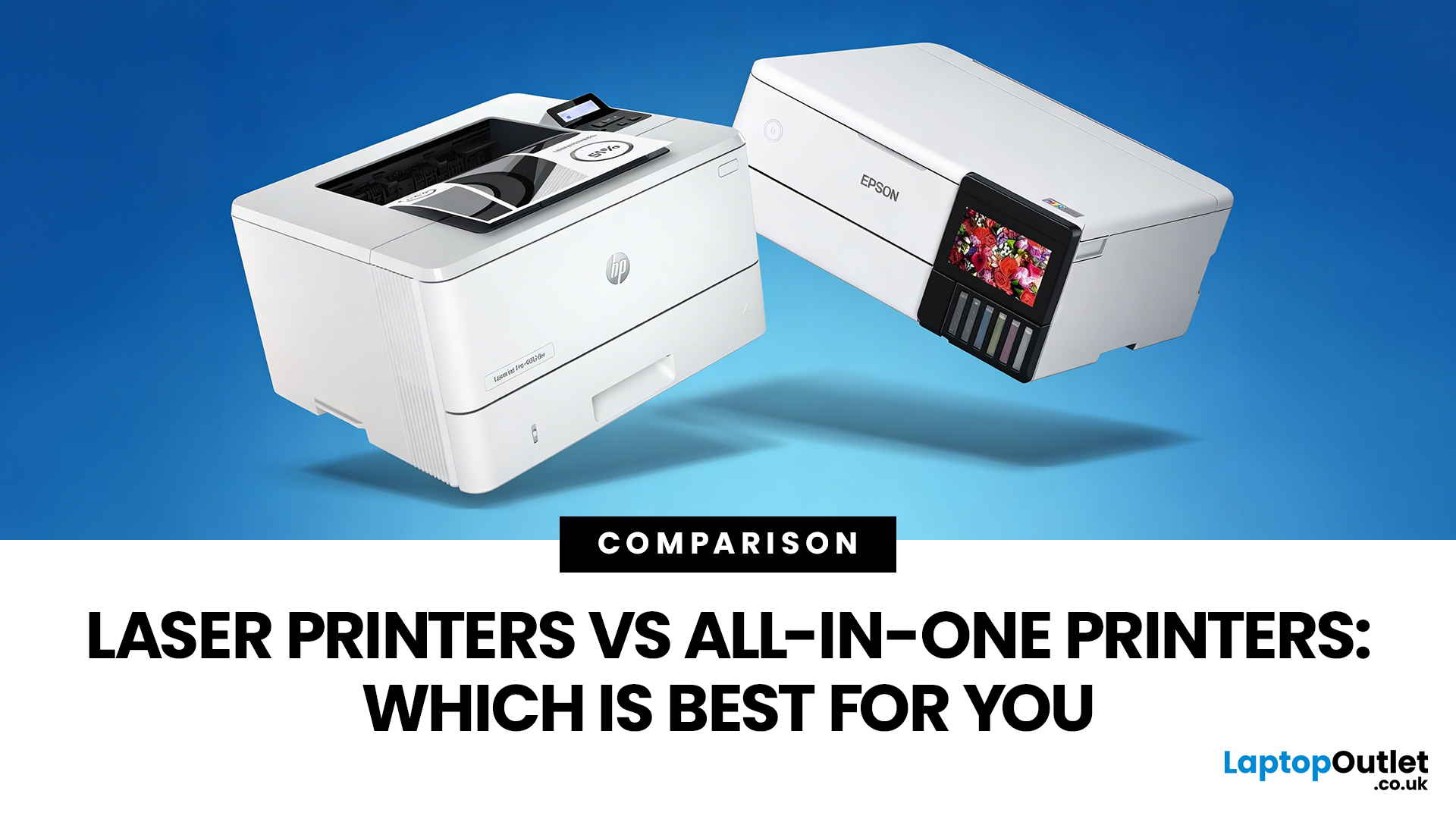
Choosing between Laser printers vs all-in-one printers sounds simple until you realise the two terms do not describe the same thing.
A Laser printer refers to the way the printer works. An all-in-one printer refers to the machine's capabilities, usually printing, scanning, and copying in one unit. That means some all-in-one printers are Laser models, while others are inkjet. So, when people compare all-in-one vs Laser printers, what they are really trying to work out is whether they need stronger print performance or broader day-to-day flexibility.
For some buyers, the Laser is the clear winner. For others, an all-in-one makes far more sense. The right choice depends on how often you print, what you print most, and whether scanning and copying matter as much as printing itself.
If your priority is fast document printing, crisp text and lower running costs over time, a Laser model is usually the smarter fit. If you want one machine that can handle household paperwork, scanning, copying and
Last Updated: April 21, 2026
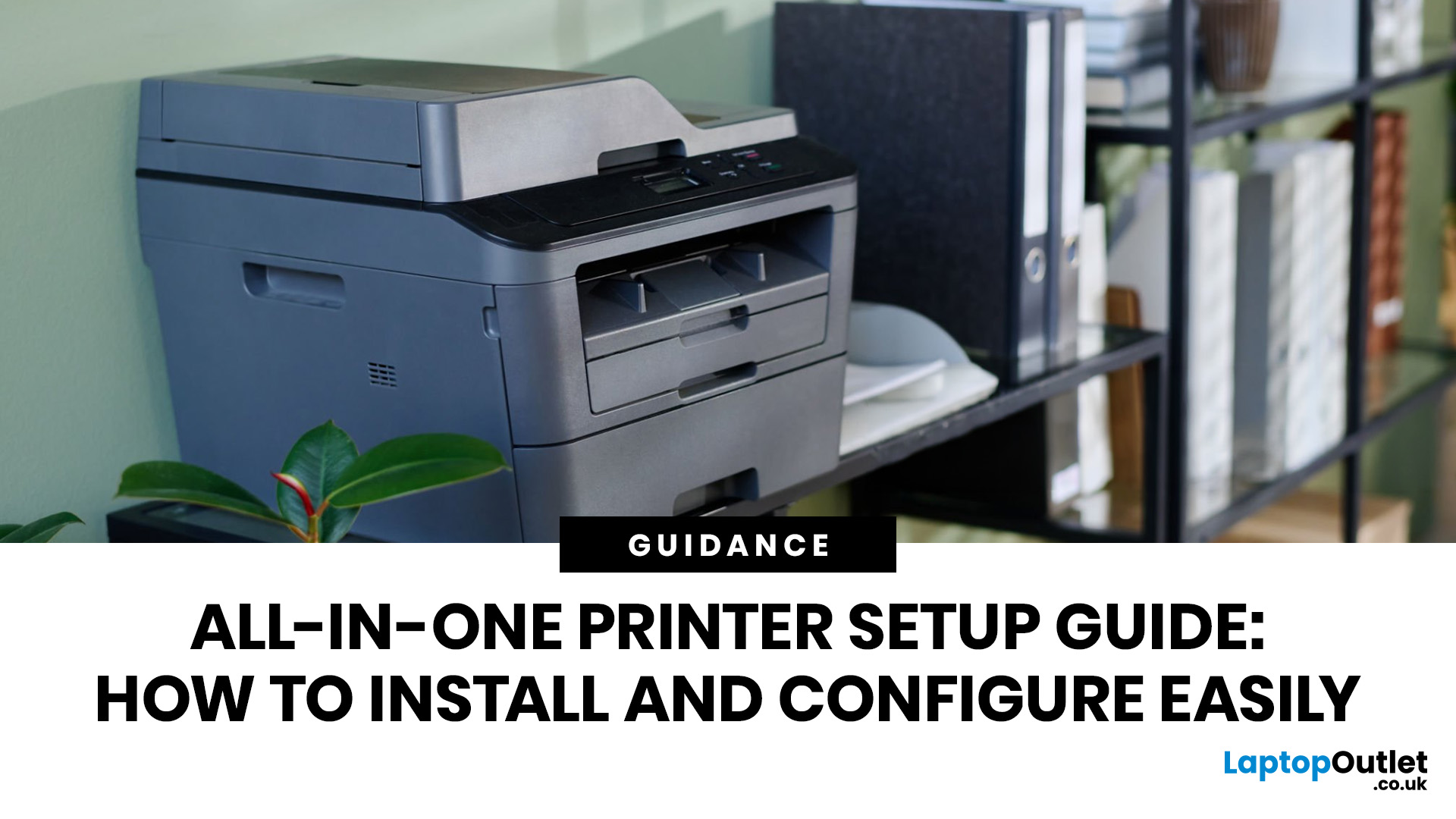
Setting up an all-in-one printer is usually much easier than people expect. The part that trips most users up is not the printer itself, but the order. If you prepare the hardware first, connect it the right way, and install the correct software in the right place, most all-in-one printer setup jobs are straightforward.
This guide walks through how to set up an all-in-one printer step by step, including USB, Wi-Fi, and network setup, driver installation, scanning setup, and the small configuration choices that make the printer easier to live with long term. If you are installing a multifunction printer at home, in a home office, or for a small team, this is the practical setup flow that saves the most time.
What is an All-in-One Printer Setup?
An all-in-one printer setup is the process of getting a multifunction printer ready to print, scan, copy, and in some cases fax. That means more than plugging it in and printing one test sheet. A proper setup also includes network access, driver

Last Updated: July 06, 2026
If your printer is acting up, the short answer is this: most all in one printer problems are fixable without replacing the whole machine. The fastest wins usually come from checking the connection, clearing the print queue, confirming the right printer is selected, inspecting paper loading, and running the built-in cleaning or alignment tools before assuming the hardware has failed. Microsoft, Brother, Epson, Canon, and HP all point users toward those same basics first, which is a strong sign that the smartest troubleshooting is usually methodical, not dramatic.
That is exactly what this guide is here to do. Instead of giving you random fixes with no logic behind them, this article breaks down the most common all-in-one printer issues, shows what each symptom usually means, and explains the best way to fix it. So, whether your machine is offline, feeding paper badly, refusing to scan, printing faded documents, or suddenly producing blank pages like it has given up on communication,

Published: April 24, 2026
If you want an all-in-one printer to last, the best approach is simple: keep it clean, use the built-in maintenance tools properly, and deal with small print-quality issues before they turn into bigger faults. Good all in one printer maintenance is less about deep cleaning every week and more about doing the right checks at the right time.
For most homes and small offices, that means cleaning the scanner glass and document feeder areas regularly, using printhead cleaning only when print quality drops, keeping paper and supplies in good condition, and not treating laser and inkjet models the same way. That last point matters. A multifunction printer cleaning routine for an inkjet is not the same as multifunction printer care for a laser model with a separate drum unit.
The Best Way to Keep an All-in-One Printer Working Well
The simplest all-in-one printer maintenance guide starts with routine care, not emergency fixes. Keep dust off the exterior, keep the scanner glass and ADF strip clean,

Published: April 24, 2026
An all-in-one printer is a machine that lets you print, scan, copy, and sometimes fax from one device. It is designed to save space, reduce setup hassle, and handle everyday home or office tasks without needing separate equipment.
An all-in-one printer, sometimes called a multifunction printer or MFP, combines multiple jobs into one device. Retailer and manufacturer guidance broadly agrees on the core value proposition: one device, less clutter, fewer cables, and a more streamlined workflow for home and office users.
Nobody wakes up thinking, “You know what would absolutely change my life today? A printer.” And yet, the second you need to print a return label, scan a signed document, copy schoolwork, or send a form to the office, your printer suddenly becomes the main character.
That is exactly why these all-in-one printers guide exists. We explain how all-in-one printers work, their key features, the main types, their benefits, costs, setup, maintenance, and how to choose the best one

