



Are curved monitors good for competitive gaming
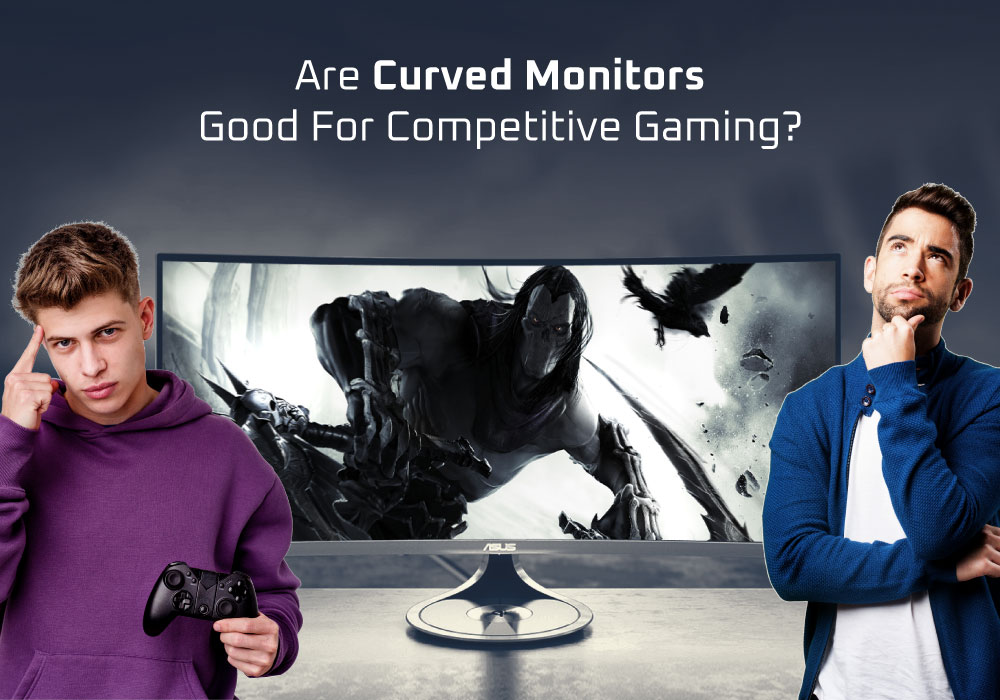
The one thing you need to enjoy in your gaming experience is without a doubt, the display. A good display can make or break your gaming fun. But there are many types of monitors in the market, which can help you in your gaming arena. But we will be talking about curved gaming monitors. If you are a gaming freak, then we don’t need to tell you the effect a monitor can have on your gameplay. We will be trying to find out whether a curved monitor is good for competitive gaming or not. So, stick around and find out.
What Are Curved monitors?
Curved monitors are the latest technology monitor screens, with a little curvature on the edges. It lets you enjoy the visuals from any comfortable angle, because of the wide viewing angles in a curved design. You can create the perfect atmosphere, while you are streaming or gaming with your friends on it.
Are These Any Good?
Well, the debate has been going on for a long time now, that whether you should opt for a curved monitor in your gaming arena or not. In order to find that out we will be looking at the pros and cons on these monitors. Let us just dive right in.
Pros of A Curved Monitor
Immersive Experience
The first thing which hits you is the wide viewing angle of a curved monitor. With a curvature in the screen, you can enjoy the immersive experience, while you are gaming. It can help you indulge more and see the details clearly. The visuals you see are more comfortable for your eyes because you don’t need to look too far in order to see the borders. The comfortable viewing keeps the stress to your eyes at a minimum, so you can enjoy the long hours of gaming in a carefree manner. You can feel the whole area around you in your open-world games. It lets you really enjoy the virtual world of your games. These curved monitors can also provide you much greater Field of Vision (FOV). It will provide you great results when you are playing your open-world shooting games. You will have more field of view than your competitors, and hence will be able to take the headshot even before the other person sees you.
Less Distortion
Sometimes when you are enjoying the visuals on your monitor, you experience some sort of blurriness or distortion. It can be caused by the signals of internet or an issue with the GPU. But if it is not due to it, then this distortion is being caused by the monitor itself. Flat screen monitors tend to show some blurriness or distortion towards the edges, whereas there is no distortion in the visuals of a curved screen monitor. This is because the light projection. In a flat screen monitor the lights are projected in two ways, one towards the viewer and other towards the sides. But in a curved monitor the lights are projected only towards the viewer, which eliminates the possibility of distortion in your visuals. This can be very helpful, while you are playing your online competitive shooting game. You can aim clearly and take the headshot with accuracy.
Occupies Less Space
The one more advantage of a curved monitor is that it occupies much less space than a flat screen monitor. As it is curved it can fit in a place perfectly. If you have a 36 inches curved monitor, it will occupy the space of a 32 inches flat screen monitor, due to the curvature at the ends. It fits on your table perfectly and leaves a lot of space for other things as well.
Cons of A Curved Monitor
Well, we looked at the pros of a curved monitor, now let us get the cons out of the way too.
Aspect Ratio
The first thing which ruins the fun of your gameplay is the aspect ratio. Most of the competitive gamers use 16:9 aspect ratio monitors, which does justice with the pixels and also provides much better aim. But you might say that a curved monitor having the aspect ratio of 21:9, will give you more screen and more quality. Well, that is not completely correct as most of the games are not made for the widescreen experience. When you use 21:9 aspect ratio for these games, you will not get the best picture quality. You would be stuck with black borders, or the resolution of the game will be stretched, which will ultimately affect your gameplay and precision in shooting, while playing your competitive shooting games. The major thing which can affect your aim are the visual inaccuracies, which might occur in a curved monitor. You would have to sit up straight to shoot a target.
Heavy On the GPU
If you are using a curved monitor, then it requires a greater number of pixels, which need to be calculated by your graphics cards. And if there are more pixels to be calculated, then naturally it will require more processing power from your GPU. It can put too much stress on your GPU and might interfere with the gameplay as well. A gaming freak would rather like this extra processing power to be converted into more FPS, for silky smooth gaming visuals.
Wall Mounting
Most of the people use there monitors while mounting them on the wall. It clears space on the table for other stuff and makes it more comfortable for viewing. But due to the design, these curved monitors are not that easily mounted on the wall. You need to do some extra efforts in order to mount that thing.
Habit
Competitive gaming requires hours of practice and gameplay. If you are playing on the curved screen for a few weeks, then your eyesight and vision would get used to the curved screen, and your aim would also be set accordingly. But when you reach the venue of the gaming competition, then there you will see all the flat screen monitors. At that moment it would be quite a difficult task, to again set the vision and accuracy of your aim according to that flat screen monitor.
Bottom Line
Well, these were some of the pros and cons of using a curved screen monitor, for you competitive gaming. Sure, a curved screen monitor has many advantages and can provide you great results. But these advantages are very few and can even turn into disadvantages for you, if you are a hardcore competitive gamer. So, spending a big amount of money just to upgrade to a curved screen is not completely worth it. But it all boils down to the personal preferences as well.
We hope this proved to be beneficial for you guys and helped you make-up your mind. If you are looking to buy one for yourself, then make sure to visit laptopoutlet.co.uk and choose from a wide collection of cool gaming monitors.
Read more:
| Why Curved Monitors Are a Game-Changer? |
| Top 3 ultra wide Monitors for Gaming in 2025 |
| Top 3 Best 240Hz Monitors in 2023 |
Related Articles

Last Updated: September 03, 2026
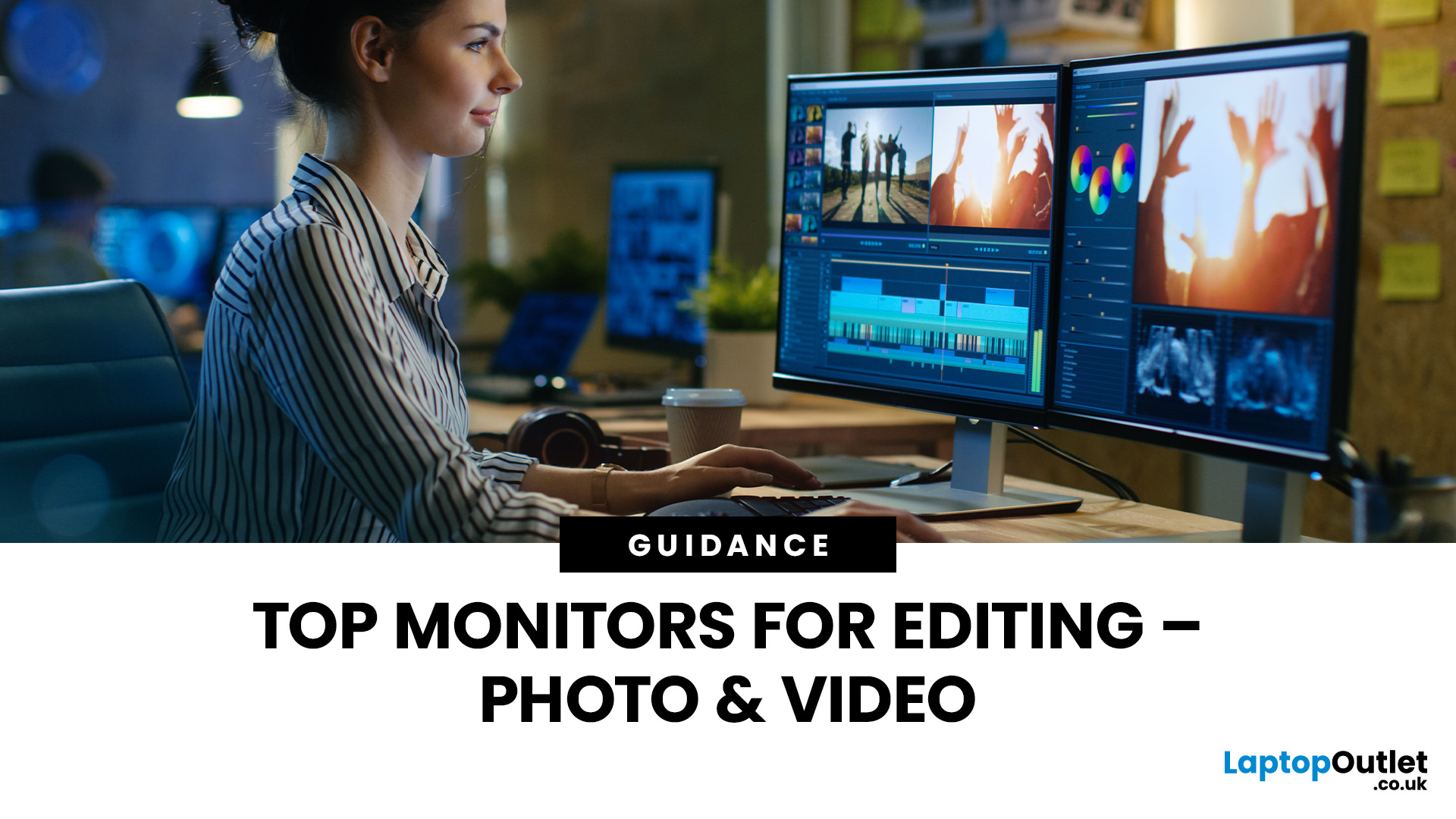
Whether you are a creative pro, a fresher in the multimedia industry, or a seasonal photographer, the right monitor can help you perfect your craft by displaying accurate colours and true-to-life visuals. When buying the best editing monitor, there are several factors and technical terms to remember. Besides colour accuracy, a high-resolution display lets you see images with more precise details, plus good ergonomics and plenty of USB ports also streamline your workflow.
Our Best Picks for Video and Photo Editing
1. MSI MAG 274QF – 27" Rapid IPS, Quad HD, 180Hz, 0.5ms
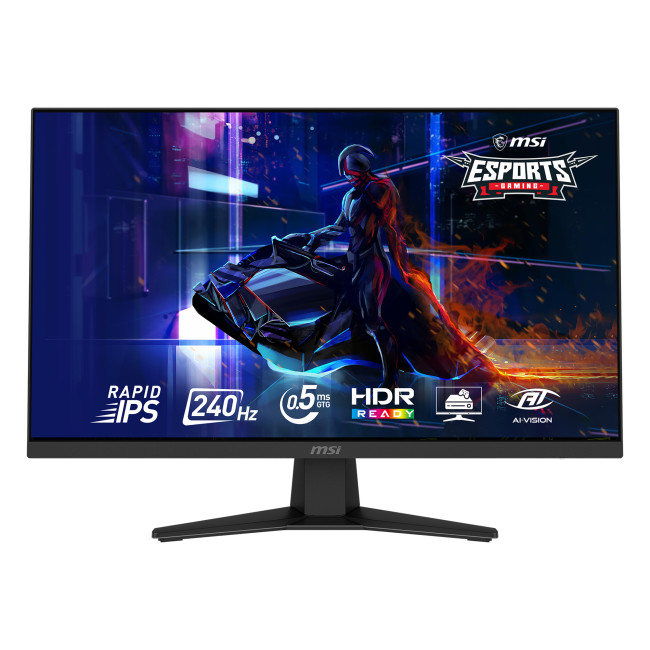
Technical Specifications
- Panel: Rapid IPS
- Resolution: 2560 × 1440 (QHD)
- Refresh rate: 180Hz
- Response time: 0.5ms (GtG)
- Brightness: 250–300 nits
- Ports: 2× HDMI 2.0, 1× DP 1.4, Headphone Out
- Adaptive Sync: Yes
- VESA mount: 100 × 100mm
The MSI MAG 274QF’s QHD IPS panel gives creatives excellent clarity and wide viewing angles, which is particularly useful for colour-sensitive editing work. While primarily aimed at
Last Updated: February 23, 2026
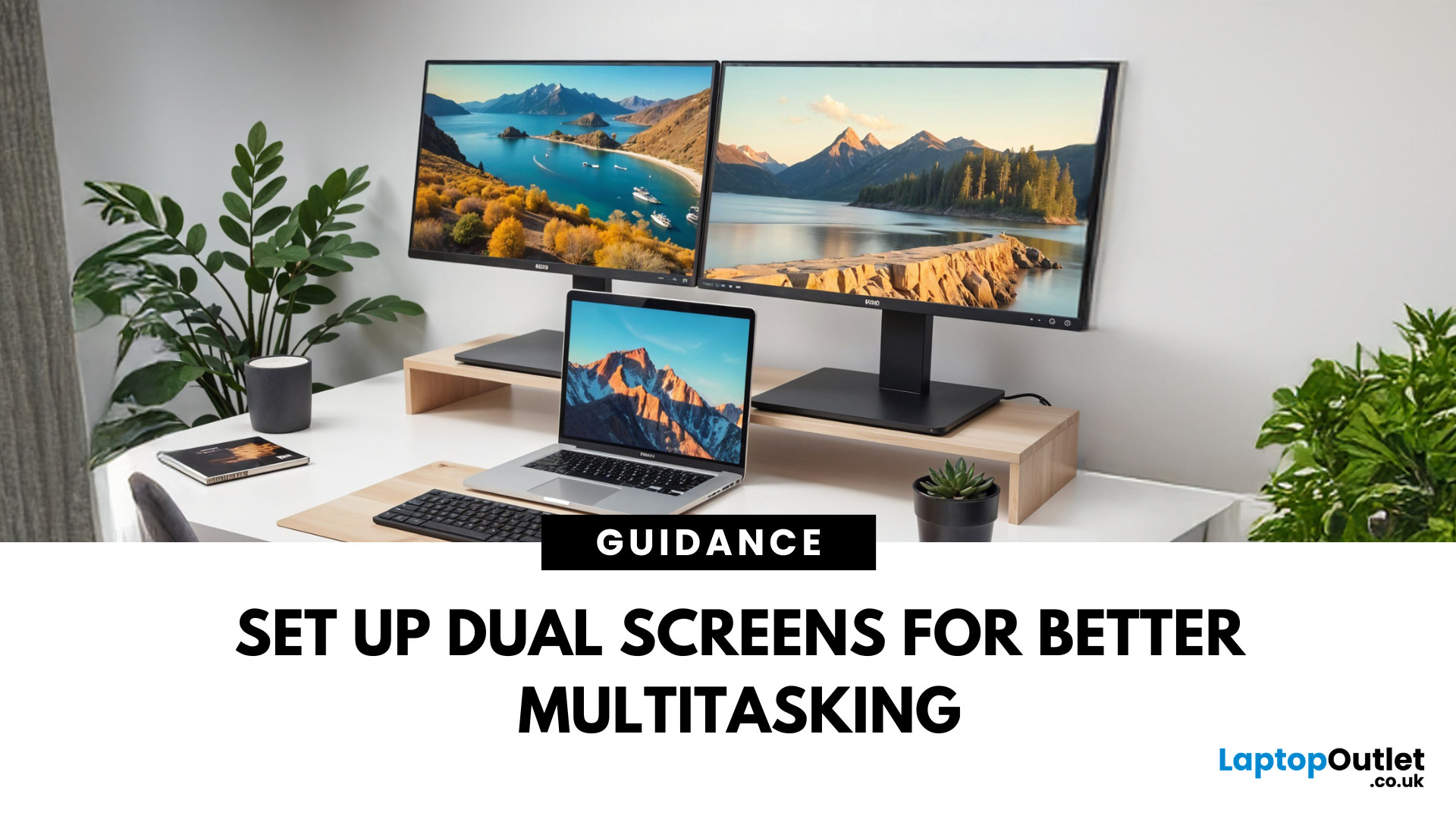
Feeling cramped on your laptop screen? Whether you’re a creative pro, a remote worker, or just need more screen real estate for multitasking—dual monitors are a total game-changer. Here’s how to connect two monitors to your laptop and level up your workspace.
What You’ll Need to Connect Two Monitors
Before you dive in, make sure you’ve got:
- A laptop with multiple display outputs (HDMI, USB-C, DisplayPort, Thunderbolt)
- Two external monitors
- Compatible cables or adapters (HDMI, VGA, USB-C, DisplayPort)
- Optional: Docking station for easier setup
Step-by-Step: How to Connect Two Monitors to a Laptop
1. Check Your Laptop’s Ports
Look at the sides of your laptop—do you have two separate video outputs (e.g., HDMI + USB-C)? If not, you might need a USB-C hub, docking station, or display splitter.
2. Plug in the First Monitor
- Connect your first monitor to the laptop using an HDMI, VGA, or DisplayPort cable.
- Turn on the monitor and make sure it’s set to the correct input source.
Last Updated: August 25, 2026
Dust, fingerprints and smudges can make even a high-resolution display look dull. Fortunately, you can clean monitor at home safely with a soft cloth, a small amount of suitable liquid and the right technique.
To clean a monitor screen safely, switch it off and unplug it. Wipe away dust with a dry microfibre cloth. For fingerprints, lightly dampen the cloth with distilled water and wipe gently. Never spray liquid directly onto the screen or apply strong pressure. Avoid paper towels, window cleaner and ammonia, as they can scratch the display or damage its protective coating. Let it dry completely before reconnecting and switching on.
The safest method is to begin with a dry microfibre cloth and use distilled water only when necessary. Never spray cleaner directly onto the screen, apply strong pressure or use rough materials that could damage the panel or its protective coating.
What Do You Need to Clean a Monitor Screen?
Before cleaning your monitor, gather the following items:
- A clean,

Last Updated: October 02, 2025
Screen Flipped? Don’t Panic!
Accidentally hit a key combo and now your screen’s upside down? Or maybe you actually need to rotate your monitor for work or reading mode? Either way, we’ve got you. Here’s how to rotate your monitor screen on purpose—or fix it if you didn’t.
How to Rotate Your Monitor Screen on Windows
There are two quick ways to rotate your screen on a Windows laptop or PC:
Option 1: Use a Keyboard Shortcut
- Ctrl + Alt + Up Arrow – Normal landscape
- Ctrl + Alt + Down Arrow – Upside-down
- Ctrl + Alt + Left Arrow – Rotate left
- Ctrl + Alt + Right Arrow – Rotate right
Pro Tip: These shortcuts work on most Windows PCs with Intel graphics.
Option 2: Use Display Settings
- Right-click anywhere on the desktop
- Click Display Settings
- Scroll to Display orientation
- Choose Landscape, Portrait, Landscape (flipped), or Portrait (flipped)
- Click Keep changes to confirm
How to Rotate Your Screen on macOS
Rotating your screen on a Mac is easy too—but not all Macs

Last Updated: August 25, 2026
Size Matters for the Ultimate Display
So, you’re shopping for a new monitor and keep seeing things like 24-inch, 27-inch, or 32-inch LCD—but what do those numbers actually mean? If you’ve ever wondered how monitor size is measured (and what matters most), we’ve got you. This guide breaks it down in a way that makes sense.
How Monitor Size Is Measured
Monitor size refers to the diagonal length of the screen—not the width or the height. This is measured in inches, from one corner of the viewable screen area to the opposite corner.
Quick Tip: Bezel (the plastic frame around the screen) isn’t included in the measurement—only the actual display area counts.
How Are LCD Screens Measured?
- LCD (Liquid Crystal Display) screens are measured exactly the same way as other monitors: diagonally from corner to corner.
- Whether it's a laptop screen, external monitor, or TV—if it’s an LCD, it’s measured diagonally.
- The measurement doesn’t include the casing—just the visible screen.
Example:

