



What is HP Instant Ink and How Does It Work?
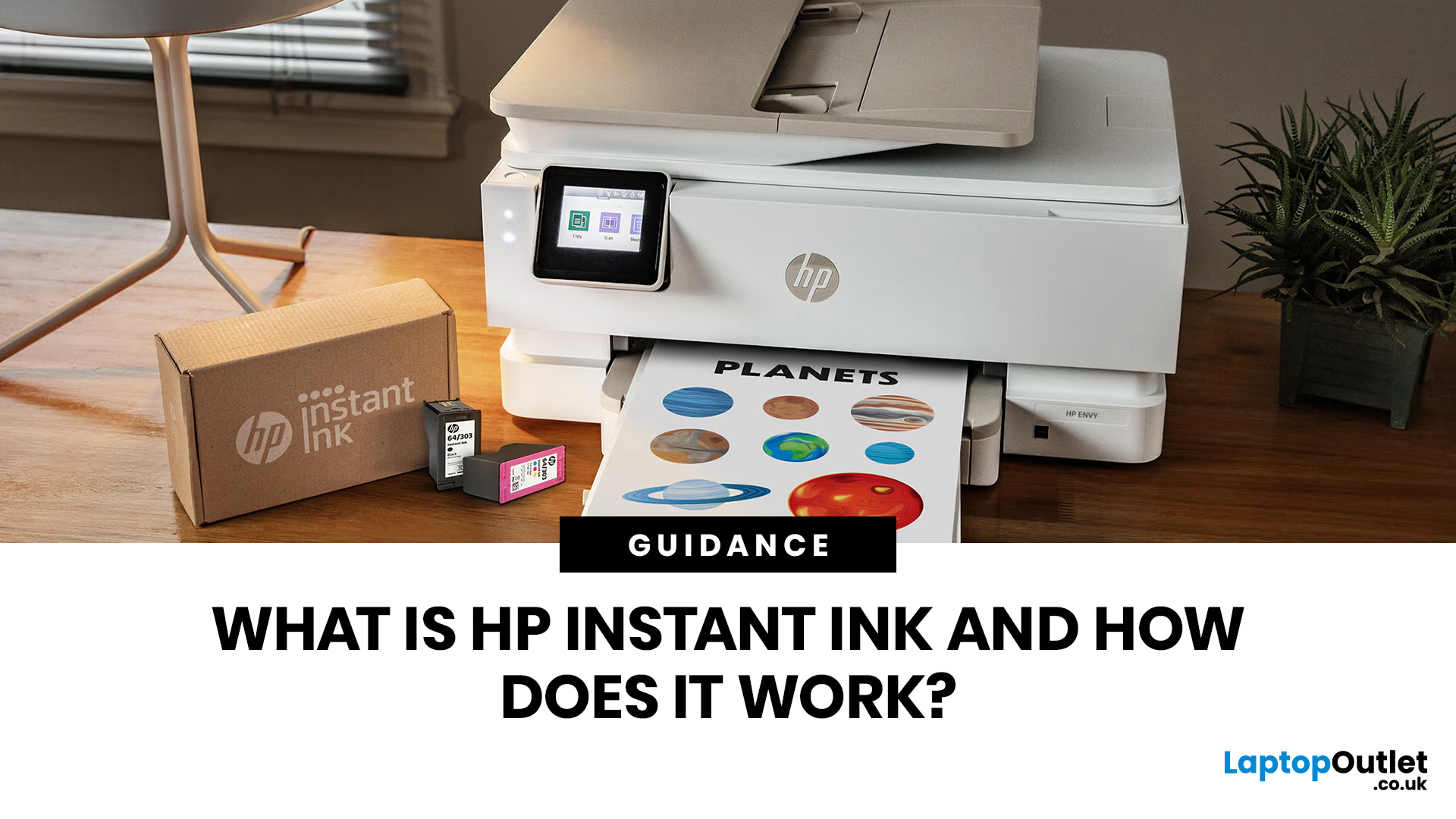
Running out of ink mid-print is one of those small but genuinely annoying life moments. HP Instant Ink aims to put an end to that, replacing the old "buy cartridges when you remember" system with a smarter, subscription-based approach. If you've been wondering what it's all about and whether it's right for you, you're in the right place.
What Is HP Instant Ink?
HP Instant Ink is HP's ink subscription service, available in the UK since 2014. Rather than purchasing individual cartridges as and when you need them, you sign up to a monthly plan and pay a flat fee based on how many pages you print each month.
The key difference from traditional ink buying is simple: you're paying for pages, not cartridges. That means printing a full-colour photo costs the same as printing a plain black text document, which is a genuinely useful feature for households that mix everyday printing with occasional photo printing.
How Does It Differ from Buying Regular Cartridges?
With standard cartridges, you buy them upfront, use them, and then have to remember to buy more before you run out. Costs are unpredictable, and colour cartridges in particular can be expensive for the number of pages they deliver.
What does Instant Ink do differently? It shifts the model entirely. You pay a predictable monthly fee, HP monitors your ink levels remotely, and new cartridges arrive at your door before you even get the dreaded "low ink" warning. It's a more managed, hands-off way to keep your printer running.
How Does the HP Instant Ink Work?
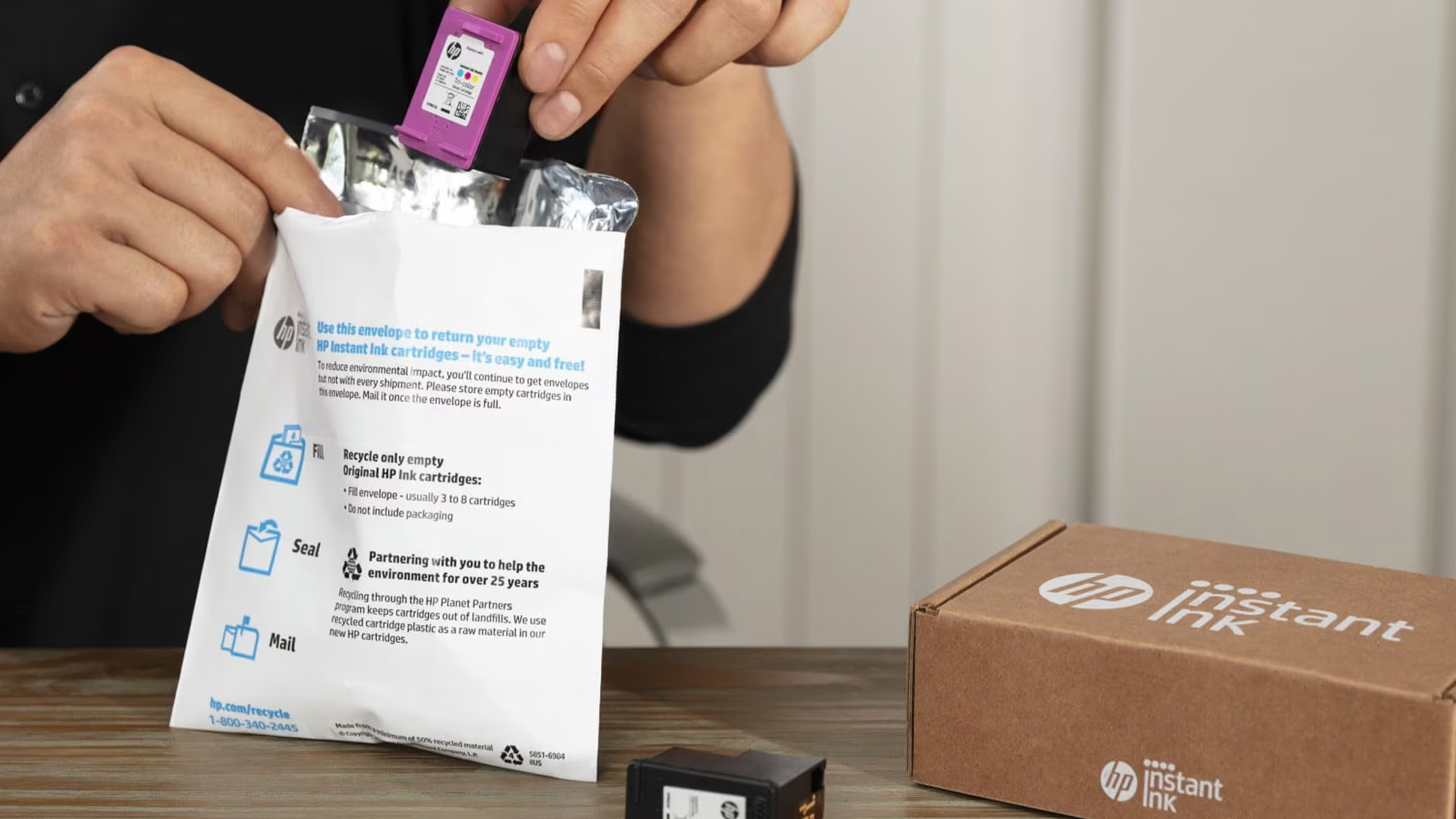
HP Instant Ink uses your printer's built-in Wi-Fi connection to stay in constant contact with HP's servers. Once you're enrolled, the service monitors your ink levels in real time, and when they drop below a certain threshold, a replacement cartridge is automatically dispatched.
The process is very simple. Your printer notifies HP when it needs more ink, HP sends it out, and you can carry on printing. This means you do not have to check your ink levels yourself, you can avoid last-minute trips to the shop, and you never have to worry about running out of ink in the middle of an important document.
Step-by-Step: From Sign-Up to First Delivery
Here's how the whole process unfolds when you first join:
- Choose an eligible HP printer -- most HP inkjet printers made in the last five years with a Wi-Fi connection are compatible.
- Create an HP account -- or log into your existing one at hpinstantink.com.
- Select your plan -- pick the monthly page allowance that suits your printing habits.
- Enter payment details -- credit/debit card, direct debit, or PayPal are all accepted.
- Receive your Welcome Kit -- you'll get your starter cartridges within 7 to 10 working days of enrolling.
- Keep printing -- HP monitors your ink automatically and ships new cartridges when needed, not on a fixed monthly schedule.
It's worth noting that HP sends ink when your levels are low, not simply every month. So, if you're a light printer, you won't be drowning in cartridges you don't need.
What Is the Role of the HP Smart App?
The HP Smart app (also referred to as HP ink smart management) is your control centre for the service. Through the app, you can track how many pages you've printed that month, see your current ink levels, change your plan, and manage your subscription details.
It's available on Windows, macOS, iOS, and Android devices, and it connects directly to your printer and Instant Ink account. If you want to get the most out of the service and keep an eye on your usage, having the HP Smart app installed on your phone is really the way to go.
Tip: Always keep your printer switched on and connected to Wi-Fi. If your printer goes offline for a prolonged period, HP cannot monitor ink levels and your automatic delivery may be delayed.
What are the HP Instant Ink Plans and Prices in the UK?
HP Instant Ink plans in the UK are tiered by monthly page allowance. All plans include the ink itself, free delivery of cartridges, and a prepaid recycling envelope so you can return empty cartridges at no extra cost.
Here's a summary of the current HP Instant Ink UK plan tiers:
|
Plan |
Monthly Pages |
Monthly Cost |
Best For |
|
Occasional |
Up to 10 pages |
£1.79 |
Very light users |
|
Light |
Up to 50 pages |
£4.49 |
Casual home users |
|
Standard |
Up to 100 pages |
£6.49 |
Average households |
|
Heavy |
Up to 300 pages |
£13.49 |
Busy families / home offices |
|
High Volume |
Up to 700 pages |
£28.99 |
Small businesses |
Note: Prices are correct as of 2026 but subject to change. Always check HP's official plans page for the latest pricing before signing up.
Every page type counts the same towards your monthly allowance, whether it's a colour photo, a text document, or a mixed-content page. That flat per-page approach is what makes the service particularly cost-effective for anyone who prints a variety of content.
What Happens If You Print More Than Your Plan Allows?
If you go over your monthly page allowance, HP automatically charges you for additional pages in sets of 10 to 15 pages for £1.50 per set (the exact set size varies depending on your plan tier). The charge is applied at the end of your billing cycle.
You won't be cut off mid-print or find your printer suddenly refusing to work. The overage system kicks in seamlessly, and you'll see the charge reflected in your next bill. That said, if you regularly go over, it's worth upgrading your plan -- it'll work out cheaper in the long run.
What About Rollover Pages?
One of the genuinely useful features of any instant ink plan is the rollover system. Any pages you don't use in a given month are carried forward into a rollover account, up to a maximum of three times your monthly plan allowance.
So, if you're on the 100-page plan and only print 60 pages in July, those 40 unused pages roll over and sit in your account as a buffer. If you then have a busy printing month in August, those rolled-over pages are used up before any overage charges kick in. It's a sensible system that stops you feeling like you're constantly wasting your monthly allowance.
Looking for a printer that works with this service? Browse affordable HP printers at Laptop Outlet and check compatibility before you buy.
Which HP Printers Are Compatible with HP Instant Ink?
Most HP inkjet printers manufactured within the last five years that have a Wi-Fi connection are compatible with the service. This covers a wide range of popular series, including:
- HP DeskJet series (2620, 2720, 2820, 4120, 4130, and more)
- HP ENVY series (6010, 6020, 6030, 7220, 7920, and more)
- HP OfficeJet series (5220, 5230, 6950, 8010, and more)
- HP OfficeJet Pro series (selected models)
When buying a new HP printer, look for the "HP+" badge or "Instant Ink eligible" labelling on the product listing. You can also check your specific printer model at hpinstantink.com during the sign-up process.
It's also worth noting that HP Instant Ink subscription cartridges are different from standard HP cartridges. They're specifically linked to your active subscription and will only function while your plan is active.
Does HP Instant Ink Work with Laser Printers?
This is a common question, and it's worth being clear about. HP did offer an Instant Ink toner cartridges subscription for certain HP LaserJet models (the 100, 200, 3000, and 4000 series), but HP has now discontinued this for new subscribers. Existing toner subscribers are not affected.
So, if you're looking at a laser printer and hoping to use Instant Ink, that option is no longer available to new customers. The service currently applies to inkjet printers only for new sign-ups.
What Is Included in Your HP Instant Ink Subscription?
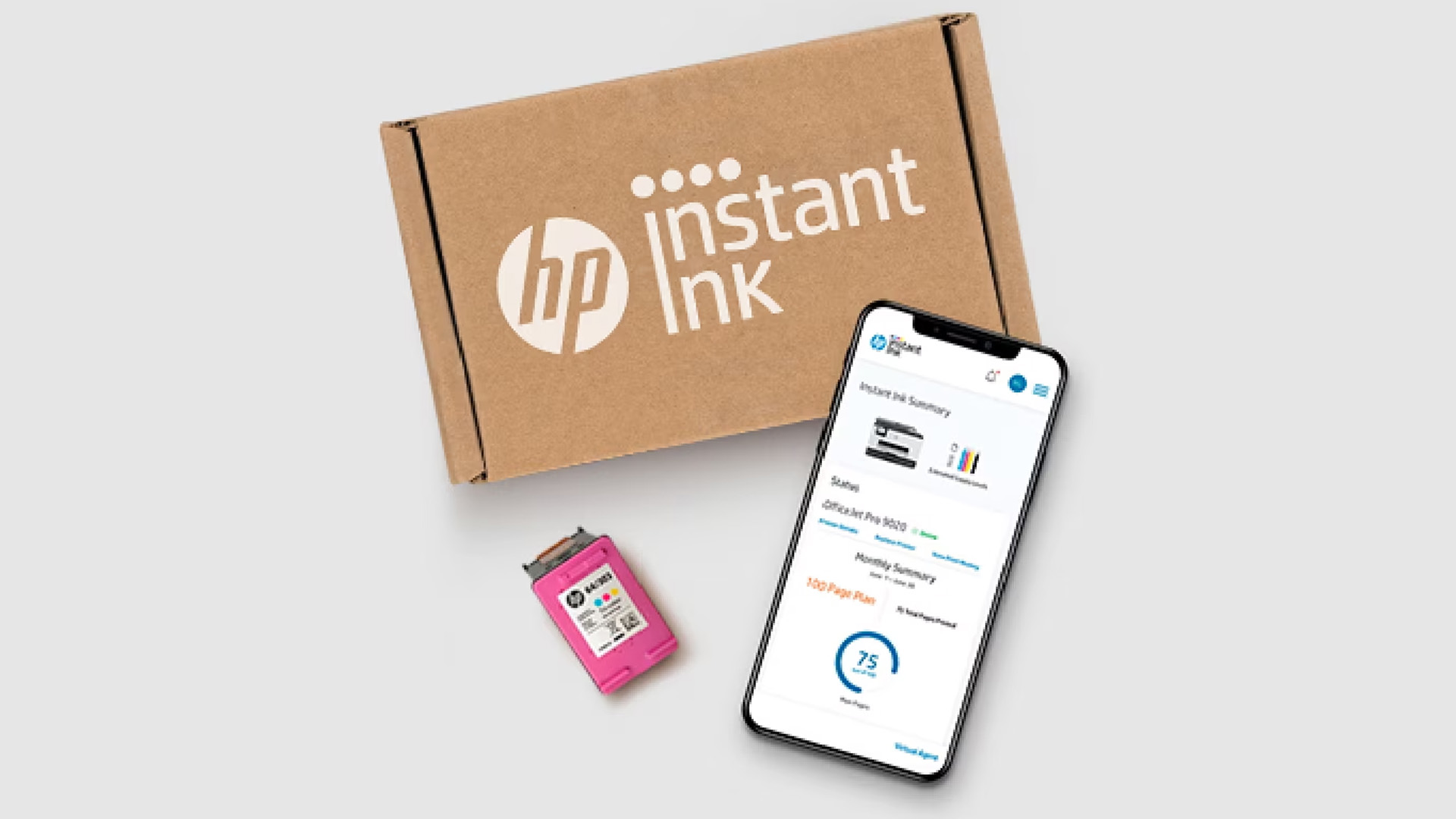
It's worth being crystal clear about exactly what you get with HP Instant Ink, because it's more than just the ink. Here's what every plan includes:
- Original HP ink cartridges -- not third-party replacements; you're getting genuine HP supplies.
- Free delivery -- cartridges are dispatched and delivered at no extra cost.
- Prepaid recycling envelope -- you can return empty cartridges by post to be recycled, at no cost to you.
- Access to the HP Smart app dashboard -- track usage, manage your plan, and monitor ink levels.
- Rollover pages -- unused pages carry forward to the following month (up to 3x your plan limit).
- Flexible plan changes -- upgrade or downgrade your plan at any time without penalties.
One thing to keep in mind: the cartridges you receive are subscription cartridges, which means they're not the same as cartridges you'd buy off the shelf. They're locked to your Instant Ink account and won't function if you cancel your subscription.
For office and home printers that see regular use, this subscription model typically represents excellent value compared to buying standard cartridges at retail price.
Is HP Instant Ink Worth It?
This is the question most people are really asking, and the answer depends almost entirely on how much you print. HP Instant Ink is worth it for consistent, regular printers -- if your printer sits idle for weeks on end, the maths changes significantly.
Many subscribers save up to 70% on ink costs compared to buying standard HP cartridges at retail price. That's because the Instant Ink cartridges are physically larger (holding more ink), use less packaging, and are shipped in bulk at reduced logistics costs -- all of which bring the per-page price down considerably.
Who Benefits Most from HP Instant Ink?
The service genuinely shines for certain types of users. You're likely to get real value from HP Instant Ink if you:
- Print regularly -- ideally 15 to 20+ pages per month, consistently.
- Print a mix of content -- documents, photos, and colour prints all count the same.
- Want predictable costs -- the flat monthly fee makes budgeting simple.
- Value convenience -- no more emergency cartridge runs.
- Run a small business -- the higher-tier plans are well suited to office environments where business printers are in near-daily use.
The average family tends to use the 100-page plan, while the average small business finds the 700-page plan covers their needs.
Who Might Be Better Off Without It?
HP Instant Ink isn't the right fit for everyone. You might want to skip it if you:
- Print fewer than 10 pages a month on average.
- Don't have a reliable home broadband connection (the service requires your printer to stay connected to the internet).
- Prefer not to be tied to a subscription model.
- Own an older HP printer that doesn't support the service.
- Use a laser printer and are a new customer (toner subscriptions are no longer available for new sign-ups).
If your printing is very sporadic, buying standard XL cartridges as needed may actually work out cheaper. It's worth doing a quick calculation based on your own printing habits before committing.
What Are the Pros and Cons of HP Instant Ink?
Here's a quick at-a-glance summary to help you weigh things up:
|
Pros of HP Instant Ink |
Cons of HP Instant Ink |
|
Automatic delivery -- never run out |
Cartridges are deactivated if you cancel |
|
Save up to 70% vs standard cartridges |
Requires a constant internet connection |
|
Free delivery and prepaid recycling included |
Not suitable for very low-volume printers |
|
Colour and black pages cost the same |
Subscription cartridges can't be used off-plan |
|
Rollover pages for unused allowance |
Toner subscriptions discontinued for new customers |
|
Flexible -- change or cancel anytime |
Monthly cost is ongoing, not a one-off |
|
Genuine Original HP ink supplied |
Printer must be compatible (Wi-Fi required) |
For most regular home or office users, the pros significantly outweigh the cons. The main thing to be aware of is the cartridge deactivation on cancellation, which is worth factoring in before you ditch standard cartridges entirely.
How Do You Sign Up for HP Instant Ink in the UK?
Signing up is a fairly painless process that takes about five minutes if you have your printer and payment details to hand. Here's how to do it:
- Visit hpinstantink.com and click Get Started.
- Log in or create a free HP account.
- Enter your printer's model number to confirm compatibility.
- Choose your monthly page plan based on your typical printing volume.
- Add your delivery address and payment method (credit card, debit card, or PayPal).
- If you have a promo code, enter it in the promotional code field before completing your order.
- Submit your sign-up and wait for your Welcome Kit to arrive within 7 to 10 working days.
For new HP printers with HP+, you'll typically be prompted to enrol in Instant Ink during the initial printer setup process via the HP Smart app, which makes it even simpler. Some introductory offers may require enrolment within a certain period after printer setup, so check the current promotion terms before relying on free trial months.
If you're still deciding which printer to buy, multifunctional printers are among the most popular Instant Ink-compatible choices, offering print, scan, and copy in one device.
How Do You Cancel HP Instant Ink?
Cancellation is designed to be straightforward and penalty-free. Here is the simple process to cancel your HP Instant Ink subscription:
- Sign In: Go to hpinstantink.com or the HP Smart app.
- Navigate to Settings: Choose "HP Instant Ink" in the left menu, then select Update Plan or Manage Subscription.
- Cancel: Click "Cancel Enrolment" or "Cancel my HP Instant Ink subscription"
- Confirm: Follow the prompts, complete the survey, and confirm the cancellation.
- Confirmation: You will receive an email confirming the cancellation immediately and another at the end of the billing cycle.
There are no cancellation fees and no minimum contract period. Your subscription simply runs to the end of your current billing cycle and then stops.
What Happens to Your Cartridges When You Cancel?
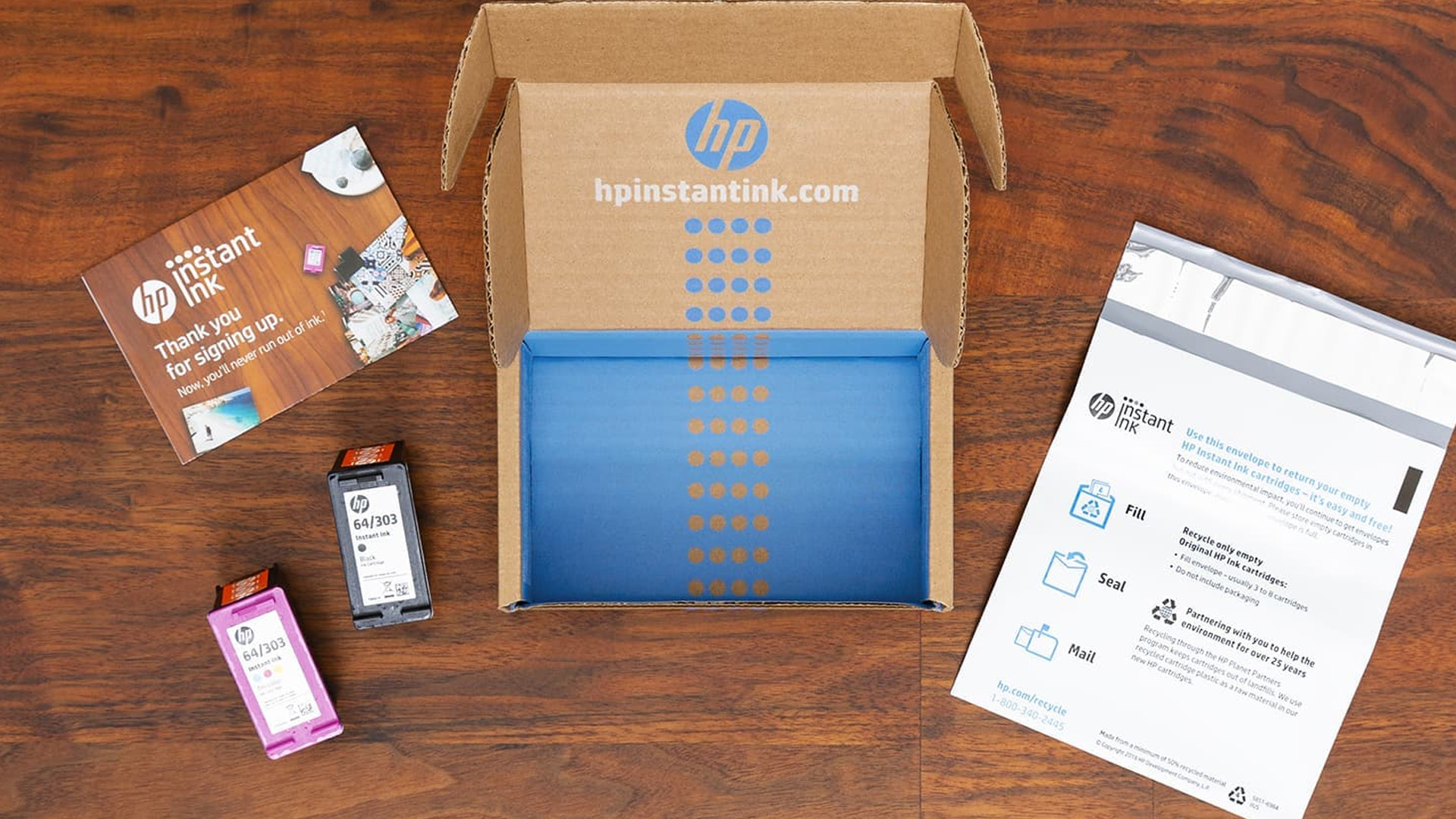
This is the part that catches people out. When your HP Instant Ink subscription ends, any subscription cartridges still in your printer will be remotely deactivated. They will no longer print, even if there's ink remaining in them.
To keep printing after cancellation, you'll need to have standard HP ink cartridges (Original HP Standard or XL cartridges) ready to install. It's sensible to order these in advance so you're not caught with a printer that refuses to print the moment your plan ends. It's not the most consumer-friendly aspect of the service, but it is clearly disclosed in the terms and conditions.

Never Run Out of Ink Again
HP Instant Ink is a well-thought-out subscription service that solves a genuine problem for regular printer users in the UK. Starting from just £1.79 a month, it's an accessible option whether you're a light home user or running a small business.
The service works best when your printer is connected, used regularly, and enrolled on the right plan for your actual print volume. Keep an eye on your monthly usage through the HP Smart app, make use of the rollover system, and don't be afraid to switch plans if your habits change.
If you're looking to get set up with a compatible printer, you'll find a great range of the best printers at Laptop Outlet, including a wide selection of HP models that are ready to work with HP Instant Ink from day one.
If you're buying new and want to make sure you're getting a compatible model, check out our guide to HP printer buying before you decide.

Just In Case You Missed It...
What is instant ink from HP?
HP Instant Ink is a monthly subscription service that automatically sends genuine HP ink cartridges to your door before your current supply runs out, charged per page printed.
How does HP Instant Ink work?
Your Wi-Fi-connected printer monitors ink levels and alerts HP when supplies are low, triggering automatic dispatch of replacement cartridges to your address.
How much does HP Instant Ink cost in the UK?
UK plans start at £1.79 per month for 10 pages, scaling up to £28.99 per month for 700 pages. Extra pages cost £1.50 per set.
Can I cancel HP Instant Ink at any time?
Yes, you can cancel anytime with no fees. Subscription cartridges will deactivate at the end of your billing cycle, so keep standard cartridges ready.
Does HP Instant Ink work with all HP printers?
Most HP inkjet printers manufactured in the last five years with Wi-Fi are compatible. Laser printer toner subscriptions are no longer available to new customers.
What happens to unused pages on my HP Instant Ink plan?
Unused pages roll over to the following month, accumulating up to three times your monthly plan allowance before they expire.
Is HP Instant Ink worth the cost?
For anyone printing 15 or more pages regularly each month, yes. Savings of up to 70% versus standard cartridges make it genuinely cost-effective for consistent users.
Related Articles


Published: April 13, 2026
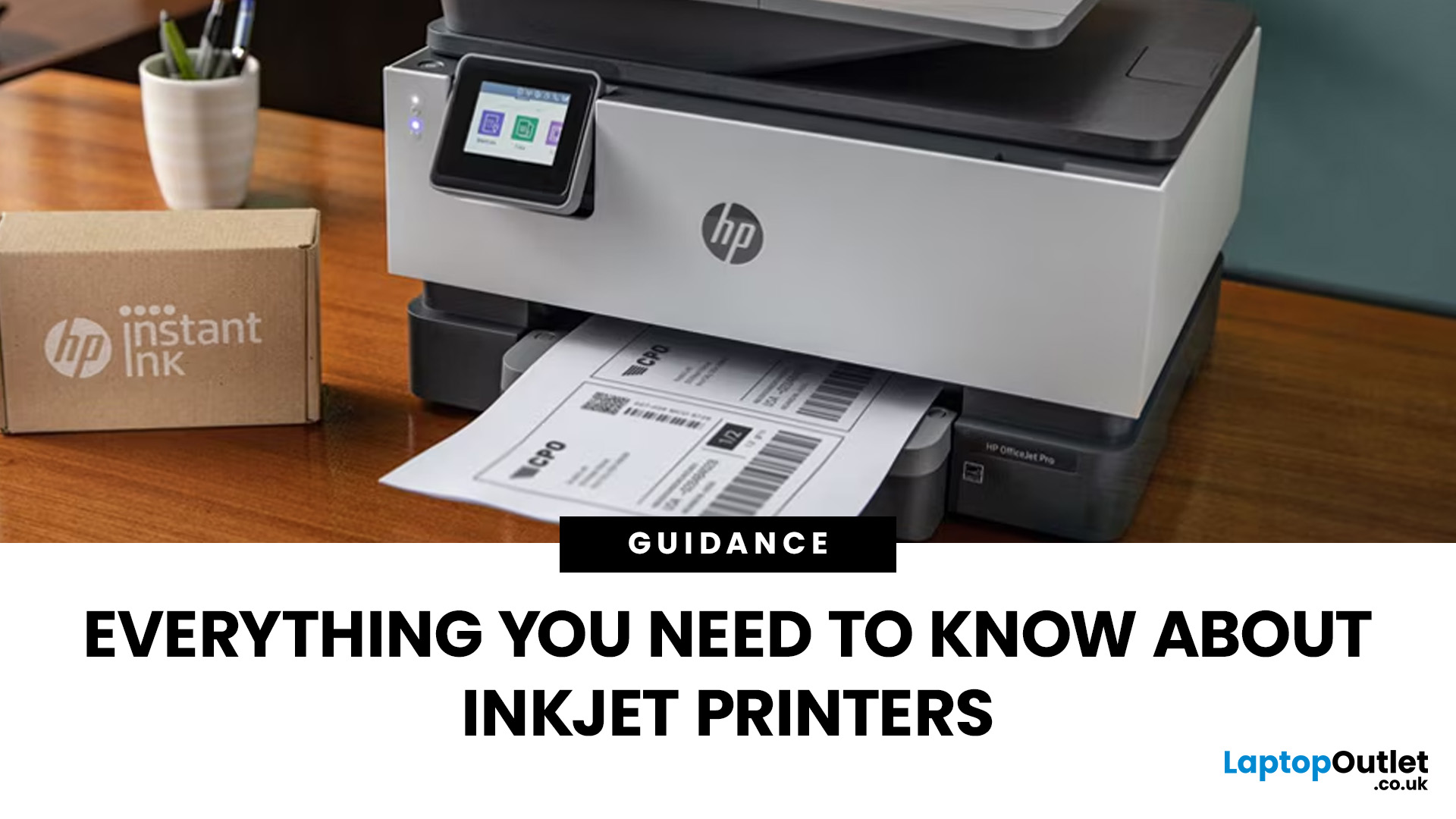
Inkjet printers are one of the most widely used printing solutions across UK homes, students, and small offices. They are affordable, versatile, and capable of producing high-quality colour output. But if you have used one for any length of time, you already know they can also be frustrating.
From faded prints to clogged nozzles and random error messages, inkjet printer problems are common. The good news is that most of these issues are not serious faults. In many cases, they are caused by usage habits, maintenance gaps, or simple setup errors. This guide goes beyond quick fixes. It explains why these problems happen, how to fix them properly, and how to prevent them in the future so your printer stays reliable long-term.
Why Inkjet Printer Problems Are So Common
To understand inkjet printer troubleshooting, you need to understand how these printers work in real use. Unlike laser printers, inkjet printers rely on liquid ink. That ink is pushed through extremely small nozzles to create
Last Updated: April 14, 2026
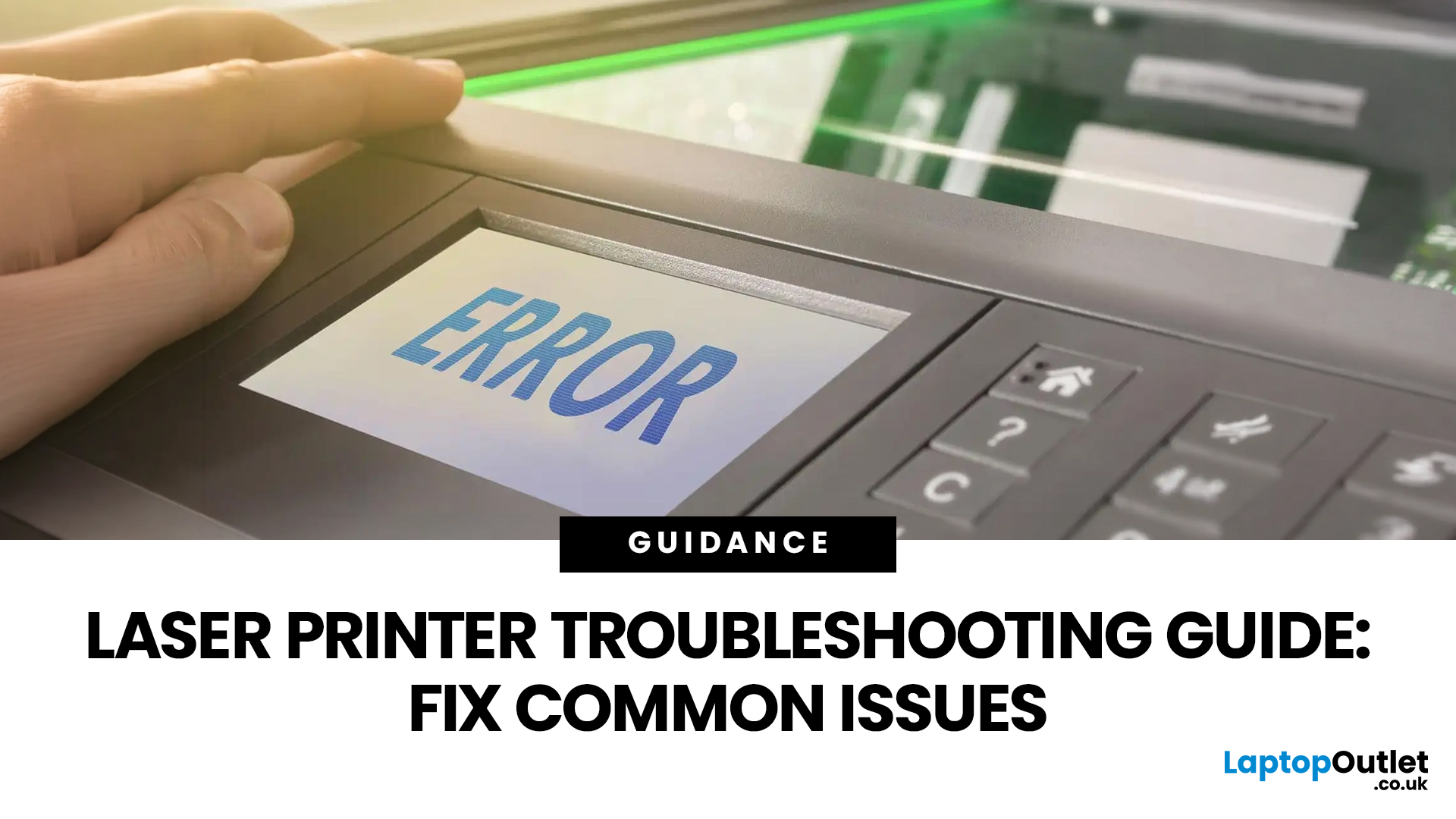
Buying a printer sounds simple until you start comparing print types, running costs, features, and maintenance. That is usually where inkjet models come into the picture. They are widely used, available at different price points, and often marketed as flexible printers for home and small office use. Even so, many buyers still have the same questions: what is an inkjet printer, how does it work, and is it the right fit for the way you print?
This inkjet printer guide breaks it down properly. It covers how inkjet printers work, the main types available, the real cost of ownership, how they compare with laser options, and what you need to know before buying one. Whether you need a printer for occasional homework, colour documents, creative work, or general home use, understanding the strengths and limits of inkjet printing makes it much easier to choose well.
What is an Inkjet Printer?
When people ask what is an inkjet printer, the simplest answer is that it is the most common type of printer
Last Updated: July 06, 2026
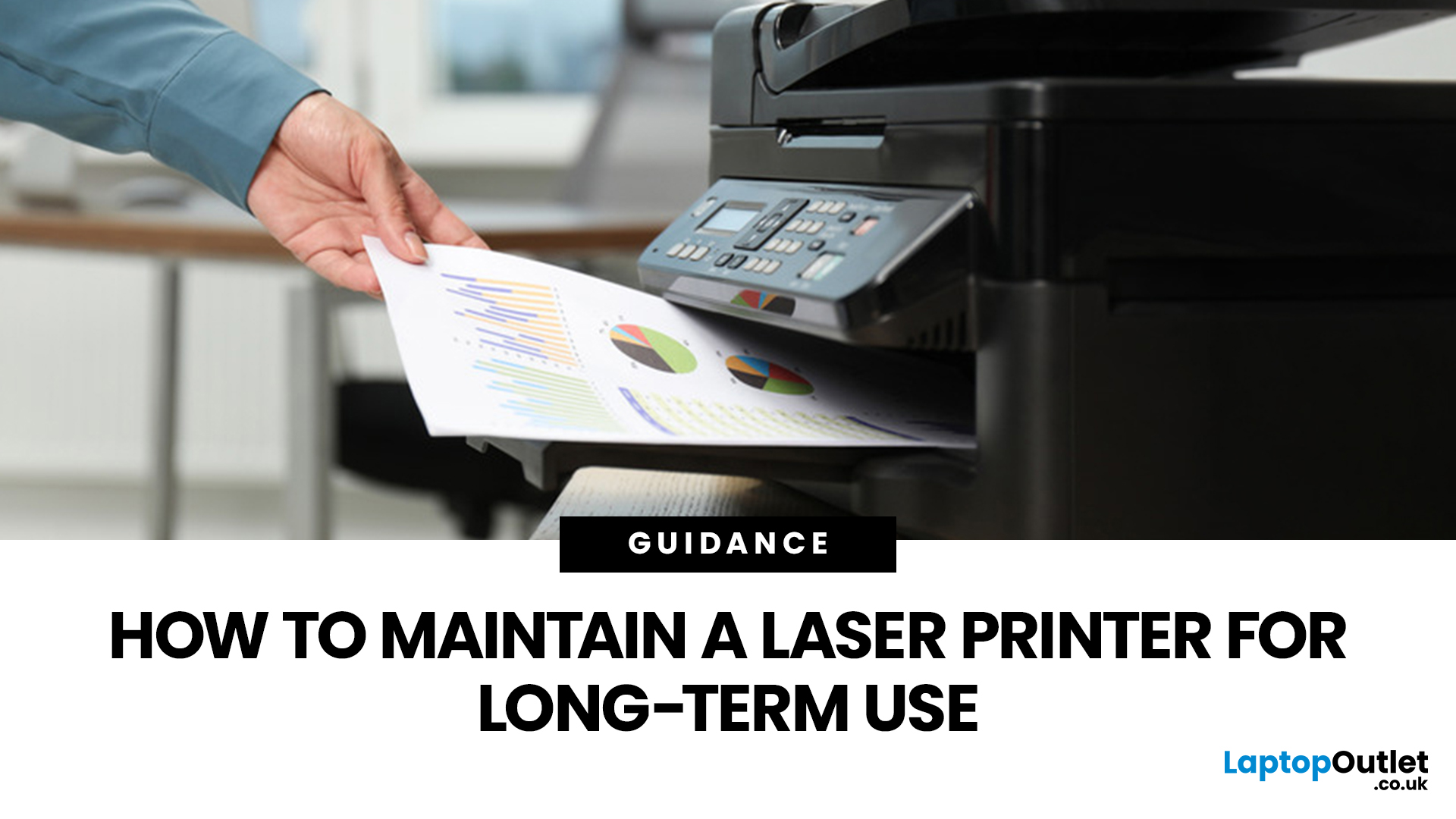
Laser printers are built for sharp text, fast output, and lower long-term running costs, but even reliable machines can develop faults. Smudged pages, streaks, repeated paper jams, faded print, offline errors, slow printing, and ghosting are common laser printer problems that occur in homes, student setups, and busy offices alike. The good news is that many laser printer issues can be diagnosed and fixed without calling support straight away.
This guide covers practical laser printer troubleshooting for the problems people hit most often, what usually causes them, and the steps worth trying before you replace parts or upgrade the printer.
If you want a clearer picture of how laser printers work before you start diagnosing faults, read our complete guide to laser printers, including how they work, where they perform best, and who should buy one.
A Quick Diagnostic Table for Common Laser Printer Problems
Before getting into the details, start here. In most cases, the symptom points you towards
Last Updated: April 22, 2026
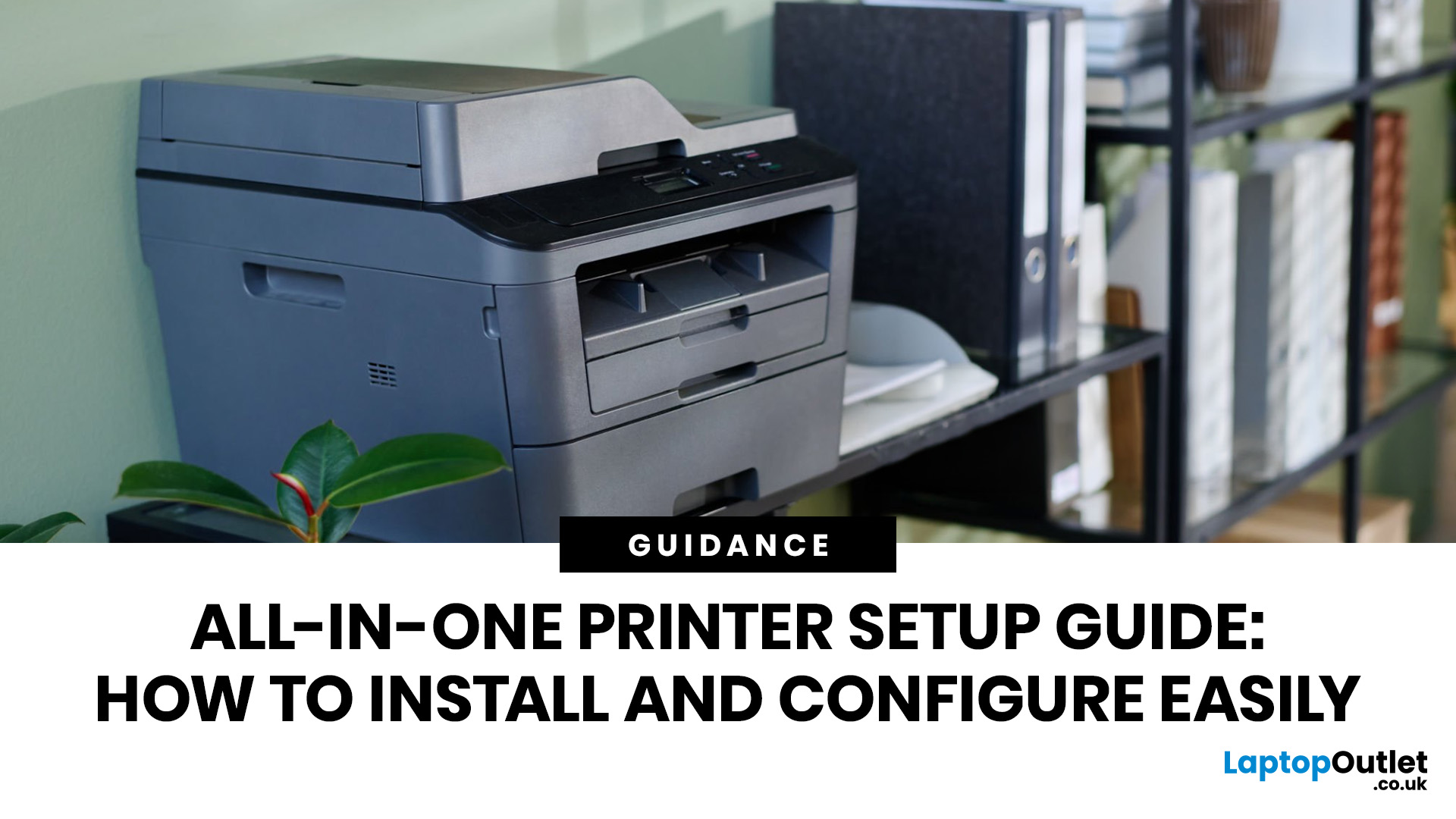
Laser printers are built for sharp text, fast output, and dependable running costs, but they still need routine care to stay reliable year after year. Dust, paper debris, toner residue, worn feed parts, and poor storage habits can all shorten a printer’s life long before any major component actually fails.
The good news is that laser printer maintenance does not need to be complicated. A sensible routine can help reduce smudging, paper jams, streaks, faded print, and unnecessary consumable waste. It can also help you maintain stable print quality for longer, which matters whether you are printing coursework at home, handling household paperwork, or managing documents in a busy office.
This guide covers the practical side of laser printer cleaning and long-term care, including how to clean a laser printer safely, what to check regularly, how to handle toner and drum maintenance, and when maintenance stops making sense, and replacement becomes the smarter choice. If you are still weighing
Last Updated: April 21, 2026
Setting up an all-in-one printer is usually much easier than people expect. The part that trips most users up is not the printer itself, but the order. If you prepare the hardware first, connect it the right way, and install the correct software in the right place, most all-in-one printer setup jobs are straightforward.
This guide walks through how to set up an all-in-one printer step by step, including USB, Wi-Fi, and network setup, driver installation, scanning setup, and the small configuration choices that make the printer easier to live with long term. If you are installing a multifunction printer at home, in a home office, or for a small team, this is the practical setup flow that saves the most time.
What is an All-in-One Printer Setup?
An all-in-one printer setup is the process of getting a multifunction printer ready to print, scan, copy, and in some cases fax. That means more than plugging it in and printing one test sheet. A proper setup also includes network access, driver
Last Updated: July 06, 2026
If your printer is acting up, the short answer is this: most all in one printer problems are fixable without replacing the whole machine. The fastest wins usually come from checking the connection, clearing the print queue, confirming the right printer is selected, inspecting paper loading, and running the built-in cleaning or alignment tools before assuming the hardware has failed. Microsoft, Brother, Epson, Canon, and HP all point users toward those same basics first, which is a strong sign that the smartest troubleshooting is usually methodical, not dramatic.
That is exactly what this guide is here to do. Instead of giving you random fixes with no logic behind them, this article breaks down the most common all-in-one printer issues, shows what each symptom usually means, and explains the best way to fix it. So, whether your machine is offline, feeding paper badly, refusing to scan, printing faded documents, or suddenly producing blank pages like it has given up on communication,
Published: April 24, 2026
If you want an all-in-one printer to last, the best approach is simple: keep it clean, use the built-in maintenance tools properly, and deal with small print-quality issues before they turn into bigger faults. Good all in one printer maintenance is less about deep cleaning every week and more about doing the right checks at the right time.
For most homes and small offices, that means cleaning the scanner glass and document feeder areas regularly, using printhead cleaning only when print quality drops, keeping paper and supplies in good condition, and not treating laser and inkjet models the same way. That last point matters. A multifunction printer cleaning routine for an inkjet is not the same as multifunction printer care for a laser model with a separate drum unit.
The Best Way to Keep an All-in-One Printer Working Well
The simplest all-in-one printer maintenance guide starts with routine care, not emergency fixes. Keep dust off the exterior, keep the scanner glass and ADF strip clean,
Published: April 24, 2026
An all-in-one printer is a machine that lets you print, scan, copy, and sometimes fax from one device. It is designed to save space, reduce setup hassle, and handle everyday home or office tasks without needing separate equipment.
An all-in-one printer, sometimes called a multifunction printer or MFP, combines multiple jobs into one device. Retailer and manufacturer guidance broadly agrees on the core value proposition: one device, less clutter, fewer cables, and a more streamlined workflow for home and office users.
Nobody wakes up thinking, “You know what would absolutely change my life today? A printer.” And yet, the second you need to print a return label, scan a signed document, copy schoolwork, or send a form to the office, your printer suddenly becomes the main character.
That is exactly why these all-in-one printers guide exists. We explain how all-in-one printers work, their key features, the main types, their benefits, costs, setup, maintenance, and how to choose the best one
Last Updated: June 10, 2026
The best HP printer depends on what you print, how often you print, whether you need scanning or copying, and how much you want to spend on ink or toner. For home users, an HP inkjet or all-in-one printer is usually the best choice. For offices and small businesses, HP OfficeJet, LaserJet or multifunctional printers are better for speed, reliability and heavier workloads.
Buying a printer can feel confusing because HP offers many different models for different users. Some are made for simple home printing. Some are designed for students and families. Others are built for small businesses, offices, shipping labels, high-volume printing or professional document handling. That is why choosing the right printer is not just about finding the cheapest model. It is about understanding your print habits, running costs, space, connectivity and long-term needs.
This HP printer guide 2026 will take you from basic printer knowledge to more advanced buying terms, so whether you are buying your first
Last Updated: July 06, 2026
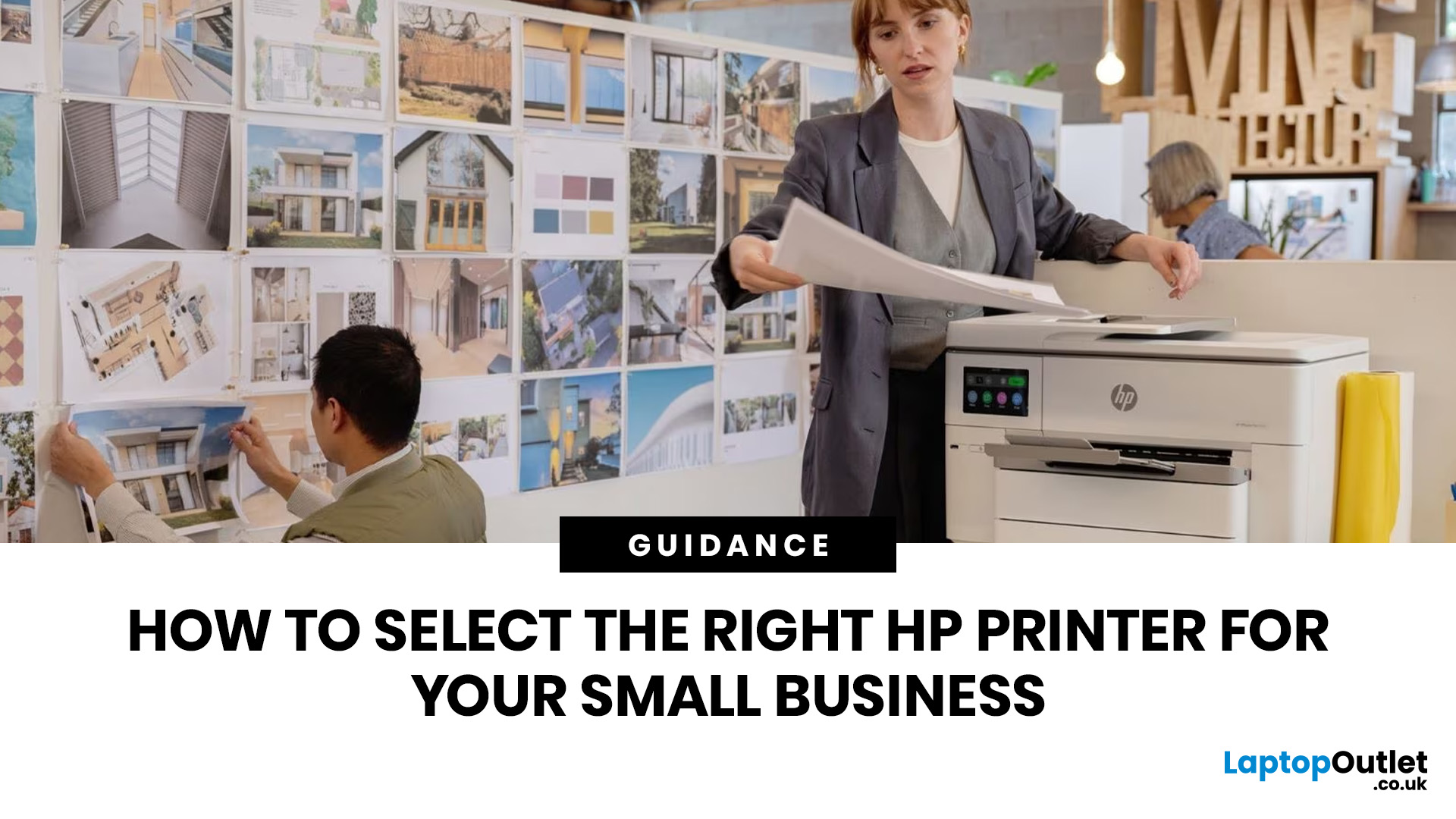
Buying one of the many HP printers for small business setups out there sounds easy until you start comparing them properly. Some are better for fast document printing, some are built for scanning and colour work, and some save you more money over time. The trick is not buying the fanciest one. It is buying the one that suits your workload. This guide walks through the HP printer types that make the most sense for home offices, small teams, and day-to-day business use.
Which HP Printer Type Should a Small Business Choose?
- If your business prints mixed colour documents, scans paperwork regularly and needs one compact machine, go for an HP all-in-one in the OfficeJet Pro range. OfficeJet Pro printers are best for higher-volume printing and all-around productivity in a home or home office, which is exactly the kind of workload many sole traders, hybrid workers and small teams deal with.
- If your business prints lots of text-heavy documents and speed matters more than photo-quality colour, choose

