



USB Types Explained: USB-A, USB-C, USB 3.2, USB4 and Thunderbolt
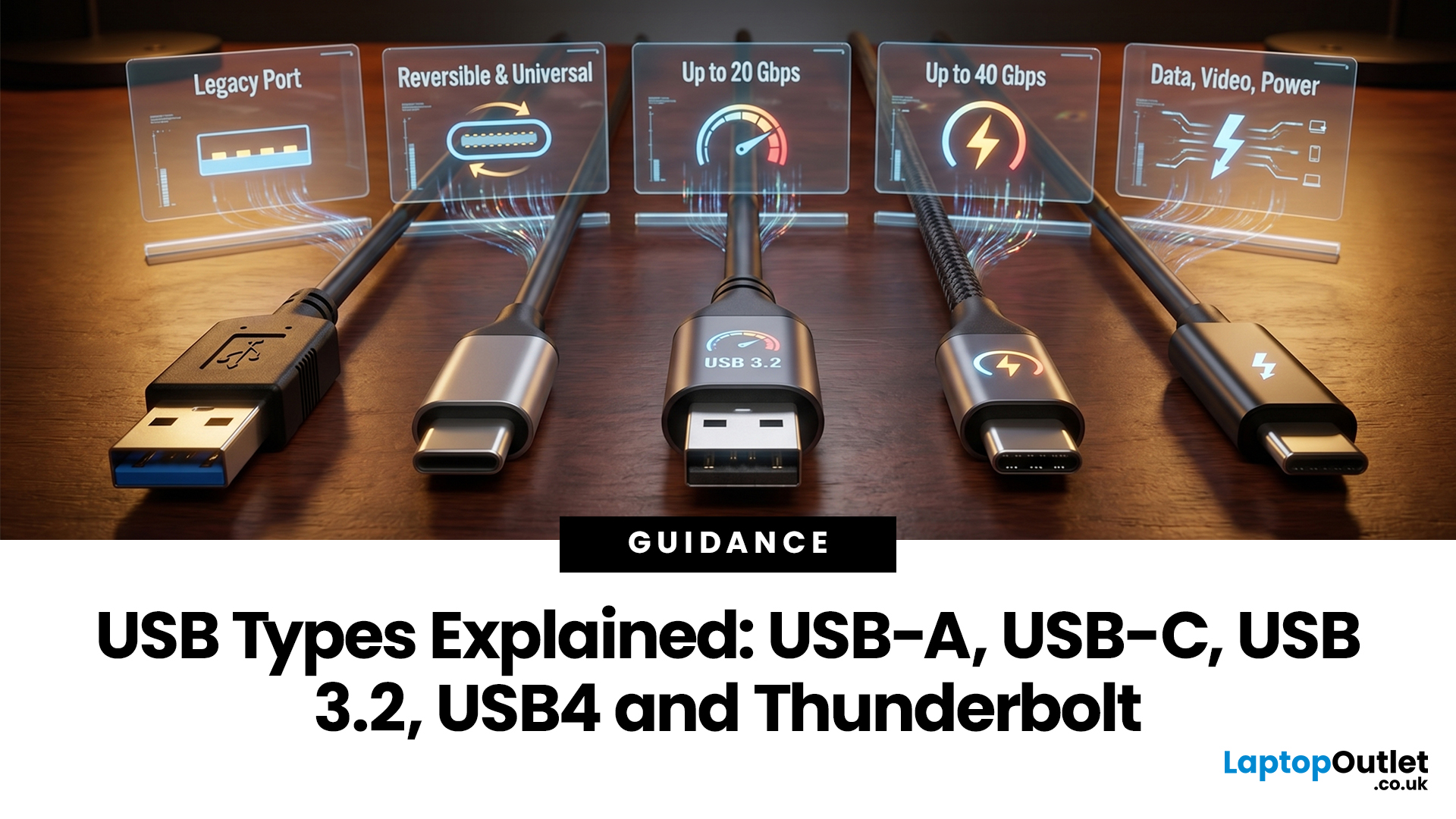
USB types can refer to either connector shape or USB version, but these are separate things. The main connector types are USB-A, USB-B, Mini USB, Micro USB and USB-C. Each can support different USB versions, such as USB 2.0, USB 3.2 or USB4, which define speed, power and feature support. USB-C is the current connector standard and can support up to 80Gbps data transfer and 240W charging.
This blog will have USB types explained to you clearly, from connector shapes to speeds, charging and compatibility.
What Is USB?
USB stands for Universal Serial Bus. It was introduced in 1996 by a consortium of companies including Intel, Microsoft and IBM with a single goal: to replace the chaotic mix of serial ports, parallel ports and proprietary connectors cluttering the back of every PC. That mission largely succeeded, and USB is now the world's most widely used wired connection standard.
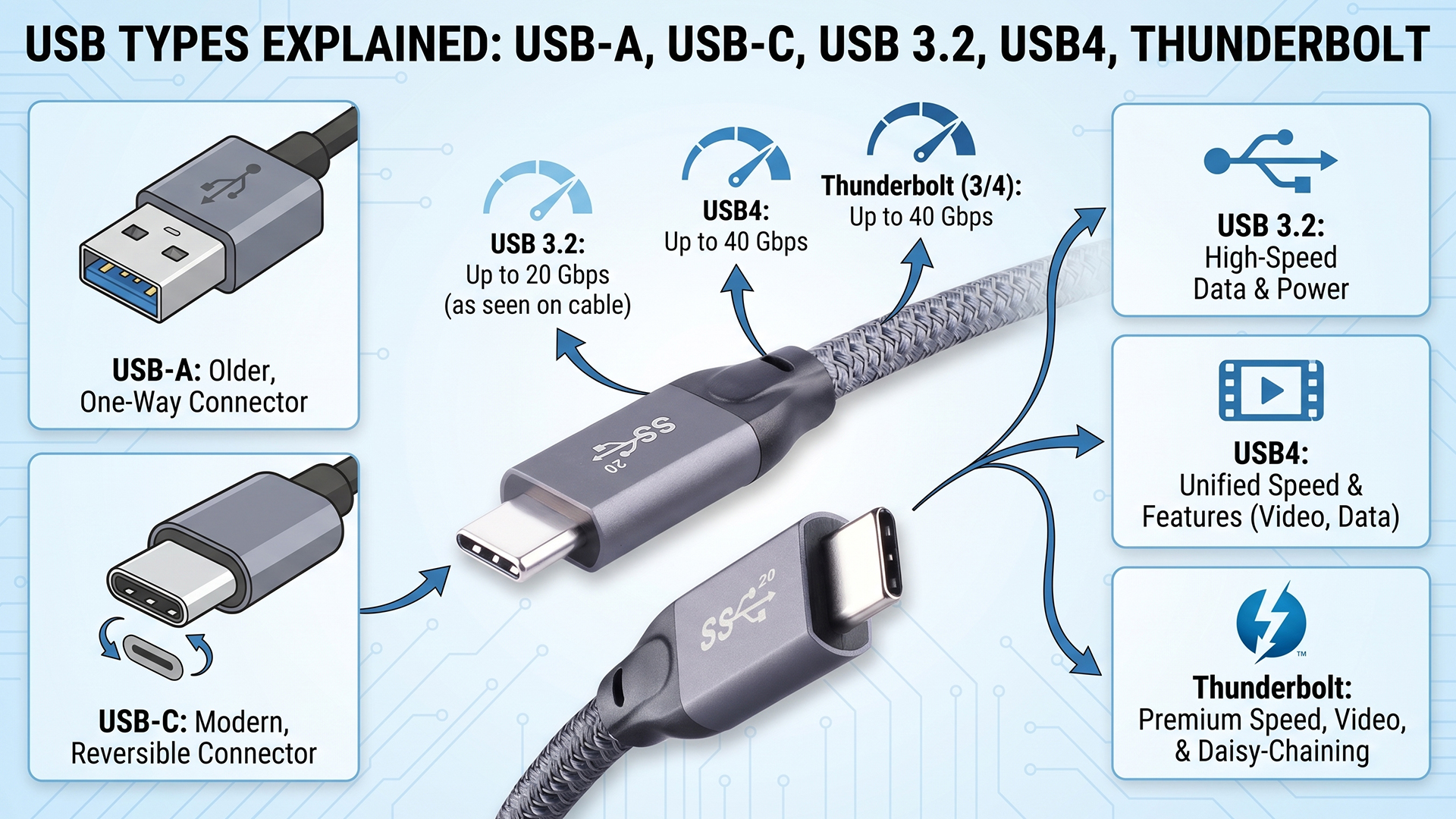
Today's USB ecosystem includes five main connector types and multiple protocol versions. It is important to understand that connector shape and protocol version are two separate things. The shape tells you what physically fits into the port; the version tells you how fast data travels. A blue USB-A port and a black USB-A port look almost identical, yet one can be ten times faster than the other.
Standards are governed by the USB Implementers Forum (USB-IF), the non-profit body responsible for certifying USB products and publishing specifications.
USB Connector Types Explained
There are five primary USB connector types in active use. Each was designed for specific devices and use cases. Mini USB and Micro USB are now legacy formats, but you will still encounter them on older and budget hardware. USB-A remains the most recognisable connector, while USB-C is the current standard moving forward.
What is USB-A (Standard-A)?
|
FEATURE |
DETAILS |
|---|---|
|
Shape |
Flat rectangle |
|
Pins |
4 (USB 2.0) / 9 (USB 3.x) |
|
Orientation |
One-way only |
|
Max speed |
Up to 10Gbps |
|
Status |
Current, mainly host-side |
USB-A is the flat, rectangular connector that nearly everyone recognises. It is the "host" end of most cables, plugging into computers, wall chargers, TVs, game consoles and hubs. You can only insert it one way, though most people learn that through trial and error.
USB-A supports versions from USB 1.1 all the way through to USB 3.2 Gen 2, which is now commonly marketed as USB 10Gbps. It will not physically accommodate USB4, which is USB-C only. Despite being one of the older connector formats, USB-A remains extremely common and is still found on many laptops sold in the UK today.
Common Uses
- Keyboards and mice via USB-A receivers
- USB sticks and external hard drives
- Wall chargers with USB-A ports for smartphones
- USB Wi-Fi and Ethernet networking adapters
- USB hubs to expand connectivity from a single port
- Printers, webcams and other peripherals
What is USB-B (Standard-B)?
|
FEATURE |
DETAILS |
|---|---|
|
Shape |
Square with bevelled top |
|
Pins |
4 (USB 2.0) / 9 (USB 3.x) |
|
Orientation |
One-way only |
|
Max speed |
Up to 5Gbps on the common USB 3.0 variant |
|
Status |
Legacy, but still in use |
USB-B is the square-shaped connector found on the device end of cables for printers, scanners and some audio interfaces. It is designed as the "peripheral" side of a USB-A to USB-B cable, meaning one end plugs into your computer and the other into the device.
The USB 3.0 variant of USB-B has a slightly larger design with additional pins to handle faster data transfer. Despite newer connector types becoming more common, USB-B is still actively used in office printing environments and professional audio gear.
Common Uses
- Printers and all-in-one machines in home and office settings
- Flatbed scanners
- Audio interfaces and MIDI controllers
- Industrial and laboratory equipment
What is USB-C (USB Type-C)?
|
FEATURE |
DETAILS |
|---|---|
|
Shape |
Small oval, 24-pin |
|
Pins |
24 |
|
Orientation |
Fully reversible |
|
Max speed |
Up to 80Gbps with USB4 v2 / USB 80Gbps |
|
Status |
Current connector standard |
USB-C was introduced by the USB-IF in 2014 and has rapidly become the universal connector for modern devices. Its defining features are the small oval shape, 24 pins and fully reversible design: there is no wrong way to plug it in. The same physical connector can carry USB 2.0, USB 3.2, USB4, Thunderbolt 3, Thunderbolt 4 or Thunderbolt 5 signals, depending on what the host device supports.
USB-C supports data transfer, power delivery of up to 240W with USB PD 3.1, video output via DisplayPort Alt Mode or HDMI Alt Mode, and PCIe tunnelling at the higher end. However, none of those advanced features are guaranteed just because a port is USB-C. The port, device, cable and charger all need to support the relevant feature.
Common Uses
- Charging laptops, smartphones, tablets and earbuds
- High-speed data transfer with external SSDs and storage
- Video output to monitors and displays, when Alt Mode or USB4/Thunderbolt support is present
- Docking stations offering a single-cable desk setup
- Thunderbolt devices including eGPUs and fast NVMe enclosures
What is Mini USB (Mini-B)?
|
FEATURE |
DETAILS |
|---|---|
|
Shape |
Trapezoid, 5-pin |
|
Pins |
5 |
|
Orientation |
One-way only |
|
Max speed |
480Mbps (USB 2.0) |
|
Status |
Legacy / phased out |
Mini USB was the go-to compact connector of the mid-2000s. It was widely used on digital cameras, GPS devices, early MP3 players and older external hard drives before Micro USB took over. The Mini-B variant, which is shaped like a slightly squashed trapezoid, is by far the most common mini format.
Mini USB was officially deprecated by the USB-IF in 2007 when Micro USB was introduced. While you are unlikely to encounter it on new devices, Mini USB cables are still needed for a range of legacy accessories. If you own older camera gear or a classic sat-nav, there is a good chance Mini USB is involved.
Common Uses (Legacy)
- Digital cameras and camcorders made before 2010
- Older GPS navigation devices
- MP3 players and USB hubs from the mid-2000s
- Some older game controllers
What is Micro USB (Micro-B)?
|
FEATURE |
DETAILS |
|---|---|
|
Shape |
Thin trapezoid |
|
Pins |
5 (USB 2.0) / 10 (USB 3.0 Micro-B) |
|
Orientation |
One-way only |
|
Max speed |
480Mbps / 5Gbps with USB 3.0 Micro-B |
|
Status |
Legacy, but still common |
Micro USB replaced Mini USB as the compact standard for smartphones and small devices from around 2007 onwards. For over a decade it was the dominant charging connector on Android smartphones, tablets, e-readers and Bluetooth accessories. The USB 3.0 Micro-B variant is wider, with an additional set of pins alongside the main connector, and is typically found on older portable hard drives.
Micro USB is gradually being replaced by USB-C across the board. However, it remains on a large number of budget Android handsets, older power banks, some gaming controllers and various accessories. If you still rely on Micro USB cables, they are widely available and inexpensive.
Common Uses
- Budget Android smartphones and tablets, especially older models
- Power banks, particularly older units
- Bluetooth headsets and speakers
- Older portable hard drives using USB 3.0 Micro-B
- Game controllers, including older PlayStation and Xbox pads
USB Connector Types at a Glance
|
CONNECTOR |
SHAPE |
REVERSIBLE? |
MAX VERSION |
MAX SPEED |
STATUS |
|---|---|---|---|---|---|
|
USB-A |
Flat rectangle |
No |
USB 3.2 Gen 2 / USB 10Gbps |
10Gbps |
Current |
|
USB-B |
Square, bevelled top |
No |
USB 3.2 Gen 1 / USB 5Gbps |
5Gbps |
Legacy / active |
|
USB-C |
Small oval |
Yes |
USB4 v2 / Thunderbolt 5 |
80Gbps normally; Thunderbolt 5 can use 120Gbps Bandwidth Boost for display-heavy workloads |
Current standard |
|
Mini USB |
Trapezoid, 5-pin |
No |
USB 2.0 |
480Mbps |
Legacy |
|
Micro USB |
Thin trapezoid |
No |
USB 3.0 Micro-B |
5Gbps |
Legacy / common |
USB Versions and Speeds Explained
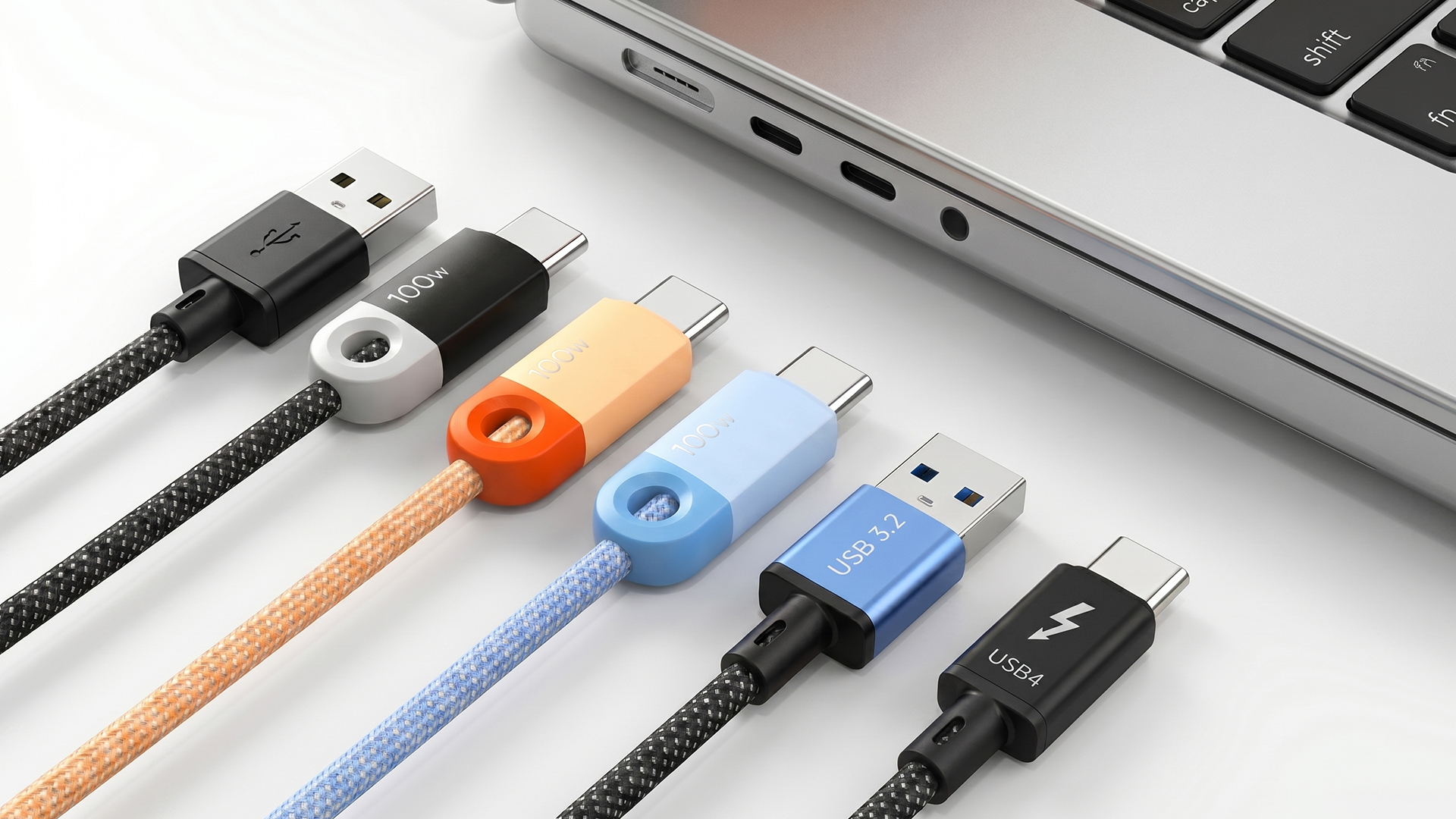
The version of USB determines how fast data travels through a cable. This is separate from the physical connector shape. Understanding USB versions is essential when comparing laptops, choosing a hub or buying an external drive, because speed varies enormously across generations.
The naming history of USB is, frankly, confusing. The USB-IF has renamed standards multiple times, and marketing names rarely match older technical names. For buying decisions in 2026, prioritise the speed label in Gbps. A port or cable marked USB 10Gbps is easier to understand than one labelled only USB 3.2 Gen 2.
USB 1.1 (Full Speed)
|
FEATURE |
DETAILS |
|---|---|
|
Released |
1998 |
|
Speed |
12Mbps |
|
Port colour |
White, where colour coding is used |
|
Status |
Obsolete |
USB 1.1 was the first widely adopted version of USB. At 12Mbps, it was a significant improvement over the serial and parallel ports it replaced. You are extremely unlikely to encounter a USB 1.1 port on any modern device. It is included here only for historical completeness.
USB 2.0 (Hi-Speed)
|
FEATURE |
DETAILS |
|
Released |
2000 |
|
Speed |
480Mbps |
|
Port colour |
Black, where colour coding is used |
|
Status |
Active and widely used |
USB 2.0 is still found on virtually every laptop and desktop sold today, even in 2026. At 480Mbps, it is perfectly adequate for keyboards, mice, basic webcams and simple flash drives. Transferring large files or connecting external SSDs over USB 2.0 will be noticeably slow, so it is worth knowing which ports on your laptop are USB 2.0 and which are faster.
USB 3.2 Gen 1 (formerly USB 3.0)
|
FEATURE |
DETAILS |
|---|---|
|
Released |
2008 |
|
Speed |
5Gbps |
|
Port colour |
Blue on many USB-A ports, where colour coding is used |
|
Consumer-facing speed label |
USB 5Gbps |
|
Status |
Very common |
What was originally called USB 3.0 was later renamed USB 3.1 Gen 1, and then again renamed USB 3.2 Gen 1. The speed is 5Gbps, which is ten times faster than USB 2.0. The blue colour of the USB-A insert is often the easiest way to spot it, but manufacturers do not apply colour coding consistently, so the printed speed/specification is more reliable.
USB 3.2 Gen 2 (formerly USB 3.1)
|
FEATURE |
DETAILS |
|---|---|
|
Released |
2013 |
|
Speed |
10Gbps |
|
Port colour |
Blue, darker blue or teal on some devices, where colour coding is used |
|
Consumer-facing speed label |
USB 10Gbps |
|
Status |
Common on mid-range devices |
USB 3.2 Gen 2 doubles the speed of USB 3.2 Gen 1 to 10Gbps. It is a meaningful upgrade if you regularly transfer large files or use fast external SSDs. Available on both USB-A and USB-C connectors, it is common on mid-range laptops, business notebooks and modern desktops.
USB 3.2 Gen 2x2
|
FEATUER |
DETAILS |
|---|---|
|
Released |
2017 |
|
Speed |
20Gbps |
|
Connector |
USB-C only |
|
Consumer-facing speed label |
USB 20Gbps |
|
Status |
Less common |
USB 3.2 Gen 2x2 achieves 20Gbps by using two 10Gbps lanes simultaneously. It is only available via USB-C and is not as widely implemented as the other USB 3.2 variants. If you need this speed, check the laptop's spec sheet explicitly: the connector alone does not tell you.
USB4 (Gen 3x2)
|
FEATURE |
DETAILS |
|---|---|
|
Released |
2019 |
|
Speed |
Up to 40Gbps |
|
Connector |
USB-C only |
|
Consumer-facing speed label |
USB 40Gbps |
|
Status |
Common on higher-end devices |
USB4 is based on the Thunderbolt 3 protocol contributed by Intel to the USB-IF. It combines data, display and PCIe tunnelling into a single USB-C connection. USB4 can reach 40Gbps and supports running multiple protocols simultaneously, making it ideal for docking stations and high-performance peripherals.
USB4 is an open, royalty-free standard, which means it is appearing in both Intel and AMD-based devices. However, not all USB4 ports are equal: the minimum spec for USB4 is 20Gbps, and some ports achieve 40Gbps only under certain conditions. Always look for explicit USB4 40Gbps or USB 40Gbps labelling when performance matters.
USB4 Version 2.0
|
FEATURE |
DETAILS |
|---|---|
|
Released |
2022; rolling out through newer hardware |
|
Speed |
Up to 80Gbps |
|
Connector |
USB-C only |
|
Consumer-facing speed label |
USB 80Gbps |
|
Status |
Emerging, not yet widespread |
USB4 Version 2.0 doubles the maximum bidirectional bandwidth to 80Gbps, matching the baseline speed of Thunderbolt 5. It also supports DisplayPort 2.1 and can work alongside USB Power Delivery up to 240W when the device, charger and cable support it. As of 2026, USB4 v2 / USB 80Gbps is still an emerging high-end feature rather than something you should assume on every USB-C laptop.
USB Versions Comparison Table (2026)
|
Official / technical name |
Also known as |
Max speed |
Power note |
Connector(s) |
Video output? |
|---|---|---|---|---|---|
|
USB 1.1 |
Full Speed |
12Mbps |
Basic USB power only |
USB-A, USB-B |
No |
|
USB 2.0 |
Hi-Speed |
480Mbps |
Basic USB power; USB-C charging can vary |
USB-A, USB-B, Mini, Micro, USB-C |
No, except separate USB-C Alt Mode implementations |
|
USB 3.2 Gen 1 |
USB 3.0 / USB 5Gbps |
5Gbps |
USB PD is separate from the data version |
USB-A, USB-C, Micro-B |
Possible only on USB-C ports with DisplayPort/HDMI Alt Mode; not guaranteed by USB 3.2 itself |
|
USB 3.2 Gen 2 |
USB 3.1 / USB 10Gbps |
10Gbps |
USB PD is separate from the data version |
USB-A, USB-C |
Possible only on USB-C ports with Alt Mode support; not guaranteed by USB 3.2 itself |
|
USB 3.2 Gen 2x2 |
USB 20Gbps |
20Gbps |
USB PD is separate from the data version |
USB-C only |
Possible only if the USB-C port supports video Alt Mode |
|
USB4 Gen 3x2 |
USB4 40Gbps / USB 40Gbps |
40Gbps |
USB PD can support up to 240W with compatible hardware and cable |
USB-C only |
Yes, via DisplayPort tunnelling; exact monitor support varies |
|
USB4 v2 / Gen 4x2 |
USB4 80Gbps / USB 80Gbps |
80Gbps |
USB PD can support up to 240W with compatible hardware and cable |
USB-C only |
Yes, with DisplayPort 2.1-class support on compatible devices |
What to Look for on USB Packaging and Port Labels
The easiest way to avoid buying the wrong cable, charger or hub is to check three things: speed, charging wattage and feature support. USB-IF's newer consumer-facing labels are designed around practical numbers such as USB 10Gbps, USB 40Gbps, 60W and 240W.
|
LABLE OR MARKING |
WHAT IT USUALLY MEANS |
WHAT TO CHECK |
|---|---|---|
|
USB 5Gbps |
5Gbps data transfer |
Enough for basic external drives and hubs |
|
USB 10Gbps |
10Gbps data transfer |
Good for many external SSDs |
|
USB 20Gbps |
20Gbps data transfer |
Requires USB-C and compatible host/device |
|
USB 40Gbps |
USB4 or Thunderbolt-class bandwidth |
Check USB4 vs Thunderbolt features |
|
USB 80Gbps |
USB4 v2-class bandwidth |
High-end and not yet universal |
|
60W / 100W / 240W |
Cable or charger power rating |
Device, cable and charger must all support the required wattage |
|
DP Alt Mode / DisplayPort logo |
Video output over USB-C |
Needed for many USB-C monitor connections |
|
Lightning bolt symbol |
Thunderbolt support |
A number beside it usually indicates Thunderbolt 3, 4 or 5 |
What is USB Power Delivery (USB PD)?
USB Power Delivery is a charging specification that allows a USB-C port to negotiate higher power levels between a charger and a device. Without USB PD, USB-C charging is typically limited to lower basic power levels. With USB PD, the same cable and port can deliver up to 240W depending on the revision, which is enough to charge everything from earbuds to high-performance laptops.
USB PD works by allowing the charger and device to "handshake" and agree on the most appropriate voltage and current level. This process is what makes it safe to use a single charger for multiple devices of different power requirements.
USB PD Versions
|
VERSION |
MAX POWER |
KEY FEATURE |
COMMON USE CASE |
|---|---|---|---|
|
USB PD 1.0 |
100W |
Initial specification |
Early USB-C chargers |
|
USB PD 2.0 |
100W |
Fixed power profiles |
Smartphones, tablets and mainstream laptops |
|
USB PD 3.0 |
100W |
PPS for fine-grained voltage control |
Fast-charging smartphones and Chromebooks |
|
USB PD 3.1 (EPR) |
240W |
Extended Power Range using 28V, 36V and 48V levels |
Higher-power laptops, workstations and monitors |
USB-C Cable Warning: Not All Cables Are Equal
A USB-C cable is not automatically fast, high-wattage or display-capable just because the plug fits. This is one of the biggest causes of confusion when people buy USB-C chargers, docks and external drives.
|
CABLE ISSUE |
WHY IT MATTERS |
|---|---|
|
Charge-only USB-C cables |
They may charge a device but provide little or no useful data transfer support. |
|
USB 2.0 USB-C cables |
They use the modern USB-C connector but may be limited to 480Mbps. |
|
60W, 100W and 240W ratings |
Cable wattage determines the safe charging limit. A 60W cable will not deliver 100W or 240W charging. |
|
E-marker chips |
Higher-power and higher-speed USB-C cables often include electronic marking so devices can identify their capabilities. |
|
USB4 / Thunderbolt cables |
You need the right cable to achieve 40Gbps, 80Gbps or Thunderbolt performance. |
|
Video support |
Video support USB-C monitor output requires a cable and port that support DisplayPort Alt Mode, USB4 or Thunderbolt. Some docks and adapters also rely on suitable network cables for wired Ethernet connections. |
Buying tip: For laptop charging, look for the wattage rating. For external SSDs and docks, look for the Gbps rating. For monitors, check DisplayPort Alt Mode, USB4 or Thunderbolt support.
Proprietary Fast Charging: What About GaN Chargers?
GaN, or gallium nitride, is not a USB standard itself; it refers to the semiconductor material used inside the charger. GaN chargers are smaller, run cooler and are more efficient than traditional silicon chargers. Many GaN chargers from brands such as Anker and Verbatim support USB PD 3.1, making them strong choices for charging modern laptops via USB-C.
Separately, manufacturers such as Qualcomm and Samsung have proprietary fast-charging protocols. These generally work over USB-C but require compatible chargers and devices to hit their maximum speeds. Standard USB PD charging will still work on many of these devices, just not always at the fastest advertised rate.
Thunderbolt vs USB: What Is the Difference?
Thunderbolt is a high-speed interface standard developed jointly by Intel and Apple, first introduced in 2011. From Thunderbolt 3 onwards, it uses the USB-C connector, which is why people often confuse it with USB. The key difference is that Thunderbolt is a more strictly certified protocol with guaranteed performance levels, while USB standards allow more flexibility in manufacturer implementation.
In practical terms: every Thunderbolt 3, 4 or 5 port is physically a USB-C port and will accept standard USB-C devices. But not every USB-C port is a Thunderbolt port. Thunderbolt requires certification, specific hardware support and mandatory feature testing that standard USB-C does not.
Thunderbolt Versions Compared
|
STANDARD |
MAX SPEED |
MAX POWER |
DISPLAYS |
CONNECTOR |
AVAILABILITY |
|---|---|---|---|---|---|
|
Thunderbolt 3 |
40Gbps |
100W |
Up to 2x 4K at 60Hz, depending on device |
USB-C |
Common from 2016 onwards |
|
Thunderbolt 4 |
40Gbps guaranteed |
100W |
2x 4K or 1x 8K |
USB-C |
Very common from 2020 onwards |
|
Thunderbolt 5 |
80Gbps bidirectional; up to 120Gbps Bandwidth Boost |
Up to 240W where supported |
Up to dual 8K or triple 4K-class setups on compatible systems; exact support depends on host, dock, GPU, operating system and displays |
USB-C |
High-end devices from 2024 onwards |
Thunderbolt 4 vs USB4: Key Differences
Thunderbolt 4 and USB4 both deliver up to 40Gbps over a USB-C connector and are broadly compatible with each other. The differences lie in what is mandated versus optional. Thunderbolt 4 always guarantees 40Gbps bandwidth, PCIe tunnelling and support for two 4K displays. USB4 starts at a minimum of 20Gbps, and PCIe tunnelling and multi-display support are optional features that manufacturers may or may not include.
The simple rule: Thunderbolt 4 is the fully loaded, certified version. USB4 is the flexible open standard where the actual feature set depends on the manufacturer. A USB4 port on one laptop may perform identically to a Thunderbolt 4 port; on another, it may be significantly more limited. Always check the specific port specification.
Thunderbolt 5 in 2026
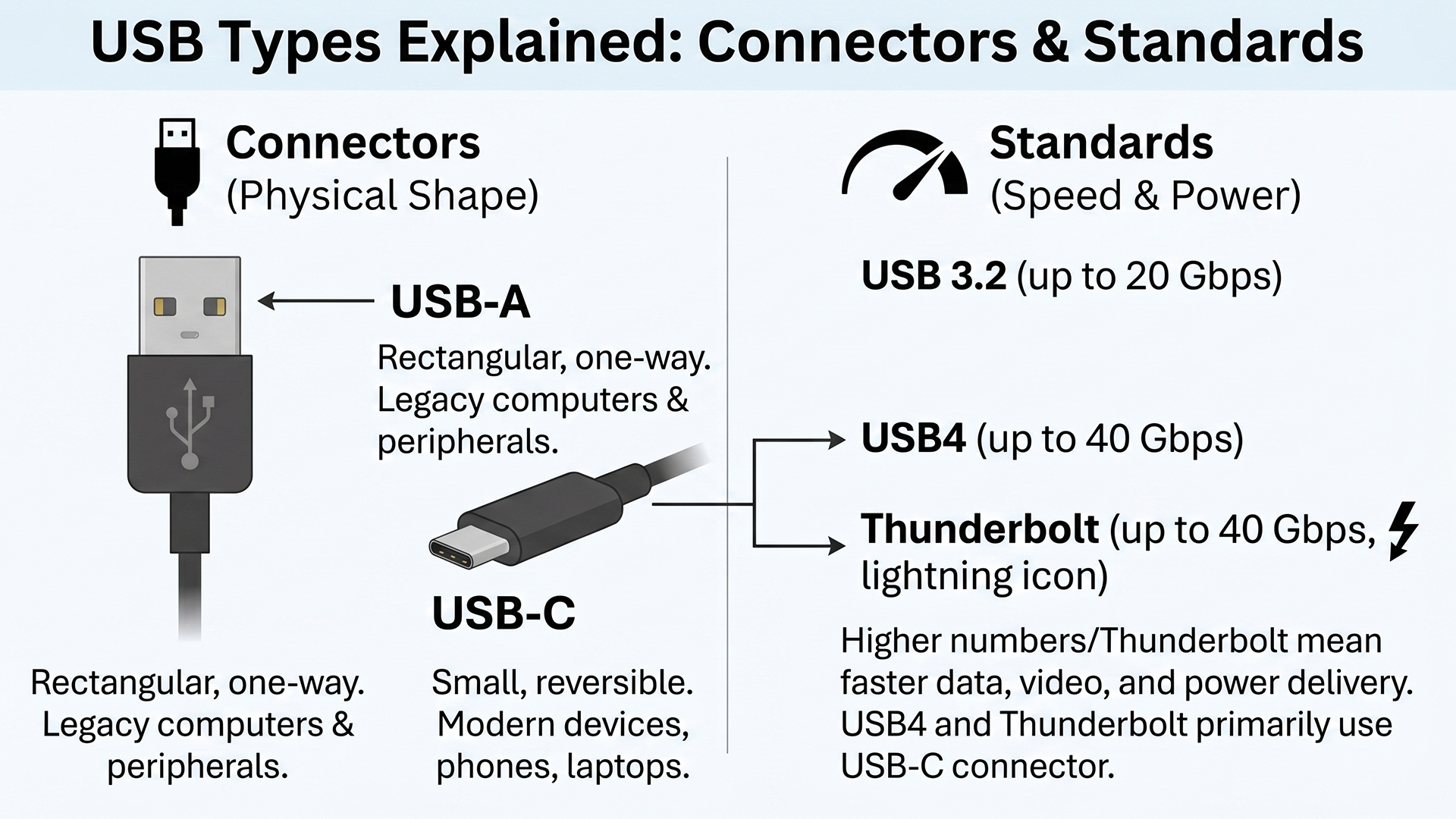
Thunderbolt 5 offers 80Gbps bidirectional bandwidth, rising to 120Gbps in Bandwidth Boost mode, which reallocates bandwidth towards display-heavy workloads when needed. It supports DisplayPort 2.1 and is designed for high-resolution, high-refresh-rate monitor setups, fast storage, docks and creator workflows. As of 2026, Thunderbolt 5 is still mainly a premium feature found on selected high-end laptops, workstations and docks. Availability changes quickly, so check the exact laptop or motherboard specification before buying.
Tip: To identify a Thunderbolt port, look for the lightning bolt symbol printed next to the USB-C port. A number alongside it, such as a lightning bolt with 4 or 5, usually indicates the Thunderbolt version. USB4 ports without Thunderbolt certification typically display only USB4 text or a USB speed logo.
Thunderbolt vs USB4 vs USB-C: Quick Reference
|
FEATURE |
USB-C WITH USB 3.2 |
USB4 40GBPS |
THUNDERBOLT4 |
THUNDERBOLT5 |
|---|---|---|---|---|
|
Max speed |
5-20Gbps |
40Gbps |
40Gbps guaranteed |
80Gbps / 120Gbps Bandwidth Boost |
|
PCIe tunnelling |
No |
Optional |
Required |
Required, with newer PCIe support |
|
Multi-display |
Depends on Alt Mode, dock, GPU and cable |
Supported via DisplayPort tunnelling, but monitor count varies |
2x 4K or 1x 8K |
High-end multi-display support; exact support varies by system |
|
Daisy-chaining |
No |
USB4 hubs supported; Thunderbolt-style daisy-chaining depends on device support |
Yes, up to 6 devices |
Yes |
|
Certification |
No |
USB-IF certification available |
Thunderbolt certification |
Thunderbolt certification |
|
Open standard? |
Yes |
Yes |
No, proprietary certification |
No, proprietary certification |
|
Backward compatible? |
Yes, with USB |
Yes, with USB |
Yes, with Thunderbolt 3 and USB |
Yes, with Thunderbolt 4, Thunderbolt 3 and USB4 |
Which USB Type Do You Need?
Choosing the right USB connector and version depends on what you actually need to do. The table below gives the practical answer based on common use cases.
|
USE CASE |
RECOMMENDED CONNECTOR |
MINIMUM VERSION/FEATURE |
NOTES |
|---|---|---|---|
|
Keyboard / mouse |
USB-A or USB-C |
USB 2.0 |
USB 2.0 is more than sufficient for input devices |
|
Charging a smartphone |
USB-C for modern phones; Micro USB for older devices |
USB PD for faster USB-C charging |
Check the phone and charger wattage |
|
Charging a laptop |
USB-C |
USB PD 3.0 or 3.1 |
Check wattage; higher-power laptops may need USB PD 3.1 EPR |
|
External SSD, fast |
USB-C |
USB 3.2 Gen 2 / USB 10Gbps or higher |
Match port, cable and drive speed |
|
External HDD, standard |
USB-A or USB-C |
USB 3.2 Gen 1 / USB 5Gbps |
5Gbps exceeds the speed of most mechanical drives |
|
USB flash drive |
USB-A or USB-C |
USB 3.2 Gen 1 / USB 5Gbps minimum |
Avoid USB 2.0 for drives over 32GB |
|
External monitor, single |
USB-C |
DisplayPort Alt Mode, USB4 or Thunderbolt |
Check the laptop supports video over USB-C |
|
Multi-monitor setup |
USB-C / Thunderbolt |
Thunderbolt 4 or USB4 40Gbps |
Thunderbolt 4 guarantees more; USB4 varies |
|
Docking station |
USB-C / Thunderbolt |
Thunderbolt 4 for reliability; USB4 as a lower-cost option |
Thunderbolt docks offer the most consistent feature set |
|
Printer / scanner |
USB-A to USB-B |
USB 2.0 |
Most printers still use USB-B; USB 2.0 is adequate |
|
Video editing, 4K+ |
USB-C / Thunderbolt |
USB4 40Gbps, USB 80Gbps or Thunderbolt |
Higher bandwidth reduces bottlenecks with large files |
|
Wired internet connection |
USB-A or USB-C |
Ethernet adapter or dock |
Useful for laptops without built-in Ethernet ports and other networking devices |

The future is USB-C, but the past is still here
Getting USB types explained properly makes a genuine difference to how you buy and use technology. USB-A remains common for peripherals, Micro USB still appears on legacy and budget devices, and USB-B handles printers and professional audio. But it is USB-C that defines modern connectivity: reversible, capable of high-speed data, high-wattage charging and video output from a single connector when the device, port and cable support those features.
The simplest rule is this: connector shape tells you what fits, but the speed label, power rating and feature support tell you what it can actually do.

Let’s clear up a few things…
What is the difference between USB-A and USB-C?
USB-A is the classic flat rectangular connector. USB-C is smaller, oval-shaped and reversible. USB-C can also support much faster speeds, higher charging power and video output, but only when the port, device and cable support those features.
What does SS mean on a USB port?
SS stands for SuperSpeed, an older USB branding term usually indicating a USB 3.x port capable of 5Gbps or faster. SS+ usually refers to SuperSpeed+ at 10Gbps or above. Newer consumer labels such as USB 5Gbps, USB 10Gbps and USB 20Gbps are clearer than SS markings.
Is USB-C the same as Thunderbolt?
No. USB-C describes the physical connector shape; Thunderbolt is a separate high-performance protocol that uses the USB-C connector. Thunderbolt offers guaranteed bandwidth and additional features such as PCIe tunnelling.
What is USB Power Delivery?
USB Power Delivery, or USB PD, allows a USB-C charger and device to negotiate power levels, enabling safe fast charging up to 240W with USB PD 3.1 across compatible devices, chargers and cables.
Are all USB-C cables the same?
No. USB-C cables vary considerably in speed rating, power delivery capacity and protocol support. Always verify the cable specification before use, particularly for high-wattage charging, external SSDs, monitors and docking stations.
Can any USB-C port connect to a monitor?
No. USB-C monitor output requires DisplayPort Alt Mode, HDMI Alt Mode, USB4 or Thunderbolt support. A USB-C port used only for charging or USB 2.0 data may not output video at all.
What is the best USB type to buy now?
For new devices, USB-C is the safest long-term choice. For basic peripherals, USB-A is still useful. For docks, fast storage and multi-monitor setups, look for USB4, Thunderbolt 4, Thunderbolt 5 or a clearly labelled USB 40Gbps/USB 80Gbps port.
| Read More: |
| Choosing the Right Display Cable: HDMI vs DisplayPort vs USB-C vs VGA |
| Do USB to Ethernet Adapters Work? Everything You Need to Know |
| Bluetooth Not Connecting on Laptop? Here’s How to Fix It |
Related Articles

Last Updated: September 29, 2026
Quick Answer
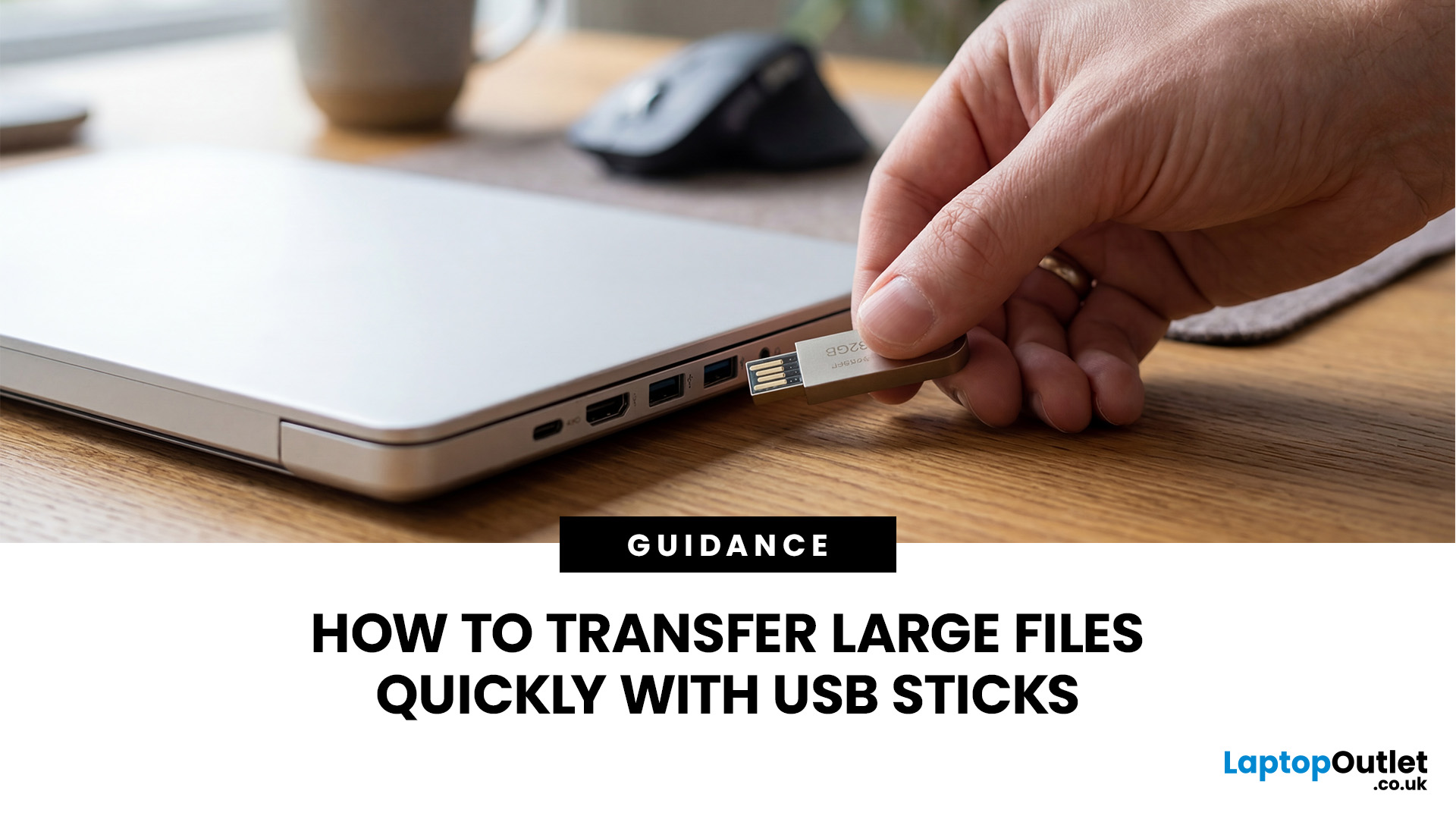
To transfer large files quickly with a USB stick, first check the drive format and connection speed. FAT32 cannot store a single file larger than 4GB, so exFAT or NTFS may be required. Use the fastest compatible USB port, confirm the drive's real write speed, avoid shared bottlenecks, and remember that USB-C alone does not guarantee fast transfers in practice.
Large video files, game folders, backups and project archives can expose two very different USB problems: the file may refuse to copy at all, or the transfer may work but take far longer than expected.
The fix depends on what is actually limiting the transfer. File-system limits, USB link speed, the flash drive itself, the source storage, adapters and even the number of files can all matter. This guide shows you how to diagnose the bottleneck before changing settings or buying another drive.
Why Large USB Transfers Fail or Feel Slow
A USB transfer can fail even when the drive has plenty of free space, or it can run much
Last Updated: September 11, 2025
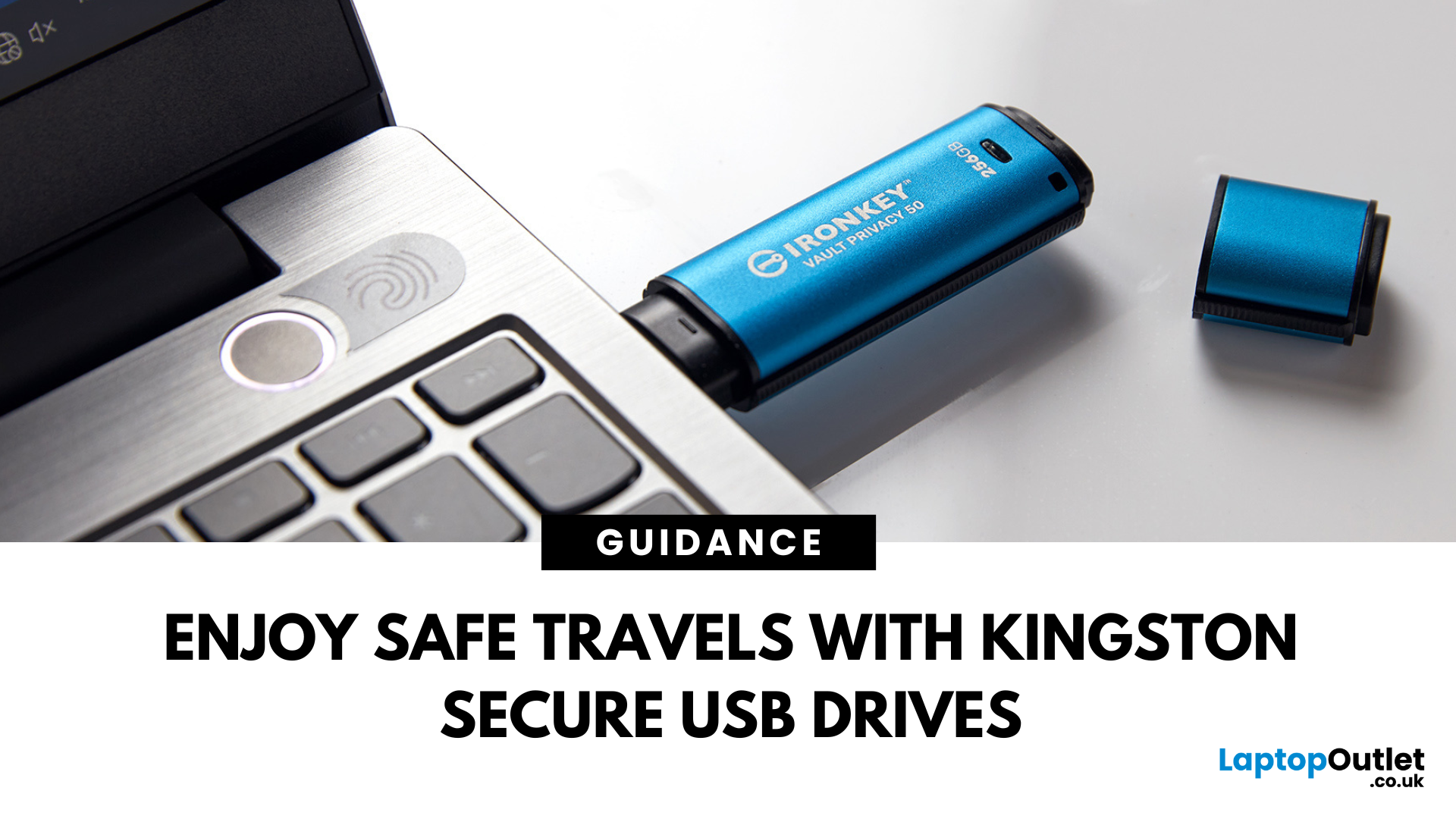
Enjoy Safe Travels with Kingston Secure USB Drives:
Whether you are a business professional travelling across continents or a student going home for the holidays, your data travels with you. From confidential presentations and financial documents to personal photos and files, portable storage devices like USB drives have become increasingly popular for storing a wide range of data. They offer convenience with their portability, but this convenience can sometimes pose some risks.
Travelling exposes your data to a number of threats, ranging from lost or stolen devices to unauthorised access in public spaces such as airports, hotels, and cafes. Even a moment of carelessness can lead to a data breach, especially if you are using standard USB drives that offer little to no protection.
That is where Kingston secure USB drives come in. Designed with military-grade encryption and tamper-proof features, these USB drives are built to keep your data safe, even in the most unpredictable environments.

Last Updated: September 11, 2025
Small Device, Big Function
You’ve probably used a USB flash drive or thumb drive before—but what exactly are they? These small but mighty devices are essential for storing and transferring data quickly and easily. Let’s unpack what a USB flash drive is, what it does, and why it’s still so popular in 2025.
1. What Is a USB Flash Drive?
A USB flash drive (also called a thumb drive, pen drive, or memory stick) is a small, portable storage device that connects to your computer or laptop via a USB port.
Key Characteristics:
Uses flash memory (no moving parts)
Plugs directly into USB-A or USB-C ports
Often pocket-sized and lightweight
The term "thumb drive" comes from its compact size—similar to a human thumb
2. What Is It Used For?
Storing documents, photos, videos, and music
Transferring files between devices
Backing up important data
Creating bootable drives for OS installations (like Windows 11)
3. USB Flash Drive vs External Hard Drive
| Feature | USB Flash Drive | External |
Last Updated: September 11, 2025
Decoding USB Types in Everyday Tech
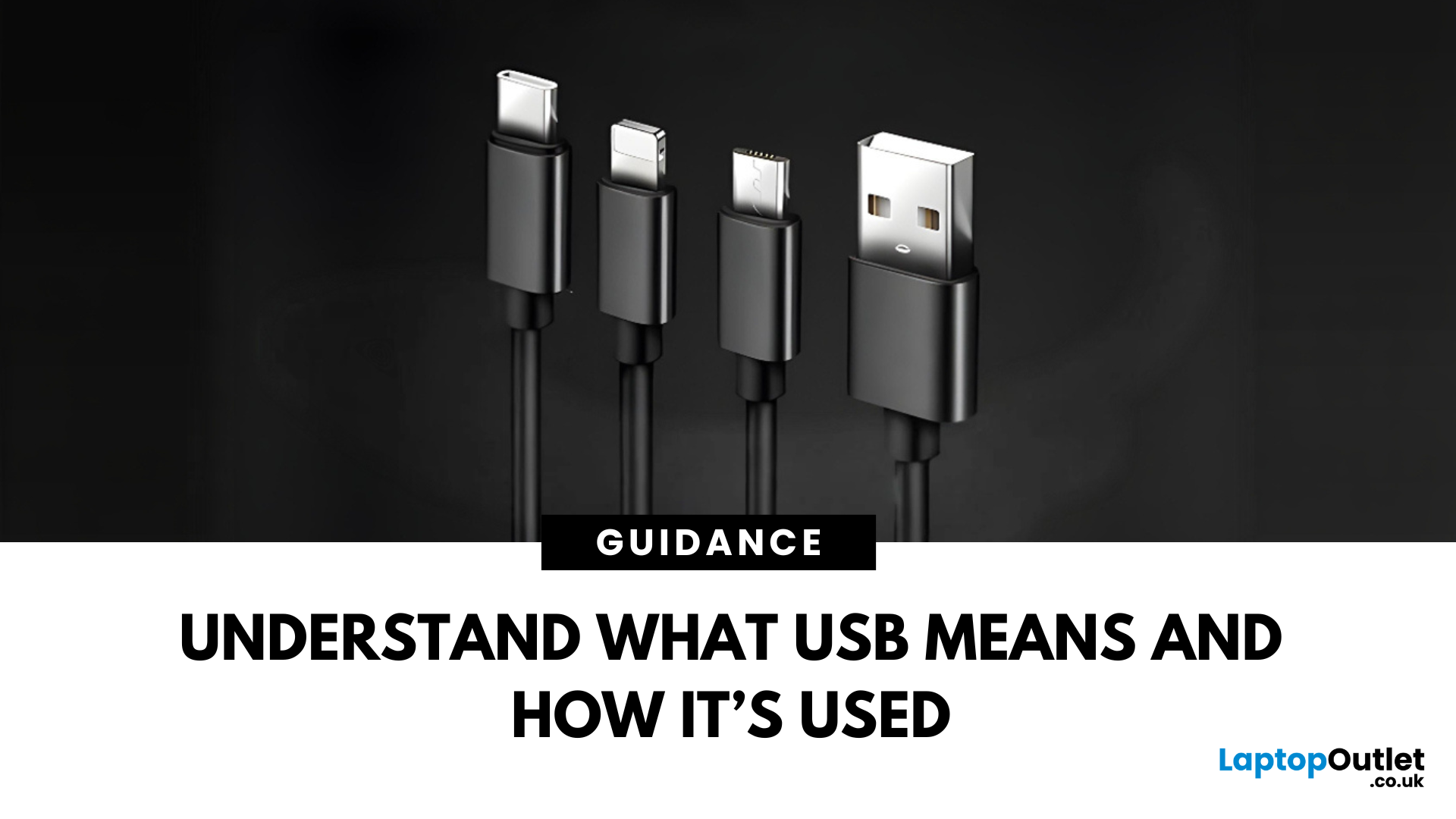
We all use USB cables, but few know the real differences between USB, USB-C, and Micro USB. Whether you're charging your phone, connecting a device, or transferring data, understanding these terms helps you pick the right tech. Let’s break it down simply.
What Does USB Stand For?
USB stands for Universal Serial Bus. It’s a standard for cables, ports, and communication between electronic devices.
Developed to simplify connections between computers and peripherals (like keyboards, printers, and flash drives)
Main Uses:
- File transfers
- Charging smartphones, tablets, accessories
- Powering small devices
What Is USB-C?
USB-C is the latest version of USB and is now standard on most new smartphones, laptops, tablets, and accessories.
Key Features:
- Reversible connector—no wrong way to plug it in
- Fast data transfer (up to 40Gbps with USB4)
- Supports fast charging and video output (great for docking stations and monitors)
- Universal use—one
Last Updated: September 11, 2025
Ready to Install Windows 11?
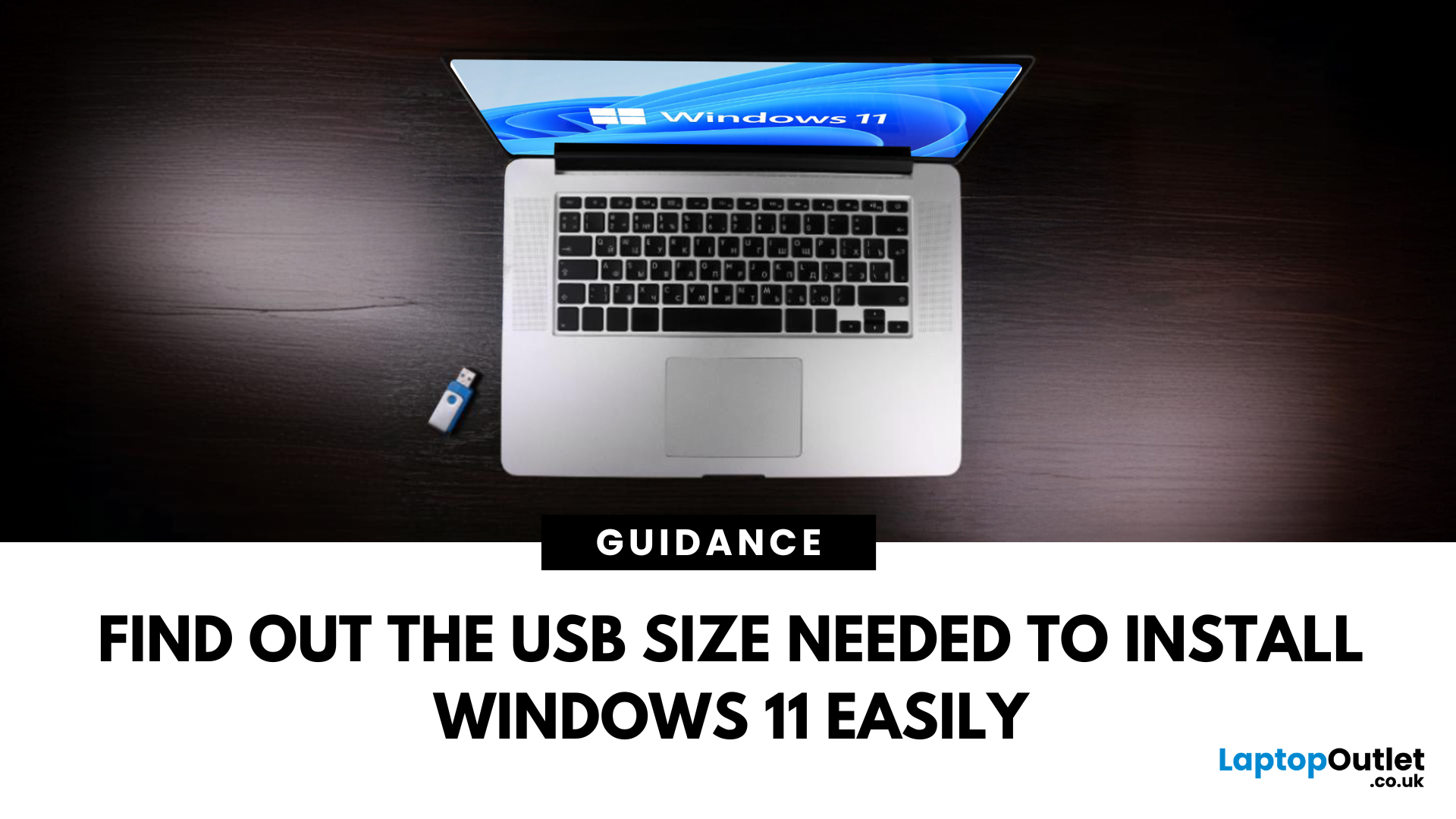
If you're planning to install Windows 11 using a USB stick, one of the first things to sort out is the size. Too small, and it won’t fit the installer. Too large, and it’s unnecessary. Let’s clear up exactly what size USB you need to install Windows 11 and how to get it ready.
Minimum USB Size for Windows 11 Installation
- At least 8GB of storage is required
- Recommended: 16GB or more for extra space and reliability
Microsoft officially recommends a USB drive with 8GB minimum, but using a 16GB or 32GB USB stick ensures you won’t run into space issues.
USB Format Requirements
Before using the USB stick:
- Format it as FAT32 (for UEFI systems) or NTFS (for BIOS/Legacy systems)
- Use tools like Rufus (Windows) or Disk Utility (Mac) to format and prepare the drive
Create a Bootable USB for Windows 11
Using Microsoft’s Media Creation Tool:
- Download the Media Creation Tool from Microsoft’s website
- Run the tool and choose Create installation media
Published: November 14, 2025
For years, we’ve juggled a drawer full of tangled cables — micro-USB, Lightning, HDMI, and others. But now, USB-C adoption is changing that.
This small, reversible connector has become the go-to choice for phones, laptops, and even monitors. It promises a single, universal solution for charging, data transfer, and video output.
But are we finally there yet? Let’s explore how close we are to a world of USB-C everything.
What Is USB-C and Why It Matters
USB-C, also known as USB Type-C, is a reversible connector that can handle multiple functions. Introduced in 2014, it was designed to be faster and more versatile than previous USB types.
Key features include:
- Reversible Design: No more flipping the cable to find the right orientation.
- Fast Data Transfer: Up to 40Gbps with USB4 and Thunderbolt 4 support.
- High Power Delivery: Up to 240W, enough to charge large laptops and monitors.
- Multiple Functionality: The same port handles charging, data, and video.
This all-in-one capability is what

Last Updated: January 02, 2026
When you start plugging in devices and suddenly run out of USB slots, the first question that comes to mind is a simple one: how many USB ports does my motherboard actually have?
This is something most users never think about until they hit a limitation. Whether you are building a PC, upgrading an old system, or just trying to understand why you need a USB hub, the answer always comes back to your motherboard USB ports.
The tricky part is that the total number of USB ports is not always obvious at first glance. Some are visible on the back of the PC, others are internal, and some are supported but not even active unless you connect the right headers.
This guide breaks everything down in a practical way and helps you discover how to check the total USB ports supported by your motherboard.
Why Motherboard USB Ports Matter More Than You Think
Motherboard USB ports define how many devices your system can handle directly. That includes keyboards, mice, external drives, webcams, printers
Last Updated: August 28, 2026
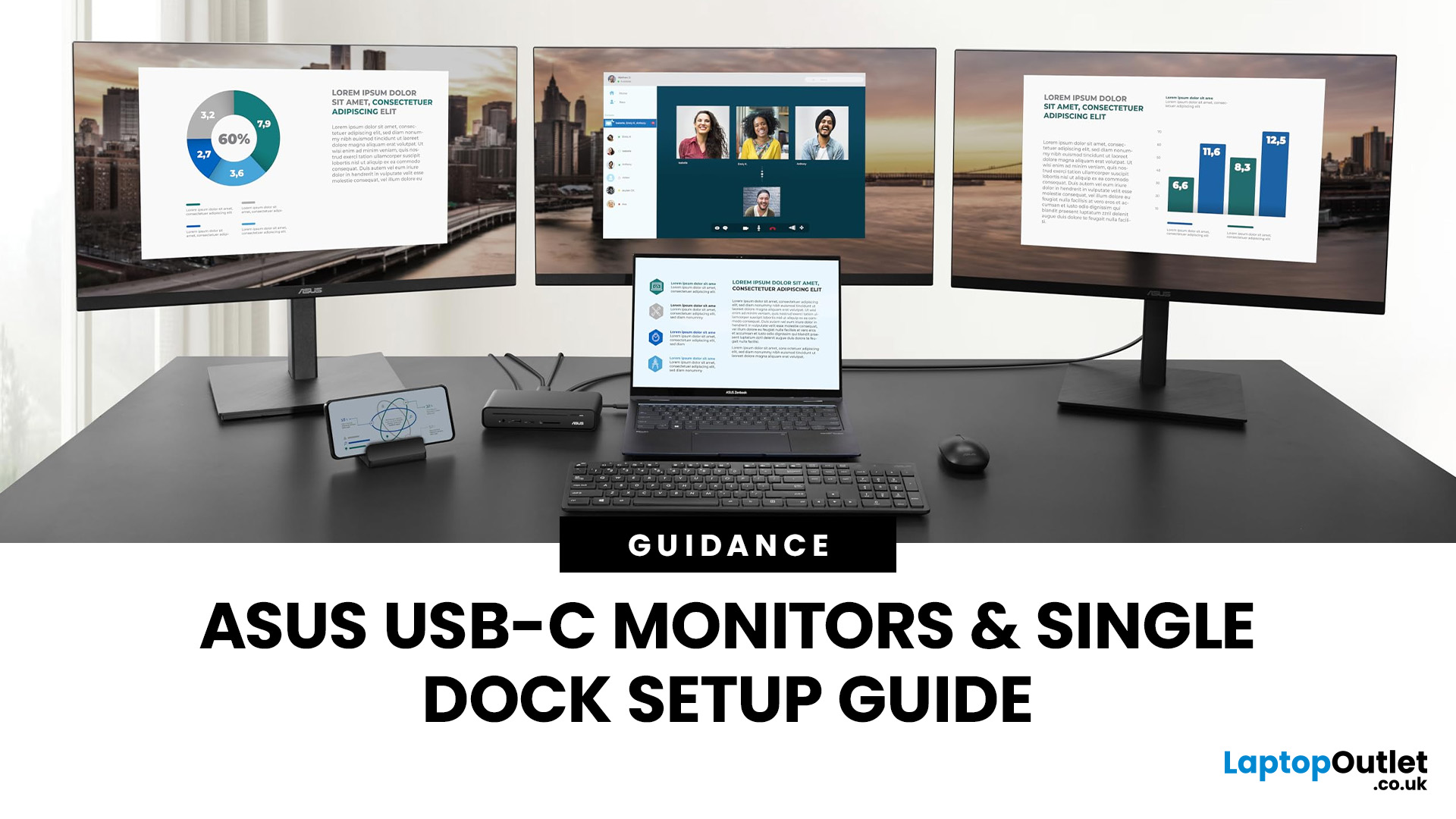
If you’re planning a desk refresh, rolling out new workstations, or managing a hot-desking environment, one question always comes up: how many ASUS USB-C monitors can you realistically run from a single dock? The short answer? It depends.
The long answer? It depends on your laptop’s GPU, the dock’s bandwidth, the monitor resolutions, and whether you’re daisy-chaining or using multiple video outputs.
In this practical IT deployment guide, we’ll break down exactly how ASUS USB-C monitors behave in real-world setups, what limits your configuration, and how to plan a reliable multi-monitor rollout without unpleasant surprises.
How USB-C Video and Power Actually Work
USB-C looks simple. One cable. Power. Video. Data. Done.
But behind that clean setup, there’s a lot happening.
USB-C monitors rely on a feature called DisplayPort Alt Mode. This allows the USB-C cable to carry video signals from your laptop’s GPU directly to the monitor. Many modern docks also use DisplayLink technology, which

Last Updated: August 11, 2026
Creating a home workspace that actually makes you want to sit down and get things done starts with one key upgrade: your monitor. Whether you’re fully remote, juggling hybrid life, or deep into study mode, choosing the best BenQ monitor for home office use can seriously level up your focus, comfort and overall productivity.
Let’s be honest! Squinting at a tiny laptop screen for eight hours straight isn’t the vibe. You need space. You need clarity. You need something that doesn’t leave your eyes feeling fried by 4 pm. From compact Full HD screens that fit neatly on smaller desks to powerful 4K displays that handle heavy multitasking like a pro, there’s something for every type of workflow. So if you’re scrolling through BenQ monitors for home office and wondering which one deserves desk space, you’re in the right place.
What Makes a Good Home Office Monitor?
Not all monitors are created equal. A display designed for gaming or entertainment won’t always offer the same comfort and practical
Last Updated: May 01, 2026
Quick Answer: External hard drives (HDDs/SSDs) are best for high-capacity, long-term storage and backups, offering cheaper cost-per-gigabyte. USB flash drives are superior for portability, quick file transfers, and convenience.
Choosing between an external hard drive vs USB flash drive is one of those decisions that seems simple until you actually try to pick one. Both plug in via USB and store your files, but they are built for very different jobs. This guide covers every key factor of these storage options, so you can make a confident, informed choice.
What is an External Hard Drive?
An external hard drive is a portable storage device that connects to your computer via USB, USB-C, or Thunderbolt. It is designed for large-scale storage, serious backups, and long-term data archiving, offering far greater capacity than most other portable options.
Types of External Hard Drive
There are two main formats to know: hard disk drives (HDDs) and solid-state drives (SSDs).
| External HDD (Hard |

