




Blog Categories








December 31, 2025

There’s a certain kind of satisfaction that comes with starting 2026 with a faster, cooler, cleaner PC setup. Maybe you’re planning a full build. Maybe you’re simply trying to fix the two things that quietly ruin daily performance—slow storage and noisy cooling. Either way, the New Year PC components & accessories season is when upgrades feel both exciting and sensible: you can refresh your system without committing to an entirely new machine.
If you’re shopping at Laptop Outlet, it’s worth starting by simply browsing and filtering the wider sale selection, think of it as your “big picture” view, so you can spot bundle-worthy deals across categories. It’s the fastest way to explore New Year tech discounts while keeping an eye on the parts you actually need.
The “smart upgrade order” for 2026 (what to buy first)
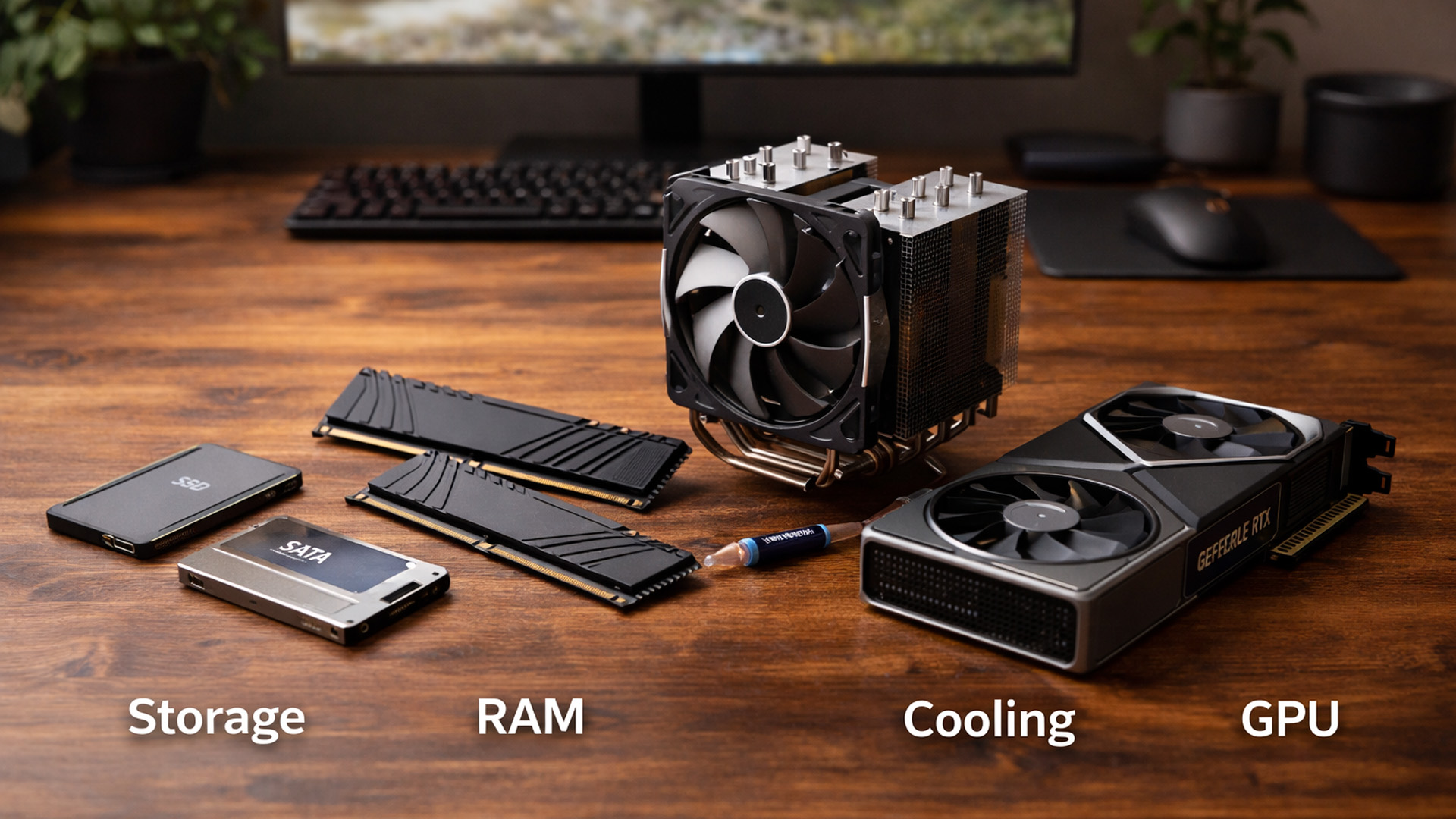
When you’re surrounded by deals, it’s easy to buy what looks exciting rather than what fixes your bottlenecks. A better approach is to upgrade in the order you’ll actually notice:
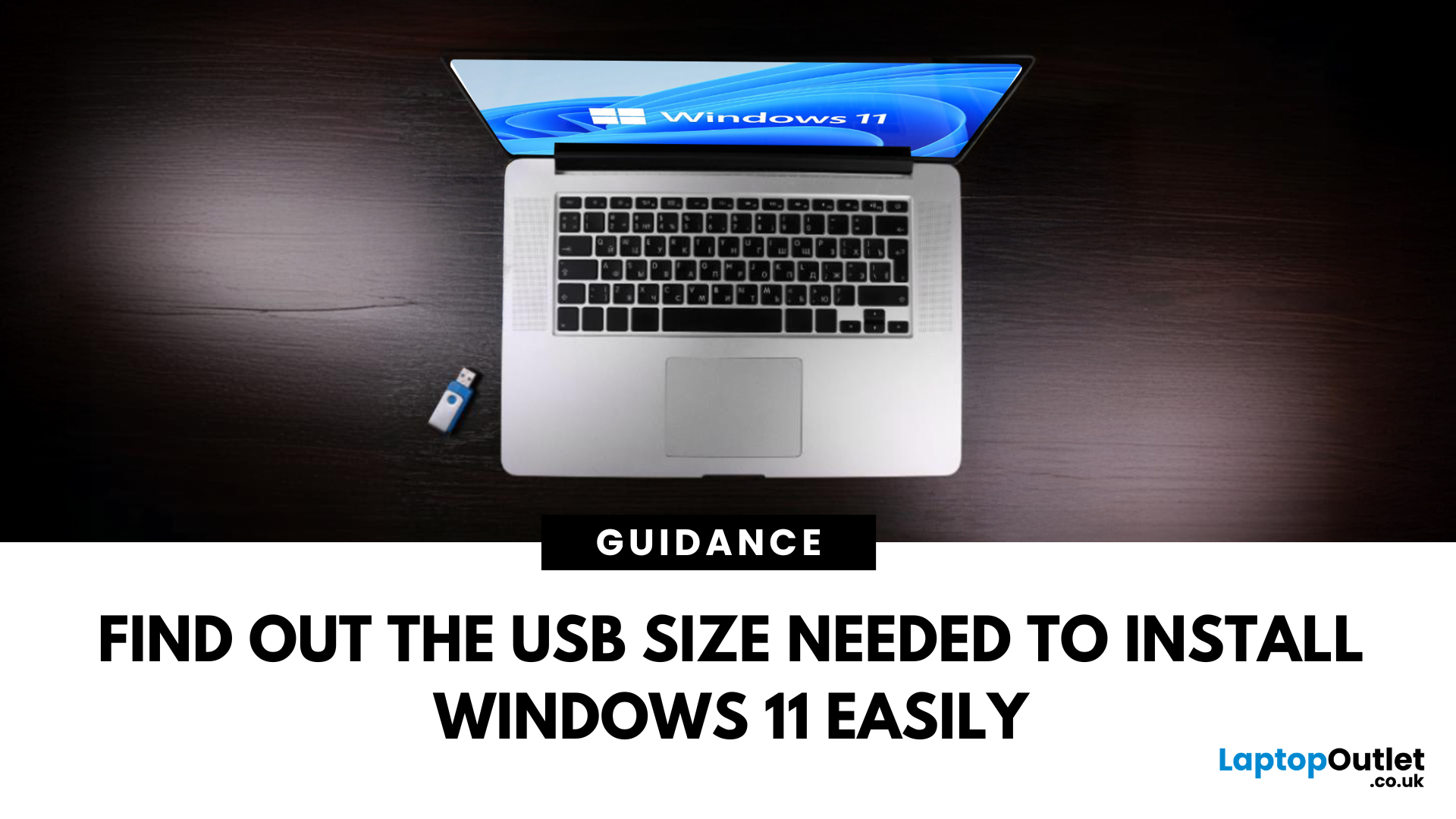 What Size USB Do You Need for Windows 11 Installation
Ready to Install Windows 11?
If you're planning to install Windows 11 using a USB stick, one of the first things to sort out is the size. Too small, and it won’t fit the installer. Too large, and it’s unnecessary. Let’s clear up exactly what size USB you need to install Windows 11 and how to get it ready.
Minimum USB Size for Windows 11 Installation
- At least 8GB of storage is required
- Recommended: 16GB or more for extra space and reliability
Microsoft officially recommends a USB drive with 8GB minimum, but using a 16GB or 32GB USB stick ensures you won’t run into space issues.
USB Format Requirements
Before using the USB stick:
- Format it as FAT32 (for UEFI systems) or NTFS (for BIOS/Legacy systems)
- Use tools like Rufus (Windows) or Disk Utility (Mac) to format and prepare the drive
Create a Bootable USB for Windows 11
Using Microsoft’s Media Creation Tool:
- Download the Media Creation Tool from Microsoft’s website
- Run the tool and choose Create installation media
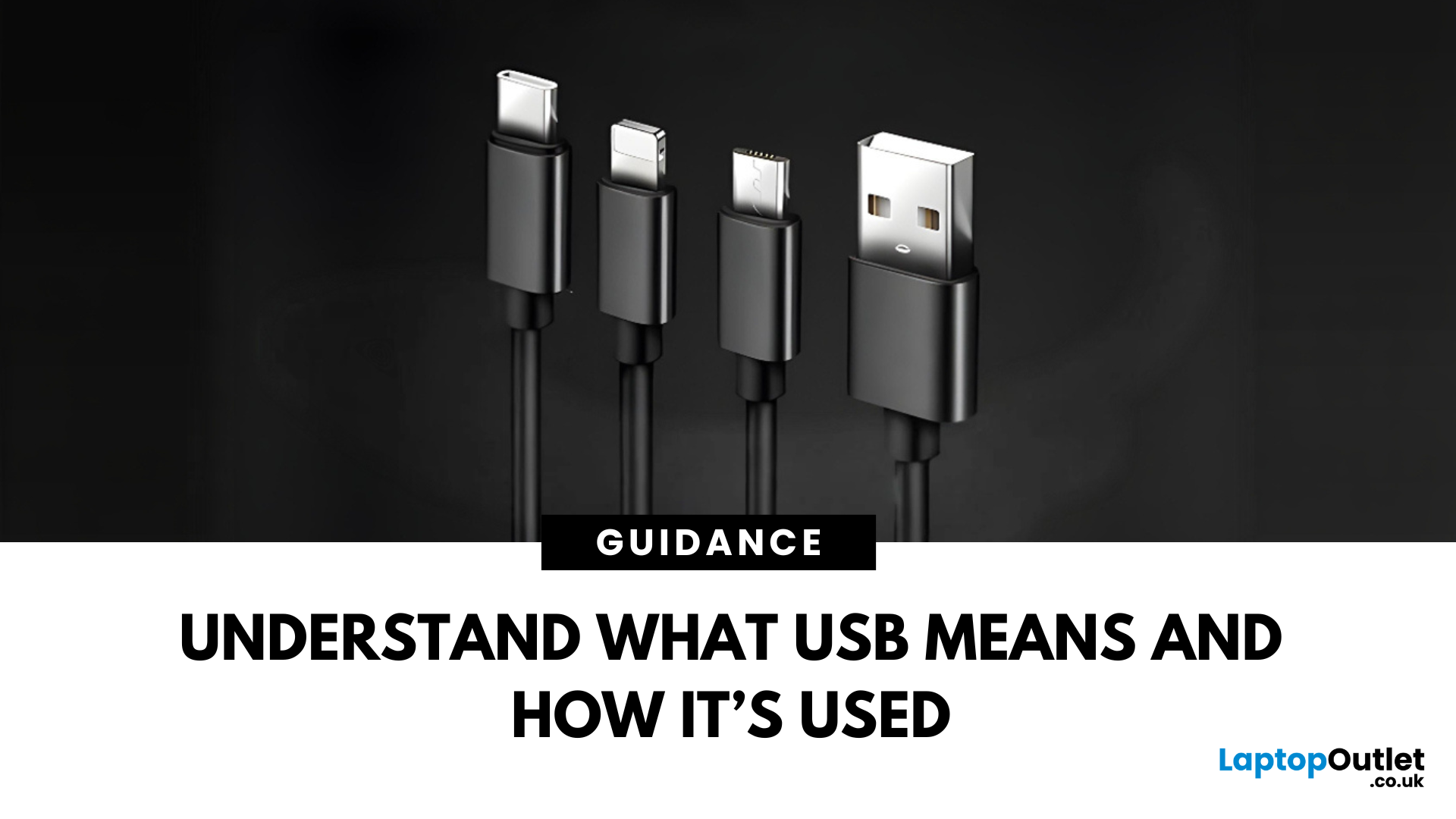 What Does USB Stand For? USB-C vs Micro USB Explained
Decoding USB Types in Everyday Tech
We all use USB cables, but few know the real differences between USB, USB-C, and Micro USB. Whether you're charging your phone, connecting a device, or transferring data, understanding these terms helps you pick the right tech. Let’s break it down simply.
What Does USB Stand For?
USB stands for Universal Serial Bus. It’s a standard for cables, ports, and communication between electronic devices.
Developed to simplify connections between computers and peripherals (like keyboards, printers, and flash drives)
Main Uses:
- File transfers
- Charging smartphones, tablets, accessories
- Powering small devices
What Is USB-C?
USB-C is the latest version of USB and is now standard on most new smartphones, laptops, tablets, and accessories.
Key Features:
- Reversible connector—no wrong way to plug it in
- Fast data transfer (up to 40Gbps with USB4)
- Supports fast charging and video output (great for docking stations and monitors)
- Universal use—one
 What Is a USB Flash Drive or Thumb Drive
Small Device, Big Function
You’ve probably used a USB flash drive or thumb drive before—but what exactly are they? These small but mighty devices are essential for storing and transferring data quickly and easily. Let’s unpack what a USB flash drive is, what it does, and why it’s still so popular in 2025.
1. What Is a USB Flash Drive?
A USB flash drive (also called a thumb drive, pen drive, or memory stick) is a small, portable storage device that connects to your computer or laptop via a USB port.
Key Characteristics:
Uses flash memory (no moving parts)
Plugs directly into USB-A or USB-C ports
Often pocket-sized and lightweight
The term "thumb drive" comes from its compact size—similar to a human thumb
2. What Is It Used For?
Storing documents, photos, videos, and music
Transferring files between devices
Backing up important data
Creating bootable drives for OS installations (like Windows 11)
3. USB Flash Drive vs External Hard Drive
| Feature | USB Flash Drive | External |
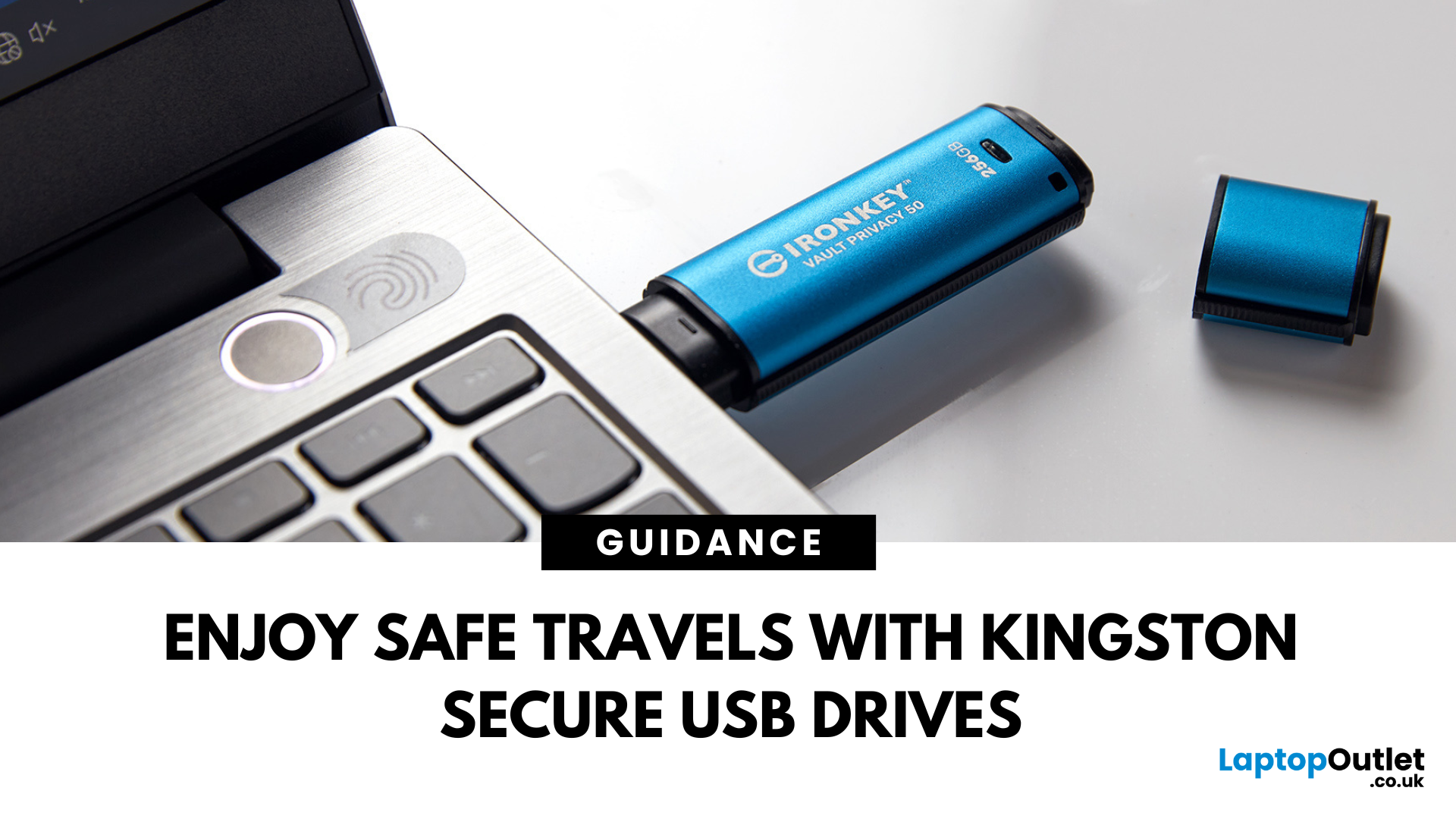 How Kingston’s Secure USB Drives Keep Your Data Safe While Travelling
Enjoy Safe Travels with Kingston Secure USB Drives:
Whether you are a business professional travelling across continents or a student going home for the holidays, your data travels with you. From confidential presentations and financial documents to personal photos and files, portable storage devices like USB drives have become increasingly popular for storing a wide range of data. They offer convenience with their portability, but this convenience can sometimes pose some risks.
Travelling exposes your data to a number of threats, ranging from lost or stolen devices to unauthorised access in public spaces such as airports, hotels, and cafes. Even a moment of carelessness can lead to a data breach, especially if you are using standard USB drives that offer little to no protection.
That is where Kingston secure USB drives come in. Designed with military-grade encryption and tamper-proof features, these USB drives are built to keep your data safe, even in the most unpredictable environments.
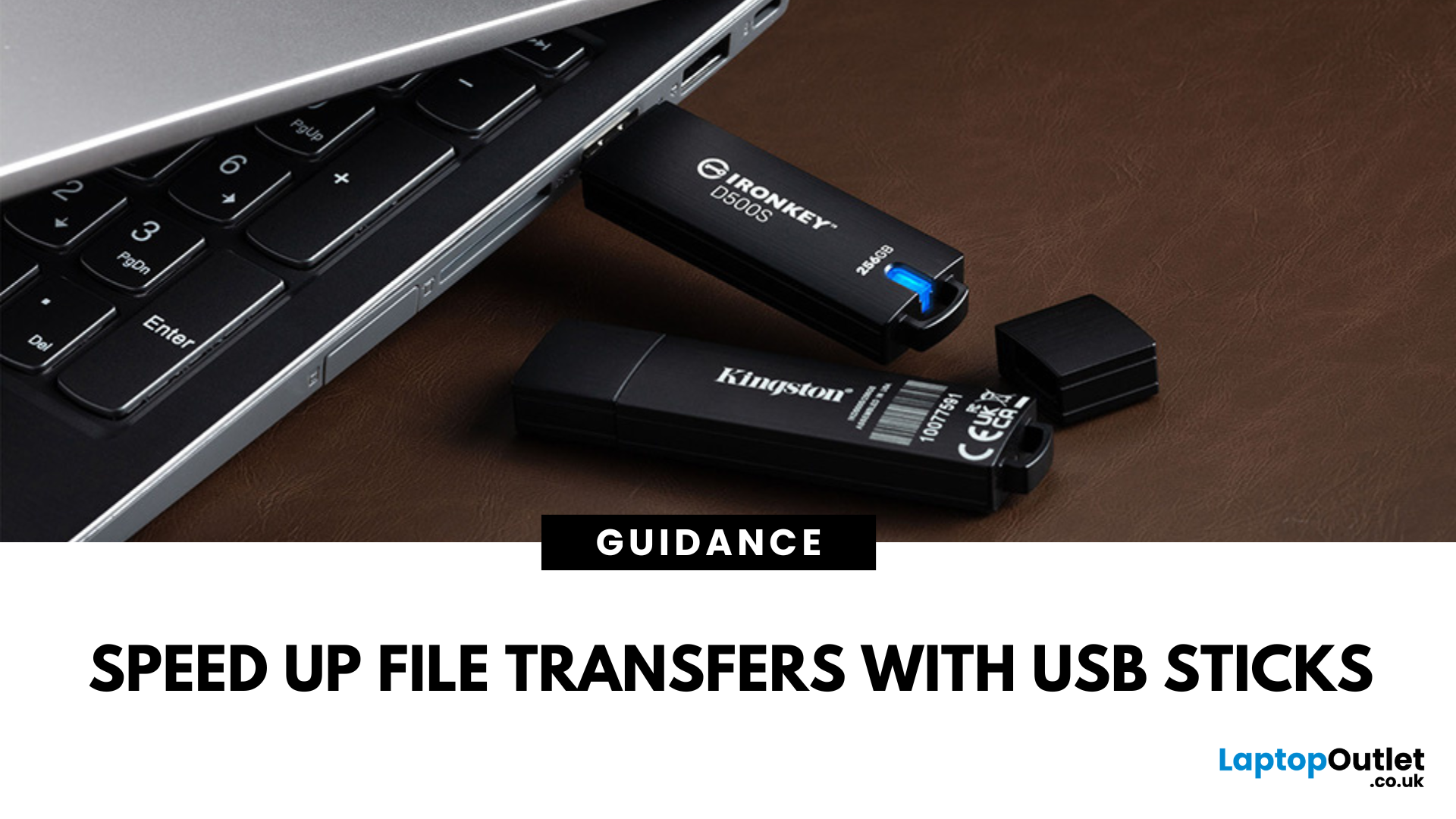 How to Transfer Large Files Quickly with USB Sticks
Speed Up File Transfers with USB Sticks
When transferring large files, you might have to wait a long time if you are not using the right tools. While cloud storage and network drives have their perks, USB sticks still remain the most popular, fastest, portable, and cost-effective tools to move data around. Using a reliable USB flash drive can help you conveniently transfer data between devices, saving you time, stress, and headaches. So, here’s how you can transfer large files quickly with USB drives.
-
Understanding USB Sticks:
USB sticks, also known as flash drives, are portable devices used to store and transfer data between devices. While these portable storage devices may be fast and efficient for data transfer, not all USB drives are created equal. Understanding the different types, formats, and speed ratings can help you choose the right stick for your specific requirements, especially when transferring large files.
USB Types – 2.0 vs. 3.0 vs. 3.2:
- USB 2.0 offers slower transfer speeds
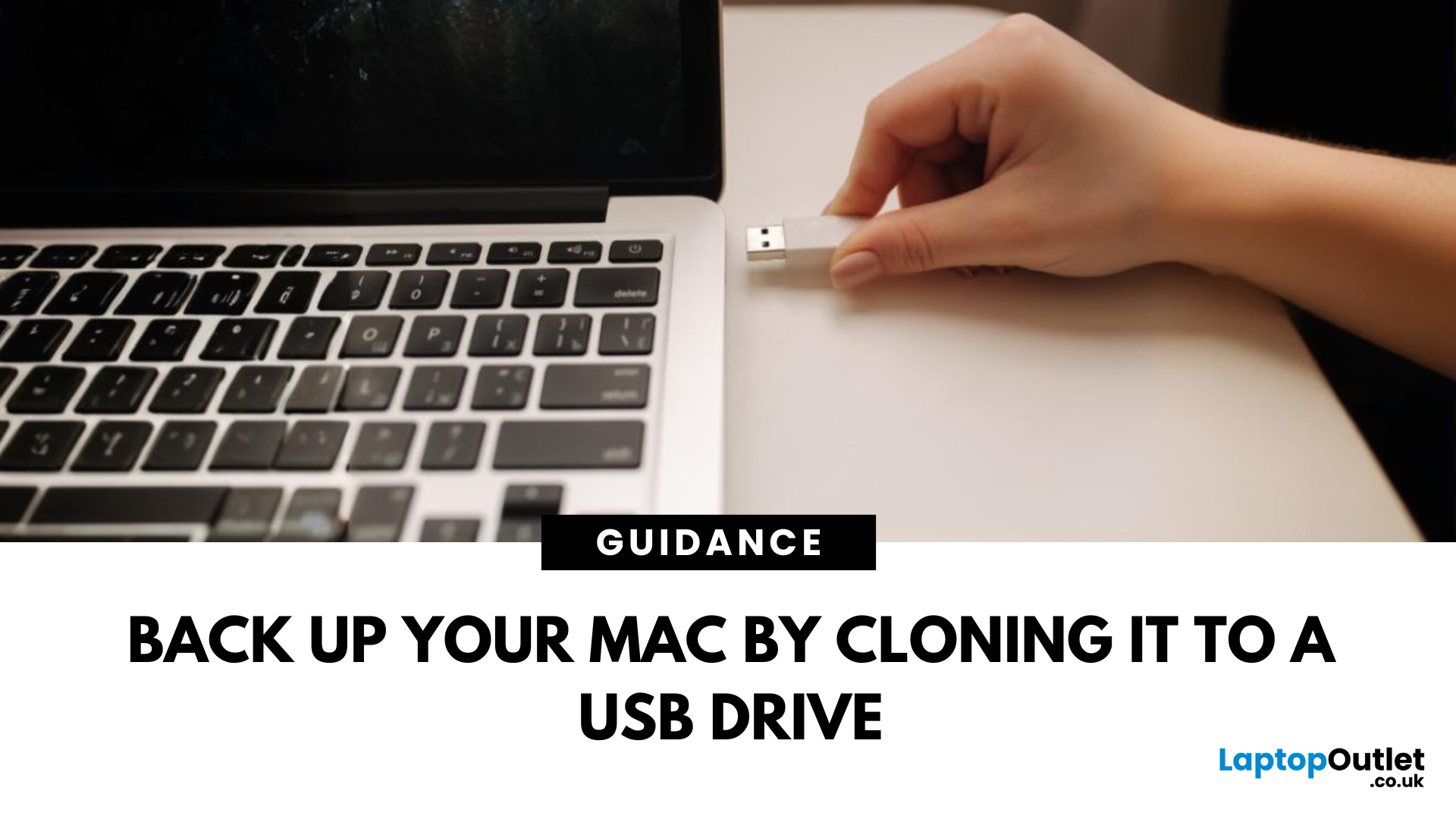 How to clone Mac system to USB
Portable Mac Backup, Sorted
Cloning your Mac to a USB stick is a great way to create a full system backup, test new software, or carry a bootable version of macOS. Whether you're preparing for emergencies or upgrading your Mac, here’s how to clone your Mac system to a USB drive safely.
1. What Does Cloning a Mac Mean?
- Copies your entire system, including macOS, files, apps, and settings
- Lets you boot from the USB if your Mac fails or if you want to use another machine
- Ideal for creating a full backup before macOS upgrades
2. What You’ll Need
- A USB stick or external SSD (at least 64GB recommended; more for full system clone)
- A Mac running macOS Ventura or newer
- Cloning software (recommended: SuperDuper! or Carbon Copy Cloner)
Use a fast USB 3.0 or USB-C drive for better performance
3. Format the USB Drive (macOS Journaled)
- Open Disk Utility (Applications > Utilities)
- Select your USB drive in the sidebar
- Click Erase > Format as Mac OS Extended (Journaled)
- Name
 How to Wipe a USB Stick
Start Fresh with a Clean USB Drive
Before selling, giving away, or repurposing a USB stick, it’s important to completely wipe it. This removes all files and helps protect your privacy. Here’s how to safely and securely wipe a USB stick on both Windows and Mac.
1. What Does 'Wipe' Mean?
Wiping a USB stick means:
- Erasing all data stored on the drive
- Optionally overwriting it to prevent file recovery
- Preparing the stick for reuse or disposal
Different from simply deleting files—it removes all traces
2. How to Wipe a USB Stick on Windows
Option 1: Quick Format
- Insert the USB stick
- Open File Explorer > This PC
- Right-click the USB drive > Format
- Choose File System (e.g. FAT32 or exFAT)
- Leave Quick Format checked for speed or uncheck for deep format
- Click Start
Option 2: Command Prompt (Full Wipe)
- Type cmd in Start Menu, right-click Command Prompt > Run as admin
- Enter: diskpart
- Then: list disk
- Identify your USB stick by size, then enter: select disk X (replace
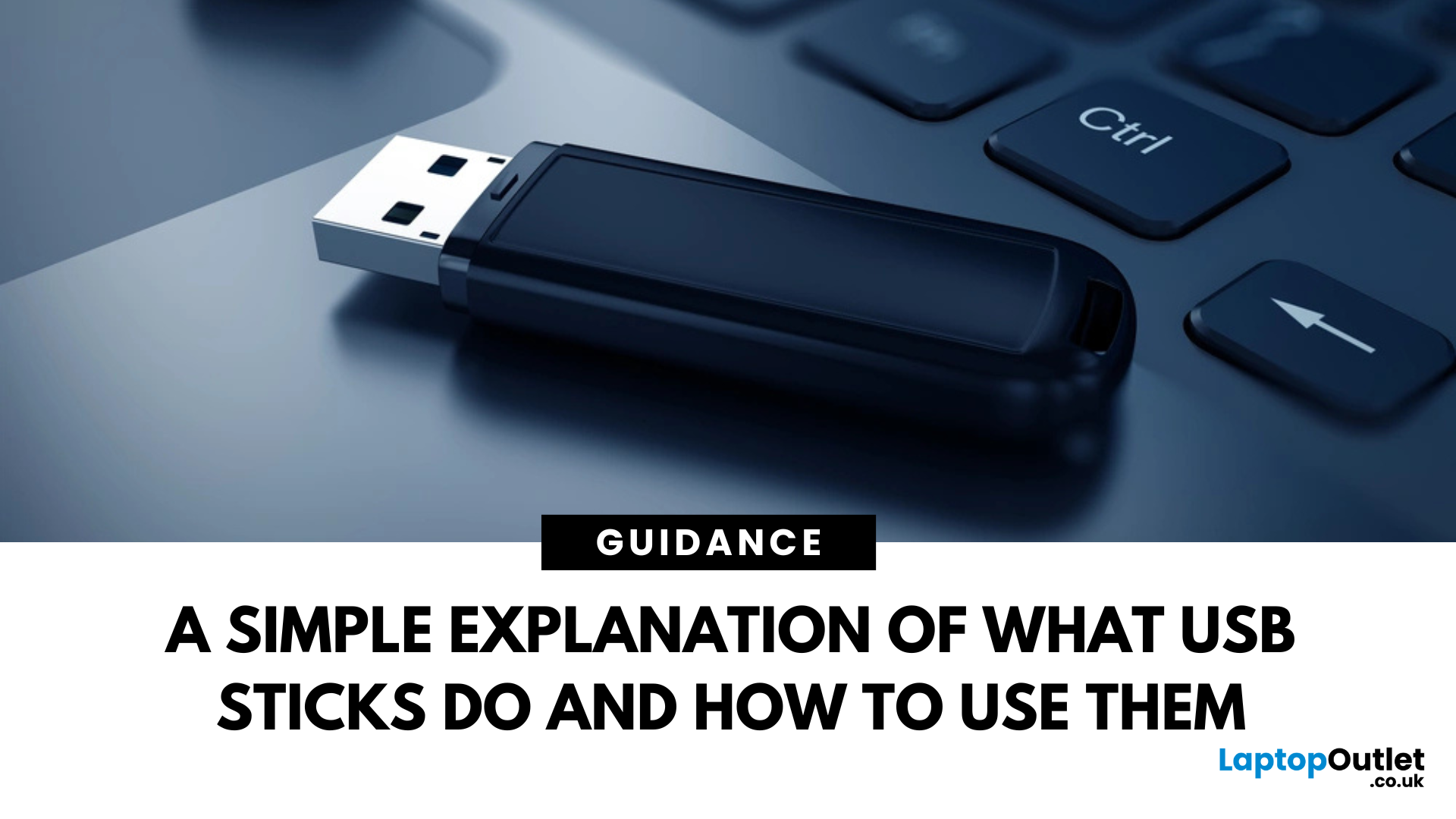 What Is a USB Stick?
Pocket-Sized Power
A USB stick, also known as a USB flash drive, is one of the most convenient and widely used storage tools available. Small, portable, and incredibly useful—it’s your go-to device for storing, transferring, and backing up files in seconds. But what exactly is a USB stick, and how does it work?
1. What Is a USB Stick?
A USB stick is a small, portable storage device that plugs into a computer or compatible device via a USB (Universal Serial Bus) port. It uses flash memory to store data and requires no external power source.
Also known as thumb drive, flash drive, or pen drive
2. How Does a USB Stick Work?
- Plug it into a USB port on your laptop, PC, or compatible device
- It appears as an external drive
- You can drag and drop files, create folders, and even run portable software
3. Common Uses for USB Flash Drives
- Storing documents, photos, videos, and music
- Transferring files between computers or devices
- Creating system backups or recovery tools
- Installing
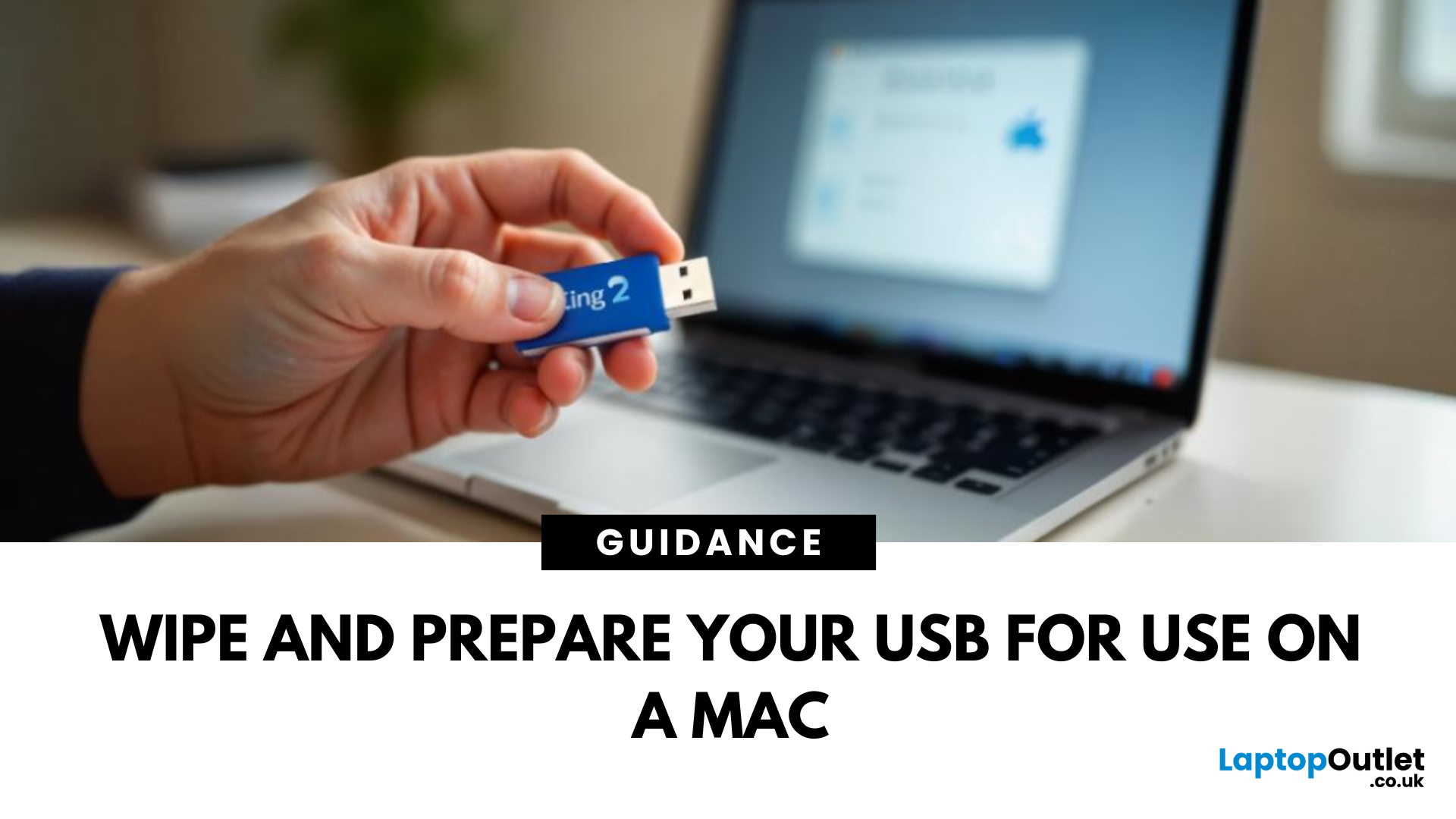 How Do I Format a USB Stick on a Mac?
A Fresh Start for Your USB Drive
Whether you're clearing space, fixing errors, or preparing your USB stick for Windows or macOS, formatting is the way to go. Luckily, it’s super simple on a Mac. Here’s a clear step-by-step on how to format a USB stick on macOS.
1. Plug In the USB Stick
- Insert your USB drive into an available port
- If prompted, choose to ignore or open Finder
Make sure to back up any important files—formatting erases everything
2. Open Disk Utility
- Go to Applications > Utilities > Disk Utility
- Or search for Disk Utility via Spotlight (Cmd + Spacebar)
3. Select Your USB Drive
- In the sidebar, click your USB stick (look under 'External')
- Double-check the name and capacity to avoid formatting the wrong drive
4. Click 'Erase'
- At the top of the window, click the Erase button
Format Options:
- Mac OS Extended (Journaled): For Mac-only use
- ExFAT: For both Mac and Windows compatibility
- MS-DOS (FAT): Best for small drives under 32GB
Use ExFAT if you
September 11, 2025
Introduction
Are you frustrated with wires scattered across your desktop and need a simple fix to keep your gadgets charged and organised?
In the world of desktop technology, the USB-C port has emerged as a versatile force with streamlined connectivity and enhanced functionality. As desktop setups become sophisticated, the demand for efficient cable management and expanded connectivity has grown.
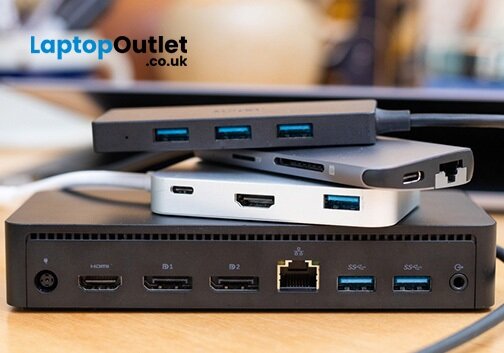
Desktop docking stations can enhance productivity, improve ergonomics and ensure convenience for content creation, 3D designers, and CAD engineers. They allow connections between the monitor, keyboard, mouse, storage drive, network port, headphone jack, SD card, and charging ports.
This comprehensive guide explores USB-C docks and their compatibility with various desktop systems. You will learn everything from understanding the fundamentals of USB-C technology to choosing the right dock for your specific desktop needs.
So, let's get into it!
Standard Ports Available in USB-C Docks
USB-C docks are
 How to transfer photos from iphone to laptop without usb