



A Comprehensive Guide to USB-C Docks and Desktop Compatibility
Introduction
Are you frustrated with wires scattered across your desktop and need a simple fix to keep your gadgets charged and organised?
In the world of desktop technology, the USB-C port has emerged as a versatile force with streamlined connectivity and enhanced functionality. As desktop setups become sophisticated, the demand for efficient cable management and expanded connectivity has grown.
Desktop docking stations can enhance productivity, improve ergonomics and ensure convenience for content creation, 3D designers, and CAD engineers. They allow connections between the monitor, keyboard, mouse, storage drive, network port, headphone jack, SD card, and charging ports.
This comprehensive guide explores USB-C docks and their compatibility with various desktop systems. You will learn everything from understanding the fundamentals of USB-C technology to choosing the right dock for your specific desktop needs.
So, let's get into it!
Standard Ports Available in USB-C Docks
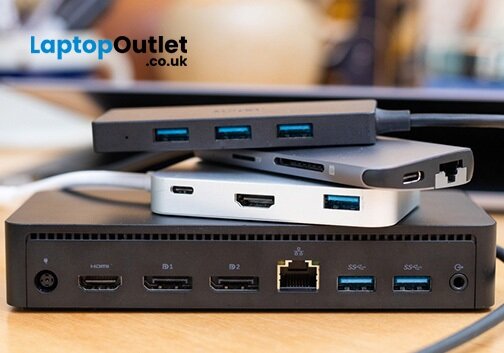
USB-C docks are a powerful hub that connects various peripherals and devices to the desktop through a single docking station. These docks are equipped with various ports, each serving a specific purpose. Here are some of the common ports available in USB-C docks:
- USB-C Port
- USB-A Port
- HDMI/Display Port
- Ethernet (RJ45) Port
- Audio Jack (3.5mm)
- SD/MicroSD Card Slots
- USB-C Power Delivery (PD) Port
- Thunderbolt 3/4 Port
- VGA Port
- USB 3.0/3.1 Ports
- Kensington Lock Slot
Which USB-C Dock Is Right for You?
Now that you are acquainted with various USB-C charging docking stations, the next step is selecting the one that best aligns with your needs and requirements. To choose the one, it's essential to consider these factors:
Number of Ports: Consider assessing the types and quantity of ports the docking station offers to ensure that it accommodates the specific peripherals.
Charging Capabilities: Consider checking if the docking station supports power delivery for charging capabilities. If you plan to use the dock for charging your laptop or other devices, it is crucial to consider the dock with fast charging capacity.
Build Quality and Durability: Examine the build quality and durability of the docking station to ensure longevity and reliability, offering stable connections for your devices over an extended period.
Additional Features: If your work requires audio, video and ethernet connectivity, it's essential to consider a USB-C dock that supports all these ports and features.
Budget: Set a budget for your docking station purchase and then narrow down the choices to ensure you find a solution that meets your needs without overspending.
Benefits of USB-C Docks for Desktops
Docking stations benefit desktop computers with limited ports and connectivity options. It can provide convenient expansion capabilities while enhancing productivity and optimising the workspace.
Streamlined Connectivity Options
USB-C docks are a central hub with various ports and connectors in a single device. This streamlined design simplifies connecting multiple devices to your desktop computers. A USB-C dock offers a unified solution to users instead of dealing with many cables and ports on your desktop.
This streamlined connectivity reduces clutter and makes locating and connecting devices easier, promoting a more organised and efficient workspace.
Expansion Capabilities
The primary purpose of a docking station is to provide a diversity and quantity of connection ports to expand a single USB-C port. This developed connectivity offers versatility, enabling you to link up additional monitors, external storage, and input devices.
This diversity includes USB-A and USB-C ports for various peripherals, DisplayPort (DP) and HDMI for video output, SD card slots for memory cards, NVMe slots for high-speed storage, LAN ports for wired network connectivity, and audio jacks for sound peripherals. The capability to handle both power delivery and data transfer allows users to easily engage in resource-intensive tasks like video editing and graphic designing.
Various ports accommodate a broad spectrum of devices and transform the desktop into a workstation tailored for specific user needs. Users can future-proof their setups by integrating new devices and peripherals. This adaptability ensures that the USB-C dock remains a valuable and enduring component of the desktop environment.
Enhanced Productivity
A multitasker can utilise the expansion capabilities of the USB-C docks by allowing multiple screen connections and avoiding switching back and forth between the various applications. This is particularly advantageous for professionals working with complex datasets, video editing, and multitasking across multiple projects.
Steamers can dedicate each monitor to a specific workflow; one screen can display the streaming platform, and the other can host the chat window and handle audio screens without the hassle of multiple cables. This approach saves time and reduces interruptions to promote a more efficient workflow.
Optimised Workspace
Desk clutter can distract any brilliant mind at work with the hassle of setting up peripherals, routing cables and detangling wires. A docking station offers centralised and efficient solutions to create an optimised and clutter-free environment. A USB-C dock ensures quick and reliable connectivity for those frequently moving between workstations.
A USB-C dock ensures quick and reliable connectivity for those frequently moving between workstations. This seamless transition allows users to establish their workstations effortlessly, creating a sense of familiarity and comfort regardless of the location.
Desktop Compatibility Factors
Windows desktop systems are widespread and offer a robust ecosystem for USB-C docks. However, you must consider certain compatibility factors and specific port requirements to ensure smooth integration and functionality between a docking station and a desktop.
Driver Compatibility: Ensure that the USB-C dock has drivers compatible with Windows. Regularly check for driver updates to enhance functionality.
Power Delivery Support: Confirm that the dock supports Power Delivery specifications compatible with your Windows desktop for efficient charging.
Port Requirements: Check the availability of required ports on your Windows desktop to ensure seamless connectivity.
Display Support and Resolution: If you use multiple monitors, ensure that the docking station can support the preferred display setup, including the desired resolution and refresh rate.
Driver and Firmware Update: regularly check the drivers and firmware updates for the docking station to
Setting Up and Using USB-C Docks with Desktops
Setting up the USB-C dock with a desktop is relatively easy. Follow these simple steps to connect the USB-C dock and optimise your workspace.
- All you need to do is identify the USB-C port on the desktop. If the desktop does not have a USB-C port, consider using an adapter or expansion card for compatibility.
- Securely plug the USB-C dock into the port of your desktop.
- Attack all the peripherals and accessories to the USB- dock.
- If the dock supports power delivery, connect it to the power source to ensure the efficient charging of connected devices.
- Check your desktop for device recognition and adjust any settings.
- Configure the display settings through a desktop operating system if using external monitors.
- Install the required drivers for the USB-C docks and ensure compatibility.
Transform the Desktop PC with USB-C Technology
Some powerful desktop PCs may lack ports or often have limited connectivity options. The addition of USB-C ports brings about a transformative change. These powerful desktops become even more versatile and user-friendly, eliminating connectivity concerns.
USB-C docks provide a convenient solution for desktops that may not support the latest connectivity standards. These docks bridge the desktop and many peripherals, offering various ports such as USB-A, HDMI, DisplayPort, and more. This enhancement is especially valuable since only some desktops have the latest and most versatile ports.
By incorporating USB-C docks, users can make their desktops more robust and future-proof. For example, the HP 290 G3 desktop PC has some of the latest connectivity ports like HDMI, USB 3.0, and VGA. You can enhance the productivity of this desktop PC by attaching the USB-C dock with it and optimising the workflow.
The single USB-C connection not only simplifies cable management but also supports power delivery, allowing for efficient charging of devices. This convenience is paramount, ensuring that users can focus on their tasks without worrying about compatibility issues or the need for multiple adapters.
Lenovo ThinkEdge SE30 with an Intel Core i5 processor, 16GB RAM, and 512GB SSD ensures smooth multitasking and ample space to store all the files. This desktop provides a powerful performance for professionals and business work environments. It comes with a USB 3.2 and Thunderbolt 4, but acquiring a USB-C docking station will make life convenient and easy if your work requires attaching other peripherals like headsets and card readers.
If you require affordable desktop options and USB-C docks, visit Laptop Outlet!
Best USB-C Docks at Affordable Price
Lenovo ThinkPad 40AF0135EU Notebook USB-C with USB-A Dock/port Replicator Wired
The Lenovo USB-C port with USB-A Dock/Port Replicator is a powerful, versatile docking solution designed for laptops and desktops. This docking station provides a comprehensive array of ports to expand connectivity and streamline your work setup. With both USB-C and USB-A ports, it offers flexibility for connecting a variety of devices, from modern peripherals to traditional accessories.
The dock includes ports for HDMI and DisplayPort, facilitating multiple monitor setups for enhanced productivity. In addition, it features audio input/output jacks and an Ethernet port for a stable wired network connection. The USB-C docking station supports power delivery, enabling efficient charging of your ThinkPad notebook while connected. The Lenovo ThinkPad 40AF0135EU Dock is a reliable solution for quickly transforming your notebook into a powerful desktop workstation.
Pricing and Availability:
This USB-C dock is available at Laptop Outlet at a fantastic price of around £174. Get this unique opportunity to get a powerful desktop PC and a convenient USB-C dock, both at budget-friendly prices.
Frequently Asked Questions
What is a USB-C Dock?
USB-C dock is a versatile device that expands the connectivity options of a computer, typically a desktop or a laptop, using the USB Type-C interface. It serves as a hub or station, providing various ports such as USB-A, USB-C, HDMI, DisplayPort, Ethernet, and more.
It lets users connect multiple peripherals, external displays, and accessories to their computers through a single USB-C cable, enhancing the overall connectivity experience.
How does a USB-C Dock work?
A USB-C dock connects to a computer's USB Type-C port, allowing users to connect peripherals and accessories simultaneously.
The USB-C connection facilitates data transfer and, in many cases, supports power delivery, enabling the dock to charge the connected device. Users can transform their computer into a versatile workstation, enhancing productivity and convenience through this cable.
Are USB-C docks compatible with all desktop operating systems?
USB-C docks are generally compatible with various operating systems, including Windows, macOS, and Linux. However, checking the specific dock's compatibility with your desktop's operating system is essential.
Are USB-C docks with Thunderbolt compatibility necessary for desktops?
It is not necessarily; USB-C docks with Thunderbolt compatibility offer higher data transfer speeds. Opting for a compatible port can enhance video editing and data transfer tasks' performance if your desktop supports Thunderbolt.
Final Verdict!
The versatility and convenience these docks offer extend beyond connectivity; they represent a leap into the future of desktop computing.
By adopting USB-C technology, you're future-proofing your desktop, ensuring compatibility with the latest peripherals and devices. The single-cable solutions provided by USB-C docks simplify the desktop environment, eliminating cable clutter and streamlining your workspace.
The benefits extend to users with desktops lacking native USB ports, offering a convenient bridge to modern connectivity standards.
So, whether you're a professional seeking enhanced productivity or an enthusiast looking to revitalise your desktop setup, USB-C docks are the key to unlocking a new realm of possibilities.
For more affordable desktop options featuring high-end processors, explore the diverse range available at Laptop Outlet. Our selection includes powerful desktops with cutting-edge processors to cater to your computing needs. Additionally, discover the convenience of USB-C docks to enhance your desktop's connectivity.
Elevate your desktop experience, simplify your connectivity, and embrace the future with USB-C technology!
Read more:
| What are the Benefits of Using a Docking Station? |
| Choosing the Right Thin Client Desktop PC: Factors to Consider |
| Mini PC vs. Tower PC: Which is Right for You? |
Related Articles


Last Updated: December 02, 2025
You may all have noticed that the latest laptops are getting slimmer and slimmer and are now more streamlined than in the past. As a result, the number of ports around each device also reduces, so docking stations come in handy for various scenarios. A reliable and versatile docking station offers incredible convenience and ease for many professionals. These gadgets help you connect your laptop to numerous peripherals like monitor, printer, keyboard, mouse, storage, and backup drives and expand the functionalities of your device.
These devices act as a centralised hub for peripherals to elevate your tech setup to new heights. They also allow you to customise your setup with your favourite monitor, printer, keyboard, mouse, etc.
So, are you planning to upgrade your setup? Let's explore what a docking station is and what advantages it brings to your table.
What is a Docking Station?
A docking station is a device that allows you to connect your laptop or computer with additional peripherals

Last Updated: August 24, 2026
Make the most out of your workstation with the perfect monitor. Here are our best monitors you can connect with your desktop PC or docking stations.
A monitor is also known as your window to the digital world and is an essential part of any productive workspace, whether you're a creative professional, a data-crunching analyst, or a tireless programmer. A good monitor can elevate your desk setup from functional to phenomenal, improving your efficiency and comfort and even protecting your eye health. Another best thing is that you don't have to blow your budget and get the most expansive, most kitted-out option if you want something for your workstation productivity.
However, the screen size and resolution are other vital factors when buying a new monitor. The most popular screen size is 27 inches because it has enough screen real estate to multitask without being too big. You can also consider 32-36 inch monitors or even ultrawide to multitask more. Regarding resolution, nothing can

