



How to Transfer Everything from Your Old Laptop to a New One
Quick Answer: The easiest way to transfer everything from an old laptop to a new one is to use Windows Backup and OneDrive for files and supported settings, or an external SSD for a faster local transfer. Personal files such as documents, photos, and videos can be copied directly, while most desktop apps need to be reinstalled on the new laptop. Keep the old device untouched until you have checked that all important files, accounts and software are working properly.
Got a new laptop but everything you actually need is still on the old one? Moving documents and photos is easy enough, but apps, browser data, settings, and local files need a little more thought. This guide explains the safest ways to transfer your data, what Windows can restore automatically, and what you’ll need to set up again yourself.
Before You Start: Prepare Both Laptops
A little preparation can prevent missing files or interrupted transfers. Before moving anything:
- Install available Windows updates on both machines.
- Plug both laptops into mains power.
- Check how much data you need to move.
- Make sure the new laptop has enough free storage.
- Sign into important cloud accounts and note any software licence details you may need.
- Back up irreplaceable files separately before making major changes.
If you're replacing an ageing PC altogether, you can browse our Windows 11 laptops before starting the migration. It is also worth cleaning up the old device first. Delete temporary downloads, duplicate videos, and software installers you no longer need. There is little benefit in transferring years of digital clutter to a brand-new machine.
What is the Best Way to Transfer Files from an Old Laptop to a New One?
The best method depends mainly on the amount of data involved.
|
Method |
Best For |
Internet Needed? |
|
Windows Backup and OneDrive |
Files, settings and Windows preferences |
Yes |
|
External SSD |
Large file libraries and faster local transfers |
No |
|
External hard drive |
Large backups at a lower cost |
No |
|
USB drive |
Smaller groups of documents and photos |
No |
For most Windows users already using a Microsoft account, Windows Backup combined with OneDrive is the easiest place to start. For hundreds of gigabytes of photos, video projects or other large files, however, a portable SSD can be considerably more practical.
Method 1: Transfer Data with Windows Backup and OneDrive
Open Windows Backup from the Start menu on your old laptop and sign in with your Microsoft account. You can then choose which folders you want backed up through OneDrive, including:
- Desktop
- Documents
- Pictures
- Videos
- Music
Windows Backup can also retain supported Windows settings and preferences. Microsoft provides full details in its current Windows Backup guidance.
Allow everything to finish syncing before shutting the old machine down. When setting up your new laptop, sign in using the same Microsoft account. Your backed-up files will become accessible through OneDrive, while supported settings and app information can be restored through the Windows setup experience.
Check OneDrive Before Moving On
Do not assume that seeing a OneDrive icon means every file has uploaded. Open OneDrive online or check its sync status and confirm that your important folders are available before wiping or selling the old laptop. This is particularly important when you transfer photos from an old laptop to a new one. Photo libraries can be large enough to exceed your available cloud storage without you noticing.
Method 2: Use an External SSD for a Faster Local Transfer
If you have hundreds of gigabytes to move, an external SSD is often the fastest and simplest option. Connect the drive to the old laptop, open File Explorer, and copy the folders you want to keep. Once copying finishes, safely eject the drive, connect it to the new machine and move the data into the appropriate folders. Look beyond Documents and Pictures. Important files can also be hiding in:
- Desktop
- Downloads
- Videos
- Music
- Custom project folders
- Locally stored work folders
- Game saves
- Application export folders
Using one of our external SSDs for file transfers can make sense when you have a particularly large media library because SSDs generally provide much faster transfer speeds than basic flash storage.
For larger archives where outright speed matters less, external hard drives for backups provide another practical option.
Expert Tip: Copy files rather than moving them during the first stage. That leaves the originals intact on the old laptop until you have checked the new copy properly.
Method 3: Move Smaller Files with a USB Drive
USB flash drives work well for documents, spreadsheets, presentations, photos and smaller personal folders. The process is simple:
- Connect the USB drive to the old laptop.
- Copy the required folders onto it.
- Safely eject the drive.
- Connect it to the new laptop.
- Copy the files into their new locations.
A USB stick is less convenient if you need to transfer all data from an old laptop to a new one and your library runs into hundreds of gigabytes. In that case, an external SSD is usually the more efficient choice.
How to Transfer Apps from an Old Laptop to a New Laptop
This is where laptop migration often causes confusion. You usually cannot simply copy installed applications from the Program Files folder and expect them to work on another computer.
Desktop software installs supporting files, registry entries, services and other components throughout Windows. Most programs therefore need to be installed again properly on your new device.
Windows Backup can remember supported installed-app information, but that is not the same as physically transferring every installed application. Some apps can be restored or downloaded again, while traditional desktop software may direct you back to its provider for installation.
Before retiring the old machine, make a list of software you actually use, then reinstall each program from its official source. Also check whether paid applications require you to deactivate the old computer first.
Don't Forget Your Browser, Passwords, and Email
Documents are only part of your everyday setup.
If you use Edge, Chrome, Firefox or another browser with account synchronisation enabled, signing into the same browser account can usually restore supported bookmarks, browsing information, extensions and other synced data.
Password managers should also be checked separately. Make sure your vault has synchronised before you dispose of the previous device.
For email, the process depends on your provider. Cloud-based services normally repopulate messages after you sign in. Locally stored email archives or exported mailbox files, however, may need to be copied manually.
Can You Copy an Entire Old Laptop to a New Laptop?
Technically, specialist disk-cloning software can duplicate a storage drive. However, cloning an old Windows installation directly onto completely different laptop hardware is not usually the best migration method for everyday users.
The new laptop may use different drivers, recovery partitions, firmware settings, and manufacturer software.
Instead of trying to copy an old laptop to a new laptop sector by sector, it is generally cleaner to keep the new machine's existing Windows installation and transfer your personal data, settings and applications separately. That gives you a fresh operating system while preserving the things you actually need.
Check Everything Before Wiping Your Old Laptop
Do not erase your old laptop as soon as the first transfer finishes. Use the new computer for a few days and check:
- Documents open correctly.
- Photos and videos are present.
- Desktop files have transferred.
- Browser bookmarks are available.
- Important applications have been reinstalled.
- Cloud folders have finished syncing.
- Passwords and authentication methods work.
- Any local archives or specialist project files are accessible.
Keep the old device untouched until you are confident nothing is missing. Once you're certain the migration is complete, you can reset the old laptop before selling, recycling or passing it to somebody else.
If the old machine still has plenty of usable life, replacing it is not the only option either. Properly prepared refurbished laptops are a good example of how capable hardware can continue being useful beyond its first owner.

Which Transfer Method Should You Use?
If you only need to transfer documents from an old laptop to a new laptop, cloud storage, or a USB drive may be all you need.
For a large local library, use an external SSD. If you already keep most of your data inside OneDrive, Windows Backup provides a convenient way to bring files and supported Windows preferences across as part of your new-PC setup.
Whichever route you choose, keep the original data until you've verified the new copy.
Moving to another computer should not mean starting again. With a proper backup and a little organisation, you can transfer files from an old laptop to a new laptop while keeping the important parts of your existing setup intact.
And if you're still deciding what you're moving to, our full range of laptops and notebooks covers everyday, business, gaming, and performance-focused systems for different workloads and budgets.

How long does it take to transfer data from an old laptop to a new laptop?
Transfer time depends on the amount of data, the connection type and the speed of both storage drives. A small document library may take minutes, while several hundred gigabytes of photos, videos or project files can take a few hours.
Can I transfer files from an old laptop if the screen is broken?
Yes, provided the laptop still powers on and the storage drive is accessible. You may be able to connect it to an external monitor or remove the SSD or hard drive and access it through a compatible enclosure or adapter.
Can I transfer data from a Windows 10 laptop to a Windows 11 laptop?
Yes. Personal files such as documents, photos, videos and downloads can be moved between Windows 10 and Windows 11 using cloud storage or external storage. Some older software may need a newer version to work properly on Windows 11.
Will transferring files delete them from my old laptop?
Not if you copy them. Copying creates a second version on the new device while keeping the original files on your old laptop. Deleting the originals should only be considered after you have checked the new copies.
What should I do if my new laptop has less storage than my old one?
Transfer your most important files first, then move larger archives, old videos or infrequently used folders to external storage or cloud storage. This lets you keep the new laptop organised without filling its internal drive immediately.
| Read More: |
| Windows 11 Laptop Setup Guide: From First Boot to Optimisation |
| Beginner’s Guide: Setting Up Your New Laptop or Desktop |
| How to Install or Upgrade a Laptop SSD: Step-by-Step Guide |
Related Articles


Last Updated: October 02, 2025
Got iPhone Photos? Let’s Move Them
Snapped the perfect selfie? Captured your holiday vibes? Now you want to transfer those shots to your laptop—whether it’s for storage, editing, or sharing. We’ve got you covered with simple ways to transfer photos from iPhone to laptop—whether you’re using Windows or Mac.
How to Transfer Photos from iPhone to Windows Laptop
1. Using USB Cable & Photos App
- Connect your iPhone to your laptop using a Lightning to USB cable
- Unlock your iPhone and tap Trust when prompted
- Open the Photos app on your Windows laptop
- Click Import > From a USB device
- Select the photos you want and import
2. Using File Explorer (Manual Method)
- Plug in your iPhone and unlock it
- Open File Explorer > This PC > Apple iPhone
- Go to Internal Storage > DCIM
- Copy and paste photos to your laptop folder
3. Using iCloud Photos
- Enable iCloud Photos on your iPhone: Settings > Photos > iCloud Photos
- Visit iCloud.com and sign in
- Go to Photos, select images, and
Last Updated: September 29, 2026
Quick Answer
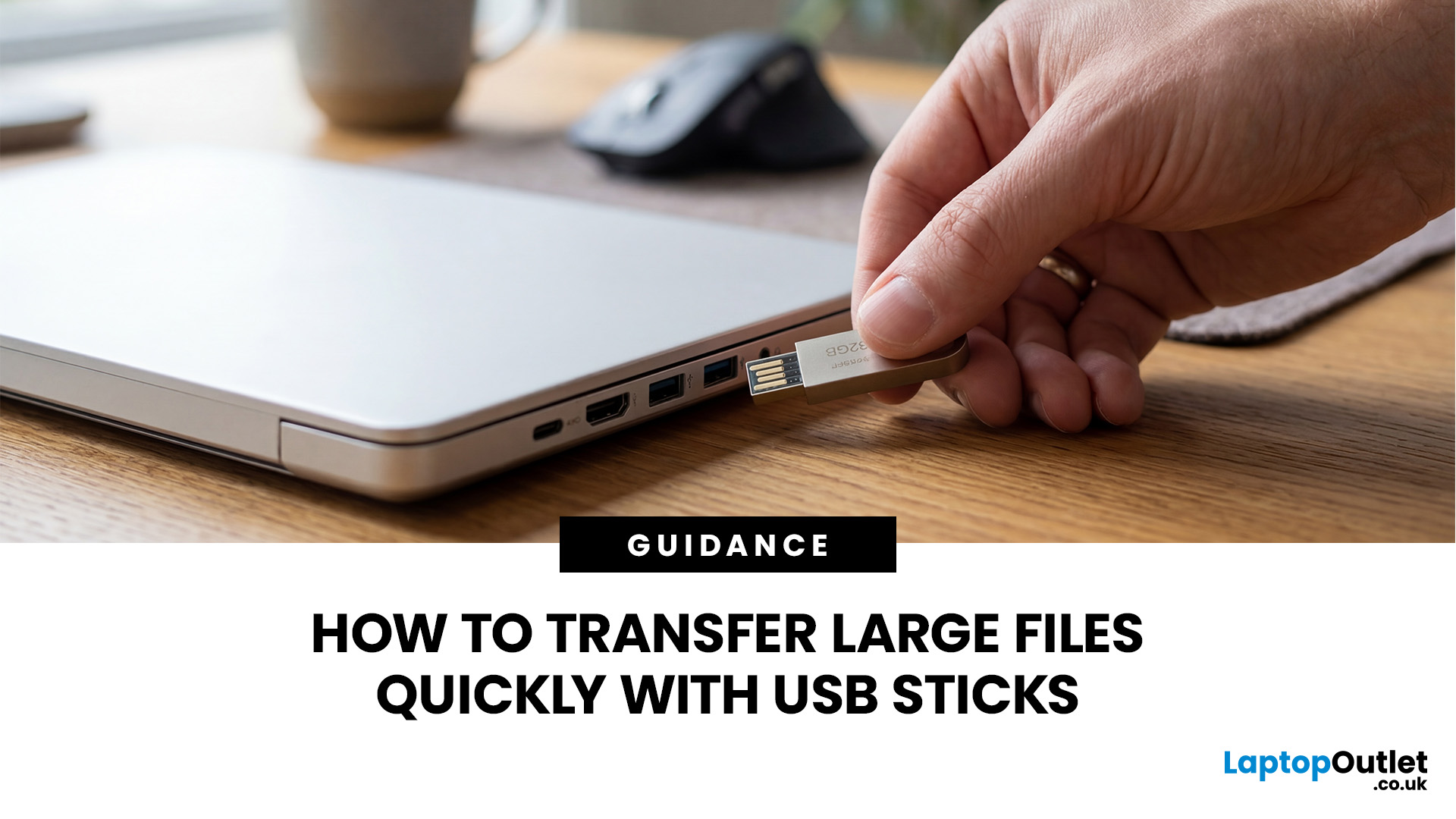
To transfer large files quickly with a USB stick, first check the drive format and connection speed. FAT32 cannot store a single file larger than 4GB, so exFAT or NTFS may be required. Use the fastest compatible USB port, confirm the drive's real write speed, avoid shared bottlenecks, and remember that USB-C alone does not guarantee fast transfers in practice.
Large video files, game folders, backups and project archives can expose two very different USB problems: the file may refuse to copy at all, or the transfer may work but take far longer than expected.
The fix depends on what is actually limiting the transfer. File-system limits, USB link speed, the flash drive itself, the source storage, adapters and even the number of files can all matter. This guide shows you how to diagnose the bottleneck before changing settings or buying another drive.
Why Large USB Transfers Fail or Feel Slow
A USB transfer can fail even when the drive has plenty of free space, or it can run much
Published: August 27, 2026
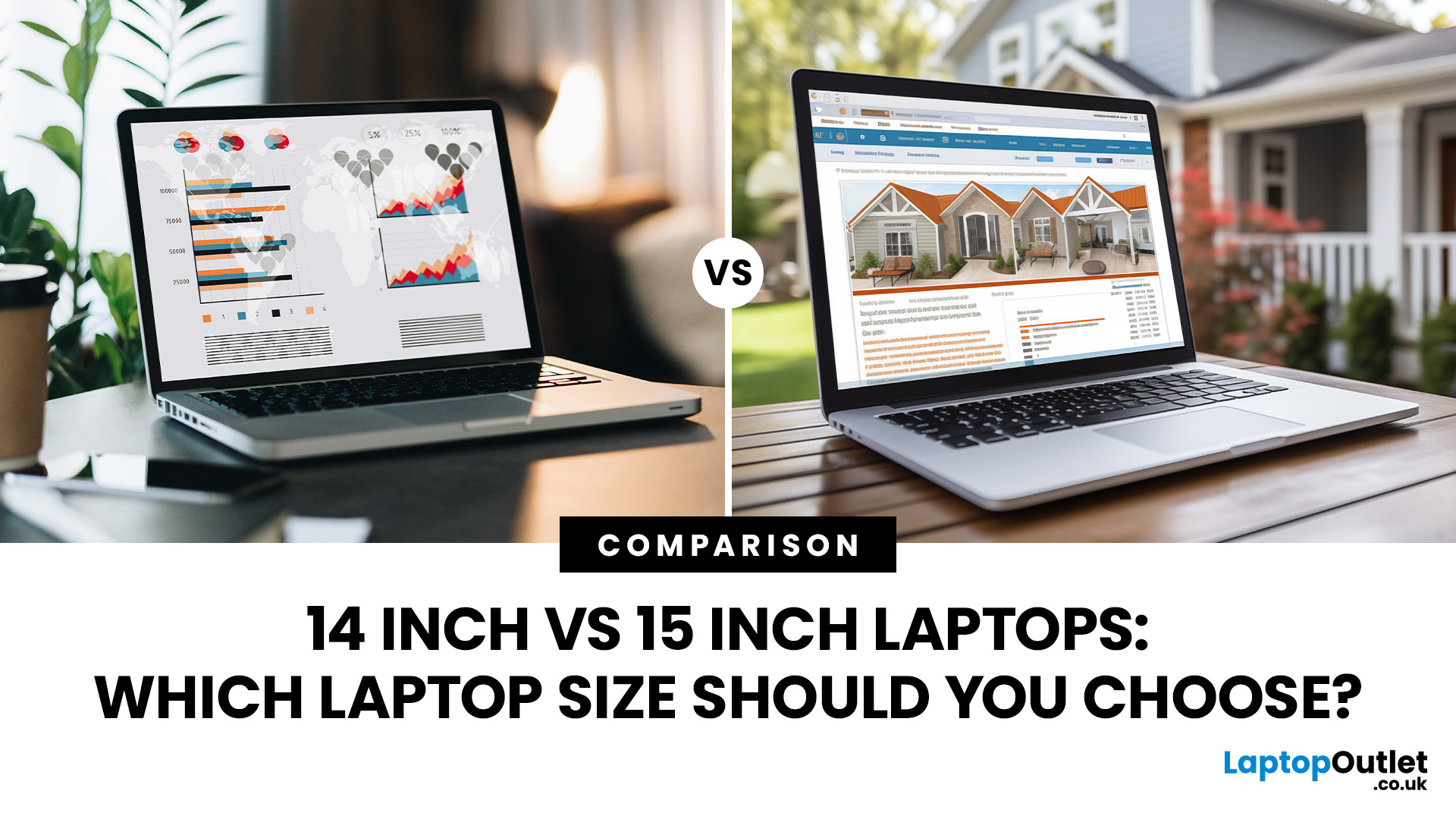
Choosing between a 14-inch and 15-inch laptop is mainly portability vs screen space: 14-inch is lighter and easier to carry, while 15-inch offers a larger display and more comfortable keyboard for work, entertainment and multitasking.
A 14-inch laptop is generally better for students, commuters and frequent travellers because it is lighter and easier to carry. A 15-inch or 15.6-inch laptop is better for multitasking, spreadsheets, gaming and entertainment because its larger display provides more screen space. Choose 14-inch if portability matters most, or 15-inch if the laptop will mainly stay on a desk. Performance and battery life depend more on the individual specifications than the screen size alone. For most users, 14 inches offers the best overall balance.
However, screen size alone does not define performance, battery life or quality. Two laptops of different sizes can have the same processor, memory and storage but still feel different due to variations in display resolution, aspect
Last Updated: October 08, 2026
Published: October 08, 2026
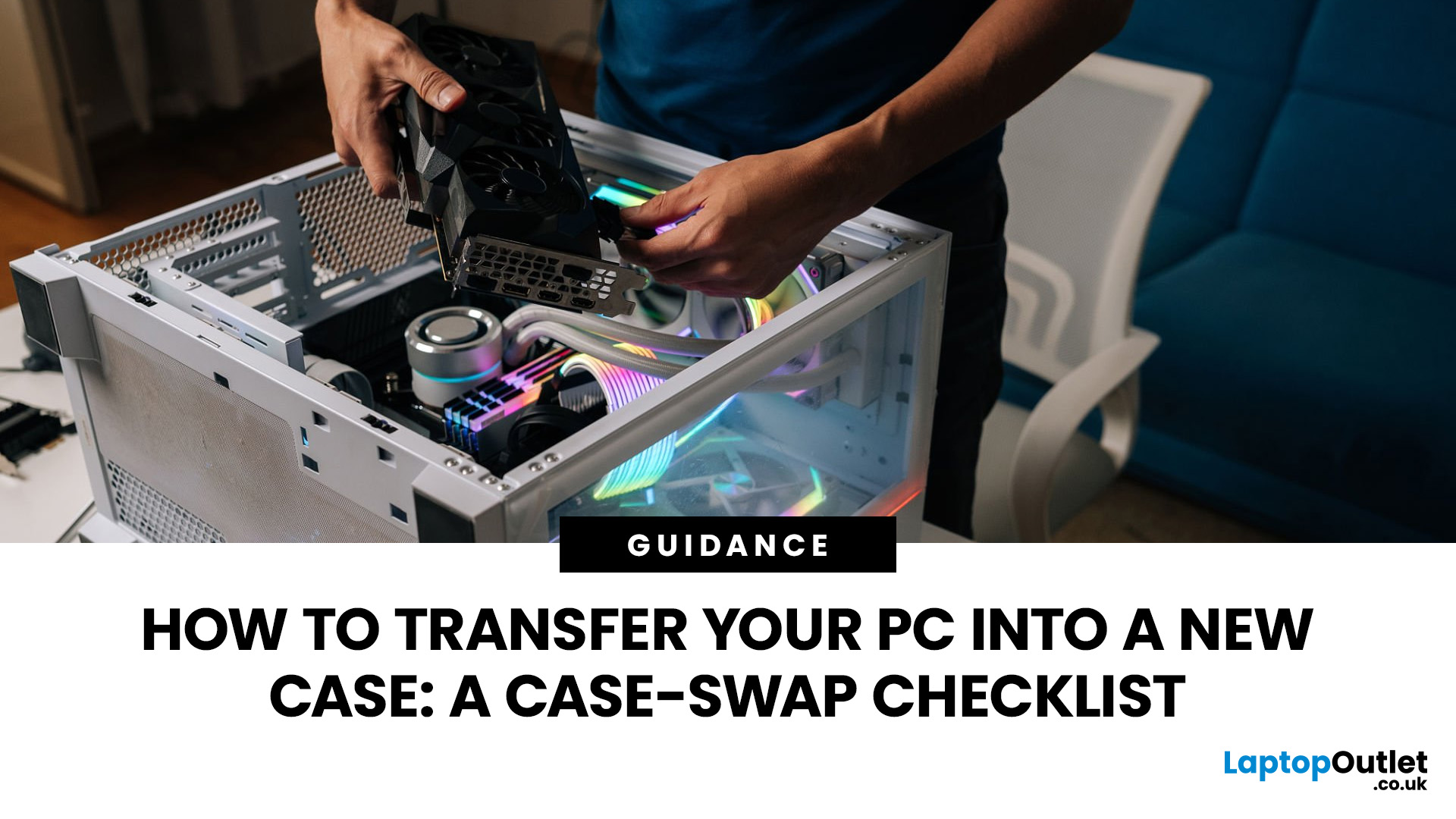
Last Updated: October 12, 2026

Last Updated: October 15, 2026
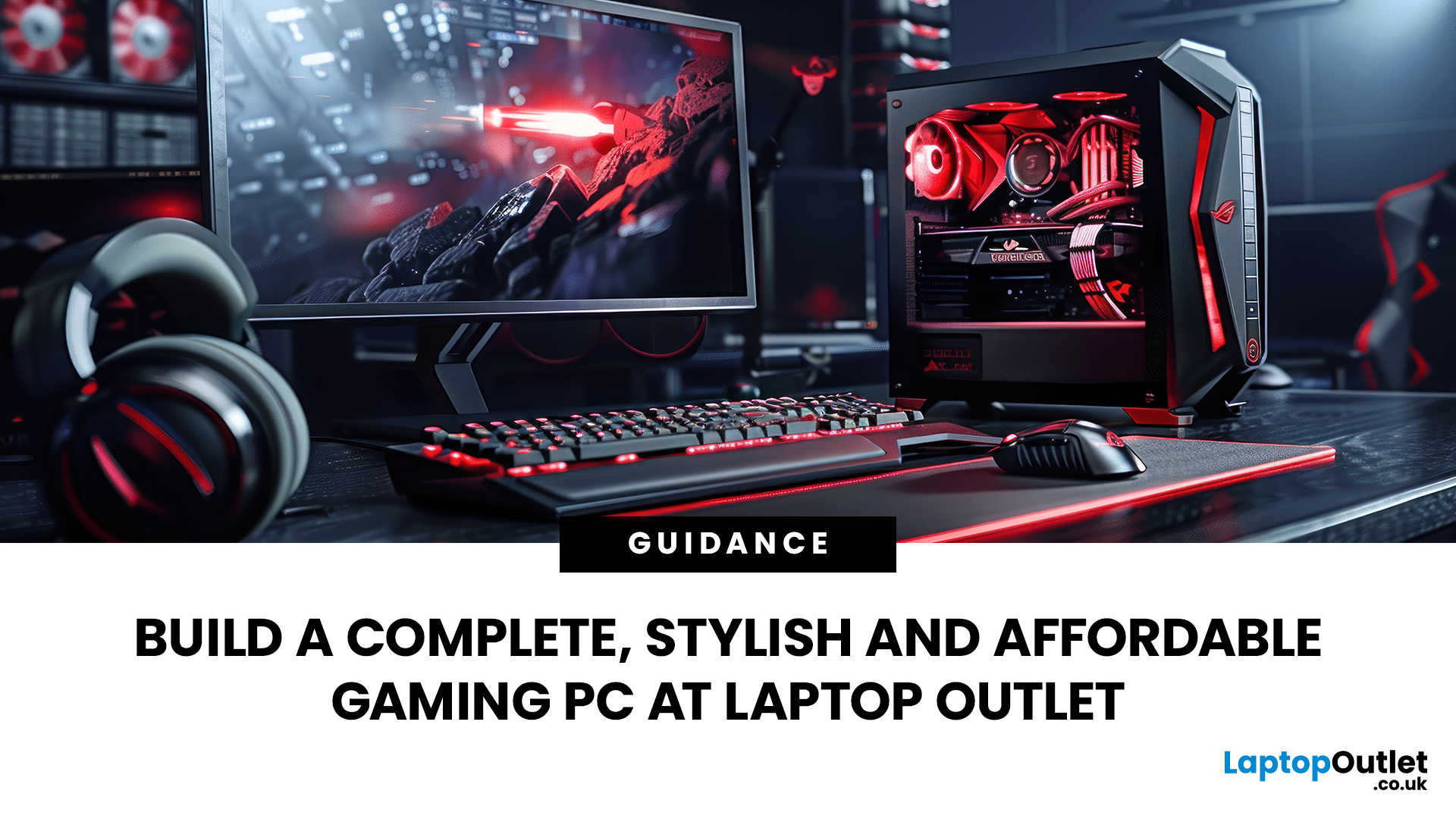
Last Updated: October 15, 2026
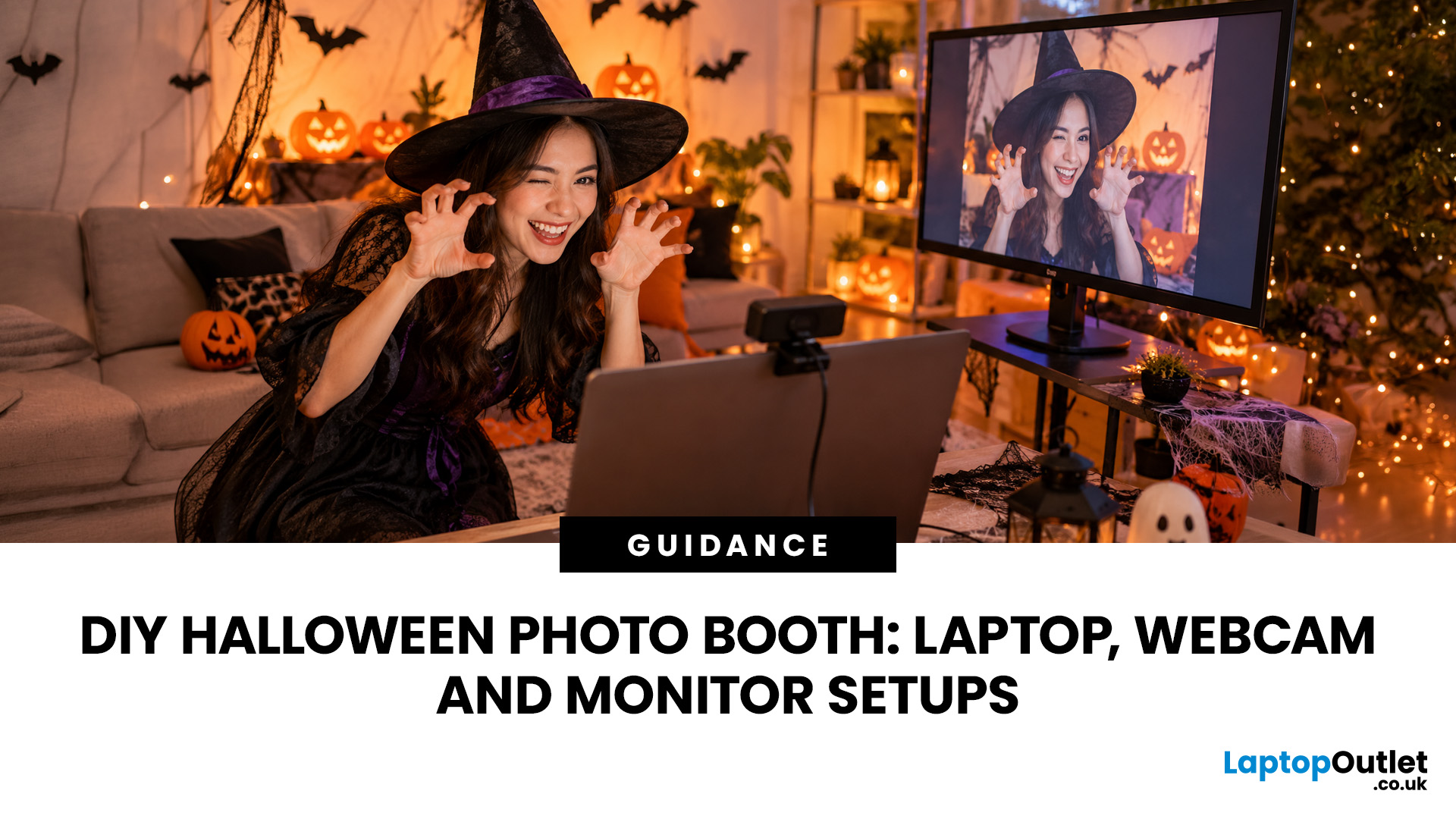
Published: October 19, 2026
A spooky photo booth gives guests somewhere to show off costumes, try ridiculous poses and leave with photos from the night. Better still, you do not need professional photography equipment to build one.
A laptop, webcam, screen, a little lighting, and a suitably creepy backdrop can turn a spare corner into a working DIY Halloween photo booth. You can keep things simple with your laptop's built-in camera or create a more polished setup using an external webcam and separate monitor. Here is how to put everything together without turning your party into an IT project.
What Do You Need for a Halloween Photo Booth?
The key is making the setup reliable. Guests should be able to walk up, pose and take a picture without adjusting cables or camera settings every time. Start with equipment you may already have:
- Laptop or desktop computer
- Built-in or USB webcam
- Monitor or portable display
- Tripod, webcam mount or stable surface
- LED lamp, ring light or another soft light source
- Halloween backdrop
- Props
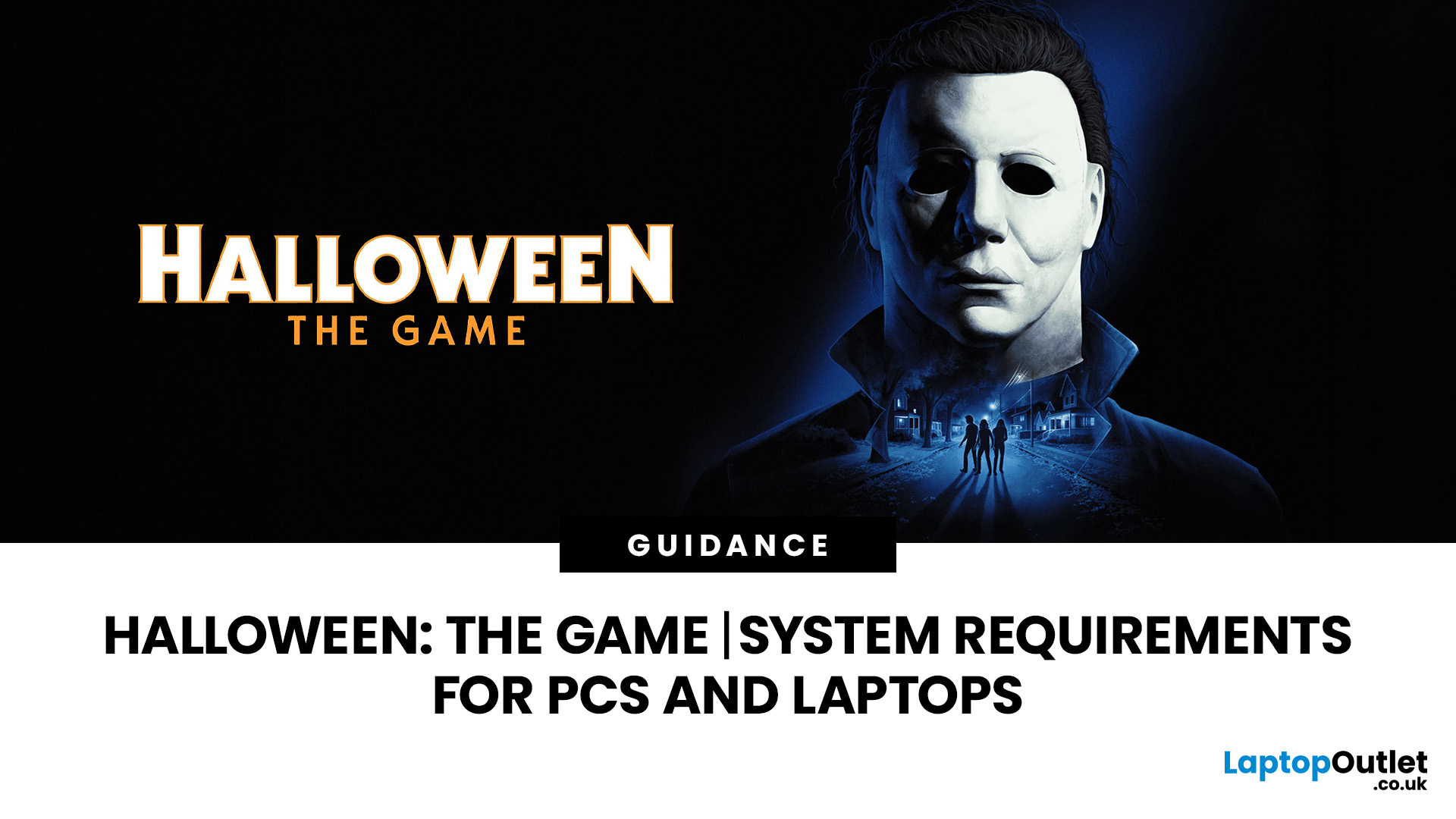
Published: October 20, 2026
Michael Myers is back, and this time, he's coming for your gaming setup!
Halloween: The Game brings the terror of Haddonfield to PCs and consoles. With eerie neighbourhoods, unsettling shadows, and a relentless masked killer, every second could mean the difference between escaping and becoming Michael's next victim.
But before you enter the nightmare, there's one thing to check: can your PC or laptop handle it?
We've broken down the official Halloween the game PC requirements, recommended hardware, graphics settings, and practical performance fixes. Whether you're playing on a desktop or gaming laptop, here's how to prepare your system for a night of scares.
Halloween: The Game: What is it About?
Developed by IllFonic, Halloween: The Game is an asymmetrical survival horror experience inspired by John Carpenter's original 1978 film. The game takes you back to Haddonfield, where the seemingly peaceful streets have become Michael Myers' hunting ground.
In its 1v4 multiplayer mode, one player

