



Beginner’s Guide: Setting Up Your New Laptop or Desktop

Unboxing a brand-new computer is always exciting, whether you’ve chosen a compact laptop for portability or a powerful desktop for home productivity. But once the thrill settles, the next step is understanding how to set up your new laptop or desktop properly. A smooth setup ensures your device runs efficiently, securely, and exactly the way you need it to. In this guide, we walk you through the essential steps to get started.
1. Powering Up and Completing Initial Setup
The first step in setting up your new laptop or desktop is powering it on and walking through the built-in setup wizard. Most Windows devices will guide you through essential features such as:
- Language and region selection
- Wi-Fi connection
- Microsoft account login or creation
- Device name setup
Signing in with a Microsoft account allows you to sync settings across devices, access OneDrive cloud storage, and download apps seamlessly from the Microsoft Store.
If you prefer not to create an account, some versions of Windows allow for an offline setup. However, using a Microsoft account is recommended for full functionality and automated backups.
2. Install System Updates

Before exploring your device, always check for the latest system updates. These updates improve security, fix bugs, and optimise your system for better performance.
To do this:
- Go to Settings
- Click Windows Update
- Select Check for updates
This step is essential when you set up a new laptop, as devices may have been stored for months before you purchased them. Updating ensures you’re protected from the moment you start using your laptop or desktop.
3. Set Up Security Features
Protecting your data should be a priority. Modern laptops and desktops offer advanced security tools:
- Windows Hello (Fingerprint, PIN, or facial recognition)
- BitLocker encryption (available on Windows Pro devices)
- Microsoft Defender Antivirus
Enable these as part of the initial setup to keep your new device safe from online threats. Setting secure login options also makes it easier and faster to access your device without compromising security.
4. Remove Pre-Installed Bloatware
Many new devices come with pre-installed apps you’ll never use. Removing unnecessary software helps speed up your device and frees storage space.
To uninstall programmes:
- Open Settings
- Go to Apps
- Review and remove apps you don’t need
Focus on trial software, games, and duplicate utilities. Perform this step carefully and avoid deleting drivers or system apps.
5. Install Essential Software
Once your device is clean and updated, start installing the apps you’ll use every day. This may include:
- Productivity tools (Microsoft 365, Google Workspace)
- Web browsers (Microsoft Edge, Chrome, or Firefox)
- Communication platforms (Teams, Zoom, WhatsApp Desktop)
- Creative tools (Adobe apps, Canva, film-editing software)
- Gaming platforms (Steam, Xbox App)
If your laptop or desktop is for work, check which applications your organisation requires. For students, ensure you add academic tools such as note-taking apps and cloud storage services.
6. Customise Your Settings

Setting up your new laptop includes tailoring it to your personal preferences:
- Adjust display settings (brightness, resolution, night light)
- Customise your Start Menu and taskbar
- Enable battery-saver options (for laptops)
- Modify notification preferences
7. Transfer Your Data
If you’re upgrading from an older device, you’ll want to transfer documents, photos, and other personal files. You can do this in several ways:
- Using OneDrive or another cloud service
- Using Windows' built-in File History tool
- Connecting an external drive
- Using a data transfer cable
8. Optimise Your Device for Performance
After you set up a new laptop or desktop, it’s important to ensure it’s running at its best. A few optimisation steps include:
- Adjusting startup apps to prevent slow boot times
- Updating drivers, especially graphics and Wi-Fi
- Running built-in performance tools, such as Storage Sense
If you’re setting up a gaming laptop, be sure to install the latest GPU drivers from NVIDIA, AMD, or Intel for peak performance.
9. Create Backups
Backups ensure you’re protected if your device is lost, damaged, or affected by malware. Before finishing your setup, enable regular backups to protect your files. You can use:
- OneDrive (cloud-based backup)
- Windows Backup (system-level backup tool)
- External hard drives

Final Thoughts
Setting up your new laptop or desktop doesn’t have to feel overwhelming. Following these steps helps you start strong with a fast, secure, and personalised device. Whether it's for work, school, gaming, or general home use, taking the time to set up everything properly ensures a smooth and enjoyable tech experience from day one.
If you’re ready to explore a wide range of laptops, desktops, and accessories, visit Laptop Outlet for top deals on leading brands.

FAQs
How long does it take to set up a new laptop?
Most laptops take between 20 and 40 minutes to set up, depending on updates and software installations.
Do I need antivirus software?
Windows devices include Microsoft Defender, which offers strong protection. However, you can install third-party antivirus if you prefer more advanced features.
How do I transfer files from my old laptop?
You can use cloud services, external drives, or Windows’ File History tool for quick and secure transfers.
Should I charge my new laptop before using it?
Most modern laptops come partially charged, but it’s a good idea to plug in your device during setup to avoid interruptions.
Why is my new laptop slow at first?
Initial updates, syncing, and app installations may temporarily slow it down. Performance usually improves once setup tasks are complete.
Related Articles


Last Updated: March 27, 2026
Business laptops are not what they used to be. Forget those chunky grey bricks you dragged to meetings — 2026 is all about AI business laptops. And no, that’s not just another bit of marketing fluff. These machines are actually smart enough to protect your files, stretch your battery, and even take meeting notes while you’re busy zoning out. If you’re running a business, freelancing, or just want a laptop that makes your workday less painful, let’s break down why these AI-packed beasts are worth a look.
What Makes a Laptop “AI Business Ready”?
Right, so what’s all this on-device AI about? In plain English: the laptop’s got extra brains built into it (NPUs and fancy processors) that don’t need the cloud to work. That means:
- Security features happen locally — no faffing about with servers.
- Productivity boosts are instant — your laptop reacts in real time.
- Less reliance on dodgy Wi-Fi — AI features still work offline.
So instead of just being “fast,” these laptops are clever too.
Why On-Device

Last Updated: February 25, 2026
Let’s talk graphics cards! Because if you’re on the hunt for a mid-range gaming laptop, chances are you’ve already seen the buzz around the RTX 40-series. And right in the middle of that hype train? The RTX 4060 laptop.
Why? Well, it’s got the perfect balance of power and price. Not quite as wallet-punching as the 4070, 4080 or the latest RTX 50 Series laptops, but miles ahead of entry-level GPUs. And here’s the kicker, the best RTX 4060 laptop isn’t just about gaming anymore. From content creators on the go to students dabbling in 3D rendering, this GPU is becoming the go-to mid-range champ.
What Makes the RTX 4060 Laptop Worth It?
Before we start chucking model names around, let’s break down why the RTX 4060 is having its moment.
A Mid-Range Sweet Spot
The Nvidia GeForce RTX 4060 laptop GPU is basically the Goldilocks of gaming chips. Not too weak, not too pricey. Sitting between the RTX 4050 and 4070, it nails performance for most gamers and creators without demanding a second mortgage.
Last Updated: October 08, 2025
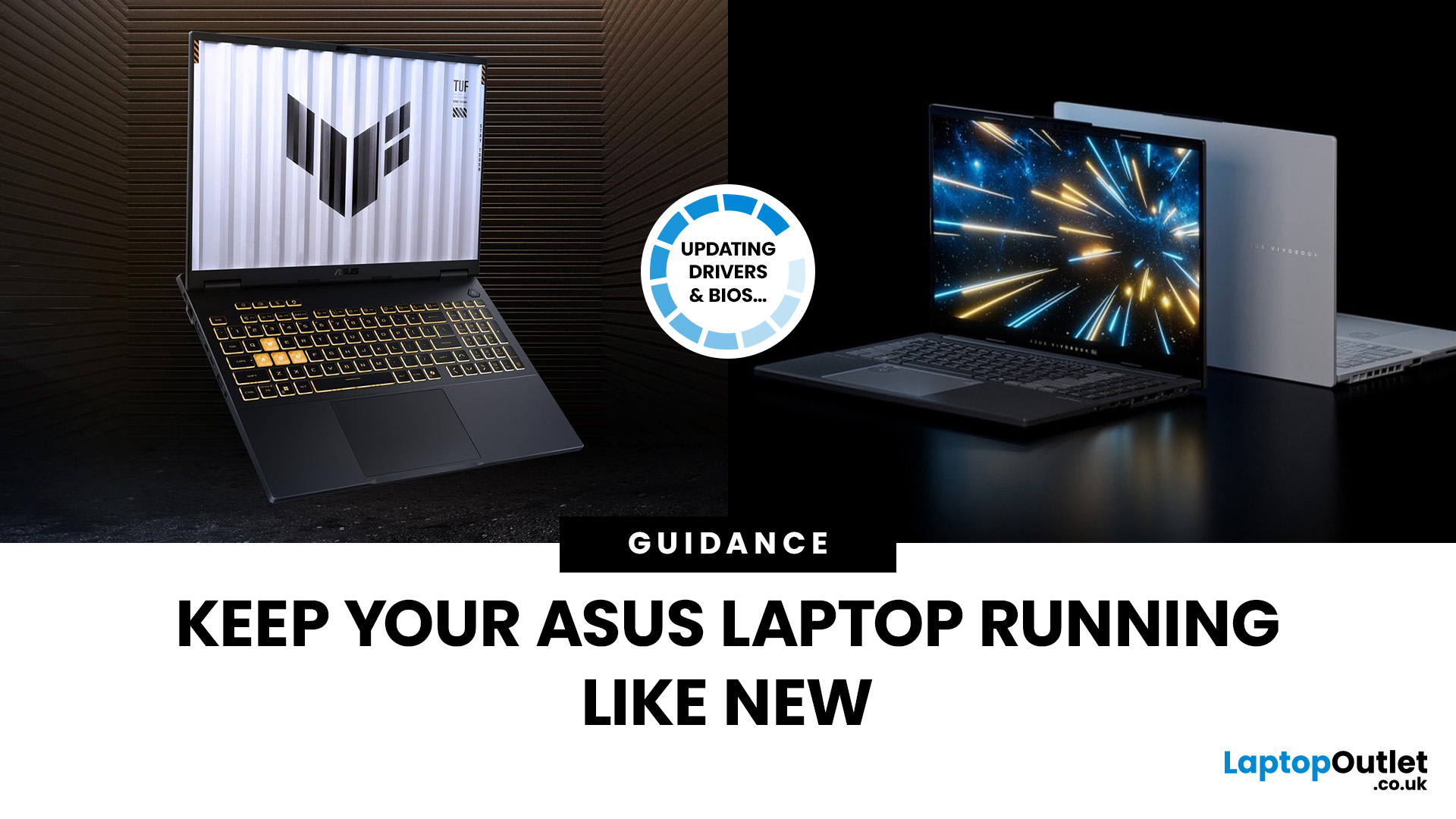
If you’ve ever owned an ASUS laptop - whether it’s a VivoBook for uni work, a TUF machine for gaming, or a Zephyrus for serious creative projects - you’ll know that things don’t always run perfectly forever. Over time, you might notice your battery draining faster, your fans spinning louder, or a game stuttering that used to run smoothly. Nine times out of ten, that’s down to drivers or firmware needing an update.
Updating drivers and the BIOS isn’t glamorous, but it’s one of the most effective ways to keep your ASUS laptop running at its best. The latest drivers squash bugs, improve compatibility with Windows 11, and even unlock new features. A BIOS update can go further still, ironing out stability issues, boosting performance, and extending hardware lifespan.
The good news? ASUS gives you proper tools like MyASUS, Armoury Crate, EZ Flash, and WinFlash, which make updates far less intimidating than they sound. Whether you’re rocking an ASUS VivoBook, TU F, or Zephyrus, this walkthrough
Published: October 08, 2025
Why AI Editing is the New Creative Superpower
Back in the day, photo and video editing meant hours hunched over Adobe apps, manually tweaking every detail. Fast-forward to 2025, and AI has changed the game. Now, your laptop can generate hyper-realistic art in seconds, cut down video editing workflows, and even clean up footage automatically. But here’s the catch — with so many tools out there and specs to think about, diving into AI image & video editing can feel overwhelming.
What is AI Image & Video Editing, Anyway?
Simply put, AI image & video editing is when your laptop uses machine learning to handle tasks that normally take ages. That includes:
- AI Image Generation: Tools like Stable Diffusion, DALL·E, or MidJourney can create custom visuals, concept art, or even product photos just from text prompts.
- AI Video Editing: Think auto-cutting, background removal, colour correction, or even AI-generated B-roll clips. Apps like Runway, Adobe Premiere Pro’s AI tools, and DaVinci Resolve

Published: October 08, 2025
Choosing the right laptop in 2025 can be overwhelming, given the wide range of options available across budgets, designs, and performance levels. With Microsoft’s Windows 11 becoming the most optimised OS for hybrid work, gaming, and everyday use, selecting the right device is more important. In this Windows 11 laptops buying guide, we’ll cover everything you need to know before purchasing. From Windows 11 laptop comparisons to use-case specific recommendations for students, business users, and gamers, this guide ensures you make an informed decision.
Why Choose a Windows 11 Laptop?
Enhanced Performance
In 2025, Windows 11 is fully optimised for the latest Intel Core Ultra (Meteor Lake) and AMD Ryzen 8000/9000 series processors. These chips integrate dedicated NPUs (Neural Processing Units), which offload AI workloads from the CPU and GPU, resulting in:
- Faster multitasking across productivity apps like Microsoft 365, Adobe Creative Suite, and Teams.
- Improved power efficiency, extending

Published: October 15, 2025
So, you’ve just cracked open a shiny new Windows 11 laptop, maybe something sleek from ASUS or one of the new-gen ultrabooks from the Windows 11 laptop range and you’re ready to dive in.
But before you start downloading Spotify, Chrome, or every game-on-game pass, let’s get one thing straight: Windows 11 runs beautifully… when it’s set up properly.
Out of the box, most laptops are loaded with trialware, telemetry, and services you’ll never use, all quietly eating battery and slowing things down. The good news? You can sort it all out in under an hour with the right steps.
This isn’t one of those “just click next” guides. This is your no-fluff, Gen Z-approved, tech-expert walkthrough, from the first boot to a fully optimised, smooth, private, and battery-efficient setup.
Let’s go.
First Boot: Don’t Just Click Next — Be Smarter Than Setup
The Windows 11 first boot is full of small traps. Microsoft really wants you to sign into a Microsoft Account, connect to Wi-Fi, and enable every cloud
Last Updated: September 22, 2026
Choosing the right graphics card starts with what you actually want your PC to do. Your monitor resolution and refresh rate, games or software, VRAM requirements, power supply, case space and available budget all matter more than simply buying the newest GPU.
To choose the right graphics card, match the GPU to your monitor resolution, refresh rate, games or software, and budget. Check real-world performance, VRAM, power-supply requirements, physical size, cooling and supported features such as ray tracing and upscaling. For 2026, compare current NVIDIA, AMD and Intel options rather than relying on model names or generation alone when making your choice.
This graphics card buying guide explains how to choose a graphics card for gaming, content creation and everyday GPU-accelerated workloads, while covering the specifications and compatibility checks that matter in 2026.
Quick Graphics Card Buying Checklist
Before comparing individual GPUs, check these seven things:
- Resolution: Are you gaming
Last Updated: March 30, 2026
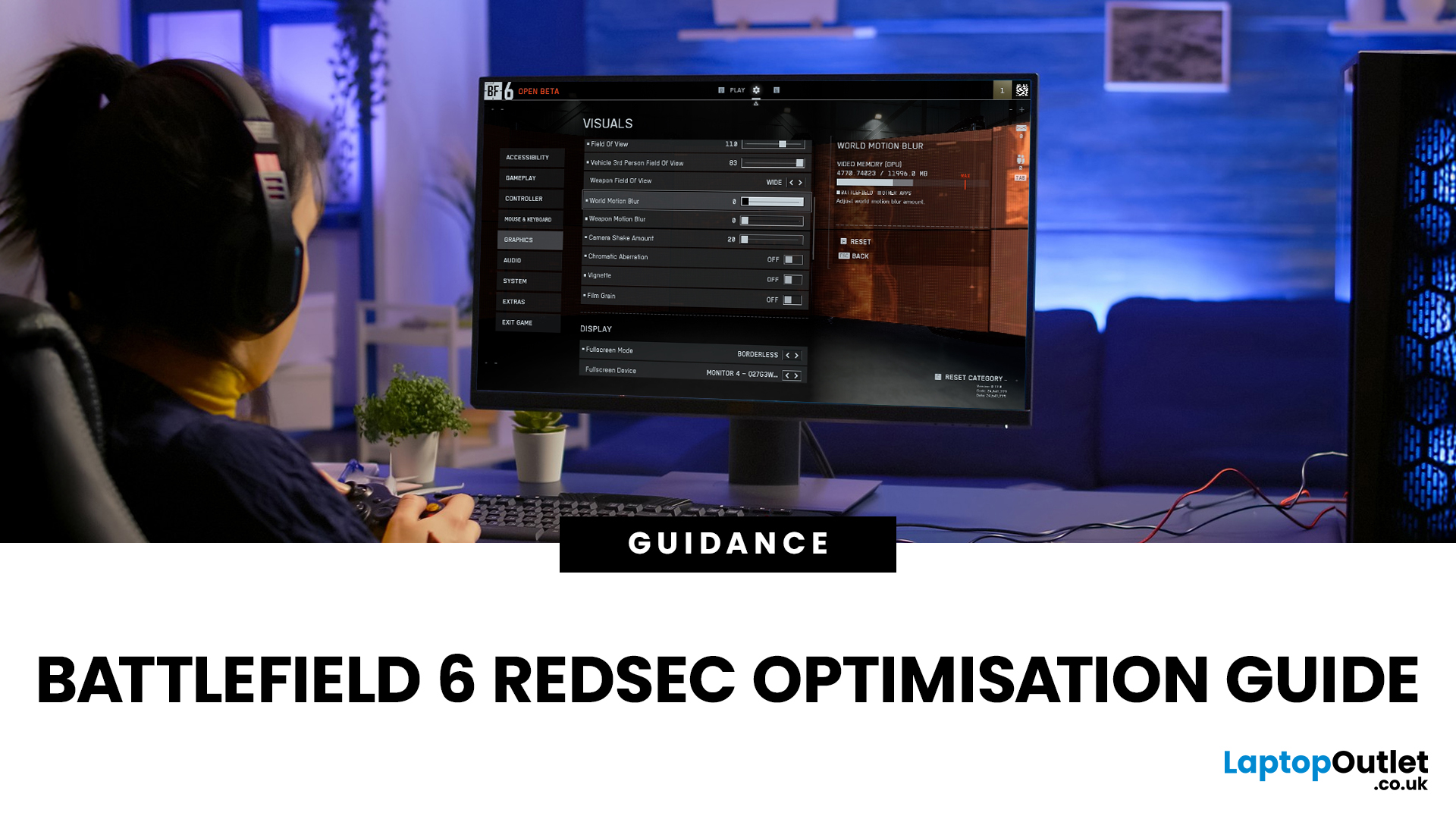
Trying to find a comprehensive optimisation guide for Battlefield 6 RedSec? You’ve come to the right place. This article dives deep into the Battlefield 6 RedSec best graphics settings, performance tweaks and controller/resolution adjustments to extract maximum FPS, clarity and responsiveness from your PC, whether you're running a high-end rig or a more modest setup.
Why Optimisation Matters in RedSec
The free-to-play battle royale mode RedSec, launched as part of Battlefield 6, demands both high performance and visual clarity. Large maps, intense firefights, vehicle chaos and destructible environments all place pressure on both GPU and CPU. This Optimisation Guide for Battlefield 6 RedSec ensures smoother gameplay, higher FPS, and fewer frame drops:
- Higher FPS → smoother gameplay, better aiming, less stutter
- Lower input latency → quicker reactions in competitive firefights
- Better visibility → fewer visual distractions, more clarity on enemies
- More consistent 1% lows → fewer dips that

Last Updated: December 05, 2025
Portable monitors have completely changed the way we work, game, and watch media on the move. They offer a much larger display than your smartphone, transforming your pocket-sized device into a mini-desktop or a fully immersive entertainment system.
If you want to connect smartphone to a portable monitor for work or play, you've come to the right place. This complete guide will walk you through every possible connection method, covering both Android and iPhone devices, as well as essential tips for a seamless setup.
What You Need to Connect Smartphone to a Portable Monitor
Before we dive into 'how to use phone with portable monitor, you need to check a few things. Having the right kit is essential for a successful smartphone to portable monitor setup.

1. The Right Portable Monitor
Your monitor needs to have the correct input ports. The best portable monitors for phones feature a dual-connection design, offering both USB-C (for single-cable power and video) and Mini-HDMI ports (for universal

Last Updated: December 03, 2025
Ever found yourself out and about, needing to work on your laptop, but there’s no reliable Wi-Fi? It’s a common scenario. Luckily, your smartphone holds the solution: tethering.
Tethering is a simple, effective way to use your phone's mobile data connection to get your PC online. Essentially, you're turning your phone into a portable Wi-Fi hotspot or a physical modem.
This comprehensive guide will walk you through the three main ways to tether phone to PC, ensuring you can get back to work (or play) swiftly and securely.
What is Tethering?
Tethering is the process of sharing your mobile phone's internet connection with another device, like a computer or tablet. It effectively turns your phone into a portable Wi-Fi router. You are "tethering" the two devices together to share the data.
You can tether phone to PC using a cable (USB), wirelessly (Wi-Fi hotspot), or via Bluetooth. Each method has its own advantages, which we will explore below.

