



How to Speed Up a Slow HP Laptop in 2026?
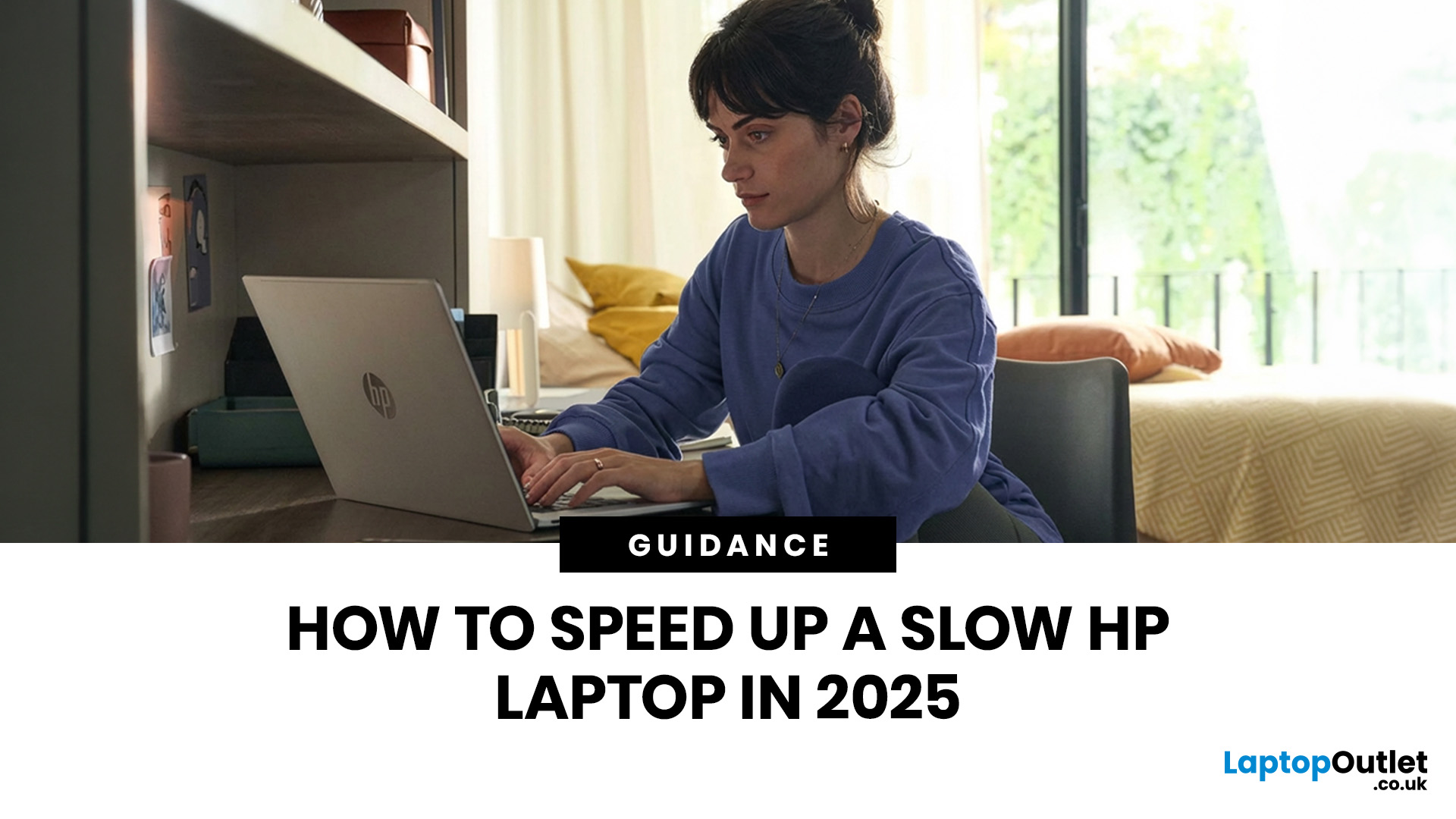
A slow laptop can be frustrating. Whether you are working, studying, or browsing, delays waste time and reduce productivity. The good news is that most issues can be fixed without replacing your device.
This guide explains how to speed up a slow HP laptop using clear, practical steps. Each section focuses on a specific fix so you can improve performance step by step.
1. Restart Your Laptop Regularly
It sounds simple, but many people just close the lid and leave their laptop in sleep mode for weeks. This clogs up the RAM and keeps background processes running. A proper restart clears the temporary memory and ends buggy tasks. It is the easiest way to give your HP a fresh start.
2. Manage Your Startup Apps
Does your laptop take a lifetime to boot up? You likely have too many apps trying to start at once.
- Open Task Manager (Ctrl + Shift + Esc).
- Click on the Startup apps tab.
- Disable anything you don't need immediately, like Spotify or Steam. This reduces the strain on your processor the moment you log in.
3. Update Windows and HP Drivers
Security patches and system optimisations are vital in 2026. Microsoft frequently releases updates that fix compatibility issues. Similarly, HP provides BIOS and chipset updates. Go to Settings > Windows Update and check for "Optional Updates" as well. This ensures your hardware talks to your software efficiently.
4. Run the HP Support Assistant
Every HP laptop comes with a handy tool called HP Support Assistant. This software is designed to find specific issues with your hardware. It can scan for outdated drivers, battery health problems, and system bottlenecks. Run a full health check once a month to keep things ticking over nicely.
5. Clean Out Temporary Files
Windows creates "junk" files every time you browse the web or install an app. Over time, these files take up valuable space on your SSD.
- Type Disk Cleanup in the search bar.
- Select your main drive.
- Tick the boxes for temporary files and cache.
- Hit OK to bin the rubbish.
6. Use Storage Sense for Automation
If you can't be bothered to clean files manually, let Windows do it for you. Storage Sense is a brilliant feature that automatically deletes old files from your bin and Downloads folder. You can find this in Settings > System > Storage. It keeps your drive lean without any extra effort from you.
7. Check for Malware and Viruses
A slow laptop is often a sign of a digital bug. Even if you are careful, malware can hide in the background and hog your CPU power. Use Windows Security or a trusted third-party scanner to run a "Full Scan." Removing even one bit of adware can make a massive difference to your speed.
8. Uninstall Unused Software (Bloatware)
Laptops often come with "bloatware" or apps you downloaded once and forgot about. These take up space and sometimes run background services. Go to Settings > Apps > Installed Apps and be ruthless. If you haven't used it in six months, get rid of it.
9. OptimiseYour Power Plan
By default, laptops often sit in "Balanced" mode to save battery. If you are plugged into the wall, you should be using maximum power.
- Click the battery icon in the taskbar.
- Slide the power mode to Best Performance. This tells your Intel or AMD processor to run at its full clock speed.
10. Upgrade Your RAM
If you are still running on 8GB of RAM in 2026, you will struggle with multitasking. Upgrading to 16GB or 32GB is one of the most cost-effective ways to speed up a slow HP laptop. Check if your specific HP model has an extra slot or if the current sticks are replaceable. It makes everything feel snappier.
11. Switch to an SSD
Still using a mechanical Hard Disk Drive (HDD)? That is likely your biggest bottleneck. Swapping an old HDD for a modern NVMe or SATA SSD is like giving your laptop a turbocharger. Load times for Windows will drop from minutes to seconds. It is a total game-changer for older HP EliteBooks or Pavilions.
12. Disable Visual Effects
Windows looks pretty with its shadows and animations, but these features use up GPU and CPU cycles.
- Search for Adjust the appearance and performance of Windows.
- Select Adjust for best performance. The interface might look a bit more basic, but the speed boost on entry-level laptops is worth it.
13. Close Unnecessary Browser Tabs
We are all guilty of having 50 tabs open in Chrome or Edge. In 2026, websites are heavy and full of scripts. Each tab eats a bit of your RAM. Try using a "Tab Suspender" extension or simply bookmark the pages you aren't using. Your laptop will thank you for the breathing room.
14. Check Your Hard Drive Health
Sometimes a slow laptop is a warning that the drive is failing. If your HP makes clicking sounds or frequently freezes, use a tool like CrystalDiskInfo to check its health. If the status is "Caution," back up your data immediately and look for a replacement drive at a tech retailer.
15. Monitor Your Thermal Temperatures
High temperatures cause "thermal throttling," where the processor intentionally slows down to prevent damage. In 2026, modern CPUs like the Intel Core Ultra series generate significant heat during multitasking.
Download a tool like HWMonitor or Core Temp to check your idle and load temperatures. If your laptop is consistently running above 90°C, the internal fans are likely struggling to keep up, leading to noticeable lag.
16. Clean the Internal Dust and Vents
Physical maintenance is just as important as software tweaks. Over time, dust builds up in the cooling fins and fans of your HP Pavilion or Envy. This restricted airflow forces the fans to work harder and the system to throttle performance.
Use a can of compressed air to blow out the side and bottom vents. For older models out of warranty, opening the bottom panel to manually clean the fan blades can provide a massive boost in sustained clock speeds.
17. Enable Efficiency Mode in Task Manager
Windows 11 and its successors offer a feature called Efficiency Mode. If you notice a specific background app is hogging your CPU but you don't want to close it entirely, you can limit its priority.
- Open Task Manager (Ctrl + Shift + Esc).
- Right-click a process that is consuming high resources.
- Select Efficiency Mode. This reduces processor stress and leaves more "headroom" for the apps you are actually using, such as your browser or office software.
18. Update Your Graphics Drivers Directly
While Windows Update handles basic drivers, it often misses the latest optimisations for integrated Intel Iris Xe or dedicated NVIDIA RTX graphics. For HP gaming or workstation laptops, go directly to the NVIDIA or AMD website to download the latest "Game Ready" or "Studio" drivers. Newer drivers often include performance fixes for 2026 web standards and high-resolution video playback that generic drivers lack.
19. Adjust Search Indexing Options
Windows constantly indexes your files so you can find them quickly in the Start menu, but this process can be heavy on your system resources. If you have a massive amount of data, the indexing service might be slowing you down.
- Search for Indexing Options in the taskbar.
- Click Modify.
- Uncheck folders that you rarely search through. By narrowing the scope of what Windows needs to monitor, you free up your SSD and CPU to focus on more important tasks.
20. Reset Your PC (The Fresh Start)
If all else fails, a factory reset is the "nuclear option." It wipes away all the software clutter and configuration errors that have built up over years of use.
- Go to Settings > System > Recovery.
- Choose Reset this PC. You can choose to keep your files, but a clean wipe usually yields the best performance results.

Get Your HP Laptop Moving Again
Knowing how to speed up a slow HP laptop doesn't require a degree in computer science. Most of the time, a mix of software tidying and a simple hardware nudge, like adding more RAM, will do the trick.
By following these 15 steps, you can extend the life of your device and save yourself a fair bit of money. Keep your drivers updated, stay on top of your storage, and your HP laptop will stay reliable for years to come.
However, if you feel that your laptop has reached the end of its life, browse our latest range of HP laptops for a modern upgrade that won't let you down.

Just So You Know...
Why is my HP laptop running slow suddenly?
It may be due to updates, background apps, low storage, or malware. Check Task Manager and run a virus scan.
Will adding RAM speed up my HP laptop?
Yes, more RAM improves multitasking and reduces lag, especially with multiple apps or browser tabs open.
Is an SSD better than an HDD for performance?
Yes, SSDs are much faster. They improve boot time, file access, and overall responsiveness.
How often should I clean my laptop?
Clean vents and remove dust every 2–3 months to prevent overheating and maintain performance.
Can too many apps slow down my laptop?
Yes, especially startup and background apps. Disable or uninstall unnecessary ones.
Does resetting Windows improve speed?
Yes, it removes clutter and restores system performance, especially if software issues are causing slowdowns.
What is the fastest way to speed up a slow HP laptop?
Disable startup apps, free storage, and upgrade to an SSD for the most noticeable improvement.
| Read More: |
| How to Speed Up Your Laptop – Easy Fixes for Better Performance |
| How to Factory Reset a Laptop? |
| How to Screenshot on a HP Laptop? |
| How to Fix a Laptop That Won't Turn On? |
Related Articles

Last Updated: September 08, 2026
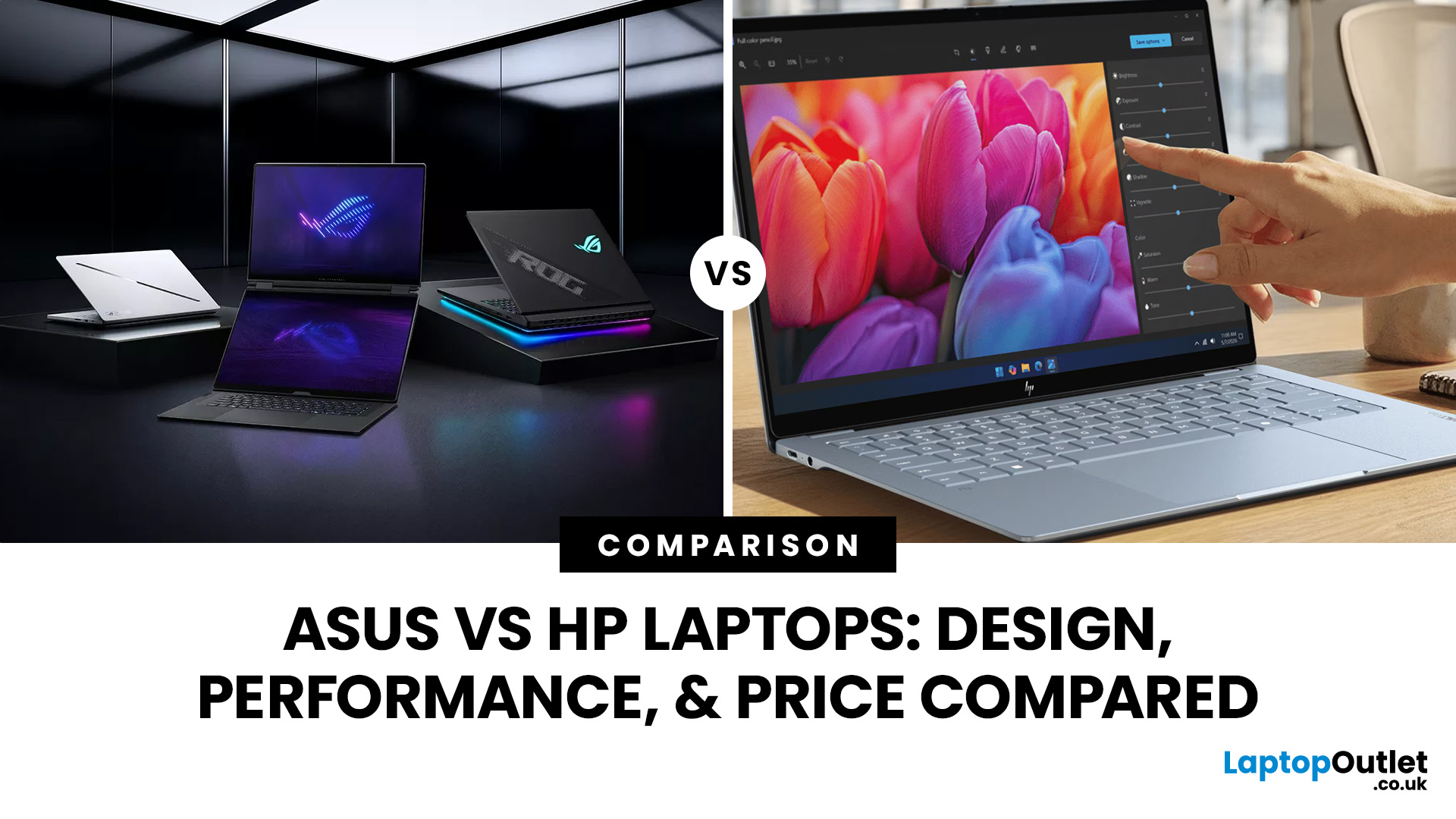
ASUS and HP now compete across almost every type of Windows laptop, from lightweight AI PCs to business machines and RTX-powered gaming systems. The real differences appear when you compare their processors, memory, storage, displays, portability, and product families. This ASUS vs HP laptops guide breaks those areas down so you can match the right brand and specification to the way you actually use your laptop.
ASUS vs HP: Quick Comparison
| Feature | ASUS | HP |
| Everyday laptops | Vivobook | OmniBook 3/5 |
| Premium laptops | Zenbook | OmniBook X/Ultra |
| Business | ExpertBook | ProBook/EliteBook |
| Gaming | TUF Gaming/ROG | Victus/OMEN |
| Creator/workstation | ProArt | ZBook |
| Processors | Intel Core Ultra, AMD Ryzen AI, Snapdragon | Intel Core Ultra, AMD Ryzen AI, Snapdragon |
| Displays | Strong OLED, Mini LED and high-refresh choice | IPS, OLED, touch and high-refresh options |
| Best suited to | Broad display and gaming choice | Consumer, business and workstation depth |
Neither company wins every category. Compare equivalent ranges first rather
Last Updated: August 07, 2026
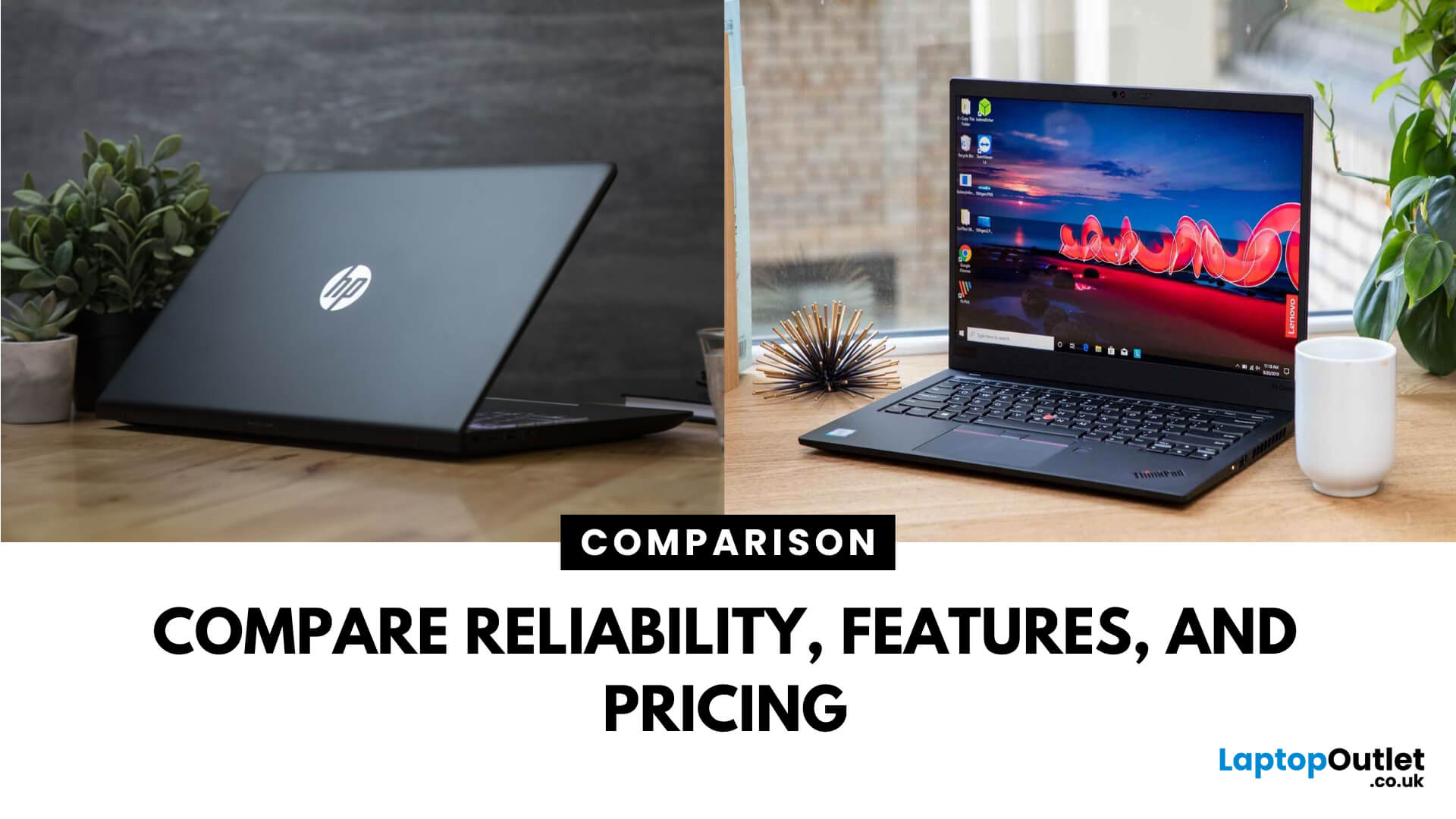
Choosing between Lenovo vs HP laptops is not simply a matter of picking the more recognisable logo. Both manufacturers offer affordable everyday notebooks, premium ultraportables, business devices, mobile workstations, and powerful gaming laptops.
The important difference is how each brand divides its range. Lenovo offers IdeaPad, Yoga, ThinkBook, ThinkPad, LOQ, and Legion models, while HP covers consumer computing with OmniBook alongside ProBook, EliteBook, ZBook, Victus, and OMEN.
Your ideal choice depends on the individual model, configuration, and intended workload. Processor performance, memory, storage, graphics, cooling, and display quality normally matter more than the brand name alone.
Quick Answer: Is Lenovo or HP Better?
Lenovo is a strong choice for buyers prioritising practical designs, comfortable keyboards, business features and a wide selection of gaming laptops. ThinkPad and ThinkBook cover professional use, while LOQ and Legion target different gaming budgets.
HP may be
Last Updated: September 07, 2026
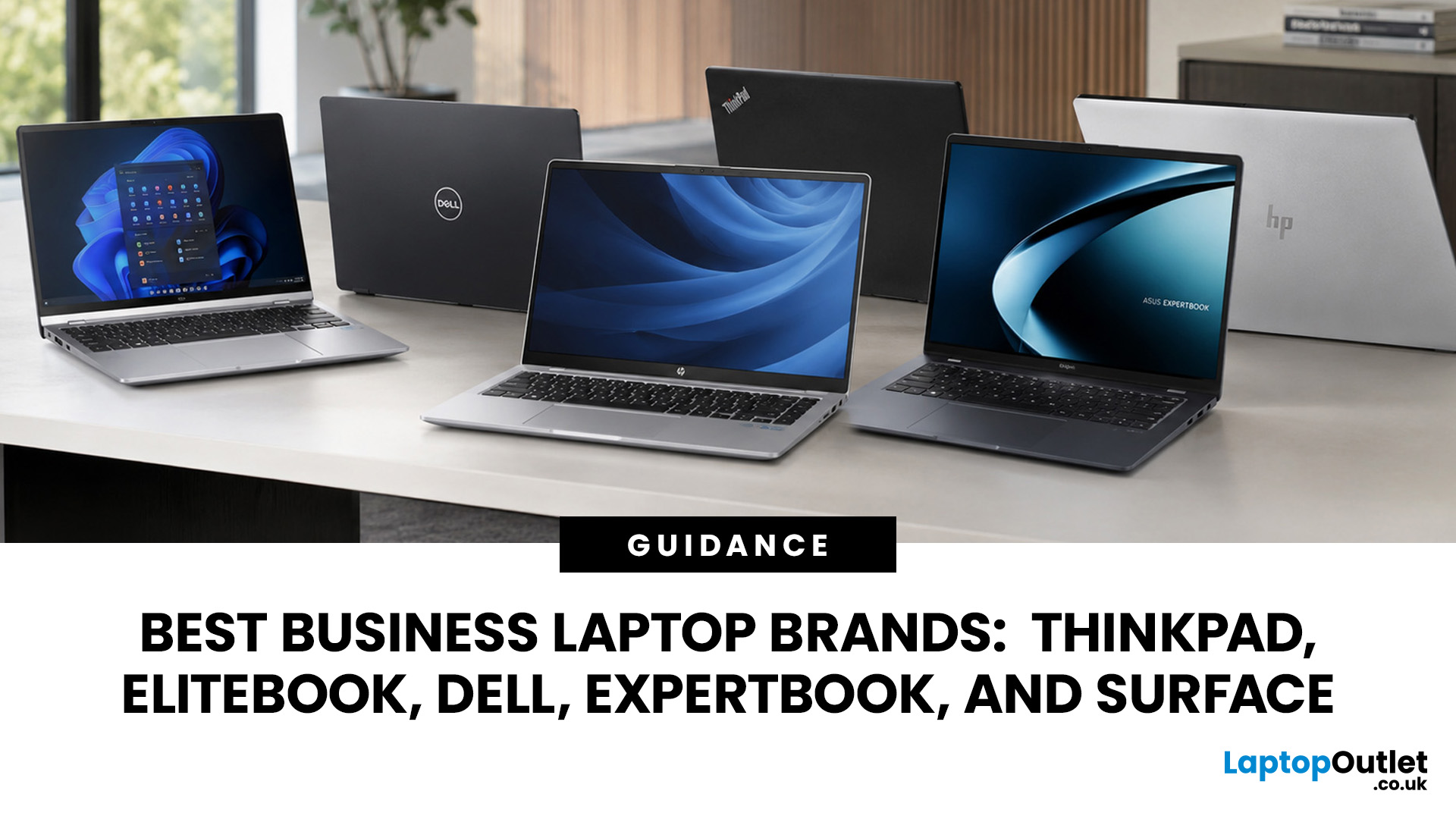
A dependable business laptop must do more than open emails and spreadsheets. It should support your applications, protect company data, connect to workplace equipment, and remain comfortable through long working days. However, even the best business laptop brands take different approaches to these requirements. This guide compares Lenovo ThinkPad, HP EliteBook, Dell Latitude, and Dell Pro, ASUS ExpertBook, and Microsoft Surface so you can identify the most suitable range for your work.
Which Business Laptop Brand is Best?
There is no single best brand for every professional. Lenovo ThinkPad offers one of the broadest selections, while HP EliteBook places strong emphasis on security and collaboration. Dell Latitude and newer Dell Pro systems suit managed IT environments, ASUS ExpertBook provides practical options for SMEs, and Microsoft Surface combines premium mobility with close Windows integration.
The right choice ultimately depends on your software, security policies, working location,
Last Updated: September 02, 2026
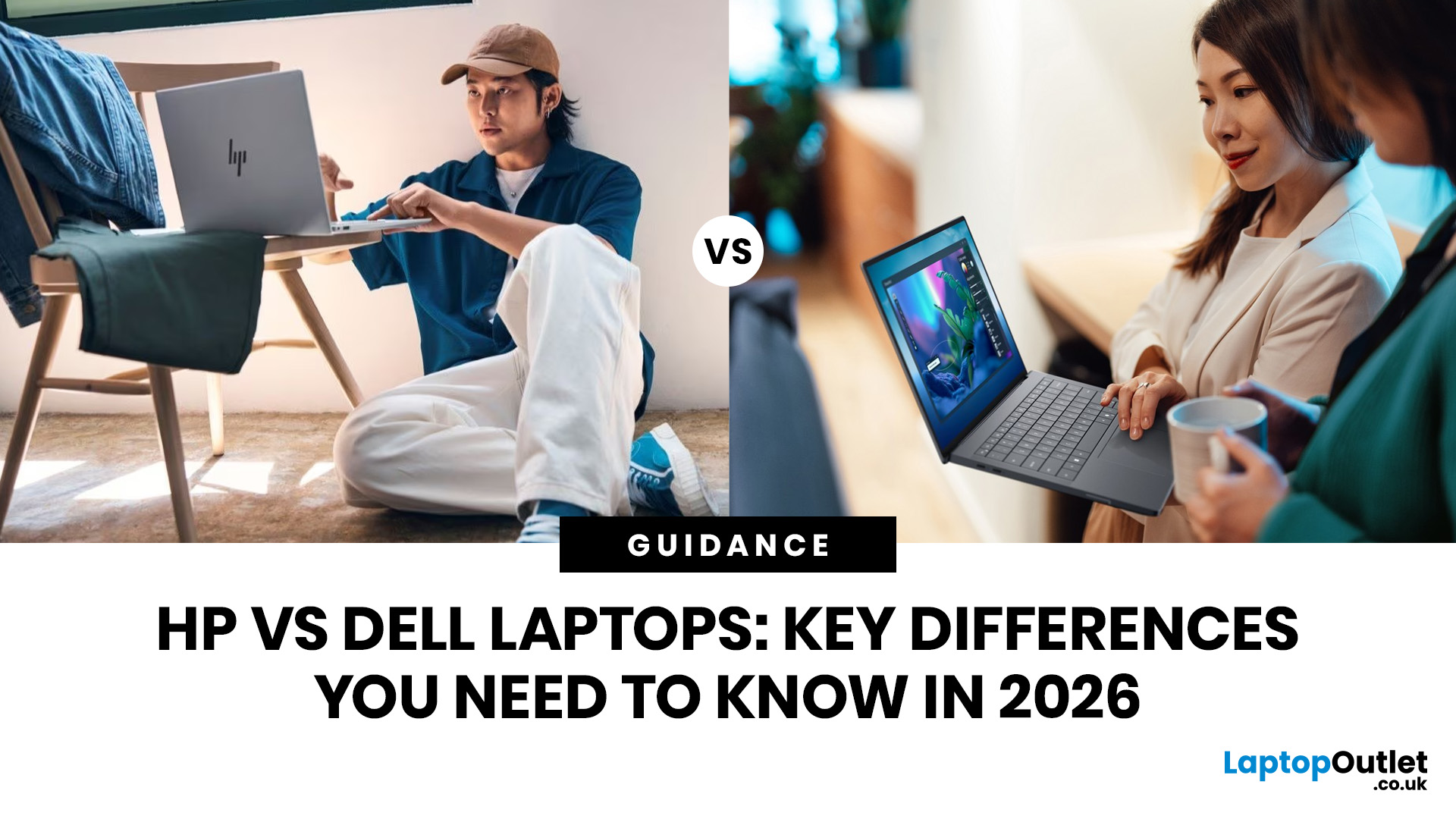
In the HP vs Dell laptops debate for 2026, HP wins on value, stylish design, and accessibility, making it ideal for students and home users. Dell wins on build quality, battery endurance, enterprise-grade support, and long-term durability, making it the stronger pick for professionals and power users. Neither brand is universally better; the right choice depends entirely on your budget, use case, and how long you plan to keep the device.
This guide cuts through the noise and gives you a proper, head-to-head Dell vs HP comparison across every major category so you can shop with confidence.
What Are HP and Dell Each Known For in 2026?
Before diving into the specs, it helps to understand the design philosophy behind each brand. HP and Dell both make excellent laptops, but they approach the market from noticeably different angles, and that shapes every product decision they make.
HP: Design, Value, and Accessibility
HP positions itself around choice, modern aesthetics, and broad accessibility.
Last Updated: September 12, 2025
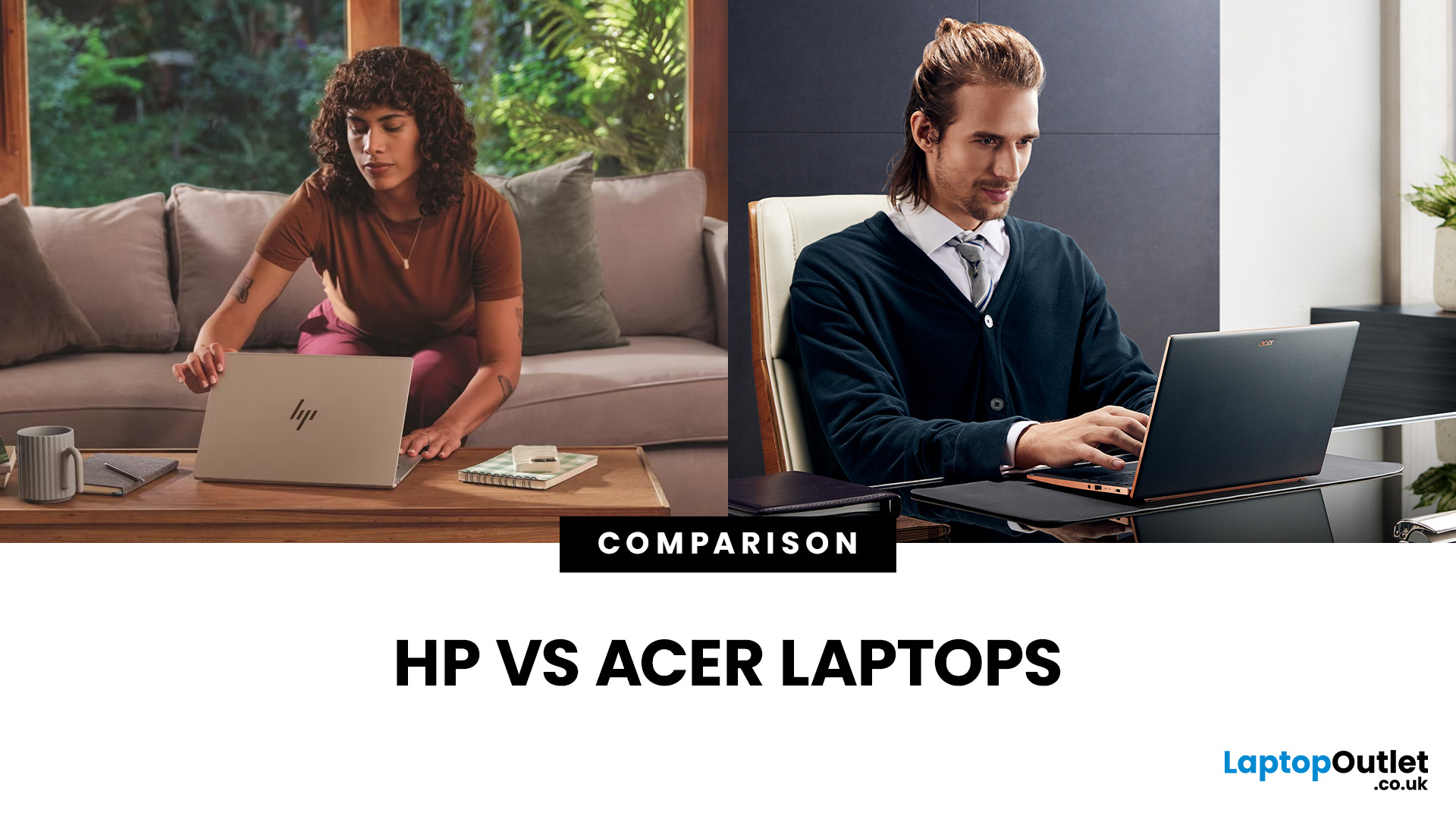
What’s the Difference Between HP and Acer Laptops?
Acer laptops shine when it comes to affordability. We’re talking entry-level prices without fully compromising on specs. HP laptops are more about that premium feel sleek designs, high build quality, and often enterprise-grade features.
Feature Comparison Table
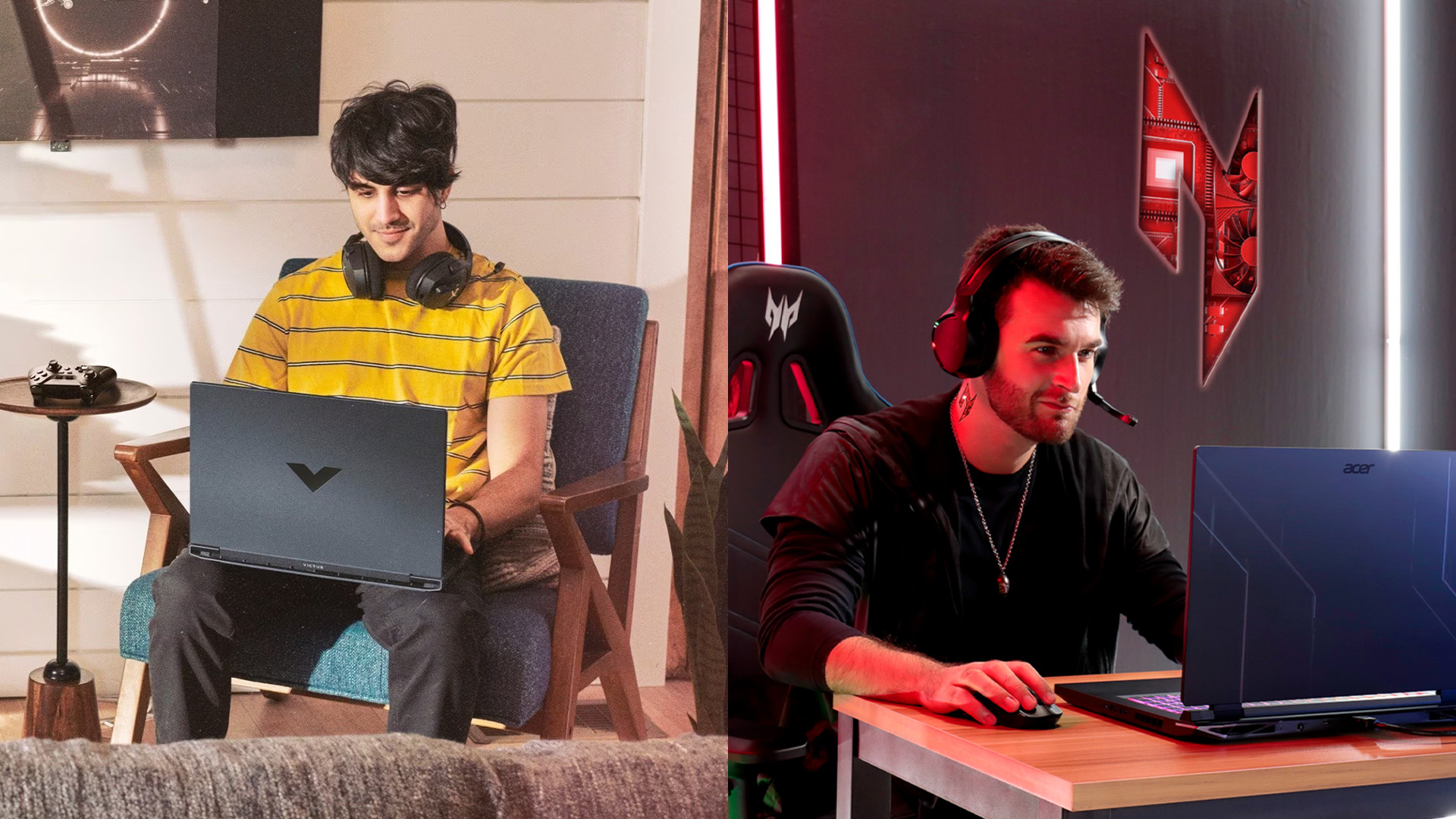
| Feature | Acer (Budget-Focused) | HP (Premium-Focused) |
| Price | Lower starting prices, great for basic tasks | More expensive; better materials and premium options |
| Build Quality | Acceptable for casual use; varies by model | Superior durability, sleeker widgets and materials |
| Performance | Decent where it counts; value models often with mid-level components | Stronger performance in business and creative models |
| Innovation & Design | Typically functional; some models like ConceptD add flair | Stylish designs with OLED, convertible 2-in-1s, and enterprise options |
| Battery & Portability | Often lighter, with long battery life on entry-level models | Solid battery life; often slightly heavier but packed with features |
Last Updated: April 07, 2026
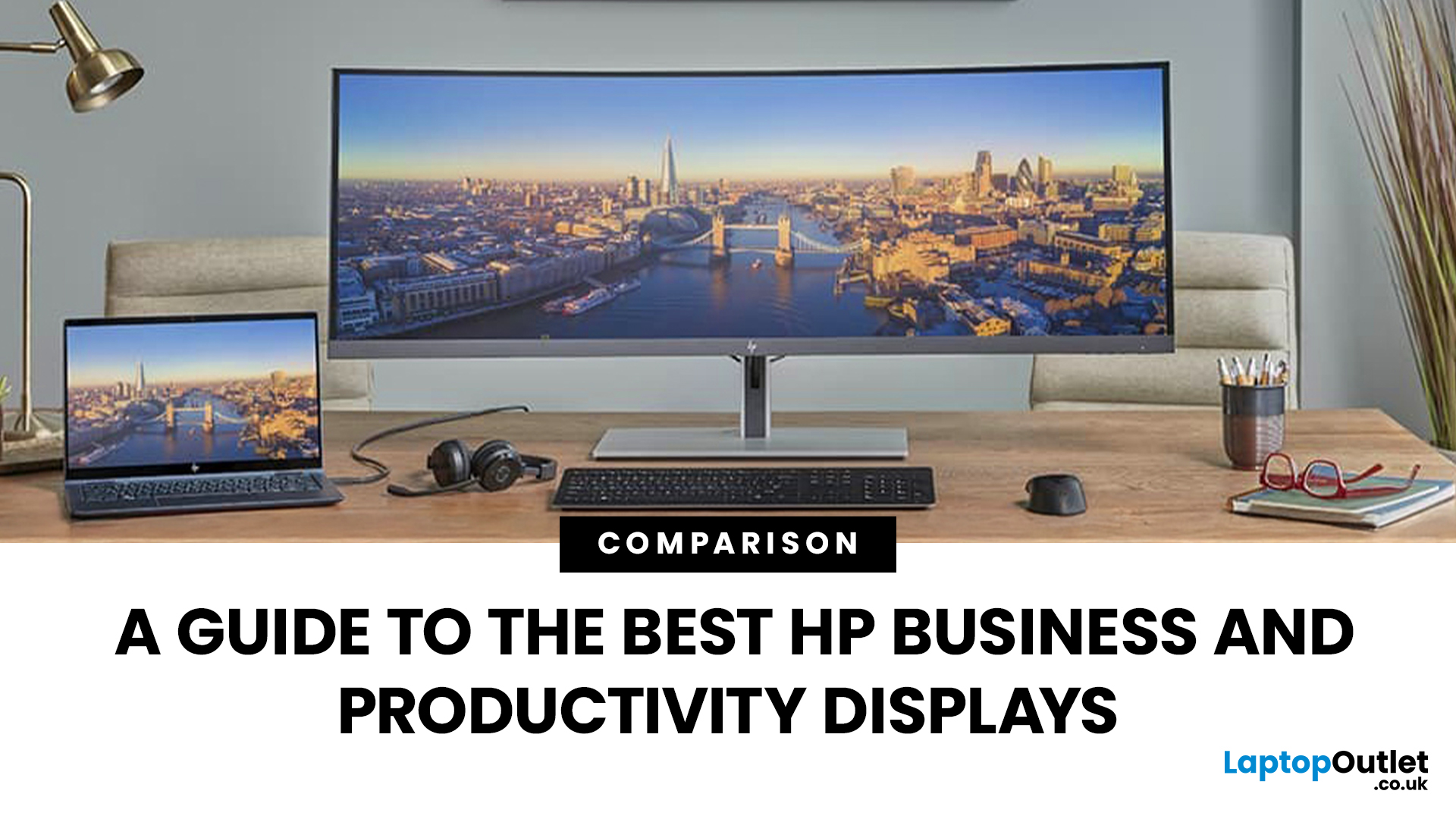
Walk into any modern office in the world and you’ll see how much the workplace has changed. Some desks sit empty while their owners log in from home; others are built around dual screens, webcams, and docking stations. A monitor used to be a passive rectangle on your desk. In 2026, it’s the centre of your working day.
A good business monitor now is about how well it supports the way you work, whether that means sharper spreadsheets, smoother scrolling, cleaner video calls, or simply reducing eye fatigue after hours of screen time.
HP has quietly positioned itself as one of the most dependable names in this space. Its business and productivity monitors don’t rely on gimmicks. Instead, they focus on the fundamentals professionals actually need: clear panels, comfortable ergonomics, sensible refresh rates, and connectivity that fits real office setups. HP also continues to build around eye comfort features like HP Eye Ease on many models, with an always on low blue light approach that’s designed
Last Updated: May 07, 2026
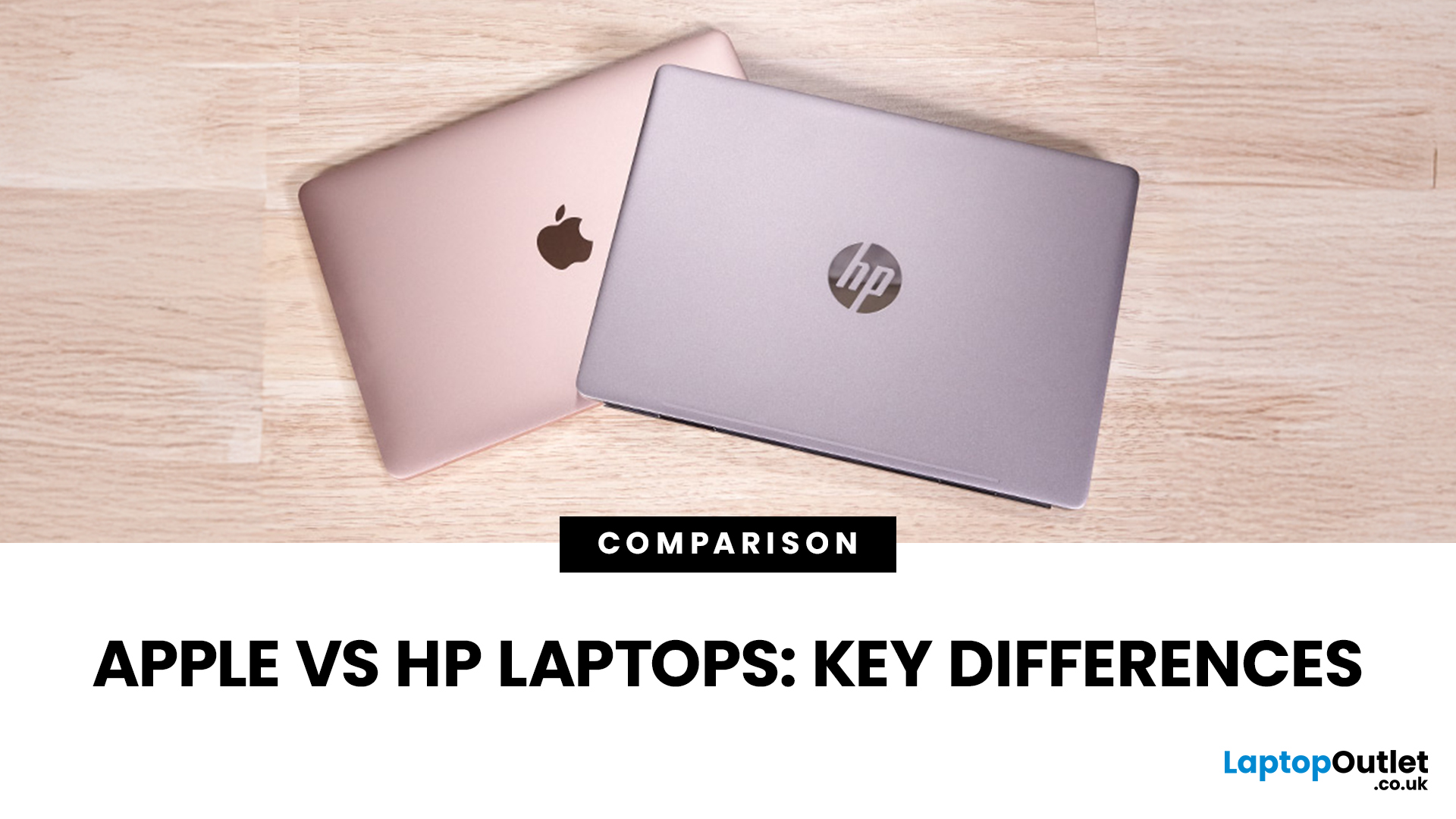
When it comes to buying a new laptop in 2025, the debate comes down to Apple vs HP laptops. Apple’s MacBook Air and Pro have become the go-to choice for creatives, professionals, and fans of the Apple ecosystem, while HP dominates the Windows world with a massive range of laptops that fit every budget, from student-friendly notebooks to workstation beasts like the ZBook.
So, which one is actually right for you? Let’s dive into a head-to-head comparison of Apple vs HP laptops, covering design, performance, battery life, price, and everyday usability, so you can confidently pick the laptop that matches your lifestyle.
Apple vs HP Laptops: Key Differences
| Feature | Apple MacBook (Air & Pro) | HP Laptops |
| Operating System | macOS (integrated with iPhone/iPad ecosystem) | Windows 11 / ChromeOS depending on model |
| Design & Build | Premium aluminium, minimalist, lightweight | Wide range: From budget plastic builds to premium Spectre |
| Performance | Apple Silicon (M2/M3 chips – high efficiency) | Intel Core Ultra, |
Last Updated: August 25, 2026
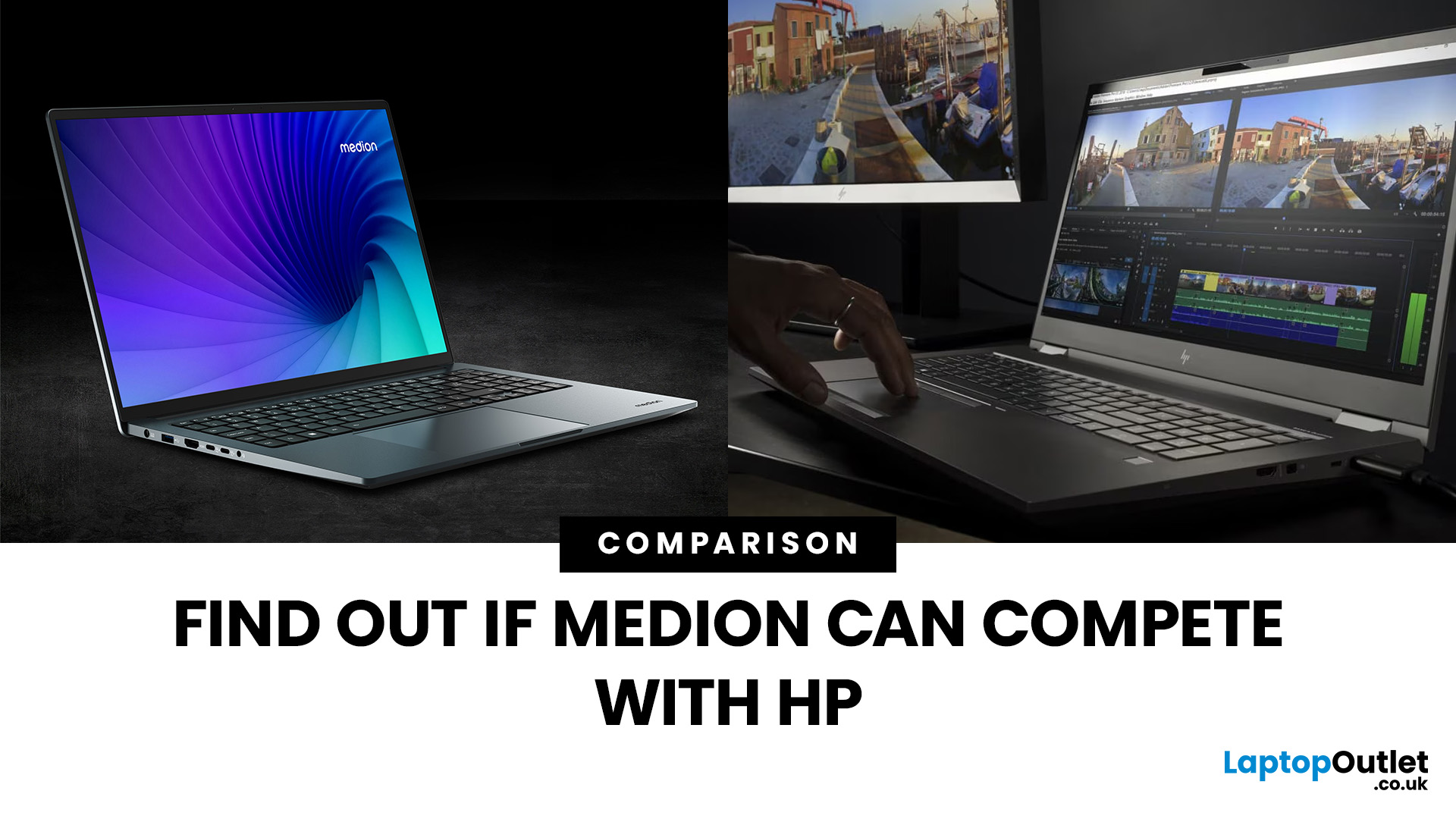
“Everyday user” laptops need to do the basics well; surfing, streaming, document editing, video calls, without breaking the bank. If you’re comparing Medion vs HP laptops, you're comparing two brands that aim to hit that sweet spot: affordability, usability, and decent performance. Medion leans into budget value and basic gaming, while HP offers more variety across entry, mid and upper tiers, often with extra polish.
Let’s dig into what each brand does well, where they fall short, and which is better depending on what you do daily. It will help you decide whether to buy a Medion or HP laptop.
What Is Medion? What Is HP?
- Medion is a German-brand, long known for delivering solid value. Its main UK laptop ranges include AKOYA for general home and office use and ERAZER for gaming. Medion has been part of the Lenovo Group since 2011.
- HP (Hewlett-Packard) is one of the most established laptop makers. Its range covers affordable consumer laptops, premium devices,
Last Updated: October 08, 2025
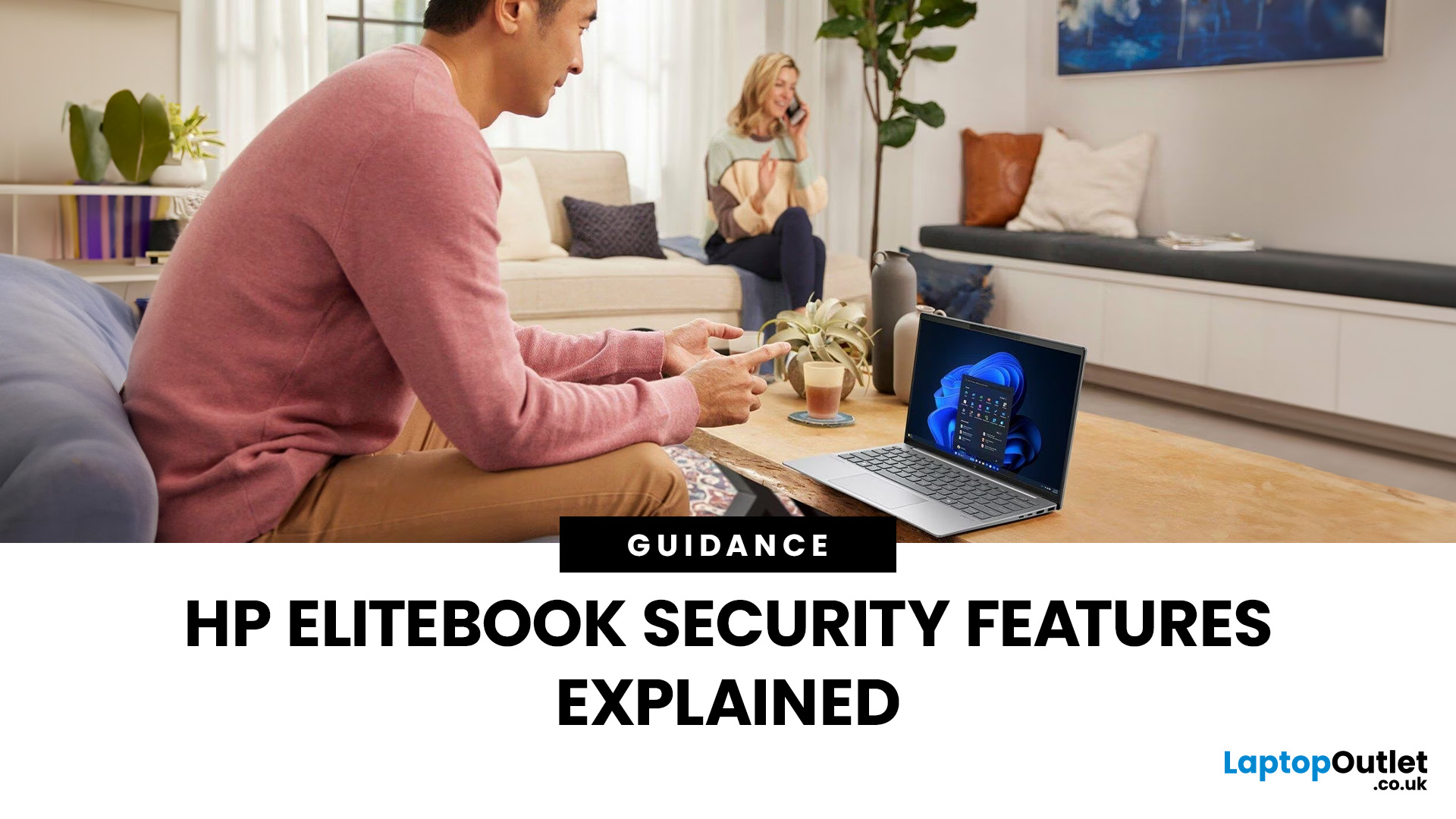
In today’s world of hybrid work, digital threats are more sophisticated than ever. That’s why businesses and professionals turn to HP EliteBook laptops security, a suite of features designed to keep sensitive data safe, reduce cyber risks, and ensure peace of mind. EliteBooks are not only built with premium materials and powerful processors, but also with security as a core principle.
This guide will break down the advanced protections that make HP EliteBook laptops some of the most secure devices on the market. From HP Wolf Security and Sure Click to advanced threat containment and credential protection, we’ll explain how these laptops safeguard your work, your data, and your identity.
Why Choose HP EliteBook Laptops for Security?
EliteBooks go beyond traditional antivirus software by building security into every layer,firmware, operating system, and even hardware. Unlike consumer-grade laptops, they offer enterprise-grade security tools that protect against malware, phishing, and firmware-level
Last Updated: April 28, 2026
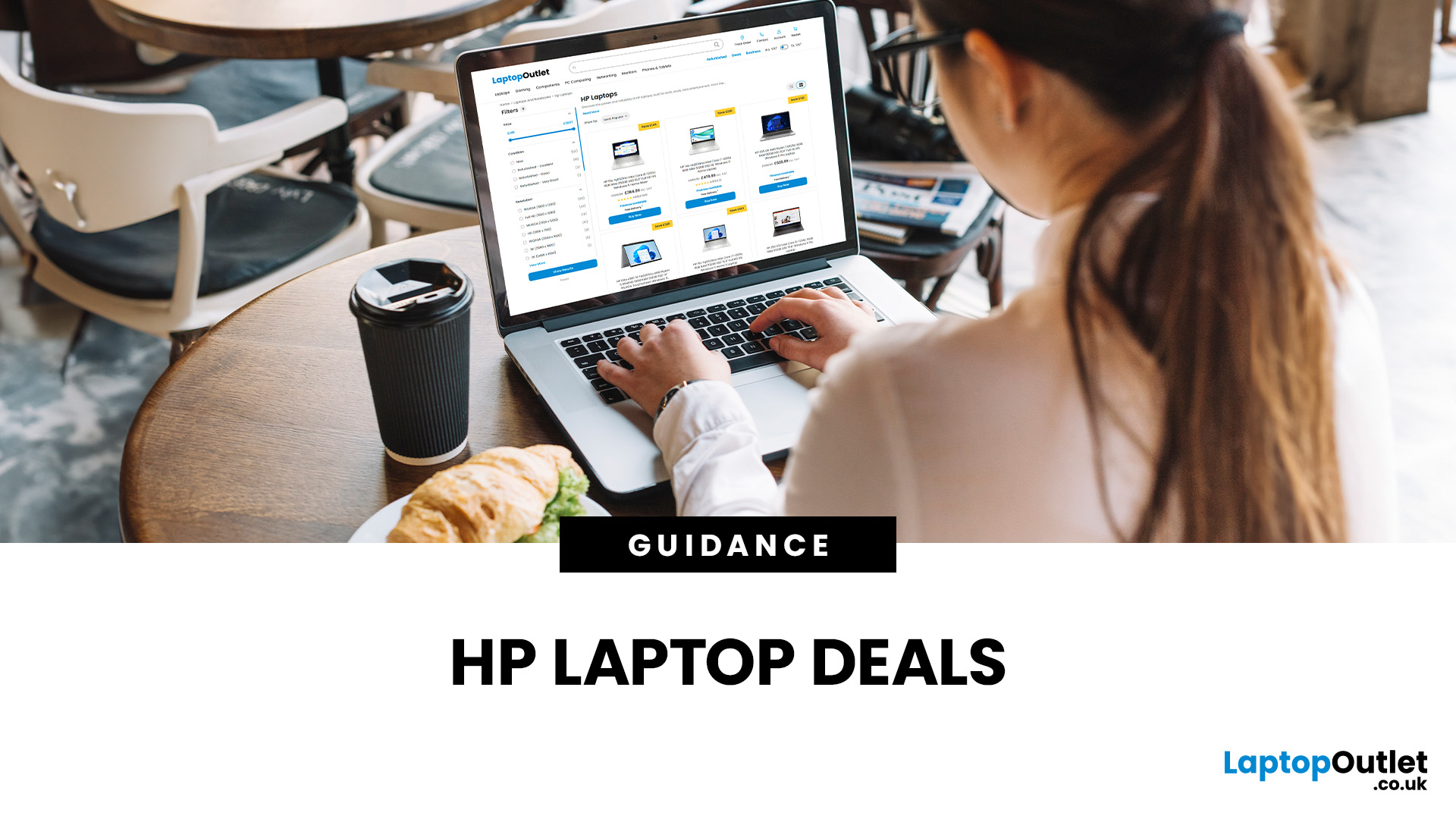
Struggling to find HP laptop deals that don’t feel overpriced, outdated, or just not worth it? Yeah — scrolling through endless specs, inflated prices, and “fake” discounts can be frustrating, especially when you just need a laptop that actually works for study, work, or everyday life.
The problem? Too many laptops either cost way too much or cut corners where it matters. Slow performance, tiny storage, poor screens, not the vibe. And when you’re on a budget, finding reliable HP laptops UK shoppers can trust shouldn’t feel like a gamble.
That’s where Laptop Outlet comes in. We’ve rounded up some of the best HP laptops on sale in the UK, with prices starting from just £149.99. From cheap HP laptops for everyday use to powerful business-ready machines, our handpicked HP laptop offers give you serious value without compromising on quality.
HP 15-fc0045na – Everyday Power for You
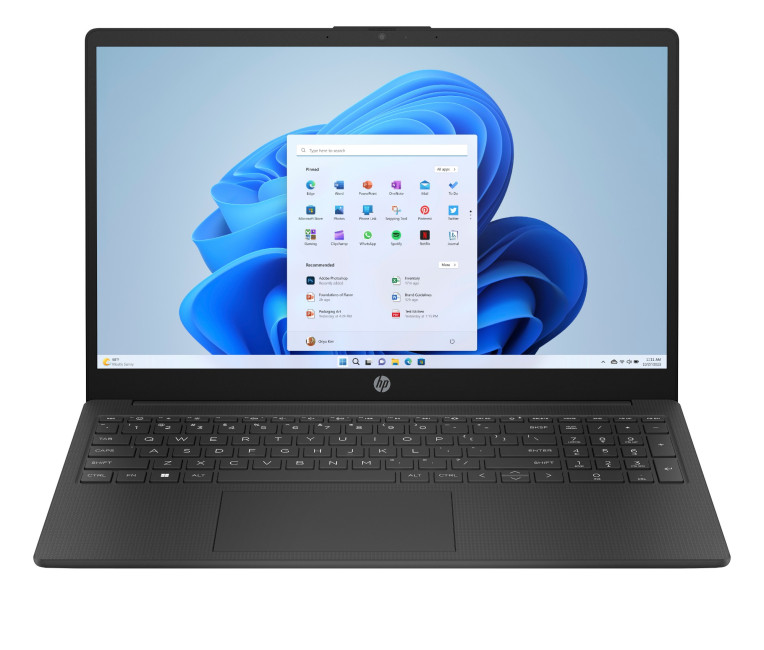
- The HP 15-fc0045na is a well-balanced 15.6-inch laptop that perfectly blends performance with everyday

