



How to Speed Up Your Laptop – Easy Fixes for Better Performance

Slow Laptop? Let’s Fix That
If your laptop’s feeling more like a snail than a speed demon, don’t worry—we’ve got you. Whether it’s taking forever to start up or lagging when you open apps, these simple, effective tips will help speed up your laptop without needing to be a tech genius.
1. Restart Your Laptop (Seriously)
It sounds obvious, but a fresh reboot clears temporary files and resets your RAM. If you haven’t shut down in weeks—start here.
2. Disable Startup Programs
- Too many programs launching at startup = slower boot times.
- Windows: Ctrl + Shift + Esc > Startup tab > Disable unwanted apps
- Mac: System Settings > General > Login Items > Remove apps you don’t need
3. Uninstall Unused Software
- Old programs = wasted resources.
- Go through your installed apps and remove anything you no longer use.
4. Clean Up Your Hard Drive
- Free up space by deleting:
- Temp files
- Duplicate files
- Downloads folder clutter
Windows Tips: Use Disk Cleanup or Storage Sense
Mac Tip: Use Optimise Storage under System Settings > General > Storage
5. Upgrade Your RAM
If your laptop allows it, upgrading to 8GB or 16GB RAM can make a big difference—especially for multitasking.
6. Switch to an SSD (If You Haven’t Already)
Still running on a hard drive? Upgrade to a Solid State Drive (SSD) for lightning-fast boot times and app loading.
7. Run a Malware Scan
- Malware can slow your system to a crawl.
- Use Windows Defender, Malwarebytes, or another reputable antivirus tool
8. Keep Your OS and Drivers Updated
- Updates fix bugs and improve performance. Make sure:
- Windows Update is turned on
- Drivers (especially graphics and chipset) are up to date
9. Adjust Visual Effects
- Reduce flashy animations and effects for faster performance.
- Windows: System > Advanced System Settings > Performance > Adjust for best performance
- Mac: Disable transparency and animations in Accessibility settings
10. Consider a Factory Reset
As a last resort, a factory reset gives your laptop a clean slate—just make sure to back up your files first.
Final Thoughts: Speed Boost, Unlocked
A slow laptop doesn’t have to stay that way. With a few quick tweaks, upgrades, or cleanups, you can breathe new life into your device. And if it’s beyond saving...
Time for a fresh start? Explore Laptop Outlet’s range of high-speed laptops and unbeatable upgrade deals.
FAQs: Laptop Speed-Up Questions Answered
1. What’s the fastest way to make my laptop run quicker?
Disable startup programs and uninstall unused apps—they’re instant wins.
2. Will adding more RAM speed up my laptop?
Yes—especially if you're running memory-hungry apps like Chrome or Photoshop.
3. Is an SSD really worth it?
Absolutely. SSDs are faster, more reliable, and improve everything from boot time to app performance.
4. Do I need to reinstall Windows to speed up my laptop?
Not always. Try the tips above first—but a clean reinstall can help if performance is still poor.
5. Can overheating make my laptop slow?
Yes. Keep vents clean and avoid using your laptop on soft surfaces to improve airflow.
Watch our Video: How to Speed Up Your Laptop?
Read More:
| Buying a Laptop for Work in 2025? Don’t Make These 5 Mistakes |
| Essential Checklist Before Buying a Refurbished Laptop: Features, Budget, and More |
| Best Laptops Under £500 in 2025 |
Related Articles


Last Updated: October 02, 2025
Time for a Fresh Start?
Whether you’re selling your device, fixing performance issues, or just want a clean slate—a factory reset gives your laptop a fresh start. We’ll walk you through how to factory reset both Windows and Mac laptops, with simple steps anyone can follow.
Before You Factory Reset: Back It Up
- A factory reset wipes everything—apps, files, and settings. So before you dive in:
- Back up files to an external hard drive or cloud (e.g., Google Drive, OneDrive, iCloud)
- Sign out of any accounts (Microsoft, Apple ID)
- Note down any licence keys or passwords you’ll need later
How to Factory Reset a Windows Laptop
- Using Windows Settings (Windows 10 & 11)
- Click Start > Settings > System > Recovery
- Under Reset this PC, click Reset PC
Choose:
- Keep my files – Removes apps/settings, keeps personal files
- Remove everything – Full factory reset
- Follow the prompts to complete the reset
Using Advanced Startup (If You Can’t Boot Normally)
- Force restart the laptop

Last Updated: September 25, 2026
Most laptops have a useful lifespan of roughly 3 to 6 years, although some remain reliable for much longer. How long a laptop lasts depends on build quality, workload, cooling, battery health, hardware, maintenance and software support.
A laptop used mainly for browsing, documents and video calls may stay useful longer than one regularly pushed through gaming, video editing or other demanding workloads. A laptop also does not necessarily need replacing simply because it reaches a certain age.
What Is the Average Laptop Lifespan?
There is no fixed expiry date for a laptop. For many users, the average laptop lifespan falls somewhere between three and six years before age starts to affect performance, portability, reliability or software support.
These ranges are a practical guide, not a guarantee:
| Laptop type or usage | General useful lifespan | What usually affects it |
| Everyday browsing and office use | About 4 to 6 years | Battery wear, software demands and hardware ageing |
| Light, well-maintained |
Last Updated: September 24, 2026
Last Updated: September 09, 2025
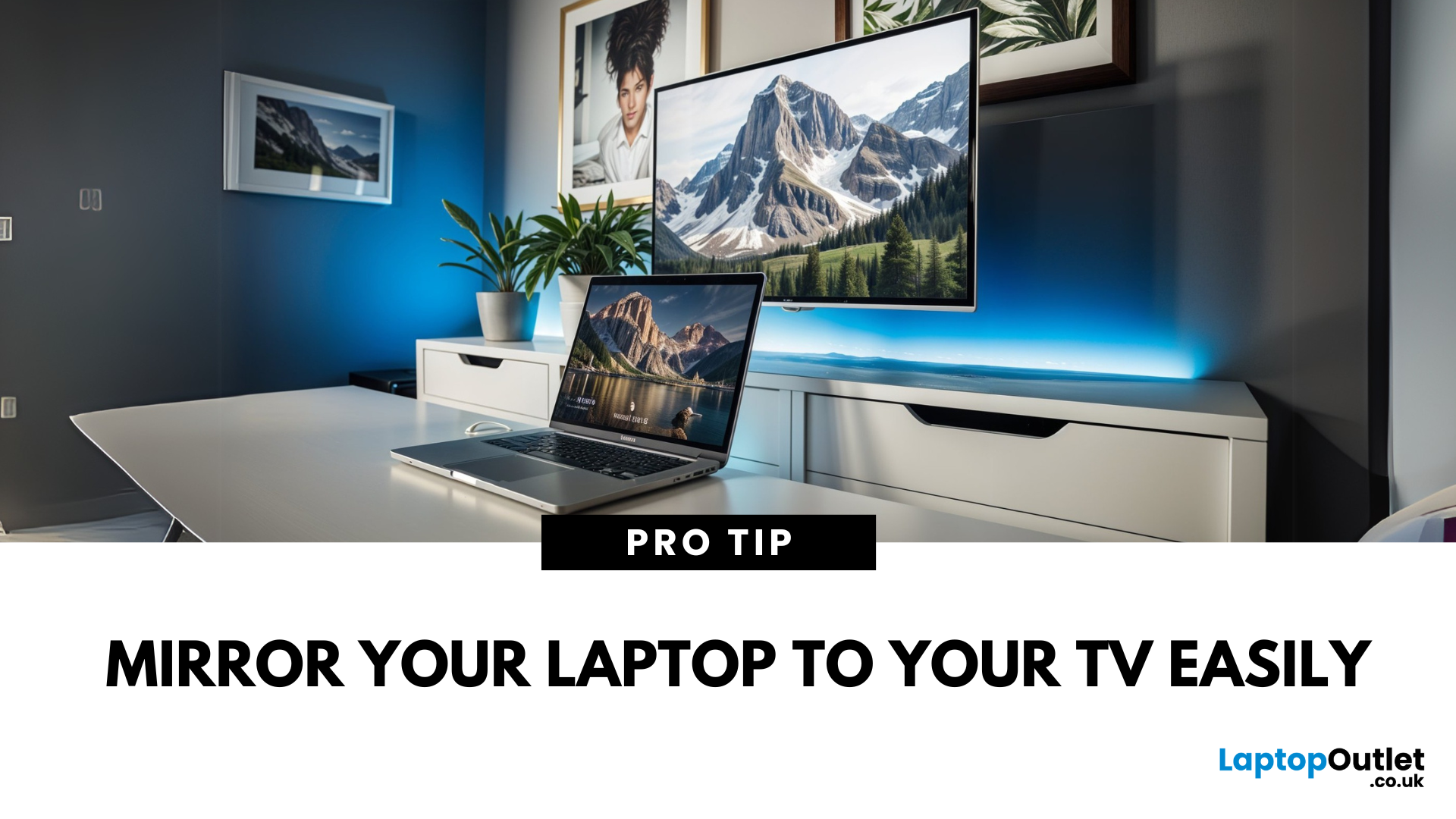
Laptop to TV? Easy
Want to stream Netflix, present slides, or game on a bigger screen? Connecting your laptop to a TV is easier than ever, whether you prefer a cable or a wireless setup. Here’s how to do both quickly and easily.
How to Connect a Laptop to a TV with HDMI (Wired Method)
What You’ll Need:
- A laptop with an HDMI output port
- A TV with an HDMI input port
- An HDMI cable
Steps:
- Plug one end of the HDMI cable into your laptop
- Plug the other end into your TV
- Switch your TV to the correct HDMI input using the remote
- Your laptop screen should appear on the TV
Pro Tip: Press Windows + P (on Windows) to change display mode – Duplicate, Extend, or Second Screen Only
How to Connect a Laptop to a TV Wirelessly
Option 1: Windows Wireless Display (Miracast)
- Make sure your TV supports Miracast or has a streaming device (like Roku or Fire Stick)
- On your laptop, go to Settings > Display > Connect to a Wireless Display
- Select your TV from the list
- Approve the

Last Updated: May 23, 2025
Don’t Panic—There’s Hope
Few things are more frustrating than pressing your laptop’s power button and seeing nothing happen. If your laptop won’t turn on, it could be a simple fix—or at least something you can easily diagnose. Let’s walk through the most common reasons and solutions.
1. Check the Power Source and Cable
- Make sure the power cable is securely plugged in
- Try a different power socket
- Inspect the power adapter and charging cable for damage
- Look for lights on the laptop or charger
If possible, test with a different charger that’s compatible with your laptop
2. Perform a Hard Reset
Sometimes a simple reset can revive a laptop stuck in sleep or hibernation.
Steps:
- Unplug the laptop and remove the battery (if possible)
- Press and hold the power button for 15–30 seconds
- Reconnect the power and try turning it on again
This clears any electrical build-up in the motherboard
3. Check the Battery Health
- If your battery is removable, try turning the laptop on with

