



How to Factory Reset a Laptop?

Time for a Fresh Start?
Whether you’re selling your device, fixing performance issues, or just want a clean slate—a factory reset gives your laptop a fresh start. We’ll walk you through how to factory reset both Windows and Mac laptops, with simple steps anyone can follow.
Before You Factory Reset: Back It Up
- A factory reset wipes everything—apps, files, and settings. So before you dive in:
- Back up files to an external hard drive or cloud (e.g., Google Drive, OneDrive, iCloud)
- Sign out of any accounts (Microsoft, Apple ID)
- Note down any licence keys or passwords you’ll need later
How to Factory Reset a Windows Laptop
- Using Windows Settings (Windows 10 & 11)
- Click Start > Settings > System > Recovery
- Under Reset this PC, click Reset PC
Choose:
- Keep my files – Removes apps/settings, keeps personal files
- Remove everything – Full factory reset
- Follow the prompts to complete the reset
Using Advanced Startup (If You Can’t Boot Normally)
- Force restart the laptop and hold Shift while clicking Restart
- Select Troubleshoot > Reset this PC
- Choose your reset option and follow the instructions
How to Factory Reset a MacBook or Mac Laptop
For Intel Macs (macOS Monterey and earlier)
- Restart and hold Command + R during boot
- Select Disk Utility > Erase Macintosh HD
- Go back to main menu > Reinstall macOS
For Apple Silicon Macs (M1/M2 chips)
- Go to System Settings > General > Transfer or Reset > Erase All Content and Settings
- Enter your password and follow on-screen steps
Pro Tip: Make sure your Mac is plugged in and connected to Wi-Fi for reinstalling macOS.
When Should You Factory Reset a Laptop?
- You’re selling or giving it away
- It’s running slow or buggy
- You want a clean OS reinstall
- You’ve got malware you can’t remove
Final Thoughts: Reset with Confidence
A factory reset doesn’t have to be scary. With the right steps, you can wipe your laptop safely and start fresh—no stress, no mess. And if your device is still struggling after a reset… maybe it’s time for an upgrade.
Explore Laptop Outlet’s deals on the latest laptops—because nothing beats a clean slate and fresh tech.
FAQs: Laptop Reset Questions Answered
1. Will a factory reset delete everything?
Yes—it removes all apps, settings, and files unless you choose "Keep my files" on Windows.
2. Can I reset a laptop without the password?
On Windows, yes via recovery mode. On Mac, you'll need your Apple ID or admin password.
3. How long does a factory reset take?
Typically 20–60 minutes depending on your laptop and chosen reset option.
4. Does factory resetting remove viruses?
Yes—it removes most malware, especially with a full reset.
5. Will I need to reinstall Windows or macOS after a reset?
No—your system will guide you through reinstalling the OS automatically after reset.
Watch our Video on "How to factory reset a Laptop?"
Read More:
| How to Speed Up Your Laptop |
| How to Connect Two Monitors to a Laptop? |
| Best Laptops Under £500 in 2025 |
Related Articles


Last Updated: September 21, 2026
Buying a laptop for work is no longer simply about choosing a familiar processor and enough storage. Your software, workload, security requirements, portability needs, and even processor architecture can change which laptop makes sense.
For most everyday office work, 16GB RAM and a 512GB SSD provide a sensible starting point, while heavier creative, engineering, and data workloads may justify 32GB RAM, dedicated graphics or a more powerful processor.
Before buying your next work laptop, avoid these seven common mistakes.
Mistake 1: Not Checking Software Compatibility First
Start with the applications you actually use.
Microsoft 365, web-based business software, and mainstream communication apps will run comfortably on a wide range of modern laptops. Specialist accounting packages, CAD applications, development tools, company VPNs, and older peripherals can be more demanding.
This is particularly important when comparing traditional x86 Windows laptops with newer Arm-based machines. Windows

Last Updated: April 03, 2026
Finding a good laptop without breaking the bank is more achievable than ever.
Whether you're a student looking for something reliable, a professional needing a dependable work machine, or simply after an everyday laptop that won't slow you down, the sub-£500 market delivers solid options in 2026.
You don't have to sacrifice performance for price. From business-ready machines to budget-friendly options, this guide covers six of the best laptops under £500 currently in stock at Laptop Outlet, with real specs and honest guidance to help you choose right.
| Please note: All products featured in this article were priced under £500 at the time of writing. Prices are subject to change and may vary over time. |
6 Laptops That Deliver Brilliant Value Under £500
Each of these picks comes from a different corner of the market. So, whatever your needs, there's likely a match here for you.
1. Lenovo V15 G4 – AMD Ryzen 5 7520U, 16GB RAM, 256GB SSD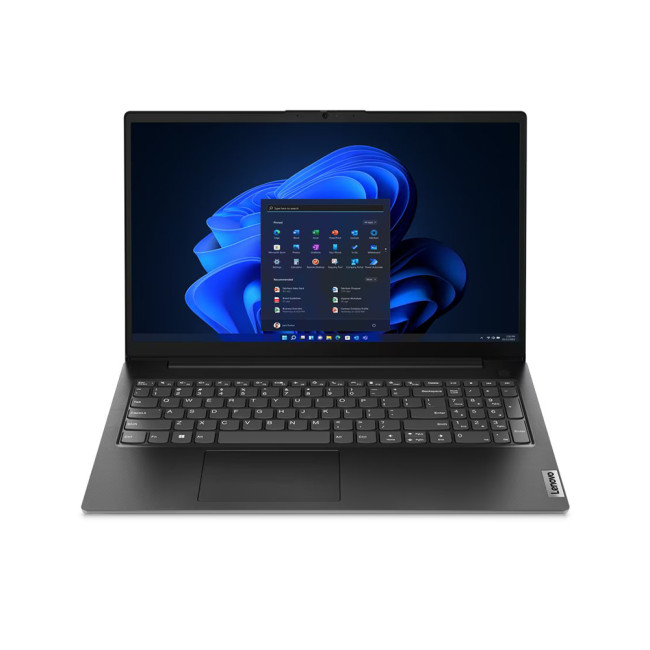
Key Specifications
- AMD Ryzen 5 7520U (4-core,
Last Updated: September 24, 2026
Quick Answer
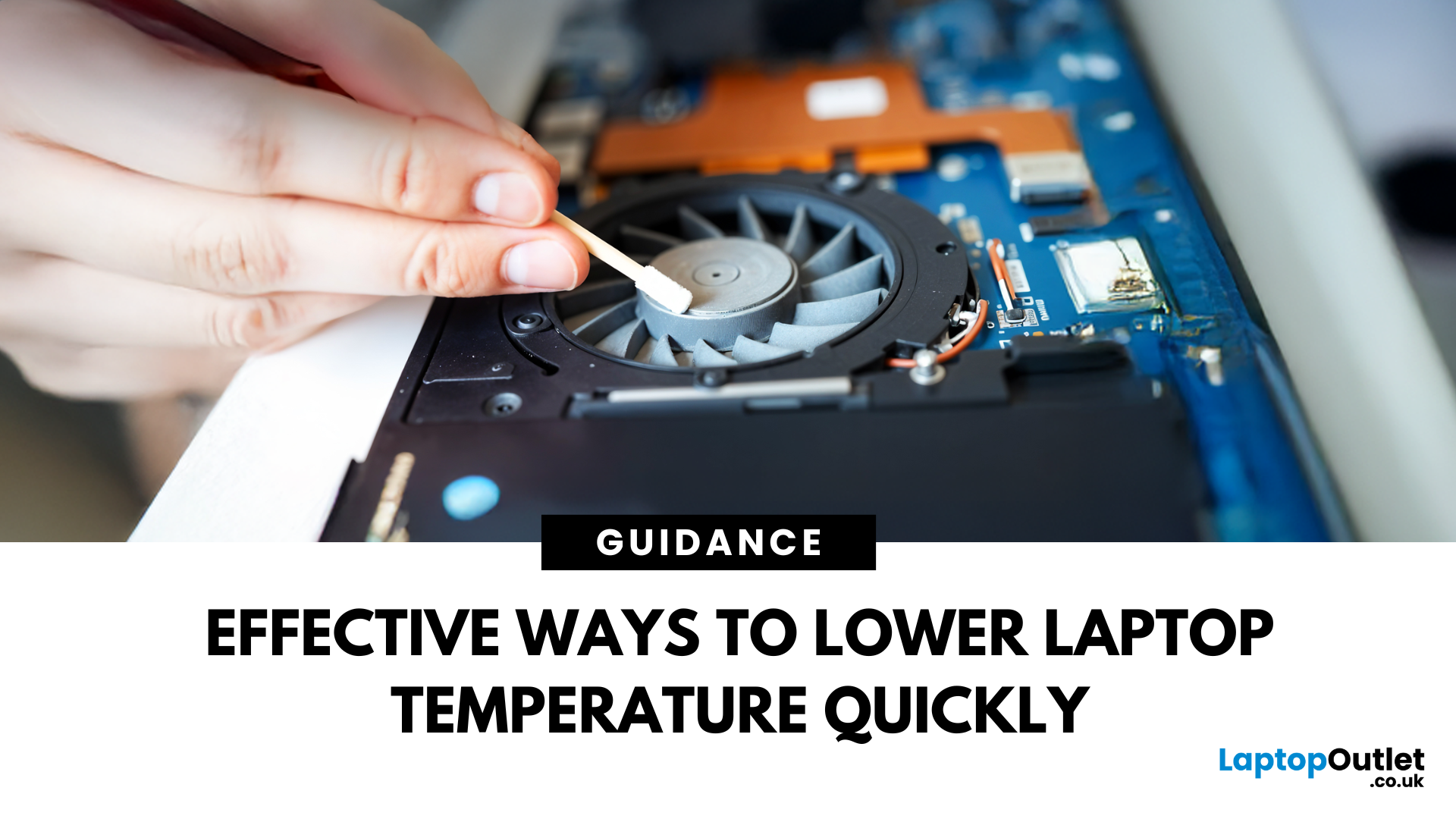
If your laptop is overheating, move it to a hard, flat surface, close heavy apps, switch Windows 11 to Balanced mode, clear dust from the vents, and let it cool if performance drops or it shuts down. Persistent overheating can point to blocked airflow, a failing fan, battery problems or ageing thermal paste, so repeated symptoms need proper diagnosis promptly.
A warm laptop is not automatically an overheating laptop. Gaming, video editing, charging and other demanding tasks can make the CPU and GPU run hotter, which can also make the fans louder.
The warning signs are more useful than surface warmth alone. Repeated slowdowns under load, sudden shutdowns, unusually loud or silent fans, heat during light use, or a battery that is swelling all deserve attention.
First, Is Your Laptop Actually Overheating?
Modern processors protect themselves when temperatures become too high by reducing performance, a behaviour known as thermal throttling. Some systems may eventually shut down
Last Updated: February 23, 2026
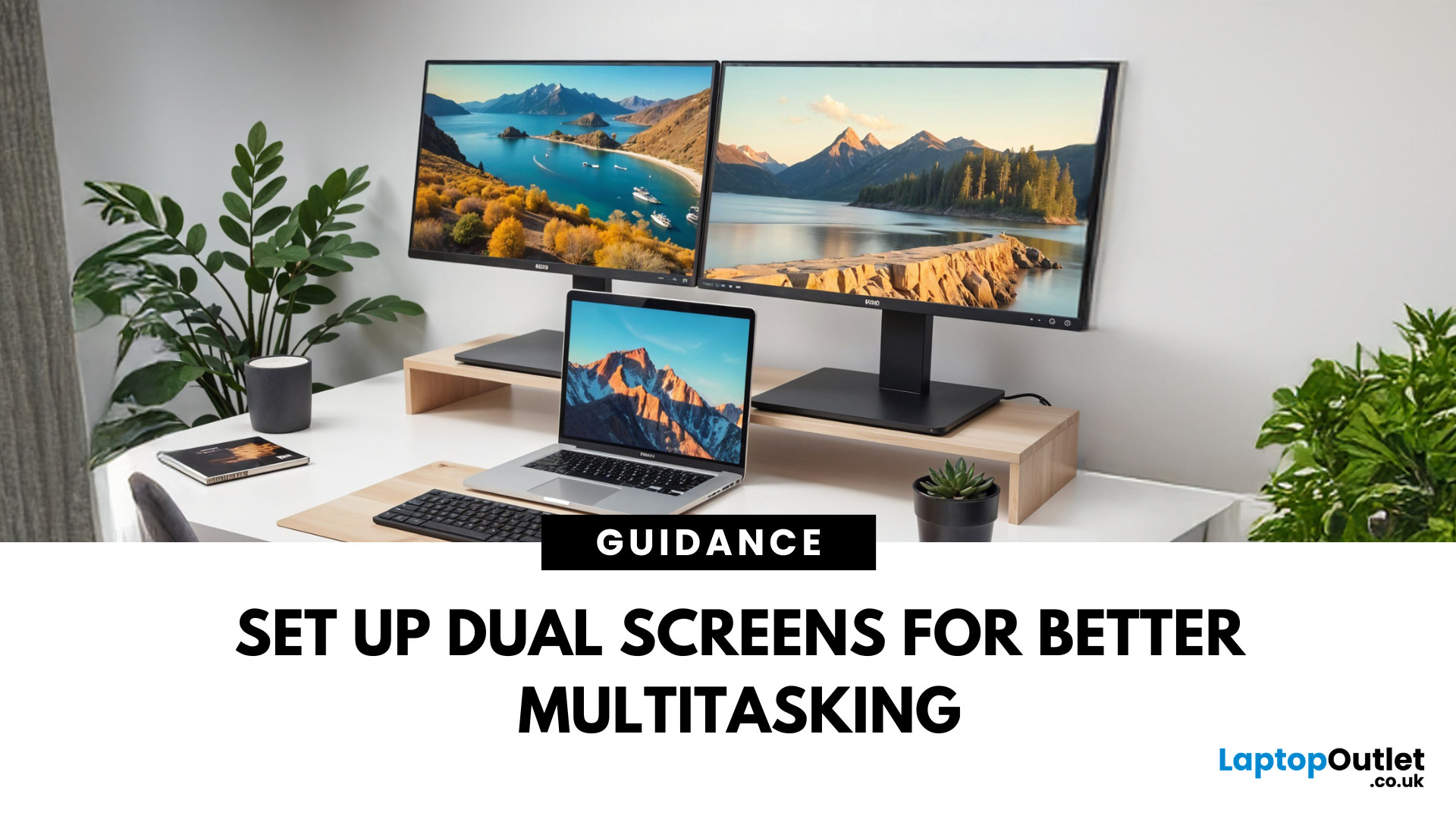
Feeling cramped on your laptop screen? Whether you’re a creative pro, a remote worker, or just need more screen real estate for multitasking—dual monitors are a total game-changer. Here’s how to connect two monitors to your laptop and level up your workspace.
What You’ll Need to Connect Two Monitors
Before you dive in, make sure you’ve got:
- A laptop with multiple display outputs (HDMI, USB-C, DisplayPort, Thunderbolt)
- Two external monitors
- Compatible cables or adapters (HDMI, VGA, USB-C, DisplayPort)
- Optional: Docking station for easier setup
Step-by-Step: How to Connect Two Monitors to a Laptop
1. Check Your Laptop’s Ports
Look at the sides of your laptop—do you have two separate video outputs (e.g., HDMI + USB-C)? If not, you might need a USB-C hub, docking station, or display splitter.
2. Plug in the First Monitor
- Connect your first monitor to the laptop using an HDMI, VGA, or DisplayPort cable.
- Turn on the monitor and make sure it’s set to the correct input source.
Last Updated: October 02, 2025
Capture Your Screen Like a Pro
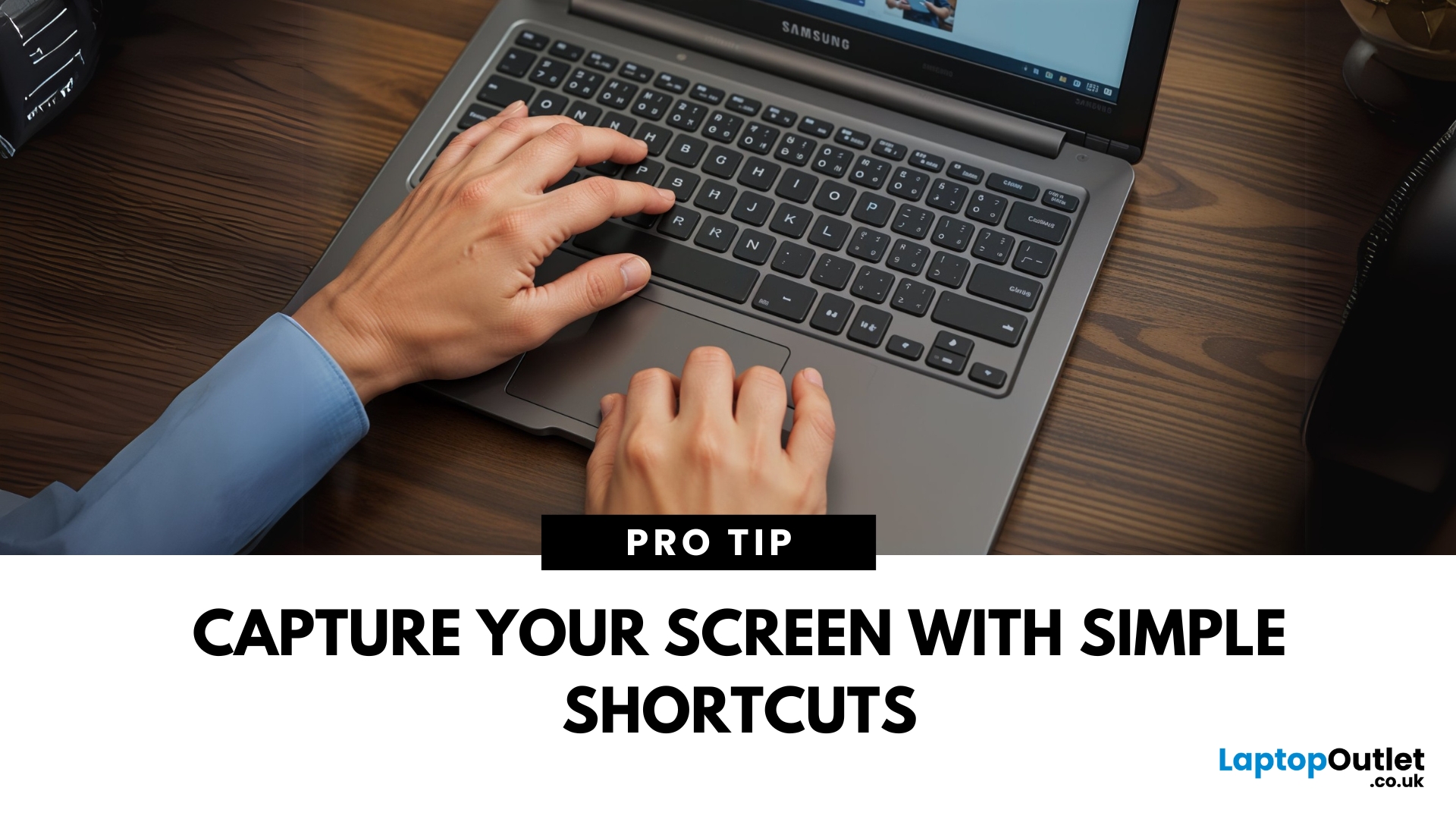
Whether you’re saving receipts, capturing memes, or sending error messages to IT support—screenshots are super handy. But how you take one depends on your laptop. Don’t worry, we’ve got all the easy ways to screenshot on Windows and Mac laptops in one place.
How to Screenshot on a Windows Laptop
1. Use the Print Screen (PrtScn) Key
- Press PrtScn – Captures the whole screen to clipboard
- Open Paint or Word and press Ctrl + V to paste and save
2. Alt + Print Screen
- Press Alt + PrtScn – Captures the active window only
- Paste into your desired app (e.g., Paint, email, etc.)
3. Windows + Shift + S (Snip & Sketch Tool)
- Opens a selection tool
- Click and drag to capture a specific area
- Screenshot goes to clipboard—paste it anywhere or save via pop-up
4. Windows + Print Screen
- Captures the whole screen and saves it automatically
- Find it in Pictures > Screenshots folder
How to Screenshot on a MacBook or Mac Laptop
1. Command + Shift + 3

Last Updated: October 02, 2025
Got iPhone Photos? Let’s Move Them
Snapped the perfect selfie? Captured your holiday vibes? Now you want to transfer those shots to your laptop—whether it’s for storage, editing, or sharing. We’ve got you covered with simple ways to transfer photos from iPhone to laptop—whether you’re using Windows or Mac.
How to Transfer Photos from iPhone to Windows Laptop
1. Using USB Cable & Photos App
- Connect your iPhone to your laptop using a Lightning to USB cable
- Unlock your iPhone and tap Trust when prompted
- Open the Photos app on your Windows laptop
- Click Import > From a USB device
- Select the photos you want and import
2. Using File Explorer (Manual Method)
- Plug in your iPhone and unlock it
- Open File Explorer > This PC > Apple iPhone
- Go to Internal Storage > DCIM
- Copy and paste photos to your laptop folder
3. Using iCloud Photos
- Enable iCloud Photos on your iPhone: Settings > Photos > iCloud Photos
- Visit iCloud.com and sign in
- Go to Photos, select images, and

Last Updated: September 25, 2026
Most laptops have a useful lifespan of roughly 3 to 6 years, although some remain reliable for much longer. How long a laptop lasts depends on build quality, workload, cooling, battery health, hardware, maintenance and software support.
A laptop used mainly for browsing, documents and video calls may stay useful longer than one regularly pushed through gaming, video editing or other demanding workloads. A laptop also does not necessarily need replacing simply because it reaches a certain age.
What Is the Average Laptop Lifespan?
There is no fixed expiry date for a laptop. For many users, the average laptop lifespan falls somewhere between three and six years before age starts to affect performance, portability, reliability or software support.
These ranges are a practical guide, not a guarantee:
| Laptop type or usage | General useful lifespan | What usually affects it |
| Everyday browsing and office use | About 4 to 6 years | Battery wear, software demands and hardware ageing |
| Light, well-maintained |

