



How to Show FPS, GPU Usage and Temperatures While Gaming on PC
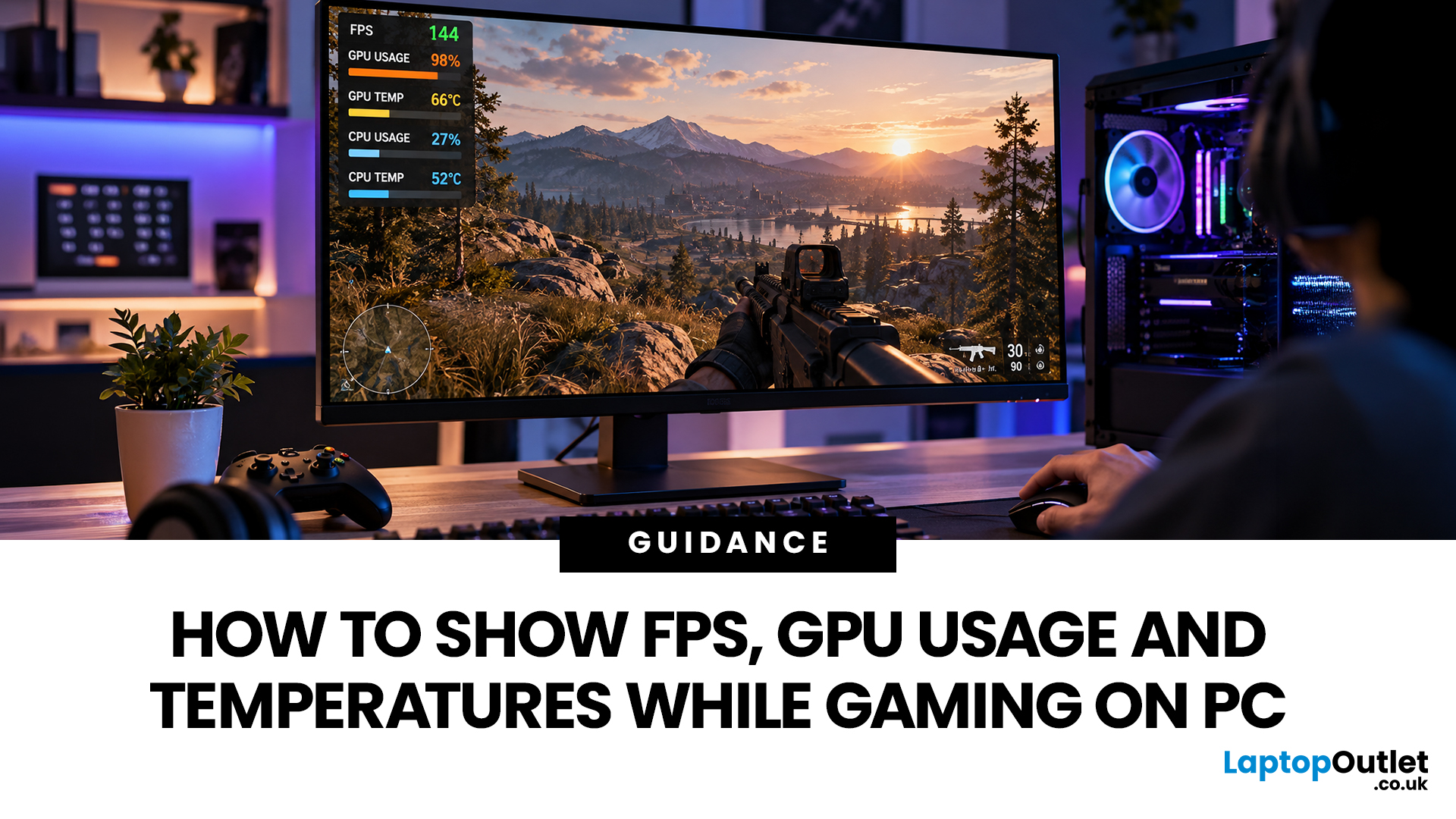
A game can look smooth one moment and start stuttering the next. When that happens, knowing your frame rate, GPU usage and temperatures can help you understand what's going on.
You don't need specialist equipment to check these numbers. Steam, NVIDIA, AMD Software, Windows Xbox Game Bar and MSI Afterburner all offer ways to monitor gaming performance, although the information they display varies.
This guide explains how to show FPS while gaming, monitor GPU activity and temperatures, and understand what the readings mean. We'll also cover the most common overlay problems and how to fix them.
Quick Answer: How to Show FPS While Gaming
The easiest way to show FPS in a PC game is to enable a performance overlay through Steam, your graphics software or Windows Xbox Game Bar.
Here are the main options:
|
Tool |
What it can display |
Best for |
|
Steam |
FPS and other performance metrics, depending on settings |
Games launched through Steam |
|
NVIDIA App |
FPS, GPU utilisation, temperatures and other supported metrics |
NVIDIA GeForce users |
|
AMD Software: Adrenalin Edition |
FPS, GPU utilisation, temperatures and other supported metrics |
AMD Radeon users |
|
Xbox Game Bar |
FPS, CPU, GPU and RAM utilisation |
Windows 10/11 gamers |
|
MSI Afterburner + RTSS |
Custom FPS, CPU/GPU usage, temperatures and frametime data |
Detailed performance monitoring |
Our recommendation: Start with the overlay already available on your PC. If you only want to see your frame rate, Steam or Xbox Game Bar may be enough. For more detailed monitoring, your GPU software or MSI Afterburner gives you greater control.
What Are FPS, GPU Usage and GPU Temperature?
Before enabling an overlay, it helps to understand what you're measuring. These numbers tell you different things about your PC's performance.
FPS (Frames Per Second)
FPS measures how many individual frames your computer produces each second. For example, 60 FPS means your system is producing approximately 60 frames per second. Higher frame rates can make movement look smoother, particularly in fast-paced games.
However, FPS alone doesn't tell the whole story. A game averaging 100 FPS can still feel uneven if frames arrive at inconsistent intervals.
GPU Usage
GPU usage shows how busy your graphics processor is, usually as a percentage.
A reading near 100% generally means the GPU is being heavily utilised. That's normal in demanding games, particularly when playing at higher resolutions or graphics settings.
Lower GPU usage isn't automatically a problem. Your frame rate might be capped, the game could be waiting for the CPU, or the workload may simply not require the GPU's full performance.
GPU Temperature
GPU temperature indicates how hot your graphics processor is running. Modern GPUs are designed to operate at elevated temperatures, but their thermal limits vary by model. Sustained excessive heat can cause the GPU to reduce its clock speeds to protect itself, potentially affecting performance.
Some monitoring tools also show GPU hotspot temperature, which measures the hottest reported area of the chip. This is different from the general GPU temperature reading.
Useful tip: Monitor FPS, GPU usage and temperature together rather than judging performance from one number.
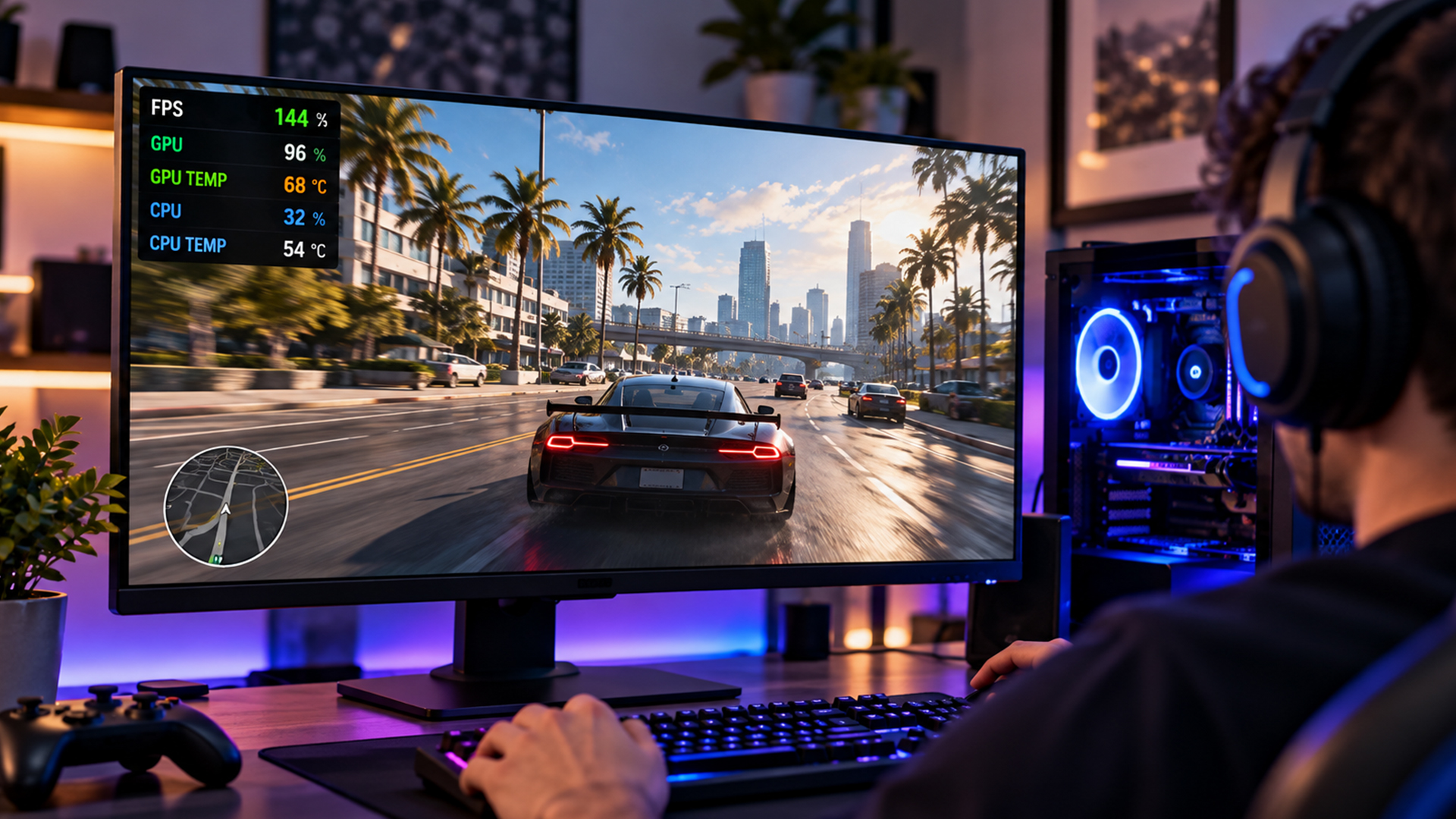
1. How to Show FPS in Steam Games
Steam has a built-in performance monitor that lets you check frame rates without installing additional software.
The updated Steam Performance Monitor goes beyond the older FPS counter. It can display frame rate graphs, CPU and GPU utilisation, and memory information, depending on your system and selected detail level.
Steps to enable the Steam FPS counter
- Open Steam on your PC.
- Click Steam in the top-left corner and select Settings.
- Choose In Game from the left-hand menu.
- Find the Performance Monitor settings.
- Select your preferred level of detail, from a single FPS value to more detailed hardware statistics.
- Adjust the counter's position, size and appearance.
- Launch a game through Steam to see the performance information.
Steam Performance Monitor detail levels
|
Detail level |
Information displayed |
|
Single FPS Value |
Frame rate |
|
FPS Details |
Additional FPS statistics |
|
FPS Details, CPU & GPU Utilisation |
Frame rate and processor/graphics activity |
|
Full Details |
FPS, CPU, GPU and RAM information |
Steam can also distinguish between generated frames and base game frames in supported DLSS or FSR Frame Generation scenarios. This helps you understand whether a higher displayed FPS reflects additional rendered game frames or generated frames.
For GPU temperatures, use NVIDIA App, AMD Software or a dedicated hardware monitoring tool.
2. How to Show FPS and GPU Temperature Using NVIDIA App
If your computer uses an NVIDIA GeForce graphics card, the NVIDIA App provides a convenient way to monitor performance. You can display frame rates, GPU utilisation, temperatures and other supported statistics while gaming.
Steps to enable NVIDIA FPS overlay
- Open the NVIDIA App.
- Go to Settings > Features.
- Make sure In-Game Overlay is enabled.
- Launch your game.
- Press Alt + R to show the statistics overlay.
- Press Alt + Shift + R to cycle through available statistics views.
To customise the display, press Alt + Z, open Statistics, and select the configuration options for the heads-up display.
You can adjust the information shown and how the overlay appears on your screen.
What can the NVIDIA overlay tell you?
Suppose your game is running at 55 FPS, GPU utilisation is 98%, and the graphics processor is operating within its expected temperature range.
This suggests the GPU is heavily occupied, so reducing demanding graphics settings may improve your frame rate.
However, if GPU usage is low while FPS remains disappointing, check for frame rate limits, CPU restrictions and other performance issues before assuming the graphics card needs replacing.
For players considering an upgrade, RTX gaming laptops include NVIDIA-powered configurations suited to different gaming workloads. Check the exact GPU model and power configuration when assessing performance.
3. How to Show FPS Using AMD Software: Adrenalin Edition
AMD Radeon users can monitor gaming performance through AMD Software: Adrenalin Edition.
Its metrics overlay supports frame rates, GPU utilisation, temperature, clock speeds and other available readings.
Steps to enable AMD Adrenalin FPS overlay
- Open AMD Software: Adrenalin Edition.
- Navigate to Performance > Metrics, or search for Performance Metrics within the application.
- Choose the statistics you want to monitor.
- Open the overlay settings and enable Show Metrics Overlay.
- Adjust the overlay's position, size and appearance.
- Launch your game.
- Press Ctrl + Shift + O to toggle the metrics overlay.
The available statistics depend on your Radeon hardware, driver and software installation. AMD's full software installation is required for the documented performance monitoring features.
Which AMD metrics should you enable?
For everyday gaming, we recommend starting with:
- FPS
- GPU utilisation
- GPU temperature
- GPU memory usage
- CPU utilisation
You can add GPU junction temperature, power consumption and clock speeds when investigating more specific performance issues.
AMD's overlay is particularly useful when testing different graphics settings. For example, you can see whether reducing shadows or resolution improves FPS and reduces GPU workload.
If you're considering a new system, AMD gaming laptops offer configurations with AMD processors and supported graphics options for different gaming needs.
4. How to Show FPS in Xbox Game Bar on Windows 11
Windows Xbox Game Bar provides another way to check gaming performance without installing a separate monitoring application. It's a practical option if you use several game launchers and want a consistent performance widget.
Steps to enable Xbox Game Bar FPS counter
- Launch your PC game.
- Press Windows + G to open Xbox Game Bar.
- Select the Performance widget from the widget menu.
- Look for the FPS, CPU, GPU and RAM readings.
- Open the widget's settings to choose which metrics appear.
- Click the Pin icon to keep the widget visible.
- Close Xbox Game Bar and return to your game.
If FPS information isn't available, make sure Xbox Game Bar is updated. Some Windows configurations may require additional permissions or a restart before FPS monitoring works.
Important: Xbox Game Bar's standard Performance widget does not provide the same detailed GPU temperature monitoring as dedicated hardware tools.
5. How to Show FPS, GPU Usage and Temperature With MSI Afterburner
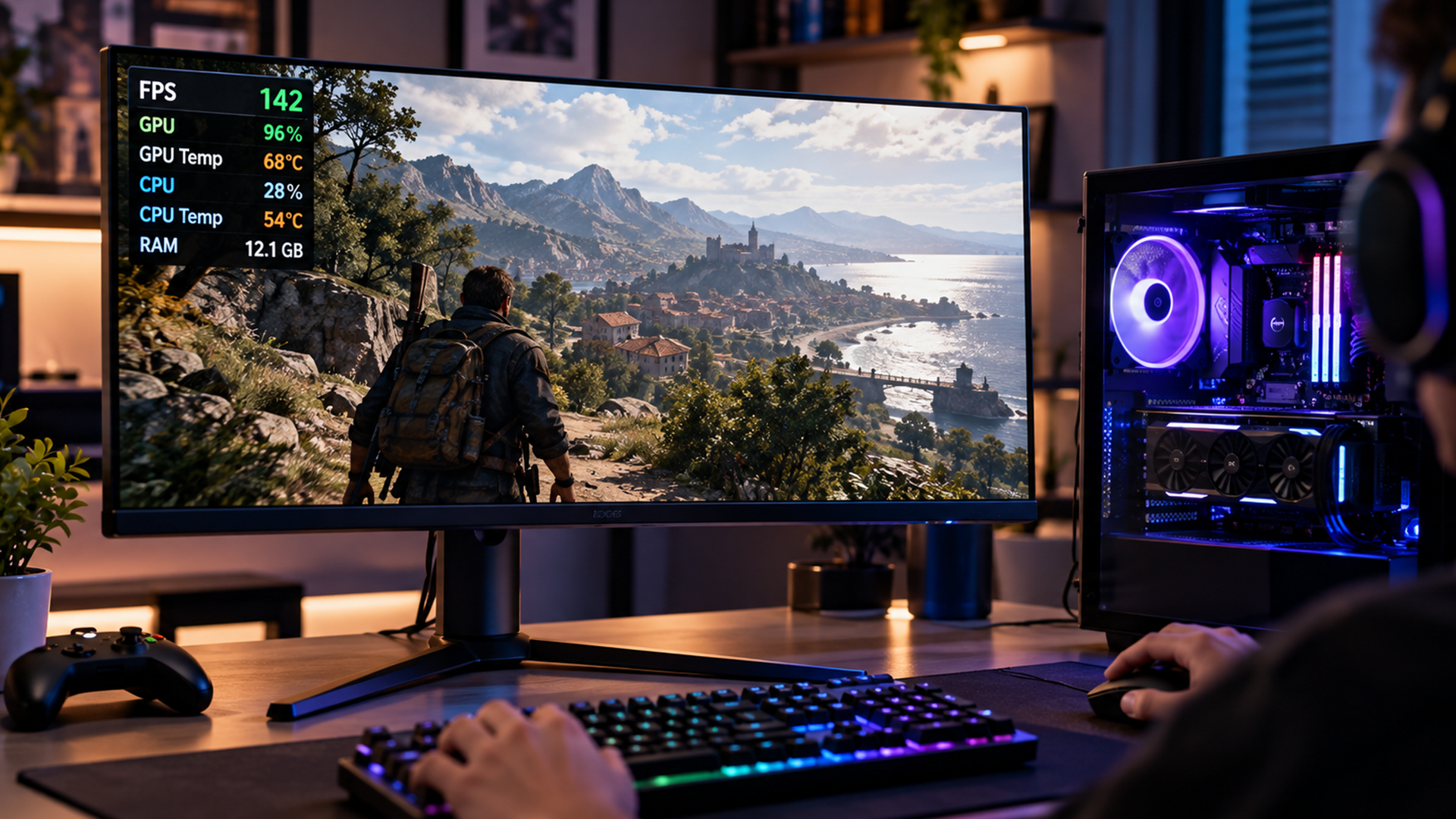
MSI Afterburner is useful when you want more control over which performance statistics appear during gameplay.
It works with many NVIDIA and AMD graphics cards and can display several hardware readings simultaneously. For the on-screen display, MSI Afterburner uses a companion application called RivaTuner Statistics Server (RTSS).
Steps to enable MSI Afterburner FPS overlay
- Download MSI Afterburner from MSI's official website.
- Install the application and include RivaTuner Statistics Server.
- Open MSI Afterburner.
- Click Settings and select the Monitoring tab.
- Choose Framerate from the hardware monitoring list.
- Enable Show in On-Screen Display.
- Repeat for GPU usage, GPU temperature and any other available statistics.
- Click Apply, then launch your game.
Make sure RTSS is running, as it handles the on-screen display. You can use RTSS to adjust the overlay's appearance and positioning.
How to show FPS and temperature in a game together
Within MSI Afterburner's Monitoring tab, select the readings you need individually and enable their on-screen display options.
For example, a useful overlay could show:
|
Metric |
Example reading |
|
FPS |
92 |
|
GPU usage |
97% |
|
GPU temperature |
74°C |
|
CPU usage |
48% |
|
CPU temperature |
68°C |
|
Frame time |
10.9 ms |
Illustrative values only, not results from a hardware test. Available sensors vary by system.
This combination gives you a clearer picture than FPS alone. You can also use MSI Afterburner to observe performance changes after adjusting your game's settings. There's no need to change clock speeds or voltage settings just to monitor hardware.
6. How to Show FPS in Minecraft, Roblox and CS2
Some games include their own performance displays. These can be quicker to access than third-party overlays.
How to show FPS in Minecraft
For Minecraft Java Edition, press F3 to open the debug screen. On some laptops, you may need Fn + F3. The debug information includes FPS alongside technical details about the game.
If you use Minecraft Bedrock Edition, the available performance information differs. You may need an external FPS overlay rather than Java Edition's F3 debug screen.
How to show FPS in Roblox
Roblox includes a performance statistics display.
- Launch a Roblox experience.
- Press Shift + F5 to toggle performance statistics on supported desktop clients.
- Check the FPS information.
- Press the shortcut again to change or hide the display.
If the shortcut doesn't work, try using the function key with Fn or check the client's settings.
How to show FPS in CS2
Counter-Strike 2 includes a telemetry display for monitoring performance.
- Open Counter-Strike 2.
- Go to Settings > Game.
- Find the Telemetry options.
- Enable the frame time and FPS information you want displayed.
- Return to your match.
You can also use the developer console with:
cl_showfps 1
This enables a basic FPS display. Enter cl_showfps 0 to disable it.
CS2's telemetry options are useful because they can help identify frame time problems that an average FPS figure might hide.
7. What Is a Good FPS and GPU Temperature While Gaming?
Once you've enabled an overlay, the next step is understanding the numbers.
What FPS should you aim for?
The ideal frame rate depends on the type of game, your hardware and your monitor's refresh rate.
|
Frame rate |
General gaming experience |
|
30 FPS |
Playable in many slower-paced games |
|
60 FPS |
Smooth target for many single-player games |
|
90–120 FPS |
Smoother movement and potentially better responsiveness |
|
144 FPS |
Useful target for high-refresh-rate gaming |
|
240 FPS and above |
Particularly relevant to competitive gaming |
These are general targets rather than guarantees of smooth gameplay. Frame pacing, input latency and display technology also influence how responsive a game feels.
For example, if your PC can maintain around 140 FPS in a competitive shooter, one of our 144Hz gaming monitors could help you take advantage of that performance. A compatible variable refresh rate feature can also reduce tearing and judder when FPS fluctuates.
What GPU temperature is normal?
Many gaming GPUs operate around 60–85°C under demanding workloads, although acceptable temperatures vary significantly by model, cooling design and sensor type.
A temperature in this range isn't automatically evidence of good or bad cooling. Check the manufacturer's specifications for your particular GPU, especially when interpreting hotspot or junction readings.
Watch for persistent high temperatures alongside falling clock speeds, reduced FPS or unexpected shutdowns. If you use a laptop, remember that its compact cooling system may produce different temperatures from a desktop graphics card.
Display technology also affects how that performance feels in practice, especially on screens that can switch between different resolution and refresh-rate modes. Our guide to how dual-mode gaming monitors improve FPS and visual quality explains where that flexibility can be useful.
8. How to Identify Gaming Performance Problems Using an FPS Overlay
Performance overlays are most useful when you know how to interpret the information together.
Here are some common situations and what to investigate.
|
What you notice |
Possible explanation |
What to check |
|
Low FPS and GPU usage near 100% |
GPU-limited workload |
Resolution, ray tracing and graphics settings |
|
Low FPS and low GPU usage |
CPU limitation, frame cap or another restriction |
CPU activity, power settings and FPS limits |
|
High temperatures and falling clock speeds |
Possible thermal throttling |
Cooling, airflow and manufacturer temperature limits |
|
High FPS but visible stuttering |
Uneven frame delivery |
Frame times, shader compilation and background tasks |
|
Sudden FPS drops after prolonged gaming |
Possible heat or power limitation |
Temperatures, clocks and power behaviour |
|
High memory usage with stuttering |
Possible RAM or VRAM pressure |
Memory consumption and texture settings |
These patterns provide clues, not definitive diagnoses. A single reading rarely identifies the exact cause. If your readings point to a broader performance issue, our guide on how to boost FPS and optimise processor speed for gaming covers practical ways to improve gaming performance without relying on the FPS counter alone.
Check frame times, not just FPS
Frame time measures how long your system takes to produce each frame. At a steady 60 FPS, each frame takes approximately 16.7 milliseconds. At 120 FPS, that falls to around 8.3 milliseconds.
A sudden frame time spike can cause a noticeable stutter even when the average FPS looks healthy. For more reliable testing, play the same section of a game with the same graphics settings and observe FPS, frame times and hardware utilisation.
When should you consider a hardware upgrade?
Start by adjusting graphics settings, checking drivers and investigating cooling or background processes.
If the GPU consistently reaches full utilisation and still cannot deliver your preferred performance, a faster graphics processor may help.
Desktop users can explore NVIDIA graphics cards, but should check power supply capacity, case clearance and CPU suitability before upgrading.
For a more substantial system change, our gaming desktop PCs provide different processor and graphics configurations without requiring you to assemble a PC yourself.
9. Why Is My FPS Overlay Not Showing?
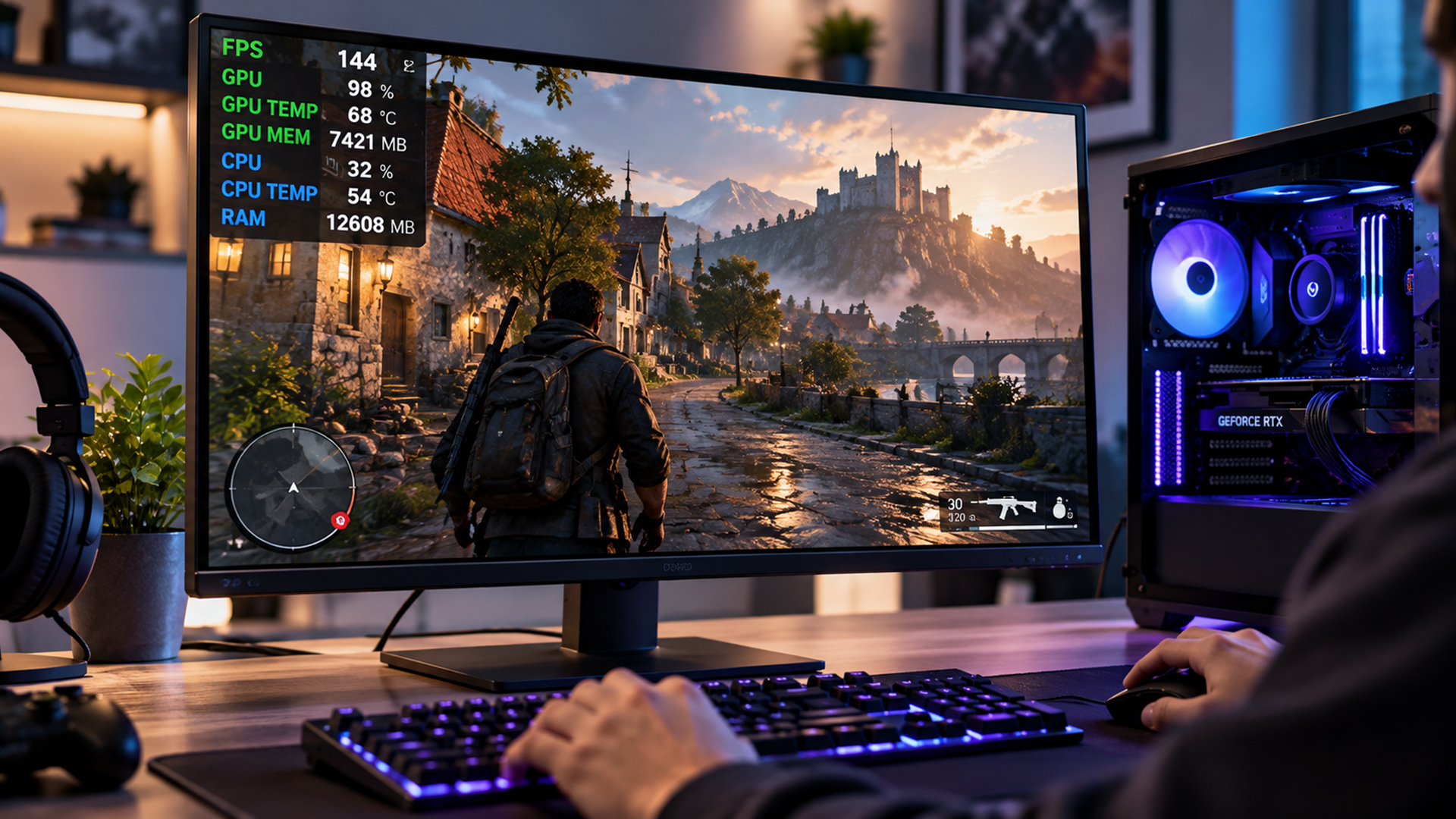
Sometimes the overlay is enabled, but no statistics appear when you launch a game.
The problem is often related to software settings, permissions, compatibility or conflicts between monitoring applications.
NVIDIA overlay not showing FPS
If your NVIDIA overlay is missing or displays unavailable statistics:
- Open NVIDIA App and check that In-Game Overlay is enabled.
- Press Alt + R to toggle the statistics display.
- Open Alt + Z > Statistics and check the selected metrics.
- Update NVIDIA App and your graphics driver.
- Restart the application and game.
- Temporarily disable other overlays to check for conflicts.
Some metrics may not be available on every GPU or in every application.
Steam FPS counter not appearing
Check that Steam's in-game overlay is enabled and the Performance Monitor has an active detail level.
Restart the game after changing settings if necessary. Also confirm that the game is running through Steam with overlay support enabled.
MSI Afterburner overlay missing
If MSI Afterburner records sensor information but nothing appears on-screen, check whether RivaTuner Statistics Server is installed and running.
Also confirm that each selected metric has Show in On-Screen Display enabled. Some games, particularly those using restrictive anti-cheat systems, may block third-party overlays. Avoid trying to bypass those restrictions.
FPS overlay showing N/A or zero
An unavailable FPS reading doesn't necessarily mean your graphics card is faulty. Try another supported game, update your monitoring software and check whether another overlay is interfering.
If only one game is affected, the issue may be specific to that game's rendering method or compatibility with the monitoring application.
10. Tips for Getting More Accurate Gaming Performance Readings
A few simple habits can make FPS and hardware monitoring more useful.
- Test the same gameplay scene: Performance can change significantly between menus, quiet areas and demanding combat.
- Keep graphics settings consistent: Changing resolution, upscaling or ray tracing makes results harder to interpret.
- Avoid running several overlays unnecessarily: Multiple monitoring tools can clutter the screen and occasionally interfere with one another.
- Watch sustained performance: A brief temperature or FPS spike matters less than a repeated pattern.
- Check your power mode: Gaming laptops can perform differently when running on battery power.
- Understand frame generation: Generated frames can increase displayed FPS without increasing the game's underlying simulation or input-update rate.
If you're testing performance on a laptop, keep it on a firm, ventilated surface and use the appropriate power adapter.

Final Thoughts
Learning how to show FPS is a simple way to understand your PC's gaming performance. Steam and Xbox Game Bar are convenient starting points, while NVIDIA App, AMD Adrenalin and MSI Afterburner provide more detailed monitoring options.
For useful results, pay attention to frame rates, GPU usage, temperatures and frame times together. These readings can help you identify demanding graphics settings, cooling problems and possible hardware limitations.
Start with the monitoring tools already installed on your PC, test a familiar game and make one adjustment at a time. That way, you'll know whether a change genuinely improves your gaming experience.

1. Does displaying FPS reduce gaming performance?
A basic FPS counter usually has a small performance impact. More detailed monitoring, frequent sensor polling and several overlays running together can introduce additional overhead. If you're benchmarking your PC, use the same monitoring configuration for every test to keep results consistent.
2. Can you show FPS without installing additional software?
Yes. Many games have built-in FPS counters, while Steam and Windows Xbox Game Bar offer performance displays. If you already have NVIDIA App or AMD Software installed, you can also use their integrated monitoring features without downloading another dedicated application.
3. Why does my FPS counter show a different number from another overlay?
FPS tools may use different sampling periods, measurement methods or definitions of frame rate. Frame generation can also affect reported values. For consistent testing, use one tool and keep its settings unchanged across different gameplay sessions.
4. Can I display CPU and GPU temperatures at the same time?
Yes. MSI Afterburner can display CPU and GPU temperature readings together when the necessary sensors are supported. AMD Software also offers CPU and GPU monitoring on compatible hardware. Not every system exposes every temperature sensor to every application.
5. Should I leave the FPS counter enabled all the time?
You can leave a lightweight FPS counter enabled if you find it useful. However, a detailed overlay isn't necessary for every gaming session. Use additional monitoring when troubleshooting stuttering, testing graphics settings or investigating unusual hardware temperatures.
| Read More: |
| How to boost FPS and Optimize processor speed for gaming |
| How Dual Mode Gaming Monitors Improve FPS and Visual Quality |
| Is Your PC Overheating? How to Check CPU & GPU Temperature |
Related Articles


Last Updated: January 27, 2026
Intel has remained a titan in the world of PC gaming for decades. Their processors power some of the most capable high-performance gaming desktops on the market today.
Recently, we have seen a massive shift in how these chips operate. The evolution from the classic Core i-series to the brand-new Ultra Core processors marks a new era. These advancements are not just about speed; they are redefining the entire gaming experience.
If you want a top-tier machine, understanding how Intel CPUs work in gaming desktops is essential.
The Role of a CPU in Gaming
The CPU acts as the brain of your computer. It handles every logic calculation and physics instruction required for your game.
CPU vs GPU: Understanding the Balance
The GPU handles the visuals and graphics rendering. Meanwhile, the CPU manages physics, logic, and artificial intelligence.
You need a strong balance between both components to avoid lag. If one is too slow, the other cannot perform at its full potential during intense sessions.

Last Updated: January 27, 2026
Building or buying a high-end gaming PC is an exciting journey for any enthusiast. The market moves fast, and staying updated on the latest hardware is essential for the best experience.
In this gaming desktop PC breakdown, we will explore the core parts that make a machine powerful. We will look at the latest processors from AMD and Intel, the incredible graphics power of NVIDIA RTX and Radeon RX, alongside other core components.
Whether you want to play the newest AAA titles or compete in esports, understanding these parts is vital. Let us dive into the modern world of gaming PC technologies.
Understanding Gaming Desktop PCs
A gaming desktop PC is a high-performance computer designed specifically to handle demanding video games. Unlike standard PCs, these machines focus on graphical power and fast processing speeds. They use specialised parts that can handle high heat and heavy workloads.
While gaming laptops and consoles are popular, the desktop remains the "gold standard" for several
Last Updated: July 20, 2026
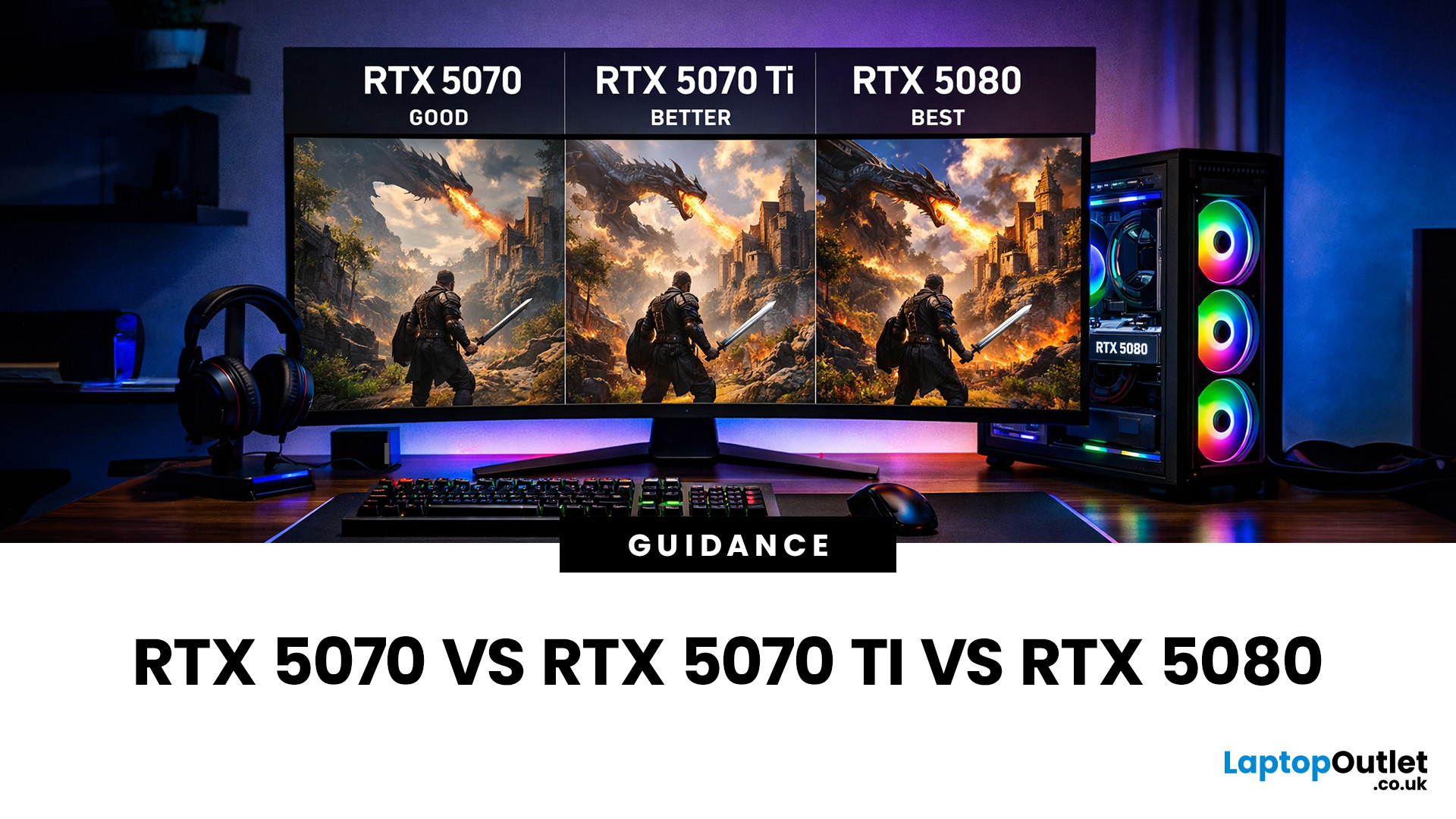
Choosing between an RTX 5070 and RTX 5080 gaming PC is one of the biggest decisions you may face when buying or upgrading a gaming desktop. Although both GPUs support NVIDIA’s latest gaming technologies, they are designed for different resolutions, performance targets, system budgets, and types of players.
In this RTX 5070 vs RTX 5080 comparison, we examine gaming performance, ray tracing, power requirements, system specifications, overall value and the right graphics card for you. We will also briefly explain where the RTX 5070 Ti fits for buyers who want more performance than the RTX 5070 without moving to a premium RTX 5080 gaming PC.
Whether you are considering an RTX 5070 prebuilt PC or planning a high-end custom desktop, this guide will help you understand the difference between RTX 5070 and 5080 gaming systems.
Understanding the RTX 50 Series Line-Up
NVIDIA’s RTX 50 series GPUs are designed to push performance further while improving efficiency and AI-powered features. Across the
Published: June 11, 2026
Choosing the right gaming desktop can be the difference between smooth, immersive gameplay and a system that struggles within a year. This gaming PC buying guide explains the key components that affect gaming performance, future-proofing, and value for money, so you can buy with confidence rather than guessing from confusing spec sheets.
A good gaming PC is not just about the most expensive graphics card. It is about balance. The CPU, GPU, RAM, storage, cooling, power supply, motherboard, and case all work together. Whether you play competitive esports, cinematic single-player titles, open-world RPGs, racing games or VR, understanding the right configuration helps you avoid overspending and choose a desktop that lasts.
This article is designed as a practical gaming PC specs guide for beginners, but it also includes up-to-date 2026 advice for buyers comparing modern RTX, Radeon, Intel, and AMD-powered systems.
Why Buy a Gaming Desktop PC?
A gaming desktop PC remains one of the best choices
Last Updated: June 15, 2026
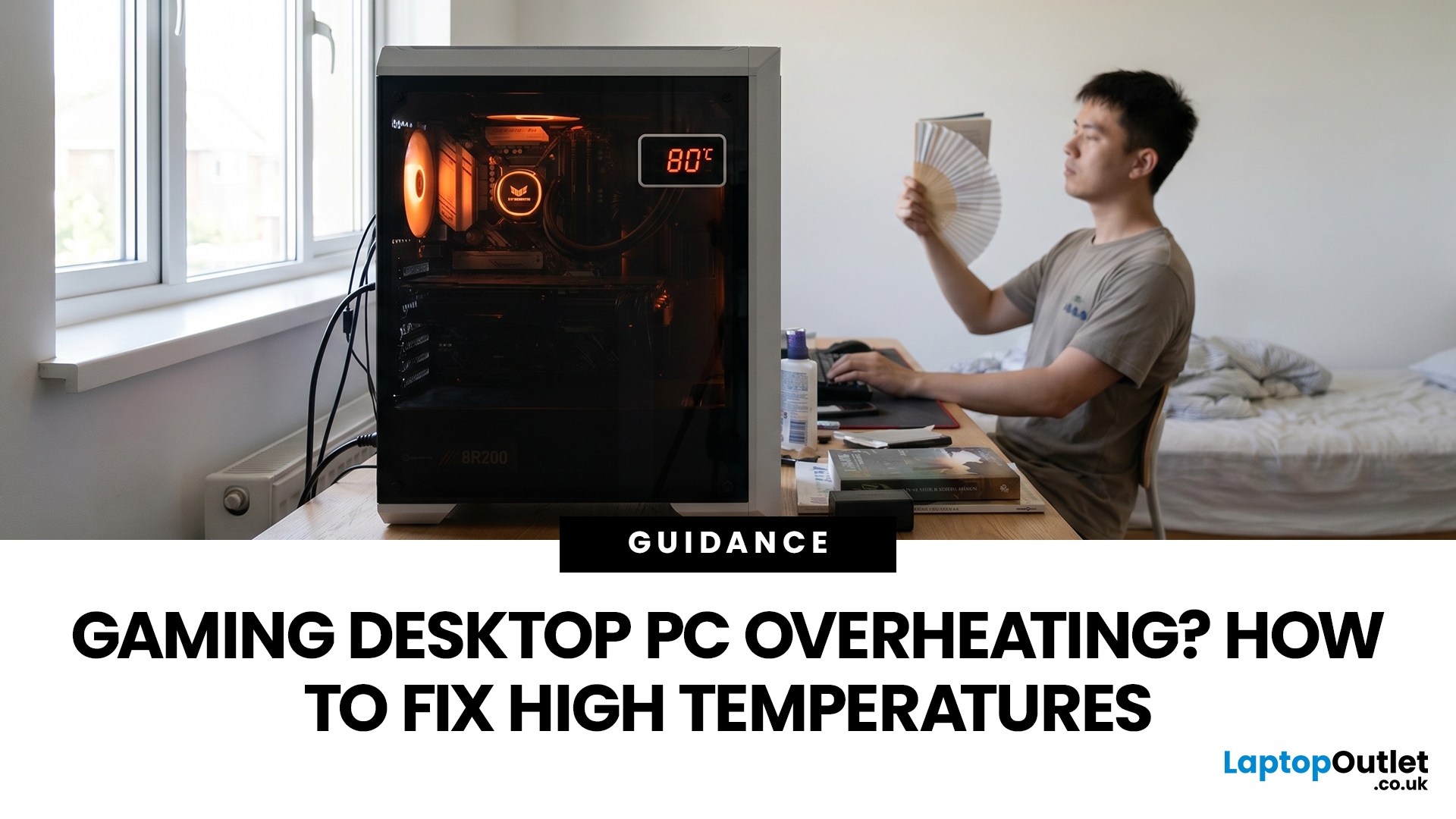
A gaming PC overheating usually comes down to one of five things: blocked airflow, dust build-up, weak cooling, aggressive game settings, or poor contact between the CPU/GPU and its cooler.
| Here is the fast version:
|
Gaming PC Overheating: What It Means and Why It Matters
You’re mid-match. Your FPS is smooth. Then suddenly, the game stutters, the fans sound like a jet engine, and your PC feels like it could toast bread.
That is not “just gaming PC life”.
A hot gaming desktop is normal. An overheating
Last Updated: July 21, 2026
Last Updated: July 27, 2026
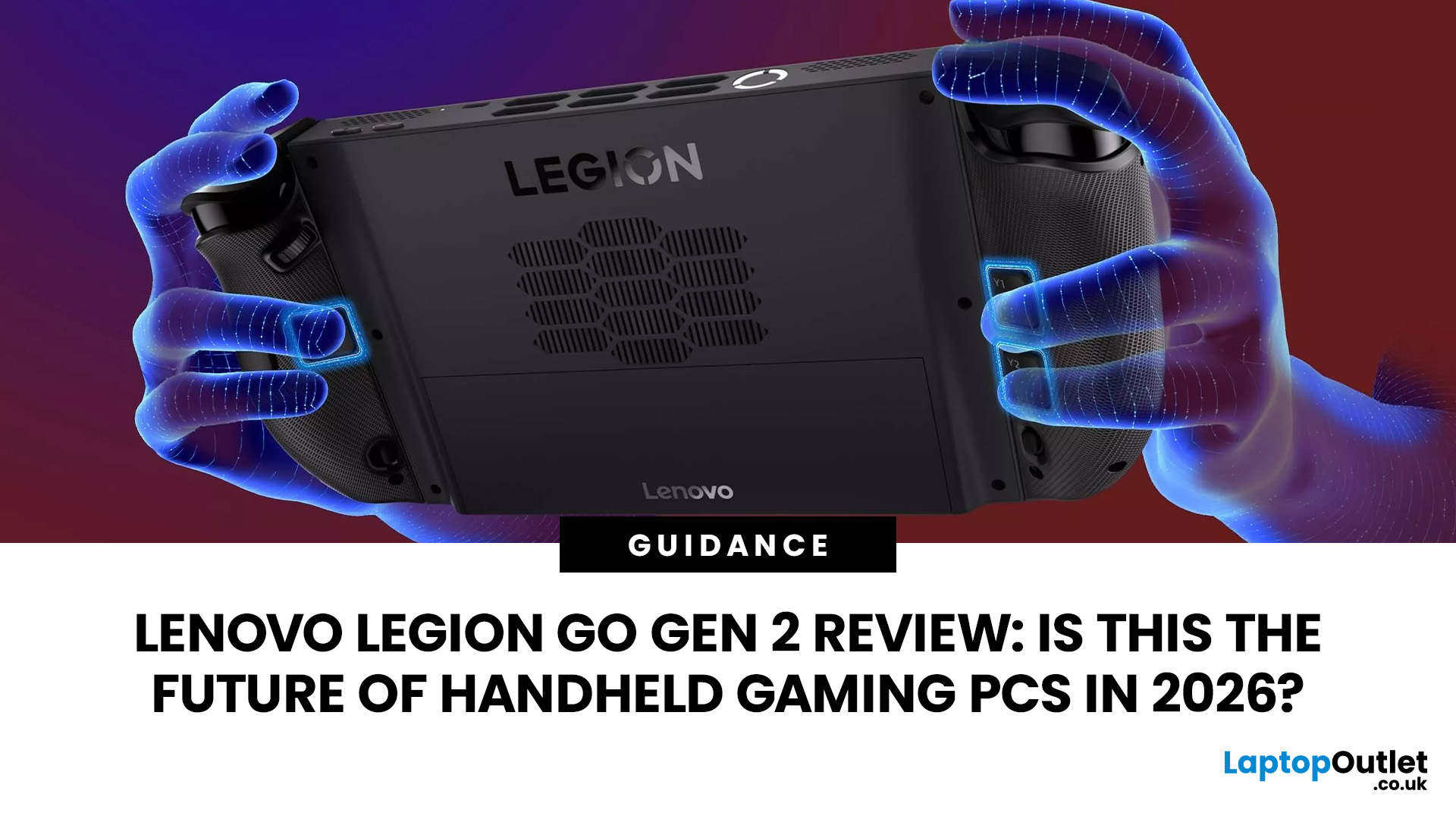
The Lenovo Legion Go Gen 2 takes almost everything that made the original handheld exciting and pushes it further. You get a huge 8.8-inch OLED display, smoother variable refresh rate gaming, upgraded AMD processing power and redesigned detachable controllers. It is powerful, flexible and packed with features, but it is also one of the biggest and most expensive handheld PCs available.
So, does this premium portable gaming PC represent the future of handheld gaming, or has Lenovo built more machine than most gamers need? This review examines its performance, battery, display, software, and competition.
Lenovo Legion Go Gen 2 Overview: What Makes This Handheld Gaming PC Different?
Lenovo officially markets the device as the Legion Go (8.8", 2), although Legion Go Gen 2 and Legion Go 2 are the names most gamers use. You may also see it shortened to Lenovo Go Gen 2, but it belongs firmly to Lenovo’s Legion gaming range. Its standout features include:
| Specification | Lenovo Legion Go Gen 2 |
| Processor |
Last Updated: August 17, 2026
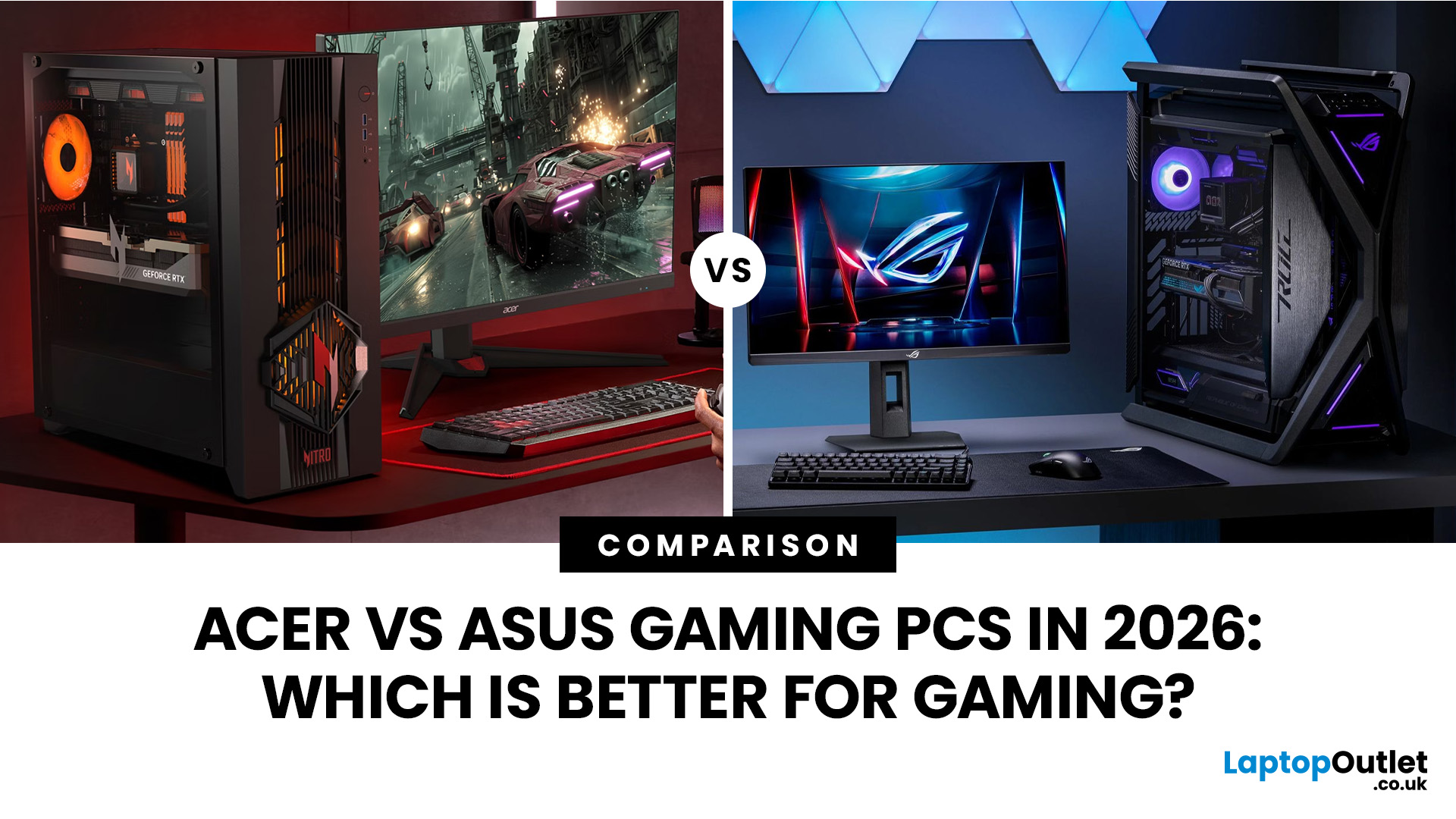
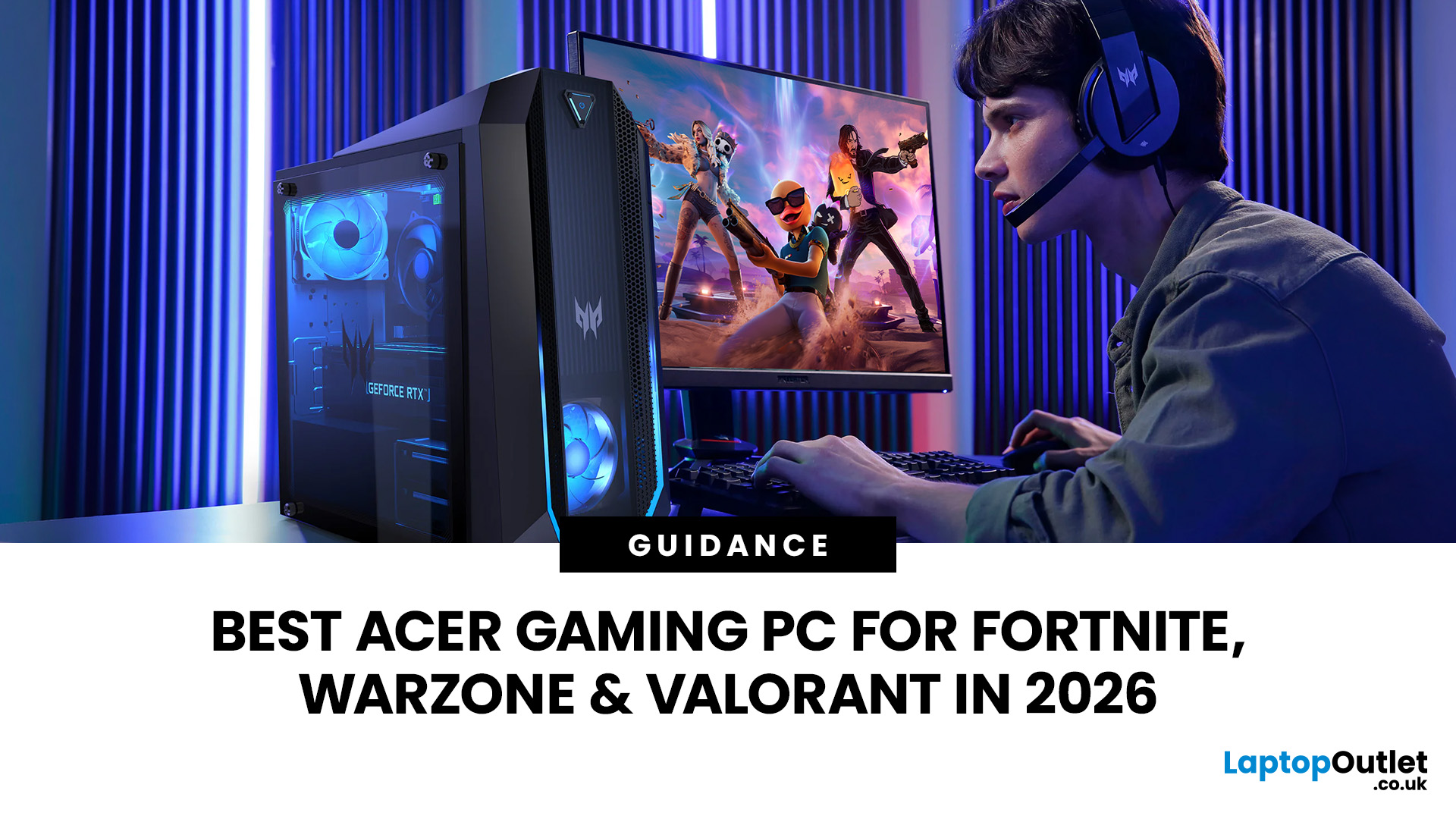
An Acer gaming PC can run Fortnite, Call of Duty: Warzone and Valorant, but the frame rate you get depends heavily on the graphics card, processor, resolution and in-game settings.
If you are comparing Acer gaming PC FPS, the biggest difference comes from whether you choose an entry-level RTX 3050 system, a newer RTX 5060 setup or a more powerful RTX 5070 desktop. Fortnite and Valorant are relatively accessible, while Warzone places much greater demands on your GPU, memory, and storage.
The Acer Nitro N20 and Predator PO3-665 desktops currently available from Laptop Outlet cover all three of these performance levels, so let’s look at what their specifications actually mean when you start playing.
Fortnite, Warzone, and Valorant PC Requirements in 2026
Before choosing a PC, compare its components against what the developers currently recommend.
| Game | Current PC Hardware Guidance | What You Should Aim For |
| Fortnite | Recommended: GTX 960-class GPU, Core i5-7300U/Ryzen 3 3300U and 16GB RAM. Epic |
Last Updated: August 18, 2026
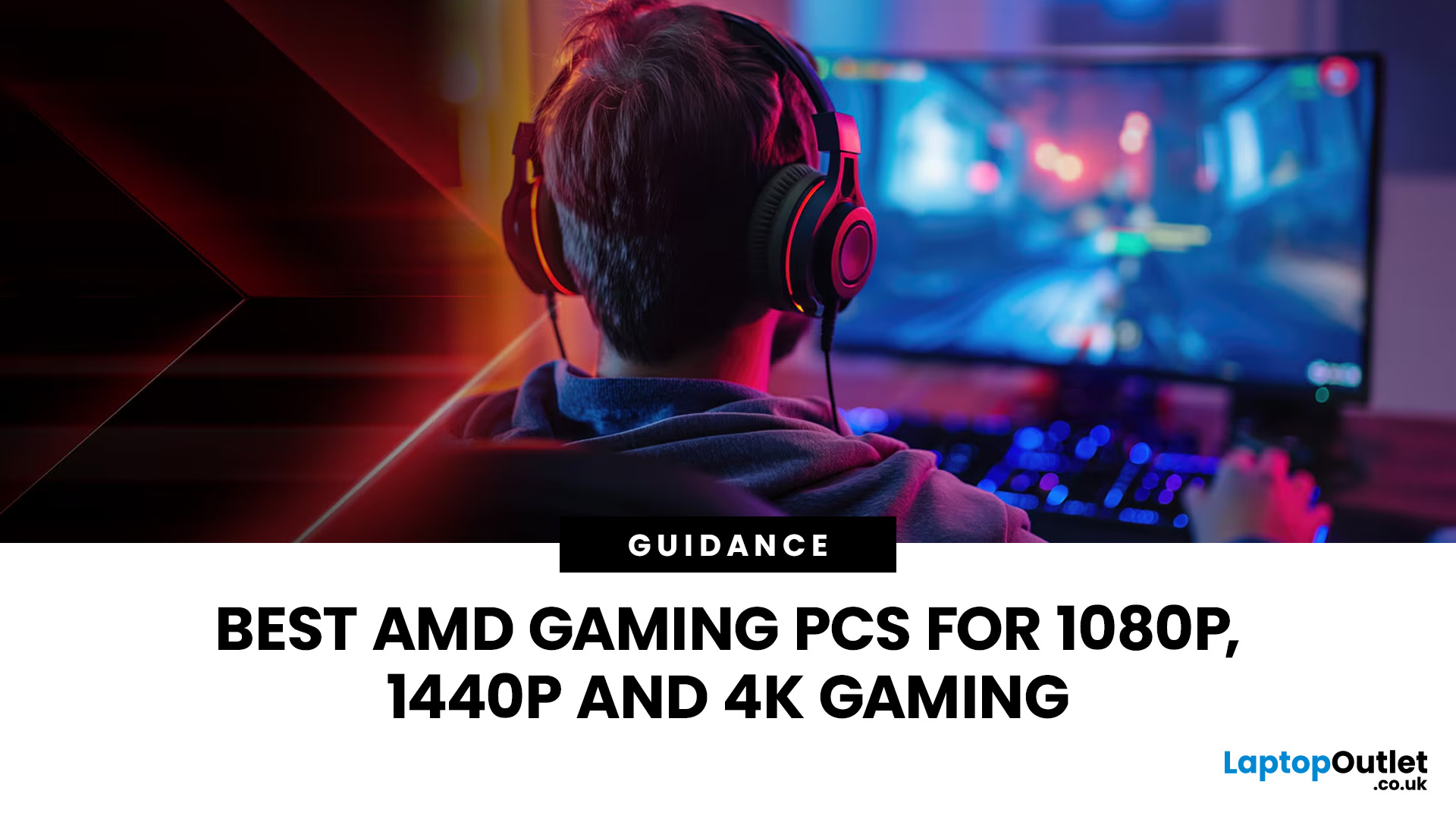
Choosing the best AMD gaming PC in 2026 is less about buying the fastest processor and more about matching the CPU, GPU, memory and monitor to your target resolution. AMD Ryzen processors scale from efficient integrated-graphics systems for light Full HD gaming to X3D-equipped towers built for demanding AAA titles.
This guide compares six current AMD Ryzen gaming PCs across 1080p, 1440p and 4K use. It explains where each system makes sense, where it has limitations and which games suit its hardware.
Best AMD Gaming PCs at a Glance
The six systems below cover very different levels of gaming performance. That matters because an office-focused PC with integrated graphics should not be judged in the same way as dedicated gaming desktop PCs equipped with RTX graphics.
| PC | Processor | Graphics | RAM | Storage | Best For |
| Lenovo ThinkCentre M75s Gen 2 | Ryzen 5 5600G | Integrated Radeon | 8GB DDR4 | 256GB SSD | Light 1080p gaming |
| Lenovo IdeaCentre AIO 24ARR9 | Ryzen 5 7533HS | Radeon 660M | 16GB DDR5 | 512GB SSD | Casual 1080p |
Last Updated: August 20, 2026
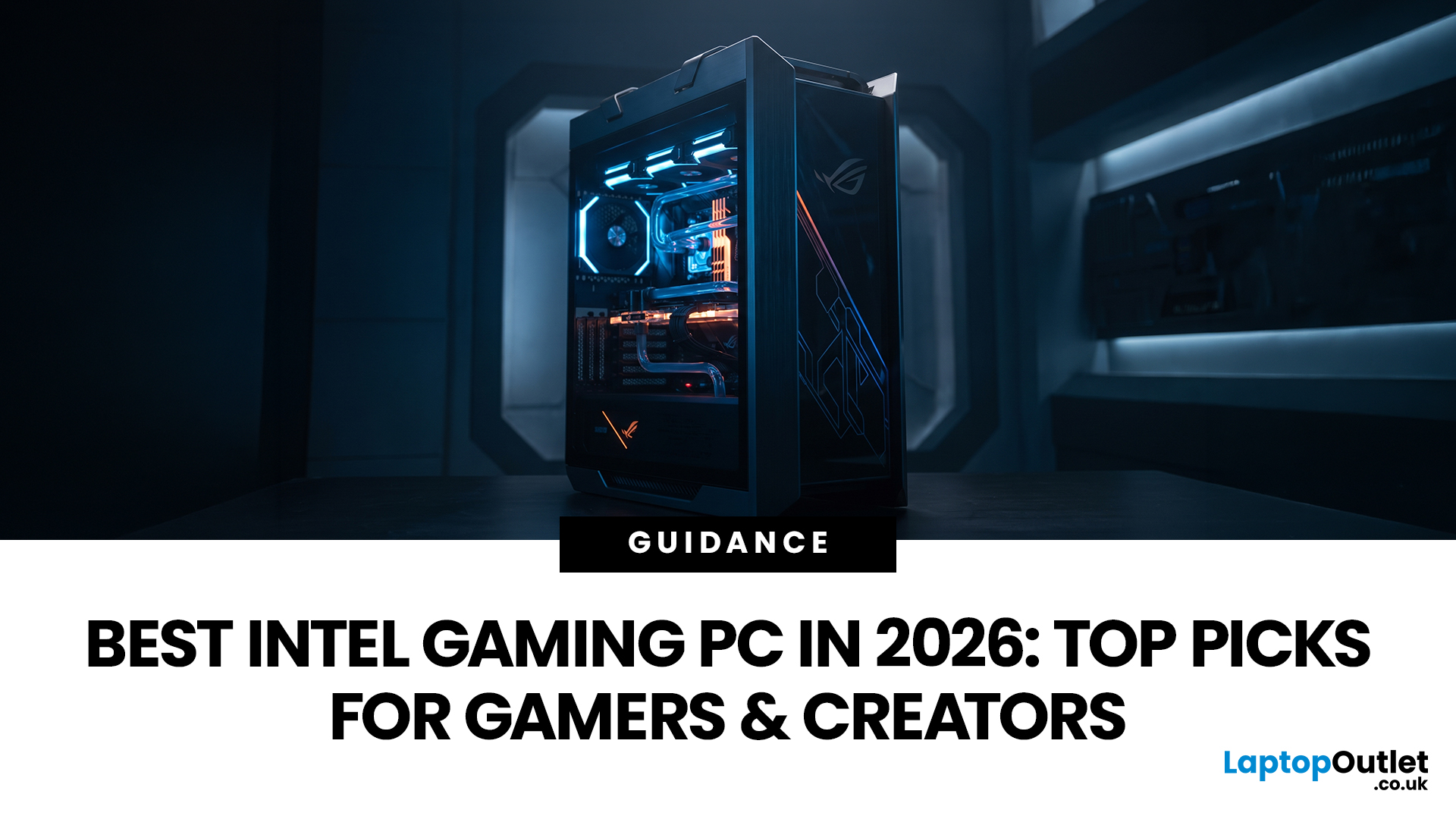
Choosing the best Intel PC for gaming and creative work in 2026 means looking beyond the processor name. CPU performance matters, but your graphics card, system memory, storage and cooling can have just as much impact on how the PC handles games and demanding applications.
This guide compares eight Intel-powered desktops for different types of gamers and creators, from accessible 1080p systems to powerful 4K gaming and content-creation PCs.
Why Intel PCs Make Sense for Gaming and Content Creation
Intel is a strong choice for gaming and content creation because its desktop range covers everything from mainstream Core i5 systems to more powerful Core i7 and Core Ultra configurations. That gives buyers plenty of choice when matching performance to gaming, streaming or creative workloads.
Many high-performance Intel processors use a hybrid architecture with Performance-cores and Efficient-cores. With Intel Thread Director, compatible systems can help the operating system prioritise demanding

