



Samsung Odyssey 3D: Everything You Need to Know About Glasses-Free 3D Gaming
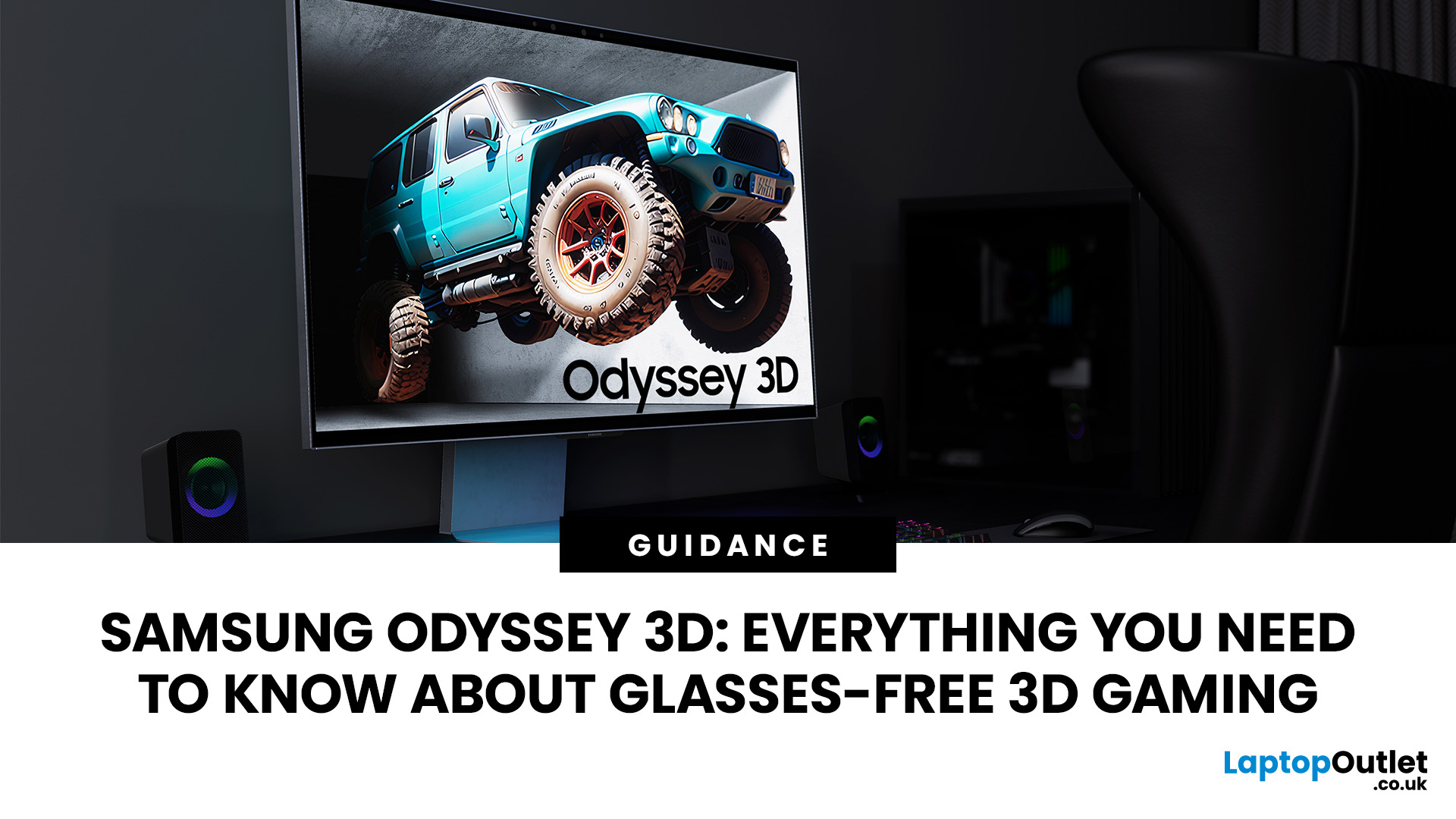
The Samsung Odyssey 3D takes a different route to gaming immersion. Instead of requiring a headset or 3D glasses, this 27-inch 4K monitor uses eye tracking, view mapping and a lenticular lens to create a stereoscopic 3D display from your normal seated position. You can also switch back to conventional 2D gaming whenever you want.
What is the Samsung Odyssey 3D?
The Samsung Odyssey 3D G90XF is a 27-inch flat IPS gaming monitor combining 4K UHD, 165Hz and a 1ms GtG response time with Samsung's Odyssey 3D Hub software. It also supports HDR10+ Gaming, AMD FreeSync Premium, and NVIDIA G-SYNC compatibility.
Key Features of the Samsung Odyssey 3D
Its headline feature is Samsung glasses-free 3D technology, powered by real-time eye tracking and view mapping. You also get stereo speakers, Edge Lighting, an adjustable stand, HDMI 2.1 and DisplayPort 1.4.
Who is the Samsung Odyssey 3D designed for?
This Samsung 3D gaming monitor suits PC gamers who value immersion, play supported titles and want one display for 2D and 3D use. Esports players chasing the highest refresh rates may prefer another option.
How Does Glasses-Free 3D Gaming Work?
Real-Time Eye Tracking
A stereo camera above the screen detects your eye position. The monitor uses that information to keep left-eye and right-eye images aligned as you make normal movements.
Lenticular Lens Technology
A lenticular lens layer directs different image information towards each eye. Your brain combines those views into perceived depth, creating glasses-free 3D gaming without wearable eyewear.
3D Depth Mapping and View Mapping
View Mapping calculates which pixels should reach each eye and adjusts the image using your tracked position. This helps maintain depth and reduce crosstalk within the recommended viewing area.
How 2D-to-3D Conversion Works
There is an important distinction. Samsung's AI conversion can add depth to compatible full-screen video, but it is not a universal game converter. Games need Odyssey 3D Hub support for the intended 3D experience.
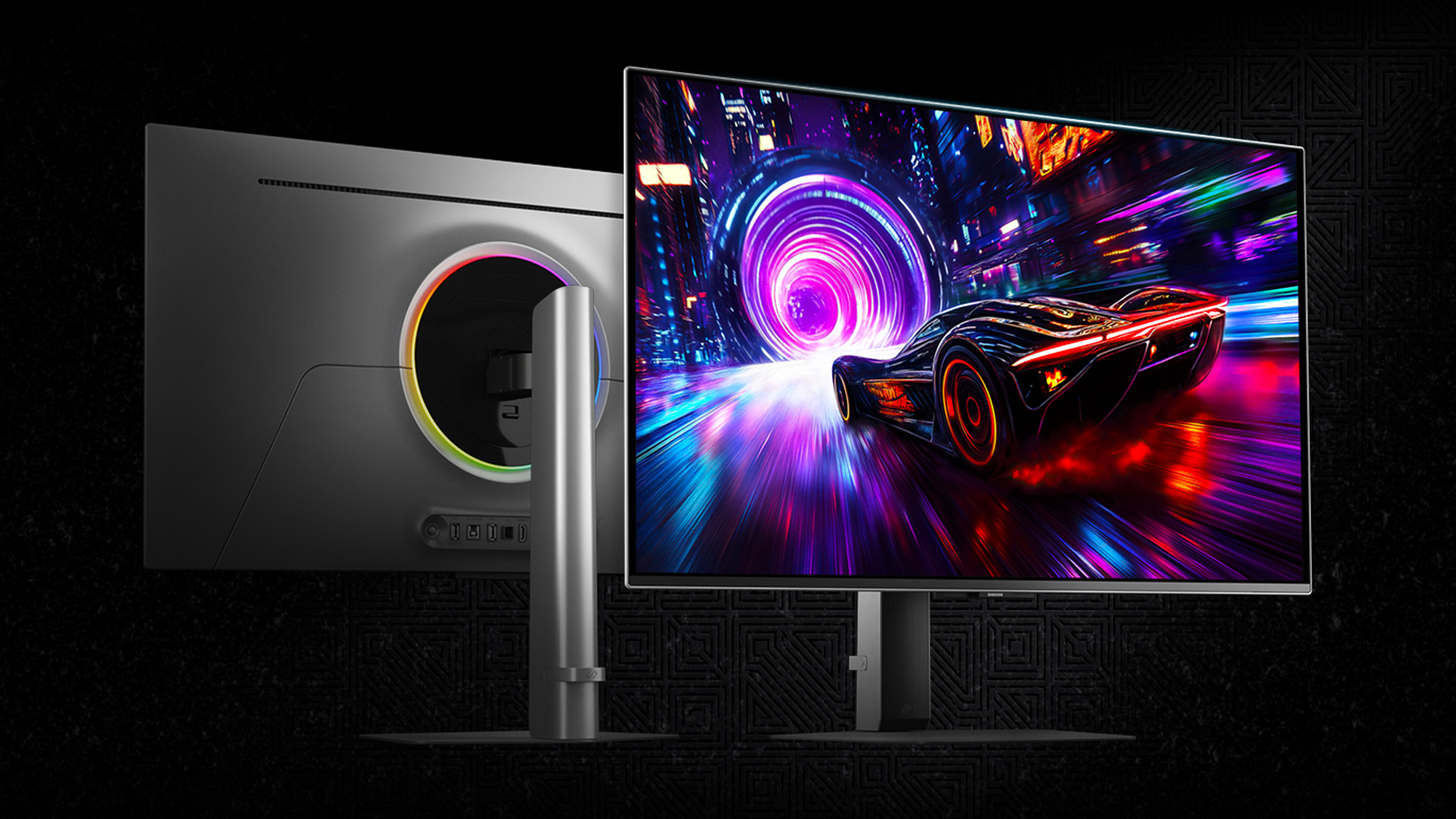
Samsung Odyssey 3D Specifications
Display Size and Resolution
The monitor uses a 27-inch, 16:9 IPS panel with 3,840 × 2,160 resolution, 350-nit typical brightness, a 1,000:1 static contrast ratio and 99% sRGB coverage.
Refresh Rate and Response Time
A maximum 165Hz refresh rate and 1ms GtG response time help keep motion clear in standard and 3D gaming.
Connectivity and Gaming Features
You get two HDMI 2.1 ports, DisplayPort 1.4 and a two-port USB hub. FreeSync Premium and G-SYNC compatibility help reduce tearing. For setup extras, see our Samsung computer accessories.
What is the Samsung Odyssey 3D Gaming Experience Like?
Image Depth and Immersion
In a well-supported game, separation between characters, scenery and foreground objects can make environments feel more layered than on a conventional flat display. That is where its immersive gaming experience stands out.
Motion Performance in Fast-Paced Games
The 165Hz panel and 1ms GtG specification suit responsive action, while the 3D system adjusts to your position. Competitive players may still prefer a faster 240Hz or 360Hz 2D monitor.
Viewing Position and Eye-Tracking Accuracy
Samsung recommends viewing 3D from roughly 55 to 95cm away, with your face centred and within about 25 degrees either side of the screen. It is intended for one viewer at a time.
If you are exploring Samsung displays for a new setup, you can browse our Samsung range while we explain what makes this model different.
Which Games Support Samsung Odyssey 3D?
Native 3D Game Support
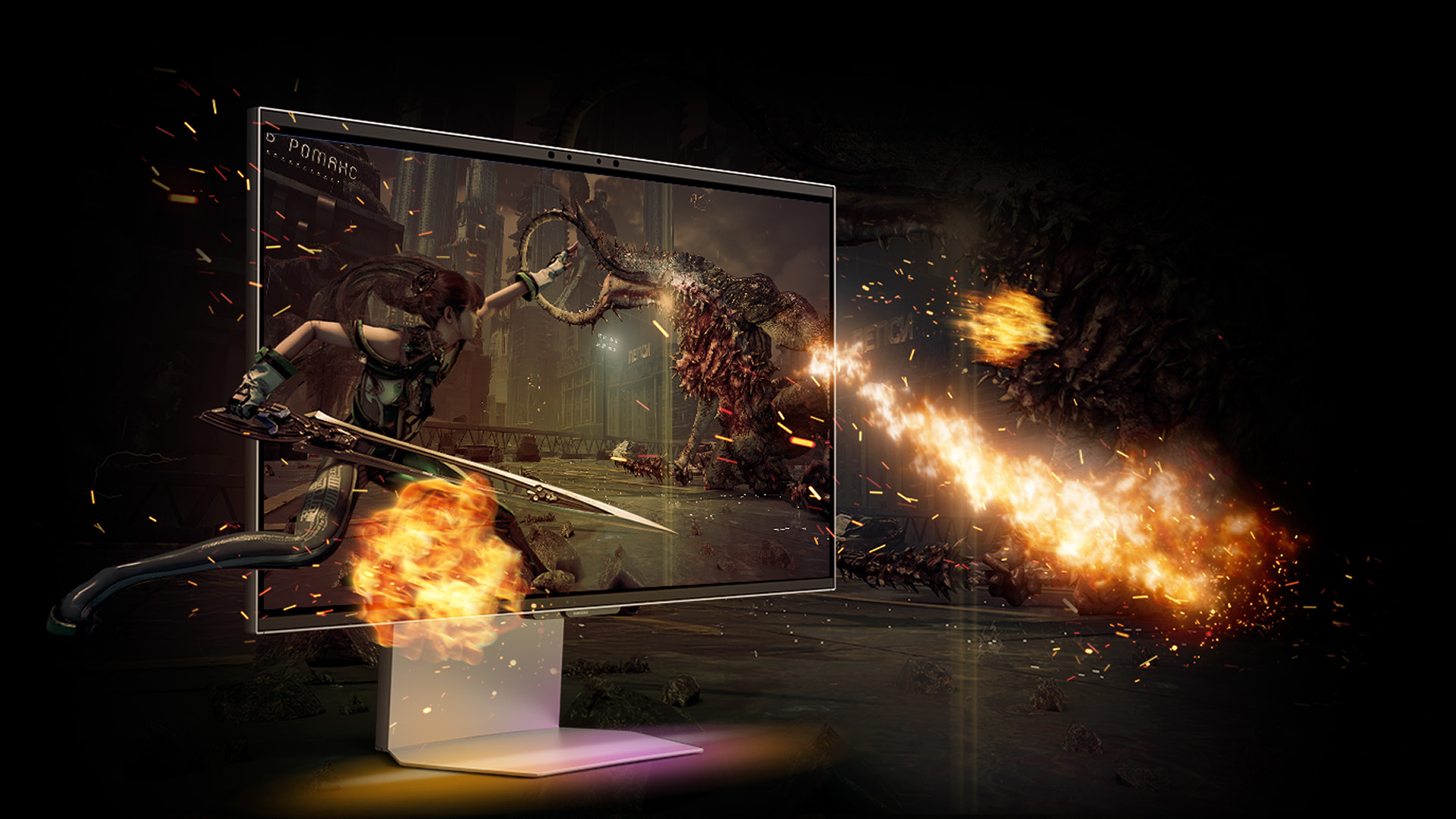
Support is growing but not universal. In March 2026, Samsung said more than 60 titles were supported, including The First Berserker: Khazan, Stellar Blade, Lies of P: Overture, MONGIL: STAR DIVE and Hell Is Us. Samsung is targeting more than 120 titles by the end of 2026.
Odyssey 3D Hub
Odyssey 3D Hub is the Windows software used to access compatible games, launch supported titles and control 3D settings.
Using 2D Games in 3D Mode
Do not assume every 2D game can be converted automatically. Samsung states that only games specified in Odyssey 3D Hub can be used for 3D gaming. AI conversion is primarily for compatible video.
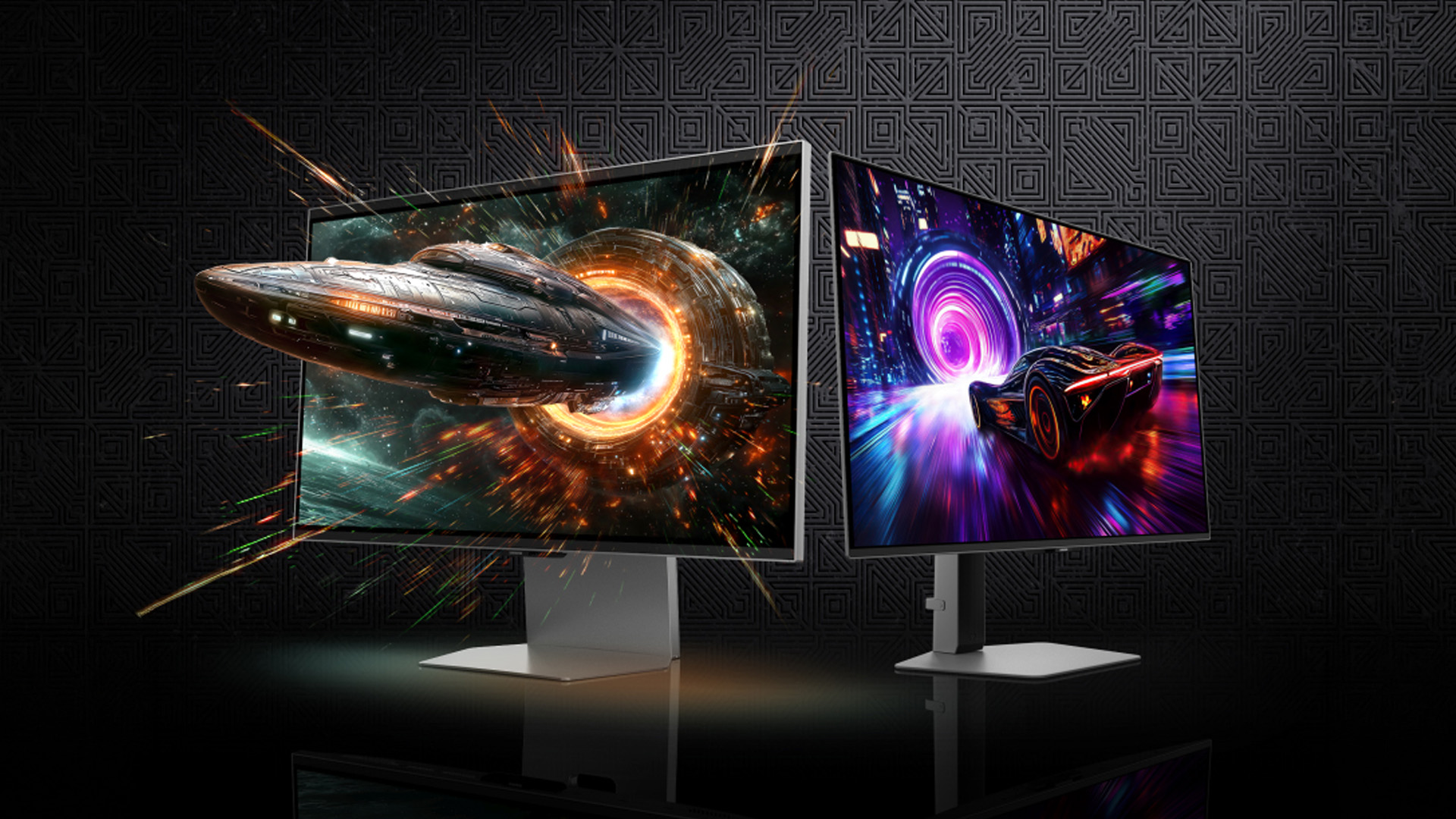
Samsung Odyssey 3D vs Traditional Gaming Monitors
3D Gaming vs Standard 2D Gaming
A standard monitor offers broader compatibility and fewer setup requirements. Odyssey 3D adds stereoscopic depth in supported games, trading some simplicity for a more specialised experience.
Odyssey 3D vs OLED Gaming Monitors
OLED gaming monitors prioritise deep blacks, strong contrast and very fast pixel response. Odyssey 3D uses IPS but adds glasses-free stereoscopic gaming. The best Samsung Odyssey choice depends on whether you value 3D depth, OLED image quality or maximum speed.
Odyssey 3D vs VR Headsets
VR surrounds your field of view and offers more complete head-tracked immersion. Odyssey 3D keeps you at a normal desk, requires no headset and lets you switch quickly between 2D and 3D use.
Benefits of the Samsung Odyssey 3D
Glasses-Free Immersion
The main advantage is straightforward: you can experience stereoscopic depth without special glasses or a VR headset.
High-Resolution Gaming
Its 4K resolution provides fine detail for games, desktop work and video, while 165Hz makes movement smoother than a typical 60Hz productivity display.
Flexible 2D and 3D Use
The monitor still works as a conventional 4K gaming display when you do not need 3D. To compare alternatives, shop Samsung monitors across different resolutions and gaming features.
Things to Consider Before Buying Samsung Odyssey 3D
Game Compatibility
Start with your library. If most of your favourite games are unsupported, the monitor's most distinctive feature may see limited use.
PC Hardware Requirements
Modern 4K gaming already demands a capable GPU. Samsung recommends an NVIDIA RTX 3080 or higher for AI 3D video conversion, so check your PC before investing.
Viewing Distance and Position
The 3D effect works best from a controlled seated position. If you regularly share the screen or move far off-axis, a conventional display may be more practical.
Price and Overall Value
This is a premium specialist monitor, so value depends on how often you will use 3D. At Laptop Outlet, we would compare it with high-refresh OLED and IPS alternatives before deciding. For a lower-cost Samsung setup, explore affordable refurbished Samsung devices.
Is the Samsung Odyssey 3D Worth it?
Who Should Buy it?
Consider it if you want a high-end 3D gaming monitor, already play compatible titles and still need a sharp 4K display for everyday PC use.
Who Should Consider Another Gaming Monitor?
Look elsewhere if competitive refresh rate, OLED contrast, ultrawide space, multi-viewer use or maximum compatibility matters more than 3D.
You can compare top-selling Samsung products before narrowing your shortlist.
Is Glasses-Free 3D Gaming the Future?
The Future of 3D Gaming Monitors
Samsung is continuing to invest in the format. It has announced a next-generation 32-inch 6K Odyssey 3D model for its 2026 lineup, alongside wider studio partnerships and a growing 3D library.
Could Glasses-Free 3D Become Mainstream?
Possibly, but software support is crucial. Wider adoption will depend on broader game compatibility, simpler setup and more glasses-free 3D displays reaching accessible price points.

Wrapping Up
The Samsung Odyssey 3D combines strong 4K, 165Hz performance with glasses-free 3D gaming that does not require a headset. Its biggest limitation is compatibility: the experience depends on supported games, suitable PC hardware and a centred viewing position. If those conditions match the way you play, this Samsung Odyssey gaming monitor offers something conventional displays cannot easily replicate.

Questions About Samsung Odyssey 3D
What is the Samsung Odyssey 3D?
It is a 27-inch 4K IPS gaming monitor that uses eye tracking, view mapping and a lenticular lens to create glasses-free stereoscopic 3D.
How does the Samsung Odyssey 3D work without glasses?
Its stereo camera tracks your eyes, then view mapping and the lenticular lens send a slightly different image to each eye so your brain perceives depth.
Do you need 3D glasses to use the Samsung Odyssey 3D?
No. The display is designed specifically for Samsung glasses-free 3D gaming.
Can the Samsung Odyssey 3D convert 2D content into 3D?
Yes, for compatible full-screen video through AI 3D Video Conversion. Samsung says it may not work with games, which instead rely on Odyssey 3D Hub support.
What games support the Samsung Odyssey 3D?
The list changes as Samsung expands support. Samsung reported more than 60 titles in March 2026 and is targeting more than 120 by year-end. Check Odyssey 3D Hub for the latest compatibility list.
| Read More: |
| Samsung Z Fold 8 Ultra vs Z Fold 8 Wide: Which Foldable Should You Buy? |
| Battery Life Improvements in the Samsung Galaxy S26 Family |
| First Look at the Samsung Galaxy S26, S26+, and S26 Ultra |
Related Articles

Last Updated: August 20, 2026
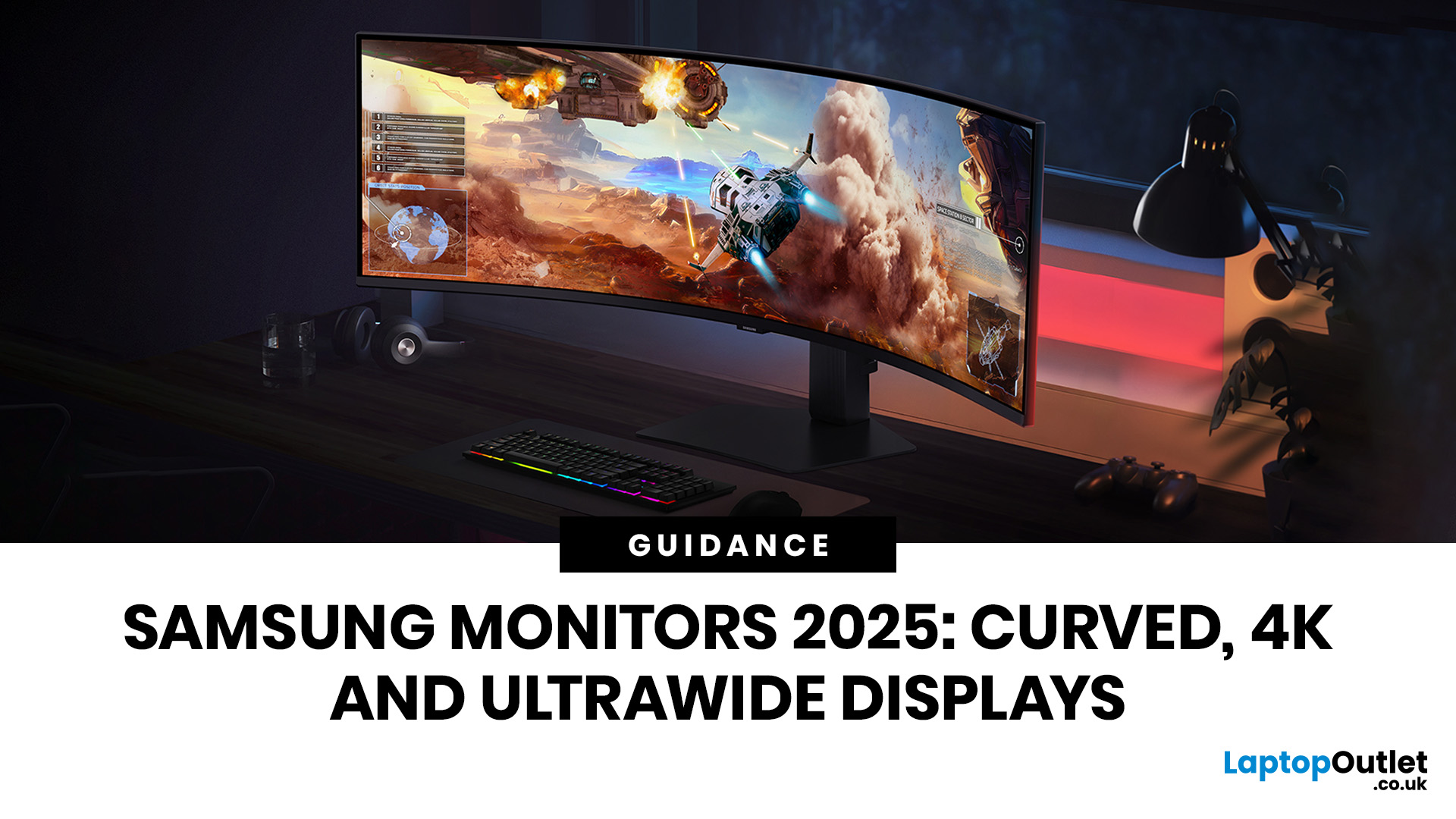
A monitor can shape how comfortably you work, create and play. Samsung's range covers practical Full HD screens, high-resolution ViewFinity displays, high-refresh Odyssey gaming models, curved formats and large ultrawide options. The specifications vary considerably, so the best choice depends on what you need the screen to do rather than the series name alone.
This guide compares current Samsung displays available at Laptop Outlet and explains how 4K, curved and ultrawide formats differ. It also covers the questions worth asking before you choose a model, including resolution, refresh rate, panel type, connectivity and desk space.
Best Samsung Monitors You Can Consider in 2026
| If You are searching for… | Our recommendation | Key specifications | Why it fits |
| Best Samsung 4K monitor | Samsung Odyssey G70D 27-inch | 4K UHD, IPS, 144Hz, 1ms, DisplayHDR 400 | Combines sharp detail with a high refresh rate for gaming, entertainment and mixed use |
| Best Samsung OLED gaming monitor | Samsung Odyssey G61SD 27-inch |
Last Updated: August 11, 2026
Published: August 13, 2026
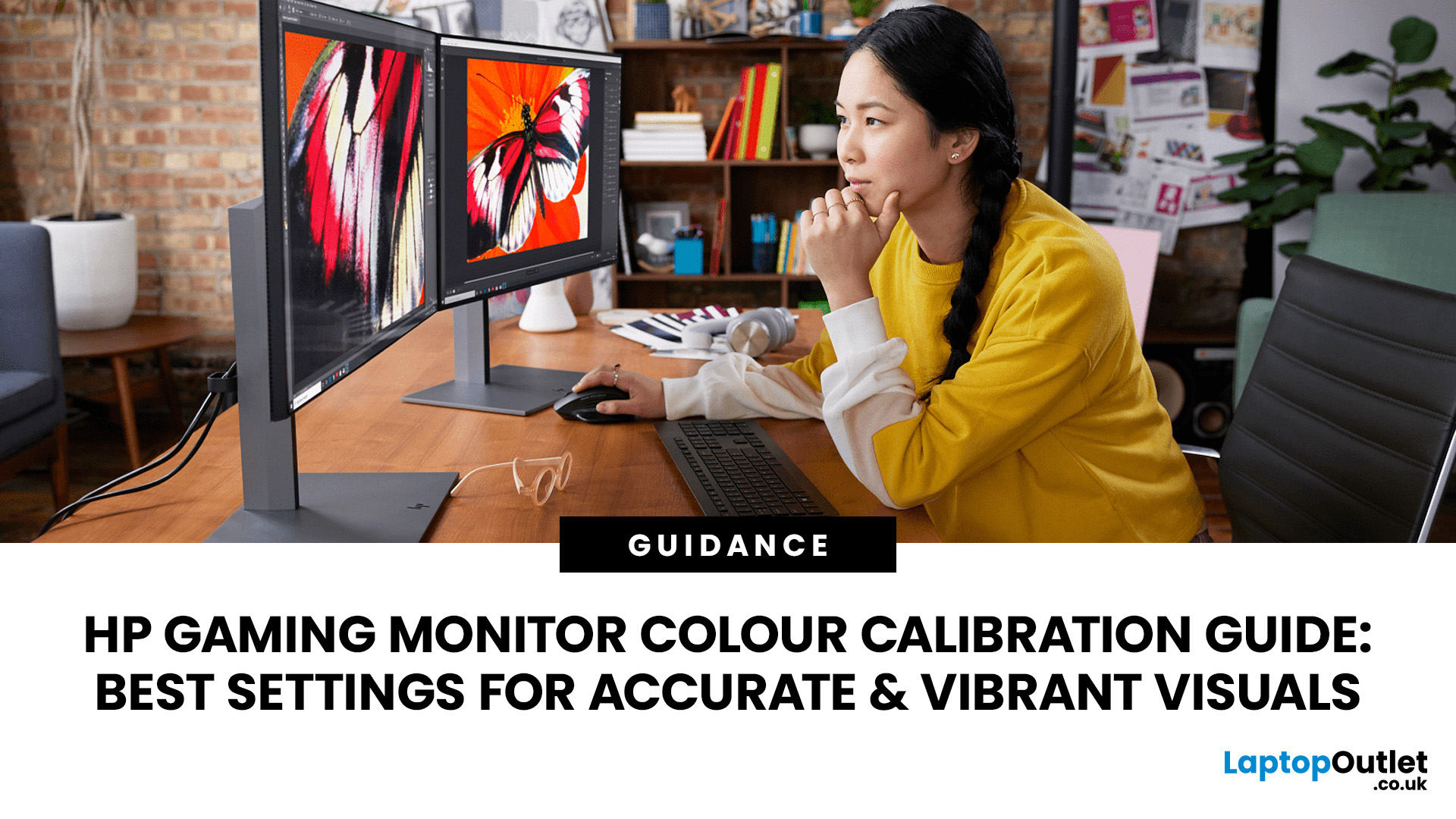
Your HP gaming monitor might have a fast refresh rate, sharp resolution, and solid HDR support, but poor colour settings can still leave games looking washed out, overly dark, or weirdly saturated. That is where monitor calibration makes a noticeable difference.
The key thing to know is that there is no single magic set of values that works for every HP or OMEN monitor. The right monitor settings depend on your exact panel, room lighting and whether you are playing in SDR or HDR.
This HP display calibration guide will show you how to get a more accurate starting point, fine-tune your screen in Windows 11 and fix the most common colour problems without turning everything up to 100.
What Does Monitor Calibration Actually Change?
Monitor calibration adjusts how your screen reproduces brightness and colour so that the image looks balanced rather than artificially enhanced. The main settings you are dealing with are:
- Brightness: Controls how bright the screen appears.
- Contrast: Affects the difference
Published: August 17, 2026
If your Dell monitor won’t turn on, don’t assume the screen is dead straight away. The issue could be as simple as a loose power cable, the wrong input source, or a dodgy HDMI connection.
The key is to identify what your monitor is actually doing. Is there no power light at all? Does the screen stay black even though the power LED is on? Or are you seeing a “No Signal” message?
Let’s work through the checks in the right order so you can find the problem without randomly swapping settings or buying hardware you might not need.
First, Check What Your Dell Monitor is Doing
A Dell monitor not turning on can mean a few different things.
| What You See | What to Check First |
| No power light | Socket, power cable, adapter and monitor power |
| Power light but black screen | Video cable, PC output and monitor diagnostics |
| “No Signal” message | HDMI/DisplayPort connection and input source |
| Screen works briefly then goes blank | PC, graphics connection or display hardware |
Making this distinction matters because a monitor
Last Updated: August 17, 2026
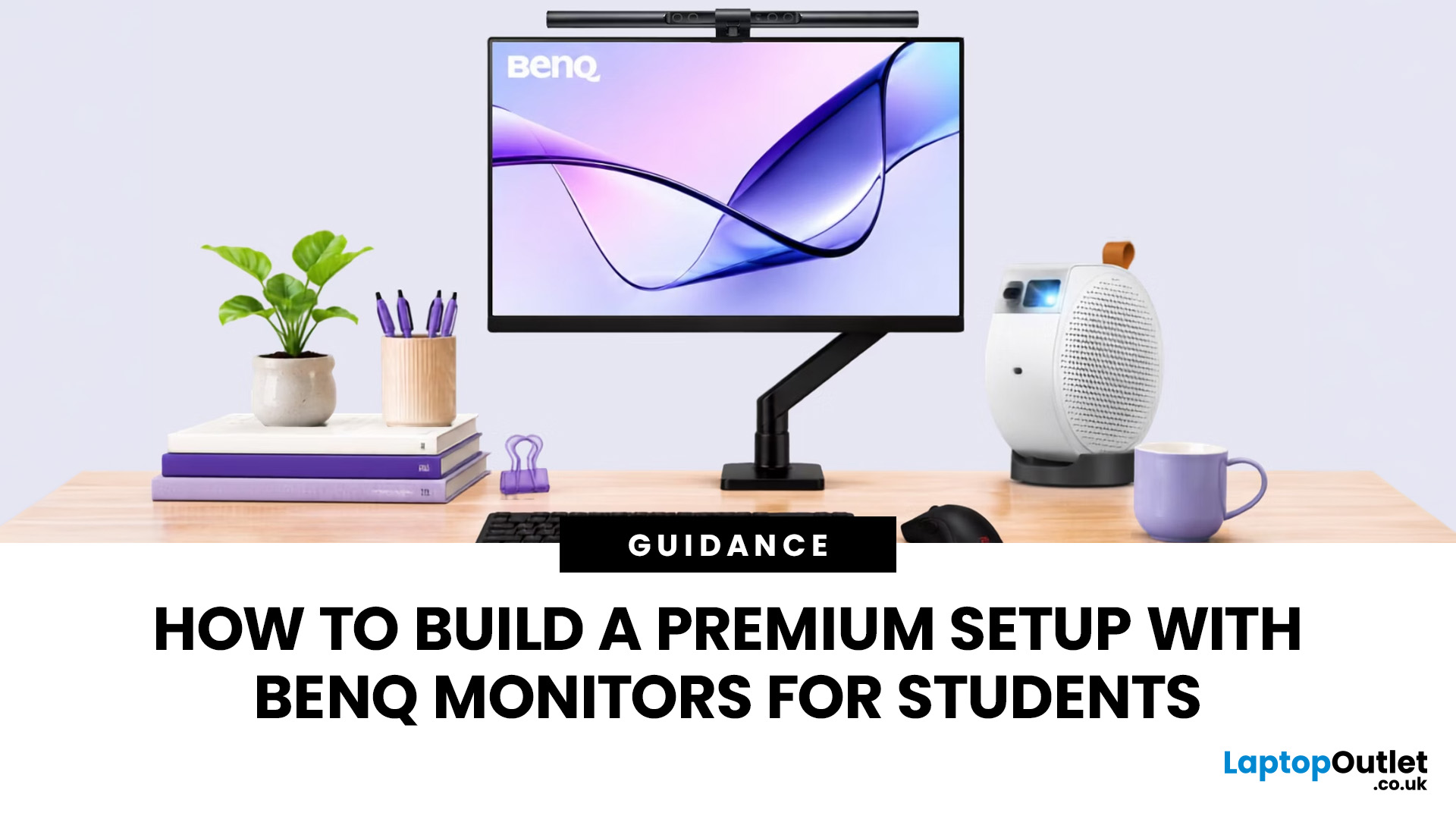
BenQ monitors for students can create a more comfortable and capable workspace for coursework, research, creative projects and downtime. The right display should suit your course, desk space, laptop and daily routine rather than simply offer the highest resolution. For many students, the strongest setup combines clear text, useful screen space, simple connectivity and enough versatility for life beyond studying.
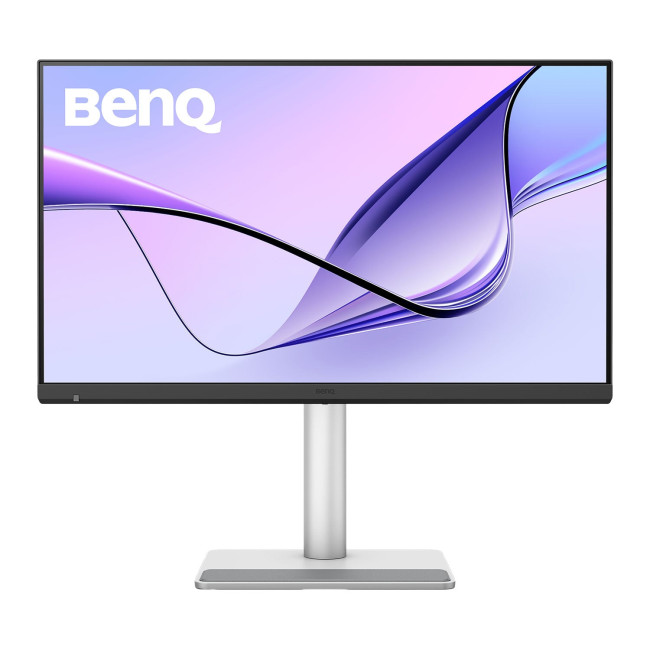
A premium student monitor setup is not defined by one specification. A compact high-resolution screen may work better in university accommodation, while a larger display can make research, timelines and spreadsheets easier to manage. Room lighting, USB-C charging, ergonomics and gaming needs also influence the decision. This guide compares BenQ's Mac-focused MA Series with a faster mixed-use alternative and explains where each approach makes practical sense.
Compare the Best BenQ Monitors for Students in 2026
| Model | Display | Colour and HDR | Laptop Connection | Best Student Use |
|
|
Last Updated: September 03, 2026
Creative work depends on display quality, from colour accuracy to detail clarity.
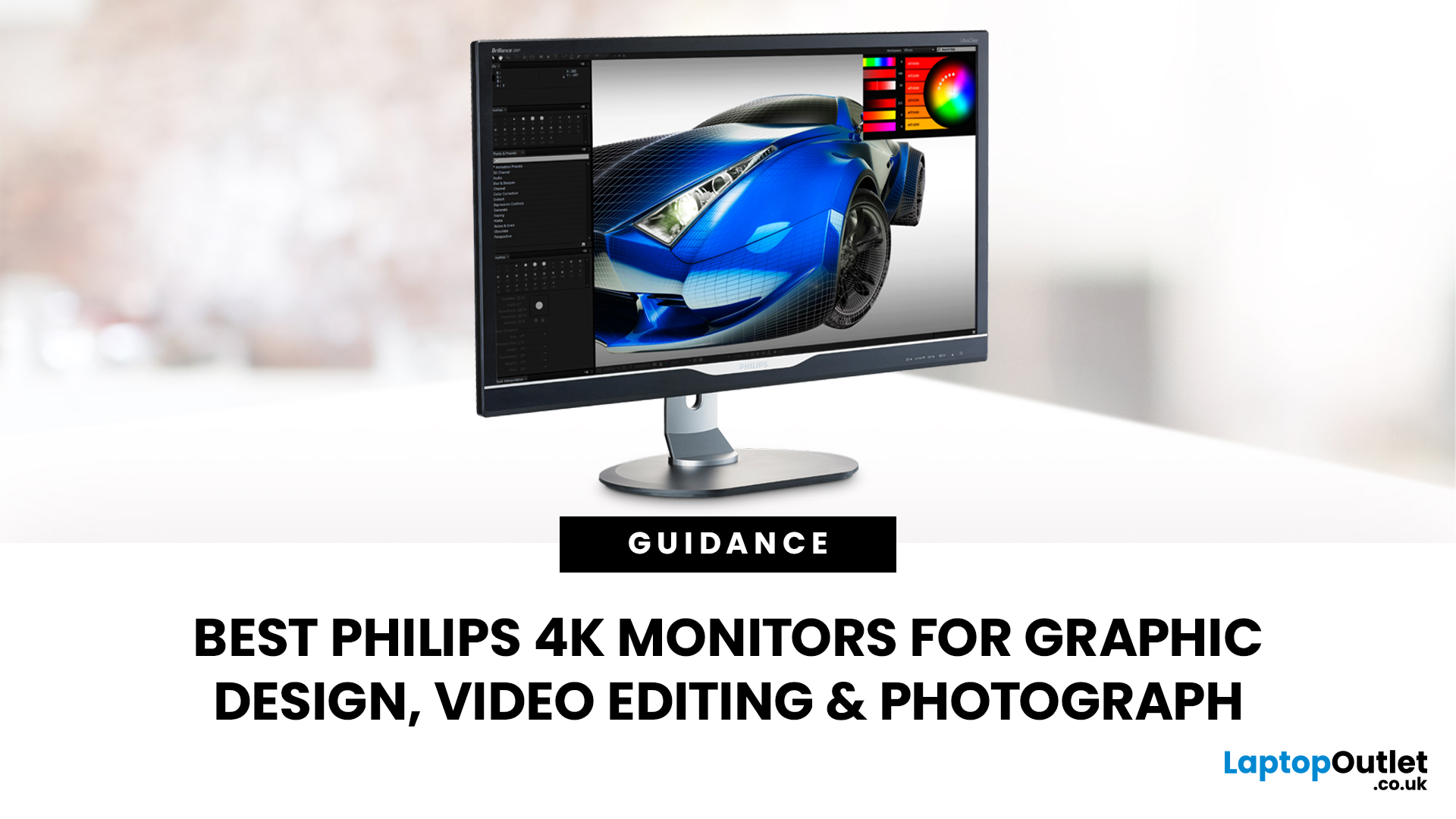
The best Philips 4K monitors for creative work include the 27E1N1800AE for affordable 4K clarity, the 27E1N1900AE for convenient USB-C laptop connectivity and the curved 328E1CA for a larger editing workspace. A 27-inch IPS model suits most designers and photographers, while a 31.5-inch VA display offers stronger contrast and more room for video timelines. Choose according to colour requirements, connectivity, available desk space and your everyday creative workflow needs.
These 4K monitors deliver four times Full HD resolution for sharper visuals and more workspace, but panel type, colour performance and connectivity are just as important.
This guide highlights the best Philips 4K options for design, video editing and photography. It also highlights key considerations so you can compare different computer monitors for designers more effectively.
Best Philips 4K Monitors at a Glance
| Philips Monitor | Best For |
Published: August 17, 2026
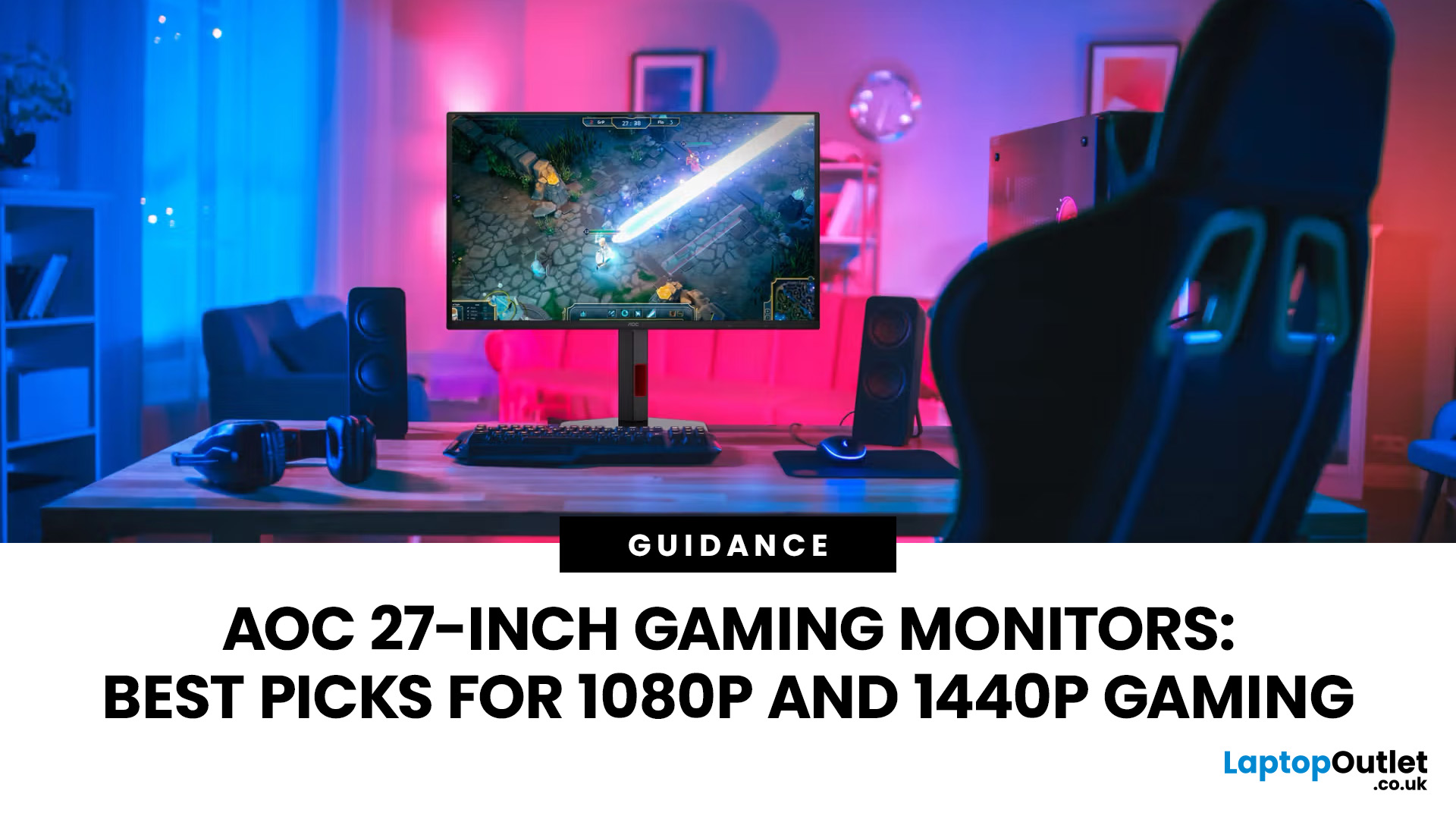
An AOC gaming monitor 27 inch screen gives you plenty of room to play without taking over your whole desk. The key decision is resolution.
The best AOC gaming monitor 27 inch choice for most players is the Q27G42ZE, thanks to its sharp QHD resolution, Fast IPS panel and 240Hz native refresh rate. Choose the C27G4ZXE for competitive 1080p gaming, the Q27G3XMN/BK for stronger HDR, or the AG276UZD for premium 4K QD-OLED visuals. Your ideal model ultimately depends on your GPU, preferred games, target frame rate and available budget, plus your PC or console setup.
Full HD makes high frame rates easier to achieve, while QHD produces a noticeably sharper picture. If your budget and graphics card can go further, 4K QD-OLED delivers another level of detail, colour and contrast.
AOC 27 Inch Gaming Monitors at a Glance
| Model | Resolution | Panel | Refresh Rate | Best For |
| AOC AGON AG276UZD | 3840 × 2160 | QD-OLED | 240Hz | Premium 4K gaming |
| AOC Q27G42ZE | 2560 × 1440 | Fast IPS | 240Hz, 260Hz overclocked | High-refresh QHD |
Published: August 19, 2026
Comparing LCD vs LED monitors? An LED monitor is an LCD that uses energy-efficient LED backlighting, while older LCDs typically use fluorescent CCFL lights.
LED-backlit models are generally slimmer, more efficient and more widely available. However, the LED label alone does not guarantee better colours, smoother gaming or greater eye comfort. Panel type, refresh rate, response time, resolution and brightness all matter too.
LCD vs LED Monitors at a Glance
The main difference between a traditional LCD monitor and an LED monitor is the backlight. A traditional LCD commonly uses CCFL tubes, while an LED monitor uses smaller light-emitting
Last Updated: August 19, 2026
IPS panels are usually the better choice for competitive gaming, wider viewing angles and mixed gaming and creative work. VA panels generally deliver deeper blacks and stronger contrast, making them attractive for immersive games in darker rooms. However, the IPS vs VA panel decision should also consider the monitor’s exact response time, refresh rate, resolution, adaptive sync, and measured performance. Read our complete guide to gaming monitor panels for a full breakdown of IPS vs VA and other display technologies.
IPS vs VA Panels: Quick Comparison
| Feature | IPS Panel | VA Panel |
| Native contrast | Usually lower | Usually higher |
| Black depth | Blacks can appear grey in dark rooms | Deeper blacks in suitable conditions |
| Viewing angles | Wider and more consistent | Narrower, with more off-centre variation |
| Fast-motion clarity | Generally cleaner | Can show dark smearing |
| Colour consistency | Usually strong across the screen | Can change more when viewed off-centre |
| Colour accuracy | Depends on the individual monitor | Depends |
Published: August 24, 2026

