



Picture-by-Picture Monitors: Display Two Computers Side by Side
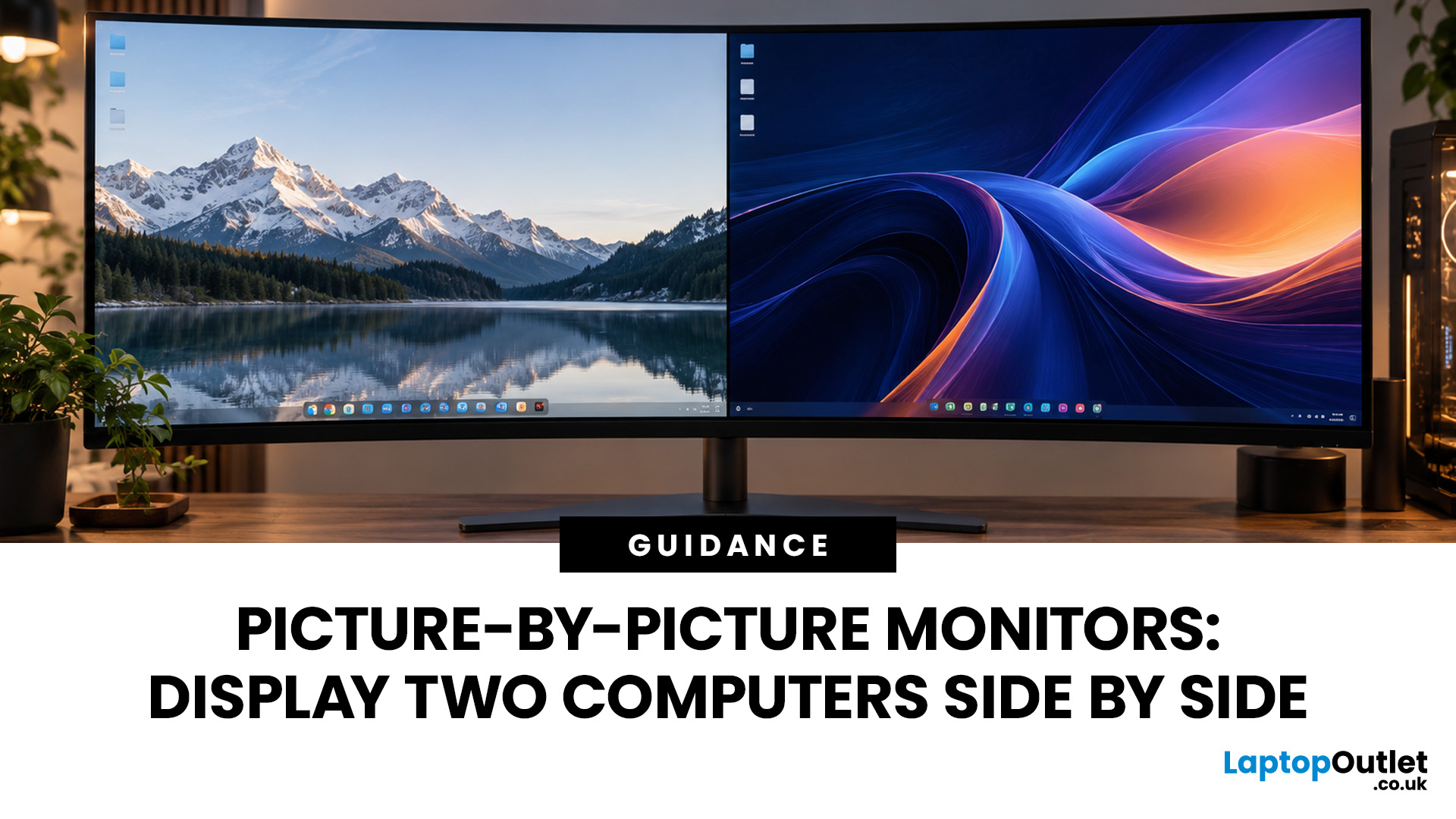
Working between two computers can get frustrating when you have to keep switching monitor inputs. A Picture by Picture monitor solves this by showing both computers side by side on one screen, so you can view your work without constantly changing displays.
This makes PBP useful for home offices, hybrid working, coding and multitasking. However, not every monitor with multiple HDMI or DisplayPort connections supports it, and the experience depends on the screen's size, resolution and available features.
This guide explains how PBP works, which monitor types are worth considering and what to check before buying. We'll also compare PBP with dual monitors and built-in KVM switches.
Quick Answer: Which Picture-by-Picture Monitor Should You Choose?
The best Picture-by-Picture monitor depends on how often you work across two computers and how much screen space you need.
Here are the main options:
|
Monitor type |
Best for |
What to consider |
|
27–32-inch 4K PBP monitor |
Occasional dual-PC use, office work |
Sharp images, but narrow split sections |
|
34-inch ultrawide PBP monitor |
Home offices, hybrid working |
Good balance of screen space and cost |
|
38–40-inch ultrawide PBP monitor |
Coding, editing, professional work |
More room for applications, usually higher cost |
|
49-inch super-ultrawide PBP monitor |
Regular dual-PC multitasking |
Two wider desktop areas on one screen |
|
PBP monitor with KVM |
Switching between work and personal PCs |
Can share one keyboard and mouse |
Our recommendation: If you occasionally need to display a second computer, a smaller 4K monitor or 34-inch ultrawide with PBP may be enough. For regular dual-PC working, a 49-inch Dual QHD model gives you more usable space.
You don't need to pay extra for a premium gaming monitor unless you also want features such as high refresh rates, OLED or advanced gaming support.
What Is a Picture-by-Picture Monitor?
A Picture-by-Picture monitor is a display that shows video from two separate devices at the same time. Instead of switching between inputs, the screen divides into sections, with each computer displaying its own desktop.
For example, you could connect your work laptop through HDMI and your personal desktop through DisplayPort. With PBP enabled, both computers appear on the monitor simultaneously.
Each computer continues running independently. You can have a spreadsheet open on one side and a browser or application running on the other.
This is different from splitting your Windows desktop into two application windows, because PBP works with two separate video sources.
Picture-by-Picture vs Picture-in-Picture
Some monitors support both Picture-by-Picture (PBP) and Picture-in-Picture (PiP), but they arrange the display differently.
PBP divides the screen into separate areas, usually side by side. PiP keeps one source as the main picture and displays another in a smaller window over it.
|
Feature |
Picture-by-Picture |
Picture-in-Picture |
|
Screen layout |
Two separate sections |
Small window over the main display |
|
Main use |
Working across two computers |
Monitoring a secondary source |
|
Screen space |
Divided between inputs |
Main source takes most of the screen |
|
Best for |
Office work, coding, multitasking |
Video previews, secondary monitoring |
For regular work across two PCs, PBP is generally the more comfortable option. PiP makes more sense when you only need to keep an eye on the second device.
Why Buy an Ultrawide Monitor with Picture by Picture?
An ultrawide monitor with Picture by Picture gives you more horizontal workspace than a conventional 16:9 display. That extra width makes it easier to keep both computer desktops visible without feeling cramped.
It can also replace two separate monitors, giving you one continuous display without a bezel running down the middle.
However, ultrawide monitors come in different sizes and resolutions. A wider screen doesn't automatically mean you'll get two comfortable desktop areas.
34-Inch PBP Monitors: A Good Starting Point for Home Offices
A 34-inch picture by picture ultrawide monitor is worth considering if you want more room for documents, browser windows and everyday multitasking.
Many 34-inch ultrawide displays use a 3440 × 1440 resolution. With an equal PBP split, that provides approximately 1720 × 1440 pixels for each source, although the final layout depends on the monitor's settings.
This is useful for viewing two computers, but the individual sections are relatively narrow. Some applications may need resizing, especially if you normally work with wide spreadsheets or several windows.
For occasional dual-PC use, that may not be a problem. If you spend most of your day using both computers, a larger display could be more comfortable.
Curved models are also worth considering at this size. A curved monitor's Picture-by-Picture layout can make the outer sections easier to view from a central seating position.
Our curved display options include different screen sizes and resolutions to compare. Check the individual specifications for PBP support before choosing.
49-Inch PBP Monitors: Better for Two Full Desktop Areas
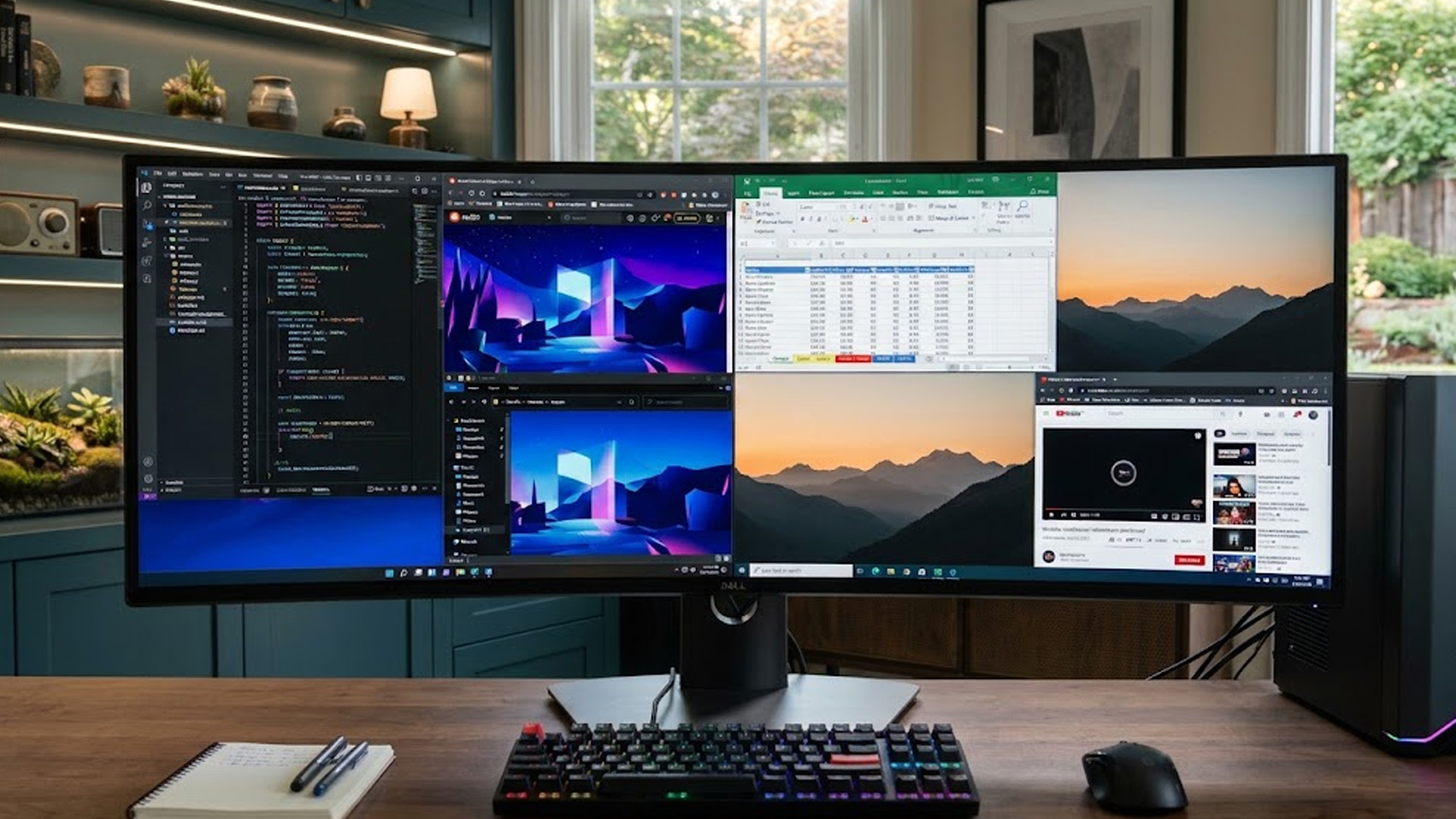
A 49-inch super-ultrawide monitor makes more sense if you regularly work across two computers and want both desktops to have plenty of room.
For example, a 49-inch display with 5120 × 1440 resolution can provide two 2560 × 1440 desktop sections when divided equally.
That gives you approximately the same display area as two conventional QHD monitors placed side by side, without the gap between them.
This can be useful for developers working across separate systems, business users monitoring dashboards or professionals who need several applications visible throughout the day.
It combines a 5120 × 1440 Dual QHD OLED panel with Picture-by-Picture support and a curved 32:9 display. It also has a maximum 240Hz refresh rate, making it relevant for buyers who want to use the same monitor for gaming.
However, that level of gaming performance won't offer much extra value if you're mainly working with documents, spreadsheets and emails.
Useful tip: Before paying more for a 49-inch monitor, check your desk width and depth. These displays take up considerable space, and comfortable positioning matters just as much as screen size.
Is a 4K Monitor with Picture by Picture Worth Buying?
A 4K monitor with Picture by Picture is another option if you want to connect two computers but don't need an extremely wide screen.
A standard 4K UHD display has a resolution of 3840 × 2160. This gives you sharp text and detailed images, making it useful for office work, photo editing and everyday productivity.
However, there's an important difference between using PBP on a 4K monitor and a super-ultrawide.
When a standard 4K screen is divided vertically into two equal areas, each section measures 1920 × 2160 pixels. These are tall, narrow sections rather than two conventional widescreen desktops.
That layout can work for documents and reference material, but it may feel restrictive when using applications that need more horizontal space.
A Practical 4K PBP Monitor to Consider
The MSI PRO MP273U 27-inch 4K monitor is an example of a productivity-focused display that supports Picture-by-Picture.
It has a 3840 × 2160 IPS panel, a 60Hz refresh rate and multiple HDMI and DisplayPort inputs.
This type of monitor makes sense if you primarily use one computer and only occasionally need to view another.
You get the benefit of a sharp 4K display for normal work without paying for a much larger ultrawide panel.
If you're comparing resolutions, our 4K ultra hd displays offer different sizes and specifications. Just remember that 4K resolution alone does not guarantee PBP functionality.
4K vs Ultrawide PBP: Which Should You Choose?
Choose a 4K monitor if sharp text, detailed images and occasional dual-PC use are your priorities.
Choose an ultrawide if you need more horizontal room for two computers throughout the day.
For regular multitasking, screen shape can be just as important as pixel count.
Picture-by-Picture vs Dual Monitors: Which Is Better?
A PBP monitor can replace two separate screens, but that doesn't mean it's always the better purchase.
Two conventional monitors may offer more flexibility, particularly if you want to position each display at a different angle or height. They can also be cheaper than one premium ultrawide.
A large PBP monitor, on the other hand, gives you a continuous workspace. You can use the entire display with one computer or divide it between two sources when needed.
Here's how the two setups compare:
|
Feature |
PBP ultrawide monitor |
Two separate monitors |
|
Display layout |
One continuous screen |
Two independent screens |
|
Desk setup |
One monitor and stand |
Two monitors and stands or arms |
|
Positioning |
Limited to one panel's adjustments |
Each monitor can move independently |
|
Dual-PC use |
Requires PBP support |
Each PC can use its own monitor |
|
Gaming |
Can use full screen with one source |
Usually play on one monitor |
|
Cost |
Premium models can be expensive |
Often more affordable |
If you already own a suitable monitor, adding a second display might be the simplest option.
However, if you're building a new workspace and want one large screen for work, gaming and dual-PC multitasking, a PBP ultrawide can be a practical choice.
For buyers who want a balance between detail and cost, our QHD display models are worth comparing before moving to a more expensive ultrawide setup. Check the available resolutions and PBP specifications separately.
Picture-by-Picture vs KVM Switch: Do You Need Both?
This is one of the most important things to understand before buying a PBP monitor.
Picture-by-Picture allows you to view two computers. A KVM switch lets you share a keyboard and mouse between them.
A monitor can support PBP without having a built-in KVM switch.
For example, you could connect your work laptop and personal PC to one monitor and display both simultaneously. However, you might still need separate keyboards and mice to control them.
A compatible KVM-enabled monitor allows you to switch USB peripheral control between the connected computers.
When Is a Built-in KVM Worth Paying Extra For?
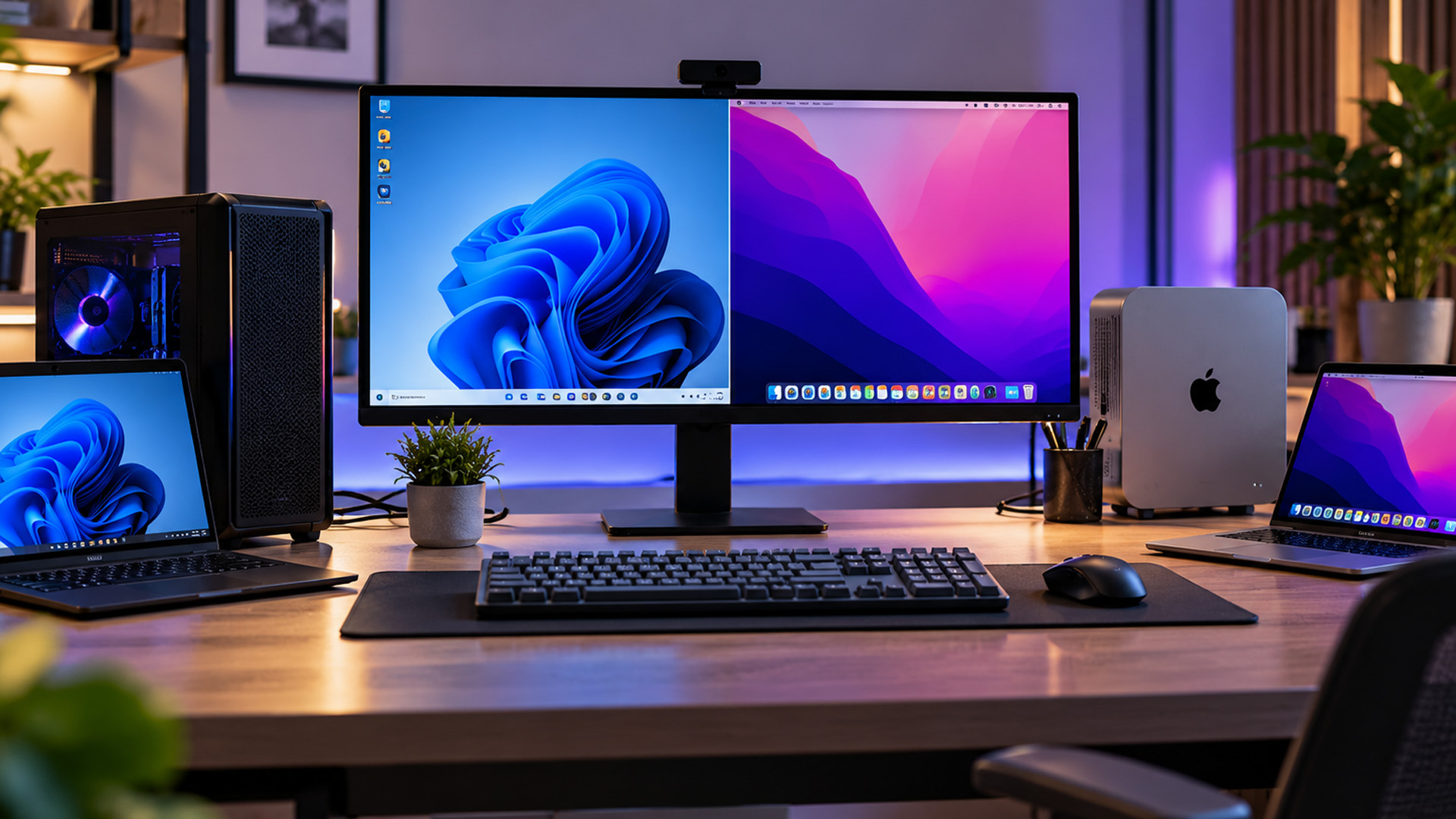
If you regularly switch between a work laptop and personal desktop, a built-in KVM can make your setup easier to manage.
You can use one compatible keyboard and mouse instead of keeping two sets of peripherals on your desk.
However, if you only need to see the second computer occasionally, you may not need KVM functionality.
Some monitors also require USB upstream cables or specific USB-C connections for KVM to work correctly. Check how the feature operates while PBP is enabled.
Our recommendation: Prioritise KVM if you actively use both computers every day. If the second device is mainly displaying information, PBP alone may be sufficient.
Samsung vs LG Picture-by-Picture Monitors: Which Should You Choose?
Samsung and LG both offer selected monitors with Picture-by-Picture functionality, particularly among their ultrawide displays.
The better choice depends on the model's screen size, resolution, connectivity and additional features.
Samsung Picture-by-Picture Monitors
Selected Samsung Odyssey and ViewFinity monitors offer PBP functionality for displaying content from separate devices.
A Samsung monitor with Picture-by-Picture is worth considering if you're looking for a curved or super-ultrawide screen that can handle productivity tasks alongside gaming or entertainment.
For example, a large Samsung Odyssey monitor can provide a wide workspace during the day and return to full-screen gaming when PBP is disabled.
However, not every Odyssey model includes PBP, and some gaming features may be limited when displaying two sources.
Check the exact model's supported split modes, refresh rates and connections rather than relying on the series name.
LG Picture-by-Picture Monitors
An LG Picture-by-Picture monitor can also be useful for office work, coding and creative applications.
Selected LG UltraWide monitors support multiple video sources, while some compatible models can work with LG's Dual Controller software for additional keyboard and mouse sharing.
This can be helpful if you're working between Windows and macOS systems, provided the necessary software and connection requirements are met.
For everyday productivity, compare screen resolution, USB-C connectivity and ergonomic adjustments before paying extra for gaming-focused features.
Which brand should you buy? Neither is automatically better for PBP. Choose the monitor that supports your computers, provides enough workspace and includes the features you'll actually use.
What to Check Before Buying a Picture-by-Picture Monitor
Not all monitors with Picture by Picture offer the same experience. A few checks can help you avoid paying for a display that doesn't suit your setup.
1. Video Inputs and Compatibility
Most PBP monitors use combinations of HDMI, DisplayPort or supported USB-C video inputs.
You need compatible connections for both computers, and the monitor must support the chosen input pair in PBP mode.
If you're using USB-C, check that the computer supports video output through the port. A USB-C connection designed only for data or charging won't necessarily work as a display connection.
2. Screen Size and Resolution
Consider how much space each computer will have when PBP is enabled.
A 34-inch ultrawide may be sufficient for occasional work across two systems, but a 49-inch Dual QHD monitor offers wider desktop sections.
For standard office work, QHD or 4K can provide sharp text and useful detail. Just make sure the resolution suits the screen size and split layout.
3. Refresh Rate in PBP Mode
Some monitors reduce their available refresh rate when Picture-by-Picture is enabled.
For example, a monitor advertised at 144Hz or 240Hz may not support that refresh rate while displaying two inputs simultaneously.
This matters if you plan to game on one computer while keeping another source visible.
Check the manufacturer's PBP specifications before assuming the maximum advertised refresh rate applies to both sections.
4. Panel Type and Image Quality
Panel technology affects how your monitor looks during everyday use.
IPS panels generally offer consistent colours and wide viewing angles, making them useful for office work and creative tasks.
VA panels often provide stronger contrast, while OLED offers deep blacks and fast pixel response. However, OLED displays also require care when showing static content for long periods.
For professional work, IPS display options are a useful starting point if you prioritise colour consistency and comfortable viewing.
5. USB-C, KVM and Ergonomics
USB-C can be particularly convenient for laptop users, especially when a monitor supports video transmission and power delivery through one cable.
An adjustable stand or VESA mount is also worth considering, particularly for larger ultrawide displays.
If you frequently work between two computers, KVM functionality may be more useful than paying extra for high refresh rates or premium gaming features.
Useful tip: Compare the features you'll use every day before focusing on screen size alone. A well-equipped 34-inch monitor may suit your workspace better than a basic 49-inch display.
How to Set Up Picture-by-Picture on a Monitor
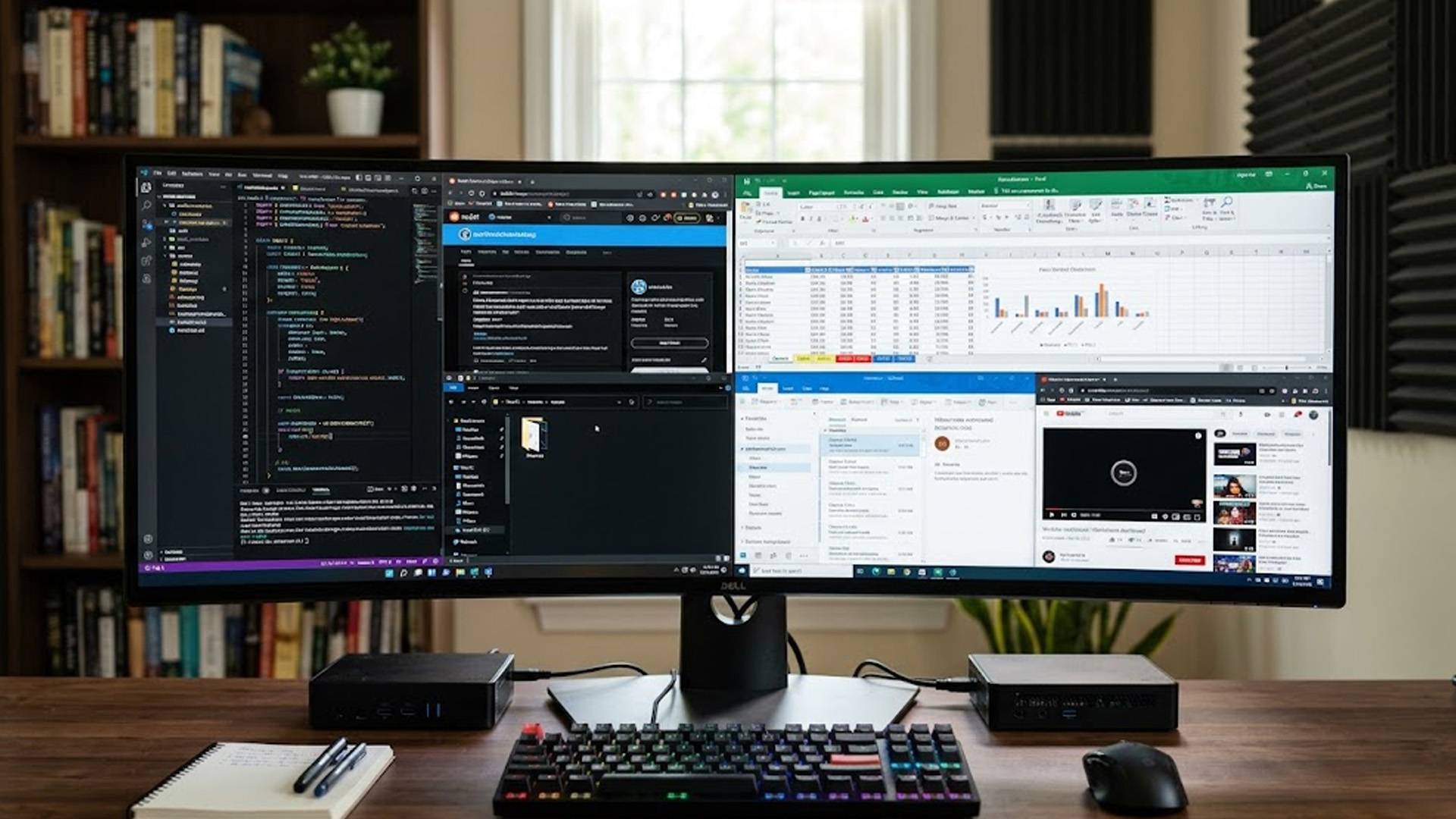
Once you have a compatible monitor, enabling Picture-by-Picture is usually straightforward.
Steps to Enable PBP Mode
- Connect your first computer to the monitor using HDMI, DisplayPort or a supported USB-C video connection.
- Connect the second computer through another compatible input.
- Open the monitor's on-screen display menu.
- Find Picture-by-Picture, PBP or the combined PIP/PBP settings.
- Enable PBP and select the input source for each section.
- Adjust the display resolution and scaling on both computers if necessary.
- Configure KVM settings separately if your monitor includes the feature.
The exact menu options depend on the manufacturer and model.
What If Picture-by-Picture Isn't Working?
If one side of the display remains blank, check that both computers are powered on and sending a video signal.
Make sure you've selected the correct inputs and that the monitor supports that particular connection combination.
If the image appears stretched or too small, adjust the computer's output resolution or the monitor's PBP layout settings.
Also remember that some features, including HDR, adaptive sync and high refresh rates, may be restricted while PBP is active.
Who Should Buy a Picture-by-Picture Monitor?
PBP is most useful when you regularly need to see information from two independent computers.
Here are some common situations where it makes sense.
|
User |
Why PBP helps |
Monitor type to consider |
|
Hybrid workers |
Keep work and personal computers visible |
34-inch ultrawide |
|
Developers |
Work across separate operating systems or test environments |
34–49-inch ultrawide |
|
Business professionals |
Monitor reports and dashboards from separate devices |
49-inch Dual QHD |
|
Creative professionals |
Display reference material and applications from another system |
High-resolution IPS or 4K PBP monitor |
|
Gamers who also work |
Use PBP for productivity and full screen for gaming |
Ultrawide with suitable gaming features |
If you only use one computer, you probably don't need PBP. A standard monitor with a good resolution and window-management features may be enough.
However, if switching between two computers is already part of your daily routine, a PBP monitor can make that setup easier to manage.

Final Thoughts
A Picture by Picture monitor is a practical choice if you regularly use two computers and want both desktops visible on one screen. The best option depends on how much space you need for each source and whether features such as KVM and USB-C would make your setup easier.
A smaller 4K or 34-inch ultrawide monitor can work well for occasional dual-PC use. For more demanding multitasking, a 49-inch Dual QHD model provides wider desktop areas.
Before buying, check the supported PBP inputs, screen resolution and available features. At Laptop Outlet, you can compare wide monitor range to find a display that suits your workspace, devices and budget.

Frequently Asked Questions
1. Can you display two computers on one monitor at the same time?
Yes. A monitor with Picture-by-Picture support can display video from two separate computers simultaneously. Each device needs a compatible video connection, and the monitor must support the chosen input combination. Having multiple HDMI ports alone does not guarantee PBP functionality.
2. Do all ultrawide monitors support Picture by Picture?
No. Some ultrawide monitors only allow you to switch between input sources rather than displaying them together. Check the manufacturer's specifications for Picture-by-Picture support, supported connections and available screen layouts before buying.
3. Is a 34-inch monitor big enough for Picture-by-Picture?
A 34-inch ultrawide can be suitable for occasional dual-PC multitasking, particularly when working with documents or reference material. However, each section is narrower than a conventional desktop display. For regular use across two computers, a 49-inch Dual QHD monitor may be more comfortable.
4. Do I need a KVM switch for Picture-by-Picture?
No. PBP works without a KVM switch because it only manages the video displayed on the monitor. A KVM switch becomes useful when you want to share one keyboard and mouse between two computers. Check the monitor's USB requirements before purchasing.
5. Does Picture-by-Picture affect gaming performance?
PBP does not directly reduce your computer's processing power, but it can limit the monitor's available refresh rate, resolution or gaming features. Some monitors restrict HDR or adaptive sync while PBP is active. Check the model's specifications if you plan to game with both inputs enabled.
Related Articles

Published: August 17, 2026
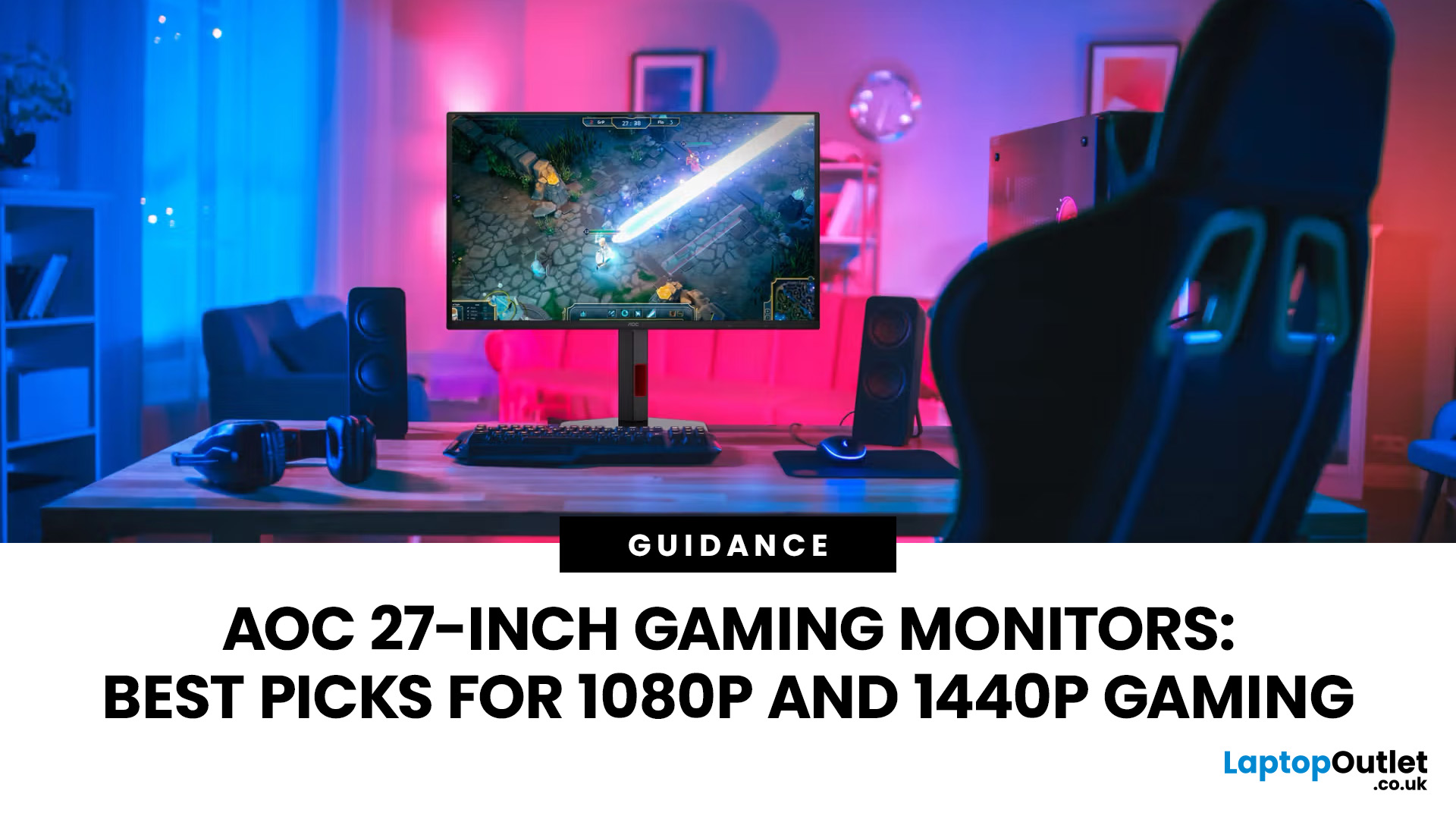
An AOC gaming monitor 27 inch screen gives you plenty of room to play without taking over your whole desk. The key decision is resolution.
The best AOC gaming monitor 27 inch choice for most players is the Q27G42ZE, thanks to its sharp QHD resolution, Fast IPS panel and 240Hz native refresh rate. Choose the C27G4ZXE for competitive 1080p gaming, the Q27G3XMN/BK for stronger HDR, or the AG276UZD for premium 4K QD-OLED visuals. Your ideal model ultimately depends on your GPU, preferred games, target frame rate and available budget, plus your PC or console setup.
Full HD makes high frame rates easier to achieve, while QHD produces a noticeably sharper picture. If your budget and graphics card can go further, 4K QD-OLED delivers another level of detail, colour and contrast.
AOC 27 Inch Gaming Monitors at a Glance
| Model | Resolution | Panel | Refresh Rate | Best For |
| AOC AGON AG276UZD | 3840 × 2160 | QD-OLED | 240Hz | Premium 4K gaming |
| AOC Q27G42ZE | 2560 × 1440 | Fast IPS | 240Hz, 260Hz overclocked | High-refresh QHD |
Published: August 19, 2026
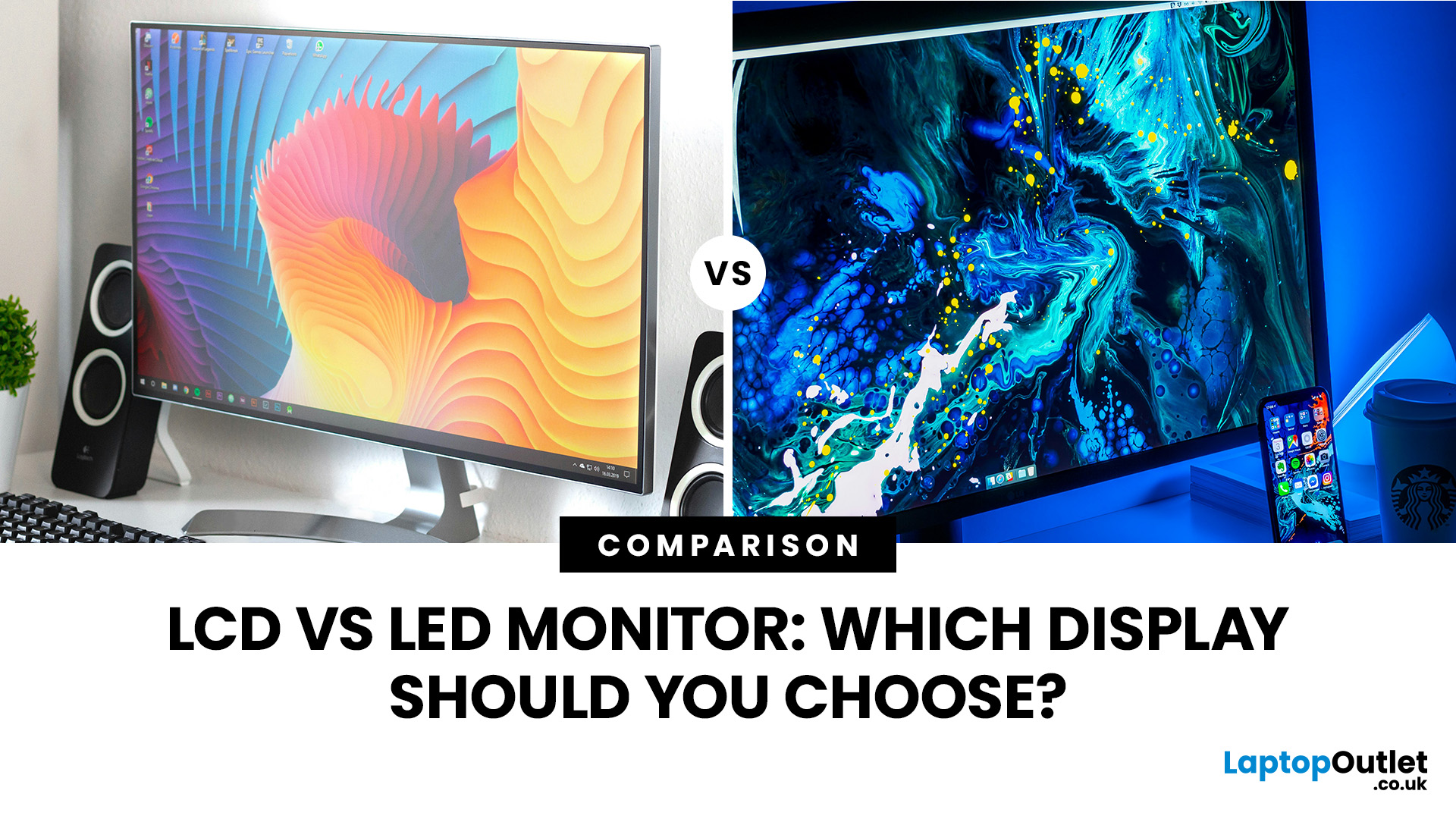
Comparing LCD vs LED monitors? An LED monitor is an LCD that uses energy-efficient LED backlighting, while older LCDs typically use fluorescent CCFL lights.
LED-backlit models are generally slimmer, more efficient and more widely available. However, the LED label alone does not guarantee better colours, smoother gaming or greater eye comfort. Panel type, refresh rate, response time, resolution and brightness all matter too.
LCD vs LED Monitors at a Glance
The main difference between a traditional LCD monitor and an LED monitor is the backlight. A traditional LCD commonly uses CCFL tubes, while an LED monitor uses smaller light-emitting
Last Updated: August 19, 2026
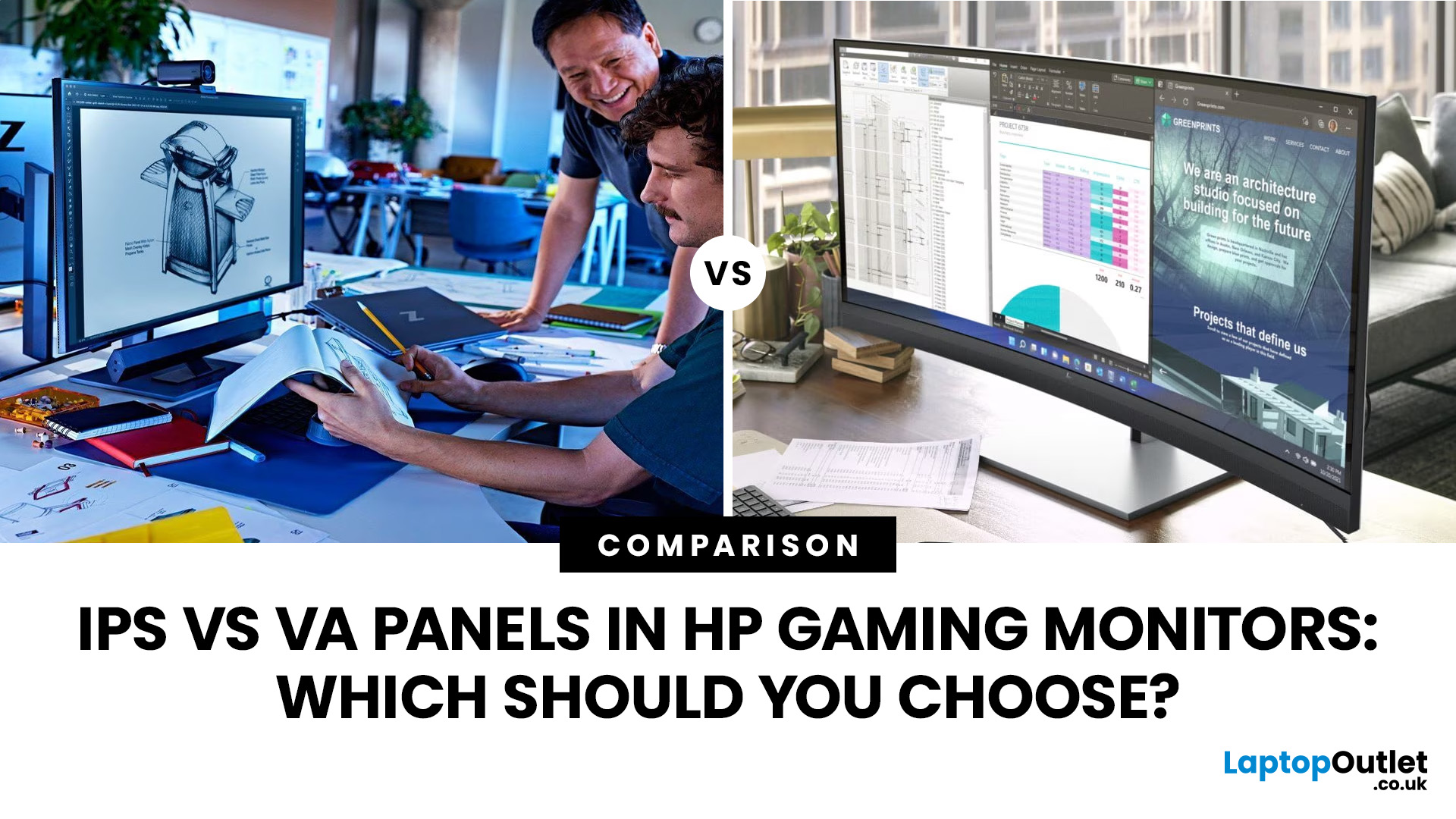
IPS panels are usually the better choice for competitive gaming, wider viewing angles and mixed gaming and creative work. VA panels generally deliver deeper blacks and stronger contrast, making them attractive for immersive games in darker rooms. However, the IPS vs VA panel decision should also consider the monitor’s exact response time, refresh rate, resolution, adaptive sync, and measured performance. Read our complete guide to gaming monitor panels for a full breakdown of IPS vs VA and other display technologies.
IPS vs VA Panels: Quick Comparison
| Feature | IPS Panel | VA Panel |
| Native contrast | Usually lower | Usually higher |
| Black depth | Blacks can appear grey in dark rooms | Deeper blacks in suitable conditions |
| Viewing angles | Wider and more consistent | Narrower, with more off-centre variation |
| Fast-motion clarity | Generally cleaner | Can show dark smearing |
| Colour consistency | Usually strong across the screen | Can change more when viewed off-centre |
| Colour accuracy | Depends on the individual monitor | Depends |
Published: August 24, 2026
Published: August 25, 2026
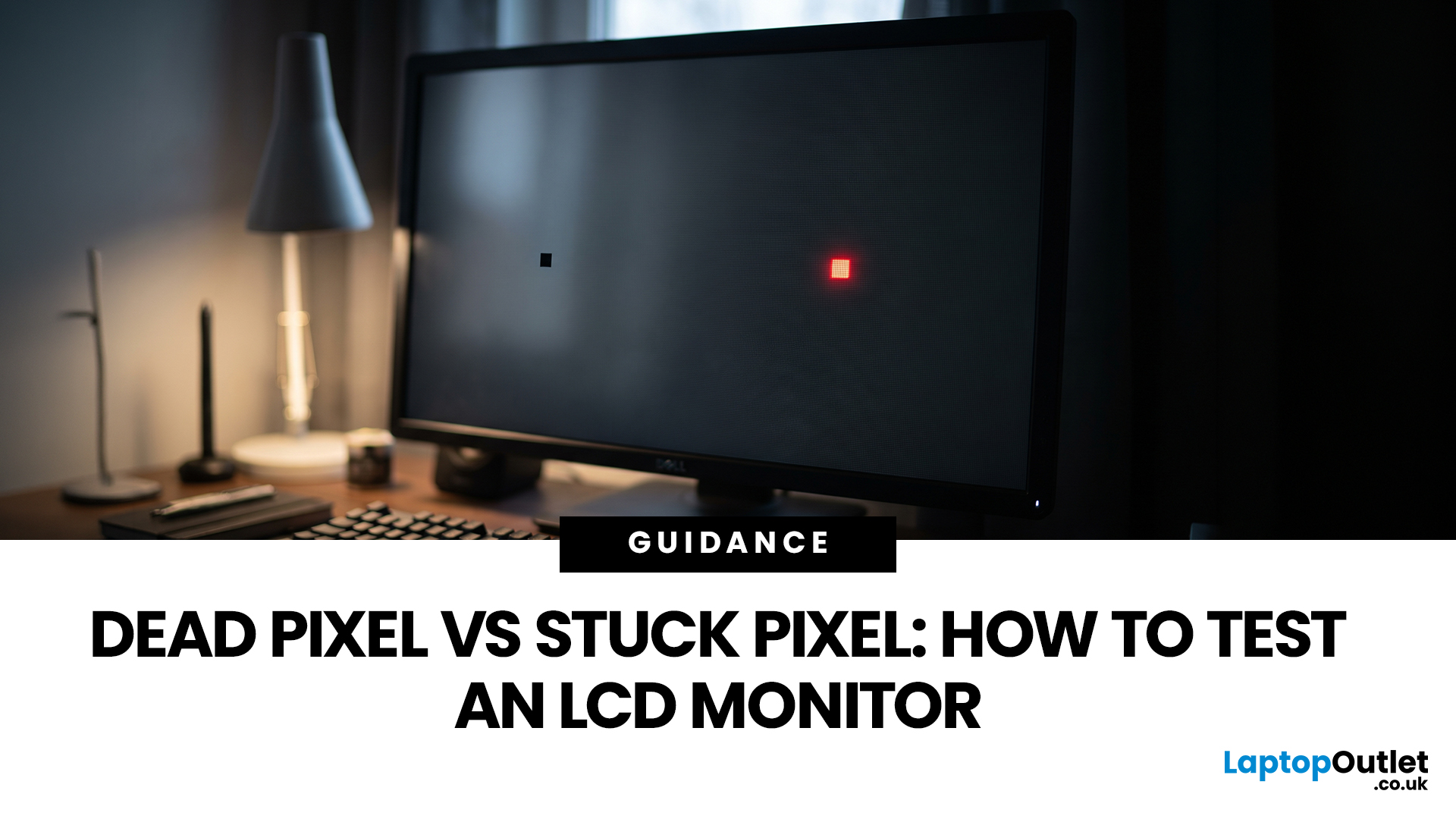
A tiny black, white or coloured dot can be hard to ignore once you notice it on an LCD monitor. The mark may be a pixel fault, a subpixel problem, dust on the panel or an image issue from the connected device.
Understanding dead vs stuck pixel behaviour helps you identify what you are seeing before you try to fix it. This guide explains how the defects differ, what causes them, how to run a safe LCD monitor pixel test, and when repair, return or replacement makes more sense.
How Pixels and Subpixels Work on an LCD Monitor
An LCD screen creates an image from a grid of pixels. A standard colour pixel is normally made from red, green and blue subpixels. By changing how much light each subpixel passes, the display produces different colours.
This structure explains why faults can look different. If all colour components at one position fail to produce the required output, the point may appear black. If only one subpixel remains on or off, the result may look red, green, blue or slightly different
Published: August 25, 2026
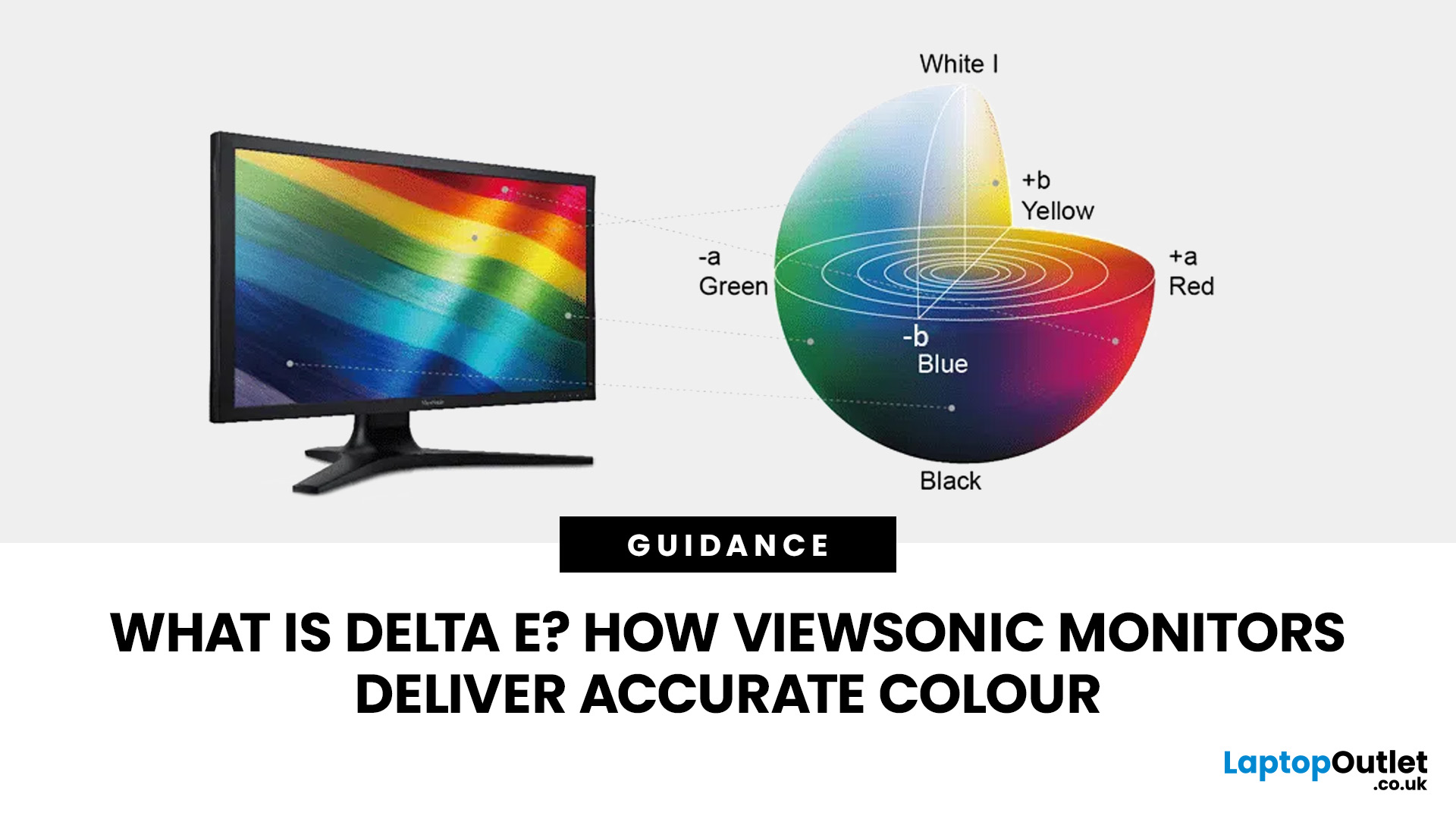
Have you ever edited a photo until it looked perfect on your screen, only to see different colours elsewhere? This often comes down to monitor colour accuracy. Delta E measures how closely a display matches true colours, the lower the value, the more accurate the screen. It’s especially important for photographers, designers, and video editors. ViewSonic’s ColorPro range, including models like the VP2766-2K, is factory calibrated for Delta E < 2 accuracy. Here’s what Delta E means and how it compares to sRGB coverage when choosing a monitor.
What Does Delta E Mean on a Monitor?
Delta E, written as ΔE, is a colour difference measurement. It calculates how far a reproduced colour differs from a reference colour.
Think of it this way: if your editing software tells the monitor to display a precise shade of red, Delta E helps quantify how closely the red appearing on the screen matches that intended colour.
A Delta E of zero represents no measurable difference between the target and reproduced
Published: August 27, 2026
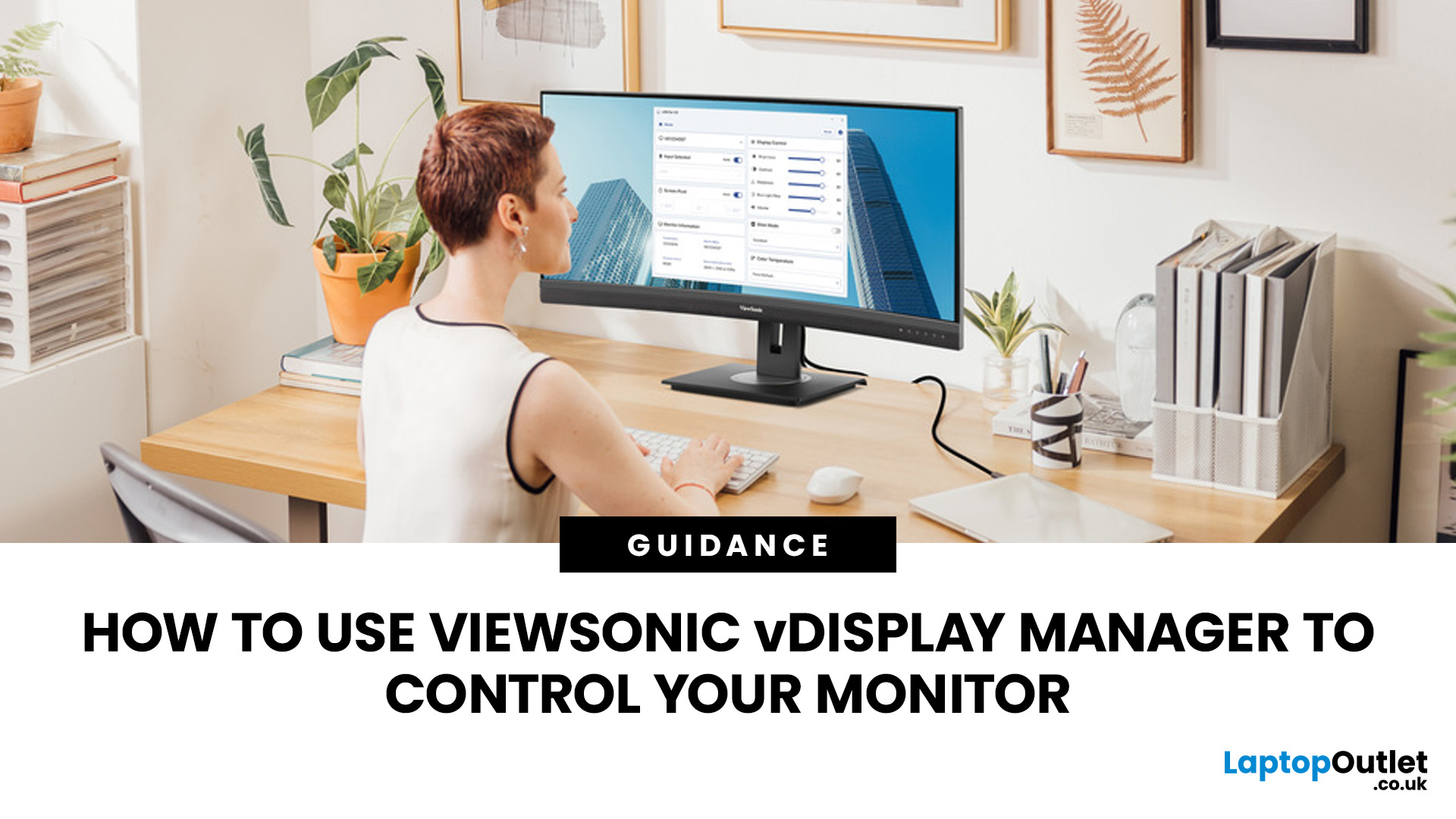
Reaching behind your monitor every time you want to change the brightness or switch inputs can quickly become inconvenient. ViewSonic vDisplay Manager gives you another option by bringing compatible monitor controls directly onto your computer.
With the software, you can manage settings such as brightness, contrast, input source, ViewMode, colour temperature and screen orientation using your mouse. The exact controls available depend on your ViewSonic monitor model.
This guide takes you through downloading the software, connecting your display and adjusting the settings you are most likely to use.
What is ViewSonic vDisplay Manager?
It is desktop software designed to let you manage compatible ViewSonic monitor settings from your computer. Instead of navigating the monitor's physical OSD controls each time, you can make supported adjustments through a software interface.
This is particularly useful if you regularly alter your screen for different tasks, switch between connected devices or
Last Updated: September 02, 2026
Choosing a monitor is not simply a case of buying the highest resolution or fastest refresh rate you can afford. Your graphics card has to render the resolution, generate enough frames to benefit from the screen’s refresh rate and support the connection needed to carry that signal.
Get those factors right and you can enjoy sharper images, smoother motion and better use of the hardware you already own. Here is how to choose the right monitor for gaming, creative work and everyday use without paying for display performance your PC cannot use.
Quick Answer: How Do You Choose the Right Monitor?
Start with your GPU’s real performance at the resolution you want. Match the monitor’s native resolution and refresh rate to the frame rates your graphics card can realistically deliver, then check variable refresh rate support and display connections. After that, compare panel type, screen size, HDR and other features based on how you use the PC.
For most buyers, resolution should come first, refresh
Published: September 22, 2026
Published: October 19, 2026
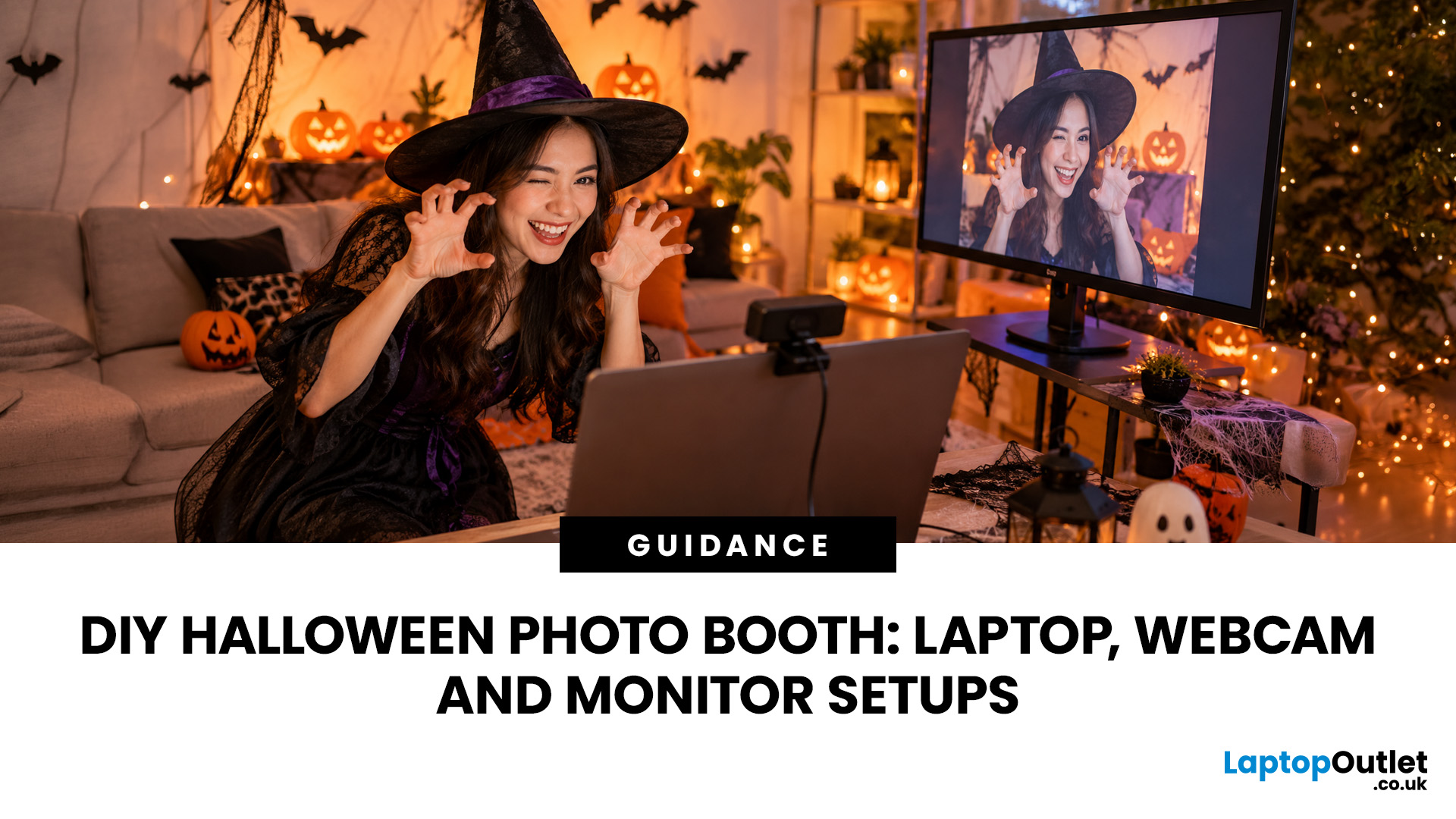
A spooky photo booth gives guests somewhere to show off costumes, try ridiculous poses and leave with photos from the night. Better still, you do not need professional photography equipment to build one.
A laptop, webcam, screen, a little lighting, and a suitably creepy backdrop can turn a spare corner into a working DIY Halloween photo booth. You can keep things simple with your laptop's built-in camera or create a more polished setup using an external webcam and separate monitor. Here is how to put everything together without turning your party into an IT project.
What Do You Need for a Halloween Photo Booth?
The key is making the setup reliable. Guests should be able to walk up, pose and take a picture without adjusting cables or camera settings every time. Start with equipment you may already have:
- Laptop or desktop computer
- Built-in or USB webcam
- Monitor or portable display
- Tripod, webcam mount or stable surface
- LED lamp, ring light or another soft light source
- Halloween backdrop
- Props

