



How to Set Up Multiple Bluetooth Speakers on One Device
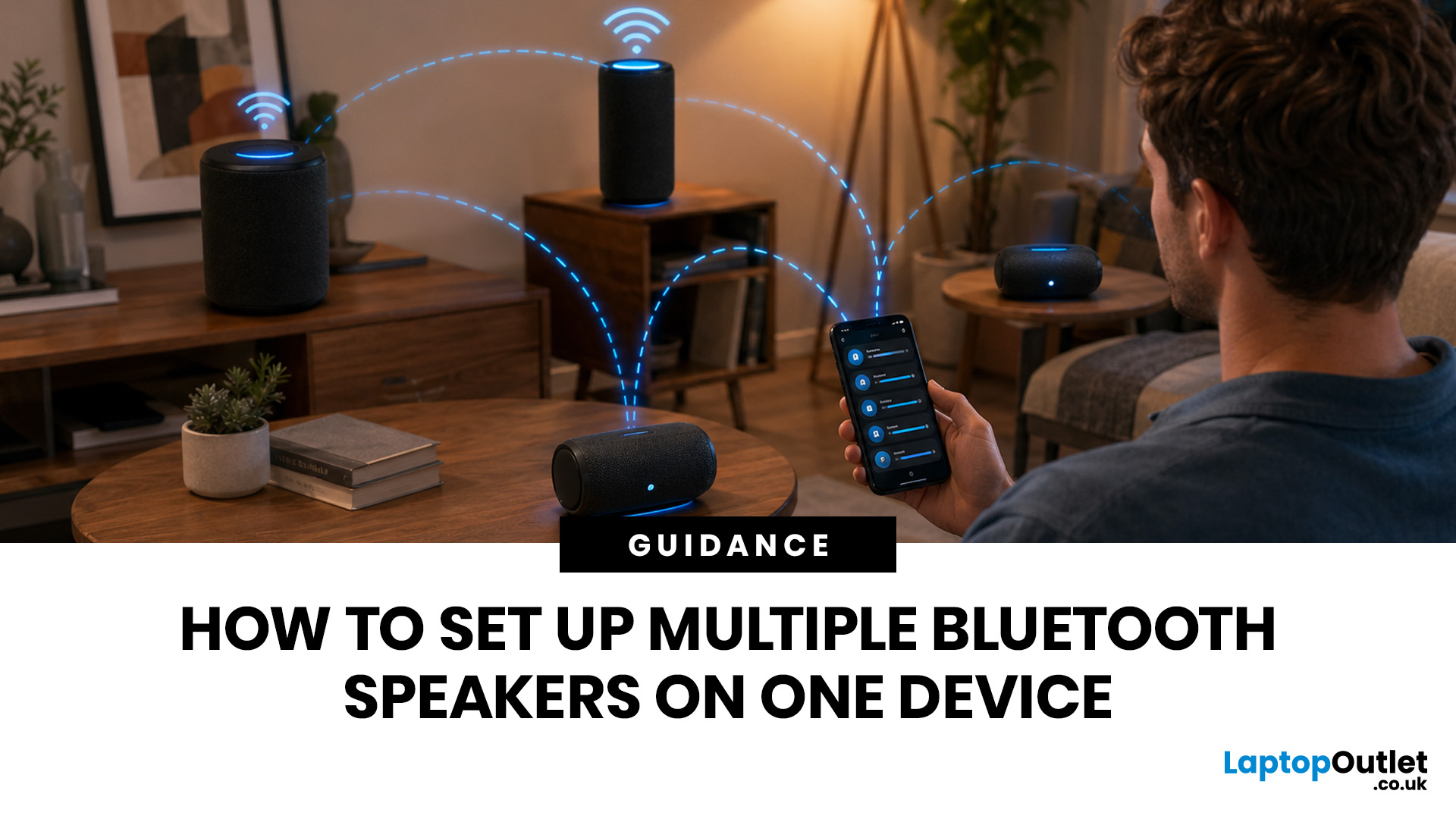
Quick Answer: You can set up multiple Bluetooth speakers on one device when your phone, laptop, tablet, or speakers support multi-speaker audio. The easiest method is to use compatible speakers from the same range and link them via the speaker’s party mode, stereo pair mode, the connect button, or the companion app.
Standard Bluetooth pairing does not always let you play sound through multiple Bluetooth speakers simultaneously. Your device may remember several speakers yet only send audio to one. For two-speaker playback, Samsung Galaxy Dual Audio, AirPlay-compatible speakers, Bluetooth LE Audio, Auracast, same-brand speaker pairing, or a Bluetooth transmitter are usually the best routes.
Introduction
You can connect multiple Bluetooth speakers, but the right setup depends on your device and the compatibility of your speakers. A Samsung Galaxy phone, an iPhone, an Android phone, a Windows laptop, a MacBook, or a TV may all need a slightly different method.
The main thing to know is simple: connecting more than one Bluetooth speaker is not just about turning Bluetooth on. You need a feature that can send, share, or broadcast audio to multiple outputs. Samsung Dual Audio can stream to two Bluetooth audio devices on supported Galaxy phones, while Apple’s AirPlay can play audio across multiple compatible speakers using Wi-Fi rather than standard Bluetooth.
This guide explains how to connect multiple Bluetooth speakers, what works on different devices, what does not work, and what you should check before buying another speaker.
Can You Connect Multiple Bluetooth Speakers to One Device?
Yes, you can connect multiple Bluetooth speakers to one device, but only if your device or the speakers support the required audio-sharing method.
For most people, one of these methods will work best:
|
Method |
Best For |
What You Need |
Key Limitation |
|
Same-brand speaker pairing |
Parties, garden use, louder room audio |
Compatible speakers from the same speaker range |
Usually does not work across unrelated speaker systems |
|
Samsung Dual Audio |
Two Bluetooth speakers or earbuds |
Supported Samsung Galaxy phone |
Limited to two Bluetooth audio devices |
|
AirPlay |
Multi-room home audio |
iPhone, iPad, Mac, and AirPlay-compatible speakers |
Uses Wi-Fi, not normal Bluetooth |
|
Bluetooth LE Audio |
Newer audio sharing |
Supported Android device and LE Audio accessories |
Compatibility is still not universal |
|
Auracast |
Future-ready group listening |
Auracast transmitter and receivers |
All devices need Auracast support |
|
Bluetooth transmitter |
TVs, PCs, older laptops |
Dual-output transmitter |
Latency and audio quality depend on the transmitter |
The most reliable answer is usually not “any Bluetooth speaker will work.” It is “compatible speakers and compatible devices will work.”
What Does “Multiple Bluetooth Speakers” Actually Mean?
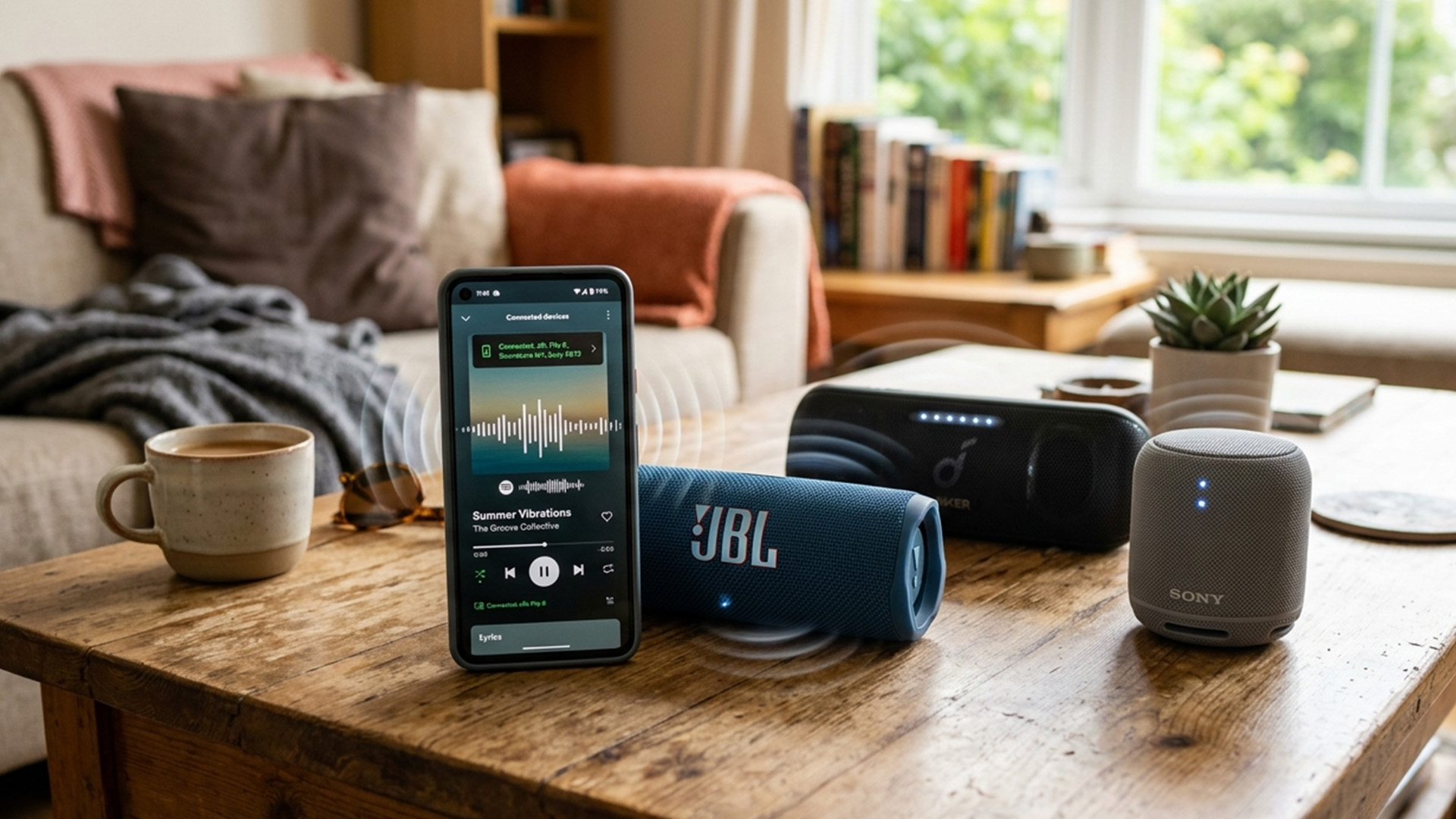
Multiple Bluetooth speakers can mean 3 different things, and this is where many buyers get confused.
- First, you may want one phone to play music through two speakers at the same time. This is the setup most people mean when they search for how to connect multiple Bluetooth speakers.
- Second, you may want a Bluetooth speaker that can connect to multiple devices, such as your phone and laptop. That is usually called Bluetooth multipoint. Multipoint lets one audio device connect to two source devices, such as a phone and a tablet, then switch between them. Google’s Android support explains that multipoint headphones connect to two Bluetooth devices at the same time and let you select which audio source plays.
- Third, you may want a full speaker group, with several speakers staying in sync. That normally needs a brand-specific feature, an app, Wi-Fi audio, or newer Bluetooth broadcast audio.
So, when you buy Bluetooth speakers, don't just check the Bluetooth version. Look for terms such as stereo pair, party mode, connect mode, broadcast audio, Auracast, Dual Audio, or multi-speaker pairing.
The Best Way to Connect Multiple Bluetooth Speakers
The best way is to use speakers that are designed to link together. This gives you better syncing, fewer dropouts, and easier volume control than trying to force separate speakers through basic Bluetooth settings.
For many portable speakers, the setup follows this pattern:
- Charge both speakers.
- Turn on Bluetooth on your phone, tablet, or laptop.
- Pair the first speaker with your device.
- Start playing audio through the first speaker.
- Press the speaker’s connect, party, stereo, or group button.
- Turn on the second speaker and activate the same pairing mode.
- Use the speaker app, where available, to choose party mode or stereo mode.
How to Connect Multiple Bluetooth Speakers on Android
The easiest Android method depends on your phone brand.
On many Android phones, regular Bluetooth settings will pair several devices, but only one may play media at a time. To connect more than one Bluetooth speaker for actual playback, you need a supported feature such as Dual Audio, LE Audio sharing, Auracast, or a speaker brand app.
For a typical Android setup, try this:
- Open Settings.
- Go to Bluetooth or Connected devices.
- Pair the first speaker.
- Pair the second speaker.
- Open your media output panel.
- Select both speakers where your phone allows it.
- Test with music before using it for video.
Android’s newer LE Audio support can support multiple Bluetooth audio accessories at once, but Google primarily describes it for LE Audio headphones and hearing aid devices. You need an Android device that supports LE Audio, and you need accessories that support it, too.
That means a budget Android phone may still pair well with one speaker, but multi-speaker playback depends on the phone model, Android version, Bluetooth chipset, and speaker support.
How to Connect Multiple Bluetooth Speakers on Samsung Galaxy
On supported Samsung Galaxy phones, Dual Audio is one of the easiest ways to connect multiple Bluetooth speakers.
Here is the simple method:
- Pair both Bluetooth speakers with your Galaxy phone.
- Swipe down from the top of the screen.
- Open the Quick settings panel.
- Tap Media.
- Select the connected Bluetooth devices you want to use.
- Adjust the volume together or separately from the Media panel.
Samsung says that Dual Audio on One UI 2 and later lets you pair two Bluetooth audio devices, select them from the Media panel, and control volume together or individually. Samsung also notes that connecting a third Bluetooth device disconnects one device due to the two-device limit. This is useful when you want one speaker near you and another across the room. It is also helpful when two people want to listen through separate Bluetooth audio devices without sharing one speaker.
How to Connect Multiple Bluetooth Speakers to an iPhone
iPhone usually does not play standard Bluetooth audio through multiple normal Bluetooth speakers from the Bluetooth menu alone. The better option is AirPlay when your speakers support it.
Apple says AirPlay can stream music, podcasts, and other audio to HomePod, Apple TV, AirPlay-compatible speakers, and compatible smart TVs, including playback across multiple speakers throughout the home.
For iPhone users, the best choices are:
|
Your Setup |
Best Method |
|
Multiple AirPlay speakers at home |
Use AirPlay from Control Centre |
|
Two compatible portable speakers |
Use the speaker brand’s stereo or party mode |
|
Two people listening privately |
Use Apple Audio Sharing with compatible AirPods or Beats |
|
Standard mixed Bluetooth speakers |
Use a compatible transmitter or speaker ecosystem |
Apple’s Audio Sharing is mainly for compatible AirPods and Beats headphones, not ordinary Bluetooth speakers. So, when you compare iPhones with Bluetooth connectivity, remember that Bluetooth support alone does not guarantee multi-speaker playback. For home audio, AirPlay compatibility matters more.
How to Connect Multiple Bluetooth Speakers to a Laptop
Windows laptops can pair with multiple Bluetooth devices, but multi-speaker playback isn't always straightforward.
Microsoft has introduced a Windows 11 Shared audio preview for supported Copilot+ PCs. It uses Bluetooth LE Audio broadcast technology and is designed to share audio with two Bluetooth audio accessories simultaneously. However, users need compatible Bluetooth LE Audio accessories and the necessary driver updates.
For most Windows users, these are the practical options:
|
Option |
Best For |
Notes |
|
Speaker brand app or party mode |
Music on compatible speakers |
Usually easiest with same-brand speakers |
|
Bluetooth transmitter |
Older laptops or PCs |
Good for simple dual speaker output |
|
Windows Shared audio preview |
Newer supported Copilot+ PCs |
Still limited by hardware, drivers, and LE Audio support |
|
Wired or USB audio interface |
Low-latency setups |
Better for editing, gaming, and video accuracy |
For calls, meetings, and private listening, wireless headphones and earphones may be more practical than running several Bluetooth speakers from a single laptop.
How to Connect Multiple Bluetooth Speakers to a MacBook
For a MacBook, AirPlay is usually better than standard Bluetooth for multi-room audio. Apple’s AirPlay supports streaming audio from a Mac to compatible speakers, smart TVs, Apple TV, and HomePod.
You may also see options inside macOS for multi-output audio, but mixed Bluetooth speakers can create a delay. That delay matters more with films, editing, gaming, and video calls.
Use AirPlay-compatible speakers for home audio. Use the same-brand speaker pairing for portable speakers. Use wired audio or a low-latency transmitter when timing is more important than convenience.
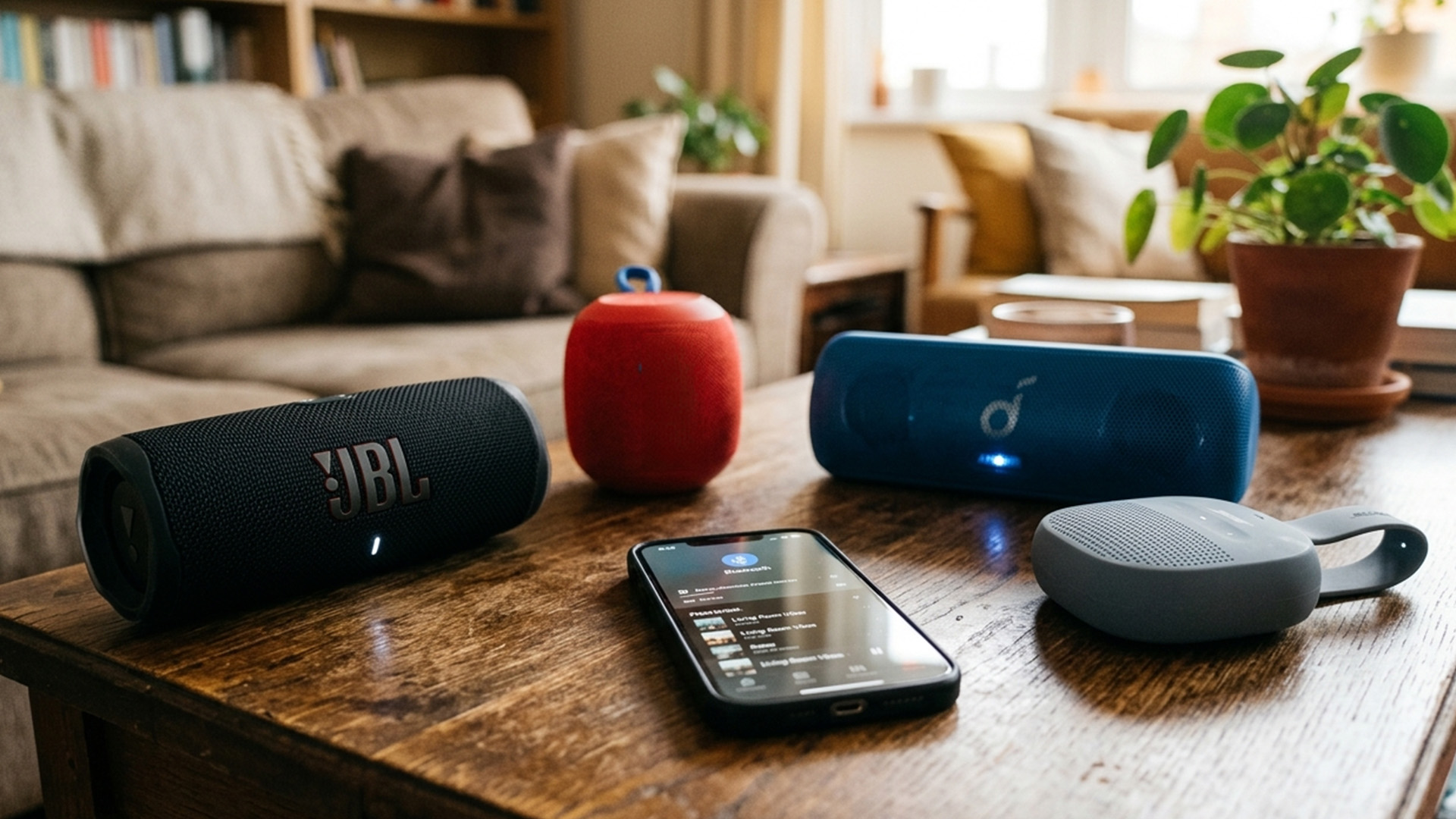
Auracast is Bluetooth broadcast audio. It is designed to let one supported transmitter broadcast audio to many supported receivers nearby. An unlimited number of in-range Auracast receivers can join an Auracast broadcast from a nearby Auracast transmitter. Users can select a broadcast in a way that feels similar to choosing a Wi-Fi network.
This matters because it could make multi-speaker and shared listening easier in the future. Instead of pairing each speaker or headphone individually, compatible devices can join an audio broadcast.
The important word is compatible. Auracast only works when the transmitter, receiver, and setup all support the right Bluetooth LE Audio features. It is worth looking for on newer devices, but it should not be treated as a promise that every Bluetooth speaker will work with every other speaker.
Can You Mix Different Bluetooth Speaker Brands?
Yes, you usually cannot mix different Bluetooth speaker brands through their own party or stereo modes.
Same-brand pairing features are normally built around specific speaker families. That means two Bluetooth speakers can still fail to link together. JBL PartyBoost, Sony Party Connect, and other speaker systems use their own compatibility rules.
Mixed-brand setups may work through Samsung Dual Audio, AirPlay, Auracast, a transmitter, or a third-party workaround. Results can vary, especially when syncing. You may hear echo, delay, or uneven volume when the speakers process audio differently.
For the cleanest setup, buy speakers that clearly support multi-speaker functionality.
How to Sync Multiple Bluetooth Speakers Without Lag
To properly sync multiple Bluetooth speakers, use a single ecosystem, a single feature, and a single audio source. Mixing different speaker brands is where the delay is most noticeable.
Use these practical checks:
|
Problem |
Likely Cause |
Best Fix |
|
One speaker plays late |
Different Bluetooth processing delay |
Use matched speakers with party or stereo mode |
|
Audio cuts out |
Weak Bluetooth signal or interference |
Move speakers closer and reduce walls between devices |
|
Only one speaker plays |
Device does not support dual output |
Use speaker app, Dual Audio, AirPlay, or transmitter |
|
Video dialogue is out of sync |
Bluetooth latency |
Use low-latency transmitter or wired audio for video |
|
Speakers will not link |
Incompatible speaker pairing system |
Check exact model compatibility and update firmware |
Bluetooth performance is affected by distance, walls, interference, antenna design, and the quality of the sending and receiving devices. That is why a setup that works well in one room may struggle in another.
Should You Use Bluetooth, AirPlay, Auracast, or a Transmitter?
The best method depends on how you listen.
|
You Want To |
Use This Method |
Why |
|
Play music on two portable speakers |
Same-brand party mode |
Best for sync and simple setup |
|
Use two Bluetooth speakers from a Samsung phone |
Samsung Dual Audio |
Built into supported Galaxy phones |
|
Play music across rooms from iPhone |
AirPlay |
Better for home speaker groups |
|
Share audio with newer Android accessories |
LE Audio or Auracast |
Better for supported modern devices |
|
Add dual audio to a TV or older laptop |
Bluetooth transmitter |
Works when built-in sharing is missing |
|
Listen privately with another person |
Wireless headphones or earphones |
More practical than speakers in public |
For everyday buying, your phone matters as much as your speaker. A strong speaker will not solve the problem if your phone does not support multiple audio outputs. Browse smartphones with Bluetooth with your use case in mind, especially if you want speaker sharing, earbuds, car audio, and wearable support from a single device.
What to Check Before Buying Extra Bluetooth Speakers
Before buying a second speaker, check compatibility first. This avoids the common mistake of buying two good speakers that cannot sync with each other.
Look for:
- The exact speaker model name
- The pairing feature name
- App support for your phone
- Stereo pair or party mode support
- Firmware update requirements
- Bluetooth codec support for video use
- Whether the feature works with two speakers or more
- Whether mixed models are supported
A speaker can have a newer Bluetooth version and still lack multi-speaker playback. Always check the feature itself, not just the Bluetooth number.
Is a Bluetooth Speaker that Connects to Multiple Devices the Same Thing?
No, a Bluetooth speaker that connects to multiple devices is not always the same as connecting multiple Bluetooth speakers to one device.
A speaker with multipoint can connect to two source devices, such as your phone and laptop. That is helpful when you want to switch between calls and music. It does not always mean your phone can play through two separate speakers.
Here is the simple difference:
|
Feature |
What It Means |
|
Multipoint |
One speaker or headphone connects to two source devices |
|
Dual Audio |
One phone sends sound to two Bluetooth audio devices |
|
Party mode |
Multiple compatible speakers play together |
|
Stereo pair |
Two compatible speakers work as left and right channels |
|
Auracast |
One transmitter broadcasts to many compatible receivers |
Common Mistakes to Avoid
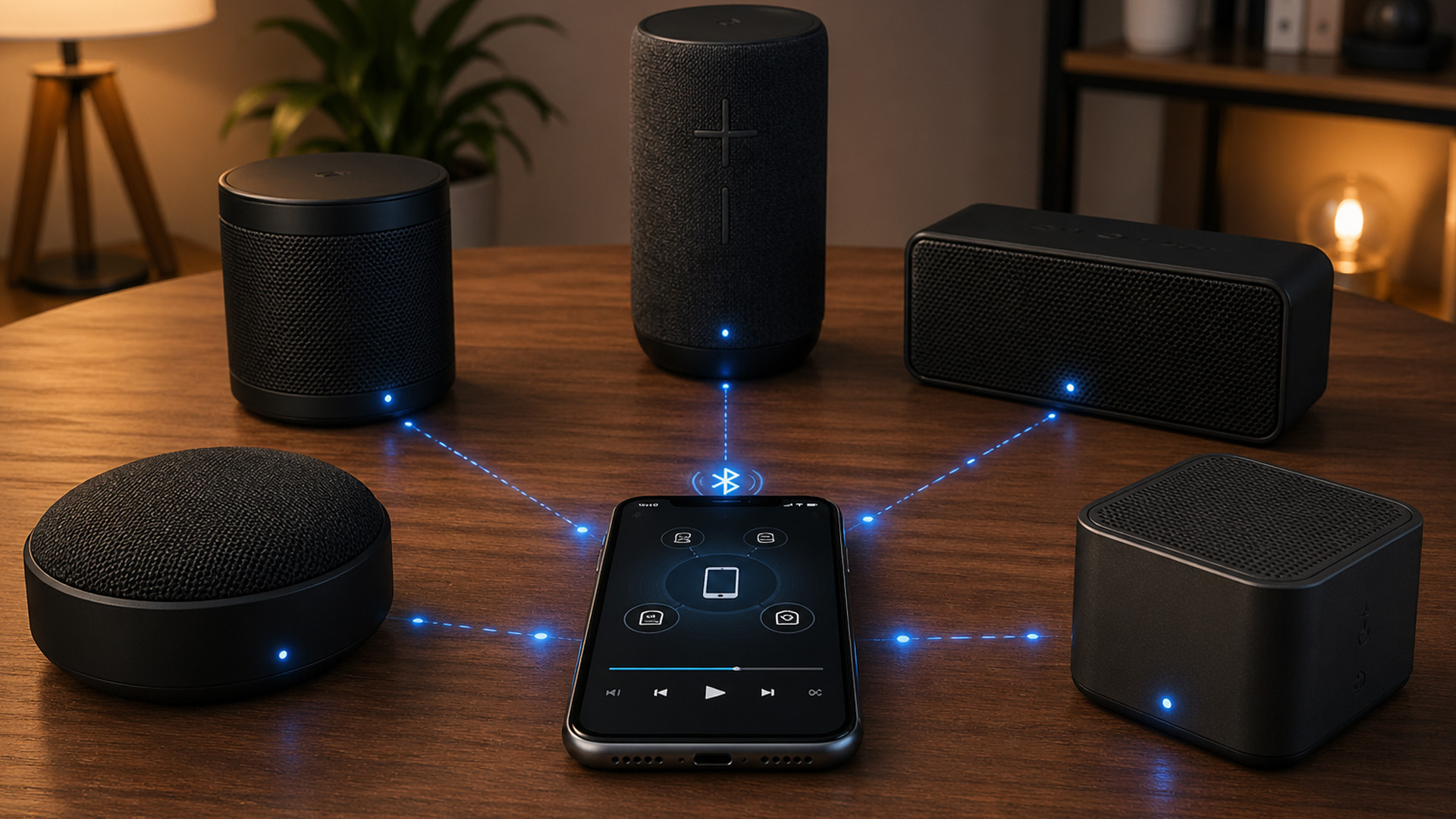
- Do not assume paired means playing. Your phone may remember several Bluetooth speakers, but only one may play audio.
- Do not buy a second speaker without checking the exact pairing feature. Two speakers from the same manufacturer can still use different connection systems.
- Do not expect mixed-brand Bluetooth speakers to stay perfectly synced. Music may sound acceptable, but films and games can reveal delays quickly.
- Do not ignore firmware updates. Sony specifically advises updating supported speakers before using Party Connect, because speakers may fail to connect without the latest firmware.
- Do not rely on Bluetooth version alone. Bluetooth 5.0, 5.2, 5.3, or 5.4 can matter, but the actual audio-sharing feature matters more.
Where to Buy Bluetooth Speakers in the UK
When you buy audio gear, focus on compatibility first. A speaker may sound good on its own, but it still needs to work smoothly with the phone, tablet, laptop, or TV you already use. Check the pairing feature, warranty, return option, battery life, and whether the speaker supports stereo pairing, party mode, AirPlay, Dual Audio, LE Audio, or Auracast where relevant.
For a simple starting point, you can compare Bluetooth speakers and compatible audio accessories at Laptop Outlet. You can also match your setup with a Bluetooth-enabled smartphone if you want a smoother everyday connection for music, calls, headphones, and portable speakers.

Final Verdict
You can set up multiple Bluetooth speakers on one device, but the best method depends on compatibility. For most people, compatible same-brand speakers with party mode or stereo pair mode will be the easiest option.
Samsung Galaxy users can use Dual Audio on supported phones to play through two Bluetooth audio devices. iPhone users should look at AirPlay for multi-speaker home audio, while Android users should check for LE Audio or Auracast support on both the phone and accessories. Windows users may see more LE Audio sharing support as compatible hardware becomes more common, but many current setups still work better with a transmitter or speaker app.
Before you buy, check your phone, speaker model, firmware, app support, and the exact multi-speaker feature. That one check can save you from lag, dropouts, and a second speaker that only plays on its own.

FAQs
How do I connect multiple Bluetooth speakers to one phone?
You need a supported feature such as Samsung Dual Audio, Android LE Audio, Auracast, AirPlay, or a speaker brand’s party or stereo mode. Pairing several speakers in Bluetooth settings alone does not always let them play together.
Can I connect more than one Bluetooth speaker to an iPhone?
Not usually through standard Bluetooth speaker pairing. For multiple speakers, iPhone users normally get better results with AirPlay-compatible speakers or a speaker brand’s own multi-speaker feature. Apple Audio Sharing is designed for compatible AirPods and Beats headphones rather than standard Bluetooth speakers.
Can Samsung phones connect to two Bluetooth speakers?
Yes, supported Samsung Galaxy phones can use Dual Audio to play music through two Bluetooth audio devices simultaneously. Samsung lists a limit of 2 devices for this feature.
Can Android connect to several Bluetooth speakers?
Some Android devices can, but support depends on the phone, Android version, Bluetooth hardware, and accessories. Newer LE Audio features can support multiple audio accessories, but your phone and accessories must support LE Audio.
What is the easiest way to sync multiple Bluetooth speakers?
Use two compatible speakers from the same range and activate their party, stereo, connect, or group mode. This is usually more reliable than trying to sync unrelated speakers through basic Bluetooth settings.
What is a Bluetooth speaker that can connect to multiple devices?
That usually means a speaker or headphone with multipoint support. Multipoint lets one audio device connect to two source devices, such as your phone and laptop, but it does not always mean one phone can play through several speakers.
Why is one Bluetooth speaker delayed?
Delay usually happens when speakers process audio at different speeds or use different Bluetooth codecs. Matched speakers with official stereo or party mode are more likely to stay in sync.
Why is there a delay between two Bluetooth speakers?
Delay happens when speakers process audio at different speeds. Matched speakers, whether in official stereo or party mode, usually stay in sync better than mixed-brand speakers.
Can I use multiple Bluetooth speakers for TV audio?
Yes, but a Bluetooth transmitter is often the simplest option for TVs that do not support dual Bluetooth audio. For films and gaming, choose a low-latency setup because Bluetooth delay is more noticeable with video.
Is Auracast the future of multiple Bluetooth speakers?
Auracast is one of the most promising routes for easier audio sharing because it uses Bluetooth broadcast audio. It still depends on support from your phone, speakers, earbuds, or transmitter, so check device compatibility before buying.
Related Articles

Last Updated: May 13, 2025
Last Updated: July 01, 2025
Last Updated: June 19, 2026
Few things are more frustrating than pressing the power button and getting nothing. Whether it’s a laptop, tablet, or smartphone, devices sometimes refuse to start up. Most of the time, the cause is simple and fixable. Here are 7 common reasons your device won’t power on and what you can do about it.
1. Dead or Faulty Battery
The most common culprit is a drained or faulty battery. Lithium-ion batteries degrade over time. After ~500 charge cycles, capacity drops, and a failed battery can interrupt the DC power rail, preventing startup. If your device shows no lights or signs of life, plug it into a reliable charger and wait 10–15 minutes. If nothing changes, the battery may need replacing.
2. Faulty Charger or Cable
A damaged charger can fail to deliver proper voltage or amperage. A frayed cable or faulty adapter can stop your device from receiving power. Test with another compatible charger before assuming the problem is internal.
3. Damaged Power Button
The power button triggers the Power

Last Updated: December 31, 2025
There’s a certain kind of satisfaction that comes with starting 2026 with a faster, cooler, cleaner PC setup. Maybe you’re planning a full build. Maybe you’re simply trying to fix the two things that quietly ruin daily performance—slow storage and noisy cooling. Either way, the New Year PC components & accessories season is when upgrades feel both exciting and sensible: you can refresh your system without committing to an entirely new machine.
If you’re shopping at Laptop Outlet, it’s worth starting by simply browsing and filtering the wider sale selection, think of it as your “big picture” view, so you can spot bundle-worthy deals across categories. It’s the fastest way to explore New Year tech discounts while keeping an eye on the parts you actually need.
The “smart upgrade order” for 2026 (what to buy first)
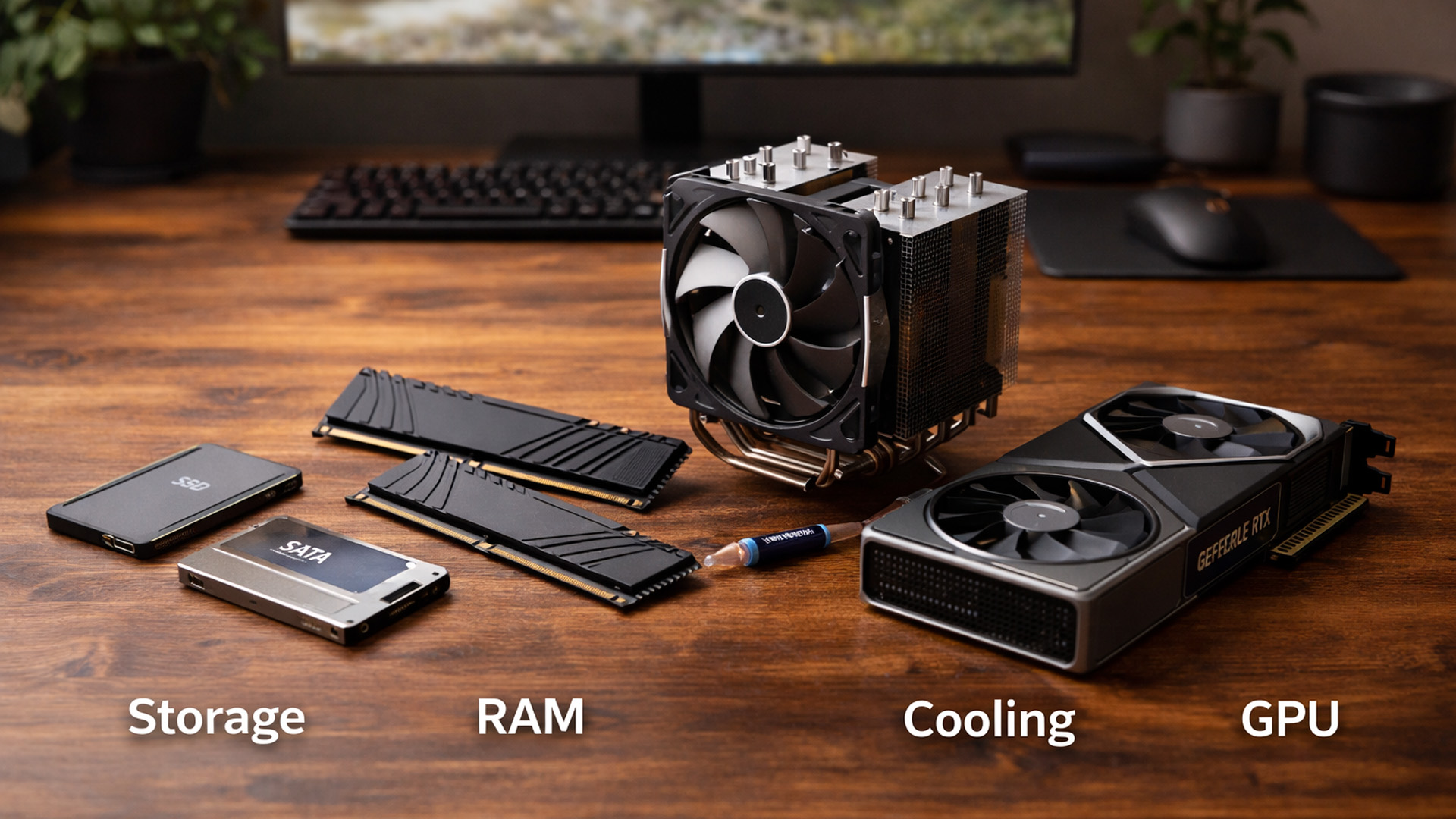
When you’re surrounded by deals, it’s easy to buy what looks exciting rather than what fixes your bottlenecks. A better approach is to upgrade in the order you’ll actually notice:
Last Updated: March 12, 2026
Most Wi-Fi guides start with specs. That’s already the wrong place.
To choose the best Wi-Fi router for your home, you first need to understand how Wi-Fi behaves inside real buildings, especially UK homes, which are often older, brick-built, and not designed for wireless signals.
What Wi-Fi Really Is (Without the Marketing Spin)
Wi-Fi is not “internet speed in the air”. It’s a radio signal that carries data between your router and your devices.
That signal:
- Weakens over distance
- Loses strength passing through walls
- Competes with other signals nearby
This is why Wi-Fi performance changes dramatically depending on where you are in your home, even when your broadband speed stays the same.
Important reality check:
Your router doesn’t “push” Wi-Fi evenly in all directions. It broadcasts radio waves that are:
- Reflected
- Absorbed
- Blocked
UK homes often make this worse because of:
- Solid brick and stone walls
- Metal-backed insulation
- Floor heating systems
- Older layouts with thick internal walls
This
Last Updated: January 26, 2026
In today’s UK homes and offices, networking isn’t optional - it’s the backbone of how we work, study, stream, and stay connected. From remote meetings and online gaming to smart homes and cloud storage, everything relies on reliable networking accessories and networking devices working together behind the scenes.
Yet many people still struggle with slow Wi-Fi, unstable connections, or poor coverage, not because their internet provider is bad, but because their networking equipment isn’t set up correctly.
What Is Networking? (A Simple Explanation)
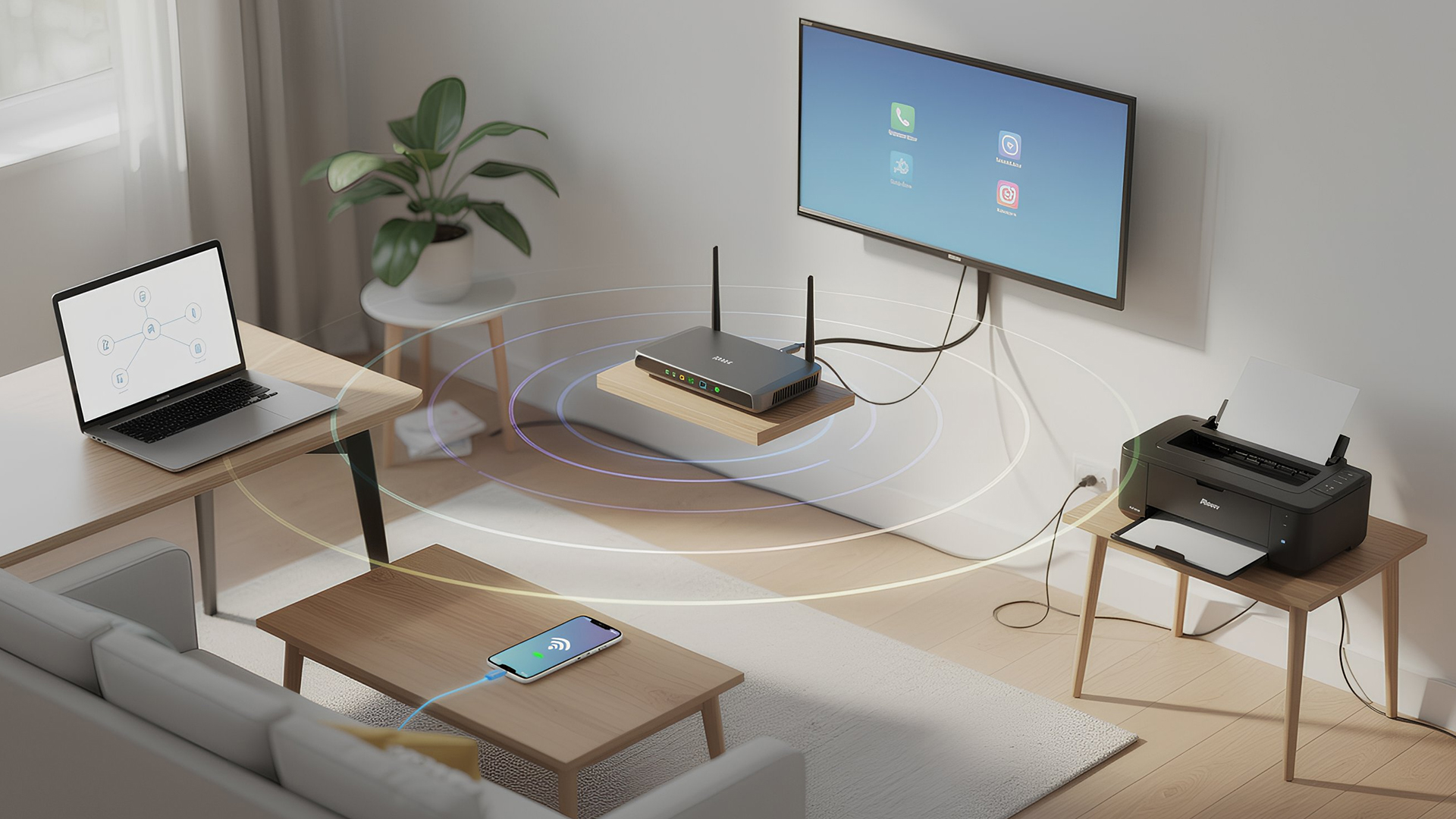
Networking is the process of connecting devices so they can communicate, share data, and access the internet. These devices might include:
- Laptops and desktops
- Smartphones and tablets
- Printers and scanners
- Smart TVs and streaming devices
- Smart home systems (lights, cameras, thermostats)
To make this possible, you need a combination of networking devices (like routers and access points) and networking accessories (such as network cards, adapters,

Last Updated: January 26, 2026
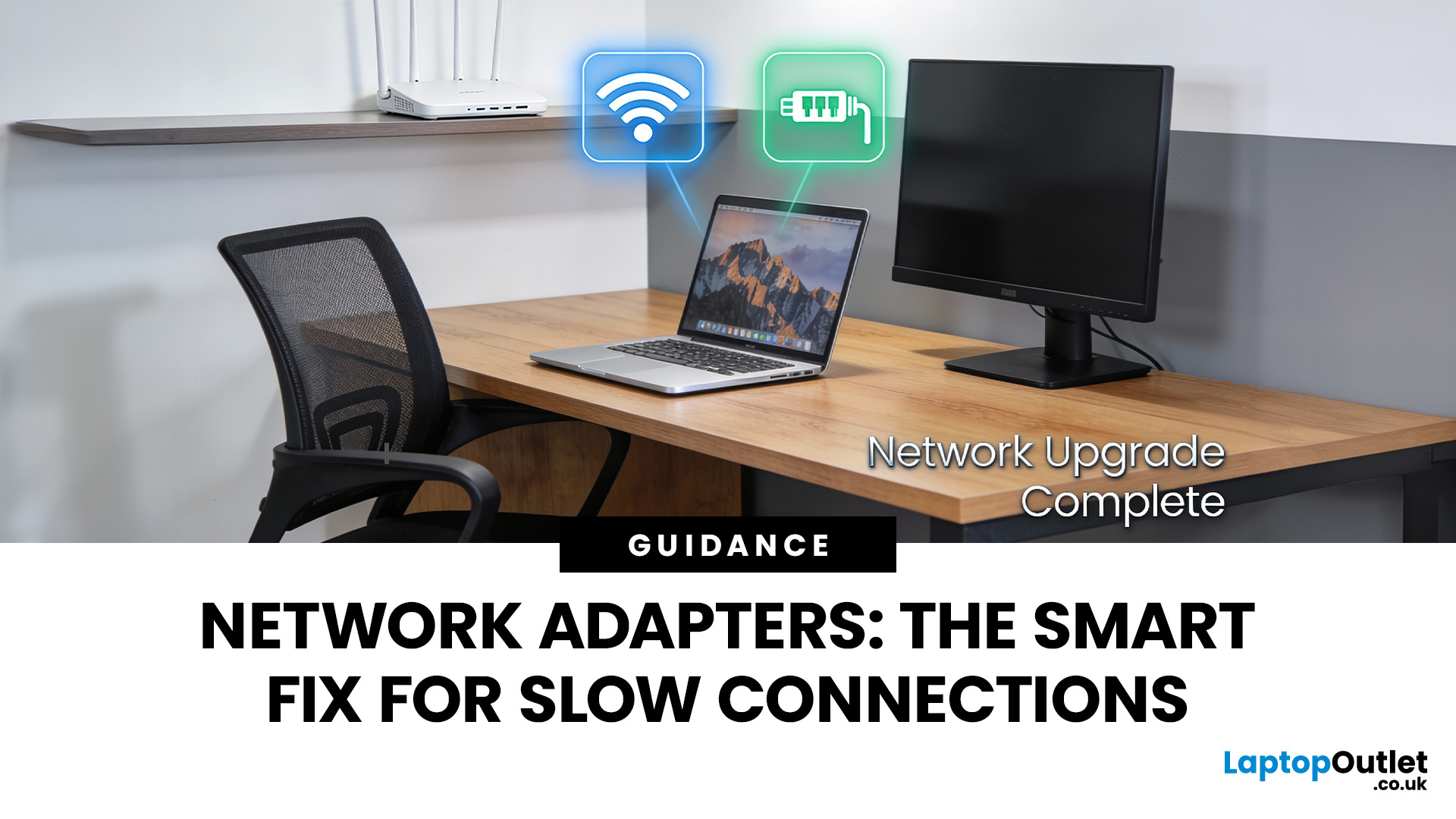
Whether you are gaming, working from home, or streaming 4K content, having a slow internet connection is frustrating. While many people blame their ISP or router, the culprit might be inside your computer. Upgrading to high-quality network cards can transform your online experience.
In this guide, we will explore the best options available in the UK. We will also explain the technology behind these devices to help you make an informed choice.
What is a Network Card?
A network card, also known as a Network Interface Controller (NIC), is a hardware component that allows a computer to connect to a network. It acts as a middleman. It takes data from your computer and translates it into a format that can travel through cables or radio waves.
How Network Cards Work
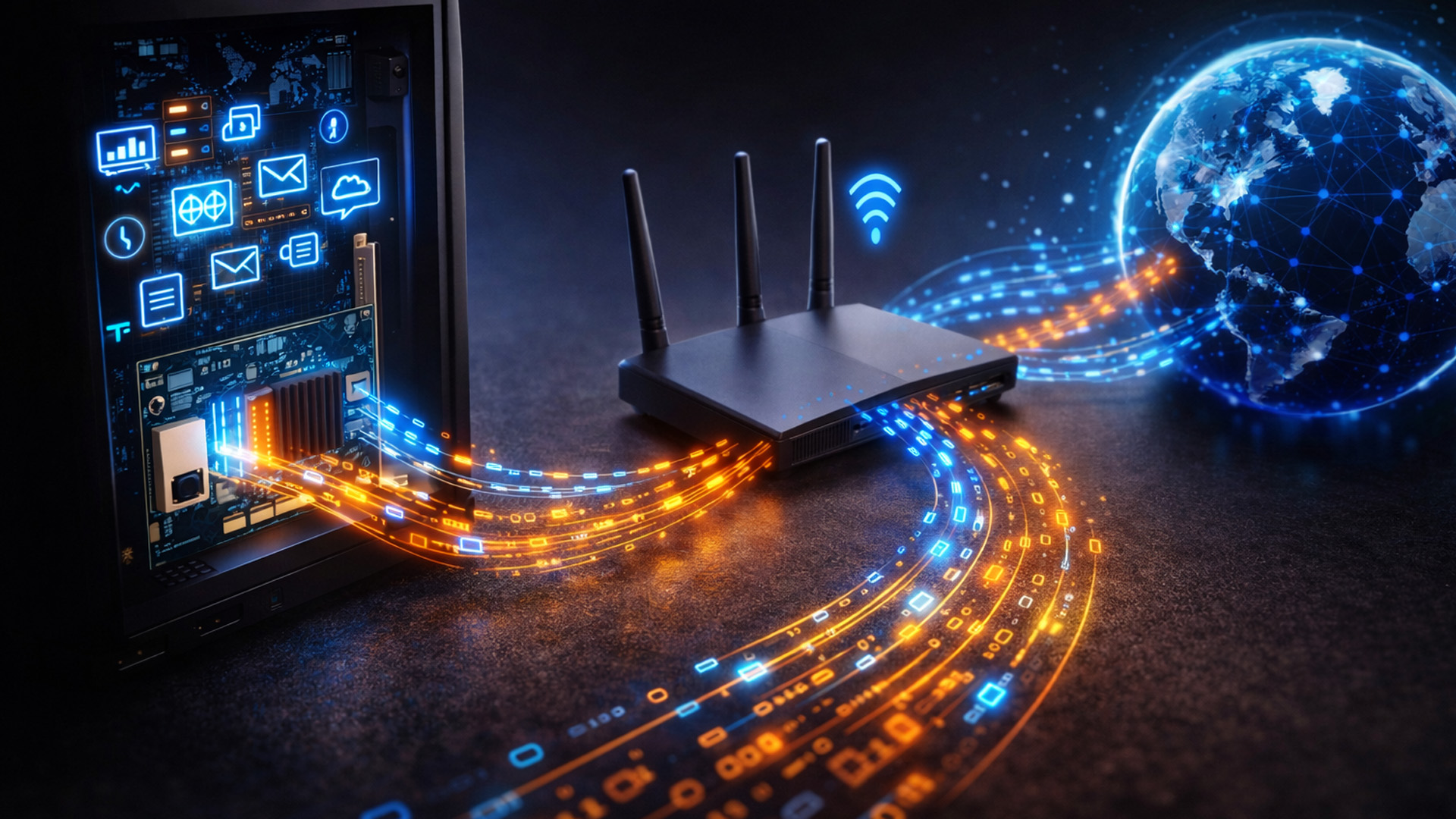
If you are wondering how network cards work, think of them as a translator. Your computer processes data in a specific way. To send this data to a router or another PC, it needs to be packaged correctly.
The network card prepares
Last Updated: March 12, 2026
If you’ve ever wondered why your laptop struggles to stay connected while your phone works perfectly on the same Wi-Fi, the answer is often simpler than people expect.
It’s usually the network adapter.
Understanding what is a network adapter, and what it actually does — is the key to fixing many everyday connectivity problems without replacing your router, broadband plan, or entire device.
This section explains network adapters in plain English, with real UK use cases, so you can recognise when an adapter is the missing piece in your home or PC setup.
What Is a Network Adapter, Really?
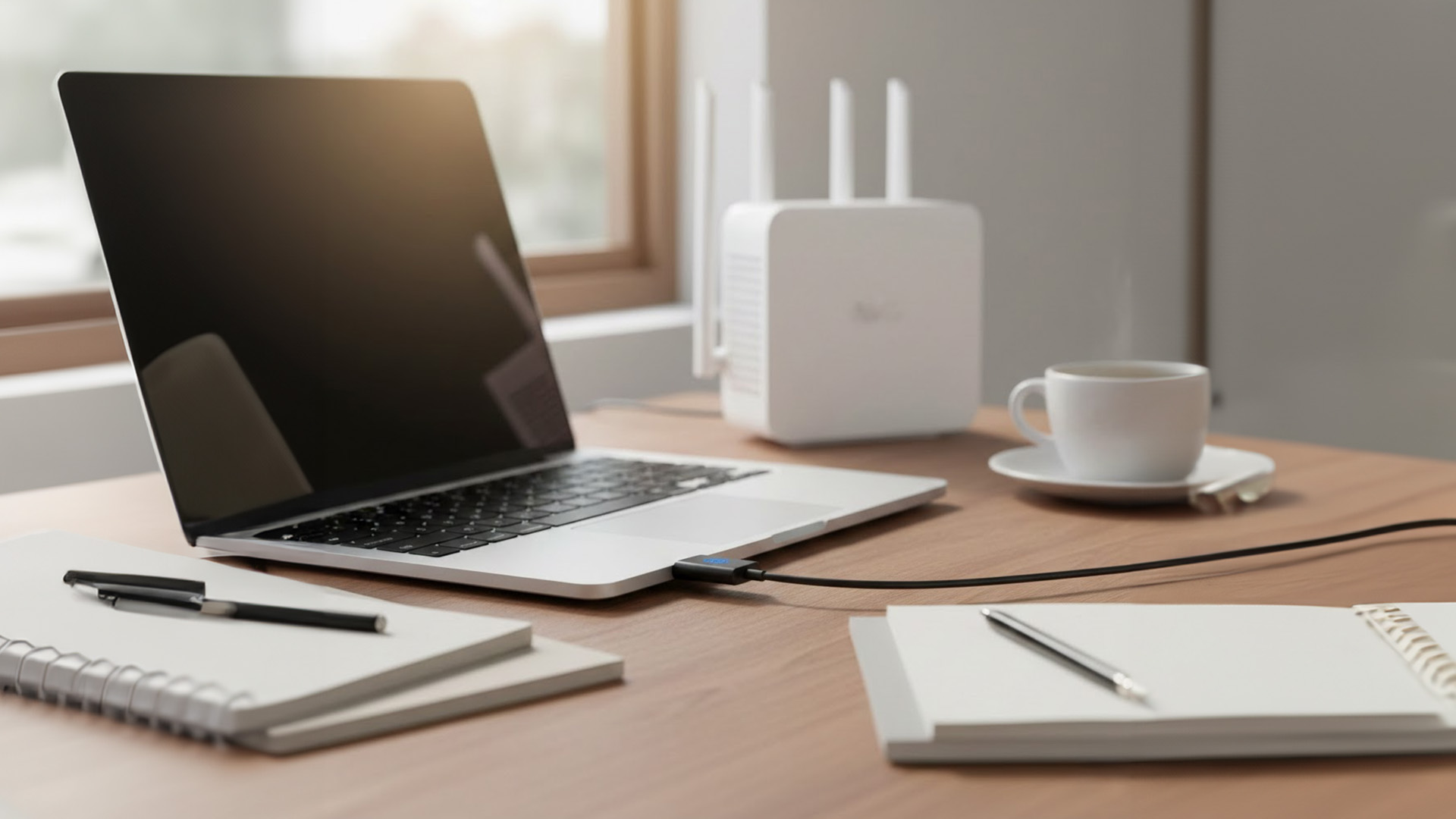
A network adapter is the component that allows a device to connect to a network, either wirelessly or with a cable.
Every device that accesses the internet has one:
- Laptops and PCs
- Smartphones and tablets
- Smart TVs and consoles
Without a network adapter, a device simply cannot communicate with your router or the wider internet.
Think of the adapter as a translator:
- Your router speaks “network”
- Your device
Last Updated: February 13, 2026
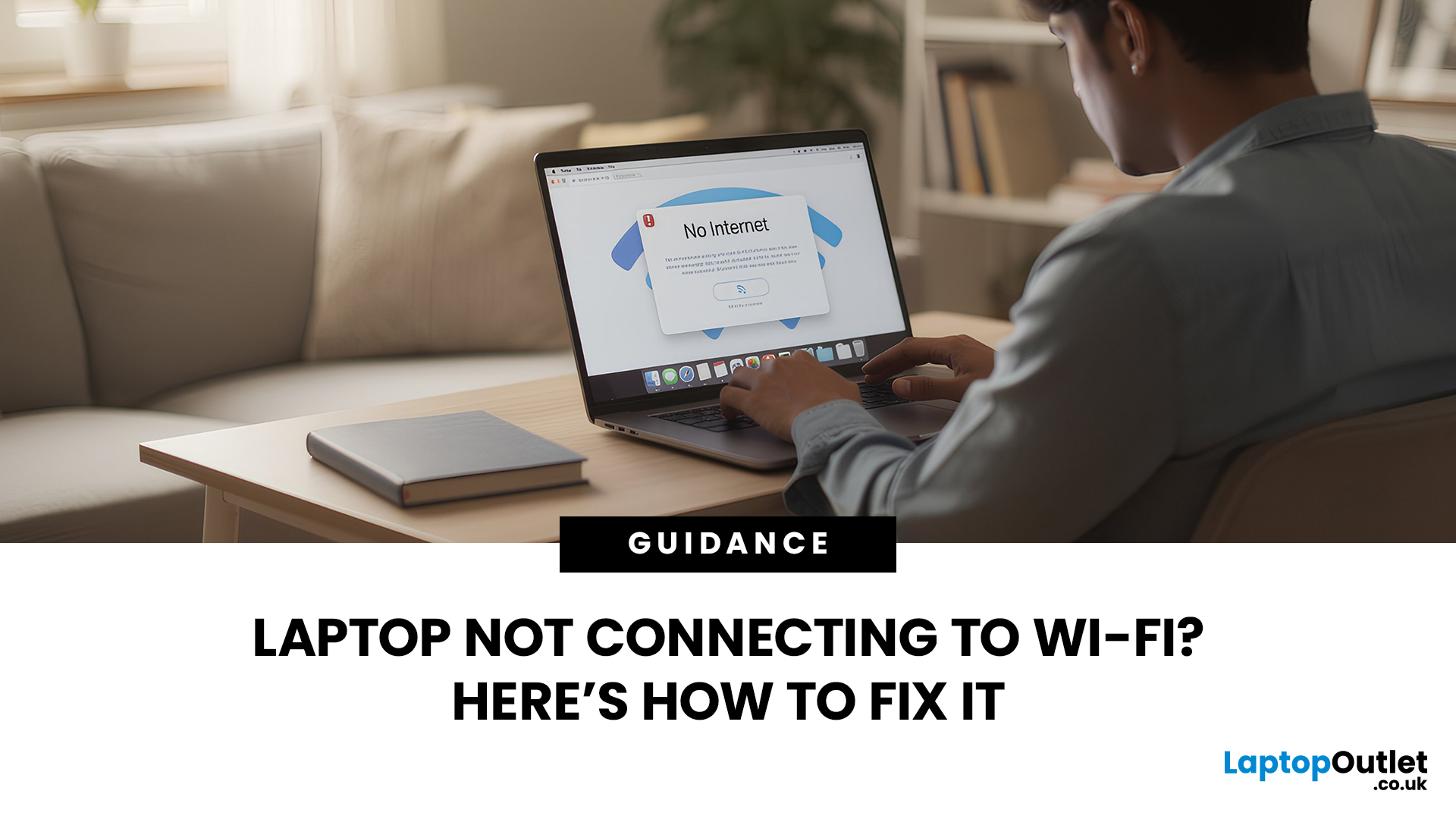
Few things are more irritating than a laptop that insists it cannot connect to Wi-Fi, especially when your phone and tablet are happily online. The good news is that most Wi-Fi faults fall into a handful of predictable categories, and you can usually narrow it down in 10 to 15 minutes with a calm, methodical check.
This guide covers the most common laptop Wi-Fi connection issues and how to fix them. Let’s start with the quickest checks, then move into deeper fixes, and finish with the point where it makes sense to involve your broadband provider or consider hardware.
Start by Identifying the Best Possible “Laptop Wi-Fi Connection Issues”

A laptop can have “Wi-Fi Connection Issues” in several different ways. If you choose the wrong fix for the wrong symptom, you can waste time.
Here’s a quick symptom map so you can match what you’re seeing:
| What you’re seeing | What it usually means | Best first move |
| No networks appear at all | Wi-Fi is switched off, Aeroplane mode is on, adapter is disabled, |
Published: March 05, 2026
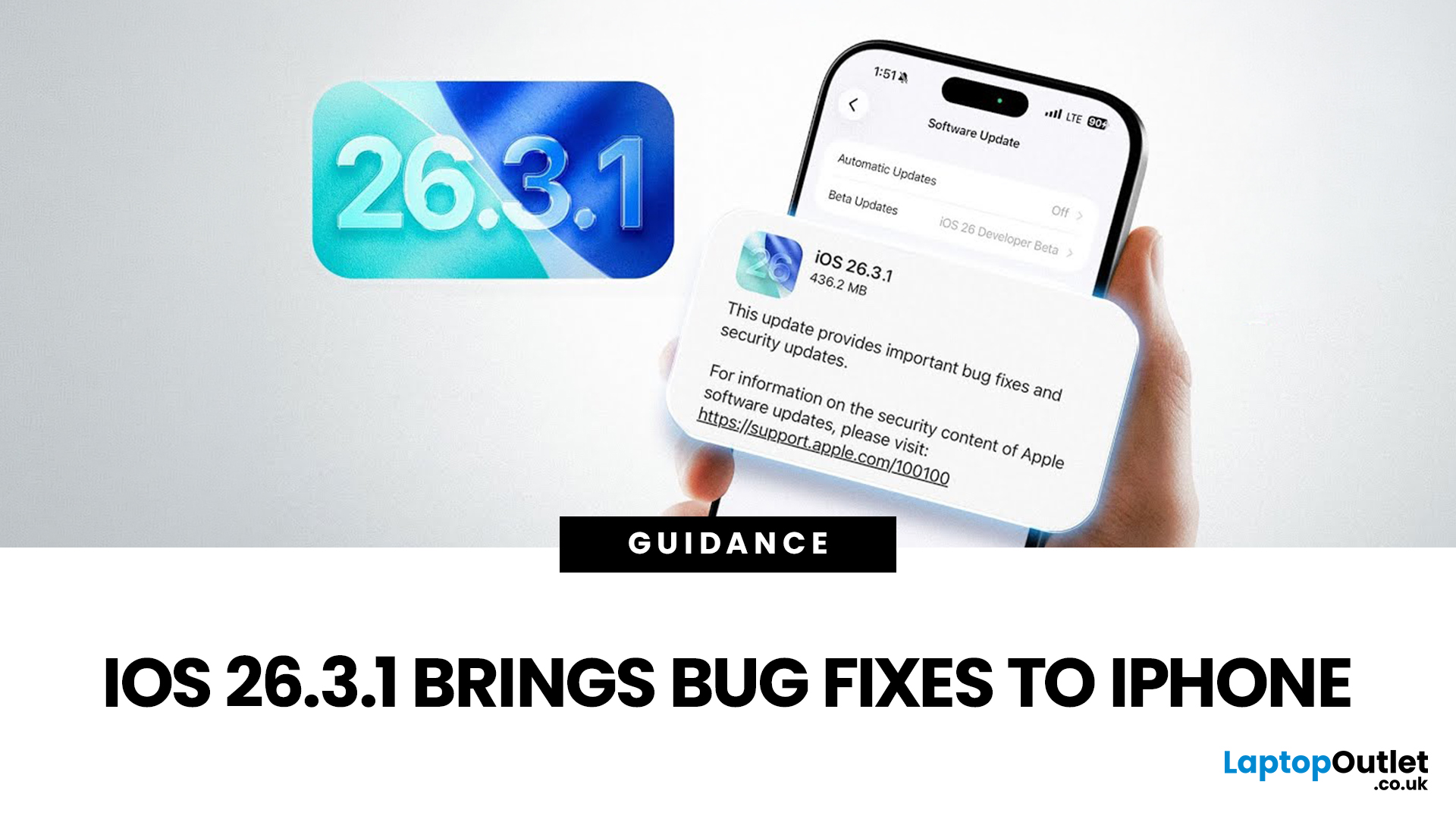
Apple has officially rolled out the iOS 26.3.1 update for iPhone users, bringing several important bug fixes, security patches, and performance improvements. While this is not a major feature update, it focuses on improving system stability and fixing issues reported in the previous iOS 26.3 version.
Minor iOS updates like iOS 26.3.1 are important because they often resolve bugs that affect everyday performance, connectivity, and device security. If you own a compatible iPhone, installing the iOS 26.3.1 update can help ensure smoother performance and better protection against vulnerabilities.
In this guide, we’ll cover the iOS 26.3.1 release date, features, download steps, supported devices, and answer the common question: Should you update to iOS 26.3.1?
iOS 26.3.1 Release Date
Apple released the iOS 26.3.1 update on March 04, 2026, after the launch of iOS 26.3, aiming to fix several issues discovered after the previous version went live.
Typically, Apple rolls out minor updates like

