



How to Fix Audio & Sound Problems on Laptops?

If you’ve ever fired up a video, joined a call, or cranked up your music only to be met with silence, you know how maddening laptop audio problems can be. One minute everything’s fine, the next you’re dealing with laptop sound not working, crackling speakers, or a laptop microphone not working that makes you sound like you’re in a tunnel. These issues pop up on all kinds of machines, whether it’s a budget Windows laptop, a high-spec gaming rig, or even a MacBook, and they rarely mean your hardware is dead.
Most laptop sound troubleshooting steps are straightforward and take just a few minutes. In this guide, we’ll walk you through the most common causes and fixes, from the obvious (yes, check the volume) to the slightly more technical (driver updates, audio services, Bluetooth quirks). Follow along in order, and you’ll have sound back in no time.
Common Laptop Audio & Sound Problems
Before diving into solutions, it helps to understand the most common laptop audio problems users face:
- Muted settings or the wrong output device selected
- Outdated or corrupted audio driver issues
- Windows updates that temporarily break compatibility
- Bluetooth pairing glitches (Bluetooth audio issues laptop)
- Privacy settings blocking the microphone
- Dust, loose cables, or ageing hardware (rare, but possible)
The good news? Nine times out of ten the fix is software-based and completely free.
1. Start with the Basics: Check Volume and Sound Settings
It may sound obvious, but many laptop speaker problems come down to basic settings.
Check System Volume
Press the volume keys on your keyboard (look for the speaker icons) or click the speaker icon in the taskbar. Make sure nothing is muted and the slider is up. On some laptops, the Fn key + F-keys control volume; double-check you’re not accidentally hitting mute. Also check in-app volume. Media players, browsers, and conferencing apps have separate audio controls.
Test with headphones
Plug in a pair of wired headphones. If sound works through them but not the built-in speakers, you’ve isolated the issue to laptop speaker problems. If headphones are silent too, the problem is further upstream.
Confirm the Correct Output Device
Sometimes your laptop is sending sound to the wrong device. Windows sometimes switches to a disconnected HDMI monitor or Bluetooth device without telling you. If your laptop audio problems began after plugging in headphones or connecting via HDMI, your system may still be routing audio externally.
- Go to Sound Settings.
- Check the selected output device.
- Switch between speakers, headphones, or external monitors.
2. Restart Your Laptop
It’s simple but effective. A quick reboot clears temporary glitches, reloads drivers, and resolves most no sound on laptop complaints after a Windows update. If your laptop’s sound is not working after installing updates or connecting new devices, rebooting can restore normal functionality by refreshing system processes.
3. Run Built-In Audio Troubleshooter

Windows laptops include a built-in audio troubleshooter. This tool can automatically detect and fix common laptop sound troubleshooting issues, including disabled services or incorrect configurations.
- Windows 11: Settings → System → Troubleshoot → Other troubleshooters → Run the “Playing Audio” and “Recording Audio” troubleshooters.
- Windows 10: Settings → Update & Security → Troubleshoot → Additional troubleshooters → Playing Audio.
4. Check for Audio Driver Issues
One of the most common causes of laptop audio & sound problems is outdated or corrupted drivers.
Update Your Audio Driver (Windows)
Audio driver issues are the number-one cause of sudden silence.
- Right-click Start → Device Manager.
- Expand “Sound, video and game controllers”.
- Right-click your audio device (usually Realtek, Conexant, or High-Definition Audio) → Update driver → Search automatically.
- If no update is found, right-click → Uninstall device (tick “Delete the driver software”) → Restart. Windows will reinstall the driver fresh.
Still nothing? Visit your laptop manufacturer’s support page, enter your model, and download the latest audio driver manually. Brands like Dell, HP, Lenovo, and Asus release updated drivers regularly.
Roll Back Driver (If Issue Started After Update)
Sometimes new updates cause audio driver issues. In Device Manager:
- Open Properties of the audio device.
- Select the “Driver” tab.
- Click “Roll Back Driver” (if available).
For Mac users, ensure your macOS is up to date, as audio drivers are integrated into system updates.
5. Check Audio Services
Restart Windows Audio Services
If there’s still no sound on laptop speakers, your audio services might not be running. On Windows:
- Press Windows + R → type services.msc → Enter.
- Find “Windows Audio” and “Windows Audio Endpoint Builder”.
- Right-click each → Restart (and set Startup type to Automatic).
6. Inspect External Devices and Ports

External hardware can cause laptop speaker problems.
Headphones Stuck in Detection Mode
Sometimes the laptop thinks headphones are still plugged in.
- Plug and unplug headphones multiple times.
- Clean the headphone jack gently.
- Restart your system.
HDMI Audio Conflicts
When connected to a TV or monitor, your laptop may default to HDMI audio output.
Switch back to internal speakers in Sound Settings.
7. Fix Bluetooth Audio Issues Laptop Users Face
Bluetooth audio issues that laptop users experience are increasingly common, especially with wireless headphones.
Troubleshooting Steps:
- Forget the device: Settings → Bluetooth & devices → Find the device → Remove device.
- Re-pair it fresh.
- For poor quality or one-sided sound: Right-click the Bluetooth device in Sound settings → Properties → Services tab → Untick “Hands-free telephony” (this forces high-quality stereo mode).
- Keep the laptop close to the device and away from Wi-Fi routers or microwaves.
If audio is choppy, disable other nearby Bluetooth devices temporarily.
8. Resolve Laptop Microphone Not Working
A faulty microphone can disrupt meetings and online classes.
If people can’t hear you:
- Settings → Privacy & security → Microphone → Make sure “Microphone access” and “Let apps access your microphone” are On.
- In Sound settings, under Input, select your internal mic and test it (speak and watch the bar move).
- Run the “Recording Audio” troubleshooter.
- In Device Manager, expand “Audio inputs and outputs”, right-click your mic → Enable (or Uninstall & restart if needed).
If your laptop microphone is not working after an update, check for driver updates under Device Manager.
9. Disable Audio Enhancements
Audio enhancements can sometimes cause distortion or complete audio failure. To disable:
- Settings → System → Sound → Choose your output device → Device properties → Turn “Audio enhancements” and “Spatial sound” to Off.
- For deeper control: Right-click speaker icon → Sounds → Playback tab → Properties → Enhancements tab → Disable all enhancements.
This can quickly fix laptop sound distortion issues.
10. Check BIOS/UEFI Settings (Advanced)
In rare cases, onboard audio may be disabled in BIOS. Only attempt this if you’re comfortable navigating system firmware settings.
- Restart your laptop.
- Enter BIOS/UEFI (usually F2, F10, or Delete key).
- Check if internal audio is enabled.
In addition, if your laptop keeps looping back to the startup screen or throws mysterious error codes, don't panic and read our BIOS, Startup Errors & Boot Loops article to learn about common triggers like recent updates or loose connections and how to resolve them without advanced tools.
11. Perform a System Restore
If your laptop audio problems began recently and none of the above solutions work, try restoring your system to a previous point.
- Search for “System Restore.”
- Choose a restore point before the issue started.
- Follow instructions.
This won’t affect personal files but may remove recent apps or updates. Laptops develop quirks as they age, but many are easily fixed; browse The Ultimate Guide to Common Laptop Problems and How to Fix Them for comprehensive troubleshooting that saves time, money, and unnecessary upgrades.
12. Hardware Issues: When it’s More Than Software
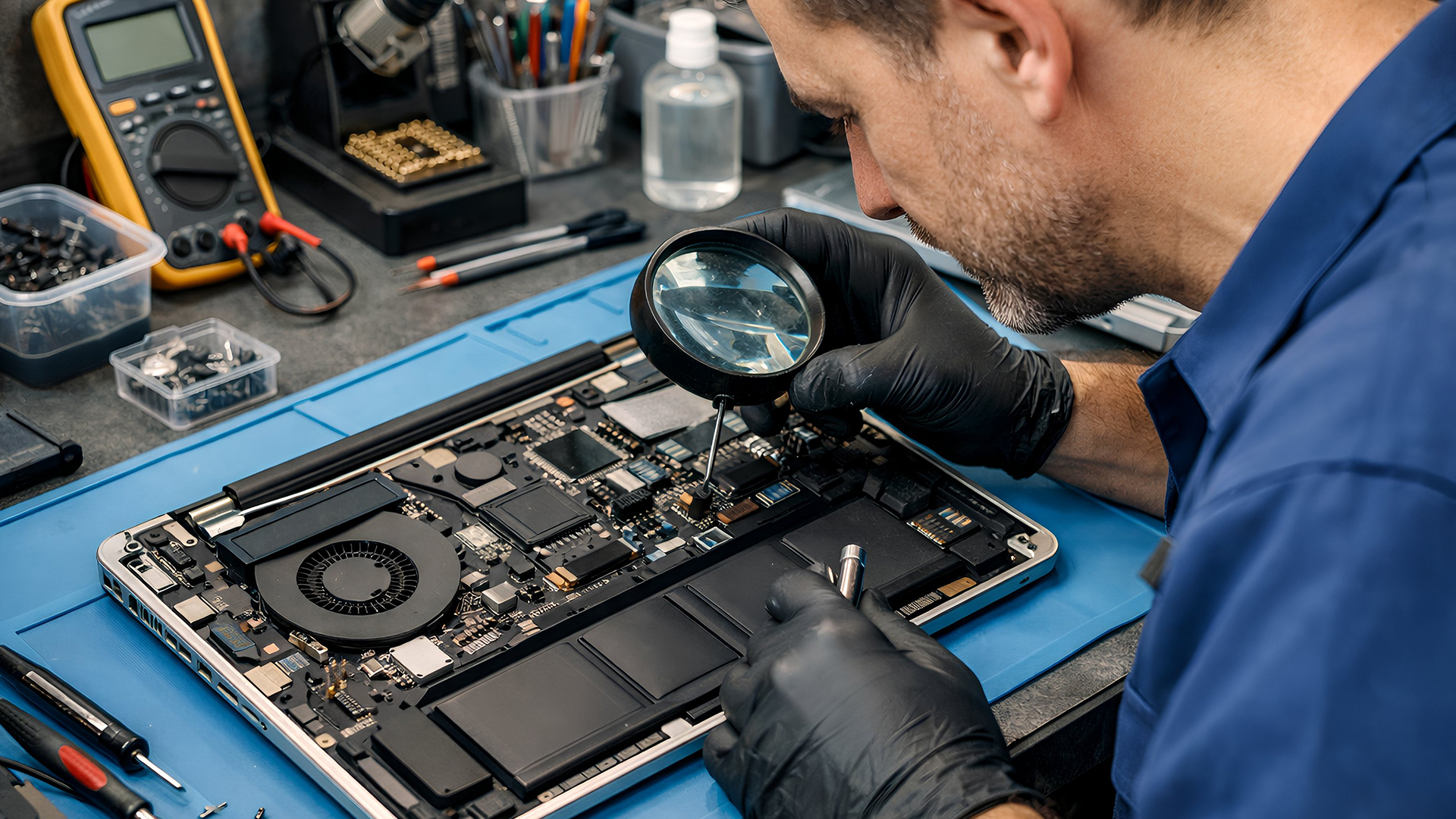
If you’ve tried everything and still have laptop speaker problems, the hardware may be failing, especially on older machines. Dust-clogged vents, worn speaker cones, or a failing audio chip can all cause permanent silence. At that point it’s worth getting a professional diagnostic, but many users find it simpler (and more enjoyable) to upgrade.
If your current laptop is a few years old and you’re tired of fighting sound issues, browse our range of laptops with best speakers. Models from Dell XPS, Lenovo Yoga, HP Spectre and selected gaming lines come with tuned speakers, Dolby Atmos, and Bang & Olufsen audio that deliver clear, rich sound straight out of the box. Explore our laptop storage issues guide for tips on clearing junk, running error checks, and knowing when it's time to upgrade your drive.
Preventing Future Laptop Audio & Sound Problems
Prevention is always better than troubleshooting. Regular maintenance helps avoid recurring laptop sound not working issues. Here’s how to reduce future issues:
- Keep your operating system updated.
- Install official drivers only.
- Avoid force shutdowns.
- Use quality audio peripherals.
- Run antivirus scans regularly.
A suddenly laggy laptop can turn productive days into frustration; explore Why Your Laptop is Running Slow: Top Causes & Quick Fixes for practical troubleshooting that often resolves the issue in minutes, whether it's dust buildup, too many tabs, or something deeper.
When to Consider an Upgrade
If your laptop is several years old and frequently experiencing laptop audio problems, it may not just be software. Upgrading can significantly improve both sound quality and reliability. Modern laptops offer:
- Enhanced speaker technology
- AI-powered noise cancellation
- Better microphone arrays
- Improved Bluetooth connectivity

Back to Full Volume: Our Closing Notes
Laptop audio problems are almost always solvable with a logical sequence of checks and resets. Start simple, work your way through the steps above, and you’ll usually have sound again within half an hour. If you get stuck on a specific brand or model, feel free to drop us a message, we’re happy to point you to the exact driver or setting.
Sound sorted? Great. Now go enjoy your music, movies, and meetings without the frustration.

Laptop Audio Troubleshooting: Your Top Questions
Why is my laptop sound not working even though the volume is up?
This is often due to incorrect output device settings, muted application audio, or audio driver issues. Check Sound Settings to ensure the correct output device is selected and update your drivers if necessary.
How do I fix no sound on laptop after a Windows update?
Try rolling back the audio driver in Device Manager or reinstalling it. Windows updates sometimes cause compatibility problems with existing drivers.
What causes laptop microphone not working during video calls?
Common causes include disabled microphone permissions, incorrect input device selection, or outdated drivers. Ensure the app has microphone access and that the correct input device is set as default.
Why does my Bluetooth audio keep cutting out on my laptop?
Bluetooth audio issues laptop users face are often caused by interference, outdated drivers, or weak signal strength. Move closer to the device and update your Bluetooth drivers.
When should I replace my laptop due to sound issues?
If hardware components like speakers or the sound card are damaged and repair costs are high, upgrading may be more cost-effective, especially if you want improved performance and access to laptops with best speakers for superior audio quality.
| Read More: |
| How to Fix Wi-Fi Connection Issues on my Laptop? |
| Laptop Screen Not Working? Common Reasons & Quick Fixes |
| Laptop Battery Draining Fast? Reasons & Easy Solutions |
Related Articles

Last Updated: January 28, 2026
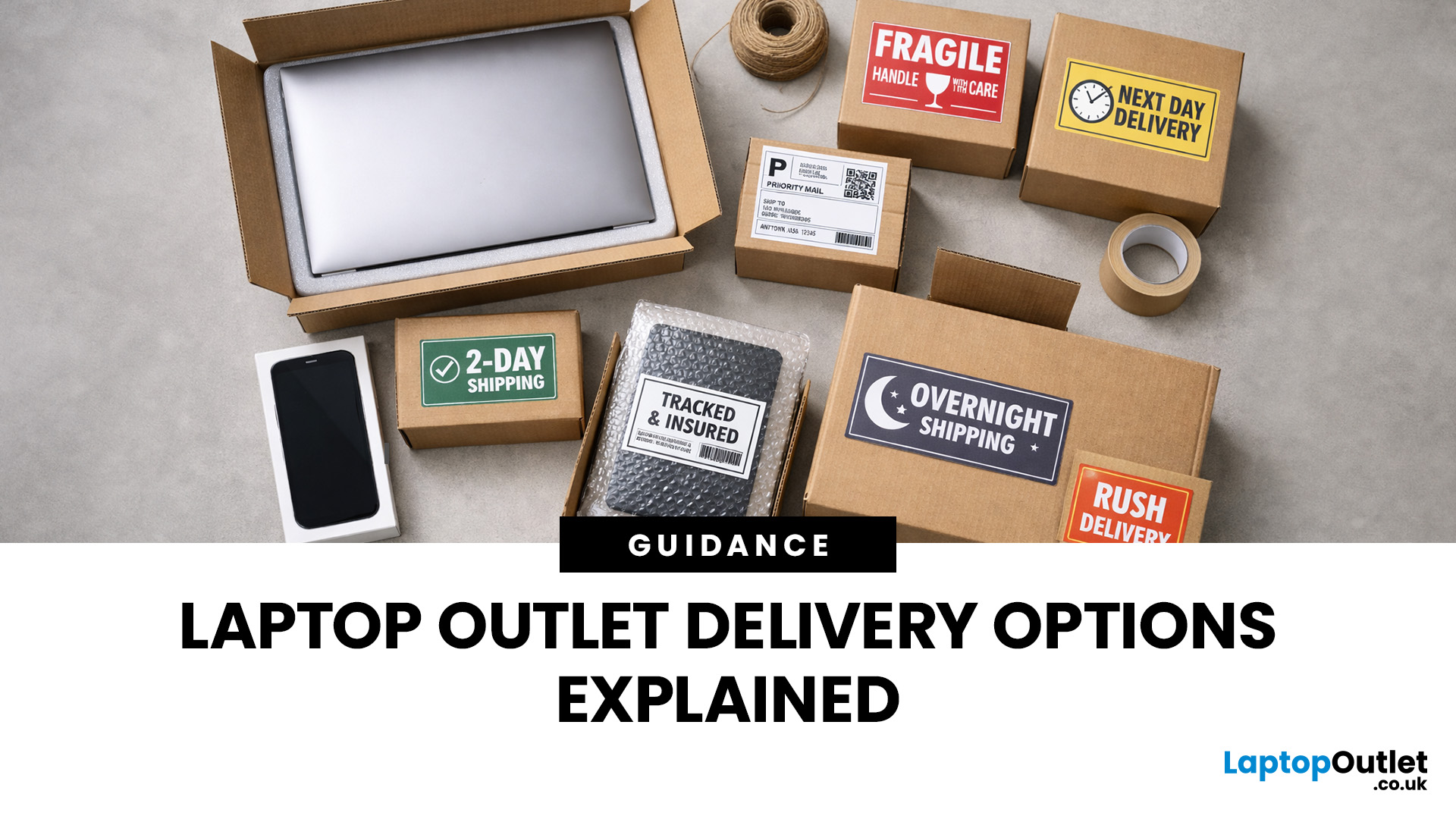
Buying tech online isn’t just about specs and price; delivery speed, flexibility, and reliability matter just as much. Whether you’re replacing a broken work laptop, upgrading your home setup, or ordering a last-minute gift, knowing your delivery options can make all the difference. In this guide, we explain Laptop Outlet delivery services options, how they work, and which service is best for your needs, from free standard delivery to next-day and book-a-slot delivery.
What Delivery Options Does Laptop Outlet Offer?
Laptop Outlet provides multiple delivery services designed to suit different customer needs, budgets, and timeframes. Each option is clearly shown at checkout, so you can choose the delivery speed and convenience level that works best for you. These include:
- Free Standard Delivery
- Next-Day/Priority Delivery
- Book-a-Slot Scheduled Delivery
How Does Laptop Outlet Delivery Work?
For full details, customers can always refer to the dedicated delivery info page. Laptop Outlet’s
Last Updated: January 28, 2026
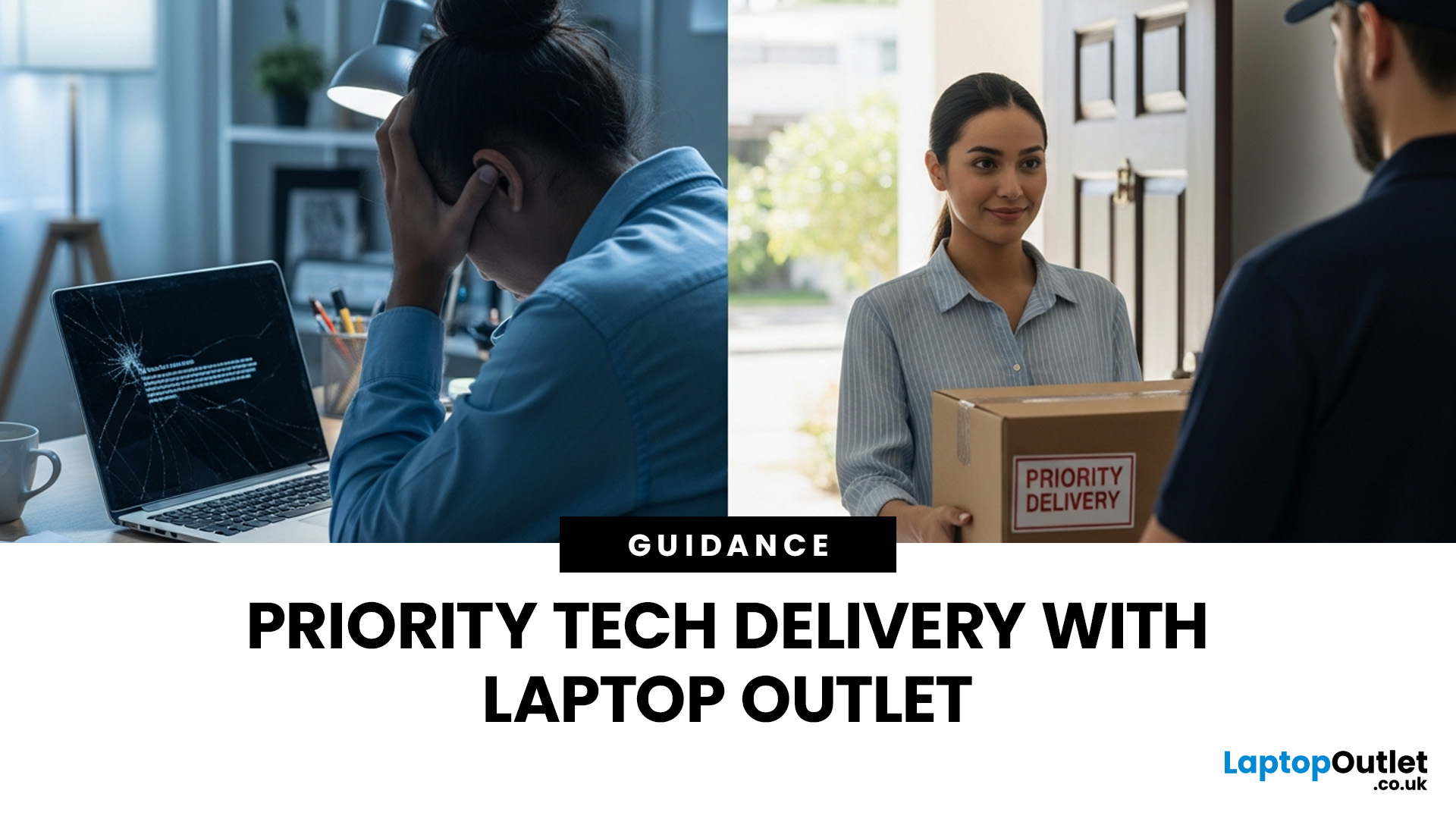
Let’s be honest — when your tech lets you down, waiting is the last option you want. Maybe your laptop stopped working the night before a deadline, your PC failed mid-project, or you’ve just realised you need a new device now, not next week. That’s exactly where Laptop Outlet next-day / priority delivery comes in. If you need fast, reliable tech delivery in the UK, this guide explains how Laptop Outlet’s next-day service works, what you can order, and why it’s the smart choice for urgent tech needs.
Why Speed Matters When Ordering Tech Online
When your laptop or PC breaks, everything slows down — work, study, gaming, even staying connected. Waiting days for a replacement just isn’t practical. With next-day laptop delivery, you don’t have to put life on pause. Laptop Outlet’s express service is built for:
- Last-minute replacements
- Urgent work-from-home setups
- Business and study deadlines
- Time-sensitive gifts or upgrades
If speed matters to you, Laptop Outlet Express shipping delivers when

Last Updated: January 28, 2026
Let’s be real — waiting around all day for a delivery is no one’s idea of fun. You’ve got meetings, errands, school runs, and about a million other things going on. The last thing you want is to be stuck at home wondering “Will it arrive now… or later?” That’s exactly why customers love Laptop Outlet book-a-slot delivery.
This delivery option puts you in control, letting you choose when your tech arrives, not the other way around. Here’s how it works, why it’s so popular, and whether it’s the right choice for your next order.
What is Laptop Outlet Book-a-Slot Delivery?
Laptop Outlet’s book-a-slot delivery service is a scheduled tech delivery service that allows you to pick a specific delivery day and time slot at checkout. Instead of waiting around all day, you get a clearly defined delivery window, so you know exactly when your order is arriving. In short:
- You choose the day, time, and location
- The courier delivers within that slot
- Your tech arrives when it suits you
It’s one of Laptop

Last Updated: June 17, 2026
Valentine’s Day is basically a high-pressure speedrun of “prove you know me.” Flowers are fine. Chocolate is predictable. But if you want a gift that lands (and lasts), tech is the move.
This year, we’re making it easy to shop Valentine’s Day laptop gifts and other Valentine’s Day tech gifts that feel personal, useful, and genuinely exciting, without paying full-price panic-tax. At Laptop Outlet, we stock both new and refurbished tech in the UK, so you can pick something premium, practical, and still stay in your budget.
Why a Laptop is a Top-Tier Valentine’s Gift in 2026
A laptop gift for Valentine’s Day isn’t just “a laptop.” It’s a whole lifestyle upgrade. It’s better WFH days, smoother university deadlines, cleaner creative projects, cosier film nights, and finally not fighting with a slow machine that sounds like it’s trying to take off.
And because 2026 is not the year to overpay, laptop deals for Valentine’s Day (especially on refurbished models) can get you more performance for

Last Updated: September 04, 2026
If you’re shopping for a new laptop this year, HP continues to be one of the most reliable and exciting brands to watch. From premium Ultrabooks and powerful gaming machines to flexible 2-in-1 devices built for modern work and study, the latest releases bring something for everyone.
In this guide, we’ll explore the latest HP laptops you shouldn’t miss in 2026, highlighting what makes them stand out, which users they suit best, and why HP remains a top choice for shoppers across the UK. Whether you’re upgrading your home setup, buying for university, or looking for a performance machine that keeps up with your workload, these HP laptop models are worth considering.
Top HP Laptop Models You Can Choose in 2026
The latest HP laptops in 2026 are redefining versatility, performance and AI-enabled productivity across the board. Let’s explore few of them:
HP OmniBook X FlipNGAI 14-fm0005na – Compact AI-Ready Performance
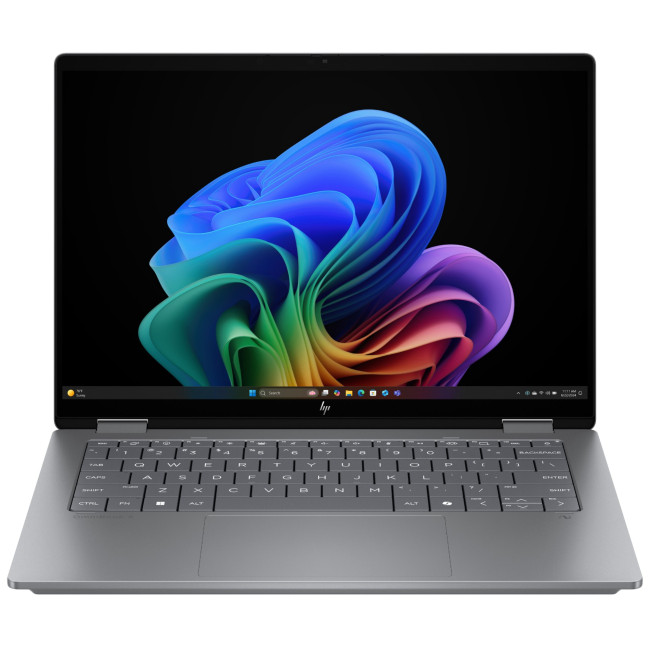
The HP OmniBook X FlipNGAI 14-fm0005na Intel® Core™ Ultra 5 226V

Last Updated: February 13, 2026
Because nothing kills the vibe faster than a laptop, that suddenly decides your fingers are irrelevant.
You sit down. You open your laptop. You’re mentally prepared to be productive (or at least pretend). And then .....boom... your laptop touchpad is not working. Or your laptop keyboard is not working. Or worse… both.
At this point, your laptop isn’t broken; it’s personally offended by you.
Before you rage-buy a new device or spiral into tech despair, here’s the good news: most laptop keyboard problems and touchpad issues are completely fixable. And no, you don’t need a computer science degree or a sacrifice to the tech gods.
This guide is not one of those vague “restart your device” articles and call it a day. This is a deep-dive, all-reasons, all-solutions, no-BS troubleshooting guide, written in human language, with enough detail to actually solve the problem.
We’ll cover:
- Software vs hardware problems (and how to tell the difference)
- Every common and uncommon reason your laptop input

Last Updated: February 13, 2026
Few things are more frustrating than a laptop running slow when you’re trying to work, study, stream, or simply browse the web. Whether it’s taking ages to boot up, freezing mid-task, or lagging when you open everyday apps, slow performance can quickly drain your productivity and patience.
The good news? A sluggish laptop doesn’t always mean it’s time to replace it. In many cases, there are clear reasons why a laptop is slow, and there are practical steps you can take to fix it. In this guide, we’ll walk you through the most common causes of laptop lagging, how to identify what’s slowing your device down, and how to improve laptop performance without unnecessary upgrades.
Why is My Laptop Running Slow?
Slow laptop performance usually comes from a combination of factors working against your system over time. Laptops naturally collect digital clutter, outdated software, background processes, and even hardware wear. Add demanding modern apps and websites into the mix, and performance can

Last Updated: February 17, 2026
Storage problems aren’t just annoying; they’re productivity killers. Studies show that nearly 60% of laptop slowdowns are linked to storage-related issues, whether it’s low disk space, corrupted files, or failing SSDs. When your drive is over 85% full, performance can drop significantly because your system has less room to manage temporary files and virtual memory. Add disk errors or early SSD/HDD failure into the mix, and suddenly your “quick task” turns into a 30-minute meltdown.
Laptop storage issues don’t just slow things down, they risk your data, crash your apps, and test your patience.
The good news? Most storage problems are fixable in real time. In this guide, we’ll break down exactly what’s happening, why it’s happening, and how to fix it step-by-step, no tech degree required.
SSD vs HDD: What’s Actually Inside Your Laptop (And Why It Matters)

Before you panic about laptop storage issues, you need to know what you’re working with. Not all drives fail the same way and the fix

Last Updated: February 17, 2026
Few things trigger instant panic like pressing the power button… and nothing happens. Or worse, your laptop turns on, shows the logo, and then just sits there. Stuck. Frozen. Judging you.
Laptop boot problems are one of the most common technical issues users face. From a laptop not booting at all to BIOS boot problems, startup errors, and endless boot loops, these issues can feel dramatic, but they’re often fixable. In many cases, Windows boot issues are caused by corrupted updates, drive errors, or simple configuration mistakes.
The key is knowing where the problem starts: power, BIOS, or operating system.
In this guide, we’ll walk you through real, step-by-step solutions to fix laptop boot loop errors, startup failures, and laptops that won’t turn on, no tech wizardry required.
What Are Laptop Boot Problems? (And Why They Feel So Stressful)
Laptop boot problems basically mean one thing: your laptop isn’t starting the way it’s supposed to. You press the power button expecting your system

Last Updated: February 13, 2026
It is a common frustration. You settle down to work at a café or prepare for a long flight, only to see your power percentage plummet. If you find your laptop battery draining fast, you aren't alone.
Modern laptops are powerful, but that power requires energy. From hidden background apps to ageing hardware, several factors can cut your cordless time short. This guide explores why laptop battery drains so quickly and provides actionable steps to improve laptop battery performance today.
Understanding the Basics: Why is My Laptop Battery Draining Fast?
Before we jump into the fixes, we need to understand the root causes. Why does a battery that used to last eight hours now struggle to last two?
Generally, laptop battery life problems stem from three main categories:
- Software & System Settings: Screen brightness, background processes, and unoptimised power plans.
- Hardware & Usage: Connected peripherals, overheating, and heavy workloads (like gaming or video editing).
- Battery Health: Physical

