



How to Connect Studio Display XDR to a MacBook Pro
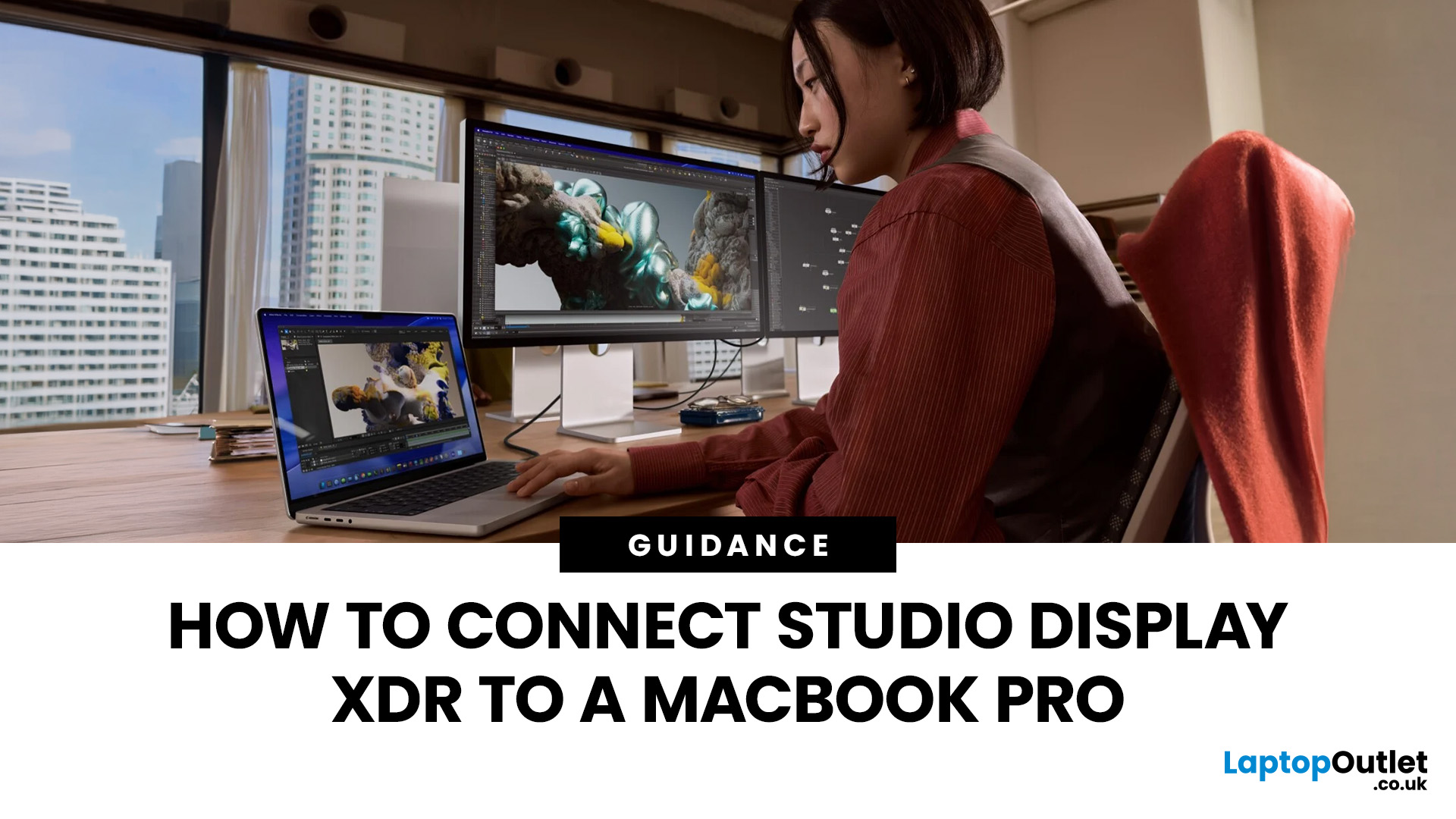
If you have just bought Studio Display XDR and want to use it with a MacBook Pro, the setup is usually quick. In most cases, the screen should come on automatically within a few seconds. macOS should recognise the display without extra drivers or manual installation. According to Apple’s official Mac support documentation, compatible MacBook Pro models automatically detect Studio Display when connected through Thunderbolt. Studio Display XDR can also deliver up to 140W of host charging through that same cable, so your MacBook Pro can charge while connected.
This Studio Display XDR setup guide explains the full process for connecting the Apple Studio Display XDR to a MacBook Pro, from the initial cable connection to the display settings you may need to adjust afterwards. Studio Display XDR is not just another external monitor. It is a 27-inch 5K Retina XDR display with mini-LED backlighting, up to 2,000 nits peak HDR brightness, a 120Hz refresh rate with Adaptive Sync, built-in camera and speakers, and Thunderbolt 5 connectivity, so it is worth setting up properly from the start.
How Can I Connect Studio Display XDR to MacBook Pro?
Quick Answer!
To connect Studio Display XDR to MacBook Pro, plug the display into power and connect the included Thunderbolt cable from the display’s Thunderbolt port to a Thunderbolt port on your MacBook Pro. macOS usually detects the display automatically, after which you can adjust resolution, scaling, and display arrangement in System Settings. Most Apple silicon MacBook Pro models support this connection without needing extra drivers.
What You Need Before You Start
If you are searching for how to connect Studio Display XDR to a MacBook, the key steps are checking compatibility, using the correct cable, and adjusting display settings once the screen is detected. Check these basics:
- A compatible MacBook Pro running macOS Tahoe 26.3.1 or later
- The included Thunderbolt 5 Pro cable.
- A power connection for the display
- A free Thunderbolt port on your MacBook Pro
Apple lists Studio Display XDR as compatible with 16-inch MacBook Pro models from 2021 onward, 14-inch MacBook Pro models from 2021 onward, and 13-inch MacBook Pro models from the M1 generation onward, provided the Mac is running macOS Tahoe 26.3.1 or later. Apple also includes a Thunderbolt 5 Pro cable in the box, and the display itself has one upstream Thunderbolt 5 host port, one downstream Thunderbolt 5 port, and two USB-C ports for accessories.
Studio Display XDR Compatibility with MacBook Pro
This is the part many quick setup guides skip, but it matters.
Apple says MacBook Pro models with M1, M1 Pro, M1 Max, M1 Ultra, M2, and M3 support Studio Display XDR at up to 60Hz, with all other Studio Display XDR features still supported. So, if you are using one of those chips and you only see 60Hz, that is expected. It is not a setup fault.
Newer MacBook Pro models are better placed to take advantage of Studio Display XDR’s 120Hz refresh rate and Adaptive Sync. The display itself supports 120Hz and variable refresh rates between 47Hz and 120Hz, but the final result still depends on which MacBook Pro you are connecting to.
If you are planning a bigger desk setup, Apple’s MacBook Pro specs also matter. For example, the 14-inch MacBook Pro with M3 supports one external display up to 6K at 60Hz, and you can close the lid to use a second external display up to 5K at 60Hz.
If you want a deeper comparison, see our guide on the best MacBooks to use with Studio Display XDR.
How to Connect Studio Display XDR to MacBook Pro (Step-by-Step)
Step 1: Place the Display and Connect Power
Set up Studio Display XDR on your desk or mount, then connect it to power. Give it a moment to initialise before connecting it to your MacBook Pro. This keeps the setup simple and avoids the usual confusion during the first connection.
Step 2: Use the Included Thunderbolt 5 Pro Cable
Take the included Thunderbolt 5 Pro cable and connect it from the display’s upstream Thunderbolt 5 host port to one of the Thunderbolt ports on your MacBook Pro. Do not use the HDMI port for this setup. Studio Display XDR is designed to connect over Thunderbolt or USB-C, not HDMI.
Step 3: Wait for macOS to Detect the Display
In most cases, the screen should come on automatically within a few seconds. macOS should recognise the display without extra drivers or manual installation. Studio Display XDR can also deliver up to 140W of host charging through that same cable, so your MacBook Pro can charge while connected.
Step 4: Open Display Settings
Once the display is active, go to System Settings > Displays on your MacBook Pro. This is where you can adjust:
- Display arrangement
- Scaling
- Brightness
- Refresh rate, if your setup supports it
- Which screen acts as the main display
Apple’s MacBook Pro support pages specifically point users to the Displays section in System Settings for display arrangement, main display selection, resolution, and refresh rate changes.
Step 5: Arrange the Displays Properly
If you want to use the MacBook Pro screen and Studio Display XDR together, drag the displays into the arrangement that matches your desk layout. If you want Studio Display XDR to act as your main screen, move the menu bar to it in display settings. It is a small step, but it makes the setup feel much more natural right away.
Best Settings to Check After Connecting
Once the connection is working, these are the settings worth checking first:
- Resolution and scaling
- Refresh rate
- Reference modes
- Audio input and output
- Camera selection
If you want the best results, check the Studio Display XDR display settings on MacBook carefully, especially the refresh rate, scaling, and MacBook Pro display resolution settings. Studio Display XDR runs at 5120 by 2880, and macOS usually handles the scaling well by default. Even so, it is worth opening display settings and checking whether you want more workspace or larger interface elements.
Refresh rate is the next thing to check. Studio Display XDR supports 120Hz and Adaptive Sync, but Apple also states that M1-, M2-, and M3-based Mac models support it at up to 60Hz. If you do not see 120Hz on one of those systems, that is normal.
If your work involves design, photography, HDR, or print, check the reference modes too. Apple includes presets for HDR Video, HDTV Video, Digital Cinema, Design and Print, Photography, Internet and Web, and more. That is one of the main reasons to spend a minute in settings rather than leaving everything on the default profile.
For a deeper look at Apple’s display technology, read Apple Studio Display XDR (2026): Everything You Need to Know.
Using the Camera, Speakers, and USB Ports
Studio Display XDR is more than just a screen. It includes:
- 12MP Center Stage camera with Desk View
- A six-speaker system
- A studio-quality three-mic array
- 1 downstream Thunderbolt 5 port
- 2 USB-C ports for accessories
Once connected to your MacBook Pro, you can choose the display’s camera, microphone, and speakers in apps such as FaceTime, Zoom, and Teams, or directly in macOS sound and video settings. The extra ports on the back also let you connect peripherals and reduce the number of cables going straight into the MacBook Pro itself.
Can You Close the MacBook Pro Lid?
Yes. Apple’s MacBook Pro support page says that after you connect an external display, you can close the lid and continue using the MacBook Pro with the connected display and accessories. That is useful if you want Studio Display XDR to serve as your main screen with an external keyboard, mouse, or trackpad.
You can also keep the MacBook Pro open and use Studio Display XDR as a second screen. For many people, that is the more flexible setup, especially if they want one display for the main task and the other for tools, messages, or previews. This can also be useful if you are planning a MacBook Pro dual display configuration or looking for practical MacBook Pro multi-monitor tips.
Common Problems and Fixes When You Connect Studio Display XDR to a MacBook Pro
The Display Does Not Turn On
Check these first:
- The display is connected to power
- The cable is fully seated at both ends
- You are using the included Thunderbolt 5 Pro cable or another proper Thunderbolt-capable cable
- The cable is plugged into a Thunderbolt port on the MacBook Pro
Studio Display XDR is a Thunderbolt display, so using the wrong cable or the wrong port is one of the most common reasons the setup fails.
The Display Works, But Only at 60Hz
This is often normal. Apple says that M1-, M2-, and M3-based Mac models support Studio Display XDR at up to 60Hz. If that is your hardware, you are seeing the expected limit rather than a hidden bug.
The Camera or Speakers Are Not Selected
After you connect the display, open the relevant app or go to macOS settings and manually select Studio Display XDR as the camera, microphone, or speaker source. The hardware may be available without becoming the default in every app straight away.
The MacBook Pro Is Not Charging
Studio Display XDR supports up to 140W of host charging through the included Thunderbolt 5 Pro cable. If your MacBook Pro is not charging, reconnect the cable and make sure you are not using a lower-spec replacement cable that cannot handle the same data and power delivery.
Is Studio Display XDR Worth Connecting to a MacBook Pro?
If you already own a compatible MacBook Pro, yes. Studio Display XDR gives you a high-end external display setup with 5K resolution, mini-LED backlighting, strong HDR performance, reference modes, built-in camera and speakers, Thunderbolt 5 connectivity, and up to 140W host charging. It is clearly designed to pair neatly with Apple’s pro notebooks rather than feel like a generic monitor beside a laptop.
For many people, the main upgrade is not just screen size. It is the overall experience: better image quality, cleaner cabling, stronger colour handling, better brightness, and fewer extra accessories on the desk. If you spend long hours editing, designing, reviewing images, or working across multiple apps every day, it is worth setting it up properly.

Getting the Best Setup Experience
I If you are wondering how to connect Studio Display XDR to MacBook Pro, the process is simple once you know the right order. Plug the display into power, connect the included Thunderbolt 5 Pro cable from the display’s host port to a Thunderbolt port on the MacBook Pro, then fine-tune the setup in System Settings. The only real variable is how much of the display’s capability your specific MacBook Pro model can use.
The useful approach is to keep it simple. Use the right cable, use the right port, check your MacBook Pro’s display support, and then spend a minute on the settings that matter. That gets you from unboxing to a proper Studio Display XDR setup without the usual guesswork.

Common Questions About Connecting Studio Display XDR to a MacBook Pro
Can I connect Studio Display to a MacBook Pro?
Yes, you can connect Studio Display XDR to a compatible MacBook Pro using the included Thunderbolt 5 Pro cable. Apple lists support for Apple silicon MacBook Pro models, including 14-inch and 16-inch MacBook Pro models from 2021 onward and 13-inch MacBook Pro models from the M1 generation onward, as long as the Mac is running macOS Tahoe 26.3.1 or later.
Do I need a special cable to connect Studio Display XDR to a MacBook Pro?
Use the included Thunderbolt 5 Pro cable. Apple includes it in the box, and it is the simplest way to get display output, charging, and accessory support working properly.
Can Studio Display XDR charge a MacBook Pro?
Yes. Studio Display XDR supports up to 140W of host charging through its upstream Thunderbolt 5 connection.
How to connect a MacBook to Pro Display XDR?
To connect a MacBook Pro to Pro Display XDR, plug the display into power, then connect it to a Thunderbolt-capable port on the MacBook Pro using a compatible Thunderbolt cable. After that, open System Settings > Displays in macOS to arrange the screen, adjust scaling, and set it as your main display if needed. Apple’s Mac support also notes that you can close the MacBook lid and keep using the external display with the right setup.
Can any MacBook Pro connect to Studio Display XDR?
No. Apple lists compatibility with Apple silicon MacBook Pro models, including 14-inch and 16-inch MacBook Pro models from 2021 onward and 13-inch MacBook Pro models from the M1 generation onward, with macOS Tahoe 26.3.1 or later.
What is the XDR display on a MacBook Pro?
“XDR” stands for Extreme Dynamic Range. On Apple displays, it refers to higher-end screen technology designed for stronger HDR performance, high brightness, deeper contrast, and more accurate colour handling. Apple’s Pro Display XDR, for example, is a 32-inch 6K display with 1,000 nits sustained brightness, 1,600 nits peak HDR brightness, and a 1,000,000:1 contrast ratio.
Why is Studio Display XDR only running at 60Hz on my MacBook Pro?
Apple says M1, M2, and M3 Mac models support Studio Display XDR at up to 60Hz. If you have one of those systems, that is expected behaviour.
Is Mac Studio compatible with Pro Display XDR?
Yes. Mac Studio is compatible with Pro Display XDR, and Apple’s Mac Studio support pages explain how to connect external displays through Thunderbolt or HDMI, depending on your setup. Apple also lists the Mac Studio among the compatible Macs for the newer Studio Display XDR, confirming that Apple’s desktop pro systems are built to work with high-end external displays.
Can I connect more than one external display to my MacBook Pro?
It depends on the exact MacBook Pro chip and model. For example, the 14-inch MacBook Pro with M3 supports one external display up to 6K at 60Hz, and a second external display up to 5K at 60Hz with the lid closed. Higher-end chips support more.
Related Articles

Published: November 17, 2025
In 2025, Apple continues its dominance in professional laptops with the release of the MacBook Pro M5, the latest evolution of its in-house silicon revolution. Following the impressive M3 Pro and M4 generations, the Apple M5 chip marks a leap in raw performance, AI processing, and energy efficiency - and it’s already being hailed as the gold standard for creative professionals and demanding users.
But does the new M5 MacBook Pro really set a new benchmark in laptop performance? Or are Windows-based power machines like the Dell XPS 15 and Razer Blade 16 catching up?
In this Apple MacBook Pro M5 review, we dive into real-world performance, specs, benchmarks, battery life, display quality, and user experience to see if this is truly the best pro laptop of 2025.
Design and Build: Familiar Excellence, Refined Again
Apple hasn’t reinvented the MacBook’s look - and honestly, it didn’t need to. The M5 edition retains the precision-machined aluminium unibody, but now features a subtle refinement
Last Updated: March 12, 2026
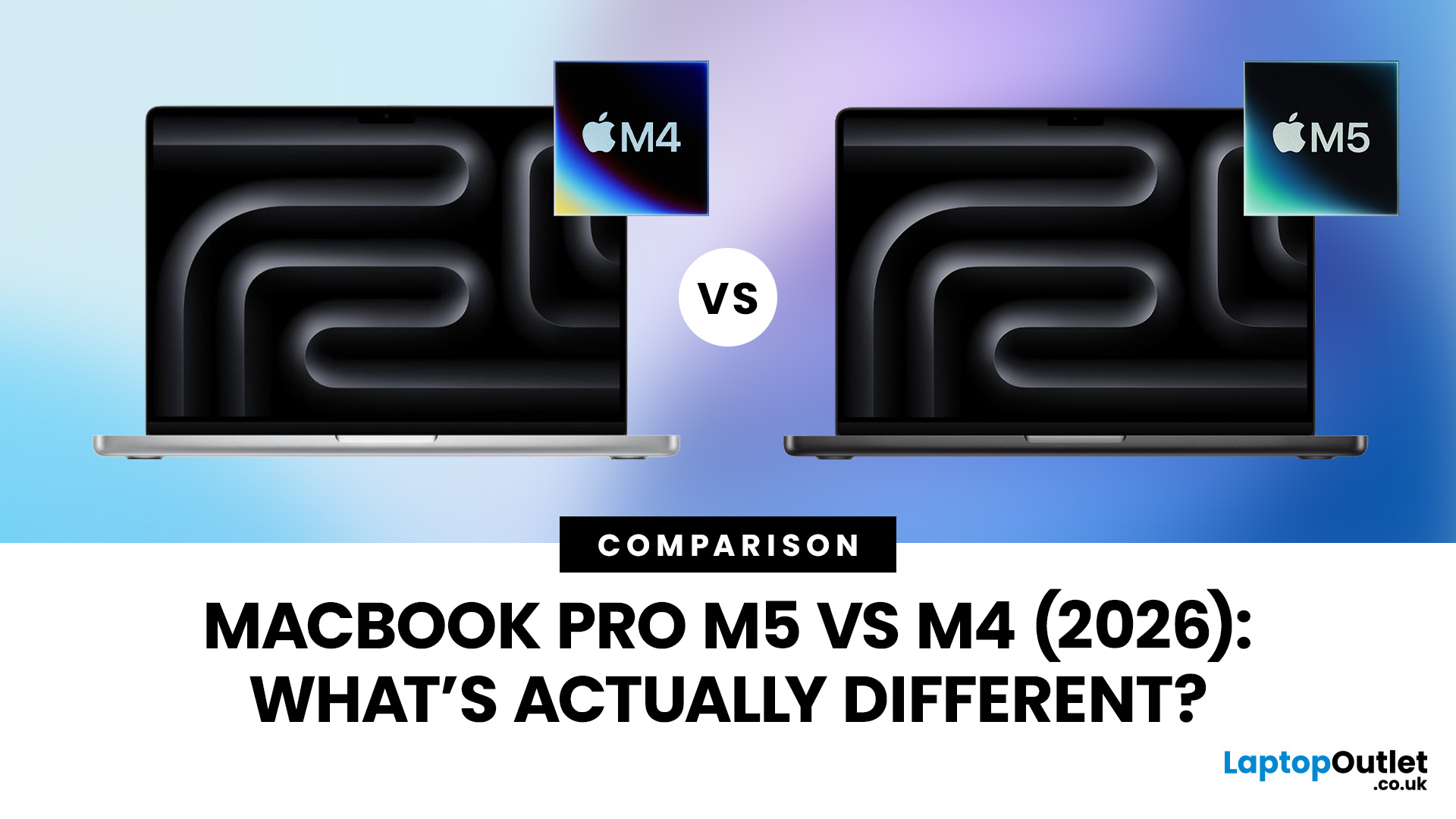
Apple continues to push laptop performance forward with its custom silicon, and the latest generation, powered by the Apple M5 chip - brings new improvements to the MacBook Pro lineup. The previous M4 MacBook Pro, released in 2024, was already one of the most powerful laptops available. However, the 2026 MacBook Pro with the M5 chip introduces several internal upgrades designed to enhance performance, AI processing and efficiency.
For many UK buyers, the key question is simple: is the MacBook Pro M5 a meaningful upgrade over the M4, or should you save money and buy the older model instead?
In this detailed comparison of MacBook Pro M5 vs M4, we will look at:
- CPU and GPU performance differences
- AI and machine learning improvements
- Battery life and efficiency
- Design and display changes
- UK pricing and availability
- Whether upgrading is worth it
By the end of this guide, you’ll have a clear idea of which MacBook Pro is the better choice for UK users in 2026.
MacBook Pro M5 vs M4: Key Differences
Last Updated: March 05, 2026
Apple just dropped another powerhouse, and tech lovers everywhere are paying attention. The MacBook Pro with the new M5 chip has officially arrived, and it’s bringing some serious upgrades in performance, AI capabilities, and efficiency. If you’re a creator, developer, student, or someone who simply loves fast and powerful machines, this launch is worth checking out.
Apple’s MacBook Pro M5: What’s the Big Deal?
Apple’s MacBook Pro lineup has already been dominating the laptop space with its custom silicon chips. Starting from the M1, Apple proved that it could build processors that outperform many traditional laptop chips while using less power.
Now, the M5 generation takes things to the next level.
The new MacBook Pro models come powered by M5 Pro and M5 Max chips, which promise faster speeds, stronger graphics performance, and better AI processing compared to previous models. Apple designed these chips to handle demanding tasks like video editing, software development, 3D rendering,
Last Updated: March 09, 2026
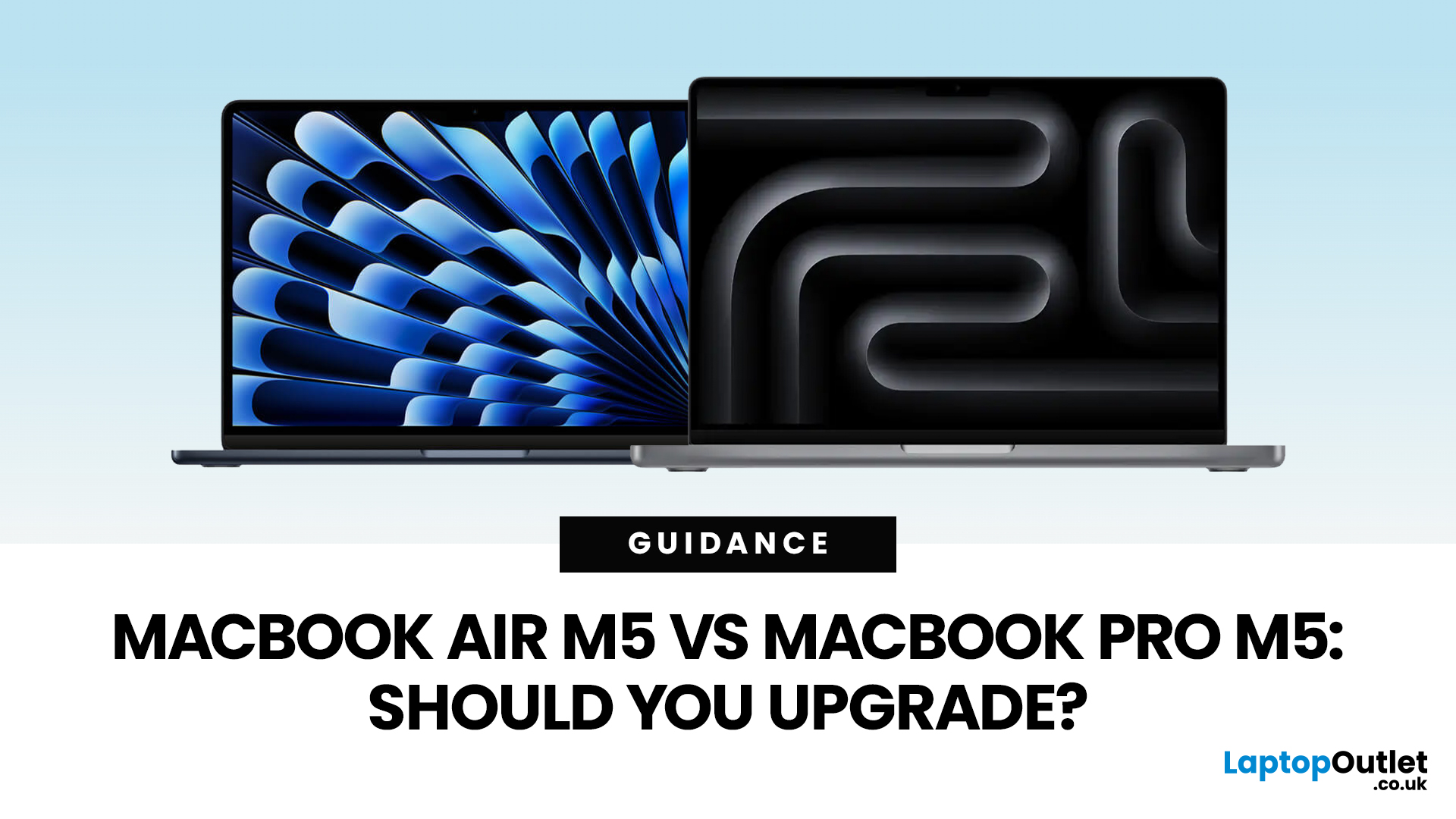
Apple just dropped another round of MacBook upgrades, and the internet is already debating: MacBook Air M5 vs MacBook Pro M5,which one makes sense? If you’re a student, creator, developer, or someone deep in the Apple ecosystem, this decision matters. The M5 generation brings faster AI performance, stronger GPUs, and bigger base storage, but the Air and Pro are designed for very different users.
MacBook Air M5 vs MacBook Pro M5: Quick Overview
Before diving deep, here’s the quick comparison.
| Feature | MacBook Air M5 | MacBook Pro M5 |
| Target user | Students, everyday users | Creators, developers, professionals |
| Chip | M5 | M5 Pro / M5 Max |
| CPU | Up to standard M5 cores | Up to 18-core CPU |
| GPU | Integrated GPU | Up to 40-core GPU |
| Cooling | Fanless | Active cooling |
| Battery | Up to ~18 hours | Up to ~24 hours |
| Base Storage | 512GB | 1TB |
| Price (starting) | ~$1,099 | ~$2,199 |
TheTL;DR:
Air = portability and value.
Pro = raw power.
What’s New in the M5 MacBooks?
Apple’sM5 chip generation focuses heavily on performance and AI workloads.
Last Updated: March 09, 2026
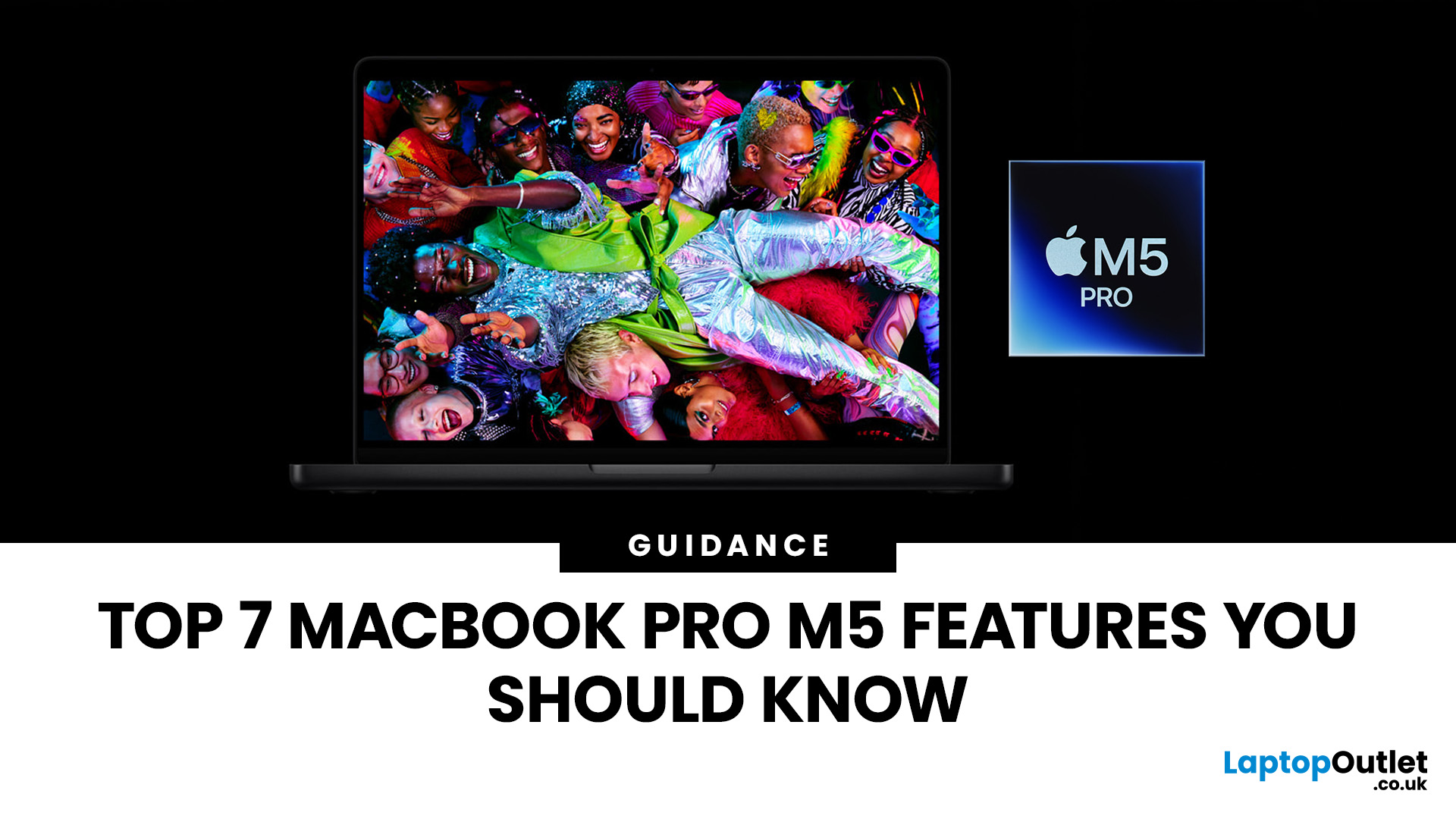
Apple’s MacBook Pro lineup has consistently defined what professional laptops can do, but the introduction of the M5 generation pushes the category even further. Powered by Apple’s latest silicon architecture and backed by upgrades in storage, connectivity, and AI performance, the MacBook Pro M5 is designed to handle modern workflows, from video production and software development to AI experimentation and heavy multitasking.
While the external design remains familiar, the real upgrades are under the hood. Apple has focused heavily on improving computational power, on-device AI processing, wireless capabilities, and storage performance. These changes make the MacBook Pro M5 one of the most capable laptops available for professionals and power users.
Below are the top seven MacBook Pro M5 features that stand out in the latest generation.
1. Next-Generation Apple Silicon: M5 Pro and M5 Max Chips
The biggest upgrade in the MacBook Pro M5 lineup is the introduction of Apple’s M5 Pro and M5
Last Updated: March 09, 2026
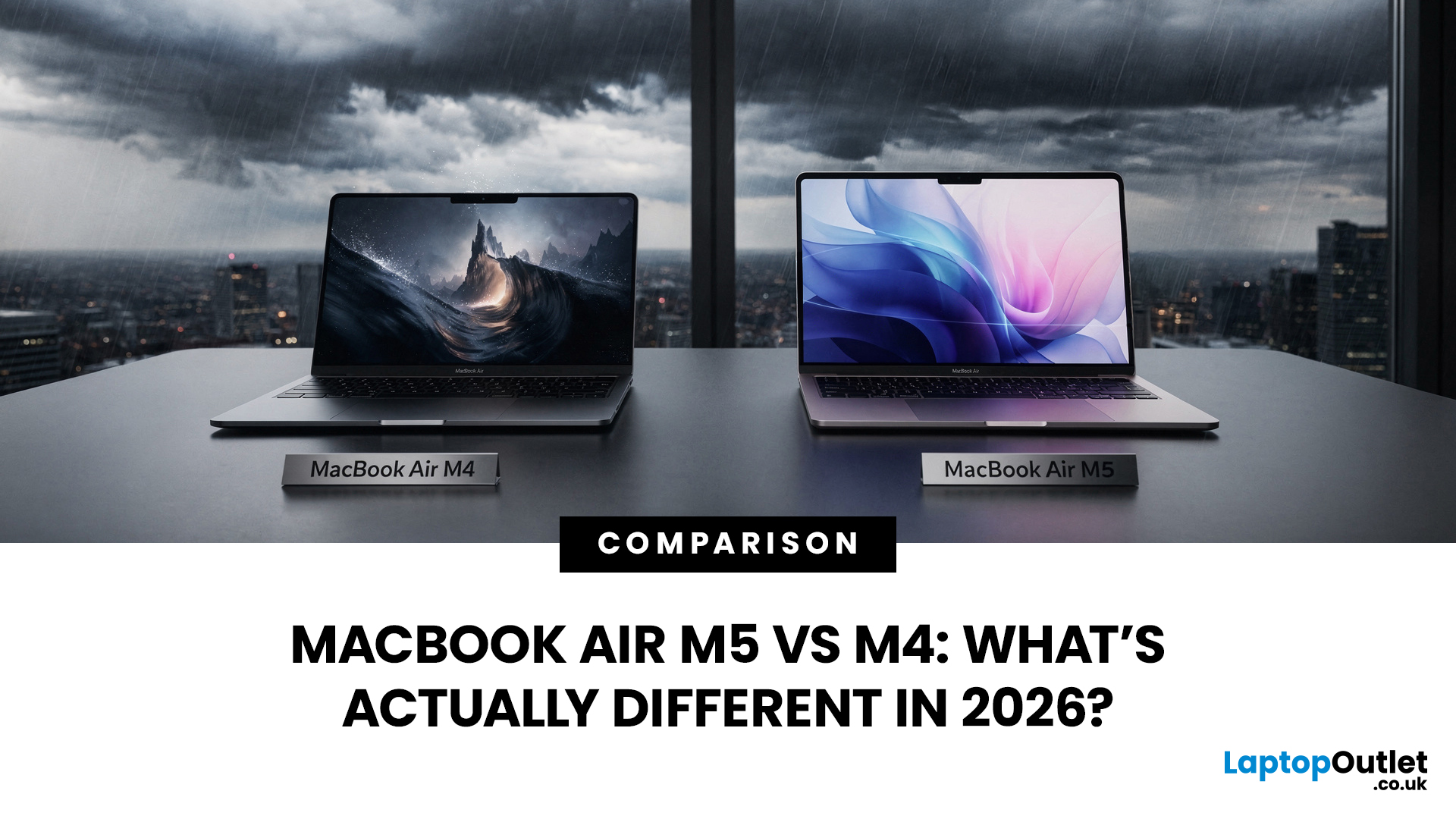
If you’ve been thinking about buying a MacBook Air this year, you’ve probably run into the same question everyone in the UK tech community is asking:
Should you buy the new MacBook Air M5 or save money with the M4?
At first glance, the two laptops look almost identical. Same ultra-thin aluminium design. Same beautiful display. Same lightweight build that makes the MacBook Air perfect for working in cafés, trains, or university libraries.
But once you dig a little deeper, the MacBook Air M5 vs M4 comparison starts to reveal some interesting differences.
Apple hasn’t completely reinvented the MacBook Air in 2026, but the company has quietly improved several areas including performance, storage, wireless connectivity, and AI features.
So, if you're planning to buy an Apple MacBook from UK, Laptop Outlet or Amazon, this guide will help you decide which model actually makes more sense.
Let’s break it down.
MacBook Air M5 vs M4: Quick Comparison
Before diving into details, here’s a quick overview

Last Updated: March 09, 2026
Apple laptops have never really been known for being “cheap.” For years, the entry point into the MacBook world started at around £999 or more. But that has finally changed.
In March 2026, Apple unveiled something unexpected: MacBook Neo, the company’s most affordable MacBook ever. Designed for students, casual users, and first-time Mac buyers, the Neo brings the macOS experience to a much lower price point than previous Apple laptops.
So how much does it cost in the UK? What specs do you get? And is it worth buying?
Let’s break it all down.
MacBook Neo Price UK
The MacBook Neo price in the UK starts at around £599 for the base configuration.
That makes it the cheapest MacBook Apple has ever released, significantly undercutting the MacBook Air, which currently starts at around £1,099 in the UK.
Here’s a quick breakdown of expected pricing tiers:
| Model | Storage | Expected UK Price |
| MacBook Neo (Base) | 256GB SSD | ~£599 |
| MacBook Neo | 512GB SSD | ~£699 |
| Education pricing | 256GB SSD | ~£499 (students/educators) |
Last Updated: March 09, 2026
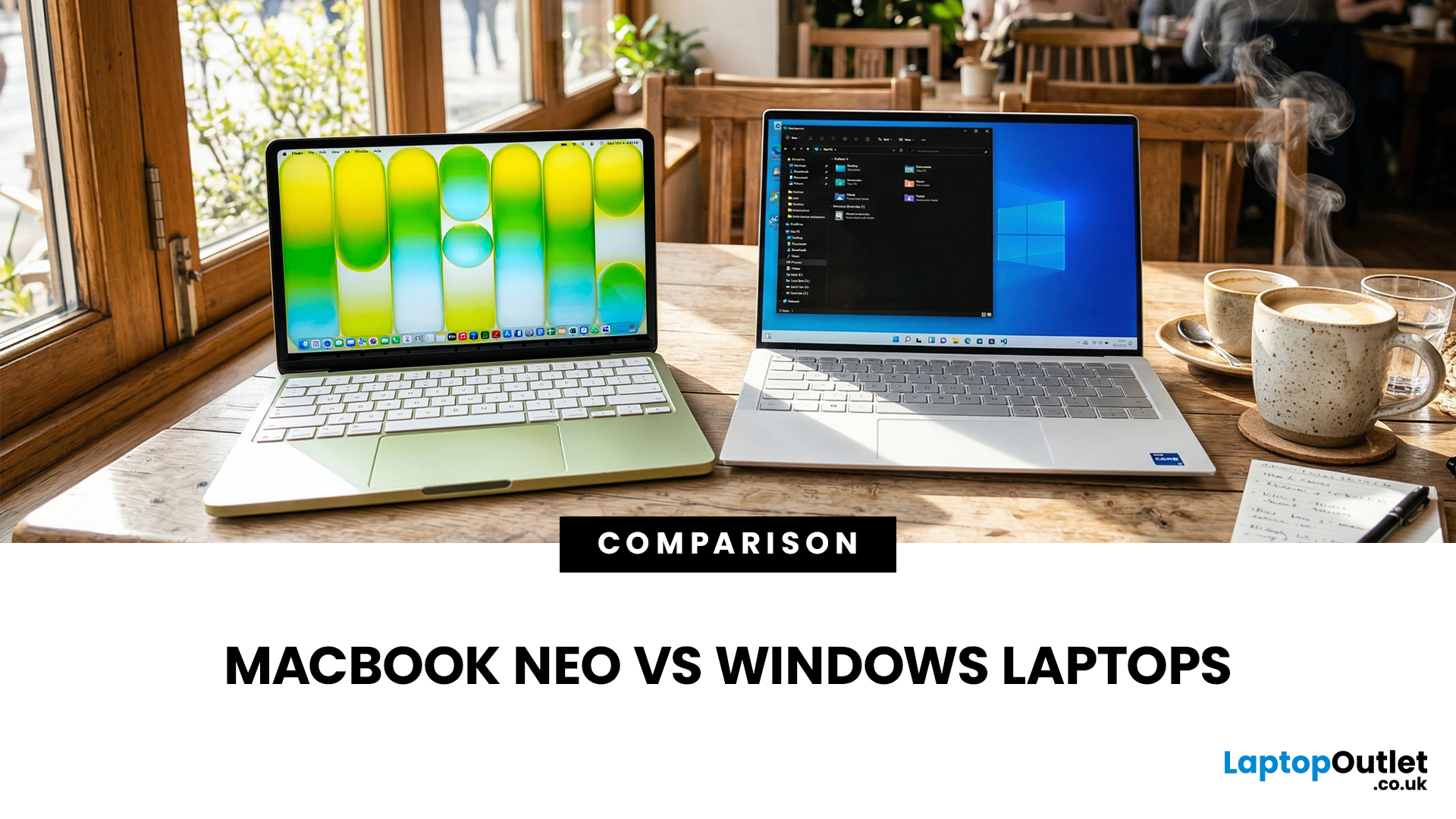
If you are comparing MacBook Neo vs Windows laptops, you are really asking one question: should you buy Apple’s cheapest Mac, or get a budget Windows laptop with more ports and more choice?
MacBook Neo is new, starts at £599, and is designed to be a simple, premium-feeling everyday laptop with macOS, long battery life, and strong call quality.
Budget Windows laptops can offer more screen sizes, more ports, and sometimes better upgrade options. But quality is inconsistent in this price range, and that’s where Neo tries to win.
Below is the practical, buyer-focused breakdown.
10-Second Answer Box
Choose MacBook Neo if
- You want the cleanest everyday experience for browsing, school, docs, and calls
- You value build quality and trackpad feel
- You want a laptop that stays fast and quiet for years, without tweaking settings
Choose a budget Windows laptop if
- You want more ports like HDMI and USB-A built in
- You need a bigger screen for the money
- You want the flexibility of Windows software and lots
Last Updated: March 09, 2026
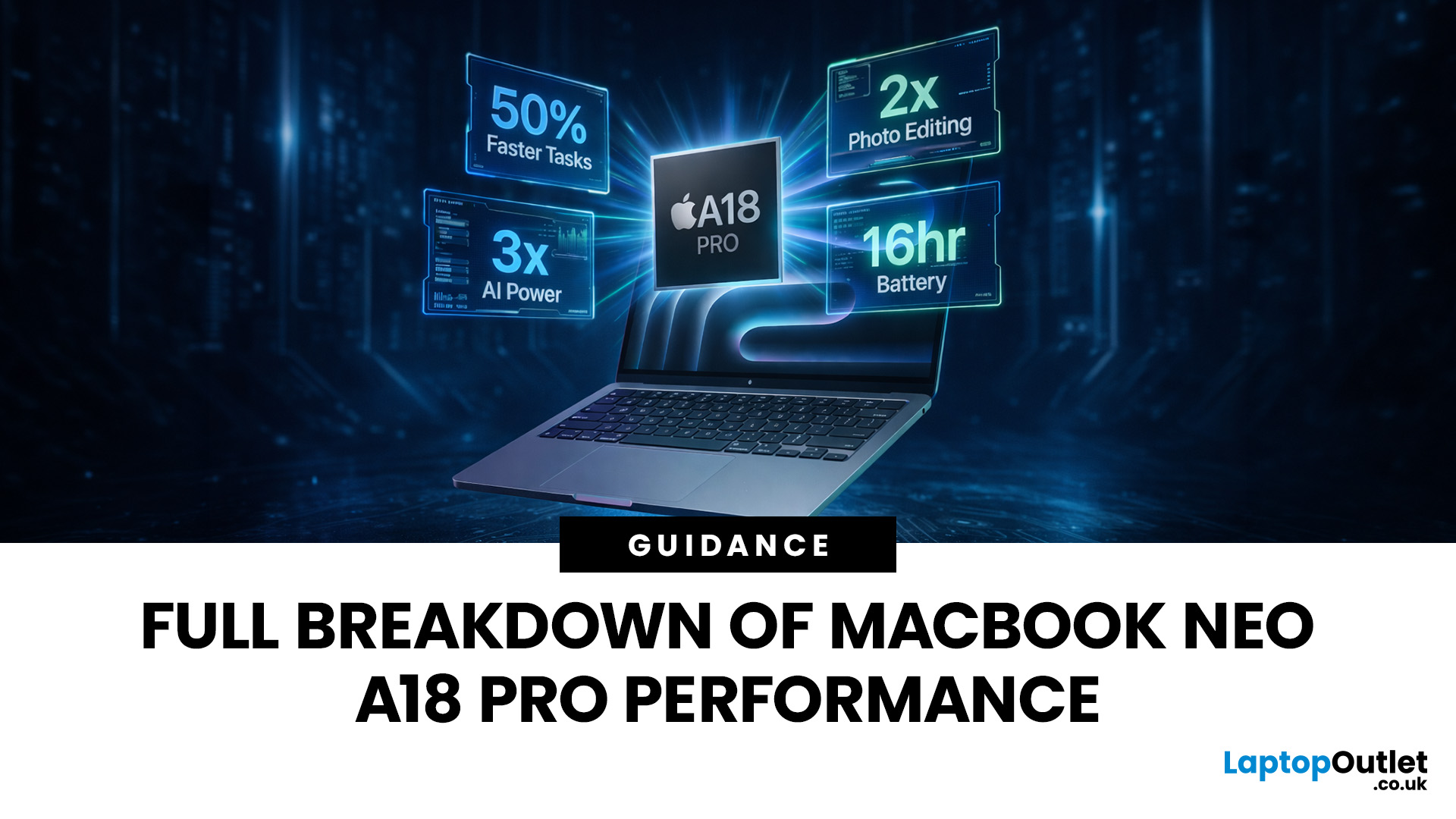
Apple made a bold move on 4 March 2026. It introduced the MacBook Neo — a laptop that starts at just £599 and runs on a chip that, until now, only lived inside iPhones.
That chip is the A18 Pro. And its arrival in a Mac laptop raises a very obvious question: what does it actually mean for performance?
The answer is more interesting than you might expect. This article breaks it all down — the architecture, the real-world gains, the trade-offs, and who this machine is really built for.
What Is the A18 Pro Chip?
The A18 Pro is not a new chip. It first appeared in the iPhone 16 Pro in late 2024. But placing it inside a laptop is entirely new territory for Apple.
This is the first time Apple has ever used a mobile-class chip to power a Mac. That alone makes the A18 Pro MacBook Neo a significant moment in computing history.
The Core Architecture
Here is what sits inside the A18 Pro:
- 6-core CPU — 2 performance cores and 4 efficiency cores
- 5-core GPU — hardware-accelerated ray tracing included

Last Updated: April 28, 2026
Apple’s Studio Display and Pro Display XDR are among the most advanced monitors available for professionals. With ultra-sharp 5K and 6K resolutions, these displays are designed for creatives who need exceptional colour accuracy, brightness, and detail.
However, to get the best experience, you need a powerful MacBook with strong graphics performance and Thunderbolt connectivity. Apple’s latest MacBooks powered by M3, M4, M5, M5 Pro, and M5 Max chips bring major improvements in performance, AI capabilities, and external display support.
Can MacBooks Support the Studio Display or Pro Display XDR?
Yes. Most modern Apple Silicon MacBooks can connect to these displays.
Studio Display
- Resolution: 5K (5120 × 2880)
- Thunderbolt / USB-C connection
- Works with most Apple Silicon Macs
Pro Display XDR
- Resolution: 6K (6016 × 3384)
- Requires high bandwidth Thunderbolt connection
- Best paired with MacBook Pro models
Modern MacBooks with Thunderbolt ports and Apple Silicon chips can drive high-resolution

