



How to Install and Set Up a Brother Printer Easily
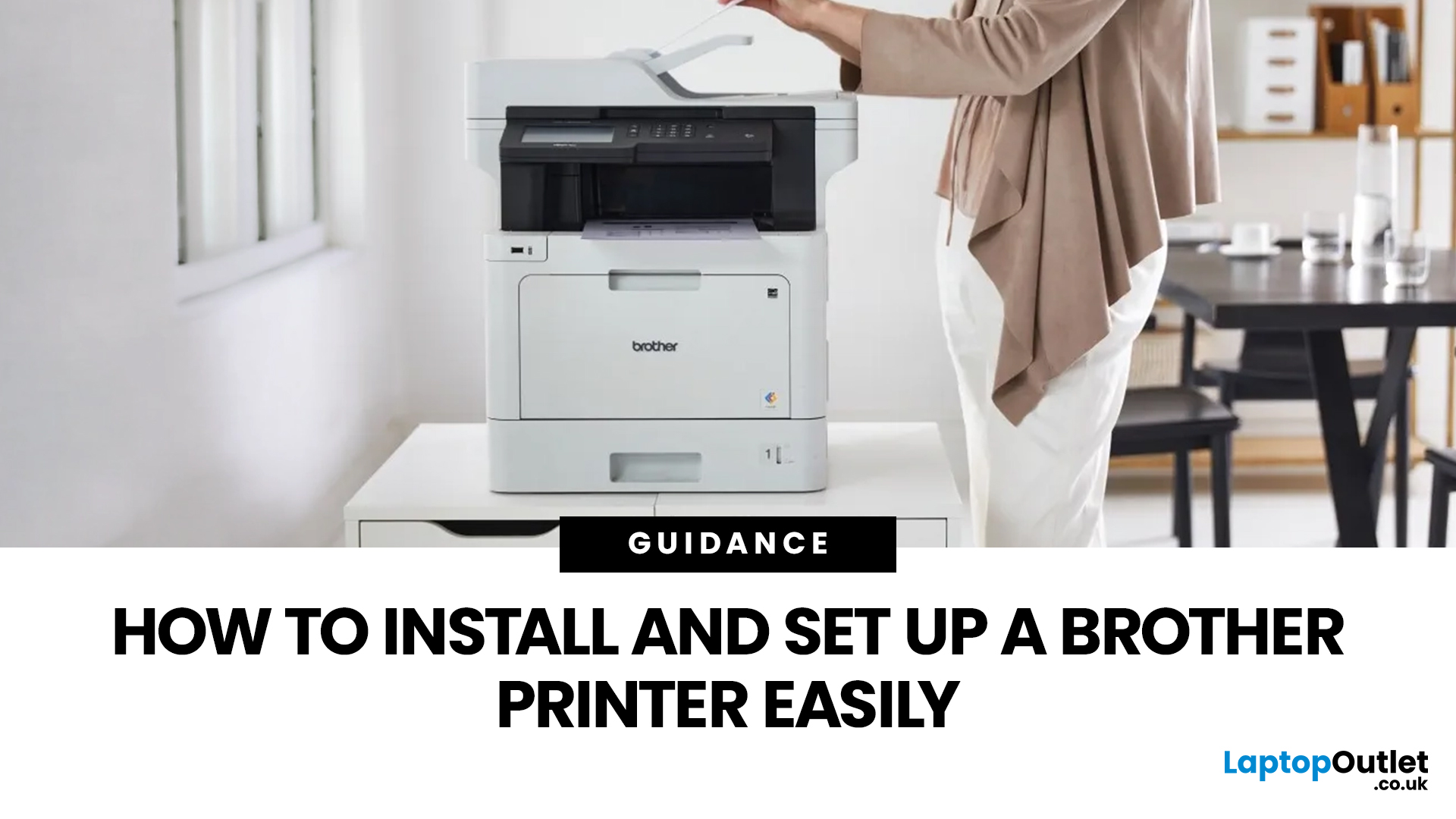
Setting up a new printer should be simple, but for many users, it can quickly become confusing. From installing toner to connecting to Wi-Fi and downloading drivers, even small steps can feel overwhelming if you are not sure what to do first.
This guide is designed to make Brother printer setup straightforward and stress-free. Whether you are installing a printer for the first time, replacing an old device, or setting up a wireless connection in a home or office environment, this step-by-step guide will walk you through everything you need to know.
By the end of this guide, you will have your Brother printer fully installed, connected, and ready to use.
Before You Start: What You Need for Brother Printer Setup
Before jumping into the installation process, it helps to prepare everything in advance. This avoids interruptions and makes the setup process much smoother.
You will typically need:
- Your Brother printer
- Power cable
- Ink cartridges or toner (included with most models)
- Paper for testing
- A laptop, desktop, or smartphone
- A stable Wi-Fi connection (for wireless setup)
If you are setting up a printer for home use, make sure you place it somewhere accessible and well-ventilated. For office setups, consider positioning it where multiple users can easily connect.
If you are still deciding on a printer, you can explore different options such as home printers, all-in-one printers, or laser printing solutions depending on your needs.
Step 1: Unbox and Prepare Your Brother Printer
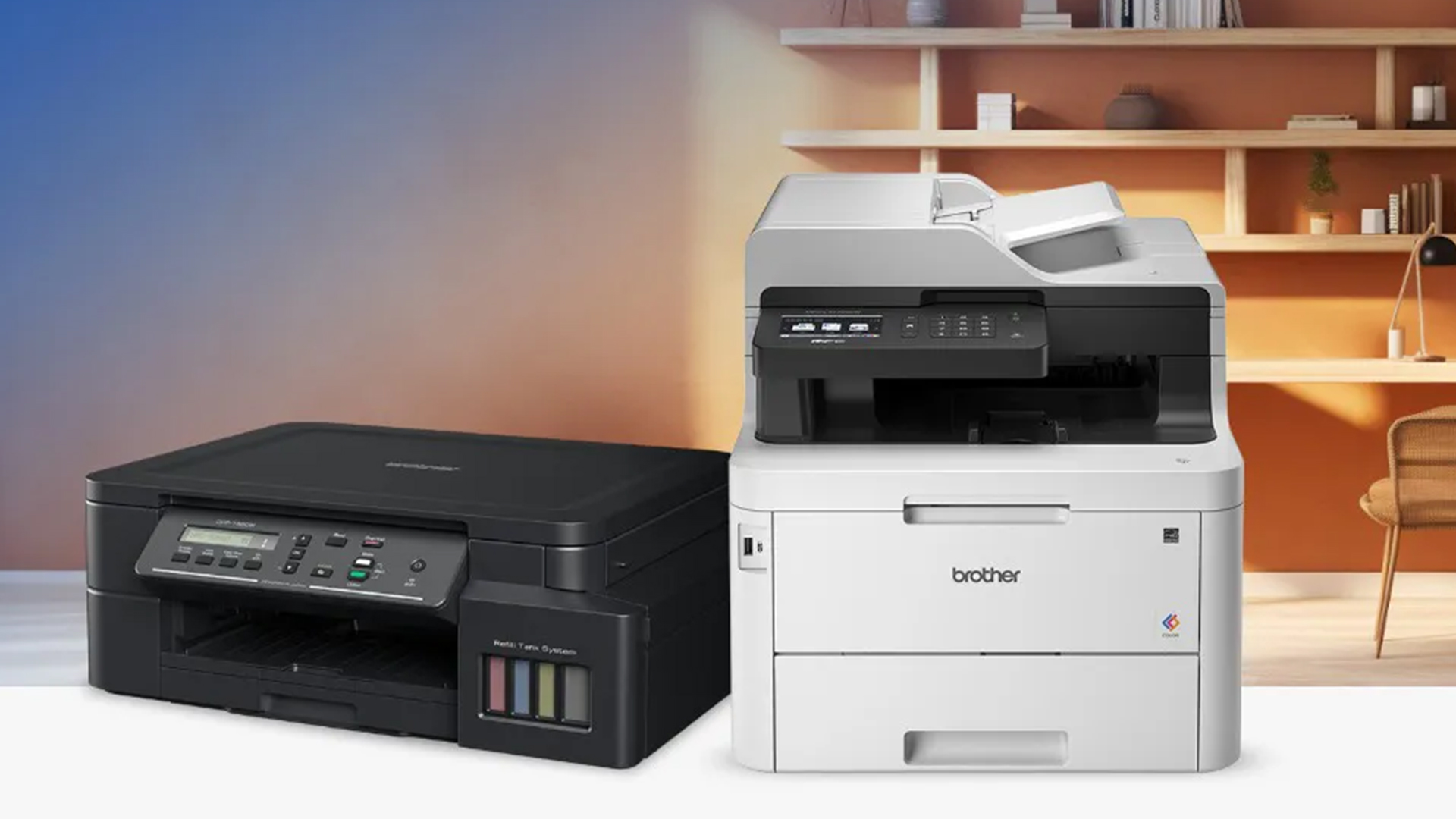
The first step in any Brother printer installation is unpacking and preparing the device correctly.
Start by removing all packaging materials carefully. Printers often include protective tapes and internal packaging that must be removed before use.
Key things to check during unboxing:
- Remove all protective tapes from inside and outside
- Ensure no packaging material is left in the paper tray
- Check that all components are included
- Place the printer on a flat, stable surface
Once unboxed, connect the power cable and turn the printer on. At this stage, do not connect it to your computer yet. That will come later during the configuration process.
Step 2: Install Ink or Toner Cartridges
This step depends on whether you have an inkjet or laser Brother printer.
For inkjet printers
Inkjet printers use liquid ink cartridges. To install them:
- Open the ink cartridge cover
- Insert each cartridge into the correct colour slot
- Push until it clicks into place
- Close the cover securely
For laser printers
Laser printers use toner cartridges. These usually come pre-installed but may need preparation.
To install toner:
- Open the front cover
- Remove the toner unit
- Gently shake it from side to side
- Remove any protective seal
- Reinsert the toner securely
If you are learning how to install toner in a Brother printer, the key is to ensure it is seated properly and all packaging seals are removed.
Once done, they printer may take a few minutes to initialise.
Step 3: Load Paper Correctly
Loading paper sounds simple, but incorrect loading can lead to paper jams or print errors later.
To load paper:
- Pull out the paper tray
- Adjust the paper guides to fit your paper size
- Place paper neatly without overfilling
- Slide the tray back into the printer
Make sure the paper is aligned properly and not bent or damaged.
For home users, standard A4 paper is usually sufficient. For office use, you may need to adjust settings based on document type.
Step 4: Connect Your Brother Printer
This is one of the most important parts of the setup process. You can connect your printer in two main ways:
Option 1: USB connection (wired)
This is the simplest method:
- Connect the printer to your computer using a USB cable
- The system may automatically detect the printer
- Install drivers if prompted
This option is best for single-user setups.
Option 2: Wireless connection (Wi-Fi)
Wireless setup is more flexible and recommended for most users.
To connect your Brother printer to Wi-Fi:
- Go to the printer’s control panel
- Select network settings
- Choose your Wi-Fi network
- Enter your Wi-Fi password
- Confirm connection
Once connected, your printer will be accessible from multiple devices.
Wireless setup is ideal for:
- homes with multiple users
- shared office environments
- printing from smartphones and tablets
Step 5: Install Brother Printer Drivers and Software
Drivers allow your computer or device to communicate with the printer.
To install drivers:
- Visit the official Brother support website
- Search for your printer model
- Download the correct drivers
- Run the installation file
- Follow on-screen instructions
Most modern systems will guide you through the process automatically.
You may also install additional software for:
- scanning
- mobile printing print
- printer management
This step is essential for proper Brother printer configuration.
Step 6: Print Your First Test Page
Once everything is installed, it is important to test your printer.
To print a test page:
- Open a document or test file
- Select your Brother printer
- Click print
Check for:
- print quality
- alignment
- colour accuracy
- connection stability
If the test print works correctly, your setup is complete.
How to Print Wirelessly to a Brother Printer
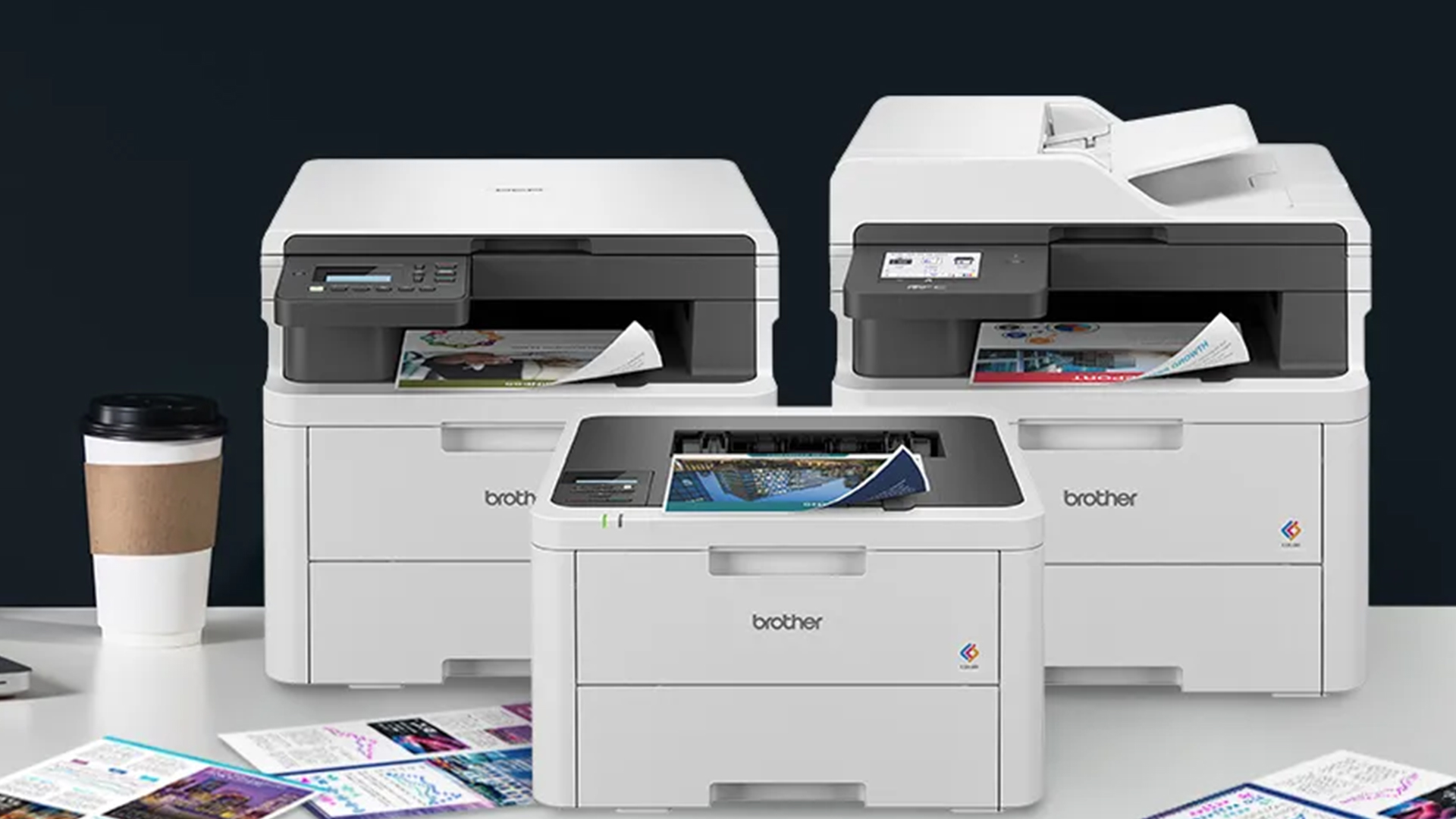
Wireless printing is one of the most useful features for modern users.
Once your printer is connected to Wi-Fi, you can print from:
- laptops
- smartphones
To print wirelessly:
- ensure your device is on the same network
- select the printer from available devices
- send your print job
Many Brother printers also support mobile apps, making printing even easier.
Wireless printing is especially useful for:
- students sharing devices
- families
- remote workers
Common Brother Printer Setup Problems (and Fixes)
Even with simple steps, users can face issues during installation.
Here are some common problems and how to fix them.
Printer not detected
- ensure cables are connected properly
- restart both printer and computer
- reinstall drivers
Wi-Fi connection failure
- check password accuracy
- restart router
- move printer closer to router
Poor print quality
- check ink or toner installation
- clean print heads (inkjet)
- adjust settings
Paper jams
- reload paper correctly
- remove jammed sheets carefully
Driver installation issues
- download the correct driver version
- check system compatibility
Most issues can be resolved quickly with basic troubleshooting.
Tips for a Smooth Brother Printer Setup
To avoid common mistakes, keep these tips in mind:
- always follow the correct setup order
- use official drivers and software
- ensure stable internet connection
- do not skip test printing
- keep the printer firmware updated
These small steps can prevent bigger issues later.
Choosing the Right Brother Printer for Easy Setup
Not all printers offer the same setup experience. Some are easier to install and configure than others,
If ease of setup is important, consider:
- all-in-one printers for flexibility
- wireless printers for convenience
- home printers for simpler needs
You can explore options such as:
- laser printing solutions
- best Brother printers for home use
Choosing the right printer makes setup much easier from the start.
Who This Setup Guide Is For
This guide is designed for a wide range of users:
- students setting up a printer for coursework
- professionals working from home
- families needing shared printing
- beginners installing a printer for the first time
Whether you are tech-savvy or completely new, these steps are designed to be easy to follow.
Brother Printer Setup Checklist
Before you finish, use this quick checklist:
- Printer unboxed and powered on
- Ink or toner installed
- Paper loaded correctly
- Connected to Wi-Fi or USB
- Drivers installed
- Test page printed successfully
If all of these are complete, your printer is ready to use.

Final Thoughts
Setting up your best Brother printer does not have to be complicated. Once you understand the process, it becomes a straightforward task that can be completed in minutes.
The key is to follow the steps in order:
- prepare the printer
- install ink or toner
- connect properly
- install drivers
- test functionality
If you take the time to set it up correctly, your printer will work smoothly from the start. For those still exploring options, browsing different printers, Brother printers, or home printers can help you find the right device before beginning the setup process.

Brother Printer Setup: Common Questions Answered
How long does it take to set up a Brother printer?
Most setups take between 15 to 30 minutes, depending on whether you are using a wired or wireless connection.
Can I set up a Brother printer without a computer?
Yes, many models support setup using smartphones or tablets through wireless configuration.
Do I need to install drivers manually?
In most cases, yes. Installing the correct drivers ensures full functionality.
Why is my Brother printer not connecting to Wi-Fi?
This is usually due to incorrect network details or signal issues. Restarting the router and reconnecting often fixes it.
Can I use my Brother printer with multiple devices?
Yes, especially if it is connected via Wi-Fi.
| Read More: |
| What Is the Best Printer for Photos |
| Brother Printer Troubleshooting Guide: Fix Common Issues |
| Everything You Need To Know About Brother Printers |
Related Articles

Last Updated: July 03, 2026
Brother is a prevalent brand in the printing world, and its printers are a popular choice for home and business use. Brother printers offer many models with wireless connectivity, high-speed printing, and cost-effective solutions. Whether looking for an Inkjet, laser or all-in-one printer, Brother has something for you. Engineered to provide sharp and professional quality prints, Brother printers feature a user-friendly interface and features like automatic duplex printing, cloud-based printing options, and mobile device compatibility.
We have tested and reviewed over 100 of the best printers, ranking Brother high among the competition. So, here we are rounding up the best picks for Brother printers you can buy in 2026. These printers have been selected based on their performance, features, and overall user satisfaction. If you're a student, a professional, or a small business owner, you're sure to find the ideal Brother printer to meet your specific printing needs.
So, let's jump right
Last Updated: June 18, 2026
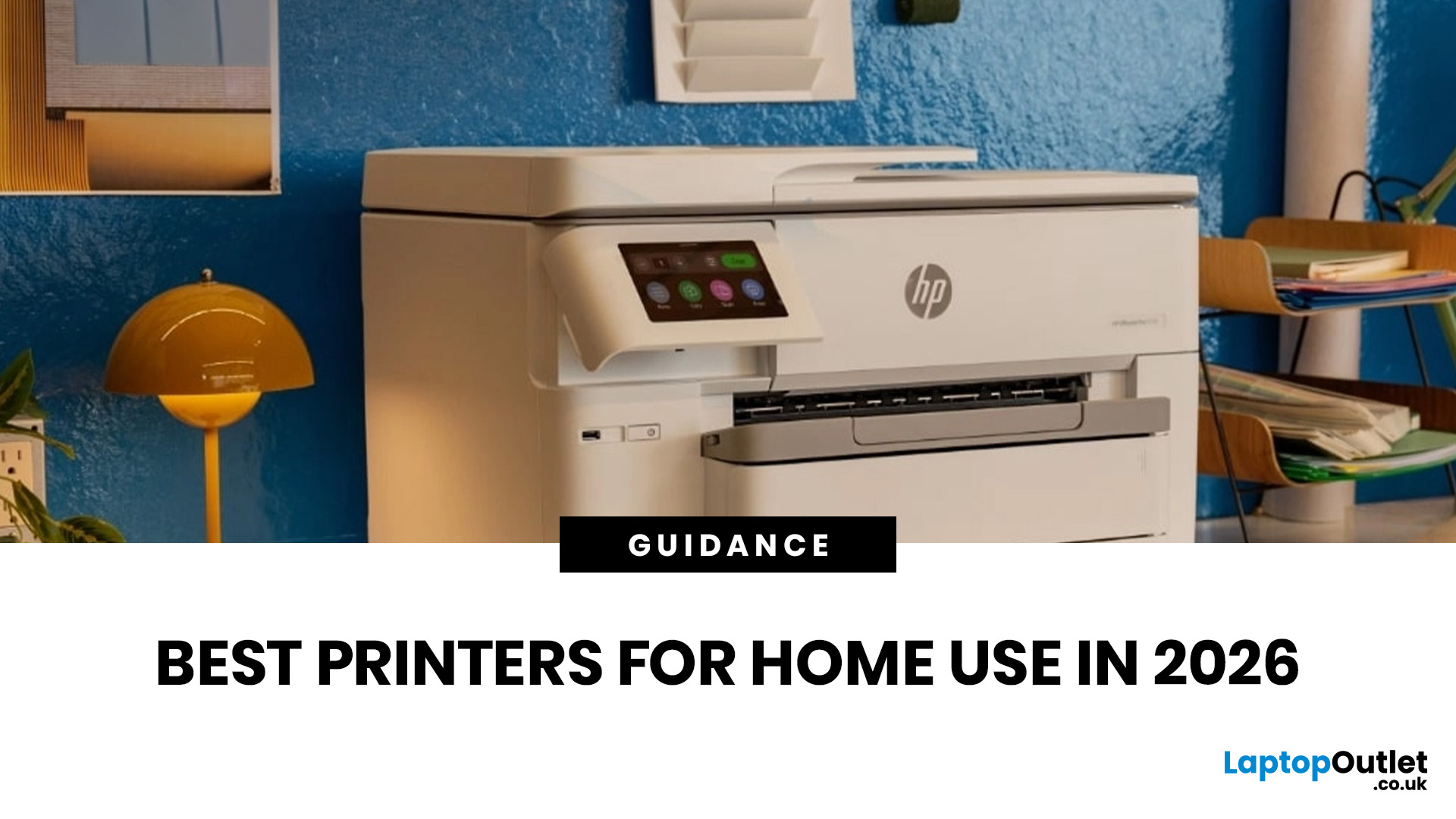
Buying the best home printer can seem overwhelming; the market is flooded with multiple brands offering a host of features. You must determine which printer suits your needs by looking at their specifications, running a comparison among different models, and making the final selection. Remember, we have a wide variety of exceptional printer models, so set aside ample time for this task.
However, if you are short on time, which we assume you are, just read this blog. It provides a curated list of the best computer printers for home use. They are suitable for everyday printing, especially at home, delivering professional-standard results. So, let’s look at them.
Types of Printers: Inkjet vs. Laser
Before you choose the right printer, it helps to know about inkjet and laser printers, the two main printer types. The following comparison will assist you in choosing the right type for your needs:
| Feature | Inkjet Printers | Laser Printers |
| Usage | Colour printing (photos, graphics) | Fast, high-volume |
Last Updated: October 13, 2026
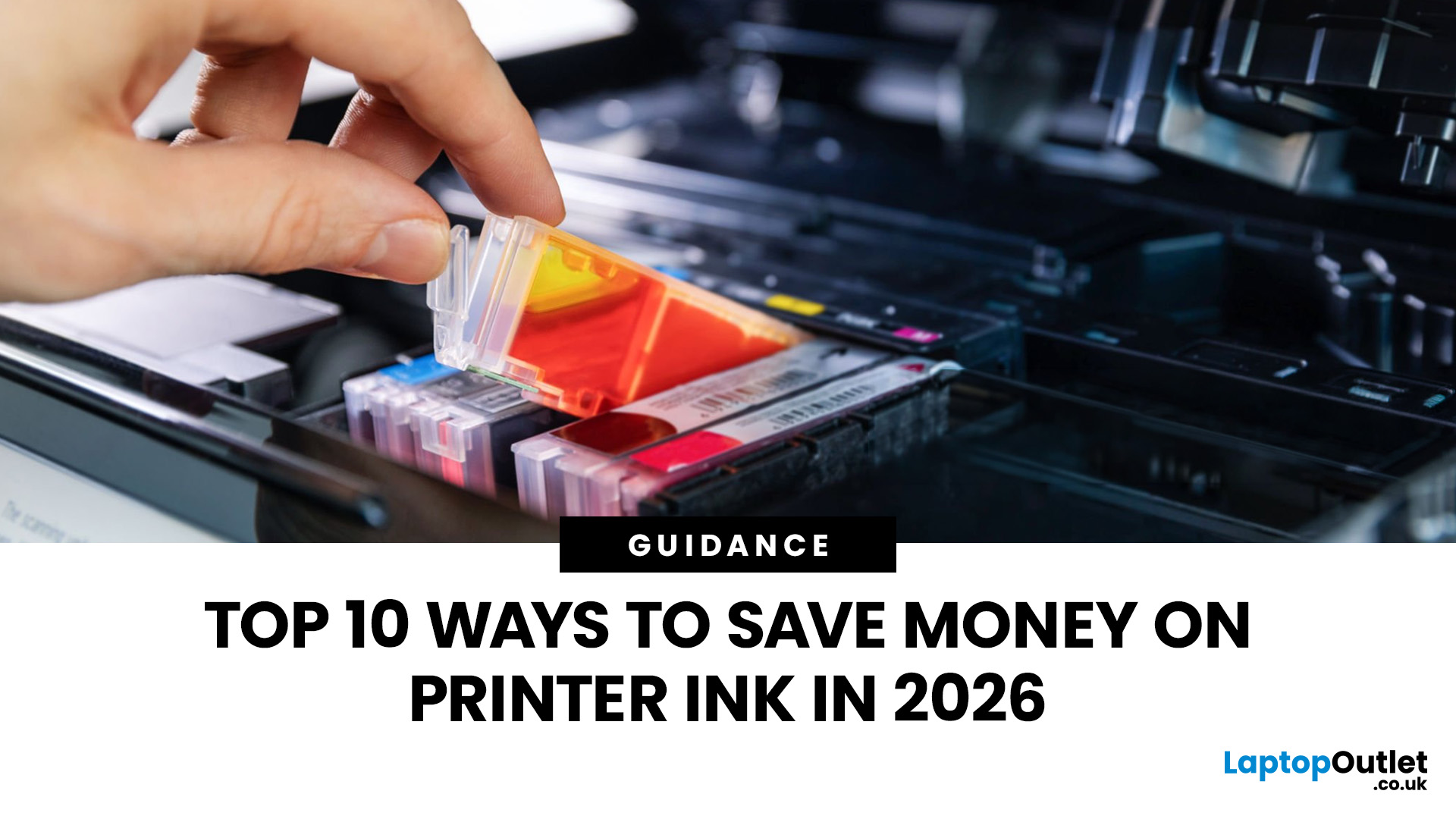
Printer ink is one of those costs that sneaks up on you. The printer itself can feel affordable, but the ongoing cartridge replacements are where the budget starts to hurt. If you print at home, for school, or for a small business, it can genuinely feel like you’re paying premium prices for something you go through far too quickly.
The good news is most people can cut printing costs without changing their whole setup. Small setting changes, smarter habits, and a couple of “do this once and forget it” tweaks can stretch cartridge life and reduce how often you’re buying replacements.
Here are 10 practical ways to reduce ink spend in 2026, without turning your prints into faint, unreadable pages.
1) Use Draft or Economy Mode for Everyday Printing
If you’re printing internal documents, rough drafts, return labels, school worksheets, or anything that doesn’t need to look perfect, switch to draft or economy mode. Many printers reduce ink density in this setting, so you use less ink per page while

Last Updated: October 03, 2025
Wireless Printing Made Easy
No more messy cables or complicated setups—connecting your HP printer to Wi-Fi lets you print from anywhere at home or work. Whether you’ve got a new printer or you’re reconnecting, this guide shows you exactly how to get it done.
What You’ll Need
Before you start, make sure you have:
- An HP wireless printer
- Wi-Fi network name (SSID) and password
- A laptop, PC, or smartphone connected to the same Wi-Fi network
How to Connect HP Printer to Wi-Fi – Step by Step
1. Use HP Auto Wireless Connect (For Compatible Models)
- Plug in and turn on your printer
- On your computer, install the HP Smart app or visit 123.hp.com
- Follow on-screen instructions to connect your printer to Wi-Fi automatically
Pro Tip: This is the easiest option if your printer supports it—no need to enter Wi-Fi credentials manually.
2. Use the Printer’s Control Panel (Manual Setup)
- Press the Wi-Fi or Wireless icon on your printer’s screen
- Go to Settings > Wireless Setup Wizard

Last Updated: April 03, 2026
Mobile Printing Made Simple
Need to print a document, photo, or ticket from your phone? You don’t need to transfer files to a laptop first. Mobile printing lets you print directly from your smartphone or tablet to a wireless printer—fast and hassle-free. Here’s how to do it on both iPhone and Android.
What You’ll Need
Before you start:
- A Wi-Fi-enabled printer
- Your smartphone or tablet
- Both devices connected to the same Wi-Fi network
How to Print from an iPhone (iOS)
1. Use Apple AirPrint
Most modern printers support AirPrint, Apple’s built-in wireless printing feature.
Steps:
- Open the document, photo, or webpage you want to print
- Tap the Share icon (box with arrow)
- Tap Print
- Select your printer from the list
- Choose print settings (number of copies, pages, etc.)
- Tap Print
2. Use the Printer Manufacturer’s App
- If your printer doesn’t support AirPrint:
- Download the manufacturer’s app (e.g., HP Smart, Canon PRINT, Epson iPrint)
- Follow the in-app instructions
Last Updated: June 15, 2026
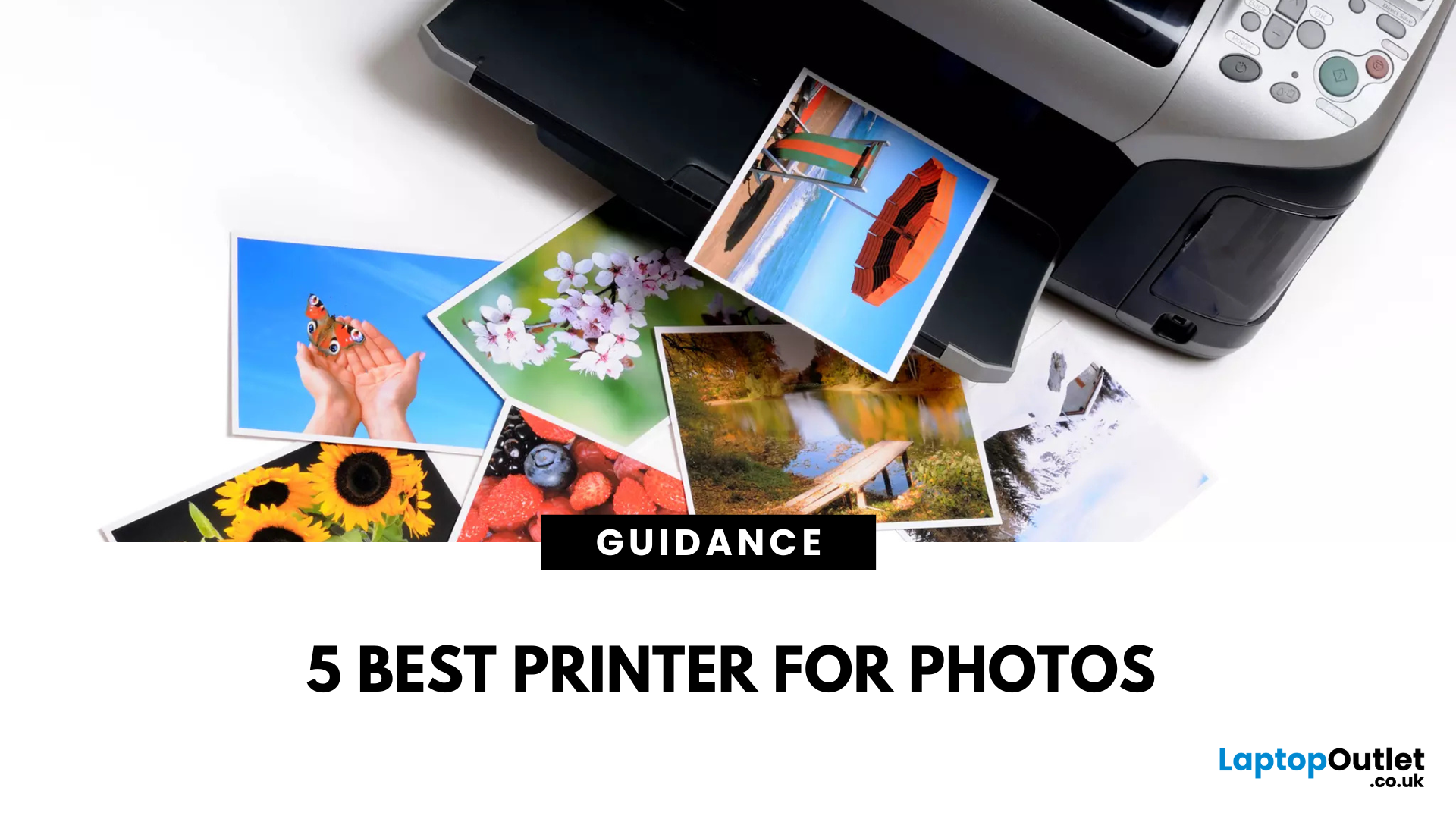
Want to preserve precious memories or showcase creative work? Nothing quite matches the beauty of a beautifully printed photograph. Whether you’re an aspiring photographer, a creative hobbyist, or simply someone who values high-quality photo prints, choosing the right printers for photos can make all the difference.
But with so many options on the market, the big question remains: What is the best photo printer?
In this guide, we’ll explore some of the finest photo printers available today, comparing their features, print quality, and usability. Each photop/picture printer in our list caters to different needs, from everyday photo enthusiasts to professional creators seeking gallery-worthy prints.
Canon PIXMA G650: Best for High-Volume Printing
Who is it for?
For creative users who need bulk photo printing without sacrificing quality, the Canon PIXMA G650 is a smart and sustainable choice.
Top Features:
-
Refillable ink tanks drastically lower per-photo cost.
-
Massive yield of up to
Last Updated: September 09, 2025
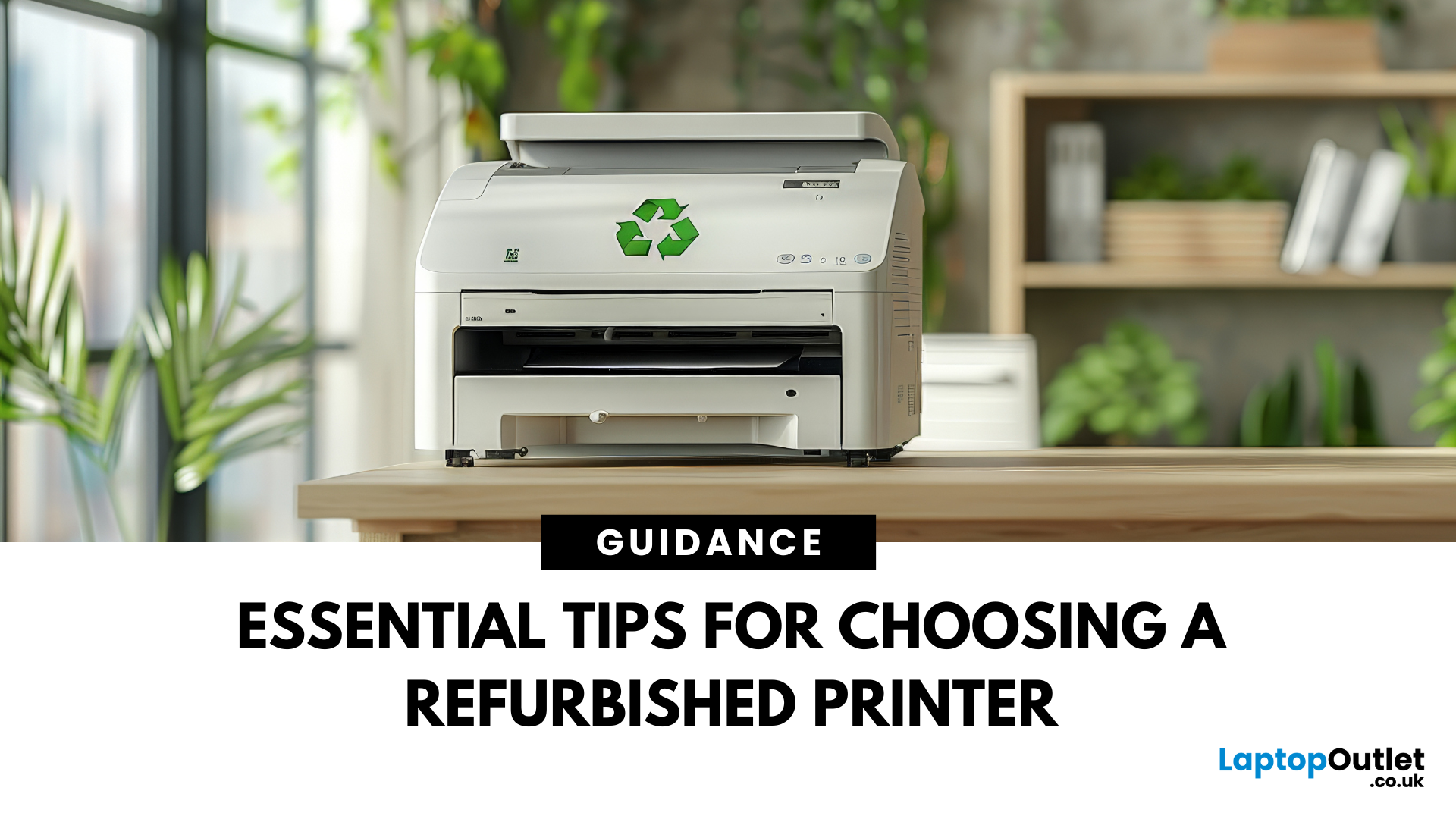
Printers might not get the same hype as laptops or smartphones, but for students, professionals, small businesses, and even home offices; they're essential. Whether it’s printing out coursework, client contracts, shipping labels, or your child’s homework, a reliable printer is still a core part of modern-day convenience.
But buying a brand-new printer can quickly become expensive, especially if you want high-speed printing, scanning, copying, or colour capabilities. That’s where buying a refurbished printer becomes a smart alternative. A refurbished printer can save you a considerable amount of money without compromising performance or quality if you know what to look for.
In this guide, we’ll walk you through everything you should consider before buying a refurbished printer, from print quality and page yield to connectivity and warranty.
What to Look for When Buying a Refurbished Printer – A Complete Breakdown
Buying a refurbished printer can deliver excellent value, but you need to look
Last Updated: April 03, 2026
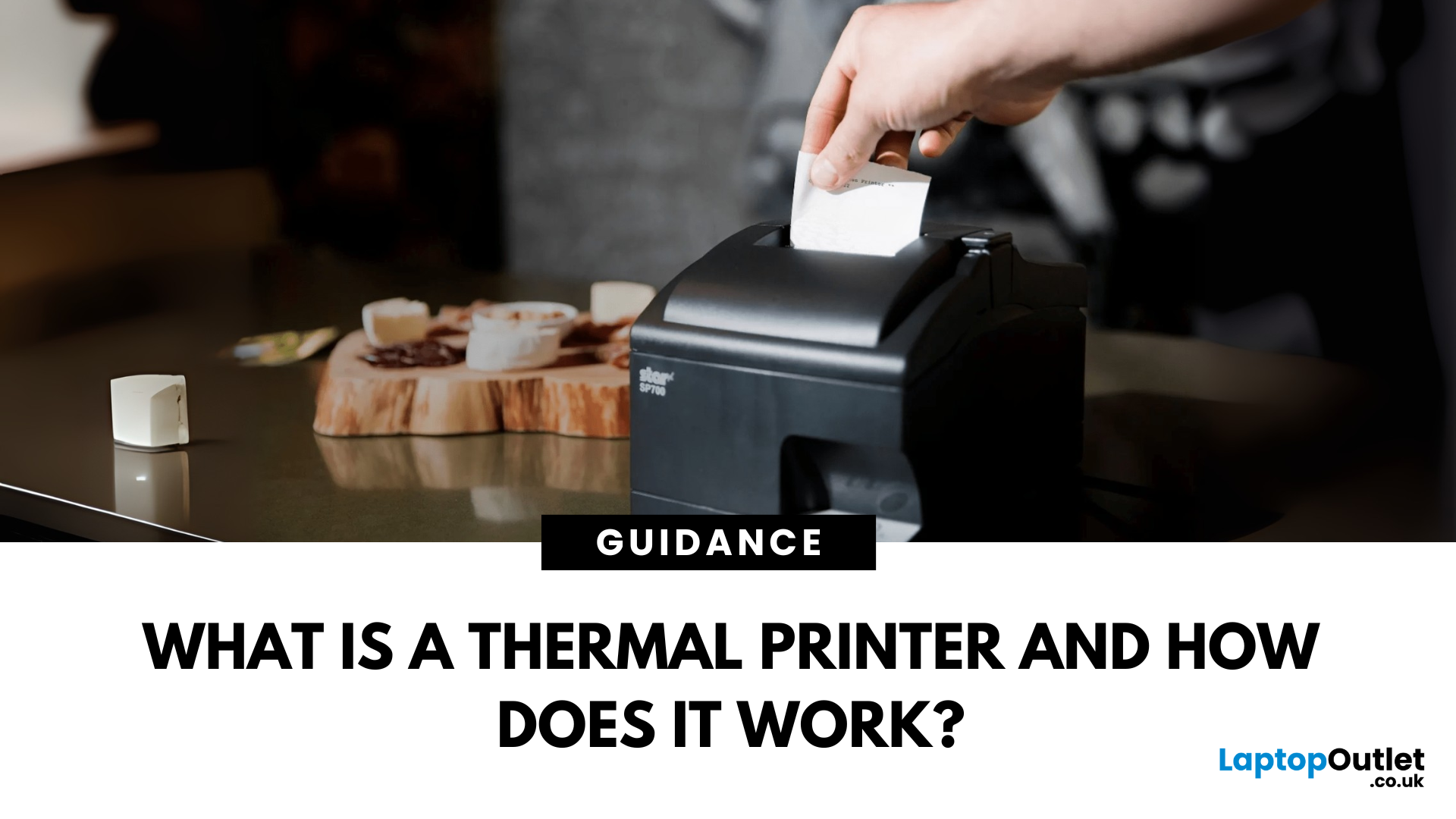
Thermal printers are essential tools across retail, healthcare, manufacturing, and logistics sectors. They are fast, efficient, and remarkably low maintenance. If you've ever wondered how a small device without ink or toner can produce crisp, high-speed prints especially for labels and receipts - this in-depth guide will give you the full picture. Whether you're using a mini thermal printer at a pop-up stall or a thermal printer for shipping labels in a warehouse, the core principles remain the same.
From the science behind thermal printing to choosing between direct thermal and thermal transfer models, this blog explores how thermal printers work, what they're best used for, their benefits and drawbacks, and how to maintain them. Let's dig deep.
What Is a Thermal Printer?
A thermal printer is a specialised type of printer that produces images or text using heat. Unlike inkjet or laser printers that rely on ink cartridges or toner, thermal printers generate output by applying heat to a
Last Updated: April 03, 2026
Tired of high printing costs or dealing with slow, unreliable printers? You’re not alone. Choosing the right printer, especially a refurbished one, can be tricky, but it doesn’t have to be.
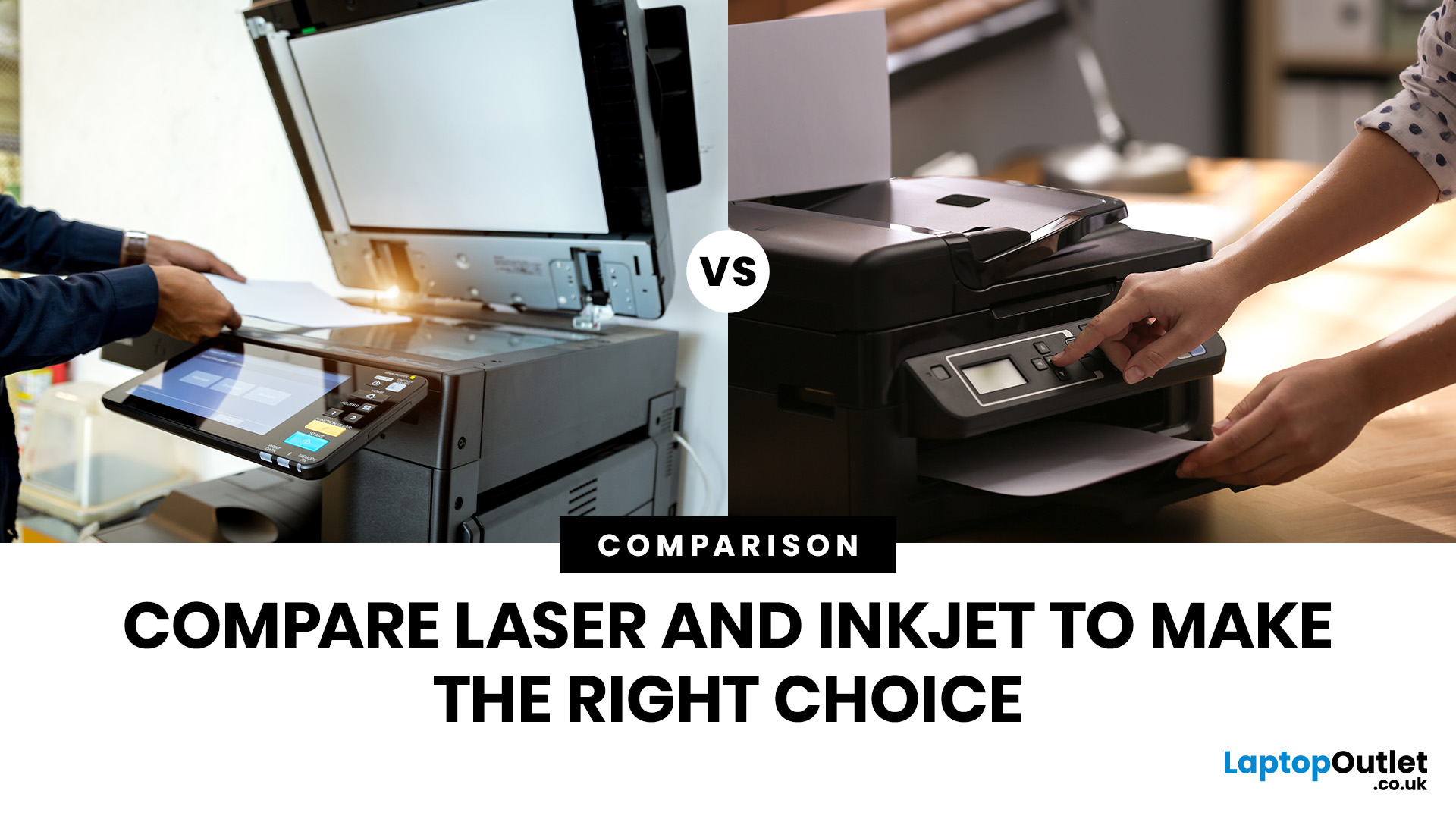
Whether you're looking for speed, colour quality, or overall value, understanding refurbished laser vs inkjet printers is key. Each has its own strengths, and the best choice depends on how you plan to use it.
In this blog, we’ll break it all down in simple terms helping you find the right printer for your home, office, or study setup, without the stress or confusion.
Let’s dive in.
Understanding the Two Types: Laser vs. Inkjet Printers
Before you decide which refurbished printer is right for you, it helps you to understand how each type works and what they’re best at.
Laser Printers
Laser printers use a completely different method to print pages. Instead of spraying ink, they use a laser beam, heat, and powdered toner to produce text and images. These printers are known for speed, consistency, and
Last Updated: April 22, 2026
In the late 1980s, owning a printer wasn’t simple, unlike today - it was expensive, rare, and felt like a luxury. Printing was something most people could only dream of having at home.
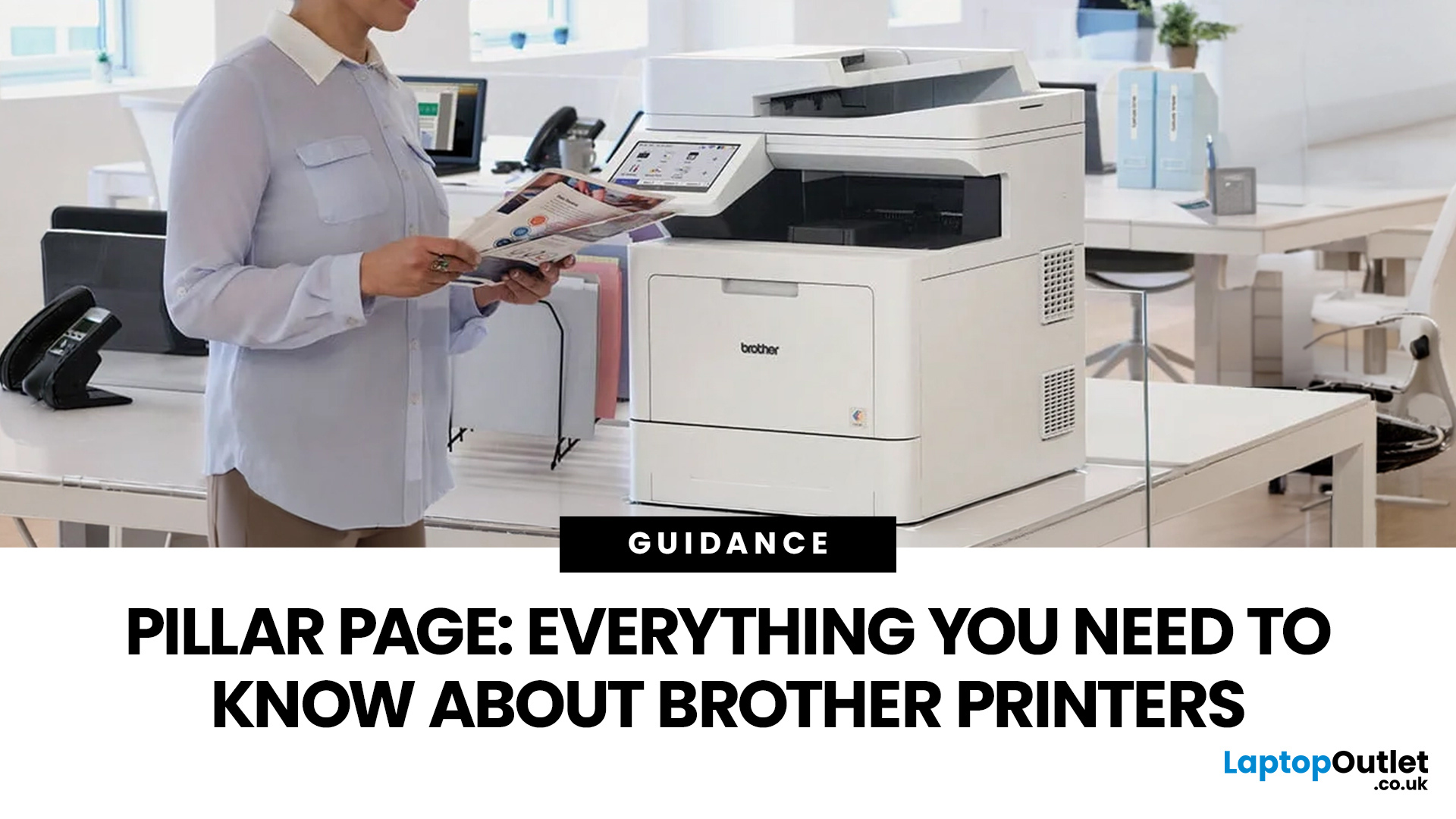
Then Brother stepped onto the scene, redefining what a printer could be. They didn’t just enter the market, they changed it. By combining reliability, efficiency, and affordability, their printers quickly became a staple in offices and homes, setting a new standard for what printing could be.
Brother printers are widely used across the UK because they offer a practical mix of reliability, performance, and ease of use. However, with so many options available, inkjet, laser, all-in-one, wireless, the real challenge is understanding which one actually suits your needs.
This guide shows how their reliable, affordable, and easy-to-use printers fit real-life needs and helps you pick the right one without the tech overload.
What Makes Brother Printers So Popular?
Brother has built its reputation by focusing on

