



How to Change Ink in a Canon Printer: Step-by-Step Guide
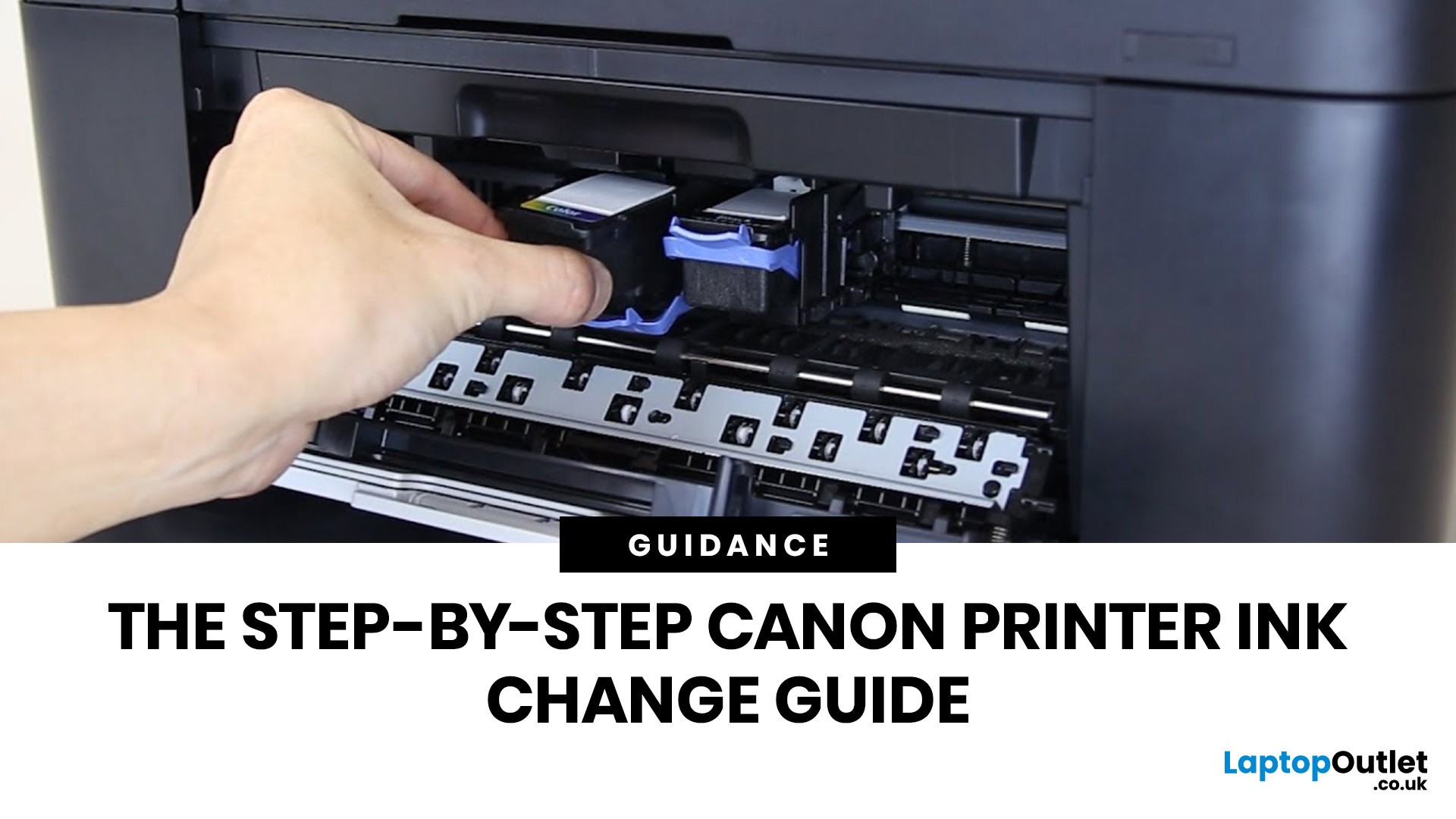
Running out of ink at the wrong moment is genuinely frustrating. Knowing how to change ink in a Canon printer quickly and confidently means less downtime, less wasted paper, and no panicked Googling mid-print.
Canon makes some of the most reliable inkjet printers on the market, and replacing the ink is one of those tasks that feels daunting the first time but becomes routine very quickly. This guide covers everything from the tools you need to the steps themselves, plus tips on cartridge costs, common mistakes, and what to do if problems persist after installation.
What You Need Before You Start
Before diving into the steps, it's worth taking a moment to get everything in order. A well-prepared workspace makes a Canon printer cartridge change much smoother and avoids unnecessary mess or confusion.
Here's what to have ready:
- The correct replacement cartridge for your specific Canon model
- A clean, flat surface to work on
- A tissue or lint-free cloth for any small drips
Always check your printer's model number before buying cartridges. It's usually printed on a label on the front or underside of the device.
How to Change the Ink in a Canon Printer
The full process is simpler than you might expect. Once you understand how to install an ink cartridge in a Canon printer from start to finish, the entire job takes under five minutes and quickly becomes second nature.
Step 1: Power On the Printer
Switch on your Canon printer and wait for it to finish its initialisation cycle (you will hear the internal gears moving). The cartridge carriage won’t move to the replacement position if the printer is switched off. If the printer is already on, ensure any error messages on the LCD screen are cleared so the carriage knows to slide into view.
Step 2: Open the Cover
Lift the scanning unit or the front output tray cover. On most PIXMA models, the cartridge carriage will automatically slide to the centre of the rail.
Important: Never try to force the carriage to move by hand if it doesn't slide out; this can damage the timing belt. If it stays hidden, close the cover and try again.
Step 3: Remove the Old Cartridge
Depending on your model, either press gently down on the cartridge until it "clicks" out of its seat or squeeze the small plastic release tab on the front of the tank. Pull the cartridge towards you at a slight upward angle. Keep the nozzle (the bottom part) pointed away from your clothes or furniture, as a small amount of residual ink may still be present.
Step 4: Prepare the New Cartridge
Remove the cartridge from its plastic wrapper. For individual tanks, you will usually see a pull-tab (often yellow); remove this first to break the vacuum seal. Next, twist off the protective cap (almost always bright orange).
Avoid touching the gold-coloured copper contacts or the ink nozzles, as the natural oils on your skin can block the microscopic sprayers or cause a communication error with the printer.
Step 5: Insert the New Cartridge
Position the cartridge into the empty slot. If you are using individual tanks, ensure the colour on the label matches the colour-coded icon on the carriage. Slide it in at a slight upward angle, then push up or down (depending on your model) until you hear a distinct "click." If the cartridge has an LED light, it should now glow a solid red to indicate a successful connection.
Step 6: Close Up and Run a Test
Lower the printer cover or scanning unit. The printer will hum for a minute or two as it primes the new ink into the print head. Most Canon models will then display a prompt on the screen asking to perform an Alignment Check or a Test Print. Do not skip this; it ensures the new cartridge is calibrated with the paper, preventing blurry text or "banding" lines in your images.
Tips on How to Change the Ink Cartridge in a Canon PIXMA
The Canon PIXMA range is one of the most popular choices for UK homes and small offices. If you are specifically looking at how to change the ink cartridge in a Canon PIXMA, the steps above apply directly, though there are a few model-specific details worth knowing.
Many PIXMA models also double as multipurpose printers with built-in scanning and copying, but the cartridge process remains the same regardless of these extra features.
Individual vs. Combined Cartridge Setups
Canon uses different systems depending on whether your printer is an entry-level model or a dedicated photo printer.
|
Cartridge Setup |
Common Models |
Why It Matters |
|
Individual Ink Tanks |
PIXMA TS, TR, & high-end MG |
Great for value; you only replace the specific colour that runs out. |
|
Combined Tri-colour |
Entry-level MG & MX Series |
Simpler to manage with only two cartridges (Black & Colour) to swap. |
|
MegaTank (Refillable) |
PIXMA G-Series |
No cartridges at all; you pour bottled ink directly into high-capacity tanks. |
The TS and TR Series
On these models, replacing an ink cartridge works slightly differently as they often use five or more individual ink tanks. This typically includes a large PGBK (Pigment Black) for documents and a smaller BK (Photo Black) for images.
To change the ink on Canon PIXMA TS and TR models, simply follow the core steps above and replace only the specific tank indicated by the flashing light or the low-ink warning on your printer’s display.
How to Spot When a Cartridge Needs Replacing
Catching a low ink level before it causes problems saves you the hassle of reprinting pages. Canon's software will usually show a warning on your PC or Mac, but your prints will often give you early clues too. Once you spot these signs, it's time to change ink in a Canon printer before quality drops any further.
Watch out for:
- Faded or streaky text and images
- Colours printing inaccurately (blues appearing green, for example)
- Blank horizontal lines running through pages
- A flashing warning light or on-screen error code
Don't wait until the cartridge is completely dry. Change ink promptly when levels are low, as printing with an empty cartridge can damage the print head, which is a far more expensive fix.
Genuine vs Compatible Cartridges: What's the Difference?
One of the most common questions Canon users ask is whether to buy genuine cartridges or go with cheaper compatible alternatives. Both are widely available in the UK, and the right choice depends on what you're printing and how often.
Genuine Canon cartridges are designed specifically for your printer model. They deliver consistent colour accuracy and print quality, and using them won't affect your warranty.
Compatible cartridges are made by third-party manufacturers and are often considerably cheaper. They work well for everyday printing, though quality can vary between brands. Photo printing in particular tends to look sharper with genuine cartridges.
|
Cartridge Type |
Approx. UK Price |
Print Quality |
Warranty Impact |
|
Genuine Canon |
£8 - £20 |
Excellent |
None |
|
Compatible (third-party) |
£3 - £10 |
Good to very good |
May void warranty |
|
Remanufactured |
£4 - £12 |
Variable |
May void warranty |
For high-volume or photo printing, genuine cartridges are worth the extra spend. For standard home use, a reputable compatible brand is a perfectly reasonable choice.
Simple Ways to Lower Your Ink Costs
Learning how to put an ink cartridge in a Canon printer is a one thing; knowing how to keep your ink costs down is where you truly see the long-term value of your device.
Ink costs can add up quickly if you're not careful. A few simple habits go a long way towards getting more out of each cartridge and reducing how often you need to swap them.
- Use draft mode for everyday documents. Most Canon printers offer an economy or draft setting that uses noticeably less ink. It's ideal for internal documents, rough copies, or anything that doesn't need to look polished.
- Switch to black-only for text documents. If colour isn't needed, changing to black-only mode in your print settings extends the life of your colour cartridges considerably.
- Print regularly to prevent drying. Ink can dry in the nozzle if the printer sits unused for weeks at a time. A quick test print every week or so keeps ink flowing and prevents blockages from forming.
For businesses with higher print volumes, printers for business use with XL or XXL cartridge options reduce how often you need to replace ink and bring the cost-per-page down. If your workflow is mostly text-heavy documents, laser printing solutions use toner rather than ink and can be more economical at scale.
Mistakes to Avoid When Swapping Cartridges
Most errors when changing a Canon PIXMA ink cartridge for the first time are easy to avoid once you know what to look for. These are the ones that catch people out most often.
- Forgetting the protective tape. The cap or tape must come off before you install the cartridge. If it's still on, the printer won't detect it at all.
- Forcing the cartridge in. Canon cartridges only fit one way. If it's resisting, check the orientation rather than pushing harder. Forcing it risks damaging the slot.
- Cutting the power too early. Let the printer fully initialise after installation. Switching it off before it finishes can trigger error codes and means starting the whole process again.
- Buying the wrong cartridge. It's easy to grab the wrong model in a hurry. Always cross-check the cartridge number against your printer model before purchasing, especially if you have more than one printer at home or in the office.
What to Do If Problems Persist After Installing
Occasionally, a new cartridge won't resolve print quality issues straight away. This is usually down to a clogged or dirty print head rather than the cartridge itself.
- Run a print head cleaning cycle. Most Canon printers have a built-in cleaning function accessible through the device settings or Canon's software on your computer. Run it once, then do a test print to check the result.
- Check the cartridge is fully seated. If prints are still patchy, remove the cartridge and reinsert it firmly. A small gap or loose connection is often the cause.
- Run a print head alignment. After fitting a new cartridge, an alignment page ensures the heads are calibrated correctly. This is especially worth doing after replacing multiple cartridges at once.
If none of these steps resolve the issue, the print head may need a deeper clean or professional attention.
Could It Be Time to Upgrade Your Printer?
If your printer is ageing or cartridge costs feel out of proportion to what you're actually getting, it's worth exploring newer options. There are some excellent affordable Canon printers available that are noticeably more ink-efficient and cheaper to run than older models.
Browsing the full range of best printers at Laptop Outlet is a good way to compare options across different budgets and use cases. Whether you need something compact for home use or a higher-output model for a busy workspace, there's a strong selection to choose from.
If you're unsure which Canon model suits your household or office, our guide to buying Canon printers will help you.

Ready, Set, Print!
Changing the ink in your Canon printer is a quick, straightforward process once you've worked through it a couple of times. The key things to remember are to power on before opening the cover, remove the protective tape from the new cartridge, press it in until it clicks, and always run a test print afterwards.
Staying on top of ink levels, printing regularly to prevent nozzle blockages, and picking the right cartridge type for your habits will keep your printer running reliably for longer. Laptop Outlet stocks a wide range of Canon models, printer inks, and accessories to keep you printing without interruption.

A Few Things to Keep in Mind...
How do I change ink in a Canon printer without making a mess?
Hold the cartridge by its sides and avoid touching the nozzle or gold contacts. Keep a tissue nearby for any residual ink around the slot. If any ink gets on your skin, it cleans off easily with soap and water.
When should I change ink in a Canon printer?
Your printer will display a low ink alert on screen or through the Canon software installed on your computer. You may also notice print quality beginning to drop before the alert appears, with faded or streaky output being the most obvious sign.
What if the carriage won't move when I open the cover?
Make sure the printer is fully powered on and idle. If the carriage is stuck, turn the printer off and back on again. Never attempt to move it by hand, as this can cause lasting damage to the mechanism.
Can I use non-Canon cartridges in my printer?
Compatible third-party cartridges are widely available and often cost less. Canon recommends genuine cartridges for consistent quality, and using third-party options can sometimes affect your printer warranty.
How many pages will a Canon cartridge print?
It depends on print volume and page coverage. Standard cartridges typically yield between 180 and 400 pages. XL cartridges last considerably longer and are often better value for regular users.
Why is my printer not recognising the new cartridge?
The most common causes are a forgotten protective tape, a cartridge that isn't fully clicked in, or an incompatible cartridge number. Remove the cartridge, check all three, and reinstall firmly.
| Read More: |
| Top 10 Ways to Save Money on Printer Ink in 2026 |
| How to Connect a Canon Printer to WiFi? |
| A Complete Guide on How to Scan Documents Using a Canon Printer |
Related Articles

Last Updated: July 03, 2026
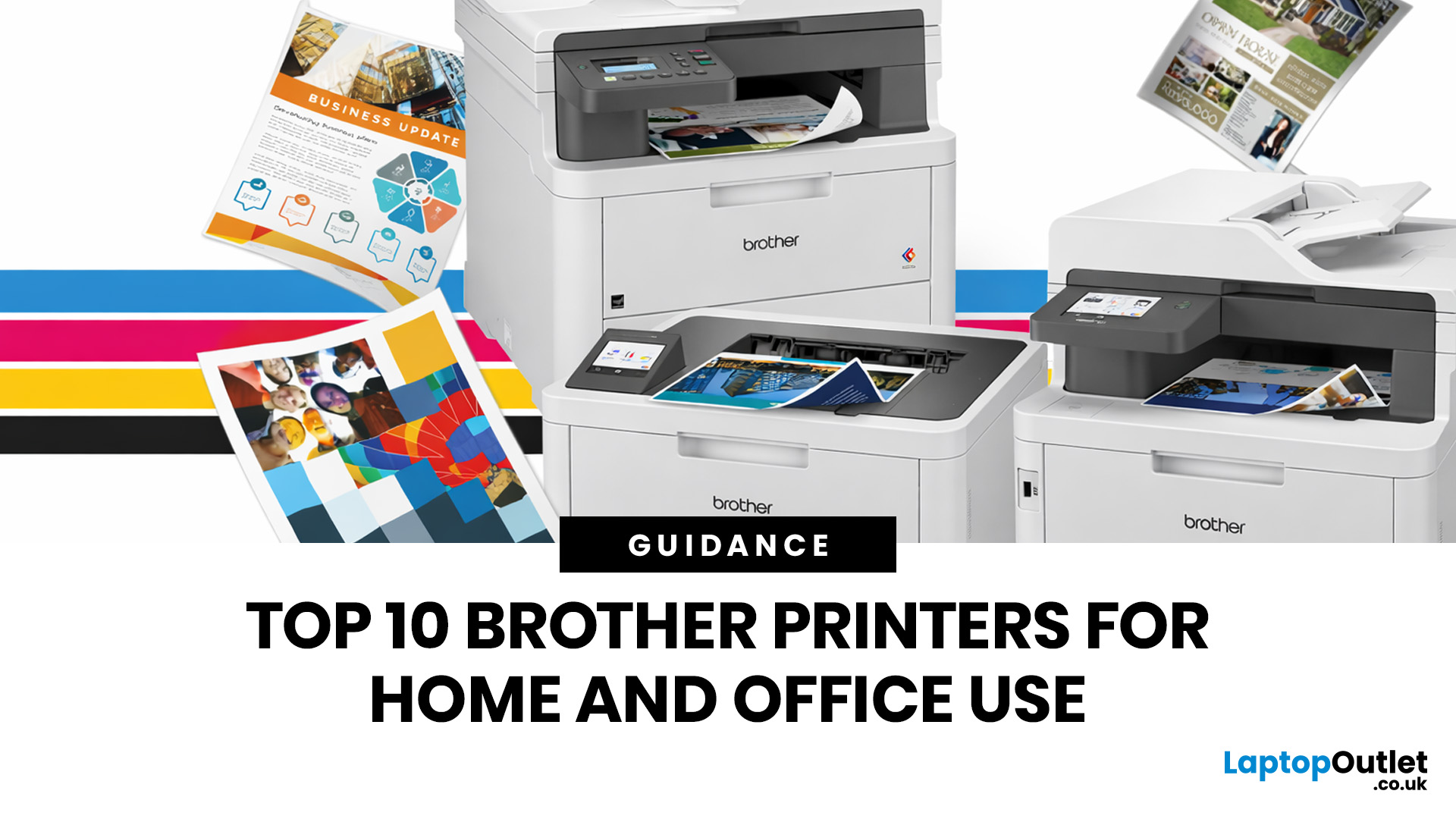
Brother is a prevalent brand in the printing world, and its printers are a popular choice for home and business use. Brother printers offer many models with wireless connectivity, high-speed printing, and cost-effective solutions. Whether looking for an Inkjet, laser or all-in-one printer, Brother has something for you. Engineered to provide sharp and professional quality prints, Brother printers feature a user-friendly interface and features like automatic duplex printing, cloud-based printing options, and mobile device compatibility.
We have tested and reviewed over 100 of the best printers, ranking Brother high among the competition. So, here we are rounding up the best picks for Brother printers you can buy in 2026. These printers have been selected based on their performance, features, and overall user satisfaction. If you're a student, a professional, or a small business owner, you're sure to find the ideal Brother printer to meet your specific printing needs.
So, let's jump right
Last Updated: June 18, 2026
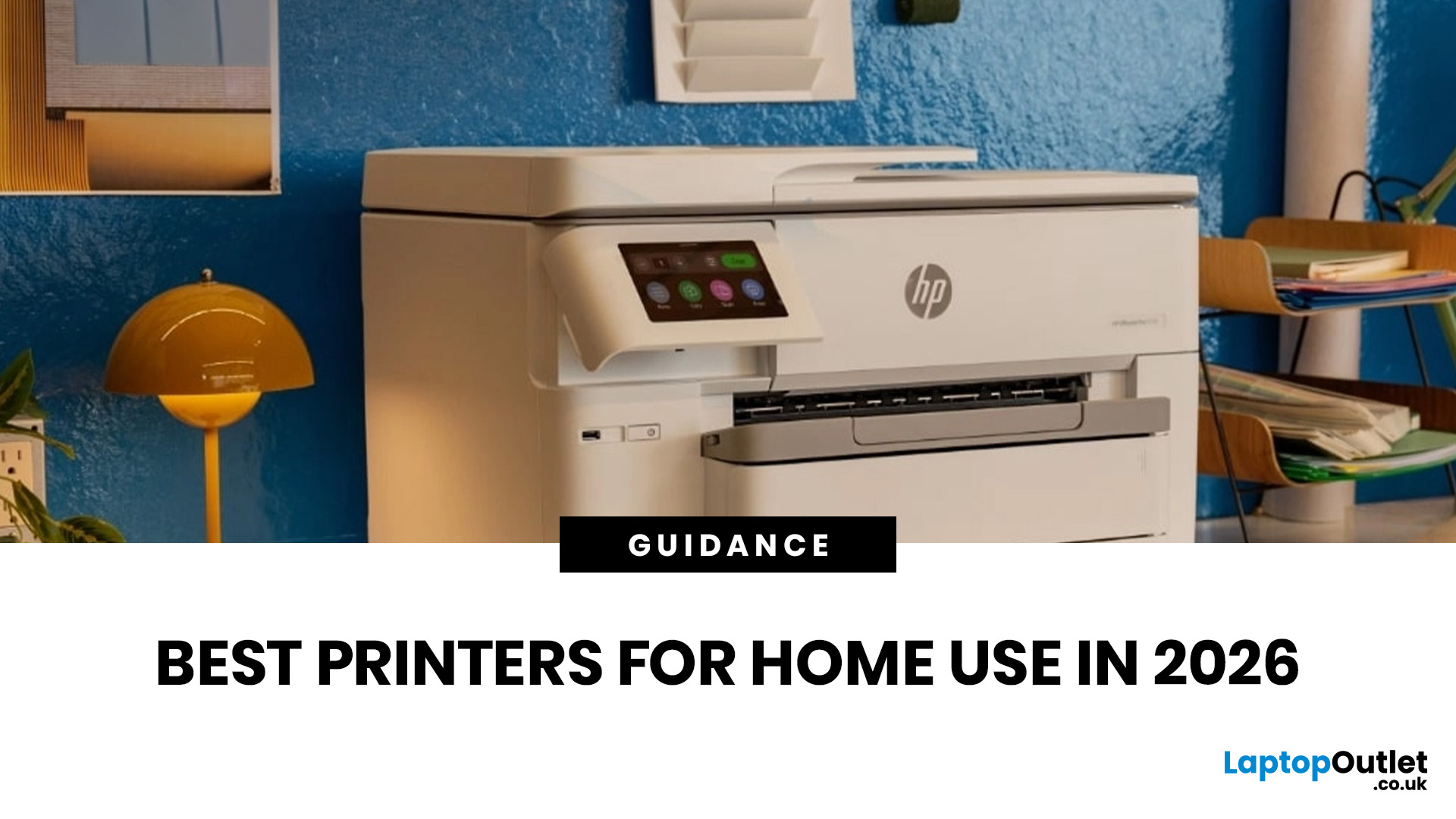
Buying the best home printer can seem overwhelming; the market is flooded with multiple brands offering a host of features. You must determine which printer suits your needs by looking at their specifications, running a comparison among different models, and making the final selection. Remember, we have a wide variety of exceptional printer models, so set aside ample time for this task.
However, if you are short on time, which we assume you are, just read this blog. It provides a curated list of the best computer printers for home use. They are suitable for everyday printing, especially at home, delivering professional-standard results. So, let’s look at them.
Types of Printers: Inkjet vs. Laser
Before you choose the right printer, it helps to know about inkjet and laser printers, the two main printer types. The following comparison will assist you in choosing the right type for your needs:
| Feature | Inkjet Printers | Laser Printers |
| Usage | Colour printing (photos, graphics) | Fast, high-volume |
Last Updated: October 13, 2026
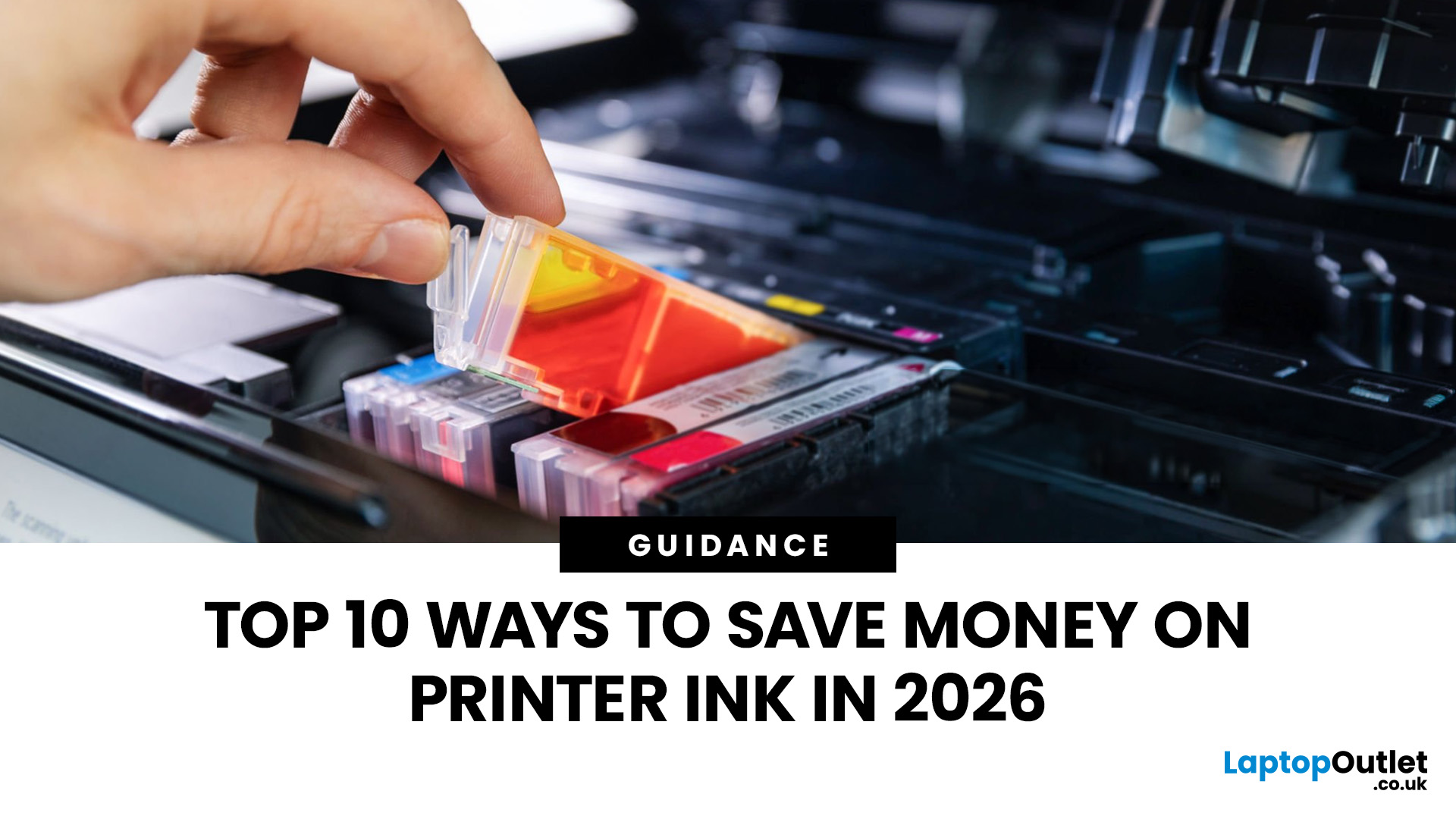
Printer ink is one of those costs that sneaks up on you. The printer itself can feel affordable, but the ongoing cartridge replacements are where the budget starts to hurt. If you print at home, for school, or for a small business, it can genuinely feel like you’re paying premium prices for something you go through far too quickly.
The good news is most people can cut printing costs without changing their whole setup. Small setting changes, smarter habits, and a couple of “do this once and forget it” tweaks can stretch cartridge life and reduce how often you’re buying replacements.
Here are 10 practical ways to reduce ink spend in 2026, without turning your prints into faint, unreadable pages.
1) Use Draft or Economy Mode for Everyday Printing
If you’re printing internal documents, rough drafts, return labels, school worksheets, or anything that doesn’t need to look perfect, switch to draft or economy mode. Many printers reduce ink density in this setting, so you use less ink per page while
Last Updated: April 02, 2026
Why You Need Your Printer’s IP Address
Whether you’re setting up a new device, troubleshooting, or connecting wirelessly—knowing your printer’s IP address is essential. It’s how your laptop or phone finds and communicates with the printer over Wi-Fi. Here’s how to find it in a few simple steps.
How to Find a Printer’s IP Address
1. Check the Printer’s Display Screen (If Available)
- Most modern printers display their network settings.
- Press Menu or Settings on the printer
- Navigate to Network Settings > Wi-Fi Settings
- Look for IP Address
2. Print a Network Configuration Page
- Many printers allow you to print a page showing their network information.
- Go to Settings > Network > Print Network Configuration
- Look for the IPv4 Address or IP Address section on the printout
3. Find Printer IP Address on Windows
- Click Start > Settings > Devices > Printers & Scanners
- Select your printer > Manage > Printer Properties
- Go to the Ports tab and look for the IP address
Alternatively:

Last Updated: April 03, 2026
Mobile Printing Made Simple
Need to print a document, photo, or ticket from your phone? You don’t need to transfer files to a laptop first. Mobile printing lets you print directly from your smartphone or tablet to a wireless printer—fast and hassle-free. Here’s how to do it on both iPhone and Android.
What You’ll Need
Before you start:
- A Wi-Fi-enabled printer
- Your smartphone or tablet
- Both devices connected to the same Wi-Fi network
How to Print from an iPhone (iOS)
1. Use Apple AirPrint
Most modern printers support AirPrint, Apple’s built-in wireless printing feature.
Steps:
- Open the document, photo, or webpage you want to print
- Tap the Share icon (box with arrow)
- Tap Print
- Select your printer from the list
- Choose print settings (number of copies, pages, etc.)
- Tap Print
2. Use the Printer Manufacturer’s App
- If your printer doesn’t support AirPrint:
- Download the manufacturer’s app (e.g., HP Smart, Canon PRINT, Epson iPrint)
- Follow the in-app instructions
Last Updated: September 09, 2025
Printers might not get the same hype as laptops or smartphones, but for students, professionals, small businesses, and even home offices; they're essential. Whether it’s printing out coursework, client contracts, shipping labels, or your child’s homework, a reliable printer is still a core part of modern-day convenience.
But buying a brand-new printer can quickly become expensive, especially if you want high-speed printing, scanning, copying, or colour capabilities. That’s where buying a refurbished printer becomes a smart alternative. A refurbished printer can save you a considerable amount of money without compromising performance or quality if you know what to look for.
In this guide, we’ll walk you through everything you should consider before buying a refurbished printer, from print quality and page yield to connectivity and warranty.
What to Look for When Buying a Refurbished Printer – A Complete Breakdown
Buying a refurbished printer can deliver excellent value, but you need to look
Last Updated: April 03, 2026
Tired of high printing costs or dealing with slow, unreliable printers? You’re not alone. Choosing the right printer, especially a refurbished one, can be tricky, but it doesn’t have to be.
Whether you're looking for speed, colour quality, or overall value, understanding refurbished laser vs inkjet printers is key. Each has its own strengths, and the best choice depends on how you plan to use it.
In this blog, we’ll break it all down in simple terms helping you find the right printer for your home, office, or study setup, without the stress or confusion.
Let’s dive in.
Understanding the Two Types: Laser vs. Inkjet Printers
Before you decide which refurbished printer is right for you, it helps you to understand how each type works and what they’re best at.
Laser Printers
Laser printers use a completely different method to print pages. Instead of spraying ink, they use a laser beam, heat, and powdered toner to produce text and images. These printers are known for speed, consistency, and
Last Updated: April 22, 2026
In the late 1980s, owning a printer wasn’t simple, unlike today - it was expensive, rare, and felt like a luxury. Printing was something most people could only dream of having at home.
Then Brother stepped onto the scene, redefining what a printer could be. They didn’t just enter the market, they changed it. By combining reliability, efficiency, and affordability, their printers quickly became a staple in offices and homes, setting a new standard for what printing could be.
Brother printers are widely used across the UK because they offer a practical mix of reliability, performance, and ease of use. However, with so many options available, inkjet, laser, all-in-one, wireless, the real challenge is understanding which one actually suits your needs.
This guide shows how their reliable, affordable, and easy-to-use printers fit real-life needs and helps you pick the right one without the tech overload.
What Makes Brother Printers So Popular?
Brother has built its reputation by focusing on
Last Updated: April 22, 2026
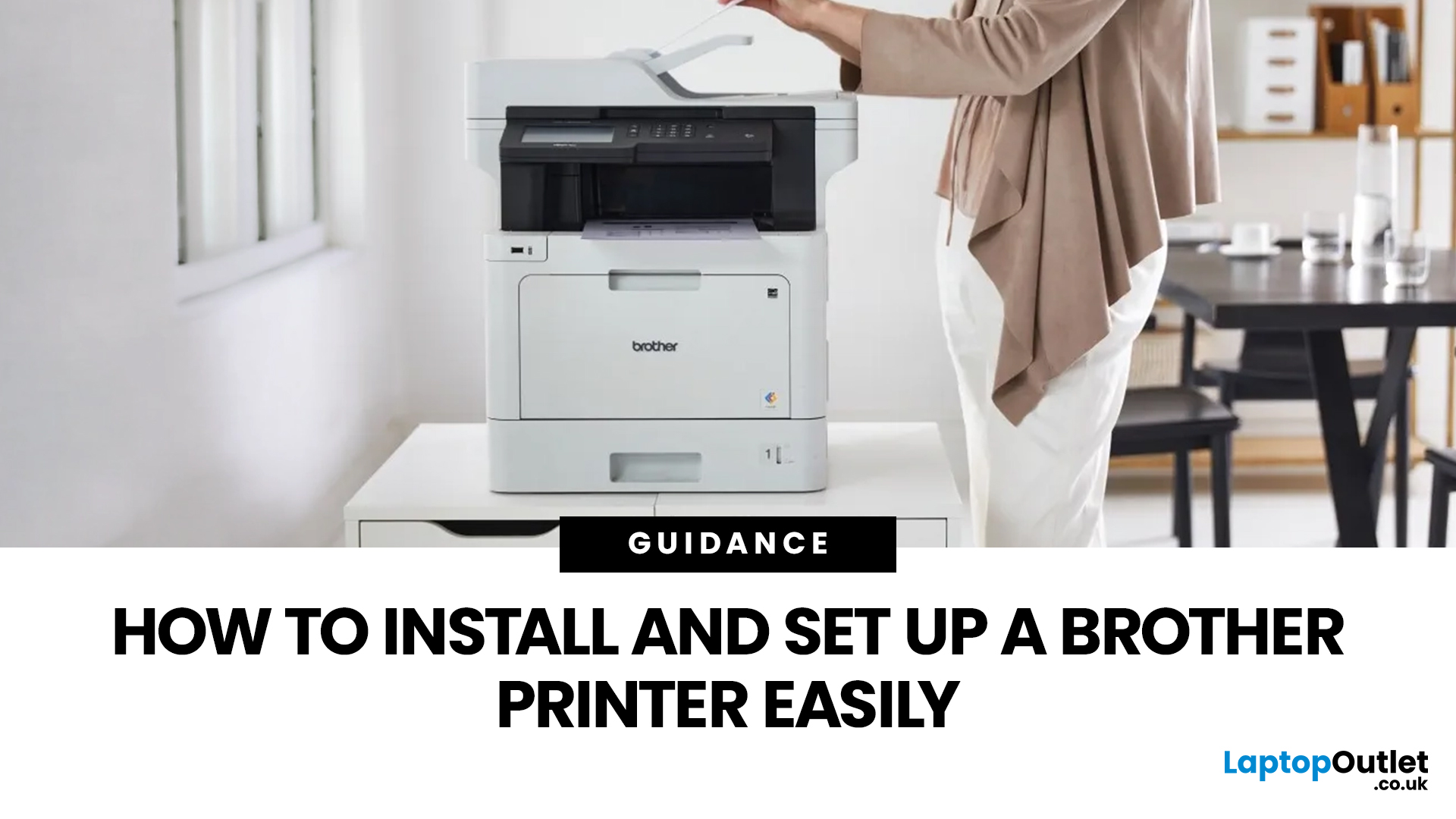
Setting up a new printer should be simple, but for many users, it can quickly become confusing. From installing toner to connecting to Wi-Fi and downloading drivers, even small steps can feel overwhelming if you are not sure what to do first.
This guide is designed to make Brother printer setup straightforward and stress-free. Whether you are installing a printer for the first time, replacing an old device, or setting up a wireless connection in a home or office environment, this step-by-step guide will walk you through everything you need to know.
By the end of this guide, you will have your Brother printer fully installed, connected, and ready to use.
Before You Start: What You Need for Brother Printer Setup
Before jumping into the installation process, it helps to prepare everything in advance. This avoids interruptions and makes the setup process much smoother.
You will typically need:
- Your Brother printer
- Power cable
- Ink cartridges or toner (included with most models)
- Paper for testing
Last Updated: April 22, 2026
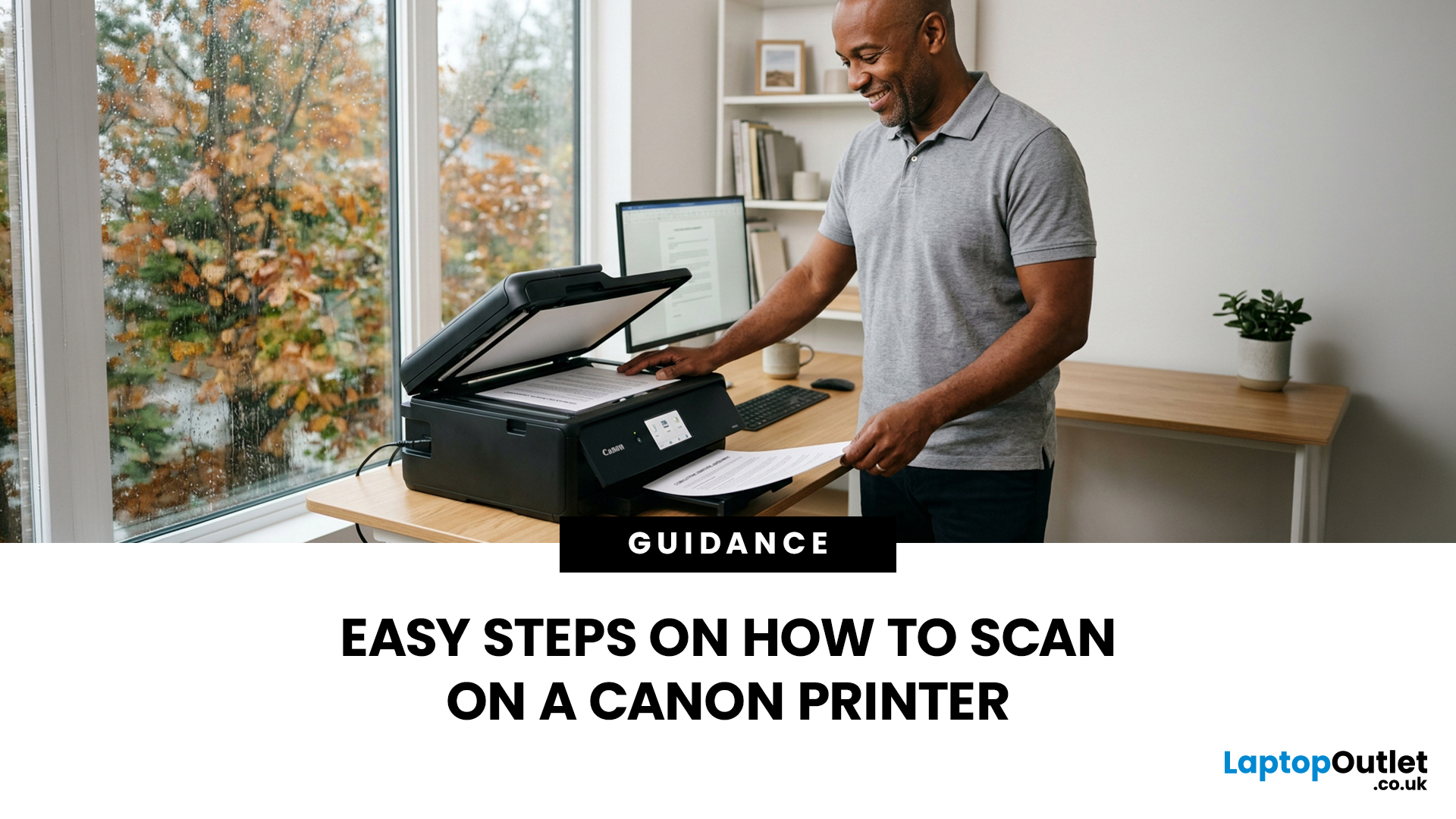
Canon makes some of the most popular multipurpose printers on the market, and for good reason. They're reliable, straightforward to use, and the scanning function is genuinely one of the better ones you'll find on a home or office printer. But if you've never used it before, staring at the control panel wondering where to start is a perfectly normal experience.
This guide covers everything you need to know to scan a document on a Canon printer, whether you're on Windows, Mac, or going straight from the printer itself. No fluff, just the steps that actually work.
Get These Things Sorted Before You Start
You don't need much to get going, but skipping these checks is how people end up wasting twenty minutes troubleshooting something obvious.
Make sure your Canon printer is switched on and connected to your computer, either by USB or over Wi-Fi. If it's a wireless connection, both your printer and computer need to be on the same network. Also confirm that your Canon drivers are installed.

