



How to Use an HP Chromebook Offline: Apps, Files, Games and More
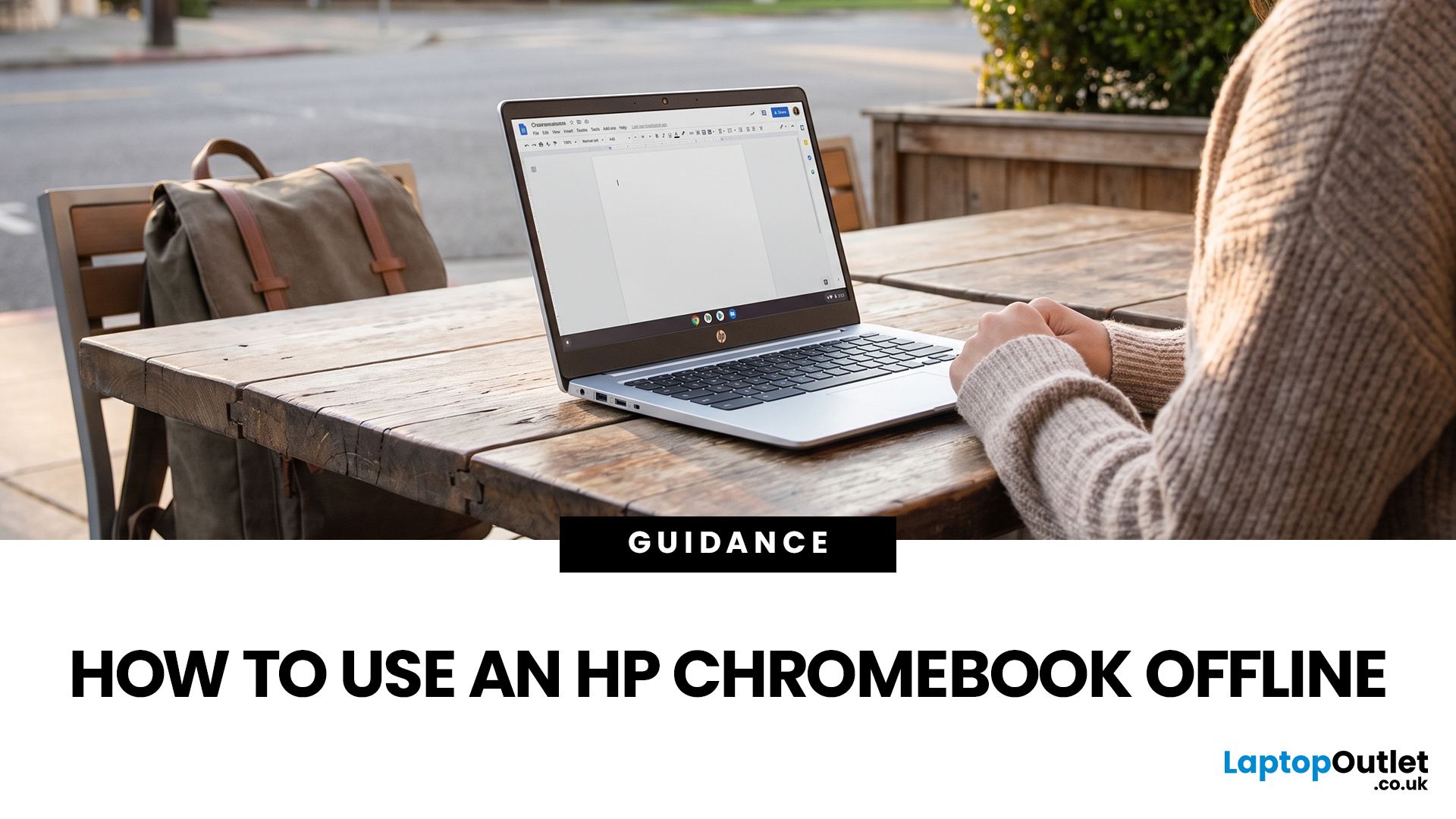
No Wi-Fi doesn't have to mean no work, no films and no games. Whether you're on a train, up a mountain, a long-haul flight or your home broadband has dropped out, using an HP Chromebook offline is easier than most people expect. With a little preparation while you're still connected, your Chromebook keeps working, playing and entertaining you long after the signal disappears.
Can You Use an HP Chromebook Without Wi-Fi?
Yes. HP uses the same ChromeOS offline features as other Chromebook brands. You can open local files, run supported web or Android apps, edit prepared Google Drive documents, use built-in tools and play downloaded media.
Online-only actions pause. You cannot load new websites, receive fresh email, stream undownloaded content, join video calls or use cloud gaming until internet access returns.
|
Task |
Works offline? |
Preparation required |
|
Edit Google Docs, Sheets and Slides |
Yes |
Enable Drive offline access and select key files |
|
Read or draft Gmail messages |
Yes |
Enable Gmail offline and let messages sync |
|
View Google Calendar |
Yes, with limits |
Turn on offline Calendar and wait for confirmation |
|
Open PDFs, photos, videos and music |
Yes |
Save locally or make Drive files available offline |
|
Watch service downloads |
Usually |
Install the supported app and download eligible titles |
|
Play games |
Sometimes |
Install and test a game with offline support |
|
Browse new webpages or stream live content |
No |
Reconnect or use a mobile hotspot |
Prepare Your HP Chromebook Before Going Offline
Complete this checklist while you still have reliable Wi-Fi, especially before travel, study or work in an area with poor coverage.
1. Update ChromeOS and Essential Apps
Open Settings > About ChromeOS > Check for updates. Restart if required, then update the Android apps you plan to use through the Google Play Store.
Launch each important app online at least once. Some apps must download components, verify your account or complete an initial sign-in before working offline.
2. Use Your Normal Signed-In Profile
Offline services may not work in Guest mode or an Incognito window. Use the Google Account that owns your Drive files, mail, subscriptions and downloads.
A work or school administrator can disable Gmail offline, Google Play or file access. Check managed-device restrictions before travelling.
3. Check Local Storage
Open Settings > Device > Storage management and leave room for offline files, Android app data, films, games and email. Low storage can interrupt downloads and disable automatic Drive offline access.
ChromeOS may remove downloads or cached data when space becomes critically low. Move irreplaceable items out of Downloads, keep a cloud backup, or copy them to compatible USB or SD storage.
4. Download and Test Everything
Make essential documents available offline, save tickets as PDFs, download attachments and cache entertainment inside the relevant app. A bookmark alone does not store a webpage or file for offline use.
Then switch off Wi-Fi and test each task. Draft an email, edit a document, play a downloaded film and launch every essential app or game.
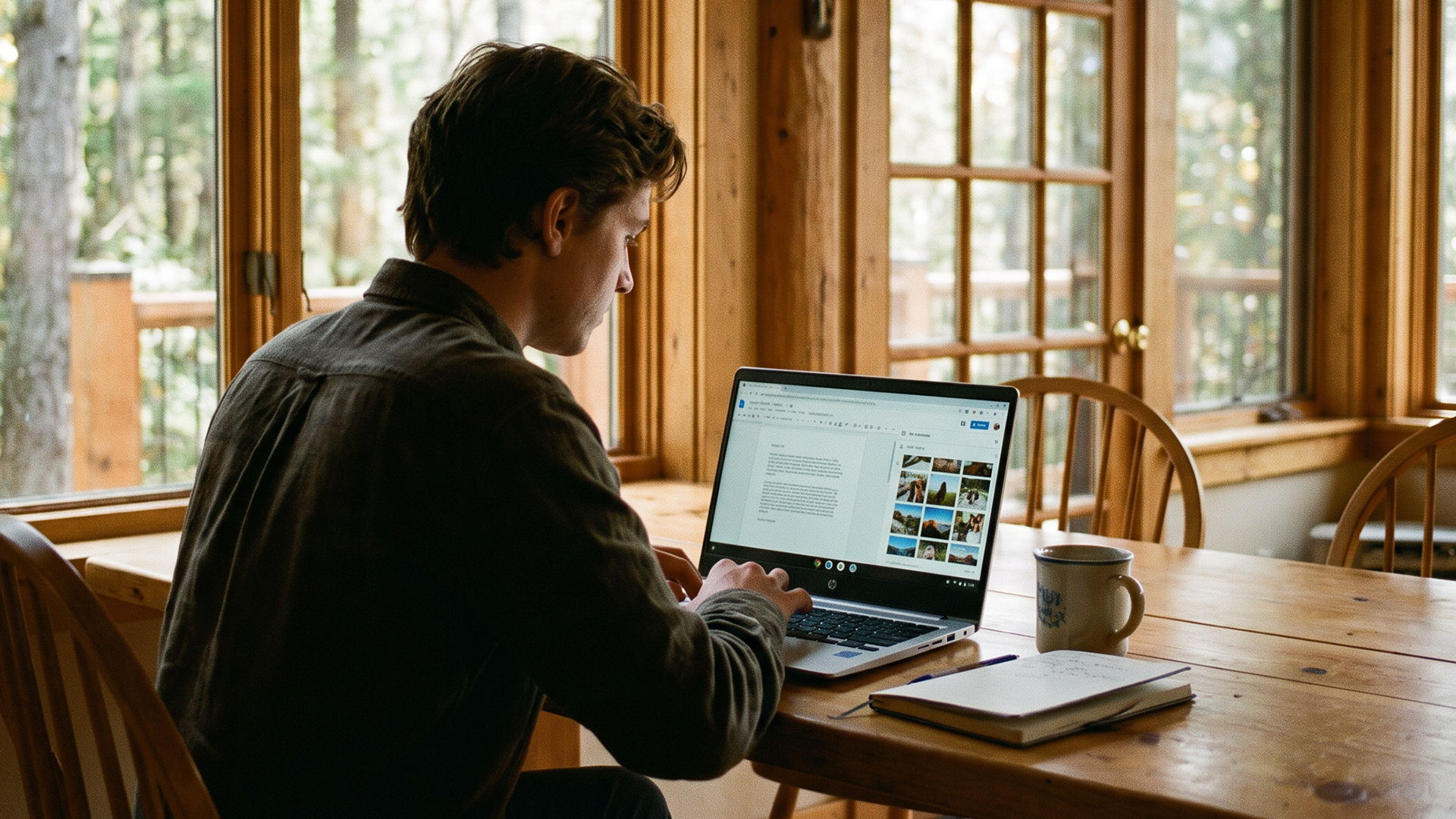
How to Turn On Chromebook Offline Mode
There is no single master switch for Chromebook offline mode. Drive, Gmail, Calendar and third-party apps each have their own offline setting.
Enable Google Drive Offline Access
- Connect the Chromebook to the internet and open Google Drive.
- Select the Settings cog, then open Settings.
- Find the Offline option.
- Turn on the setting that allows recent Google Docs, Sheets and Slides files to be created, opened and edited offline.
- Allow time for ChromeOS to prepare the files.
Google Drive may automatically prepare some recently used Google Docs, Sheets and Slides files. Do not rely on this for a journey, exam, meeting or deadline because the specific document you need may not be included.
Make Specific Drive Files Available Offline
Open Files > Google Drive or My Drive. Select the file you need, then turn on Available offline.
Repeat this for coursework, presentations, spreadsheets, travel documents and reference files. Supported changes sync to Google Drive when the Chromebook reconnects.
Set Up Gmail Offline on Chromebook
To enable Gmail offline on Chromebook, open Gmail in Chrome and select Settings > See all settings > Offline. Tick Enable offline mail, choose how many days of messages to store and save the changes.
You can read synced mail, search, draft replies and compose messages. Sent messages stay in the Outbox until a connection returns, when Gmail sends them automatically.
Download essential attachments beforehand. Offline Gmail can open cached messages, but attachment previews and access may be limited.
Turn On Google Calendar Offline
Open Calendar in Chrome and select Settings > Offline > Turn on offline calendar. Choose Reload now, then wait for Ready for offline.
Desktop offline Calendar shows events from the previous four weeks and future events in day, week or month view. You cannot create or edit events, email guests or open Tasks while disconnected.
How to Work with Files Offline on an HP Chromebook
The Files app manages local storage, compatible external drives and offline Google Drive items. ChromeOS can open many common PDFs, images, audio files, videos and documents without a network.
Keep Local Files Safe
Files in My files, Camera folders and other permanent local folders remain available without Wi-Fi. Downloads are accessible too, but ChromeOS can delete files there if storage runs low.
Move important downloads into a permanent folder or external drive. Keep another copy elsewhere because a Powerwash, hardware fault or storage clean-up can remove local-only data.
Read and Mark Up PDFs
Save important PDFs locally before going offline. Gallery can open PDFs and supports form filling, highlighting, annotations and signatures. Open critical documents in advance to confirm that passwords, forms and formatting display correctly, and keep a backup copy where needed.
Handle Microsoft Office Files
Current Chromebook Microsoft 365 integration uses OneDrive and normally needs a connection. When offline, Office-format files may open only in a basic editor with limited functions.
For planned offline editing, create a converted Google Docs, Sheets or Slides copy, then mark that Google-format file available offline. Keep the original Word, Excel or PowerPoint version for final format checking.
Save Webpages for Offline Reading
Open a page while connected, right-click, choose Save as, and store it as an HTML file. Open the saved file through Files later.
This suits text-heavy guides. Embedded video, live forms, interactive maps and content loaded from other servers may not be preserved.
Use USB Drives and SD Cards
Many Chromebooks accept USB storage, while some HP models include an SD or microSD slot. Insert the device and confirm it appears in the Files sidebar.
Port selection varies by model. Eject storage through Files before removal to reduce the risk of corruption.

Which Apps Work Offline on an HP Chromebook?
Offline behaviour depends on the app, account, version and downloaded data. A web app may work partly, while an installed Android app may store more content locally.
|
App or tool |
Useful offline functions |
Main limit |
|
Google Docs, Sheets and Slides |
Create or edit prepared Google-format files |
Sharing and cloud features wait |
|
Gmail |
Read synced mail, search, draft and queue messages |
No new mail arrives |
|
Google Calendar |
View synced past and future events |
No desktop event editing |
|
Gallery |
View photos, play media and make basic edits |
Online tools remain unavailable |
|
Camera |
Take photos, videos and document scans |
Cloud backup waits |
|
Android apps |
Functions vary by developer |
Some require periodic online checks |
|
Saved webpages |
Read stored page content |
Live elements may fail |
Test the core function with Wi-Fi off. An app opening successfully does not prove its files, levels or tools are stored locally.
Google Keep needs care. Google ended computer offline access for its desktop web version, so use a tested Android notes app or an offline Google Doc for important notes.
How to Watch Films and Listen to Music Offline
A Chromebook without Wi-Fi works well as a media player when content has been downloaded legally in advance. Availability, expiry and account checks vary by service.
Watch Downloaded Films and Programmes
Chromebooks with Android app support can install services such as Netflix from Google Play. Open an eligible title in the app and select Download.
Not every title supports downloads. Some downloads expire, disappear when a subscription ends or need occasional online verification, so test playback before travelling.
YouTube Premium supports offline downloads on computers in supported regions. Its downloads also require periodic reconnection to confirm that each video remains available.
Your own compatible video files can play from Files or Gallery without a subscription. Format and codec support still vary.
Listen to Music and Podcasts
Store compatible audio files locally and open them with Gallery. For streaming services, use an installed app that explicitly supports downloads.
Spotify Premium, for example, allows music downloads for offline listening. Use the app rather than assuming its browser player will work disconnected.
How to Play Games Offline on an HP Chromebook
An HP Chromebook can run many Android games after installation, but cloud games, browser games, multiplayer modes and server-based sign-ins need connectivity.
Before relying on a game:
- Install it while connected.
- Download additional levels, languages and game data.
- Complete its first account or licence check.
- Test the exact mode with Wi-Fi switched off.
- Confirm that progress saves locally.
Chrome’s built-in dinosaur game also works when a webpage cannot connect. For longer journeys, tested Android games offer more choice.
What Does Not Work Without an Internet Connection?
Expect these tasks to stop or become limited:
- Live searches and newly loaded websites
- Video calls, chat and real-time collaboration
- Streaming that was not downloaded
- Cloud gaming and most online multiplayer
- Remote desktops and uncached cloud files
- New app installations and software updates
- Account or subscription checks required by some services
A phone hotspot offers temporary connectivity, but large downloads, updates and high-resolution streaming can use a UK mobile data allowance quickly.
Will Offline Changes Sync When You Reconnect?
Usually. Supported Drive edits sync after reconnection, while queued Gmail messages leave the Outbox automatically.
Connect to a stable network, open the relevant apps and keep the Chromebook awake. Confirm that the latest file version appears in Drive and that queued messages move to Sent.
Avoid editing the same document independently on several devices while one is offline. Review the final file after synchronisation if more than one copy changed.
Troubleshooting HP Chromebook Offline Problems
A Drive File Will Not Open
It may not have finished downloading, may not support offline editing or may belong to another account. Reconnect, select it in Files and enable Available offline again.
Check free storage too. Low space can switch off automatic Drive offline access.
Gmail Offline Is Missing
Use a normal Chrome window and the correct account. Managed accounts may need administrator approval.
After enabling the feature, leave Gmail open while messages sync. Bookmark Gmail for easier offline access.
A Downloaded Film Will Not Play
Check the subscription, expiry date and account used for the download. The service may require periodic reconnection or restrict downloads on certain plans.
An App Opens but Shows No Content
Its interface may be cached while its content remains online. Reconnect, use the app’s own download control and test again.
Offline Calendar Stopped Working
Clearing cached images and files removes Calendar’s offline data. Re-enable the setting, reload Calendar and wait for Ready for offline.

Get More from Offline
Using an HP Chromebook offline is straightforward once files, apps and entertainment are prepared in advance.
Enable Drive, Gmail and Calendar offline access, protect important downloads, leave enough local storage and test every essential task without Wi-Fi. You can then edit documents, read email, view your schedule, open PDFs, play local media and enjoy compatible games.
Online services, live collaboration and streaming still need a connection, so treat offline use as a prepared working mode rather than a complete replacement for the web. Reconnect later and verify that changes and queued messages have synced correctly.

Helpful Things to Know...
Can an HP Chromebook work without Wi-Fi?
Yes. An HP Chromebook offline can edit prepared documents, read synced email, open local files, play downloads and run compatible apps, although live online services remain unavailable.
How do I enable offline mode on my HP Chromebook?
Enable offline access separately in Google Drive, Gmail and Calendar, mark essential files available offline, download app content, then switch off Wi-Fi and test everything.
Will my offline work sync when the Chromebook reconnects?
Supported Google Drive edits sync automatically after reconnection, while Gmail sends queued messages. Keep the Chromebook awake, open the apps and confirm synchronisation completes successfully.
Can I watch downloaded films on an HP Chromebook without Wi-Fi?
Yes, using supported Android or web services that allow downloads. Download eligible titles beforehand, test playback, and remember that subscriptions, expiry dates and licence checks apply.
Can I play games on an HP Chromebook without internet?
Yes, if the installed game supports offline play and its data is fully downloaded. Test it first because multiplayer, cloud gaming and account checks require connectivity.
| Read More: |
| HP Chromebook Keeps Freezing? 7 Easy Ways to Fix It |
| How to Remove Administrator User Account from Chromebook? |
| Are Chromebooks as Fast as Windows Laptops? |
Related Articles

Last Updated: August 12, 2026
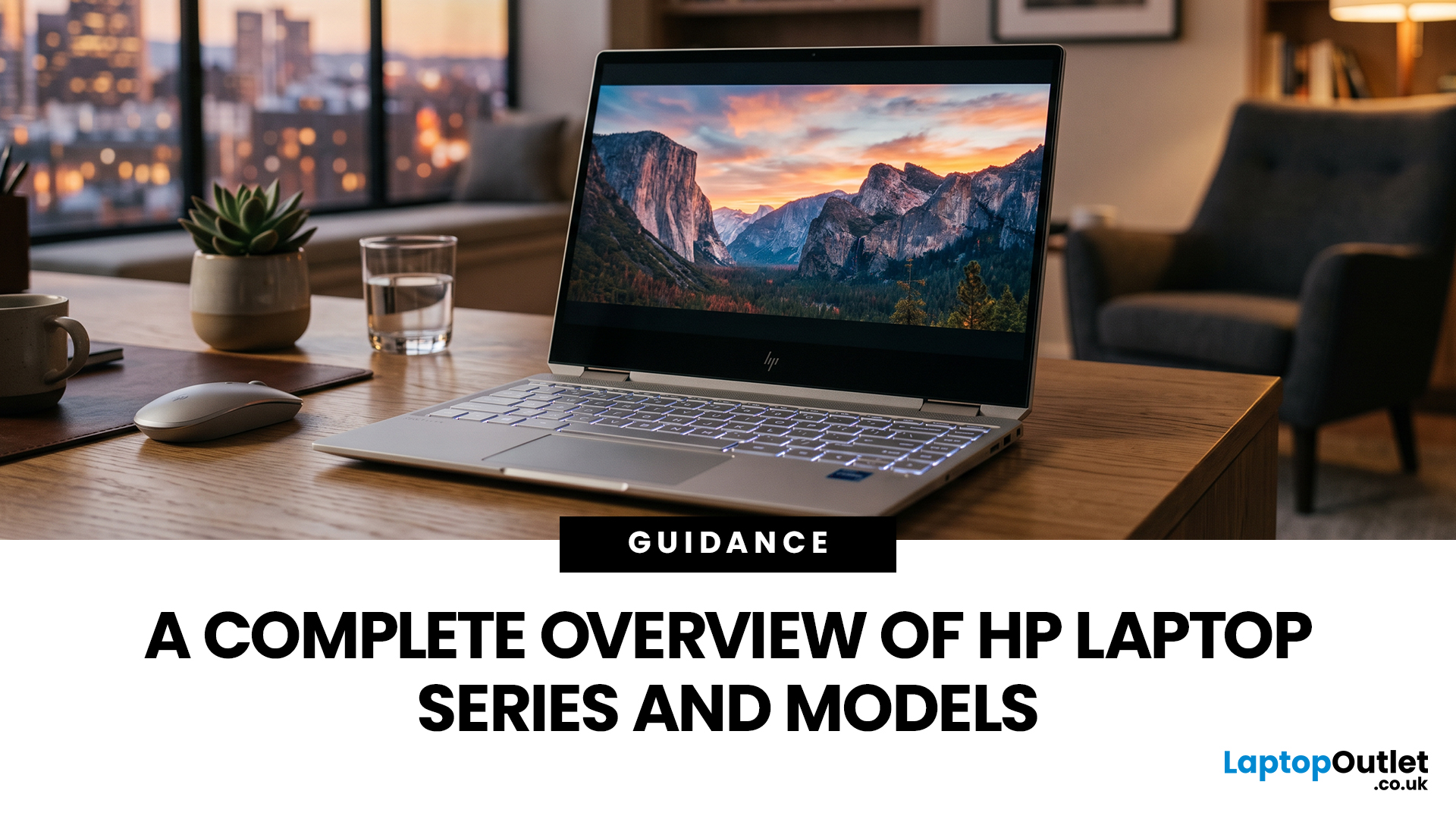
HP offers several laptop families designed for different types of users, which can make choosing between them difficult. The current HP laptop series range covers everyday home computing, education, gaming, business and demanding professional workloads.
OmniBook and Chromebook models mainly serve consumers and students, while Victus and OMEN focus on gaming. ProBook and EliteBook are designed for business environments, and ZBook systems target professional workstation tasks.
HP has also reorganised much of its newer consumer range under the OmniBook name. This guide explains the major HP series, their current model families, advantages, limitations and the users they suit best.
HP Laptop Series at a Glance
HP divides its laptops broadly according to workload, performance level and intended user. The series name gives you a useful starting point, but individual specifications still matter because two models within the same range may use different processors, graphics, displays and memory
Last Updated: April 02, 2026
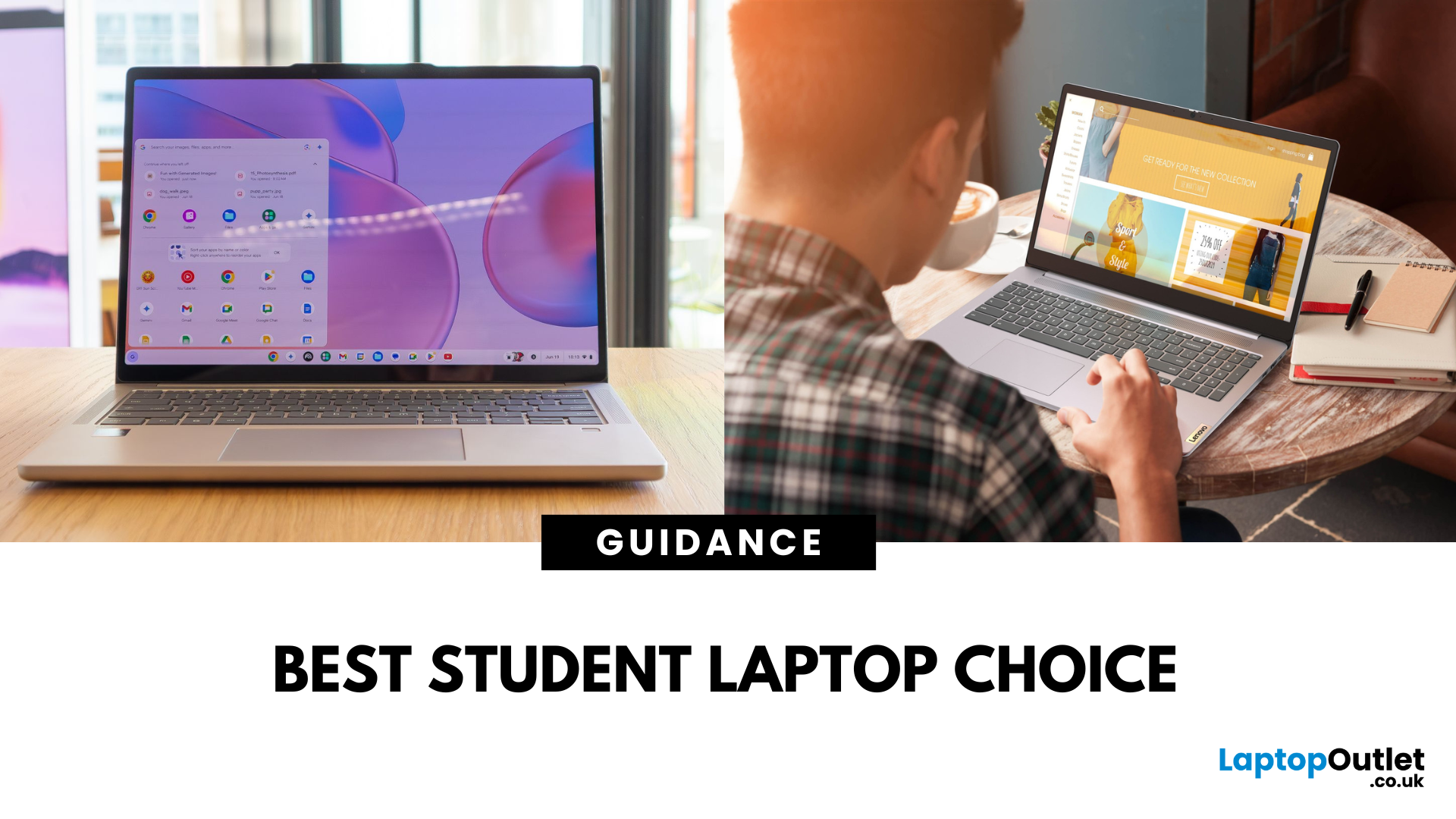
A Lenovo Chromebook runs ChromeOS - a lightweight, Linux-based operating system that’s optimised for Google’s ecosystem. It’s secure, updates automatically for a decade, and works brilliantly for browser-based productivity, Android apps, and streaming. A Lenovo IdeaPad usually runs Windows 11 and covers everything from budget laptops to higher-spec Ultrabook, offering the ability to install virtually any software, making it better suited for heavier workloads, creative tools, and offline functionality.
Feature Comparison Table
| Feature | Lenovo Chromebook | Lenovo IdeaPad |
| Operating System | ChromeOS | Windows 11 Home/Pro |
| Processor (CPU) | Intel Celeron N4020/N4120, Intel Core i3/i5 U-series, AMD 3015Ce/MediaTek Kompanio | Intel Core i3/i5/i7 (U or H series), AMD Ryzen 3/5/7 U-series |
| Graphics (GPU) | Integrated Intel UHD or Iris Xe, AMD Radeon iGPU, ARM Mali graphics | Integrated Intel Iris Xe/AMD Radeon Vega or discrete NVIDIA MX/RTX |
| Performance & Storage | eMMC 5.1 (64–128 GB) in most models, some with NVMe |
Last Updated: September 23, 2025
What’s the Key Difference?
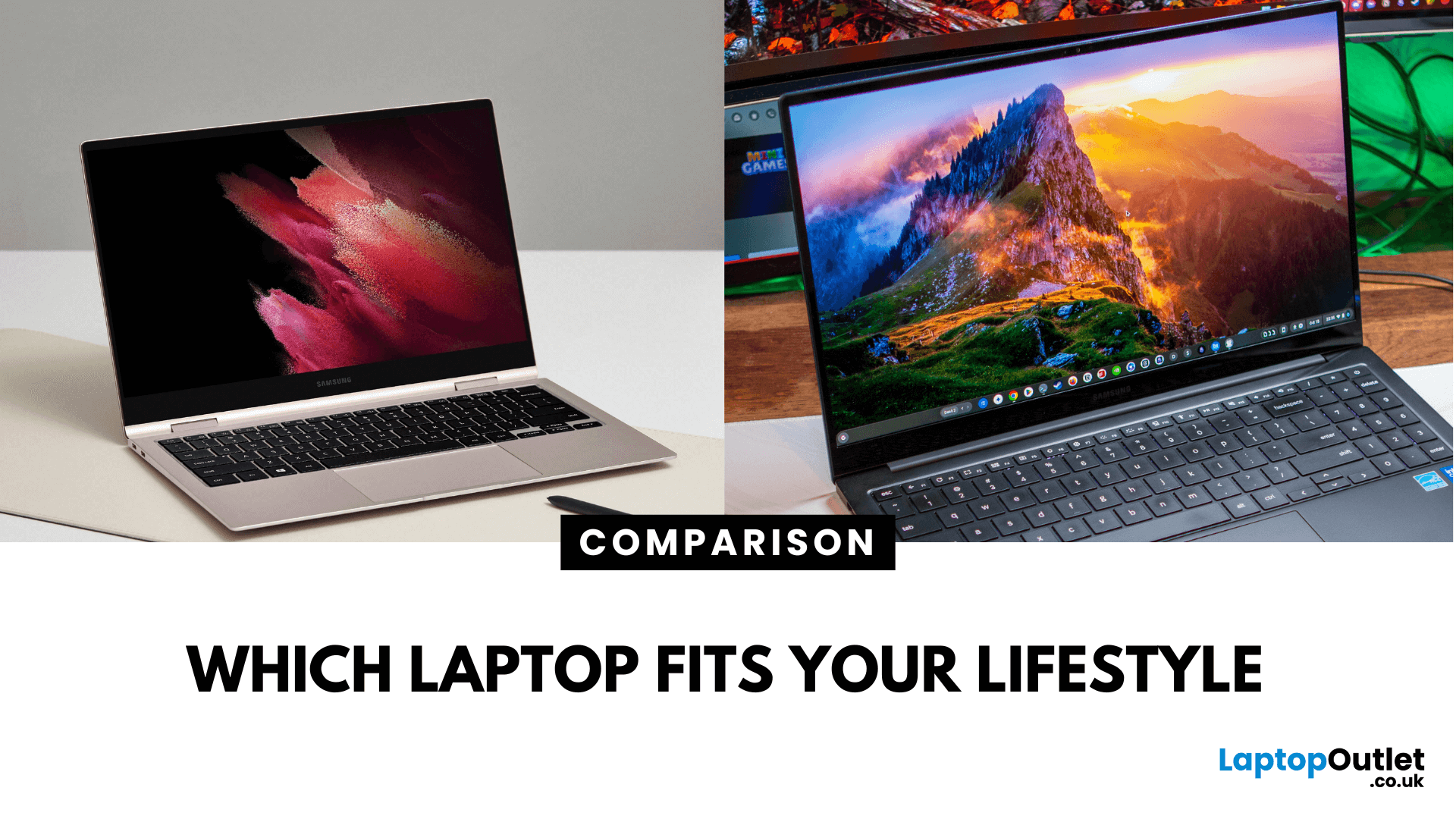
Samsung Galaxy Book is Samsung’s line of Windows laptops offering powerful hardware, rich feature sets, and mature software support -built for productivity and creativity. Chromebooks run Chrome OS—Google’s streamlined, cloud-centric platform built for speed, web apps, and light computing.
Fundamentally, Galaxy Books deliver full Windows power; Chromebooks deliver lightweight simplicity.
Feature Comparison Table
| Feature | Samsung Galaxy Book | Chromebook |
| Operating System | Windows – full desktop environment | Chrome OS – cloud-first, lightweight platform |
| Performance & Hardware | Premium processors, abundant RAM & storage | Lighter processors and configurations tailored for basic tasks |
| Design & Build | Sleek, stylish, built for mobility and premium feel | Ultra-light, minimalistic, highly portable |
| Battery Life | Strong battery for Windows usage | Excellent battery due to efficiency of Chrome OS |
| Portability | Lightweight for a Windows laptop | Extremely portable with featherweight designs |
Last Updated: September 09, 2025
Key Difference Between a Galaxy Laptop and a Galaxy Chromebook?
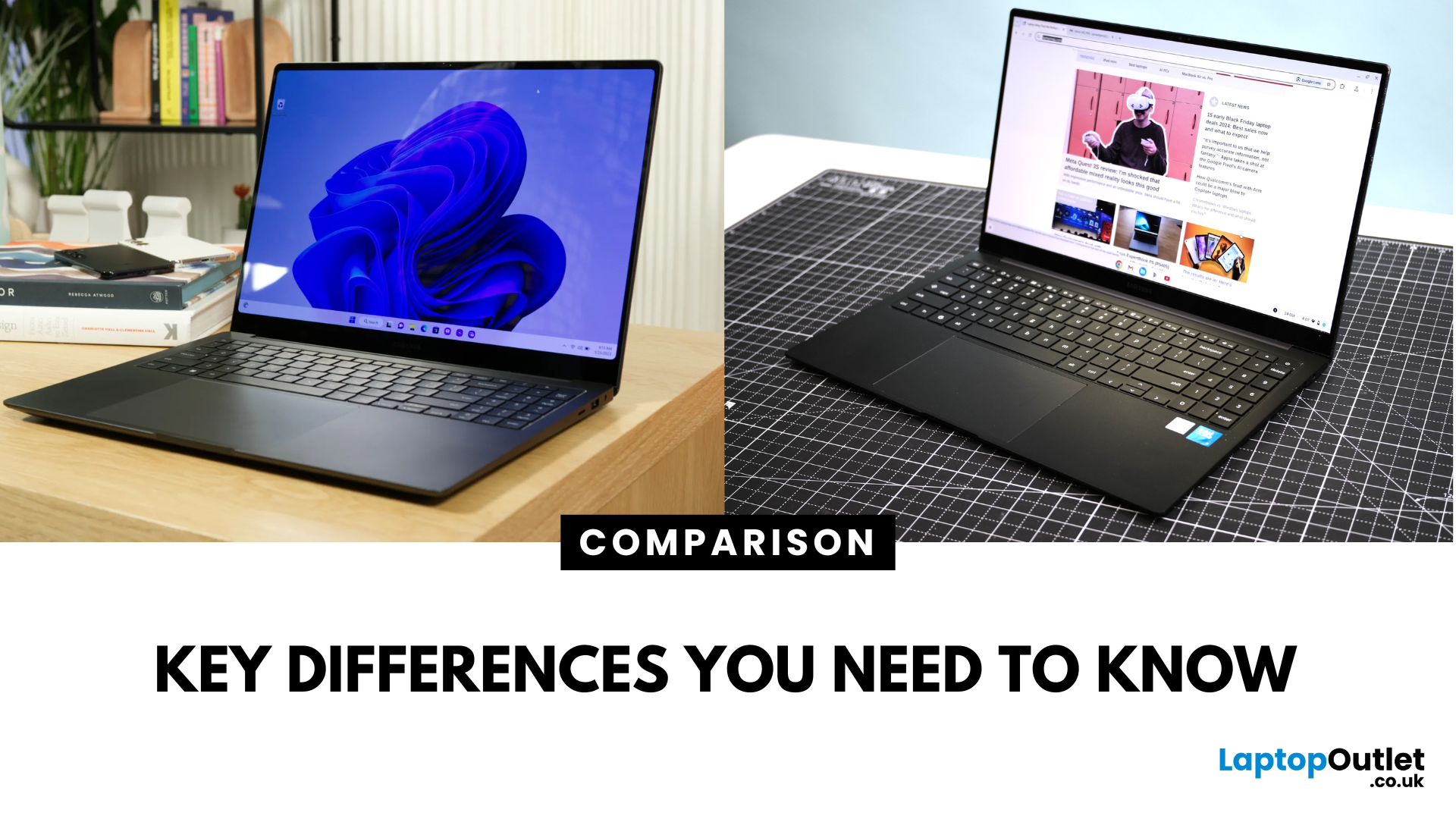
Galaxy Laptop (Galaxy Book): Runs Windows 11, supports all desktop software (Office, Adobe, coding tools, gaming), offers higher storage and RAM options, and integrates with Samsung Galaxy devices.
Galaxy Chromebook: Runs ChromeOS, focused on cloud apps and Android apps via Google Play Store. Cheaper, lighter, and built for students or light for everyday use.
Feature Comparison Table
| Feature | Samsung Galaxy Laptop (Galaxy Book) | Samsung Galaxy Chromebook |
| Operating System | Windows 11 | ChromeOS |
| Performance | Intel Core i5/i7, AMD, up to 16-32GB RAM | Entry-level Intel/ARM, up to 8GB RAM |
| Software | Full Windows apps (Office, Adobe, games) | Web apps + Android apps |
| Battery Life | 10–13 hours (depending on model) | 12–15 hours (light workloads) |
| Display Options | AMOLED 2X display, FHD/QHD, larger screens | OLED display, FHD or 4K touchscreen options |
| Weight | ~1.5–1.7 kg (Galaxy Book3 360, Pro) | ~1.0–1.2 kg (Chromebook Go, Pro) |
| Price Range (UK) | ~£750–£1,500+ |
Last Updated: July 02, 2026
Choosing the right laptop in 2025 can feel like a challenge. With endless options in the UK market, different brands, specifications, and price points, it’s easy to feel overwhelmed. This is where ASUS makes the decision simpler. Over the years, ASUS has built a reputation as one of the most trusted technology brands by offering laptops that combine performance, reliability, and affordability.
Think about the wide variety of users today: a student who needs a lightweight laptop for lectures, a business professional who spends hours travelling, a gamer chasing the ultimate performance, or a creative tackling demanding design projects. Each has unique needs, but ASUS has carefully designed a laptop series for all of them.
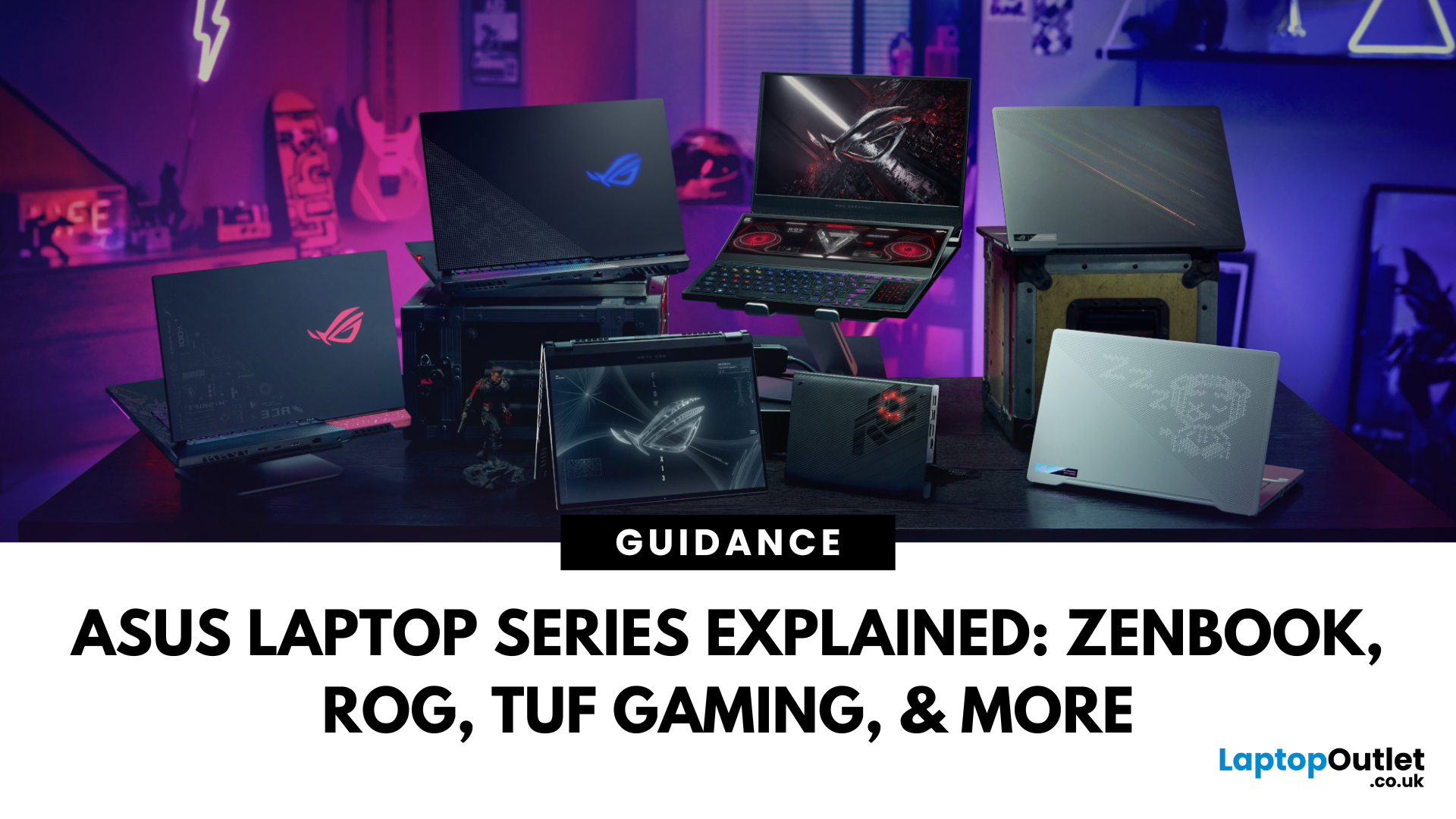
In this ASUS laptop Series explained blog, we’ll explore the full 2025 lineup: ZenBook, VivoBook, ROG, TUF Gaming, ExpertBook, Chromebook, and ProArt StudioBook, so you can confidently choose the ASUS laptop that fits your life.
A Quick Overview of the ASUS Laptop Series
Last Updated: October 15, 2025
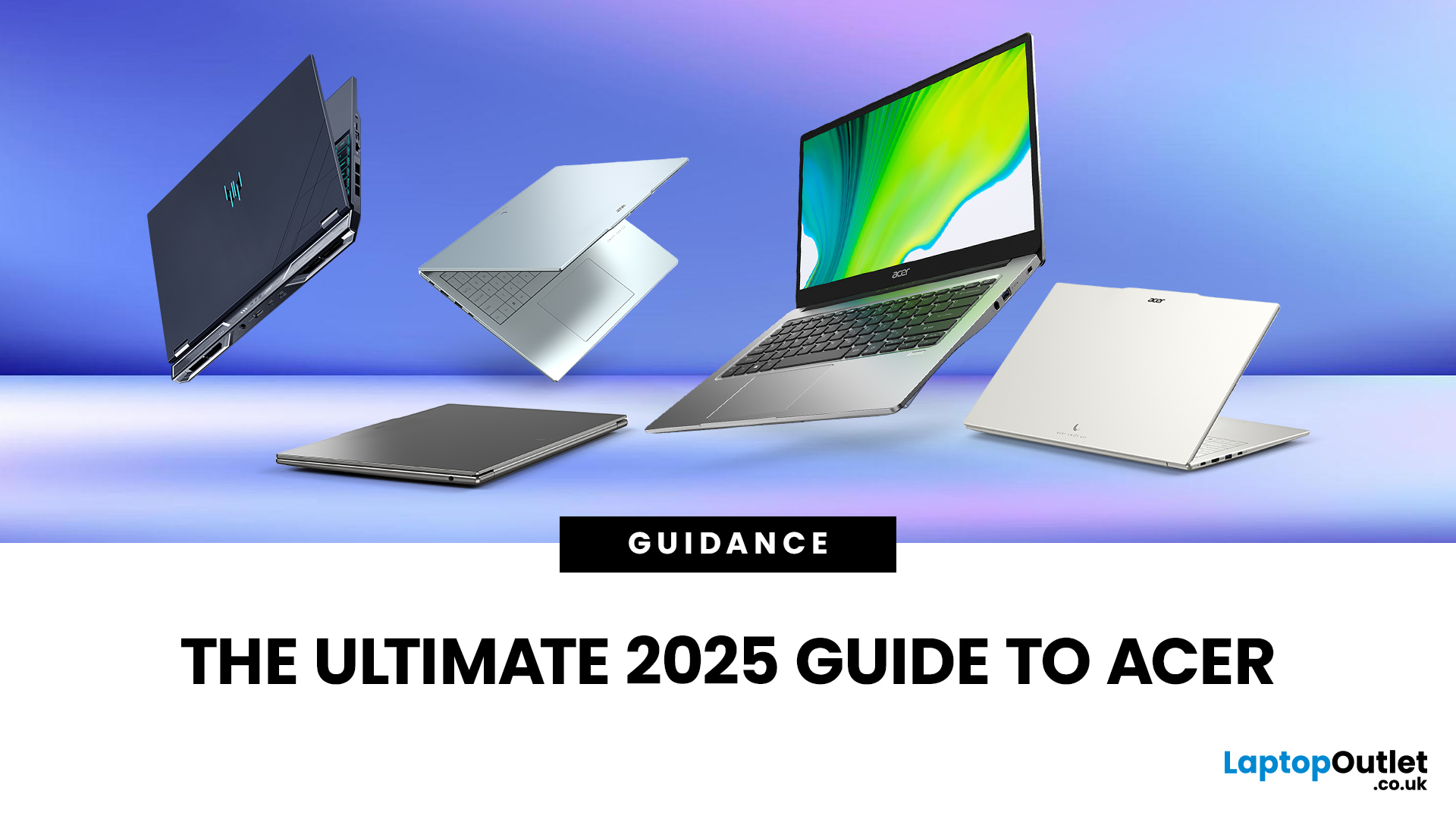
Acer has quietly built one of the most diverse laptop ranges on the market. While some brands focus on a single niche, Acer has gone broad, creating machines for every kind of user: from budget-friendly student laptops to thin-and-light ultrabooks, and even beastly gaming rigs that’ll chew through the latest AAA titles without blinking.
The key to understanding Acer lies in its series structure. Each family of laptops has its own personality and purpose. The Aspire range caters to everyday users who want balance on a budget. Swift laptops are all about style and portability for professionals. Nitro and Predator models push gaming to new levels, while Chromebooks simplify life for schools and casual users. And then there’s the TravelMate series, purpose-built for business reliability.
In this guide, we’ll break down the Acer Laptop Series one by one, highlight their standout models - like the Aspire 5, Swift Go, Nitro 5, Predator Triton, and Chromebook Spin - and explain who they’re best
Last Updated: March 06, 2026
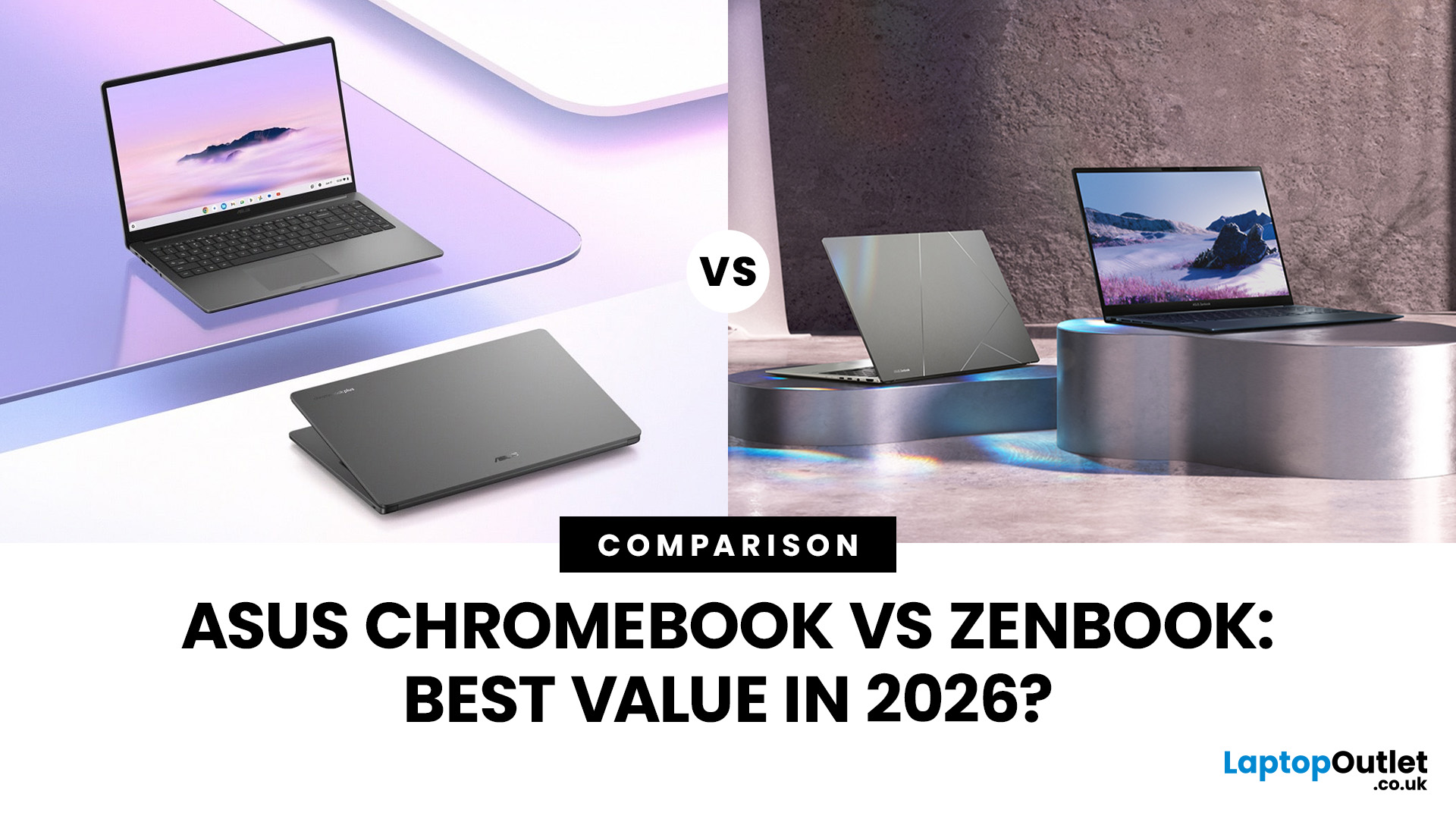
In 2026, ASUS continues to lead the ultrabook market with two standout options, the ASUS Chromebook and the ASUS ZenBook. Both deliver sleek design, portability, and performance, but they cater to different users. ASUS Chromebooks are lightweight, affordable, and perfect for students and everyday tasks, while ZenBooks offer premium craftsmanship, powerful hardware, and superior productivity for professionals and creators.
This comparison explores their specs, performance, battery life, and value, helping you decide which ultrabook suits your needs best. Whether you’re after effortless portability or all-day performance, we’ll uncover which ASUS laptop truly offers better value in 2026.
ASUS Chromebook vs ZenBook – The 2026 Ultrabook Showdown
In 2026, ASUS continues to lead the ultrabook arena with two stellar lineups that capture the essence of modern computing, the ASUS Chromebook and the ASUS ZenBook. Both are sleek, reliable, and performance-driven, but they serve very different lifestyles.
Last Updated: June 04, 2026
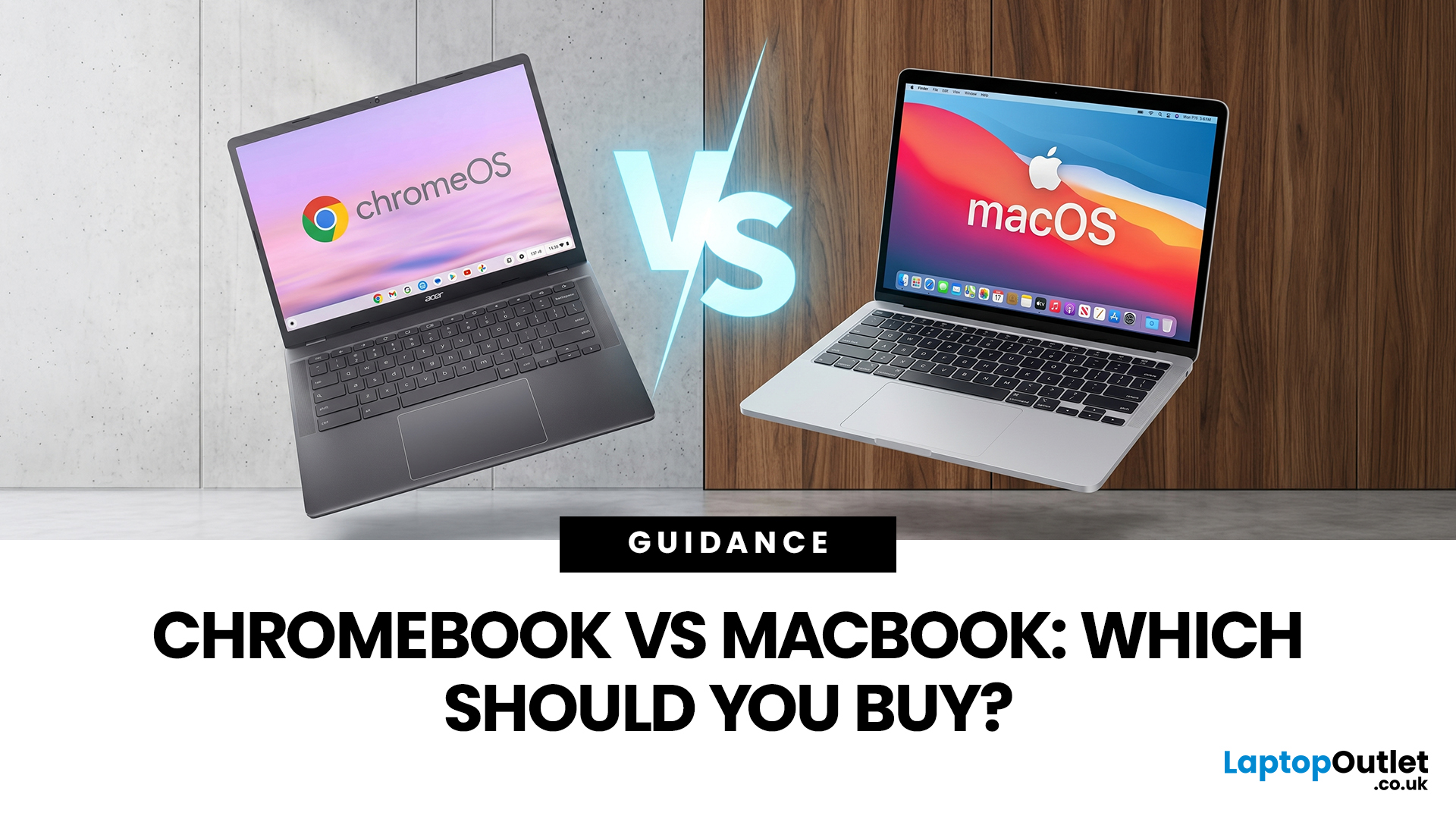
If you want the quickest answer, buy a Chromebook if you mainly use a browser, Google apps, streaming services, email, and simple everyday tools. Buy a MacBook if you need stronger performance, fuller desktop software support, and a laptop that gives you more room to grow over the next few years. That is the real Chromebook vs MacBook decision. It is less about the logo on the lid and more about how you actually work, study, and relax every day.
A Chromebook is a laptop that runs Chrome OS, built around speed, simplicity, built-in Google services, and lightweight computing. A MacBook runs macOS and is designed for a fuller desktop experience, stronger multitasking, and tighter integration with other Apple devices. If you already know you want to compare categories before choosing, start by browsing the best laptops to see where both options sit in the wider market.
Still deciding whether macOS is right for you at all? Read our PC vs Mac in 2026 guide before you choose.
Chromebook vs MacBook:
Last Updated: August 20, 2026
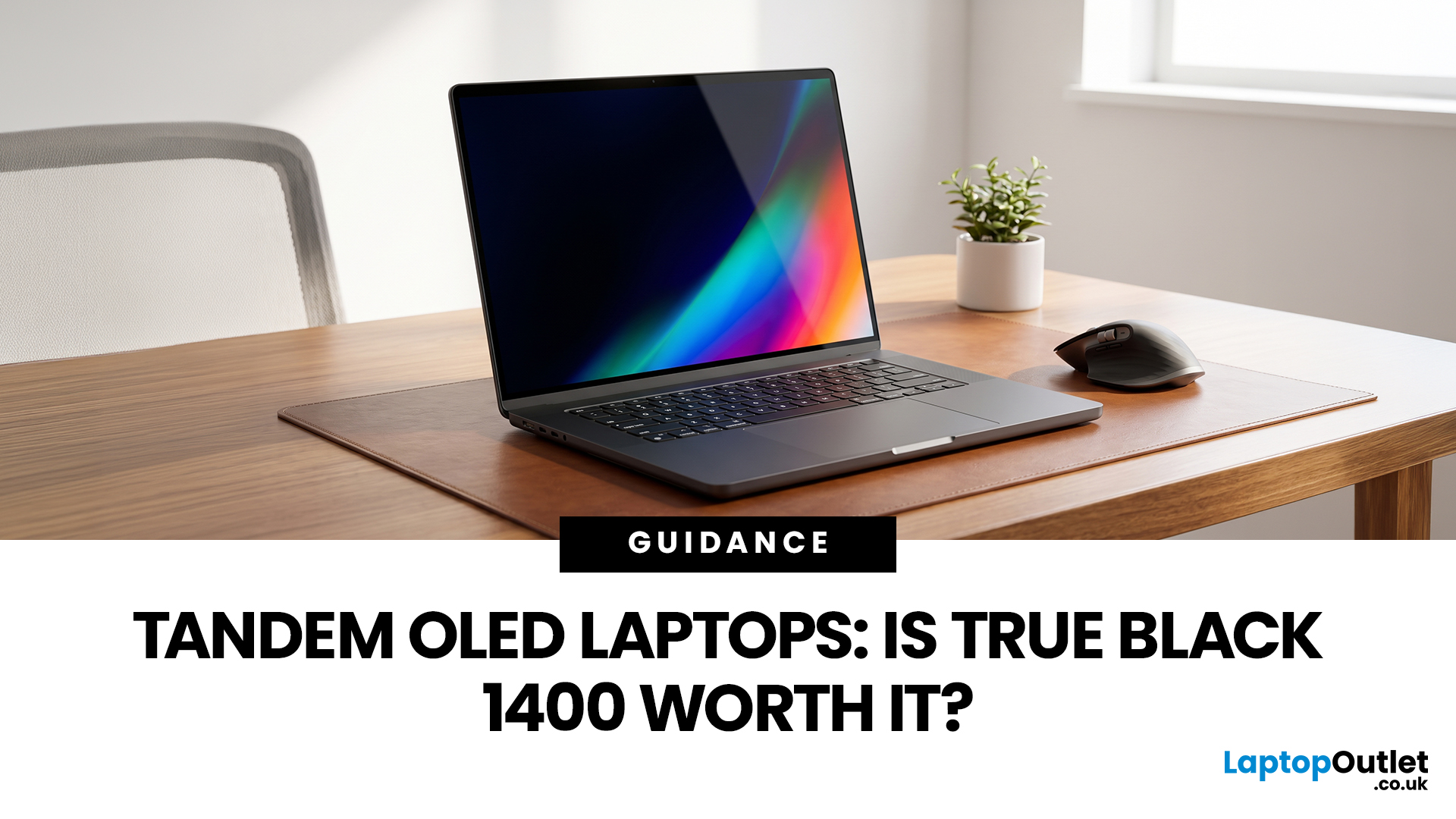
OLED laptops are already known for deep blacks, rich colour and fast pixel response, but a newer display design is pushing brightness further.
Tandem OLED laptops use stacked light-producing layers to deliver stronger HDR highlights while retaining the pixel-level control that makes OLED attractive.
That improvement now has an official benchmark. VESA introduced DisplayHDR True Black 1400 in July 2026 as its highest True Black certification tier, aimed at next-generation OLED screens for professional HDR creation and premium entertainment. The first certified laptop display shows that tandem OLED is becoming a buying consideration.
Understanding the Real Impact of True Black 1400 Displays
DisplayHDR True Black 1400 is worth considering if you edit HDR video, review colour-critical content, watch high-quality HDR films
Last Updated: August 05, 2026
Choosing the best Chromebooks in 2026 is no longer just a matter of finding the cheapest ChromeOS laptop. The current range covers basic web machines, detachable tablets, large-screen productivity models and higher-spec Chromebook Plus systems with stronger processors, better displays and AI-assisted tools. This guide list ten live UK models for different needs, helping you choose the right model for school, university, work or home.
Why Choose a Chromebook in 2026?
ChromeOS has quietly become one of the most sensible operating systems for everyday computing, and 2026 gives you even more reason to consider one over a traditional Windows machine or pricier professional laptops running macOS.
Gemini AI is now built in. Google has started rolling out Gemini in Chrome to UK users in July 2026, meaning Chromebook Plus owners get a built-in AI sidebar that can summarise articles, compare open tabs, draft emails and pull details from Gmail, Calendar and Maps without switching apps.
Your Chromebook

