



Common HP Laptop Problems and Easy Fixes
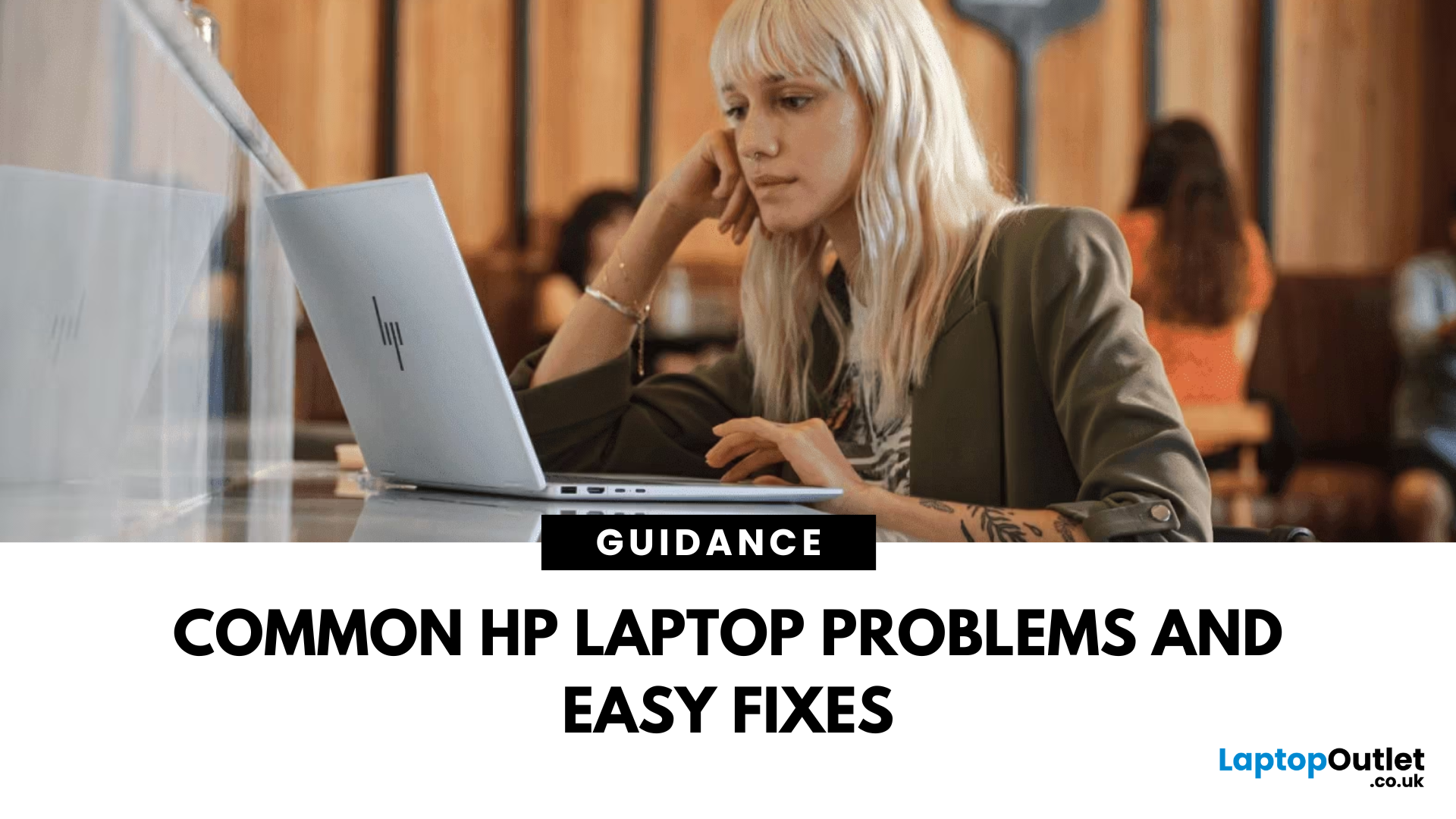
Owning a reliable laptop is essential for work, study, or entertainment, but even the most dependable devices can sometimes encounter technical issues. While HP laptops are well-known for durability, performance, and business-friendly features, users may occasionally face problems that affect productivity. Whether it’s a laptop not turning on, keyboard issues, or Wi-Fi connectivity glitches, you’ll learn step-by-step troubleshooting techniques to get your HP laptop back in action.
Understanding Common HP Laptop Problems
Even well-built laptops face technical hiccups. Frequent issues can become a hindrance, ultimately delaying your work. By identifying common HP laptop issues early, you can apply HP laptop troubleshooting steps before problems worsen, saving both time and money. The issues often arise from:
Hardware Malfunctioning
Like any electronic device, laptops have components that naturally degrade over time. Components like batteries, fans, and keyboards lose their functionality over time, especially when your laptop is old. Therefore, it is crucial to stay aware of hardware ageing helps you plan timely replacements rather than waiting for a complete breakdown. The hardware malfunctioning arises when:
- Batteries lose their ability to hold a charge after hundreds of cycles, leading to shorter run times or unexpected shutdowns.
- Fans and cooling systems accumulate dust or wear out, which reduces efficiency and contributes to overheating.
- Keyboards and touchpads suffer from repeated use, resulting in unresponsive keys or erratic cursor movement.
Software Conflicts
Not all HP laptop problems stem from hardware. Your laptop’s software is equally critical to smooth performance. Therefore, keeping software updated through Windows Update and HP Support Assistant is one of the easiest ways to prevent many common HP laptop issues. The following are some of the software conflicts that you may encounter:
- Outdated drivers often cause issues like flickering screens, malfunctioning Wi-Fi, or poor graphics performance.
- BIOS conflicts can affect your system stability, especially if firmware hasn’t been updated to support new Windows versions.
- Operating system bugs occasionally trigger random crashes, freezes, or compatibility errors with applications.
Everyday User Habits
Your following habits reduces the lifespan of your HP laptop:
- Placing laptops on beds or couches restricts airflow, causing overheating.
- Accidental spills on the keyboard can corrode circuits, leading to long-term damage.
External and Environmental Factors
Sometimes, problems originate outside the laptop itself which can be:
- A faulty charger or adapter may cause battery issues or prevent charging altogether.
- Poor Wi-Fi signals can make it seem like the laptop has connectivity issues when the root cause lies with the router or provider.
- Incompatible peripherals, such as uncertified docking stations or USB devices, can conflict with system drivers and lead to crashes.
Being mindful of the environment in which your laptop operates is just as important as internal care. By identifying common HP laptop problems early, you can take proactive troubleshooting steps before they escalate into expensive repairs.
Easy Fixes to Resolve HP Laptop Problems
Now that we’ve identified the main causes of common HP laptop issues, here are some practical fixes you can apply. Many of these troubleshooting steps are simple enough to do at home, helping you avoid costly repairs.
1. Hardware Malfunctioning
Battery Issues
You can fix battery issues by following these steps:
- Use HP Battery Health Manager (available in BIOS on most HP laptops) to optimise charging and extend battery life.
- If your battery drains too quickly, calibrate it: fully charge, discharge to 0%, then recharge to 100%.
- For older laptops, replace the battery with a genuine HP replacement part once capacity falls below 60–70%.
Overheating and Fan Problems
To reduce overheating and fan problems, consider the following steps:
- Regularly clean vents with compressed air to remove dust build-up.
- Avoid blocking ventilation by using your laptop on a hard, flat surface instead of beds or couches.
- If overheating persists, apply fresh thermal paste or replace the cooling fan via a certified technician.
Keyboard and Touchpad Wear
You can get rid of the keyboard and touchpad malfunctioning through easy steps:
- For sticky or unresponsive keys, gently clean with a soft brush or compressed air.
- Enable on-screen keyboard (Windows + Ctrl + O) temporarily if the physical keyboard fails.
- If your touchpad stops working, check the function key toggle (usually F5/F7) and reinstall touchpad drivers from HP Support.
2. Software Conflicts
If your laptop’s hardware components are safe, then it means the problem arises in the software. Resolve the software conflicts by fixing these:
- Outdated Drivers: Use HP Support Assistant to automatically detect and install the latest drivers. Alternatively, update drivers via Device Manager or the HP website.
- BIOS Issues: Go to the HP Support website, search for your model, and install the latest BIOS version. Avoid interrupting BIOS updates — keep your laptop plugged in during the process.
- Operating System Errors: Keep your Windows OS updated with the latest patches. Use Windows Troubleshooters for common errors like WiFi disconnection or audio issues. For frequent crashes, perform a System File Check (type sfc /scannow in Command Prompt).
3. Everyday User Habits
Get rid of overheating by using a laptop cooling pad for extended sessions. You must ensure at least 2 inches of space around vents for proper airflow. In addition, immediately power off the laptop, disconnect the charger, and remove the battery (if removable). wipe off excess liquid and place the laptop upside down to dry.
Furthermore, for serious spills, seek professional repair because corrosion can develop quickly. Always transport your laptop in a padded case or sleeve. Avoid sudden shocks or drops, which may damage internal components like the hard drive or SSD.
4. External and Environmental Factors
You can test with another HP-compatible charger to rule out adapter issues. Inspect charging ports for dust or bent pins, and clean gently if needed. In addition, restart your router and laptop to refresh the connection.
Update your WiFi adapter drivers in Device Manager. If the issue persists, test the connection with another device to confirm whether the problem is with your laptop or your ISP.
Only use HP-certified docking stations and peripherals. If a USB device causes crashes, uninstall its drivers and reconnect after a reboot. Furthermore, test peripherals one at a time to isolate faulty devices.
Best Practices to Prevent Future HP Laptop Problems
While it’s normal for laptops to develop occasional issues over time, you can greatly reduce the likelihood of recurring malfunctions through regular maintenance and proactive care.
Many problems that affect performance such as overheating, slowdowns, or hardware wear are preventable with the right habits. Below are the most effective strategies for ensuring your HP laptop stays in peak condition for years.
1. Keep Your Laptop Dust-Free and Well Ventilated
Dust build-up is one of the leading causes of overheating, which can shorten the lifespan of internal components like the CPU, GPU, and cooling fans.
- Use a cooling pad: For users who run demanding software or gaming, an external cooling pad helps maintain airflow.
- Clean vents regularly: Use compressed air every few months to clear dust from vents. Avoid vacuum cleaners, which can generate static.
- Avoid soft surfaces: Using your laptop on a bed or sofa can block ventilation. Always place it on a hard surface.
Latest HP models from ProBook and EliteBook series, feature improved thermal designs with AI-based fan control, but regular cleaning is still essential for consistent performance.
2. Install Windows Updates and HP Drivers Regularly
Outdated software is one of the most common sources of laptop malfunctions. HP’s latest business laptops now feature HP Cloud Recovery Tool, allowing users to restore factory settings with the latest firmware and drivers, making troubleshooting easier. Keeping your system updated ensures better stability, performance, and security. Here's how you can do this:
- Windows Updates: Install updates promptly, as they often include bug fixes, security patches, and compatibility improvements.
- HP Support Assistant: Pre-installed on most HP laptops, this tool automatically checks for BIOS, driver, and firmware updates. Using HP’s drivers is preferable to generic Windows ones, as they are optimised for HP hardware.
- BIOS Updates: Regularly check the HP website for BIOS updates, which often improve hardware communication and system reliability.
3. Use Antivirus and Security Tools
Malware, ransomware, and spyware not only compromise your data but also cause performance issues such as crashes, slowdowns, and overheating. Keeping security active reduces the risk of data corruption and system instability caused by malicious software. You can utilise the following to recover the malware issue:
- Windows Security (Defender): Built into Windows 10/11, it provides strong protection without the need for third-party software.
- Premium Antivirus (optional): Solutions like Norton, McAfee, or Bitdefender provide extra features such as VPNs, parental controls, and phishing protection.
- HP Wolf Security (business laptops): Select HP business laptops include HP Wolf Security, which adds hardware-enforced protection against advanced cyber threats.
4. Optimise Battery Usage and Charging Habits
Battery health directly impacts your laptop’s usability. Poor charging habits can shorten its lifespan. HP Spectre and EliteBook models now include smart charging technology, which uses AI to adapt charging patterns based on your habits, prolonging HP laptop battery life automatically. Therefore:
- Avoid constant overcharging: HP laptops are designed to handle being plugged in, but it’s best to occasionally let the battery discharge to around 20–30% before recharging.
- Use HP Battery Health Manager: Found in BIOS on many HP models, this feature lets you choose charging modes (e.g., “Maximise My Battery Health”), reducing wear from constant charging.
- Calibrate the battery: Every few months, fully discharge and then recharge your battery to help the system estimate capacity more accurately.
5. Manage Storage and Performance
Cluttered storage can slow your laptop and cause frequent crashes. HP Business laptops often come with HP Sure Recover, allowing automatic OS recovery with minimal downtime in case of data corruption. Keeping your system tidy helps prevent issues and it can happen only when you:
- Clear temporary files: Use Windows Disk Cleanup or Storage Sense to automatically delete junk files.
- Defragment or optimise drives: On HDDs, run defragmentation; on SSDs, use the optimise drive feature.
- Regular backups: Use OneDrive, Google Drive, or an external hard drive to back up important files. This protects against both hardware failure and accidental deletion.
6. Handle Hardware with Care
Physical damage is another common reason for laptop malfunctions. By taking these extra precautions can extend your laptop’s life:
- Use a padded laptop bag when travelling.
- Avoid exposing your laptop to extreme temperatures or humidity.
- Handle the screen carefully – never press too hard when closing the lid.
- Disconnect safely – avoid yanking USB devices or charging cables abruptly.
7. Regularly Restart Your Laptop
Many users keep their laptop on sleep mode for days or weeks. However, a proper restart clears background processes, refreshes memory, and applies important updates. Restart your HP laptop at least once or twice a week for smoother performance.
Conclusion
While HP laptop problems can be frustrating, most have straightforward fixes that you can carry out yourself. From resolving startup failures and black screens to troubleshooting Wi-Fi and battery issues, the right HP laptop troubleshooting steps can restore performance and extend your device’s lifespan.
For those who rely heavily on their laptops, investing in reliable models like the best HP business laptops can minimise future disruptions. Combine this with regular maintenance, updates, and smart usage habits, and you’ll enjoy a fast, stable, and dependable laptop experience for years to come.
FAQs
1. What are the most common HP laptop issues?
Users frequently report black screen errors, Wi-Fi connectivity problems, overheating, touchpad malfunctions, and slow performance.
2. How can I fix an HP laptop that won’t turn on?
Start by checking the charger, performing a hard reset, and testing with an external monitor. If it still won’t power on, BIOS or motherboard repair may be required.
3. Why is my HP laptop running so slow?
Background apps, outdated drivers, or insufficient RAM often cause slowdowns. Disabling startup programs and upgrading to an SSD can drastically improve speed.
4. How do I solve Wi-Fi problems on my HP laptop?
Update wireless drivers, restart your router, and adjust power management settings to keep the Wi-Fi adapter active.
5. Can overheating damage my HP laptop?
Yes. Persistent overheating can damage internal components like the CPU and GPU. Regular cleaning and using cooling solutions help avoid this.
6. How do I fix my HP laptop keyboard not working?
Update or reinstall drivers, disable Filter Keys, and test with an external keyboard to identify if the issue is hardware related.
| Read More: |
| Which HP Laptops for gaming? |
| HP Laptop and Desktop Deals: A Guide to Saving Money |
| What are HP Planet Partners? What Are the Three Pillars of HP's Sustainability Strategy? |
Related Articles

Last Updated: April 02, 2026
Last Updated: July 01, 2025
Last Updated: July 01, 2025
Last Updated: October 08, 2025

