



How to Choose an iiyama Monitor for Work, Gaming, and Everyday Use
Choosing an iiyama monitor starts with one question: what will you use the screen for most often?
If you mainly work, look for comfort, clear text, useful ports and ergonomic adjustment. If you mainly game, focus on refresh rate, response time and smooth motion. If you need one screen for everyday use, choose a balanced monitor that fits your desk, your device and your daily routine.
This iiyama monitor selection guide explains the main iiyama monitor types, features and specifications, so you can choose the right screen for work, gaming, study, browsing or mixed use.
Quick answer: Which iiyama monitor should you choose?
- Choose an iiyama ProLite monitor if your main use is work, study, business productivity or hybrid working.
- Choose an iiyama G-Master monitor if your main use is gaming, esports or fast-moving entertainment.
- Choose a balanced iiyama monitor if you use the same screen for work, streaming, browsing and occasional gaming.
Here is the simple way to think about it:
|
YOU MAIN USE |
BEST iiYAMA MONITOR TYPE |
FEATURES TO PRIORITISE |
|---|---|---|
|
Office work |
ProLite-style monitor |
Clear text, ergonomic stand, USB-C, KVM, RJ45 LAN |
|
Hybrid working |
ProLite docking monitor |
USB-C power delivery, KVM switch, LAN, adjustable stand |
|
Study |
Everyday or ProLite monitor |
Comfortable size, clear resolution, simple connectivity |
|
Everyday home use |
Balanced monitor |
Full HD or QHD, HDMI, built-in speakers, easy setup |
|
Competitive gaming |
G-Master monitor |
High refresh rate, low response time, adaptive sync |
|
Immersive gaming |
G-Master curved or larger monitor |
QHD, 4K, ultrawide, FreeSync, curved screen |
|
Creative work |
Higher-resolution IPS monitor |
QHD or 4K, colour consistency, larger workspace |
|
One screen for everything |
Mixed-use monitor |
27-inch QHD, useful ports, good refresh rate, comfort |
What are the main iiyama monitor types?
The main iiyama monitor types are ProLite, G-Master, touchscreen, and large-format displays.
For most home and office users, the two most important ranges are ProLite and G-Master.
- ProLite monitors are usually designed for work, productivity, business use, study and long desk sessions. They focus on practical features such as clear text, adjustable stands, USB-C docking, KVM switching and clean connectivity on selected models.
- G-Master monitors are designed for gaming and entertainment. They focus on speed, smoother motion, low response times, higher refresh rates, adaptive sync and gaming features such as Black Tuner on selected models.
Touchscreen and large-format iiyama displays are more specialised. They are usually better suited to classrooms, meeting rooms, retail spaces, reception areas or interactive work environments.
What iiyama monitor features matter most?
The most important iiyama monitor features are screen size, resolution, panel type, refresh rate, response time, connectivity and ergonomics.
These features matter because they affect how comfortable the monitor feels, how sharp the image looks, how smoothly motion appears and how easily the screen connects to your devices.
|
FEATURE |
WHAT IT MEANS |
BEST FOR |
WHY IT MATTERS |
|---|---|---|---|
|
Screen size |
The physical size of the display |
Work, gaming, everyday use |
Affects desk space, viewing comfort and multitasking |
|
Resolution |
The number of pixels on the screen |
Productivity, detail, media |
Higher resolution gives sharper text and more workspace |
|
IPS panel |
A panel type with wide viewing angles and consistent colour |
Work, study, creative use |
Keeps colours and text clear from different angles |
|
VA panel |
A panel type often known for stronger contrast |
Films, entertainment, curved screens |
Helps dark scenes look deeper and more immersive |
|
Refresh rate |
How many times the screen updates per second |
Gaming and smoother motion |
Higher refresh rates can make movement feel smoother |
|
Response time |
How quickly pixels change during motion |
Gaming |
Helps reduce blur and ghosting in fast scenes |
|
USB-C docking |
One-cable connection for selected laptops |
Hybrid work and laptop desks |
Can carry display, data and power through one cable |
|
KVM switch |
Controls two devices with one keyboard and mouse |
Workstations and mixed setups |
Makes it easier to switch between a laptop and desktop |
|
RJ45 LAN |
Wired network connection through selected monitors |
Office and hot-desk setups |
Helps create a cleaner and more stable workstation |
|
Adaptive Sync or FreeSync |
Syncs display refresh with graphics output |
Gaming |
Helps reduce screen tearing and stuttering |
|
Black Tuner |
Adjusts dark areas in games |
Gaming |
Helps improve visibility in shadow-heavy scenes |
|
Height-adjustable stand |
Lets you change the screen position |
Work and long sessions |
Supports better posture and viewing comfort |
|
Built-in speakers |
Speakers inside the monitor |
Everyday use and office desks |
Reduces the need for separate speakers |
How do you choose the right iiyama monitor screen size?
Choose screen size based on your desk space, viewing distance and how many windows you use at once.
- A 24-inch iiyama monitor is a good choice for smaller desks, office work, student use and basic home computing. It is large enough for documents, browsing and video calls without taking over the workspace.
- A 27-inch iiyama monitor is the best all-round size for many users. It gives more room for multitasking and works especially well with QHD resolution. If you want one monitor for both work and entertainment, 27 inches is often a sensible starting point.
- A 32-inch iiyama monitor gives more space for detailed work, large spreadsheets, creative tasks and immersive viewing. It works best when you have enough desk depth.
- A 34-inch or larger ultrawide iiyama monitor is useful for multitasking, timelines, wide spreadsheets and immersive gaming. It can also replace a dual-screen setup for some users.
What resolution should you choose: Full HD, QHD or 4K?
- Choose a Full HD monitor for simple everyday use, QHD for balanced work and gaming, and 4K for sharper detail on larger screens.
- Full HD is suitable for browsing, emails, documents, studying, and basic gaming. It works best on smaller screens, especially around 24 inches.
- QHD gives more detail and workspace than Full HD. It is a strong choice for 27-inch monitors because text looks sharper and multitasking feels less cramped.
- 4K gives the sharpest image and is useful for creative work, UHD video, detailed spreadsheets and large displays. It can also suit console gaming and premium media use, but PC gaming at 4K needs stronger hardware.
Is IPS or VA better for an iiyama monitor?
IPS is usually better for work, study and colour consistency, while VA is often better for contrast and entertainment.
An IPS iiyama monitor is a good choice if you read a lot of text, work with documents, use spreadsheets, browse the web or want consistent colour from wider viewing angles.
A VA iiyama monitor can be a good choice for films, entertainment, and some curved displays, as VA panels often deliver stronger contrast.
For productivity, IPS monitor is usually the safer choice. For gaming and entertainment, the best option depends on the full specification, not just the panel type. Refresh rate, response time, resolution and adaptive sync also matter.
What refresh rate do you need?
You need a higher refresh rate if you play fast games or want smoother motion.
| A 60Hz monitor is fine for everyday computing, office work and simple tasks. A 100Hz or 120Hz monitor can make scrolling and general movement feel smoother. A 144Hz, 165Hz, 180Hz, 240Hz or higher monitor is mainly useful for gaming. |
A high refresh rate only helps fully when your PC or console can produce enough frames to match it. That is why gaming performance depends on both the monitor and the device connected to it.
What response time is good for gaming?
A low response time is better for gaming because it helps reduce motion blur and ghosting.
| Response time describes how quickly pixels change from one shade to another. In fast games, quicker pixel response can make motion look cleaner. |
- For everyday use, response time is not a major concern. Emails, documents and web pages do not need the same motion performance as fast shooters, racing games or esports titles.
- For gaming, check response time together with refresh rate, adaptive sync and panel type. A balanced gaming monitor usually feels better than one with only one impressive number.
Which iiyama monitor connectivity options should you check?
Check HDMI, DisplayPort, USB-C, USB hubs, KVM and RJ45 LAN before choosing an iiyama monitor.
|
HDMI |
USB-C |
KVM |
|---|---|---|
|
HDMI is useful for laptops, desktops, consoles and media devices. DisplayPort is common for desktop PCs and can support higher resolutions and refresh rates depending on the model. |
USB-C is especially useful for laptop users. On selected iiyama monitors, USB-C can carry the display signal, data and power through one cable. This can reduce cable clutter and make a desk easier to manage. |
KVM switching is useful if you use two devices with one keyboard and mouse. RJ45 LAN is useful if you want a wired network connection through the monitor on selected models. |
How do you choose an iiyama monitor for work?
Choose an iiyama monitor for work by prioritising text clarity, screen comfort, useful ports and ergonomic adjustment.
- For general office work, a 24-inch Full HD monitor can be enough. It suits emails, documents, web browsing and video calls.
- For multitasking, a 27-inch QHD monitor is often more comfortable. It gives more space for side-by-side windows, dashboards and spreadsheets.
- For detailed work, 4K can be useful because it makes text and visuals sharper on larger screens.
If you use a laptop, look for USB-C docking and power delivery on selected models. If you switch between two computers, look for a KVM switch. If your desk needs a stable wired network, an RJ45 LAN can be useful.
How do you choose an iiyama monitor for gaming?
Choose an iiyama monitor for gaming by prioritising refresh rate, response time, adaptive sync, resolution and screen size.
- For competitive gaming, a smaller or mid-sized monitor with a high refresh rate can be easier to scan quickly. A 24-inch or 27-inch gaming monitor is often practical for fast-paced play.
- For immersive gaming, a larger QHD, 4K, curved or ultrawide monitor may feel better. These screens can make racing, simulation, and open-world titles more engaging.
- Adaptive sync or FreeSync can help reduce tearing and stuttering when the monitor and graphics output are working together. Black Tuner can help improve visibility in darker game scenes on selected G-Master models.
- For console gaming, check the HDMI connection, supported resolution and maximum refresh rate before choosing.
How do you choose an iiyama monitor for everyday use?
- Choose an iiyama monitor for everyday use by focusing on comfort, simplicity and value from the features you will actually use.
- Everyday use includes browsing, streaming, homework, emails, video calls and light entertainment. For this, you usually do not need the highest refresh rate or the most advanced gaming features.
- A 24-inch Full HD monitor is often enough for a simple setup. A 27-inch QHD monitor gives more space and sharper detail if you multitask or want a more comfortable long-term screen.
- Built-in speakers can be useful for casual video, calls and simple audio. An adjustable stand is worth considering if the monitor will be used for long sessions.
Can you use one iiyama monitor work for work, gaming and everyday use?
Yes, one iiyama monitor can work for work, gaming and everyday use if you choose a balanced specification. For many users, a 27-inch QHD monitor is the best middle ground. It offers more workspace than Full HD, looks sharp at a typical desk distance, and is easier to run than 4K for gaming.
What are the most common monitor buying mistakes?
The most common mistake is choosing a monitor based on a single specification rather than the full setup.
|
✘ Do not choose the biggest screen if your desk is small. A large monitor can feel uncomfortable if you sit too close. ✘ Do not choose the highest refresh rate if you mainly work with documents. You may get more benefit from sharper resolution, USB-C docking or a better stand. ✘ Do not choose 4K for gaming unless your PC or console can support the performance you expect. ✘ Do not ignore ports. A monitor must connect properly to your laptop, desktop or console. ✘ Do not assume every iiyama monitor has the same features. Always check the exact model specification before making a final choice. |
What is the best way to choose an iiyama monitor?
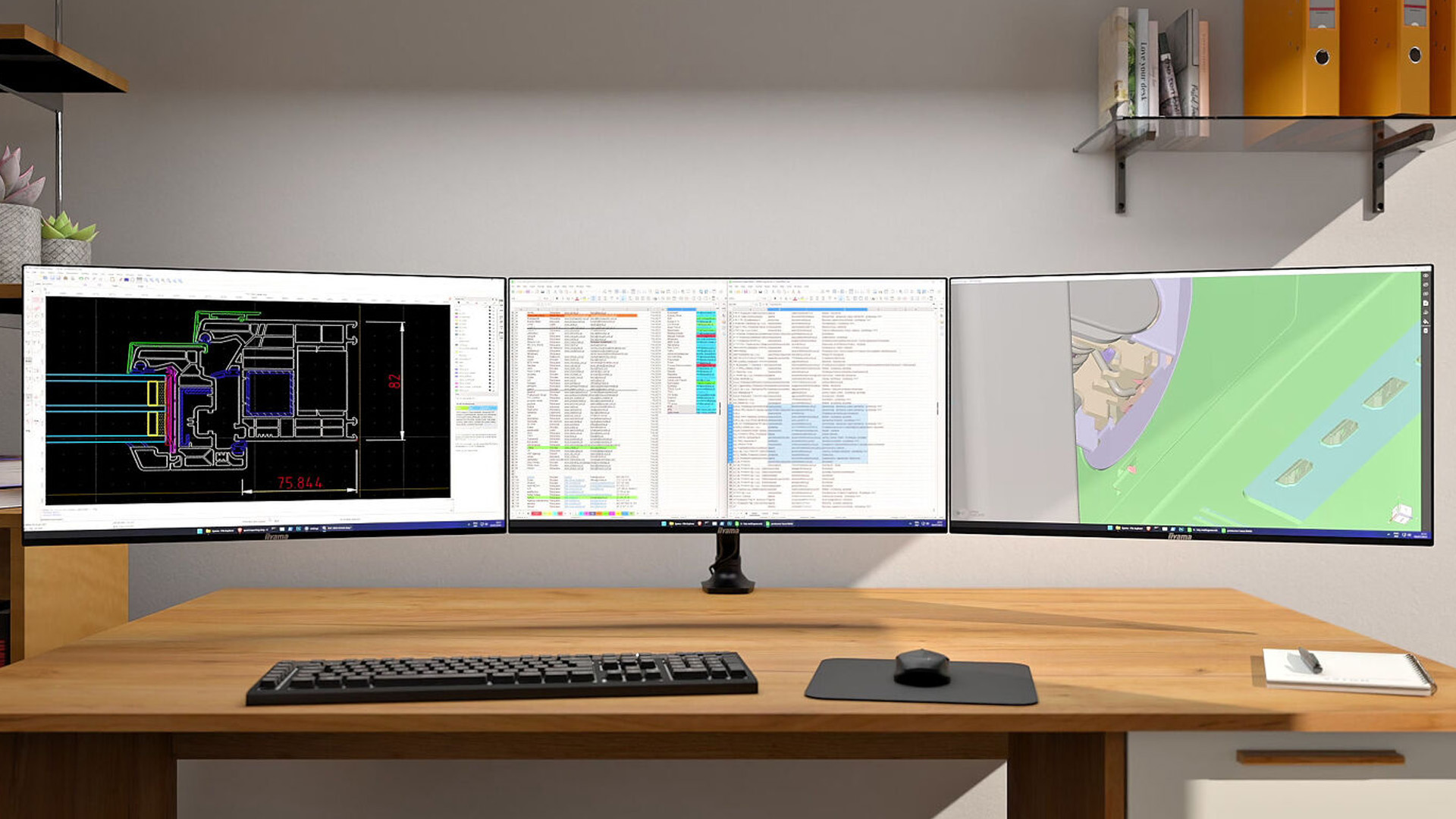
The best way to choose an iiyama monitor is to match the screen to your main use first, then compare specifications.
Start with your use case. Decide whether the monitor is mainly for work, gaming, study, everyday computing or mixed use. Then choose the screen size. Pick 24 inches for smaller desks, 27 inches for balanced use, 32 inches for larger workspaces and ultrawide for multitasking or immersion.
Next, choose the resolution. Full HD is fine for simple use, QHD is best for balanced setups, and 4K is best for sharp detail. After that, check panel type, refresh rate, response time, connectivity and ergonomics.

Final answer: How should you choose an iiyama monitor?
Learning how to choose an iiyama monitor comes down to matching the screen to your real use.
For work, prioritise comfort, text clarity, connectivity and ergonomics. For gaming, focus on refresh rate, response time, adaptive sync and resolution. For everyday use, keep things balanced and avoid paying extra for features you will rarely use.
If you are comparing iiyama monitor types, start with your main task first. Then look at screen size, resolution, panel type, refresh rate and ports. That approach will help you choose a monitor that feels right on your desk, not just one that looks impressive on a specification sheet.

People Also Ask...
What is the best way to choose an iiyama monitor?
The best way to choose an iiyama monitor is to start with your main use. Choose a work-focused monitor if you need comfort, clear text and useful ports. Choose a gaming monitor if you need a high refresh rate, low response time and smoother motion. Choose a balanced monitor if you use the same screen for work, browsing, streaming and light gaming.
Which iiyama monitor is best for work?
For work, look for an iiyama monitor with a comfortable screen size, clear resolution, an adjustable stand and practical connectivity. USB-C docking, KVM switching, and RJ45 LAN are useful if you work from a laptop, use multiple devices, or want a cleaner desk setup.
Which iiyama monitor is best for gaming?
For gaming, choose an iiyama monitor with a high refresh rate, low response time and adaptive sync support. These features help fast movement look smoother and reduce screen tearing or stuttering. Screen size and resolution also matter, especially if you want a more immersive setup.
Is iiyama ProLite better than iiyama G-Master?
iiyama ProLite is usually better for work, productivity, study and business use. iiyama G-Master is usually better for gaming, esports and entertainment. The better choice depends on whether you care more about work features, i.e. USB-C and ergonomics, or gaming features, such as refresh rate and response time.
What screen size is best for an iiyama monitor?
A 24-inch iiyama monitor is suitable for smaller desks, study and everyday office work. A 27-inch monitor is a strong all-round choice for work, gaming and general use. A 32-inch or ultrawide monitor is better for larger desks, multitasking, creative work or immersive gaming.
Is Full HD, QHD or 4K better for an iiyama monitor?
Full HD is suitable for basic work, browsing, study and smaller screens. QHD is a better all-around choice for 27-inch monitors because it gives more workspace and sharper detail. 4K is best for large screens, creative tasks, UHD content and users who want very sharp text and visuals.
Is an IPS or VA panel better for an iiyama monitor?
An IPS panel is usually better for work, study, colour consistency and wide viewing angles. A VA panel is often better for stronger contrast, entertainment and curved screens. For gaming, panel type should be considered alongside refresh rate, response time and adaptive sync.
What refresh rate do I need for an iiyama monitor?
For office work and everyday computing, 60-100Hz is usually enough. For smoother general use, 100Hz or 120Hz can feel better. For gaming, especially fast-paced games, 144Hz or higher is usually more suitable if your PC or console can support it.
Do I need USB-C on an iiyama monitor?
You need USB-C if you want a cleaner laptop setup with fewer cables. On selected iiyama monitors, USB-C can carry display, data, and power through a single cable. This is useful for hybrid work, hot-desking and home offices where a laptop is the main device.
What does KVM mean on an iiyama monitor?
KVM stands for keyboard, video, and mouse. A KVM switch lets you control two devices with one keyboard and mouse. This is useful if you switch between a work laptop and a personal desktop, or if you manage multiple computers at the same desk.
Are curved iiyama monitors good for work or gaming?
Curved iiyama monitors can be good for gaming, multitasking and ultrawide setups. The curved shape can make a large screen feel more immersive and easier to view from edge to edge. For standard office work, a flat screen is often simpler, but curved monitors can work well if you need extra horizontal space.
Can one iiyama monitor be used for work and gaming?
Yes, one iiyama monitor can work for both work and gaming if the specifications are balanced. A 27-inch QHD monitor is often a sensible middle ground. For work, check comfort, resolution and connectivity. For gaming, check refresh rate, response time and adaptive sync.
| Read More |
| Are curved monitors good for competitive gaming |
| Review: Iiyama ProLite T1531SAW 19" IPS Touchscreen LED Monitor |
| Review: Iiyama ProLite 24-inch Full HD IPS LCD Monitor Widescreen |
Related Articles

Published: April 28, 2026
If you spend the better part of your working day staring at a screen, you already know what digital eye strain feels like. That dull ache behind your eyes, the heaviness by mid-afternoon, the headache that creeps in by the end of a long session. You are not alone in that, and it is not just "screen time." It is often a combination of poor monitor settings, bad posture, and a setup that was never properly dialled in.
The good news is that LG has put real thought into tackling these problems at the hardware and software level. This guide walks you through every LG monitor eye care feature worth knowing about, how to set your screen up properly, and which models are genuinely worth considering if comfort is a priority for you.
Why Do Eye-Care and Ergonomics Actually Matter with Modern Monitors?
You might think that modern screens are already comfortable enough out of the box. The reality is that even a high-quality monitor, poorly positioned and left on factory settings, can cause very real
Last Updated: September 01, 2026
If you want smooth gameplay without jumping straight into premium OLED pricing, Acer Nitro gaming monitors are one of the easiest ranges to shortlist. Acer positions the Nitro line as a gaming family with options for fast-paced play, ultrawide immersion and richer colour, while Our Acer monitor range backs that up with Full HD, QHD, curved and ultrawide Nitro models aimed at buyers who want value, not just spec-sheet flexing.
That is exactly why Acer Nitro monitors UK shoppers keep coming back to the series. The range is broad enough to cover casual desk gaming, PS5 and Xbox setups, and entry-level PC esports, but it still stays realistic on price compared with high-end Predator and OLED alternatives. Nitro models from compact 23.8-inch Full HD panels up to 34-inch curved UWQHD displays, with refresh rates running from 120Hz to 240Hz.
Are Acer Nitro Gaming Monitors Good for Budget Gaming?
Yes. For casual gaming, console play and entry-level PC builds, Acer Nitro sits in a very practical
Last Updated: July 06, 2026
you are shopping for Acer Predator gaming monitors, you are usually not looking for a basic panel. You are looking for speed, image quality and a monitor that genuinely fits the kind of games you play. For some buyers, that means a fast 27-inch display for ranked shooters and esports titles. For others, it means a bigger 4K panel for high-detail single-player games. And for enthusiasts building the kind of setup that makes every desk photo look dramatic, it means an ultrawide or super-ultrawide screen that turns a gaming PC into the centrepiece of the room.
That is why Predator remains such an interesting range. Acer's broader monitor line covers different budgets and uses cases, but the Predator family is where Acer pushes harder on premium gaming features like OLED and QD-OLED panels, very high refresh rates, ultrawide formats and esports-level response times.
If you want the simple answer: Why choose Acer Predator monitor
Here is the short version.
- For competitive esports and fast shooters,
Last Updated: May 20, 2026
HDR is one of those monitor specs that sounds instantly premium. You see it on gaming monitors, 4K displays, creator screens, and even some budget monitors. But here’s the plot twist: not every HDR monitor gives you that “wow, this looks unreal” experience.
Some HDR displays look bright, rich and cinematic. Others technically support HDR but barely look different from standard mode. Bit awkward. So, what is HDR on a monitor, how does it work, and is HDR actually worth paying for? This complete HDR monitor explained guide breaks it all down in plain English, so you can shop smarter and avoid getting finessed by shiny spec labels.
What Does HDR Mean on a Monitor?
HDR stands for High Dynamic Range.
On a monitor, HDR is designed to show a wider range of brightness, contrast and colour than a standard SDR display. In simple terms, it helps bright areas look brighter, dark areas look deeper and colours look richer when you are watching or playing HDR-supported content.
So, when someone asks,
Last Updated: August 24, 2026
Buying a monitor should be simple. Pick a screen, plug it in, done. Except the second you start shopping, you’re hit with Full HD, QHD, 4K Ultra HD, 60Hz, 144Hz, 240Hz, IPS, VA, response time, HDMI, DisplayPort and about 47 other things that sound like they belong in a sci-fi film.
So, let’s make it easy.
This monitors & displays guide breaks down the two specs that matter most for most buyers: resolution and refresh rate. Whether you’re building a gaming setup, upgrading your home office, sorting a uni desk, editing content or just replacing an old screen that’s seen better days, this guide will help you choose the right monitor without getting finessed by big numbers.
Quick Answer: What Resolution and Refresh Rate Should You Choose?
Here’s the no-stress version.
| What You Use it For | Best Resolution | Best Refresh Rate | Best Monitor Type |
| Everyday browsing, emails and admin | Full HD | 60Hz–100Hz | Budget monitor |
| Studying or home office work | Full HD or QHD | 75Hz–120Hz | Productivity monitor |
| Multitasking |
Last Updated: August 24, 2026
One screen is fine. Two screens? That is where your setup starts feeling seriously organised. Whether you are working from home, studying, gaming, editing, coding or just tired of switching between 27 tabs every five seconds, a dual monitor setup can make your desk feel cleaner and your workflow feel smoother.
The good news is that learning how to set up dual monitors is not as complicated as it sounds. You just need the right monitors, the correct cables or adapters, and a few display settings adjusted properly. This complete guide explains how to connect two monitors, how to set up dual monitors on Windows, how to set up dual monitors with a laptop, and how to get the best layout for work, study, gaming and everyday use.
How Do You Set Up Dual Monitors?
Here is the simple version.
To set up dual monitors, connect both screens to your laptop or desktop PC using HDMI, DisplayPort, USB-C, Thunderbolt or a compatible docking station. Then open your display settings, choose Extend these displays
Last Updated: September 03, 2026
Ultrawide monitors look seriously clean on a desk. One big screen, loads of horizontal space, fewer bezels, and that “main character workstation” vibe. But are they actually useful, or are they just a pricey way to make your setup look dramatic?
If you are asking, “is an ultrawide monitor worth it?”, the answer is: yes, for the right person. An ultrawide screen monitor can be a massive upgrade for multitasking, gaming, editing, streaming, and hybrid work. But it is not the perfect choice for everyone. This complete ultrawide monitor buying guide breaks down the benefits, drawbacks, best use cases and key specs to check before you buy.
Are Ultrawide Monitors Worth it in 2026?
Yes, ultrawide monitors are worth it in 2026 if you want more horizontal workspace, better multitasking, immersive gaming or a cleaner alternative to dual monitors. They are especially worth it for:
- Hybrid workers
- Multitaskers
- Gamers
- Video editors
- Designers
- Streamers
- Coders
- Finance and dashboard users
- Anyone who wants
Last Updated: May 20, 2026
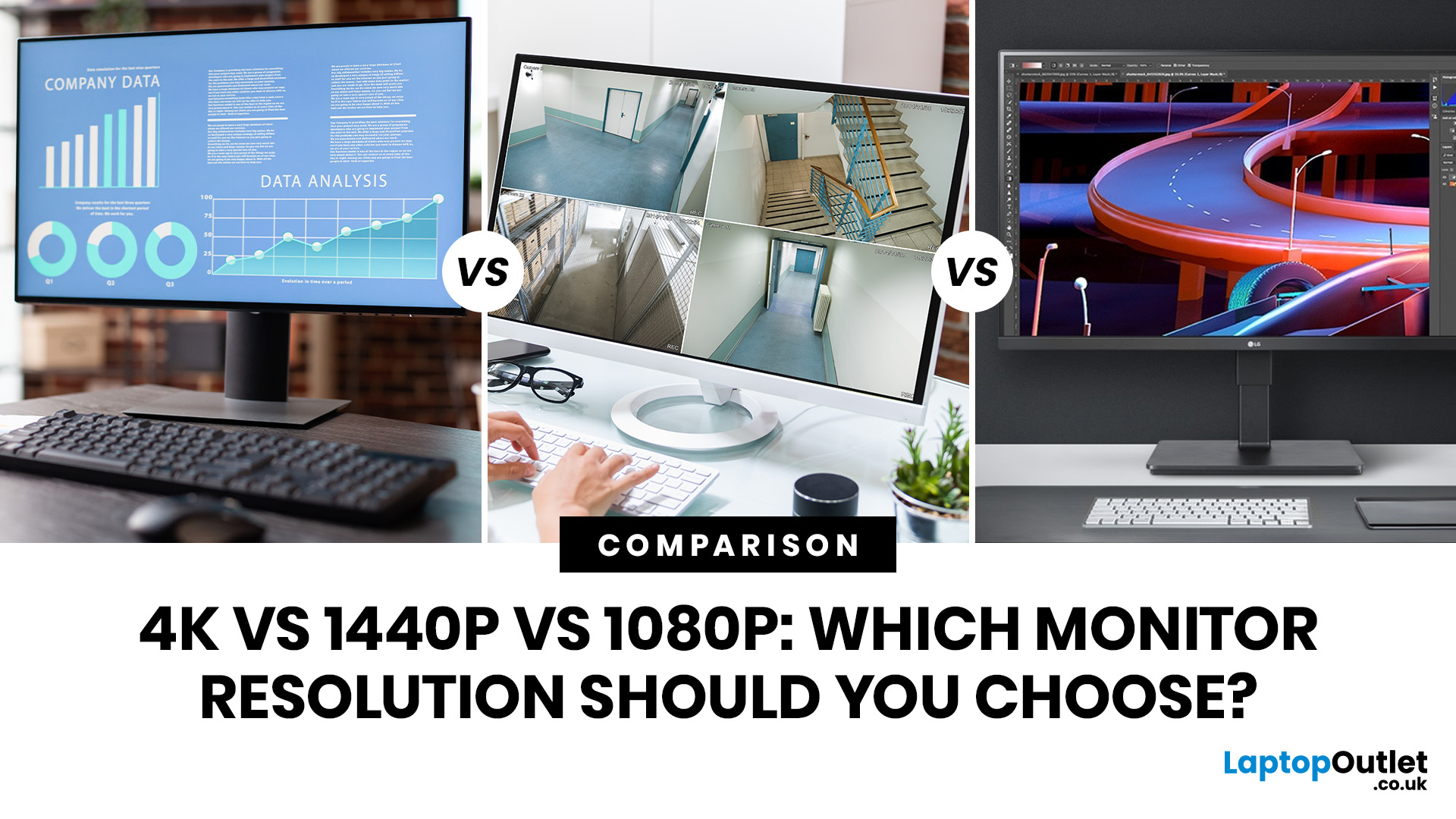
Choosing a monitor resolution should be simple, right? You pick a screen, plug it in, and get on with your day. Except the moment you start shopping, you get hit with 1080p, 1440p, QHD, 4K, Ultra HD, scaling, refresh rates and a whole lot of spec-sheet chaos.
So, which one should you actually buy?
This guide breaks down the 4K vs 1440p vs 1080p monitor debate in plain English. Whether you need a screen for gaming, work, studying, streaming, editing or a bit of everything, we’ll help you choose the right resolution without overpaying for pixels you do not need.
Quick Answer: 1080p vs 1440p vs 4K Monitor
Here’s the no-drama answer.
| User Type | Best Resolution | Why |
| Budget buyers | 1080p / Full HD | Affordable, reliable and easy to run |
| Students | 1080p or 1440p | Good value with enough clarity for study |
| Home office users | 1440p / QHD | Sharper text and better multitasking |
| Hybrid workers | 1440p or 4K | More screen space for apps and documents |
| Casual gamers | 1080p or 1440p | Good mix of smoothness, price and quality |
Last Updated: June 10, 2026
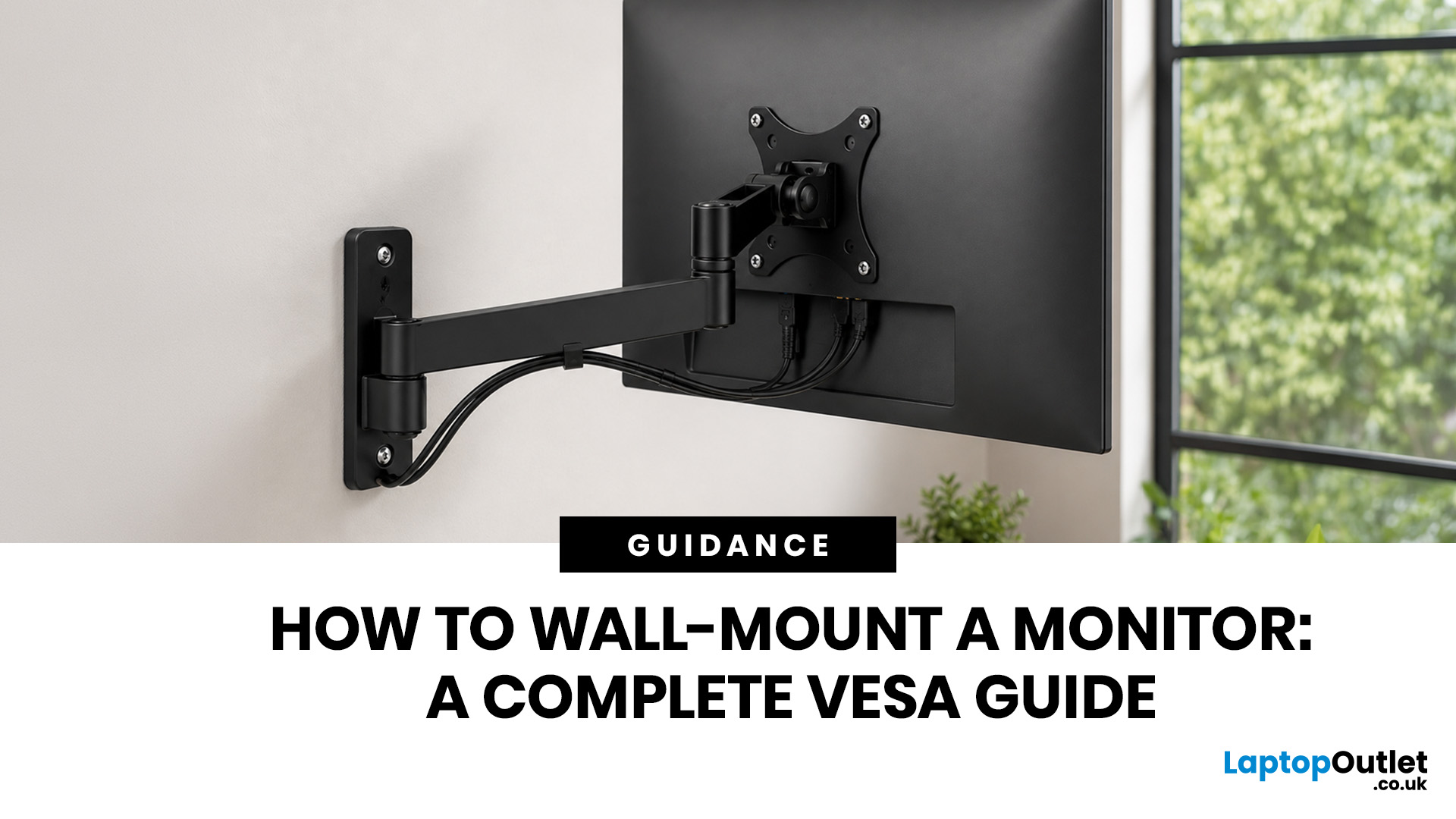
Quick Answer: Wall-mounting a monitor is worth it if you want to save desk space, improve posture and create a cleaner setup. Before you start, check that your monitor supports VESA mounting, confirm the correct VESA mounting pattern, choose a wall mount that supports your monitor’s weight, and make sure your wall can safely hold it. This VESA mount monitor guide explains what VESA mounting is, how to check compatibility, what tools you need, and how to wall mount a monitor safely step by step.
Wall-mounting a monitor can make your setup look instantly cleaner. No bulky stand. More desk space. Better cable management. A screen that actually sits at the right height instead of forcing your neck into questionable positions. Before you grab a drill and start making holes in the wall like you’re on a home renovation show, there are a few things to check. Not every monitor can be mounted, not every wall is suitable, and not every mount fits every screen.
What is VESA Mounting?
VESA mounting
Last Updated: June 10, 2026
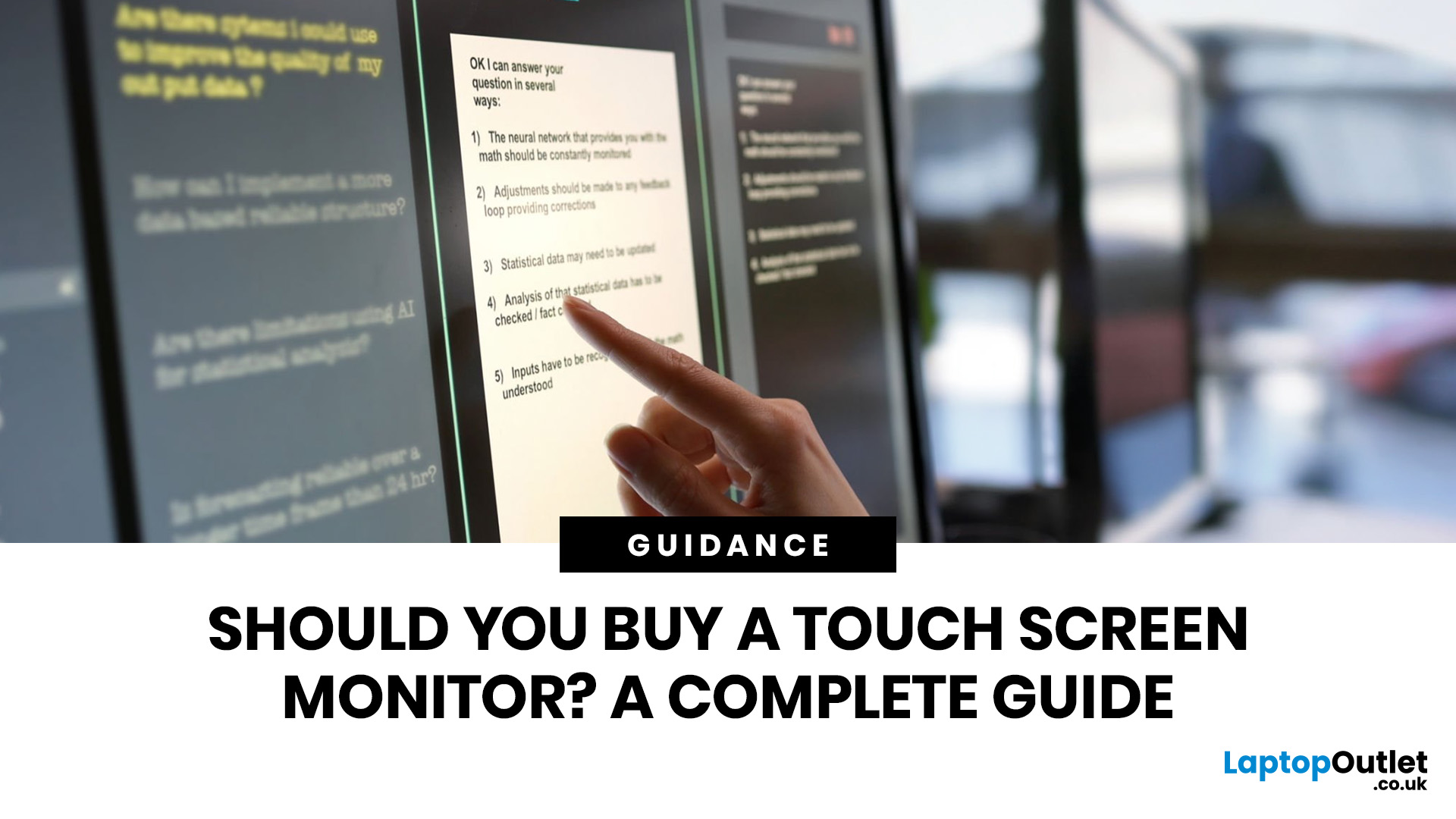
Quick Answer: Yes, touch screen monitors are worth it if you need a more interactive display for work, business, education, presentations, creative tasks or customer-facing setups. They let you tap, swipe, scroll, zoom and sometimes draw directly on the screen, which can feel much more natural than using only a mouse and keyboard.
A touch screen monitor sounds cool. You can tap apps, swipe through pages, pinch to zoom, sign documents, control presentations and interact with your PC like it is a giant tablet. Very futuristic. Very clean setup energy. But before you spend extra, it is worth asking: should I buy a touch screen monitor, or would a standard display do the job better?
The answer depends on how you use your computer. For business, education, creative work and interactive setups, touch can be genuinely useful. For spreadsheets, typing, gaming and everyday browsing, it may be more of a nice bonus than a must-have. This touch screen monitor buying guide breaks down the benefits,

