



Windows and Microsoft Office Activation Guide: Everything You Need to Know
If you need to activate Windows Office key products on a new or existing device, the good news is that the process is usually straightforward once you know which licence you have. Whether you are looking for a Windows activation guide, Microsoft Office activation steps, or a quick fix for an activation error, this guide walks you through it in plain English.
Windows 10 and Windows 11 can be activated with either a 25-character product key or a digital licence, while Microsoft 365 and standalone Office versions are typically activated by signing in with the Microsoft account, or work or school account, linked to the purchase.
What is a Microsoft Activation Key?
A Microsoft activation key is usually a 25-character code used to activate Windows or redeem certain Office purchases. For Windows, activation depends on either a product key or a digital license. For newer Office and Microsoft 365 products, the Microsoft account attached to your purchase often replaces the product key for reinstalling and activating later.
Windows Activation Guide: Start Here First
Before you try to activate Windows 10 or activate Windows 11, check the current activation status.
How to check activation status in Windows 11
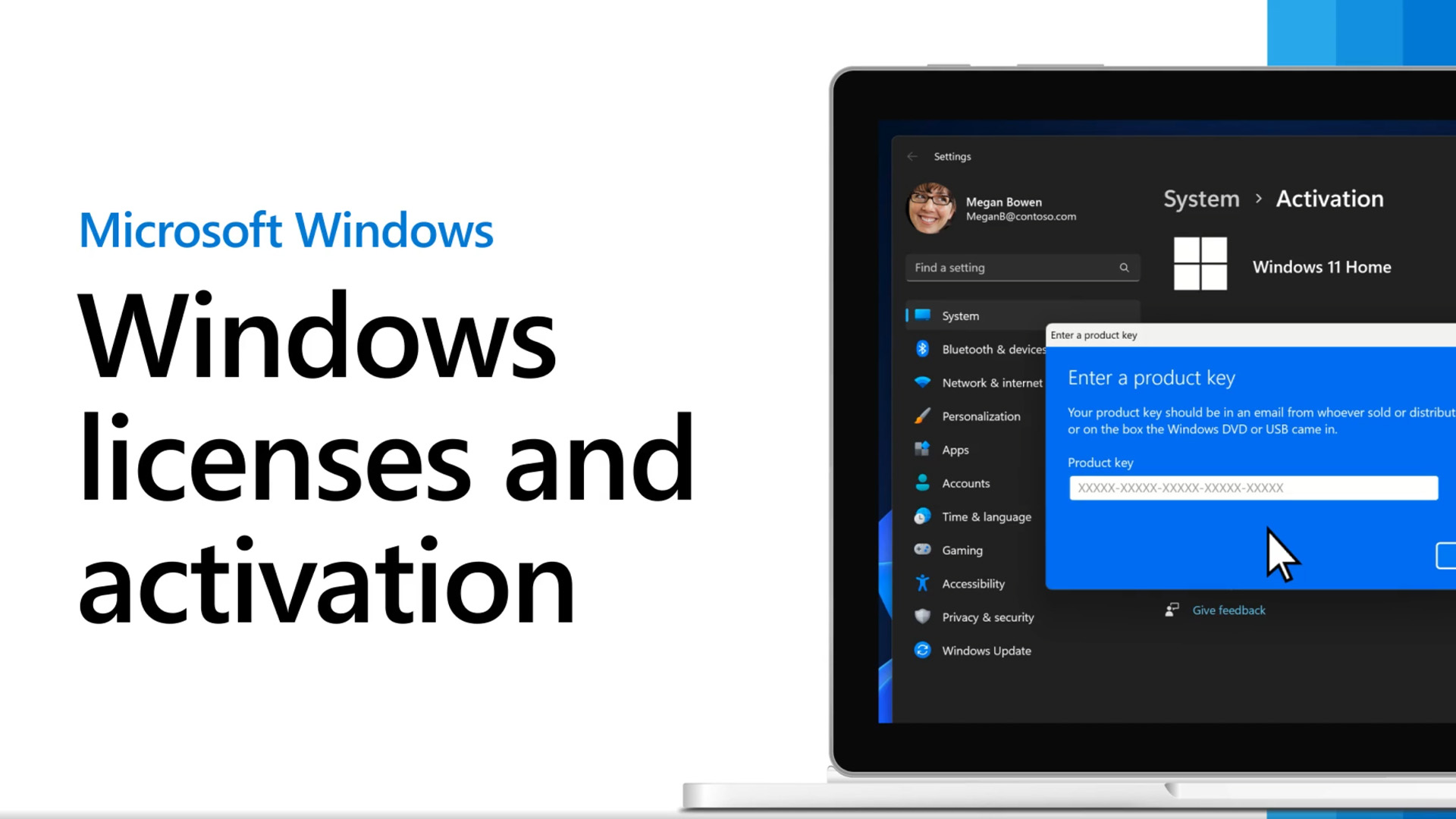
Go to Start → Settings → System → Activation.
You will see whether Windows is activated and whether the digital licence is linked to your Microsoft account.
How to check activation status in Windows 10
For Windows 10, Go to Start → Settings → Update & Security → Activation.
Make sure your Microsoft account is linked to your digital licence, because that makes reactivation much easier later if you change major hardware.
How to Activate Windows 10

If you need clear Windows 10 activation steps, this is the simplest route.
Activate Windows 10 with a product key
Start → Settings → Update & Security → Activation → Change product key.
Enter your 25-character key and follow the prompts. Microsoft uses this as the standard route when you have a valid key available.
Activate Windows 10 with a digital licence
If your Windows 10 licence is already linked to your Microsoft account, you may not need to enter a key at all. A digital licence is a valid activation method for Windows 10, and your device can activate automatically once the edition matches and the licence is recognised.
Beginner Tip
One of the easiest mistakes to make is installing the wrong Windows edition. Microsoft notes that if your licence is for one edition and a different edition is installed, activation may fail until the installed edition matches the licence.
How to Activate Windows 11
A proper Windows 11 activation guide follows much the same logic, but the Settings path is slightly different.
Activate Windows 11 with a product key
Start → Settings → System → Activation → Change product key.
Enter the 25-character key and complete the prompts. If you skipped key entry during setup, you can still enter it later from the Activation page.
Activate Windows 11 with a digital licence
If your device already has a valid digital licence, Windows 11 may activate automatically once you sign in and the correct edition is installed. Microsoft specifically recommends linking your Microsoft account to the licence so you can use the Activation troubleshooter if you make a major hardware change later.
How to activate Windows easily on a new device
If you have bought a machine that already includes Windows, activation is often automatic once the device connects to the internet and verifies its licence. This is especially common on new Windows 11 laptops, where the operating system is already licensed and only needs confirmation through setup and account sign-in.
If you are planning to move to the latest version before activation, our Windows 11 upgrade guide walks you through everything you need to know to upgrade safely and smoothly.
Microsoft Office Activation Steps
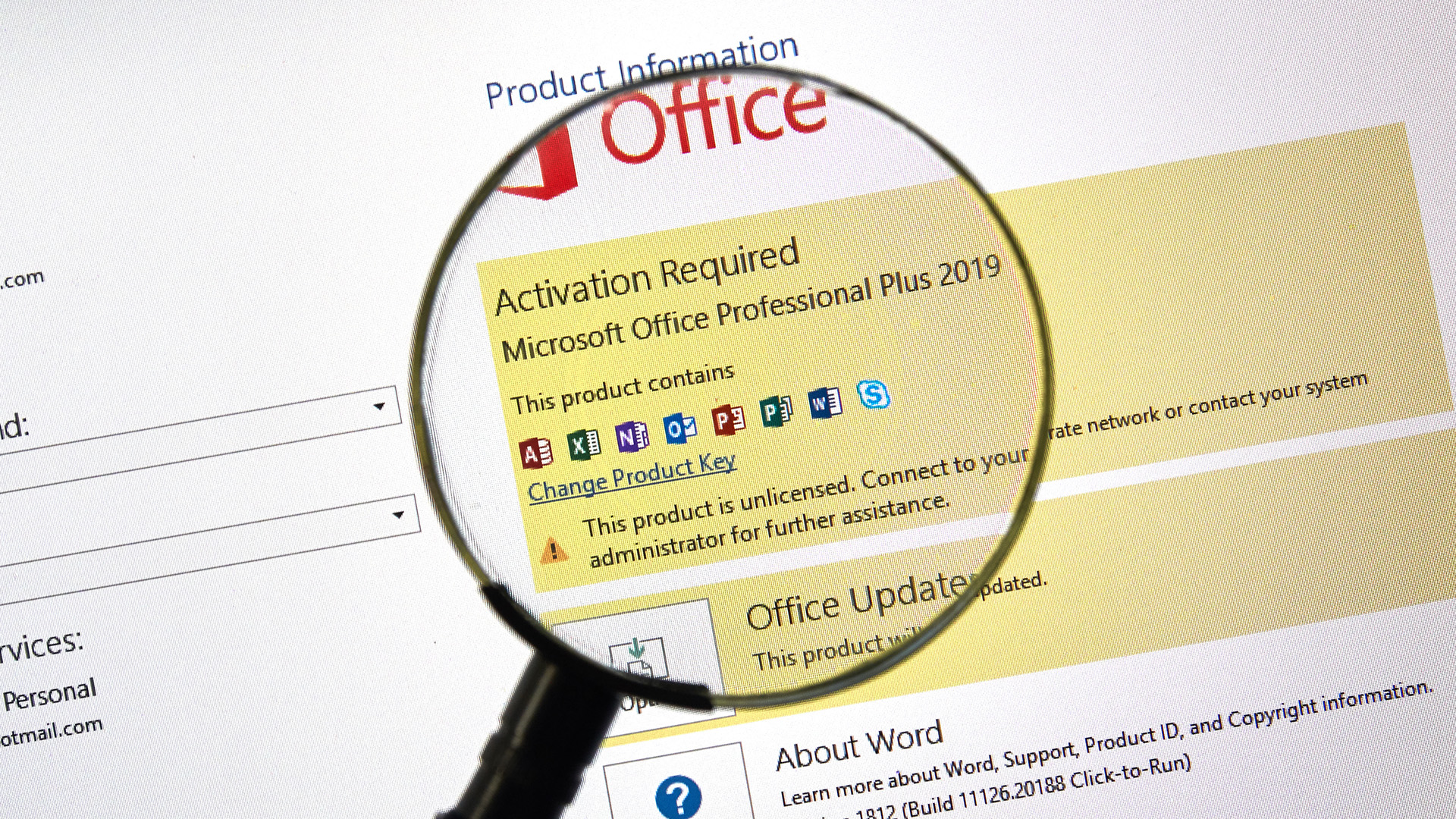
If you need step by step Office activation help, the process depends on whether you use Microsoft 365, a standalone Office version, or a copy that came pre-installed on your device.
Office 365 activation guide for Microsoft 365 subscribers
When you open an Office app that is not activated, you are normally prompted to sign in. You should sign in with the Microsoft account, or work or school account, that you used to buy or subscribe to Microsoft 365. In many cases, that sign-in is what activates the apps.
Step by step Office activation for a new key
If you bought a new Office product key, Microsoft directs users to redeem it through the official setup pages. After signing in with the correct Microsoft account, you enter the key, complete redemption, and then use that same account for installation and activation. Microsoft also says this account is important to remember because it replaces the need to reuse the key later.
Activate Office with Microsoft account
For newer versions of Office and Microsoft 365, your account is often the real activation anchor. Microsoft states that the account shown under the Office product is the one the licence belongs to, and that account can be used to reinstall Office and activate it again later.
What if the Activation Wizard appears?
If the Activation Wizard appears when you open an Office app, the suite needs your help to activate, and you should simply follow the prompts shown in the wizard.
How to Activate Windows Office Without Product Key
A lot of people search for how to activate Windows Office without product key, but the legitimate answer is narrower than that phrase suggests.
For Windows
Microsoft says Windows can activate without manually entering a key only if you already have a digital licence linked to that device or Microsoft account. Without a product key or digital licence, Windows activation will not complete.
For Office
For Microsoft 365 and many recent Office purchases, you may not need to type a key again if the licence has already been redeemed and attached to your Microsoft account. In that case, signing in with the correct account is usually enough to activate Office.
So, if you are trying to activate Windows Office key products without having the original code in front of you, first check whether Windows has a digital licence and whether Office is already associated with the right Microsoft account. That is the official route.
Windows Activation Error Fix: What to Do When Activation Fails
Even when you follow the correct steps, activation can still fail. The most useful Windows activation error fix is to start with the basics: confirm the device is online, confirm you are signed in with the right Microsoft account, check that the installed edition matches the licence, and use the built-in troubleshooter if needed. Microsoft’s activation support pages point users to those checks first.
Activation error code Windows users often see
One common activation error code Windows users run into is 0x803F7001. Microsoft links this code to activation problems and directs users to its dedicated troubleshooting guidance, including the option to use the troubleshooter and, in some cases, reactivate after hardware change.
Activation server unavailable fix
Microsoft also says some activation failures happen because the device is not connected to the internet or because the activation server is temporarily unavailable. In that case, the official advice is to check your connection, make sure the firewall is not blocking activation, and try again later. For certain server-side issues, Microsoft notes that Windows may activate automatically once the service comes back online.
Office Not Activated Fix: How to Troubleshoot Office Activation Issues
If Word, Excel or another Office app shows Unlicensed Product, Microsoft says most features will be disabled until the activation issue is resolved. The first step is to sign in with the correct account, because using the wrong email address is a very common reason activation fails.
Step 1: Sign in with the right account
Microsoft specifically advises trying all of your personal email addresses if needed, or using your work or school account if that is how Office was purchased. If Office says it cannot find any products for your account, that is often a sign the wrong address was used.
Step 2: Check for multiple Office installs
Microsoft also warns that having more than one copy of Office installed can cause activation conflicts. Removing versions you are not using is one of the standard ways to troubleshoot Office activation issues.
Step 3: Check subscription or redemption status
If you bought Microsoft 365 or Office with a key, make sure it was redeemed successfully to the correct Microsoft account. Microsoft’s setup support pages also note that region mismatches, previously used keys, and account limits can trigger key errors.
Sometimes activation conflicts can be caused by older or duplicate software, so learning how to uninstall apps on Windows 10 & 11 can help you remove unnecessary programmes and avoid issues.
Reactivation Windows After Hardware Change
If you have replaced a motherboard or made another major hardware change, Windows may stop showing as activated. Microsoft says the best preparation is linking your Microsoft account to your digital licence before the change. That way, you can use the Activation troubleshooter to restore activation afterwards.
How to reactivate Windows after a hardware change
Microsoft’s official flow is to go to Activation, run Troubleshoot, then choose I changed hardware on this device recently, and sign in with the Microsoft account that was linked to the digital licence.
This is one of the most useful parts of any beginner guide Windows activation article, because people often only discover it after upgrading hardware and losing activation. If activation issues appear after a system update, it is worth checking how to fix Windows 11 update problems to resolve any underlying update errors first.
Quick Activation Guide Microsoft Office and Windows
If you want the short version, here it is:
For Windows
Check Activation status, confirm the edition matches your licence, sign in with your Microsoft account, and either enter your product key or let the digital licence activate automatically. If something goes wrong, run the Activation troubleshooter.
For Office
Open an Office app, sign in with the account linked to the licence, follow the Activation Wizard if it appears, and check for account, subscription, key redemption or duplicate-install issues if the app still shows Unlicensed Product.
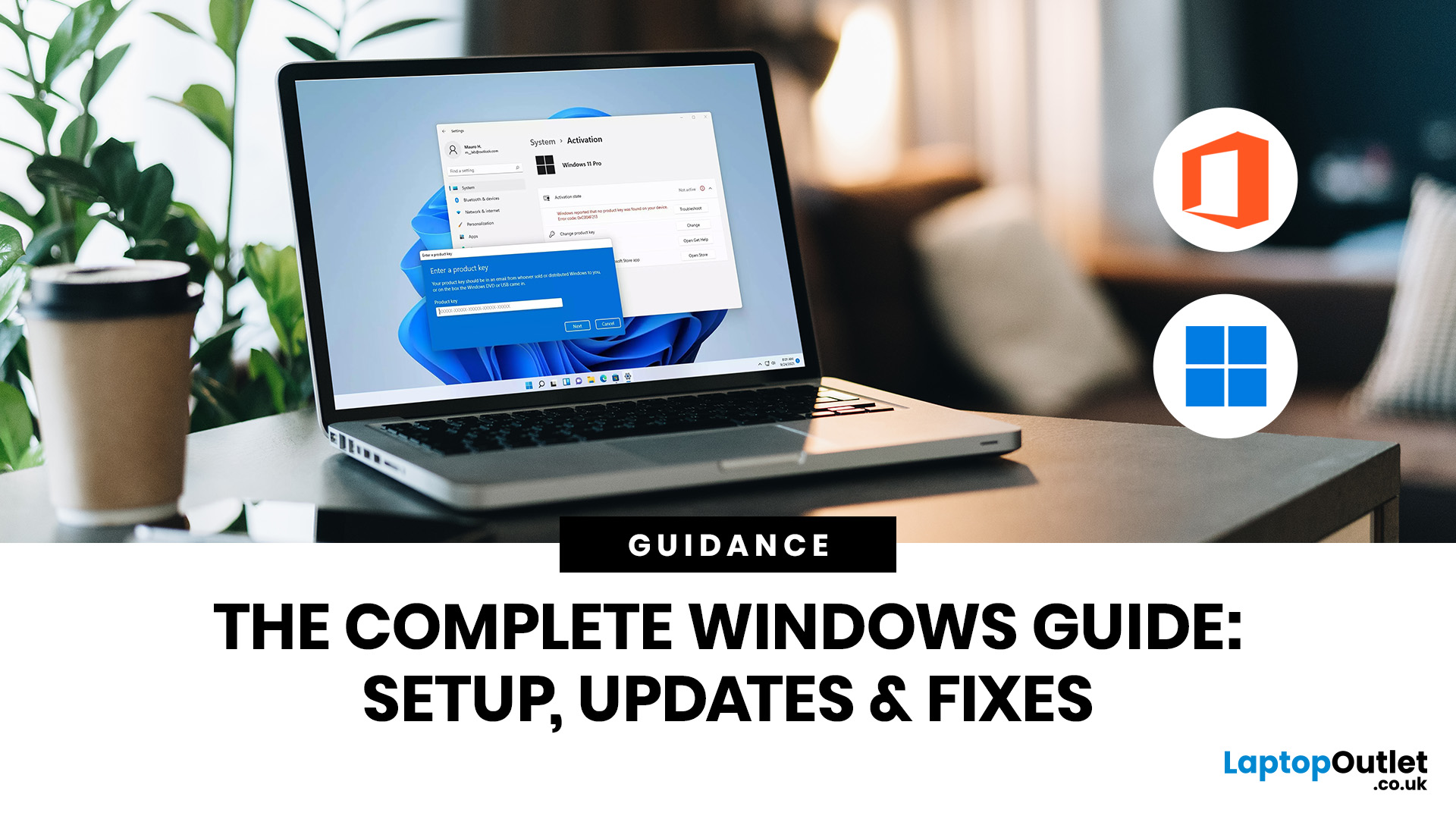
If you want a broader understanding of managing your system beyond activation, the complete Windows guide: setup, updates & fixes covers everything from initial setup to troubleshooting common problems.

Final Thoughts
Whether you need to activate Windows 10, activate Windows 11, or follow Microsoft Office activation steps for Microsoft 365, the same principle applies: use the right licence, the right edition, and the right Microsoft account. If you already have a digital licence or an account-linked subscription, activation is often quick. If you hit a problem, Microsoft’s own tools and troubleshooters usually point you in the right direction.
The easiest way to avoid future headaches is to keep track of the account tied to your software, link your Windows digital licence to that account, and only use official activation routes. That keeps the process simple whether you are setting up a brand-new PC, reinstalling Office, or handling reactivation Windows after hardware change.

FAQ's
Can I activate Windows without a product key?
Yes, but only if the device already has a valid digital licence. Microsoft says Windows 10 and Windows 11 can activate with either a 25-character product key or a digital licence.
How do I activate Office with Microsoft account?
Open an Office app and sign in with the Microsoft account, or work or school account, linked to the purchase or subscription. For many Microsoft 365 and newer Office licences, that sign-in completes activation.
Why is my Office showing Unlicensed Product?
Microsoft says this usually means activation failed. Common causes include using the wrong account, having multiple Office versions installed, or having a subscription or redemption issue.
What should I do if the activation server is unavailable?
Microsoft recommends checking your internet connection, making sure your firewall is not blocking activation, and trying again later. In some cases, Windows will activate automatically once the service is back online.
How do I reactivate Windows after changing hardware?
Go to Activation, run Troubleshoot, choose I changed hardware on this device recently, and sign in with the Microsoft account linked to your digital licence.
| Read More: |
| Speed Up Your PC with Windows Keyboard Shortcuts Guide |
| How to Fix Blue Screen of Death (BSOD) on Windows: Complete Guide |
| How to fix Windows 11 update problems |
Related Articles


Last Updated: October 09, 2025
Think back a few years... when you bought a laptop, what did you care about most? Probably the processor, maybe RAM, and the graphics card if you were into gaming. The display? It was usually just “good enough.”
Fast forward to 2025, and the screen has become just as important as the hardware inside. Whether you’re streaming, gaming, editing photos, or juggling multiple apps, the display is what you interact with most — and it shapes your entire experience.
This is especially true with Windows 11 laptops, as the operating system is designed to take full advantage of modern display technologies. Its sharper interface, multitasking layouts, HDR support, and gaming optimisation features really shine when paired with quality screens.
That’s why today’s Windows 11 laptop display comparison often comes down to three main types: OLED, IPS, and Microsoft’s PixelSense. Each has unique strengths, trade-offs, and ideal use cases. Understanding them will help you pick the best display type for Windows
Last Updated: June 15, 2026
Choosing the right laptop has never been more important. Whether you are studying for exams, editing videos, or managing a full workload from home, the laptop you use makes a real difference. And right now, Windows 11 laptops are setting the standard for what a modern, capable machine should look and feel like.
Windows 11 brings a cleaner interface, better multitasking tools, improved security features, and built-in support for the latest AI-powered workflows. Add to that the wide range of hardware options available — from budget-friendly everyday machines to high-performance creative workstations — and it is clear why Windows 11 remains the go-to platform for most users in 2026.
But with so many options out there, knowing where to start can feel overwhelming. That is exactly why we put together this guide. We have split the best Windows 11 laptops into three clear categories — students, professionals, and creators — so you can find the right fit quickly.
The Best Windows 11 Laptops for
Last Updated: October 15, 2025
If you still rely on a Windows 10 laptop, you're standing right on a deadline. Support for Windows 10 ends on 14 October 2025, which means no more free security updates or bug fixes via Windows Update. Your machine will continue to run, but it will steadily become more exposed online. Microsoft's own guidance is straightforward: "move to Windows 11 on supported hardware or consider a managed path to extend security while you transition".
Below,we have compiled a practical guide on Windows 11 vs. Windows 10 laptops, comparing their performance, gaming, security, features, and hardware requirements.
A Quick Verdict If You're a Busy Reader!

- If your laptop meets Windows 11 requirements, upgrade and carry on. You'll gain modern security defaults (TPM 2.0, virtualisation-based protections), ongoing feature updates (25H2/24H2), and gaming tech like Auto HDR and DirectStorage without changing your hardware.
- If your laptop is too old for Windows 11, you can subscribe to the Extended Security

Last Updated: November 04, 2025
In today’s connected world, security is a top priority, especially for businesses handling sensitive data and remote workflows. Microsoft’s latest operating system brings advanced protection designed for the modern workforce. Windows 11 security features deliver multiple layers of defence, offering a robust shield against cyber threats, ransomware, and data breaches.
Compared to its predecessor, Windows 11 vs Windows 10 security shows clear improvements in encryption, authentication, and hardware-based protection. Whether you’re an enterprise leader or a small business owner, investing in Windows 11 laptops with advanced security ensures your data, devices, and users remain protected, wherever work happens.
What Makes Windows 11 the Most Secure OS Yet
Enhanced Hardware-Based Protection
Windows 11 is built for zero-trust security, meaning protection starts from the chip level. All certified Windows 11 business laptops include:
- Trusted Platform Module (TPM) 2.0 – A secure crypto-processor

Published: October 15, 2025
So, you’ve just cracked open a shiny new Windows 11 laptop, maybe something sleek from ASUS or one of the new-gen ultrabooks from the Windows 11 laptop range and you’re ready to dive in.
But before you start downloading Spotify, Chrome, or every game-on-game pass, let’s get one thing straight: Windows 11 runs beautifully… when it’s set up properly.
Out of the box, most laptops are loaded with trialware, telemetry, and services you’ll never use, all quietly eating battery and slowing things down. The good news? You can sort it all out in under an hour with the right steps.
This isn’t one of those “just click next” guides. This is your no-fluff, Gen Z-approved, tech-expert walkthrough, from the first boot to a fully optimised, smooth, private, and battery-efficient setup.
Let’s go.
First Boot: Don’t Just Click Next — Be Smarter Than Setup
The Windows 11 first boot is full of small traps. Microsoft really wants you to sign into a Microsoft Account, connect to Wi-Fi, and enable every cloud

Published: October 15, 2025
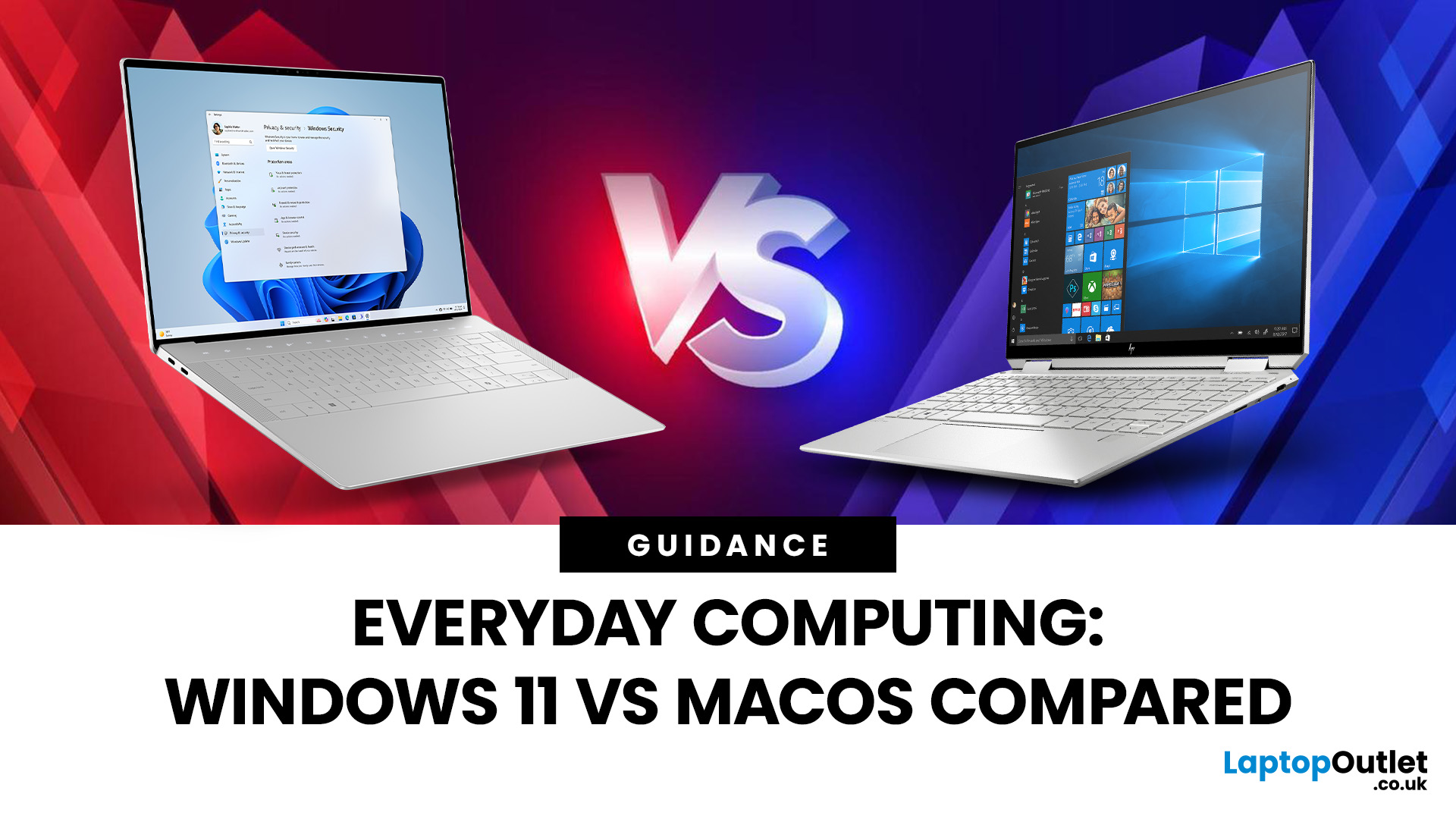
When it comes to choosing your next laptop, the debate between Windows 11 and macOS remains one of the most important decisions. Both operating systems offer sleek design, advanced performance, and productivity features, but they cater to very different kinds of users. Whether you’re a student, professional, or gamer, knowing how Windows 11 vs macOS comparison stacks up can help you find the right fit for your workflow.
In this guide, we’ll compare Windows 11 and macOS across key areas, including productivity, performance, gaming, user interface, and security, so you can decide which OS works best for your everyday needs.
Windows 11 vs macOS: Overview

Windows 11, released in 2021 and continuously updated through 2025, represents Microsoft’s vision of a modern, intelligent, and AI-integrated operating system. macOS, on the other hand, continues Apple’s tradition of seamless integration with its ecosystem, known for its stability and clean design.
Both systems focus on user experience,
Published: October 21, 2025
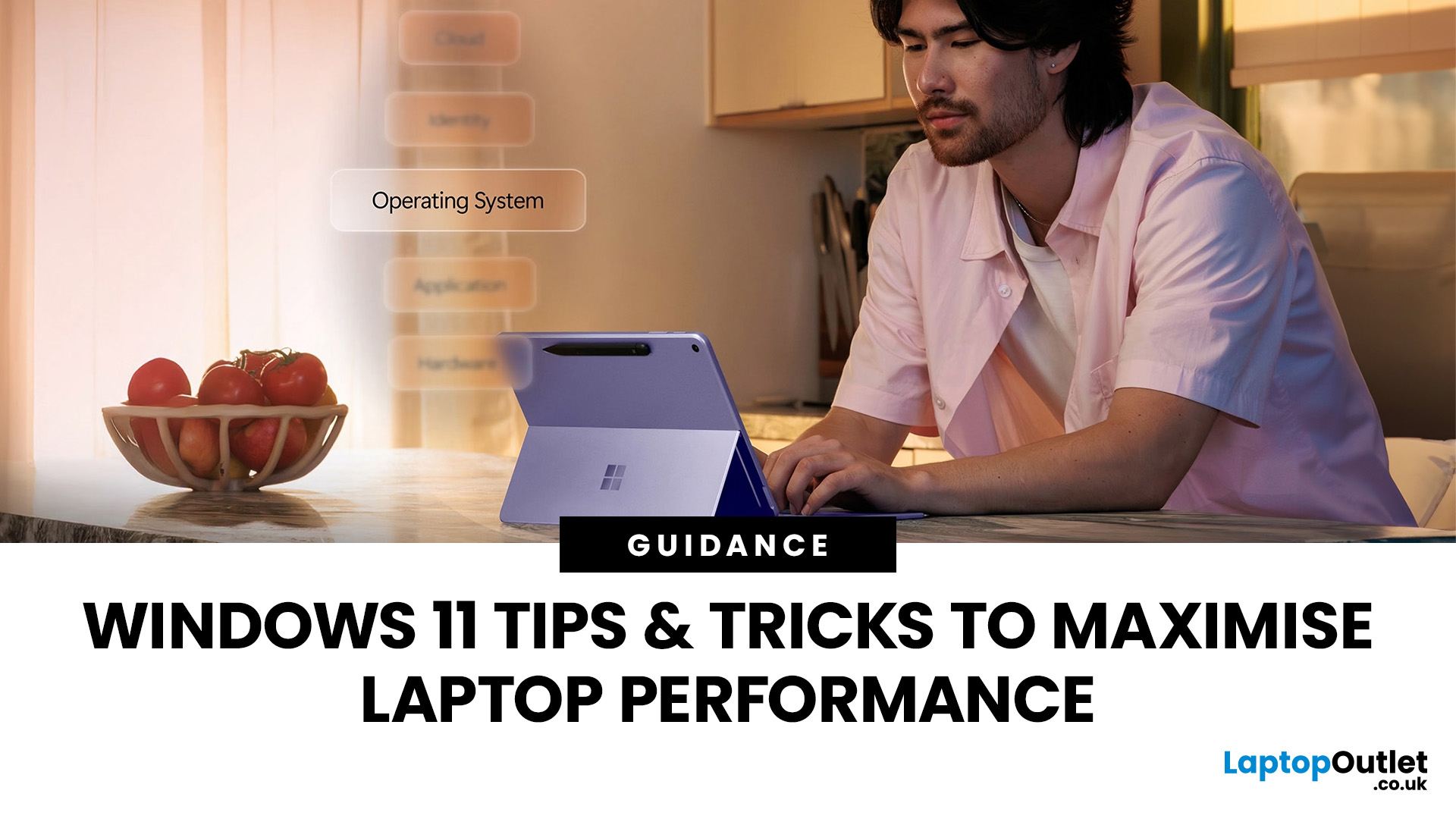
Simple ways to boost speed, improve battery life, and keep your Windows 11 laptop running smoothly.
Windows 11 has brought a modern, elegant design and a range of improvements that make computing smoother, smarter, and more secure. However, even the best laptops can slow down over time if not maintained properly. Whether the laptop is brand new or has been used for a while, a few clever Windows 11 laptop performance tweaks can make a big difference to speed, responsiveness, and battery life.
Thinking about upgrading but not sure if Windows 11 is really worth it? Find out how it compares to Windows 10 in terms of speed, features and everyday performance in our full breakdown on Windows 11 vs Windows 11 laptop.
This guide covers easy, practical Windows 11 laptop tips to help you speed up your laptop and keep it performing at its best.
Why Laptop Performance Slows Down
Over time, laptops may take longer to boot, apps can lag, and multitasking can feel sluggish. This is usually caused by
Last Updated: May 06, 2026
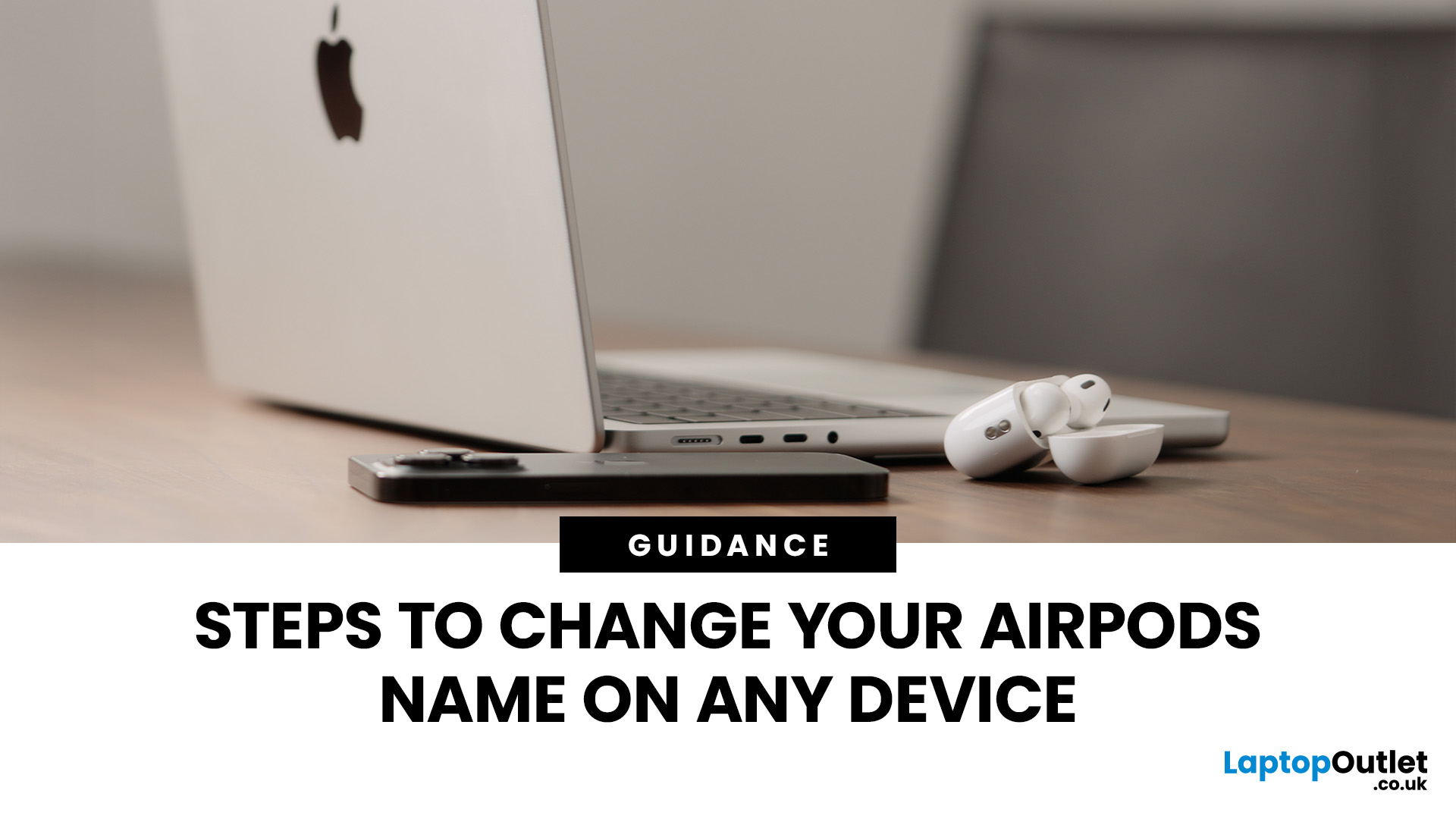
Your Apple AirPods are a brilliant piece of kit, but sometimes the default name – usually something like '[Your Name]'s AirPods' – just doesn't feel personal enough.
Perhaps you have multiple pairs, or maybe you've bought them second-hand and want to shake off the previous owner's tag. Whatever your reason, learning how to rename AirPods is a simple process that helps you personalise your wireless earbuds.
This comprehensive guide will walk you through the simple steps to rename AirPods across all the common platforms.
Renaming Your AirPods on iPhone or iPad (The Easiest Way)
Renaming your AirPods on an iOS or iPadOS device is arguably the simplest method. The change will then update automatically on any other Apple device you own that uses the same Apple ID.
Steps to Rename Your AirPods on iPhone or iPad
- Ensure Connection: Make sure your AirPods are connected to your iPhone or iPad. The quickest way to do this is to open the AirPods case lid near your unlocked device, or place the AirPods

Last Updated: January 21, 2026
For a long time, tablets were seen as secondary devices. Great for Netflix, decent for browsing, but not serious enough for work or study.
That perception is officially outdated.
In 2026, Windows tablets have evolved into some of the most versatile devices you can buy. They’re no longer just tablets that can do work, they’re powerful, flexible computers that happen to be touch-first.
Whether you’re a student, a professional, or someone who wants one device that does everything, this guide breaks down the top Windows tablets in the UK 2026, how they perform in real life, and which models actually make sense to buy right now.
No hype. No spec-sheet dumping. Just clarity.
Why Windows Tablets Matter More Than Ever in 2026

The biggest reason Windows tablets have taken off again is simple: people want flexibility without compromise.
Windows tablets sit in a unique position between laptops and Android tablets. They give you:
- Full desktop software
- Proper multitasking
- Touch and pen support
- Detachable

Last Updated: January 21, 2026
Windows tablets have quietly become one of the most practical tech buys in the UK, especially if you want proper laptop features without paying laptop money. Whether you’re studying, working remotely, or just need a flexible everyday device, a Windows tablet (or budget 2 in 1 Windows tablet) can often do the job of both a tablet and a laptop.
In this 2026 guide, we’re breaking down the best Windows tablets in the UK by price, under £300, and £500 and explaining what you can realistically expect at each level. No hype, no spec overload, just clear advice to help you spend smart.
Why Choose a Windows Tablet Instead of Android or iPad?

Before diving into budgets, it’s worth understanding why people choose Windows tablets in the first place.
A Windows tablet gives you:
- A full desktop operating system
- Proper file management (folders, drives, downloads)
- Compatibility with Microsoft Office and desktop apps
- Keyboard and mouse support
- Often, a 2-in-1 experience with detachable or foldable keyboards

