



How to Improve Battery Life on ASUS Laptops
Battery life is one of the first things people notice on a laptop, and ASUS models are no exception. Whether you’re using a VivoBook for everyday work or a Zephyrus for gaming, performance on the go only matters if the battery can keep up. Over time, though, most users see the same problem - the charge doesn’t last like it used to.
The good news is, you don’t need to settle for short sessions and constant charging. ASUS laptops include built-in features like Battery Health Charging, power modes in MyASUS, and Windows 11 settings that can help extend run time. Add in a few simple tweaks - like managing brightness, limiting background apps, or calibrating the battery - and you can squeeze out noticeably more hours.
This guide covers everything you need to know about ASUS laptop battery optimisation, with practical steps you can apply straight away.
Understanding ASUS Laptop Battery Basics
Before we jump into optimisation, it helps to know how your ASUS laptop battery actually works. Most models - whether it’s a VivoBook, ZenBook, or Zephyrus - use lithium-ion batteries. These are lightweight, rechargeable, and built for long-term use, but they also have natural limitations.
Why Batteries Lose Power Over Time
- Charge cycles: Each full charge and discharge slowly reduces total capacity.
- Heat: Gaming laptops like the Zephyrus generate more heat, which can speed up battery wear. To understand how overheating harms components and battery life, check out How to Stop a Laptop from Overheating.
- High performance demand: Running apps at max power draws more energy.
Common Causes of Drain
- High brightness and refresh rates.
- Too many apps running in the background.
- Gaming or editing on battery rather than plugged in.
Knowing these basics helps explain why battery life varies between ASUS models: ultrabooks like the VivoBook are designed for efficiency, while gaming rigs sacrifice battery for performance.
Adjusting Power Settings for Efficiency
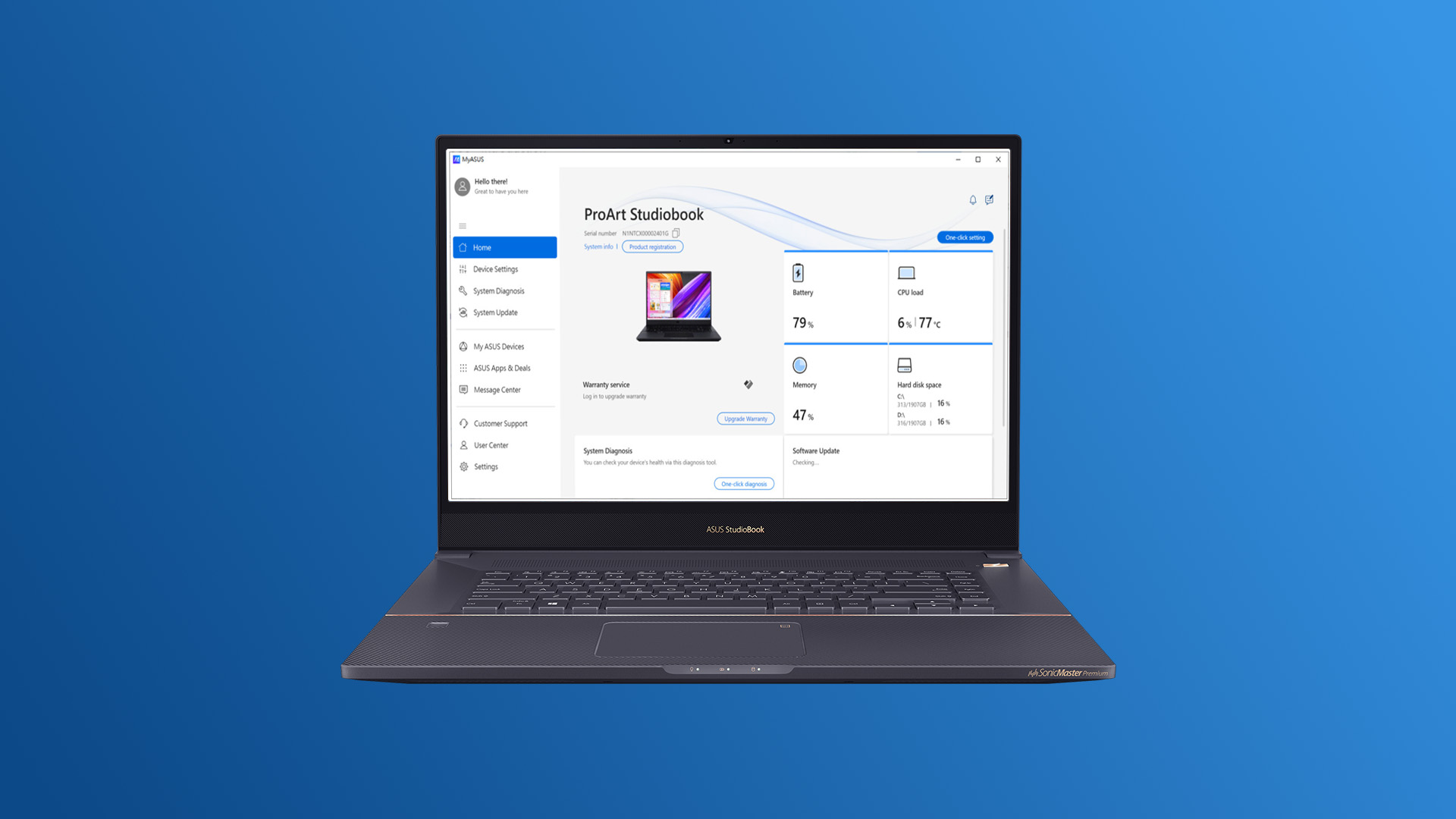
One of the quickest wins for extending ASUS laptop battery life is tweaking power settings. Both Windows 11 and ASUS’s own tools give you plenty of control.
Windows 11 Power Settings
- Go to Settings > System > Power & Battery.
- Switch on Battery Saver mode when you need extra run time.
- Adjust “Screen and sleep” timers to ensure your laptop isn’t wasting energy when idle.
ASUS MyASUS App
- Open MyASUS > Customisation > Power & Performance.
- Choose between Whisper Mode (low power), Balanced, or Performance depending on your task.
- For everyday work, Balanced is ideal. For travel, Whisper Mode can save you hours.
Armoury Crate (Gaming Models)
- On ASUS TUF and ASUS Zephyrus laptops, Armoury Crate lets you switch between Silent, Balanced, and Turbo modes.
- Use Silent for light use to cut fan speed and battery drain.
With these settings, you can balance efficiency and performance based on whether you’re working, watching, or gaming.
Screen & Display Optimisation
Your laptop screen is often the biggest energy drain, so optimising display settings can have an immediate impact.
Adjust Brightness
- Lower brightness manually or enable adaptive brightness in Windows.
- For indoor use, 40–50% brightness is usually enough.
Refresh Rate
- Gaming models like the Zephyrus may run at 120Hz or 144Hz by default. Switching to 60Hz when on battery drastically improves run time.
Dark Mode & Wallpapers
- Enable Dark Mode in Windows and apps.
- Darker wallpapers and themes use slightly less power on modern displays.
Resolution & Scaling
- Higher resolutions (e.g., 4K) consume more power. If battery life is the priority, stick to 1080p.
Optimising your display settings doesn’t just save battery - it also reduces eye strain and keeps your laptop cooler.
Managing Apps & Background Processes
One of the biggest hidden drains on your ASUS laptop battery isn’t the screen or even gaming - it’s the apps running quietly in the background. Left unchecked, they chew through resources and reduce efficiency.
Spotting Power-Hungry Apps
- Open Task Manager (Ctrl + Shift + Esc).
- Go to the Processes tab → sort by “Power usage” or “CPU”.
- End tasks for apps you don’t need right now.
Apps like cloud syncing tools, messaging clients, and browsers with dozens of tabs can sap battery life without you noticing.
Startup Apps
- Go to Task Manager > Startup Apps.
- Disable any program you don’t use daily (Spotify, update managers, etc.).
- The fewer background apps you allow, the longer your battery lasts.
Browser Efficiency
Web browsers are major culprits. To reduce their impact:
- Limit active tabs.
- Use lighter browsers like Edge or Opera GX.
- Install extensions that auto-suspend inactive tabs.
ASUS Tools
Use the MyASUS app → Customer Support > Battery to generate a battery report and see usage stats. This helps pinpoint apps causing drain.
By cutting down background processes, you’ll free up system resources and get back valuable hours of unplugged usage. Want to dive deeper into laptop upkeep, cleaning, efficiency, and more? Explore the Laptop & Notebooks blog section for more guides.
Battery Health & Calibration
Over time, your ASUS laptop battery’s readings may become inaccurate, making it look like you’re losing charge faster than you really are. That’s where battery calibration comes in.
Why Calibrate?
- Ensures the battery percentage you see is accurate.
- Helps avoid sudden shutdowns when the system misreads the remaining charge.
- Extends long-term health.
How to Calibrate ASUS Batteries
- Charge your laptop to 100%.
- Leave it plugged in for 2 hours after full charge.
- Unplug and use until it drops to around 5%.
- Let it rest powered off for a few hours.
- Fully recharge to 100%. If you want more insight on battery capacity, cycles, and how Windows tracks it, see How to Check Laptop Battery Health Before Buying.
Do this every few months for the best results.
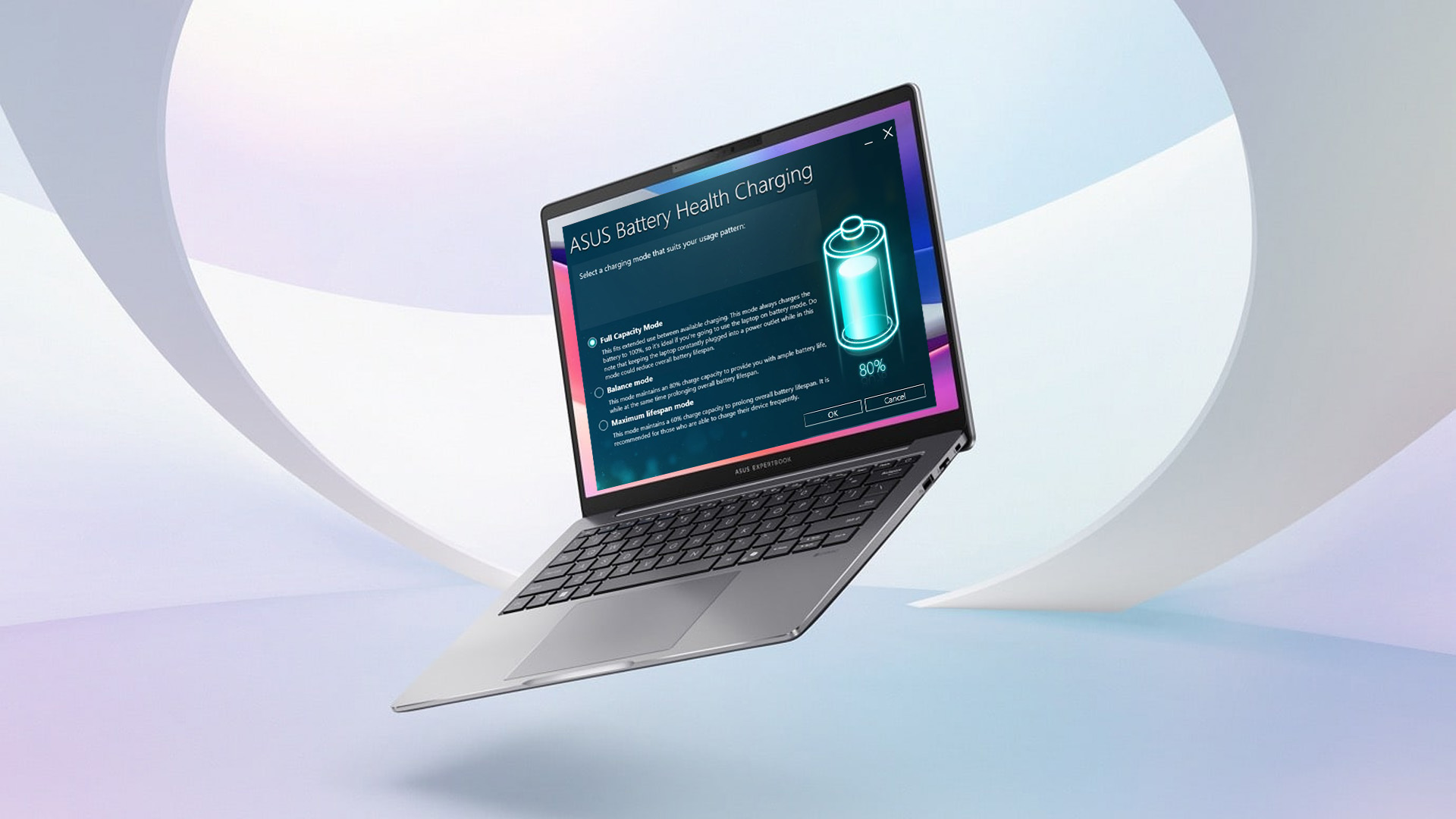
Battery Health Charging in MyASUS
ASUS laptops include a tool called Battery Health Charging (inside MyASUS), which lets you:
- Limit max charge to 80% for daily use (extends lifespan).
- Use “Maximum Lifespan Mode” if you’re always plugged in.
Avoid Overcharging & Heat
- Don’t leave your laptop on charge 24/7.
- Avoid gaming or heavy multitasking while charging - it creates excess heat.
With calibration and health tools, you’ll not only get accurate readings but also help your ASUS battery last for years.
Reducing Battery Drain While Gaming or Multitasking
Gaming and heavy multitasking are some of the most demanding scenarios for a laptop battery, and ASUS machines like the TUF and Zephyrus are built for this. Still, with the right tweaks, you can reduce unnecessary drain.
Adjust Gaming Modes
- Use Armoury Crate to switch between Silent, Performance, and Turbo.
- On battery, stick to Silent or Balanced. Turbo is best reserved for when you’re plugged in.
Manage Background Apps While Gaming
- Close chat clients, browsers, and streaming services.
- Use Game Mode in Windows 11 (Settings > Gaming > Game Mode) to prioritise resources.
Undervolting & Fan Control
Advanced users can reduce CPU/GPU voltage slightly (via Armoury Crate or third-party tools) to cut heat and save energy. Adjusting fan profiles also helps balance thermals and power draw.
External Displays
If you’re gaming with an external monitor, keep your laptop screen off - dual displays double GPU workload.
Simple Tricks
- Lower in-game resolution or graphics settings.
- Cap frame rates (e.g., 60FPS instead of unlimited) to save power.
- Play on “Hybrid GPU mode” if your laptop supports it, using integrated graphics when possible.
By managing settings smartly, you can enjoy long sessions without killing your battery in an hour.
General Energy Efficiency Tips
Beyond tweaking performance modes and calibrating your battery, there are everyday habits and small adjustments that can make a big difference to your ASUS laptop’s overall efficiency. These tips may seem minor on their own, but together they can save you hours of battery life. You can explore the ASUS VivoBook for everyday use.
Connectivity Management
- Turn off Wi-Fi and Bluetooth when not needed. These radios constantly search for signals and drain power in the background.
- Use Airplane Mode if you’re working offline for long stretches.
Keyboard & Lighting
- Reduce or disable keyboard backlighting unless you’re working in the dark. RGB effects on gaming models like the TUF or Zephyrus can drain more battery than you think.
Smarter Charging
- If you’re on USB-C charging, use the original ASUS charger. Third-party ones may charge slower or inefficiently.
- Avoid charging while gaming - gaming-the combined heat and load, can reduce long-term battery health.
Power States
- Sleep Mode is fine for short breaks, but use Hibernate if you won’t touch your laptop for hours. It saves more power and preserves your session.
Keep Software Up to Date
- Updated drivers and BIOS often include efficiency improvements. For instance, ASUS BIOS patches frequently fix thermal management and extend battery runtime. For more on how long laptops last and how battery aging plays a role, see How Long Do Laptops Last?
- Check for updates in MyASUS or on the support site every few months.
Energy efficiency isn’t about sacrificing performance — it’s about cutting waste. A few mindful habits will keep your ASUS laptop cooler, faster, and running longer unplugged.
When to Upgrade – Choosing the Right ASUS Laptop

Sometimes, even the best optimisation tricks can only go so far. If your ASUS laptop is several years old and struggles to hold charge, it might be time to look at upgrading. ASUS offers a wide range of laptops, each designed with different battery priorities in mind.
ASUS VivoBook – Everyday Efficiency
- Perfect for students and professionals who need reliable all-day performance.
- Lightweight, affordable, and energy-efficient.
ASUS Zephyrus – Ultra-Slim Gaming Power
- Ideal for gamers and creatives who need high performance in a slim package.
- Advanced cooling and power modes let you balance performance and battery. To see how gaming laptops push battery limits and optimisation strategies, check Which Laptops Have the Longest Battery Life.
ASUS Full Range
From ultraportables to powerhouse gaming rigs, ASUS covers every need. If battery life is your top priority, look for models with efficiency-focused processors and large-capacity batteries. Browse the Latest ASUS laptops to get the best performance at affordable prices.
Upgrading isn’t just about performance - it’s about getting a laptop built to handle your lifestyle. Whether you want maximum portability or balanced gaming power, there’s an ASUS that fits the bill.

Quick Answers to Common ASUS Battery Questions
How can I make my ASUS laptop battery last longer on a single charge?
Lower screen brightness, switch to Battery Saver mode, and close background apps. Using Whisper or Balanced mode in MyASUS also helps.
Should I leave my ASUS laptop plugged in all the time?
Not recommended. Use Battery Health Charging in MyASUS to cap charging at 80% if you’re plugged in often. This prevents overcharging and extends lifespan.
Does Armoury Crate actually help with battery life?
Yes. It lets you pick performance modes. Switching to Silent mode reduces fan noise and power draw, ideal when working off battery.
How often should I calibrate my ASUS laptop battery?
Every 2–3 months is enough. It keeps the battery percentage accurate and prevents sudden shutdowns.
Which ASUS laptop models have the best battery life?
VivoBooks are excellent for everyday all-day use. Zephyrus models offer high power with slim designs, but expect to balance performance settings for longer battery run time.

Smarter Habits, Longer Life
Battery performance isn’t just about the hardware inside your ASUS laptop — it’s about how you use and maintain it. By adjusting power settings, managing apps and background processes, calibrating your battery, and making small tweaks like lowering brightness or turning off unused connections, you can extend run time significantly.
Tools like MyASUS, Battery Health Charging, and Armoury Crate make optimisation straightforward, whether you’re using a VivoBook for everyday work or a Zephyrus for gaming and creative power. And while older machines may eventually show their age, upgrading to the latest ASUS laptops can give you the mix of efficiency and performance you need.
In short: treat your battery well, update regularly, and be mindful of how you run your laptop. Do that, and your ASUS won’t just last longer on a charge — it’ll stay healthier for years to come.
| Read More: |
| How to Speed Up a Slow ASUS Laptop in 2025 |
| Updating Drivers & BIOS on ASUS Laptops: Step‑by‑Step Guide |
| Are ASUS Laptops Any Good |
Related Articles


Last Updated: April 02, 2026
Choosing the right laptop in 2025 is not easy. The market is full of options, and many buyers in the UK struggle to find a device that balances performance, price, and long-term value. This is where ASUS laptops stand out. With a strong reputation for design, reliability, and innovation, ASUS has become a top choice for students, professionals, gamers, and creative users across the UK.
In this latest ASUS Laptops guide, we will take you through every detail you need to know before making a purchase. From ASUS laptop features to a full breakdown of ASUS laptop models, we explain which series works best for your usage.
Whether you are searching for the best ASUS laptops 2025 for gaming, business, or everyday work, this guide has you covered. By the end, you will be able to confidently choose the right laptop for your needs.
Introduction to ASUS Laptops: Innovation, Performance, and Market Presence
Founded in 1989, ASUS has grown from a small hardware manufacturer into one of the most respected

Last Updated: April 02, 2026
Choosing the right laptop in 2025 can feel like a challenge. With numerous options available in the UK market, it’s easy to get lost in specifications, designs, and price tags. Yet, one brand continues to shine above the rest: ASUS.
From its beginnings in 1989, ASUS has grown into one of the most trusted laptop names worldwide, and its success in the UK is no exception. The brand’s strength lies in its ability to combine innovation, performance, and affordability, making technology accessible for all.
Every user finds a place in the ASUS story. Students rely on the Chromebook by ASUS for simplicity and value. Professionals turn to the sleek ZenBook lineup or reliable ExpertBook business laptops. Gamers embrace the power of ROG laptops and durable TUF series laptops, while creatives choose the ProArt devices for demanding projects.
This blog introduces ASUS laptops, exploring their history, brand strength, innovations, market position, and diverse series.
ASUS History
Founded in 1989 in

Last Updated: September 08, 2026
A laptop can be a study companion, workhorse, creative studio, or gaming rig, so the right choice depends on far more than the logo on the lid. ASUS, Lenovo, HP, Dell, Samsung, LG, and Razer each excel in different areas. ASUS stands out for its broad 2026 range, from portable Zenbooks and everyday Vivobooks to business ExpertBooks, ProArt creator systems, and TUF Gaming and ROG machines. This comparison shows where ASUS fits, and which brand may suit your needs best.
ASUS Laptop Line-up Explained
Before comparing a reliable ASUS laptop with other brands, it helps to understand what ASUS's main families are designed to do.
| ASUS Family | Primarily Suited to | What to Expect |
| Vivobook | Students, home users, everyday work | Broad price range, conventional laptops and Flip models |
| Zenbook | Mobile professionals and premium buyers | Thin designs, OLED options and premium materials |
| ExpertBook | Businesses and organisations | Security, management features, durability and support options |
| ProArt | Creators and visual |

Last Updated: July 02, 2026
Choosing the right laptop in 2025 can feel like a challenge. With endless options in the UK market, different brands, specifications, and price points, it’s easy to feel overwhelmed. This is where ASUS makes the decision simpler. Over the years, ASUS has built a reputation as one of the most trusted technology brands by offering laptops that combine performance, reliability, and affordability.
Think about the wide variety of users today: a student who needs a lightweight laptop for lectures, a business professional who spends hours travelling, a gamer chasing the ultimate performance, or a creative tackling demanding design projects. Each has unique needs, but ASUS has carefully designed a laptop series for all of them.
In this ASUS laptop Series explained blog, we’ll explore the full 2025 lineup: ZenBook, VivoBook, ROG, TUF Gaming, ExpertBook, Chromebook, and ProArt StudioBook, so you can confidently choose the ASUS laptop that fits your life.
A Quick Overview of the ASUS Laptop Series

Last Updated: September 09, 2025
Choosing the right ASUS laptop in the UK can be confusing. ASUS has a wide range of laptops, and each is designed for different needs. Some are perfect for students who want a lightweight device for lectures and assignments. Others are built for business professionals who need strong performance and security features. If you are into gaming, ASUS has powerful models with dedicated graphics. For creative work like video editing or design, ASUS also offers laptops with high-quality displays and fast processors.
This ASUS laptop buying guide will explain the main series, their key features, and the type of users they suit best. We will also highlight some of the latest ASUS laptops available in the UK, including refurbished options that offer excellent value. By the end, you will be able to choose the right ASUS laptop for business or your other needs.
Why ASUS Laptops Stand Out
ASUS has built a strong reputation in the laptop market and continues to be a trusted brand for students, professionals,

Last Updated: September 08, 2026
Lenovo and ASUS both cover everything from everyday laptops to premium business machines and high-performance gaming systems, but their strengths are not identical. Lenovo stands out through ThinkPad, Yoga, IdeaPad and Legion, while ASUS counters with Zenbook, Vivobook, ExpertBook, TUF Gaming and ROG. This Lenovo vs ASUS laptops comparison looks at processors, RAM, storage, displays, battery life, upgradeability and gaming hardware to help you see which brand fits your needs in 2026.
Lenovo vs ASUS: Quick Comparison
| Area | Lenovo | ASUS |
| Everyday laptops | IdeaPad | Vivobook |
| Premium thin-and-light | Yoga | Zenbook |
| Business | ThinkPad | ExpertBook |
| Gaming | Legion / LOQ | ROG / TUF Gaming |
| Current processors | Intel Core Ultra, AMD Ryzen AI, Snapdragon options | Intel Core Ultra, AMD Ryzen AI, Snapdragon options |
| Memory | Soldered or upgradeable depending on model | Soldered or upgradeable depending on model |
| Displays | IPS, OLED, touch and high-refresh options | IPS, OLED, touch, Mini LED and high-refresh options |
| Main strength |

Last Updated: September 08, 2026
Samsung and ASUS take noticeably different approaches to laptops in 2026. Samsung concentrates its Windows range around the Galaxy Book6 family, combining slim designs with Galaxy device integration, while ASUS spreads its options across Vivobook, Zenbook, ExpertBook, ProArt, TUF Gaming, and ROG. This Samsung vs ASUS laptops comparison looks at processors, RAM, storage, displays, battery life, connected features, and graphics to help you decide which approach suits you.
Samsung vs ASUS: Key Differences at a Glance
| Area | Samsung | ASUS |
| Everyday | Galaxy Book6 | Vivobook |
| Premium | Galaxy Book6 Pro | Zenbook |
| High performance | Galaxy Book6 Ultra | ProArt / ROG |
| Business | Galaxy Book6 / Pro | ExpertBook |
| Processors | Mainly Intel Core/Core Ultra | Intel Core Ultra, AMD Ryzen AI, Snapdragon |
| Displays | IPS and Dynamic AMOLED 2X | IPS, OLED, Mini LED, dual OLED |
| Dedicated graphics | Up to RTX 5070 on Book6 Ultra | Broad RTX range through ProArt, TUF and ROG |
| Key advantage | Galaxy ecosystem | Wider hardware and form-factor choice |

Last Updated: September 09, 2026
LG and ASUS now overlap far more than their reputations suggest. LG gram still specialises in exceptionally light laptops, but its latest range adds OLED displays, Intel Core Ultra and AMD Ryzen AI processors, Copilot+ features, and improved connectivity. ASUS stretches much further, from portable Zenbooks and everyday Vivobooks to creator-focused ProArt and powerful ROG gaming machines.
This LG vs ASUS laptops comparison looks at performance, RAM, storage, displays, battery life, AI features and graphics so you can see which approach suits you.
Which LG and ASUS Range Fits Your Needs?
LG's current family includes gram Book, gram, gram Pro, and gram Pro 2-in-1. The focus remains thin-and-light computing, but the latest gram Pro hardware is considerably more capable than the “light office laptop” label suggests.
The current 16-inch gram Pro, for example, combines a 3K OLED screen, Intel Core Ultra processor, LPDDR5X memory and a 77Wh battery while weighing just 1.199kg.
ASUS separates different

Last Updated: October 08, 2025
If you’ve ever owned an ASUS laptop - whether it’s a VivoBook for uni work, a TUF machine for gaming, or a Zephyrus for serious creative projects - you’ll know that things don’t always run perfectly forever. Over time, you might notice your battery draining faster, your fans spinning louder, or a game stuttering that used to run smoothly. Nine times out of ten, that’s down to drivers or firmware needing an update.
Updating drivers and the BIOS isn’t glamorous, but it’s one of the most effective ways to keep your ASUS laptop running at its best. The latest drivers squash bugs, improve compatibility with Windows 11, and even unlock new features. A BIOS update can go further still, ironing out stability issues, boosting performance, and extending hardware lifespan.
The good news? ASUS gives you proper tools like MyASUS, Armoury Crate, EZ Flash, and WinFlash, which make updates far less intimidating than they sound. Whether you’re rocking an ASUS VivoBook, TU F, or Zephyrus, this walkthrough
Last Updated: April 08, 2026
Your ASUS laptop was quick when you first got it. Now it stutters, freezes, or takes an age just to open Chrome. Sound familiar? You are not alone, and more importantly, you do not need to splash out on a brand-new machine.
This guide will walk you through exactly what is causing the slowdown and how to fix it. Whether you have an ASUS VivoBook, ZenBook, TUF Gaming, or ROG, there is something here for you.
Why Is Your ASUS Laptop Running Slow?
Before throwing solutions at the problem, it helps to know what you are actually dealing with. Here are the most common culprits:
| Cause | What It Means | How Common? |
| Too many startup apps | Apps launching at boot hog CPU and RAM | Very common |
| Thermal throttling | Laptop overheats and slows the CPU to cool down | Very common |
| HDD (not SSD) | Old spinning hard drive is the bottleneck | Common in older models |
| Low RAM | Not enough memory for your workload | Common |
| Bloatware | Pre-installed software running in the background | Common |
| Outdated drivers/BIOS | Software bugs causing |

