



ECC vs Non-ECC RAM: Compatibility and Who Needs It
Quick Answer
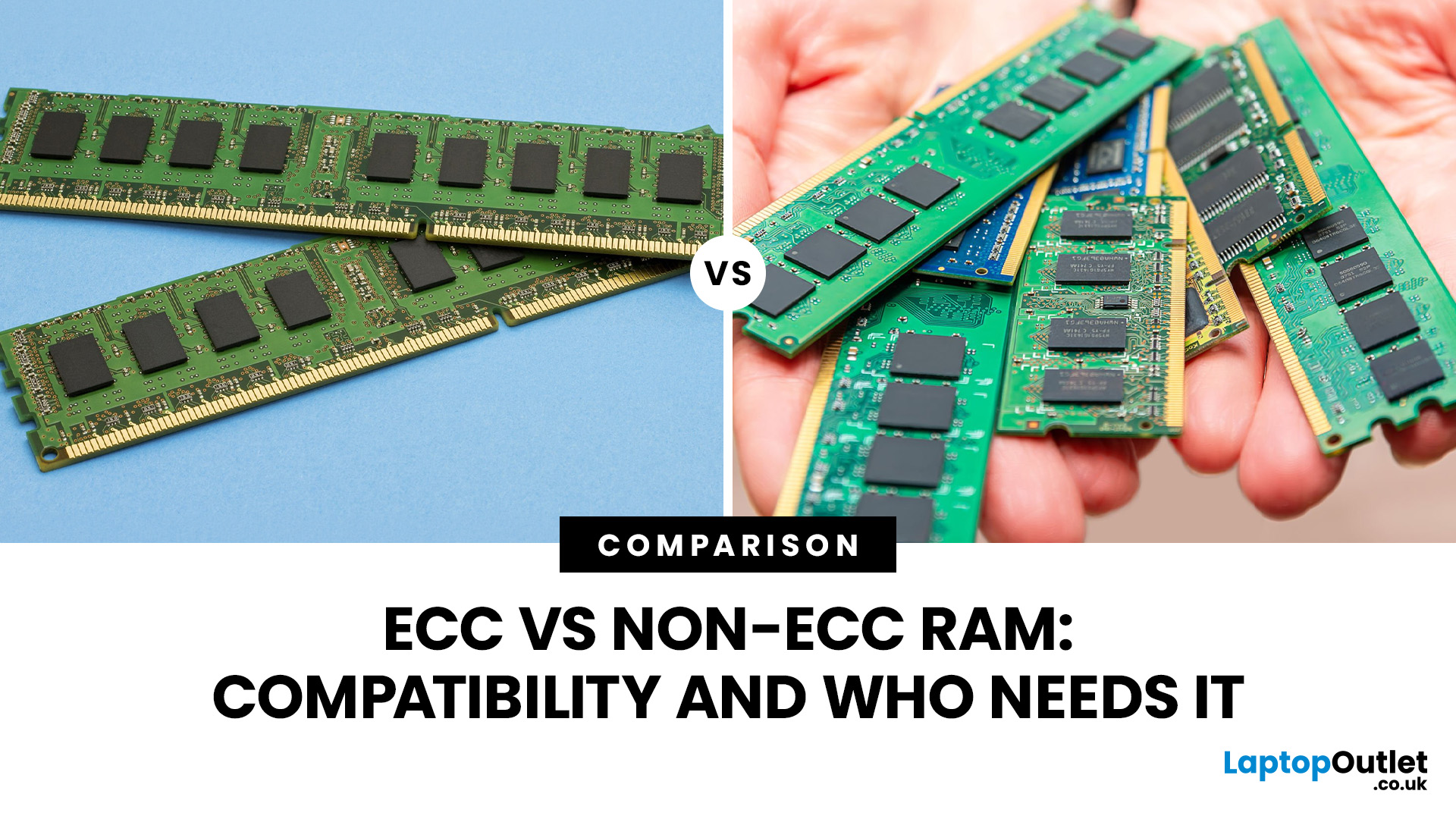
ECC vs non ECC RAM is mainly a choice between data integrity and mainstream compatibility. ECC memory can detect and correct certain memory errors, while non-ECC memory cannot. ECC is most useful in servers, workstations and systems handling critical or long-running workloads. However, it only works when the CPU, motherboard, BIOS and exact memory type all support ECC operation properly.
For most gaming PCs, everyday desktops and general-purpose laptops, non-ECC memory remains the normal choice. ECC becomes more relevant when an unnoticed memory error could affect important data, interrupt a lengthy workload or compromise the reliability expected from a workstation or server.
The difficult part is compatibility. Buying a DIMM labelled "ECC" does not guarantee that error correction will work in your computer, and DDR5 has introduced another source of confusion because standard DDR5 memory includes on-die error correction that is not equivalent to full system-level ECC.
This guide explains what those differences mean, which systems can use ECC, and how to decide whether you actually need it.
What Is ECC Memory?
ECC stands for Error-Correcting Code. ECC memory, sometimes described as error correcting RAM, stores additional information that allows a compatible memory controller to identify and correct certain errors in data held in system memory.
A common ECC implementation can automatically correct single-bit errors. Depending on the memory organisation and platform, it can also detect errors involving multiple bits so the system knows that the affected data should not be trusted.
This matters because RAM is temporary working storage for the processor. Applications, databases, operating-system components and calculations can all pass through memory before the information is written elsewhere.
What Does a Memory Error Actually Mean?
At the lowest level, computer memory stores information as binary values. If a bit unexpectedly changes from a 0 to a 1, or vice versa, the data represented by that bit is also changed.
Sometimes the result is obvious, such as an application crash. In other cases, the incorrect data may continue through a workload without immediately producing a visible problem.
ECC gives the system a way to catch certain errors before they propagate. On supported Windows systems, the Windows Hardware Error Architecture can also process corrected and uncorrected hardware errors and use information about recurring ECC errors for predictive failure analysis.
Practical point: ECC reduces a specific type of risk. It does not make a system immune to faulty software, storage corruption, power loss or hardware failure, so backups and other data-protection measures remain necessary.
What Is Non-ECC Memory?
Non ECC memory is standard system memory without the additional module-level error-correction capability used by conventional ECC platforms. It is the common choice for consumer desktops, gaming PCs and many laptops.
Non-ECC memory is widely supported, available across a broad range of capacities and speeds, and is generally easier to match with mainstream desktop hardware.
For a normal home computer, gaming system or office PC, this is usually appropriate. Users choosing or upgrading Memory modules should normally prioritise the correct DDR generation, capacity, speed, form factor and motherboard support before worrying about ECC.
The limitation is simple. If corrupted data reaches standard non-ECC memory, the RAM itself does not provide conventional system-level ECC protection to detect and correct it.
ECC vs Non ECC RAM: Key Differences
|
Feature |
ECC RAM |
Non-ECC RAM |
|
Error correction |
Can detect and correct supported memory errors |
No conventional system-level error correction |
|
Typical systems |
Servers, professional workstations, some NAS and specialist systems |
Gaming PCs, home computers and mainstream desktops |
|
CPU requirements |
CPU memory controller must support ECC |
Supported by mainstream consumer CPUs |
|
Motherboard requirements |
Board, chipset and firmware must support the required ECC type |
Broad consumer motherboard support |
|
Module types |
May include ECC UDIMM, RDIMM and other server DIMMs |
Usually unbuffered UDIMM or SODIMM |
|
Cost |
Commonly higher |
Usually lower |
|
Compatibility |
Must be checked carefully |
Generally simpler |
|
Main benefit |
Improved data integrity and error reporting |
Broad compatibility and consumer-focused performance options |
The important distinction is not that ECC makes a computer universally "better". It provides additional protection against memory errors, and that protection only becomes valuable when the workload and platform justify it.
Does DDR5 Already Have ECC?
This is one of the most important points when comparing DDR5 ECC RAM with ordinary DDR5.
All DDR5 DRAM incorporates a technology called on-die ECC, or ODECC. It detects and corrects certain errors occurring internally within an individual DRAM chip.
However, this does not mean every DDR5 DIMM is equivalent to an ECC module.
DDR5 on-die ECC works inside the memory chip. It does not provide the same protection for errors that can occur elsewhere between the DRAM, DIMM and processor memory controller. Kingston specifically notes that on-die ECC cannot correct errors occurring outside the DRAM chip or across the memory bus.
DDR5 On-Die ECC vs Full ECC
A useful way to separate the two is:
- DDR5 on-die ECC: protects operations inside each DRAM chip.
- Full ECC memory: provides additional check information that a compatible processor memory controller can use for wider system-level error detection and correction.
- ECC DDR5 modules: require a platform specifically designed to use their ECC capability.
Therefore, seeing "on-die ECC" in the specifications of ordinary DDR5 memory is not enough to conclude that your system has full ECC protection.
Common mistake: Do not buy a standard DDR5 gaming memory kit and assume that DDR5's internal ECC gives it the same data-integrity features as an ECC UDIMM or server RDIMM.
ECC UDIMM vs RDIMM Explained
Another frequent source of confusion is treating "ECC" and "registered" as interchangeable terms.
They describe different characteristics.
What Is an ECC UDIMM?
An ECC UDIMM is an unbuffered DIMM that contains the additional memory required to support ECC.
Because it is unbuffered, there is no register acting between the memory controller and the DRAM in the way there is on an RDIMM. ECC UDIMMs are commonly associated with workstations, entry-level servers and other systems that need ECC without the memory capacities associated with larger server platforms.
What Is an RDIMM?
RDIMM means Registered DIMM.
An RDIMM includes a registered clock driver that buffers signals between the processor's memory controller and the DRAM. This reduces electrical loading and helps server platforms operate reliably with larger memory configurations.
RDIMMs commonly include ECC, but being "registered" refers to the module's buffering architecture, not simply to the presence of ECC.
Registered vs Unbuffered RAM
When considering registered vs unbuffered RAM, remember:
- UDIMM means unbuffered.
- ECC UDIMM means unbuffered memory with ECC capability.
- RDIMM means registered memory and is commonly used in servers.
- Non-ECC UDIMM is the standard format in many consumer desktops.
- RDIMM and UDIMM should not be treated as interchangeable.
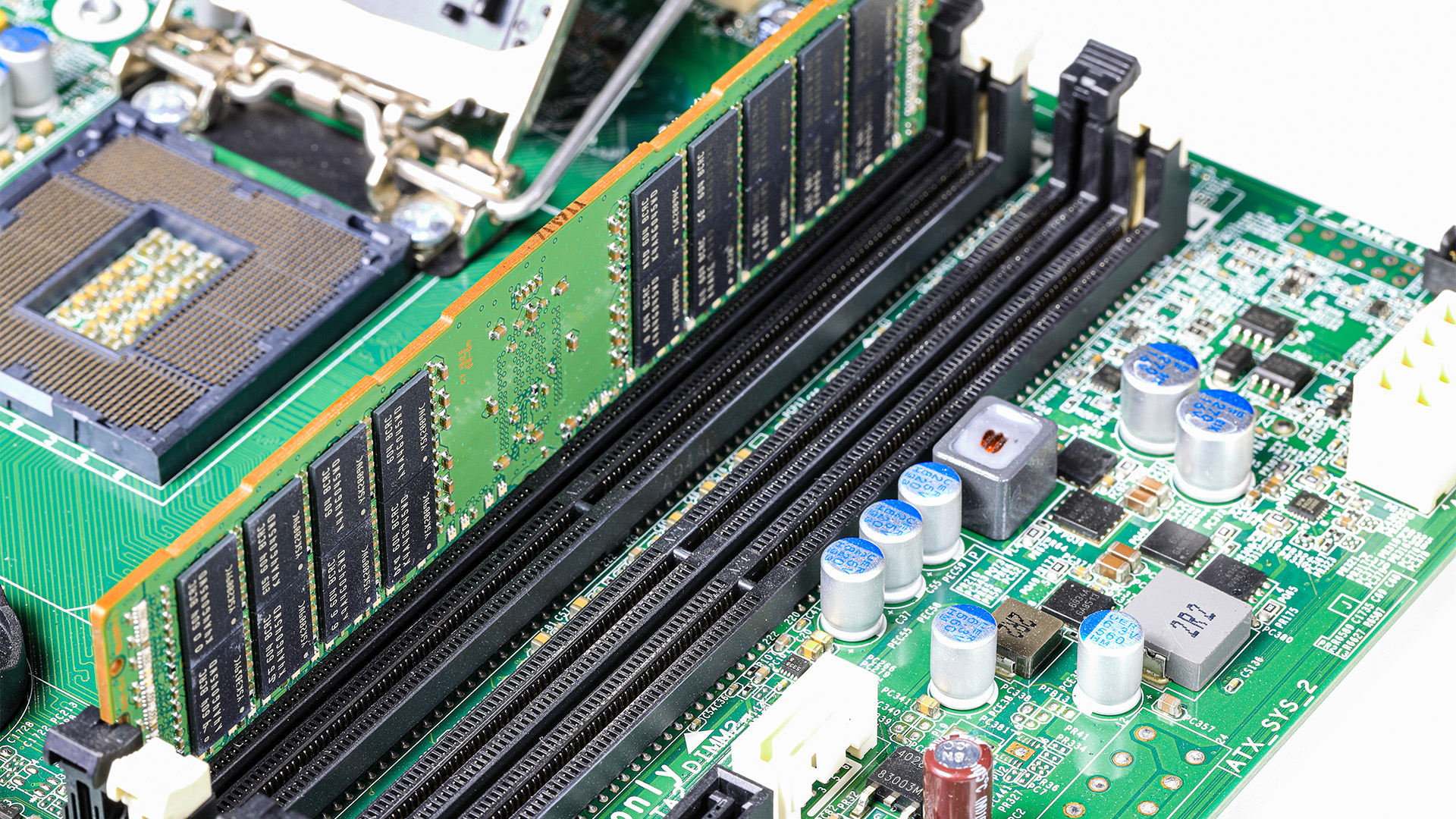
With DDR5, RDIMMs and UDIMMs even use different module keying, so DDR5 RDIMMs cannot be installed into sockets designed for DDR5 UDIMMs.
With older generations such as DDR4, modules may appear more physically similar, but that still does not make RDIMM and UDIMM electrically or logically compatible.
ECC RAM Motherboard Compatibility
ECC RAM motherboard compatibility depends on more than whether a DIMM physically fits into a slot.
For full ECC operation, the relevant parts of the platform must support it. Intel explicitly states that ECC support requires both processor and chipset support. Motherboard implementation and firmware support are also important in a complete system.
Before buying ECC memory, check all of the following:
1. CPU support
Confirm that the processor's memory controller supports ECC.
2. Chipset support
The platform chipset must provide the required capability where applicable.
3. Motherboard specifications
Look specifically for ECC UDIMM, RDIMM or another stated memory type.
4. BIOS or UEFI support
Firmware must expose and correctly configure the hardware capability.
5. DDR generation
DDR4 and DDR5 are physically incompatible.
6. Module type
ECC UDIMM, RDIMM and other DIMM formats cannot simply be substituted for one another.
7. Capacity and configuration
Check maximum capacity, DIMMs per channel and supported memory organisations.
8. Qualified memory information
Review the motherboard manufacturer's memory support list or system documentation where available.
When comparing a replacement PC board, look beyond a specification that simply says "ECC supported". Check exactly which processors and DIMM types are supported.
ECC RAM CPU Support in 2026
One of the biggest compatibility mistakes is assuming that all mainstream desktop processors either support ECC or do not support it.
The situation is more nuanced.
Intel advises users to check the individual processor specification because ECC capability varies by model and still requires compatible platform support. For example, Intel's Core Ultra 9 285K specification lists ECC memory support, while the workstation-focused W880 chipset also lists ECC support.
AMD also provides ECC on selected mainstream processors. The Ryzen 9 9950X specification, for example, lists ECC support but explicitly states that motherboard support is required.
AMD's workstation platforms go further. Ryzen Threadripper PRO 9000 WX processors use DDR5 RDIMM memory, with AMD listing ECC as enabled by default on models such as the Threadripper PRO 9945WX.
The practical lesson is important: ECC RAM CPU support should always be verified for your exact processor rather than inferred from the brand or product family.
Check the official specification for your computer processor, then confirm that support against the motherboard documentation.
DDR4 ECC RAM vs DDR5 ECC RAM
Both DDR4 ECC RAM and DDR5 ECC memory can provide system-level error correction when paired with compatible hardware, but the two generations are not interchangeable.
DDR4 and DDR5 have different electrical designs, signalling, operating characteristics and physical key positions. A DDR5 DIMM cannot be fitted into a DDR4 memory slot, or vice versa.
DDR5 also introduced on-die ECC as a feature of the DRAM technology itself. DDR4 does not have the same standard on-die ECC feature.
That makes DDR5 terminology more confusing because both non-ECC and ECC-class DDR5 modules contain internal error correction within their DRAM chips.
Should You Upgrade to DDR5 Just for On-Die ECC?
Not usually.
The decision between DDR4 and DDR5 should be based on the platform you are building or upgrading. DDR generation is determined primarily by the CPU and motherboard, and DDR5's on-die ECC should not be treated as a replacement for proper system ECC where error correction is a genuine requirement.
ECC vs Non ECC Performance
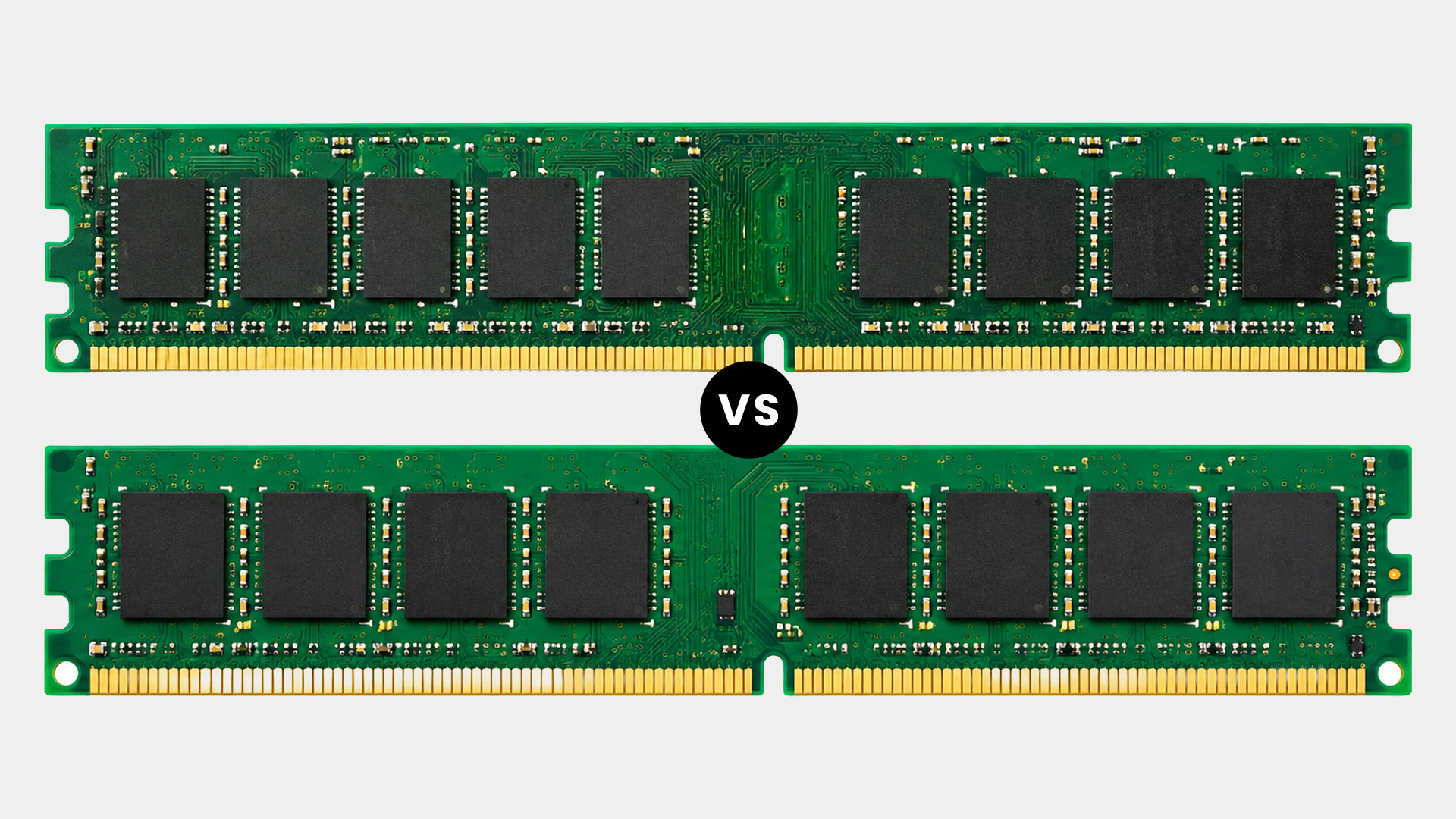
ECC vs non ECC performance is often oversimplified into claims that ECC memory is always noticeably slower.
There is no useful universal percentage that applies to every platform. Performance depends on the CPU, memory generation, frequency, timings, channel configuration, module architecture and workload.
ECC UDIMM should also not be confused with RDIMM when discussing latency. RDIMMs introduce a register stage between the memory controller and DRAM, which can add some latency, but this architecture also allows server platforms to scale more reliably to larger memory configurations.
For gaming and mainstream desktops, non-ECC memory also has a much broader range of consumer performance kits and platform-tuning options. This normally matters more to the buying decision than the theoretical overhead of ECC itself.
For servers and professional workstations, the calculation is different. A small performance trade-off may be acceptable when reliability, capacity and data integrity matter more than minimising memory latency.
Best practice: Compare complete systems rather than assuming a performance difference comes from ECC alone. A server using RDIMMs and a gaming PC using high-frequency non-ECC DDR5 are designed for very different workloads.
Who Actually Needs ECC RAM?
ECC makes the most sense when the consequence of incorrect data or interrupted processing is significant.
Servers and Virtualisation Hosts
Servers may run continuously and hold many active workloads in memory.
Databases, virtual machines and hosted applications can also keep important data in RAM for extended periods. This makes memory integrity more valuable than it is in a PC that can simply restart an application if something goes wrong.
Scientific and Engineering Systems
Scientific simulations, engineering calculations and other computational workloads can run for hours or days.
In these situations, a memory error may affect a result rather than simply produce an obvious crash. ECC adds another layer of protection for workloads where computational integrity matters.
Professional Workstations
ECC can make sense for workstations used for important CAD, engineering, data analysis, professional rendering and similar workloads.
It is not required merely because a computer is described as a workstation. The decision depends on how costly an interrupted or incorrect workload would be.
Financial and Data-Intensive Workloads
Applications dealing with financial calculations, large datasets or important databases can benefit when data integrity takes priority over the broader hardware choices available on normal consumer platforms.
Business-Critical Systems
If a computer needs to run continuously and unexpected downtime carries a meaningful operational cost, an ECC-capable platform may be appropriate.
This is why ECC is common in enterprise systems and servers rather than ordinary home PCs. Kingston similarly identifies financial, scientific and round-the-clock environments as common ECC use cases.
Home Servers and NAS Systems
ECC can also be worth considering for a home server or NAS that stores important information or operates continuously.
It is still only one part of data protection. ECC should complement backups, storage-integrity measures and sensible system monitoring rather than replace them.
Who Probably Does Not Need ECC RAM?
For most consumer systems, non-ECC memory remains suitable.
That includes:
- Gaming PCs
- Everyday family computers
- General office desktops
- Web browsing and media systems
- Mainstream student PCs
- Typical home content-creation systems
- PCs where workloads are easily restarted
These users usually benefit more from selecting an appropriate capacity, memory speed and configuration for their CPU and motherboard.
A gaming PC, for example, does not normally gain a practical gaming advantage from ECC. Choosing ECC could instead restrict motherboard and memory options without addressing a significant requirement in the workload.
Is ECC Worth It for Content Creation?
It depends on the type of content work.
Someone editing photos, creating social content or working on normal video projects usually does not require ECC simply because the workload is creative.
The case becomes stronger when the machine is used professionally for long renders, large datasets, complex simulations or workloads where lost processing time has a meaningful cost.
This distinction matters because "professional" does not automatically mean "ECC required". Reliability requirements should drive the choice.
Can You Mix ECC and Non-ECC RAM?
Avoid mixing them.
A platform may refuse to boot, disable ECC capability or behave in a way that depends on its specific memory controller and firmware. Kingston recommends using compatible modules of the same memory type and notes that mixing ECC and non-ECC can prevent booting or disable ECC functionality.
Server and workstation memory configurations can also have strict population rules. Mixing module types, capacities or unsuitable configurations can reduce performance or prevent the system from operating as intended.
If ECC matters enough for you to use it, configure the machine with a supported set of matching ECC modules rather than relying on mixed memory.
Can ECC RAM Be Installed in a Non-ECC Motherboard?
You should not assume it can.
Some unbuffered ECC modules may be physically similar to ordinary memory of the same DDR generation, but physical fit does not confirm that the system can initialise the module or use its error-correction capability.
Registered server memory is even more restrictive. DDR5 RDIMM and DDR5 UDIMM use different keying, while server platforms are designed around specific DIMM architectures.
If the motherboard manual does not explicitly support the exact ECC module type you intend to use, treat the configuration as unsupported.
How Do You Know ECC Is Actually Working?
Installing ECC-capable memory does not automatically prove that ECC correction is active.
Start by checking the motherboard or system firmware. Workstation and server systems may provide memory information or ECC status within the BIOS, UEFI or management interface.
The operating system may also receive hardware-error information when the platform exposes it correctly. Windows, for example, can process corrected hardware errors through WHEA and provides predictive failure mechanisms for ECC memory pages.
For a business-critical system, use the manufacturer's recommended management and diagnostic tools rather than relying only on the memory module's product label.
Memory is not the only hardware that can cause system problems, and if a new SSD is not detected in BIOS], checking its connection, slot and firmware settings is a useful place to start.
Common ECC RAM Misconceptions
"All DDR5 RAM Is ECC"
No. DDR5 includes on-die ECC inside its DRAM chips, but ordinary non-ECC DDR5 does not therefore become full system-level ECC memory.
"ECC RAM Is the Same as Registered RAM"
No. ECC describes error-correction capability, while registered describes how the DIMM buffers signals between the memory controller and DRAM.
An ECC UDIMM is both ECC-capable and unbuffered.
"ECC Is Only Available With Server CPUs"
Not always.
Some current desktop processors include ECC capability. AMD's Ryzen 9 9950X, for example, officially supports ECC when used with a suitable motherboard, while selected Intel desktop processors also list ECC support.
"If ECC Fits, It Will Work"
Not necessarily.
Memory must be compatible electrically and logically, not just physically. The CPU, motherboard, firmware, DDR generation and DIMM architecture all matter.
"ECC Prevents Data Loss"
ECC protects against supported memory errors. It does not protect against deleted files, drive failure, malware, power loss or every form of hardware corruption.
You still need appropriate backups and storage protection. Storage reliability also depends on the drives you use, so it can help to understand how CMR and SMR hard drives differ when choosing storage for backups, servers or long-term data use.
How to Choose Between ECC and Non-ECC RAM
Use this simple decision framework.
Choose ECC When:
- Your application or server specifically recommends it.
- The system stores or processes important data for long periods.
- You run databases or virtualisation workloads.
- Computational accuracy is particularly important.
- The machine runs continuously.
- Downtime is expensive or disruptive.
- You are building a workstation or server platform designed for ECC.
Choose Non-ECC When:
- You are building a conventional gaming PC.
- The system is mainly for everyday home or office use.
- Your CPU or motherboard does not support ECC.
- Your workloads can easily be restarted.
- Mainstream memory compatibility and tuning are more important than additional error correction.
If RAM is only one part of a new system, our guide to the components needed to build a desktop PC can help you understand how memory fits alongside the processor, motherboard, storage, power supply and other hardware.
Check These Specifications Before Buying
Before purchasing either type, confirm:
- DDR4 or DDR5
- UDIMM, SODIMM or RDIMM
- ECC or non-ECC
- Processor memory support
- Motherboard memory support
- Maximum capacity
- Supported DIMM capacities
- Memory speed
- DIMMs per channel
- Recommended slot population
- Manufacturer compatibility information
This is particularly important for ECC because several products can all be described as "DDR5 ECC", despite targeting very different workstation or server platforms.

Conclusion
The ECC vs non ECC RAM decision depends less on headline performance and more on reliability requirements and platform compatibility. Non-ECC remains appropriate for most gaming PCs, home systems and general desktops, while ECC is valuable for servers, specialist workstations and workloads where memory errors could affect important data or lengthy calculations.
Before choosing ECC, verify the exact CPU, motherboard, firmware and DIMM type. Also remember that DDR5 on-die ECC is not a substitute for full system-level ECC. If reliability genuinely matters, choose a platform designed and validated to provide it.

Frequently Asked Questions
Is ECC RAM Better Than Non-ECC RAM?
ECC RAM is better for workloads where memory integrity is important because it can detect and correct supported memory errors. Non-ECC RAM is generally more practical for gaming, home computing and mainstream desktops because compatibility and memory choice are broader.
Does DDR5 RAM Have ECC Built In?
DDR5 DRAM includes on-die ECC, which corrects certain errors inside each memory chip. It does not provide the same system-level protection as a true ECC DIMM, so ordinary DDR5 should not automatically be considered ECC memory.
Can I Use ECC RAM With a Normal Desktop CPU?
Sometimes, but support depends on the exact processor and motherboard. Selected AMD Ryzen and Intel desktop CPUs support ECC, while others do not. Always verify the processor specification and motherboard documentation rather than assuming compatibility from the CPU family.
Is ECC RAM Slower Than Non-ECC RAM?
Not necessarily in a way users will notice. Performance depends on frequency, timings, CPU, module type and workload. Registered server DIMMs may add some latency, but ECC alone should not be assigned a universal performance penalty.
Can I Mix ECC and Non-ECC RAM?
Mixing ECC and non-ECC RAM is not recommended. Depending on the platform, the system may fail to boot or ECC functionality may be disabled. Use memory types explicitly supported by the motherboard and follow its recommended DIMM configuration.
Related Articles


Last Updated: June 10, 2026
The 2026 RAM crunch is being driven by AI data centre demand. Memory makers are shifting capacity towards high-bandwidth memory, server DDR5, and enterprise SSDs, leaving less supply for consumer laptops. As a result, laptop RAM and SSD costs may rise, making many 2026 laptops more expensive or less generously specified.
If you were hoping laptop prices would settle down in 2026, the RAM market may have other plans.
The AI boom is pushing huge demand for memory chips, including DDR5, SSD storage, and high-bandwidth memory used in data centres. As manufacturers prioritise these high-margin AI products, consumer laptops could face tighter supply and higher component costs.
For UK buyers, that may mean more expensive laptops in 2026, fewer strong discounts, and budget models with weaker specs than before.
What Is the 2026 RAM Crunch?
The 2026 RAM crunch is a global memory shortage caused by rising demand for AI servers, high-bandwidth memory, DDR5 server memory, and enterprise SSDs.
In
Last Updated: June 18, 2026
For most buyers in 2026, the best laptop specs are a modern Intel Core Ultra 5/7 or AMD Ryzen AI 5/7 processor, 16GB RAM, 512GB SSD storage, and integrated graphics. Choose 32GB RAM, 1TB storage, and a dedicated GPU if you edit videos, create content, play demanding games, or use professional software.
Buying a new laptop in 2026 can feel confusing, especially when every product page is packed with technical words, numbers, and abbreviations. This processors & specs explained guide breaks everything down in plain English so you can understand what matters before you spend your money.
For most buyers, the four most important laptop components are the CPU, RAM, GPU, and storage. Once you understand these, it becomes much easier to compare models, avoid overspending, and choose a laptop that actually suits your daily needs.
What are Laptop Specs and Why Do They Matter?
Understanding laptop specifications becomes important. Specs affect:
- How fast your laptop feels when opening apps.
- How many
Last Updated: June 22, 2026
Your PC can look perfectly fine on the outside and still fail the moment it is pushed hard.
A game crashes after 20 minutes. A video export freezes at 92%. Your laptop randomly restarts during a heavy workload. Or maybe you have just upgraded your memory, changed your processor, built a new desktop, or enabled XMP/EXPO in the BIOS and want to know one thing:
Is my system actually stable?
That is where a stress test CPU RAM process helps. By running a controlled CPU, RAM, or combined system stress testing session, you can find problems before they interrupt your work, gaming, editing, coding, or daily use.
In this guide, you will learn:
- What CPU and RAM stress testing
Last Updated: August 06, 2026
Published: July 27, 2026
The Surface Laptop Ultra is Microsoft’s boldest laptop yet, built for local AI, 3D work, coding and demanding creative projects. It combines NVIDIA RTX Spark, Blackwell graphics, full CUDA support, and up to 128GB of unified memory, giving it serious workstation-level potential in a much slimmer design.
The 15-inch Mini-LED PixelSense Ultra display, upgraded cooling, and wider port selection make it even more appealing for power users. The only catch is that the exact UK price, full configurations and release date are still under wraps.
Microsoft Surface Ultra Specs at a Glance
The confirmed Microsoft Surface Ultra specs place the device above Microsoft’s conventional
Last Updated: September 03, 2026
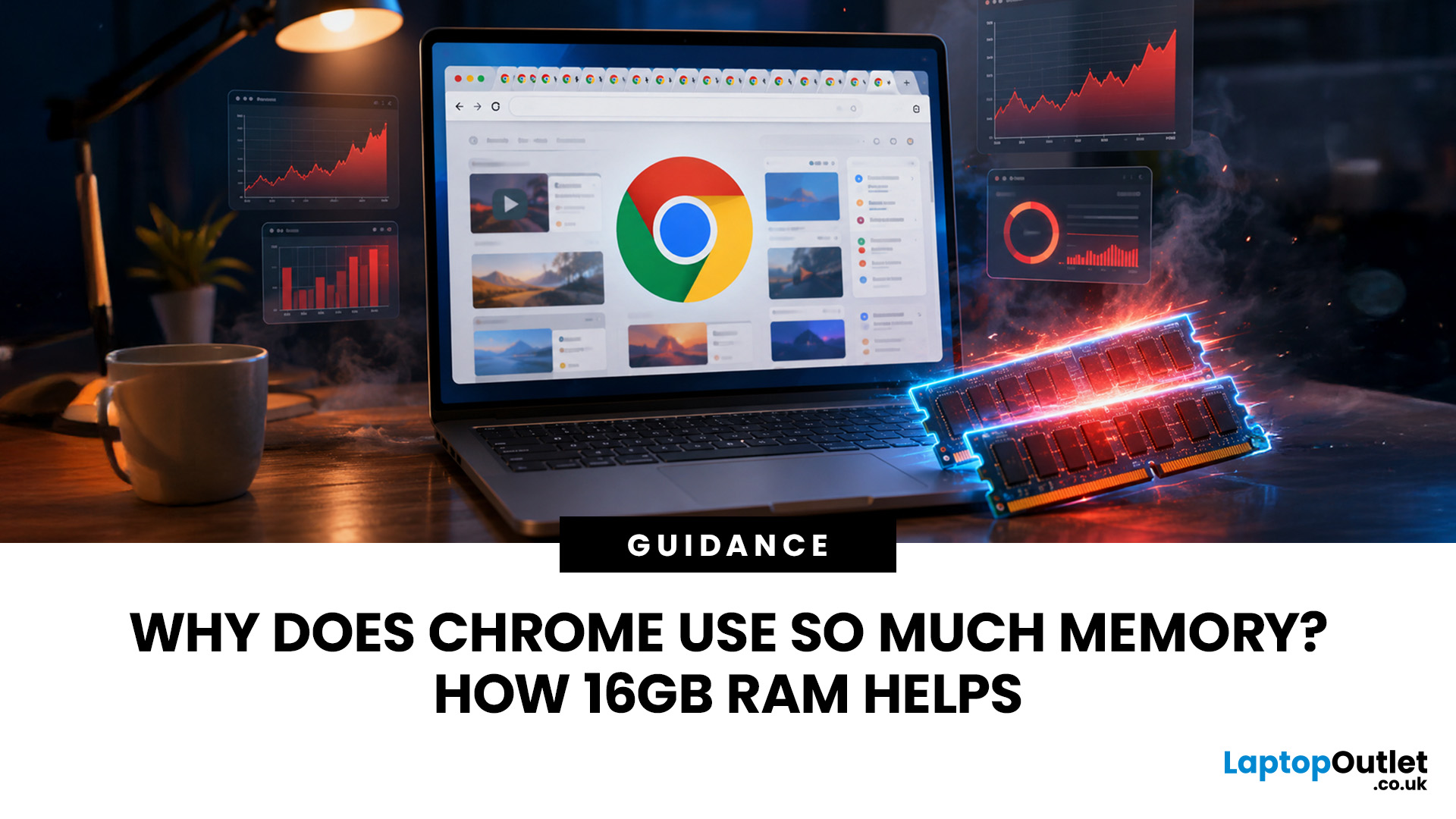
Seeing Chrome using too much memory in Windows Task Manager can be concerning, especially when only a handful of tabs appear to be open. However, visible tabs tell only part of the story.
Chrome may run multiple processes behind those tabs, while individual websites can range from simple articles to demanding web applications. The important question is therefore not just how much RAM Chrome uses, but whether that usage is causing slowdowns, tab reloads or problems when you multitask.
Why Does Chrome Use So Much Memory?
Chrome's memory use is largely connected to how the browser is designed and how demanding modern websites have become. High RAM usage alone does not mean Chrome is faulty or poorly configured.
Chrome Uses Multiple Processes
Chrome does not run the entire browser inside a single operating-system process.
Chromium uses a multi-process architecture. The main browser process handles core browser functions, while separate renderer processes handle web content. Chrome can also
Published: September 17, 2026
The amount of RAM in a Dell PC affects how comfortably it can handle everyday programs, multitasking, and more demanding applications. Too little memory can hold performance back, while paying for far more than your workload needs often brings little practical benefit.
RAM, or Random Access Memory, is the short-term working space your PC uses for active applications and data. As your workload becomes heavier or you run more programs at once, the amount of memory you need generally increases.
For most Dell desktop buyers, 16GB of RAM is the safest choice. Choose 8GB for basic browsing, email, and light office work, while 32GB or more makes sense for heavier creative, technical or multitasking workloads. RAM matters, but processor performance, SSD storage, graphics capability and upgrade options also shape how responsive the PC feels.
How Much Dell PC RAM Do You Need?
Your ideal Dell PC RAM capacity depends mainly on the applications you run and how many you expect to use simultaneously.
Last Updated: September 24, 2026
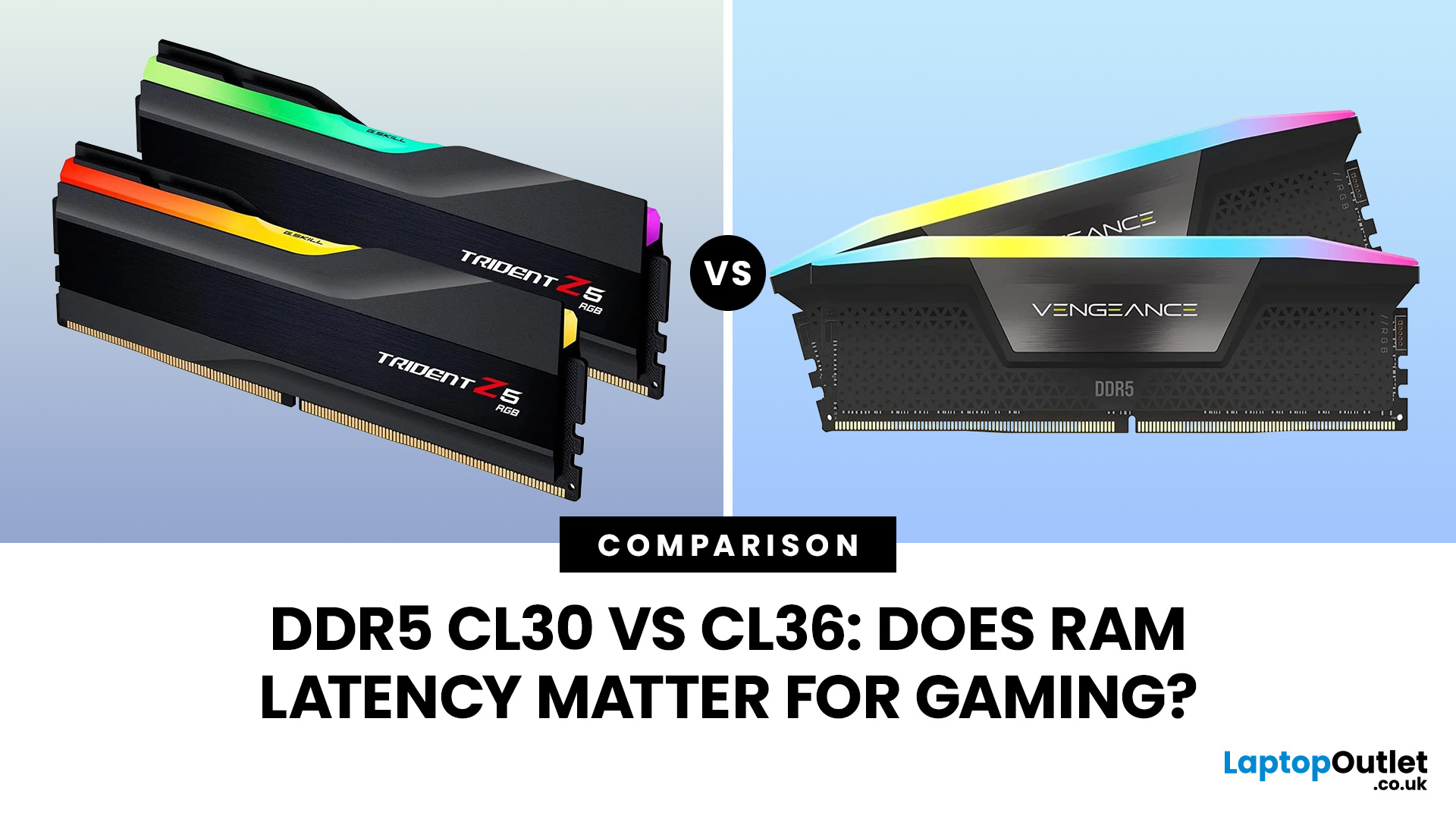
Quick Answer: If two DDR5 kits run at the same speed, CL30 has lower CAS latency than CL36. At DDR5-6000, CL30 works out at about 10ns of CAS delay versus 12ns for CL36. That can help in CPU-limited games, but the real gaming difference is usually much smaller than the 20% difference suggested by those latency figures. Memory speed, secondary timings, CPU architecture, and the game itself also matter.
When comparing RAM modules, specifications such as DDR5-6000 CL30 and DDR5-6000 CL36 can look confusingly similar. Both have the same data rate, so does paying attention to that CL number actually make a difference?
It can, but CL30 vs CL36 is not as simple as choosing the lowest number. Here is what those timings really mean and when lower RAM latency can affect your gaming PC.
What Do CL30 and CL36 Mean?
CL stands for CAS latency, or Column Address Strobe latency. It measures the number of memory clock cycles between a read command being issued and the RAM beginning to return the requested
Published: September 18, 2026
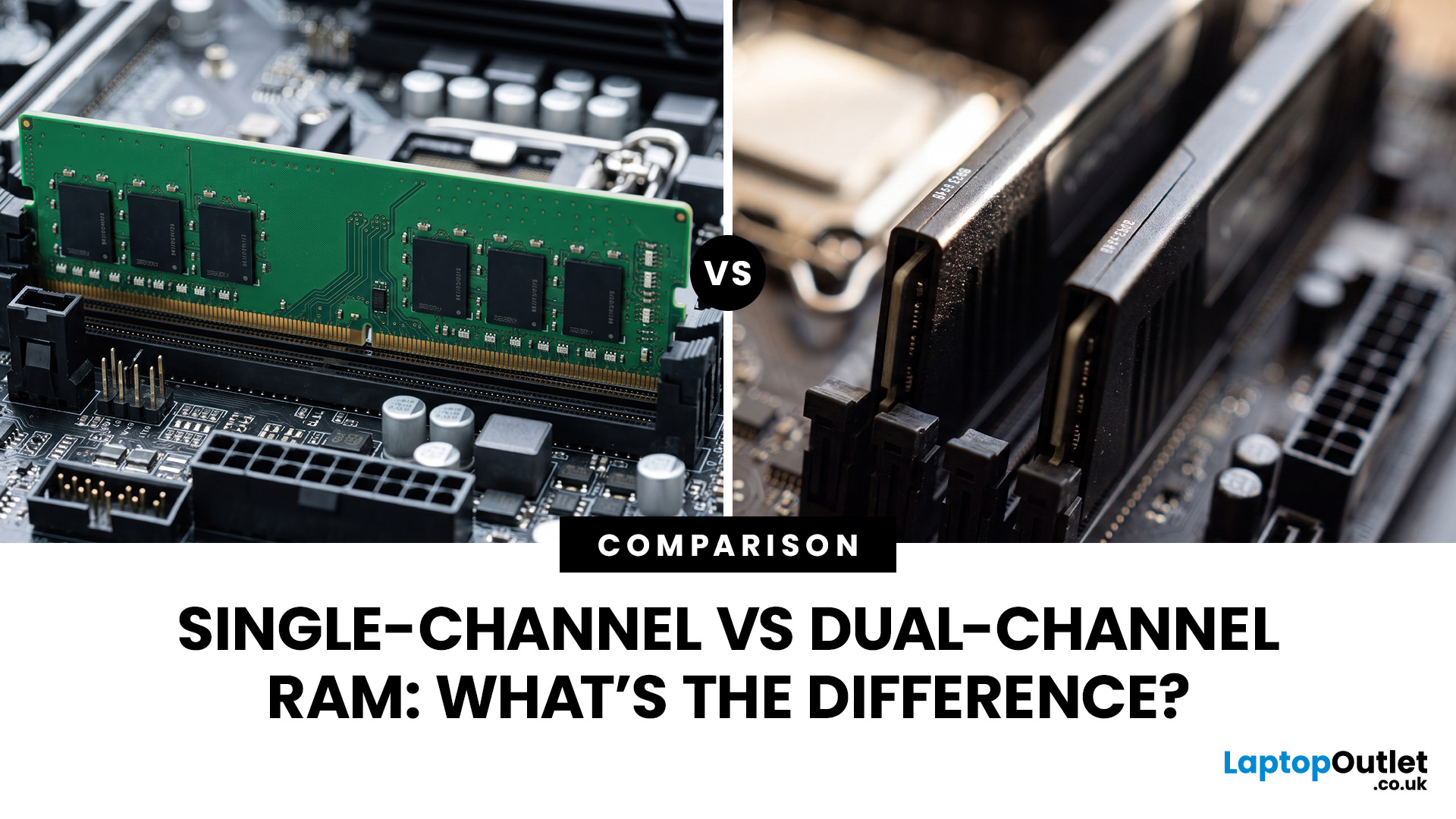
The difference between single channel vs dual channel RAM comes down to how the processor communicates with your system memory. Single-channel memory uses one system memory channel, while dual-channel memory uses two, allowing more data to move between the RAM and processor at the same time.
That extra memory bandwidth can improve performance in workloads that rely heavily on memory access. However, dual-channel RAM does not automatically make a desktop PC twice as fast. The difference you notice depends on the processor, graphics hardware, application and memory configuration.
If you are choosing new RAM and memory kits, understanding how channels work can help you decide whether one larger module or two smaller modules make more sense.
Single-Channel vs Dual-Channel RAM at a Glance
Here is the practical difference between the two configurations:
| Options | Single-Channel RAM | Dual-Channel RAM |
| System memory channels used | One | Two |
| Common configuration | 1x16GB | 2x8GB |
| Available memory bandwidth |

Last Updated: September 18, 2026
Installing RAM looks simple until you see four motherboard slots labelled A1, A2, B1 and B2. Put the memory in the wrong pair and your PC may still boot, but you might not be using the motherboard’s recommended memory configuration.
So, which RAM slots to use? On many four-slot desktop motherboards, a single stick goes in A2, while two sticks go in A2 and B2. With four compatible sticks, all four slots are populated. However, this is not a universal rule. Your motherboard manual should always take priority.
If you are upgrading capacity or building a PC, it is also worth checking that your RAM and memory modules are compatible with the motherboard before deciding where they go.
What Do A1, A2, B1 and B2 RAM Slots Mean?
Most mainstream desktop motherboards with four DIMM slots divide them between two memory channels, commonly called Channel A and Channel B.
The labels normally work like this:
| Slot | What the label usually means |
| A1 | First DIMM position on Channel A |
| A2 | Second DIMM position |

